How do I add videos?
1
Expand course items
Click the
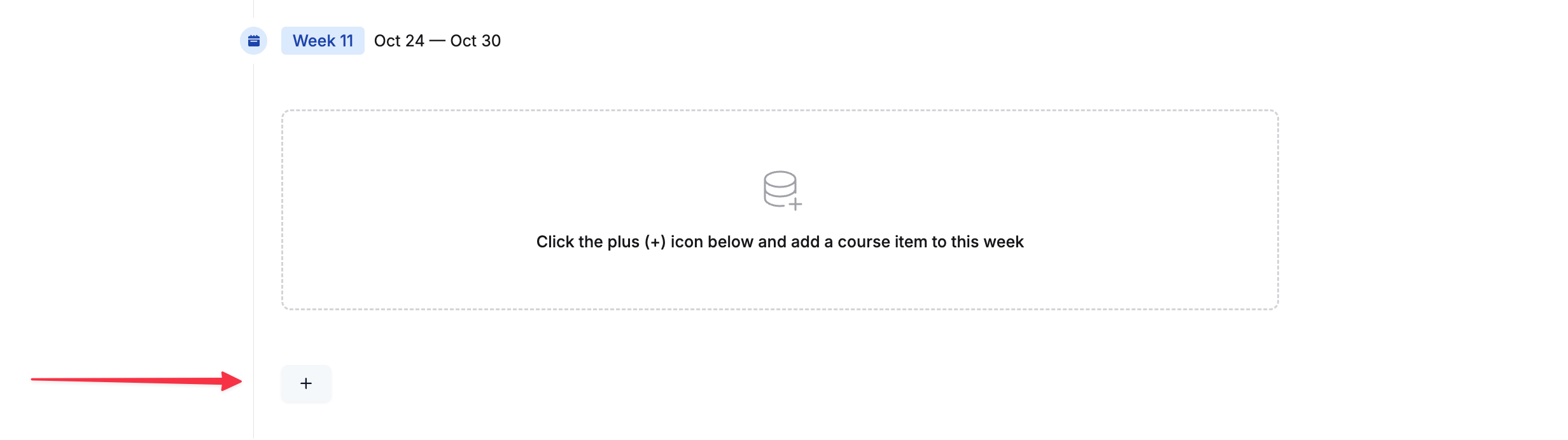
+ button to expand the course items’ view.2
Add a Video item
Click on
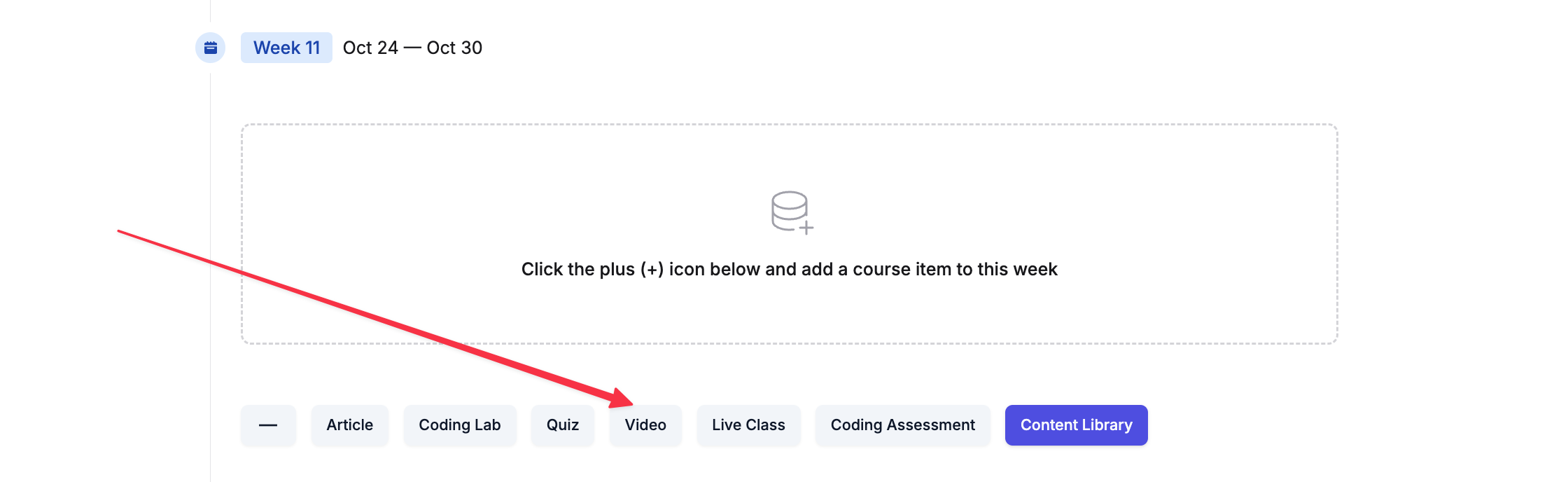
Video. This will add a video inside your chosen section.3
Attach a video
Click on

Attach Video in the newly added Video: Untitled course item.4
Edit video details and add a video
A modal will appear where you can edit the title, add a description, and select
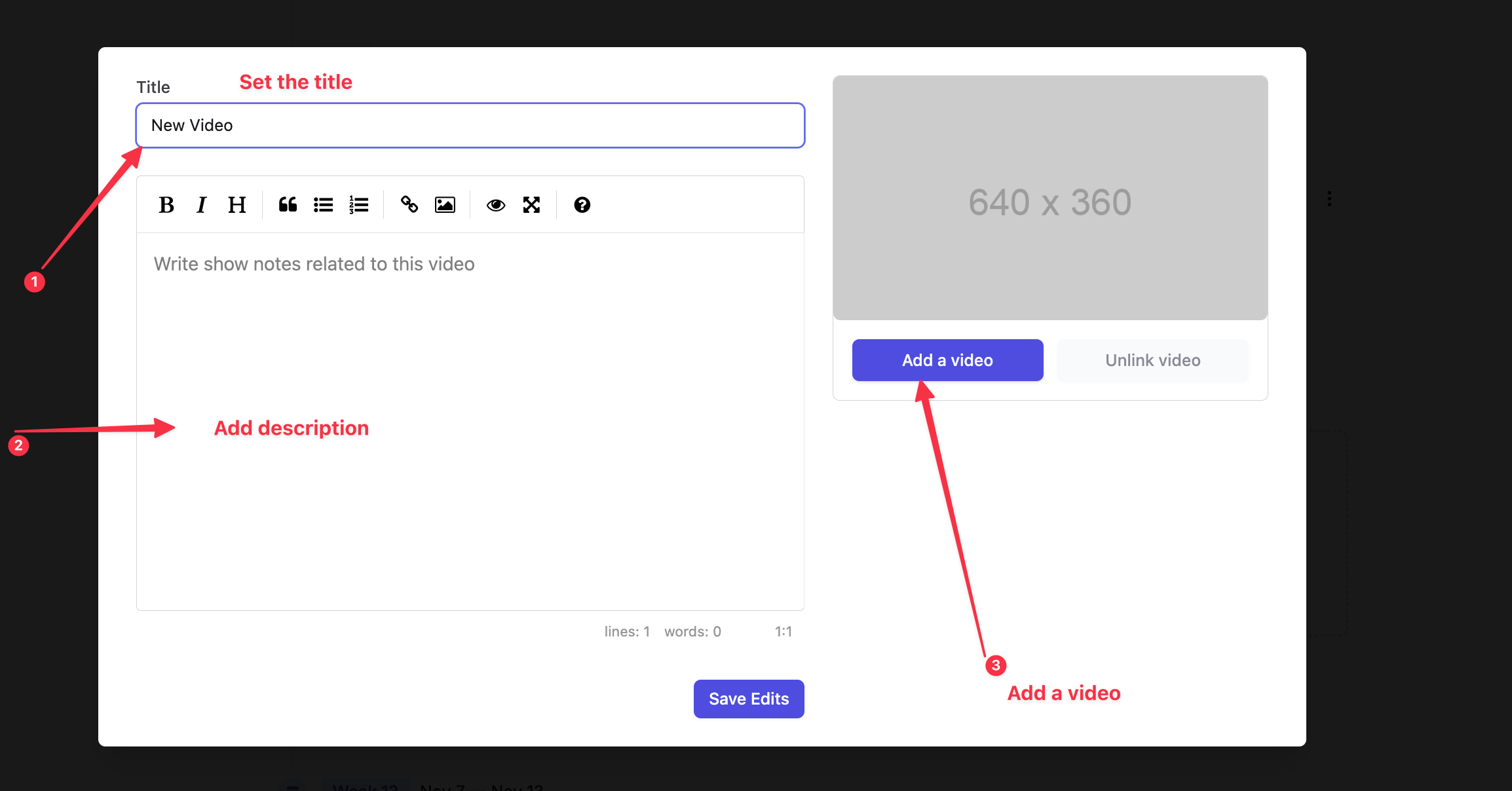
Add a video.5
Select or upload a video from your library
Click on
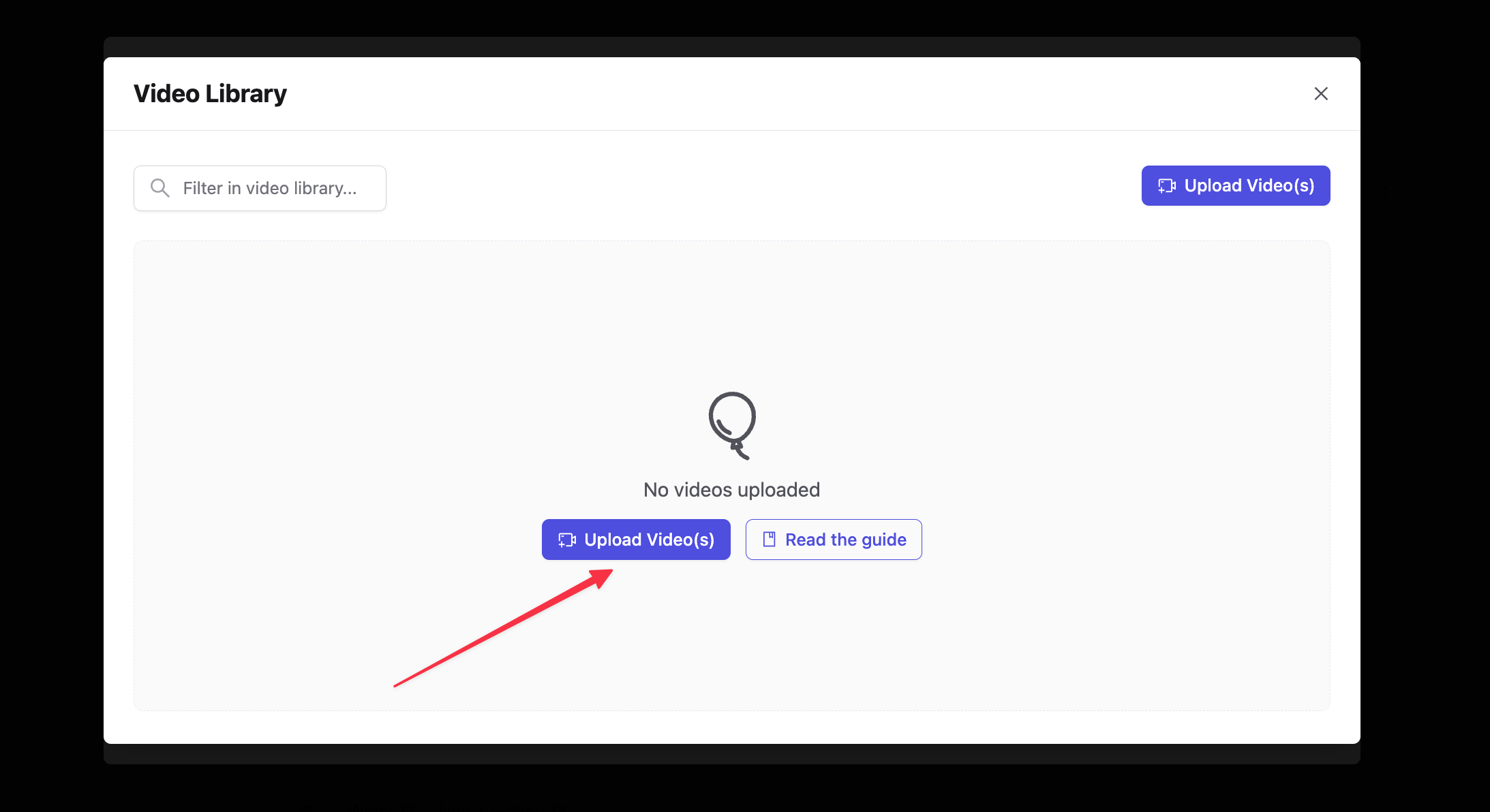
Add a video to open your video library. If there are no videos, use the Upload videos button to add videos in bulk.6
Process and link your video
After uploading, videos may take a few hours to process. Once processed, click
Link Video to attach it to your course item.7
Repeat as needed
You can add multiple pre-recorded videos within your course.
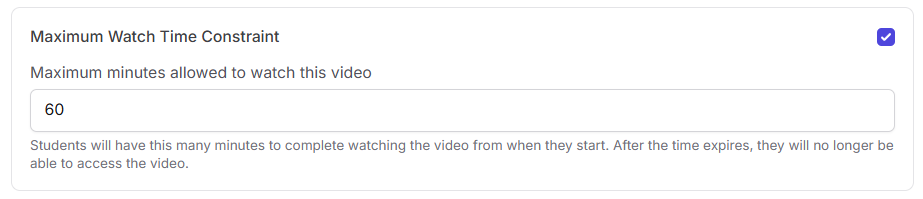
Maximum watch time constraint
The Maximum Watch Time Constraint feature sets a fixed time window for learners to complete watching a recorded video once they begin playback. For example, if the limit is set to 60 minutes, the learner must finish the video within that duration from the moment they start. After the allotted time expires, access to the video is automatically restricted. This feature is designed to encourage focused, distraction-free learning by ensuring that students watch the video in one sitting rather than pausing or revisiting it later.