How do I create a quiz?
1
Expand course items
Click the
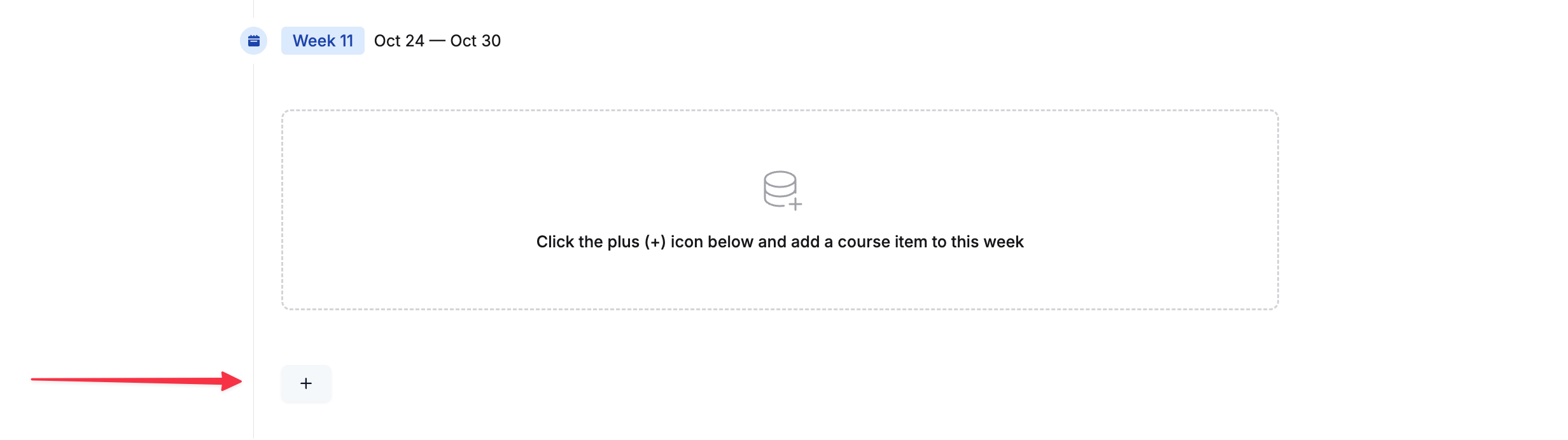
+ button to expand the course items’ view.2
Add a Quiz item
Click on
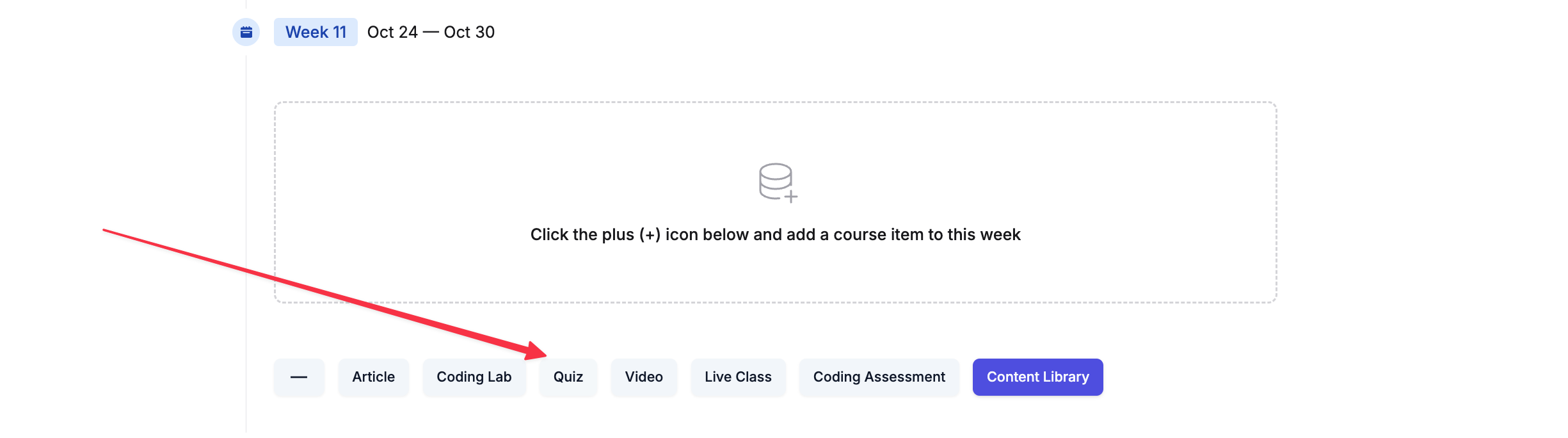
Quiz. This will add a quiz inside your chosen section.3
Edit the quiz
Click on the three dots of the new quiz (added as
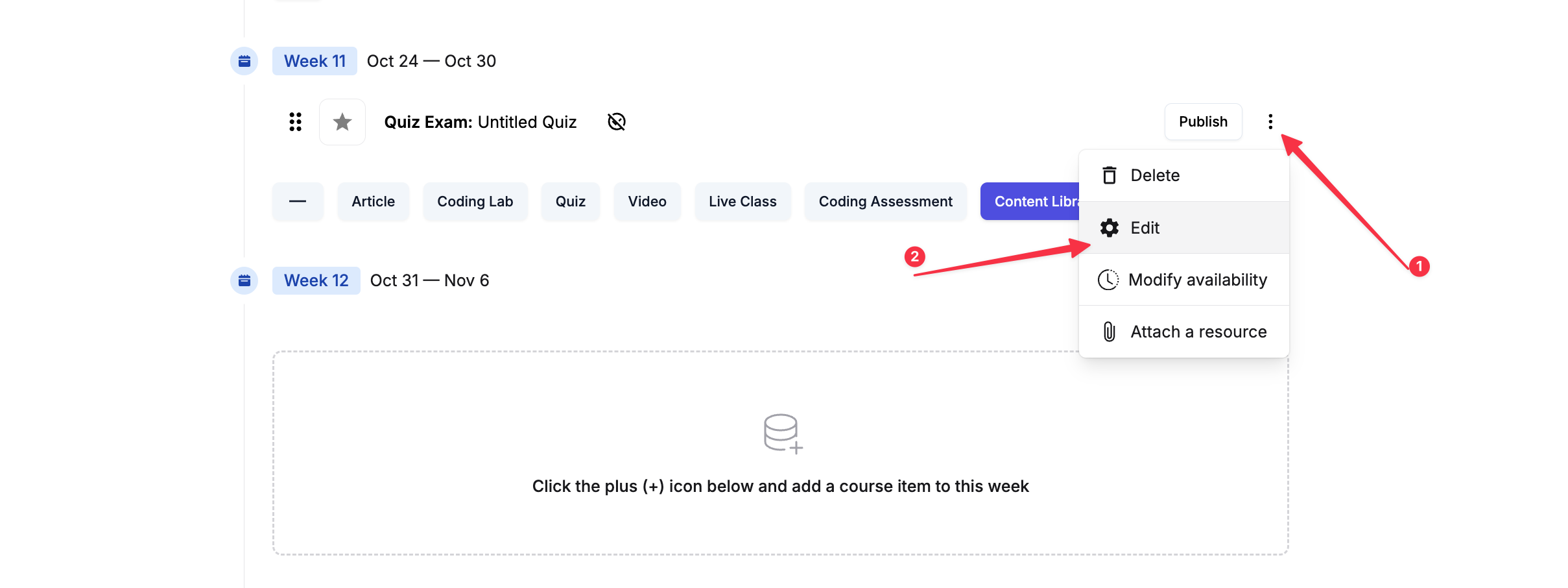
Quiz: Untitled quiz) and select Edit.4
Set up the quiz details
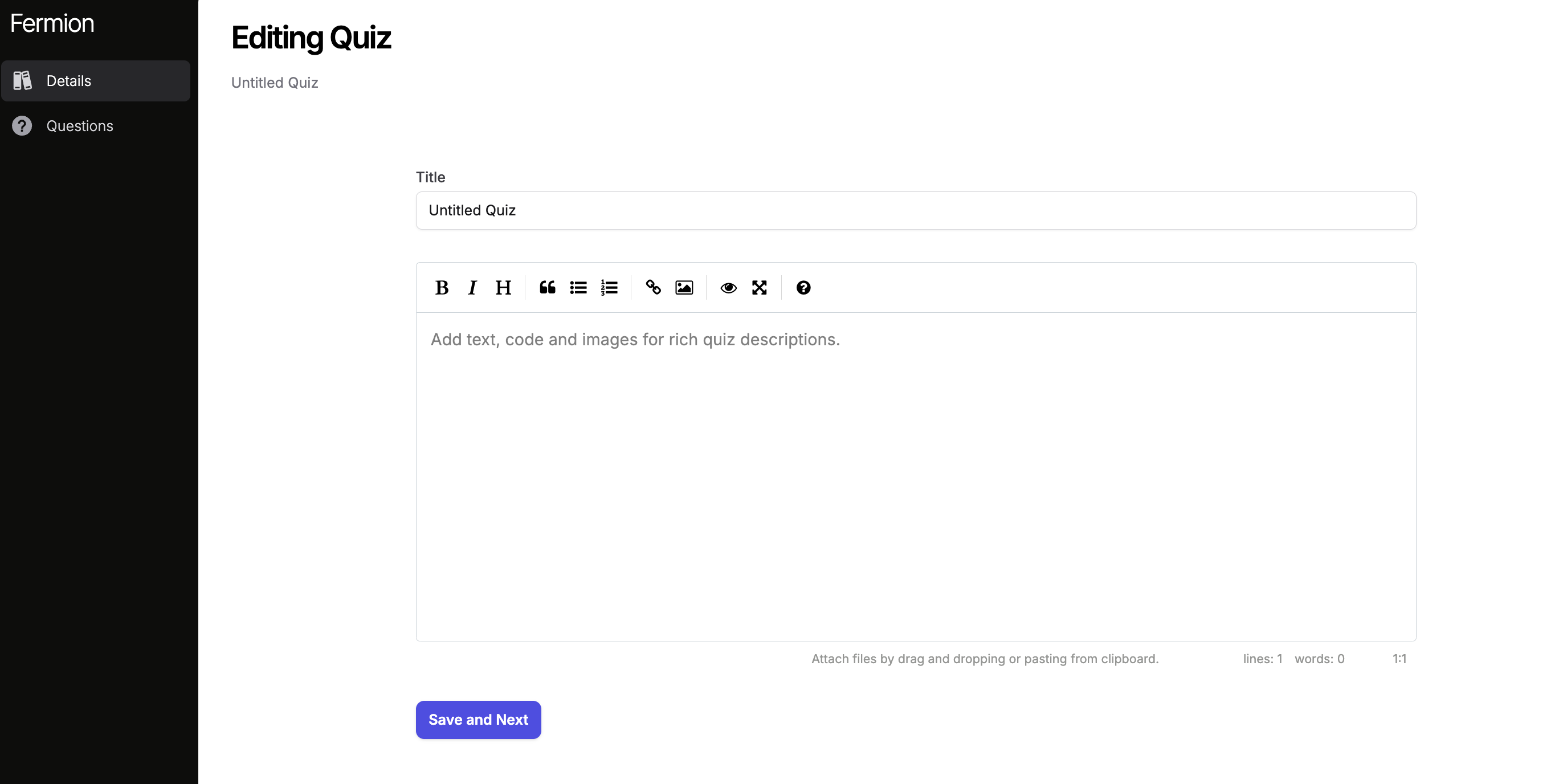
The quiz editor will open in a new tab. Here you can change the quiz title and add details. Make sure to save your changes.
5
Add questions
Go to the
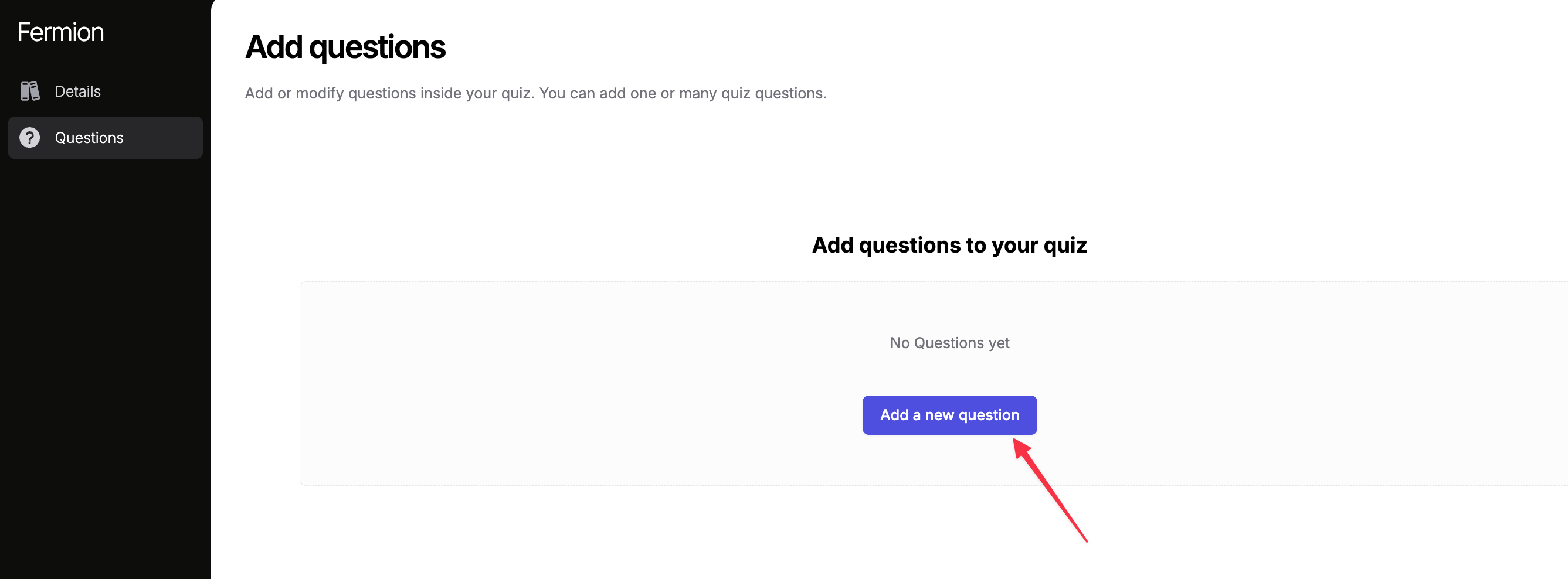
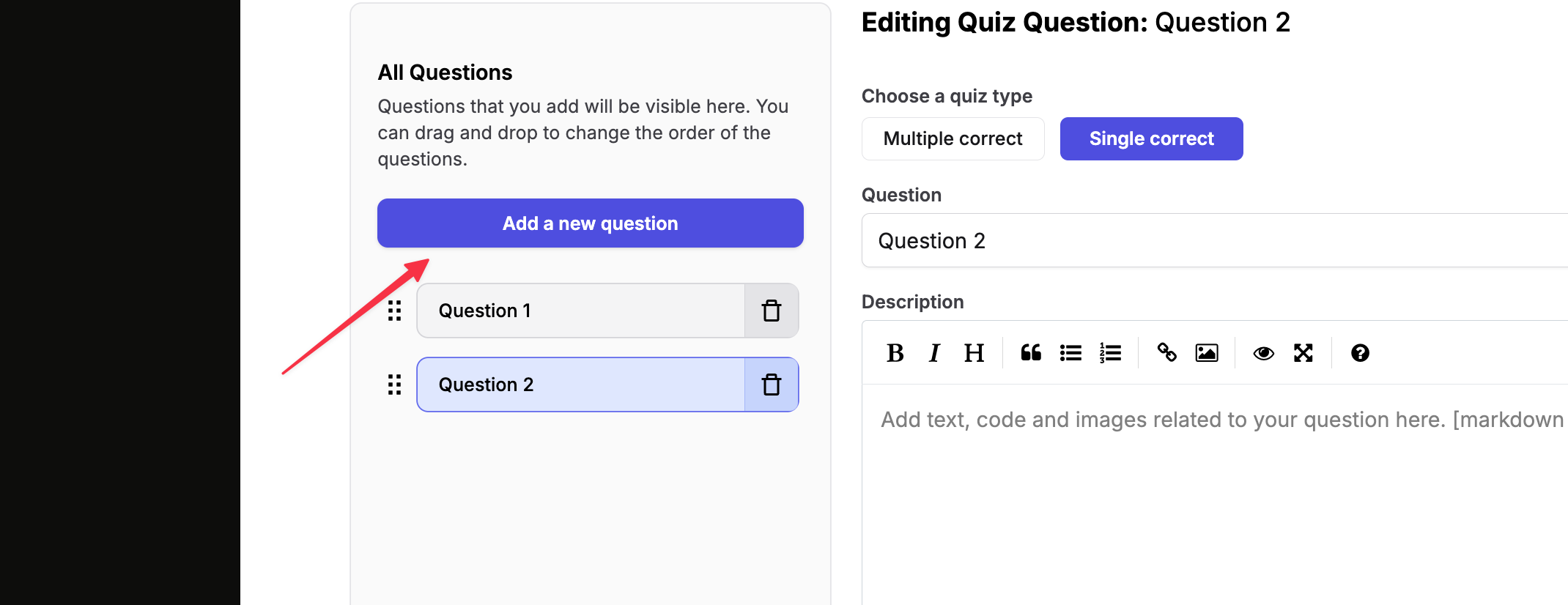
Questions tab and click Add a new question to create your first quiz question.6
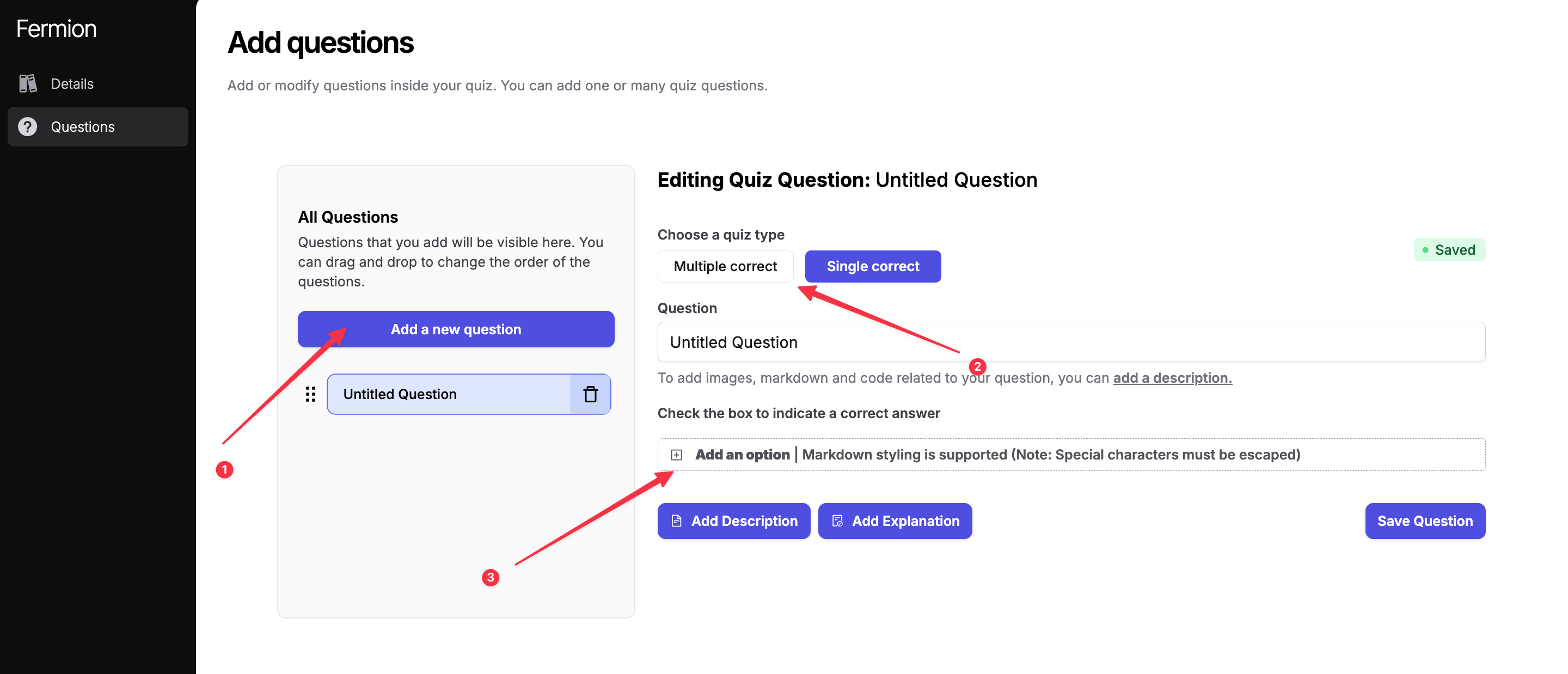
Configure question and options
After adding a new question, select its type, write the question, and enter multiple options. Mark the correct option(s) as needed.
7
Add description or explanation (optional)
You may also include a
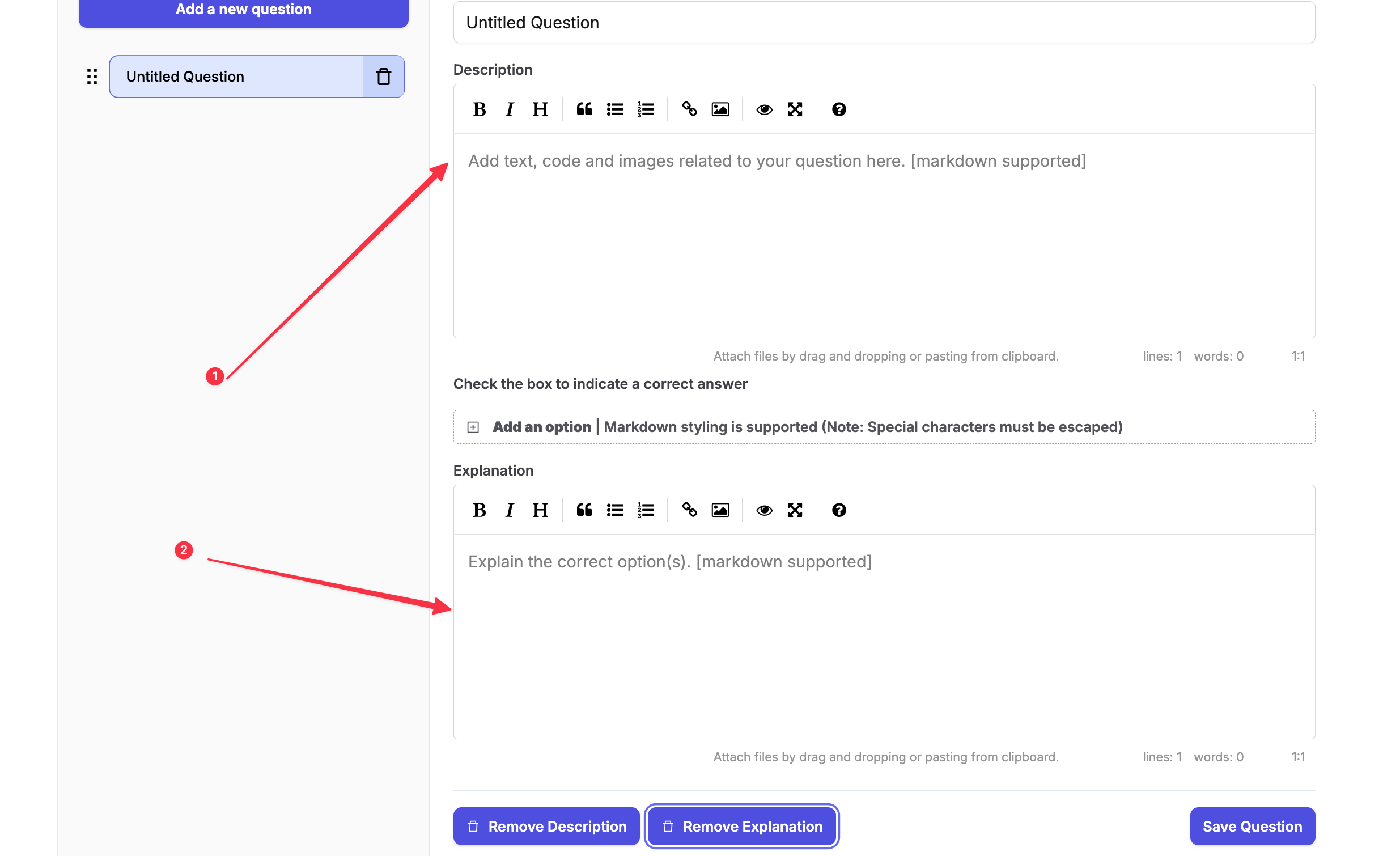
description or explanation for the question.8
Save and repeat
Save your question. You can add multiple questions to a single quiz.
How do I see quiz results and student submissions?
To review student performance on quizzes, follow these steps:1
Go to the Instructor Dashboard
Navigate to your Instructor Dashboard and open the course where you’ve added the quiz.
2
Open the Students tab
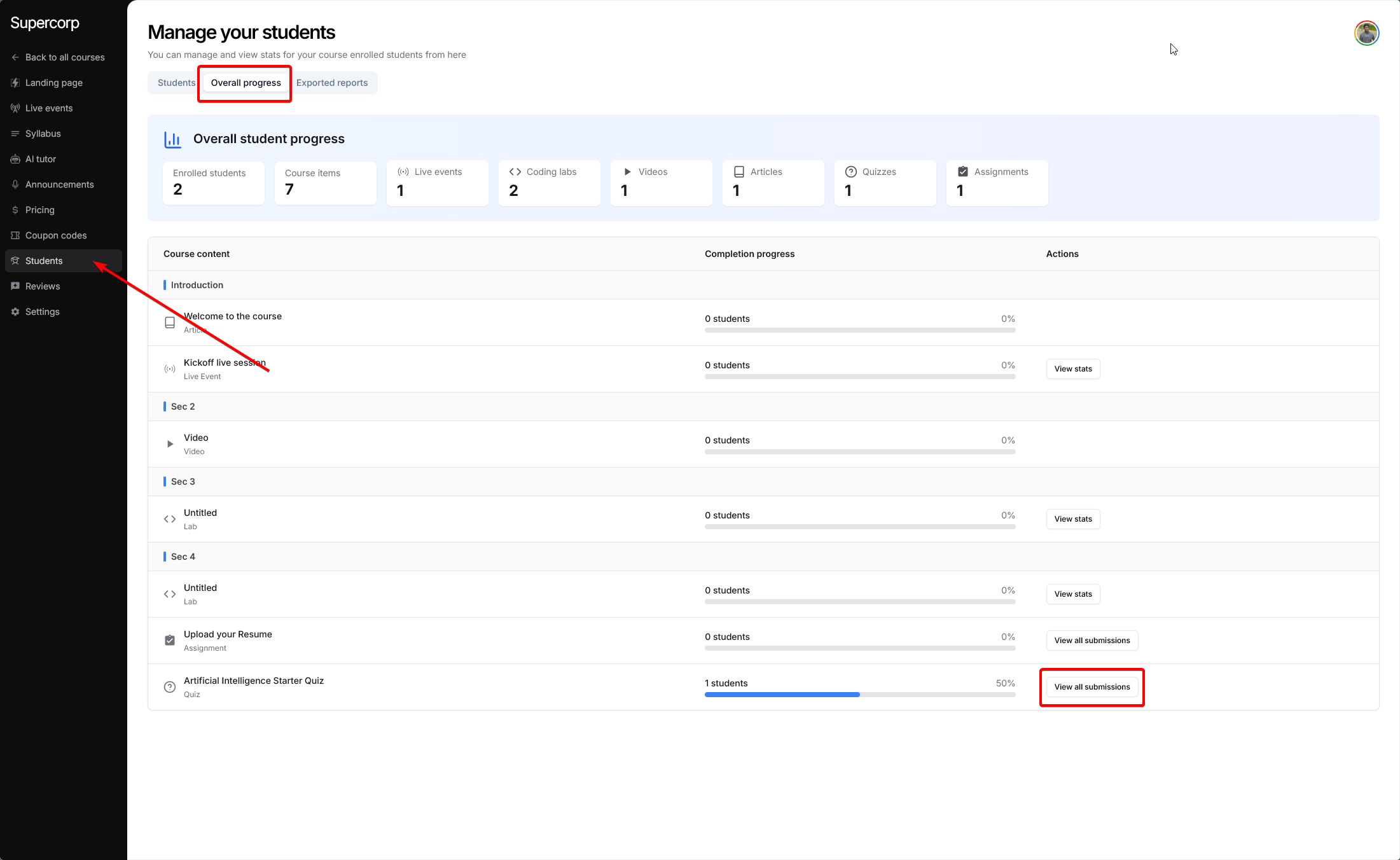
Inside your course dashboard, click on the Students tab in the sidebar. This tab shows you all enrolled learners.
3
Click on overall progress
Within the Students tab, click on Overall progress. Here, you’ll get a snapshot of student completion and activity across all course items, including quizzes.
4
View quiz submissions
Locate the quiz you want to review. Next to the quiz name in the list, click on View submissions.
5
Use the submissions page to filter and find students
You will be taken to the quiz submissions page.
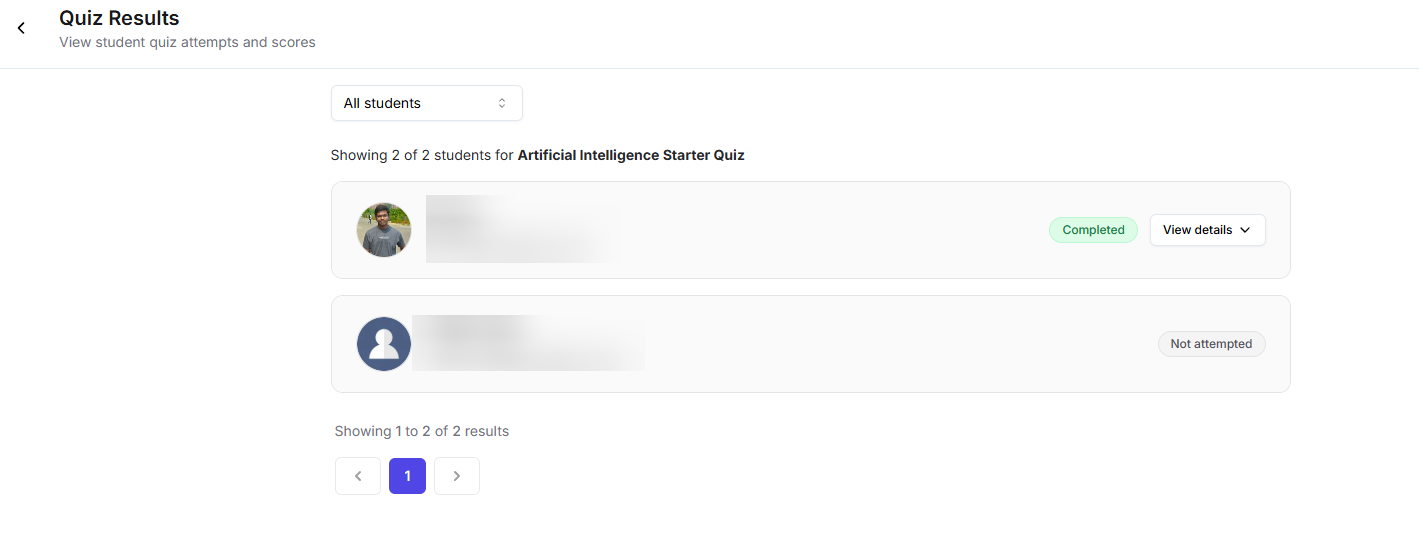
Here you can:
Here you can:
- See a list of all students.
- Filter the list by Attempted or Not Attempted to quickly find who has completed the quiz.
6
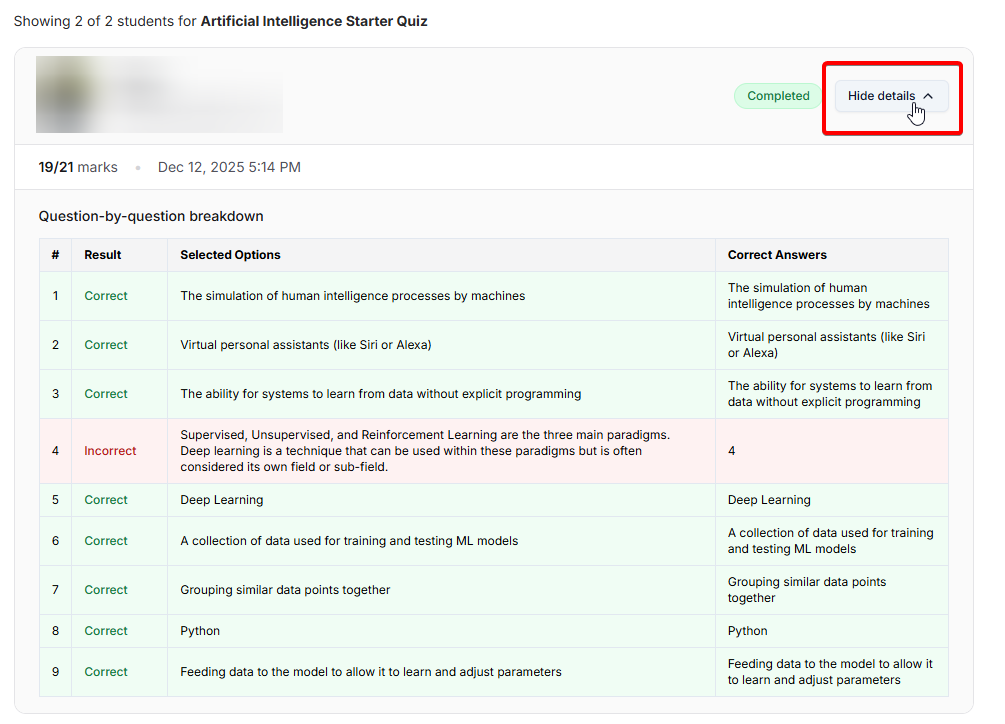
Expand a student's submission for full details
Click on any student’s name to expand their submission.