
How AI Builder Works
The AI Builder uses advanced language models to understand your requirements and generate complete, functional landing pages. You can:- Describe your page in natural language
- Let the AI generate the complete page structure and design
- Refine the page with real-time data integration
- Add direct checkout links with proper interlinking
- Customize the page path and publish instantly
1
Navigate to Custom Pages
From your instructor dashboard, navigate to Pages & redirects and then click on Custom pages.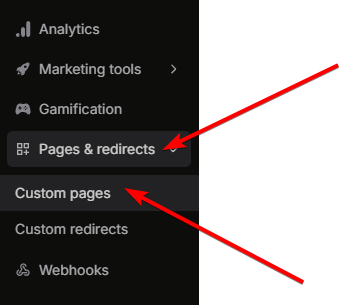
2
Click on Edit Website with AI
Click on the Edit website with AI option to open the AI Builder interface.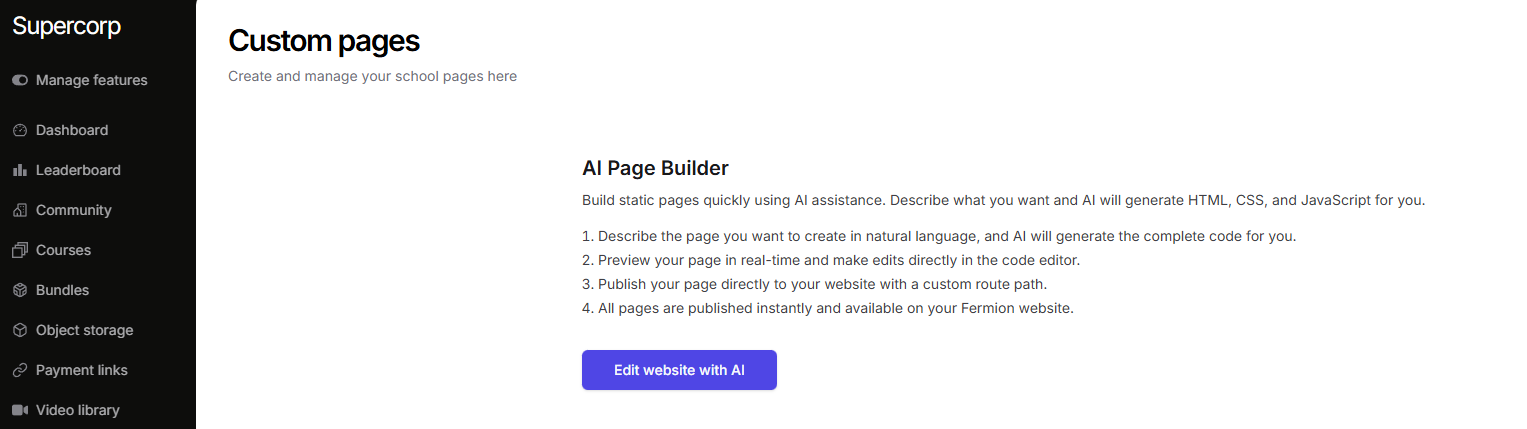
3
Interact with the AI
Describe the type of landing page you want to create. You can specify: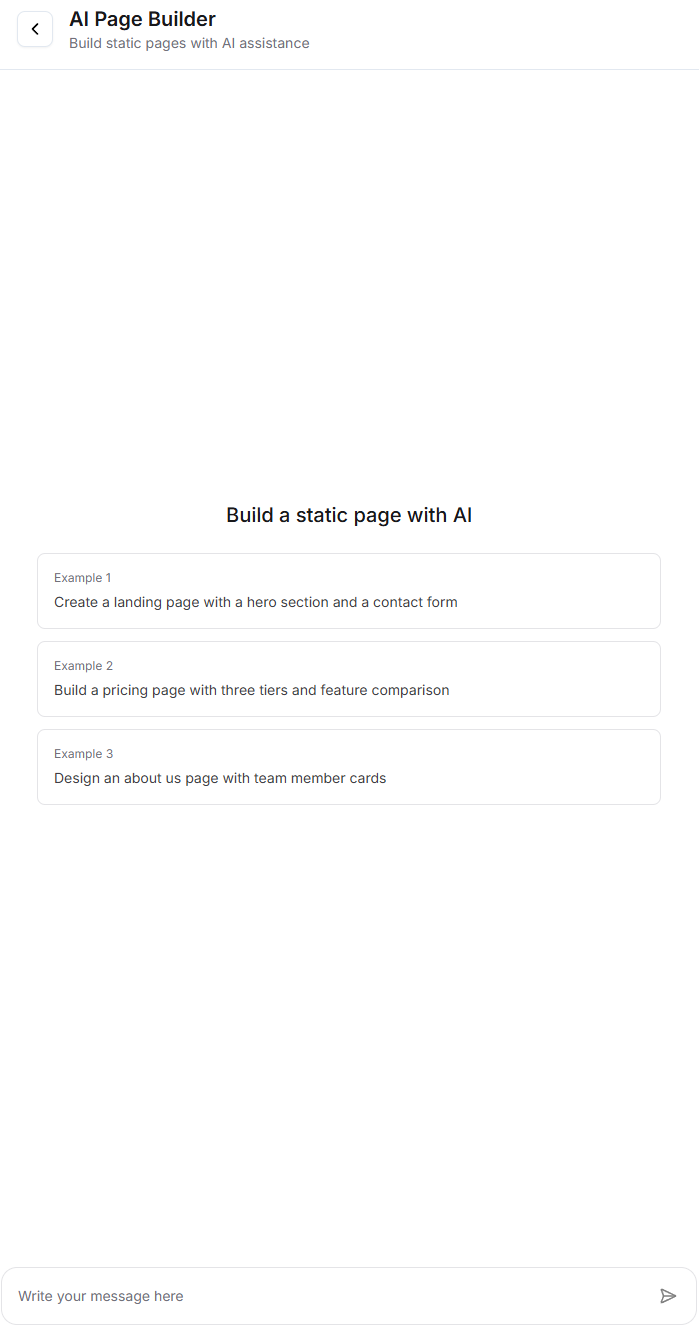
- The purpose of the page (e.g., course landing page, product sales page)
- The design style you prefer
- Key sections you want to include
- Any specific features or elements
4
Wait for AI to Build Your Page
The AI will process your request and generate a complete landing page. This may take a few moments as the AI creates all the necessary HTML, CSS, and JavaScript code.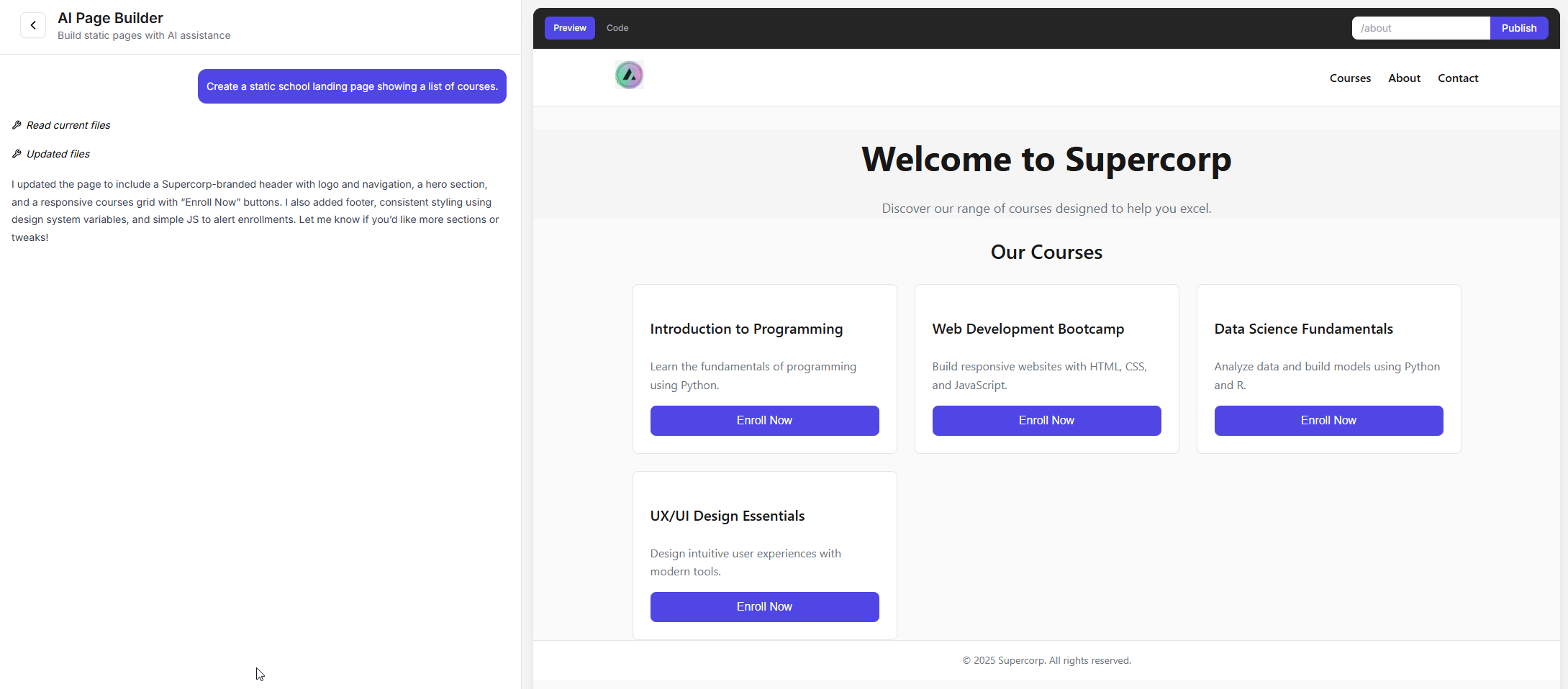
5
Refine Your Page
Once the AI has generated your page, you can refine it by: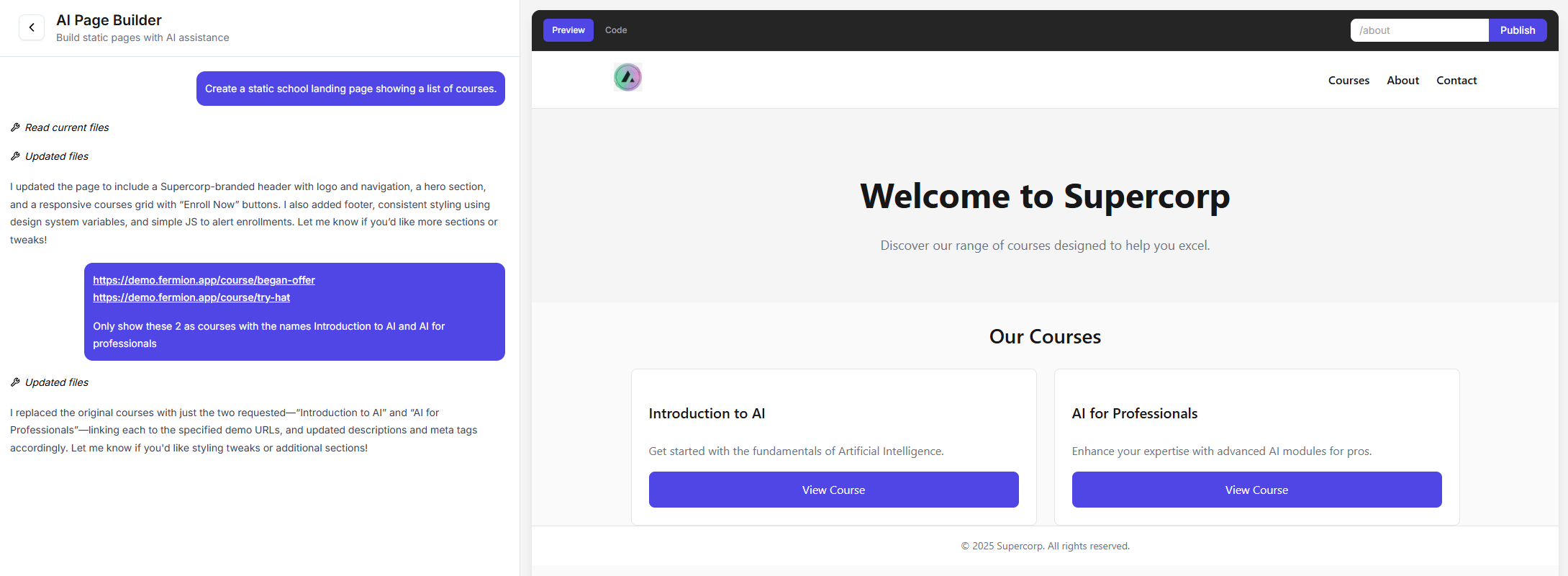
- Adding real-time data integration
- Adding direct checkout links with proper interlinking
- Customizing the design and layout
- Adjusting content and messaging
You can add direct checkout links using the format
/api/buy-digital-product?product-slug=YOUR_PRODUCT_SLUG. For more details on checkout links, see the Direct Checkout Links guide.6
Add a Custom Path
Assign a custom path to your page (e.g., 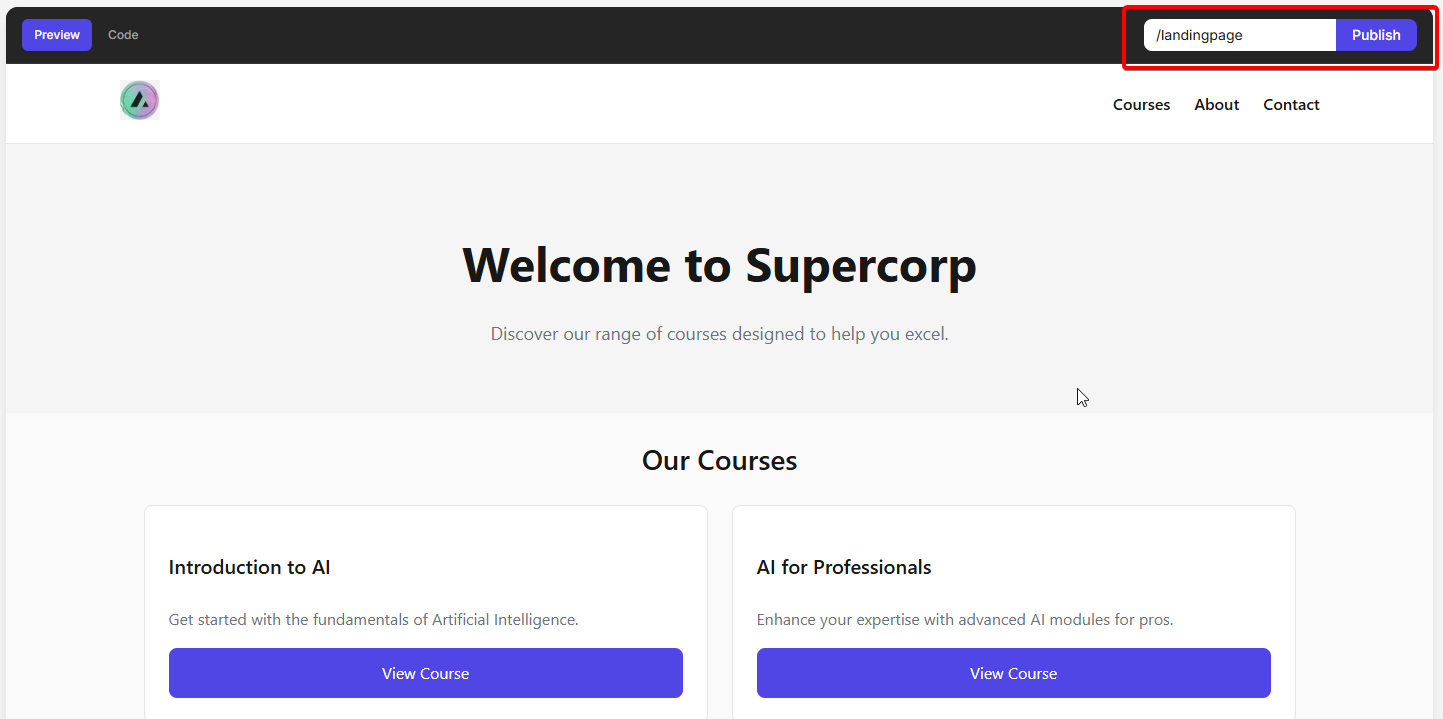
/landingpage, /course-intro, /product-sales). This will be the URL where your page will be accessible.7
Publish Your Page
Click on the Publish button to make your page live. Once published, your page will be accessible at the custom path you specified.
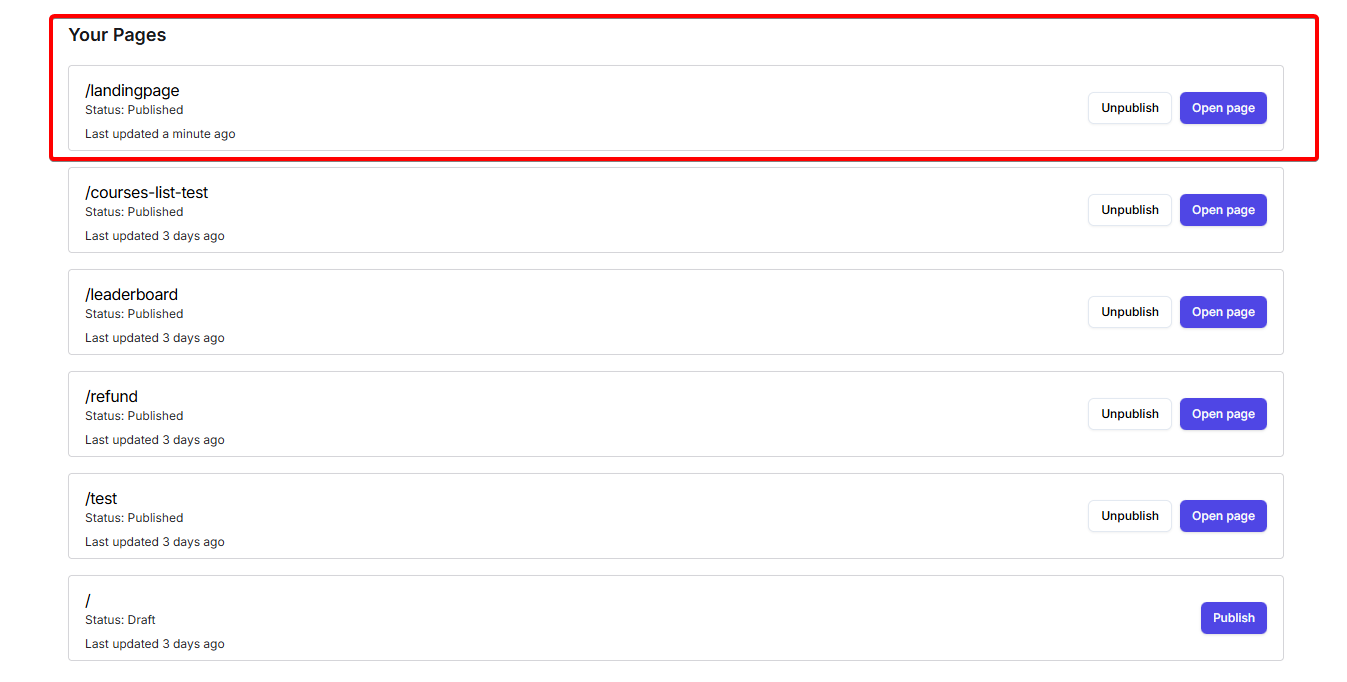
Managing Published Pages
Once your page is published, you can:- View the page: Click to see how your page appears to visitors
- Unpublish the page: Temporarily remove the page from public access without deleting it
- Edit the page: Make further refinements and republish
Best Practices
- Be specific in your AI prompts: The more details you provide about what you want, the better the AI can generate your page
- Test checkout links: Always verify that direct checkout links work correctly before publishing
- Review the generated code: While the AI generates functional code, you may want to review and customize it further
- Use meaningful paths: Choose descriptive paths that reflect the purpose of your page
- Iterate and refine: Don’t hesitate to ask the AI to make adjustments or regenerate sections
Next Steps
Direct Checkout Links
Learn how to integrate direct checkout links into your AI-generated pages for seamless purchase flows.
Using Source Code
For advanced customization, learn how to upload and manage custom HTML/CSS/JavaScript source code.