
1
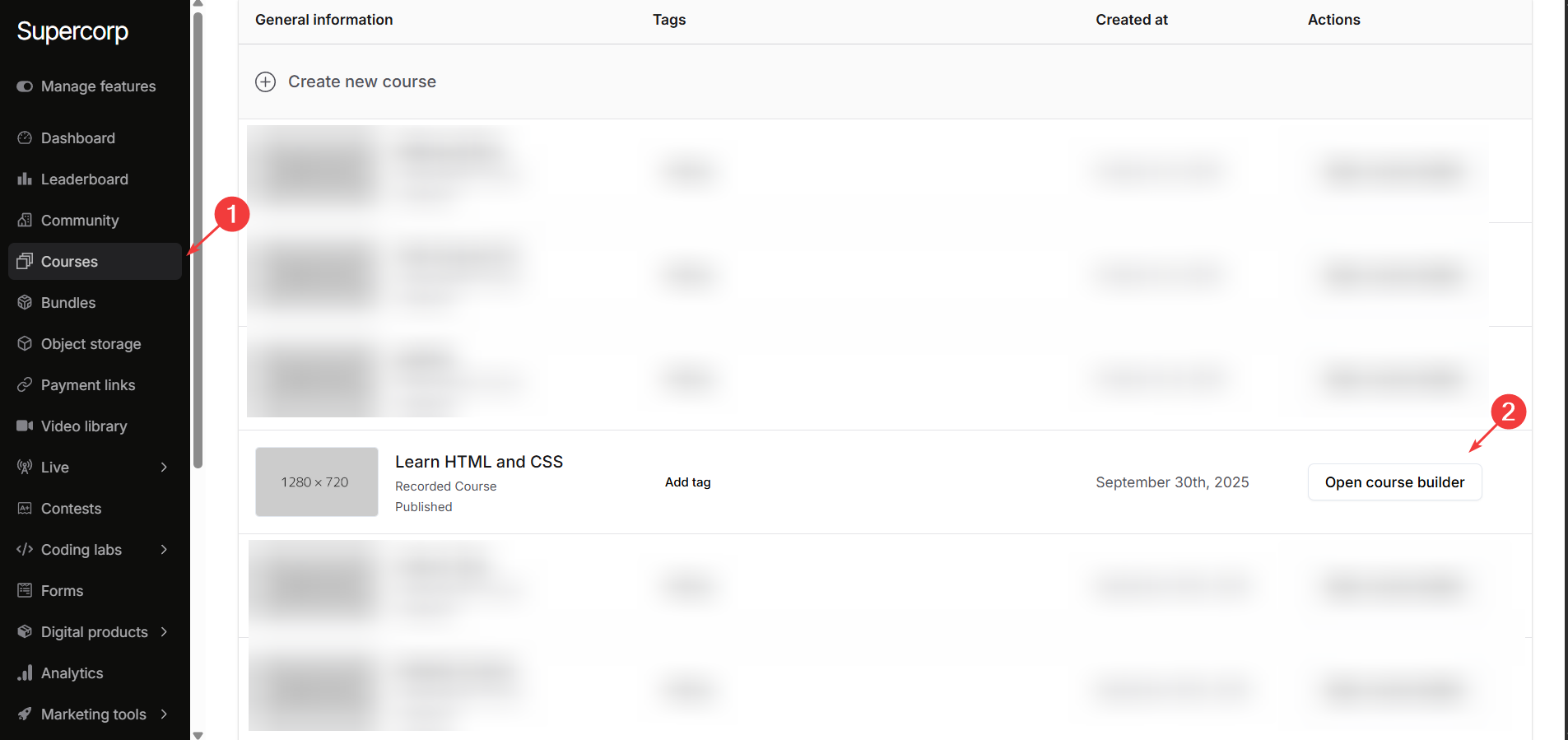
Open the Course Builder
- Go to your Instructor Dashboard → Courses → Open Course Builder.
- Select the course where you want to link your eBook.
2
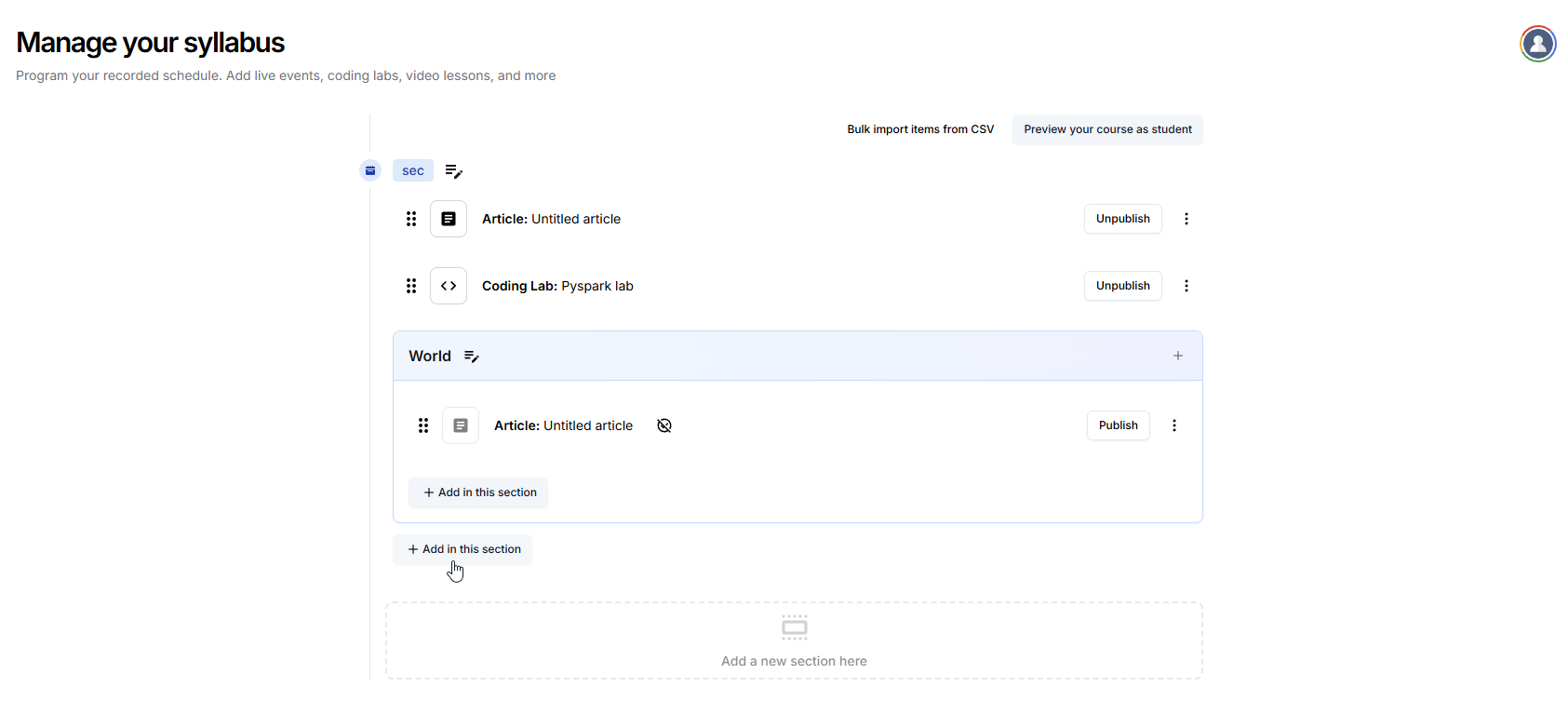
Navigate to Syllabus Tab
- In the course builder, go to the Syllabus tab.
- Identify the section where you want to add the eBook.
3
Add eBook to Section
- Click Add in this section for the chosen section.
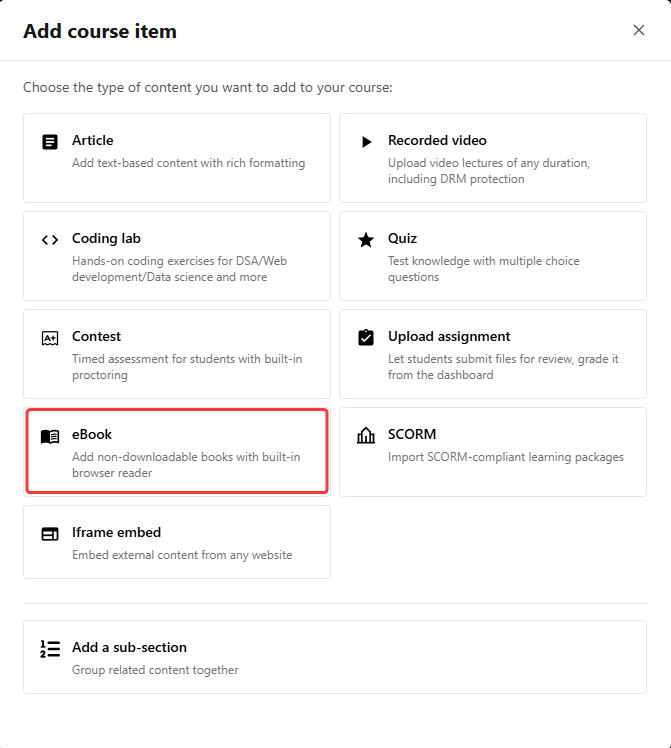
- Select the eBook option in Add course item modal.
4
Upload or Link eBook Directly
You can upload a new eBook or link a preexisting one directly from the Select eBook to add section.To link an existing eBook: Choose one from the list and click Link with course item.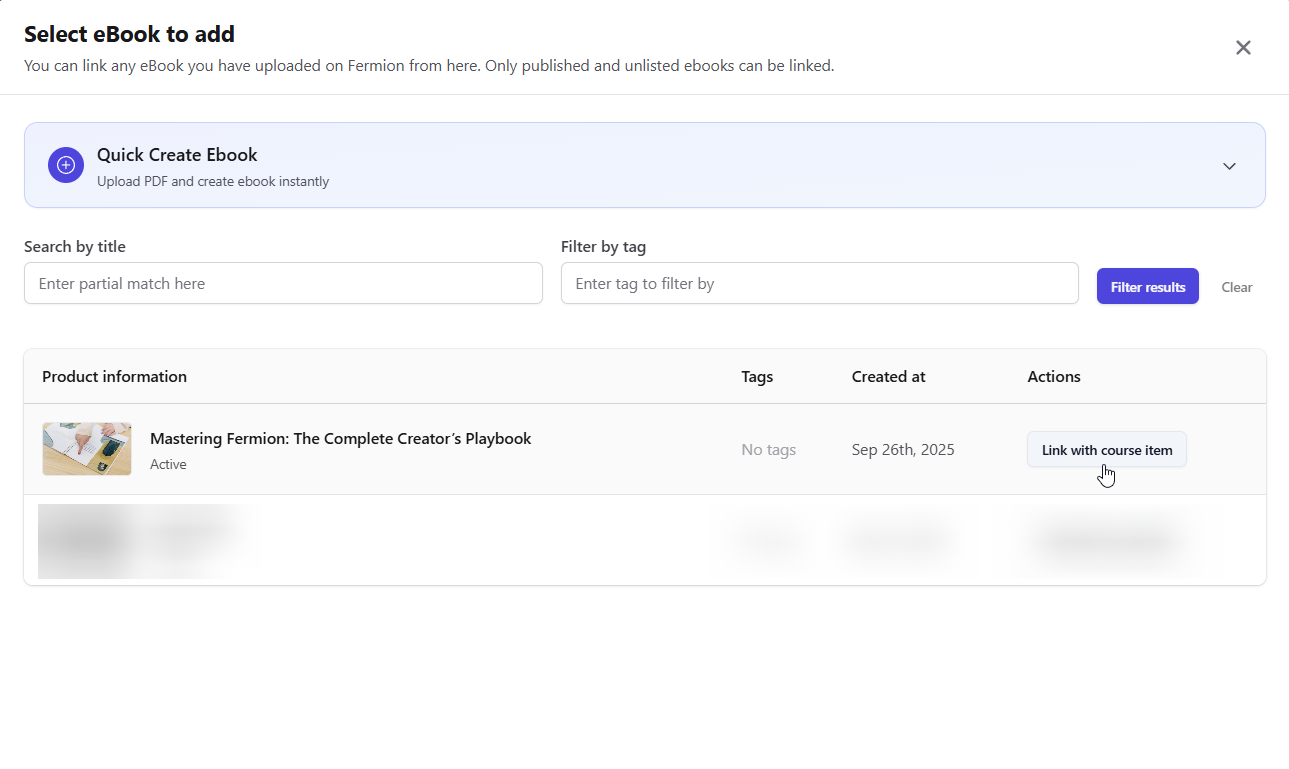 To upload a new eBook: Click Quick Create eBook, enter the eBook title, and upload your PDF file.
Once uploaded, click Create Ebook to make it available for linking. This eBook will be created in an unlisted state.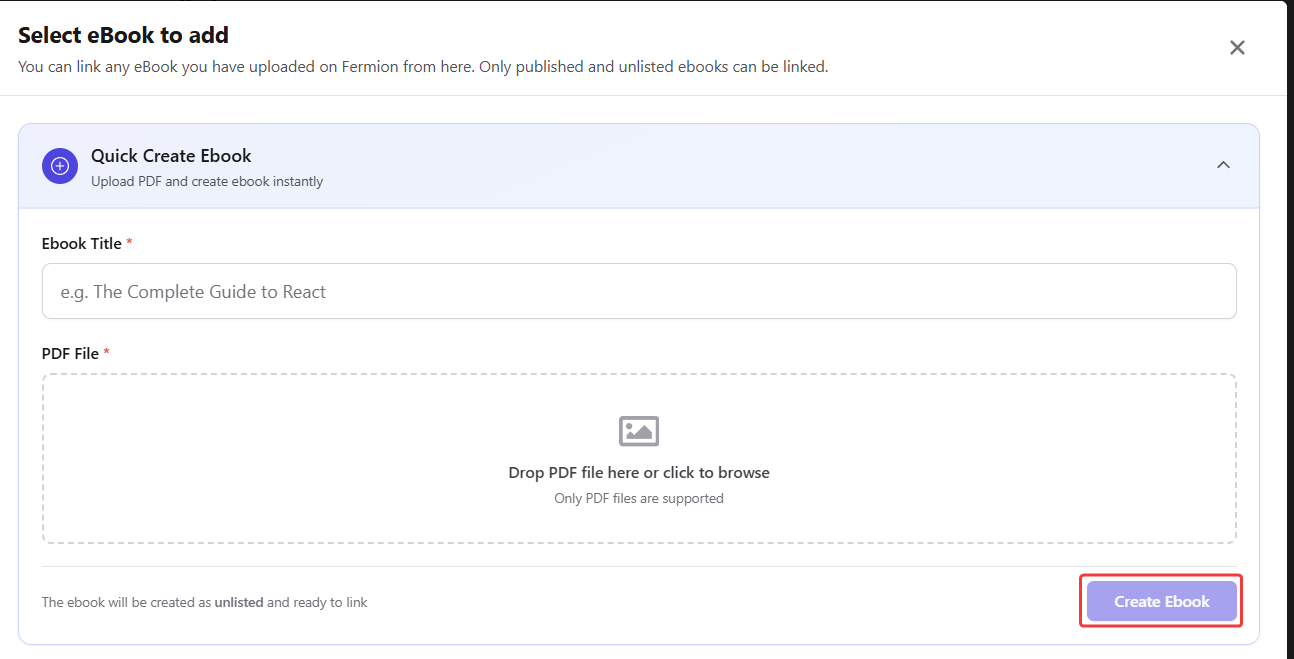
To upload a new eBook: Click Quick Create eBook, enter the eBook title, and upload your PDF file.Once uploaded, click Create Ebook to make it available for linking. This eBook will be created in an unlisted state.
5
Access eBook Inside the Course
Once linked:
- Students enrolled in the course can open the eBook directly from the course dashboard.
- Any updates to the eBook (like new versions) are reflected automatically for all students.
Linking eBooks to courses ensures a smooth experience for students and helps you bundle content efficiently. To enroll specific students outside of a course, refer to Enroll Students.