The Billing page gives you a centralized view of your subscription plan, real-time usage across all platform metrics, and a complete transaction ledger. Use this page to stay informed about your plan limits, track how much of each resource you’ve consumed, and review every financial transaction — including sales, refunds, subscription charges, and overages.

Accessing the billing page

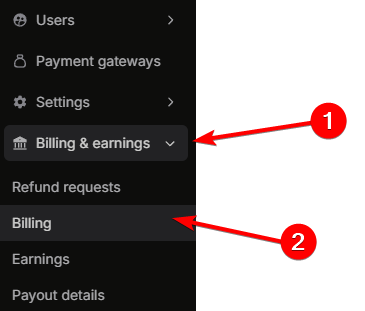
To open the Billing page:
1

Open instructor dashboard

Log in to your instructor account and navigate to your Dashboard.
2

Navigate to Billing & earnings

In the sidebar, click Billing & earnings to expand the available configuration options.
3

Select Billing

Click Billing to open the full configuration panel.
Current plan

The top section of the billing page displays your active subscription plan. The header shows your plan name (e.g., Fermion Pro (Monthly)) along with the subscription date range (e.g., 01 Oct 2025 – Forever). This section is organized into two tabs:

Plan details

The Plan details tab shows a summary of your plan’s pricing and billing terms, followed by a full breakdown of included usage limits and overage rates.

Plan summary

FieldDescription
Base amountThe recurring subscription price for your plan (e.g., INR 4,999).
Cycle durationThe length of each billing cycle (e.g., 30 days).
Grace periodThe number of days after a cycle ends before overages are finalized and charged (e.g., 7 days).

Usage metrics

The usage metrics table lists every metered resource included in your plan, with the amount included per billing cycle and the overage rate charged when usage exceeds the included limit.
MetricIncludedOverage
Bandwidth1 TB20 USD per 1 TB
DRM5000 playbacks4 USD per 1000 playbacks
Storage100 GB2.5 USD per 100 GB
Interactive Lab1000 hours0.06 USD per 1 hour
DSA Lab50000 runs1 USD per 3000 runs
Email3000 emails0.5 USD per 1000 emails
AI Usage1 US Dollar1 USD per 1 US Dollar
Instructor Count10 individual count5 USD per 1 individual count
Edge Request10 million requests0.5 USD per 1 million requests
SMS India100 SMS1 USD per 100 SMS
AI Transcription Usage5 hours0.3 USD per 1 hour
When usage exceeds your plan’s included limit for any metric, overage charges are applied automatically at the rates shown above.

Billing cycles

The Billing cycles tab shows a chronological history of all your past and current billing cycles. Each row in the table displays:
ColumnDescription
CycleThe sequential billing cycle number.
StartThe start date of the billing cycle.
EndThe end date of the billing cycle.
Invoice IDThe unique identifier for the invoice generated for that cycle.
StatusThe current state of the invoice — Completed (paid) or Pending (awaiting payment).
ActionsAn Open invoice button to view or download the invoice.
When an invoice has a Pending status, you can pay for it directly from this tab by clicking the action button next to the invoice. This allows you to settle outstanding invoices without leaving the billing page.
If you wish to upgrade or change your plan, please contact support@codedamn.com for available options and pricing tiers.

Current cycle usage

Below the current plan section, the Current cycle usage panel shows your real-time consumption for the active billing cycle. It displays your plan name and the cycle date range (e.g., Fermion Pro (Monthly) · Mar 1, 2026 – Mar 31, 2026). Each metric row shows:
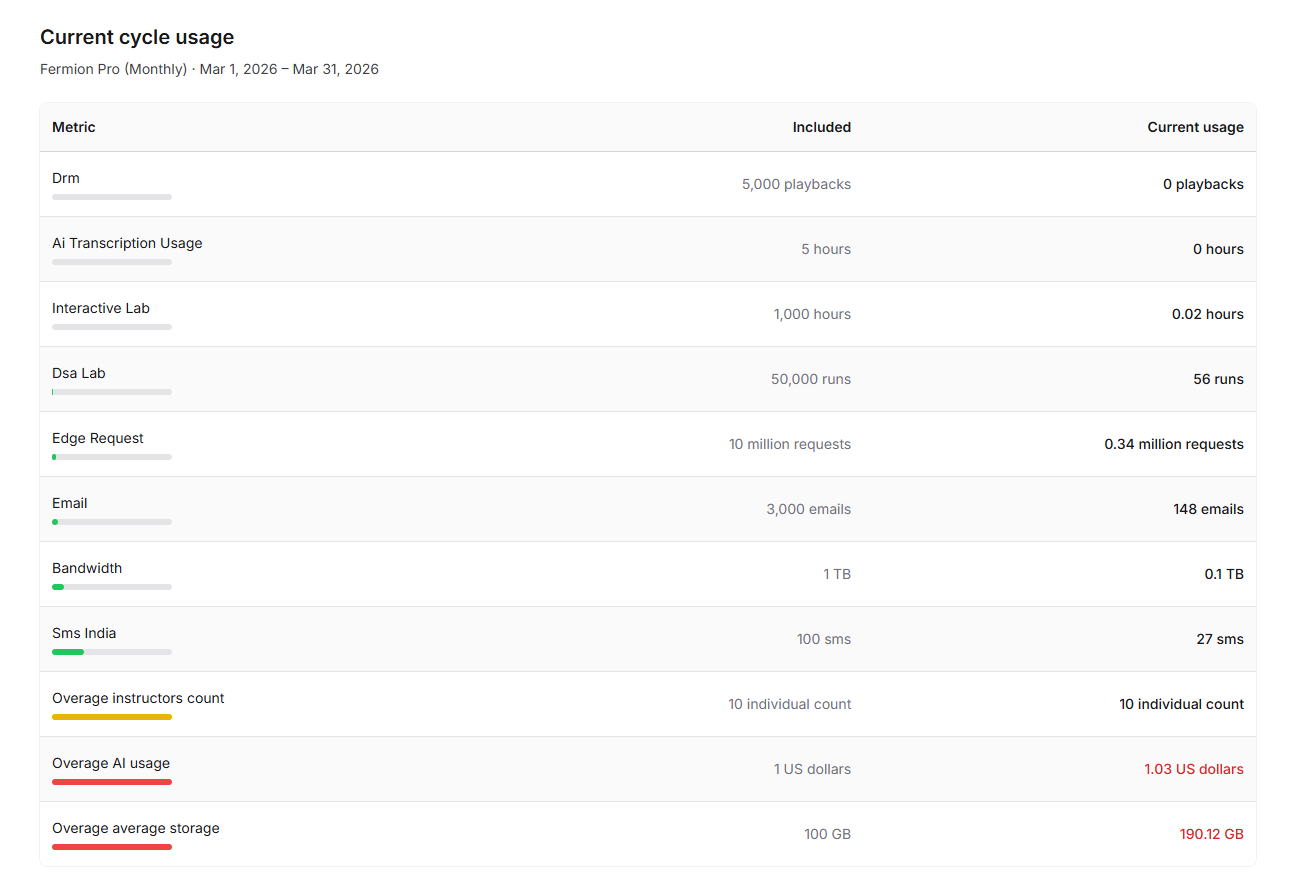
  • Metric name: The resource being tracked (e.g., DRM, Interactive Lab, Email, Bandwidth).
  • Included: The amount included in your plan for the current cycle.
  • Current usage: How much you have consumed so far.
  • Progress bar: A visual indicator of consumption — displayed in green when within limits, orange when approaching the limit, and red when usage exceeds the included amount (overage).
Metrics shown in red with usage exceeding the included limit indicate active overages. These will be charged at the overage rates listed in your Plan details.

Transaction ledger

The transaction ledger provides a chronological record of all transactions happening on your account — including student purchases and refunds. Each row in the ledger displays the following columns:
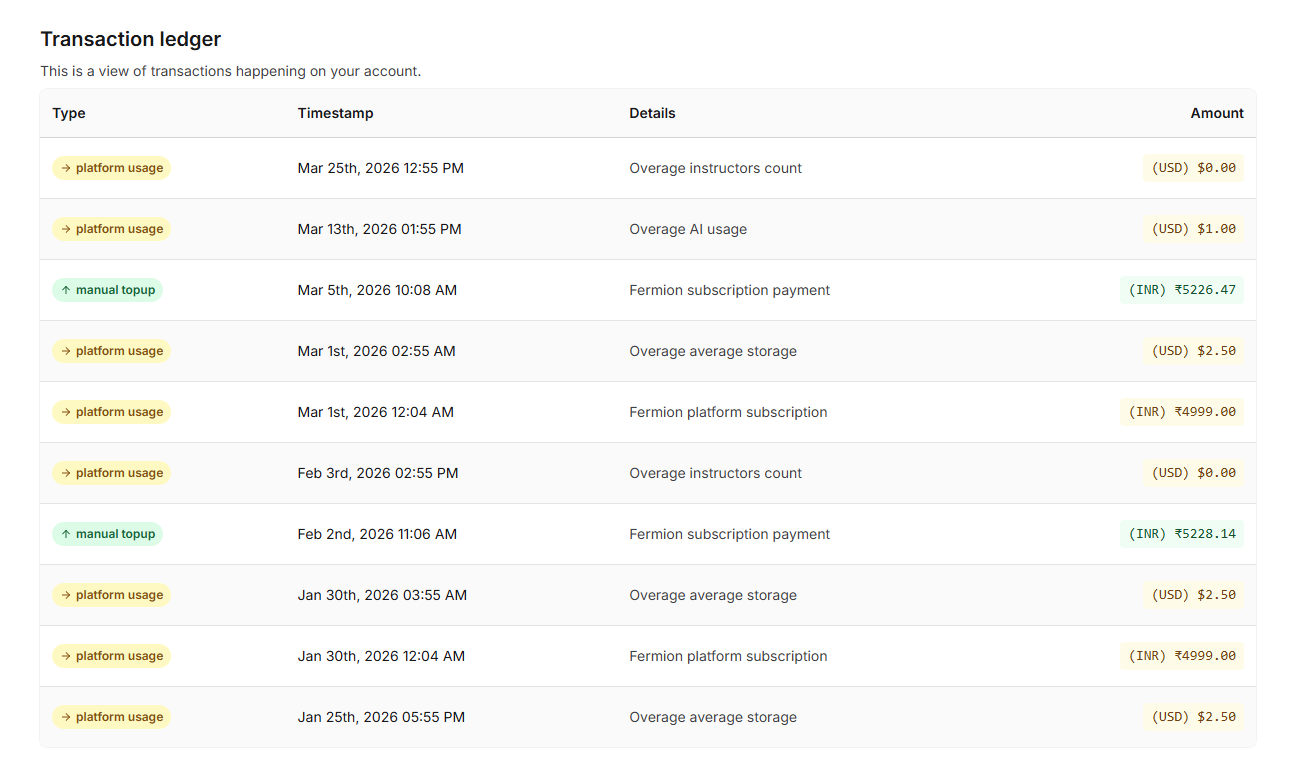
ColumnDescription
TypeThe kind of transaction — user sale (shown in green with an ↑ arrow) or user refund (shown in red with a ↓ arrow).
TimestampThe exact date and time the transaction occurred (e.g., Mar 4th, 2026 06:29 PM).
DetailsThe payment gateway used for the transaction (e.g., UPI, Razorpay, PayPal, Stripe) along with the user’s email address. Refunded transactions display a Refunded badge next to the gateway.
AmountThe transaction amount with currency (e.g., (INR) ₹8,939.94).

Transaction types

TypeDescription
User saleRevenue collected from a student purchasing a course, bundle, or digital product. Displayed in green.
User refundAmount returned to a student for a refunded purchase. Displayed in red.
Platform usageAutomatic charges from Fermion for subscription billing, overage fees, and platform resource consumption (e.g., Overage average storage, Overage AI usage, Overage instructors count, Fermion platform subscription). Displayed in yellow.
Manual topupManual payments made towards your Fermion subscription (e.g., Fermion subscription payment). Displayed in green.
The ledger shows all transactions in reverse chronological order, with the most recent activity at the top. Each entry includes the payment gateway details so you can trace payments across providers like UPI, Razorpay, PayPal, and Stripe.

Next steps

Earnings

Track your revenue, view sales trends, and export detailed reports from your earnings dashboard.

Manage Payouts

Configure your payout details to receive your earnings securely and on time.