
You can also link your eBook to a course, allowing enrolled students to access the eBook automatically. Learn how to connect an eBook to a course in the Link eBook to Course documentation.
Steps to Enroll Users
You can enroll users into your digital products with the help of the same steps. Here, we are describing how to enroll students into an eBook. The flow works the same for all digital products including courses and bundles.1
Navigate to the eBook Product Builder
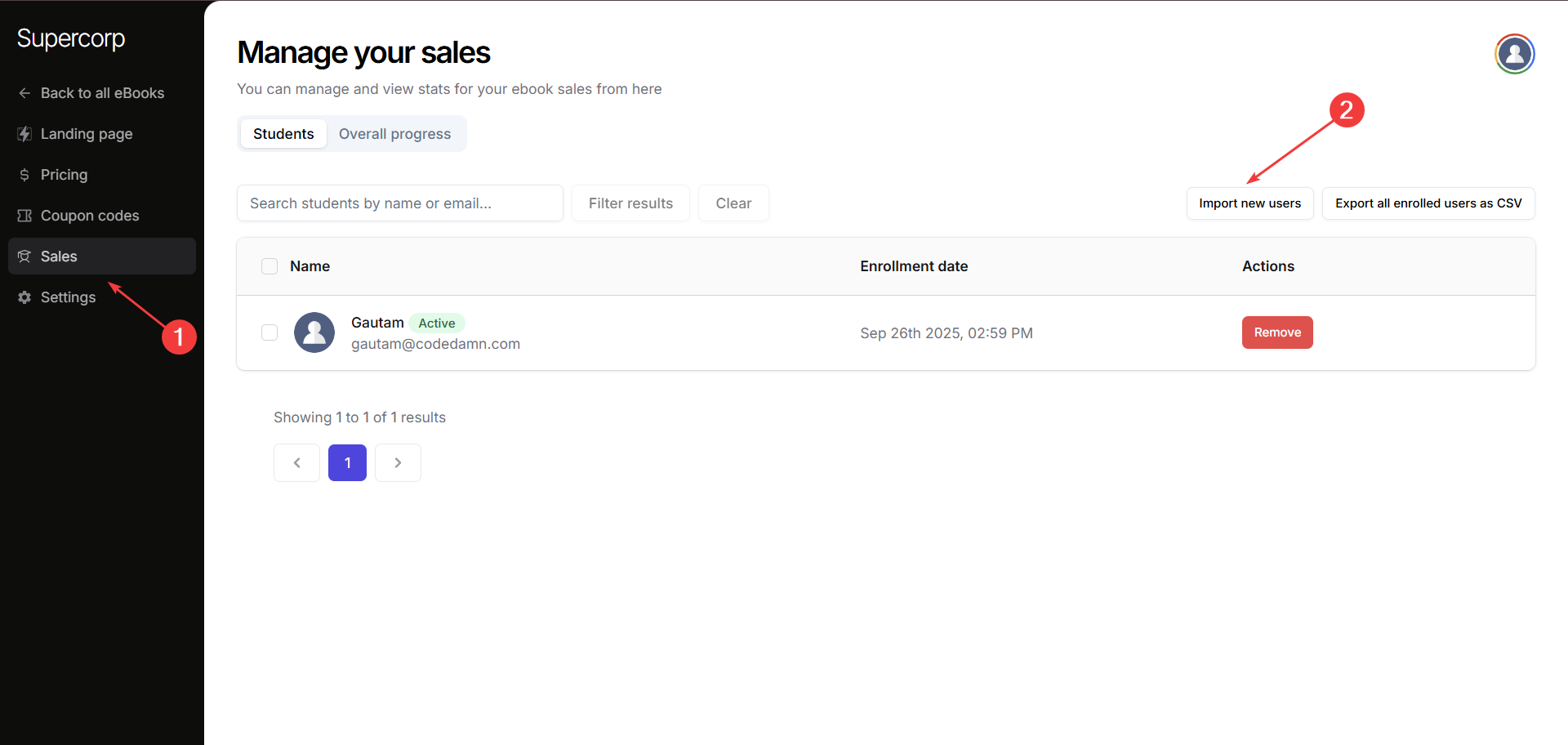
- Go to Instructor Dashboard → Digital Products → eBooks → Open Product Builder of your eBook.
- Click on the Sales (or Students tab of your respective product builder) tab in the sidebar.
- Click Import new users to start enrolling readers.
2
Single User Enrollment
Use this form to enroll an individual user: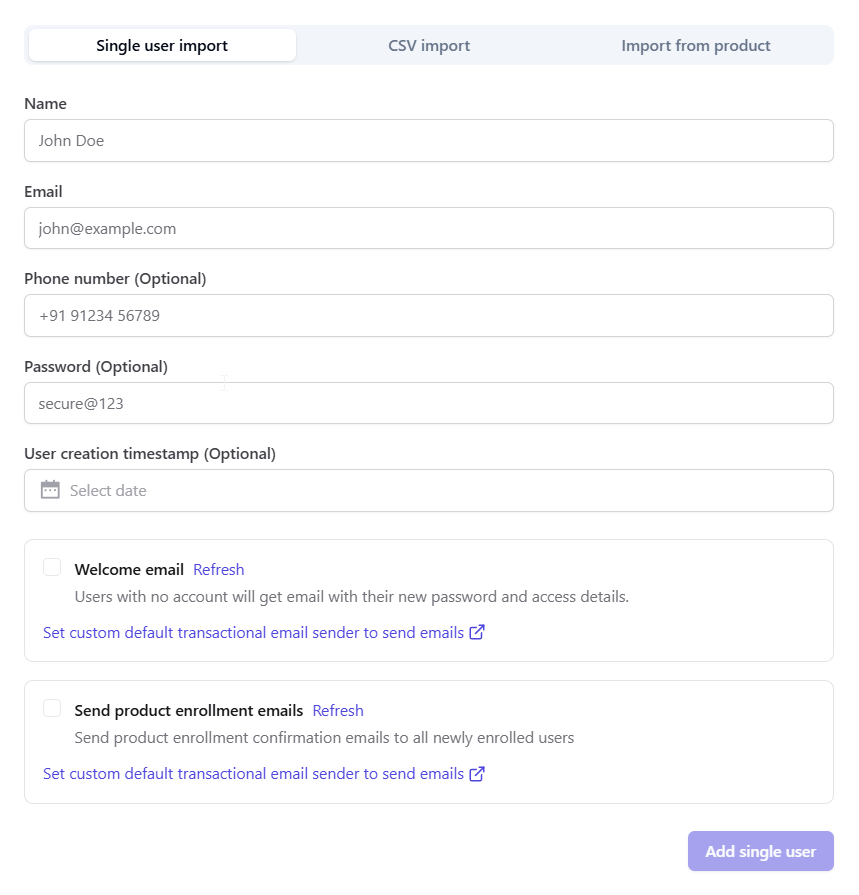
Name:Enter the name of the userEmail:Enter the email of the userPhone Number:(Optional): Enter the phone number of the userPassword:(Optional): Create credentials for the userUser creation timestamp:(Optional):** Select date when the user was createdWelcome Email:Select this checkbox if you want users with no account will receive an email with their new password and access details.
3
CSV Import
Head over to the CSV import tab if you want to enroll students in a bulk format
Ensure your CSV includes all the following columns: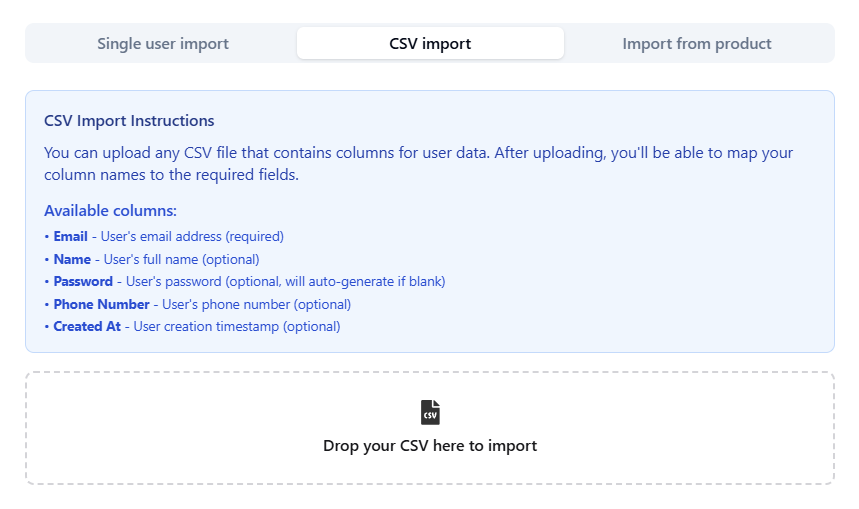
Ensure your CSV includes all the following columns:
Email(required): Email of the userName(optional): Name of the userPassword(optional): Password credentials for the userPhone Number(optional): Phone number of the userCreated At(optional): Timestamp when the user was created
4
Import from Product
You can import users who are already enrolled in another product: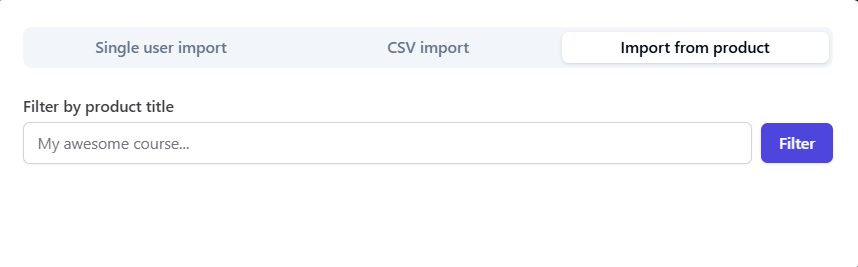
- Select the product from which you want to import users.
- Users from that specific product will be enrolled to your eBook
Exporting Student Details
To export your eBook’s reader list as a CSV:1
Export Users
- Open Product Builder of your eBook and head over to the Sales tab.
- Click on Export all enrolled users as CSV button.
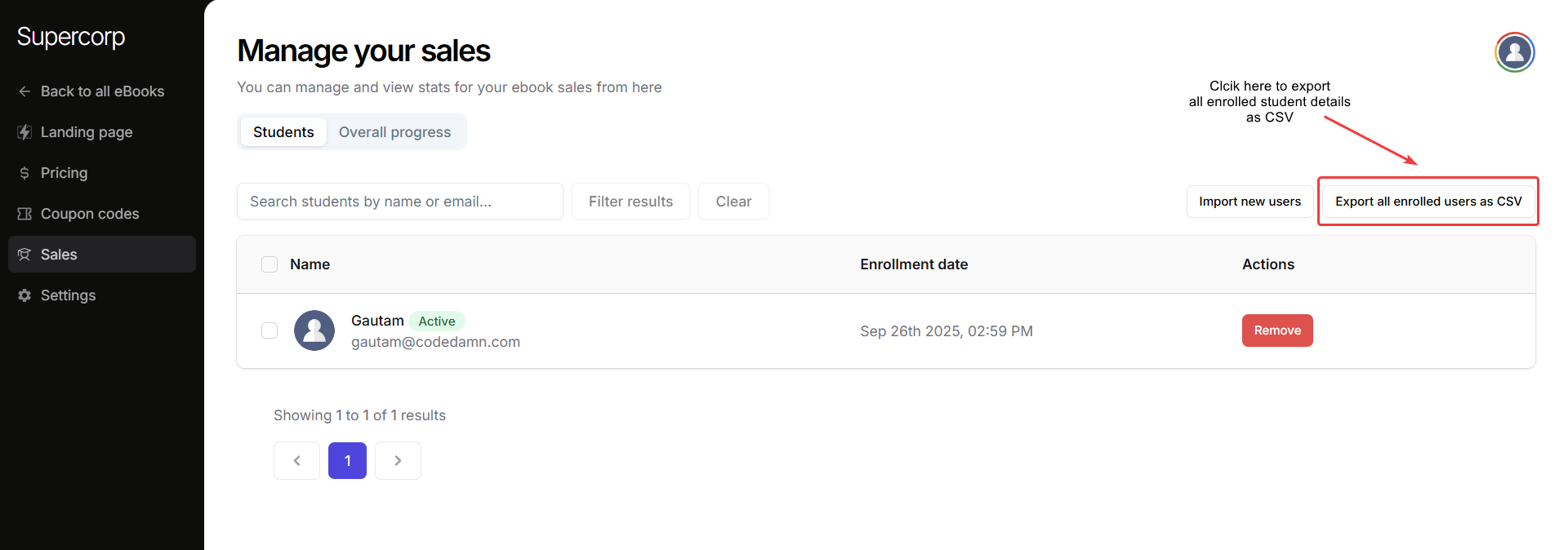 This will export all the details of the users enrolled in your eBook. You can use this export for reports, marketing campaigns, or syncing data with other tools.