
Access account settings
You can access the account settings with the help of the following steps:1
Access account settings
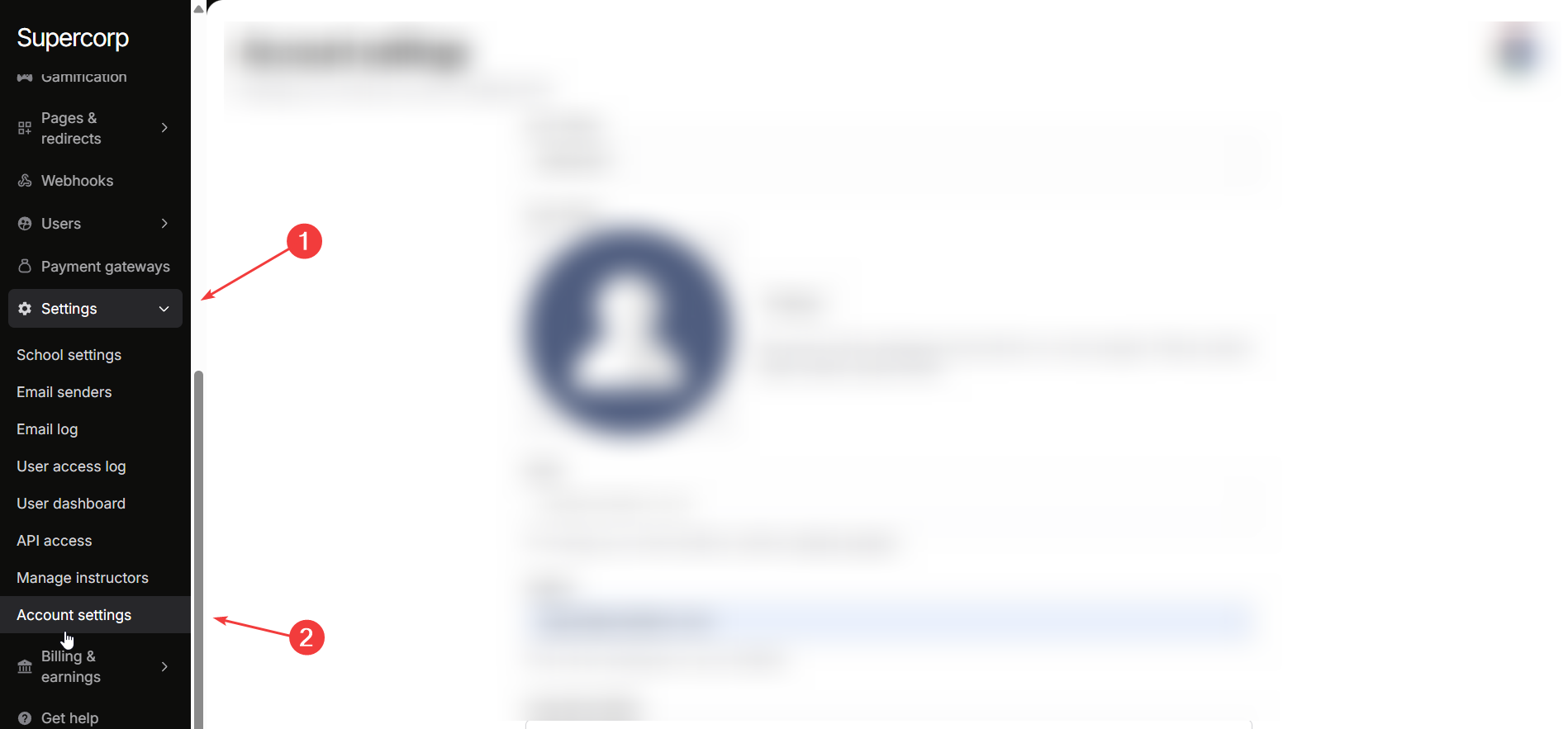
To start updating your account, go to your Instructor Dashboard sidebar and click Settings → Account Settings. This will open your account management page where all editable fields are displayed.
2
Update profile photo and name
Your display name and profile photo are key elements of your identity on the platform.
- Your Name: Update the name that will appear on your course pages and website. Use your full name or the name you prefer students to see.
- Profile Photo: Click Change to upload a high-quality square photo. This photo will appear on all your course pages and is important for recognition and branding.
3
Update tagline and long description
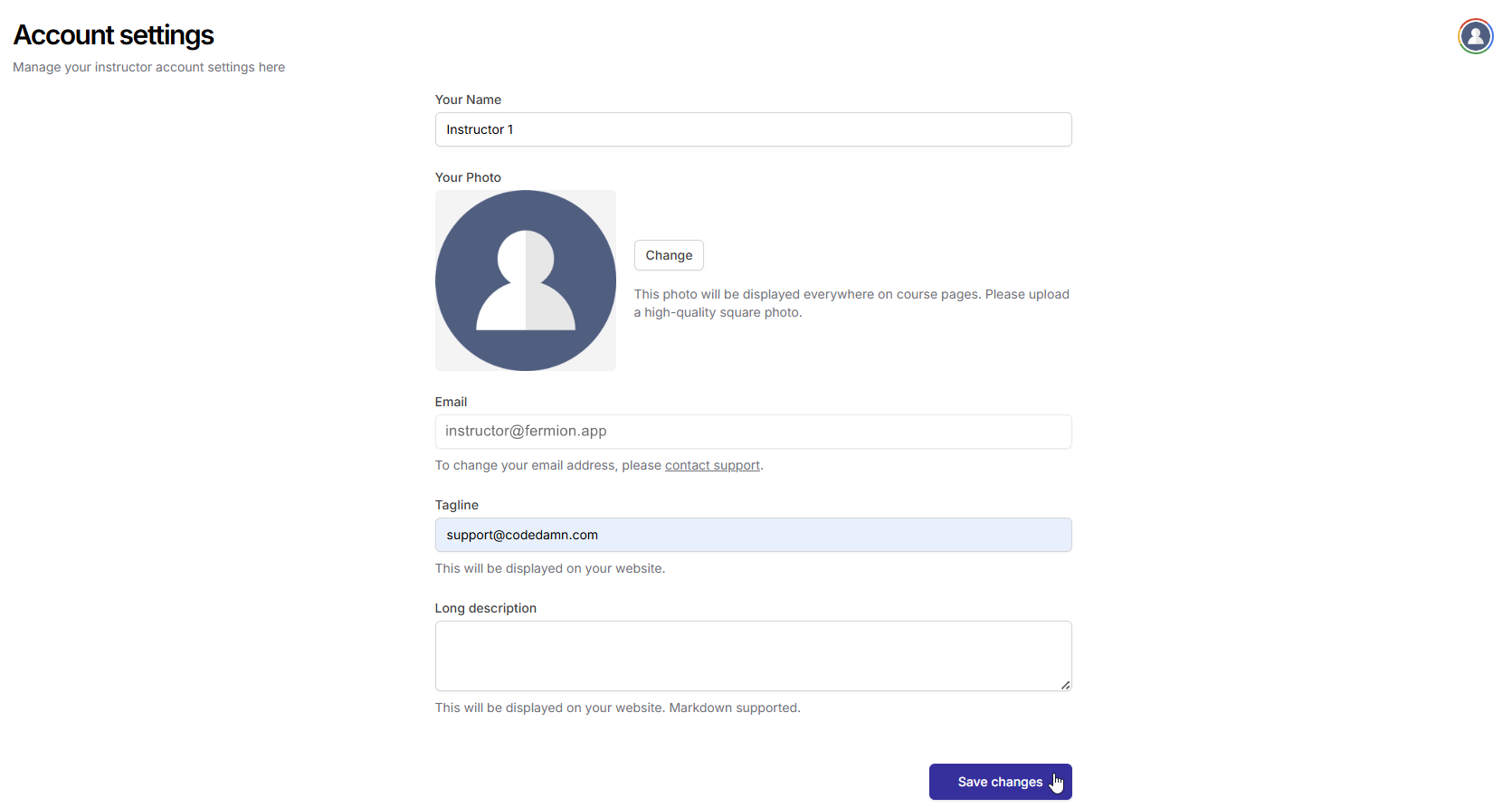 Your tagline and long description help students understand who you are and what you teach.
- Tagline: Add a short, descriptive tagline that summarizes your teaching style or expertise. This will appear on your website.
- Long Description: Provide a detailed description of yourself, your experience, and the courses you teach. You can format this text using Markdown for better readability.
4
Update email
Your email is crucial for notifications and account security. To ensure your email address is correctly updated, you will need assistance from our support team.
- To change your email, contact support@codedamn.com.
Update password
Passwords protect your account and all associated course content. Updating your password regularly is a good security practice, especially if you suspect your account credentials may be compromised. This section allows you to securely set a new password while keeping your account protected.1
Access password settings
Scroll down to the Update password section within Account Settings. This is separate from your profile information to emphasize security.
2
Set a new password
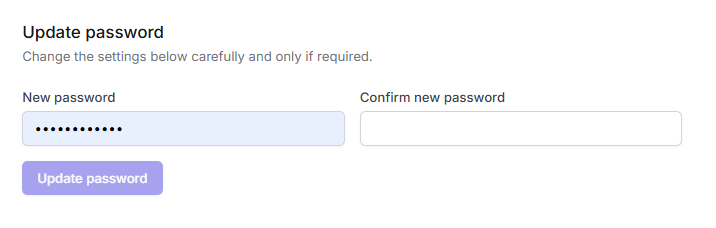
- Enter your New password in the first field.
- Confirm your new password in the Confirm new password field to avoid typing errors.
3
Save changes
After entering your new password, click Update password to apply the changes. Make sure your new password is strong and not used elsewhere for better security.