
Accessing the Partial payment dashboard
Follow these steps to access the Partial payment dashboard:1
Open instructor dashboard
After logging in to your school, navigate to your Instructor dashboard.
2
Navigate to billing & earnings
In the sidebar menu, scroll down to the Billing and earnings section.
3
Click on earnings
Select Earnings to open your earnings dashboard.
4
Select Partial payments tab
Click on the Partial payments tab to view the partial payment dashboard.

Summary overview
The top section of the Partial payment dashboard displays key metrics and collection information:Total students
Shows the total number of students enrolled in partial payment plans, with a breakdown of their payment status:- Active: Students with upcoming installments
- Completed: Students who have finished all their payments
- Overdue: Students with missed payment deadlines
9 total students: 5 active, 1 completed, 3 overdue
Collection in range
Displays the total amount collected within a selected date range. This helps you track revenue from partial payments over specific periods.- Amount: The total collection amount (e.g.,
₹31,175) - Date range: The period for which collections are calculated (e.g.,
Nov 4 - Dec 4, 2025)
Chart date range
Allows you to select a custom date range for viewing collection trends. Use the calendar icon to adjust the period shown in the Collections Overview chart.
Collections overview chart
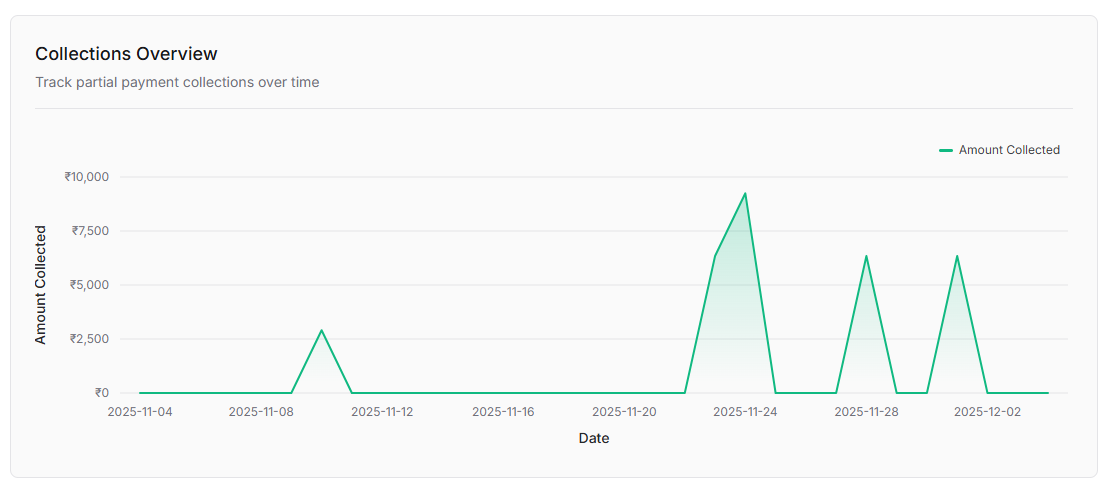
The Collections overview chart provides a visual representation of your partial payment collections over time. Purpose: Track partial payment collections over time The chart displays:- Y-axis (Amount Collected): Shows the collection amount, typically ranging from ₹0 to ₹10,000 with increments
- X-axis (Date): Displays the timeline with date labels
- Line Graph: A green line with shaded area below showing the amount collected on each date
Partial payment students table
The Partial payment students table provides detailed information about each student enrolled in an installment payment plan.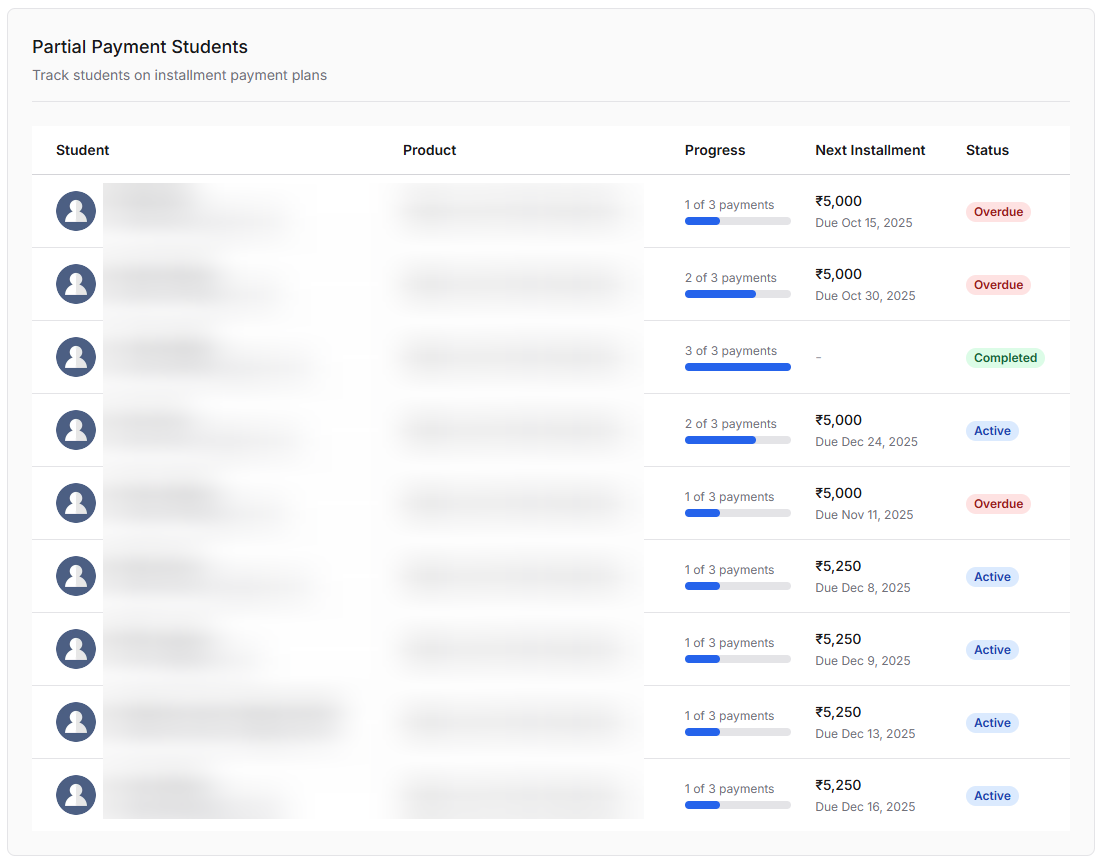
Table Columns
Payment status types
- Active (Blue badge): Student has upcoming installments that are not yet due
- Overdue (Red badge): Student has missed a payment deadline
- Completed (Green badge): Student has successfully completed all installments
Understanding progress
The progress indicator shows:- Current payment number: Which installment the student is on (e.g., “1 of 3”)
- Visual progress bar: A blue bar that fills based on completion percentage
- Total installments: The total number of payments in the plan