How do I add an iframe embed?
1
Expand course items
Click the
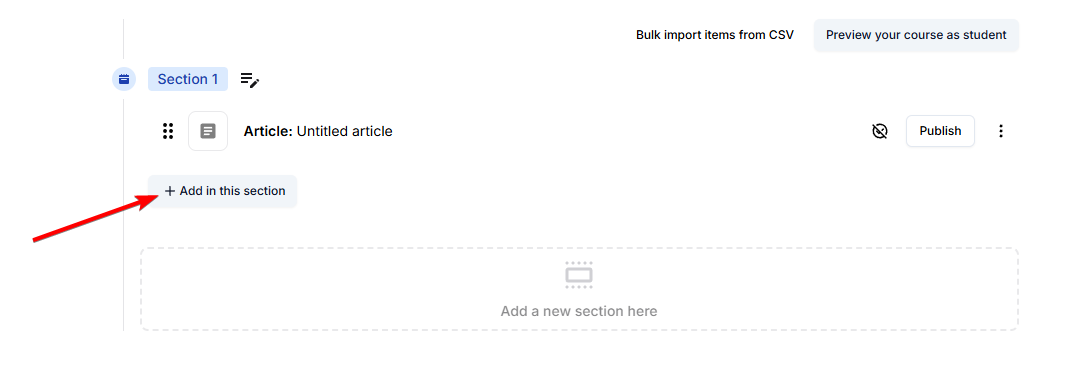
+ button to expand the course items’ view.2
Add an IFrame Embed item
Click on
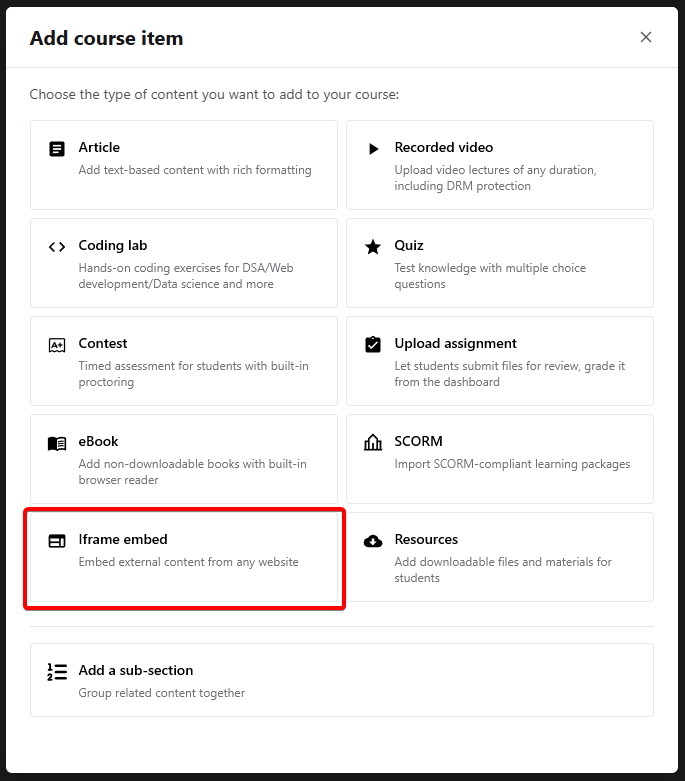
IFrame Embed. This will add an iframe embed item inside your chosen section.3
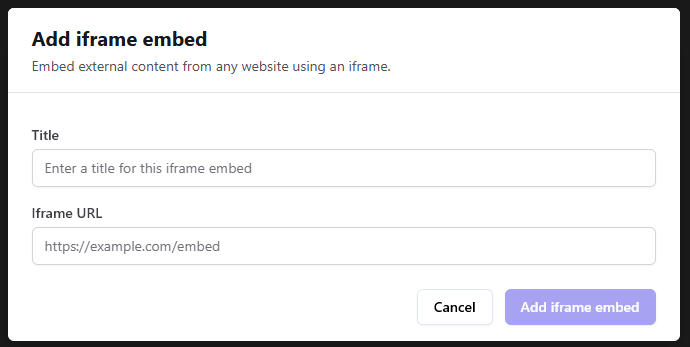
Add title and URL
After adding, set a title and enter the URL you want to embed.
4
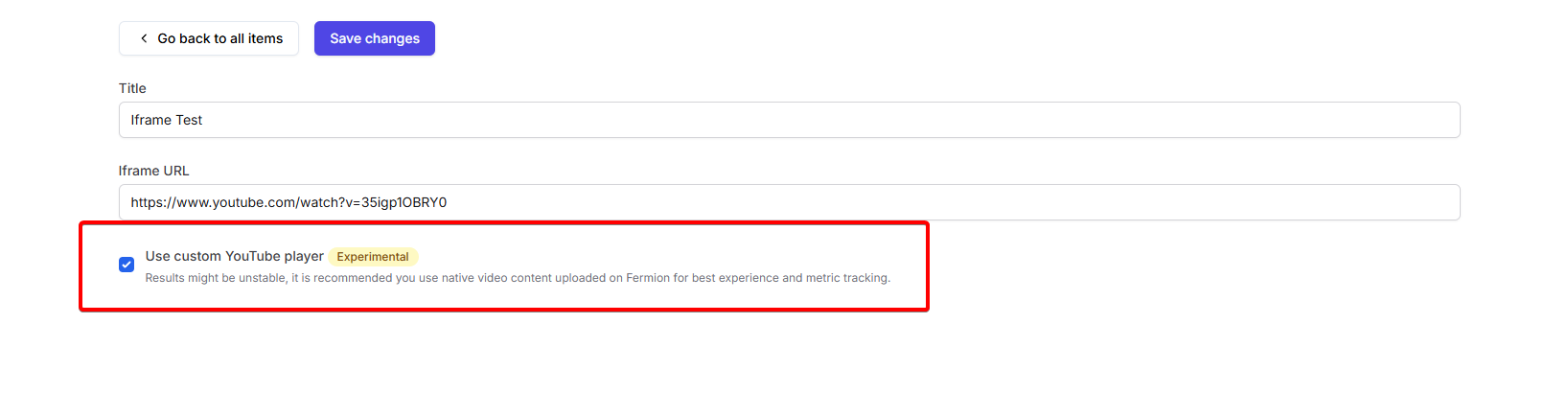
(Optional) Use experimental YouTube player
If you are embedding a YouTube video, you can choose to use an experimental player for enhanced experience. This custom player removes all the YouTube branding and the redirects, recommendations and cards that are usually at the end of any YouTube video.