
Accessing Invoice settings
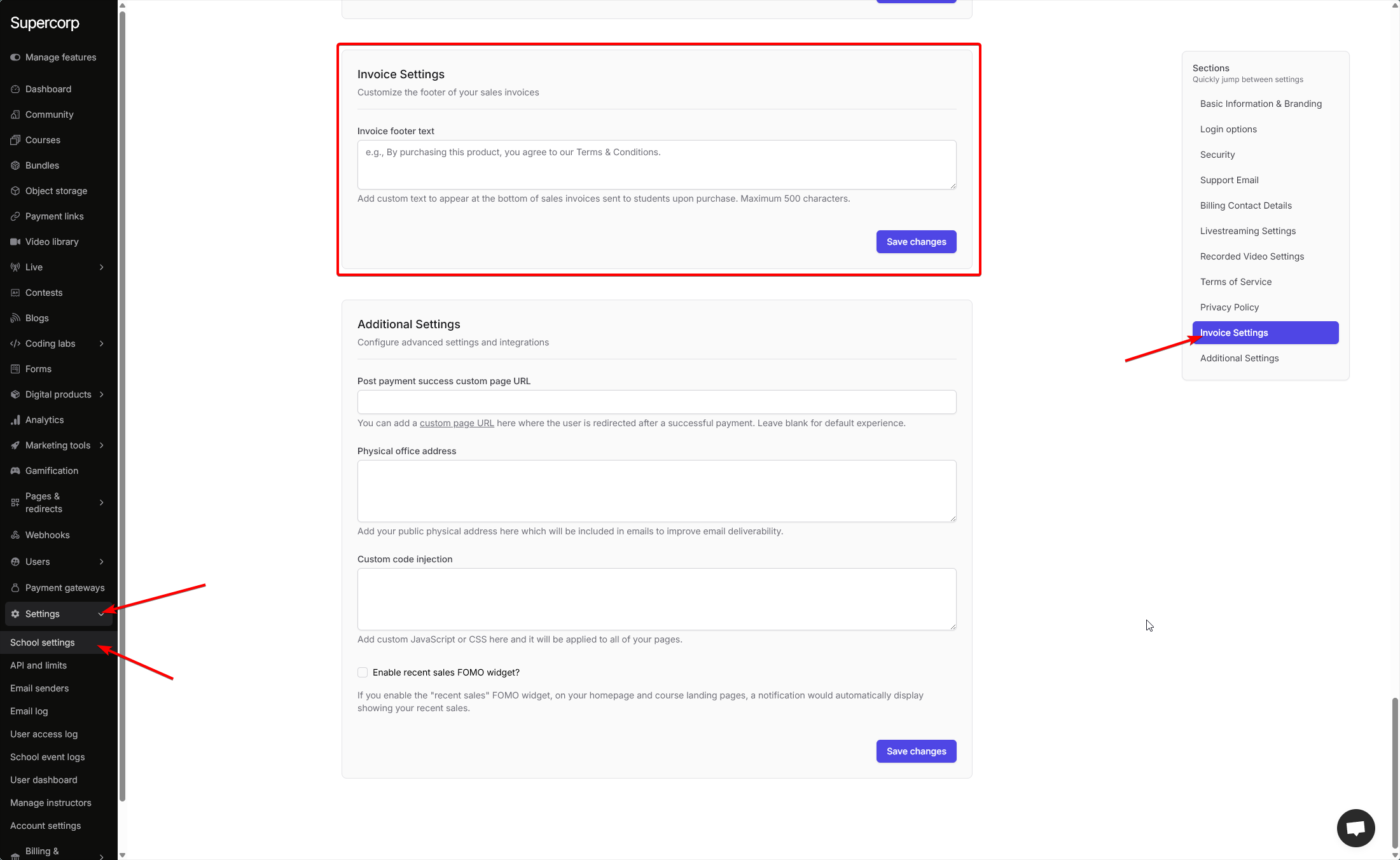
To open the Invoice settings page:1
Open instructor dashboard
Log in to your instructor account and navigate to your Dashboard.
2
Go to Settings
In the sidebar, click Settings to expand the available configuration options.
3
Select School settings
Click School Settings to open the full configuration panel.
4
Navigate to Invoice settings
Scroll down or use the quick navigation sidebar to find and click Invoice settings.
Invoice Footer Text
Customize the text that appears at the bottom of all your sales invoices.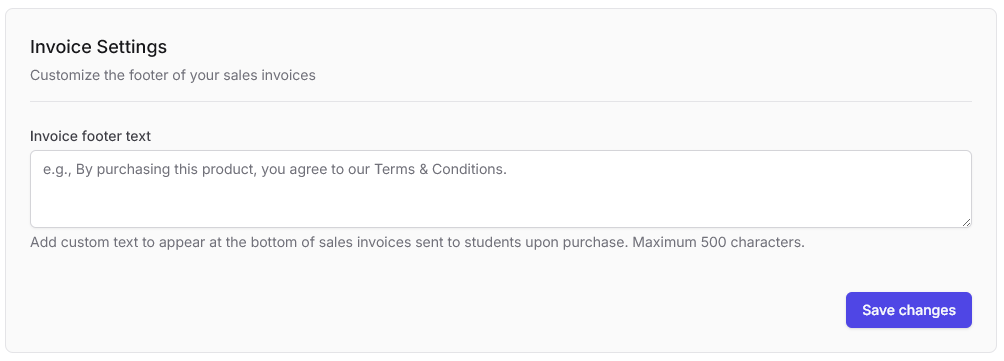
Configure invoice footer
- Invoice footer text: Enter custom text that will appear at the bottom of all sales invoices sent to students upon purchase.
- Character limit: Maximum 500 characters.
- Placeholder example: “e.g., By purchasing this product, you agree to our Terms & Conditions.”
The data added here will show up at the bottom of all your sales invoices. This is useful for adding legal disclaimers, terms and conditions references, or any other important information you want to include on every invoice.
Best practices
- Keep the text concise and professional.
- Include references to your Terms of Service or Privacy Policy if applicable.
- Add any required legal disclaimers or compliance information.
- Consider including contact information for invoice-related inquiries.