
How to access Submissions History
1
Navigate to Coding Labs
Go to your Instructor Dashboard and open the Coding Labs section from the sidebar. Click on Labs and then navigate to the IO Coding Labs tab.
2
Open a lab
Select any IO coding lab from your list to open it.
3
Try out the lab
Click on Try out lab to open the lab in the coding interface.
4
View submission history
Click on Submission history in the lab interface to view all your past submissions for that lab.
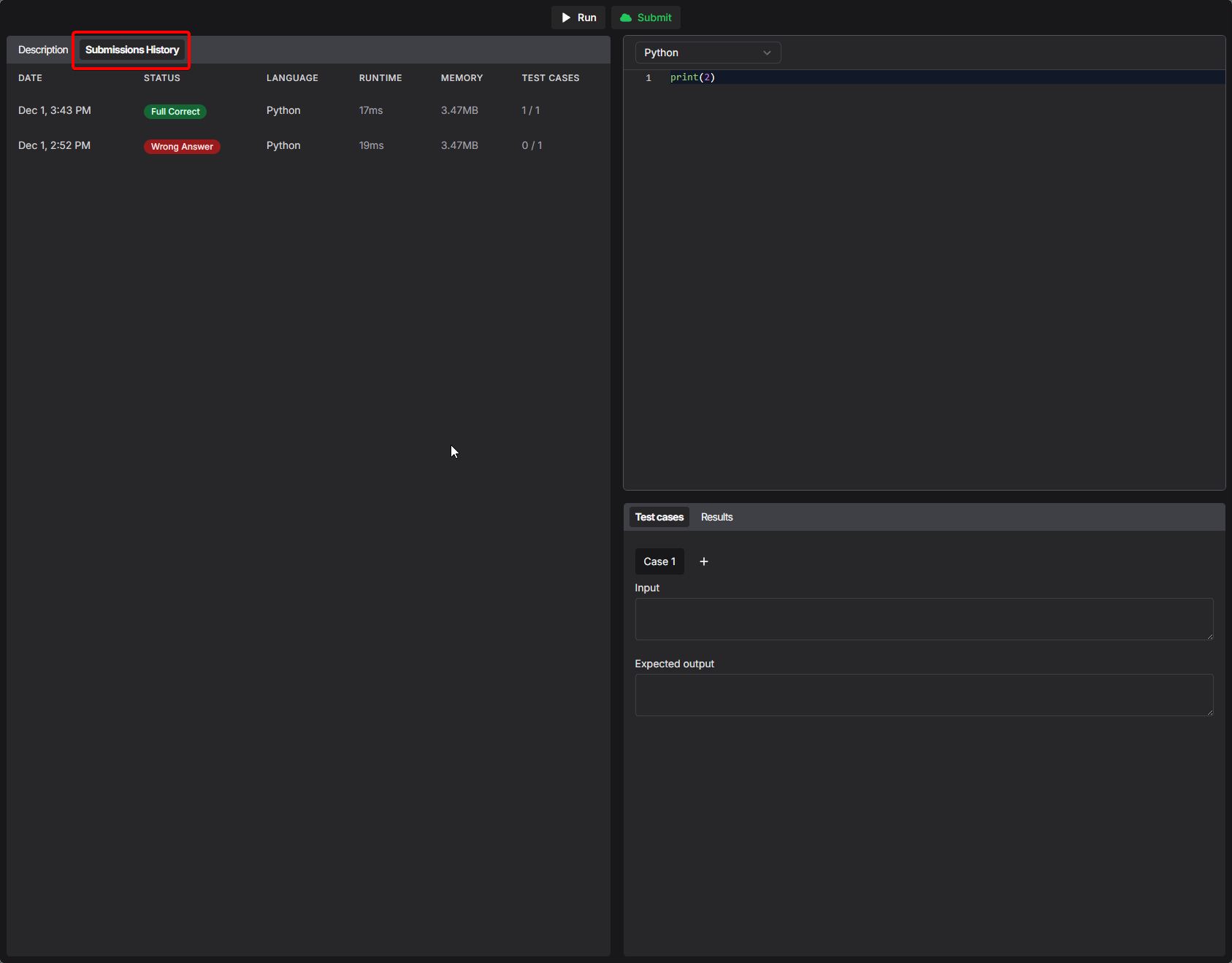
Understanding the Submissions Table
The Submissions History table displays comprehensive information about each code submission:Submission Status Types
Each submission displays a status that indicates the outcome of the code execution:Full Correct
All test cases passed successfully. The solution is correct.
Wrong Answer
The code executed successfully but produced incorrect output for one or more test cases.
Viewing Submission Details
Click on any submission entry in the table to view detailed information about that specific submission, including:- Complete source code that was submitted
- Individual test case results
- Execution logs and error messages (if any)
- Performance metrics breakdown
Submissions History helps learners track their progress, identify patterns in
their solutions, and learn from previous attempts.
This feature was introduced in November 2025. For more product updates, see
the Product Updates page.