# Affiliate Marketing Over API
Source: https://docs.fermion.app/api-guide/affiliate-marketing-over-api
Complete guide to implementing affiliate marketing programmatically using Fermion APIs
Fermion provides a comprehensive API for implementing affiliate marketing programs programmatically. This guide walks you through the complete process of setting up and managing affiliate marketing through our APIs.
## Overview
Affiliate marketing over API allows you to:
* Create affiliate users programmatically
* Generate custom affiliate links automatically
* Track affiliate performance and conversions
* Manage affiliate commissions and payouts
* Integrate affiliate marketing into your existing systems
## Prerequisites
Before implementing affiliate marketing over API, ensure you have valid API key.
## Step 1: Create a New Affiliate User
First, create a new user account for your affiliate using the user creation API. Use this API endpoint: [https://docs.fermion.app/api-reference/user/create-new-user](https://docs.fermion.app/api-reference/user/create-new-user)
## Step 2: Generate Affiliate Custom Link
Now you can create custom affiliate link: [https://docs.fermion.app/api-reference/affiliate-marketing/create-custom-affiliate-link](https://docs.fermion.app/api-reference/affiliate-marketing/create-custom-affiliate-link)
* Once the affiliate user is created, generate a custom affiliate link for them.
* Affiliate commission can be defined on a link basis.
If you'd like to create custom coupon codes for your affiliate links, you
can use the endpoint here:
[https://docs.fermion.app/api-reference/product/create-digital-product-coupon](https://docs.fermion.app/api-reference/product/create-digital-product-coupon)
## Step 3: Construct the Full Affiliate URL
Use the returned `affiliateLinkSlug` to construct the complete affiliate URL:
```
https://your-lms.com/a/:affiliateLinkSlug
```
## Real-time Conversion Tracking
You can set up webhooks to receive real-time conversion notifications. Go to Webhooks in your dashboard, and enable "Product purchase" webhook event.
If you do not see "Webhooks" in your admin dashboard, go to "Manage
Features" > "Webhooks" and enable it.
## Track affiliate link data
You can also call `get-affiliate-link-stats` with the `affiliateLinkSlug` you got from step 1 to get stats like sale count, clicks and amount: [https://docs.fermion.app/api-reference/affiliate-marketing/get-affiliate-link-stats](https://docs.fermion.app/api-reference/affiliate-marketing/get-affiliate-link-stats)
# Downloadable Products over API
Source: https://docs.fermion.app/api-guide/downloadable-products-over-api
Learn how to manage downloadable digital products over APIs
Fermion offers an easy-to-use API for creating and managing downloadable digital products. This guide will help you upload and publish ZIP files via API step by step.
## Overview
With Fermion's Downloadable Products API, you can:
* Create downloadable product entries through code
* Securely upload files to our cloud storage
* Process and prepare files for distribution
* Update product metadata and descriptions
* Set up and edit pricing plans
* Manage multiple versions of any downloadable product
## Prerequisites
Before you begin, make sure you have:
* A [valid Fermion API key](/api-guide/introduction#how-to-get-your-api-key)
* A ZIP file ready for upload
* Basic familiarity with HTTP requests and file uploads
Create a new downloadable product using the `create-downloadable-product` endpoint.
Refer to the [create-downloadable-product endpoint](/api-reference/product/create-downloadable-product) for call details.
**Sample Response:**
```json theme={null}
{
"status": "ok",
"data": {
"fermionDigitalProductId": "prod_abc123xyz",
"slug": "xyz789"
}
}
```
Save the `slug` value—it's a unique, URL-friendly ID you'll use for all later API calls.
See the [get-presigned-url-for-downloadable-product-upload](/api-reference/product/get-presigned-url-for-downloadable-product-upload) for details.
**Sample Response:**
```json theme={null}
{
"status": "ok",
"data": {
"r2KeyForOriginalDownloadableProduct": "private-cached-downloadable-unencrypted/prod_abc123xyz/file_unique_id",
"presignedUrl": "https://storage.example.com/upload?signature=..."
}
}
```
The presigned upload URL will expire in **1 hour**. Be sure to upload your file before then.
If it expires, just request a new upload URL.
**Key Points:**
* Save `r2KeyForOriginalDownloadableProduct`—you'll need it next
* The upload link is one-time and time-limited for security
* Requesting a new URL allows you to upload a new version
Upload your file using a HTTP PUT request to the URL from Step 2.
```bash cURL theme={null}
curl -X PUT \
-H "Content-Type: application/zip" \
--data-binary @your-product.zip \
"https://storage.example.com/upload?signature=..."
```
```javascript JavaScript (Node.js) theme={null}
const fs = require('fs')
const fileBuffer = fs.readFileSync('your-product.zip')
await fetch(presignedUrl, {
method: 'PUT',
headers: {
'Content-Type': 'application/zip'
},
body: fileBuffer
})
```
```python Python theme={null}
import requests
with open('your-product.zip', 'rb') as f:
file_data = f.read()
response = requests.put(
presigned_url,
headers={'Content-Type': 'application/zip'},
data=file_data
)
```
Use the HTTP PUT method (not POST) and make sure Content-Type is set to application/zip for correct uploads.
After uploading your file, trigger processing to prepare it for distribution.
See the [process-uploaded-downloadable-product](/api-reference/product/process-uploaded-downloadable-product).
**Sample Request Body:**
```json theme={null}
{
"productSlug": "xyz789",
"r2KeyForOriginalDownloadableProduct": "private-cached-downloadable-unencrypted/prod_abc123xyz/file_unique_id"
}
```
**Sample Response:**
```json theme={null}
{
"status": "ok",
"data": {
"downloadableProductVersionIndex": 0
}
}
```
**What Processing Does:**
1. Downloads your file from storage
2. Validates the file format and integrity
3. Prepares the file for secure distribution
4. Logs version metadata to your product
Save the `downloadableProductVersionIndex`—you'll need it to activate (publish) this version.
See API docs: [update-downloadable-product-metadata](/api-reference/product/update-downloadable-product-metadata)
**Sample Request Body:**
```json theme={null}
{
"productSlug": "xyz789",
"title": "Premium Design Templates Pack",
"shortDescription": "Professional templates for web and print",
"longDescription": "This comprehensive pack includes everything you need to create stunning designs...",
"activeVersionIndex": 0
}
```
**Field Breakdown:**
* `title` (optional): Product display title
* `shortDescription` (optional): Summary for listings
* `longDescription` (optional): Main description on product page
* `activeVersionIndex` (optional): Which uploaded version customers see
**Important:** Set `activeVersionIndex` to the version index returned from Step 4 to activate your upload.
Only processed downloadable product versions (`uploaded-and-processed`) can be marked active.
To set up paid access, use the digital product pricing API.
See docs: [create-custom-pricing-plan-for-a-product](/api-reference/product/create-custom-pricing-plan-for-a-product)
After completing the above, your downloadable product is ready to be published by setting it to "Active."
## Complete Example: JavaScript/Node.js Workflow
Below is a full downloadable product upload example using Node.js:
```javascript theme={null}
const API_KEY = 'your-api-key'
const BASE_URL = 'https://your-school.fermion.app/api'
// Step 1: Create the downloadable product
const createResponse = await fetch(`${BASE_URL}/public/create-downloadable-product`, {
method: 'POST',
headers: {
'fermion-api-key': API_KEY,
'Content-Type': 'application/json'
},
body: JSON.stringify({
downloadableProductName: 'My Premium Templates',
shortDescription: 'Professional design templates',
status: 'Draft'
})
})
const { slug, fermionDigitalProductId } = (await createResponse.json()).data
// Step 2: Request presigned upload URL
const uploadUrlResponse = await fetch(`${BASE_URL}/public/get-presigned-url-for-downloadable-product-upload`, {
method: 'POST',
headers: {
'fermion-api-key': API_KEY,
'Content-Type': 'application/json'
},
body: JSON.stringify({ productSlug: slug })
})
const { presignedUrl, r2KeyForOriginalDownloadableProduct } = (await uploadUrlResponse.json()).data
// Step 3: Upload the file
const fileBuffer = fs.readFileSync('./my-product.zip')
await fetch(presignedUrl, {
method: 'PUT',
headers: { 'Content-Type': 'application/zip' },
body: fileBuffer
})
// Step 4: Process the uploaded file
const processResponse = await fetch(`${BASE_URL}/public/process-uploaded-downloadable-product`, {
method: 'POST',
headers: {
'fermion-api-key': API_KEY,
'Content-Type': 'application/json'
},
body: JSON.stringify({
productSlug: slug,
r2KeyForOriginalDownloadableProduct
})
})
const { downloadableProductVersionIndex } = (await processResponse.json()).data
// Step 5: Update metadata and activate version
await fetch(`${BASE_URL}/public/update-downloadable-product-metadata`, {
method: 'POST',
headers: {
'fermion-api-key': API_KEY,
'Content-Type': 'application/json'
},
body: JSON.stringify({
productSlug: slug,
title: 'My Premium Templates',
longDescription: 'This pack includes professional templates...',
activeVersionIndex: downloadableProductVersionIndex
})
})
console.log(`Downloadable product created successfully! Product ID: ${fermionDigitalProductId}`)
```
## Managing Multiple Product Versions
You can upload new versions (such as updates or corrections) for the same downloadable product:
Call get-presigned-url-for-downloadable-product-upload again to get a fresh upload URL.
Upload your new file via the new URL.
Process the new version.
Update activeVersionIndex via the metadata API to switch to the new version.
Don't delete past versions—you can switch between them any time by changing activeVersionIndex.
## Related Guides
* Learn about [eBooks over API](/api-guide/ebooks-over-api) for PDF-based digital products
* Explore [affiliate marketing over API](/api-guide/affiliate-marketing-over-api) to promote your products
* Check out [user endpoints](/api-guide/using-user-endpoints) for managing customer enrollments
## Getting Help
If you get stuck or have an edge-case issue:
* See the [API Reference](https://docs.fermion.app/api-reference) for endpoint details
* Check the [Webhooks Guide](https://docs.fermion.app/webhooks) to track product purchases
* For product-specific issues, contact support and include your `fermionDigitalProductId`
# eBooks over API
Source: https://docs.fermion.app/api-guide/ebooks-over-api
Learn how to manage eBooks digital product over APIs
Fermion offers an easy-to-use API for creating and managing eBook digital products. This guide will help you upload, encrypt, and publish eBooks via API step by step.
## Overview
With Fermion’s eBook API, you can:
* Create eBook products through code
* Securely upload PDF files to our cloud storage
* Apply automatic DRM protection and encryption
* Configure watermarks and control download permissions
* Update eBook metadata and descriptions
* Set up and edit pricing plans
* Manage multiple versions of any eBook
## Prerequisites
Before you begin, make sure you have:
* A [valid Fermion API key](/api-guide/introduction#how-to-get-your-api-key)
* A PDF file ready for upload (your eBook)
* Basic familiarity with HTTP requests and file uploads
Create a new eBook product using the `create-ebook-product` endpoint.
Refer to the [create-ebook endpoint](/api-reference/product/create-ebook-product) for call details.
**Sample Response:**
```json theme={null}
{
"status": "ok",
"data": {
"fermionDigitalProductId": "prod_abc123xyz",
"slug": "xyz789"
}
}
```
Save the `slug` value—it's a unique, URL-friendly ID you’ll use for all later API calls.
See the [get-presigned-url-for-ebook-upload](/api-reference/product/get-presigned-url-for-ebook-upload) for details.
**Sample Response:**
```json theme={null}
{
"status": "ok",
"data": {
"r2KeyForOriginalEbookPdf": "private-cached-ebook-unencrypted/prod_abc123xyz/file_unique_id",
"presignedUrl": "https://storage.example.com/upload?signature=..."
}
}
```
The presigned upload URL will expire in **1 hour**. Be sure to upload your PDF before then.
If it expires, just request a new upload URL.
**Key Points:**
* Save `r2KeyForOriginalEbookPdf`—you’ll need it next
* The upload link is one-time and time-limited for security
* Requesting a new URL allows you to upload a new version
Upload your PDF using a HTTP PUT request to the URL from Step 2.
```bash cURL theme={null}
curl -X PUT \
-H "Content-Type: application/pdf" \
--data-binary @your-ebook.pdf \
"https://storage.example.com/upload?signature=..."
```
```javascript JavaScript (Node.js) theme={null}
const fs = require('fs')
const pdfBuffer = fs.readFileSync('your-ebook.pdf')
await fetch(presignedUrl, {
method: 'PUT',
headers: {
'Content-Type': 'application/pdf'
},
body: pdfBuffer
})
```
```python Python theme={null}
import requests
with open('your-ebook.pdf', 'rb') as f:
pdf_data = f.read()
response = requests.put(
presigned_url,
headers={'Content-Type': 'application/pdf'},
data=pdf_data
)
```
Use the HTTP PUT method (not POST) and make sure Content-Type is set to application/pdf for correct uploads.
After uploading your PDF, trigger processing and encryption.
See the [process-uploaded-ebook](/api-reference/product/process-uploaded-ebook).
**Sample Response:**
```json theme={null}
{
"status": "ok",
"data": {
"ebookVersionIndex": 0
}
}
```
**What Processing Does:**
1. Downloads your PDF from storage
2. Encrypts the file with AES-128-CBC
3. Generates encryption keys and initialization vectors
4. Saves the encrypted eBook securely
5. Logs encryption metadata to your product
Save the `ebookVersionIndex`—you’ll need it to activate (publish) this version.
See API docs: [update-ebook-metadata](/api-reference/product/update-ebook-metadata)
**Sample Request Body:**
```json theme={null}
{
"productSlug": "xyz789",
"title": "Introduction to Web Development",
"shortDescription": "Learn HTML, CSS, and JavaScript fundamentals",
"longDescription": "This comprehensive guide covers everything you need to know about modern web development...",
"activeVersionIndex": 0,
"isBookDownloadable": false,
"shouldEnableCenterWatermark": true,
"shouldEnableHeaderWatermark": true
}
```
**Field Breakdown:**
* `title` (optional): eBook display title
* `shortDescription` (optional): Summary for listings
* `longDescription` (optional): Main description on product page
* `activeVersionIndex` (optional): Which uploaded version readers see
* `isBookDownloadable` (optional): Allow download of PDF file
* `shouldEnableCenterWatermark` (optional): Show watermark in middle of pages
* `shouldEnableHeaderWatermark` (optional): Show watermark in headers
**Important:** Set `activeVersionIndex` to the version index returned from Step 4 to activate your upload.
Only processed eBook versions (`uploaded-and-processed`) can be marked active.
### Watermark Options
Watermarks protect your content from unauthorized sharing:
* **Center Watermark**: User’s email/ID in the center of every page
* **Header Watermark**: User info shown in each PDF header
* Watermarks are personalized for each downloader to trace misuse
### Controlling Download Access
* isBookDownloadable: true — Allow PDF downloads for offline reading
* isBookDownloadable: false — Restrict reading to browser-only
To set up paid access, use the digital product pricing API.
See docs: [create-custom-pricing-plan-for-a-product](/api-reference/product/create-custom-pricing-plan-for-a-product)
After completing the above, your eBook is ready to be published by setting it to "Active."
## Complete Example: JavaScript/Node.js Workflow
Below is a full eBook upload example using Node.js:
```javascript theme={null}
const API_KEY = 'your-api-key'
const BASE_URL = 'https://your-school.fermion.app/api'
// Step 1: Create the eBook product
const createResponse = await fetch(`${BASE_URL}/public/create-ebook-product`, {
method: 'POST',
headers: {
'fermion-api-key': API_KEY,
'Content-Type': 'application/json'
},
body: JSON.stringify({
ebookName: 'My Amazing eBook',
shortDescription: 'Learn something awesome',
status: 'Draft'
})
})
const { slug, fermionDigitalProductId } = (await createResponse.json()).data
// Step 2: Request presigned upload URL
const uploadUrlResponse = await fetch(`${BASE_URL}/public/get-presigned-url-for-ebook-upload`, {
method: 'POST',
headers: {
'fermion-api-key': API_KEY,
'Content-Type': 'application/json'
},
body: JSON.stringify({ productSlug: slug })
})
const { presignedUrl, r2KeyForOriginalEbookPdf } = (await uploadUrlResponse.json()).data
// Step 3: Upload the PDF
const pdfBuffer = fs.readFileSync('./my-ebook.pdf')
await fetch(presignedUrl, {
method: 'PUT',
headers: { 'Content-Type': 'application/pdf' },
body: pdfBuffer
})
// Step 4: Process and encrypt the PDF
const processResponse = await fetch(`${BASE_URL}/public/process-uploaded-ebook`, {
method: 'POST',
headers: {
'fermion-api-key': API_KEY,
'Content-Type': 'application/json'
},
body: JSON.stringify({
productSlug: slug,
r2KeyForOriginalEbookPdf
})
})
const { ebookVersionIndex } = (await processResponse.json()).data
// Step 5: Update metadata and activate version
await fetch(`${BASE_URL}/public/update-ebook-metadata`, {
method: 'POST',
headers: {
'fermion-api-key': API_KEY,
'Content-Type': 'application/json'
},
body: JSON.stringify({
productSlug: slug,
title: 'My Amazing eBook',
longDescription: 'This eBook will teach you...',
activeVersionIndex: ebookVersionIndex,
isBookDownloadable: false,
shouldEnableCenterWatermark: true,
shouldEnableHeaderWatermark: true
})
})
console.log(`eBook created successfully! Product ID: ${fermionDigitalProductId}`)
```
## Managing Multiple eBook Versions
You can upload new versions (such as updates or corrections) for the same eBook:
Call get-presigned-url-for-ebook-upload again to get a fresh upload URL.
Upload your new PDF via the new URL.
Process and encrypt the new version.
Update activeVersionIndex via the metadata API to switch to the new version.
Don't delete past versions—you can switch between them any time by changing activeVersionIndex.
## Best Practices
### Security
* Always use HTTPS for every API request and upload
* Never expose your API key in frontend or client code
* Enable watermarks to discourage piracy for premium content
* Disable file downloads (`isBookDownloadable: false`) for sensitive material
### Performance
* Upload large PDFs directly to storage with the presigned URL (not through your own server)
* If the upload fails or times out, request a new presigned URL and re-upload (do not reuse old links)
* Integrate uploads asynchronously if building user-facing dashboards
### Content Organization
* Set clear and descriptive `ebookName` values for easy identification
* Keep products in `Draft` mode during setup and review
* Review the eBook reader experience before publishing as “Active”
* Use `shortDescription` for SEO/discovery and `longDescription` for full details
## Troubleshooting
### "Uploaded eBook not found" Error
You may see this in Step 4 if:
* The PDF failed to upload, or upload was incomplete
* The `r2KeyForOriginalEbookPdf` you used does not match the uploaded file
* The presigned upload URL expired
**Fix:** Request a new presigned URL and upload your PDF again.
### "You can only mark an uploaded book as active" Error
This occurs if you try to activate a version that hasn't been processed.
**Fix:** Complete Step 4 (process-uploaded-ebook), then set `activeVersionIndex`.
### Upload Timed Out
Large PDFs can sometimes time out or stall.
**Fixes:**
* Use a stable and fast internet connection
* Adjust timeout settings in your HTTP client or tool
* Compress or optimize PDFs before uploading
### Expired Upload URL
**Fix:** Simply request a new presigned URL using the API—there’s no limit to how many times you can do this.
## Getting Help
If you get stuck or have an edge-case issue:
* See the [API Reference](https://docs.fermion.app/api-reference) for endpoint details
* Check the [Webhooks Guide](https://docs.fermion.app/webhooks) to track eBook purchases
* For product-specific issues, contact support and include your `fermionDigitalProductId`
## Next Steps
* [Set up pricing plans](https://docs.fermion.app/api-reference/product/create-custom-pricing-plan-for-a-product)
* [Create coupons for your eBooks](https://docs.fermion.app/api-reference/product/create-digital-product-coupon)
* [Enroll users programmatically](https://docs.fermion.app/api-reference/user/enroll-user-into-digital-product)
* [Configure webhooks](https://docs.fermion.app/webhooks) to track purchases and enrollments
# Fermion API Documentation
Source: https://docs.fermion.app/api-guide/introduction
Complete guide to integrating with Fermion API for your education platform
Welcome to the Fermion API documentation. Fermion is an AI-native platform for modern education businesses that provides comprehensive APIs to integrate coding labs, live classes, payments, and student management into your existing systems.
## Overview
Fermion provides a complete backend infrastructure for education businesses with [100% whitelabeled solutions](https://fermion.app/) and robust API support. The platform includes:
* **Built-in AI** for instructors and students
* **[Live-streaming infrastructure](/live-classes/what-are-live-classes)** (no Zoom required)
* **[Coding labs/assessments](/creating-coding-labs/what-are-coding-labs)** with full Linux environments
* **[DRM protection](/live-classes/drm-and-watermarking)** for recorded and live videos
* **Payment processing** from 180+ countries
* **[Complete API support](/api-guide/using-user-endpoints)** for automation and integration
## How to get your API key
An **API Key** is a unique identifier that allows you to authenticate and securely connect your applications with Fermion's APIs. It ensures that only authorized users or systems can access your platform’s data and perform actions such as managing [courses](/setting-up-course/prerequisites), [live classes](/live-classes/what-are-live-classes), [coding labs](/creating-coding-labs/what-are-coding-labs) or retrieving user information. By using an API key, you can safely integrate Fermion’s backend functionality into your own systems and automate tasks without exposing your account credentials.
You can get your Fermion API key with the following steps:
Head over to **Settings** in your Instructor dashboard sidebar and click on **API Access**.
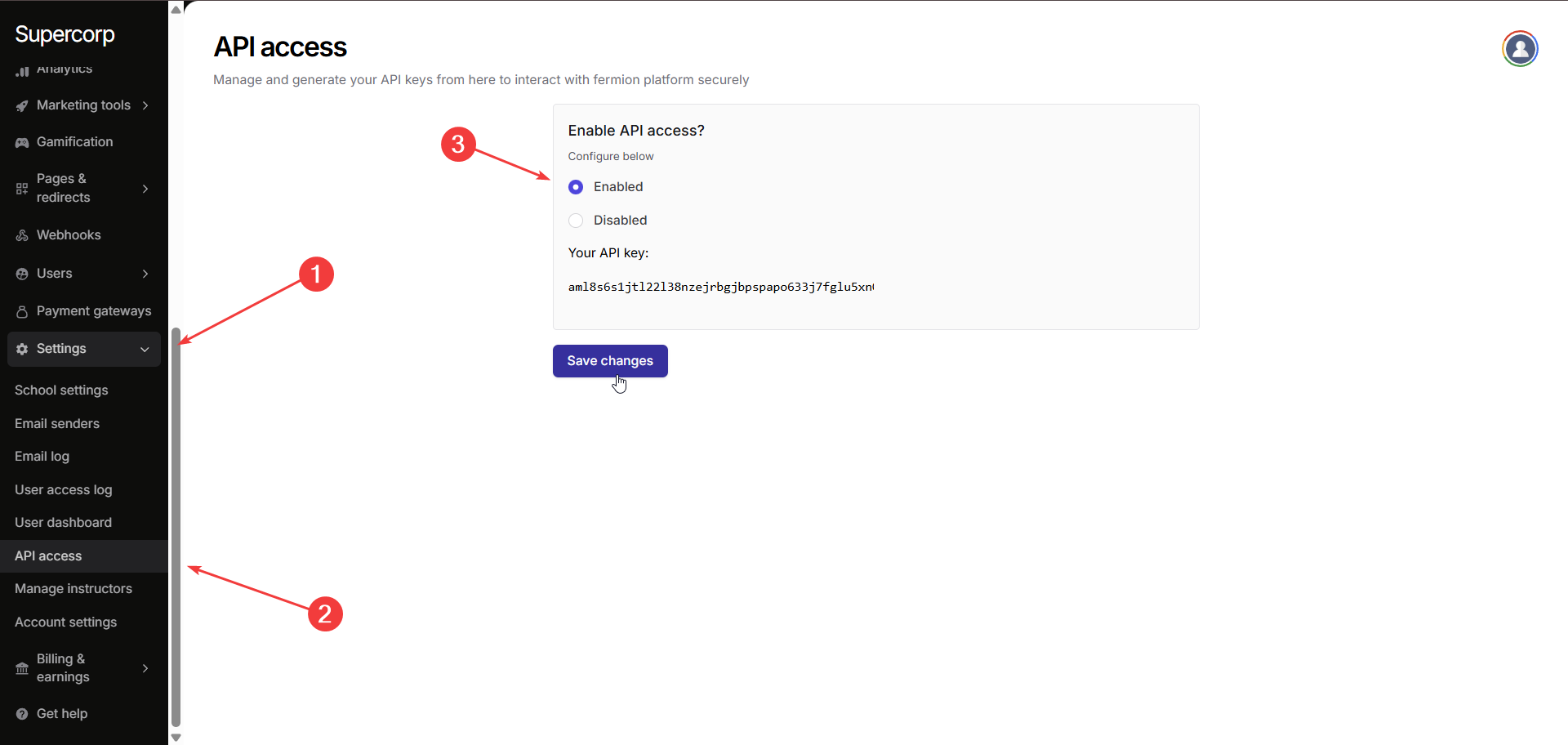
Toggle **Enabled** in **'Enable API access?'** section and click on **Save changes** to activate API functionality for your school.
Once API access is enabled, your unique **API Key** will be displayed. Copy this key and use it in your integrations to authenticate API requests.
Keep your API key secure and do not share it publicly. The API key is tied to your account and can be used to access sensitive data through the Fermion API.
# Using User API Endpoints
Source: https://docs.fermion.app/api-guide/using-user-endpoints
Guide to Fermion User API endpoints usage and things you should know
Fermion offers a robust suite of User API endpoints, enabling you to programmatically manage users, their profiles, analytics, and more. This guide provides a detailed overview of when and how to utilize these endpoints, outlines authentication requirements, and shares best practices for seamless integration into your workflow.
## When and Why Use the User API?
The User API is particularly valuable when you need to:
* Programmatically create users from your own systems
* Retrieve or update user profile information
* Upload and manage user profile images
* Access user analytics for reporting or automation purposes
* Retrieve user gamification data such as streaks
By leveraging these endpoints, you can automate user management, synchronize data with external systems, and build custom integrations on top of Fermion.
## Identifying Users: User ID vs. Email
When interacting with the User API, you have two primary methods to identify a specific user or group of users:
* **User ID:** This is a unique identifier from your external database that you can associate with a user in the Fermion system. It does not need to contain any personally identifiable information (PII) and can simply be a unique database ID. If you choose to use a User ID, ensure that it remains unique within the Fermion platform as well.
* **Email:** Alternatively, you can use the user's email address to identify them within the Fermion system. This approach is useful if you utilize Fermion both as a Learning Management System (LMS) and via APIs. However, keep in mind that if a user updates their email address within Fermion, you must also update your records to maintain synchronization.
You may associate a User ID with a user at any time. Once associated, it is recommended to use the User ID for lookups, as this method is more stable and less prone to change than using email addresses.
# Create Custom Affiliate Link
Source: https://docs.fermion.app/api-reference/affiliate-marketing/create-custom-affiliate-link
https://backend.codedamn.com/webhook/fermion-backend-openapi.yaml post /public/create-custom-affiliate-link
Create a custom affiliate link for a specific digital product with commission percentage.
Authentication with the "FERMION-API-KEY" header is required to use this endpoint.
Rate limit: Maximum 60 requests in a window of 1m.
# Get affiliate link stats
Source: https://docs.fermion.app/api-reference/affiliate-marketing/get-affiliate-link-stats
https://backend.codedamn.com/webhook/fermion-backend-openapi.yaml post /public/get-affiliate-link-stats
Get stats like clicks, sales, amount of sale revenue generated, etc. from an affiliate link
Authentication with the "FERMION-API-KEY" header is required to use this endpoint.
Rate limit: Maximum 60 requests in a window of 1m.
# Get all courses progress of a given user
Source: https://docs.fermion.app/api-reference/analytics/get-all-courses-progress-of-a-given-user
https://backend.codedamn.com/webhook/fermion-backend-openapi.yaml post /public/get-user-all-courses-progress
Get all courses progress of a given user. Use this to get their progress and completion data.
Authentication with the "FERMION-API-KEY" header is required to use this endpoint.
Rate limit: Maximum 300 requests in a window of 1m.
# Get individual user course progress
Source: https://docs.fermion.app/api-reference/analytics/get-individual-user-course-progress
https://backend.codedamn.com/webhook/fermion-backend-openapi.yaml post /public/get-user-individual-course-progress
Get individual user course progress. Use this to get their progress and completion data.
Authentication with the "FERMION-API-KEY" header is required to use this endpoint.
Rate limit: Maximum 60 requests in a window of 1m.
# Get sales data with filtering
Source: https://docs.fermion.app/api-reference/analytics/get-sales-data-with-filtering
https://backend.codedamn.com/webhook/fermion-backend-openapi.yaml post /public/get-sales-data
Get sales data with revenue breakdown, filtered by month/week. This is a public API that requires a fermion API key.
Authentication with the "FERMION-API-KEY" header is required to use this endpoint.
Rate limit: Maximum 30 requests in a window of 1m.
# Get user bundle progress for all bundles
Source: https://docs.fermion.app/api-reference/analytics/get-user-bundle-progress-for-all-bundles
https://backend.codedamn.com/webhook/fermion-backend-openapi.yaml post /public/get-user-all-bundle-progress
Get user bundle progress for all bundles. Use this to get their progress and completion data.
Authentication with the "FERMION-API-KEY" header is required to use this endpoint.
Rate limit: Maximum 120 requests in a window of 1m.
# Get user bundle progress for specific bundle
Source: https://docs.fermion.app/api-reference/analytics/get-user-bundle-progress-for-specific-bundle
https://backend.codedamn.com/webhook/fermion-backend-openapi.yaml post /public/get-user-bundle-progress
Get user bundle progress. Use this to get their progress and completion data.
Authentication with the "FERMION-API-KEY" header is required to use this endpoint.
Rate limit: Maximum 60 requests in a window of 1m.
# Get blog information
Source: https://docs.fermion.app/api-reference/blog/get-blog-information
https://backend.codedamn.com/webhook/fermion-backend-openapi.yaml post /public/get-blog-information
Get details of a single blog with this API endpoint
Rate limit: Maximum 15 requests in a window of 1m.
# Get published blogs
Source: https://docs.fermion.app/api-reference/blog/get-published-blogs
https://backend.codedamn.com/webhook/fermion-backend-openapi.yaml post /public/get-all-blogs
Get details of all published blogs with this API
Rate limit: Maximum 15 requests in a window of 1m.
# Create course
Source: https://docs.fermion.app/api-reference/course/create-course
https://backend.codedamn.com/webhook/fermion-backend-openapi.yaml post /public/create-course
Create a new course (recorded or cohort-based) for your school
Authentication with the "FERMION-API-KEY" header is required to use this endpoint.
Rate limit: Maximum 60 requests in a window of 1m.
# Get assignment submissions
Source: https://docs.fermion.app/api-reference/course/get-assignment-submissions
https://backend.codedamn.com/webhook/fermion-backend-openapi.yaml post /public/get-assignment-submissions
Get all submissions for an assignment. Returns user email, submission timestamps, file URLs, and text input values.
Authentication with the "FERMION-API-KEY" header is required to use this endpoint.
Rate limit: Maximum 60 requests in a window of 1m.
# Get course ID from course slug
Source: https://docs.fermion.app/api-reference/course/get-course-id-from-course-slug
https://backend.codedamn.com/webhook/fermion-backend-openapi.yaml post /public/get-course-id-from-course-slug
Get ID of a course from its slug
Rate limit: Maximum 15 requests in a window of 1m.
# Get course metadata by slug
Source: https://docs.fermion.app/api-reference/course/get-course-metadata-by-slug
https://backend.codedamn.com/webhook/fermion-backend-openapi.yaml post /public/get-course-metadata-by-slug
Get detailed metadata of a specific course using its slug
Authentication with the "FERMION-API-KEY" header is required to use this endpoint.
Rate limit: Maximum 60 requests in a window of 1m.
# Get data for a given course item
Source: https://docs.fermion.app/api-reference/course/get-data-for-a-given-course-item
https://backend.codedamn.com/webhook/fermion-backend-openapi.yaml post /public/get-course-item-data
Get all the data for a given course item. Note that this is a sensitive action and will return data for draft/unpublished course items as well.
Authentication with the "FERMION-API-KEY" header is required to use this endpoint.
Rate limit: Maximum 60 requests in a window of 1m.
# Get localized course price
Source: https://docs.fermion.app/api-reference/course/get-localized-course-price
https://backend.codedamn.com/webhook/fermion-backend-openapi.yaml post /public/get-course-price
Get price of a single course depending on the country of user requesting it
Rate limit: Maximum 60 requests in a window of 1m.
# Get published courses
Source: https://docs.fermion.app/api-reference/course/get-published-courses
https://backend.codedamn.com/webhook/fermion-backend-openapi.yaml post /public/get-all-courses
Get details of all published courses with this API
Rate limit: Maximum 15 requests in a window of 1m.
# Get user course item result
Source: https://docs.fermion.app/api-reference/course/get-user-course-item-result
https://backend.codedamn.com/webhook/fermion-backend-openapi.yaml post /public/get-user-course-item-result
Get result of a course item for a given user
Authentication with the "FERMION-API-KEY" header is required to use this endpoint.
Rate limit: Maximum 60 requests in a window of 1m.
# List course assignments
Source: https://docs.fermion.app/api-reference/course/list-course-assignments
https://backend.codedamn.com/webhook/fermion-backend-openapi.yaml post /public/list-assignments
Get a list of all assignments inside a course product. Returns assignment ID and title for each.
Authentication with the "FERMION-API-KEY" header is required to use this endpoint.
Rate limit: Maximum 60 requests in a window of 1m.
# List course items
Source: https://docs.fermion.app/api-reference/course/list-course-items
https://backend.codedamn.com/webhook/fermion-backend-openapi.yaml post /public/get-published-course-information
Get published course items for an individual course
Rate limit: Maximum 15 requests in a window of 1m.
# Submit user course item
Source: https://docs.fermion.app/api-reference/course/submit-user-course-item
https://backend.codedamn.com/webhook/fermion-backend-openapi.yaml post /public/submit-user-course-item
Submit a course item for a given user
Authentication with the "FERMION-API-KEY" header is required to use this endpoint.
Rate limit: Maximum 60 requests in a window of 1m.
# Get DSA code execution result [batch]
Source: https://docs.fermion.app/api-reference/dsa/get-dsa-code-execution-result-[batch]
https://backend.codedamn.com/webhook/fermion-backend-openapi.yaml post /public/get-dsa-code-execution-result-batch
Get result of multiple DSA code execution attempts at once
Authentication with the "FERMION-API-KEY" header is required to use this endpoint.
Rate limit: Maximum 6000 requests in a window of 1m.
# Get DSA code execution result [single]
Source: https://docs.fermion.app/api-reference/dsa/get-dsa-code-execution-result-[single]
https://backend.codedamn.com/webhook/fermion-backend-openapi.yaml post /public/get-dsa-code-execution-result
Get result of a single DSA code execution attempt
Authentication with the "FERMION-API-KEY" header is required to use this endpoint.
Rate limit: Maximum 300 requests in a window of 1m.
# Request DSA code execution [batch]
Source: https://docs.fermion.app/api-reference/dsa/request-dsa-code-execution-[batch]
https://backend.codedamn.com/webhook/fermion-backend-openapi.yaml post /public/request-dsa-code-execution-batch
Request multiple DSA code executions at once. Please note that if you are running SQLite, you must pass `additionalFilesAsZip` as a ZIP file that must contain `db.sqlite` file (exact name) when unzipped
Authentication with the "FERMION-API-KEY" header is required to use this endpoint.
Rate limit: Maximum 10000 requests in a window of 1m.
# Request DSA code execution [single]
Source: https://docs.fermion.app/api-reference/dsa/request-dsa-code-execution-[single]
https://backend.codedamn.com/webhook/fermion-backend-openapi.yaml post /public/request-dsa-code-execution
Request a single DSA code execution. Please note that if you are running SQLite, you must pass `additionalFilesAsZip` as a ZIP file that must contain `db.sqlite` file (exact name) when unzipped.
Authentication with the "FERMION-API-KEY" header is required to use this endpoint.
Rate limit: Maximum 5000 requests in a window of 1m.
# Get all forms
Source: https://docs.fermion.app/api-reference/forms/get-all-forms
https://backend.codedamn.com/webhook/fermion-backend-openapi.yaml post /public/get-all-forms-v2
Get a list of all published forms with their name and ID
Authentication with the "FERMION-API-KEY" header is required to use this endpoint.
Rate limit: Maximum 60 requests in a window of 1m.
# Get form submissions
Source: https://docs.fermion.app/api-reference/forms/get-form-submissions
https://backend.codedamn.com/webhook/fermion-backend-openapi.yaml post /public/get-form-submissions-v2
Get list of submissions for a specific form
Authentication with the "FERMION-API-KEY" header is required to use this endpoint.
Rate limit: Maximum 60 requests in a window of 1m.
# Add XP to user
Source: https://docs.fermion.app/api-reference/gamification/add-xp-to-user
https://backend.codedamn.com/webhook/fermion-backend-openapi.yaml post /public/add-xp-to-user
Increment the XP of a given user by the given amount.
Authentication with the "FERMION-API-KEY" header is required to use this endpoint.
Rate limit: Maximum 60 requests in a window of 1m.
# Get leaderboard
Source: https://docs.fermion.app/api-reference/gamification/get-leaderboard
https://backend.codedamn.com/webhook/fermion-backend-openapi.yaml post /public/get-school-leaderboard
Get leaderboard of the top ranking users in your school
Rate limit: Maximum 60 requests in a window of 1m.
# Get User Streak Data
Source: https://docs.fermion.app/api-reference/gamification/get-user-streak-data
https://backend.codedamn.com/webhook/fermion-backend-openapi.yaml post /public/get-user-streak-data
Retrieves streak data for a given user identifier
Authentication with the "FERMION-API-KEY" header is required to use this endpoint.
Rate limit: Maximum 360 requests in a window of 1m.
# Get user XP
Source: https://docs.fermion.app/api-reference/gamification/get-user-xp
https://backend.codedamn.com/webhook/fermion-backend-openapi.yaml post /public/get-user-xp
Get XP of a user
Authentication with the "FERMION-API-KEY" header is required to use this endpoint.
Rate limit: Maximum 60 requests in a window of 1m.
# Remove XP from user
Source: https://docs.fermion.app/api-reference/gamification/remove-xp-from-user
https://backend.codedamn.com/webhook/fermion-backend-openapi.yaml post /public/remove-xp-from-user
Decrement the XP of a given user by the given amount.
Authentication with the "FERMION-API-KEY" header is required to use this endpoint.
Rate limit: Maximum 60 requests in a window of 1m.
# Create new interactive coding lab
Source: https://docs.fermion.app/api-reference/lab/create-new-interactive-coding-lab
https://backend.codedamn.com/webhook/fermion-backend-openapi.yaml post /public/create-interactive-coding-lab
Creates a new interactive coding lab with API. You can use this endpoint instead of creating it from GUI in fermion dashboard
Authentication with the "FERMION-API-KEY" header is required to use this endpoint.
Rate limit: Maximum 60 requests in a window of 1m.
# Delete interactive coding lab
Source: https://docs.fermion.app/api-reference/lab/delete-interactive-coding-lab
https://backend.codedamn.com/webhook/fermion-backend-openapi.yaml post /public/delete-interactive-coding-lab
Deletes an existing interactive coding lab.
Authentication with the "FERMION-API-KEY" header is required to use this endpoint.
Rate limit: Maximum 60 requests in a window of 1m.
# Get interactive lab details [bulk]
Source: https://docs.fermion.app/api-reference/lab/get-interactive-lab-details-[bulk]
https://backend.codedamn.com/webhook/fermion-backend-openapi.yaml post /public/get-lab-details-bulk
Get details of multiple interactive labs from their IDs
Authentication with the "FERMION-API-KEY" header is required to use this endpoint.
Rate limit: Maximum 60 requests in a window of 1m.
# Get interactive lab details [single]
Source: https://docs.fermion.app/api-reference/lab/get-interactive-lab-details-[single]
https://backend.codedamn.com/webhook/fermion-backend-openapi.yaml post /public/get-lab-details
Get details of a single interactive lab from its ID
Authentication with the "FERMION-API-KEY" header is required to use this endpoint.
Rate limit: Maximum 60 requests in a window of 1m.
# Get lab code submission zip
Source: https://docs.fermion.app/api-reference/lab/get-lab-code-submission-zip
https://backend.codedamn.com/webhook/fermion-backend-openapi.yaml post /public/get-user-lab-code-submission
Get a downloadable zip of a user code submission for an interactive lab
Authentication with the "FERMION-API-KEY" header is required to use this endpoint.
Rate limit: Maximum 60 requests in a window of 1m.
# Get Lab result (interactive lab)
Source: https://docs.fermion.app/api-reference/lab/get-lab-result-interactive-lab
https://backend.codedamn.com/webhook/fermion-backend-openapi.yaml post /public/get-user-lab-result
Get result of a single user for a given interactive lab
Authentication with the "FERMION-API-KEY" header is required to use this endpoint.
Rate limit: Maximum 60 requests in a window of 1m.
# Get Lab result (I/O lab)
Source: https://docs.fermion.app/api-reference/lab/get-lab-result-io-lab
https://backend.codedamn.com/webhook/fermion-backend-openapi.yaml post /public/get-user-io-lab-result
Get result of a single user for a given I/O lab
Authentication with the "FERMION-API-KEY" header is required to use this endpoint.
Rate limit: Maximum 60 requests in a window of 1m.
# List all interactive labs
Source: https://docs.fermion.app/api-reference/lab/list-all-interactive-labs
https://backend.codedamn.com/webhook/fermion-backend-openapi.yaml post /public/get-private-lab-library
Get a list of all interactive labs from the school's private library
Authentication with the "FERMION-API-KEY" header is required to use this endpoint.
Rate limit: Maximum 60 requests in a window of 1m.
# Update interactive coding lab
Source: https://docs.fermion.app/api-reference/lab/update-interactive-coding-lab
https://backend.codedamn.com/webhook/fermion-backend-openapi.yaml post /public/update-interactive-coding-lab
Updates an existing interactive coding lab with API. You can use this endpoint instead of updating it from GUI in fermion dashboard
Authentication with the "FERMION-API-KEY" header is required to use this endpoint.
Rate limit: Maximum 60 requests in a window of 1m.
# Create live session
Source: https://docs.fermion.app/api-reference/live/create-live-session
https://backend.codedamn.com/webhook/fermion-backend-openapi.yaml post /public/create-live-event-session
Create a new live event session that you can use to go live
Authentication with the "FERMION-API-KEY" header is required to use this endpoint.
Rate limit: Maximum 60 requests in a window of 1m.
# Delete live event session
Source: https://docs.fermion.app/api-reference/live/delete-live-event-session
https://backend.codedamn.com/webhook/fermion-backend-openapi.yaml post /public/delete-live-event-session
Delete a live event session. This operation cannot be undone.
Authentication with the "FERMION-API-KEY" header is required to use this endpoint.
Rate limit: Maximum 60 requests in a window of 1m.
# End live event streaming
Source: https://docs.fermion.app/api-reference/live/end-live-event-streaming
https://backend.codedamn.com/webhook/fermion-backend-openapi.yaml post /public/end-live-event-session-streaming
Call this to end live event streaming and finalize the video. After you call this, the only possible playback mode with livestreaming would be HLS playback
Authentication with the "FERMION-API-KEY" header is required to use this endpoint.
Rate limit: Maximum 60 requests in a window of 1m.
# Get all live events
Source: https://docs.fermion.app/api-reference/live/get-all-live-events
https://backend.codedamn.com/webhook/fermion-backend-openapi.yaml post /public/get-all-live-events
Get details of all live events in your school
Authentication with the "FERMION-API-KEY" header is required to use this endpoint.
Rate limit: Maximum 15 requests in a window of 1m.
# Get live event session caption
Source: https://docs.fermion.app/api-reference/live/get-live-event-session-caption
https://backend.codedamn.com/webhook/fermion-backend-openapi.yaml post /public/get-live-event-session-caption
Get url to download captions for a live event session
Authentication with the "FERMION-API-KEY" header is required to use this endpoint.
Rate limit: Maximum 60 requests in a window of 1m.
# Get live event session processed mp4
Source: https://docs.fermion.app/api-reference/live/get-live-event-session-processed-mp4
https://backend.codedamn.com/webhook/fermion-backend-openapi.yaml post /public/get-live-event-session-processed-mp4
Get url to download processed mp4 for a live event session
Authentication with the "FERMION-API-KEY" header is required to use this endpoint.
Rate limit: Maximum 60 requests in a window of 1m.
# Get live event session stats
Source: https://docs.fermion.app/api-reference/live/get-live-event-session-stats
https://backend.codedamn.com/webhook/fermion-backend-openapi.yaml post /public/get-live-event-session-stats
Get stream and viewer stats for a live event session
Authentication with the "FERMION-API-KEY" header is required to use this endpoint.
Rate limit: Maximum 60 requests in a window of 1m.
# Modify live session user state
Source: https://docs.fermion.app/api-reference/live/modify-live-session-user-state
https://backend.codedamn.com/webhook/fermion-backend-openapi.yaml post /public/modify-user-state-in-live-event-session
Add or remove people from webrtc meeting stage. This will make the user a participant or instructor in a given live stream. Use this API to make certain user(s) instructors before the stream starts.
Authentication with the "FERMION-API-KEY" header is required to use this endpoint.
Rate limit: Maximum 60 requests in a window of 1m.
# Start live event streaming
Source: https://docs.fermion.app/api-reference/live/start-live-event-streaming
https://backend.codedamn.com/webhook/fermion-backend-openapi.yaml post /public/start-live-event-session-streaming
Call this to begin live event streaming. After you call this, your instructors can join the meeting area
Authentication with the "FERMION-API-KEY" header is required to use this endpoint.
Rate limit: Maximum 60 requests in a window of 1m.
# Update live event session
Source: https://docs.fermion.app/api-reference/live/update-live-event-session
https://backend.codedamn.com/webhook/fermion-backend-openapi.yaml post /public/update-live-event-session
Update an existing live event session details like start time, duration, event name, etc.
Authentication with the "FERMION-API-KEY" header is required to use this endpoint.
Rate limit: Maximum 60 requests in a window of 1m.
# Health check
Source: https://docs.fermion.app/api-reference/misc/health-check
https://backend.codedamn.com/webhook/fermion-backend-openapi.yaml post /public/health-check
Health check for our internal system
Rate limit: Maximum 60 requests in a window of 1m.
# Request password enabled website access
Source: https://docs.fermion.app/api-reference/misc/request-password-enabled-website-access
https://backend.codedamn.com/webhook/fermion-backend-openapi.yaml post /public/request-password-enabled-website-access
Returns a signed token that can be used to access the website. This will only work if you have set a website password in Settings > Security
Rate limit: Maximum 5 requests in a window of 1m.
# Test endpoint
Source: https://docs.fermion.app/api-reference/misc/test-endpoint
https://backend.codedamn.com/webhook/fermion-backend-openapi.yaml post /public/test
Test endpoint to check your fermion API key
Authentication with the "FERMION-API-KEY" header is required to use this endpoint.
Rate limit: Maximum 60 requests in a window of 1m.
# Create custom pricing plan for a product
Source: https://docs.fermion.app/api-reference/product/create-custom-pricing-plan-for-a-product
https://backend.codedamn.com/webhook/fermion-backend-openapi.yaml post /public/create-digital-product-pricing-plan
Create a new pricing plan (one-time payment or partial payment) for a digital product using the product slug. The plan will be created in draft status.
Authentication with the "FERMION-API-KEY" header is required to use this endpoint.
Rate limit: Maximum 60 requests in a window of 1m.
# Create digital product coupon
Source: https://docs.fermion.app/api-reference/product/create-digital-product-coupon
https://backend.codedamn.com/webhook/fermion-backend-openapi.yaml post /public/create-digital-product-coupon
Create a new coupon for a fermion digital product.
Authentication with the "FERMION-API-KEY" header is required to use this endpoint.
Rate limit: Maximum 10 requests in a window of 1m.
# Create downloadable product
Source: https://docs.fermion.app/api-reference/product/create-downloadable-product
https://backend.codedamn.com/webhook/fermion-backend-openapi.yaml post /public/create-downloadable-product
Create a new downloadable digital product for your school
Authentication with the "FERMION-API-KEY" header is required to use this endpoint.
Rate limit: Maximum 60 requests in a window of 1m.
# Create ebook product
Source: https://docs.fermion.app/api-reference/product/create-ebook-product
https://backend.codedamn.com/webhook/fermion-backend-openapi.yaml post /public/create-ebook-product
Create a new ebook digital product for your school
Authentication with the "FERMION-API-KEY" header is required to use this endpoint.
Rate limit: Maximum 60 requests in a window of 1m.
# Create payment link
Source: https://docs.fermion.app/api-reference/product/create-payment-link
https://backend.codedamn.com/webhook/fermion-backend-openapi.yaml post /public/create-payment-link-digital-product
Create a new payment link for your school
Authentication with the "FERMION-API-KEY" header is required to use this endpoint.
Rate limit: Maximum 60 requests in a window of 1m.
# Delete digital product
Source: https://docs.fermion.app/api-reference/product/delete-digital-product
https://backend.codedamn.com/webhook/fermion-backend-openapi.yaml post /public/delete-digital-product
Delete a digital product (course, ebook, downloadable product, contest, etc.) by its product ID. This operation cannot be undone.
Authentication with the "FERMION-API-KEY" header is required to use this endpoint.
Rate limit: Maximum 60 requests in a window of 1m.
# Delete digital product coupon
Source: https://docs.fermion.app/api-reference/product/delete-digital-product-coupon
https://backend.codedamn.com/webhook/fermion-backend-openapi.yaml post /public/delete-digital-product-coupon
Delete (mark as deleted) a coupon for a fermion digital product.
Authentication with the "FERMION-API-KEY" header is required to use this endpoint.
Rate limit: Maximum 10 requests in a window of 1m.
# Enroll user into digital product
Source: https://docs.fermion.app/api-reference/product/enroll-user-into-digital-product
https://backend.codedamn.com/webhook/fermion-backend-openapi.yaml post /public/enroll-user-into-digital-product
Add a user enrollment into any digital product on your website
Authentication with the "FERMION-API-KEY" header is required to use this endpoint.
Rate limit: Maximum 300 requests in a window of 1m.
# Export contest CSV report
Source: https://docs.fermion.app/api-reference/product/export-contest-csv-report
https://backend.codedamn.com/webhook/fermion-backend-openapi.yaml post /public/export-contest-csv-report
Request generation of a CSV report for contest attempts
Rate limit: Maximum 10 requests in a window of 1m.
# Get all digital products (including unlisted/draft)
Source: https://docs.fermion.app/api-reference/product/get-all-digital-products-including-unlisteddraft
https://backend.codedamn.com/webhook/fermion-backend-openapi.yaml post /public/get-all-products-internal
Get details of all digital products with this API. This is meant to be used internally with a fermion API key only.
Authentication with the "FERMION-API-KEY" header is required to use this endpoint.
Rate limit: Maximum 15 requests in a window of 1m.
# Get contest CSV report export data
Source: https://docs.fermion.app/api-reference/product/get-contest-csv-report-export-data
https://backend.codedamn.com/webhook/fermion-backend-openapi.yaml post /public/get-contest-csv-report-export-data
Get generated contest CSV reports with download links
Authentication with the "FERMION-API-KEY" header is required to use this endpoint.
Rate limit: Maximum 60 requests in a window of 1m.
# Get enrolled digital products
Source: https://docs.fermion.app/api-reference/product/get-enrolled-digital-products
https://backend.codedamn.com/webhook/fermion-backend-openapi.yaml post /public/get-enrolled-products
Get details of all enrolled digital products for a given user
Authentication with the "FERMION-API-KEY" header is required to use this endpoint.
Rate limit: Maximum 15 requests in a window of 1m.
# Get localized digital product price
Source: https://docs.fermion.app/api-reference/product/get-localized-digital-product-price
https://backend.codedamn.com/webhook/fermion-backend-openapi.yaml post /public/get-digital-product-price
Get price of a single digital product depending on the country of user requesting it
Rate limit: Maximum 60 requests in a window of 1m.
# Get presigned URL for downloadable product upload
Source: https://docs.fermion.app/api-reference/product/get-presigned-url-for-downloadable-product-upload
https://backend.codedamn.com/webhook/fermion-backend-openapi.yaml post /public/get-presigned-url-for-downloadable-product-upload
Generate a presigned URL to upload files for a downloadable product
Authentication with the "FERMION-API-KEY" header is required to use this endpoint.
Rate limit: Maximum 60 requests in a window of 1m.
# Get presigned URL for ebook upload
Source: https://docs.fermion.app/api-reference/product/get-presigned-url-for-ebook-upload
https://backend.codedamn.com/webhook/fermion-backend-openapi.yaml post /public/get-presigned-url-for-ebook-upload
Generate a presigned URL to upload ebook PDF file to S3
Authentication with the "FERMION-API-KEY" header is required to use this endpoint.
Rate limit: Maximum 60 requests in a window of 1m.
# Get product enrolled students
Source: https://docs.fermion.app/api-reference/product/get-product-enrolled-students
https://backend.codedamn.com/webhook/fermion-backend-openapi.yaml post /public/get-product-enrolled-students
Get a paginated list of students enrolled in a digital product
Authentication with the "FERMION-API-KEY" header is required to use this endpoint.
Rate limit: Maximum 60 requests in a window of 1m.
# Get published digital products
Source: https://docs.fermion.app/api-reference/product/get-published-digital-products
https://backend.codedamn.com/webhook/fermion-backend-openapi.yaml post /public/get-all-products
Get details of all published digital products with this API
Rate limit: Maximum 15 requests in a window of 1m.
# Process uploaded downloadable product
Source: https://docs.fermion.app/api-reference/product/process-uploaded-downloadable-product
https://backend.codedamn.com/webhook/fermion-backend-openapi.yaml post /public/process-uploaded-downloadable-product
Mark an uploaded file as processed. Call this after uploading the file to the presigned URL.
Authentication with the "FERMION-API-KEY" header is required to use this endpoint.
Rate limit: Maximum 60 requests in a window of 1m.
# Process uploaded ebook
Source: https://docs.fermion.app/api-reference/product/process-uploaded-ebook
https://backend.codedamn.com/webhook/fermion-backend-openapi.yaml post /public/process-uploaded-ebook
Process and encrypt an uploaded ebook PDF file. Call this after uploading the file to the presigned URL.
Authentication with the "FERMION-API-KEY" header is required to use this endpoint.
Rate limit: Maximum 60 requests in a window of 1m.
# Update digital product coupon
Source: https://docs.fermion.app/api-reference/product/update-digital-product-coupon
https://backend.codedamn.com/webhook/fermion-backend-openapi.yaml post /public/update-digital-product-coupon
Update an existing coupon for a fermion digital product.
Authentication with the "FERMION-API-KEY" header is required to use this endpoint.
Rate limit: Maximum 60 requests in a window of 1m.
# Update downloadable product metadata
Source: https://docs.fermion.app/api-reference/product/update-downloadable-product-metadata
https://backend.codedamn.com/webhook/fermion-backend-openapi.yaml post /public/update-downloadable-product-metadata
Update metadata and settings for a downloadable product
Authentication with the "FERMION-API-KEY" header is required to use this endpoint.
Rate limit: Maximum 60 requests in a window of 1m.
# Update ebook metadata
Source: https://docs.fermion.app/api-reference/product/update-ebook-metadata
https://backend.codedamn.com/webhook/fermion-backend-openapi.yaml post /public/update-ebook-metadata
Update metadata and settings for an ebook product
Authentication with the "FERMION-API-KEY" header is required to use this endpoint.
Rate limit: Maximum 60 requests in a window of 1m.
# Get course quiz submissions
Source: https://docs.fermion.app/api-reference/quiz/get-course-quiz-submissions
https://backend.codedamn.com/webhook/fermion-backend-openapi.yaml post /public/get-all-quiz-submissions
Get all quiz submissions for a course product, grouped by quiz. Returns question-wise breakdown with scores.
Authentication with the "FERMION-API-KEY" header is required to use this endpoint.
Rate limit: Maximum 60 requests in a window of 1m.
# Get quiz details
Source: https://docs.fermion.app/api-reference/quiz/get-quiz-details
https://backend.codedamn.com/webhook/fermion-backend-openapi.yaml post /public/get-quiz-details
Get details of a quiz from its ID
Authentication with the "FERMION-API-KEY" header is required to use this endpoint.
Rate limit: Maximum 60 requests in a window of 1m.
# List all quizzes
Source: https://docs.fermion.app/api-reference/quiz/list-all-quizzes
https://backend.codedamn.com/webhook/fermion-backend-openapi.yaml post /public/get-all-quizzes
Get a list of all quizzes from the school's private library
Authentication with the "FERMION-API-KEY" header is required to use this endpoint.
Rate limit: Maximum 60 requests in a window of 1m.
# Create a new playground snippet
Source: https://docs.fermion.app/api-reference/sandbox/create-a-new-playground-snippet
https://backend.codedamn.com/webhook/fermion-backend-openapi.yaml post /public/create-new-playground-snippet
Create a new snippet to use as sandbox
Authentication with the "FERMION-API-KEY" header is required to use this endpoint.
Rate limit: Maximum 60 requests in a window of 1m.
# Start playground session
Source: https://docs.fermion.app/api-reference/sandbox/start-playground-session
https://backend.codedamn.com/webhook/fermion-backend-openapi.yaml post /public/start-playground-session
Start a new playground session for a playground snippet
Authentication with the "FERMION-API-KEY" header is required to use this endpoint.
Rate limit: Maximum 80 requests in a window of 1m.
# Create instructor account
Source: https://docs.fermion.app/api-reference/user/create-instructor-account
https://backend.codedamn.com/webhook/fermion-backend-openapi.yaml post /public/create-instructor-account
Create a new instructor account for your school. This function is idempotent - calling it multiple times with the same email will not create duplicate accounts. If the instructor already exists, they will be added to your school if not already associated.
Authentication with the "FERMION-API-KEY" header is required to use this endpoint.
Rate limit: Maximum 60 requests in a window of 1m.
# Create new user
Source: https://docs.fermion.app/api-reference/user/create-new-user
https://backend.codedamn.com/webhook/fermion-backend-openapi.yaml post /public/create-new-user
Create a new user in the system using the unique userId from your database. Note that this function is idempotent, therefore, calling it multiple times with the same userId will not do anything.
Authentication with the "FERMION-API-KEY" header is required to use this endpoint.
Rate limit: Maximum 600 requests in a window of 1m.
# Delete user
Source: https://docs.fermion.app/api-reference/user/delete-user
https://backend.codedamn.com/webhook/fermion-backend-openapi.yaml post /public/delete-user
Delete a user by their Fermion user ID or email address. At least one of fermionUserId or userEmail must be provided.
Authentication with the "FERMION-API-KEY" header is required to use this endpoint.
Rate limit: Maximum 600 requests in a window of 1m.
# Get all instructors
Source: https://docs.fermion.app/api-reference/user/get-all-instructors
https://backend.codedamn.com/webhook/fermion-backend-openapi.yaml post /public/get-all-instructors
Get details of all instructors in your school
Authentication with the "FERMION-API-KEY" header is required to use this endpoint.
Rate limit: Maximum 15 requests in a window of 1m.
# Get instructor IAM permissions
Source: https://docs.fermion.app/api-reference/user/get-instructor-iam-permissions
https://backend.codedamn.com/webhook/fermion-backend-openapi.yaml post /public/get-instructor-iam-permissions
Get the current IAM permissions of an instructor
Authentication with the "FERMION-API-KEY" header is required to use this endpoint.
Rate limit: Maximum 60 requests in a window of 1m.
# Get instructor permission presets
Source: https://docs.fermion.app/api-reference/user/get-instructor-permission-presets
https://backend.codedamn.com/webhook/fermion-backend-openapi.yaml post /public/get-instructor-permission-presets
Get available permission presets that can be applied to instructors
Authentication with the "FERMION-API-KEY" header is required to use this endpoint.
Rate limit: Maximum 60 requests in a window of 1m.
# Get login link for user
Source: https://docs.fermion.app/api-reference/user/get-login-link-for-user
https://backend.codedamn.com/webhook/fermion-backend-openapi.yaml post /public/get-login-link-for-user
Creates a login link for user for them to login directly into fermion managed LMS. Useful when you have your own system
Authentication with the "FERMION-API-KEY" header is required to use this endpoint.
Rate limit: Maximum 300 requests in a window of 1m.
# Get presigned URLs to upload user profile picture
Source: https://docs.fermion.app/api-reference/user/get-presigned-urls-to-upload-user-profile-picture
https://backend.codedamn.com/webhook/fermion-backend-openapi.yaml post /public/get-presigned-url-for-user-profile-photo
Get URL to upload a user's profile photo. You have to make a PUT request on the "presignedUrl" to upload the picture, then call the "update-user-profile-data" api endpoint to set the user's profile picture url to the "regularUrl" returned by this resolver.
Authentication with the "FERMION-API-KEY" header is required to use this endpoint.
Rate limit: Maximum 60 requests in a window of 1m.
# Get user basic profile data
Source: https://docs.fermion.app/api-reference/user/get-user-basic-profile-data
https://backend.codedamn.com/webhook/fermion-backend-openapi.yaml post /public/get-user-basic-profile-data
Get basic user data like name, profile photo url, username, etc. using this resolver.
Authentication with the "FERMION-API-KEY" header is required to use this endpoint.
Rate limit: Maximum 60 requests in a window of 1m.
# Get user detailed analytics data
Source: https://docs.fermion.app/api-reference/user/get-user-detailed-analytics-data
https://backend.codedamn.com/webhook/fermion-backend-openapi.yaml post /public/get-user-detailed-analytics-data
Get detailed user data like user activities, xp, enrollments, etc. using this resolver.
Authentication with the "FERMION-API-KEY" header is required to use this endpoint.
Rate limit: Maximum 60 requests in a window of 1m.
# Get user enrollments
Source: https://docs.fermion.app/api-reference/user/get-user-enrollments
https://backend.codedamn.com/webhook/fermion-backend-openapi.yaml post /public/get-user-enrollments
Get a list of all active digital product enrollments for a user. Identify the user using either your internal user ID or the user email address.
Authentication with the "FERMION-API-KEY" header is required to use this endpoint.
Rate limit: Maximum 60 requests in a window of 1m.
# Get user ID
Source: https://docs.fermion.app/api-reference/user/get-user-id
https://backend.codedamn.com/webhook/fermion-backend-openapi.yaml post /public/get-user-id
Get the internal user ID for a user by looking them up via email or username. At least one of email or username must be provided.
Authentication with the "FERMION-API-KEY" header is required to use this endpoint.
Rate limit: Maximum 60 requests in a window of 1m.
# Get user upcoming live sessions
Source: https://docs.fermion.app/api-reference/user/get-user-upcoming-live-sessions
https://backend.codedamn.com/webhook/fermion-backend-openapi.yaml post /public/get-user-upcoming-live-sessions
Get the enrolled and scheduled live sessions for a user on the current day, exactly like the upcoming live sessions shown on the user dashboard. Identify the user using any one of: your internal user ID, the Fermion user ID, or the user email address.
Authentication with the "FERMION-API-KEY" header is required to use this endpoint.
Rate limit: Maximum 60 requests in a window of 1m.
# Remove fermion instructor from school
Source: https://docs.fermion.app/api-reference/user/remove-fermion-instructor-from-school
https://backend.codedamn.com/webhook/fermion-backend-openapi.yaml post /public/remove-fermion-instructor-from-school
Revoke an instructor's access to your school
Authentication with the "FERMION-API-KEY" header is required to use this endpoint.
Rate limit: Maximum 10 requests in a window of 1m.
# Update instructor IAM permissions
Source: https://docs.fermion.app/api-reference/user/update-instructor-iam-permissions
https://backend.codedamn.com/webhook/fermion-backend-openapi.yaml post /public/update-instructor-iam-permissions
Update an instructor IAM permissions using presets
Authentication with the "FERMION-API-KEY" header is required to use this endpoint.
Rate limit: Maximum 30 requests in a window of 1m.
# Update user profile data
Source: https://docs.fermion.app/api-reference/user/update-user-profile-data
https://backend.codedamn.com/webhook/fermion-backend-openapi.yaml post /public/update-user-profile-data
Update user data like name, profile photo url, username, etc. using this resolver. Useful for using built-in services like coding labs and live classes
Authentication with the "FERMION-API-KEY" header is required to use this endpoint.
Rate limit: Maximum 300 requests in a window of 1m.
# Delete Video
Source: https://docs.fermion.app/api-reference/video/delete-video
https://backend.codedamn.com/webhook/fermion-backend-openapi.yaml post /public/delete-video
Call this endpoint to delete a video from the system. This operation cannot be undone.
Authentication with the "FERMION-API-KEY" header is required to use this endpoint.
Rate limit: Maximum 60 requests in a window of 1m.
# Download recorded video MP4
Source: https://docs.fermion.app/api-reference/video/download-recorded-video-mp4
https://backend.codedamn.com/webhook/fermion-backend-openapi.yaml post /public/downloaded-recorded-video-mp4
Call this endpoint to download a video from Fermion to your external system. The file will be downloaded as MP4.
Authentication with the "FERMION-API-KEY" header is required to use this endpoint.
Rate limit: Maximum 500 requests in a window of 1h.
# Get presigned URL to upload video
Source: https://docs.fermion.app/api-reference/video/get-presigned-url-to-upload-video
https://backend.codedamn.com/webhook/fermion-backend-openapi.yaml post /public/get-presigned-url-for-video-upload
Get URL to upload a video in your school. You have to make a PUT request on the "presignedUrl" to upload the video, then call the "start-processing-uploaded-video" API endpoint for our transcoder to start processing your uploaded video.
Authentication with the "FERMION-API-KEY" header is required to use this endpoint.
Rate limit: Maximum 60 requests in a window of 1m.
# Get signed URL data for live event session
Source: https://docs.fermion.app/api-reference/video/get-signed-url-data-for-live-event-session
https://backend.codedamn.com/webhook/fermion-backend-openapi.yaml post /public/get-signed-url-data-for-live-event-session-playback
Get m3u8 playlist URL, decryption key and verification URL signatures for playing a Fermion live event manually. This is recommended for advanced use cases only
Authentication with the "FERMION-API-KEY" header is required to use this endpoint.
Rate limit: Maximum 60 requests in a window of 1m.
# Get signed URL data for recorded videos
Source: https://docs.fermion.app/api-reference/video/get-signed-url-data-for-recorded-videos
https://backend.codedamn.com/webhook/fermion-backend-openapi.yaml post /public/get-signed-url-data-for-recorded-video-playback
Get m3u8 playlist URL, decryption key and verification URL signatures for playing a Fermion video manually. This is recommended for advanced use cases only
Authentication with the "FERMION-API-KEY" header is required to use this endpoint.
Rate limit: Maximum 60 requests in a window of 1m.
# Get video from video library
Source: https://docs.fermion.app/api-reference/video/get-video-from-video-library
https://backend.codedamn.com/webhook/fermion-backend-openapi.yaml post /public/get-video-library
Retrieve information about a video inside your video library using filter search terms
Authentication with the "FERMION-API-KEY" header is required to use this endpoint.
Rate limit: Maximum 60 requests in a window of 1m.
# Start processing uploaded video
Source: https://docs.fermion.app/api-reference/video/start-processing-uploaded-video
https://backend.codedamn.com/webhook/fermion-backend-openapi.yaml post /public/start-processing-uploaded-video
Call this endpoint after "get-presigned-url-for-video-upload" endpoint for our system to start processing your uploaded video. Note that you must wait for upload of video to finish otherwise your video processing might fail.
Authentication with the "FERMION-API-KEY" header is required to use this endpoint.
Rate limit: Maximum 60 requests in a window of 1m.
# Update video privacy setting
Source: https://docs.fermion.app/api-reference/video/update-video-privacy-setting
https://backend.codedamn.com/webhook/fermion-backend-openapi.yaml post /public/update-video-privacy-setting
Use this endpoint to update whether video can be played publicly, or if it requires a JWT to be played. Read more about it here: https://docs.fermion.app/docs/recorded-videos/embed-video
Authentication with the "FERMION-API-KEY" header is required to use this endpoint.
Rate limit: Maximum 60 requests in a window of 1m.
# Product Updates
Source: https://docs.fermion.app/changelog
New updates and improvements
## User Streak Data API endpoint
You can now retrieve gamification streak data programmatically through Fermion's API. A new endpoint allows you to access user streak information:
* **[Get User Streak Data](https://docs.fermion.app/api-reference/public/get-user-streak-data)**: Retrieves streak data for a given user identifier. This endpoint returns whether the user has a streak today, their current active streak count, their longest active streak count, and the timestamp of when the current streak was renewed. You can identify the user using `customUserId`, `fermionUserId`, or `userEmailAddress`.
This API endpoint enables you to integrate gamification data into your existing systems, build custom gamification dashboards, or trigger custom rewards based on streak milestones.
## Quiz API endpoints
You can now retrieve quizzes and their submissions programmatically through Fermion's API. Three new endpoints allow you to access quiz data:
* **[Get course quiz submissions](https://docs.fermion.app/api-reference/quiz/get-course-quiz-submissions)**: Retrieve all quiz submissions for a course product, grouped by quiz. This endpoint returns a question-wise breakdown with scores, including user details, submission timestamps, total scores, and detailed question-level analysis showing selected answers, correct answers, and points earned for each question.
* **[List all quizzes](https://docs.fermion.app/api-reference/quiz/list-all-quizzes)**: Retrieve a list of all quizzes from your school's private library. This endpoint returns quiz IDs, creation dates, and titles with pagination support, making it easy to programmatically discover and work with your quizzes.
* **[Get quiz details](https://docs.fermion.app/api-reference/quiz/get-quiz-details)**: Retrieve detailed information about a specific quiz from its ID. This endpoint returns the quiz title, creation date, and all questions with their types, titles, descriptions, explanations, and options (including which options are correct).
These API endpoints enable you to integrate quiz data into your existing systems, automate quiz submission processing, build custom analytics dashboards, and create workflows around quiz performance and analysis.
### Increased stage capacity to 150 participants
The maximum number of users who can be on Stage during a live session has been increased to **150**. This enhancement allows for larger interactive classes, panels, or events, enabling instructors and organizers to bring more participants on stage to speak, present, or share their screens.
Learn more about managing Stage participants and permissions in [Invite to stage](/live-classes/invite-to-stage).
## AI Builder for custom pages
Fermion's **AI Builder** allows you to create fully customized pages by simply describing what you want. The AI will generate a complete page for you, which you can then refine with real-time data, direct checkout links, and custom paths.
This powerful no-code tool eliminates the need for manual HTML/CSS/JavaScript coding, making it easy for anyone to create professional landing pages in minutes. Simply navigate to **Pages & redirects → Custom pages** and click on **Edit website with AI** to get started.
The AI Builder enables you to:
* Describe your page in natural language
* Let the AI generate the complete page structure and design
* Refine the page with real-time data integration
* Add direct checkout links with proper interlinking
* Customize the page path and publish instantly
For more information, see [Using AI Builder](/custom-landing-pages/using-ai-builder).
## Contest improvements
Contests now support **multiple sections**, allowing you to organize questions into distinct groups. When users attempt a contest with multiple sections, they can see questions clearly separated by sections, making it easier to navigate and understand the contest structure. This feature helps organize complex contests with different question types or topics.
For more information, see [Contest - User attempts](/contests/user-attempts).
## Sectional timer for contests
You can now set individual time limits for each section of your contest using sectional timers. This helps structure your contest more effectively and ensures participants manage their time within each section.
To set a sectional timer, click on the timer icon next to the section name and enter the maximum number of minutes allotted to that section. Once set, the time limit will be shown beneath the section name and in the sidebar timer.
When the contest begins, users see the time remaining for each section in the sidebar, making it easy to manage their time across different sections. This feature is particularly useful for multi-section contests where different parts may require different time allocations.
For more information, see [Set up contest](/contests/set-up-contest#sectional-timer-for-contest).
## Improved contest report UI
The **Contest Report** interface has been enhanced to provide a better user experience when reviewing contest performance. The improved UI offers clearer visualization of performance metrics, including final scores, time taken, accuracy, and proctoring violations summary. Users can now more easily navigate through their results and expand individual questions to view detailed feedback.
For more information, see [Contest - User attempts](/contests/user-attempts).
## Partial payment dashboard
A new **Partial payment dashboard** is now available to help you track and manage installment payment collections. The dashboard provides comprehensive insights into your partial payment plans, including:
* **Summary overview**: View total students enrolled in payment plans with breakdowns by status (active, completed, overdue), collection amounts within date ranges, and customizable chart date ranges
* **Collections overview chart**: Visual representation of payment collections over time, helping you identify trends and peak collection periods
* **Partial payment students table**: Detailed view of each student's payment progress, next installment dates, and current status
Access the dashboard by navigating to **Dashboard → Billing and earnings → Earnings → Partial payments** tab.
For more information, see [Partial payment dashboard](/manage-settings/partial-payment-dashboard).
## School Event Logs
A new **School Event Logs** dashboard is now available to help you monitor and track all events and actions performed within your school. This comprehensive audit trail provides complete visibility into who performed what action, when it occurred, and on which resource.
The dashboard includes:
* **Comprehensive event tracking**: View all actions including deletions, updates, and other administrative activities
* **Resource Type filter**: Filter events by resource type (Course Item, Live Event Session, Digital Product, Video, Payment Gateway)
* **Actor Type filter**: Filter events by who performed them (User, Instructor, API)
* **Detailed event information**: Each log entry shows timestamp, action, resource type, resource ID, actor type, actor user ID, and technical details
* **Technical details view**: Access additional information including IP address and user agent for each event
Access the dashboard by navigating to **Dashboard → Settings → School settings → School event logs**.
This feature helps maintain accountability, troubleshoot issues, monitor for suspicious activities, and ensure compliance with regulatory requirements.
For more information, see [School Event Logs](/manage-settings/school-event-logs).
## Invoice settings
You can now customize the footer text that appears on all sales invoices sent to students upon purchase. The **Invoice settings** page allows you to add important legal information, terms and conditions references, or branding messages that will appear at the bottom of every invoice.
Access the invoice settings by navigating to **Dashboard → Settings → School settings → Invoice settings**. You can enter custom footer text with a maximum of 500 characters, which will be displayed on all future sales invoices.
For more information, see [Invoice settings](/manage-settings/invoice-settings).
## Export reports (sales & no sales)
You can now export sales and user data from your earnings dashboard for accounting, compliance, or analytics purposes. The new **Export reports** feature provides two export types:
* **Users with no purchase**: Export a CSV list of all registered users who have not made any purchases, useful for retargeting campaigns.
* **Sales data**: Export all sales for a selected date range. This export includes:
* A CSV file with your complete sales report
* Optional PDF invoices for all sales in the period (when "Include invoice downloads" is selected)
Access the export functionality by navigating to **Dashboard → Billing and earnings → Earnings → Exports** tab. Select your export type, configure date ranges if needed, and click **Create Export** to download your data as a ZIP file.
This feature is useful for reconciling payments, tax compliance, deeper analysis, or retargeting users who haven't made a purchase.
For more information, see [Earnings](/manage-settings/earnings#export-reports-sales--no-sales).
## Enhanced live stream recording controls
We've added new options to improve the quality and focus of your live stream recordings and participant views:
* **Hide tiles with no media in recording**: When enabled, participants who have both their camera and microphone turned off will not appear in session recordings when a screen or specific content is pinned. This helps create cleaner, more focused recordings by eliminating empty or inactive video tiles, ensuring viewers see only active speakers and shared content. Participants who turn on their camera or microphone will automatically reappear in the recording.
* **Hide tiles with no media**: This option hides participants with both camera and microphone off from your view when a screen or content is pinned, helping you focus on active participants during live sessions.
These settings can be configured from the **Settings** menu during a live session under the **General** tab. For more information, see [Livestream Settings](/live-classes/livestream-settings).
## Remove host privileges during live sessions
Instructors can now revoke host privileges from other hosts during live sessions. Click the yellow shield icon next to a host's name in the participant panel to remove their host status, reverting them to regular participant status. This gives you more control over session management and allows you to adjust permissions as needed during live classes.
For more information on managing stage permissions, see [Stage](/live-classes/invite-to-stage).
## AI Summary for live sessions
Fermion now automatically generates **AI-powered summaries** of your live sessions based on the transcript. After a live session is recorded and AI captions are generated, the AI summary provides students with a comprehensive overview of key topics, concepts, and takeaways from the entire session, making it easier for them to review and understand the content without watching the entire recording.
The AI summary appears below the video player for easy access and helps students quickly grasp the main points covered during the session. To enable this feature, ensure that AI captions are enabled for your live event, as the summary is generated automatically once the transcript is available.
For more information, see [AI Summary](/live-classes/ai-summary).
## Add notes and share resources after live streams
After your live stream ends, you can now **add notes or share additional resources** with your learners directly from the session page. This makes it easy to provide follow-up material, extra insights, or answer any outstanding questions even after the session is over.
This feature is also available to **external mentors**, allowing guest speakers or industry experts who join your sessions to upload resources, slides, or answer questions for your students post-event. This enhances collaboration and ensures students have access to all relevant materials even after the live session concludes.
For more information, see [What are live classes](/live-classes/what-are-live-classes).
## Bulk import syllabus status field
The **bulk import syllabus via CSV** feature now supports a `status` field that allows you to control whether imported items are published or saved as drafts. You can set the `status` column to `Published` or `Draft` in your CSV file. If not specified, items will default to `Draft` status.
For more information, see [Bulk Import Syllabus](/setting-up-course/bulk-import-syllabus).
## Affiliate payout dashboard
Users can now view their accumulated affiliate commission amount in a dedicated **Affiliate Payout Dashboard** from which they can request payouts directly to their bank account. The dashboard provides:
* **Earnings overview**: View total eligible earnings and unsettled sales at a glance
* **Bank account management**: Configure and manage bank account details required for payouts
* **Payout request history**: Track all payout requests with detailed breakdowns showing gross amount, TDS deductions, net payout, and status
* **Earnings breakdown**: Expand payout requests to see individual product sales, sale dates, and commission amounts
* **Sales data explanation**: Understand the difference between new, valid, and refunded sales through an informative accordion section
* **Affiliate links management**: Access and manage affiliate links for all eligible products
* **Extended product promotion**: Generate affiliate links for products you're not enrolled in (when enabled by instructors)
Access the dashboard from your user dashboard by clicking on **Affiliate dashboard**. You must configure your bank account details before requesting payouts.
For more information, see [Affiliate Payout Dashboard](/marketing-tools/affiliate-payout-dashboard).
## Assignment submission preview
Instructors can now preview submitted assignment files directly inside Fermion without needing to download them. The **Preview button** appears next to each submitted file in the assignment submissions view, allowing you to quickly review student work.
This feature streamlines the grading process by eliminating the need to download files for review, making it faster and more convenient to evaluate student submissions.
For more information, see [Quiz](/setting-up-course/assignments).
## Quiz results and student submissions
Instructors can now easily review student performance on quizzes through an enhanced submissions interface. To access quiz results, navigate to your **Instructor Dashboard**, open the course, and go to the **Students** tab. Click on **Overall progress** to see a snapshot of student completion and activity across all course items, including quizzes.
From the overall progress view, you can:
* Locate any quiz and click **View submissions** to see all student attempts
* Filter submissions by **Attempted** or **Not Attempted** status to quickly identify who has completed the quiz
* Expand individual student submissions to view full details of their quiz performance
The quiz submissions page provides a comprehensive view of all student attempts, making it easier to track progress, identify students who need additional support, and review quiz performance at scale.
For more information, see [Quiz](/setting-up-course/syllabus/quiz#how-do-i-see-quiz-results-and-student-submissions%3F).
## Clone sections to other courses
You can easily reuse the structure of your course by cloning sections into other courses that you manage. This is useful for duplicating module templates, onboarding content, or lesson structures without rebuilding them manually. For more information, see [Sections and Sub-sections](/setting-up-course/syllabus#clone-sections-to-other-courses).
## Hide test output logs in embedded coding labs
You can now hide test output logs in embedded coding labs by setting `shouldHideTestOutputLogs` to `true` in the playground options. By default, the output logs of the lab's challenges are shown in the embedded IDE after users run their code. When enabled, the test output logs section will be hidden from the user's view, providing a cleaner interface for students.
For more information, see [Embedding coding labs](/creating-coding-labs/embedding-lab#shouldhidetestoutputlogs).
## Completion certificates
When setting up completion certificates, you can also choose the certificate's orientation - landscape or portrait, to better fit your preferred design or branding
For more information, see [Completion Certificates](/setting-up-course/completion-certificate).
## View all assignment submissions across courses
Instructors can now view and manage all assignment submissions from a central location across all their courses. A new **New assignment submissions (last 30 days)** widget appears on your Instructor Dashboard homepage, providing quick access to recent submissions
From the dashboard widget, click **View all** to access a dedicated page where you can:
* View all recent assignment submissions in one place
* Filter submissions by graded / not graded status
* Click on any submission to review files, provide feedback, and grade
* Download or preview submitted files (for supported file types)
* Grade assignments with feedback and files if needed
This central view helps you efficiently keep track of submissions and streamline your grading workflow across multiple courses.
For more information, see [Assignments](/setting-up-course/assignments#view-all-assignment-submissions-across-all-courses).
## New instructor permission types
Four new instructor permission types have been added to provide more granular control over instructor access:
### Bundle management access
Instructors with **Bundle management** access can manage all bundles, including enrollment, coupons, pricing, and deletion. They can create and manage bundles, enroll students, create coupons, update pricing, and delete bundles. However, they cannot access courses or contests, billing information, webhooks, or private API keys.
### Object storage access
Instructors with **Object storage access** can manage object storage by uploading, downloading, and deleting files. This permission is ideal for team members who need to manage media assets without access to course content or billing information.
### Community access
Instructors with **Community access** can create and manage community channels and moderate discussions. They can create channels, edit and archive them, add/remove participants, moderate discussions and messages, and manage blacklisted users. However, they cannot access courses, billing information, webhooks, or add/remove admins.
### User management access
Instructors with **User management access** can view all users, monitor course progress, and remove users from products. They can view all users in the school, view individual user course progress and activity, remove users from courses and products, and reset user course progress. However, they cannot create or edit courses, access billing information, manage webhooks, or add/remove admins.
These new permission types allow you to delegate specific responsibilities to instructors while maintaining control over sensitive areas like billing and admin management.
For more information, see [Manage Instructors](/manage-settings/manage-instructors).
## View instructor details
You can now view detailed statistics and recent activity for each instructor to help monitor participation and performance. Click the **View details** button next to any instructor in the Manage Instructor panel to access a comprehensive summary page.
**The instructor details page includes:**
### Activity metrics
* **Live classes conducted**: The total number of live classes the instructor has hosted
* **Hours taught**: The total live teaching hours
* **Last active**: The most recent time the instructor was active (e.g., "2 hours ago")
### Live classes
Below the activity metrics, you'll see a detailed table listing the instructor's most recent live classes. This table provides an overview of each session, including its title, scheduled and actual start times, end time, and total duration.
These insights make it simple to monitor instructor engagement, track their teaching workload, and identify opportunities for recognition, support, or intervention. Use these details to help optimize your school's teaching resources and quality assurance.
For more information, see [Manage Instructors](/manage-settings/manage-instructors#view-instructor-details).
## Instructor IAM permissions API endpoints
You can now manage instructor permissions programmatically through Fermion's API. Three new endpoints allow you to retrieve and update instructor IAM permissions:
* **[Get instructor IAM permissions](https://docs.fermion.app/api-reference/user/get-instructor-iam-permissions)**: Retrieve the current IAM permissions of an instructor. This endpoint returns the complete permission policy including all permission sets and resource sets assigned to the instructor.
* **[Get instructor permission presets](https://docs.fermion.app/api-reference/user/get-instructor-permission-presets)**: Retrieve available permission presets that can be applied to instructors. This endpoint returns a list of all available presets (such as "single-course-access", "bundle-management", "object-storage-access", etc.) along with their requirements and permission sets.
* **[Update instructor IAM permissions](https://docs.fermion.app/api-reference/user/update-instructor-iam-permissions)**: Update an instructor's IAM permissions using presets. This endpoint allows you to programmatically assign permission presets to instructors, making it easy to manage instructor access at scale through API calls.
These API endpoints enable automated instructor permission management, making it easier to integrate Fermion's instructor management into your existing systems and workflows.
## Forms API endpoints
You can now retrieve forms and their submissions programmatically through Fermion's API. Two new endpoints allow you to access form data:
* **[Get all forms](https://docs.fermion.app/api-reference/forms/get-all-forms)**: Retrieve a list of all published forms with their name and ID. This endpoint returns all forms available in your school, making it easy to programmatically discover and work with your forms.
* **[Get form submissions](https://docs.fermion.app/api-reference/forms/get-form-submissions)**: Retrieve all submissions for a specific form. This endpoint returns detailed submission data including submission ID, user ID, submission timestamp, and all answers provided by users, organized by form blocks.
For more information on forms, see [Forms](/forms/introduction).
## AI tutor
Empower your students with real-time, contextual assistance powered by AI! The **AI tutor** feature provides an intelligent copilot for your courses, giving learners immediate, context-aware support across quizzes, videos, and articles
When enabled, the AI tutor appears as a copilot in the bottom-right corner of the student interface. This AI answers students' questions based on relevant course material, drawing context from:
* **Quiz**: Understands the quiz question and related concepts
* **Article**: Reads the article content and supplementary materials
* **Video**: Utilizes generated video captions and transcripts
You can enable AI tutor for any combination of these content types from **Instructor dashboard → Open any course → Select AI tutor from the sidebar**. The AI provides rich, targeted responses to boost student learning and engagement without students needing to switch tabs or wait for instructor replies.
For more information, see [AI tutor](/setting-up-course/ai-tutor).
## AI Lab Builder
Create interactive coding labs faster than ever with Fermion's **AI Lab Builder**! This powerful feature uses AI assistance to help you generate lab content, instructions, and challenges automatically based on your requirements.
The AI Lab Builder features a natural language chat interface that understands your instructions and automatically configures your lab by invoking various tool calls. Simply describe what you need, and the AI agent will:
* Create project files
* Install dependencies
* Set up challenges
* Configure lab descriptions
The AI Lab Builder supports multiple technologies including HTML/CSS/JavaScript, React/Springboot (Java), Next.js, Node.js, and Django (Python), with more coming soon.
To get started, navigate to **Dashboard → Coding labs → Labs → Interactive labs**, then click **Build using AI Agent**. Enter a title, choose your preferred technology, and start chatting with the AI agent to build your lab.
For more information, see [AI Lab Builder](/creating-coding-labs/ai-lab-builder).
## Enhanced course analytics
We've enhanced the course analytics pages to provide more detailed information regarding student and course progress.
* **[Detailed Student Report](/setting-up-course/detailed-student-report)**: Access comprehensive student analytics including performance metrics, content engagement breakdown, activity timeline, and detailed course item completion status. Learn how to view individual student reports with step-by-step instructions.
* **[Overall Progress](/setting-up-course/overall-progress)**: Track overal student progress metrics including enrollment date, completion status, time spent, and course completion percentage. Understand how to monitor overall course advancement at a glance.
These pages help you better understand and utilize the analytics dashboard to support your students and improve course completion rates.
## Digital products via API
You can now create and manage digital products-including eBooks (PDF) and downloadable files (ZIP)-programmatically using Fermion's API. Upload files, apply DRM protection to ebooks, configure watermarks, set pricing, update metadata, and manage multiple product versions-all through API calls.
For step-by-step instructions, see:
* [eBooks over API](/api-guide/ebooks-over-api)
* [Downloadable Products over API](/api-guide/downloadable-products-over-api)
## Blog editor LaTeX support
The blog editor now supports LaTeX formatting, allowing you to include mathematical equations and formulas in your blog posts. This enhancement makes it easier to create educational content with complex mathematical notation, scientific formulas, and technical documentation.
For more information on creating and managing blogs, see [Blogs](/custom-landing-pages/blogs).
## Instructor support chatbot
Instructors can now reach out to Fermion support directly through the instructor dashboard using an integrated chatbot. This feature provides quick access to help and support without leaving your workspace, making it easier to get assistance with platform features, troubleshooting, and account-related questions.
The chatbot is accessible directly from your instructor dashboard, providing instant support for common queries and the ability to escalate more complex issues to our support team : [Support channels](/onboarding/support-strategy#support-channels)
## Live stream optimization and animations
We've enhanced the live streaming experience with performance optimizations and smoother animations. These improvements result in faster load times, more responsive controls, and a more polished user interface during live sessions. The optimizations ensure a better experience for both instructors and students, especially in sessions with many participants.
For more information on live classes, see [Live Class on Fermion](/live-classes/what-are-live-classes).
## Customizable live stream iframe embed
The live stream iframe embed is now fully customizable, giving you more control over how embedded live sessions appear on your website. You can customize the appearance, dimensions, and behavior of embedded live sessions to match your site's design and branding.
For detailed instructions on embedding live sessions externally, see [Embedding live session externally](/live-classes/embed-live-session).
## Live stream API enhancements
The live stream API endpoints for creating and updating live sessions have been enhanced to include a new parameter: `shouldAddEveryoneOnStageByDefault`. When set to `true`, this option will automatically add all participants to the stage when they join a live session, up to a maximum of 50 people (the stage capacity limit).
You can use this feature via the following API endpoints:
* [Create Live Session](https://docs.fermion.app/api-reference/live/create-live-session)
* [Update Live Event Session](https://docs.fermion.app/api-reference/live/update-live-event-session)
### Live Stream Embed `window.postMessage` Events
You can programmatically interact with an embedded live stream using `window.postMessage` events. These events enable you to control the embedded player and respond to state changes from your own application.
**Available events include:**
* **`play`**
Start or resume the embedded live video.
→ See [How to control playback](/live-classes/embed-live-session#playback-controls)
* **`pause`**
Pause the currently playing video.
→ See [Playback controls](/live-classes/embed-live-session#playback-controls)
* **`toggle-fullscreen`**
Switch the embedded video to or from fullscreen mode.
→ [Read more about fullscreen support](/live-classes/embed-live-session#fullscreen)
* **`mute`**
Mute the audio in the embedded player.
→ [Mute and unmute events](/live-classes/embed-live-session#audio-controls)
* **`unmute`**
Unmute the audio in the embedded player.
→ See [Mute and unmute events](/live-classes/embed-live-session#audio-controls)
* **`get-current-state`**
Request the current state (playing, paused, time, etc.) from the embed.
→ [State and event information](/live-classes/embed-live-session#state-event)
* **`seek-to`**
Seek to a specific time (in seconds) in the video.
→ [Seeking events and usage](/live-classes/embed-live-session#seeking)
You can find a **full reference and code examples** in [Embedding live session externally > window.postMessage Events](/live-classes/embed-live-session#window-postmessage-events).
These events allow you to build custom controls, synchronize multiple players, or react to embed status changes from your web page or app.
For more details, : [See the documentation](/live-classes/embed-live-session#window-postmessage-events)
## PhonePe payment gateway integration
You can now integrate your own PhonePe merchant account as a custom payment gateway on Fermion. This allows payments to be credited directly to your PhonePe account, giving you full control over payment settings, reconciliation, and settlements while Fermion handles the student checkout flow and reporting.
PhonePe supports INR payments through UPI, credit/debit cards, and wallets, providing secure payment processing and instant notifications for your business. You can configure PhonePe from **Instructor dashboard → Payment gateways**.
For step-by-step setup instructions, see [Custom PhonePe integration](/setup-pricing/custom-payment-gateway#custom-phonepe-integration).
## Bulk reset progress for multiple students
You can now reset course progress for multiple students at once from the Students tab in your course. This feature is useful when you need to allow students to retake a course or reset their progress after course content updates. Select multiple students using checkboxes and use the Actions dropdown to reset all course progress for the selected students in a single operation.
For step-by-step instructions, see [Bulk reset progress for multiple students](/setting-up-course/detailed-student-report#bulk-reset-progress-for-multiple-students).
## Submission history for IO coding labs
Instructors can now view the complete submission history for IO coding labs, including execution results, performance metrics, and test case outcomes. The submissions history can be accessed via the lab management interface, making it easy to monitor class progress and identify common issues. The submissions history table displays comprehensive information about each code submission, including date, status, language, runtime, memory usage, and test case results. This feature helps instructors track student progress, recognize patterns, and support effective learning.
To access submission history, navigate to **Coding Labs → IO Labs → open any lab → Try out lab**, then click on **Submission history**.
For more information, see [Submissions History](/creating-io-coding-labs/submissions).
## Resources in course syllabus
You can now add downloadable resources and materials directly to your course syllabus, allowing students to access PDFs, documents, code files, templates, or any other downloadable content that supports their learning. Resources can be added as course items within sections, making it easy to provide supplementary materials alongside videos, quizzes, and other content.
To add resources to your course, expand the course items view and select **Resources**. You can then upload files, set titles and labels, and publish the resource to make it available to students.
For step-by-step instructions on adding resources to your course syllabus, see [Resources](/setting-up-course/syllabus/resources).
## Fermion sandbox
We've introduced **Fermion sandbox**, a secure, isolated cloud sandbox for executing code safely. Sandboxes run inside fully isolated Linux containers with their own filesystem, process space, and network layer, ensuring total separation from the host system.
**Key features:**
* Launch, execute, and destroy sandboxes on demand
* Real-time streaming of `stdout` and `stderr` through WebSockets
* TypeScript and Python SDKs for easy integration
Whether you're building a browser-based IDE, or a real-time code evaluation platform, Fermion Sandbox makes it seamless and safe. Fermion manages all infrastructure automatically, allowing developers to focus on writing and executing code.
For more information and getting started guides, see [Fermion Sandbox](/coding-sandbox/introduction).
## Enhanced assignment grading with file uploads
Assignment grading has been enhanced with the ability to upload files when providing grades and feedback to students. Instructors can now upload evaluated copies of submitted assignments (such as annotated PDFs), along with grades and remarks, providing richer feedback to learners.
Students can view these uploaded files directly in their course, allowing them to see detailed annotations, corrections, and comments on their submissions. This feature enhances the feedback process by making it more visual and comprehensive, helping students better understand their work and areas for improvement.
To learn more about reviewing and grading assignments, see [Assignments](/setting-up-course/assignments#review--grade-assignment-submissions).
## Instructor management API endpoints
You can now manage instructors programmatically through Fermion's API. Two new endpoints allow you to create and remove instructor accounts for your school:
* **[Create instructor account](/api-reference/user/create-instructor-account)**: Create a new instructor account for your school. This function is idempotent, calling it multiple times with the same email will not create duplicate accounts. If the instructor already exists, they will be added to your school if not already associated.
* **[Remove fermion instructor from school](/api-reference/user/remove-fermion-instructor-from-school)**: Revoke an instructor's access to your school programmatically. This endpoint allows you to remove instructors from your school via API calls, making it easier to manage instructor access at scale.
## Add tags to course items
You can now add and manage tags for your course items, making it easy for learners to filter content by topic, difficulty, or custom labels. Tags help you organize your course syllabus and allow students to quickly find relevant lectures, quizzes, or assignments
For example, you might tag lessons as “Easy”, “Medium”, or “Hard”, or organize content by topics like “Frontend”, “Backend”, or “Databases”.
[Learn how to add and use tags in your course items](/setting-up-course/tags#adding-and-using-tags-in-course-items).
## Maximum watch time constraint
Set a time limit for watching recorded videos with the Maximum Watch Time Constraint. Once playback starts, learners must finish within the set period or lose access. [Learn more.](/setting-up-course/syllabus#maximum-watch-time-constraint)
## Whatsapp marketing
Easily reach and engage your learners with **Whatsapp marketing** campaigns! Instructors and admins can now send announcements, reminders, and promotional messages directly to students’ Whatsapp inboxes.
Check out our step-by-step guide to setup [WhatsApp marketing](/marketing-tools/whatsapp-marketing).
## Whiteboard during live streams
Instructors can now use an interactive **whiteboard** during live streams to enhance engagement and clarify complex concepts. Draw, write, and annotate in real-time while teaching, making it easier to explain ideas visually to all participants.
**Key features:**
* Access the whiteboard directly from the live session toolbar.
* Draw freehand, add shapes, write text, and use erasers for quick edits.
* Share your whiteboard with all participants for collaborative learning.
For more details, see [Whiteboard during live streams](/live-classes/whiteboard).
## 1:1 calls
Instructors can now initiate and manage **1:1 calls** directly with students for personalized mentoring. This feature enables one-on-one communication outside of group live sessions.
To set up 1:1 calls, navigate to **Instructor Dashboard → Live → 1:1 Calls** .
For more information, please refer to [1:1 Calls](/live-classes/one-one-calls).
## Share system audio during live streams
You can now share your system audio while presenting in a live class. This allows you to broadcast audio from videos, music, or any application on your computer directly to all participants. When you click **Share screen** in a live session, select a window or tab and enable the **Share system audio** option. This is especially useful for sharing video clips or any content where audio is important. For more details, see [Sharing system audio](/live-classes/invite-to-stage#sharing-system-audio).
## Event calendar
The **Event Calendar** brings all your live sessions and events together in one place, making it easy to plan, schedule, and manage live classes. You can view all upcoming sessions, check for overlaps, and make quick adjustments directly from your dashboard.
**Key features:**
* Access the Event Calendar from the instructor dashboard under the **Live** section.
* Schedule individual live sessions by clicking on a date and filling in session details.
* Bulk schedule multiple sessions at once by uploading a CSV file with session information.
* Download a sample CSV from the Bulk Schedule interface to ensure correct formatting.
* Each session can include details like course, section, title, start time, duration, and co-hosts.
For more details, see [Event Calendar](/live-classes/event-calendar).
## Custom checkout fields
You can now collect additional information from learners during checkout using **Custom Checkout Fields**. Add text inputs or dropdowns to your course checkout forms, configure required fields, and export responses with sales data or access them via webhooks. Please refer to [Custom Checkout Fields](/setup-pricing/checkout-fields) for more information.
## Custom links in user dashboard.
Instructors can now add **custom links** to the User Dashboard sidebar.
* Configure them under **Settings → User Dashboard → Sidebar Custom Links**.
* Each link requires a **label** (sidebar text) and a **URL** (destination).
* For more information, please refer to [Custom Links](/manage-settings/custom-links)
## Video transcripts
Instructors can now opt-in to have both their live sessions and recorded videos transcribed. Captions are natively generated in the same audio language that is being used in the video / live session.
This option can be enabled for your entire school from :
* For recorded videos: Settings → School settings → Recorded video settings
* For Live sessions: Settings → School settings → Livestreaming settings
For more information, refer to: [Live transcripts](/live-classes/recording-and-captions) & [Recorded video transcripts](/recorded-videos/captions)
Additionally, this option can also be toggled on a per-stream and per-video basis directly from the session manager and video settings respectively.
Fermion Pro members have 5 hours of transcription included in their plan. Any additional transcriptions are charged at 0.3\$/hour.
Please refer to [Fermion Pricing](https://fermion.app/pricing).
## Forms v2
We've completely revamped forms on the platform allowing organizations to build multi‑step forms that can capture detailed information from users, feedback and much more. You can also share forms as public links outside of your organization, customize fields, require answers, add descriptions and cover images, then publish when ready. For more information, please refer to: [Forms](/forms/introduction)
## Livestreaming updates
Instructors can pin a tile for everyone so all students stay focused on the same view: [Pin a tile](/live-classes/pin-a-tile)
Instructors now have an option where they can automatically add everyone to the stage (Ideal for smaller live sessions with less than 50 participants) , which will allow seamless communication between a small group of people: [Stage](/live-classes/invite-to-stage)
## Authentication API endpoint
Creates a login link for a user to log in directly to your Fermion‑managed LMS. Useful when you have your own system and want seamless SSO‑like access
### Why this is useful
* Seamless hand‑off from your existing app/portal: generate a link server‑side and redirect users into the LMS without an extra login step.
* Passwordless onboarding: include the link in welcome emails/SMS to let invited users jump straight into their course.
* Post‑purchase experience: after checkout on your site, deep‑link users directly into the relevant product area in the LMS.
* Legacy migrations: move users from another system and let them access content before setting/resetting a Fermion password.
* Mobile apps: open the link from your mobile client to bootstrap a signed‑in web session
For more information, please refer to:[API Docs](/api-reference/user/get-login-link-for-user)
## Email & Analytics
Added an email logs dashboard so instructors can access all emails sent out from their School.
You can access this from the Settings → School Settings option in your sidebar: [email log](/manage-settings/email-log)
## Livestreaming
New configuration to hide the seekbar in livestreams , allowing students to always be watching the stream live in real-time without the ability to seek the video. Instructors can toggle this option from **Settings → School Settings**.
## Video watermarking
Added customization options for watermarking, allowing instructors to manually customize the size , style and data displayed in the watermark. Instructors can customize this from **Settings → School Settings**.
For more information, please refer to :[Video Watermarking](/recorded-videos/introduction#video-watermarking)
## Courses & syllabus
Enhanced bulk syllabus import: You can now import entire course syllabi directly from CSV files, making it easier to migrate or update course structures at scale. The import process now supports improved error handling, field mapping, and validation for a smoother experience. For step-by-step instructions, see [Bulk import syllabus](/setting-up-course/bulk-import-syllabus).
## AI Features
Livestream statistics are now AI-powered, offering more intelligent insights and analytics for live sessions. Additionally, instructors can now view post-livestream feedback to better understand student engagement and improve future sessions.
## Platform UI/UX
The instructor dashboard has been completely revamped with a modern interface that improves navigation and usability.
The All Users page has been reworked with better filtering and management capabilities. Course landing pages now have an updated UI that's more engaging for potential students.
You can see this revamped all users page from **Dashboard → Users → All users**.
## Content Management
Public tags are now supported across the platform, enabling instructors and students to categorize and search content more efficiently. Tags can be added to all digital products on Fermion, making it easier to filter and explore relevant materials. This enhancement improves content organization, helps users find topics of interest faster, and supports better content curation for both public and private resources.
The quiz import process has been improved with optional question answer explanation fields. You can check [Quiz](/setting-up-course/syllabus#what-is-a-quiz%3F) for more information.
## Labs
MySQL 8 support has been added for IO labs, providing better performance and compatibility with modern database systems. Please refer to [SQL Labs](/creating-io-coding-labs/sql-lab) for more information.
## Course Management
* We've introduced course announcements, allowing instructors to communicate important updates directly within courses. You can send an announcement from **Course builder -> Announcements -> Create a new announcement**.
* The syllabus manager now supports subsections, allowing instructors to break down modules into multiple levels for improved organization and clarity in complex course structures. This makes it easier to create, edit, and navigate detailed syllabi, especially for courses with nested topics or multi-part lessons or batches.
* Admin controls for ebooks have been expanded, enabling more granular management of ebook access, permissions, and distribution. Instructors can now assign ebooks to specific users or groups, set expiration dates, and monitor usage analytics directly from the dashboard. Please refer to [Ebooks](digital-products/landing-page) for more information.
* Item bundles are now supported, letting instructors group related course items—such as videos, quizzes, assignments, and ebooks—into cohesive bundles. Bundles can be used to create themed learning paths, offer package deals, or simplify content management for both instructors and students.
## Analytics & Reporting
Livestream analytics have been completely reworked with more detailed insights and better reporting capabilities. WebRTC and SDK now support livestream ended events for better session tracking. A new UTM marketing reporting page has been added to help track marketing campaign effectiveness.
## User Management & Security
User import functionality has been significantly improved with password-based import support and better UI for bulk user operations. Instructors can now reorder other instructors and edit user profiles with enhanced admin capabilities. Video proctoring features have been added for better exam security.
## AI & Content Creation
A new AI agent has been introduced for building coding labs, significantly streamlining the lab creation process. The AI builder UI inside DSA labs has been improved with better user experience and more intuitive controls.
## Livestreaming & Video
Livestreaming capacity has been expanded to support up to 50 people on stage, enabling larger interactive sessions. Manifestless livestreaming has been implemented for better compatibility and performance. The video player now includes a download button on embed pages, and object storage UI has been improved for better file management.
## User Experience
New permission presets have been added to simplify access control configuration. The user dashboard now displays upcoming live sessions for the day, helping students stay informed about their schedule. Email functionality has been enhanced with the ability to turn off reminder emails for better customization.
## Platform Improvements
Assignment submissions now include grading capabilities, and a dedicated page has been added to view all assignment submissions. Contest proctoring has been improved for better exam security, and the system now supports discount billing cycles for more flexible pricing options.
## Storage & File Management
The Fermion Object Store now supports uploading any file type, providing more flexibility for content creators. Bulk video deletion capabilities have been added, making it easier to manage large video libraries. Object storage UI has been improved for better user experience and file management.
## Payments & Authentication
Registration with phone numbers is now supported, expanding authentication options for users. Custom Razorpay integration has been implemented with public key exposure from the backend for enhanced payment processing. Terms of Service and Privacy Policy support has been added for better legal compliance.
## Course Management & Assignments
Assignment submission flow has been implemented with support for Python indentation in coding assignments. Course items can now have discussions toggled on or off, and items in recorded courses can be individually toggled for better content control. Course creation dates can now be modified for better course management.
## Video & DRM
DRM controls are now enabled on video embed pages for better content protection. Video playback no longer requires user authentication tokens for DRM content, improving user experience.
## Live Events
External hosts can now be invited to live events, expanding collaboration possibilities. You can refer to [Add external hosts](/live-classes/setup-live-class#session-configuration) for more infrmation.
## Course Content & QnA
QnA functionality has been added for video and article course items, enabling students to ask questions and receive answers directly within the content. Pre-recorded videos can now be downloaded for offline viewing.
## Live Streaming & Attendance
Live sessions now feature robust DRM (Digital Rights Management) support through our API, providing advanced content protection for both scheduled and on-demand streams. This ensures that only authorized users can access live educational content, helping institutions and instructors safeguard their intellectual property. For technical details and integration steps, see [API - Live session DRM](/api-reference/live/create-live-session).
Attendance tracking capabilities have been expanded to include non-Fermion live sessions, enabling instructors to monitor and record participant engagement in external webinars, workshops, or third-party events. Attendance data can be exported and analyzed alongside internal session metrics for comprehensive reporting.
## Certificates & Reports
Custom HTML certificate support has been added with CBC (Course-Based Certificate) functionality. Certificate regeneration capabilities have been implemented for better certificate management. Please refer to: [Certificates](setting-up-course\completion-certificate) for more information.
## AI & Infrastructure
AI builder functionality has been enabled on the coding lab page, making it easier to create interactive programming exercises. The syllabus page now features new AI capabilities for content creation and management.
## Platform Features
* [SCORM](/setting-up-course/syllabus#what-are-scorm-packages%3F) package support has been introduced, allowing instructors to import and deliver standardized e-learning content directly within courses. This enables seamless integration with external LMS platforms, supports interactive learning modules, and ensures compatibility with a wide range of educational resources.
* The "Go Live" button is now available inside courses for easier live session initiation. Please refer to [Set up a live class](https://docs.fermion.app/live-classes/setup-live-class) for more information.
## Billing & Financial Management
A comprehensive refunds UI has been added to the platform, making it easier to manage refunds and financial transactions. Instructor billing pages have been implemented, providing better financial oversight.
## Reviews & Instructor Tools
Course reviews are now visible to instructors, providing valuable feedback for course improvement. Product ratings functionality has been added, allowing students to rate courses and content. Bundles can now be locked based on the order of courses, providing better content sequencing control.
## Course Content & Contests
In-video quiz functionality has been added, allowing quizzes to be embedded directly within video content. Free previews are now supported for both coding labs and videos. Contest management has been enhanced with dedicated student pages, export capabilities, and improved navigation. Contests are now displayed on the user dashboard for better visibility.
## User Experience & Marketing
* Email marketing campaigns can now be cloned, allowing you to quickly duplicate successful campaigns and iterate on messaging. Campaigns can also be tested before sending, making it easier to optimize content and delivery for your audience.
* The platform now supports [embedding ebooks](digital-products/embed-ebook) directly within course content, enabling richer learning experiences and seamless access to supplementary materials. Ebook analytics are available to track engagement and reading progress.
## Video Management & Import
Bulk video importing capabilities have been added, allowing instructors to upload multiple videos at once for more efficient content management. Video constraints have been implemented for better content control and security.
## Coding Labs & Integration
IO labs can now be embedded in external websites, expanding the reach of interactive programming exercises: [Embed coding labs](/creating-coding-labs/embedding-lab)
## Course Management
Course cloning functionality has been added, making it easier to duplicate successful course structures. Custom section names can now be added in CBC (Course-Based Certificates) for better organization.
## Contests & Proctoring
Contest functionality has been enhanced with basic proctoring layers for better exam security. Copy-paste constraints have been added to prevent cheating during contests. Contest attempts can now require course resets on failure for better learning outcomes.
## Forms & Community
Forms now include the .fermion-form class for better styling integration. Blog functionality has been enhanced with category support for better content organization. Public channels can now be viewed anonymously, expanding community access.
## User Management & Analytics
User import functionality has been improved with better UI and the ability to remove users from products. User deletion capabilities have been added for better account management. Analytics have been enhanced with more data points in user activity tracking.
## Live Streaming v2
All live sessions now run on the new Live v2 infrastructure, providing significantly improved stability and performance. The system includes better reconnection capabilities, encoding optimizations, and bitrate controls for enhanced streaming quality. Public APIs have been added to start and end streams programmatically, and live session recordings can now be downloaded for offline access.
## DRM & Security
Live sessions now include advanced DRM features, making it harder to capture or share streams outside the platform. Recorded videos benefit from both DRM and optimized playback speeds, providing a smoother viewing experience while maintaining security. For details on how DRM works for live sessions and how to enable it, see: [DRM for live sessions](/live-classes/drm-and-watermarking)
## Certificates & Recognition
Comprehensive certificate support has been added across the platform with generator fixes and improved functionality. Certificates can now be generated for various completion milestones, providing better student recognition and motivation: [Completion certificates](\setting-up-course\completion-certificate)
## Contests
Contest functionality is now available, allowing instructors to create, manage, and monitor contests directly within the platform. Detailed reporting tools provide insights into participant performance, submission analytics, and overall contest outcomes. Attempt tracking enables both students and instructors to review progress, monitor multiple attempts, and identify areas for improvement.
## Live events
Live event invites can now be sent to participants, streamlining event organization and ensuring attendees receive timely notifications and reminders. This makes it easier to coordinate live sessions, workshops, and webinars.
All live event sessions are now automatically post-processed after completion. This includes enhancements to recording quality, improved accessibility features such as captions and transcripts, and faster availability of session replays for students who could not attend live.
## Community
Public channels are now accessible to all users, including those not logged in, which broadens community engagement and allows prospective students to explore discussions and resources before joining. This feature helps foster a more open and active learning community. Please refer to [Communities](/community/what-are-communities) for more information.
## Downloadable Products Support
Fermion now supports downloadable products as a standalone content type, allowing instructors to sell and distribute digital resources such as PDFs, templates, software, and other downloadable materials. This feature includes secure download links, access control, and delivery management, expanding monetization options beyond traditional courses and eBooks.
## Enhanced Configuration Management
The `enabledFeatures` property has been added to the platform configuration system, providing administrators with granular control over which features are available to their institution. This enhancement allows for better customization of the platform experience and enables institutions to tailor Fermion to their specific needs and requirements.
## Bulk Syllabus Import Enhancement
The bulk syllabus import functionality has been significantly improved, allowing instructors to efficiently import entire course structures from CSV files. This feature supports complex course hierarchies, multiple content types, and automated validation, making it easier to migrate existing courses or create new ones at scale.
## Blog System Integration
A comprehensive blog system has been integrated into Fermion, enabling instructors and institutions to create and manage blog content directly within the platform. This feature supports content creation, publishing workflows, and SEO optimization, helping institutions build their online presence and engage with their audience through regular content updates.
## Instructor Invoice Breakdown
Instructors now have access to detailed upcoming invoice breakdowns, providing clear visibility into expected payments, commission structures, and financial projections. This enhancement helps instructors better understand their revenue streams and plan their business activities accordingly.
## User Import Capabilities
Advanced user import functionality has been implemented, allowing administrators to bulk import users with detailed profile information, enrollment data, and permission settings. This feature supports various import formats and includes validation to ensure data integrity during the import process.
## Live Class General Availability
Live class functionality has been made generally available across all platform tiers, removing previous limitations and making this powerful feature accessible to all instructors. This change democratizes live teaching capabilities and enables more institutions to deliver real-time educational experiences.
## Coding Labs as Separate Items
Coding labs can now be created and sold as standalone products, independent of traditional courses. This enhancement allows instructors to monetize individual programming exercises and assessments, providing more flexible content delivery options and enabling students to purchase specific technical skills training.
## User Progress Reset Functionality
Administrators and instructors now have the ability to reset user progress for specific courses or activities, enabling better course management and allowing students to retake content when needed. This feature includes audit trails and confirmation processes to ensure proper usage.
## Tags System Implementation
A comprehensive tagging system has been implemented across the platform, allowing for better content organization, searchability, and categorization. Tags can be applied to courses, labs, articles, and other content types, making it easier for students to discover relevant materials and for instructors to organize their content libraries.
## Enhanced Sales Manager Filters
The sales manager interface has been enhanced with advanced filtering capabilities, allowing administrators to analyze sales data by various criteria including date ranges, product types, payment methods, and customer segments. These filters enable more detailed business intelligence and help optimize sales strategies.
## Streamline your URL management with custom redirects
`Custom redirects` give you complete control over URL redirections within your platform so you can easily maintain and manage URL structures.
You can:
* Create exact path matches for precise URL control or create wildcard matches.
* Set up static pathname or URL redirects
* Manage multiple redirects from a central dashboard
* Instant publishing and unpublishing capabilities
Custom redirects are particularly useful for updating URLs while maintaining existing links, creating shorter paths to specific pages, and managing seasonal or temporary redirects, all while ensuring seamless navigation after content restructuring.
You can read more about setting up custom redirects in our documentation: [Custom redirects](/custom-landing-pages/custom-redirects).
***
## Add free previews to your course
Your online courses can now support free previews on specific course items for your students. `Free preview` means that users will be able to access the item without purchasing or logging into the platform.
You can enable or disable free previews for `articles` inside your course items. Learn more about enabling free previews in the documentation.
***
## Gamify the learning experience for your students
You can now manage and customize how gamification should work on your platform. Head over to `Gamification` tab from your Fermion dashboard, where you can control various toolings including:
* Enabling custom XP rewards on various actions (completing a coding lab, watching a video, finishing a quiz, etc).
* Adding negative XP to discourage users from performing certain actions, for example: downloading solutions inside a coding lab.
* Enabling custom XP rewards for students, as a part of "daily attendance" on the platform as well as live classes.
* Configuring XP rewards for `platform streaks`.
To set up gamification controls for your school, read \[our documentation].
***
## Introducing affiliate marketing tooling for your online school
Fermion allows you to configure a powerful affiliate marketing system for your online academy, with its built-in affiliate marketing tooling. You can enable affiliate program for your students, create custom affiliate links, monitor your affiliates, and optimize in real-time.
All affiliate payouts are handled by Fermion making it easier for you to focus and scale your teaching business. These features are available to instructors on all plans. Check out [Affiliate marketing](/marketing-tools/affiliate-marketing) to learn more.
## AI-Generated Labs Support
Fermion now supports AI-generated labs for GoLand and Node-Vitest environments, making it easier for instructors to create interactive programming exercises. This feature leverages artificial intelligence to automatically generate coding challenges, test cases, and starter code, significantly reducing the time needed to create high-quality lab content. The AI assistance helps instructors focus on teaching rather than spending hours crafting technical exercises.
## Infrastructure Migration
Playgrounds have been successfully migrated to Google Cloud Platform (GCP), providing better performance, scalability, and reliability for all interactive coding environments. This migration ensures faster load times, improved stability during peak usage, and enhanced security for all lab activities across the platform.
## Forms Functionality
A comprehensive forms system has been implemented, allowing instructors to create custom forms for data collection, feedback gathering, and student onboarding. Forms can be embedded throughout the platform and integrated with the student management system for seamless data collection and organization.
## Payment System Enhancements
Support for PaySharp UPI has been added, expanding payment options for Indian users with faster transaction processing and lower fees. The platform now features a unified invoice management system where all invoices are accessible from a single page, making financial tracking and management more efficient for instructors and administrators.
## eBook Sales Capability
Instructors can now sell eBooks as standalone digital products, expanding content monetization options beyond traditional courses. This feature includes dedicated landing pages, payment integration, and delivery systems specifically designed for digital book sales.
## Pricing and Business Updates
Updated pricing plans provide better value and clearer options for different types of educational institutions. Partial payment plan support has been implemented, allowing students to pay for courses in installments, making education more accessible. Enterprise pricing support has been added for larger institutions requiring custom solutions and dedicated support.
## Live Class Calculator
A live class calculator has been added to the pricing page, helping instructors understand the costs and benefits of different live class configurations. This tool assists in planning and budgeting for live educational sessions.
## User Query Tool
A powerful user query tool has been introduced for Fermion administrators, enabling advanced search and filtering capabilities across all user data. This tool allows administrators to quickly find specific users, analyze user behavior patterns, and generate detailed reports for better platform management and user support.
## Instructor Dashboard v1
The first version of the instructor dashboard has been launched, providing a centralized hub for all instructor activities. This dashboard offers quick access to course management, student analytics, live session controls, and platform settings, streamlining the teaching workflow and improving user experience.
## Google Login Integration
Google authentication has been integrated into the platform, allowing users to sign in using their Google accounts. This feature simplifies the onboarding process for new users and provides a familiar, secure authentication method that reduces friction during account creation and login.
## Livestreaming Statistics
A comprehensive livestreaming stats page has been implemented, providing detailed analytics for live sessions including attendance rates, engagement metrics, chat activity, and technical performance data. These insights help instructors optimize their live teaching strategies and identify areas for improvement.
## Invoice System Improvements
The invoice system has been significantly enhanced with improved formatting, better organization, and service invoice capabilities. These improvements make it easier for instructors to manage billing, track payments, and provide professional documentation to students and organizations.
## New School Ledger Infrastructure
A new school ledger infrastructure has been implemented to better track financial transactions, manage multiple payment methods, and provide detailed financial reporting. This system supports complex billing scenarios and provides better visibility into school finances.
## Additional School Management Flags
New configuration flags have been added for school management, providing administrators with more granular control over platform features, user permissions, and system behavior. These flags enable customization of the platform to meet specific institutional needs and requirements.
## Custom Analytics Dashboard
A comprehensive custom analytics dashboard has been implemented, providing instructors with detailed insights into student engagement, course performance, and platform usage. This dashboard features customizable widgets, real-time data updates, and exportable reports for deeper analysis.
## Advanced Analytics Reports
Enhanced analytics reporting capabilities now include detailed breakdowns of student progress, content engagement metrics, and performance analytics across different course types. These reports help instructors identify successful teaching strategies and areas that need improvement.
## Analytics Export and Import
The platform now supports exporting analytics data in multiple formats for external analysis and importing historical data for comprehensive reporting. This feature enables integration with external business intelligence tools and supports detailed data analysis workflows.
## Analytics Visualization Tools
Advanced visualization tools have been added to the analytics system, including interactive charts, graphs, and tables that make complex data more accessible and understandable. These visualizations help instructors quickly identify trends and patterns in student behavior and course performance.
## Analytics Filtering and Search
Powerful filtering and search capabilities have been implemented for analytics data, allowing instructors to focus on specific time periods, student segments, or course components. This functionality enables targeted analysis and helps instructors make data-driven decisions about their teaching strategies.
## Custom Admin Dashboard
A comprehensive admin dashboard has been implemented, providing administrators with centralized control over all platform functions. This dashboard includes user management, course oversight, payment monitoring, and system configuration tools, enabling efficient platform administration.
## Admin Profile Management
Enhanced admin profile management capabilities allow administrators to maintain detailed profiles with role-based access controls and activity tracking. This system ensures proper accountability and provides clear audit trails for administrative actions.
## Admin Settings Configuration
Advanced admin settings configuration options have been added, enabling fine-tuned control over platform behavior, user permissions, and system features. These settings allow administrators to customize the platform to meet specific institutional requirements and policies.
## Admin Course Management
Comprehensive course management tools for administrators include bulk course operations, content moderation, and instructor assignment capabilities. These tools enable efficient oversight of all educational content and ensure quality control across the platform.
## Admin Student Management
Advanced student management features for administrators include bulk user operations, enrollment management, and academic progress tracking. These capabilities support large-scale educational operations and provide administrators with complete visibility into student activities.
## Admin Instructor Management
Dedicated instructor management tools allow administrators to oversee instructor activities, manage permissions, and monitor teaching performance. This system ensures quality control and provides support for instructor development and evaluation.
## Admin Payment Oversight
Comprehensive payment oversight tools provide administrators with detailed visibility into all financial transactions, payment processing, and revenue management. These tools support financial planning and ensure proper accounting practices.
## Admin Invoice Management
Advanced invoice management capabilities include bulk invoice operations, payment tracking, and financial reporting tools. This system streamlines financial administration and provides detailed records for accounting and auditing purposes.
## Admin Receipt Management
Enhanced receipt management features allow administrators to generate, track, and manage payment receipts across the platform. This system ensures proper financial documentation and supports customer service operations.
## Admin Analytics Dashboard
A dedicated analytics dashboard for administrators provides institution-wide insights into platform usage, student engagement, and educational outcomes. This dashboard supports strategic decision-making and helps administrators optimize platform performance.
## Custom Instructor Dashboard
A dedicated instructor dashboard has been implemented, providing instructors with a centralized hub for all teaching activities. This dashboard includes course management tools, student communication features, and performance analytics, streamlining the teaching workflow.
## Instructor Profile Management
Enhanced instructor profile management allows instructors to maintain detailed professional profiles with teaching credentials, specializations, and portfolio information. This system helps students understand instructor backgrounds and expertise.
## Instructor Settings Configuration
Advanced instructor settings enable customization of teaching preferences, notification preferences, and platform behavior. These settings allow instructors to tailor the platform to their teaching style and workflow requirements.
## Instructor Course Management
Comprehensive course management tools for instructors include content creation, syllabus organization, and student progress tracking. These tools support effective course delivery and help instructors manage multiple courses efficiently.
## Instructor Student Management
Dedicated student management features allow instructors to track student progress, communicate with learners, and provide personalized support. These capabilities enable instructors to maintain close relationships with their students and identify those who need additional help.
## Instructor Payment Tracking
Payment tracking tools for instructors provide visibility into course revenue, student payment status, and financial performance. This information helps instructors understand the business aspects of their teaching activities.
## Instructor Invoice Management
Invoice management capabilities allow instructors to track billing, monitor payment status, and manage financial records related to their courses. This system supports professional financial management for instructors.
## Instructor Receipt Management
Receipt management features enable instructors to generate and track payment receipts for students, ensuring proper financial documentation and supporting customer service needs.
## Instructor Analytics Dashboard
A comprehensive analytics dashboard for instructors provides insights into student engagement, course performance, and teaching effectiveness. This dashboard helps instructors optimize their teaching strategies and improve student outcomes.
## Advanced Instructor Settings
Enhanced instructor settings provide additional customization options for teaching preferences, platform behavior, and integration with external tools. These settings enable instructors to create personalized teaching environments.
## Custom Student Dashboard
A personalized student dashboard has been implemented, providing learners with a centralized hub for all their educational activities. This dashboard includes course progress tracking, upcoming assignments, live session schedules, and achievement tracking.
## Student Profile Management
Enhanced student profile management allows learners to maintain detailed profiles with academic information, learning preferences, and progress tracking. This system supports personalized learning experiences and helps instructors understand individual student needs.
## Student Settings Configuration
Advanced student settings enable learners to customize their learning experience, including notification preferences, display options, and accessibility features. These settings ensure the platform adapts to individual learning styles and requirements.
## Student Enrollment Management
Streamlined enrollment management allows students to easily enroll in courses, track enrollment status, and manage multiple course enrollments. This system simplifies the learning journey and reduces administrative friction.
## Student Progress Tracking
Comprehensive progress tracking provides students with detailed insights into their learning journey, including completion rates, time spent on activities, and performance metrics. This information helps students stay motivated and identify areas for improvement.
## Student Completion Management
Enhanced completion management tracks student achievements, certificate eligibility, and course completion status. This system ensures proper recognition of student accomplishments and supports credential management.
## Student Certificate System
A comprehensive certificate system has been implemented, allowing students to earn and manage completion certificates for their courses. This system includes verification capabilities and sharing options for professional development.
## Student Payment Management
Student payment management tools provide learners with visibility into their payment status, billing history, and financial obligations. This system supports transparent financial management and helps students understand their investment in education.
## Student Invoice Access
Students now have access to their invoices and billing information through the platform, enabling self-service financial management and reducing support requests related to billing inquiries.
## Student Receipt Management
Receipt management capabilities allow students to access and download payment receipts, supporting expense tracking and financial record-keeping for tax and reimbursement purposes.
## Custom Course Pages
Enhanced course page customization allows instructors to create unique, branded course experiences that reflect their teaching style and institutional identity. These custom pages support various layouts, color schemes, and content organization strategies.
## Custom Course List Pages
Instructors can now customize course listing pages to showcase their offerings in the most effective way. This includes custom filtering options, sorting capabilities, and presentation formats that help students find relevant courses quickly.
## Custom Course Detail Pages
Detailed course pages can be fully customized to provide comprehensive information about course content, instructor credentials, learning outcomes, and enrollment requirements. This customization helps students make informed decisions about their educational investments.
## Custom Course Enrollment Pages
Streamlined enrollment pages can be customized to match institutional branding and provide clear enrollment processes. These pages support various enrollment scenarios and help reduce abandonment rates during the registration process.
## Custom Course Completion Pages
Completion pages can be customized to celebrate student achievements and provide next steps for continued learning. These pages support various completion scenarios and help maintain student engagement beyond course completion.
## Custom Course Certificates
A comprehensive certificate system has been implemented, allowing instructors to create custom certificates that reflect their brand and institutional identity. These certificates can include custom designs, verification codes, and professional formatting.
## Custom Certificate Templates
Multiple certificate templates are available for different types of courses and achievements. Instructors can choose from various designs or create completely custom templates that align with their brand and educational goals.
## Certificate Download System
Students can easily download their certificates in multiple formats, including PDF and image files. The download system includes verification features and ensures certificates are properly formatted for professional use.
## Certificate Verification System
A robust certificate verification system allows third parties to verify the authenticity of student certificates. This system includes unique verification codes and online verification tools that support professional credential validation.
## Certificate Sharing Capabilities
Enhanced certificate sharing features allow students to share their achievements on social media, professional networks, and job applications. This system supports various sharing formats and includes privacy controls for student data protection.
## Custom Checkout Experience
A fully customizable checkout experience has been implemented, allowing instructors to create branded payment flows that match their institutional identity. This customization includes custom colors, logos, and messaging that reinforce brand recognition during the payment process.
## Custom Checkout Pages
Checkout pages can be completely customized to provide clear pricing information, payment options, and terms of service. These custom pages help reduce payment abandonment and provide a professional purchasing experience.
## Custom Checkout Forms
Payment forms can be customized to collect additional student information, provide clear pricing breakdowns, and include promotional messaging. This customization helps optimize conversion rates and gather valuable customer data.
## Custom Checkout Success Pages
Success pages can be customized to provide clear confirmation of successful payments and next steps for course access. These pages help reduce customer confusion and provide immediate value after purchase.
## Custom Checkout Failure Pages
Failure pages can be customized to provide helpful guidance when payments fail, including troubleshooting tips and alternative payment methods. This customization helps recover failed transactions and improve customer satisfaction.
## Custom Checkout Email Notifications
Email notifications for checkout events can be customized to match institutional branding and provide clear information about payment status and next steps. These customized emails help maintain professional communication throughout the payment process.
## Custom Checkout Receipts
Payment receipts can be customized to include institutional branding, detailed transaction information, and relevant tax documentation. This customization supports professional financial management and customer service.
## Custom Checkout Invoices
Invoice generation can be customized to include institutional branding, detailed line items, and professional formatting. This customization supports various billing scenarios and provides clear financial documentation.
## Custom Checkout Tax Handling
Tax calculation and handling can be customized to meet various regional requirements and institutional policies. This system supports international operations and ensures compliance with local tax regulations.
## Custom Checkout Discount System
A flexible discount system allows instructors to create various promotional offers, coupon codes, and special pricing arrangements. This system supports marketing campaigns and helps increase course enrollment.
## Custom Domain Support
Fermion now supports custom domain mapping, allowing educational institutions to use their own domain names for their learning platforms. This feature enables complete white-labeling and helps institutions maintain their brand identity throughout the student experience.
## Custom Theme Support
Advanced theme customization allows institutions to create unique visual identities that reflect their brand values and institutional culture. This includes custom color schemes, typography, and layout options that create distinctive learning environments.
## Custom Logo Integration
Institutions can now integrate their logos throughout the platform, ensuring consistent branding across all user interfaces. This customization helps reinforce institutional identity and creates a professional learning environment.
## Custom Favicon Support
Custom favicon support allows institutions to display their branding even in browser tabs and bookmarks. This small but important detail helps maintain brand consistency throughout the digital learning experience.
## Custom CSS Styling
Advanced CSS customization capabilities allow institutions to implement sophisticated design changes that go beyond standard theme options. This flexibility enables complete visual customization while maintaining platform functionality.
## Custom JavaScript Integration
Custom JavaScript support allows institutions to implement advanced functionality, integrate with third-party tools, and create unique user experiences. This capability supports complex institutional requirements and enables seamless integration with existing systems.
## Custom Email Templates
Institutions can now customize all email communications to match their branding and communication style. This includes welcome emails, course notifications, and system communications that maintain consistent institutional messaging.
## Custom Email Sender Configuration
Email sender configuration allows institutions to send emails from their own domains and email addresses. This customization ensures that all communications appear to come from the institution rather than the platform provider.
## Custom Email Domain Setup
Custom email domain setup enables institutions to use their own email infrastructure for platform communications. This feature supports advanced email management and ensures compliance with institutional email policies.
## Custom Email Signature Management
Email signature customization allows institutions to include professional signatures, contact information, and branding in all automated emails. This customization helps maintain professional communication standards throughout the platform.
## Fermion Platform Launch
Fermion officially launched as a comprehensive learning management system designed specifically for modern educational institutions. The platform combines advanced technology with user-friendly design to create an optimal environment for online education delivery.
## School Creation System
The core school creation system was implemented, allowing educational institutions to set up their own branded learning environments. This system supports multiple schools on a single platform while maintaining complete separation and customization for each institution.
## School Settings Management
Comprehensive school settings management was introduced, providing administrators with granular control over platform behavior, user permissions, and institutional policies. These settings enable institutions to configure the platform to meet their specific educational and administrative requirements.
## School Dashboard Implementation
A centralized school dashboard was created to provide administrators with a comprehensive overview of all platform activities, including student enrollment, course performance, and financial metrics. This dashboard serves as the command center for institutional management.
## School Customization Framework
A flexible customization framework was implemented, allowing institutions to personalize their learning platforms to reflect their unique identity and educational approach. This framework supports various customization levels while maintaining platform stability and performance.
## School Domain Mapping
Domain mapping capabilities were introduced, enabling institutions to use their own web domains for their learning platforms. This feature supports complete white-labeling and helps institutions maintain their online presence and brand consistency.
## School Analytics System
A comprehensive analytics system was implemented to provide institutions with detailed insights into student engagement, course performance, and platform usage. This system supports data-driven decision making and helps institutions optimize their educational delivery.
## Student Management Infrastructure
Robust student management infrastructure was built to support large-scale educational operations. This system includes enrollment management, progress tracking, communication tools, and administrative capabilities that scale with institutional growth.
## Course Management System
A comprehensive course management system was implemented, supporting various course types including recorded courses, live classes, and hybrid learning models. This system provides instructors with powerful tools for content creation, organization, and delivery.
## Payment Integration Framework
A flexible payment integration framework was implemented, supporting multiple payment gateways and currencies to serve global educational markets. This system ensures secure, reliable payment processing while supporting various business models and pricing strategies.
# Getting Started with the Fermion Sandbox
Source: https://docs.fermion.app/coding-sandbox/getting-started
Set up Fermion Sandbox and run your first secure containerized code session.
Fermion Sandbox lets you safely execute untrusted or user-generated code inside secure, containerized Linux environments. This guide walks you through installation, setup, and creating your first sandbox: from installing the SDK to running your first command inside an isolated container.
***
## Prerequisites
Before you begin, ensure that your environment meets the following requirements.
* You’ll need **Node.js 18 or higher** | **Python** runtime installed on your system, along with a package manager such as **npm**, **yarn**, **pnpm**, **bun** for Javascript runtimes or **pip** or **uv** for python runtimes.
* A valid **Fermion API key** is required for authentication, which you can obtain from your [Fermion Dashboard](/api-guide/introduction#how-to-get-your-api-key).
* Familiarity with basic **JavaScript or TypeScript** will also be helpful as you follow along with the examples in this guide.
***
## Installation
Install the package with the help of a package manager of your choice
```bash Typescript/Javascript theme={null}
# Using npm
npm install @fermion-app/sandbox
# Using yarn
yarn add @fermion-app/sandbox
# Using bun
bun install @fermion-app/sandbox
# Using pnpm
pnpm add @fermion-app/sandbox
```
```bash Python theme={null}
# Using pip
pip install fermion_sandbox
# Using pipenv
pipenv install fermion_sandbox
# Using uv
uv add fermion_sandbox
```
Login to your Fermion instructor dashboard and head over to **School Setting** -> **API Access** to get your `FERMION_API_KEY`. Learn more on how to get your [Fermion API key](/api-guide/introduction#how-to-get-your-api-key)
Create a .env file in your project root and add your API key:
```bash theme={null}
FERMION_API_KEY=your_api_key_here
```
Never commit API keys to version control. Always load them via environment variables or secure secret management systems.
## Creating your first Sandbox
Let’s walk through a complete example of creating, running, and cleaning up a sandbox. This example shows how to execute a Node.js script securely in the cloud.
```javaScript hello.js theme={null}
import { Sandbox } from '@fermion-app/sandbox'
async function main() {
// Initialize the sandbox with your API key
const sandbox = new Sandbox({
apiKey: process.env.FERMION_API_KEY
})
try {
// Create a new container
console.log('Creating sandbox...')
const snippetId = await sandbox.create({
shouldBackupFilesystem: false // Files won't persist after disconnect
})
console.log('Sandbox created! Snippet ID:', snippetId)
// Run a simple command
console.log('\nRunning node --version...')
const nodeVersion = await sandbox.runCommand({
cmd: 'node',
args: ['--version']
})
console.log('Node version:', nodeVersion.stdout.trim())
// Write a file
console.log('\nWriting hello.js...')
await sandbox.writeFile({
path: '/home/damner/hello.js',
content: 'console.log("Hello from Fermion Sandbox!")'
})
console.log('File written')
// Execute the file (~/ works in commands, shell expands it)
console.log('\nExecuting hello.js...')
const output = await sandbox.runCommand({
cmd: 'node',
args: ['~/hello.js']
})
console.log('Output:', output.stdout.trim())
// Read the file back
console.log('\nReading hello.js...')
const fileResponse = await sandbox.getFile('/home/damner/hello.js')
const fileContent = await fileResponse.text()
console.log('File contents:', fileContent)
} catch (error) {
console.error('Error:', error.message)
} finally {
// Always clean up
console.log('\nDisconnecting...')
await sandbox.disconnect()
console.log('Disconnected')
}
}
main()
```
```python hello.py theme={null}
from fermion_sandbox import Sandbox
import os
def main():
# Initialize the sandbox with your API key
sandbox = Sandbox(api_key=os.getenv("FERMION_API_KEY"))
# Create a new container
print("Creating sandbox...")
snippet_id = sandbox.create(should_backup_filesystem=False) # Files won't persist after disconnect
print(f"Sandbox created! Snippet ID: {snippet_id}")
# Run a simple command
print("\nRunning python3 --version...")
python_version = sandbox.run_command(cmd="python3", args=["--version"])
print("Python version:", python_version.stdout.strip())
# Write a file
print("\nWriting hello.py...")
sandbox.write_file(path="~/hello.py", content='print("Hello from Fermion Sandbox!")')
print("File written")
# Execute the file
print("\nExecuting hello.py...")
output = sandbox.run_command(cmd="python3", args=["hello.py"])
print("Output:", output.stdout.strip())
# Read the file back
print("\nReading hello.py...")
file_response = sandbox.get_file("~/hello.py")
file_content = file_response.text()
print("File contents:", file_content)
# Always clean up
print("\nDisconnecting...")
sandbox.disconnect()
print("Disconnected")
if __name__ == "__main__":
main()
```
## Expected Output
The following code snippet will create a sandbox that executes a simple node.js program. Following is the expected output:
```bash Typescript output theme={null}
Creating sandbox...
Sandbox created! Snippet ID: abc123xyz
Running node --version...
Node version: v20.11.0
Writing hello.js...
File written
Executing hello.js...
Output: Hello from Fermion Sandbox!
Reading hello.js...
File contents: console.log("Hello from Fermion Sandbox!")
Disconnecting...
Disconnected
```
```bash Python output theme={null}
Creating sandbox...
Sandbox created! Snippet ID: abcd-python-1234k
Running python3 --version...
Python version: Python 3.11.6
Writing hello.py...
File written
Executing hello.py...
Output: Hello from Fermion Sandbox!
Reading hello.py...
File contents: print("Hello from Fermion Sandbox!")
Disconnecting...
Disconnected
```
## Next Steps
Now that you’ve successfully run your first sandbox, you’re ready to explore more advanced concepts and integrations.
Explore all available methods for Typescript SDK
Explore all available methods for Python SDK
# Fermion Sandbox
Source: https://docs.fermion.app/coding-sandbox/introduction
Secure, isolated cloud sandboxes for executing untrusted code safely.
## Secure Code Execution in Isolated Containers
Fermion Sandbox sandbox runs inside a fully isolated Linux container with its own filesystem, process space, and network layer: ensuring total separation from the host system. Developers can launch, execute, and destroy sandboxes on demand.
You can run anything from Node.js scripts to full web servers, with real-time streaming of `stdout` and `stderr` through WebSockets. Fermion manages provisioning, teardown, and optional persistence automatically, allowing developers to focus on writing and executing code rather than managing infrastructure. Whether you’re building an AI code assistant, a browser-based IDE, or a real-time code evaluation platform, Fermion Sandbox makes it seamless and safe.
### Quick Code Preview
```typescript Typescript preview theme={null}
import { Sandbox } from '@fermion-app/sandbox'
const sandbox = new Sandbox({ apiKey: 'your-api-key' })
await sandbox.create({ shouldBackupFilesystem: false })
const result = await sandbox.runCommand({
cmd: 'node',
args: ['--version']
})
console.log(result.stdout) // v20.x.x
await sandbox.disconnect()
```
```python Python preview theme={null}
from fermion_sandbox import Sandbox
# Initialize the Fermion SDK with your API key
sandbox = Sandbox(api_key="your-api-key")
# Create a new sandbox environment
sandbox.create(should_backup_filesystem=False)
# Run a simple command inside the sandbox (example: check Python version)
result = sandbox.run_command(
"cmd":"python3",
"args": ["--version"]
)
# Print the output from the command
print(result.stdout) # Expected output: Python 3.x.x
# Disconnect and clean up the sandbox
sandbox.disconnect()
```
## Explore More
Learn how to create, run, and manage your first sandbox in minutes.
Explore all available methods, and configuration options.
# Get Container Details
Source: https://docs.fermion.app/coding-sandbox/methods/container-details
Retrieve container connection details including subdomain and secure access token.
The `getContainerDetails()` method provides low-level connection information for the currently active sandbox container. It returns an object containing the **container subdomain** and a **playground access token**, which are used internally to establish and manage secure communication between your client and the Fermion infrastructure.
### `getContainerDetails()`
**Description:**
Returns container connection details including subdomain and access token, or null if not connected.
**Parameters:**
None
**Returns:**
```typescript theme={null}
{
subdomain: string
playgroundContainerAccessToken: string
} | null
```
**Example:**
```typescript theme={null}
const details = sandbox.getContainerDetails()
if (details) {
console.log('Subdomain:', details.subdomain)
console.log('Token:', details.playgroundContainerAccessToken)
}
```
The access token is sensitive. Do not expose it in logs or UI.
# Create and Spin up a new sandbox instance
Source: https://docs.fermion.app/coding-sandbox/methods/create
Provision a new Fermion Sandbox container with optional persistence or repository cloning.
The `create()` method provisions a brand-new sandbox container within Fermion’s secure cloud infrastructure. When invoked, it initializes a clean Linux environment, configures your session, and establishes a WebSocket connection for real-time communication. Depending on the options you pass, the sandbox can be either **ephemeral** (short-lived and automatically destroyed on disconnect) or **persistent** (saved for later use).
You can also clone a Git repository during provisioning, making it easy to start from existing codebases or templates. The process typically completes within a few seconds, after which the sandbox is ready to accept commands, file operations, or server executions. The method returns a unique `snippetId`, which you can store and reuse to reconnect to the same environment later.
## `create(options)`
**Description:**
Creates and provisions a new sandbox container. This process includes:
1. Creating a playground snippet
2. Starting a session
3. Waiting for container provisioning (polling with 500ms intervals)
4. Establishing WebSocket connection
5. Waiting for container server to be ready
6. Optionally cloning a git repository
**Parameters:**
| Parameter | Type | Required | Default | Description |
| ---------------------- | ------- | -------- | --------- | ------------------------------------------------------------------------- |
| shouldBackupFilesystem | boolean | Yes | - | If true, files persist after disconnect. If false, everything is deleted. |
| gitRepoUrl | string | No | undefined | GitHub/GitLab repository URL to clone on startup |
**Returns:**
`Promise<{ playgroundSnippetId: string }>` - Resolves with the playground snippet ID (save this to start another container with same file system later)
**Example:**
```typescript theme={null}
// Basic ephemeral sandbox
const { playgroundSnippetId } = await sandbox.create({
shouldBackupFilesystem: false
})
// Persistent sandbox
const { playgroundSnippetId } = await sandbox.create({
shouldBackupFilesystem: true
})
console.log('Save this ID:', playgroundSnippetId)
// With git repository
const { playgroundSnippetId } = await sandbox.create({
shouldBackupFilesystem: true,
gitRepoUrl: 'https://github.com/username/repo.git'
})
```
***
# Disconnect from the Sandbox instance
Source: https://docs.fermion.app/coding-sandbox/methods/disconnect
Gracefully close the WebSocket connection and clean up sandbox resources.
## disconnect()
The `disconnect()` method gracefully terminates your active sandbox session by closing the WebSocket connection and releasing all associated resources.
### `disconnect()`
**Description:**
Gracefully terminates your active sandbox.
**Parameters:**
None
**Returns:**
`Promise` - Resolves when disconnection is complete
**Example:**
```typescript theme={null}
const sandbox = new Sandbox({ apiKey: 'key' })
await sandbox.create({ shouldBackupFilesystem: false })
// Do work...
// Always cleanup
await sandbox.disconnect()
```
# Expose ports from Sandbox for a public HTTPS URL
Source: https://docs.fermion.app/coding-sandbox/methods/expose-port
Expose a sandbox port publicly over HTTPS and access live web services running inside the container.
The `exposePort()` method provides a **public HTTPS URL** that maps directly to a specific port running inside your sandbox container. Fermion automatically supports ports **3000**, **1337**, and **1338**, allowing you to host web servers, APIs, or other services securely and access them from anywhere.
When you start a server inside your sandbox, using commands like `node server.js` or `npm run dev`, you can call `exposePort(port)` to instantly retrieve a URL in the format `https://{subdomain}-{port}.run-code.com`. This enables you to preview, test, and share live services running within your sandbox without any manual networking setup or tunneling.
### `exposePort(port)`
**Description:**
Returns the public HTTPS URL for a specific port in the sandbox. The sandbox automatically exposes ports 3000, 1337, and 1338 publicly.
**Parameters:**
| Parameter | Type | Required | Description |
| --------- | -------------------- | -------- | ---------------------------------------- |
| port | 3000 \| 1337 \| 1338 | Yes | Port number (must be one of these three) |
**Returns:**
`Promise` - Public HTTPS URL (format: `https://{subdomain}-{port}.run-code.com`)
**Example:**
```typescript theme={null}
// Start a server
await sandbox.writeFile({
path: '/home/damner/server.js',
content: `
const http = require('http');
http.createServer((req, res) => {
res.writeHead(200, {'Content-Type': 'text/plain'});
res.end('Hello from Fermion!');
}).listen(3000, () => {
console.log('Server running on port 3000');
});
`
})
// Run server in background (~/ works in commands, shell expands it)
sandbox.runStreamingCommand({
cmd: 'node',
args: ['~/server.js'],
onStdout: data => console.log(data.trim())
})
// Wait a moment for server to start
await new Promise(r => setTimeout(r, 2000))
// Get public URL
const url = await sandbox.exposePort(3000)
console.log('Access your server at:', url)
// Output: https://abc123xyz-3000.run-code.com
await new Promise(r => setTimeout(r, 30000)) // Wait for 30 seconds
```
# Create a sandbox instance using Snippet Id
Source: https://docs.fermion.app/coding-sandbox/methods/from-snippet
Create a new sandbox with same file system as previous sandbox.
The `fromSnippet()` method allows you to create a new sandbox with same file system as previous sandbox using its unique snippet ID. This is useful when you’ve created a sandbox with `shouldBackupFilesystem: true` and want to resume work without losing files or progress.
## `fromSnippet(playgroundSnippetId)`
**Description:**
Creates a new sandbox with same file system as previous sandbox using its snippet ID.
**Parameters:**
| Parameter | Type | Required | Description |
| ------------------- | ------ | -------- | ------------------------------------------------------- |
| playgroundSnippetId | string | Yes | The snippet ID returned from a previous `create()` call |
**Returns:**
`Promise` - Resolves when connection is established
**Example:**
```typescript theme={null}
// Session 1: Create persistent sandbox
const snippetId = await sandbox1.create({
shouldBackupFilesystem: true
})
await sandbox1.writeFile({ path: '/home/damner/data.txt', content: 'saved' })
await sandbox1.disconnect()
// Session 2: Create a new sandbox with same file system as previous sandbox
const sandbox2 = new Sandbox({ apiKey: 'key' })
await sandbox2.fromSnippet(snippetId)
const file = await sandbox2.getFile('/home/damner/data.txt')
console.log(await file.text()) // 'saved'
```
***
# Retrieve files from your Sandbox instance
Source: https://docs.fermion.app/coding-sandbox/methods/get-file
Retrieve text or binary files from the sandbox filesystem as standard web Response objects.
The `getFile()` method retrieves a file from your sandbox’s filesystem and returns it as a standard **Web Response object**, allowing you to handle the data in multiple formats: text, JSON, binary, or Blob. All file paths must start with the absolute path `/home/damner` to ensure access is confined to the sandbox’s isolated workspace.
### `getFile(path)`
**Description:**
Retrieves a file from the sandbox filesystem. Returns a standard Response object that you can read as text, binary, blob, etc.
**Parameters:**
| Parameter | Type | Required | Description |
| --------- | ------ | -------- | ------------------------------------------ |
| path | string | Yes | File path (must start with `/home/damner`) |
**Returns:**
`Promise` - Standard fetch Response object with methods:
* `.text()` - Read as string
* `.arrayBuffer()` - Read as binary
* `.blob()` - Read as Blob
* `.json()` - Parse as JSON
**Example:**
```typescript theme={null}
// Read text file
const response = await sandbox.getFile('/home/damner/script.js')
const content = await response.text()
console.log(content)
```
# Retrieve public URLs for Exposed Ports
Source: https://docs.fermion.app/coding-sandbox/methods/get-public-urls
Retrieve all public HTTPS URLs for exposed sandbox ports (3000, 1337, 1338).
The `getPublicUrls()` method returns all available **public HTTPS endpoints** for your sandbox container in a single object. By default, Fermion automatically exposes ports **3000**, **1337**, and **1338**, each corresponding to its own unique public URL.
### `getPublicUrls()`
**Description:**
Returns all available public URLs for the sandbox (ports 3000, 1337, 1338).
**Parameters:**
None
**Returns:**
```typescript theme={null}
{
3000: string // https://{subdomain}-3000.run-code.com
1337: string // https://{subdomain}-1337.run-code.com
1338: string // https://{subdomain}-1338.run-code.com
}
```
**Example:**
```typescript theme={null}
const urls = sandbox.getPublicUrls()
console.log('Available URLs:')
console.log('Port 3000:', urls[3000])
console.log('Port 1337:', urls[1337])
console.log('Port 1338:', urls[1338])
// Use in application
const config = {
webUrl: urls[3000],
apiUrl: urls[1337],
socketUrl: urls[1338]
}
```
# Initialization (new Sandbox)
Source: https://docs.fermion.app/coding-sandbox/methods/initialization
Learn how to initialize a new Fermion Sandbox client before creating containers.
Before you can create or manage containers, you must first initialize the Fermion Sandbox client. The `Sandbox({ apiKey })` constructor establishes a secure connection between your application and Fermion’s backend infrastructure, authenticating every subsequent operation you perform. This step does not immediately spin up a container, instead, it prepares the client instance for later actions such as creating new sandboxes, reconnecting to saved sessions, or running commands.
### `new Sandbox({ apiKey })`
**Description:**
Creates a new Sandbox client instance. This does not create a container yet - call `create()` or `fromSnippet()` after initialization.
**Parameters:**
| Parameter | Type | Required | Description |
| --------- | ------ | -------- | --------------------------------------- |
| apiKey | string | Yes | Your Fermion API key from the dashboard |
**Returns:**
`Sandbox` instance
**Example:**
```typescript theme={null}
import { Sandbox } from '@fermion-app/sandbox'
const sandbox = new Sandbox({
apiKey: process.env.FERMION_API_KEY
})
```
# Is Connected
Source: https://docs.fermion.app/coding-sandbox/methods/is-connected
Check whether the current sandbox session is actively connected via WebSocket.
The `isConnected()` method provides a quick way to verify whether your current sandbox instance is actively connected to Fermion’s infrastructure.
### `isConnected()`
**Description:**
Checks if the WebSocket connection to the sandbox is currently active.
**Parameters:**
None
**Returns:**
`boolean` - `true` if connected, `false` otherwise
**Example:**
```typescript theme={null}
console.log(sandbox.isConnected()) // false
await sandbox.create({ shouldBackupFilesystem: false })
console.log(sandbox.isConnected()) // true
```
# Execute Commands inside your Sandbox
Source: https://docs.fermion.app/coding-sandbox/methods/run-command
Execute short, non-streaming commands within a Fermion Sandbox and return stdout and stderr once complete.
The `runCommand()` method executes a single short-lived command inside your active sandbox container and waits until it finishes before returning the output. It’s ideal for quick tasks that complete within a few seconds: such as listing directories, checking Node.js or Python versions, or running lightweight scripts.
This method runs the command synchronously and captures both `stdout` and `stderr` once the execution is complete. Because it is optimized for speed and simplicity, `runCommand()` has a strict 5-second execution limit and does not support streaming output.
### `runCommand(options)`
**Description:**
Executes a short command (\< 5 seconds) and waits for completion. For longer operations, use `runStreamingCommand()`.
**Parameters:**
| Parameter | Type | Required | Description |
| --------- | --------- | -------- | ------------------------------------------------- |
| cmd | string | Yes | Command to execute (e.g., 'node', 'python', 'ls') |
| args | string\[] | No | Array of command arguments |
**Returns:**
```typescript theme={null}
Promise<{
stdout: string // Standard output
stderr: string // Standard error
}>
```
**Example:**
```typescript theme={null}
// Simple command
const result = await sandbox.runCommand({
cmd: 'pwd'
})
console.log('Current dir:', result.stdout)
```
**Limitations:**
* **5 second maximum** : Command will timeout
* No streaming - must wait for completion
* No exit code returned (use `runStreamingCommand` if you need it)
# Execute Long Running Commands inside your Sandbox
Source: https://docs.fermion.app/coding-sandbox/methods/run-streaming-command
Execute long-running commands with real-time stdout and stderr streaming inside a Fermion Sandbox.
The `runStreamingCommand()` method is designed for executing long-running or interactive commands inside a sandbox while receiving **real-time output streams**.
### `runStreamingCommand(options)`
**Description:**
Executes a long-running command with real-time output streaming. Callbacks are invoked as data arrives.
**Parameters:**
| Parameter | Type | Required | Description |
| --------- | ---------------------- | -------- | ------------------------------------- |
| cmd | string | Yes | Command to execute |
| args | string\[] | Yes | Array of command arguments |
| stdin | string | No | Standard input to send to the command |
| onStdout | (data: string) => void | No | Callback for stdout data chunks |
| onStderr | (data: string) => void | No | Callback for stderr data chunks |
**Returns:**
```typescript theme={null}
Promise<{
stdout: string // Complete accumulated output
stderr: string // Complete accumulated errors
exitCode: number // Process exit code (0 = success)
}>
```
**Example:**
```typescript theme={null}
// Basic streaming
const result = await sandbox.runStreamingCommand({
cmd: 'npm',
args: ['install', 'express'],
onStdout: (data) => console.log(data.trim()),
onStderr: (data) => console.error(data.trim())
})
console.log('Exit code:', result.exitCode)
// With stdin
const result = await sandbox.runStreamingCommand({
cmd: 'node',
args: ['-e', 'process.stdin.on("data", d => console.log(d.toString()))'],
stdin: 'Hello from stdin\n'
})
```
**Path Handling:**
When passing file paths or directory paths as command arguments, you can use the `~/` shorthand notation, which the shell automatically expands to the user's home directory (`/home/damner`).
**Examples:**
* `~/file.js` expands to `/home/damner/file.js`
* `~/project/script.sh` expands to `/home/damner/project/script.sh`
* `~/code/app.py` expands to `/home/damner/code/app.py`
# Get Session ID
Source: https://docs.fermion.app/coding-sandbox/methods/session-id
Retrieve the current sandbox session ID, or null if no active session exists.
The `getSessionId()` method returns the unique **session ID** associated with your active sandbox connection. This ID identifies the live session currently linked to your WebSocket connection.
### `getSessionId()`
**Description:**
Returns the current sandbox session ID, or null if not connected.
**Parameters:**
None
**Returns:**
`string | null` - Session ID or null
**Example:**
```typescript theme={null}
await sandbox.create({ shouldBackupFilesystem: false })
console.log(sandbox.getSessionId()) // 'session-abc123'
```
Session ID is different from snippet ID. Session is temporary, snippet is persistent.
***
# Write to files inside your Sandbox Instance
Source: https://docs.fermion.app/coding-sandbox/methods/write-file
Write text or binary files to the sandbox filesystem with automatic directory creation.
The `writeFile()` method allows you to create or overwrite files inside your sandbox’s isolated filesystem. It supports both **text** and **binary** content. All file paths must begin with the absolute sandbox path `/home/damner`.
### `writeFile(options)`
**Description:**
Writes a file to the sandbox filesystem. Supports both text and binary content.
**Parameters:**
| Parameter | Type | Required | Description |
| --------- | --------------------- | -------- | ------------------------------------------ |
| path | string | Yes | File path (must start with `/home/damner`) |
| content | string \| ArrayBuffer | Yes | File content (text string or binary data) |
**Returns:**
`Promise` - Resolves when write is complete
**Example:**
````typescript theme={null}
// Text file
await sandbox.writeFile({
path: '/home/damner/script.js',
content: 'console.log("Hello World")'
})
**Path Handling:**
```typescript
// Valid paths
await sandbox.writeFile({ path: '/home/damner/file.js', content: '...' })
// Invalid paths
await sandbox.writeFile({ path: '/tmp/file.js', content: '...' })
await sandbox.writeFile({ path: 'relative/file.js', content: '...' })
await sandbox.writeFile({ path: './file.js', content: '...' })
````
***
# Get Container Details
Source: https://docs.fermion.app/coding-sandbox/python-sdk/container-details
Retrieve container connection details including subdomain and secure access token using the Python SDK.
The `get_container_details()` method provides low-level connection information for the currently active sandbox container. It returns a dictionary containing the **container subdomain** and **playground access token**, which are used internally to establish and maintain a secure WebSocket connection between your client and Fermion’s backend infrastructure.
***
### `get_container_details() -> Optional[ContainerDetails]`
**Description:**\
Returns container connection details, including the subdomain and secure access token.\
If no sandbox is currently connected, returns `None`.
***
**Parameters:**\
*None*
***
**Returns:**
`ContainerDetails` object or `None`. The `ContainerDetails` object has the following attributes:
* `subdomain: str` - Container subdomain
* `playground_container_access_token: str` - Secure access token
**Example**
```python theme={null}
import asyncio
from fermion_sandbox import Sandbox
async def main():
sandbox = Sandbox(api_key="your-api-key")
await sandbox.create(should_backup_filesystem=False)
details = sandbox.get_container_details()
if details:
print("Subdomain:", details.subdomain)
print("Access Token:", details.playground_container_access_token)
else:
print("No active container connection.")
asyncio.run(main())
```
The access token is sensitive. Do not expose it in logs or UI.
# Create and Spin Up a New Sandbox Instance
Source: https://docs.fermion.app/coding-sandbox/python-sdk/create
Provision a new Fermion Sandbox container with optional persistence or repository cloning using the Python SDK.
The `create()` method provisions a brand-new sandbox container within Fermion’s secure cloud infrastructure.\
When invoked, it initializes a clean Linux environment, configures your session, and establishes a WebSocket connection for real-time interaction.
Depending on the parameters you provide, the sandbox can be either **ephemeral** (short-lived and automatically destroyed on disconnect) or **persistent** (saved for later reuse).
You can also optionally **clone a Git repository** during provisioning, allowing you to start from existing codebases or templates.\
The provisioning process typically completes within a few seconds, after which the sandbox is ready to execute commands, perform file operations, or run servers.
This method returns a unique `snippet_id`, which can be stored and reused to reconnect to the same environment later.
***
## `async create(should_backup_filesystem: bool, git_repo_url: Optional[str] = None) -> Dict[str, str]`
**Description:**\
Creates and provisions a new sandbox container.\
This process includes:
1. Creating a playground snippet
2. Starting a session
3. Waiting for container provisioning (polling with \~500 ms intervals)
4. Establishing a WebSocket connection
5. Waiting for the container to be ready
6. Optionally cloning a Git repository
***
**Parameters:**
| Parameter | Type | Required | Default | Description |
| -------------------------- | ------ | -------- | ------- | ----------------------------------------------------------------------------- |
| `should_backup_filesystem` | `bool` | Yes | - | If `True`, files persist after disconnect. If `False`, everything is deleted. |
| `git_repo_url` | `str` | No | `None` | GitHub repository URL to clone on startup. |
***
**Returns:**\
`Dict[str, str]` : Dictionary containing `playgroundSnippetId` key with the unique **snippet ID** for this sandbox session.\
Store this ID to reconnect or recreate the same environment later.
***
#### Basic sandbox
```python theme={null}
import asyncio
from fermion_sandbox import Sandbox
async def main():
sandbox = Sandbox(api_key="your-api-key")
# Ephemeral Sandbox
result = await sandbox.create(should_backup_filesystem=False)
snippet_id = result['playgroundSnippetId']
print("Ephemeral sandbox created with ID:", snippet_id)
# Persistent Sandbox
result = await sandbox.create(should_backup_filesystem=True)
snippet_id = result['playgroundSnippetId']
print("Persistent sandbox created with ID:", snippet_id)
# With git repository
result = await sandbox.create(
should_backup_filesystem=True,
git_repo_url="https://github.com/username/repo.git"
)
snippet_id = result['playgroundSnippetId']
print("Sandbox created and repo cloned! Snippet ID:", snippet_id)
asyncio.run(main())
```
# Disconnect from the Sandbox Instance
Source: https://docs.fermion.app/coding-sandbox/python-sdk/disconnect
Gracefully close the WebSocket connection and clean up sandbox resources using the Python SDK.
## `disconnect()`
The `disconnect()` method gracefully terminates your active sandbox session by closing the WebSocket connection and releasing all associated resources. This ensures that all running processes are stopped, the session is closed cleanly, and the container is freed up for reuse.
***
### `async disconnect() -> None`
**Description:**\
Gracefully terminates your active sandbox session and releases all underlying resources.
***
**Parameters:**\
*None*
***
**Returns:**\
`None`: Resolves when disconnection and cleanup are complete.
***
### **Example**
```python theme={null}
import asyncio
from fermion_sandbox import Sandbox
async def main():
# Initialize and create a new sandbox
sandbox = Sandbox(api_key="your-api-key")
await sandbox.create(should_backup_filesystem=False)
# Perform your tasks
result = await sandbox.run_command(cmd="python3", args=["--version"])
print("Python version:", result.stdout)
# Always clean up when finished
await sandbox.disconnect()
print("Sandbox disconnected successfully.")
asyncio.run(main())
```
# Expose Ports from Sandbox for a Public HTTPS URL
Source: https://docs.fermion.app/coding-sandbox/python-sdk/expose-port
Expose a sandbox port publicly over HTTPS and access live web services running inside the container using the Python SDK.
The `expose_port()` method provides a **public HTTPS URL** that maps directly to a specific port running inside your sandbox container.\
Fermion automatically supports ports **3000**, **1337**, and **1338**, allowing you to host web servers, APIs, or other networked services securely and access them from anywhere.
When you start a server inside your sandbox (for example, using `python -m http.server` or `node server.js`), you can call `expose_port(port)` to instantly retrieve a URL in the format:`https://{subdomain}-{port}.run-code.com`
This allows you to preview, test, and share live web apps or APIs running within your sandbox.
***
### `async expose_port(port: Literal[3000, 1337, 1338]) -> str`
**Description:**\
Returns the public HTTPS URL for a specific port inside the sandbox.\
Currently, Fermion supports public exposure for ports **3000**, **1337**, and **1338**.
***
**Parameters:**
| Parameter | Type | Required | Description |
| --------- | --------------------------- | -------- | ------------------------------------------------------ |
| `port` | `Literal[3000, 1337, 1338]` | Yes | Port number (must be one of `3000`, `1337`, or `1338`) |
***
**Returns:**\
`str` : Public HTTPS URL in the format `https://{subdomain}-{port}.run-code.com`.
***
**Example - Start and expose a Node.js server**
```python theme={null}
import asyncio
import time
from fermion_sandbox import Sandbox
import requests
async def main():
sandbox = Sandbox(api_key="your-api-key")
await sandbox.create(should_backup_filesystem=False)
# Write a simple Node.js server
await sandbox.write_file(
path="/home/damner/server.js",
content="""
const http = require('http');
http.createServer((req, res) => {
res.writeHead(200, {'Content-Type': 'text/plain'});
res.end('Hello from Fermion!');
}).listen(3000, () => {
console.log('Server running on port 3000');
});
"""
)
# Run the server in the background with streaming output
server_task = asyncio.create_task(
sandbox.run_streaming_command(
cmd="node",
args=["/home/damner/server.js"],
on_stdout=lambda data: print("[stdout]", data.strip())
)
)
# Wait briefly for the server to start
await asyncio.sleep(2)
# Retrieve the public HTTPS URL for the exposed port
url = await sandbox.expose_port(3000)
print("Access your server at:", url)
# Example output: https://abc123xyz-3000.run-code.com
# Test the server.
response = requests.get(url)
print(response.text) # Output: Hello from Fermion!
asyncio.run(main())
```
# Create a Sandbox Instance Using Snippet ID
Source: https://docs.fermion.app/coding-sandbox/python-sdk/from-snippet
Recreate a sandbox with the same file system as a previous one using its snippet ID in the Python SDK.
The `from_snippet()` method allows you to create a new sandbox that shares the **same file system and state** as a previously created sandbox, using its unique snippet ID. This is particularly useful when you’ve created a sandbox with `should_backup_filesystem=True` and want to **resume work later** without losing any files or progress.
***
## `async from_snippet(playground_snippet_id: str) -> None`
**Description:**\
Recreates a sandbox using the same file system as a previous sandbox session identified by its snippet ID.
***
**Parameters:**
| Parameter | Type | Required | Description |
| ----------------------- | ----- | -------- | ---------------------------------------------------------------------------------------------- |
| `playground_snippet_id` | `str` | Yes | The snippet ID returned from a previous `create()` call (use `result['playgroundSnippetId']`). |
***
**Returns:**\
`None`: Resolves when the sandbox has successfully connected and restored the previous environment.
***
### **Example**
```python theme={null}
import asyncio
from fermion_sandbox import Sandbox
async def main():
# --- Session 1: Create a persistent sandbox ---
sandbox1 = Sandbox(api_key="your-api-key")
# Create a sandbox with persistent filesystem
result = await sandbox1.create(should_backup_filesystem=True)
snippet_id = result['playgroundSnippetId']
# Write a file to the sandbox
await sandbox1.write_file(path="/home/damner/data.txt", content="saved")
# Disconnect but keep the filesystem backed up
await sandbox1.disconnect()
# --- Session 2: Resume using the same filesystem ---
sandbox2 = Sandbox(api_key="your-api-key")
# Reconnect using the saved snippet ID
await sandbox2.from_snippet(playground_snippet_id=snippet_id)
# Read the previously saved file
response = await sandbox2.get_file("/home/damner/data.txt")
file_content = response.text
print(file_content) # Output: "saved"
asyncio.run(main())
```
# Retrieve Files from Your Sandbox Instance
Source: https://docs.fermion.app/coding-sandbox/python-sdk/get-file
Retrieve text or binary files from the sandbox filesystem using the Python SDK.
The `get_file()` method retrieves a file from your sandbox's filesystem and returns its contents.\
Depending on the type of file, you can read the data as **text**, **binary bytes**, or even parse it as **JSON**.
All file paths must start with the absolute path `/home/damner` to ensure access is limited to the sandbox's isolated workspace.\
If the requested file doesn't exist or the path is invalid, an error will be raised.
***
### `async get_file(path: str) -> httpx.Response`
**Description:**\
Retrieves a file from the sandbox filesystem. Returns an `httpx.Response` object that you can use to read the content as text, bytes, or parse as JSON.
***
**Parameters:**
| Parameter | Type | Required | Default | Description |
| --------- | ----- | -------- | ------- | ------------------------------------------ |
| `path` | `str` | Yes | — | File path (must start with `/home/damner`) |
***
**Returns:**\
`httpx.Response`: Response object with the following methods:
* `.text` - Read as string (property)
* `.content` - Read as bytes (property)
* `.read()` - Read as bytes (method)
* `.json()` - Parse as JSON (method)
Raises an exception if the file does not exist or the path is invalid.
***
**Examples**
```python theme={null}
import asyncio
from fermion_sandbox import Sandbox
async def main():
sandbox = Sandbox(api_key="your-api-key")
await sandbox.create(should_backup_filesystem=True)
# Read a Python file as text
response = await sandbox.get_file("/home/damner/script.py")
content = response.text
print(content)
# Read a binary file
response = await sandbox.get_file("/home/damner/data.bin")
binary_data = response.content
# Read and parse JSON
response = await sandbox.get_file("/home/damner/config.json")
config = response.json()
asyncio.run(main())
```
# Retrieve Public URLs for Exposed Ports
Source: https://docs.fermion.app/coding-sandbox/python-sdk/get-public-urls
Retrieve all public HTTPS URLs for exposed sandbox ports (3000, 1337, 1338) using the Python SDK.
The `get_public_urls()` method returns all available **public HTTPS endpoints** for your active sandbox container in a single dictionary.
By default, Fermion automatically exposes ports **3000**, **1337**, and **1338**, each corresponding to its own unique public URL.\
This is useful for connecting multiple running services inside your sandbox, for example: a frontend (port 3000), API (port 1337), and WebSocket server (port 1338).
***
### `get_public_urls() -> dict[int, str]`
**Description:**\
Retrieves all currently available public HTTPS URLs for your sandbox, mapped by port number.
***
**Parameters:**\
*None*
***
**Returns:**
```python theme={null}
{
3000: str, # e.g. "https://abc123xyz-3000.run-code.com"
1337: str, # e.g. "https://abc123xyz-1337.run-code.com"
1338: str # e.g. "https://abc123xyz-1338.run-code.com"
}
```
**Example**
```python theme={null}
import asyncio
from fermion_sandbox import Sandbox
async def main():
sandbox = Sandbox(api_key="your-api-key")
await sandbox.create(should_backup_filesystem=True)
urls = sandbox.get_public_urls()
print("Available Public URLs:")
print("Port 3000:", urls[3000])
print("Port 1337:", urls[1337])
print("Port 1338:", urls[1338])
# Example usage in an app config
config = {
"web_url": urls[3000],
"api_url": urls[1337],
"socket_url": urls[1338]
}
print("App Configuration:", config)
asyncio.run(main())
```
# Initialization (Sandbox)
Source: https://docs.fermion.app/coding-sandbox/python-sdk/initialization
Learn how to initialize a new Fermion Sandbox client before creating containers using the Python SDK.
Before you can create or manage containers, you must first initialize the Fermion Sandbox client in Python. The `Sandbox(api_key=...)` constructor establishes a secure connection between your Python application and Fermion’s backend infrastructure, authenticating every subsequent operation you perform.
This step **does not immediately create a container** and instead, it prepares the client instance for later actions such as creating sandboxes, reconnecting to existing sessions, or running commands.
***
### `Sandbox(api_key: str)`
**Description:**\
Creates a new Sandbox client instance. This does not create a container yet, you will need to call `create()` or `from_snippet()` after initialization.
**Parameters:**
| Parameter | Type | Required | Description |
| --------- | ----- | -------- | --------------------------------------- |
| `api_key` | `str` | Yes | Your Fermion API key from the dashboard |
**Returns:**\
`Sandbox` instance
***
### **Example:**
```python theme={null}
from fermion_sandbox import Sandbox
# Initialize the Fermion Sandbox client
sandbox = Sandbox(api_key="your-api-key")
```
# Is Connected
Source: https://docs.fermion.app/coding-sandbox/python-sdk/is-connected
Check whether the current sandbox session is actively connected via WebSocket using the Python SDK.
The `is_connected()` method provides a quick way to verify whether your current sandbox instance is actively connected to Fermion’s backend infrastructure.
This can be useful for checking the session state before running commands, writing files, or performing other operations that require an active connection.
***
### `is_connected() -> bool`
**Description:**\
Checks if the WebSocket connection to the sandbox is currently active.
***
**Parameters:**\
*None*
***
**Returns:**\
`bool` : `True` if the sandbox is connected, `False` otherwise.
***
### **Example**
```python theme={null}
import asyncio
from fermion_sandbox import Sandbox
async def main():
sandbox = Sandbox(api_key="your-api-key")
# Check initial connection state
print(sandbox.is_connected()) # False
# Create a new sandbox
await sandbox.create(should_backup_filesystem=False)
print(sandbox.is_connected()) # True
# Disconnect from the sandbox
await sandbox.disconnect()
print(sandbox.is_connected()) # False
asyncio.run(main())
```
# quick_run() Method
Source: https://docs.fermion.app/coding-sandbox/python-sdk/quick-run
Execute code instantly in multiple programming languages using the quick_run method in Python.
The **`quick_run()`** method provides a fast and secure way to execute code directly within your Python application. It supports **ten popular runtimes**, including **Python, Java, C++, Node.js**, and more.
Before calling `quick_run()`, you must first connect to the sandbox using either `await create()` or `await from_snippet()`. The sandbox must be active before you can execute any code.
## Supported Languages
The following programming languages are supported by the `quick_run()` method.
***
## Method Signature
### `async quick_run(runtime: Literal['C', 'C++', 'Java', 'Python', 'Node.js', 'SQLite', 'MySQL', 'Go', 'Rust', '.NET'], source_code: str, stdin: Optional[str] = None, expected_output: Optional[str] = None, additional_files_as_zip: Optional[str] = None) -> DecodedRunResult`
**Description:**\
Executes code using the DSA execution API and returns the results. This method provides a simple way to execute code in various languages without needing to set up a full sandbox container.
***
## Method Parameters
The `quick_run()` method takes a set of parameters that define how your code will execute. Some are required, while others allow input, validation, or additional file support.
***
### Required Parameters
| Parameter | Type | Description |
| ------------- | ---- | ------------------------------------------------------------------------------------------------------------- |
| `runtime` | str | The programming language to execute (must match one of the supported runtimes above). |
| `source_code` | str | The source code to execute inside the sandbox. Use triple quotes (`"""`) or backticks for multi-line strings. |
***
### Optional Parameters
| Parameter | Type | Description |
| ------------------------- | ---- | ------------------------------------------------------------------------------------------ |
| `stdin` | str | Input data passed to the program’s standard input. |
| `expected_output` | str | Expected output for validation purposes. |
| `additional_files_as_zip` | str | Base64URL-encoded ZIP file containing extra files (e.g., database schema or dependencies). |
***
## Execution Results
The `quick_run()` method returns a **`DecodedRunResult`** object containing detailed execution results: status, output, timing, and resource usage.
| Field | Description |
| ------------------------------------------------- | ------------------------------------------------------------------------------------------------------------------------------------------------------------------------------------------------------------------------------------------------------------------------------------------------------ |
| `run_status` | Final execution result (RunStatus enum). Use `.value` to get the string value. Possible values: `"successful"`, `"compilation-error"`, `"time-limit-exceeded"`, `"wrong-answer"`, `"non-zero-exit-code"`, `"died-sigsev"`, `"died-sigfpe"`, `"died-sigabrt"`, `"internal-isolate-error"`, `"unknown"`. |
| `program_run_data` | Object holding detailed execution data like stdout, stderr, CPU time, and memory usage. Returns `None` if execution hasn't finished. |
| `program_run_data.stdout` | Program's standard output (already decoded by the SDK, not Base64URL). |
| `program_run_data.stderr` | Program's error output (already decoded by the SDK, not Base64URL). |
| `program_run_data.cpu_time_used_in_milliseconds` | CPU time consumed during execution (milliseconds). |
| `program_run_data.wall_time_used_in_milliseconds` | Real (wall-clock) time elapsed (milliseconds). |
| `program_run_data.memory_used_in_kilobyte` | Memory used during execution (kilobytes). |
| `program_run_data.exit_code` | Program's exit code (0 indicates success). |
| `program_run_data.exit_signal` | Termination signal if the process was killed, or 0 otherwise. |
| `compiler_output_after_compilation` | Compiler output (for compiled languages). Already decoded by SDK; returns `None` for interpreted languages. |
| `finished_at` | ISO 8601 UTC timestamp when execution finished (e.g., `"2025-11-06T08:14:10.127Z"`). |
***
### Validation (if you provided `expected_output`)
If you supplied an `expected_output` when running your code, QuickRun automatically compares the actual output with your expected value. The comparison result is reflected in the `run_status` field:
* If the output matches: `run_status.value` will be `"successful"`
* If the output doesn't match: `run_status.value` will be `"wrong-answer"`
* If there's a compilation error: `run_status.value` will be `"compilation-error"`
* If there's a runtime error: `run_status.value` will be `"non-zero-exit-code"` or another error status
This allows for quick correctness checks, ideal for grading systems, test runners, or automated assessments.
***
## How to Use quick\_run()
Below are examples showing how to use `quick_run()` in Python.
```python hello_world.py theme={null}
import asyncio
from fermion_sandbox import Sandbox
async def main():
sandbox = Sandbox(api_key="fermion-api-key")
# Connect to sandbox first
await sandbox.create(should_backup_filesystem=False)
result = await sandbox.quick_run(
runtime="Python",
source_code='print("Hello, World!")'
)
# Output is already decoded
if result.program_run_data:
output = result.program_run_data.stdout
print(output) # "Hello, World!\n"
print(result.run_status.value) # "successful"
asyncio.run(main())
```
```python with_input.py theme={null}
import asyncio
from fermion_sandbox import Sandbox
async def main():
# Initialize the sandbox with your API key
sandbox = Sandbox(api_key="fermion-api-key")
# Connect to the sandbox first (required)
await sandbox.create(should_backup_filesystem=False)
# Run the Python code with input
result = await sandbox.quick_run(
runtime="Python",
source_code='name = input()\nprint(f"Hello, {name}!")',
stdin="Alice"
)
# Output is already decoded by the SDK
if result.program_run_data:
print(result.program_run_data.stdout) # "Hello, Alice!\n"
asyncio.run(main())
```
## Error Handling
Even well-written code can fail. The `quick_run()` method provides clear and structured feedback to help you identify and debug issues efficiently.\
Common failure types include **compilation errors**, **runtime exceptions**, and **timeouts**.\
Each is explained below with example usage.
Compilation errors occur when the source code cannot be compiled, typically due to syntax issues or missing elements. The `run_status.value` will be `"compilation-error"`, and the compiler output can be accessed through `compiler_output_after_compilation`.
```python theme={null}
import asyncio
from fermion_sandbox import Sandbox
async def main():
sandbox = Sandbox(api_key="fermion-api-key")
await sandbox.create(should_backup_filesystem=False) # Connect first (required)
result = await sandbox.quick_run(
runtime="Java",
source_code='public class Main { // Missing closing brace'
)
print(result.run_status.value) # "compilation-error"
if result.compiler_output_after_compilation:
# Output is already decoded by the SDK
compiler_output = result.compiler_output_after_compilation
print(compiler_output) # Shows compiler error messages
asyncio.run(main())
```
Runtime errors happen when the code compiles successfully but fails during execution, for example, dividing by zero or accessing invalid memory. In such cases, `run_status.value` will be `"non-zero-exit-code"`, and the error details are available in `program_run_data.stderr`.
```python theme={null}
import asyncio
from fermion_sandbox import Sandbox
async def main():
sandbox = Sandbox(api_key="fermion-api-key")
await sandbox.create(should_backup_filesystem=False) # Connect first (required)
result = await sandbox.quick_run(
runtime="Python",
source_code='print(1 / 0)' # Division by zero
)
print(result.run_status.value) # "non-zero-exit-code" or another error status
if result.program_run_data and result.program_run_data.stderr:
stderr_output = result.program_run_data.stderr
print(stderr_output) # Shows error details
asyncio.run(main())
```
Timeout errors occur when a program runs beyond the allowed execution time. In such cases, the `run_status.value` will be `"time-limit-exceeded"`.
```python theme={null}
import asyncio
from fermion_sandbox import Sandbox
async def main():
sandbox = Sandbox(api_key="fermion-api-key")
await sandbox.create(should_backup_filesystem=False) # Connect first (required)
result = await sandbox.quick_run(
runtime="Python",
source_code='while True: pass' # Infinite loop
)
print(result.run_status.value) # "time-limit-exceeded"
asyncio.run(main())
```
## Best Practices
* **Connect to the sandbox first:** Always call `await create()` or `await from_snippet()` before using `quick_run()`.
* **Always check `run_status` first:** Before reading output, confirm the code executed successfully (`run_status.value == "successful"`).
* **Ensure `program_run_data` is not `None`:** Verify that the result object includes `program_run_data` before accessing its properties.
* **Output is automatically decoded:** The SDK automatically decodes `stdout`, `stderr`, and `compiler_output_after_compilation`. You can use them directly without additional decoding.
* **Use `expected_output` for automated validation:** If the output matches your expected value, `run_status.value` will be `"successful"`, otherwise it will be `"wrong-answer"`.
* **Handle errors gracefully:** Check `run_status.value` and read `stderr` to display meaningful error messages.
* **Validate user input:** Always validate and sanitize user-submitted code before execution to ensure safety and reliability.
***
## Performance Tips
* Typical code execution time: **1–3 seconds**
* **Compiled languages** (C++, Java, Rust) may take slightly longer due to compilation overhead.
* **Interpreted languages** (Python, Node.js) generally start faster.
* **Database runtimes** (SQLite, MySQL) depend on query complexity and data size.
***
## Frequently Asked Questions
Code execution typically completes within **1–3 seconds**, depending on the language,
code complexity, and whether compilation is required.\
Interpreted languages like **Python** or **Node.js** tend to execute faster, while compiled
languages such as **Java** or **Rust** may take slightly longer.
You can include additional files by encoding them as a **Base64 ZIP** and passing
them through the **`additional_files_as_zip`** parameter.\
This allows your program to access dependencies, data files, or assets during execution.
Yes. Your program can read from files provided through **`additional_files_as_zip`**,\
or you can simulate user input using the **`stdin`** parameter for simpler text-based input.
Each code execution has a **time limit** to prevent infinite loops or unresponsive code.\
If your program exceeds this limit, it's automatically stopped and marked as
**`time-limit-exceeded`** in the result object.
Absolutely. All code runs inside a **secure, isolated sandbox** with strict resource and
permission controls. This ensures your application and data remain safe from malicious or runaway code.
# Execute Commands Inside Your Sandbox
Source: https://docs.fermion.app/coding-sandbox/python-sdk/run-command
Execute short, non-streaming commands within a Fermion Sandbox and return stdout and stderr once complete using the Python SDK.
The `run_command()` method executes a short-lived command inside your active sandbox container and waits for it to finish before returning the output.
It’s ideal for quick, synchronous tasks such as listing files, checking Python or Node.js versions, or running lightweight scripts that complete within a few seconds.
This method captures both `stdout` and `stderr` once the command completes. Because it’s optimized for speed and simplicity, `run_command()` has a **strict 5-second execution limit** and does **not support streaming output**.
***
### `async run_command(cmd: str, args: Optional[List[str]] = None) -> CommandResult`
**Description:**\
Executes a short command (\< 5 seconds) and returns its standard output and standard error.\
For longer-running or streaming processes, use `run_streaming_command()` instead.
***
**Parameters:**
| Parameter | Type | Required | Description |
| --------- | ----------- | -------- | ------------------------------------------------------- |
| `cmd` | `str` | Yes | Command to execute (e.g. `"python3"`, `"ls"`, `"echo"`) |
| `args` | `List[str]` | No | List of command arguments |
***
**Returns:**
`CommandResult` object with the following attributes:
* `stdout: str` - Standard output
* `stderr: str` - Standard error
* `exit_code: int` - Exit code (defaults to 0)
**Example:**
```python theme={null}
import asyncio
from fermion_sandbox import Sandbox
async def main():
sandbox = Sandbox(api_key="your-api-key")
await sandbox.create(should_backup_filesystem=False)
# Run a simple shell command
result = await sandbox.run_command(cmd="pwd")
print("Current directory:", result.stdout)
print("Exit code:", result.exit_code)
asyncio.run(main())
```
**Limitations:**
* **5 second maximum** : Command will timeout
* No streaming - must wait for completion
* Exit code is always 0 for this method (use `run_streaming_command()` if you need accurate exit codes)
# Execute Long-Running Commands Inside Your Sandbox
Source: https://docs.fermion.app/coding-sandbox/python-sdk/run-streaming-command
Execute long-running commands with real-time stdout and stderr streaming inside a Fermion Sandbox using the Python SDK.
The `run_streaming_command()` method is designed for executing **long-running or interactive commands** inside your sandbox while receiving **real-time output streams**.
Unlike `run_command()`, this method does not block until completion — it allows you to process live logs or incremental output as the command runs.
***
### `async run_streaming_command(cmd: str, args: Optional[List[str]] = None, stdin: Optional[str] = None, on_stdout: Optional[Callable[[str], None]] = None, on_stderr: Optional[Callable[[str], None]] = None) -> CommandResult`
**Description:**\
Executes a long-running command inside the sandbox and streams output in real time. Callbacks are triggered as new stdout or stderr data chunks arrive.
***
**Parameters:**
| Parameter | Type | Required | Description |
| ----------- | ----------------------- | -------- | -------------------------------------------------- |
| `cmd` | `str` | Yes | Command to execute (e.g., `"npm"`, `"python3"`) |
| `args` | `List[str]` | No | List of command arguments (defaults to empty list) |
| `stdin` | `str` | No | Optional standard input to send to the command |
| `on_stdout` | `Callable[[str], None]` | No | Callback function invoked when stdout data arrives |
| `on_stderr` | `Callable[[str], None]` | No | Callback function invoked when stderr data arrives |
***
**Returns:**
`CommandResult` object with the following attributes:
* `stdout: str` - Complete accumulated output
* `stderr: str` - Complete accumulated error output
* `exit_code: int` - Process exit code (0 = success)
**Example**
```python theme={null}
import asyncio
from fermion_sandbox import Sandbox
async def main():
sandbox = Sandbox(api_key="your-api-key")
await sandbox.create(should_backup_filesystem=False)
def handle_stdout(data: str):
print("[stdout]", data.strip())
def handle_stderr(data: str):
print("[stderr]", data.strip())
result = await sandbox.run_streaming_command(
cmd="npm",
args=["install", "express"],
on_stdout=handle_stdout,
on_stderr=handle_stderr
)
print("Exit code:", result.exit_code)
# With stdin
result = await sandbox.run_streaming_command(
cmd="python3",
args=["-c", 'import sys; [print(line.strip()) for line in sys.stdin]'],
stdin="Hello from stdin\n"
)
print("Output:", result.stdout)
asyncio.run(main())
```
# Get Session ID
Source: https://docs.fermion.app/coding-sandbox/python-sdk/session-id
Retrieve the current sandbox session ID, or None if no active session exists using the Python SDK.
The `get_session_id()` method returns the unique **session ID** associated with your active sandbox connection.\
This ID identifies the currently live session linked to your WebSocket connection.
***
### `get_session_id() -> Optional[str]`
**Description:**\
Returns the current sandbox session ID, or `None` if there is no active session.
***
**Parameters:**\
*None*
***
**Returns:**\
`str` or `None` : The session ID if connected, otherwise `None`.
***
**Example**
```python theme={null}
import asyncio
from fermion_sandbox import Sandbox
async def main():
sandbox = Sandbox(api_key="your-api-key")
# No active session yet
print(sandbox.get_session_id()) # None
# Create a new sandbox
await sandbox.create(should_backup_filesystem=False)
# Retrieve the session ID
print(sandbox.get_session_id()) # e.g. "session-abc123"
asyncio.run(main())
```
# Write to Files Inside Your Sandbox Instance
Source: https://docs.fermion.app/coding-sandbox/python-sdk/write-file
Write text or binary files to the sandbox filesystem with automatic directory creation using the Python SDK.
The `write_file()` method allows you to create or overwrite files inside your sandbox's isolated filesystem.\
It supports both **text** and **binary** content, making it flexible for handling scripts, configuration files, and assets such as images, JSON files, or compiled binaries.
All file paths must begin with the absolute sandbox path `/home/damner`.
***
### `async write_file(path: str, content: Union[str, bytes]) -> None`
**Description:**\
Writes a file to the sandbox filesystem. Supports both text (`str`) and binary (`bytes`) content.\
Automatically creates directories if they don't exist.
***
**Parameters:**
| Parameter | Type | Required | Description |
| --------- | ---------------- | -------- | ------------------------------------------ |
| `path` | `str` | Yes | File path (must start with `/home/damner`) |
| `content` | `str` or `bytes` | Yes | File content (text string or binary data) |
***
**Returns:**\
`None` : Resolves when the file write operation is complete.
***
**Examples**
```python theme={null}
import asyncio
import json
from fermion_sandbox import Sandbox
async def main():
sandbox = Sandbox(api_key="your-api-key")
await sandbox.create(should_backup_filesystem=False)
# Write a simple Python file
await sandbox.write_file(
path="/home/damner/script.py",
content='print("Hello World")'
)
# Multi line content
config = {
"name": "my-app",
"version": "1.0.0"
}
await sandbox.write_file(
path="/home/damner/config.json",
content=json.dumps(config, indent=2)
)
asyncio.run(main())
```
**Path Handling**
```python theme={null}
# Valid paths (must start with /home/damner)
await sandbox.write_file(path="/home/damner/file.txt", content="data")
await sandbox.write_file(path="/home/damner/code/file.txt", content="data")
await sandbox.write_file(path="/home/damner/nested/dir/file.txt", content="data")
# Invalid paths
await sandbox.write_file(path="/tmp/file.txt", content="data") # Error
await sandbox.write_file(path="relative/file.txt", content="data") # Error
await sandbox.write_file(path="./file.txt", content="data") # Error
```
# quickRun() Method
Source: https://docs.fermion.app/coding-sandbox/quick-run
Learn how to instantly execute code in multiple programming languages using the QuickRun method.
The **`quickRun()`** method provides a fast and secure way to execute code directly within your application. It has built-in support for ten popular runtimes: **Python, Java, C++, Node.js, etc**.
Before using `quickRun()`, you must first establish a connection to the sandbox by calling `create()` or `fromSnippet()`. The sandbox must be connected before executing code.
## Supported Languages
The following languages can be executed with the help of the `quickRun()` method.
## Method Parameters
The `quickRun()` method accepts a set of parameters that define how your code will be executed. Some are required to run code successfully, while others let you customize execution behavior, provide input, or validate results.
***
### Required Parameters
These parameters are mandatory for every QuickRun execution. Without them, the method won't know what language to use or what code to run.
| Parameter | Type | Description |
| ------------ | ------ | ----------------------------------------------------------------------------------------------------------------------------------------------------- |
| `runtime` | string | Specifies the programming language to execute (see the supported languages above). |
| `sourceCode` | string | The actual source code to be executed within the sandbox environment. If the source code is multi-line, please use backticks (\`) to format the code. |
***
### Optional Parameters
Use these optional parameters to provide inputs, verify expected outputs, or include additional files required by your program.
| Parameter | Type | Description |
| ---------------------- | ------ | ---------------------------------------------------------------------------------------------- |
| `stdin` | string | Input data passed to the program's standard input (like console input). |
| `expectedOutput` | string | The expected output for validation |
| `additionalFilesAsZip` | string | Base64URL-encoded ZIP archive containing any extra files your program depends on. (SQL schema) |
***
### Execution Results
The `quickRun()` method returns a `runResult` object that holds detailed information about the execution outcome: whether it succeeded, failed, or encountered runtime or compilation issues.
| Field | Description |
| ----------------------------------------------- | ------------------------------------------------------------------------------------------------------------------------------------------------------------------------------------------------------------------------------------------------------------------------------------------------------------------------------------------- |
| **`runStatus`** | Indicates the final execution result. Possible values include `"successful"`, `"compilation-error"`, `"time-limit-exceeded"`, `"wrong-answer"`, `"non-zero-exit-code"`, `"died-sigsev"`, `"died-sigxfsz"`, `"died-sigfpe"`, `"died-sigabrt"`, `"internal-isolate-error"`, or `"unknown"`. Returns `null` if execution hasn't completed yet. |
| **`programRunData`** | An object containing detailed execution metrics and output. Returns `null` if execution hasn't completed yet. |
| **`programRunData.stdout`** | String containing everything the program printed to the standard output stream. The SDK automatically decodes this value, so you can use it directly without additional decoding. |
| **`programRunData.stderr`** | String containing any error messages or debug logs printed to the standard error stream. The SDK automatically decodes this value, so you can use it directly without additional decoding. |
| **`programRunData.cpuTimeUsedInMilliseconds`** | Reports how long the code took to execute (CPU time), measured in milliseconds. Helpful for performance benchmarking or optimization. |
| **`programRunData.wallTimeUsedInMilliseconds`** | Reports the wall-clock time (real time) taken for execution, measured in milliseconds. |
| **`programRunData.memoryUsedInKilobyte`** | Indicates the total memory used during execution, measured in kilobytes. |
| **`programRunData.exitCode`** | The exit code returned by the program (0 typically indicates success). |
| **`programRunData.exitSignal`** | The exit signal if the process was terminated by a signal, or `null` otherwise. |
| **`compilerOutputAfterCompilation`** | Compiler output (for compiled languages). The SDK automatically decodes this value, so you can use it directly without additional decoding. Returns `null` for interpreted languages or if there's no compiler output. |
| **`finishedAt`** | Timestamp marking when the execution completed, in ISO 8601 UTC format (e.g., `"2025-11-06T08:14:10.127Z"`). Returns `null` if execution hasn't completed yet. |
***
### Validation (if you provided `expectedOutput`)
If you supplied an `expectedOutput` when running your code, QuickRun automatically compares the actual output with your expected value. The comparison result is reflected in the `runStatus` field:
* If the output matches: `runStatus` will be `"successful"`
* If the output doesn't match: `runStatus` will be `"wrong-answer"`
* If there's a compilation error: `runStatus` will be `"compilation-error"`
* If there's a runtime error: `runStatus` will be `"non-zero-exit-code"` or another error status
This allows for quick correctness checks, ideal for grading systems, test runners, or automated assessments.
***
## How to Use QuickRun
Here is a simple example on how you can use the `quickRun()` to execute code:
```typescript helloWorld.ts theme={null}
import { Sandbox } from '@fermion/sandbox'
const sandbox = new Sandbox({ apiKey: 'fermion-api-key' })
// Connect to sandbox first (required)
await sandbox.create()
const result = await sandbox.quickRun({
runtime: 'Python',
sourceCode: 'print("Hello, World!")'
})
// Output is already decoded by the SDK
const output = result.programRunData?.stdout
console.log(output) // Outputs: "Hello, World!\n"
console.log(result.runStatus) // "successful"
```
```typescript withInput.ts theme={null}
import { Sandbox } from '@fermion/sandbox'
const sandbox = new Sandbox({ apiKey: 'fermion-api-key' })
await sandbox.create()
const result = await sandbox.quickRun({
runtime: 'Python',
sourceCode: 'name = input()\nprint(f"Hello, {name}!")',
stdin: 'Alice'
})
console.log(result.programRunData?.stdout) // "Hello, Alice!\n"
```
## Error Handling
Even well-written code can fail, the `quickRun()` provides clear feedback to help you identify and debug errors efficiently. Common failure types include compilation errors, runtime exceptions, and timeouts. Each is detailed below with example usage.
These occur when the code fails to compile due to syntax issues or missing elements. The `runStatus` will be set to **"compilation-error"**, and the compiler output can be found in `compilerOutputAfterCompilation`.
```typescript theme={null}
import { Sandbox } from '@fermion/sandbox'
const sandbox = new Sandbox({ apiKey: 'fermion-api-key' })
await sandbox.create() // Connect first (required)
const result = await sandbox.quickRun({
runtime: 'Java',
sourceCode: 'public class Main { // Missing closing brace'
})
console.log(result.runStatus) // "compilation-error"
if (result.compilerOutputAfterCompilation) {
// Output is already decoded by the SDK
const compilerOutput = result.compilerOutputAfterCompilation
console.log(compilerOutput) // Shows compiler error messages
}
```
Runtime errors happen when the program compiles successfully but fails during execution, such as dividing by zero or accessing invalid memory. In such cases, the `runStatus` will be **"non-zero-exit-code"** or another error status, and the error message appears in `programRunData.stderr`.
```typescript theme={null}
import { Sandbox } from '@fermion/sandbox'
const sandbox = new Sandbox({ apiKey: 'fermion-api-key' })
await sandbox.create() // Connect first (required)
const result = await sandbox.quickRun({
runtime: 'Python',
sourceCode: 'print(1 / 0)' // Division by zero
})
console.log(result.runStatus) // "non-zero-exit-code" or other error status
if (result.programRunData?.stderr) {
// Output is already decoded by the SDK
const stderr = result.programRunData.stderr
console.log(stderr) // Shows error details
}
```
Timeout errors occur when a program runs beyond the allowed time limit, typically due to infinite loops or heavy computation. The `runStatus` will be **"time-limit-exceeded"**.
```typescript theme={null}
import { Sandbox } from '@fermion/sandbox'
const sandbox = new Sandbox({ apiKey: 'fermion-api-key' })
await sandbox.create() // Connect first (required)
const result = await sandbox.quickRun({
runtime: 'Python',
sourceCode: 'while True: pass' // Infinite loop
})
console.log(result.runStatus) // "time-limit-exceeded"
```
## Best Practices
* **Connect to sandbox first** : Always call `create()` or `fromSnippet()` before using `quickRun()`
* **Always check runStatus first** : Before looking at output, verify the code ran successfully (`runStatus === 'successful'`)
* **Check programRunData is not null** : Ensure `programRunData` exists before accessing its properties
* **Output is already decoded** : The SDK automatically decodes `stdout`, `stderr`, and `compilerOutputAfterCompilation`, so you can use them directly without additional decoding
* **Use expectedOutput for automated testing** : The system will set `runStatus` to `"successful"` if output matches, or `"wrong-answer"` if it doesn't
* **Handle errors gracefully** : Show helpful messages when code fails by checking `runStatus` and accessing `stderr` directly
* **Validate user input** : If users can submit code, validate it before execution
## Performance Tips
* Code execution typically takes 1-3 seconds
* Compilation languages (C++, Java, Rust) may take slightly longer
* Interpreted languages (Python, Node.js) start faster
* Database operations (SQLite, MySQL) depend on query complexity
## Frequently Asked Questions
Code execution typically completes within **1–3 seconds**, depending on the programming
language, code complexity, and whether compilation is required. Interpreted languages like
Python or Node.js tend to execute faster, while compiled languages such as Java or Rust may take
slightly longer.
You can include any required files by encoding them as a Base64 ZIP and passing them through the
**`additionalFilesAsZip`** parameter. This allows your program to access external dependencies,
data files, or assets during execution.
Yes. Your program can read from files provided through **`additionalFilesAsZip`**, or you can
simulate user input using the **`stdin`** parameter for simpler text-based input.
Each code execution has a **time limit** to prevent infinite loops or unresponsive code. If your
program exceeds this limit, it's automatically stopped and marked as **`TimeLimitExceeded`** in
the result object.
Absolutely. All code runs inside a **secure, isolated sandbox** with strict resource and
permission controls. This ensures your application and data remain safe from malicious or
runaway code.
# Community Features
Source: https://docs.fermion.app/community/community-features
Explore all the features available in Fermion communities, including channels, threads, polls, reactions, admin controls, and more, to engage and connect with your learners effectively.
There's a lot you can do. Fermion allows you to host communities in the way you want, which means, more customizations, features, and controls for you.
*Let's dig in and understand the different features.*
## Choose from private or public channels
*If you've ever used Slack, you can already relate to this feature*
At Fermion, you can choose between creating public channels or private channels, inside the same community, and all under your platform.

## Students' privacy
One of the most important concerns people have while participating in communities is their personal information being revealed. To battle this, Fermion doesn't allow users to see any data, whether email or phone number, to be visible to other users. Only the user's name and profile picture are shown in the community.
Although as an instructor, you will be able to see all student's registered email.
## Message Reactions
Communicating is more fun with emojis - that's a fact, isn't it?

Add emojis as reactions to any message in the community and interact with your students. It works exactly how reactions work on any other social media platform - Instagram, WhatsApp, Slack, or Discord.
If you want to step up your community game, you can also add custom emojis specific to your community, apart from the basic emojis available.
## Conduct polls
You can also conduct quick polls within your community, to make decisions quickly and smoothly.

Simply head to the poll option in the options tray, write your question and provide the options.
You can end the poll manually once you get the satisfactory number of responses.
## Tag and mention people
Tag people in the community, add mentions in messages and communicate in a better way.

Every time you tag someone, they will receive a browser notification, or an in-app notification, depending on their device.
## Add voice notes
Ditch long text messages and share quick audio notes with your community - it's like a norm in close knit communities now, isn't it?

## Dispatch emails from within the community
Feel like you're sharing an important message and want to make sure people pay more attention to it?
You can share it as an email too!

## Threads
With threads, you can create organized and detailed discussions around specific messages without adding clutter to a channel.
Personally, threads are a great way to continue conversations on relevant topics.

On Fermion, you can use threads within your community to organise conversations better. You can also send messages inside a thread to the main channel - *just how slack works!*
## Channel settings
This feature brings to one of the most important area inside your community - the channel settings.

When you click on the channel name, a new modal like shown in the above picture opens up.
It gives you more controls to manage your channel settings. If you need to change your channel name, description, this is the place to do it.
Other than this, you can also make your public channel private and vice versa, manage your notifications and banned users.
## More admin controls
As an admin of your community, you have important controls like banning users, and deleting messages to maintain the peace and order of your communities.
At times, it gets imperative to strictly moderate your communities against any sort of spam or abuse. At times like these, you can use admin controls to resolve any issue.
When you hover over a user's message, you will see three dots. Upon clicking those three dots, you get options to ban the user or delete their message.

## Conclusion
It is extremely important to provide a seamless and beautiful experience to your students via a powerful community. Fermion allows you to provide exactly such a premium experience with rich tooling and infrastructure.
If you're looking to host your next technical course online or simply want to host an online community under your own platform, let's speak.
[Schedule a free online demo with us today.](https://sales.fermion.app/demo-call)
# Communities on Fermion
Source: https://docs.fermion.app/community/what-are-communities
Discover the community features on Fermion and learn how to connect, collaborate, and engage with instructors and learners.
To give a great learning experience to your students, it is important to bring your community under your platform. [Fermion](https://fermion.app/) offers you a sweet spot - one where you can host your community in a slack-like interface under your domain. Real-time communities on Fermion are your own private space where you can interact with your online audience. The community experience at Fermion is very similar to how Slack works. It comes with tons of features to give your audience a rich experience.
### What's special?
These features which give your audience a rich experience make the community so special. It's a unique blend with your platform and Slack, bringing a native white-labeled community inside your platform.
## How does it work?
**Step 1:** Head over to the community section from your instructor dashboard at Fermion.

**Step 2:** Once you reach your school's community, this is what it will look like.

**Step 3:** Create your first channel by clicking on "Create a channel".

**Step 4:** You can choose to create a private channel or a public channel depending upon the kind of audience you'd like to cater to. Fill the basic metadata about your channel, like the channel name and description.

*Voila! Your first channel is now ready. Share messages, and files and interact with your students in the best way!*
## Next steps
Learn about channels, threads, polls, reactions, admin controls, and all the ways you can engage with your learners in Fermion communities.
# Contest Questions
Source: https://docs.fermion.app/contests/contest-questions
Learn how to add and configure different question types in your Fermion contest, including interactive coding labs, DSA coding labs, and quizzes.
[Creating a contest](/contests/set-up-contest) on Fermion is simple and flexible. This guide explains how to add questions to your contest, the available question types, and how to configure contest settings for a smooth participant experience.
Before you begin, make sure **Contests** are enabled under **Manage Features** in your instructor dashboard. This is required to create and run contests on Fermion. Learn how to enable features [here](/manage-settings/manage-features).
## Adding questions to your contest
When building your contest, you can add different types of questions to assess participants in various ways. Fermion supports the following question types:
* **Interactive Coding Lab:** Real-time coding problems where participants write, run, and submit code in an interactive editor. Useful for practical programming assessments.
* **DSA Coding Lab:** Specialized coding questions focused on Data Structures and Algorithms. These problems are auto-graded and can include custom test cases.
* **Quizzes:** Multiple-choice or short-answer questions to test theoretical knowledge or concepts.
You can mix and match these question types within a single contest to create a comprehensive assessment.
### Steps to add questions and configure your contest
1. Go to your **Instructor dashboard → Contests**.
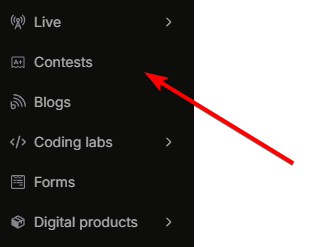
2. Click **Create new contest** to start a new contest, or select an existing contest to edit its questions and settings.
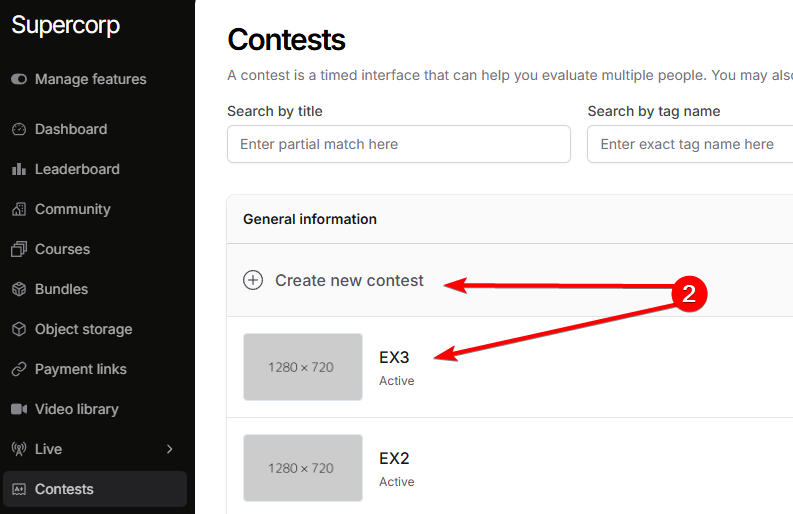
1. Click on `Setup contest`
2. Then, click on `Add item`
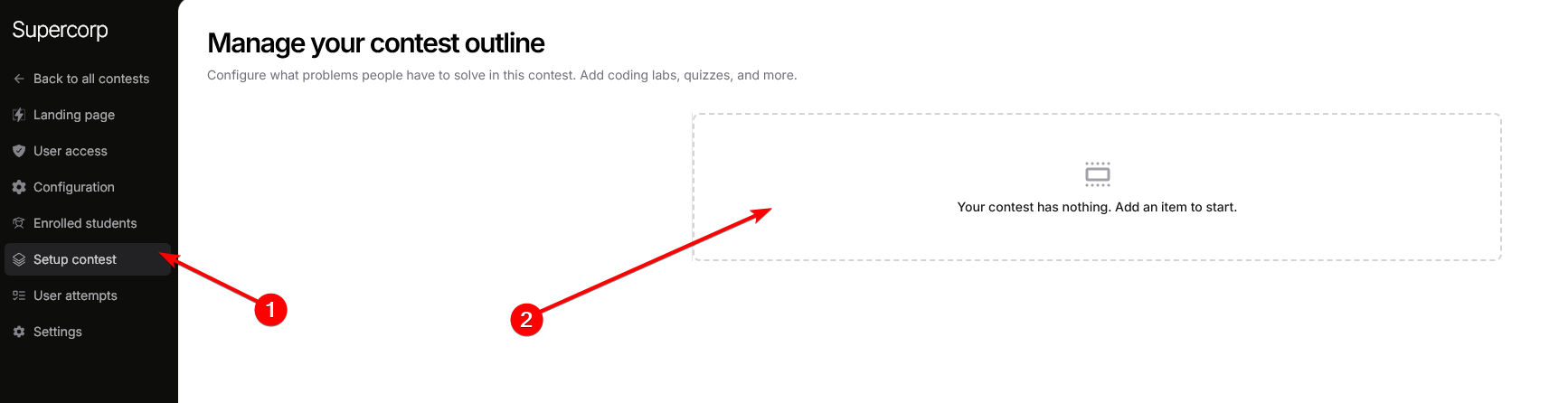
By default, a quiz is added when you create an item / section in an empty contest. You can add more items to this contest by clicking on the `+` icon.
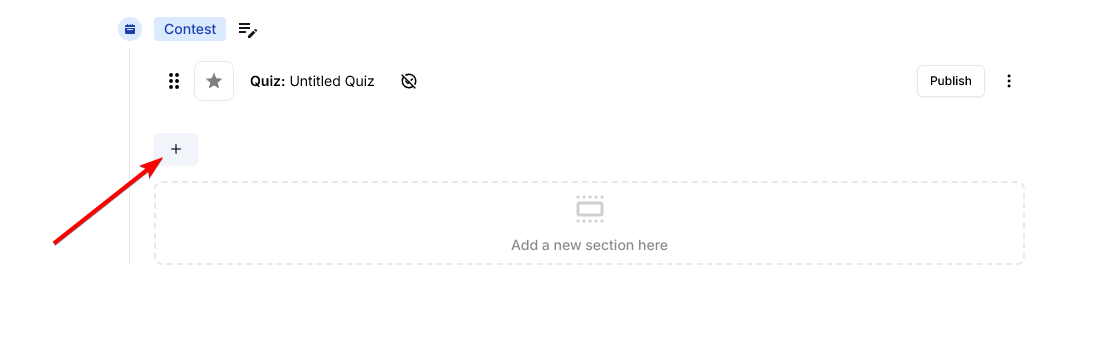
Or, you can also add multiple sections to the contest, which are shown to user / student in different sections.
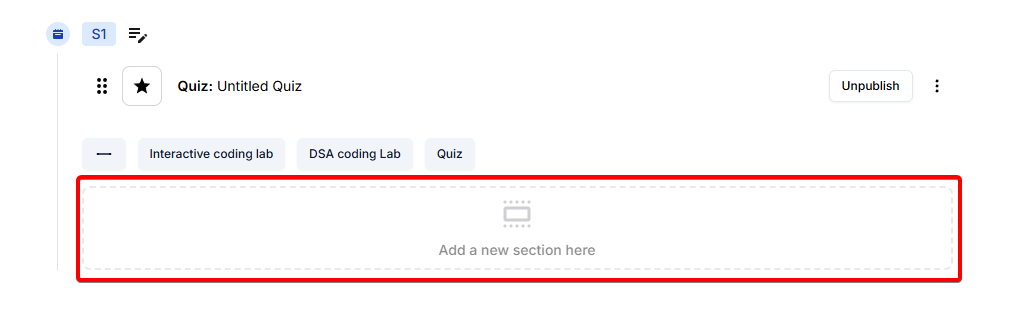
Then, you can choose from one of the 3 options :
* DSA lab
* Interactive lab
* Quiz
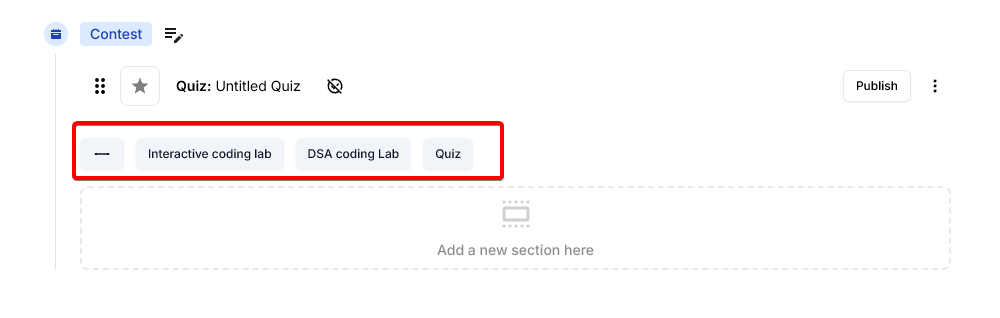
To attach coding labs, click on the `Attach coding lab` button.
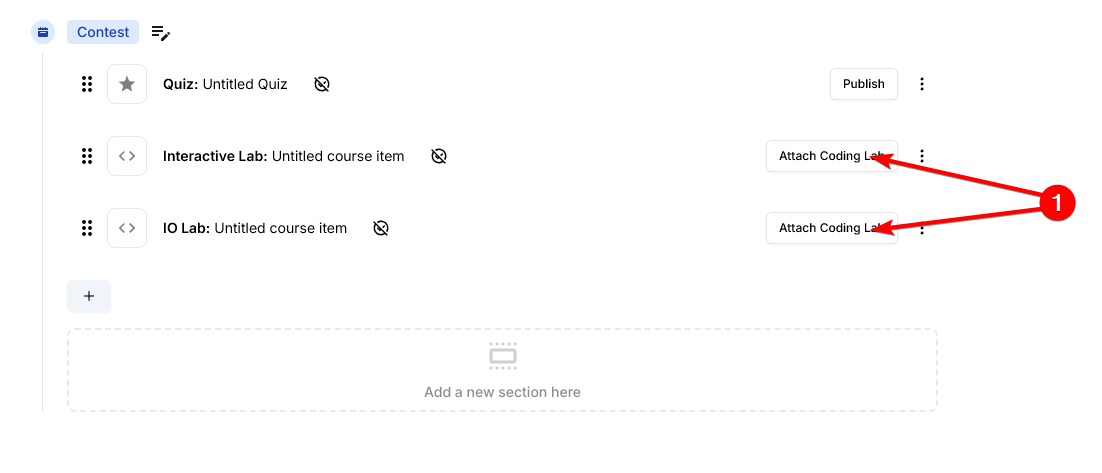
Then, you can choose to either `Attach an existing lab` or `Create a new one`
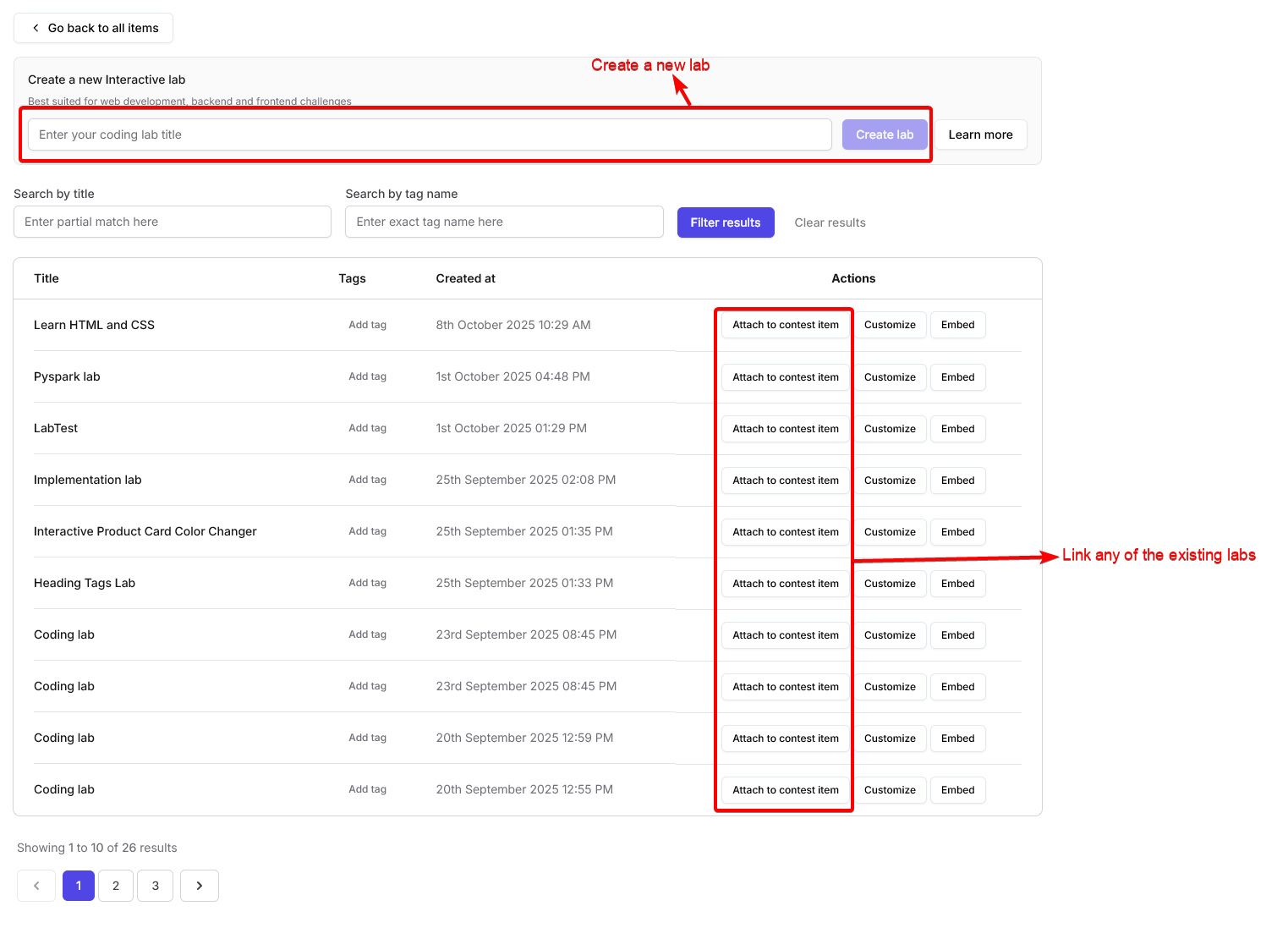
Once your contest is ready:
* Click **Publish** to make the contest live.
* You can update the contest link, set it to **Unlisted** or **Draft** mode, and share the contest link with participants.
You can also link your contest to a course or bundle, allowing enrolled students to participate automatically. Learn more about integrating contests with courses in the [Contests Introduction](/contests/introduction) documentation.
## Sectional timer for contests
You can set individual time limits for each section of your contest using sectional timers. This helps structure your contest more effectively and ensures participants manage their time within each section
### How to set sectional timers
Click on the timer icon beside the section name to set the sectional timer.
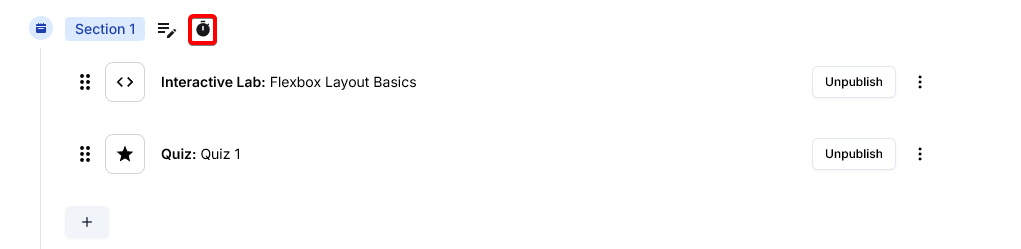
A dialog will appear where you can specify the max minutes allotted to this section. Enter the desired value.
Once set, the time limit will be shown beneath the section name and in the sidebar timer. This helps participants track their remaining time for each section.
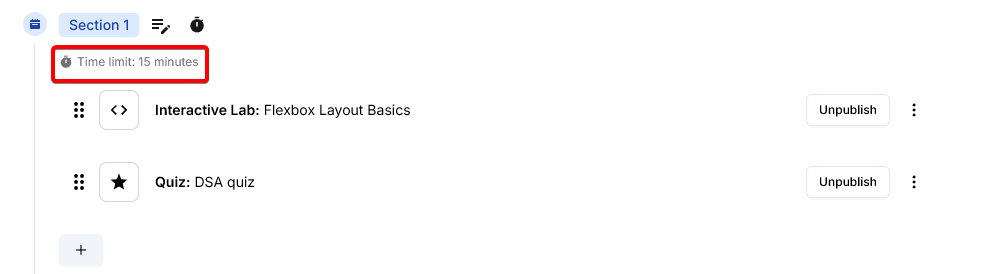
When the contest begins, users see the time remaining for each section in the sidebar, making it easy to manage their time.
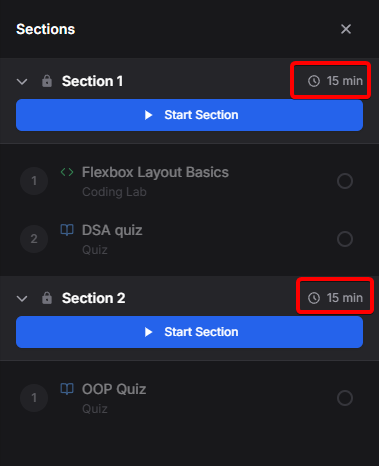
**Note:** The total time across all sections must **not** exceed the total contest duration. The platform will prompt you if you exceed the overall contest time limit.
# Contests on Fermion
Source: https://docs.fermion.app/contests/introduction
Learn how to create, manage, and run coding contests and quizzes on Fermion, including attempt tracking and analytics.
## What is a Contest?
A **Contest** on Fermion is a competitive assessment or challenge that allows you to evaluate student skills in a timed, proctored environment. Contests can include coding problems, quizzes, or other types of assessments, and are designed to foster engagement, learning, and healthy competition among participants.
On Fermion, you can create and manage contests directly from your instructor dashboard. Contests can be used as standalone events, integrated into courses, or included in bundles to enhance your learning offerings.
Once you create a contest, Fermion handles participant registration, submission management, and real-time scoring. The [User attempts](/contests/introduction) page gives you a central place to track attempts, review submissions, and view analytics on participant performance.
Before you start, make sure **Contests** are enabled under **Manage Features** in your instructor dashboard. This allows you to create and run contests on Fermion. Learn how to enable features at Fermion [here](/manage-settings/manage-features)
## Key features
Fermion contests include:
* **Timed assessments:** Set time limits for the entire contest or for individual problems.
* **Attempt tracking:** Monitor participant attempts, view submission history, and analyze progress.
* **Automatic grading:** For coding problems and quizzes, Fermion can automatically evaluate submissions and provide instant feedback.
* **Leaderboard & analytics:** Track top performers, view detailed analytics, and export results for further analysis.
* **Flexible question types:** Support for coding questions, multiple-choice, and custom formats.
* **Secure environment:** Ensure fair play with built-in proctoring features like screen recording full attempt, recording tab changes, disable copy-pasting and recording the user via camera.
## Next steps
Continue reading to learn how to set up and manage contests on Fermion:
Learn how to set up a contest and configure its settings.
[Learn more](/contests/set-up-contest#creating-a-contest)
# Configuring a Contest
Source: https://docs.fermion.app/contests/set-up-contest
Step-by-step guide to creating and configuring coding contests and quizzes on Fermion, with details on settings, attempt tracking, and analytics.
Setting up your first contest on Fermion is straightforward. This guide will walk you through each step, from creating a new contest to configuring its settings and publishing it for participants. Fermion makes it easy to manage your contest, track attempts, and analyze results.
Before you begin, ensure that **Contests** are enabled under **Manage Features** in your instructor dashboard. This is required to create and run contests on Fermion. Learn how to enable features [here](/manage-settings/manage-features).
## Creating a contest
Your contest page is where participants will view problems, submit solutions, and track their progress. A well-configured contest page helps ensure a smooth experience for both organizers and participants.
### Steps to set up a contest
1. Go to your **Instructor dashboard → Contests**.

2. Click **Create new contest** to start a new contest, or select an existing contest to edit its settings.

In the contest builder, fill in the essential details:
* **Contest Name & Description:** Clearly state the contest’s purpose and add a shrt description.
* **Banner Image:** Upload a banner to make your contest stand out.
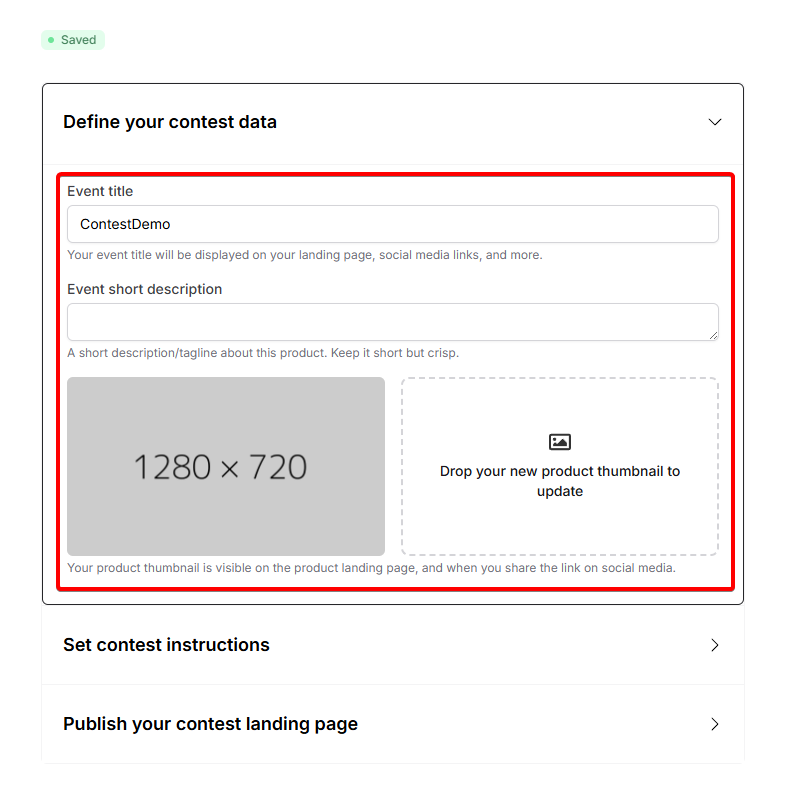
Write clear instructions for participants. Then, add your contest problems, quizzes, or questions.

Click on `Configuration` to set up settings such as:
* **Start and end time:** Schedule when the contest will be available.
* **Time Limit:** Set a total duration or per-question time limits.
-**Restrict re-attempts:** Set a total number of times users can retry this contest
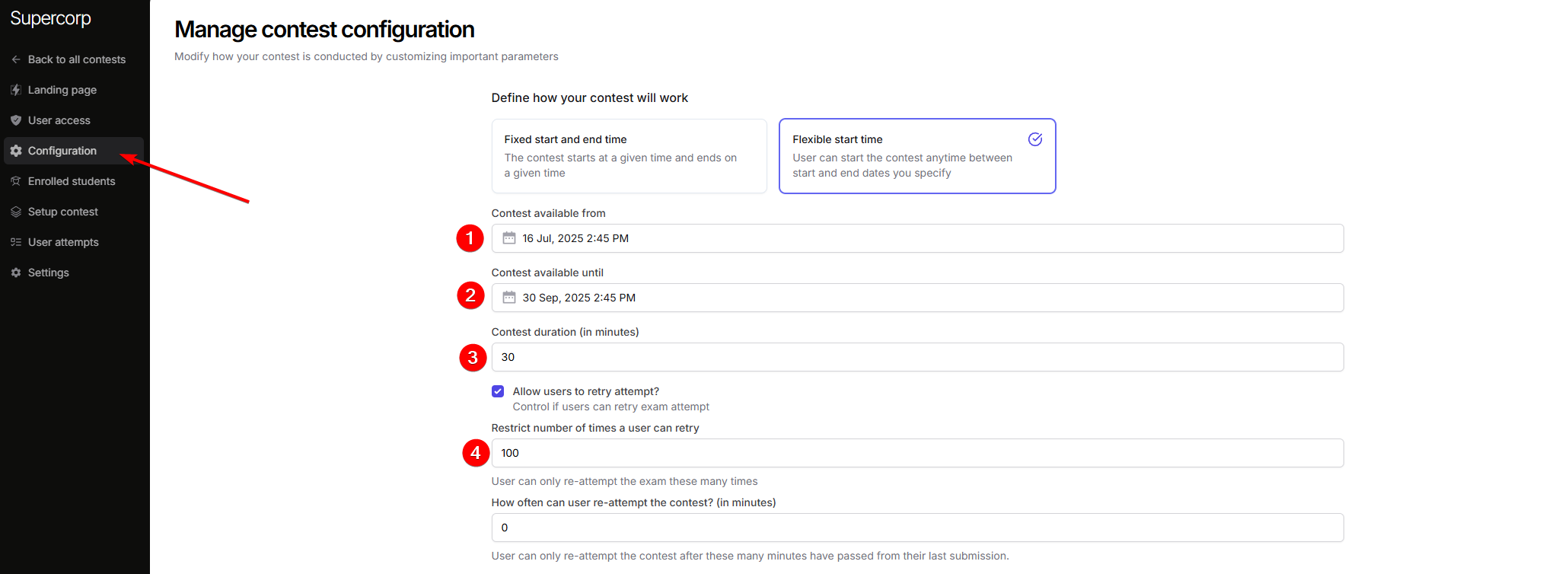
* **Proctoring Options:** Enable features like screen recording, tab change detection, and camera monitoring to ensure fair play.
You can also select an option where the contest auto-ends for a user when they violate any of the proctoring rules.
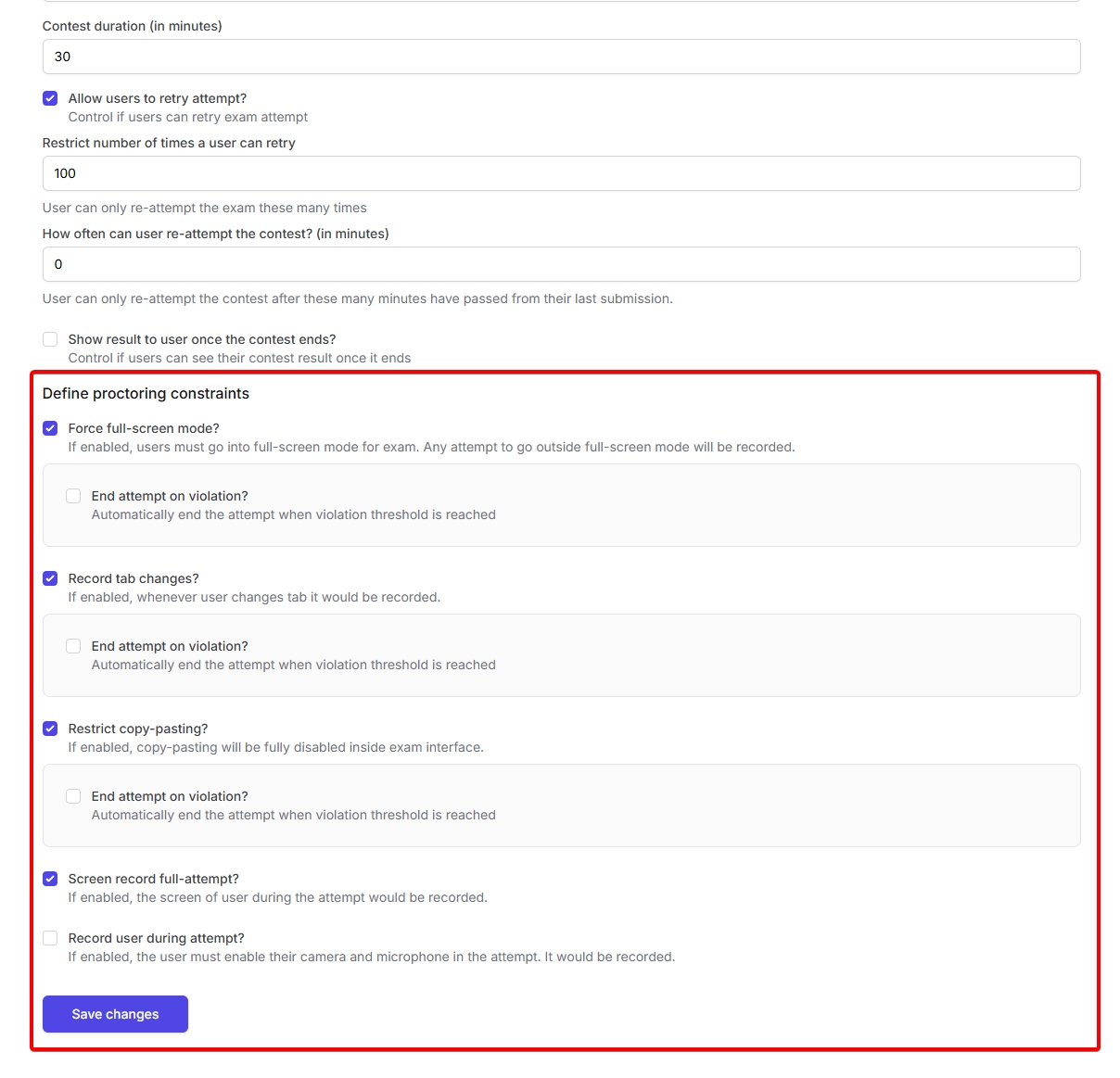
Once you are done configuring the contest, click on `Save changes`
Once your contest is ready:
* Click **Publish** to make the contest live.
* You can update the contest link, set it to **Unlisted** or **Draft** mode, and share the contest link with participants.
You can also link your contest to a course or bundle, allowing enrolled students to participate automatically. Learn more about integrating contests with courses in the [Contests Introduction](/contests/introduction) documentation.
***
## Contest access, pricing, and coupons
Contests can be free or paid, and you can control access just like other digital products on Fermion.
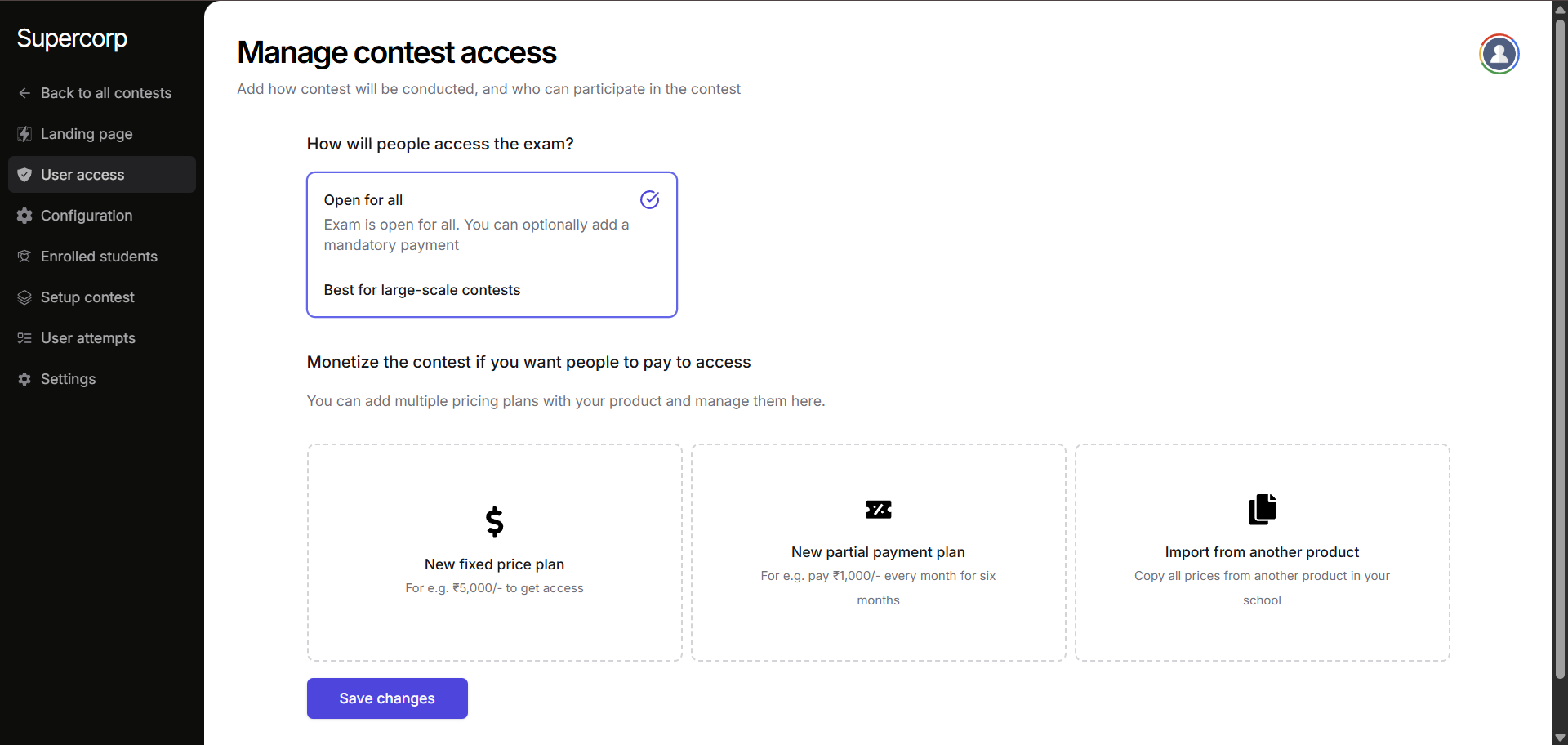
You can set up a **[fixed pricing plan](/setup-pricing/fixed-pricing-plan)** for paid contests, or use a **[partial payment plan](/setup-pricing/setup-emi)** if you want to allow installment payments. You can also import pricing from other products. For more information, see [Pricing FAQs](/setup-pricing/common-faqs).
## Contest settings & management
Manage your contest’s settings to control access and maintain organization.
**Enrollment Settings:**
Decide who can participate in your contest. By default, contests are open / visible to anyone that has access to your school.
You can change this by enabling `Manual enrollment`
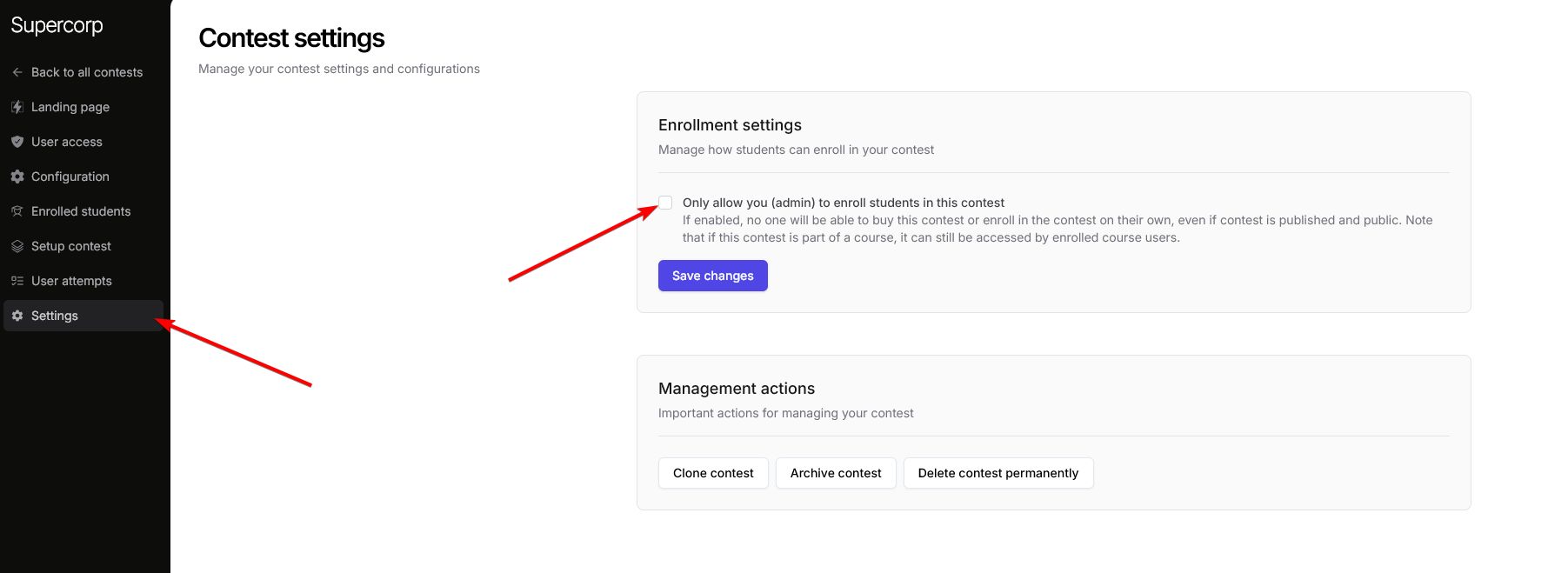
If the contest is linked to a course or bundle, enrolled users will automatically get access. Learn more about [Linking Contests to Courses](/contests/introduction).
# User Attempts
Source: https://docs.fermion.app/contests/user-attempts
Learn how users can start, attempt, and review contests in Fermion.
In Fermion, users can participate in programming contests and assessments. Each contest is timed, proctored, and provides detailed analytics of the user's performance. This guide explains the flow of a user attempt, from the instructions screen to the result report.
## Instructions screen
Before starting a contest, users are presented with an **Instructions Screen**. This screen provides all necessary details about the contest, including the duration, number of questions, and important guidelines.
The following details are also mentioned on the left pane of the contest.
* **Contest Name:** The name of the contest.
* **Test Duration:** Maximum time available for the student to finish the contest.
* **Question Count:** Number of questions inside the contest
**Key Instructions:**
* This is a timed test. Ensure you are not interrupted during the contest, as the timer cannot be paused once started.
* Make sure you have a stable internet connection and a modern web browser.
* The attempt will be proctored and recorded. Avoid switching to other windows or moving your cursor out of the test window during the attempt.
These are predefined instructions set by Fermion. You can edit your own custom instructions by heading over to the contest landing page. Learn more about [custom instructions](/contests/set-up-contest#steps-to-set-up-a-contest).
Users can click **Continue** once they are ready to proceed.
***
## Section breakdown
After the instructions, users see a **Section Breakdown**, which provides an overview of all questions in the contest. This allows the user to understand the total number of questions and plan their approach.
***
## Start attempt: Terms and Conditions
Before beginning the contest, users must agree to the **Terms and Conditions**.
Typical agreements include:
1. Not copying code or answers from any source, including websites, LLMs like ChatGPT, books, or colleagues.
2. Not sharing the platform's or contest's copyrighted content.
3. Agreeing to the platform's Terms of Service and Privacy Policy.
Users must also enable **Fullscreen Mode** and allow access to their **camera and microphone** if proctoring is enabled.
***
## Attempting questions
Once the contest starts:
* Users can view and attempt each question.
* If you have added multiple sections in the contest, you can see the questions, separated by sections as well. This feature helps organize complex contests with different question types or topics. For more information on adding sections, see [Contest Questions](/contests/contest-questions).
* The platform tracks time, user interactions, and proctoring data (if enabled) to ensure compliance.
* Users can submit answers as they complete each question or submit the full contest once done.
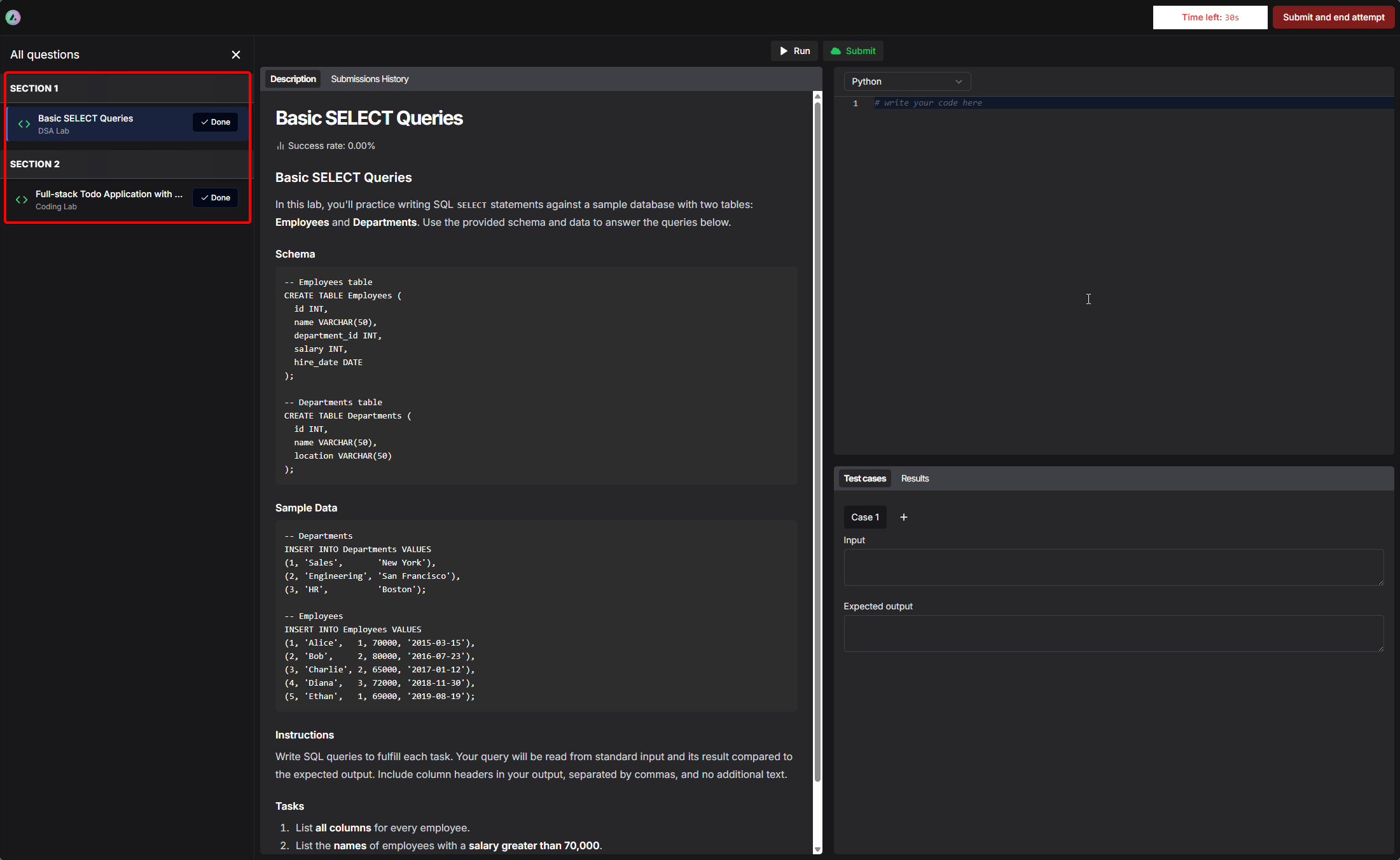
***
## Result report
After submission, users can view their **Result Report**, which provides detailed feedback on their performance. The result report UI has been improved to offer clearer visualization of performance metrics and easier navigation through results.
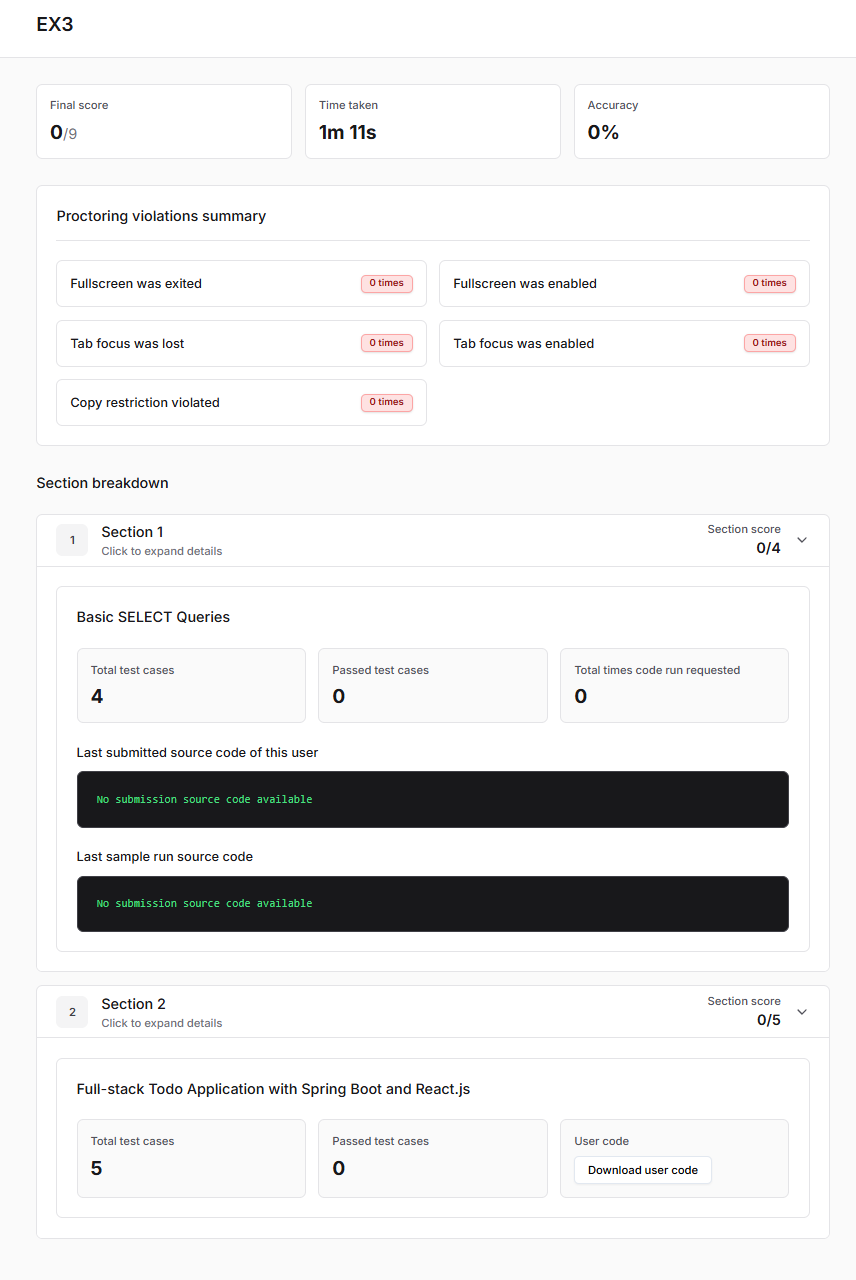
**Report Sections:**
* **Final Score:** Total points achieved vs. total possible points.
* **Time Taken:** Duration spent completing the contest.
* **Accuracy:** Percentage of correct answers.
* **Proctoring Violations Summary:** Tracks violations such as:
* Exiting fullscreen
* Losing tab focus
* Copying restrictions
Users can also scroll further and expand each question to see feedback.
## Contest results
After your contest ends (or while it is ongoing), instructors can review performance data, user attempts, and generate reports for analysis. This section explains how to navigate the contest results dashboard.
## Accessing user attempts by instructor
To view user attempts as an instructor, perform the following steps:
Open the **Product Builder** for your contest you would like to check the results of.
Navigate to the **User Attempts** tab in the sidebar to access all the results and reports of the contest.
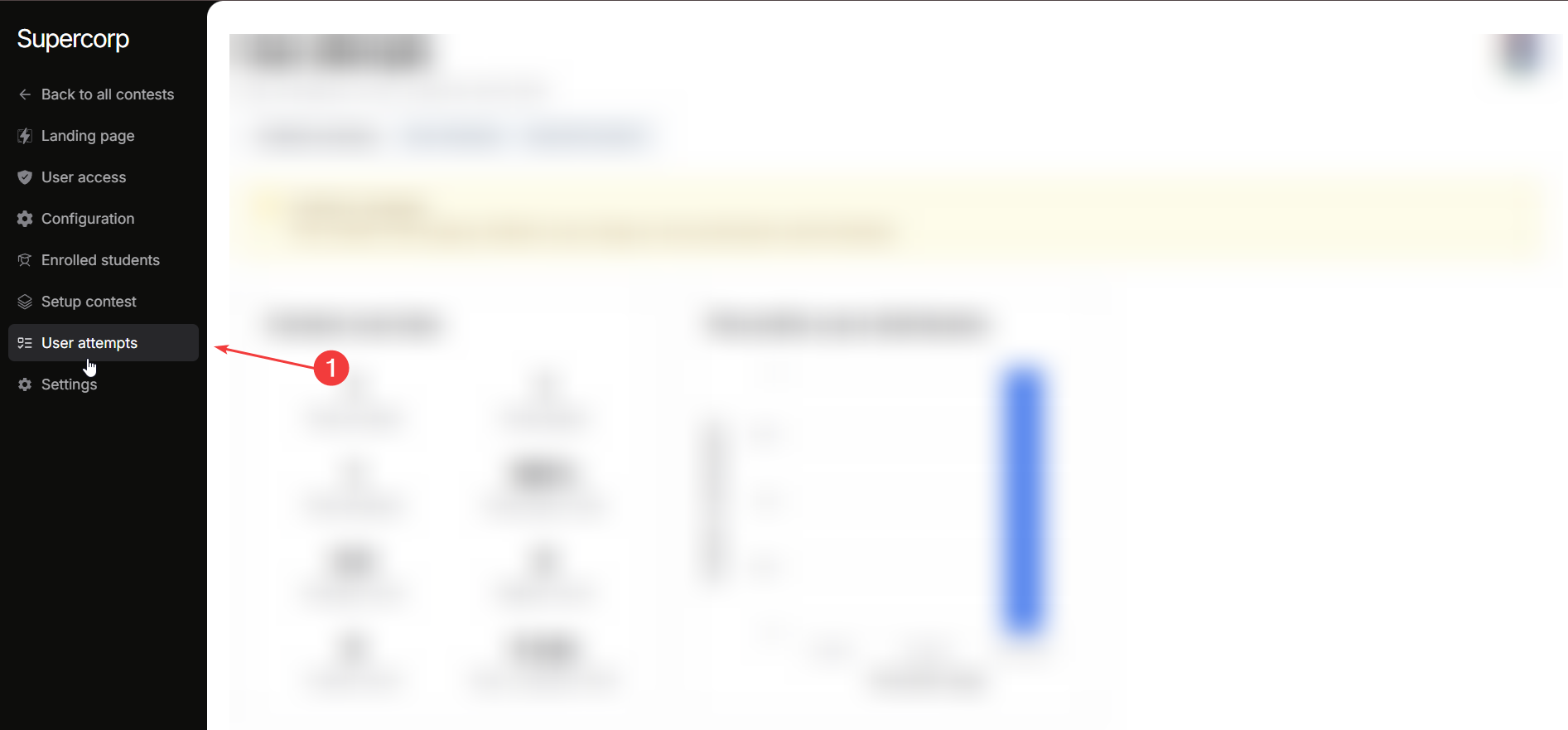
Here, instructors can see an overview of the contest:
### Contest Summary
The **Contest Summary** provides instructors with a quick overview of participant engagement and performance metrics.
Here, you can monitor the overall status of the contest, including how many users are **Total enrolled**, how many have
**Participated**, and the **Total attempts** submitted. Key performance indicators such as **Average score**, **Highest score**, **Lowest score**, and **Avg. completion time**
help you gauge overall difficulty and participant performance. The **Percentile score distribution (0–20%, 40–60%, 80–100%)**
gives a clear picture of how participants are performing relative to each other.
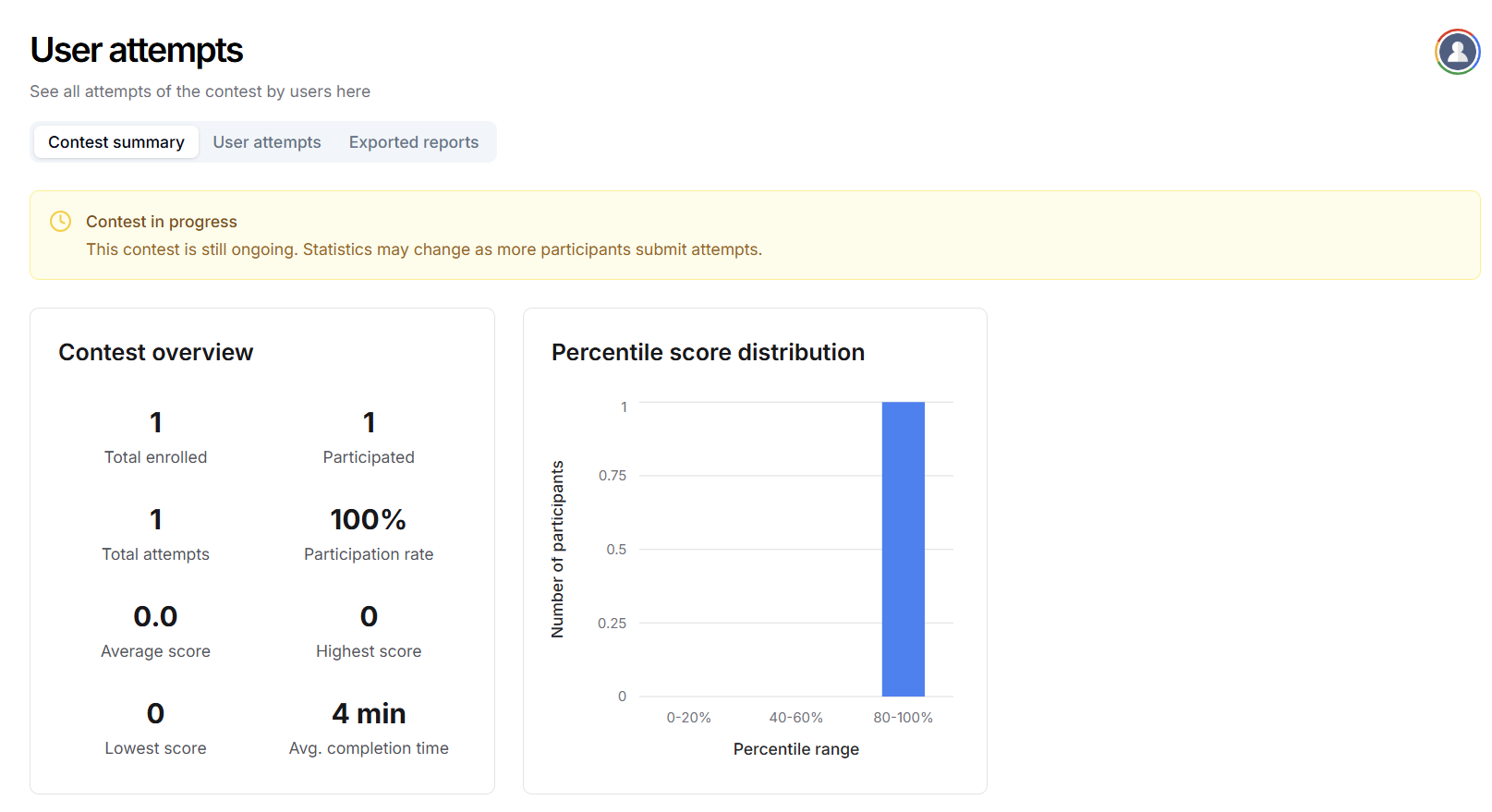
The contest summary updates in real-time as more participants submit their attempts.
***
### Viewing individual attempts
Instructors can access detailed information for each participant by switching to the **Individual Attempts** tab. Click on the **User attempts** tab to view responses for each participant.
Click on **See attempt report** to download the contest attempt report for that particular user. You can also access the user's profile from the same section by clicking **Open user profile** button.
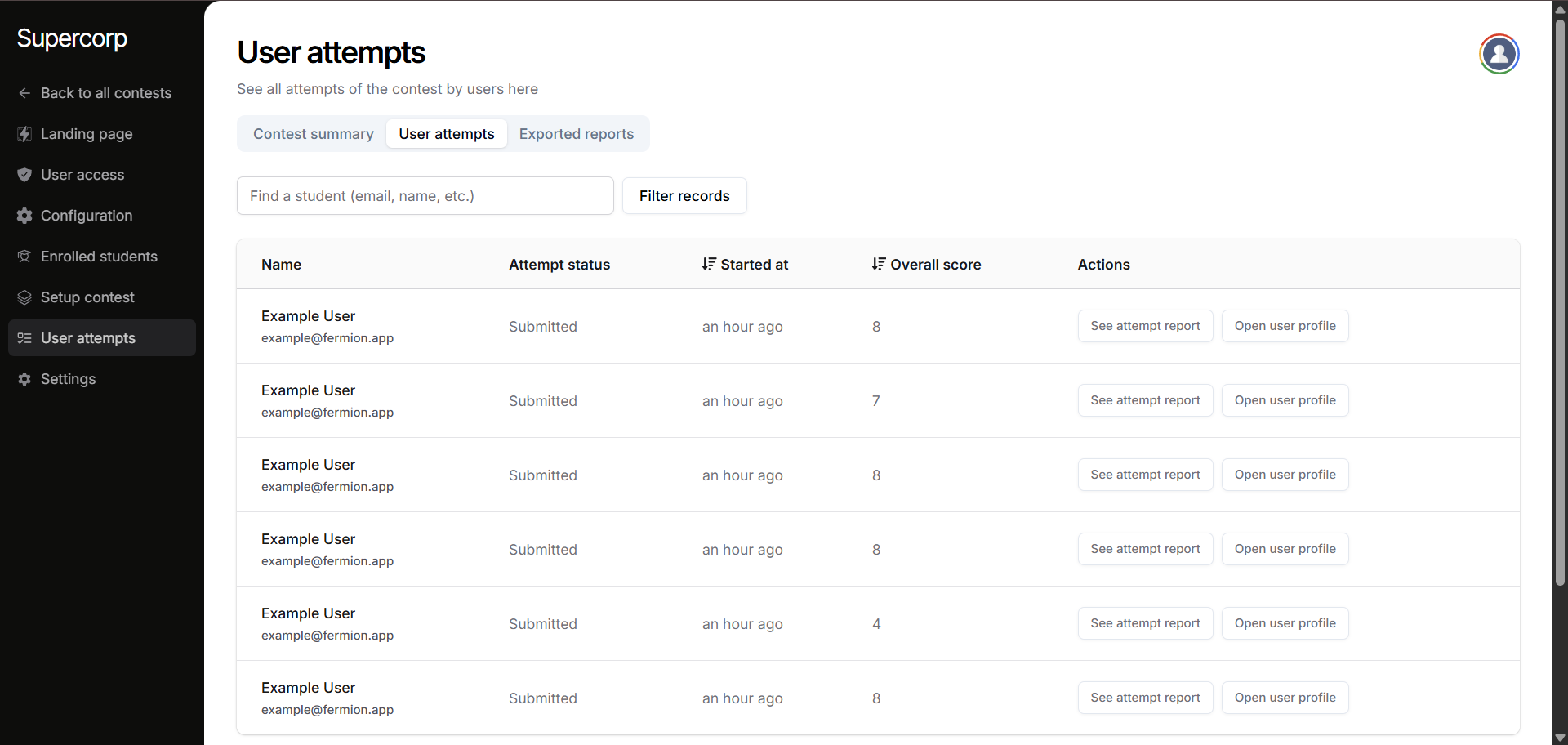
You can filter or search for specific participants by their name or email if your contest has many users.
***
### Downloading contest reports
To download reports:
1. Go to the **Exported reports** tab within your contest user attempts section.
2. Click on **Create a new export report**. The report will take a few moments to process and will be available to download.
3. Click **Download report** to export the contest results in a CSV format.
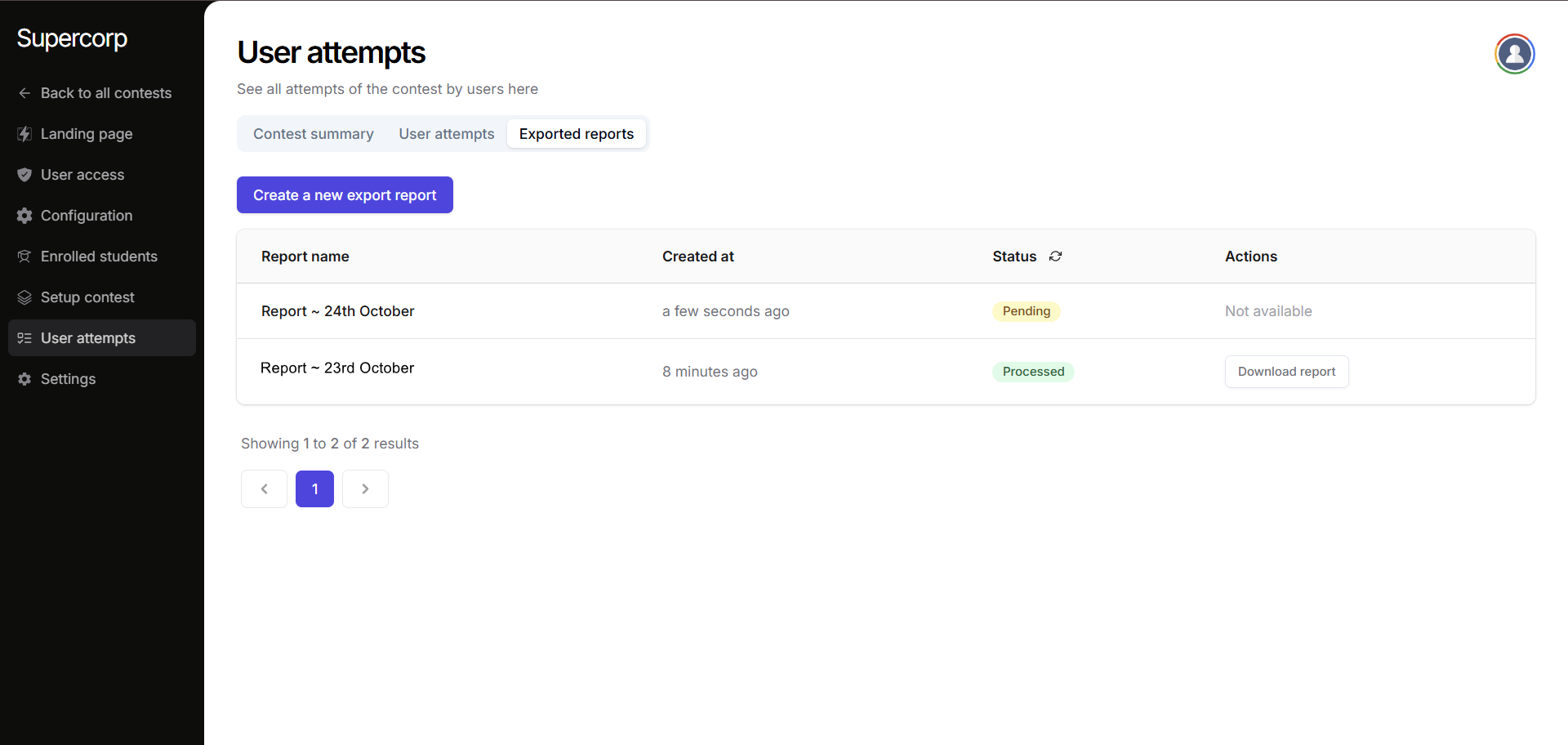
# AI Lab Builder
Source: https://docs.fermion.app/creating-coding-labs/ai-lab-builder
Learn how to create coding labs using Fermion AI Agent builder
Fermion's AI Lab Builder allows you to quickly create interactive coding labs using AI assistance. This feature helps you generate lab content, instructions, and challenges automatically based on your requirements.
## Getting Started
To get started with the AI Lab Builder:
1. Navigate to your **Dashboard**
2. Go to **Coding labs** → **Labs** → **Interactive labs**
3. Click on **Build using AI Agent**
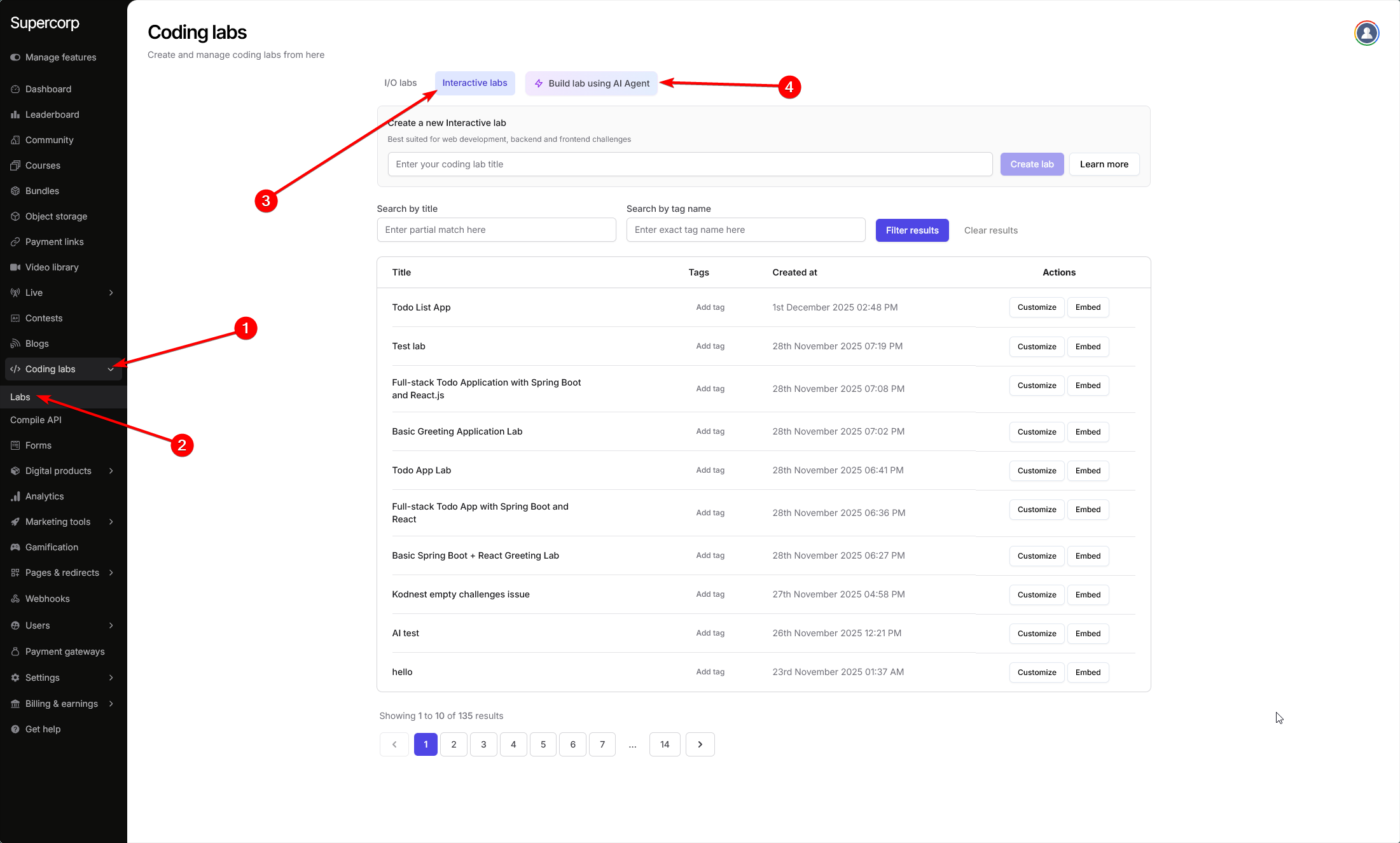
Once you've accessed the AI Lab Builder, you'll need to:
1. **Enter a title** for your coding lab
2. **Choose a language or framework** from the available options
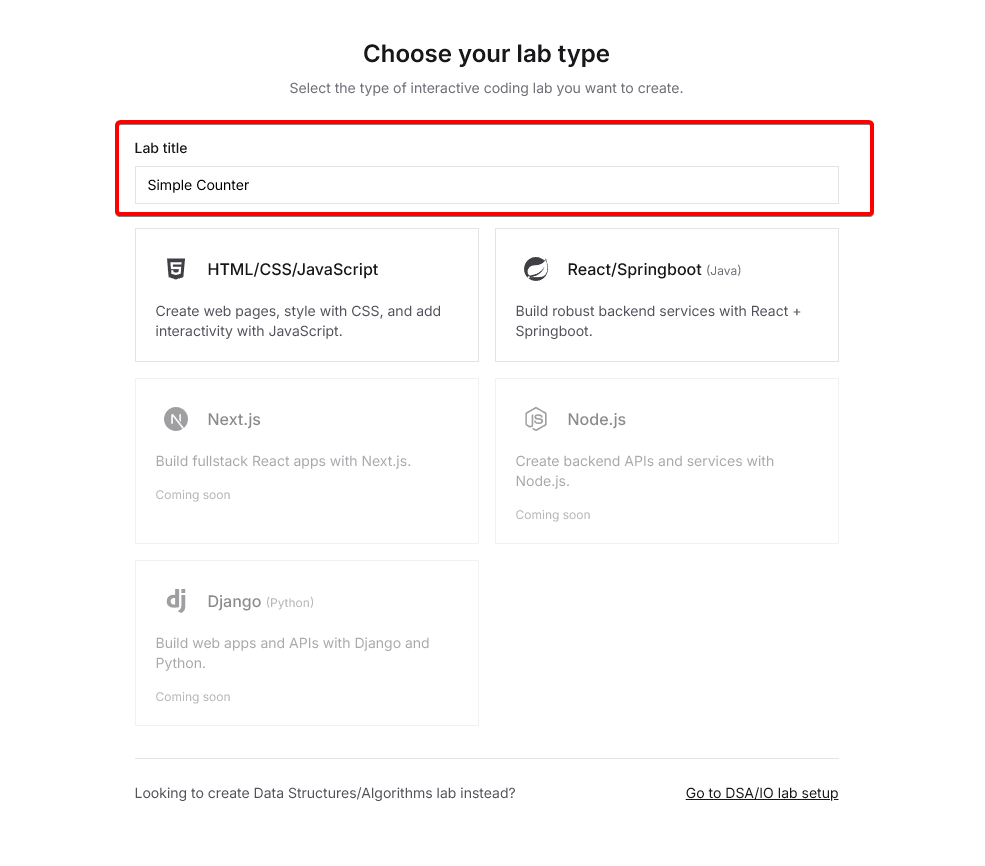
Once you've selected your preferred technology and entered a title, the AI Agent will help you generate the lab structure, including:
* Initial project setup
* Lab instructions
* Coding challenges
* Evaluation criteria
The AI will create a complete, ready-to-use coding lab that you can further customize as needed.
After configuring your lab, use the **AI agent chat window on the left** to start building your lab. The AI agent can understand natural language instructions and automatically configure your lab by invoking various tool calls.
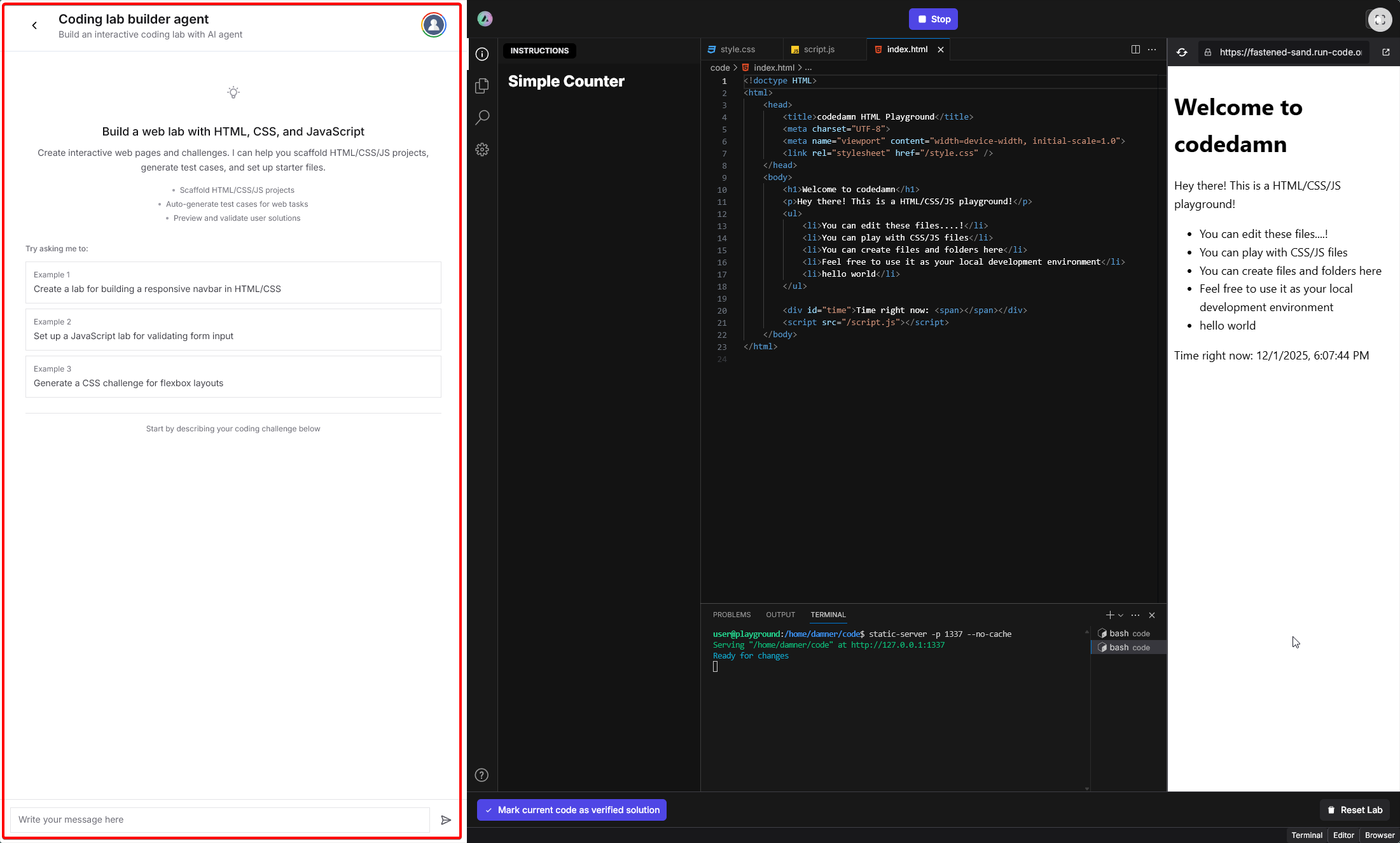
You can interact with the AI agent using natural language. For example, you can ask it to:
* Create project files and folder structure
* Install dependencies
* Set up test cases
* Configure the lab description
* Generate evaluation scripts
The AI agent will automatically use the appropriate tool calls to fulfill your requests.
Interact with the AI agent by describing your requirements in natural language. The AI agent will process your instructions and automatically set up the lab for you, including:
* Creating the necessary project files
* Writing initial code templates
* Configuring challenges
* Updating lab instructions and descriptions
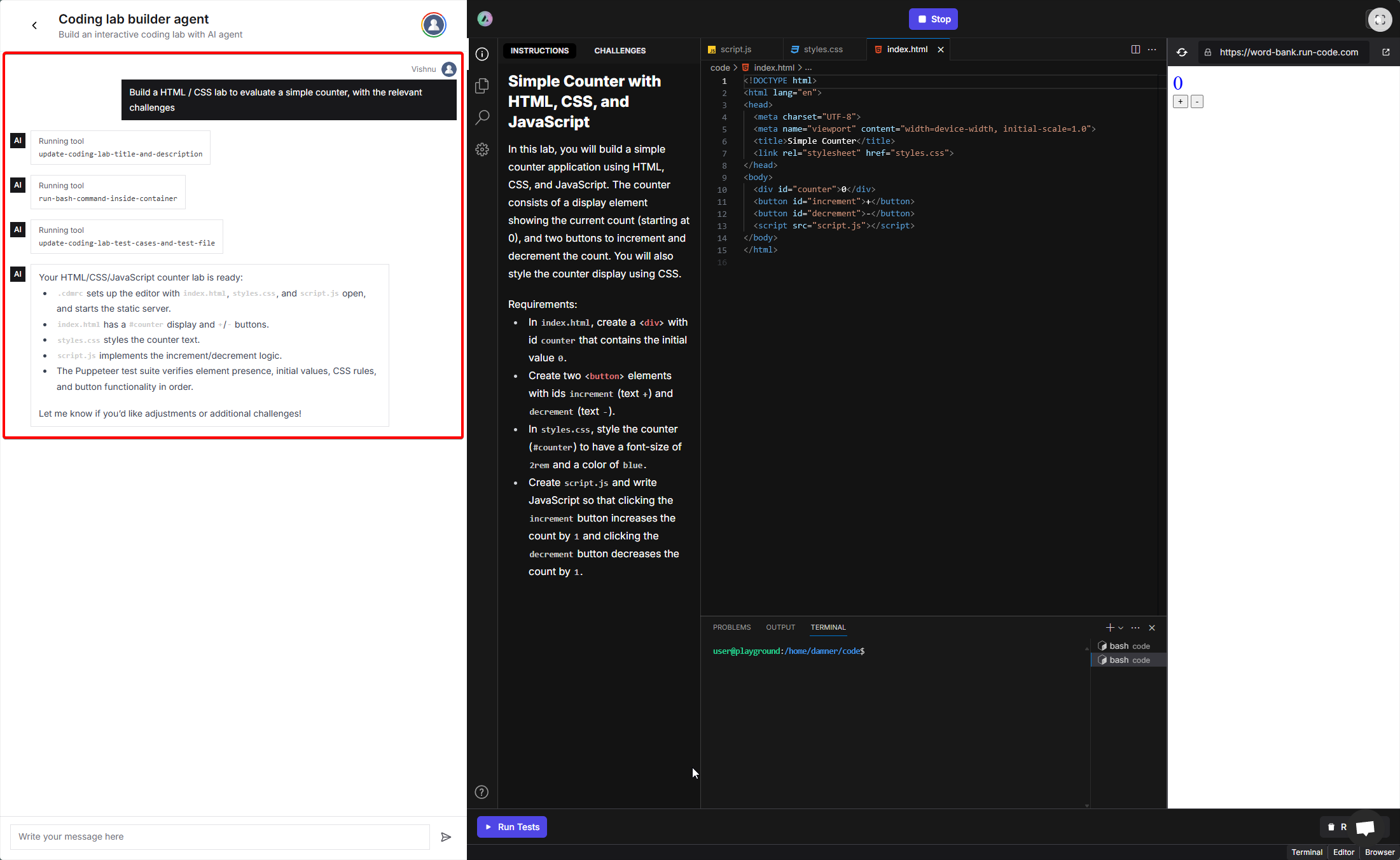
Simply type your requirements in the chat window and wait for the AI agent to set up the lab. The agent will execute the necessary tool calls in the background and provide you with a summary once the lab is ready. You can then review the generated lab, test it, and make any additional adjustments as needed.
After the AI agent has set up your lab, it's important to verify that all the generated data and code are correct. Review the following components and make any necessary adjustments before using the lab in your courses.
## Available Languages and Frameworks
The AI Lab Builder supports the following technologies:
Create web pages, style with CSS, and add interactivity with JavaScript.
Build robust backend services with React + Springboot.
Build fullstack React apps with Next.js
(Coming soon)
Create backend APIs and services with Node.js
(Coming soon)
Build web apps and APIs with Django and Python
(Coming soon)
## Available Tool Calls
The AI agent can invoke the following tool calls to build your lab:
Updates the lab's title and its Markdown description.
**Parameters:**
* `title` (string) - The title of the coding lab
* `description` (string) - The Markdown description of the lab
Defines or updates the array of challenge descriptions and the Puppeteer-based evaluation script.
**Parameters:**
* `testCases` (string\[]) - List of challenge texts in order
* `testFileContent` (string) - Full content of the Node.js/Puppeteer test file
Executes an arbitrary bash command inside the sandbox (working directory: `/home/damner/code`). Useful for creating files, listing directories, installing dependencies, etc.
**Parameters:**
* `command` (string) - The bash command to execute
## Verification Checklist
After the AI agent has set up your lab, use this checklist to verify everything is correct:
Make sure the AI has generated the right set of challenges that align with your requirements. You can view the challenges in the **CHALLENGES** tab on the left sidebar. Verify that:
* All required challenges are present
* Challenge descriptions are clear and accurate
* Challenges are in the correct order
* Each challenge tests the intended functionality
Check the generated code files to ensure:
* **Project structure** - Files and folders are organized correctly
* **Code quality** - The initial code templates are appropriate for the lab
* **Dependencies** - Required packages and libraries are properly installed
* **File completeness** - All necessary files have been created
Use the **Run Tests** button to verify that:
* The lab environment boots correctly
* All challenges can be evaluated properly
* The evaluation script works as expected
* Students can complete the challenges successfully
If you find any issues or want to make changes:
* Continue chatting with the AI agent to request modifications
* Manually edit files, challenges, or descriptions as needed
* Test again to ensure everything works correctly
Once verified, your lab is ready to be used in your courses!
# Using .cdmrc
Source: https://docs.fermion.app/creating-coding-labs/cdmrc-file
Learn how to configure coding labs using the .cdmrc configuration file
The file `.cdmrc` is a very important file for your playgrounds. This is the configuration file for codedamn playgrounds that control how your playground behaves. This is written in YAML. You can [learn YAML syntax here](https://www.youtube.com/watch?v=motSWssLHCQ).
There are only a few key-value pairs you can specify in this file. They are documented here. Let's learn how you can work with `.cdmrc` with example configs.
## Creating Terminals
```yaml theme={null}
terminals: ['echo one', 'echo two', 'echo three']
```
The `terminals` key can be use to execute commands in the terminal instances. You can boot up to **6** terminals instances. The `terminals` array in the `.cdmrc` can only contain 6 elements in them.
The above config will create 3 terminals and execute the commands `echo one`, `echo two` and `echo three` in them. The config above will start three terminals as soon as your playground boots. Note that these commands run only once the playground is booted. This means that if you invite collaborators to your playground, and you're already on that same playground (that already has executed these commands), they will **not** run again.
Note that the terminals will not execute in the same order as given in the array, the order of the terminal tabs is based on the execution time of the commands. The terminal that executes the command first will be the first tab, and so on.
## Default Files
```yaml theme={null}
tabs: ['src/index.html', 'src/folder/script1.js', 'README.md']
```
The `tabs` field in the `.cdmrc` is an array of strings. Once specified, whenever your playground boots for the first time - it would open the mentioned files by default in the Monaco editor.
This is for a good UX when users don't know what should be a good entry point for the project.
We at codedamn do this on our codelabs and some default playground repos. You can customize this behavior or disable it completely by passing an empty array `[]` or just removing the key altogether.
You can also optionally specify a line number and column number separated by a `#` symbol. This will automatically place the cursor at the specified position. Here's how a modified version could look like:
```yaml theme={null}
tabs: ['src/index.html#22:10', 'src/folder/script1.js#2:55', 'README.md']
```
The config above will open `index.html` file at line number 22 and column number 10 the first time user opens it. Similarly, for `script1.js` file above, it'll open at line number 2 and column number 55.
## Playground view
```yaml theme={null}
playground-view: terminal-editor-browser
```
There are three possible views for playground you can specify in this configuration:
* `terminal-editor-browser`: This view includes terminal, editor and browser preview. It is the best and recommended view if you intend to use a frontend web server to display output.
* `terminal-editor`: This view includes a terminal and an editor only. It is good for programming where no web server is involved. For example, writing a sorting algorithm in C++ may not need a web server output.
* `terminal-browser`: This view includes only the terminal and browser. You can combine it with `browser-link` too.
## Run button
```yaml theme={null}
run-button: node $$file
```
The `run-button` command in a playground does two things:
* It makes a new button saying "Run Code" visible on your playground.
* When you click on that "Run Code" button - it executes that command in the first terminal. However, we **automatically** run a **CTRL + C** sequence as well to terminate any previously running program. Therefore, anything running in the foreground on your first terminal would get terminated.
This is especially useful when you're working with, say, a program that requires you to run the same command over and over again. You can open a C++ playground on codedamn and configure the command as `gcc script.c -o script && ./script` and every time you click on `Run Code` button, it'll execute this script.
Another important thing to note here is the `$$file` syntax. If you'd like to run a command dynamically on the focused tab/active tab, you can specify `$$file` and we would run your command after replacing `$$file` it with the path to the file you have currently opened inside your Monaco editor on codedamn.
For example, if you're on `src/index.js` file and your `run-button` command is `node $$file`, then when you click on "Run Code" button, we would run `node src/index.js`. If you change file and click on the button again, we'll update the path again before running.
## Browser Link
```
browser-link: https://codedamn.com
```
By default, we open `https://.codedamn.app:1337` in the iframe browser preview on the right. However, you can override the webpage opened on the right using the command shown above.
Note that because we use `iframe` to embed the window, it is entirely possible that a variety of URLs might not work due to `x-frame-options` set to `sameorigin` or `deny`. [Read more on MDN](https://developer.mozilla.org/en-US/docs/Web/HTTP/Headers/X-Frame-Options).
## Conclusion
Here's a dummy config file that uses all the options we have currently:
```yaml theme={null}
# terminals
terminals:
[
'cd client && yarn && yarn start',
'cd server && yarn && yarn dev',
'echo "We''re ready"',
]
# other config
tabs: ['README.md']
run-button: clear && node $$file
browser-link: https://wikipedia.org
```
# Embed an Interactive Lab
Source: https://docs.fermion.app/creating-coding-labs/embedding-lab
Step-by-step guide to embedding a coding lab inside your course or website using Fermion’s lab embed tools.
This article discusses integrating an IDE and including evaluative coding labs under your organization. Here are some key points before we jump in:
## What is a coding lab?
A coding lab is an immersive experience where users learn by doing. We support every popular technology. Here’s a non-exhaustive (but popular) list:
* Node.js
* Bun
* Python
* Rust
* C/C++
* Java
* C#
* Solidity
* Golang
* PHP
* Swift
* SQLite
* Every frontend framework
Note that once a compiler/programming language is supported, every associated framework with it is supported automatically.
For example, with Java, we automatically support Springboot. With Python, we automatically support Django, flask, etc. With Node.js, we automatically support Express, etc., and so on.
On top of this, you can add evaluation inside every lab. This means that you can **check and grade** the work done by user automatically, just like how you would do when working with them 1:1.
Here’s how a coding lab environment looks like:

## How do you create a coding lab?
Complete documentation has been laid out [here](/creating-coding-labs/what-are-coding-labs), where you can follow the instructions according to the technology you want to use, and create coding labs.
## How to embed a coding lab from Fermion?
Before starting the embed process, you need two things:
1. A school on Fermion
2. Fermion API key
[Contact support](https://codedamn.com/contact) to get both of these things set up for you.
After creating a lab from your Fermion Dashboard, you will get a unique identifier of the lab called `labId`. Here’s what it would look like:

Clicking the `Embed coding lab` button would give you access to the `labId` and other important parameters.
On any page in which you wish to let the user attempt the lab, you need to embed an iframe as follows:
```xml theme={null}
```
Here, the `EMBED_URL` needs to be securely generated on your backend as follows:
1. The embed URL will always contain the following part: [`https://example.fermion.app/embed/lab?token=`.](https://example.fermion.app/embed/lab?token=.)
2. After this, you need to generate a JWT (JSON Web Token) containing the following claims:The JWT token must be signed with your Fermion API Key. Example JWT: [here](https://jwt.io/#debugger-io?token=eyJhbGciOiJIUzI1NiIsInR5cCI6IkpXVCJ9.eyJsYWJJZCI6ImFiY2QiLCJ1c2VySWQiOiJ4eXoiLCJpYXQiOjE1MTYyMzkwMjJ9.9SKcAU52Qad6MERnzy1kF4Y0A3SoAWuGfpmE97JDYOo)
1. `labId` (String) – This is the unique identifier of the lab as mentioned above.
2. `userId` (String) – This is a string that you have stored in your database that can uniquely identify a given user. You have to ensure that you store this identifier properly in your database and reuse it every time a user tries to access any lab.
3. Append this generated JWT token to the end to get the final embed URL.
Example JavaScript code to generate `EMBED_URL` securely on your backend server:
This example uses the [jsonwebtoken package](https://www.npmjs.com/package/jsonwebtoken) to generate a JWT Token.
```js theme={null}
import jwt from 'jsonwebtoken'
const jwtToken = jwt.sign(
{
labId: '66a9202ab1458d00083ff520',
userId: '',
// optionally specify more properties
playgroundOptions: {
// change this to false to disallow copy-paste
isCodeCopyPasteAllowed: true,
// change this to true to hide logo
shouldHideLogo: true,
// change this to true to hide the test output logs section in the editor.
shouldHideTestOutputLogs: false,
// change this to `true` to render the embedded coding lab in a read-only mode
isReadOnly: false,
// change this to true and supply a lab ID to boot the new lab filesystem from the older lab (documented below)
overrideDefaultFilesystemForLab: {
isEnabled: false,
},
},
},
'FERMION_API_KEY',
{ expiresIn: '1h' }
)
const EMBED_URL =
'https://example.fermion.app/embed/lab?token=' +
encodeURIComponent(jwtToken)
```
## Playground options
In the JWT creation above, you can see there are many options you can use to customize the behaviour. Let's break down what each option does here.
### isCodeCopyPasteAllowed
Enabling this will restrict people to paste directly in the editor. Use this if you do not want people to be able to paste code inside editor using mouse or keyboard shortcuts
### shouldHideLogo
By default, when you embed the lab, your school logo will be visible on top left of the IDE interface. If you enable this the logo will be hidden.
### shouldHideTestOutputLogs
By default, the output logs of the lab's challenges will be shown in the embedded IDE after users run their code. If you set `shouldHideTestOutputLogs` to `true`, the test output logs section will be hidden from the user's view.
**Example:**
```js theme={null}
playgroundOptions: {
shouldHideTestOutputLogs: true,
}
```
### isReadOnly
Setting `isReadOnly` to `true` will render the embedded coding lab in a read-only mode. This means users can view the lab and its content, but will not be able to edit files. This is useful if you want to showcase the lab without allowing further interaction.
**Example:**
```js theme={null}
playgroundOptions: {
isReadOnly: true,
}
```
### overrideDefaultFilesystemForLab
`overrideDefaultFilesystemForLab` option can be used to configure how the coding lab filesystem will start. The accepted schema for this, if not null, is the following:
```ts theme={null}
type Schema =
| {
isEnabled: false
}
| {
labId: string
isEnabled: true
type: 'other-lab-id'
}
```
#### Case 1: isEnabled = false
If you do not pass this option, or pass it as `isEnabled` = `false` then the default behavior is as follows:
* On the very first time the user starts the lab, since there is no previous work for the lab, it will start the filesystem with the GitHub repository (and branch) you gave while setting up the lab initially.
* When the user comes back to the lab in future, the filesystem is restored from a snapshot of their past work, and not GitHub repository you supplied initially.
#### Case 2: isEnabled = true
If you enable this option, you must specify a `type`. The only possible option today is `other-lab-id`. Pass the `labId` in the same object to be the `labId` which you would like to make the starting point for user for this lab.
Let's say the lab you're creating this JWT token for has an ID of `X` and the `labId` you passed in `overrideDefaultFilesystemForLab` has ID `Y`.
* Whenever user starts lab `X` with your token supplied, system will check if there is a past work snapshot for the given user that exists for the lab `X`.
* In case it does not (i.e. when the user starts the lab for the first time), system will check if there is a past work snapshot for the given user that exists for the lab `Y`.
* If work exists for `Y`, system will copy the filesystem to lab `X` and user will start the lab `X` with the filesystem of lab `Y`.
* If work does not exist for `Y`, system will boot the filesystem from the GitHub repository (and branch) you gave while setting up lab `X`.
> **Note:** After creating a new lab or updating its filesystem programmatically (for example, via API or automation), please allow up to **2 minutes** before starting the lab. This delay ensures that all lab files and environment are fully synchronized and ready for use. Starting the lab immediately after creation may result in incorrect or outdated file contents(when override is enabled).
## How can I access lab results?
### Public API
We have an OpenAPI-spec compliant public API you can use, once you have access to FERMION\_API\_KEY. You can use this API to query multiple data points for your organization.
Please check the [API documentation here](https://api.fermion.app).
### window\.postMessage results
Alongside this, when you embed the lab on your domain, we will also emit events in real time through `window.postMessage` API. You can read more about [`window.postMessage` API here](https://developer.mozilla.org/en-US/docs/Web/API/Window/postMessage).
Note that you must not fully rely on events emitted by `window.postMessage` you because of security reasons. Please do a server-side validation with our real API endpoint to be sure of the final result. You can use messages from `window.postMessage` to optimistically display results, however, since it is a client-side API, it is possible to hijack the event data by the untrusted user.
You can listen to every postMessage like this:
```js theme={null}
window.addEventListener('message', (event) => {
const payload = event.data
if (
payload == null ||
typeof payload !== 'object' ||
!('eventType' in payload)
) {
// not from fermion
return
}
if (payload.eventType === 'fermion-lab-run-finished') {
// do further processing
}
})
```
We also recommend processing `event.data` with zod if you can. Our schemas are strictly typed and are zod-parseable.
Here are the events we emit through `window.postMessage` API:
#### fermion-lab-run-finished
We emit the following object on every lab run finished. Here’s a TypeScript type for this event:
```js theme={null}
type Event = {
eventType: 'fermion-lab-run-finished',
data:
| {
status: 'ok',
totalChallengesCount: number,
passedChallengesCount: number,
failedChallengesCount: number,
}
| {
status: 'error',
errorMessage: string,
},
}
```
To check if a user’s lab run was successful, you can check if `totalChallengesCount` is equal to `passedChallengesCount` and take any action in your LMS frontend code accordingly.
You can query for this data through our public API as well for better guarantees of security.
## Have a doubt?
In case something doesn’t work right, or you have any doubt, please feel free to reach out to us at [support@codedamn.com](mailto:support@codedamn.com) with your query, we’d be happy to resolve it at the earliest.
# HTML/CSS Labs
Source: https://docs.fermion.app/creating-coding-labs/technologies/html-css
Create interactive front-end labs for learners to experiment with live HTML and CSS code directly in the browser.
Coding labs is a powerful feature of Fermion. Using coding labs in your platform, you can increase user retention, provide hands-on experience to them, and make them learn-by-doing.
Let's take a look at how you can setup a HTML/CSS/JS interactive coding lab in this guide.
## Step 1 - Creating the Lab
* Add a new item lab in your course curriculum page

* A new lab item gets added. Edit the lab using the controls:

* A lab item in a course can be attached to an existing lab you created in the past. If not, you can create a new lab with this Edit interface:

* You should now be able to write a quick lab name and press on "Create Lab" button. Once you do, press on `Attach to course item` button. Once that is done, click the three dots again and click on "Edit" to edit the lab.

## Step 2 - Lab Instructions
Once you click on `Edit` button a new page will open. On this page you need to setup instructions for lab. These instructions would be visible to the user when they're attempting the lab. Therefore, include all the helper material, lab setup instructions here.

## Step 3 - Lab Defaults
Lab defaults section include how your lab environment boots. It is one of the most important parts because a wrong default environment might confuse your students. Therefore it is important to set it up properly.
We recommend forking this repository: [HTML playground
starter](https://github.com/codedamn-classrooms/html-playground-starter).
The repository also includes a `.cdmrc` file, a critical configuration file for Fermion labs. Familiarize yourself with the [.cdmrc guide](/creating-coding-labs/cdmrc-file) to understand how it works before proceeding.

## Step 4 - Evaluation Script
Evaluation script is actually what runs when the user on the playground clicks on "Run Tests" button.


Since we have already written a pure evaluation script that runs and finally writes the JSON result to the `UNIT_TEST_OUTPUT_FILE` environment, all we have to do is trigger that script via Node.js.
The full path of the script is made available at run-time with another environment variable called `TEST_FILE_NAME`. Therefore, all we have to do is write the following in the evaluation script area:
```sh theme={null}
#!/bin/bash
set -e 1
# create a folder for test
mkdir -p /home/damner/code/.labtests
# move to the folder
cd /home/damner/code/.labtests
# move test file here
mv $TEST_FILE_NAME nodecheck.spec.js
# mark this as module
cat > package.json << EOF
{
"type": "module"
}
EOF
# write playwright config file
cat > playwright.config.ts << EOF
import { defineConfig, devices } from '@playwright/test'
import puppeteer from 'puppeteer'
export default defineConfig({
timeout: 10_000,
maxFailures: 0,
testDir: '.',
fullyParallel: false,
forbidOnly: true,
retries: 0,
workers: 1,
// Reporter to use
reporter: [['list'], ['json', { outputFile: './report.json' }]],
use: {
baseURL: 'http://localhost:1337/',
trace: 'off',
launchOptions: {
headless: true,
executablePath: puppeteer.executablePath(),
chromiumSandbox: false
}
},
projects: [
{
name: 'chromium',
use: { ...devices['Desktop Chrome'] }
}
]
})
EOF
# `puppeteer` is installed via NPM in playgrounds. Use preinstalled dependency
npm link puppeteer
bun install @playwright/test@1.40.1 playwright@1.40.1
bunx playwright test || true
# process results file
cat > process-results.js << EOF
import fs from 'fs'
const payload = JSON.parse(fs.readFileSync('./report.json', 'utf-8'))
const answers = payload.suites[0].suites[0].specs.map(spec => spec.ok === true && spec.tests.every(t => t.status === 'expected'))
fs.writeFileSync(process.env.UNIT_TEST_OUTPUT_FILE, JSON.stringify(answers))
EOF
node process-results.js
```
This will make sure we run the full Node.js script and write the results properly for the playground IDE to read. It would look like the following:
**Note:** You can setup a full testing environment in this block of evaluation script (installing more packages, etc. if you want). However, your test file will be timed out **after 60 seconds**. Therefore, make sure, all of your testing can happen within 60 seconds.
## Step 5 - Test file
In the same `Evaluation` tab, you'll see another section called "Custom test file". You can use this test file to add custom code for testing user work.

When you click on it, a new window will open. This is a test file area.
You can write anything here. Whatever script you write here, can be executed from the `Test command to run section` inside the evaluation tab we were in earlier.
The point of having a file like this to provide you with a place where you can write your evaluation script.
**For HTML/CSS labs, you can use the default test file for playwright:**
```js theme={null}
import { expect, test } from '@playwright/test'
test.describe.serial('Test', () => {
test.beforeEach(async ({ page }, testInfo) => {
console.log(`Running ${testInfo.title}`)
await page.goto('/')
})
test('Stylesheet is linked', async ({ page }) => {
const linkElement = page.locator('link[rel="stylesheet"]')
expect(linkElement).toBeDefined()
expect(await linkElement.getAttribute('href')).toEqual('style.css')
})
})
```
This completes your evaluation script for the lab. Your lab is now almost ready for users.
## Step 6 - Add challenges
Finally, in the UI below, add friendly name of challenges that must be visible to the user. Note that the order of challenges is important here and must match the boolean array you write using the bash script + test file above.

# Java Labs with JUnit
Source: https://docs.fermion.app/creating-coding-labs/technologies/java
Set up Java labs using JUnit for testing learners’ code submissions and validating results in real-time.
**Coding labs** are a powerful feature of Fermion. By integrating coding labs into your platform, you can enhance user retention, provide hands-on experience, and encourage a learn-by-doing approach.
This guide walks you through setting up a Java interactive coding lab.
## Step 1 - Creating the Lab
* Add a new item lab in your course curriculum page

* A new lab item gets added. Edit the lab using the controls:

* A lab item in a course can be attached to an existing lab you created in the past. If not, you can create a new lab with this Edit interface:

* You should now be able to write a quick lab name and press on "Create Lab" button. Once you do, press on `Attach to course item` button. Once that is done, click the three dots again and click on "Edit" to edit the lab.

## Step 2 - Lab Instructions
Once you click on `Edit` button a new page will open. On this page you need to setup instructions for lab. These instructions would be visible to the user when they're attempting the lab. Therefore, include all the helper material, lab setup instructions here.

## Step 3 - Lab Defaults
Lab defaults define the initial environment setup for the lab. It is crucial to configure this correctly to avoid confusing students.
For Java labs, the playground must initialize a valid Java project.
For Java playground, we recommend you to fork the following repository and
use it as a starter template: [Java playground starter -
codedamn](https://github.com/codedamn-classrooms/java-starter-playground)
The repository also includes a `.cdmrc` file, a critical configuration file for Fermion labs. Familiarize yourself with the [.cdmrc guide](/creating-coding-labs/cdmrc-file) to understand how it works before proceeding.
## Step 4 - Evaluation Script
Evaluation script is actually what runs when the user on the codedamn playground clicks on "Run Tests" button.


Since we will write a script that runs as a JUint test utility, all we have to do is trigger that script via Java + JUnit and write it to proper file `$UNIT_TEST_OUTPUT_FILE` for the UI to show the results.
```sh theme={null}
#!/bin/bash
set -e 1
# Compile user code
cd /home/damner/code
javac -cp . *.java
# setup test env
mkdir -p /home/damner/.labtests
cd /home/damner/.labtests
mv $TEST_FILE_NAME TestFile.java
# Download the junit5main.jar binary if not present
[ -e "junit5main.jar" ] || curl https://raw.githubusercontent.com/codedamn-classrooms/java-junit-files/main/junit5main.jar -o junit5main.jar
# Compile test file
javac -cp .:junit5main.jar TestFile.java
# Run the test file
java -jar junit5main.jar -cp .:/home/damner/code --select-class TestFile --reports-dir . || true
# Convert TEST-junit-jupiter.xml to JSON
yarn add xml2js
cat > process-result.js << EOF
const fs = require('fs')
const xmlFile = fs.readFileSync('./TEST-junit-jupiter.xml', 'utf8')
const { parseString } = require('xml2js')
parseString(xmlFile, (err, data) => {
const results = []
console.log(data.testsuite.testcase[0])
for (let i = 0; i < data.testsuite.testcase.length; i++) {
results.push(!data.testsuite.testcase[i].failure)
}
fs.writeFileSync(process.env.UNIT_TEST_OUTPUT_FILE, JSON.stringify(results))
})
EOF
# Run the node script to write results to playground UI
node process-result.js
```
This will make sure we run the full Java script and write the results properly for the playground IDE to read.
Let us understand what exactly is happening here:
* We first of all, compile all the user code by going to `/home/damner/code` directory and running `javac -cp . *.java`. This would compile all files. If you want to compile your user code in a different way, you can do it here.
* Next, we setup a temporary folder outside of user working space to download JUnit.
* JUnit jar binary would be downloaded only once. On subsequent runs, it would be reused.
* We then compile the `TestFile.java` (the JUnit code that we wrote in the full JUnit testing script above) with `junit5main.jar` being in the classpath.
* Finally, we run the `TestFile` class using `--select-class TestFile` (remember, this is the same class name of the JUnit test script as we wrote above in Test File section).
* We also add the user code in the classpath here itself so that we can import it directly in the test file (as we do).
* Finally, the `--reports-dir` flag outputs the result in the same directory which then we read with a simple Node.js script.
* JUnit outputs the results in XML. We use a simple `xml2js` parser to convert this into a JS object, and then convert the results into a boolean JSON array. We write this array inside `$UNIT_TEST_OUTPUT_FILE` which is then read by the playground and challenges are marked as passed or failed.
**Note:** You can setup a full testing environment in this block of evaluation script (installing more packages, etc. if you want). However, your test file will be timed out **after 30 seconds**. Therefore, make sure, all of your testing can happen within 30 seconds.
## Step 5 - Test File
Once you save the lab, you will see a button named `Edit Test File` in the `Evaluation` tab. Click on it.
When you click on it, a new window will open. This is a test file area.
You can write anything here. Whatever script you write here, can be executed from the `Test command to run section` inside the evaluation tab we were in earlier.
The point of having a file like this to provide you with a place where you can write your evaluation script.

The moment you select the Java (JUint), the following code should appear in your editor:
```java theme={null}
import static org.junit.jupiter.api.Assertions.*;
import java.io.ByteArrayInputStream;
import java.io.InputStream;
import java.io.PrintStream;
import org.junit.jupiter.api.*;
import org.junit.jupiter.api.MethodOrderer.OrderAnnotation;
import java.io.ByteArrayOutputStream;
import java.lang.reflect.Method;
@TestMethodOrder(MethodOrderer.OrderAnnotation.class)
class TestFile {
@BeforeAll
public static void setupStuff() { // Runs before each test
}
@AfterAll
public static void doCleanup() { // Runs after each test case
}
@Test
@Order(1)
public void test1() {
try {
Class classNameToTest = Class.forName("");
Method methodToTest = classNameToTest.getMethod("< Method Name Here >"); // Optional: Add parameter types as second argument here
var returnedOutput = methodToTest.invoke(null, null); // Give arguments as an array in 2nd parameter
assertTrue(true); // Check for the expected output
} catch(Exception e) {
fail();
}
}
}
```
Let us understand what is happening here exactly:
* Remember that we can code anything in this file and then execute it later. In this example, we're writing a JUnit test in Java.
* With Java testing, it is possible that the user doesn't create methods or classes that you need to test. This might result in your whole test file to crash **if** you try to import it globally at the top.
* Therefore, we **recommend** to use Reflection API in Java to test everything. This allows you to strictly pass/fail tests even if the methods/classes don't exist. Otherwise, your boilerplate code would always need to have empty definitions and all classes pre-made.
* Reflection API might look very verbose in syntax but is fairly straightforward to implement once you understand the basics. You should learn about how to work with Reflection API in Java here: [Reflection API docs](https://javapapers.com/core-java/java-reflection-cheat-sheet/)
* Also note that the tests here are run in order through `@TestMethodOrder(MethodOrderer.OrderAnnotation.class)` and `@Order(1)` decorators. This is important if you want to map the results of these tests (passed/failed) correctly with the tests you added in challenges tab earlier.

* Let's say your tests results from up is PASS, FAIL, PASS, PASS. Then, the following would be the output on playground:

* **Note:** If your test suite contain less tests than challenges added back in the UI, the "extra" UI challenges would automatically stay as "false". If you add more challenges in test file, the results would be ignored. Therefore, it is **important** that the number of tests you write in the testing class is same as the number of challenges you added in the challenges UI.
This completes your evaluation script for the lab. Your lab is now almost ready for users.
### Reading the output from stdout
There are situations when you want to validate the output that is being printed on the terminal. For example, If you ask the user to write a simple Java code that prints 'Hello World', and you want to test if the user was able to print it correct or not, in this case you can easily compare the terminals output by the expected output using the `ByteArrayOutputStream`.
In your test() method, you can use the `out.toString()` method from the `out` object declared at the class level to read the output from the terminal and finally do a `assertEquals()` to compare the output.
Sample Code to check `Hello World` program:
```java theme={null}
import static org.junit.jupiter.api.Assertions.*;
import java.io.ByteArrayInputStream;
import java.io.InputStream;
import java.io.PrintStream;
import org.junit.jupiter.api.*;
import org.junit.jupiter.api.MethodOrderer.OrderAnnotation;
import java.io.ByteArrayOutputStream;
import java.lang.reflect.Method;
@TestMethodOrder(MethodOrderer.OrderAnnotation.class)
class TestFile {
// IO Streams
private static final ByteArrayOutputStream out = new ByteArrayOutputStream();
private static final ByteArrayOutputStream err = new ByteArrayOutputStream();
private static ByteArrayInputStream inputStream;
// Backup Streams
private static final PrintStream originalOut = System.out;
private static final PrintStream originalErr = System.err;
private static final InputStream originalInput = System.in;
@BeforeAll
public static void setStreams() { // Override all the streams to our custom IO streams
System.setOut(new PrintStream(out));
System.setErr(new PrintStream(err));
}
@AfterAll
public static void restoreInitialStreams() { // Restores all the streams to its original backups
System.setOut(originalOut);
System.setErr(originalErr);
System.setIn(originalInput);
}
@Test
@Order(1)
public void test1() {
try {
Class classNameToTest = Class.forName("");
Method methodToTest = classNameToTest.getMethod("< Method Name Here >"); // Optional: Add parameter types as second argument here
var returnedOutput = methodToTest.invoke(null, null); // Give arguments as an array in 2nd parameter
String outputFromConsole = out.toString(); // Reads the output from the terminal
assertTrue(true); // Check for the expected output
} catch(Exception e) {
fail();
}
}
}
```
# Node.js Labs
Source: https://docs.fermion.app/creating-coding-labs/technologies/node
Learn how to build interactive coding labs with Node.js
Coding labs is a powerful feature of Fermion. Using coding labs in your platform, you can increase user retention, provide hands-on experience to them, and make them learn-by-doing.
Let's take a look at how you can setup a Node.js interactive coding lab in this guide.
## Step 1 - Creating the Lab
* Add a new item lab in your course curriculum page

* A new lab item gets added. Edit the lab using the controls:

* A lab item in a course can be attached to an existing lab you created in the past. If not, you can create a new lab with this Edit interface:

* You should now be able to write a quick lab name and press on "Create Lab" button. Once you do, press on `Attach to course item` button. Once that is done, click the three dots again and click on "Edit" to edit the lab.

## Step 2 - Lab Instructions
Once you click on `Edit` button a new page will open. On this page you need to setup instructions for lab. These instructions would be visible to the user when they're attempting the lab. Therefore, include all the helper material, lab setup instructions here.

## Step 3 - Lab Defaults
Lab defaults section include how your lab environment boots. It is one of the most important parts because a wrong default environment might confuse your students. Therefore it is important to set it up properly.
We recommend forking this repository: [Node.js playground
starter](https://github.com/codedamn-classrooms/node-playground-starter).
The repository also includes a `.cdmrc` file, a critical configuration file for Fermion labs. Familiarize yourself with the [.cdmrc guide](/creating-coding-labs/cdmrc-file) to understand how it works before proceeding.

## Step 4 - Evaluation Script
Evaluation script is actually what runs when the user on the playground clicks on "Run Tests" button.


Since we're going to test this lab using Vitest, we'll setup the Vitest testing environment. This is what your evaluation script would look like:
```sh theme={null}
#!/bin/bash
set -e 1
# Install vitest and testing util
cd /home/damner/code
bun add vitest@0.32.2 jsdom@22.1.0 @testing-library/jest-dom@5.16.5 --dev
mkdir -p /home/damner/code/.labtests
# Move test file
mv $TEST_FILE_NAME /home/damner/code/.labtests/nodecheck.test.js
# setup file
cat > /home/damner/code/.labtests/setup.js << EOF
import '@testing-library/jest-dom'
EOF
# vitest config file
cat > /home/damner/code/.labtests/config.js << EOF
import { defineConfig } from 'vite'
// https://vitejs.dev/config/
export default defineConfig({
plugins: [],
test: {
globals: true,
environment: 'jsdom',
setupFiles: '/home/damner/code/.labtests/setup.js',
}
})
EOF
# process.js file
cat > /home/damner/code/.labtests/process.js << EOF
import fs from 'node:fs'
const payload = JSON.parse(fs.readFileSync('./payload.json', 'utf8'))
const answers = payload.testResults[0].assertionResults.map(test => test.status === 'passed')
fs.writeFileSync(process.env.UNIT_TEST_OUTPUT_FILE, JSON.stringify(answers))
EOF
# package.json
cat > /home/damner/code/.labtests/package.json << EOF
{
"type": "module"
}
EOF
# run test
(bun vitest run --config=/home/damner/code/.labtests/config.js --threads=false --reporter=json --outputFile=/home/damner/code/.labtests/payload.json || true) | tee /home/damner/code/.labtests/evaluationscript.log
# Write results to UNIT_TEST_OUTPUT_FILE to communicate to frontend
cd /home/damner/code/.labtests
node process.js
```
This will make sure we run the full Node.js script and write the results properly for the playground IDE to read. It would look like the following:
**Note:** You can setup a full testing environment in this block of evaluation script (installing more packages, etc. if you want). However, your test file will be timed out **after 60 seconds**. Therefore, make sure, all of your testing can happen within 60 seconds.
## Step 5 - Test file
In the same `Evaluation` tab, you'll see another section called "Custom test file". You can use this test file to add custom code for testing user work.

When you click on it, a new window will open. This is a test file area.
You can write anything here. Whatever script you write here, can be executed from the `Test command to run section` inside the evaluation tab we were in earlier.
The point of having a file like this to provide you with a place where you can write your evaluation script.
**For Node.js labs tested with Vitest, you can use the default test file:**
```js theme={null}
describe('Test runner suite', () => {
test('Variable should be exported', async () => {
const userVariable = await import('/home/damner/code/index.js').then(
(t) => t.default
)
expect(typeof userVariable === 'undefined').to.be.false
})
test('Variable should have correct value', async () => {
const userVariable = await import('/home/damner/code/index.js').then(
(t) => t.default
)
expect(userVariable === 'Hello World').to.be.true
})
})
```
This completes your evaluation script for the lab. Your lab is now almost ready for users.
## Step 6 - Add challenges
Finally, in the UI below, add friendly name of challenges that must be visible to the user. Note that the order of challenges is important here and must match the boolean array you write using the bash script + test file above.

# Python lab with Pytest
Source: https://docs.fermion.app/creating-coding-labs/technologies/python
Develop interactive Python environments powered by Pytest for quick code execution
Coding labs is a powerful feature of Fermion. Using coding labs in your platform, you can increase user retention, provide hands-on experience to them, and make them learn-by-doing.
Let's take a look at how you can setup a Python interactive coding lab in this guide.
## Step 1 - Creating lab
* Add a new item lab in your course curriculum page

* A new lab item gets added. Edit the lab using the controls:

* A lab item in a course can be attached to an existing lab you created in the past. If not, you can create a new lab with this Edit interface:

* You should now be able to write a quick lab name and press on "Create Lab" button. Once you do, press on `Attach to course item` button. Once that is done, click the three dots again and click on "Edit" to edit the lab.

## Step 2 - Lab instructions
Once you click on `Edit` button a new page will open. On this page you need to setup instructions for lab. These instructions would be visible to the user when they're attempting the lab. Therefore, include all the helper material, lab setup instructions here.

## Step 3 - Lab Defaults
Lab defaults section include how your lab environment boots. It is one of the most important parts because a wrong default environment might confuse your students. Therefore it is important to set it up properly.
When a playground boots, it can setup a filesystem for user by default. You can specify what the starting files could be, by specifying a git repository and a branch name:

You will find a `.cdmrc` file in the repository given to you above. It is highly recommend, at this point, that you go through the [.cdmrc guide and how to use .cdmrc in playgrounds](/creating-coding-labs/cdmrc-file) to understand what `.cdmrc` file exactly is. Once you understand how to work with `.cdmrc` come back to this area.
## Step 4 - Evaluation script
Evaluation script is actually what runs when the user on the codedamn playground clicks on "Run Tests" button.


Remember that we're using the Pytest utility in this lab to test.
Therefore, your testing script would look like as follows:
```sh theme={null}
#!/bin/bash
set -e 1
mkdir -p /home/damner/code/.labtests
mv $TEST_FILE_NAME /home/damner/code/.labtests/user-test-code.py
echo "" > /home/damner/code/.labtests/__init__.py
# Install pytest
pip3 install pytest pytest-json-report
# run test
cd /home/damner/code/.labtests
pytest --json-report user-test-code.py || true
# process results file
cat > processPythonResults.js << EOF
const payload = require('./.report.json')
const answers = payload.tests.map(test => test.outcome === 'passed')
require('fs').writeFileSync(process.env.UNIT_TEST_OUTPUT_FILE, JSON.stringify(answers))
EOF
# Write results to UNIT_TEST_OUTPUT_FILE to communicate to frontend
node /home/damner/code/.labtests/processPythonResults.js
```
You might need to have a little understanding of bash scripting. Let us understand how the evaluation bash script is working:
* With `set -e 1` we effectively say that the script should stop on any errors
* You can install additional packages here if you want. They would only be installed the first time user runs the test. On subsequent runs, it can reuse the installed packages (since they are not removed at the end of testing)
* Then we create a `.labtests` folder inside of the `/home/damner/code` user code directory. Note that `.labtests` is a special folder that can be used to place your test code. This folder will not be visible in the file explorer user sees, and the files placed in this folder are not "backed up to cloud" for user.
* We move the test file you wrote earlier (in last step) to `/home/damner/code/.labtests/pytest.py`.
* We then create another setup file `/home/damner/code/.labtests/processPythonResults.js`. This is because we need to parse the results outputted by the Python testing utility to reflect it on the playgrounds. You may as well create this file in python (reading the JSON report and outputting a boolean array in a file stored in env `$UNIT_TEST_OUTPUT_FILE`)
* This is important because on the playground page, the way challenges work, is that they get green or red based on a JSON boolean array written inside the file in environment variable: `$UNIT_TEST_OUTPUT_FILE`
* For example, once the test run succeeds, and if you write `[true,false,true,true]` inside `$UNIT_TEST_OUTPUT_FILE`, it would reflect as PASS, FAIL, PASS, PASS for 4 challenges available inside playground UI (as shown below)

* Then we run the actual test using `python3 -m pytest` command, specifying the output as JSON (read by `processPythonResults.js`) and in a single thread (as we want ordered results).
* Finally we run the `processPythonResults.js` file that writes the correct JSON boolean array on `$UNIT_TEST_OUTPUT_FILE` which is then read by the playground UI and marks the lab challenges as pass or fail.
**Note:** You can setup a full testing environment in this block of evaluation script (installing more packages, etc. if you want). However, your bash script test file will be timed out **after 30 seconds**. Therefore, make sure, all of your testing can happen within 30 seconds.
## Step 5 - Test file
In the same `Evaluation` tab, you'll see another section called "Custom test file". You can use this test file to add custom code for testing user work.

When you click on it, a new window will open. This is a test file area.
You can write anything here. Whatever script you write here, can be executed from the `Test command to run section` inside the evaluation tab we were in earlier.
The point of having a file like this to provide you with a place where you can write your evaluation script.
**Note: For Python labs, I'm assuming you will be using the pre-installed pytest utility to test the user code. Hence, we use the pytest testing format here:**
```py theme={null}
import os
import sys
import importlib
# Make user code files available for dynamic import
sys.path.append(os.environ.get('USER_CODE_DIR'))
# Docs: https://docs.pytest.org/en/6.2.x/getting-started.html#create-your-first-test
def test_variable1():
userscript = importlib.import_module('script')
assert userscript.variable1 == 5
def test_variable2():
userscript = importlib.import_module('script')
assert userscript.variable2 == 300
```
Let us understand what is happening here exactly:
* We import some required python packages.
* Then we add `USER_CODE_DIR` to the `PATH` env. `USER_CODE_DIR` string is effectively `/home/damner/code` which in turn is the directory where your students store their coding files (and is also visible in the playground file explorer by default)
* We start writing tests on how Python pytest library recommends. Check out [pytest documentation](https://docs.pytest.org/en/6.2.x/getting-started.html#create-your-first-test) for more information.
* We dynamically import the `script.py` using `importlib.import_module('script')`. This is to prevent the test file from crashing other tests in case the script is not there at all.
* Then we start asserting based on pytest utilities.
* The number of `def test_(...)` functions inside your test file suite should match the number of challenges added in the creator area.
* **Note:** If your number of `test` blocks are less than challenges added back in the UI, the "extra" UI challenges would automatically stay as "false". If you add more challenges in test file, the results would be ignored.
This completes your evaluation script for the lab. Your lab is now almost ready for users.
## Step 6 - Add challenges
Finally, in the UI below, add friendly name of challenges that must be visible to the user. Note that the order of challenges is important here and must match the boolean array you write using the bash script + test file above.

# React.js lab with Vitest
Source: https://docs.fermion.app/creating-coding-labs/technologies/react
Build dynamic React.js labs integrated with Vitest for live component testing
Coding labs is a powerful feature of Fermion. Using coding labs in your platform, you can increase user retention, provide hands-on experience to them, and make them learn-by-doing.
Let's take a look at how you can setup a React.js interactive coding lab in this guide.
## Step 1 - Creating the Lab
* Add a new item lab in your course curriculum page

* A new lab item gets added. Edit the lab using the controls:

* A lab item in a course can be attached to an existing lab you created in the past. If not, you can create a new lab with this Edit interface:

* You should now be able to write a quick lab name and press on "Create Lab" button. Once you do, press on `Attach to course item` button. Once that is done, click the three dots again and click on "Edit" to edit the lab.

## Step 2 - Lab Instructions
Once you click on `Edit` button a new page will open. On this page you need to setup instructions for lab. These instructions would be visible to the user when they're attempting the lab. Therefore, include all the helper material, lab setup instructions here.

## Step 3 - Lab Defaults
Lab defaults section include how your lab environment boots. It is one of the most important parts because a wrong default environment might confuse your students. Therefore it is important to set it up properly.
When a playground boots, it can setup a filesystem for user by default. You can specify what the starting files could be, by specifying a git repository and a branch name:

For React playground, we recommend you to fork the following repository and use it as a starter template: [React vite playground starter](https://github.com/codedamn-projects/react-vite-playground)
Avoid using webpack to setup React.js playgrounds as vite is much faster.
You will find a `.cdmrc` file in the repository given to you above. It is highly recommend, at this point, that you go through the [.cdmrc guide and how to use .cdmrc in playgrounds](/creating-coding-labs/cdmrc-file) to understand what `.cdmrc` file exactly is. Once you understand how to work with `.cdmrc` come back to this area.
## Step 4 - Evaluation script
Evaluation script is actually what runs when the user on the playground clicks on "Run Tests" button.


Remember that we're using React Vite playground setup. This means we can assume that we already have vite installed.
However, we still need to setup a lot of things: `jsdom`, `vitest`, and `react-testing-library`. Therefore, we can write our evaluation bash script to install all of this and run our tests. Here's how the React vitest script looks like:
```bash theme={null}
#!/bin/bash
set -e 1
# Assumes you are running a react vite playground
# Install vitest and testing util
cd /home/damner/code
yarn add vitest@0.32.2 jsdom@22.1.0 @testing-library/jest-dom@5.16.5 @testing-library/react@14.0.0 --dev
mkdir -p /home/damner/code/.labtests
# Move test file
mv $TEST_FILE_NAME /home/damner/code/.labtests/reactcheck.test.jsx
# setup file
cat > /home/damner/code/.labtests/setup.js << EOF
import '@testing-library/jest-dom'
EOF
# vitest config file
cat > /home/damner/code/.labtests/config.js << EOF
import { defineConfig } from 'vite'
import react from '@vitejs/plugin-react'
// https://vitejs.dev/config/
export default defineConfig({
plugins: [react()],
test: {
globals: true,
environment: 'jsdom',
setupFiles: '/home/damner/code/.labtests/setup.js',
}
})
EOF
# process.js file
cat > /home/damner/code/.labtests/process.js << EOF
import fs from 'node:fs'
const payload = JSON.parse(fs.readFileSync('./payload.json', 'utf8'))
const answers = payload.testResults[0].assertionResults.map(test => test.status === 'passed')
fs.writeFileSync(process.env.UNIT_TEST_OUTPUT_FILE, JSON.stringify(answers))
EOF
# package.json
cat > /home/damner/code/.labtests/package.json << EOF
{
"type": "module"
}
EOF
# run test
(yarn vitest run --config=/home/damner/code/.labtests/config.js --threads=false --reporter=json --outputFile=/home/damner/code/.labtests/payload.json || true) | tee /home/damner/code/.labtests/evaluationscript.log
# Write results to UNIT_TEST_OUTPUT_FILE to communicate to frontend
cd /home/damner/code/.labtests
node process.js
```
You might need to have a little understanding of bash scripting. Let us understand how the evaluation bash script is working:
* With `set -e 1` we effectively say that the script should stop on any errors
* We then navigate to user default directory `/home/damner/code` and then install the required NPM packages. Note that this assumes we already have `vite` installed. If you're using a different react setup (like `create-react-app`), you might have to install `vite` as well.
* You can install additional packages here if you want. They would only be installed the first time user runs the test. On subsequent runs, it can reuse the installed packages (since they are not removed at the end of testing)
* Then we create a `.labtests` folder inside of the `/home/damner/code` user code directory. Note that `.labtests` is a special folder that can be used to place your test code. This folder will not be visible in the file explorer user sees, and the files placed in this folder are not "backed up to cloud" for user.
* We move the test file you wrote earlier (in last step) to `/home/damner/code/.labtests/reactcheck.test.jsx`. Note that it is important to give it an extension of `.test.jsx` for vitest to pick it as a JSX test file.
* We then create another setup file `/home/damner/code/.labtests/setup.js` with just `jsdom` as the import. This is because vitest can then use JSDOM to parse the DOM without browser. More information about this [setup file can be found in vitest docs here](https://vitest.dev/config/#setupfiles).
* We then also create a custom vite config file as `config.js`. This is because we don't want to override your (or users') custom `vite.config.js` file if present. This file only loads `jsdom` and marks the `globals: true` hence importing `describe`, `test`, etc. automatically available without importing. More information about the configuration can be found here in [vitest docs](https://vitest.dev/config/#globals).
* We then create a `process.js` file that can be used to process our results into a single file of boolean values. This is important because on the playground page, the way challenges work, is that they get green or red based on a JSON boolean array written inside the file in environment variable: `$UNIT_TEST_OUTPUT_FILE`
* For example, once the test run succeeds, and if you write `[true,false,true,true]` inside `$UNIT_TEST_OUTPUT_FILE`, it would reflect as PASS, FAIL, PASS, PASS for 4 challenges available inside playground UI (as shown below)

* Then we run the actual test using `yarn vitest run` command, specifying the output as JSON (read by `process.js`) and in a single thread (as we want ordered results).
* Finally we run the `process.js` file that writes the correct JSON boolean array on `$UNIT_TEST_OUTPUT_FILE` which is then read by the playground UI and marks the lab challenges as pass or fail.
**Note:** You can setup a full testing environment in this block of evaluation script (installing more packages, etc. if you want). However, your bash script test file will be timed out **after 30 seconds**. Therefore, make sure, all of your testing can happen within 30 seconds.
Next step is to setup test file for this lab.
## Step 5 - Test file
In the same `Evaluation` tab, you'll see another section called "Custom test file". You can use this test file to add custom code for testing user work.

When you click on it, a new window will open. This is a test file area.
You can write anything here. Whatever script you write here, can be executed from the `Test command to run section` inside the evaluation tab we were in earlier.
The point of having a file like this to provide you with a place where you can write your evaluation script.
**For React.js labs, you can use the React (Vitest) evaluation script:**
```jsx theme={null}
import '@testing-library/jest-dom'
import * as React from 'react'
import { render, fireEvent, screen, waitFor } from '@testing-library/react'
// Import the user component if you want
import App from '/home/damner/code/src/App'
describe('Test runner suite', () => {
// Sample test - each "test" block will be linked to individual challenge
test('App should mount correctly', async () => {
const { container } = render()
expect(container.querySelector('main')).toBeInTheDocument()
})
})
```
Let us understand what is happening here exactly:
* Remember that we can code anything in this file and then execute it later. In this example, we're writing a React.js Vitest test script from scratch. Check out [vitest docs](https://vitest.dev) if you're new to vitest.
* Remember that we will install vitest and other required utilities in the evaluation script section below. Therefore, you can try to import and use anything and everything here you want.
* The rest of the code is just importing the default user code, and testing it through standard unit testing procedures.

* The number of `test(...)` blocks inside your `describe` suite **must match the number of challenges** added in the creator area.
* **Note:** If your number of `test` blocks are less than challenges added back in the UI, the "extra" UI challenges would automatically stay as "false". If you add more challenges in test file, the results would be ignored. Therefore, it is **important** that the `results.length` is same as the number of challenges you added in the challenges UI.
* We then also add jQuery and chai for assisting with testing. Although it is not required as long as you can populate the `results` array properly.
This completes your evaluation script for the lab. Your lab is now almost ready for users.
## Step 6 - Add challenges
Finally, in the UI below, add friendly name of challenges that must be visible to the user. Note that the order of challenges is important here and must match the boolean array you write using the bash script + test file above.

# Rust Lab
Source: https://docs.fermion.app/creating-coding-labs/technologies/rust
Create secure Rust programming environments where learners can compile and execute Rust code safely.
**Coding labs** are a powerful feature of Fermion. By integrating coding labs into your platform, you can enhance user retention, provide hands-on experience, and encourage a learn-by-doing approach.
This guide walks you through setting up a Rust interactive coding lab.
## Step 1 - Creating the Lab
* Add a new item lab in your course curriculum page

* A new lab item gets added. Edit the lab using the controls:

* A lab item in a course can be attached to an existing lab you created in the past. If not, you can create a new lab with this Edit interface:

* You should now be able to write a quick lab name and press on "Create Lab" button. Once you do, press on `Attach to course item` button. Once that is done, click the three dots again and click on "Edit" to edit the lab.

## Step 2 - Lab Instructions
Once you click on `Edit` button a new page will open. On this page you need to setup instructions for lab. These instructions would be visible to the user when they're attempting the lab. Therefore, include all the helper material, lab setup instructions here.

## Step 3 - Lab Defaults
Lab defaults define the initial environment setup for the lab. It is crucial to configure this correctly to avoid confusing students.
For Rust labs, the playground must initialize a valid Rust project. You can do this by specifying a Git repository and branch with a basic `Cargo` project structure:
We recommend forking this repository: [Rust playground
starter](https://github.com/codedamn-classrooms/rust-coding-lab-starter).
This repository contains a minimal Rust project with a `Cargo.toml` file and a `src/main.rs` file. Once forked, update the repository link in your lab settings.
The repository also includes a `.cdmrc` file, a critical configuration file for Fermion labs. Familiarize yourself with the [.cdmrc guide](/creating-coding-labs/cdmrc-file) to understand how it works before proceeding.
## Step 4 - Evaluation Script
The evaluation script is executed when the user clicks the **"Run Tests"** button in the playground. It runs the test cases written for the lab.
Here's a sample bash script for a Rust lab:
```bash theme={null}
#!/bin/bash
set -e 1
# Create a `.labtests` directory to store test files
mkdir -p /home/damner/code/.labtests
# Move the provided test file into the `.labtests` folder
mv $TEST_FILE_NAME /home/damner/code/.labtests/test.rs
cd /home/damner/code/.labtests;
rustc test.rs && ./test
```
* We simply download the test file (we create in next step), and run it with `rustc`
## Step 5 - Test File
In the **"Custom Test File"** section of the lab, you can define test cases to validate the user's code.
Here's a sample Rust test file:
```rust theme={null}
// Include the user's default `lib.rs` file as usercode module
#[path = "/home/damner/code/src/lib.rs"]
mod usercode;
use usercode::*;
use std::env;
use std::fs::File;
use std::io::Write;
fn main() {
let mut results = Vec::new();
// Test 1
results.push(run_test(|| {
let a = 1;
let b = 2;
let res = add(a, b);
res == 3
}));
// Test 2
results.push(run_test(|| {
let a = 2;
let b = 3;
let res = add(a, b);
res == 5
}));
// Get output file path from environment variable
let output_file = env::var("UNIT_TEST_OUTPUT_FILE")
.expect("Environment variable UNIT_TEST_OUTPUT_FILE must be set");
// Write results to the specified file in JSON format
if let Err(e) = write_results_to_file(&results, &output_file) {
eprintln!("Failed to write results to {}: {}", output_file, e);
}
}
fn run_test(test_fn: F) -> bool
where
F: FnOnce() -> bool,
{
test_fn()
}
fn write_results_to_file(results: &[bool], file_path: &str) -> std::io::Result<()> {
// Manually format the boolean array as a JSON string
let json_results = format!(
"[{}]",
results
.iter()
.map(|&b| b.to_string()) // Convert bool to "true"/"false"
.collect::>()
.join(", ")
);
// Write the JSON string to the file
let mut file = File::create(file_path)?;
file.write_all(json_results.as_bytes())?;
Ok(())
}
```
### Key Points
* The length of boolean array `results` must match the challenges defined in the UI.
* Tests must be executed sequentially and in order. This is because the boolean array you write to the output file must match the order in which you add challenges in the UI. This is why we don't use `cargo test` and instead run a rust script manually.
## Step 6 - Add Challenges
In the Fermion UI, define the challenges corresponding to the tests. Ensure the order of challenges matches the order of test cases in your test file.
For example:
* Challenge 1: Verify the `add` function works correctly with input 1,2.
* Challenge 2: Verify the `add` function works correctly with input 2,3.
This mapping ensures that the playground accurately reflects the user's progress.
***
Your interactive Rust lab is now ready! Students will be able to practice and learn Rust through real-world challenges, with tests running in a predictable, sequential order.
# Introduction
Source: https://docs.fermion.app/creating-coding-labs/what-are-coding-labs
Learn about what interactive coding labs are on Fermion and how you can use them
*Another mind-boggling reason why Fermion stands out among other traditional LMS platforms is its ability to integrate interactive coding labs at the click of a button!*
Coding labs on Fermion are highly powered linux environment which boot in under 3 seconds, and give learners almost a VSCode-like experience on web. These labs are highly interactive and evaluative in nature, let's look at a coding lab below:
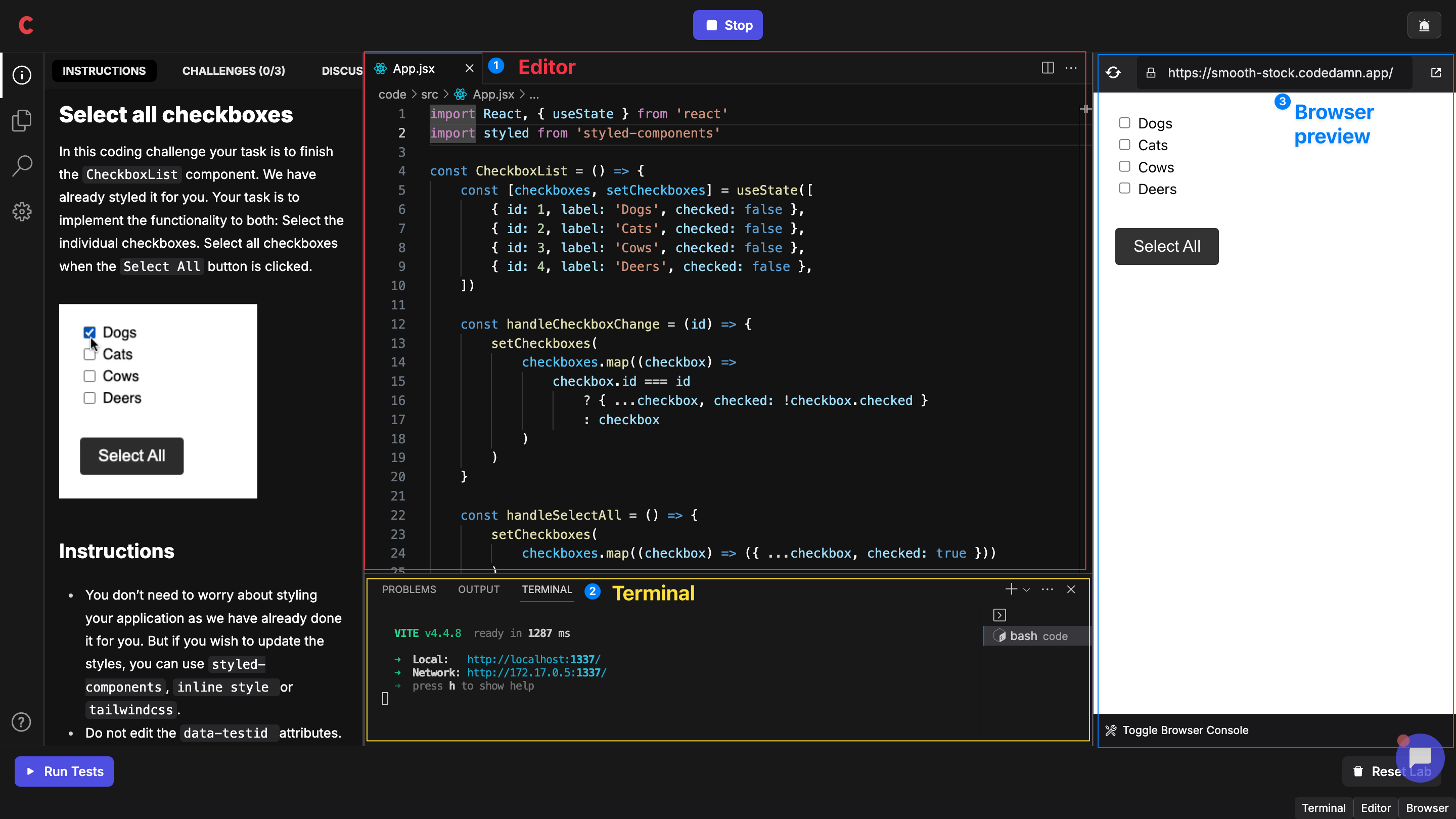
This lab includes a powerful editor, terminal and browser preview.
Alongside, it also includes an `Instructions` and `Challenges` section so that students know exactly what they have to do when they land on your lab.
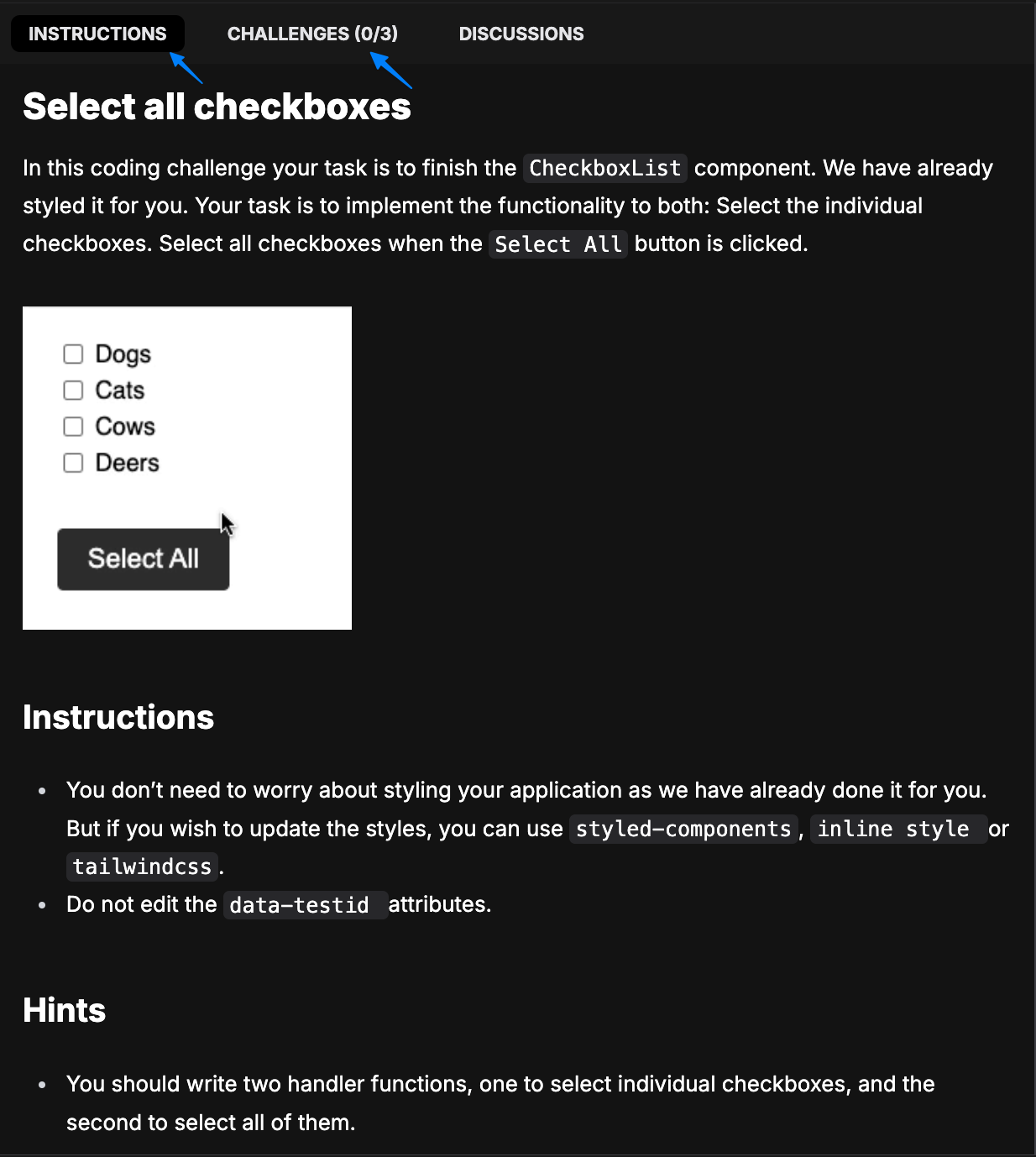
We make sure that when you are teaching a technical concept, students aren't simply just learning, but they're learning by doing. These labs force students to solve hands-on, what they've just learnt by you.
We believe in the philosophy of learning by doing, and we've brought the same concept to Fermion by letting technical you integrate hands-on interactive and evaluative coding labs in seconds.
With over 5000+ coding labs and quiz questions available, you can easily add interactive and evaluative elements to your courses.
This helps your courses stand out in the market by offering a practical learning experience that is crucial for aspiring developers.
Not just this, you can go beyond and even add hands-on coding projects as well as interview kits inside your courses.
# AI Copilot
Source: https://docs.fermion.app/creating-io-coding-labs/ai-agent
Create intelligent coding labs for DSA / IO problems using the Fermion Copilot.
## What is agentic AI in labs?
Fermion Copilot is powered by an **agentic AI** system designed to understand natural language and take autonomous actions to build structured [coding labs](/creating-io-coding-labs/introduction). Instead of manually configuring problem statements, test cases, and setups, you can simply describe the lab you want in plain English, and the Copilot will generate it for you.\
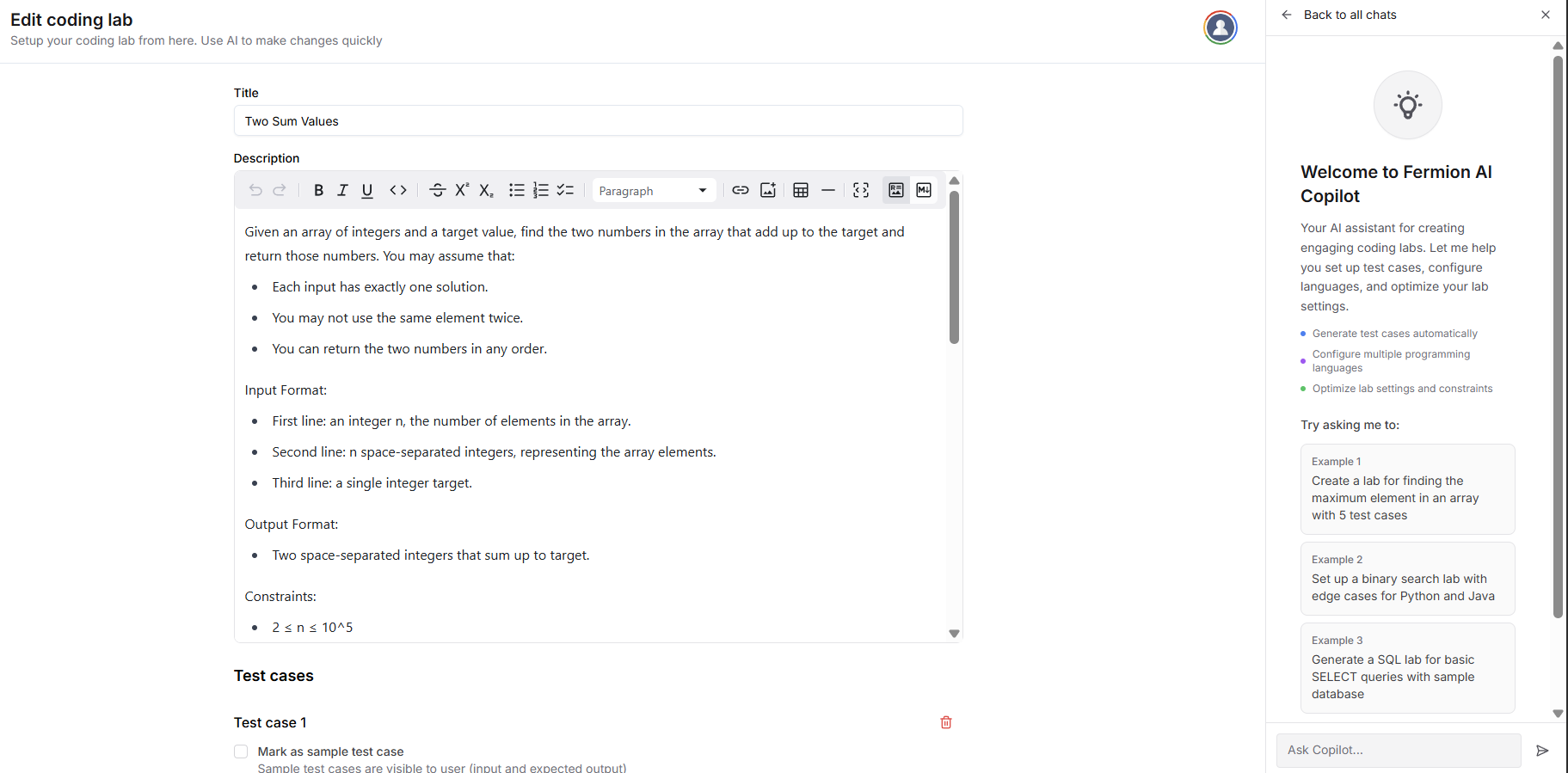
This is an intelligent model that grasps the intent, context, and structure of your request, moving far beyond simply populating templates. You can give it instructions like **"Create a DSA problem to find the longest common prefix in a list of strings"** or **"Build an IO lab for calculating factorial using recursion"**. The Copilot will then automatically generate a complete lab, including the problem description, coding environment, and relevant test cases, all specifically tailored to what you asked for.
Before you can access **Coding Labs**, make sure that Coding Labs are **enabled for your school**.\
Learn more on how to [manage features](/manage-settings/manage-features)
## Create IO labs using Fermion copilot
You can utilize the following steps to create an IO lab with the help of Fermion Copilot:
Head over to the **Coding Labs** section, select **Labs**, and then choose **IO Labs** from the available options.
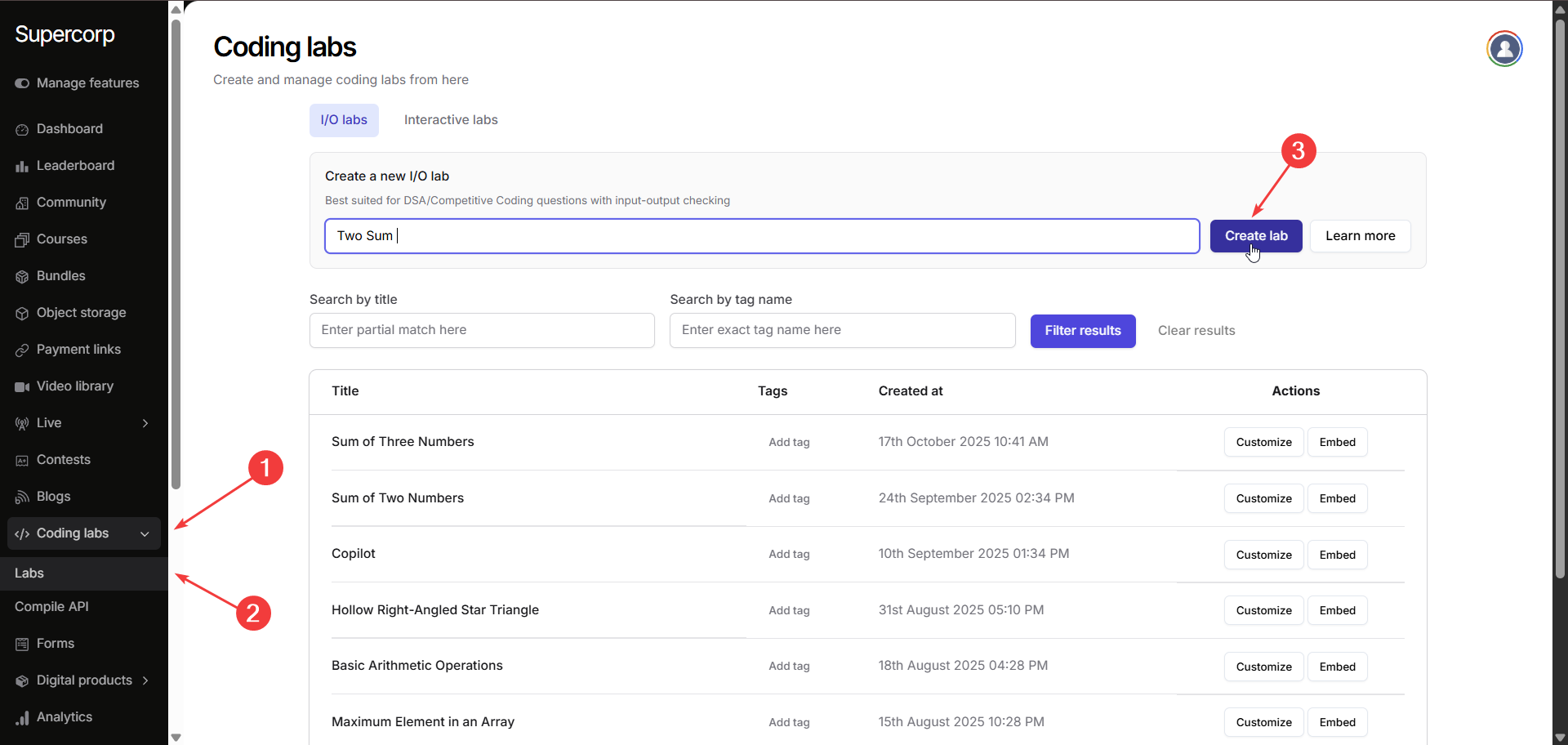
Click **Create new lab** and give your lab a meaningful **name** that reflects the problem you want to design.
On the right pane, you’ll find the **Fermion Copilot** interface.\
Here, you can provide simple **natural language prompts**, describing the problem you want to create.
The Copilot will then automatically generate a complete lab for that problem: including the **problem statement**, **input/output format**, and **test cases**.
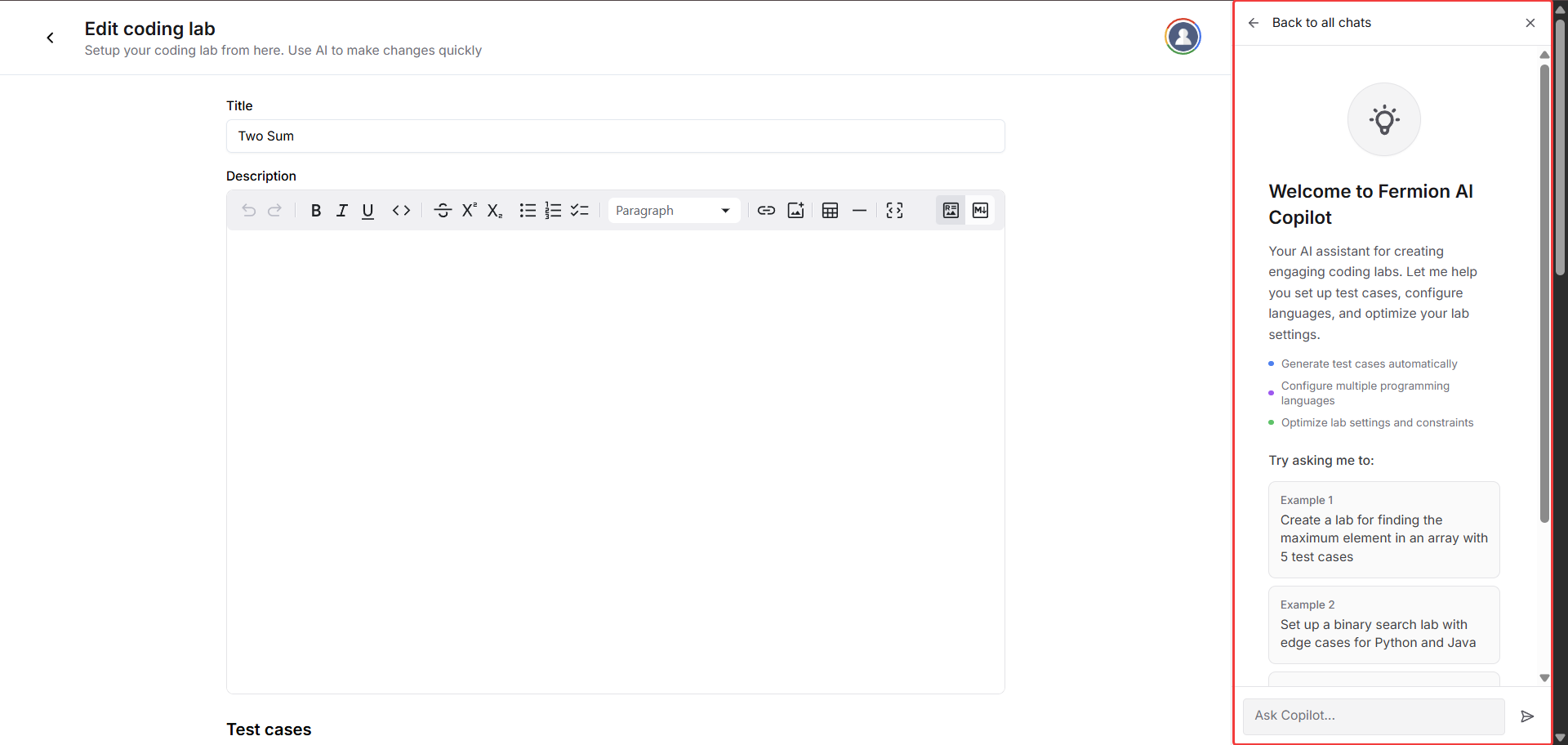
Now, let us prompt the agent to create a lab around the famous **Two Sum** problem\
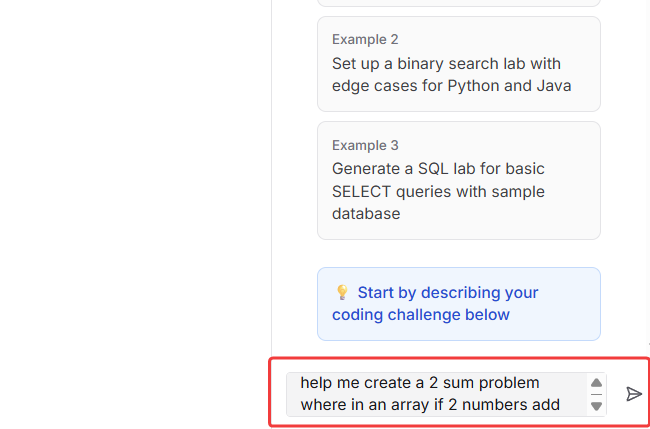
Before making any permanent changes, the Copilot will **ask for clarifications** if something in your prompt is ambiguous. You can reply to the agent in the same window and the agent will preserve all the context and create a lab for you.
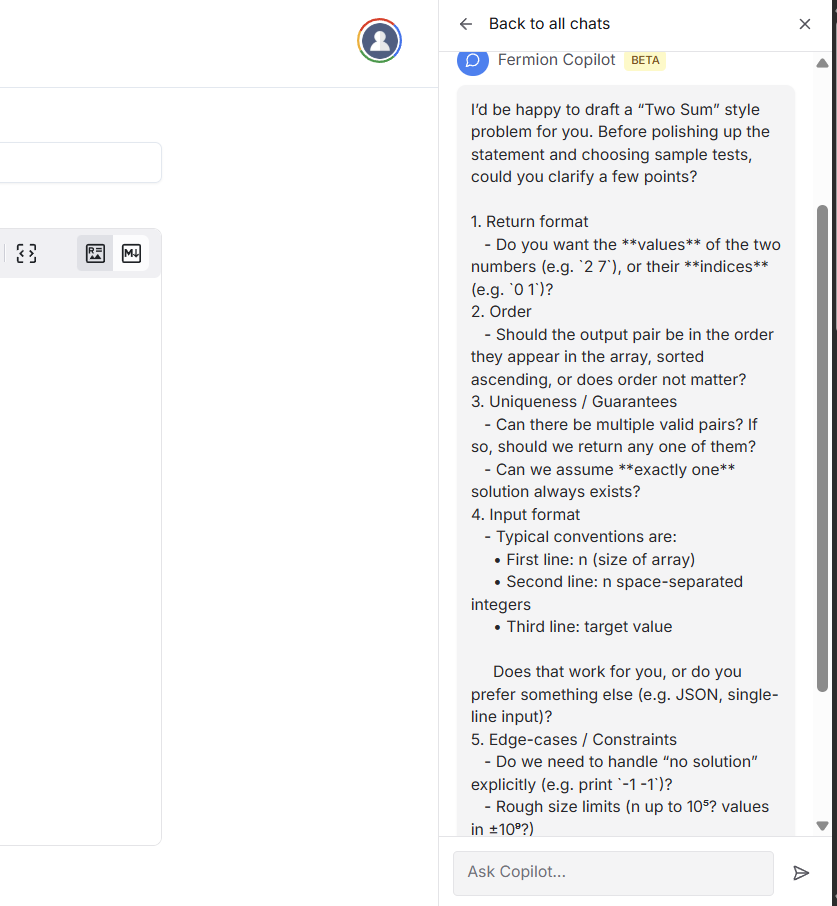
It will also **seek your confirmation** before applying modifications, ensuring you stay in control of every AI-generated edit.
Once you provide the agent with the **confirmation to proceed**, the Fermion Copilot will automatically **generate the complete lab description** for your problem.
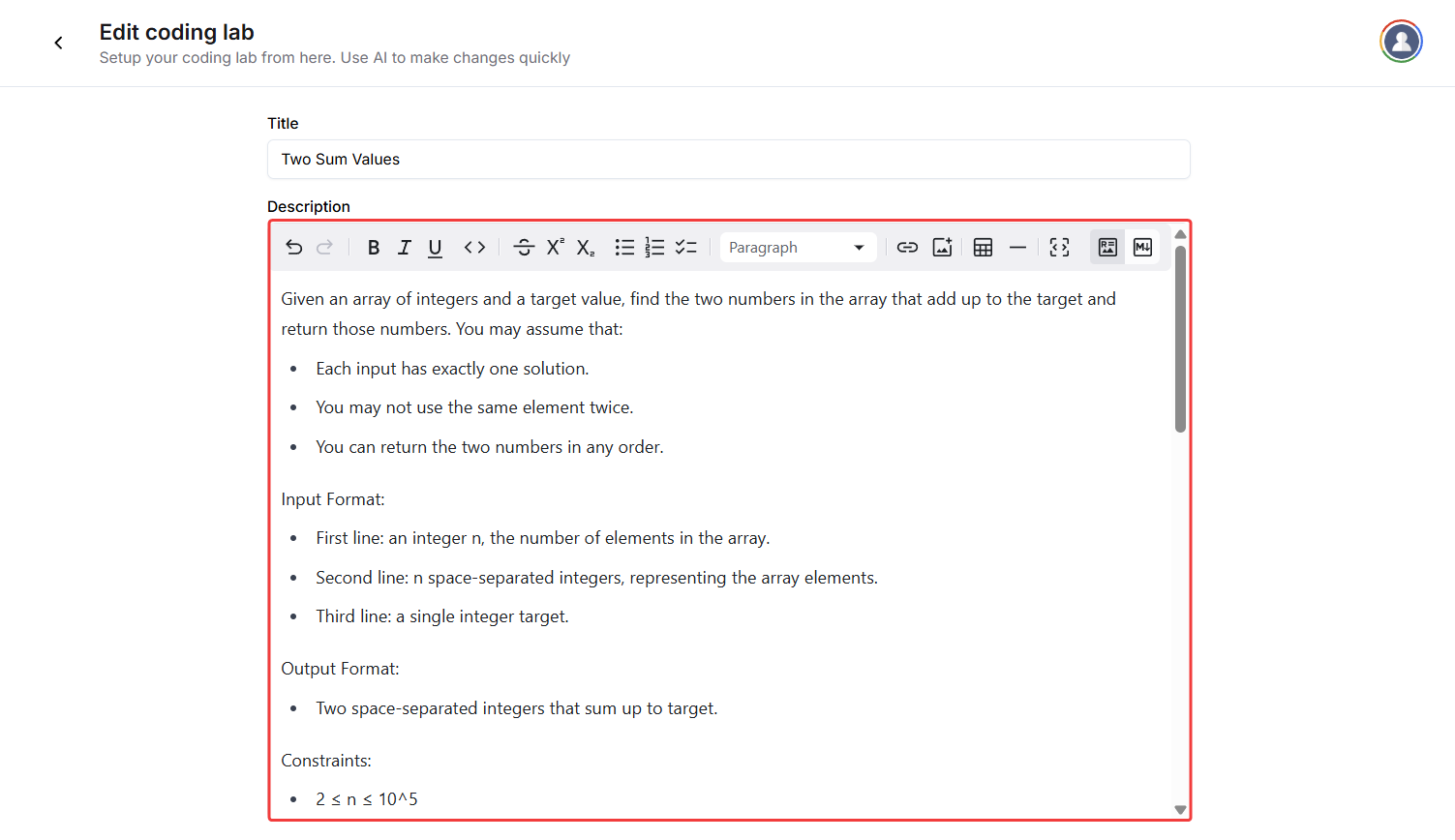
The AI agent will also **generate suitable test cases** for the same lab, ensuring comprehensive coverage of typical and edge scenarios.\
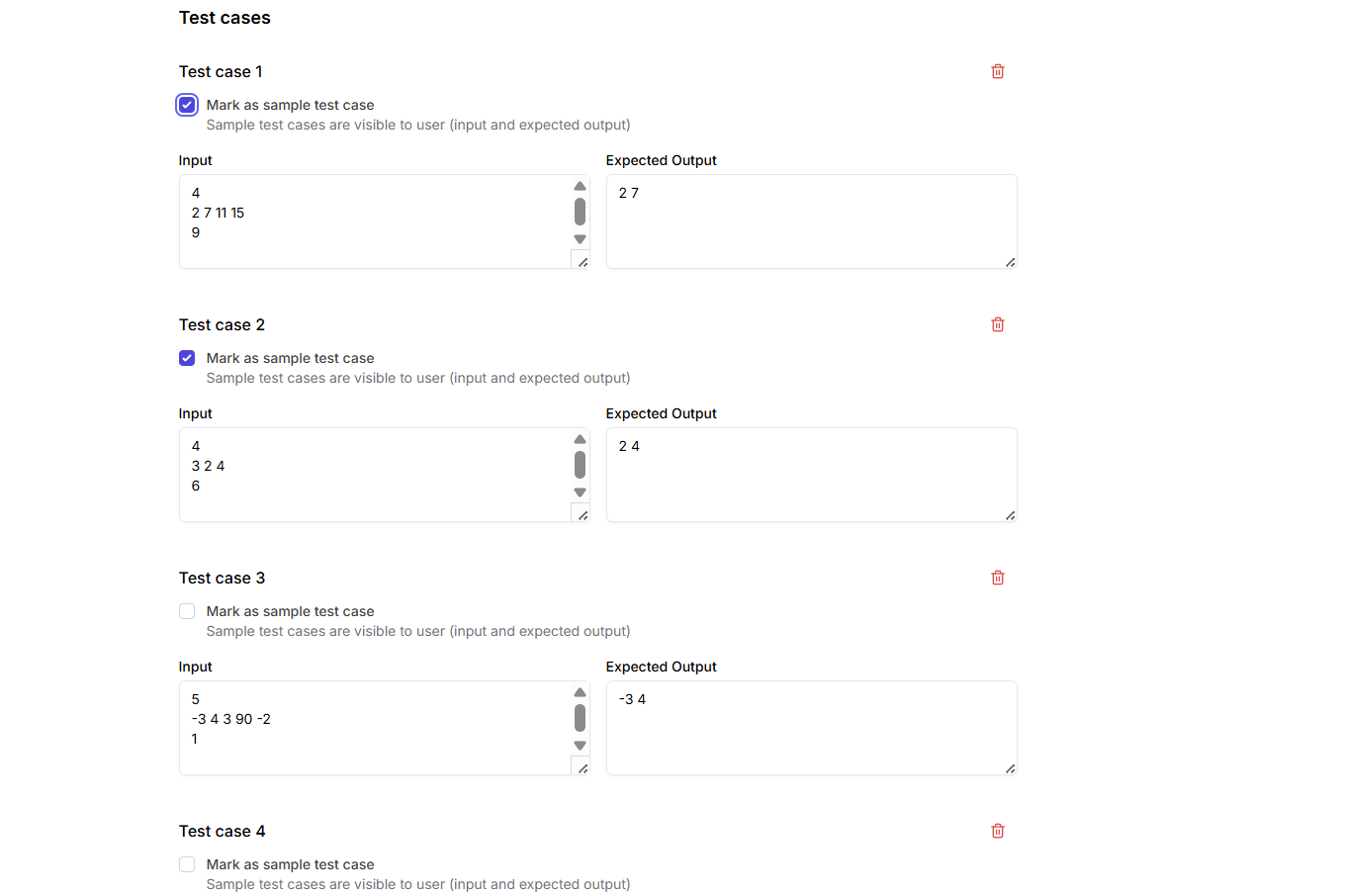
You can continue the conversation with the agent if you wish to **generate more test cases**, refine the difficulty level, or improve the problem’s structure, all without leaving the lab builder.
Although the Copilot automates most of the lab creation, you’ll still need to manually configure certain parameters:
Select which programming languages students can use to solve the problem:
* C
* C++
* Java
* Node.js (JavaScript)
* Python 3
* Rust 1.87
* Go 1.19
* .NET 8
Define how the expected output and user’s output should be compared:
* **Exact match**: Character-by-character comparison
* **Ignore whitespace at start and end**
* **Ignore case and whitespace at start and end**
* **Ignore whitespace in every line at start and end**
* **Ignore case and whitespace in every line at start and end**
Customize execution limits if needed. The default values are optimal for most labs:
* **Maximum CPU time:** 2000 ms
* **Maximum wall time:** 5000 ms
* **Maximum memory:** 512000 KB
Once everything looks good, click **Save Changes** and **try out your lab** to ensure everything functions as expected.
AI-powered lab creation streamlines your workflow by reducing repetitive setup tasks while keeping you in control of final configurations. Fermion Copilot acts as your intelligent coding lab builder: fast, accurate, and always ready to help you build high-quality coding challenges with just a prompt.
***
## Next steps
Learn how to create and manage SQL-based coding labs where students can run real database queries, test schema design, and validate SQL output directly in the browser.
Discover how to embed your IO Labs into external pages. Enable students to solve coding problems interactively without leaving the learning experience.
# Introduction
Source: https://docs.fermion.app/creating-io-coding-labs/api-usage
Learn about using APIs to execute DSA coding labs
The DSA Coding Lab Execution API allows you to programmatically execute code submissions and retrieve results for Data Structures and Algorithms (DSA) problems. This API supports batch operations for efficiency and handles multiple programming languages.
## Overview
The API provides four main endpoints which you can utilize to execute DSA coding labs over Fermion API.
Submit a single code execution request.
Retrieve the result of a single code execution.
Submit multiple code execution requests in one batch.
Retrieve results of multiple code executions submitted in a batch.
## Prerequisites
Before you begin using the DSA Execution API, make sure you’ve set up the following essential components.
You must have a valid Fermion API key to run these coding labs. Create a Fermion account and go to **Settings → API access** in your instructor dashboard to get the key.\
Learn how to get your [API key here](/api-guide/introduction#how-to-get-your-api-key).
#### Base64URL Encoded source code
Base64URL encoding is **critical** for proper API usage.\
The DSA execution API requires Base64URL encoding (not standard Base64) for several fields including **source code**, **expected output**, **stdin input**, and **file attachments** for [SQL labs](/creating-io-coding-labs/sql-over-api).
Base64URL encoding is a URL-safe variant of the standard Base64 format. It’s designed to ensure that encoded data can be safely transmitted in URLs, JSON, and APIs without introducing reserved or invalid characters.
Base64URL encoding is a URL-safe variant of Base64 that:
* Replaces `+` with `-` (dash)
* Replaces `/` with `_` (underscore)
* Removes padding `=` characters
* Ensures the encoded string is safe for use in URLs and JSON
Using standard Base64 encoding instead of Base64URL will cause API errors or
unexpected behavior. Always use Base64URL encoding for the API. Learn more about [Base64URL encoding](https://b64encode.com/blog/base64url-guide/)
## Supported languages
Fermion currently supports the following runtimes for code execution:
Each language runs in a secure, isolated container with seperate resources.
## How to execute IO/DSA labs over API?
You can utilize the following steps to execute DSA over API. If you wish to test how a request is structured for any given language, head over to the [compile API](/creating-io-coding-labs/api-usage#how-does-compile-api-work%3F) section of this documentation to learn more.
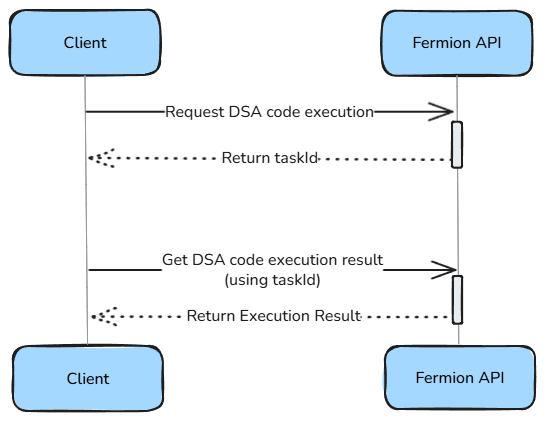
Use the **Request DSA code execution \[batch]** endpoint to submit one or more code executions.
For detailed API specification, request/response schemas, and interactive examples, see the official API documentation: [Request DSA code execution \[batch\]](https://docs.fermion.app/api-reference/dsa/request-dsa-code-execution-\[batch])
Here is an empty sample request body for executing C code over API. Head over to the [runConfig documentation](/creating-io-coding-labs/api-usage#run-configuration-runconfig) to know more about each field
```json theme={null}
{
"data": [
{
"data": {
"entries": [
{
"language": "C",
"runConfig": {
"customMatcherToUseForExpectedOutput": "ExactMatch",
"expectedOutputAsBase64UrlEncoded": "",
"stdinStringAsBase64UrlEncoded": "",
"callbackUrlOnExecutionCompletion": "",
"shouldEnablePerProcessAndThreadCpuTimeLimit": false,
"shouldEnablePerProcessAndThreadMemoryLimit": false,
"shouldAllowInternetAccess": false,
"compilerFlagString": "",
"maxFileSizeInKilobytesFilesCreatedOrModified": 51200,
"stackSizeLimitInKilobytes": 65536,
"cpuTimeLimitInMilliseconds": 2000,
"wallTimeLimitInMilliseconds": 5000,
"memoryLimitInKilobyte": 512000,
"maxProcessesAndOrThreads": 60
},
"sourceCodeAsBase64UrlEncoded": "",
"additionalFilesAsZip": {
"type": "base64url-encoding",
"base64UrlEncodedZip": ""
}
}
]
}
}
]
}
```
The API returns an array of task IDs in the same order of challenges that you submitted, that you can use to retrieve results later.
```json theme={null}
{
"output":
{
"status": "ok",
"data":
{
"taskIds": [ ""]
}
}
}
```
Use the **[Get DSA code execution result \[batch\]](/api-reference/dsa/get-dsa-code-execution-result-\[batch])** endpoint to retrieve results of submitted executions. You will have to pass the Fermion API key so that we can authenticate your request
Here's a sample cURL request to get the execution results of the task IDs returned from the previous endpoint
```bash theme={null}
curl --request POST \
--url https://backend.codedamn.com/api/public/get-dsa-code-execution-result-batch \
--header 'Content-Type: application/json' \
--header 'FERMION-API-KEY: ' \
--data '{
"data": [
{
"data": {
"taskUniqueIds": [
""
]
}
}
]
}
```
For detailed API specification, request/response schemas, and interactive examples, see the official API documentation: [Get DSA code execution result \[batch\]](https://docs.fermion.app/api-reference/dsa/get-dsa-code-execution-result-\[batch])
***
## Request DSA code execution
The request to the [Request DSA code execution](/api-reference/dsa/request-dsa-code-execution-\[single]) endpoint contains a **language field**, **runConfig** object, source code as base64URL encoded, and additional files if we are executing [SQL over API](/creating-io-coding-labs/sql-over-api)
Here is a description of these fields to be provided while sending a request.
### Run Configuration (runConfig)
The runConfig object defines execution parameters and resource limits for each code run. These settings control performance, safety, and sandbox behavior during code execution.
| Field Name | Description |
| ---------------------------------------------- | ----------------------------------------------------------------------------------------------------- |
| `customMatcherToUseForExpectedOutput` | Defines how program output is compared with the expected output. Common options include `ExactMatch`. |
| `expectedOutputAsBase64UrlEncoded` | Base64URL-encoded expected output string. |
| `stdinStringAsBase64UrlEncoded` | Base64URL-encoded standard input string for the program. |
| `callbackUrlOnExecutionCompletion` | Optional webhook URL that receives a callback once execution completes. |
| `shouldEnablePerProcessAndThreadCpuTimeLimit` | Enables CPU time limits per process/thread if set to `true`. |
| `shouldEnablePerProcessAndThreadMemoryLimit` | Enables memory limits per process/thread if set to `true`. |
| `shouldAllowInternetAccess` | Allows or restricts outbound internet access for the running code. |
| `compilerFlagString` | Optional compiler flags or arguments to use during code compilation. |
| `maxFileSizeInKilobytesFilesCreatedOrModified` | Maximum allowed size (in KB) for any file created or modified during execution. *(Default: 51200)* |
| `stackSizeLimitInKilobytes` | Maximum stack size (in KB) allocated for the program. *(Default: 65536)* |
| `cpuTimeLimitInMilliseconds` | Maximum CPU time (in ms) the program can use. *(Default: 2000)* |
| `wallTimeLimitInMilliseconds` | Maximum total wall time (in ms) allowed for execution. *(Default: 5000)* |
| `memoryLimitInKilobyte` | Maximum total memory (in KB) that the program may consume. *(Default: 512000)* |
| `maxProcessesAndOrThreads` | Maximum number of processes and/or threads the program can spawn. *(Default: 60)* |
### Required Fields
The following fields **must** be Base64URL encoded and sent as part of the request body:
| Field Name | Description |
| ---------------------------------- | --------------------------------------------------------------------------------- |
| `sourceCodeAsBase64UrlEncoded` | Your source code |
| `expectedOutputAsBase64UrlEncoded` | Expected program output, API will judge the program output in accordance to this. |
| `stdinStringAsBase64UrlEncoded` | Input data for the program |
| `base64UrlEncodedZip` | ZIP file contents for SQLite |
The response from this API provides us with `taskId` which we can use to get the result from the [Get DSA code execution result](/api-reference/dsa/get-dsa-code-execution-result-\[batch]) endpoint
## Get DSA code execution result
After we have received the `taskId` from the previous endpoint, we can send this task ID to the [Get DSA code execution result](/api-reference/dsa/get-dsa-code-execution-result-\[single]) and get the execution result. The API returns a `taskUniqueId`, `language` and the `runConfig` provided at the time of request. Apart from this, the response has `codingTaskStatus` which tells us if the code has been executed or not, a `runResult` object which tells us about the execution of the code.
### codingTaskStatus Values
Each submitted coding task in Fermion's DSA execution API has a `codingTaskStatus` that indicates its current stage of processing. The `codingTaskStatus` can have the following values:
| Status | Description |
| ---------------- | -------------------------------- |
| **`Pending`** | Task is queued for execution |
| **`Processing`** | Task is currently being executed |
| **`Finished`** | Task execution completed |
### runResult object
The runResult object contains information regarding the execution of the code and the program data after the code execution. The following fields are part of the runResult object.
| Field | Description |
| ------------------------------------------------ | ------------------------------------------------------------------------ |
| `compilerOutputAfterCompilationBase64UrlEncoded` | Base64-encoded compiler output. |
| `finishedAt` | Timestamp representing when the execution finished. |
| `runStatus` | Status of the code run e.g., `successful`, `compilation-error`, |
| `programRunData.cpuTimeUsedInMilliseconds` | CPU time consumed by the program (in milliseconds). |
| `programRunData.wallTimeUsedInMilliseconds` | Total elapsed (wall) time for execution (in milliseconds). |
| `programRunData.memoryUsedInKilobyte` | Memory used by the program (in kilobytes). |
| `programRunData.exitSignal` | Signal number if the program was terminated by the system. |
| `programRunData.exitCode` | Exit code returned by the program after execution. |
| `programRunData.stdoutBase64UrlEncoded` | Base64-encoded standard output (stdout) from the executed program. |
| `programRunData.stderrBase64UrlEncoded` | Base64-encoded standard error (stderr) output from the executed program. |
### runStatus Values
The `runStatus` field inside runResult provides detailed feedback about the outcome of code execution. The `runStatus` field can have the following values:
| Status | Description |
| ---------------------------- | ------------------------------------ |
| **`successful`** | Code executed successfully |
| **`compilation-error`** | Code failed to compile |
| **`time-limit-exceeded`** | Execution exceeded time limit |
| **`wrong-answer`** | Output doesn't match expected result |
| **`non-zero-exit-code`** | Program exited with non-zero code |
| **`died-sigsev`** | Segmentation fault |
| **`died-sigxfsz`** | File size limit exceeded |
| **`died-sigfpe`** | Floating point exception |
| **`died-sigabrt`** | Program aborted |
| **`internal-isolate-error`** | Internal system error |
| **`unknown`** | Unknown error occurred |
This was an example flow for single DSA code execution request. The same flow can be followed for batch execution of codes using the batch endpoints.
## Using webhook URLs for instant results (recommended)
Instead of polling for results, it's recommended to use the`callbackUrlOnExecutionCompletion` parameter in your `runConfig`. This
webhook URL will receive a POST request with the execution results immediately when processing completes, eliminating the need for repeated
polling and providing faster response times.
When using webhook URLs, include the `callbackUrlOnExecutionCompletion` in
your execution request
```json theme={null}
{
"language": "Python",
"sourceCodeAsBase64UrlEncoded": "cHJpbnQoImhlbGxvIHdvcmxkIik=",
"runConfig": {
"callbackUrlOnExecutionCompletion": "https://your-domain.com/webhook/execution-complete",
"customMatcherToUseForExpectedOutput": "ExactMatch",
"expectedOutputAsBase64UrlEncoded": "aGVsbG8gd29ybGQK",
"cpuTimeLimitInMilliseconds": 2000,
"wallTimeLimitInMilliseconds": 5000,
"memoryLimitInKilobyte": 131072
}
}
```
Your webhook endpoint will receive the complete execution result as a POST request body, containing the same data structure as the batch result API response.
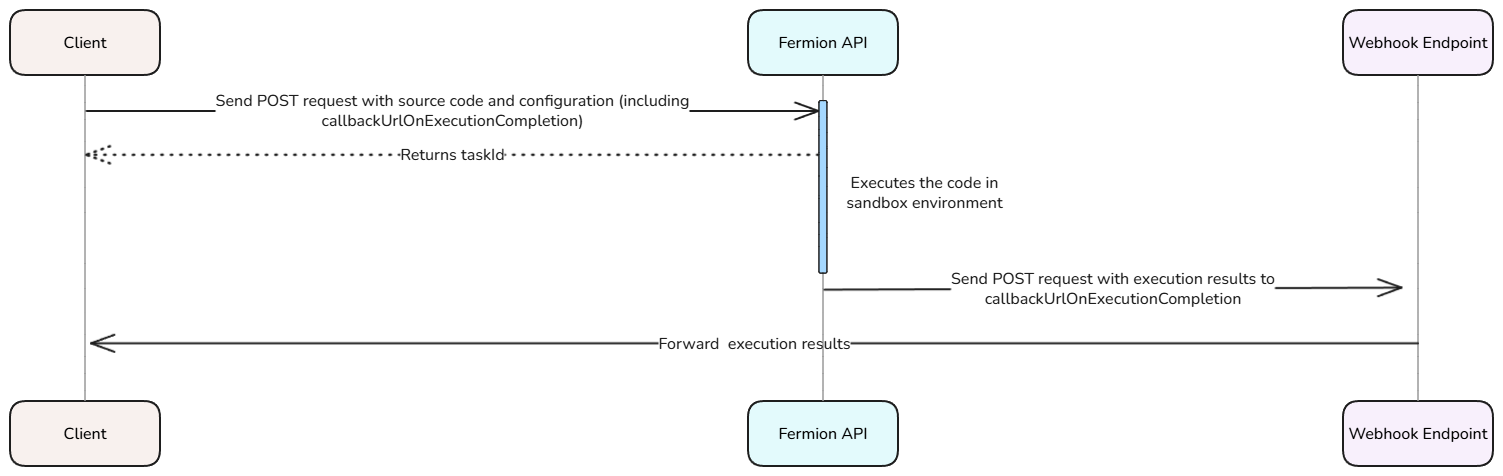
***
The **Compile API** allows you to execute arbitrary code in a secure, sandboxed environment directly through Fermion’s backend. This is ideal for online coding exercises, testing snippets, or building coding playgrounds on your platform.
You can send a POST request with your source code and configuration details, and the API returns the program’s output, error messages, and execution metadata, right inside your instructor dashboard.
Before you start, make sure **Coding labs** are enabled under **Manage Features** in your instructor dashboard. Learn how to enable features at Fermion [here](/manage-settings/manage-features)
***
## How does compile API work?
We discussed how we can execute DSA / IO codes over API in the previous sections. You can test how a request body would look like right inside your Fermion instructor dashboard with the help of the following steps.
You can access compile API tab directly inside your instructor dashboard by heading over to **Coding labs** → **Compile API**.
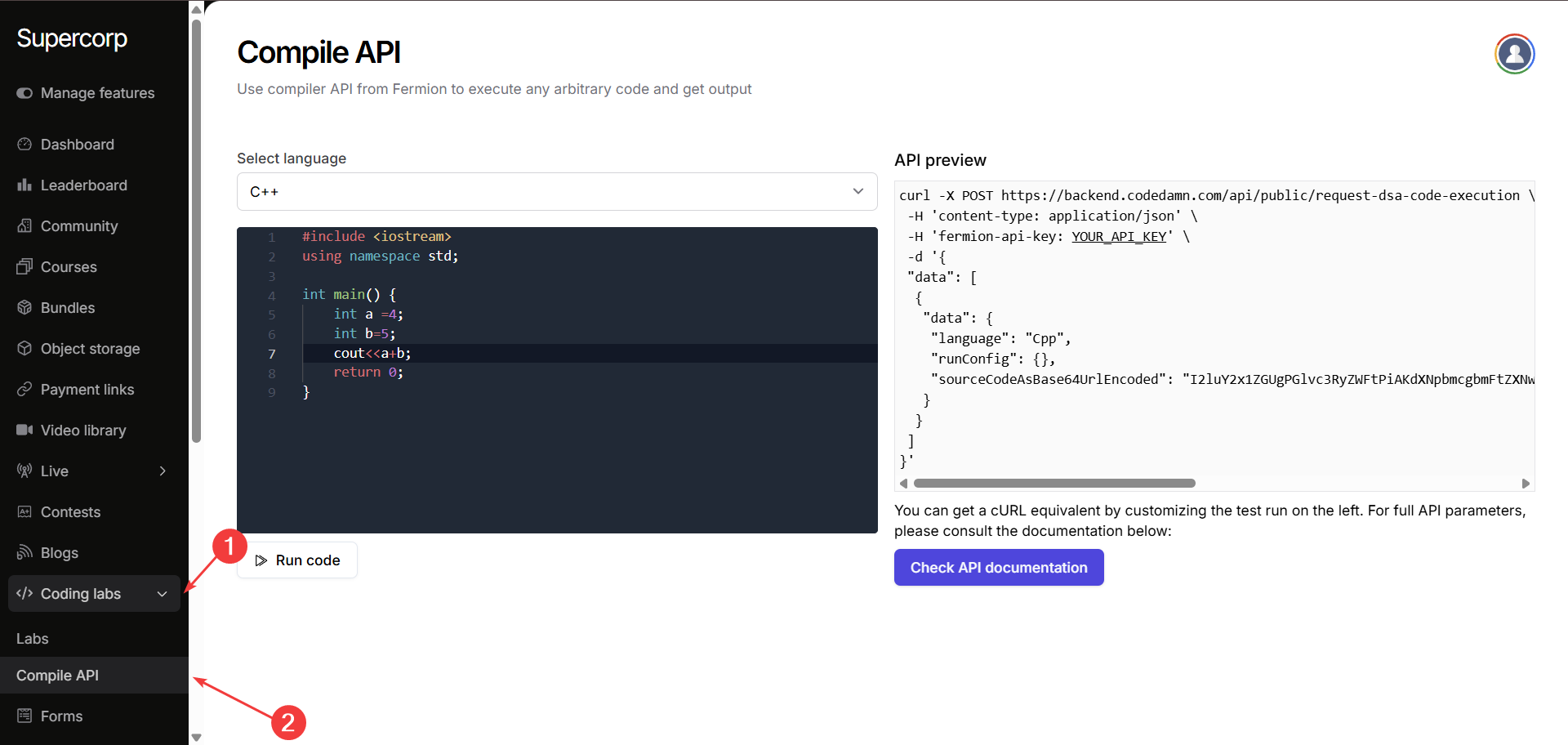
Select the language you want to test the compile API for. After accessing this section, you will be presented with the following two panes:
On the left side, you can write and edit your source code in the built-in editor using any of the supported languages.
Simply choose the language from the dropdown and click **Run code** to execute it securely in Fermion’s sandboxed environment.
On the right side, you can view the automatically generated **cURL request**: showing exactly how to call the Fermion Compile API programmatically. As you can see the source code is Base64URL encoded inside the request body.
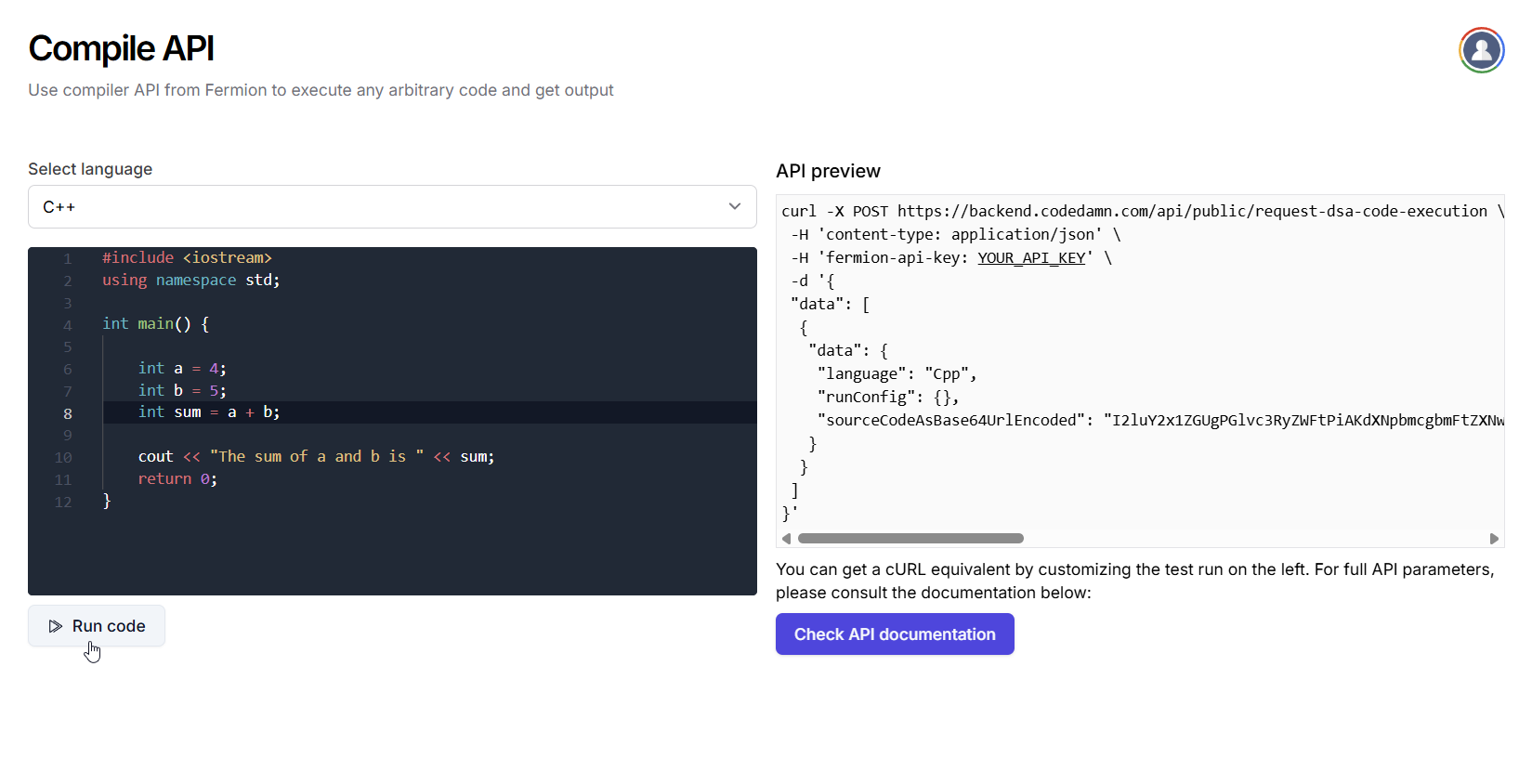
After clicking **Run code**, you will see the execution results, including status, timing, memory usage, and program output. Example:
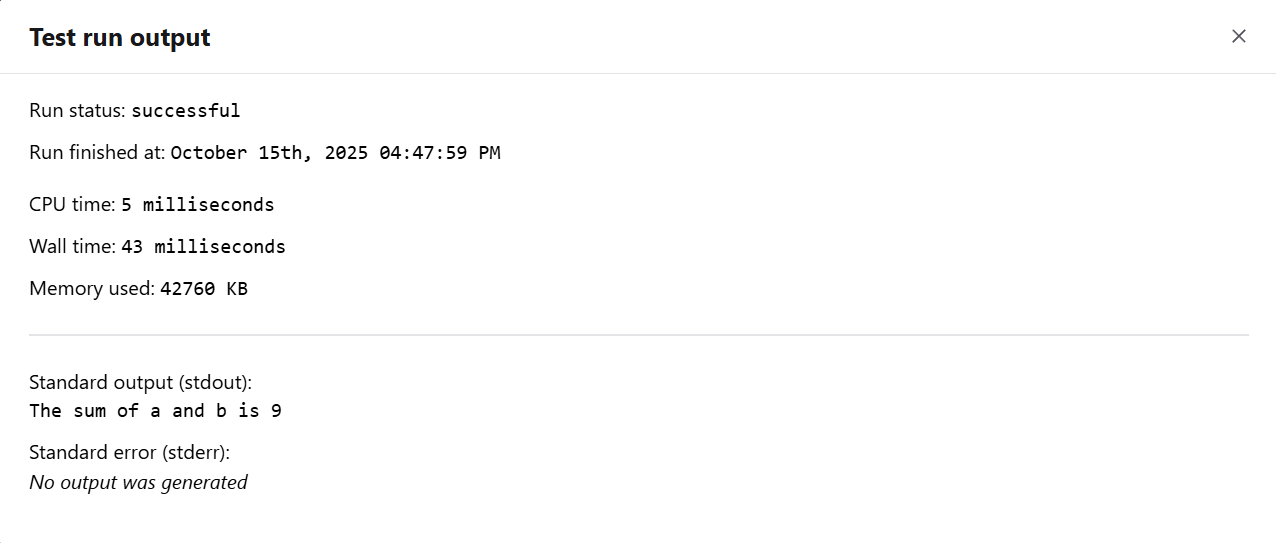
## Industry Pricing Comparison
Fermion offers the best infrastructure and extremely competitive prices compared to industry standards. For example, consider Judge0's pricing on RapidAPI vs Fermion's base plan pricing.
| Platform | Cost per Submission | Rate limits |
| ------------------- | ------------------------- | -------------------------- |
| **Judge0** | \$1 per 1,000 submissions | Unknown |
| **Fermion DSA API** | \$1 per 5,000 submissions | 10,000 requests per second |
Planning to execute more than 1 million runs per month? Contact our
team at [support@codedamn.com](mailto:support@codedamn.com) for special enterprise pricing and higher rate limits.
**Why Choose Fermion over Judge0?**
* **Better Performance**: Optimized specifically for DSA problems
* **Batch Operations**: Execute multiple problems in a single API call
* **Enterprise Support**: Dedicated support for high-volume users
* **Competitive Pricing**: Better rates for volume usage
Fermion's DSA execution API is a production-ready, enterprise-grade
replacement for Judge0 with better performance, reliability, and pricing.
# Creating an IO Lab
Source: https://docs.fermion.app/creating-io-coding-labs/creating-io-lab-successfully
Learn about best practices for creating a functional IO lab on Fermion
Creating an I/O lab on Fermion requires you to follow several best practices to ensure your lab functions correctly and provides a good learning experience.
## Understanding I/O Lab Philosophy
Fermion labs are built on the philosophy of having an input and an expected output. In many cases, the expected output can have multiple spaces, line breaks, and other formatting elements. Therefore, it is crucial that you select the right matcher for your specific use case.
## Available Matchers
There are multiple matchers available in Fermion I/O lab setup that allow you to configure how the expected output of the program is matched with the real output that the user generates:
* **Exact Match**: Use this when you need the output to match exactly, including all spaces, tabs, and line breaks
* **Other matchers**: Available for different matching requirements
For example, if you want an exact match, you must use the exact output matcher.
## Test Case Configuration
When creating an I/O lab, you can specify some test cases as **sample test cases**. If you mark a test case as a sample test case, it becomes visible to the end user, allowing them to understand the expected input-output format before attempting the lab.
## Troubleshooting: Code Output vs Test Case Failure
### Common Issue: Right Output, Failing Test Case
If your code produces the correct output but your test case is still failing, please double-check the following:
1. **Spacing Issues**: Ensure there are no extra or missing spaces in your expected output
2. **New Line Issues**: Verify that line breaks match exactly between expected and actual output
3. **Character Issues**: Check for any hidden characters, tabs, or different character encodings
### Matcher Type Considerations
If you're using an **exact match** matcher, your lab will fail even if there's a single new line, tab, or different character difference. Make sure your expected output matches the actual output character-for-character.
# Embed an IO Lab
Source: https://docs.fermion.app/creating-io-coding-labs/embed-lab
Learn how you can create IO coding labs inside Fermion interface and embed them externally
This article discusses integrating an IO coding lab externally on your website.
## How to embed a coding lab from Fermion?
Before starting the embed process, you need two things:
1. A school on Fermion
2. Fermion API key
## Getting lab ID
Go to `Manage features` from your instructor dashboard and enable `Coding labs` if you haven't done that yet.

Once done, open `Coding lab` from sidebar and create a new IO lab.
Click on the `Embed` button to obtain the ID of that lab.
## Generating JWT
On any page in which you wish to let the user attempt the lab, you need to embed an iframe as follows:
```xml theme={null}
```
Here, the `EMBED_URL` needs to be securely generated on your backend as follows:
The embed URL will always contain the following base: [`https://acme.fermion.app/embed/io-coding-lab?token=TOKEN_HERE`](https://acme.fermion.app/embed/io-coding-lab?token=TOKEN_HERE)
Generate a JWT (JSON Web Token) containing the following claims. The JWT token must be signed with your Fermion API Key.
labId (String) – This is the unique identifier of the lab as mentioned above.userId (String) – This is a string that you have stored in your database that can uniquely identify a given user. You have to ensure that you store this identifier properly in your database and reuse it every time a user tries to access any lab.isReadOnly (Boolean, optional) – Set to true to render the embedded coding lab in a read-only mode. Defaults to false.
Append this generated JWT token to the end of the base URL to get the final embed URL
Example JavaScript code to generate `EMBED_URL` securely on your backend server:
This example uses the [jsonwebtoken package](https://www.npmjs.com/package/jsonwebtoken) to generate a JWT Token.
```js theme={null}
import jwt from 'jsonwebtoken'
const jwtToken = jwt.sign(
{
labId: '66a9202ab1458d00083ff520',
userId: '',
// change this to `true` to render the embedded coding lab in a read-only mode
isReadOnly = false
},
'FERMION_API_KEY',
{ expiresIn: '1h' }
)
const EMBED_URL =
'https://example.fermion.app/embed/io-coding-lab?token=' +
encodeURIComponent(jwtToken)
```
## How can I access lab results?
### Public API
We have an OpenAPI-spec compliant public API you can use, once you have access to FERMION\_API\_KEY. You can use this API to query multiple data points for your organization.
Please check the [API documentation here](https://api.fermion.app).
## Have a doubt?
In case something doesn’t work right, or you have any doubt, please feel free to reach out to us at [support@codedamn.com](mailto:support@codedamn.com) with your query, we’d be happy to resolve it at the earliest.
# Introduction
Source: https://docs.fermion.app/creating-io-coding-labs/introduction
An overview of IO-based coding labs designed for algorithmic and DSA-style coding exercises. Also learn about languages supported on Fermion.
Fermion’s IO Coding Labs provide an interactive environment for solving algorithmic and data structure–based challenges. These labs are designed to evaluate a learner’s ability to read input, process it through logic, and produce the correct output under defined constraints, just like in real competitive coding or technical interview settings.
Each coding lab runs securely in an isolated environment with configurable runtime limits for CPU, memory, and execution time. Learners can write, compile, and execute code directly in the browser while instructors receive precise insights into submission results, runtime performance, and test case accuracy.
Fermion allows you to add IO coding labs. IO coding labs are powerful labs that can run the following languages:
Before you start, make sure **Coding labs** are enabled under **Manage Features** in your instructor dashboard. Learn how to enable features at Fermion [here](/manage-settings/manage-features)
IO coding labs are available to be used within the platform directly, or by embedding it.
Reach out to Fermion support if you need access to more runtimes than listed
here.
## How to access and create IO labs
To access **IO Coding Labs**, go to your **Instructor Dashboard** and open the **Coding Labs** section from the sidebar. Click on **Labs** and then navigate to the **IO Coding Labs** tab.
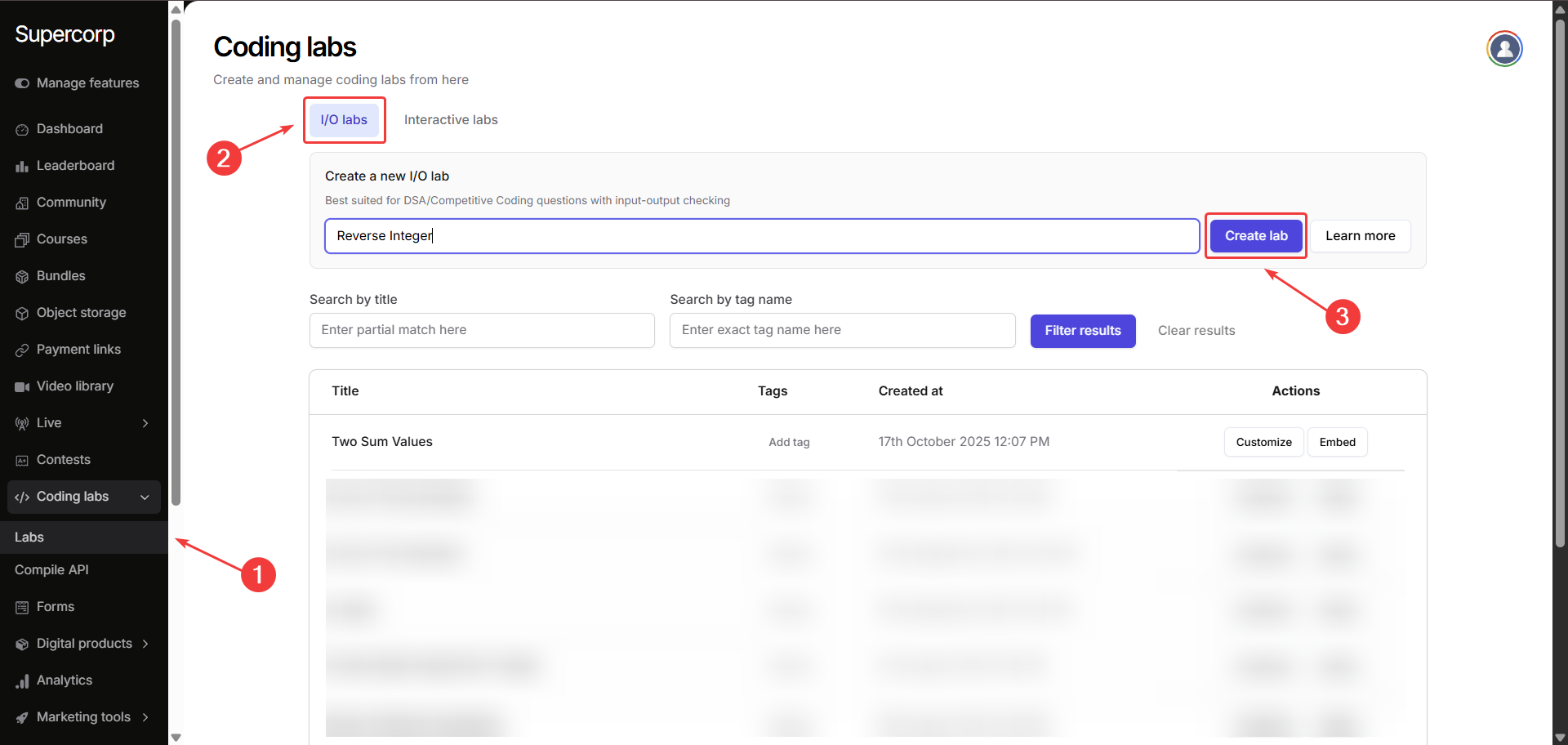
Give your lab a suitable **name** and click **Create Lab**.\
Next, add a **title** and **description** for your lab. You can also use **[Fermion Copilot](/creating-io-coding-labs/ai-agent)** to help build your lab.\
The description field supports **Markdown**, allowing you to format content and add details freely.
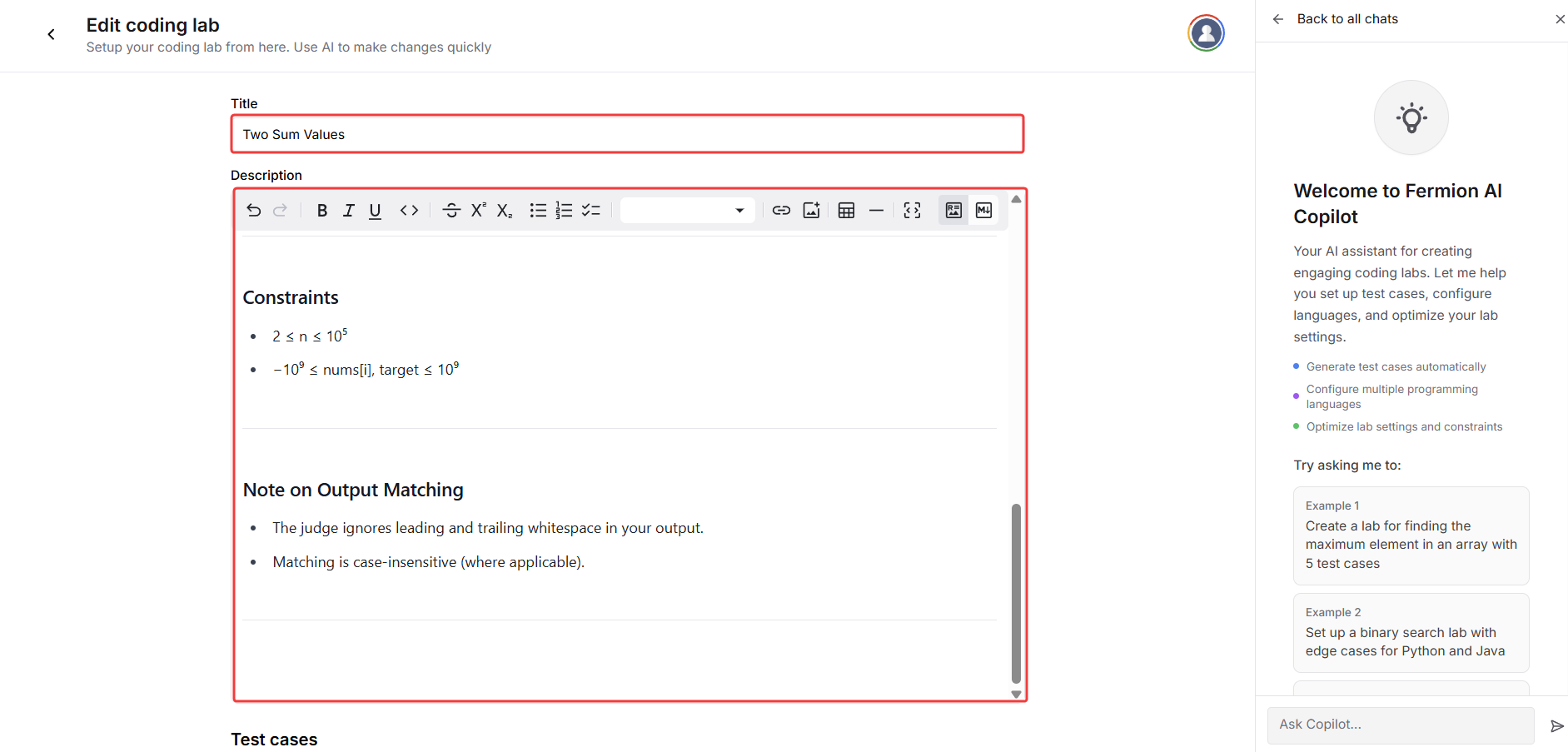
After creating the lab, move on to **adding test cases**.\
You can include **sample test cases** as well, which will be visible to the users attempting the lab.
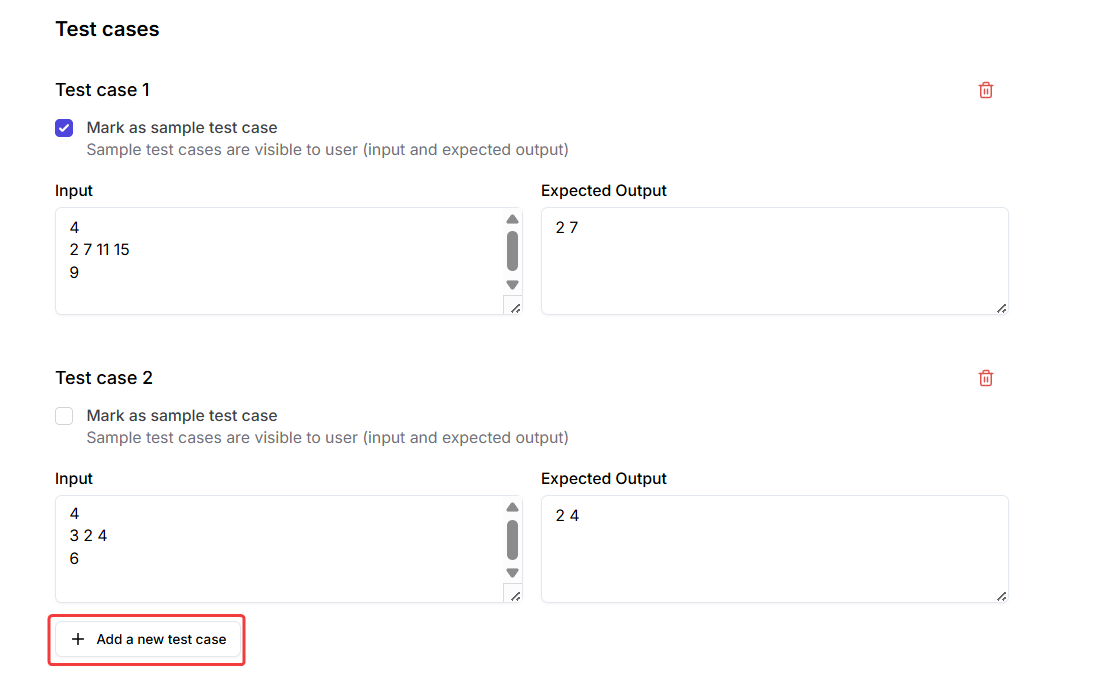
Choose the programming **language(s)** you want your learners to use in the lab. To configure the **default code template** for any language, click on the **arrow** next to the language name.\
Learn how to create [SQL labs](/creating-io-coding-labs/sql-lab)
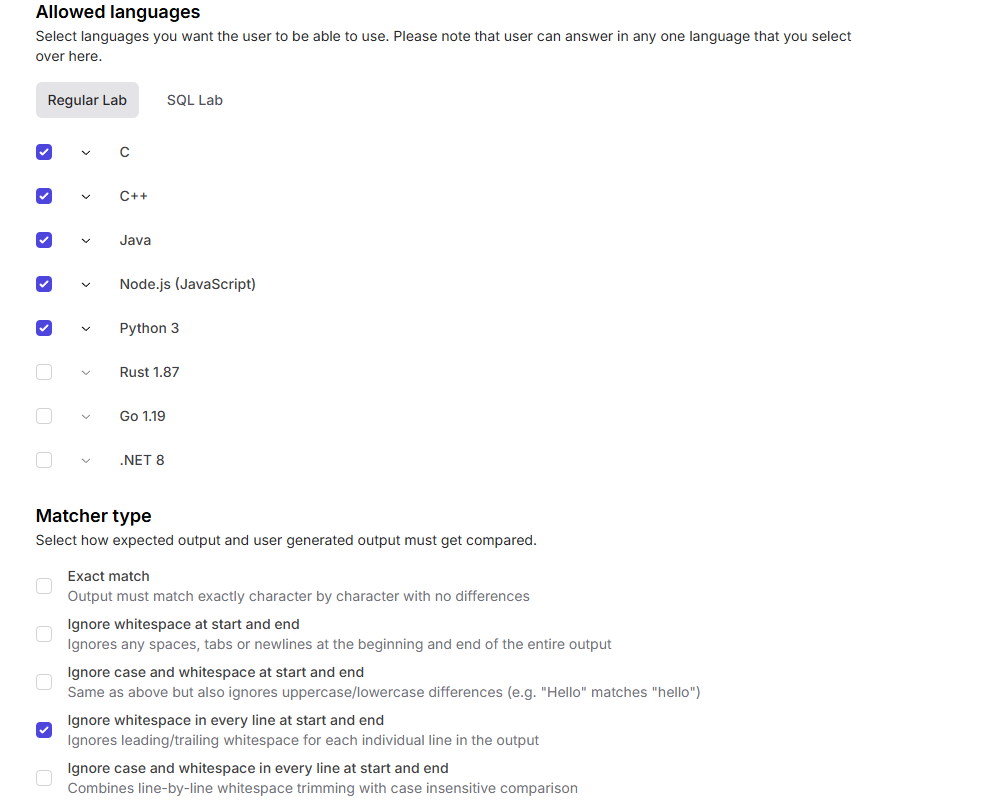
Under **Matcher Type**, decide how the system should compare user output with the expected output:
Define how the expected output and user’s output should be compared:
* **Exact match**: Character-by-character comparison
* **Ignore whitespace at start and end**
* **Ignore case sensitivity and whitespace at start and end**
* **Ignore whitespace in every line at start and end**
* **Ignore case sensitivity and whitespace in every line at start and end**
Under **Advanced Settings**, you can fine-tune your lab’s execution limits.\
These defaults are usually optimal:
* **Maximum CPU time (ms):** 2000
* **Maximum wall time (ms):** 5000
* **Maximum memory (KB):** 512000
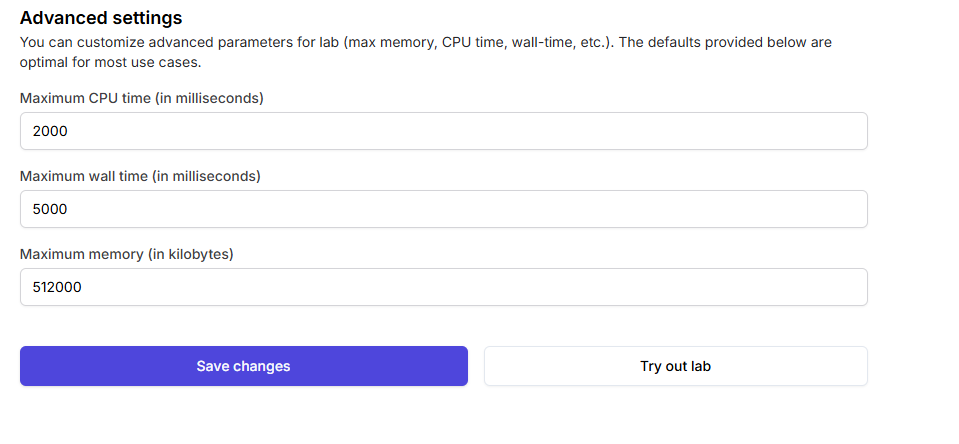
Once all configurations are complete, click **Save Changes**.\
Your IO Coding Lab is now successfully added and ready for learners!
# SQL Labs
Source: https://docs.fermion.app/creating-io-coding-labs/sql-lab
Learn how to setup a successful SQL coding lab on Fermion for your students
Fermion supports both SQLite and MySQL 8 for creating interactive SQL coding labs. This allows you to create hands-on database exercises where students can practice writing SQL queries against a real database.
## Prerequisites
Before creating a SQL lab, you'll need:
1. **For SQLite**: A SQLite database file (`.sqlite` format) named `db.sqlite`
2. **For MySQL 8**: A plaintext SQL file (`.sql` format) named `setup.sql`
3. The file should be compressed into a ZIP archive
## How to create SQLite lab?
Follow the steps below for setting up SQLite based lab:
### 1. Create Your Database File
First, create your SQLite database with the tables and data you want students to work with. You can either:
**Option A: Use an existing SQLite database**
You can use popular sample databases like:
* `chinook.db` - Music store database
* `northwind.db` - Business database
* `sakila.db` - DVD rental database
These are standard SQLite database files with `.db` extension that contain realistic data for learning purposes.
**Option B: Convert a plaintext SQL file to SQLite**
If you have a `.sql` file with CREATE TABLE and INSERT statements, you can convert it to an SQLite database:
1. **Using command line:**
```bash theme={null}
# Create database from SQL file
sqlite3 mydatabase.db < schema.sql
# Or if you want to create db.sqlite specifically
sqlite3 db.sqlite < schema.sql
```
2. **Using SQLite command line:**
```bash theme={null}
# Start SQLite
sqlite3 db.sqlite
# Read and execute SQL file
.read schema.sql
# Exit SQLite
.quit
```
3. **Using Python (if you prefer):**
```python theme={null}
import sqlite3
# Create database
conn = sqlite3.connect('db.sqlite')
cursor = conn.cursor()
# Read and execute SQL file
with open('schema.sql', 'r') as file:
sql_script = file.read()
cursor.executescript(sql_script)
conn.commit()
conn.close()
```
### 2. Prepare Your Database File
1. Save your database as `db.sqlite`
2. Create a ZIP archive containing only the `db.sqlite` file
3. The ZIP file should be named something descriptive like `student_database.zip`
## How to create MySQL 8 lab?
Follow the steps below for setting up MySQL 8 lab:
### 1. Create Your SQL Setup File
For MySQL 8 labs, you need to create a plaintext SQL file that contains all the necessary setup commands:
```sql theme={null}
-- Example setup.sql file
CREATE DATABASE IF NOT EXISTS student_db;
USE student_db;
CREATE TABLE users (
id INT PRIMARY KEY AUTO_INCREMENT,
name VARCHAR(100) NOT NULL,
email VARCHAR(100) UNIQUE NOT NULL,
created_at TIMESTAMP DEFAULT CURRENT_TIMESTAMP
);
INSERT INTO users (name, email) VALUES
('John Doe', 'john@example.com'),
('Jane Smith', 'jane@example.com'),
('Bob Johnson', 'bob@example.com');
-- Add more tables and data as needed
```
### 2. Prepare Your SQL File
1. Save your SQL setup file as `setup.sql`
2. Create a ZIP archive containing only the `setup.sql` file
3. The ZIP file should be named something descriptive like `mysql_student_database.zip`
## Creating the SQL Lab on Fermion
If you have not enabled Coding labs, please go to "Manage features" >
"Coding Labs" and enable that first from your instructor dashboard
1. Navigate to your instructor dashboard
2. Go to the "Coding Labs" section
3. Click on "I/O labs" and create an SQL lab as IO lab
4. Edit this lab
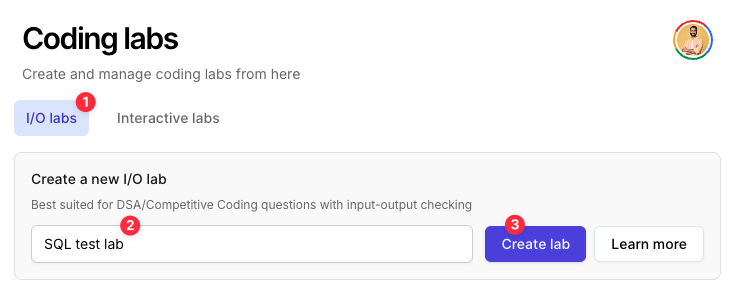
5. Inside the lab setup interface, scroll down and pick "SQL Lab".
6. Fermion currently supports SQLite and MySQL 8 as backend adapters for running SQL queries.
7. Expand this and upload the ZIP file you just created:
* **For SQLite**: Upload `student_database.zip` containing `db.sqlite`
* **For MySQL 8**: Upload `mysql_student_database.zip` containing `setup.sql`
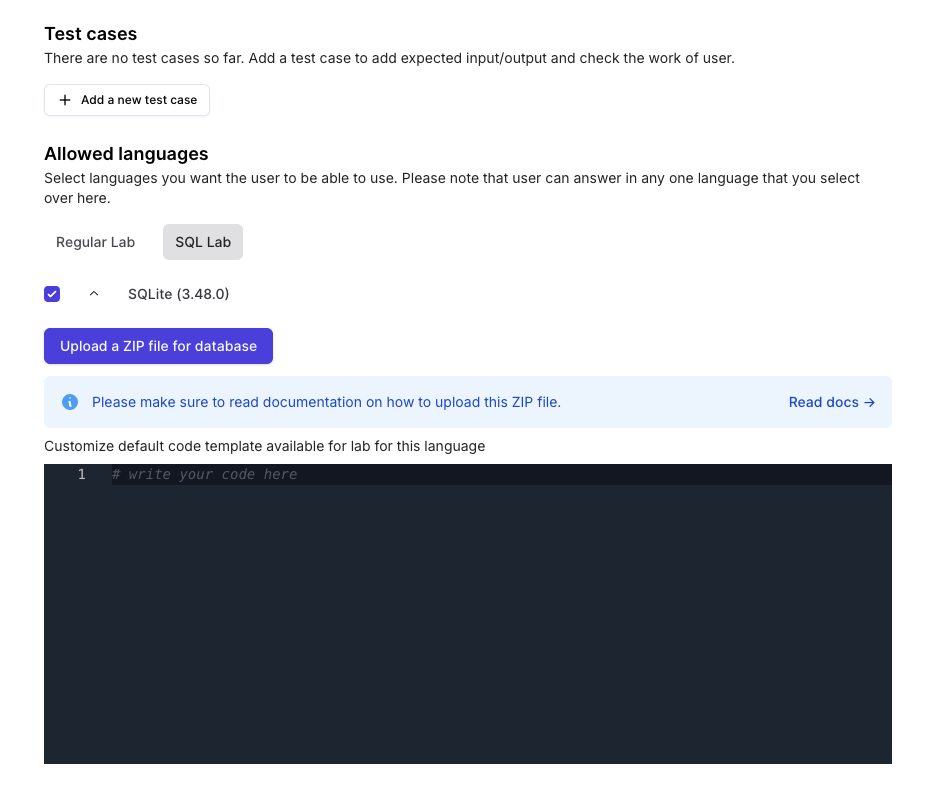
8. You can also add default starting code for students if required.
## Setting up test cases
For SQL labs, you can define a single test case where you write an expected output the query should produce.
### SQLite Test Cases
SQLite is able to produce output in 14 different formats, however Fermion outputs the SQL query output in `list` mode.
This is how list mode output works:
```bash theme={null}
sqlite> select * from tbl1;
hello!|10
goodbye|20
sqlite>
```
To get the expected output for your own query against your own database, create a file called `script.sql` that has the solution query, and run the following command locally on your system:
```bash theme={null}
cat script.sql | sqlite3 db.sqlite
```
### MySQL 8 Test Cases
For MySQL 8, the output format is similar to the standard MySQL command line output. To get the expected output for your query, you can run it locally against your MySQL database:
```bash theme={null}
mysql -u username -p database_name < script.sql
```
This will give you output of your command which you can copy-paste in the "output" box of test case.
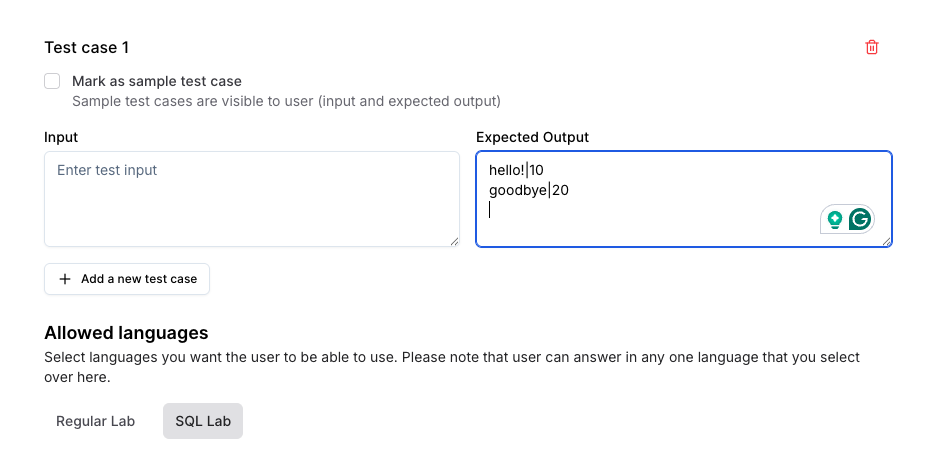
Save your lab and try it as a user to see.
Fermion runs every query in a completely isolated environment. Therefore,
you can setup labs that can have INSERT or DELETE operations as well,
alongside SELECT operations
# Executing SQLite via API
Source: https://docs.fermion.app/creating-io-coding-labs/sql-over-api
Learn how to execute SQLite code using Fermion DSA API, including preparing your database file and encoding it correctly.
SQL execution requires a small extra step compared to other languages: you need to upload a database file (`db.sqlite`), encoded as base64URL `string`, as part of your request.
This guide will walk you through everything: from preparing your `.sqlite` file to encoding and sending it through the API.
***
## What is SQLite
SQLite is a lightweight, self-contained, and serverless relational database engine.Unlike traditional database management systems, it does not require a separate server process, making it ideal for applications that need an embedded database with minimal setup.
SQLite stores the entire database, including tables, indexes, and data, in a single `.sqlite` file, which makes it highly portable and easy to distribute.
It supports standard SQL syntax, transactions, and most common database features, allowing you to run queries,
insert data, and perform updates directly within the database file.
Its simplicity and reliability have made SQLite widely used in desktop applications, mobile apps, and embedded systems.
Head over to [SQLite org](https://sqlite.org/index.html) to learn more about SQLite
## How to execute SQL over Fermion API
Fermion offers the ability to execute SQL queries over the API. You can utilize the following steps to execute SQLite queries:
Create a simple SQLite database and populate it with sample data. Note that this is just a sample schema and you can write your own schema
as per the [SQLite guide](https://sqlite.org/lang.html)
```sql theme={null}
-- schema.sql
CREATE TABLE users (
id INTEGER PRIMARY KEY AUTOINCREMENT,
name TEXT NOT NULL,
email TEXT UNIQUE NOT NULL
);
INSERT INTO users (name, email) VALUES
('Alice', 'alice@fermion.app'),
('Bob', 'bob@fermion.app'),
('Charlie', 'charlie@fermion.app');
-- Add more tables and data as needed
```
If you have [sqlite3](https://sqlite.org/index.html) installed, you can run this locally using sqlite3 to convert your `sql` schema into an `sqlite` file:
```bash theme={null}
sqlite3 db.sqlite < schema.sql
```
You can also utilize **python** scripts to convert your `schema.sql` file into a `db.sqlite` file.
```python theme={null}
import sqlite3
# Create database
conn = sqlite3.connect('db.sqlite')
cursor = conn.cursor()
# Read and execute SQL file
with open('schema.sql', 'r') as file:
sql_script = file.read()
cursor.executescript(sql_script)
conn.commit()
conn.close()
```
The Fermion API requires:
* A ZIP file containing your `db.sqlite` file (Base64URL encoded)
Here’s a simple script to generate base64URL encodings in Python for your zip file. Make sure to have a `db.sqlite` file in the same folder when you run this script
```python theme={null}
import base64
import zipfile
def base64url_encode(data: bytes) -> str:
# Base64 URL-safe encoding without padding
return base64.urlsafe_b64encode(data).decode("utf-8").rstrip("=")
# Create a ZIP containing db.sqlite
zip_filename = "db.zip"
with zipfile.ZipFile(zip_filename, "w", zipfile.ZIP_DEFLATED) as zipf:
zipf.write("db.sqlite", arcname="db.sqlite") # must be exactly 'db.sqlite'
print(f"{zip_filename} created successfully!")
# Read ZIP bytes
with open(zip_filename, "rb") as f:
zip_bytes = f.read()
# Base64URL encode
encoded_zip = base64url_encode(zip_bytes)
# Save encoded string to file
with open("encoded.txt", "w") as f:
f.write(encoded_zip)
print("Base64URL encoded string saved to encoded.txt")
```
This script will provide you with a `db.zip` file and another file called `encoded.txt`, which will have the `base64URL` encoded string of the db.zip file.
The ZIP must **contain exactly one file named `db.sqlite`** : the API expects this name. Do not rename it to anything else inside the ZIP archive.
You can utilize this string while making the API request.
Once you have the encoded SQL and ZIP file, you can now execute SQL queries via the [Request DSA code execution \[batch\]](/api-reference/dsa/get-dsa-code-execution-result-\[batch]) endpoint.
Note that you also have to base64URL encode the source code and add the encoded string to the request for the `sourceCodeAsBase64UrlEncoded` property
You can take help of the following json schema while setting up your own requests for SQL executions.
```json theme={null}
{
"language": "Sqlite_3_48_0",
"sourceCodeAsBase64UrlEncoded": "",
"additionalFilesAsZip": {
"type": "base64url-encoding",
"base64UrlEncodedZip": ""
},
"runConfig": {
"callbackUrlOnExecutionCompletion": "https://your-domain.com/webhook/sqlite-result",
"expectedOutputAsBase64UrlEncoded": "",
"customMatcherToUseForExpectedOutput": "ExactMatch",
"cpuTimeLimitInMilliseconds": 2000,
"wallTimeLimitInMilliseconds": 5000,
"memoryLimitInKilobyte": 512000
}
}
```
This `POST` request will return a list of task IDs which you can utilize while retrieving the execution results.
```json theme={null}
{
"output": {
"status": "ok",
"data": {
"taskIds": [ "" ]
}
}
}
```
SQLite can produce output in multiple formats (up to 14), but **Fermion’s API uses the `list` mode format** for evaluating SQL output.
In list mode, each column value is separated by a `|` (pipe), and each row appears on a new line.\
Here’s an example:
```bash theme={null}
sqlite> SELECT * FROM users;
Alice|alice@fermion.app
Bob|bob@fermion.app
Charlie|charlie@fermion.app
sqlite>
```
To get the expected output for your own query against your own database,
create a file called script.sql that has the solution query, and run the following command locally on your system:
```bash theme={null}
cat script.sql | sqlite3 db.sqlite
```
This command will print the output in the same list format that Fermion expects.
You can then take this exact output, encode it using Base64URL, and include it in your API request under:
```json theme={null}
"expectedOutputAsBase64UrlEncoded": ""
```
You can utilize the task IDs received above to retrieve the results of DSA code execution
* Poll results via [Get DSA code execution result \[batch\]](/api-reference/dsa/get-dsa-code-execution-result-\[batch])
* Receive a webhook automatically if you specified `callbackUrlOnExecutionCompletion` Learn more about this [here](/creating-io-coding-labs/api-usage#using-webhook-urls-for-instant-results-recommended)
A successful response will look like:
```json theme={null}
{
"output": {
"status": "ok",
"data": {
"tasks": [
{
"taskUniqueId": "",
"sourceCodeAsBase64UrlEncoded": "",
"language": "C",
"runConfig": {
// your runConfig for this taskID
},
"codingTaskStatus": "Pending",
"runResult": {
"compilerOutputAfterCompilationBase64UrlEncoded": "",
"finishedAt": "2023-11-07T05:31:56Z",
"runStatus": "compilation-error",
"programRunData": {
"cpuTimeUsedInMilliseconds": 1,
"wallTimeUsedInMilliseconds": 1,
"memoryUsedInKilobyte": 1,
"exitSignal": 123,
"exitCode": 123,
"stdoutBase64UrlEncoded": "",
"stderrBase64UrlEncoded": ""
}
}
}
]
}
}
}
```
## Best practices
* Ensure the ZIP file only contains **`db.sqlite`** , not folders or other files.
* Always use **Base64URL**, not standard Base64.
***
# Submissions
Source: https://docs.fermion.app/creating-io-coding-labs/submissions
Learn how to view and track submission history for IO coding labs
The Submissions History feature allows learners to view all their past code submissions for an IO coding lab, including execution results, performance metrics, and test case outcomes.
## How to access Submissions History
Go to your **Instructor Dashboard** and open the **Coding Labs** section from the sidebar. Click on **Labs** and then navigate to the **IO Coding Labs** tab.
Select any IO coding lab from your list to open it.
Click on **Try out lab** to open the lab in the coding interface.
Click on **Submission history** in the lab interface to view all your past submissions for that lab.
## Understanding the Submissions Table
The Submissions History table displays comprehensive information about each code submission:
| Column | Description |
| -------------- | ----------------------------------------------------------------------- |
| **DATE** | The date and time when the submission was made |
| **STATUS** | The overall result of the submission (e.g., Full Correct, Wrong Answer) |
| **LANGUAGE** | The programming language used for the submission |
| **RUNTIME** | The execution time of the code in milliseconds |
| **MEMORY** | The memory consumed during code execution |
| **TEST CASES** | The number of test cases passed (e.g., 1/1, 0/1) |
## Submission Status Types
Each submission displays a status that indicates the outcome of the code execution:
All test cases passed successfully. The solution is correct.
The code executed successfully but produced incorrect output for one or more test cases.
## Viewing Submission Details
Click on any submission entry in the table to view detailed information about that specific submission, including:
* Complete source code that was submitted
* Individual test case results
* Execution logs and error messages (if any)
* Performance metrics breakdown
Submissions History helps learners track their progress, identify patterns in
their solutions, and learn from previous attempts.
Instructors can also view submission history for all learners from the lab
management interface to monitor class progress and identify common issues.
***
This feature was introduced in November 2025. For more product updates, see
the [Product Updates](/changelog) page.
# Blogs
Source: https://docs.fermion.app/custom-landing-pages/blogs
Create and manage blogs easily within Fermion to share updates, tutorials, and stories with your audience.
Blogs in Fermion are a powerful way to share knowledge, updates, tutorials, or announcements with your audience. Whether you want to post educational content for your students, share organizational news, or highlight success stories, blogs provide a structured and visually appealing way to communicate.
Each blog supports Markdown formatting, allowing you to style your text, include images, and even add code snippets. Additionally, SEO settings like custom URL slugs and categories help your blogs reach a wider audience, while thumbnails and categories make it easier for readers to discover and navigate your content.
Blogs are hosted directly on your **domain**, so your learners and audience can read them without visiting any third-party platform. This ensures a complete branded experience while keeping all your content centralized.
## How blogs differ from in-course articles
Unlike in-course articles, which are tied to a specific course and can only be accessed by learners enrolled in that course, blogs in Fermion are standalone content pieces that live on your own domain. This means they can be shared publicly across the internet, making it easy for anyone to discover and read them.
Blogs give you the flexibility to reach a wider audience, showcase your expertise, promote courses or resources, and share updates or educational content in a professional, branded way.
## How to create a blog?
Creating a blog in Fermion is quick and easy. Follow these steps to publish your first article:
Before creating blogs, make sure the **Blogs** feature is enabled in your workspace.\
You can do this from the **Manage Features** section.\
[Learn how to manage features](/manage-settings/manage-features)
Go to your **Instructor Dashboard → Blogs**.\
Click on **Create a new blog** to open the blog builder.
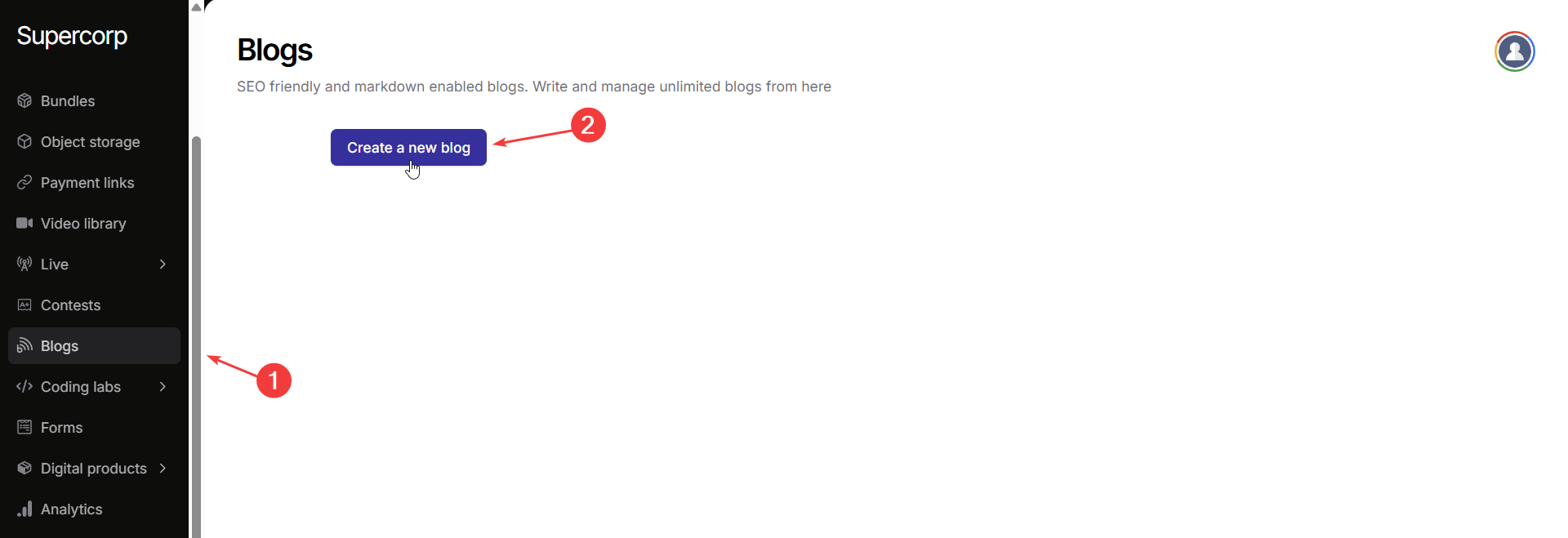
Enter your **Blog Title** at the top.\
Use the **editor** below to write your blog content. The rich text editor supports **Markdown syntax**, so you can format text, add images, and insert code blocks easily.
In the **Blog Settings** pane on the right, you can:
* Upload a **Thumbnail Image**.
* Add a **URL Slug** and add a **Category** under **SEO Settings**.
* Click **Save SEO Settings** once done.
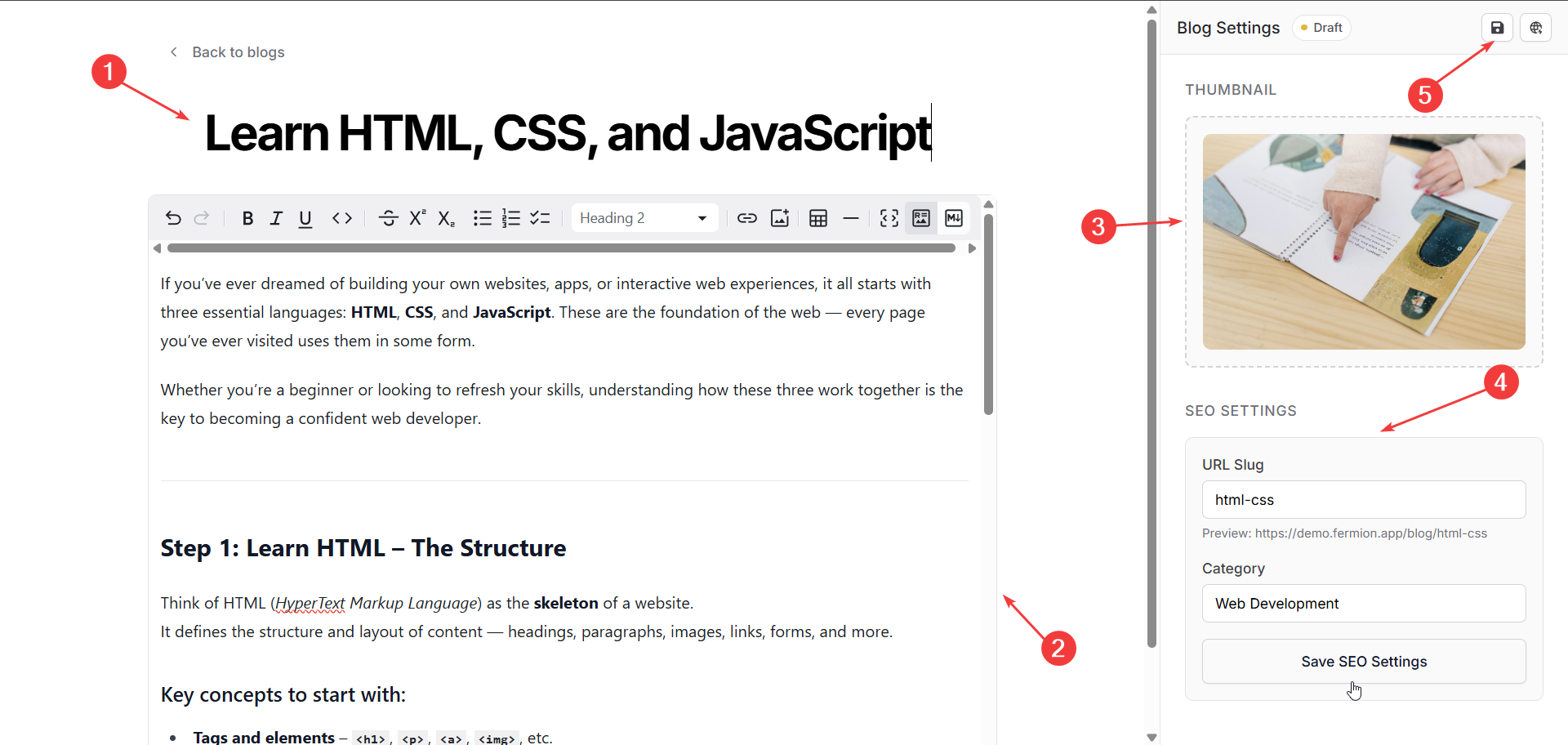
After reviewing your blog, click **Save changes** in the top-right corner to save your work.\
Once saved, click on the **Publish blog** button right next to the save button to publish your blog. You can now copy the blog link and share it!
## Access blogs over API
You can also manage and retrieve blogs programmatically using Fermion's API. The following endpoints are available:
Retrieve a list of all blogs that have been published. Use this endpoint to display blogs on your website or app. [Learn more](/api-reference/blog/get-published-blogs)
Fetch detailed information about a single blog, including its title, content, SEO details, and thumbnail. [Learn more](/api-reference/blog/get-blog-information)
For full details, authentication requirements, and request examples, head over to the [API reference](/api-guide/introduction)
# Direct Checkout Links
Source: https://docs.fermion.app/custom-landing-pages/checkout-page-direct-links
Understand how to construct direct checkout page links using Fermion
When creating custom landing pages on Fermion, you can include direct checkout links that seamlessly redirect users to purchase your digital products or courses. This allows you to maintain full control over your landing page design while still leveraging Fermion's secure checkout system.
## How Checkout Links Work
Any anchor link or button with a redirect URL in the following format will open the Fermion checkout page:
```html theme={null}
/api/buy-digital-product?product-slug=YOUR_PRODUCT_SLUG
```
The checkout page is automatically generated by Fermion and includes all
necessary payment processing, security measures, and user authentication.
## URL Parameters
Fermion's checkout system supports several URL parameters to customize the checkout experience:
### Required Parameters
* **`product-slug`**: The slug of your digital product or course that you want users to purchase. This field is mandatory and cannot be omitted.
### Optional Parameters
* **`discount-code`**: Any discount code that needs to be automatically applied to the user's checkout session. The discount code must exist in your product's discounts section area. If the code doesn't exist or has expired, users will see an "Invalid discount code" warning but can still complete checkout at full price.
* **`digital-product-price-id`**: The specific price ID for the digital product, useful if you have multiple pricing plans.
* **`total-installments-count`**: The number of installments for partial payment plans. Only required if the selected plan is an installment plan.
* **`prefilled-name`**: Pre-fills the user's name on the checkout form. Useful when your landing page collects user input.
* **`prefilled-email`**: Pre-fills the user's email address on the checkout form. Useful when your landing page collects user input.
* **`prefilled-phone-number`**: Pre-fills the user's phone number on the checkout form. Useful when your landing page collects user input.
* **`smart-checkout-redirect`**: Set to `true` to automatically redirect to the best available payment gateway when `prefilled-email` and `prefilled-name` are present. This reduces one step for users to complete.
* **UTM Parameters**: For marketing attribution, you can add any of the following:
* `utm_source`, `utm_medium`, `utm_campaign`, `utm_id`, `utm_term`, `utm_content`
Make sure to properly encode all parameter values to avoid breaking the
checkout flow. Special characters in names, emails, or discount codes must
be URL-encoded.
## Code Examples
### Basic Checkout Link
```html theme={null}
Buy My Product
```
### Checkout Link with Discount Code and UTM Parameters
```html theme={null}
Buy with Early Bird Discount
```
### Checkout Link with Pre-filled Information and Installments
```html theme={null}
Buy Product (3 Installments)
```
### Complete Checkout Link with All Parameters
```html theme={null}
Buy Product Now
```
## JavaScript Implementation
For dynamic checkout links that collect user input from your landing page, use this JavaScript function to safely construct the checkout URL:
```javascript theme={null}
function initiateCheckout() {
// Assuming this function is called on a button click
const params = new URLSearchParams({
'discount-code': code,
'product-slug': checkoutPageDataInfo.fermionDigitalProductSlug,
'digital-product-price-id':
checkoutPageDataInfo.pricingPlanSpecificData
.fermionDigitalProductPriceId,
'total-installments-count':
checkoutPageDataInfo.pricingPlanSpecificData.planType ===
'PartialPaymentPlan'
? (
checkoutPageDataInfo.pricingPlanSpecificData
.installmentCountSelectedByUser ?? ''
).toString()
: '',
'prefilled-name': nameOfUser || '',
'prefilled-email': emailOfUser || '',
'prefilled-phone-number': phoneNumber || '',
'smart-checkout-redirect': 'true',
utm_source: utmSource || '',
utm_medium: utmMedium || '',
utm_campaign: utmCampaign || '',
utm_id: utmId || '',
utm_term: utmTerm || '',
utm_content: utmContent || '',
})
// Remove empty parameters
params.forEach((value, key) => {
if (value === '') params.delete(key)
})
window.location.href = `/api/buy-digital-product?${params.toString()}`
}
```
The JavaScript approach using `URLSearchParams` automatically handles URL
encoding, making it the safest way to construct checkout links with user
input.
## Manual URL Construction
If you prefer to construct URLs manually, ensure you use `encodeURIComponent()` for all parameter values:
```javascript theme={null}
const productSlug = 'my-awesome-product'
const priceId = 'price_123'
const installmentCount = '3'
const userName = 'John Doe'
const userEmail = 'john@example.com'
const utmSource = 'newsletter'
const checkoutUrl = `/api/buy-digital-product?product-slug=${encodeURIComponent(
productSlug
)}&digital-product-price-id=${encodeURIComponent(
priceId
)}&total-installments-count=${encodeURIComponent(
installmentCount
)}&prefilled-name=${encodeURIComponent(
userName
)}&prefilled-email=${encodeURIComponent(
userEmail
)}&utm_source=${encodeURIComponent(utmSource)}`
```
Failing to properly encode parameter values can break the checkout flow,
especially when dealing with special characters in names, emails, or
discount codes.
## Integration with Custom Landing Pages
To integrate checkout links with your custom landing pages:
1. **Create your custom page** in Fermion's instructor dashboard
2. **Design your landing page** with HTML, CSS, and JavaScript
3. **Add checkout buttons/links** using the `/api/buy-digital-product` URL format
4. **Test the checkout flow** to ensure all parameters work correctly
5. **Publish your page** when ready
Your custom landing page will maintain full design control while seamlessly
integrating with Fermion's secure checkout system.
## Best Practices
* **Always test checkout links** before publishing your landing page
* **Use the JavaScript approach** when collecting user input to ensure proper encoding
* **Keep discount codes simple** and avoid special characters when possible
* **Validate user input** before constructing checkout URLs
* **Provide fallback options** in case discount codes are invalid or expired
* **Use UTM parameters** to track marketing attribution and campaign performance
The checkout page automatically handles payment processing, user
authentication, and product access management, so you can focus on creating
compelling landing pages that drive conversions.
# Custom Redirects
Source: https://docs.fermion.app/custom-landing-pages/custom-redirects
Set up custom redirects to guide learners to specific pages, courses, or resources efficiently.
Custom redirects are a powerful URL management system that gives you complete control over how URLs are redirected within your platform. They enable you to establish rules for automatically directing users from one URL to another, ensuring a seamless browsing experience while maintaining the integrity of your website's navigation structure.
Custom redirects give you complete control over URL redirections within your platform so you can easily maintain and manage URL structures.
They are particularly useful for updating URLs while maintaining existing links, creating shorter paths to specific pages, and managing seasonal or temporary redirects, all while ensuring seamless navigation after content restructuring.
## Why use custom redirects?
Website structures rarely remain static. As your site grows and evolves, you'll likely need to reorganize content, update URL structures, or create more intuitive paths to important pages. Custom redirects are essential during these transitions, preventing broken links and maintaining your site's SEO value. They're particularly valuable when you're rebranding, restructuring your content hierarchy, or running temporary promotional campaigns that require special URL handling.
## When to use custom redirects?
You can use custom redirects in the following scenarios:
* Content Restructuring:
When you're reorganizing your website's content hierarchy, custom redirects ensure that users following old bookmarks or links still reach their intended destination. This is crucial for maintaining user experience and preventing frustration from encountering 404 errors.
* SEO Preservation:
If you've built up SEO value on existing URLs, redirects help transfer that authority to new pages, preventing loss of search engine ranking when you need to change URL structures.
* Marketing Campaigns:
During seasonal promotions or temporary campaigns, you might want to create simple, memorable URLs that redirect to specific landing pages. Custom redirects make this possible without permanently altering your site's structure.
* Brand Consolidation:
When merging multiple websites or consolidating content from different domains, custom redirects help create a unified navigation structure while ensuring old links continue to work.
## How to use custom redirects on Fermion?
With custom redirects on Fermion you can:
* Create exact path matches for precise URL control or create wildcard matches.
* Set up static pathname or URL redirects
* Manage multiple redirects from a central dashboard
* Instant publishing and unpublishing capabilities
### Step 1:
Navigate to the `custom redirects` tab from your Fermion dashboard.

### Step 2:
Click on "Create" to create a new custom redirect.

### Step 3:
Setup your custom redirect.

* When setting up custom redirects, prioritize exact path matches for precise control over specific URLs.
* Use wildcard matches judiciously for handling groups of similar URLs that should all follow the same redirection pattern.
* Always test your redirects thoroughly before publishing, and monitor their performance to ensure they're serving their intended purpose.
### Step 4:
Publish your custom redirect.

# Introduction
Source: https://docs.fermion.app/custom-landing-pages/introduction
Learn how to create high-converting, fully customizable landing pages on Fermion using no-code tools or your own source code.
Creating a custom landing page on Fermion empowers you to capture your audience’s attention, drive targeted campaigns, and boost conversions for your brand or educational offerings.
* Create tailored landing pages for different campaigns or audiences
* Track metrics like conversion rate and bounce rate
* Deliver a unique brand experience
## What is a custom page?
A custom page on Fermion is a fully user-controlled page. You can either write and upload your own HTML/CSS/JS, or use a no-code tool like WordPress to design your page visually. Fermion will host and serve your page exactly as you design it.
## How to create a custom page in Fermion
Fermion allows you to create fully customizable landing pages by uploading your own source code. This gives you complete control over the design, layout, and functionality of your page.
* **Static website upload:** Develop your page using HTML, CSS, and JavaScript with your preferred tools. Once ready, upload the source code to Fermion.
* Fermion will host and serve your page exactly as you designed it, ensuring your custom styles, scripts, and interactions work flawlessly.
* You can update your page anytime by uploading new versions of your source code, making it easy to iterate and improve your landing pages.
The following sections will guide you step-by-step through uploading and managing your custom landing page on Fermion.
## Next steps
Create professional landing pages in minutes using Fermion's AI Builder. Simply describe what you want, and the AI will generate a complete page for you.
Learn how to create fully customizable landing pages on Fermion by uploading your own HTML, CSS, and JavaScript source code.
Discover how to create, manage, and publish engaging blog content to connect with your audience and share your expertise.
# Using AI Builder
Source: https://docs.fermion.app/custom-landing-pages/using-ai-builder
Learn how to create custom pages using Fermion's AI builder to generate and customize pages with real-time data and checkout links
Fermion's AI Builder allows you to create fully customized pages by simply describing what you want. The AI will generate a complete page for you, which you can then refine with real-time data, direct checkout links, and custom paths.
This powerful no-code tool eliminates the need for manual HTML/CSS/JavaScript coding, making it easy for anyone to create professional landing pages in minutes.
## How AI Builder Works
The AI Builder uses advanced language models to understand your requirements and generate complete, functional landing pages. You can:
* Describe your page in natural language
* Let the AI generate the complete page structure and design
* Refine the page with real-time data integration
* Add direct checkout links with proper interlinking
* Customize the page path and publish instantly
From your instructor dashboard, navigate to **Pages & redirects** and then click on **Custom pages**.
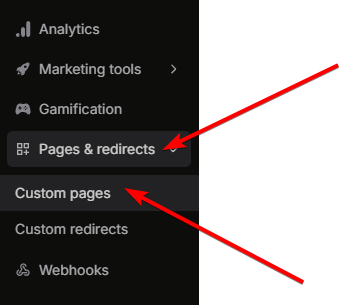
Click on the **Edit website with AI** option to open the AI Builder interface.
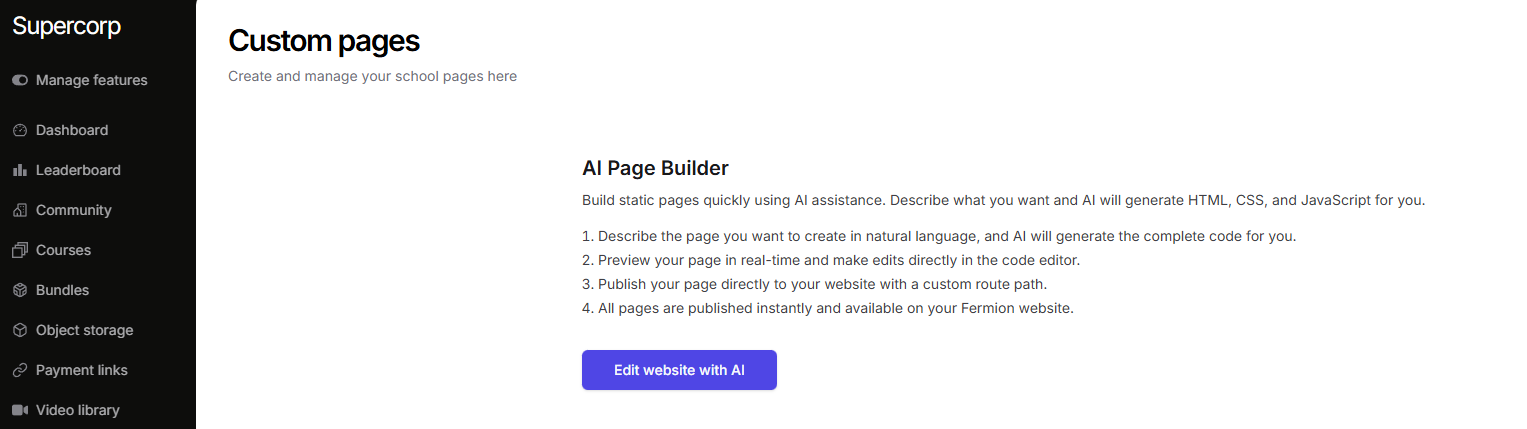
Describe the type of landing page you want to create. You can specify:
* The purpose of the page (e.g., course landing page, product sales page)
* The design style you prefer
* Key sections you want to include
* Any specific features or elements
The AI will understand your requirements and generate a complete static page structure.
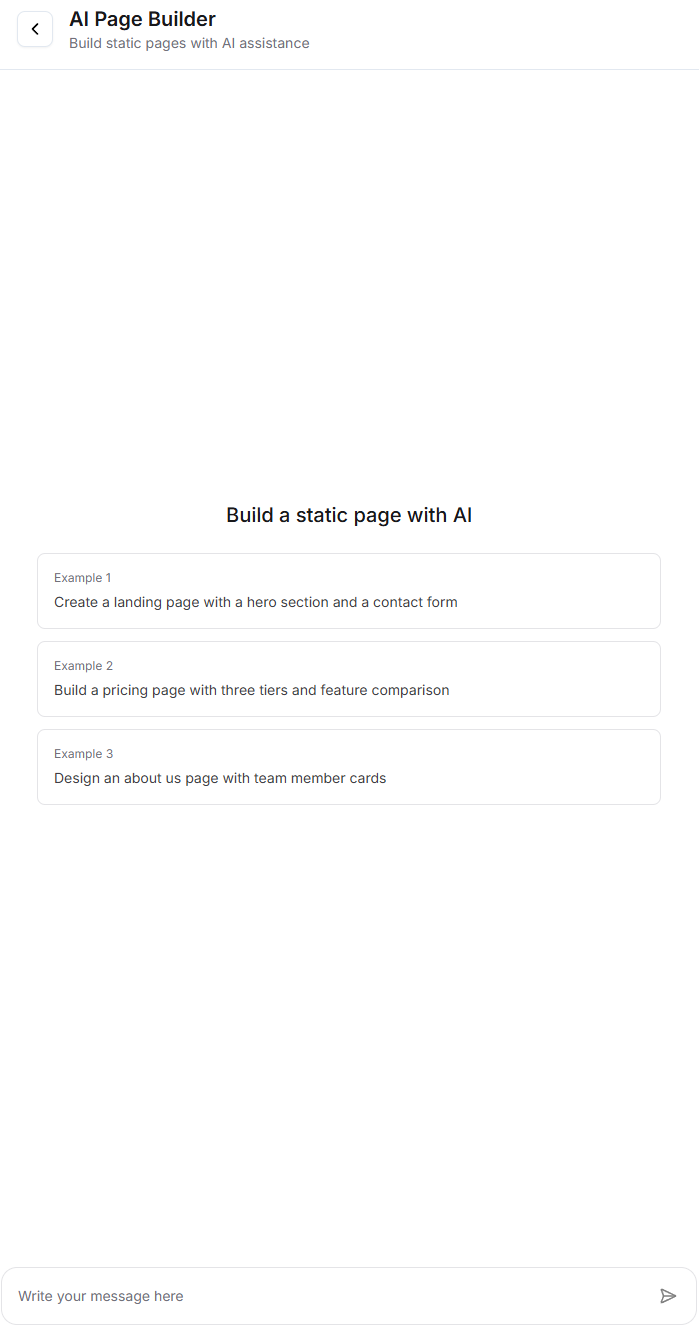
The AI will process your request and generate a complete landing page. This may take a few moments as the AI creates all the necessary HTML, CSS, and JavaScript code.
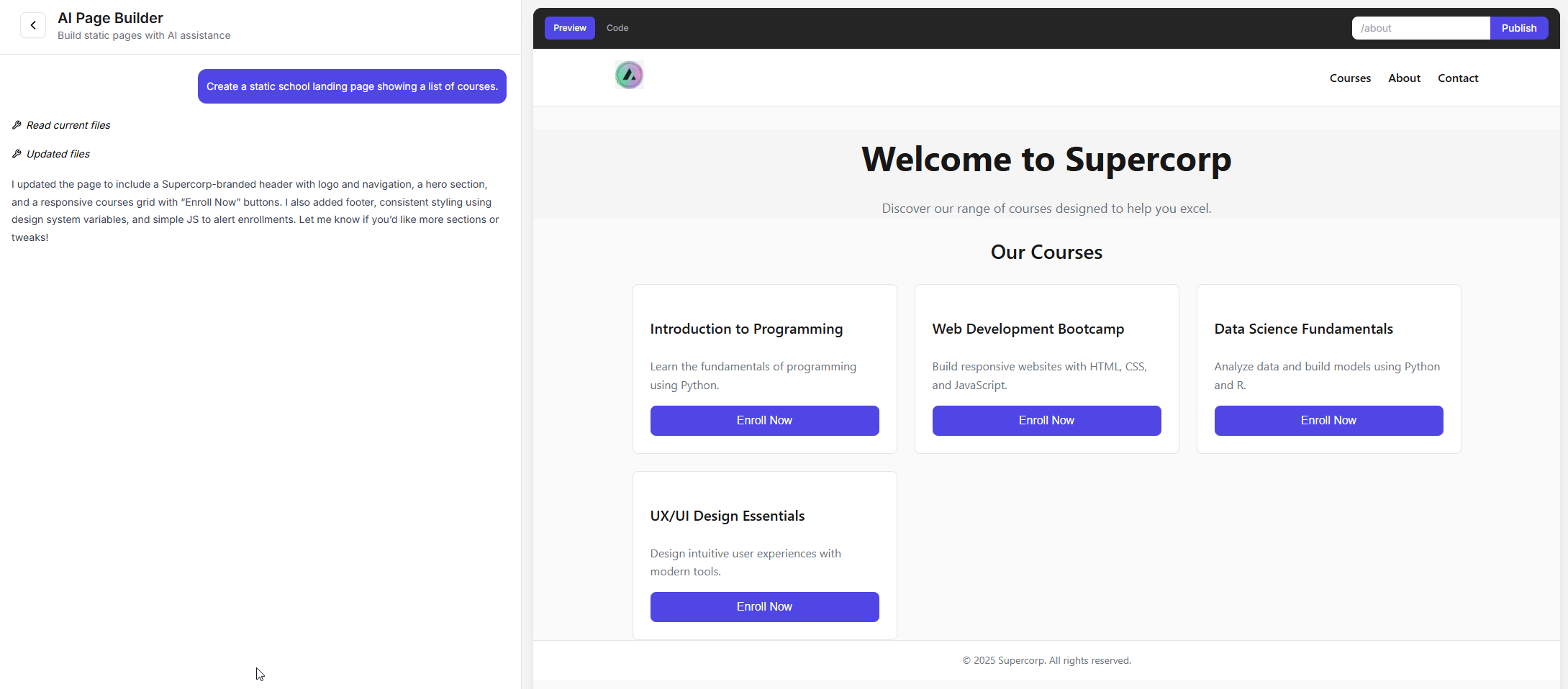
Once the AI has generated your page, you can refine it by:
* Adding real-time data integration
* Adding direct checkout links with proper interlinking
* Customizing the design and layout
* Adjusting content and messaging
You can add direct checkout links using the format `/api/buy-digital-product?product-slug=YOUR_PRODUCT_SLUG`. For more details on checkout links, see the [Direct Checkout Links](/custom-landing-pages/checkout-page-direct-links) guide.
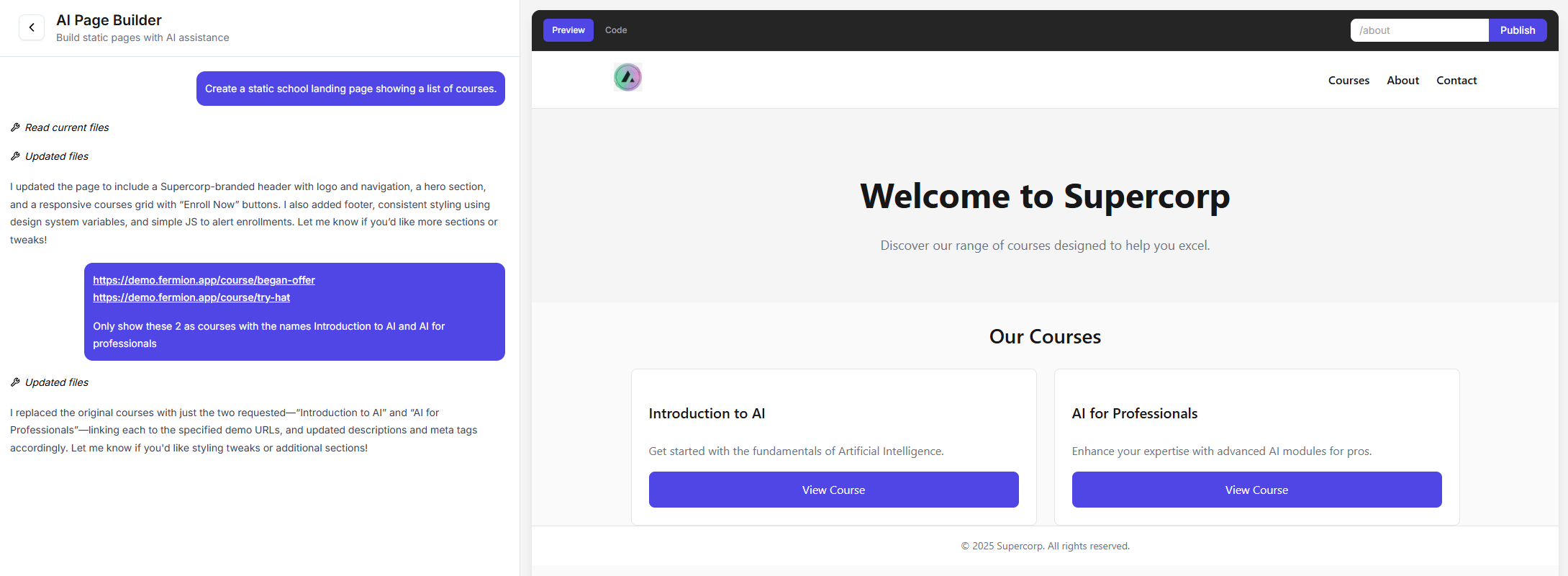
Assign a custom path to your page (e.g., `/landingpage`, `/course-intro`, `/product-sales`). This will be the URL where your page will be accessible.
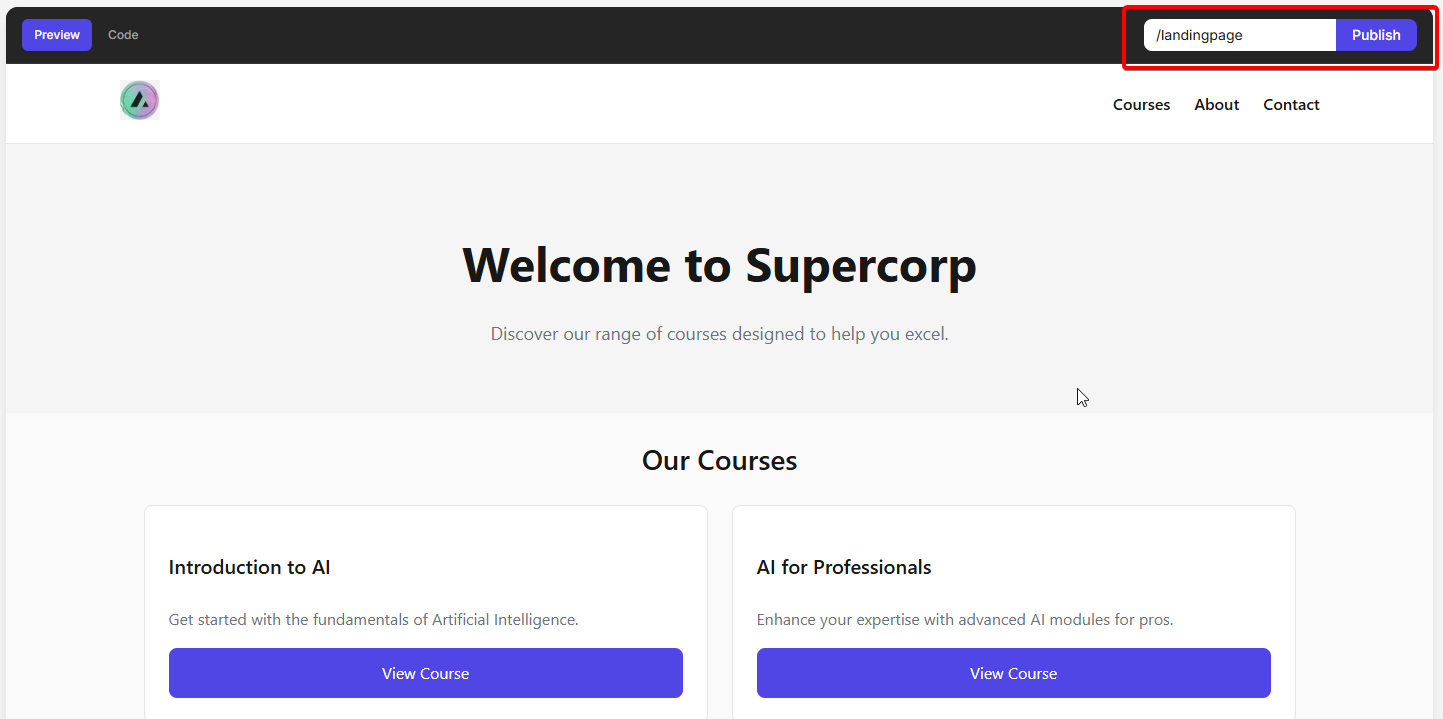
Click on the **Publish** button to make your page live. Once published, your page will be accessible at the custom path you specified.

## Managing Published Pages
Once your page is published, you can:
* **View the page**: Click to see how your page appears to visitors
* **Unpublish the page**: Temporarily remove the page from public access without deleting it
* **Edit the page**: Make further refinements and republish
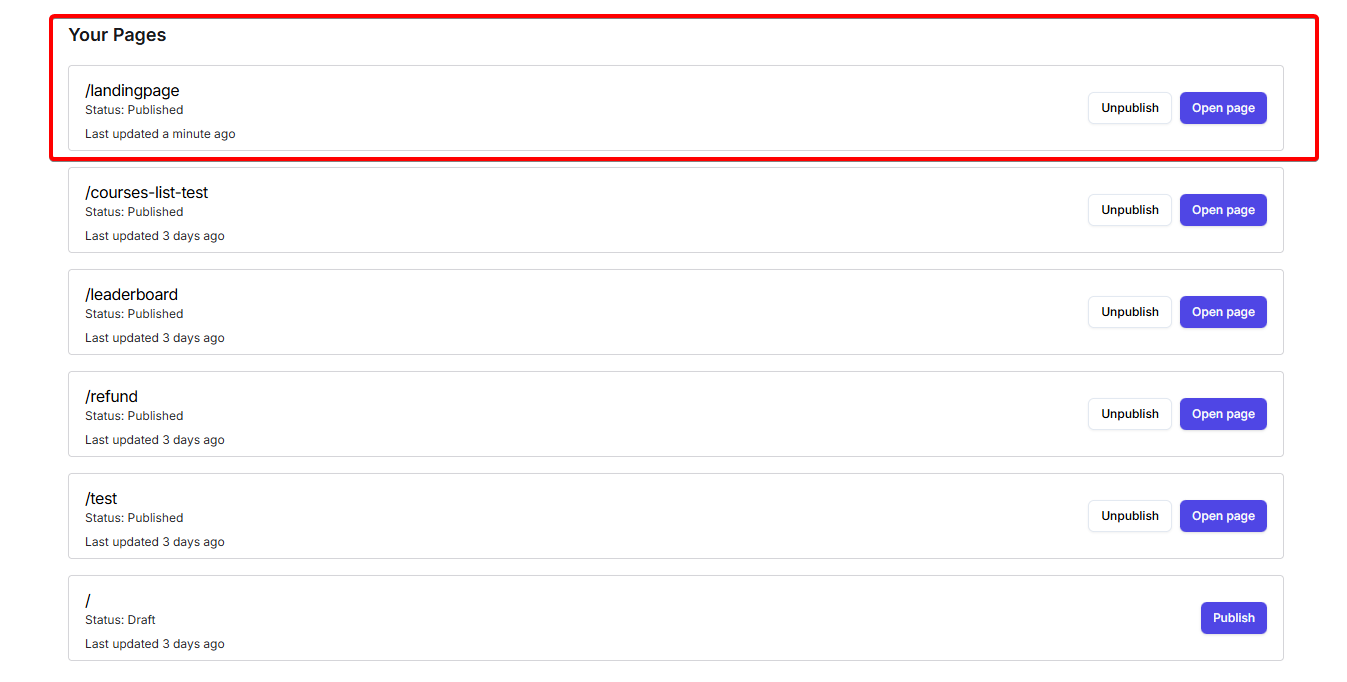
## Best Practices
* **Be specific in your AI prompts**: The more details you provide about what you want, the better the AI can generate your page
* **Test checkout links**: Always verify that direct checkout links work correctly before publishing
* **Review the generated code**: While the AI generates functional code, you may want to review and customize it further
* **Use meaningful paths**: Choose descriptive paths that reflect the purpose of your page
* **Iterate and refine**: Don't hesitate to ask the AI to make adjustments or regenerate sections
The AI Builder is perfect for quickly prototyping landing pages. For more advanced customization, you can always export the generated code and modify it manually, or use the [Source Code](/custom-landing-pages/using-source-code) method for complete control.
## Next Steps
Learn how to integrate direct checkout links into your AI-generated pages for seamless purchase flows.
For advanced customization, learn how to upload and manage custom HTML/CSS/JavaScript source code.
# Using Source Code
Source: https://docs.fermion.app/custom-landing-pages/using-source-code
Learn how to create fully customized pages by adding source code directly for complete control over design and functionality
When creating custom pages on Fermion, you have the flexibility to upload and host your own static websites directly from source code.
This powerful feature allows you to deploy custom-built web applications, landing pages, or any other web content you've developed using modern web technologies.
This guide will walk you through the process of uploading your static website to Fermion, explain how assets are handled, and provide best practices for successful deployment.
## What are static websites?
A static website consists of HTML, CSS, JavaScript, and other assets that are pre-built and ready to serve to users. Unlike dynamic websites that generate content on-the-fly, static websites are pre-rendered, making them fast, secure, and easy to deploy.
## Supported technologies
Fermion can support any technology that can create a static export after building. This includes, but not limited to:
* Raw HTML/CSS/JS projects
* Next.js
* Remix
* React, Astro, etc. with Vite
## Asset hosting (CSS, JS, and other assets)
Fermion automatically hosts all static assets that are included in your build output, including:
* CSS files
* JavaScript files
* Images
* Fonts
* Other media files (videos, audio, etc.)
When you upload your ZIP file containing the build output, we automatically:
* Extract all assets from the ZIP file
* Upload them to our CDN (content delivery network)
* Make them available through your unique CDN prefix URL
All assets must be included in your build output folder before zipping. Make
sure your assets are properly optimized before building (compressed images,
minified CSS/JS).
## How do custom webpages on Fermion work?
To understand that, check the image below:

* You must upload one zip file of static export (this can be either raw HTML/CSS code, or generated by CLI commands like `next export` for example if you're using Next.js)
* All the HTML files you have in the zip file would automatically become pages on your website. For example, let's assume you have a domain called `myawesomewebsite.com` and you upload the ZIP file as shown above. Then you would have the following pages as custom pages:
* `myawesomewebsite.com` homepage would be `index.html`
* `myawesomewebsite.com/welcome-to-my-page` would be `welcome-to-my-page.html` (notice no `.html` at the end of the page)
* `myawesomewebsite.com/hello/world.html` would be `hello/world.html` (notice no `.html` at the end of the page)
### What about static assets?
The static assets in this case (`style.css` and `my-dog.mp4`) would be hosted on a CDN instead of directly on your main domain (`myawesomewebsite.com`). This ensures less load on main host and faster website load times.
This means that instead of `myawesomewebsite.com/style.css` for loading the stylesheet, you would load it from `anotherdomain-cdnurl.com/.../style.css`. This other URL that you have to prefix will be provided to you based on the technology you use.
### Is it not a lot of manual work to replace CDN URL in my code for static assets?
Most modern frameworks like Next.js and Vite provide out of the box support for third party CDNs for static hosting at build time. All you have to do is follow the instructions as given below and it should work fine.
But yes, if you're hosting a custom HTML/CSS/JS build without any bundler, you must manually replace the links yourself.
## How can you upload a custom page?
Follow the steps below to understand how source-code hosting works on Fermion.
From your dashboard, navigate to `Pages & redirects`.

Click on `Custom pages` and go to the `Manage Fermion` section.

Choose from available technologies.

When building your static website on Fermion, you can choose from several modern web technologies. For simpler projects or custom implementations, you can use plain HTML/CSS/JavaScript.
All these technologies will be properly hosted on Fermion with full asset support (CSS, JavaScript, images, etc.) through our CDN.
For example: I'll be demonstrating the process by uploading a basic HTML website. So I will choose the `custom HTML website` option. Similarly, based on your requirements you can choose from available options of technologies.
Please note that this step is merely for demonstration purpose. It is not mandatory to choose the custom HTML website option. Please choose the option which suits the best for your needs.

Once you have clicked on the option, you will see further instructions and details for deploying your website project. Note that these instructions are different for every technology.

Prepare for the upload. Create a ZIP file containing your website files. All static assets (HTML, CSS, JavaScript, images) should be included in this ZIP file.
Upload your website by clicking the "Upload website ZIP file" button. The system will process your ZIP file and deploy it to the CDN.

Fermion does **not** store your ZIP files. Once uploaded, your ZIP is **flattened and hosted alongside your school's assets**. This means it is difficult to recover old code after uploading. Make sure you retain a local copy of your files before deployment.
Configure your static assets to use the CDN prefix URL. There are two ways to do this:
* Update your base href tag in your HTML:
``
* Or prefix all your static asset URLs with the CDN URL:
* Before: ./my-script.js
* After: [https://custom-webpage-static-assets-production.fermion.app/66467a43e44cda2c9f7ab7a9-custom-zip-pages/my-script.js](https://custom-webpage-static-assets-production.fermion.app/66467a43e44cda2c9f7ab7a9-custom-zip-pages/my-script.js)
Once uploaded and configured, your page will be published and accessible. You can verify this by checking the status which should show as "Published" in the pages list.

# Downloadable Products
Source: https://docs.fermion.app/digital-products/downloadable-products
Learn how to design, upload, and publish your first downloadable product on Fermion
## Introduction
Downloadable products are digital files that your users can purchase or access directly from Fermion. These can include templates, guides, reports, software, compressed files or any other type of file you want to distribute digitally.
## Create a downloadable product
Creating your first **downloadable product** on Fermion is as easy as it can get. This guide walks you through the entire process: from setting up a dedicated landing page to uploading your digital file in the Product Builder. With Fermion, you can showcase your content professionally, control access, and offer secure downloads to your audience.
Before you start, make sure **Digital Products** are enabled under **Manage Features** in your instructor dashboard. This allows you to create and sell downloadable products on Fermion. Learn how to enable features [here](/manage-settings/manage-features)
### Landing page
Your downloadable product’s landing page is where potential customers discover and purchase your content.
### Steps to create a landing page
Before creating a downloadable product, you need to manually enable the Digital Products feature from your instructor dashboard. Learn more about how to [enable features](/manage-settings/manage-features)
1. Head over to Manage Features.
2. Enable the toggle for Digital Products.
1. Go to your **Instructor Dashboard → Digital Products**.
2. Select **Create new Product** if you want to create a new item or update an existing one by clicking **Open Product Builder**.\
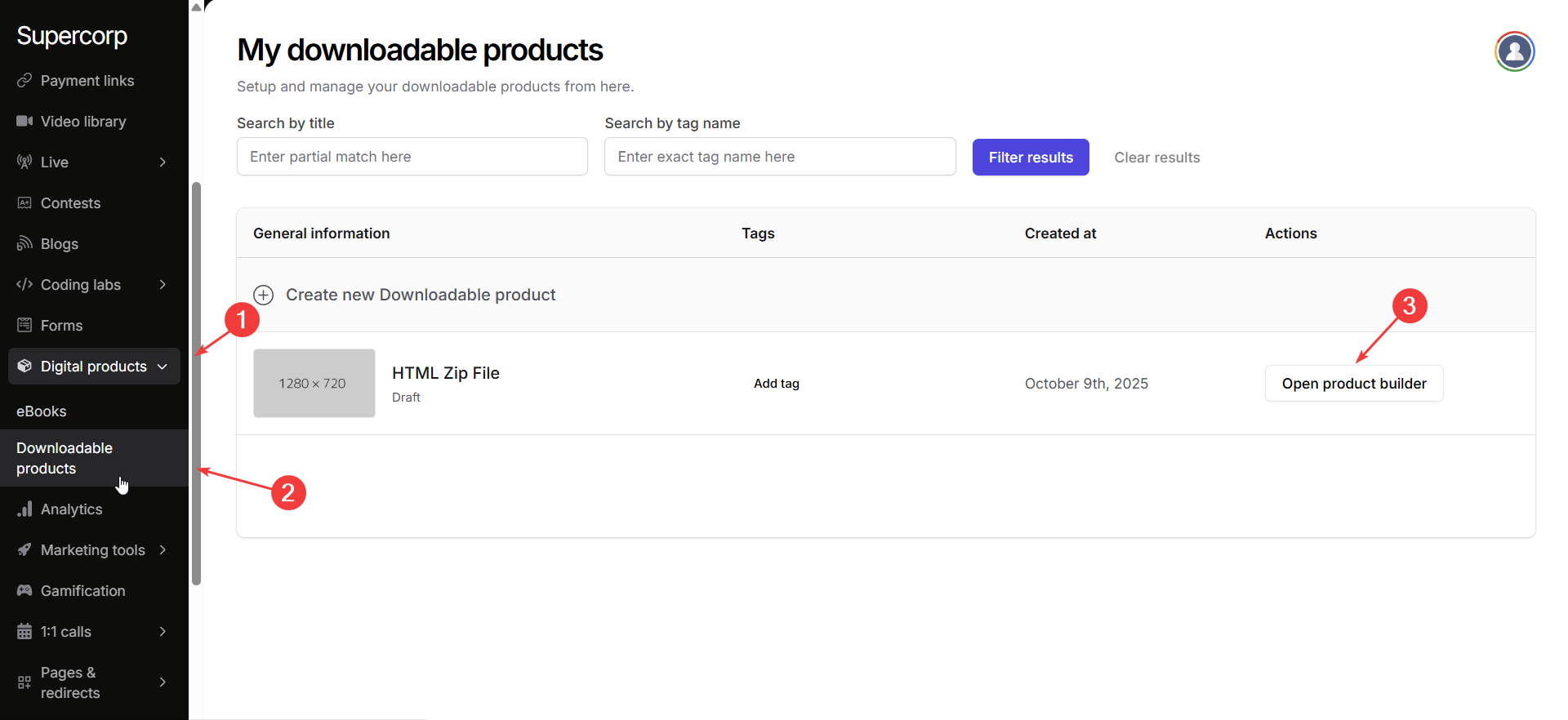
Navigate to the **Landing Page** tab in your product sidebar.\
Add the essential details about your product:
* **Product Title & Tagline:** Clearly describe your product and what buyers can expect.
* **Thumbnail / Cover Image:** Upload a high-resolution image to make your product stand out.\
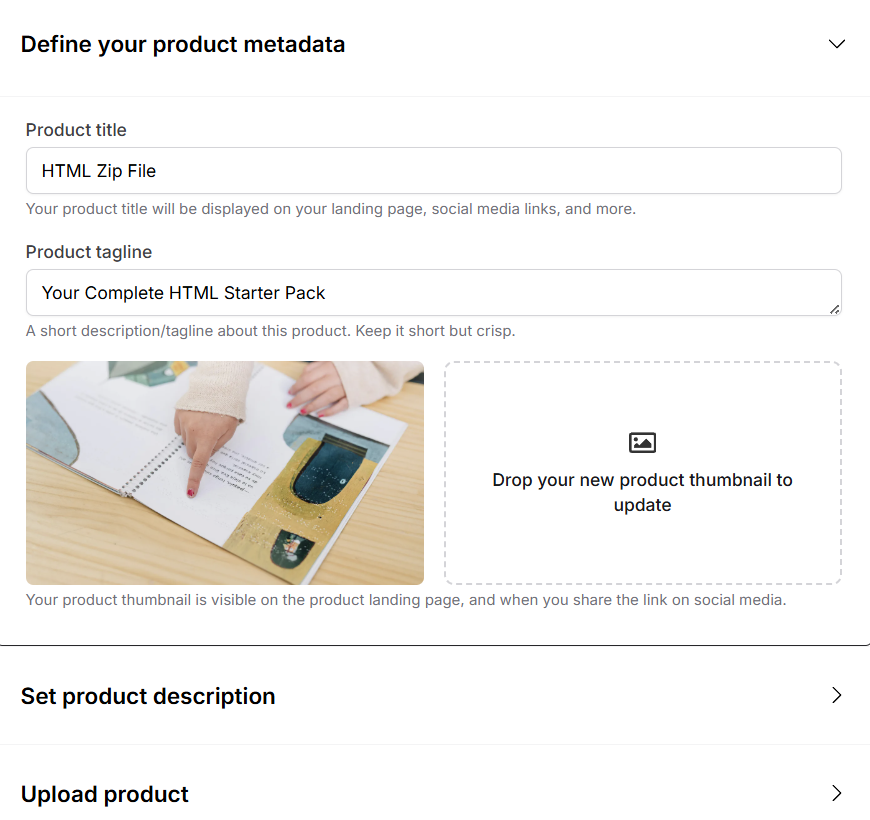
Write a compelling and informative description of your product.\
The description editor supports **Markdown**, so you can format text, create bullet points, add links, and emphasize content.\
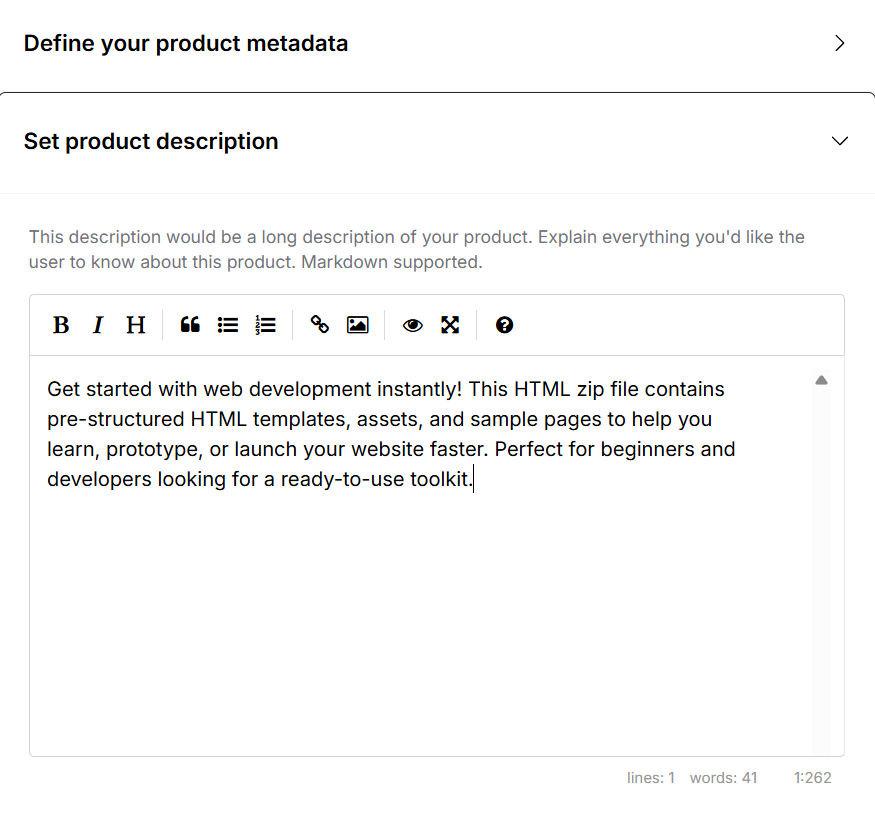
Upload your product file (.HTML, .ZIP, or other supported formats).
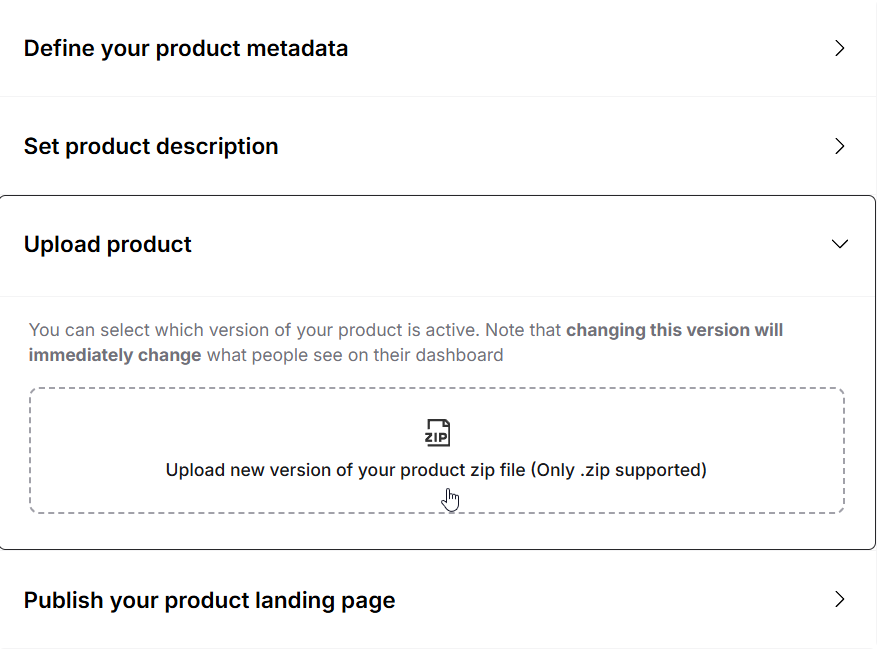
Once your product is ready:
* Click **Publish** to make the product live.
* You can also **update the landing page slug**, move the product to **Unlisted** or **Draft** mode, and **access the landing page link** to preview it.\
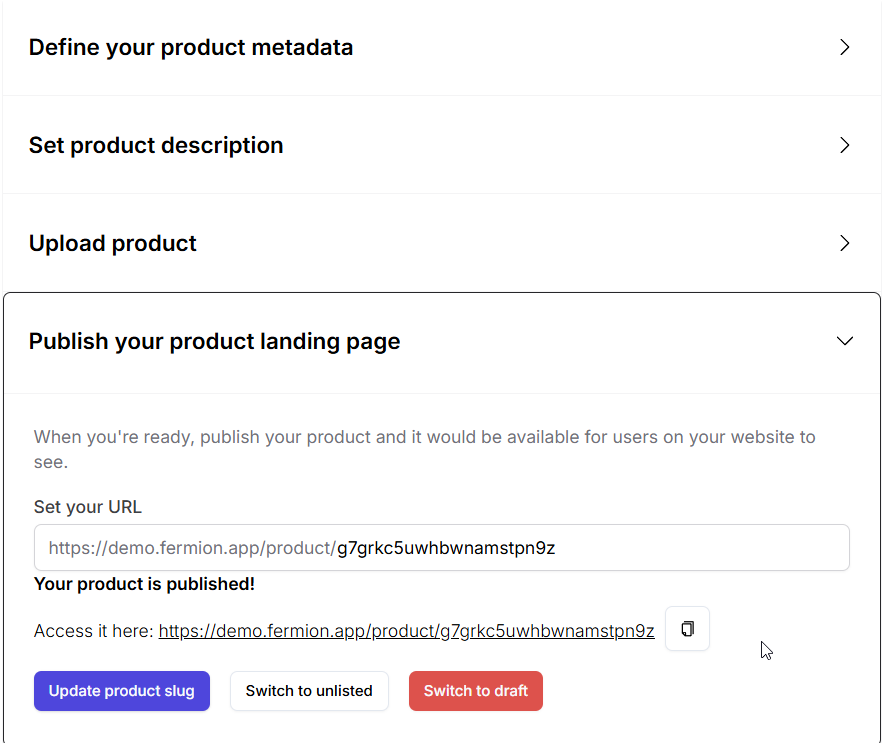
***
## Product pricing and coupon codes
Pricing for downloadable products works the same way as it does for all other digital content on Fermion.
You can create a **[fixed pricing plan](/setup-pricing/fixed-pricing-plan)**, where buyers pay a one-time amount, or a **[partial payment plan](/setup-pricing/setup-emi)**, allowing payment in installments. For common queries regarding pricing plans, refer to [pricing FAQs](/setup-pricing/common-faqs).
Similarly, **coupon codes** also work the same for digital products as they do for courses. You can create discount codes, set expiration dates, and control usage limits. Learn more in the [coupon codes](/setup-pricing/add-coupon-codes) documentation.
***
## Enrolling users
Students can purchase **downloadable products** directly from the landing page.\
As an admin, you can also **manually enroll students** into a downloadable product.
Head over to the **Sales** section in your product builder to manually import users
[Learn how to manually enroll students](/digital-products/enroll-students)
# eBooks Inside Courses
Source: https://docs.fermion.app/digital-products/ebook-course
Learn how to connect your eBook to a course and allow enrolled students to access it from within the course.
You can enhance your **[course](/setting-up-course/prerequisites)** experience by linking an eBook to a course. This allows students enrolled in the course to access the eBook automatically without needing a separate purchase or enrollment.
* Go to your **Instructor Dashboard → Courses → Open Course Builder**.
* Select the course where you want to link your eBook.
* In the course builder, go to the **Syllabus** tab.
* Identify the section where you want to add the eBook.
* Click **Add in this section** for the chosen section.
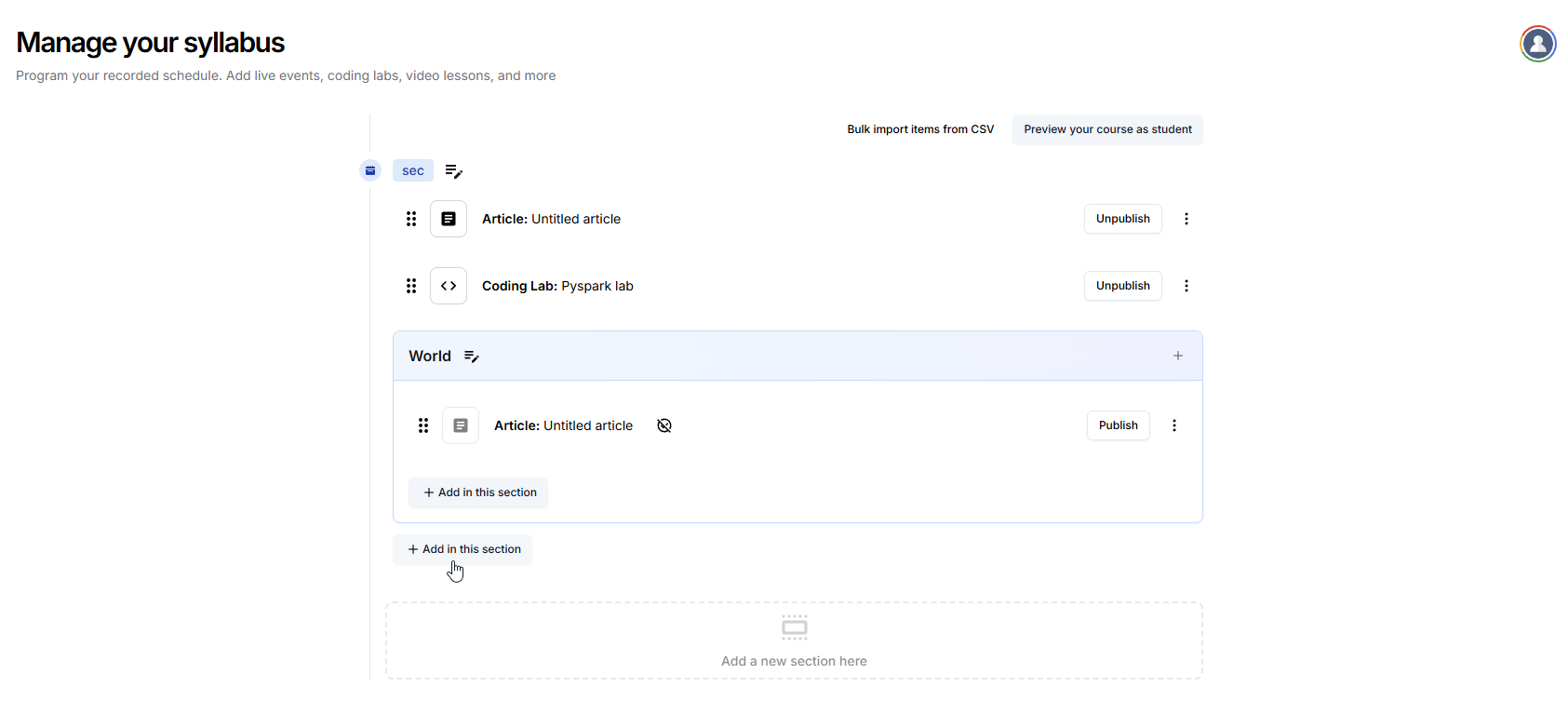
* Select the **eBook** option in **Add course item** modal.
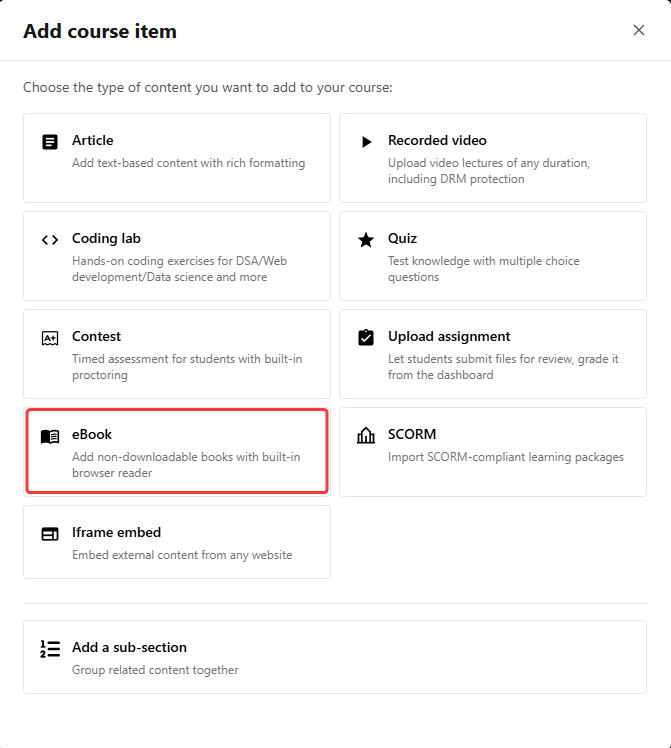
You can upload a **new eBook** or link a **preexisting one** directly from the **Select eBook to add** section.
To link an existing eBook: Choose one from the list and click **Link with course item**.
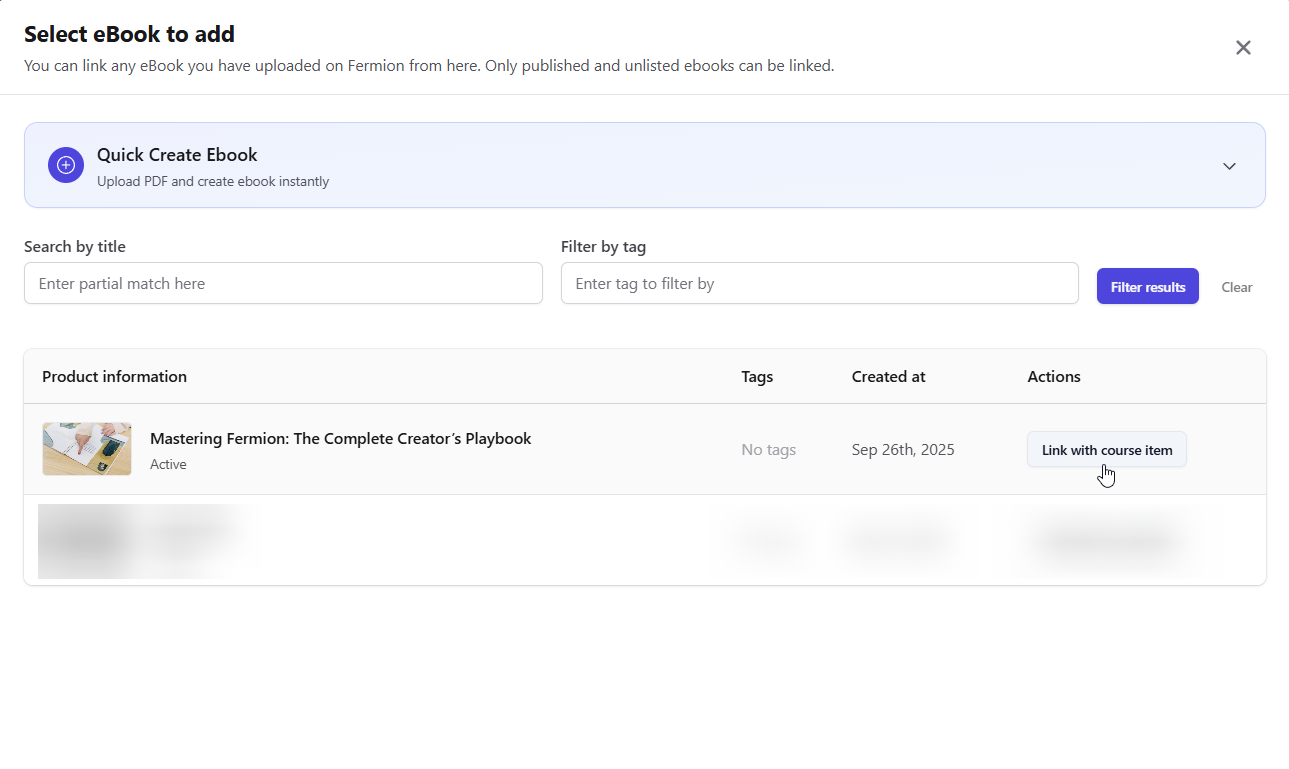
To upload a new eBook: Click **Quick Create eBook**, enter the eBook title, and upload your PDF file.\
Once uploaded, click **Create Ebook** to make it available for linking. This eBook will be created in an unlisted state.
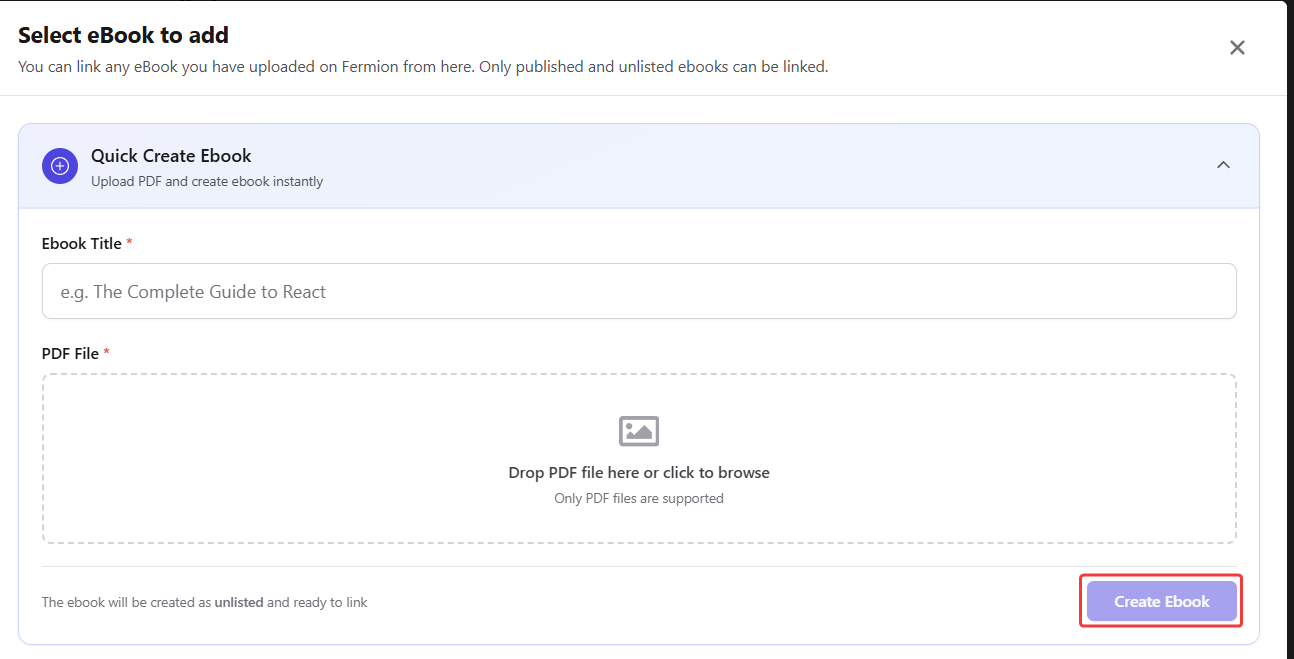
Once linked:
* Students enrolled in the course can open the eBook directly from the course dashboard.
* Any updates to the eBook (like new versions) are reflected automatically for all students.
Linking eBooks to courses ensures a smooth experience for students and helps you bundle content efficiently. To enroll specific students outside of a course, refer to [Enroll Students](/digital-products/enroll-students).
# Embed eBook
Source: https://docs.fermion.app/digital-products/embed-ebook
Learn how to embed an eBook externally
Embedding an [eBook](/digital-products/introduction) externally allows you to share your digital content on your own website or any other web platform while keeping it secure and protected. With Fermion, you can generate a secure embed token and integrate your eBook easily using an iframe. This guide walks you step by step through obtaining your eBook digital product ID, generating an authentication token, and embedding the eBook on your site so your audience can access it without leaving your platform.
Before you begin embedding your eBook externally, make sure you have the following ready:
This unique identifier lets Fermion know which eBook you want to embed. You can find this ID with the help of Step 1 below.
Used to authenticate your requests securely when generating the embed token. You can create or view your API key from the API Access section in your instructor dashboard sidebar.
You’ll need to add a small code snippet (iframe) to your website, so make sure you have editing access or a developer who can implement it.
Once you have these three essentials, you can proceed to generate your secure embed token and integrate your eBook directly on your website with the help of steps below:
Each ebook on fermion has a unique identifier. For example `6779080e80ec97e953a17971`. First, go to `Manage features` tab on your instructor dashboard and enable `Digital products`

After that, go to `eBooks` inside `Digital products` to create and upload an ebook if you haven't. Learn more about [Creating eBooks](/digital-products/landing-page)

You can find the ebook digital product ID in the URL.

You'll need to generate a JWT (JSON Web Token) to authenticate the embed. Here's how to create one using the `jsonwebtoken` package:
```javascript theme={null}
import jwt from 'jsonwebtoken'
const payloadObject = {
/* ... see the valid schema of the object below ... */
}
const jwtToken = jwt.sign(payloadObject, 'FERMION_API_KEY', {
expiresIn: '10h',
})
```
The `payloadObject` must conform to the following zod schema:
```js theme={null}
z.object({
ebookDigitalProductId: z.string().min(1),
userEmail: z.string().email(),
userId: z.string().min(1),
userPhoneNumber: z.string().min(1).or(z.null()),
})
```
Important notes:
* Replace `FERMION_API_KEY` with your actual API key and provide a unique user ID for each viewer.
* Make sure to set a validity on JWT token (recommended validity is 10h-20h)
Fermion uses the same zod schema as above internally to validate your JWT
payload.
Add this iframe to your website where you want to embed the ebook:
```html theme={null}
```
Make sure you replace `acme.fermion.app` with your fermion school URL.
This should embed your ebook and display it on your website.
# Enroll Students
Source: https://docs.fermion.app/digital-products/enroll-students
Guide to manually or automatically enrolling users in your digital products on Fermion.
You can manage who gets access to your digital products directly from the Fermion dashboard. Whether users purchase through your landing page or you add them manually, Fermion makes enrollment simple and trackable.
You can also link your eBook to a course, allowing enrolled students to access the eBook automatically. Learn how to connect an eBook to a course in the [Link eBook to Course](/digital-products/ebook-course) documentation.
***
## Steps to Enroll Users
You can enroll users into your digital products with the help of the same steps. Here, we are describing how to enroll students into an eBook. The flow works the same for all digital products including [courses](/setting-up-course/landing-page) and [bundles](/setting-up-course/bundle).
1. Go to **Instructor Dashboard → Digital Products → eBooks → Open Product Builder** of your eBook.
2. Click on the **Sales** (or **Students** tab of your respective product builder) tab in the sidebar.
3. Click **Import new users** to start enrolling readers.
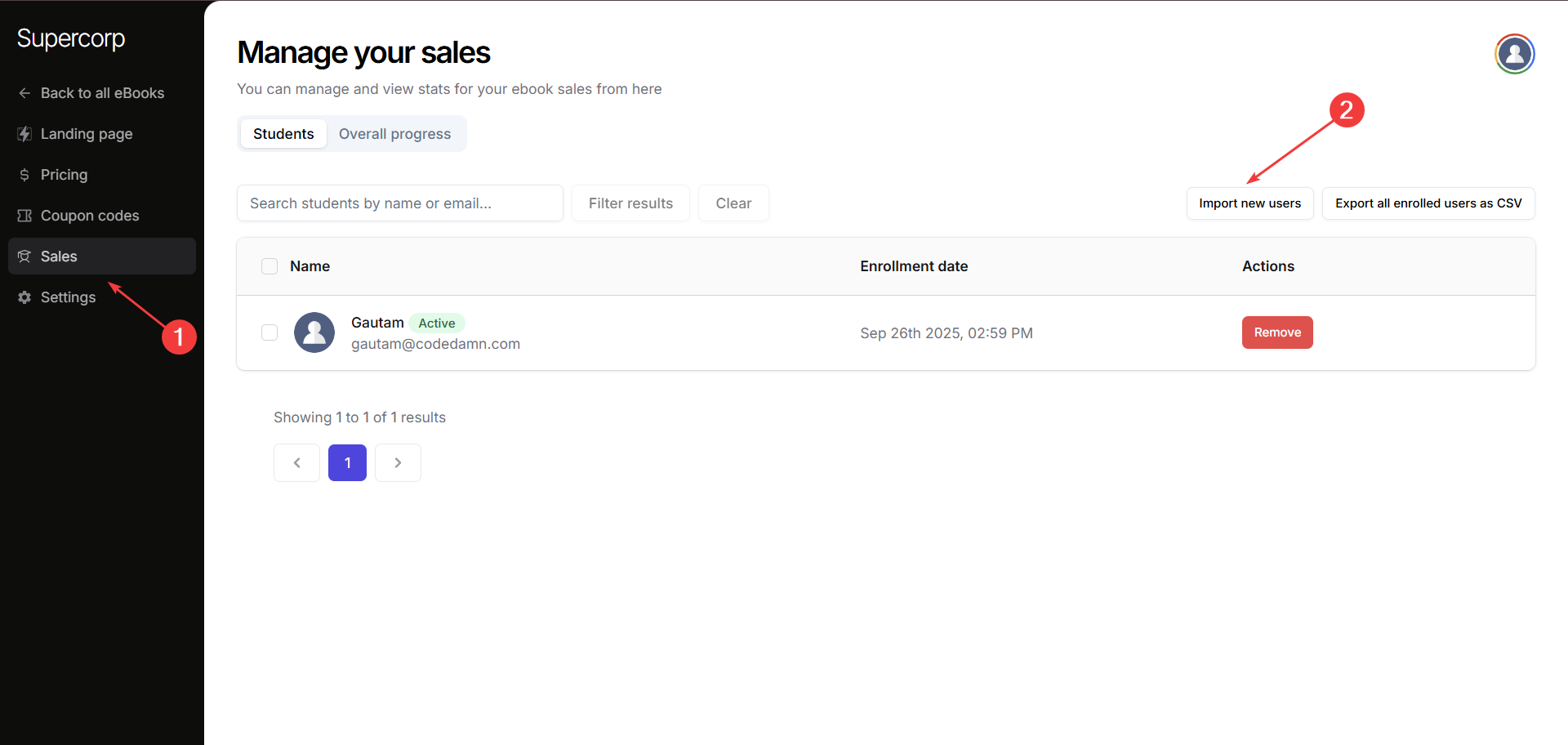
Use this form to enroll an individual user:
* `Name:` Enter the name of the user
* `Email:` Enter the email of the user
* `Phone Number:` (Optional): Enter the phone number of the user
* `Password:` (Optional): Create credentials for the user
* `User creation timestamp:` (Optional):\*\* Select date when the user was created
* `Welcome Email:` Select this checkbox if you want users with no account will receive an email with their new password and access details.
After filling the form, click **Add Single User** to complete enrollment.
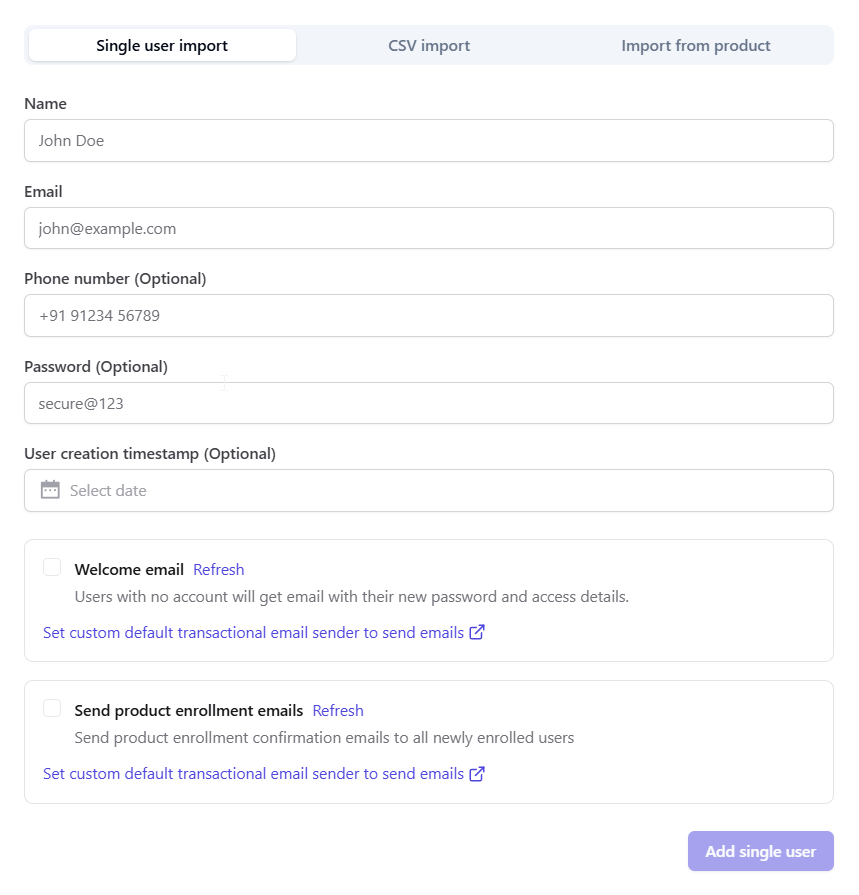
Head over to the CSV import tab if you want to enroll students in a bulk format\
Ensure your CSV includes all the following columns:
* `Email` (required): Email of the user
* `Name` (optional): Name of the user
* `Password` (optional): Password credentials for the user
* `Phone Number` (optional): Phone number of the user
* `Created At` (optional): Timestamp when the user was created
Upload your CSV file and your users will be enrolled to the eBook
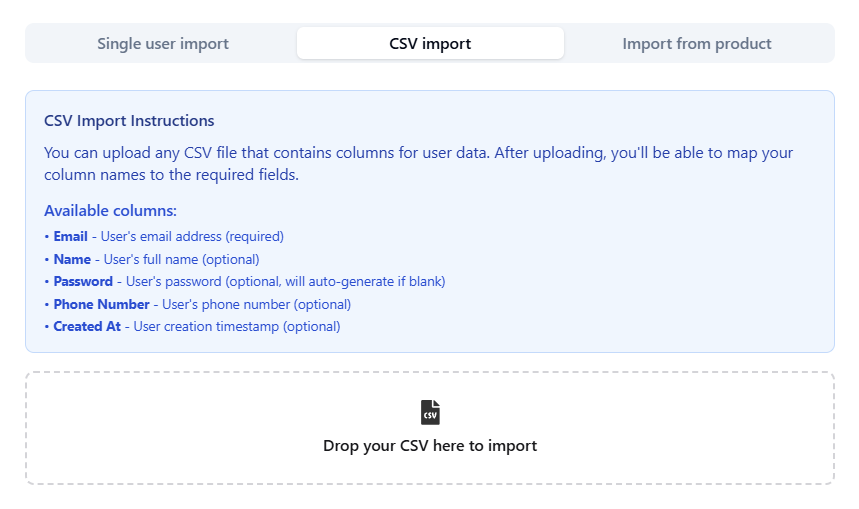
You can import users who are already enrolled in another product:
* Select the product from which you want to import users.
* Users from that specific product will be enrolled to your eBook
***
## Exporting Student Details
To export your eBook’s reader list as a CSV:
1. **Open Product Builder** of your eBook and head over to the **Sales** tab.
2. Click on **Export all enrolled users as CSV** button.
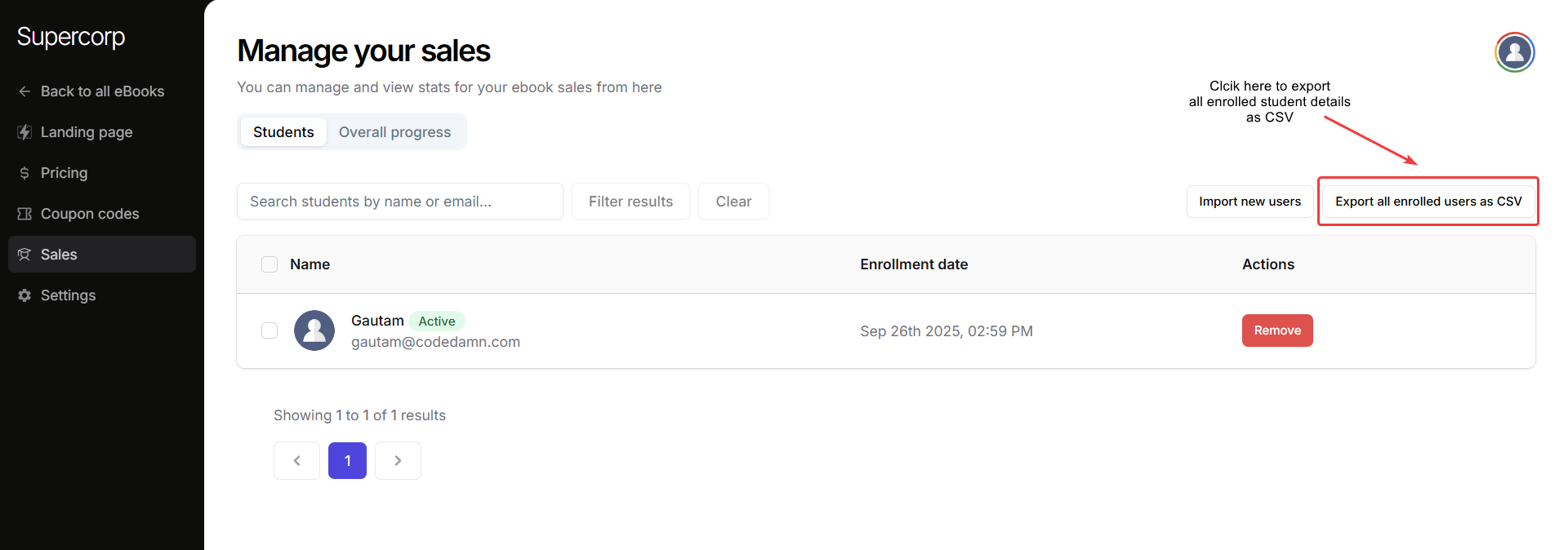
This will export all the details of the users enrolled in your eBook. You can use this export for reports, marketing campaigns, or syncing data with other tools.
# eBooks on Fermion
Source: https://docs.fermion.app/digital-products/introduction
Learn how to upload, manage, and sell eBooks on Fermion with watermarking, and secure delivery.
## What is an eBook?
An **eBook** (electronic book) is a digital version of a printed book that can be read on computers or tablets. Unlike physical books, eBooks can be easily distributed and accessed instantly.
On Fermion, eBooks are digital products that you can create, sell, and manage directly from your instructor dashboard. They can be linked to **[courses](/digital-products/ebook-course)**, **[embedded externally](/digital-products/embed-ebook)**, or sold as standalone resources to your audience. You can also add eBooks to [Bundles](/setting-up-course/bundle) at Fermion.
## eBooks on Fermion
eBooks on Fermion allow creators, educators, and publishers to share digital books securely and conveniently with their audience. Whether you are selling a professional guide, a course companion, or a digital textbook, Fermion gives you the flexibility to upload, protect, and distribute your eBooks with ease.

Once you upload your eBook, Fermion automatically processes it to optimize reading performance and ensure smooth delivery to your users. Your eBook [Landing Page](/digital-products/landing-page) is the storefront for your digital content. It helps you showcase your eBook, highlight its value, and make it easy for learners to purchase or access it.
Before you start, make sure **Digital Products** are enabled under **Manage Features** in your instructor dashboard. This allows you to create and sell eBooks on Fermion. Learn how to enable features at Fermion [here](/manage-settings/manage-features)
***
## Key Features
Here is what you get with Fermion:
* **Watermarking:** Adds visible identifiers to your content to discourage piracy.
* **Download Prevention:** Restricts downloads to protect intellectual property, keeping your files secure. Learn more about these while setting up an [eBook Landing Page](/digital-products/landing-page#landing-page)
* **Optimized Reader Experience:** Fermion processes your eBook uploads for a consistent performance
* **[User Management:](/digital-products/enroll-students)** Track who has access to your eBook, and export enrolled user details as CSV for reporting or analysis.
* **[External Embedding](/digital-products/embed-ebook):** Easily embed your eBook on external websites or platforms using a secure iframe, allowing readers to access your content without leaving your site.
***
## Next Steps
Continue reading to explore how to set up each part of your eBook journey on Fermion:
Learn how to set up and publish your eBook on Fermion.
[Learn more](/digital-products/landing-page)
Manage student enrollment and get your eBooks available to the user.
[Learn more](/digital-products/enroll-students)
Export student details as CSV to track progress or reporting.
[Learn more](/digital-products/enroll-students#exporting-student-details)
# Setup eBooks
Source: https://docs.fermion.app/digital-products/landing-page
Learn how to design, upload, and publish your first eBook on Fermion using the Product Builder.
Creating your first eBook on Fermion is simple and intuitive. This guide walks you through the entire process: from setting up a dedicated landing page to uploading your eBook file in the Product Builder. With Fermion,
you can showcase your digital content professionally, control access, and offer secure downloads to your audience.
Before you start, make sure **Digital Products** are enabled under **Manage Features** in your instructor dashboard. This allows you to create and sell eBooks on Fermion. Learn how to enable features at Fermion [here](/manage-settings/manage-features)
## Landing Page
Your eBook landing page is where potential readers discover and purchase your digital content. A clear, well-designed landing page helps you communicate your eBook’s value and drive conversions.
### Steps to create a Landing Page
1. Go to your **Instructor Dashboard → Digital Products → eBooks**.
2. Select **Create new eBook** if you want to create a new eBook or update an existing one by clicking **Open Product Builder**.\
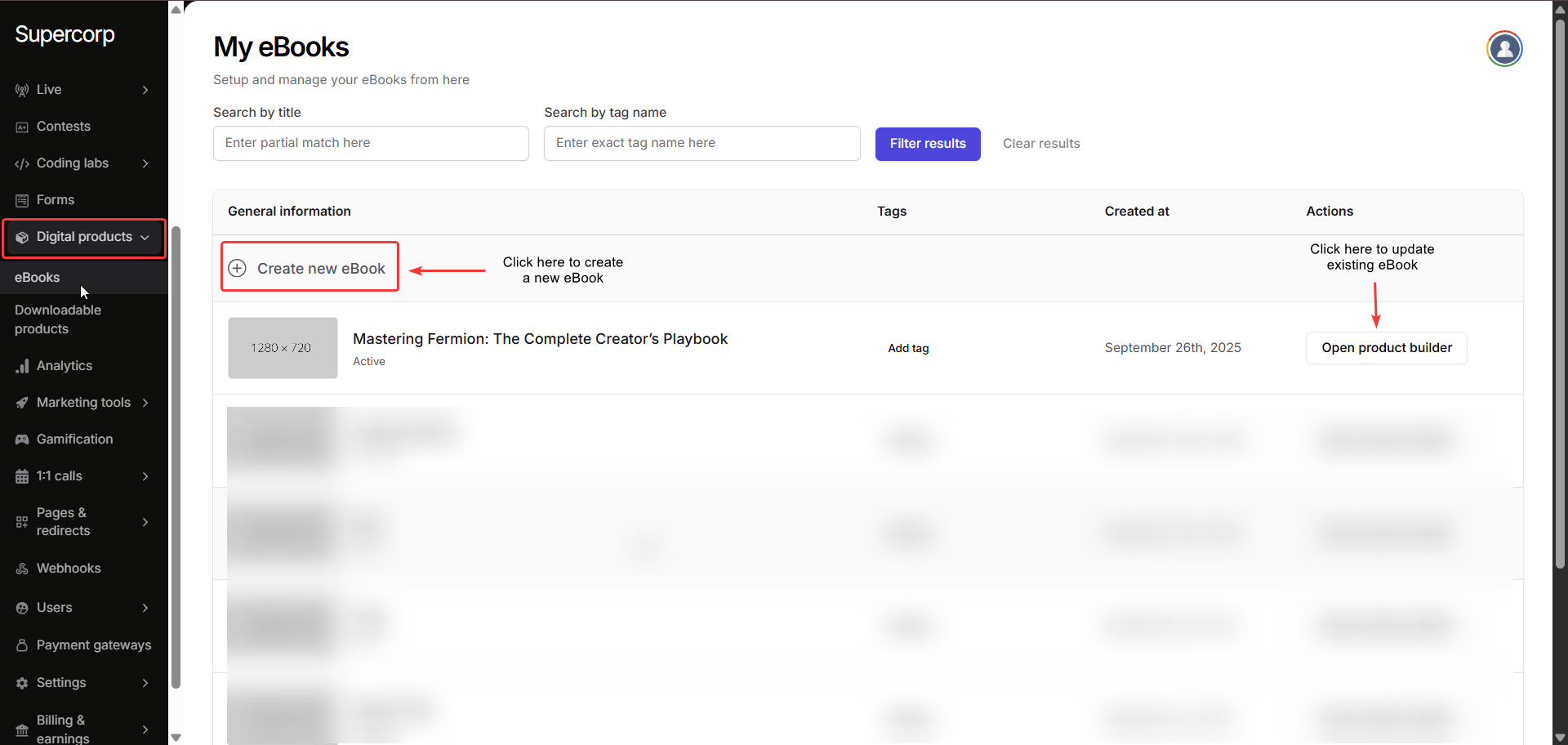
Navigate to the **Landing Page** tab in your eBooks sidebar.
Add the essential details about your eBook:
* **Book Title & Tagline:** Clearly describe your eBook and what readers can expect.
* **Thumbnail / Cover Image:** Upload a high-resolution cover image to make your eBook stand out.
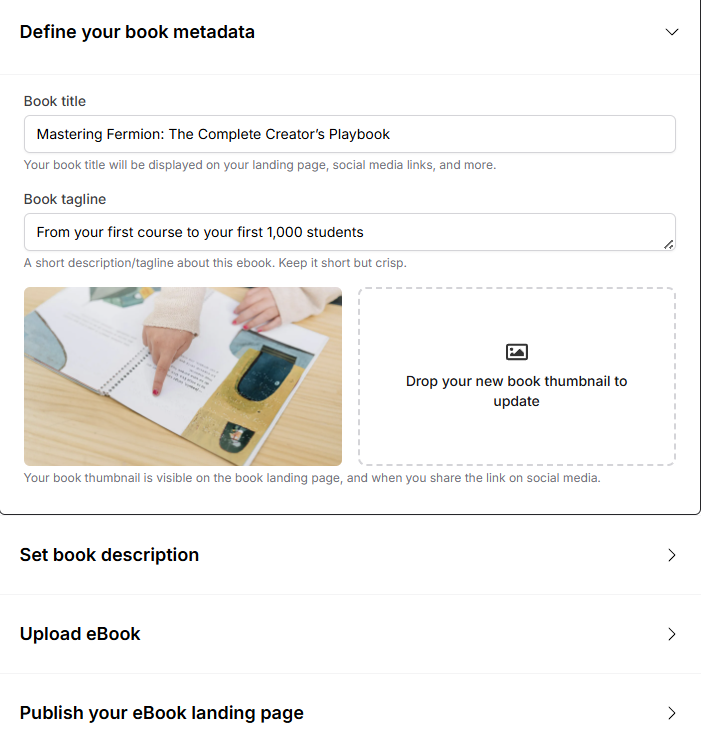
Write a compelling and informative description of your eBook.\
The description editor supports **Markdown**, so you can format text, create bullet points, add links, and emphasize content.
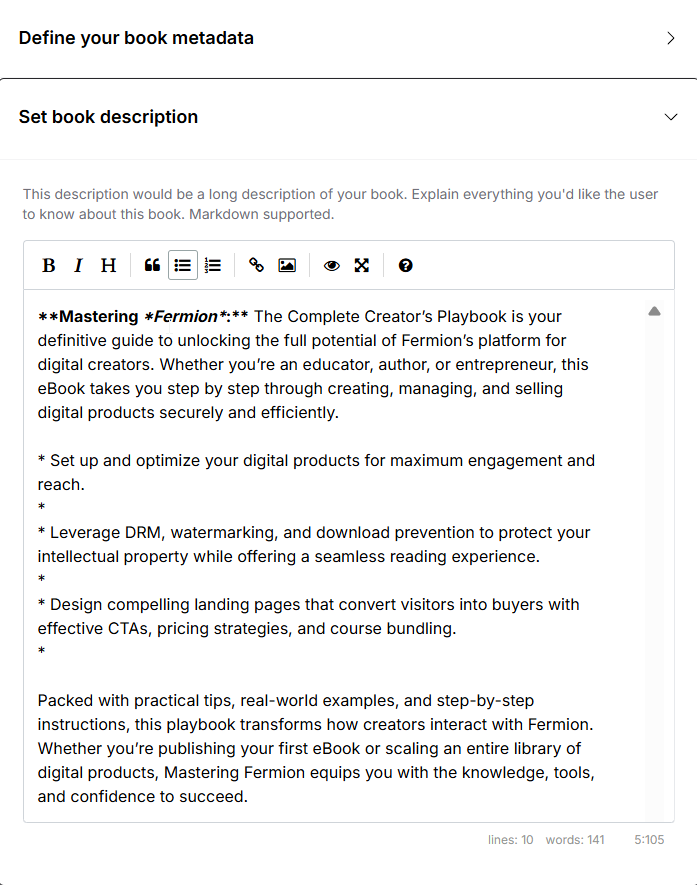
Upload your eBook file (PDF format). Once uploaded, you can configure the following options:
* **Enable book downloads?**\
Allow buyers to download the eBook as a PDF after purchase.
* **Enable centered watermark?**\
Adds a light watermark in the center of every page for extra security.
* **Enable header watermark?**\
Adds a light watermark in the header of each page.
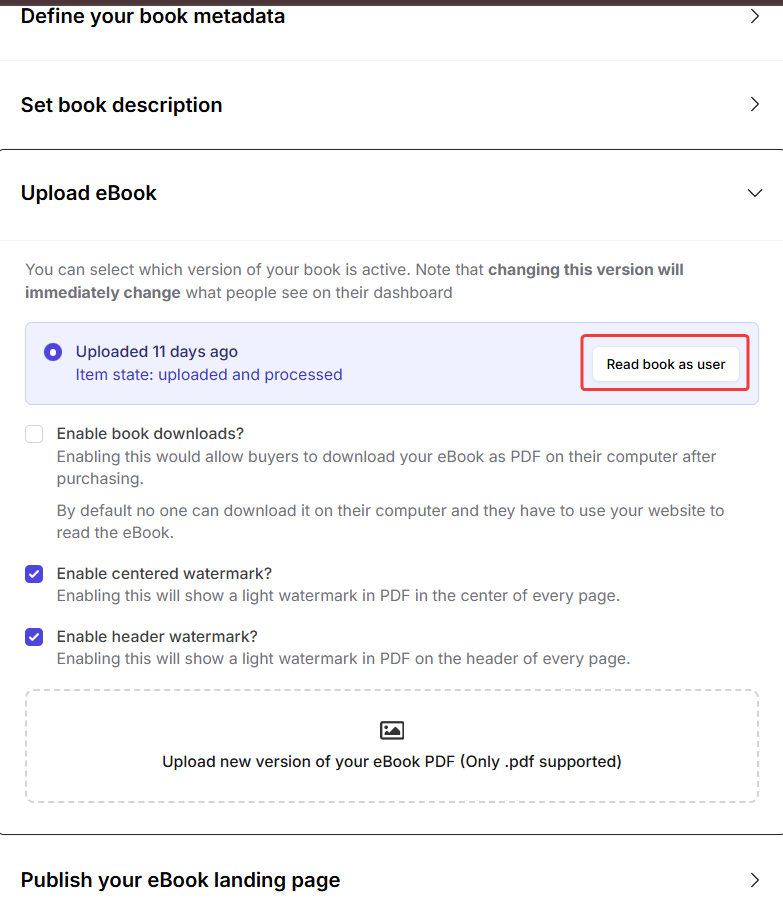
* By clicking **Read book as user** button, you can preview how the eBook will look for your students
Once your eBook is ready:
* Click **Publish** to make the eBook live.
* You can also **update the landing page slug**, move the eBook to **Unlisted** or **Draft** mode, and **access the landing page link** to preview it.\
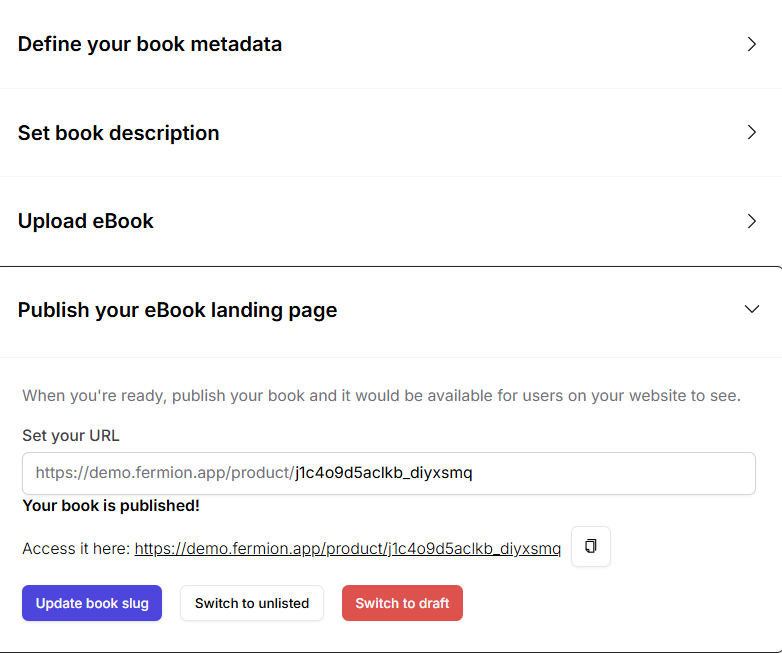
You can also link your eBook to a course, allowing enrolled students to access the eBook automatically. Learn how to connect an eBook to a course in the [Link eBook to Course](/digital-products/ebook-course) documentation.
***
## eBook Pricing and Coupon Codes
Pricing for eBooks works the same way as it does for all other digital products on Fermion.
You can create a **[fixed pricing plan](/setup-pricing/fixed-pricing-plan)**, where buyers pay a one-time amount, or a **[partial payment pricing plan](/setup-pricing/setup-emi)**, allowing payment in installments. For common queries regarding pricing plans, you can refer [Pricing FAQs](/setup-pricing/common-faqs)
Similarly, **coupon codes** also work the same for eBooks as they do for courses and other digital products. You can create discount codes, set expiration dates, and control usage limits. To learn how to create and manage coupon codes for a product, refer to [Coupon Codes](/setup-pricing/add-coupon-codes) documentation.
## eBook Settings & Management
Manage your eBook’s settings and configurations to control access and maintain organization.
**Enrollment Settings:**\
Decide how students can enroll in your eBook. You can restrict enrollment to only admins, by checking the **Only allow you (admin) to enroll students in this ebook** box, meaning no one can buy or access the eBook independently, even if it’s published and public. For more information about enrolling users for an eBook, refer to [Enroll Users](/digital-products/enroll-students) documentation.
If the eBook is part of a course, enrolled course users can still access it. Learn more about [Linking eBooks to course](/digital-products/ebook-course)
**Management Actions:**\
Perform important actions to keep your eBook library organized:
* **Archive eBook:** Temporarily remove the eBook from public view without deleting it.
* **Delete eBook:** Permanently remove the eBook from your account. Please note that this action is **non reversible** in nature\
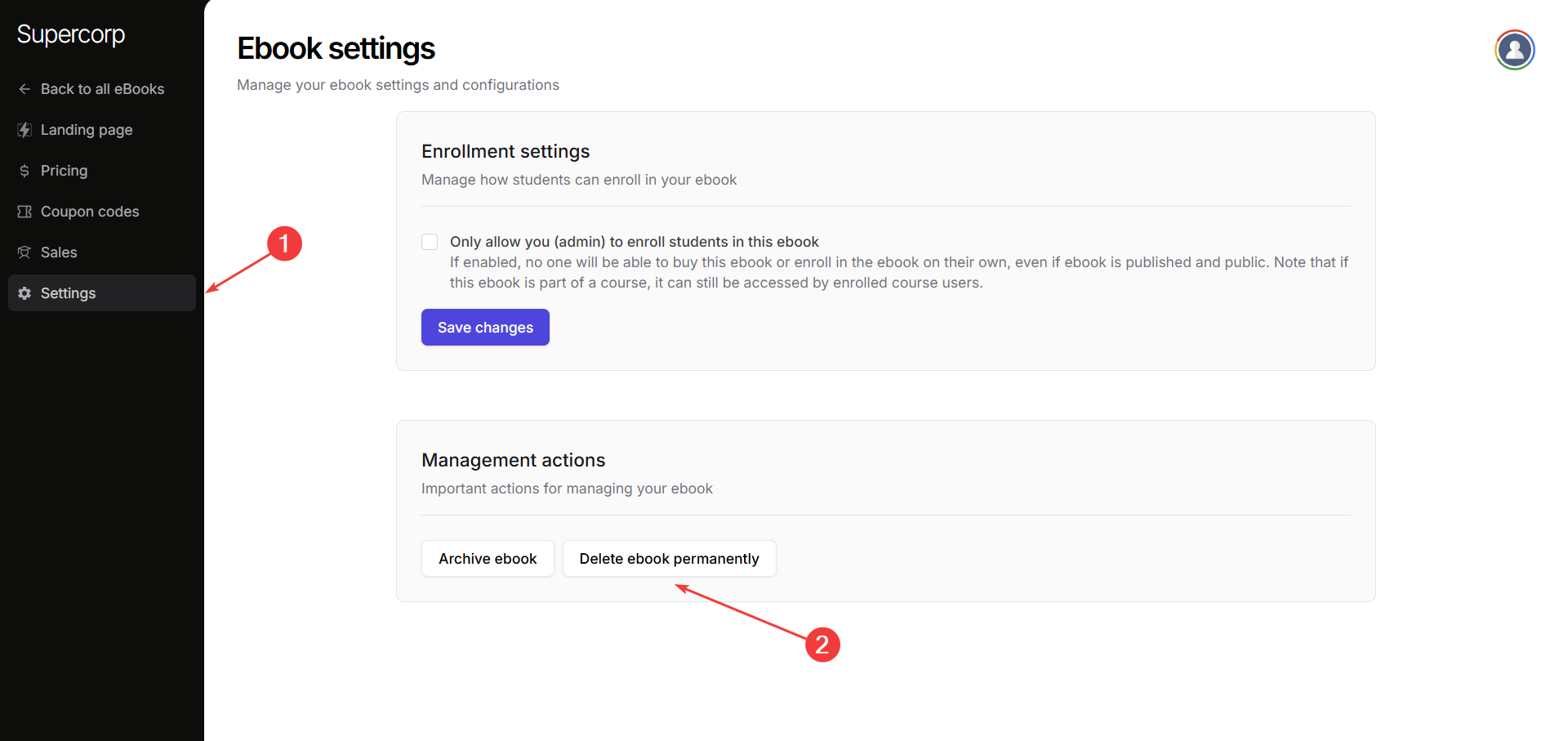
# Object Storage
Source: https://docs.fermion.app/digital-products/object-storage
Learn how to manage private and public files using Fermion object storage for your digital products and courses
Object storage on Fermion is a powerful file management system that allows you to upload, organize, and serve files for your [digital products](/digital-products/introduction), [courses](/setting-up-course/prerequisites), and other content. It provides a centralized location to store and manage all your files, from images and PDFs to videos and downloadable resources.
Fermion's object storage is designed with flexibility and security in mind, giving you complete control over how your files are accessed and distributed.
***
## Understanding file visibility
Object storage on Fermion has **two distinct types** of file storage based on visibility and access control:
### Private Files
**Private files** are secure files that cannot have publicly shareable URLs and are only for internal use within your Fermion platform. These files are ideal for:
* Student-only resources that require enrollment
* Internal course materials and [attachments](/setting-up-course/attachments)
* Protected [eBook](/digital-products/introduction) files
* Sensitive documents that should only be accessible to enrolled users
* Private [assignment](/setting-up-course/assignments) materials
### Public Files
**Public files** can be accessed by anyone on the internet with a direct link to the file. These files are suitable for:
* Landing page images and thumbnails
* Marketing materials and promotional graphics
* [Course landing page](/setting-up-course/landing-page) covers and banners
* [eBook landing page](/digital-products/landing-page) preview images
* Social media assets
* Public documentation and guides
* [Blog](/custom-landing-pages/blogs) post images
* Public [form](/forms/introduction) assets
Be careful when uploading files to public storage. Once a file is made public, anyone with the URL can access it. Never upload sensitive information, student data, or proprietary content to public storage.
***
## How to Access Object Storage
Make sure **General object storage feature** is enabled in your **manage feature** section before you access object storage. Learn more on how to [manage features](/manage-settings/manage-features)
1. Go to your **Instructor Dashboard → Settings**.
2. Scroll down and click on **Object storage** in the settings menu.
Select between **Private Files** or **Public Files** tabs depending on the type of content you want to upload.
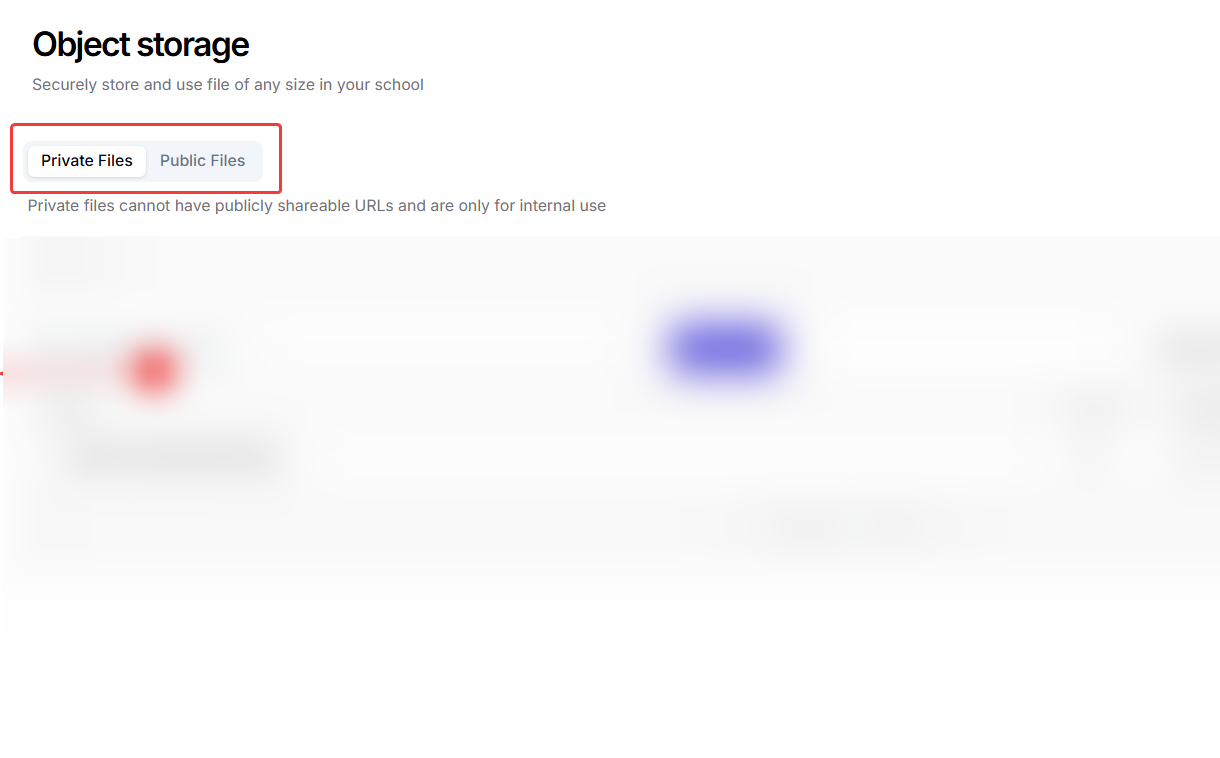
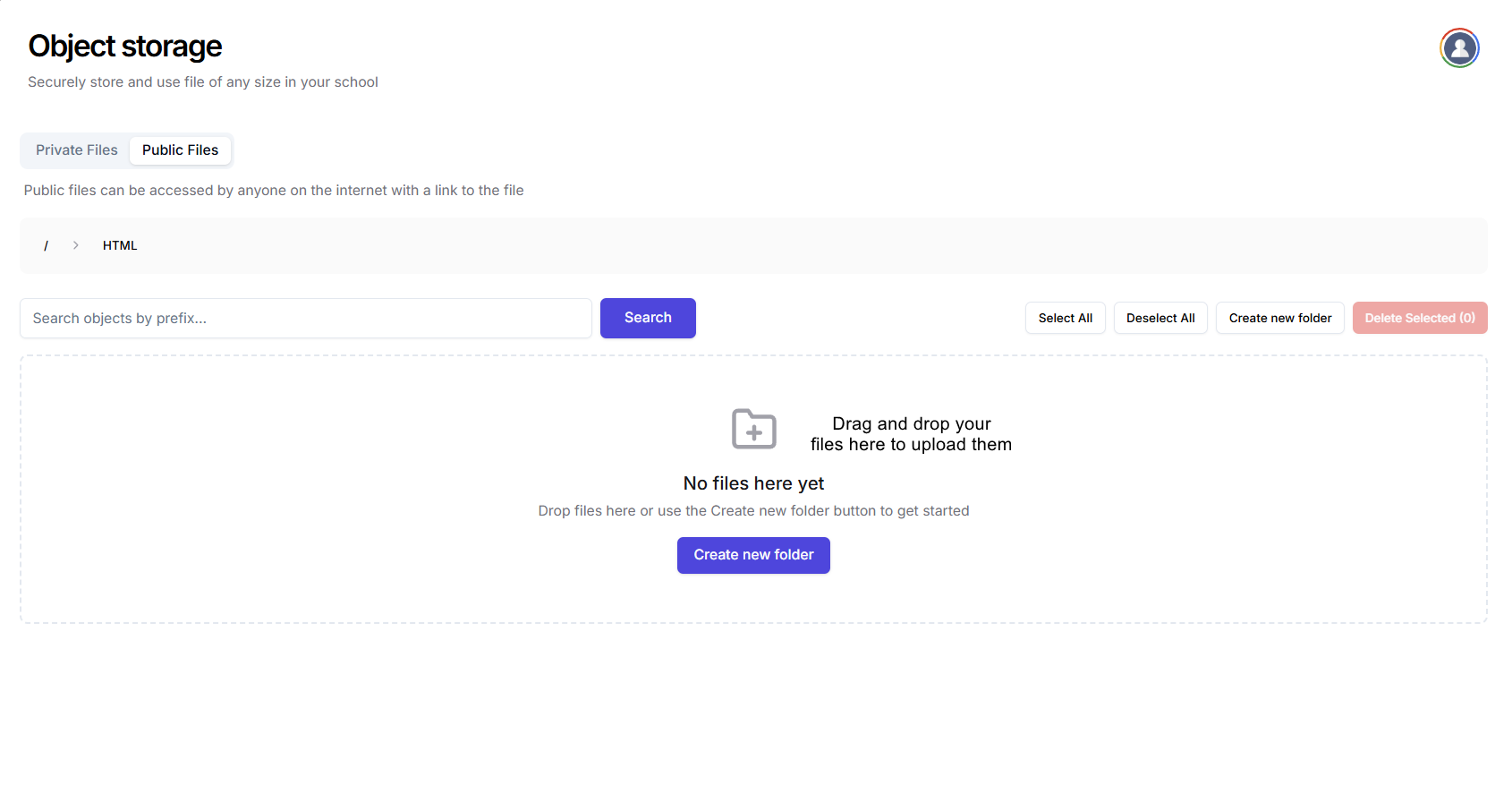
* Drag and drop your files into the storage area
* Wait for the upload to complete
* Your files will appear in the storage browser with their URLs
* You can also create new folder and provide a structure to your object storage.
# Access Form Submissions
Source: https://docs.fermion.app/forms/form-submissions
Learn how to view and manage submissions for your forms, including individual and table views, and exporting to CSV.
After creating and sharing a form, you can access all the responses submitted by users.\
Fermion allows you to view submissions in both **Individual View** and **Table View**, and export the data in **CSV format** for offline analysis.
## Access form submissions
You can access your form submissions directly inside your form editor with the help of the following steps:
Go to the **Forms** section in your dashboard and click on the form you want to access submissions for.
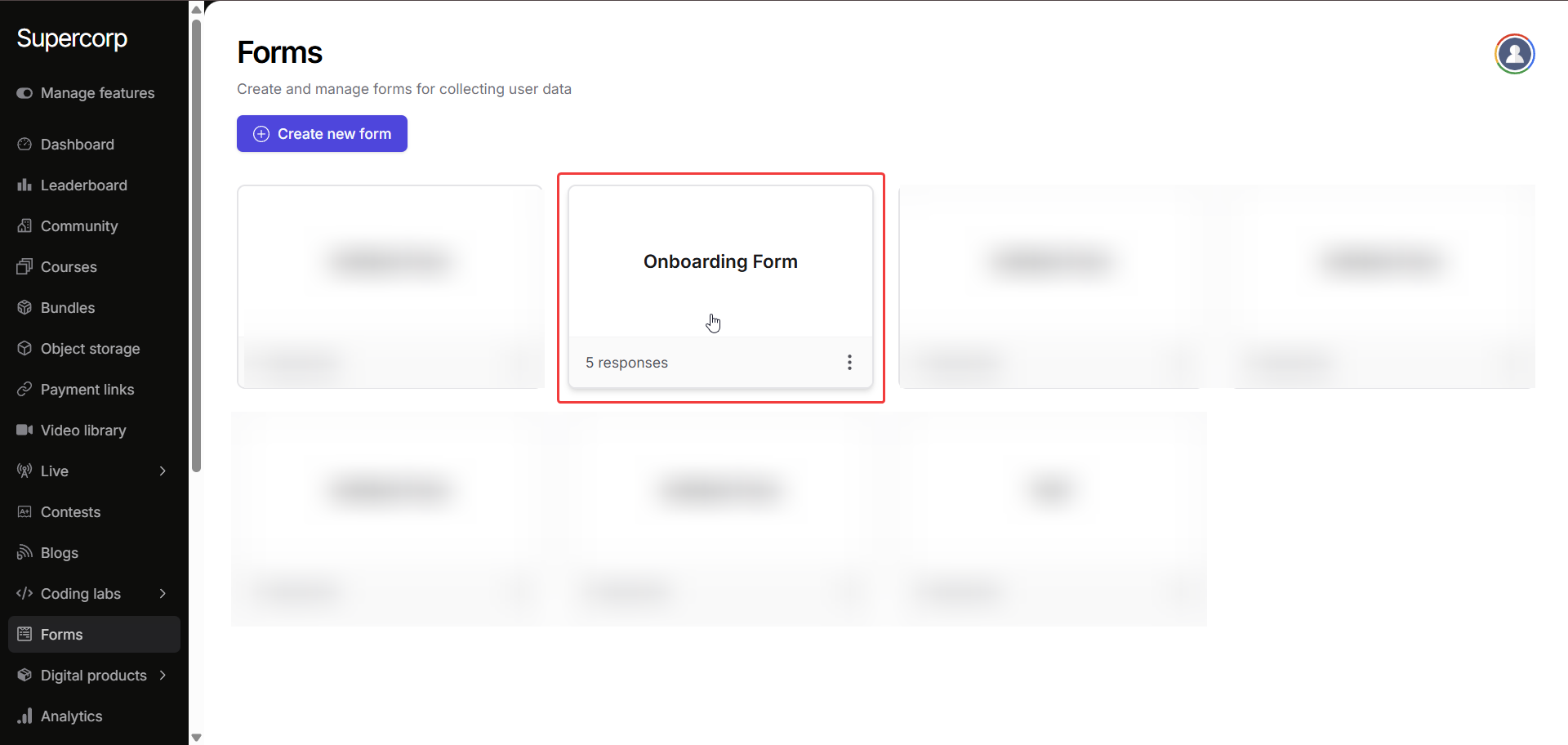
On the top-left of the form page, click the **Submissions** tab. This will open the submissions panel where all responses are stored.
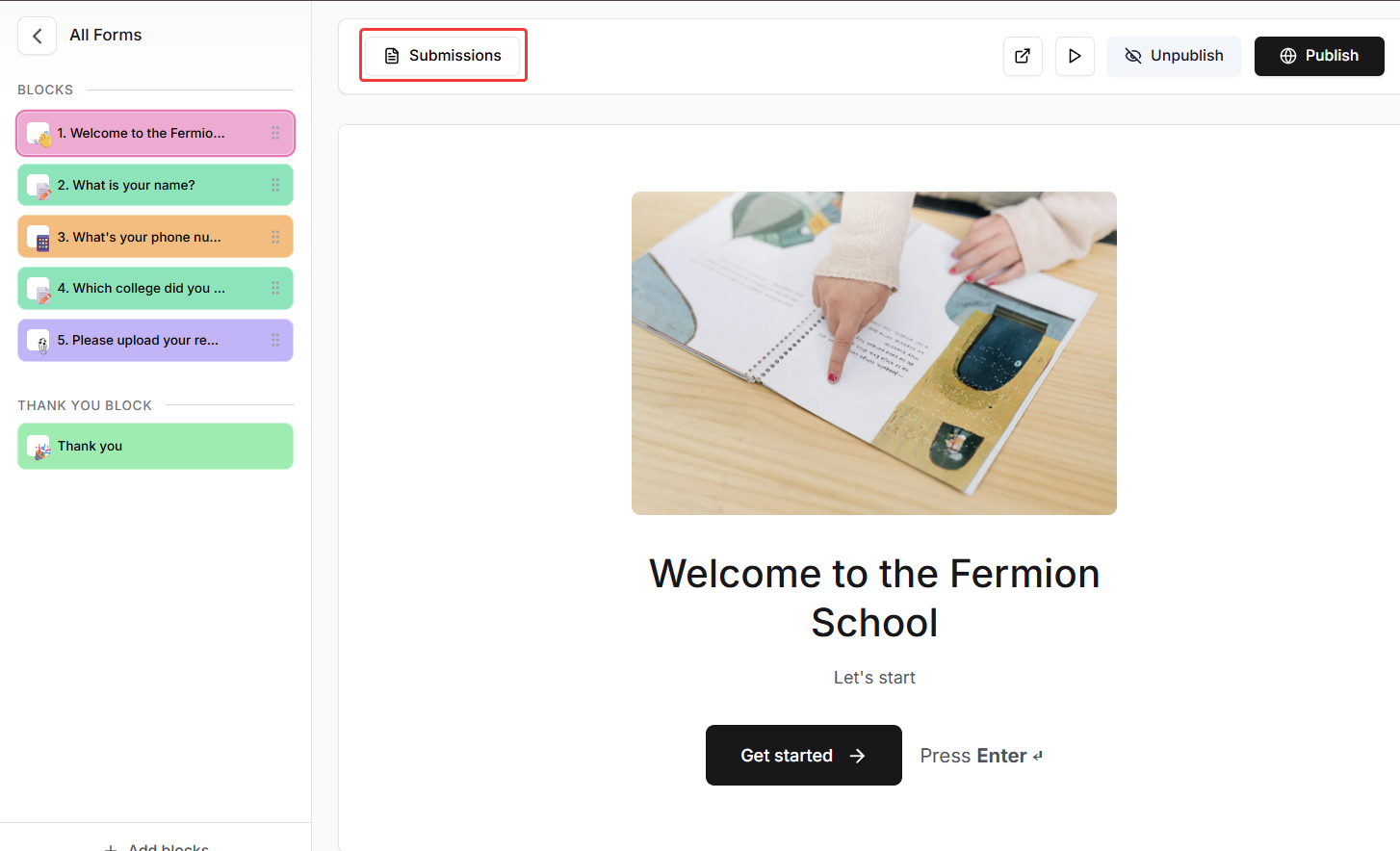
* Switch to **Table View** to see all submissions in a spreadsheet-like format.
* Here you can sort, filter, and quickly scan multiple responses at once.
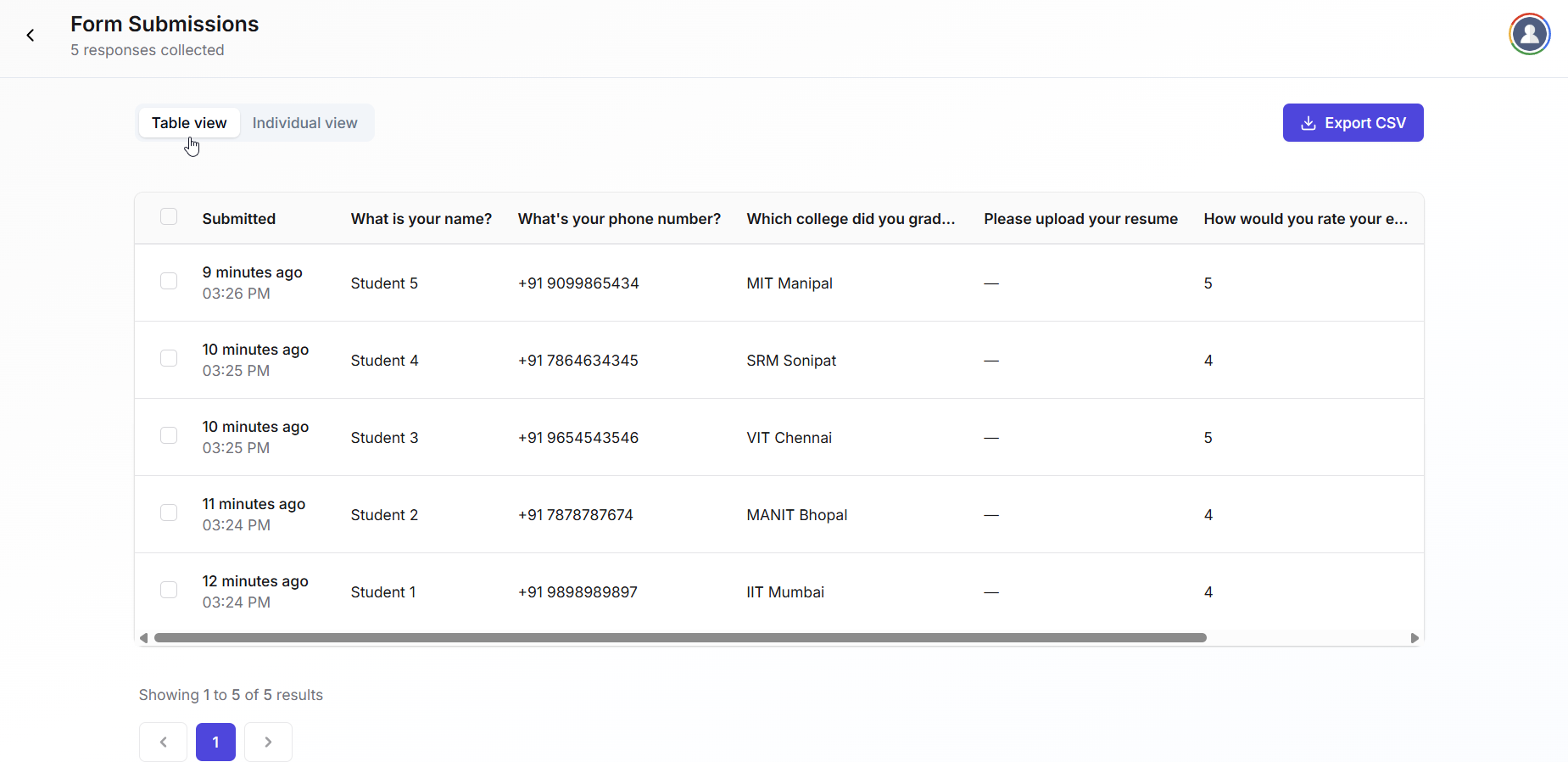
* In the submissions panel, you can view all the responses respectively in a block view.
* This is useful for reviewing single responses or following up with specific users.
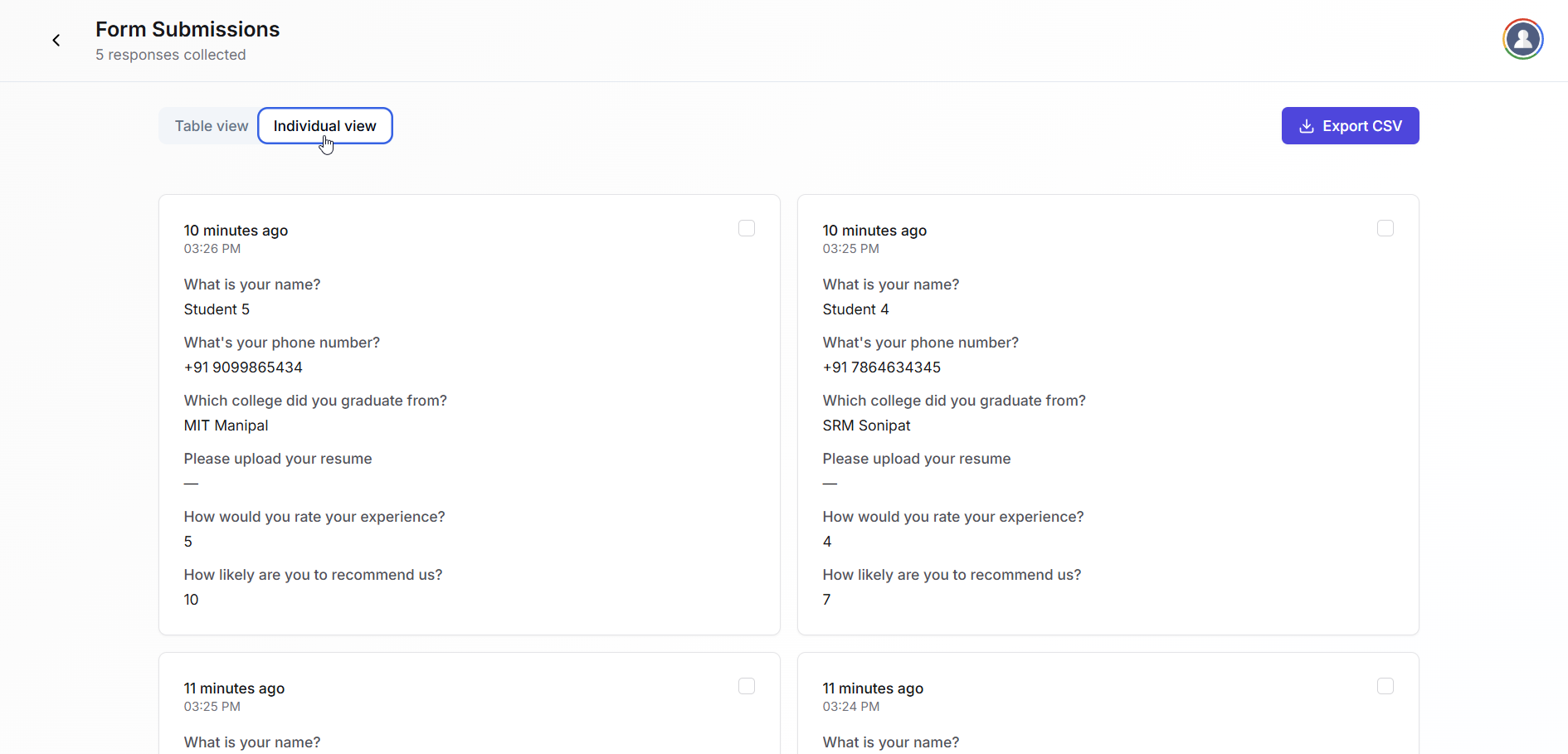
* In the submissions panel, click the **Export CSV** button.
* This will download all form responses in a spreadsheet-friendly format.
* This file can be used for offline analysis, reporting, or importing into other tools.
Table view is best for quick analysis of multiple responses, while individual view is perfect for detailed inspection of a single submission. Always export CSV if you want to create backups or do further processing.
# Setup Forms
Source: https://docs.fermion.app/forms/introduction
Create multi-step forms and collect submissions
Fermion helps you build multi‑step forms to capture detailed information and feedback. You can also share a public link outside of your organization. Additinally, you can customize fields, require answers, add descriptions and cover images, then publish when ready.
You can also create onboarding forms attached to your school so that you can gather introductory data from new users. Learn more about [user onboarding forms](/forms/onboarding-form)
## Getting Started
Setting up forms for your school is a simple process at Fermion. Perform the following steps to create elegant multi-step forms to collect data from your students:
Make sure that the forms feature is enabled for your school.
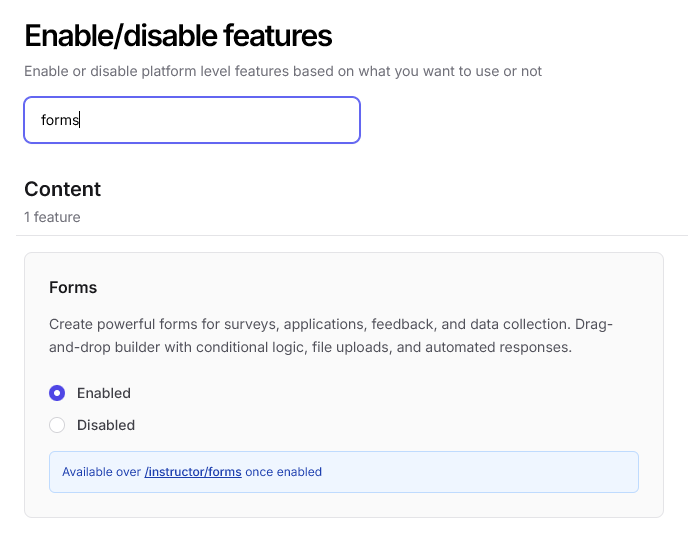
Click on the 'Forms' page from your instructor dashboard's sidebar, then click on 'Create new form' button.
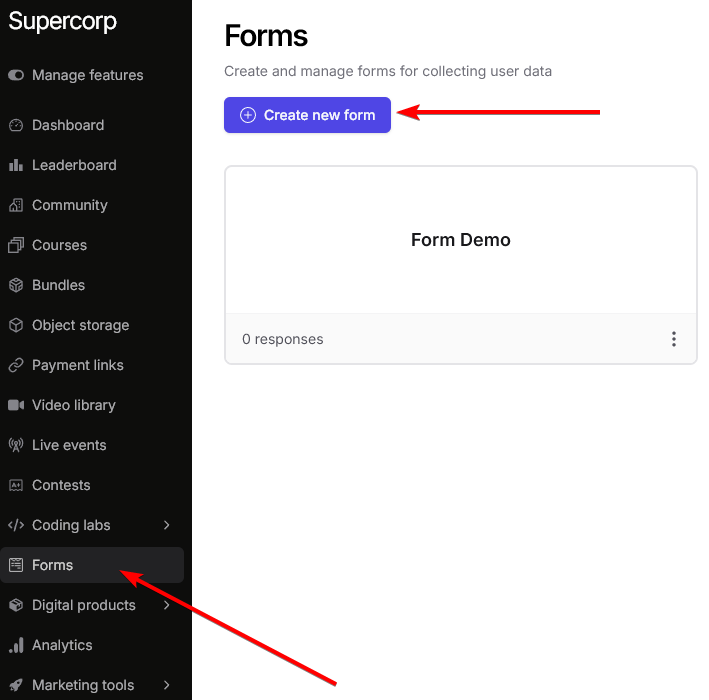
Now, you will see the form editor page, consisting of 3 'Panes':
* Blocks pane
* Preview pane
* Content pane
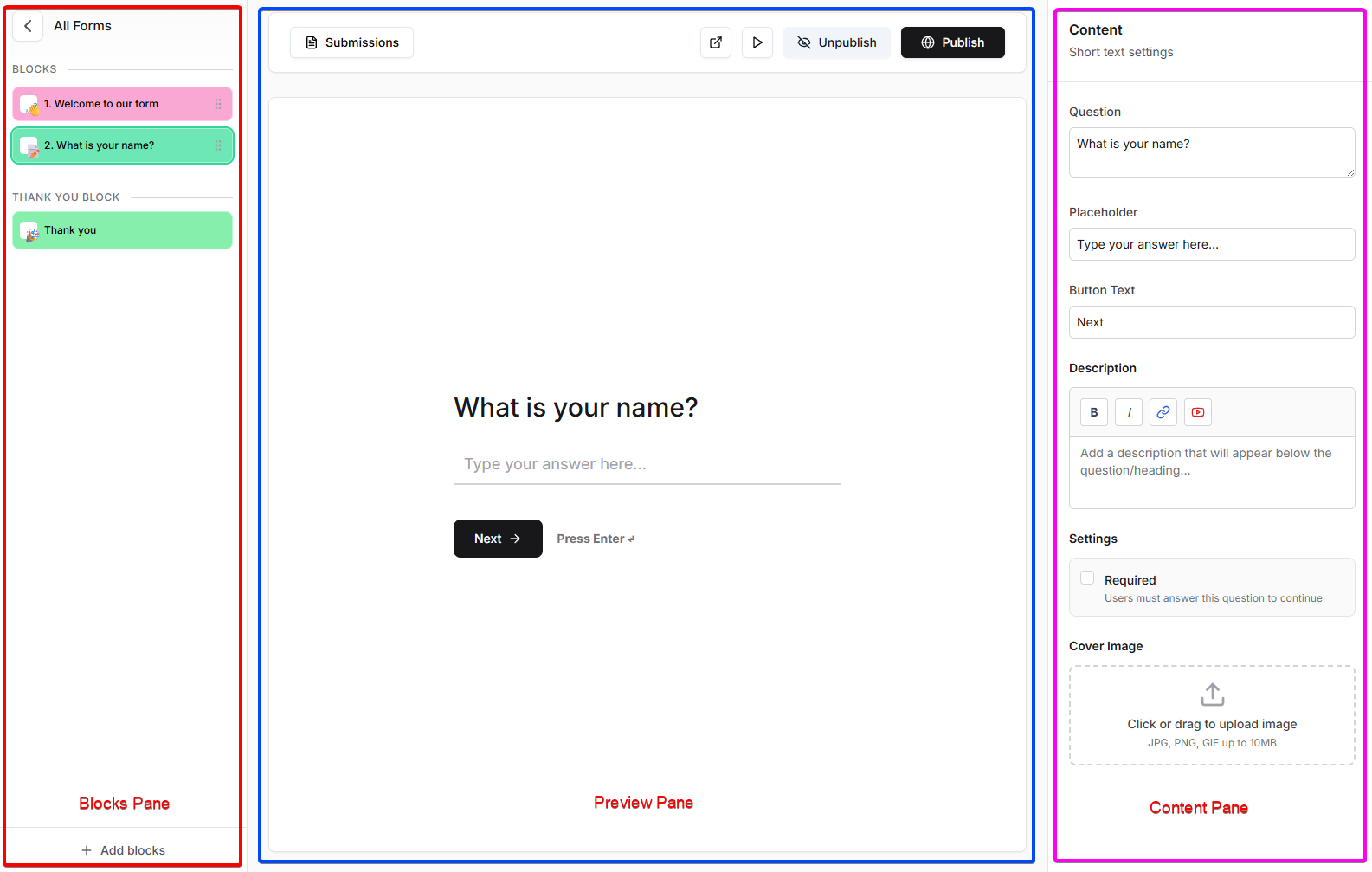
The Blocks pane on the left lists steps, the center shows a live preview, and the Content pane on the right lets you configure the selected block.
Note: By default, all new forms are pre-loaded with `Welcome` and `Thank you` blocks.
To add a new block, click on `Add blocks` button from the bottom of the blocks pane.
Once you click on `Add blocks` button you will see a popup with all the avaibale block types
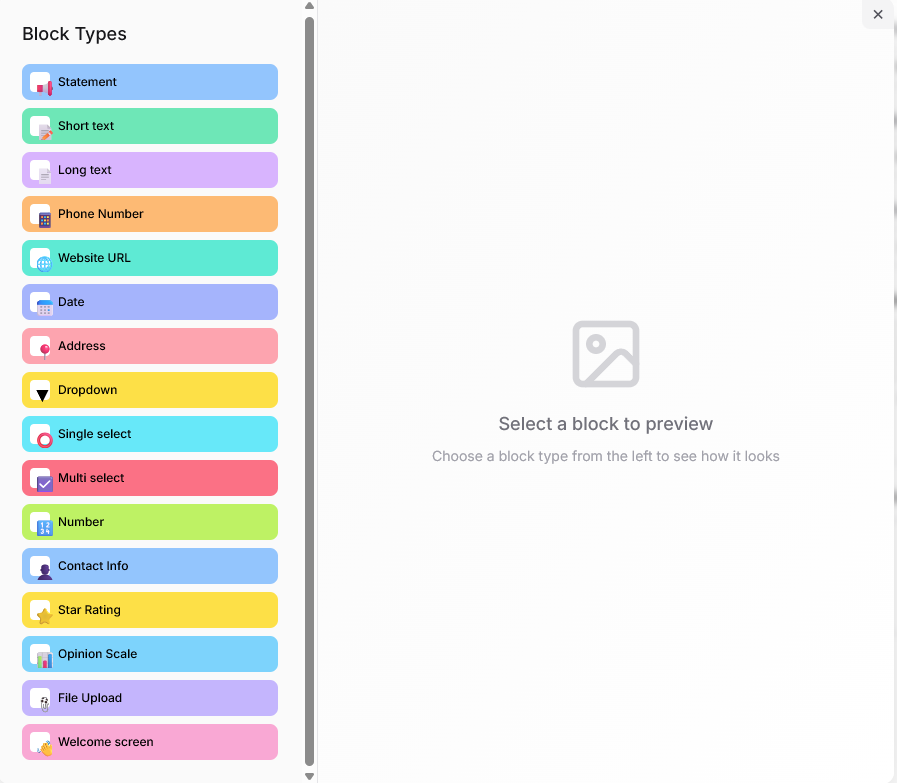
Select a block from here and click on `Add this block to form`. We offer the following blocks that are further customizable:
* **Short text**: Capture brief responses such as names or titles.
* **Long text**: Collect detailed answers or paragraphs.
* **Phone number**: Gather users’ phone and contact number.
* **Website**: Collect a URL from the user.
* **Date**: Let users select a date.
* **Address**: Collect full address details.
* **Dropdown, Single and Multi select questions**: Allow users to choose one or multiple options.
* **Number**: Allow the user to enter a number between a range specified by you.
* **Contact information**: Capture full name, email, and mobile number.
* **Star Rating**: Allows user to rate on a scale of 1-5 stars
* **Opinion Scale** Lets users rate on a custom scale with labels.
* **File upload**: Allow users to submit files or documents.
For example, let's select `Short text` block.
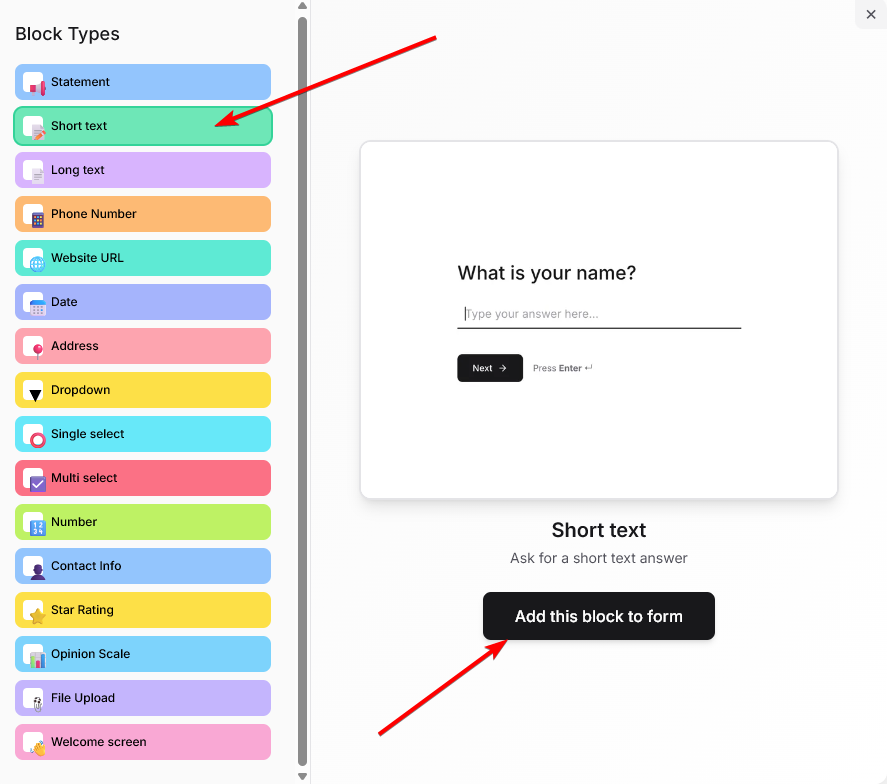
Once a block is added to the form, you can further configure it from the 'Content Pane' on the right side. This pane has multiple customization options like:
* Edit your question
* Edit your placeholder
* Edit the text on the `Next` button
* Add a description(with simple text formatting and the ability to include hyperlinks and YouTube videos)
* Make a question mandatory
* Add a cover image
Additionally, depending on the block you select, the content panes' customization options will change. For example, the long text block has an option to customize character limit, the address block lets you customize the the street, city, stat, ZIP code and country fields' visibility and the rating block lets you customize the number of stars.
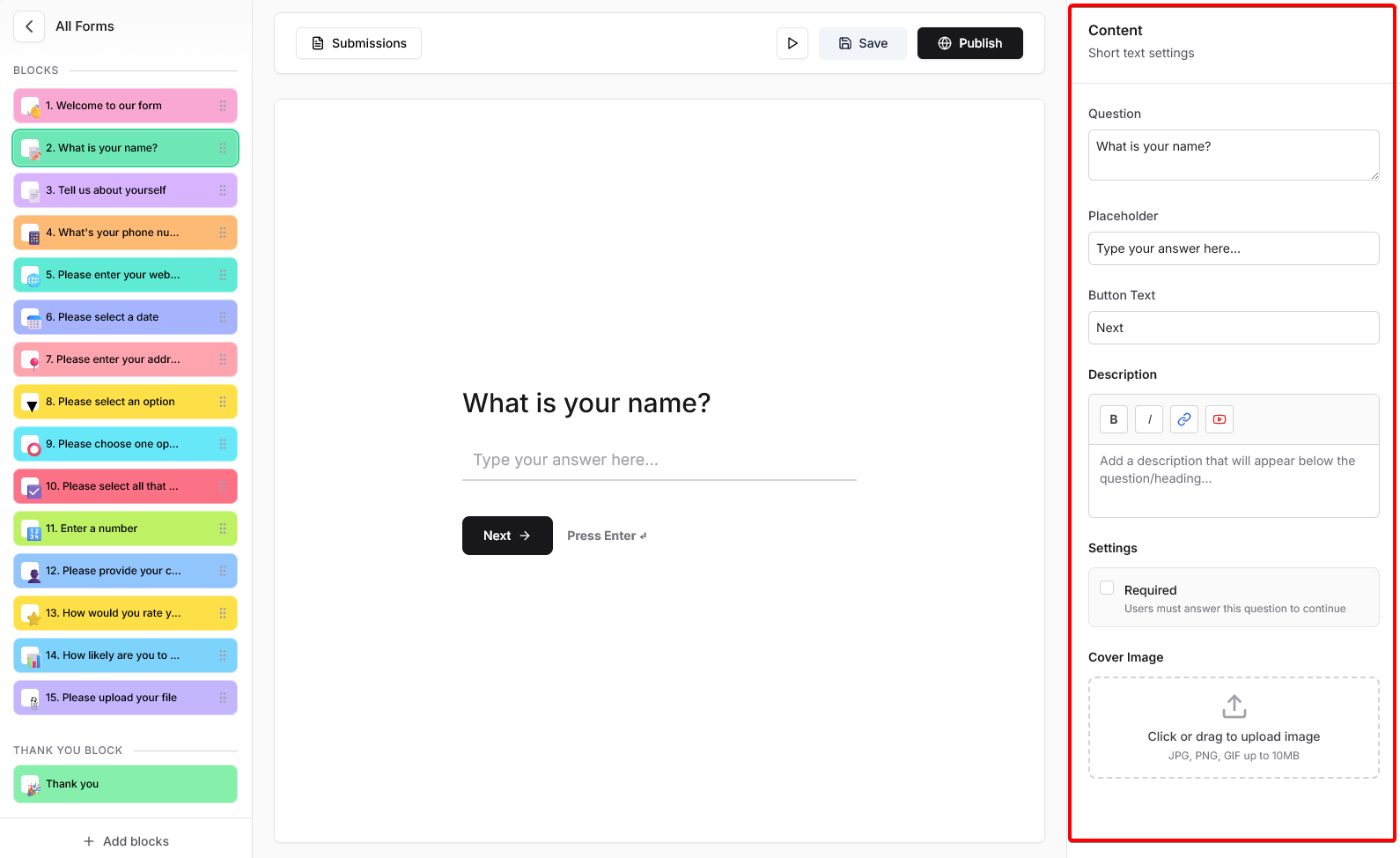
Once you have added and customized all the blocks, you can further customize the 'flow' of the form by re-arranding the blocks. You can do this by clicking on the 'drag' handle on the blocks.
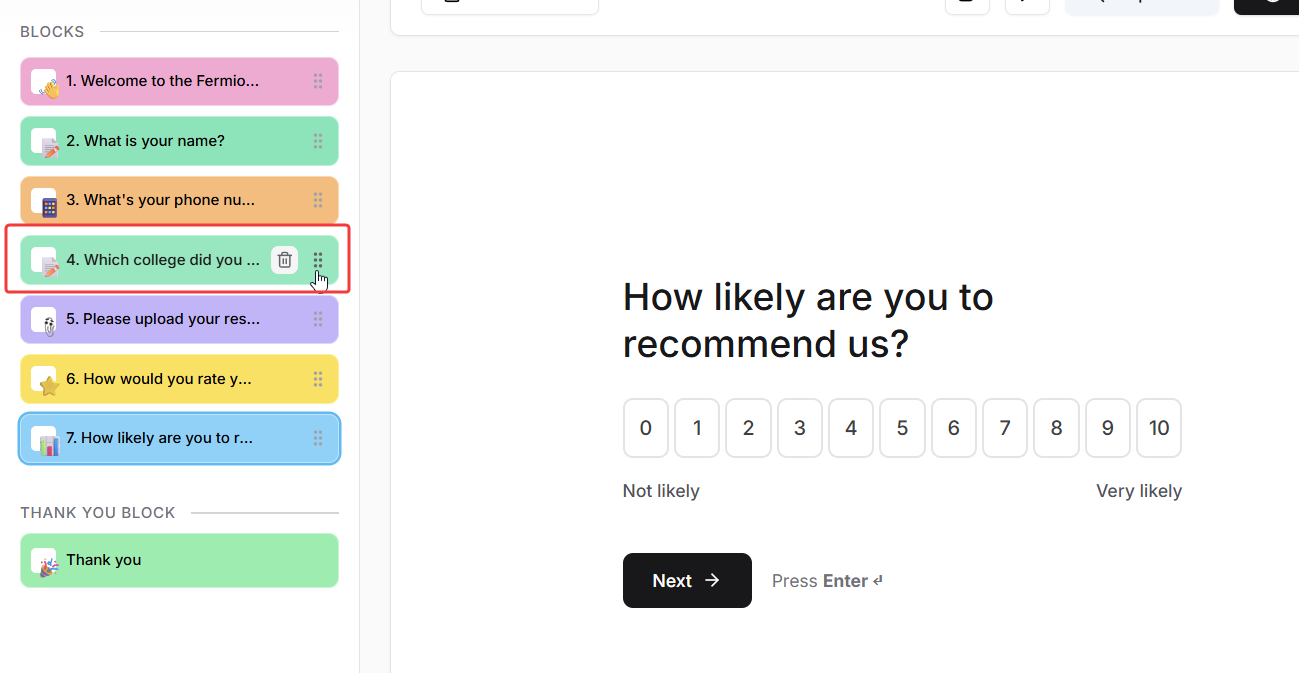
Once you are done customizing your form, click on `Save` and then click on `Publish`. You can also preview the form by clicking on the `play` button.
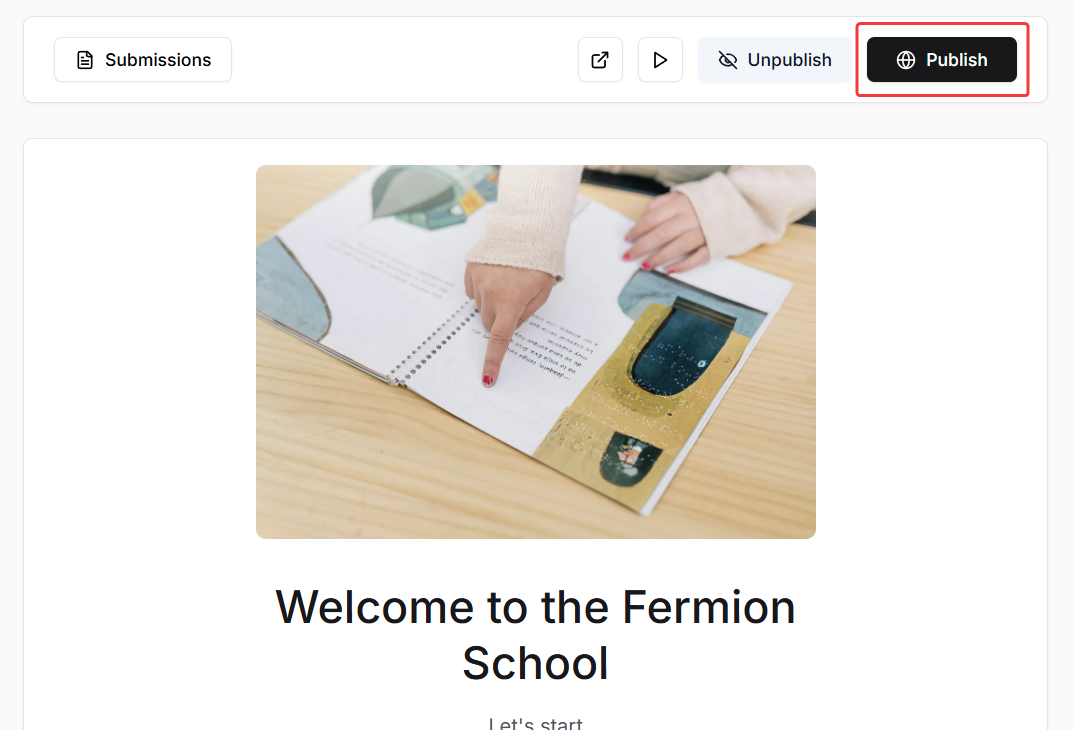
And there you go, you have now created a form on Fermion. You can copy the form's link after publishing the form and share with your users!
## Next steps
Learn how you can access form submissions from your users and also export them as CSV files
# User Onboarding Form
Source: https://docs.fermion.app/forms/onboarding-form
Create and assign an onboarding form for new users joining your school.
The **Onboarding Form** allows you to collect essential details from every new user who signs up for your school. When a new user creates an account, they’ll be prompted to fill out this form before accessing the platform. It’s a great way to gather important information like graduation level, interests, or consent details, ensuring a smoother onboarding experience.
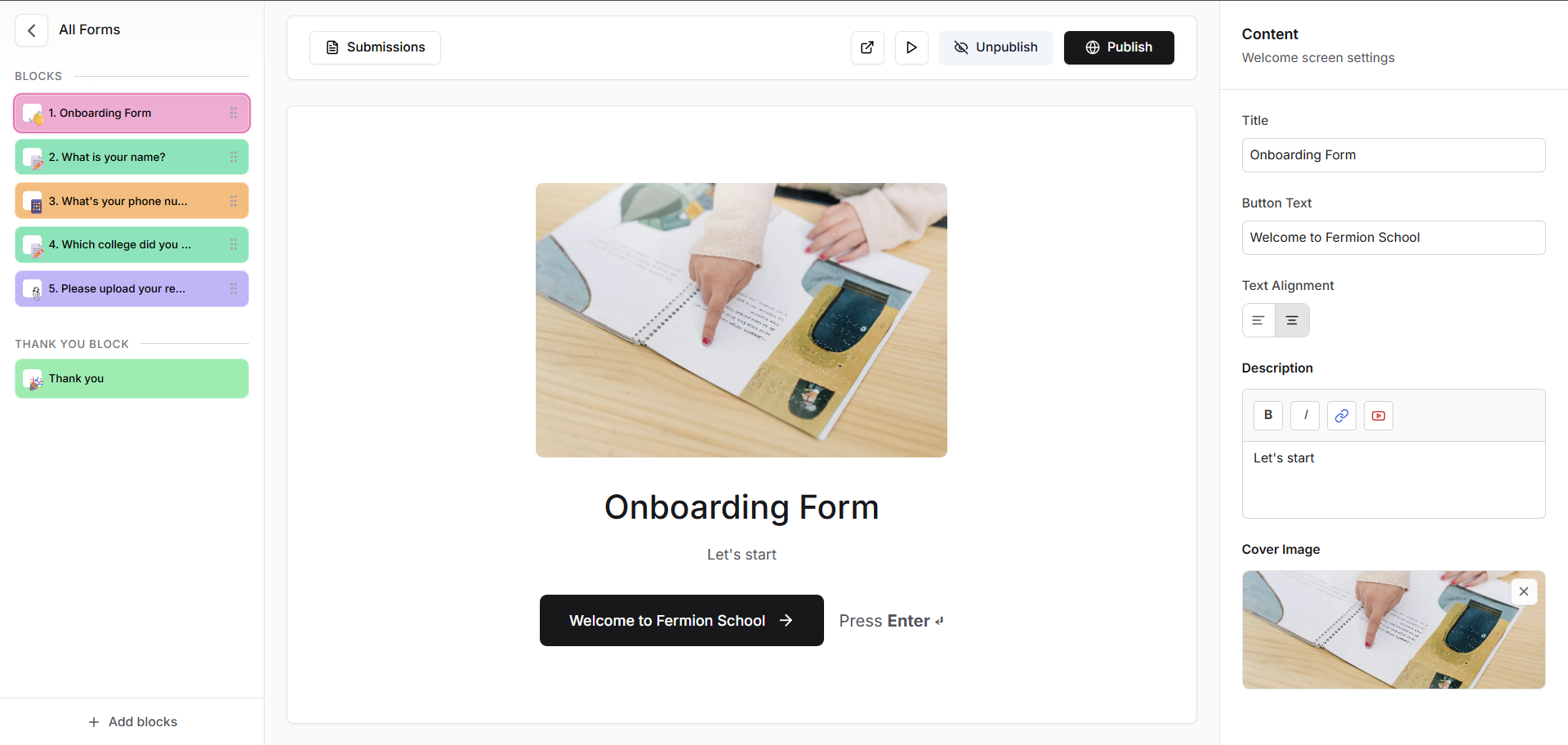
## Why use an onboarding form?
Onboarding forms help you collect essential information from new users automatically during sign-up. This information can include personal details, preferences, or any other data necessary to provide a tailored experience. By gathering responses upfront, you can personalize learning paths, verify eligibility, segment users into relevant groups, and ensure all necessary compliance or consent requirements are met.
Additionally, onboarding forms streamline administrative processes by reducing manual data entry and giving instructors a clear overview of each new user’s profile. The data collected can also help you make informed decisions and enhance the overall learning experience for students.
## How to attach an onboarding form to your school?
You can enable an onboarding form for a new user with the help of the following steps:
Before creating your onboarding form, make sure the **Forms** feature is enabled for your school. Go to **Manage Features** in your admin panel and toggle on the **Forms** option.
Learn more about how to [manage features](/manage-settings/manage-features)
Once forms are enabled, you can create your onboarding form.\
Navigate to the **Forms** section in your dashboard and click **Create Form**.
Learn more about how to [create forms](/forms/introduction#getting-started)
After creating your form, go to **Users → User Onboarding Form** from your instructor dashboard sidebar.\
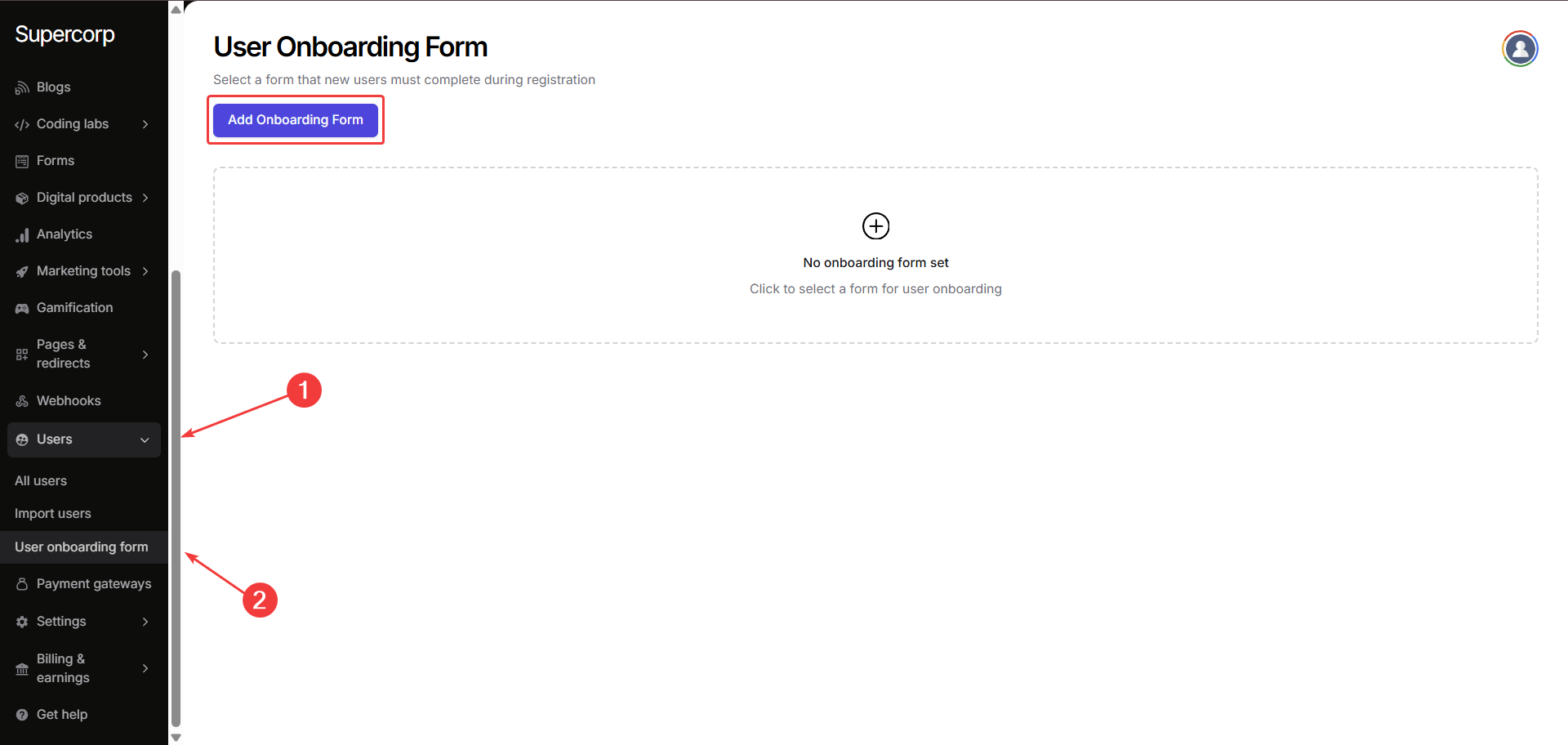
Click on **Add Onboarding Form**, then select the form you created in the 2nd step.\
Now click **confirm**, the form will automatically appear for every new user when they register.\
*And voilà* , your onboarding form is now attached to your school and ready to collect user data!
## Viewing responses
All onboarding form submissions are automatically stored in the **Submissions** tab inside your form. You can export them as CSV or view them directly from your dashboard. Learn more about [accessing form submissions](/forms/form-submissions)

## Next steps
Create and publish ebooks to share structured learning material and in-depth guides with your students.
Write and post blogs to share updates, announcements, and insights directly with your learners.
# Gamification Features
Source: https://docs.fermion.app/gamification/features
Explore all the gamification options on your Fermion platform including XP rewards, streaks, and leaderboards.
## Global settings
Global settings allow you to configure platform-wide gamification options that affect all users. This is where you control maximum XP, enable leaderboards, and configure streaks to ensure your platform provides a motivating experience for learners.
Head over to the **Gamification** section in your instructor dashboard sidebar to access these
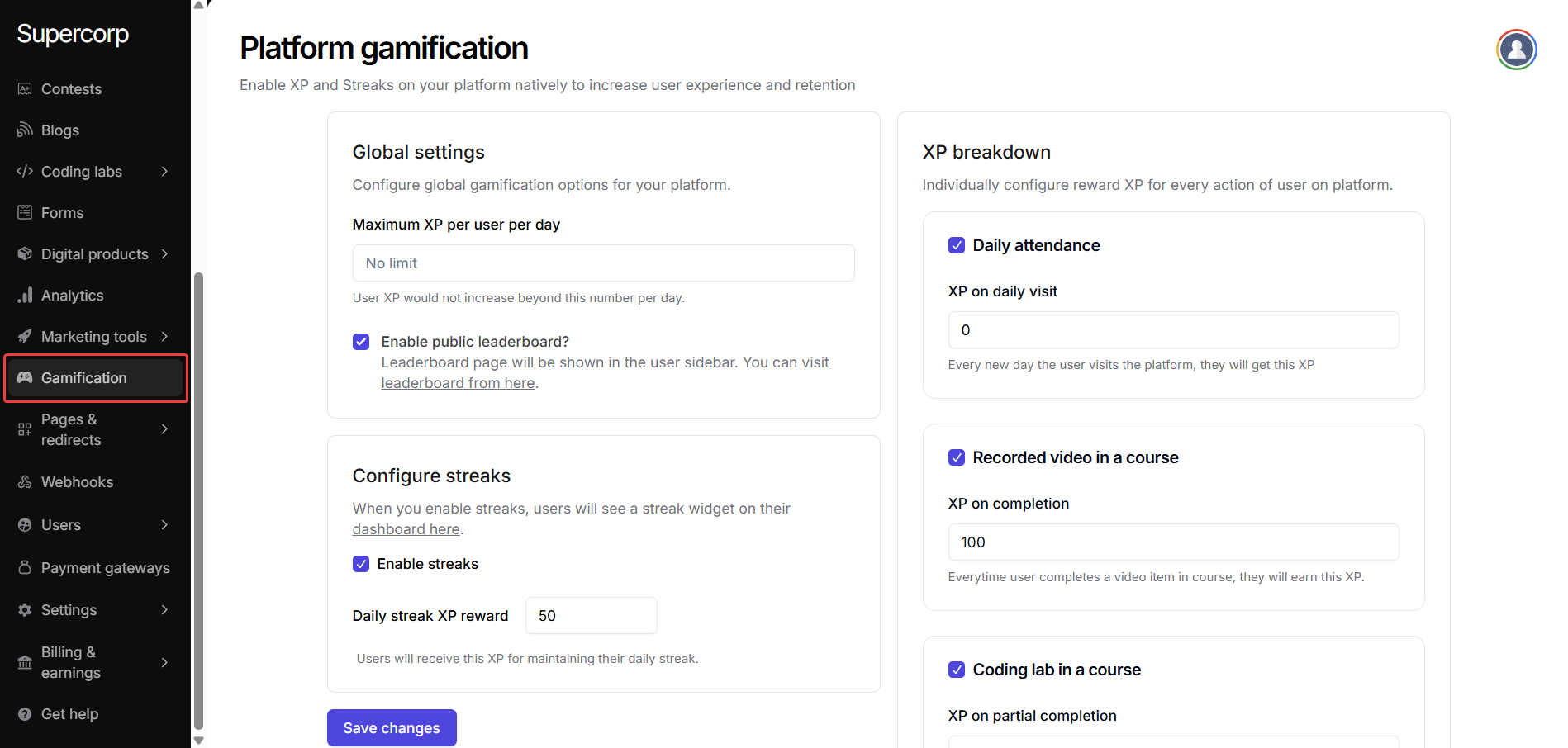
### Maximum XP per user per day
Set a limit on the maximum XP a user can earn each day. By default, there is no limit, which means learners can accumulate as much XP as they earn by completing actions. This helps control excessive XP gain and maintain balanced progression.
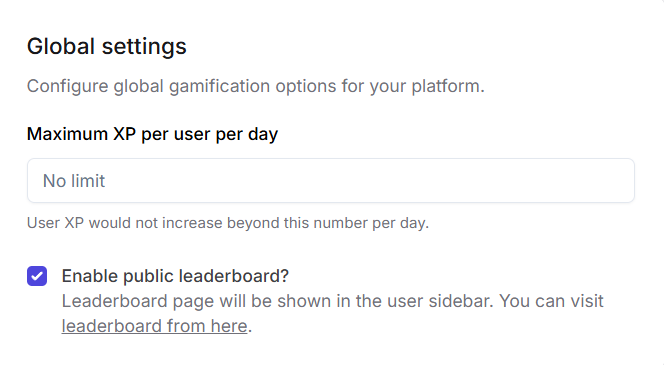
### Enable public leaderboard
Enable a public leaderboard to show top users in the platform sidebar. This fosters healthy competition and motivates learners to engage more with content to climb the leaderboard.
### Configure streaks
Streaks reward users for consecutive days of engagement. When enabled, a streak widget appears on their dashboard. You can also set the **Daily Streak XP Reward**, which defines how much XP users earn for maintaining their streak.
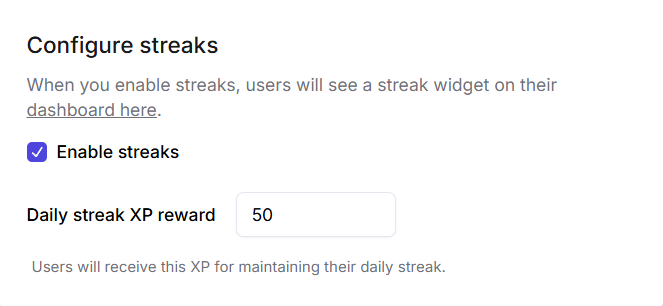
***
## XP breakdown
XP breakdown allows you to configure rewards for specific user actions. This helps incentivize the behaviors you want, such as completing videos, articles, quizzes, or labs.
Every new day a user visits the platform, they earn a set amount of XP. This encourages regular engagement and motivates users to consistently return to your platform.
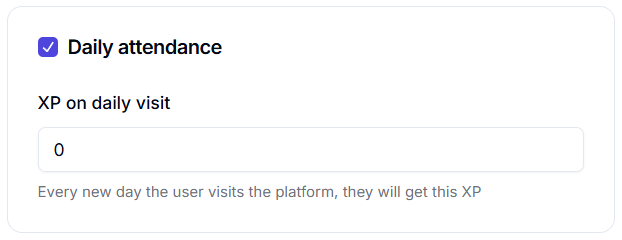
Users earn XP when they complete a video in a course. This incentivizes learners to watch content fully rather than skipping through, ensuring better understanding and engagement.
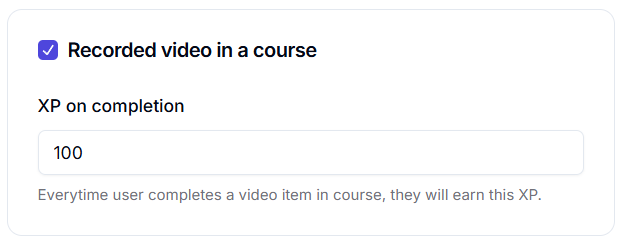
You can reward XP for partial completion (at least one challenge completed) and full completion (all challenges passed). Additionally, XP can be reduced if users download solutions, discouraging bypassing learning.
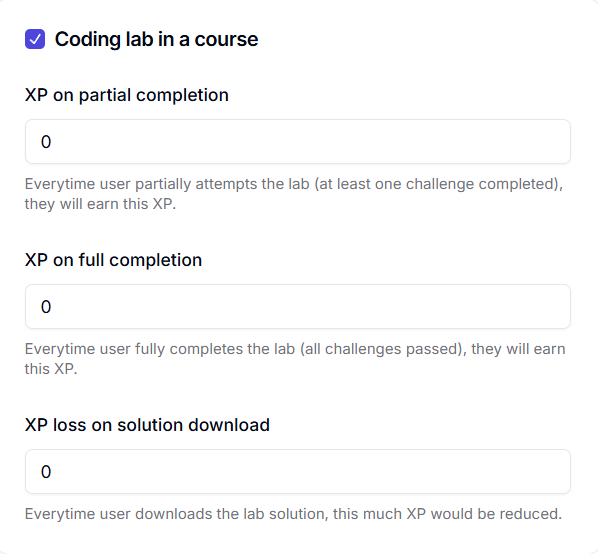
Users can earn XP for attempting quizzes. This encourages students to actively participate in assessments, reinforcing their learning.
Every time a user completes an article, they earn XP. This encourages reading and consuming written content, making learning more interactive.
XP can be awarded for attending live sessions. This encourages participation in live interactions, increasing engagement and community involvement.
After adding all the XP values for each milestone, click on **Save changes** button to update the gamification system of your school.
***
By configuring these features, you can create a dynamic, motivating, and engaging learning environment that rewards users for participation and progress. Make sure to experiment with XP values and streak rewards to optimize user engagement.
# Overview
Source: https://docs.fermion.app/gamification/introduction
Learn how to enable gamification on your Fermion platform to increase engagement, retention, and learner motivation.
Gamification adds game-like elements such as points, streaks, and leaderboards to your platform, making learning more engaging and motivating. By rewarding learners for completing actions, you can boost activity and retention while providing a fun and interactive learning experience. Instead of just passively consuming content, learners are encouraged to actively participate, attempt exercises, and complete courses to earn rewards.
## Why gamification is important for learners
Gamification leverages the natural human desire for achievement, recognition, and friendly competition. Points, badges, and streaks create a sense of accomplishment, motivating learners to stay consistent and complete tasks. Leaderboards foster healthy competition, while streaks and regular rewards help users form productive study habits and maintain engagement over time.
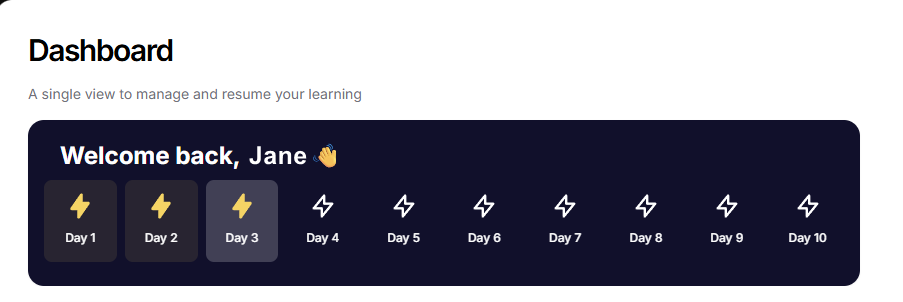
## Why gamification is important for instructors
For instructors and platform admins, gamification provides valuable insights into learner behavior. You can identify top performers, track which content items drive the most engagement, and adjust rewards to encourage specific actions. By making achievements and milestones visible, learners gain a clear sense of progress, and the overall user experience becomes more satisfying and enjoyable.
Head over to the **Leaderboard** section in your sidebar to look at the top performers!
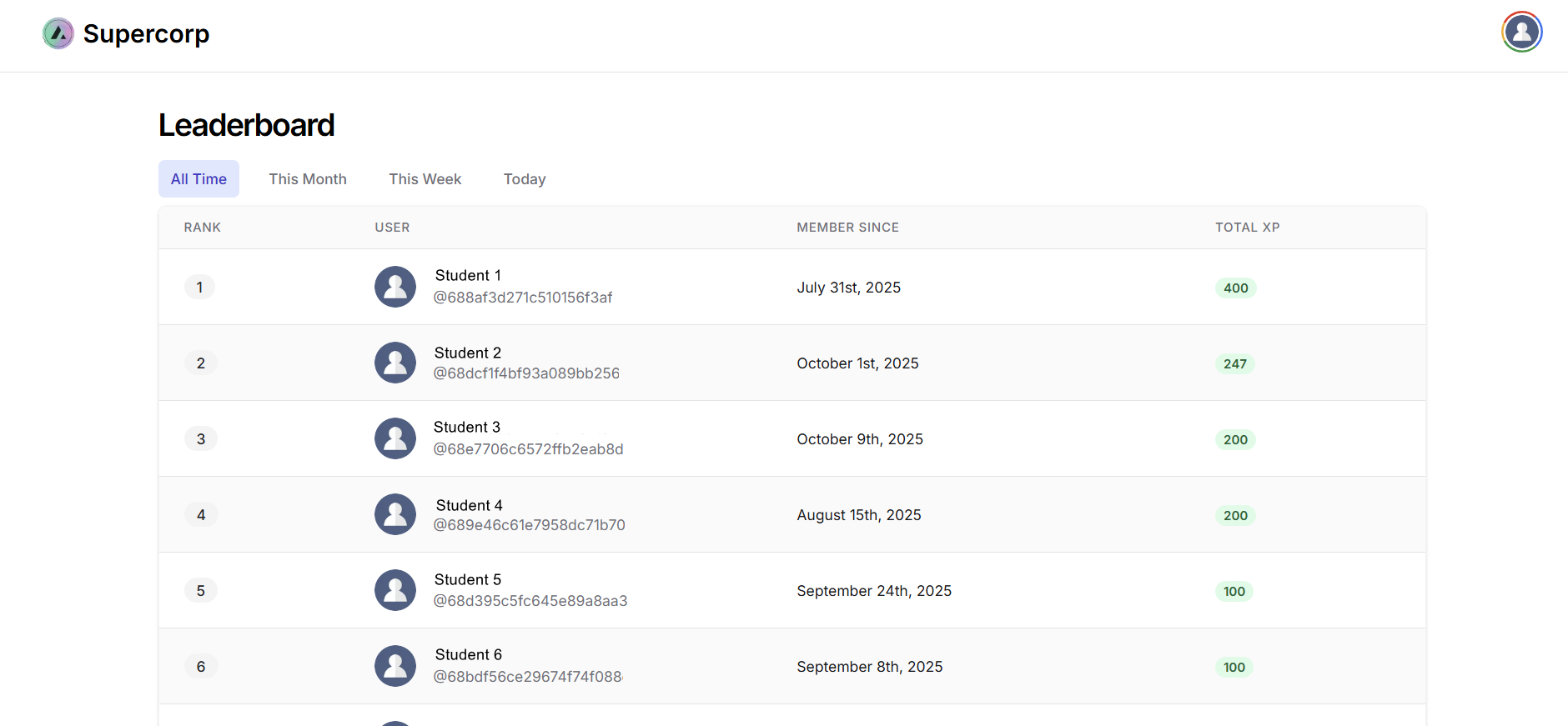
## How to enable gamification
Head over to the **Manage Features** section in your instructor dashboard sidebar. This section lists all the configurable features available on your platform.
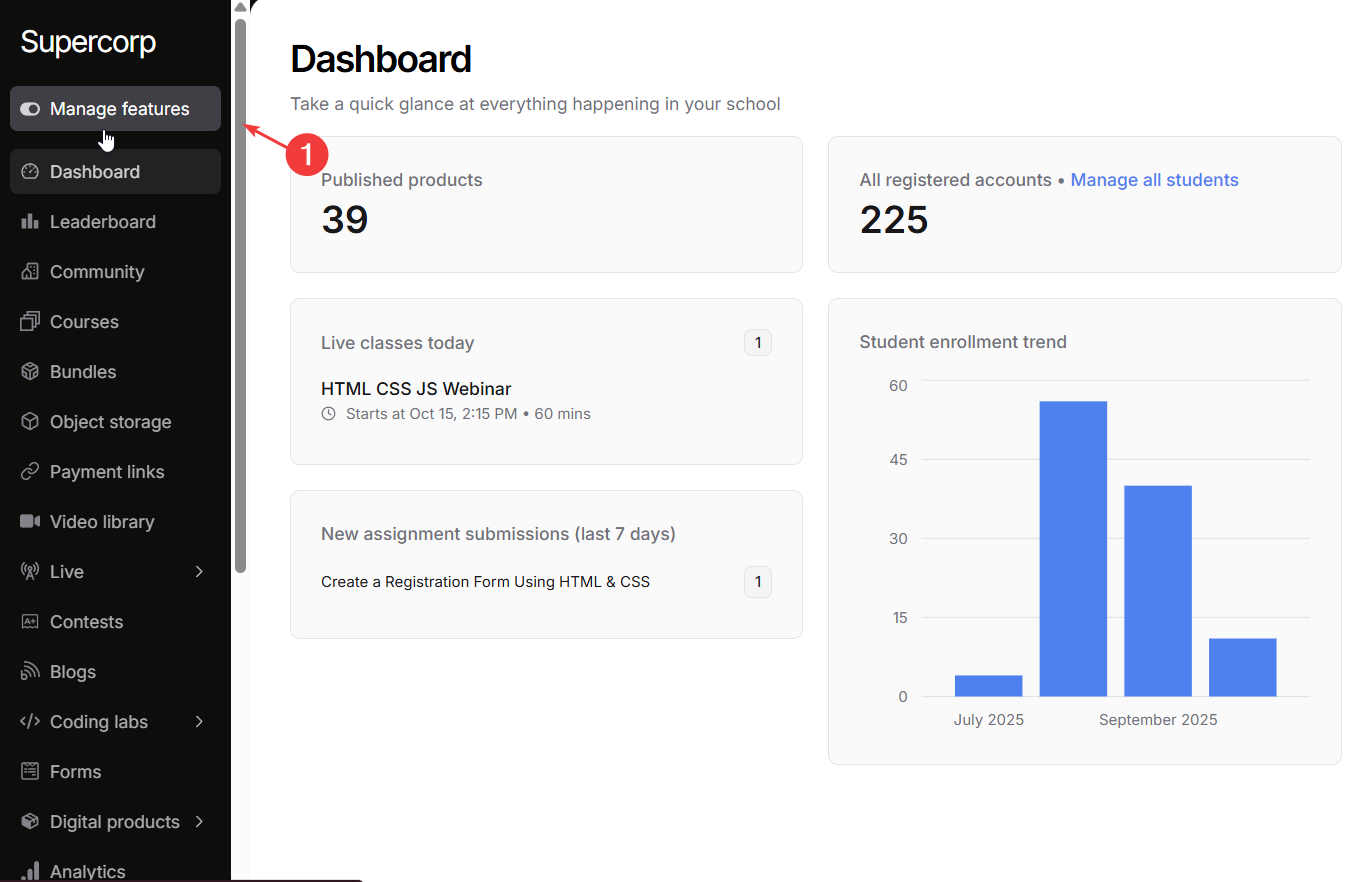
Scroll down the list of features until you find **Gamification**. Click on the **Enable** toggle to enable gamification across ur school. Click on **Save changes** to apply your changes.
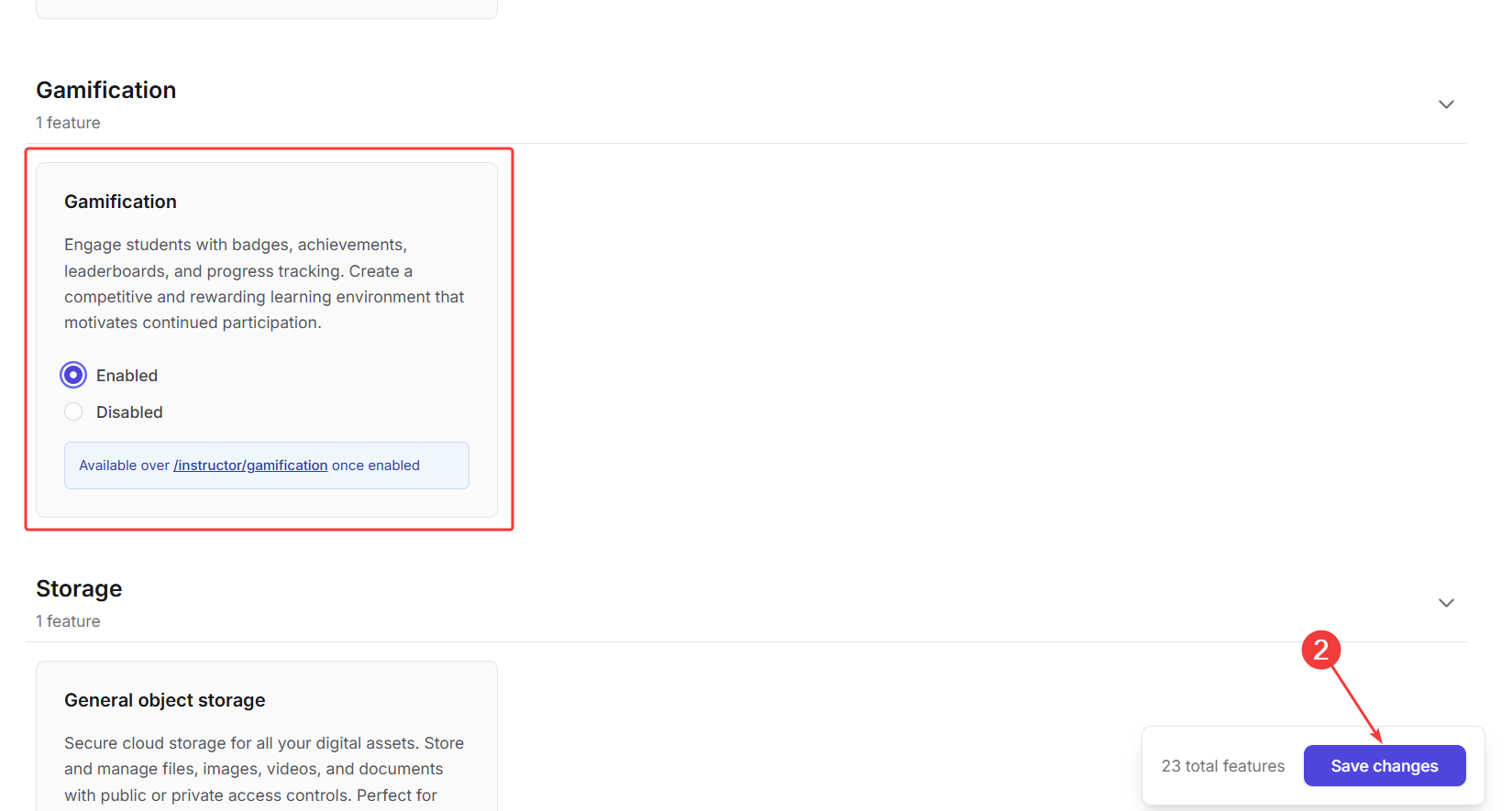
## Next steps
Learn about XP rewards, streaks, leaderboards, and all the ways you can make learning engaging and motivating on your Fermion platform.
# Fermion vs other platforms
Source: https://docs.fermion.app/getting-started/fermion-vs-other-platforms
Learn how Fermion compares to other learning management platforms
Fermion has been created to serve businesses, academies, and creators who want to deliver exceptional online education. Our top priority is to provide you with a beautiful, seamless experience. While many traditional LMS platforms focus on general online education, Fermion offers specialized features for both technical and non-technical education, making it ideal for a wide range of learning scenarios.
## Why do organizations choose Fermion?
There are many other platforms like Graphy, Kajabi, Thinkific, Teachable, Rigi or TagMango, and in this quick read, we'll talk about why organizations choose Fermion to build their learning platforms:
## Built-in live classes
Unlike other platforms that require expensive third-party integrations with services like Zoom or Google Meet, Fermion provides built-in [live class](/live-classes/what-are-live-classes) capabilities at no additional cost. Our platform can handle up to 10,000 concurrent students without any extra charges, making it perfect for scaling your educational programs. This means:
* No surprise costs as your audience grows
* No need to manage multiple subscriptions
* Seamless integration with your course content
* High-quality video streaming with built-in DRM protection
## Interactive coding labs
Fermion revolutionizes technical education with its integrated coding labs and assessments. Our platform provides:
* One-click integration of coding labs into your courses
* Real-time code execution and feedback
* Interactive assessments that evaluate student progress
* Seamless experience for both instructors and students
## Complete brand control
Fermion gives you full control over your brand:
* Complete white-labeling capabilities
* Custom domain support
* Branded certificates and credentials
* Customizable course interface
* Your own branded mobile app
* Corporate identity integration
## Transparent, Usage-Based Pricing
We believe in complete transparency when it comes to pricing:
* No hidden costs or surprise charges
* Pay only for what you use (bandwidth, storage, compute)
* Clear pricing structure that scales with your needs
* No additional fees for features like live classes or assessments
* Enterprise-grade SLAs for business customers
## Built-in Video Infrastructure
Our platform includes enterprise-grade video capabilities:
* Integrated video streaming with DRM protection
* No need for external video hosting services
* Secure content delivery
* Adaptive streaming quality based on student's connection
* Corporate-grade security and compliance
Choosing the right platform is like choosing a partner—you need to think about the long-term value and how well it will support your goals. Many organizations choose Fermion because:
* Fermion supports their specific educational needs
* They get a smooth, integrated experience without managing multiple services
* Their audience gets a premium learning experience
* They maintain complete control over their brand and content
* They benefit from transparent, predictable pricing
* They can scale their programs without technical limitations
We've invested heavily in building the best technology and infrastructure to support your needs. With our multi-currency support worldwide, you don't need to worry about managing payments. Our flexible payout options allow you to request payouts on-demand.
To summarize – organizations choose Fermion because it offers specialized tools, interactive learning experiences, seamless live class capabilities, robust data transparency and security, flexible payment options, and support for collaborative teaching—all tailored to meet the unique demands of modern education.
# What's possible on Fermion
Source: https://docs.fermion.app/getting-started/what-can-you-do-on-fermion
Explore the features and capabilities of Fermion for businesses, academies, and creators
Fermion is built to serve businesses, academies, and creators who want to deliver exceptional online education. While we excel in technical education, our platform is designed to support a wide range of learning scenarios.
At its core, Fermion enables you to create interactive learning experiences through hands-on labs, assessments, and specialized tools for technical education. As an organization or creator, you'll have complete visibility into your students' learning journey.
Let's explore the key features in detail:
1. Cohort-based Courses
2. Live Class Infrastructure
3. Interactive Learning Environments
4. Video Streaming & DRM Protection
5. Data Security and Analytics
6. Global Payment Solutions
7. Collaborative Teaching
## Cohort-based Courses
Fermion provides flexible [course](/setting-up-course/prerequisites) creation options to meet your specific needs.
You can create various types of courses on Fermion:
* Recorded Courses
* Cohort-based Courses
* Hybrid Courses
* Workshops
* Custom Learning Programs
Cohorts on Fermion are structured through a weekly curriculum that can include live classes and pre-recorded lectures. This setup allows you to have complete control over how your courses are organized, enabling you to mix and match pre-recorded lectures and live classes to create an optimal learning experience.
Each cohort comes with a clear start date, end date, and enrolment deadline, ensuring a well-defined timeline for both you and your students.
## Live Class Infrastructure
Live teaching is a critical component of modern education, and Fermion provides enterprise-grade [live class](/live-classes/what-are-live-classes) capabilities built directly into the platform.
Unlike other solutions that require expensive third-party integrations with services like Google Meet, Webex, or Zoom, Fermion's built-in infrastructure eliminates additional costs and setup hassles. This means:
* No surprise costs as you scale
* Seamless integration with your course content
* High-quality video streaming
* Support for up to 10,000 concurrent students
* Built-in [DRM protection](/live-classes/drm-and-watermarking)
Fermion's in-house infrastructure ensures a smooth, uninterrupted teaching experience, allowing you to focus on delivering exceptional content.
## Interactive Learning Environments
Fermion stands out among traditional LMS platforms with its ability to integrate interactive learning environments, particularly for technical education.
Our platform supports:
* One-click integration of [coding labs](/live-classes/drm-and-watermarking)
* Real-time code execution and feedback
* Interactive assessments
* Hands-on projects
* Interview preparation kits
With over 5000+ coding labs and quiz questions available, you can easily add interactive and evaluative elements to your courses.
This comprehensive approach helps your courses stand out by offering practical learning experiences that are crucial for effective education.
## Video Streaming & DRM Protection
Fermion provides enterprise-grade [video streaming](/recorded-videos/introduction) infrastructure with comprehensive DRM protection to secure your valuable content:
* Built-in video hosting and streaming
* Multi-level DRM protection:
* Widevine DRM
* Fairplay DRM
* Custom watermarking
* Device binding
* IP-based restrictions
* Adaptive bitrate streaming
* Global CDN integration
* Offline viewing capabilities
* Analytics for video engagement
* Automatic quality adjustment based on network conditions
This robust infrastructure ensures your content remains secure while delivering a premium viewing experience to your students.
## Data Security and Analytics
Content security and data transparency are paramount in online education. Fermion prioritizes these aspects by providing:
* Robust DRM protection
* Widevine and Fairplay integration
* Detailed audience engagement analytics
* Course completion metrics
* Assessment performance reports
* 100% content control and visibility
These features ensure your content remains secure while providing valuable insights to continuously improve your educational programs.
## Global Payment Solutions
Fermion enables you to reach a global audience with comprehensive payment solutions:
* Support for international and domestic [payment gateways](/setup-pricing/payment-gateway)
* Integration with Stripe, PayPal, Razorpay, and more
* Coverage in over 150 countries
* In-house UPI payment gateway (0.5% transaction fee)
* Dynamic geo-pricing options
* Multi-currency support
Our payment infrastructure is specifically designed to handle global transactions efficiently and cost-effectively.
## Collaborative Teaching
Fermion supports collaborative teaching environments, making it ideal for organizations with multiple instructors or subject matter experts. You can:
* Add multiple instructors to courses
* Implement co-teaching models
* Share workload effectively
* Leverage specialized expertise
* Maintain consistent quality across sessions
This collaborative approach enables you to create comprehensive learning experiences that leverage the strengths of your entire teaching team.
# What is Fermion?
Source: https://docs.fermion.app/getting-started/what-is-fermion
Learn about Fermion and how it helps businesses, academies, and creators build their online learning platforms
Setting up your online learning platform can be a significant undertaking, with numerous considerations to evaluate.
These are valid questions that any business, academy, or creator should consider when choosing a platform.
While numerous platforms exist in the market, this documentation introduces Fermion, a comprehensive platform designed to help you establish and scale your online learning business.
From this documentation, you'll learn about:
1. What is Fermion?
2. What can you do with Fermion?
3. How Fermion differs from other platforms
4. How to get started with your first course on Fermion
## What is Fermion?
Fermion is a comprehensive platform designed for businesses, training institutes, and content creators to establish and scale their online academies. Whether you're a corporate training department, an educational institution, or an independent creator, Fermion provides the tools you need to deliver exceptional online education.
When it comes to delivering premium online education, Fermion stands out as a premier solution. It offers the flexibility to be used as a fully managed learning management system (LMS) or as a modular platform where you can integrate specific services like live classes, assessments, and specialized tools for technical education.
The platform operates on a usage-based pricing model, similar to cloud providers, where you only pay for the resources you consume – whether it's bandwidth, storage, or compute power. This ensures that your costs scale proportionally with your growth, making it an ideal solution for both startups and established institutions.
For organizations that need more control, Fermion provides a comprehensive API that allows you to integrate its services headlessly into your existing infrastructure. This means you can leverage Fermion's powerful features while maintaining your own custom user interface and workflows.
We'll explore Fermion's capabilities in greater detail throughout this documentation.
## Why create a platform like Fermion?
Through extensive research and conversations with businesses, academies, and creators, we identified common challenges across various learning management systems.
### Common challenges
Organizations reported issues ranging from inadequate support to suboptimal user interfaces, problematic live streaming capabilities, and lack of scalability.
Fermion was developed to address these specific pain points while providing the flexibility and scalability that modern educational platforms require. Whether you're just starting out or running a large-scale academy, Fermion grows with you, adapting to your needs without requiring platform migrations or major infrastructure changes.
World-class educators and organizations should focus on delivering exceptional education rather than troubleshooting technical issues. This philosophy guides our approach when welcoming new partners to our platform.
Our vision is straightforward – to provide businesses, academies, and creators with a robust platform for establishing their online learning platforms, allowing them to concentrate solely on delivering outstanding educational content.
With Fermion, we're committed to creating an exceptional experience for both content providers and their students.
## What can you do with Fermion?
The platform offers comprehensive functionality, with its core features enabling the creation of interactive learning experiences through live classes, assessments, and specialized tools for technical education.
As an organization or creator, you'll have complete visibility into your students' learning journey. You can choose to use Fermion as a complete solution or integrate specific components like:
* Live class infrastructure
* Assessment and evaluation tools
* Student progress tracking
* Interactive learning environments
* Custom integrations through our API
* White-labeling and branding options
In the upcoming articles, we'll explore:
* Fermion's core capabilities
* Fermion's unique advantages over other platforms
* Getting started with your first course
* Features and tools to enhance your students' learning experience
# Embedding Vimeo Videos Inside Courses
Source: https://docs.fermion.app/guides/vimeo-embed
Learn how to embed Vimeo videos inside courses using iframe embeds, and understand the trade-offs compared to Fermion’s built-in video library.
Embedding a Vimeo video inside your course is a straightforward way to include external video content without uploading it to Fermion directly. Using an iframe embed, you can display any Vimeo-hosted video seamlessly within your course player. However, while this approach is simple, it also comes with certain limitations that you should be aware of before implementing it.
## How does this integration work?
When you embed a Vimeo video using an iframe, the player will load directly from Vimeo’s servers. This means that while students will be able to view the video without issues, Fermion will not be able to track analytics at the student level. Features like tracking video completion, enforcing watch-time constraints (such as requiring the learner to finish watching the entire video), or providing granular progress analytics will not be available.
We recommend using the **[Fermion Video Library](/recorded-videos/video-library)** for an optimized learning experience. Videos uploaded directly to Fermion come with built-in analytics, progress tracking, and viewing constraints that help maintain course integrity and engagement.
To embed a Vimeo video into a course using an iframe, follow these steps carefully. Make sure you have the Vimeo embed URL ready (for example, `https://vimeo.com/123456789`).
* Go to your **Instructor Dashboard → Courses → Open Course Builder**.
* Select the [course](/setting-up-course/prerequisites) where you want to link your Vimeo video.

Navigate to the **Syllabus** tab of the course where you want to embed the Vimeo video. Choose the section in which you’d like the video to appear.
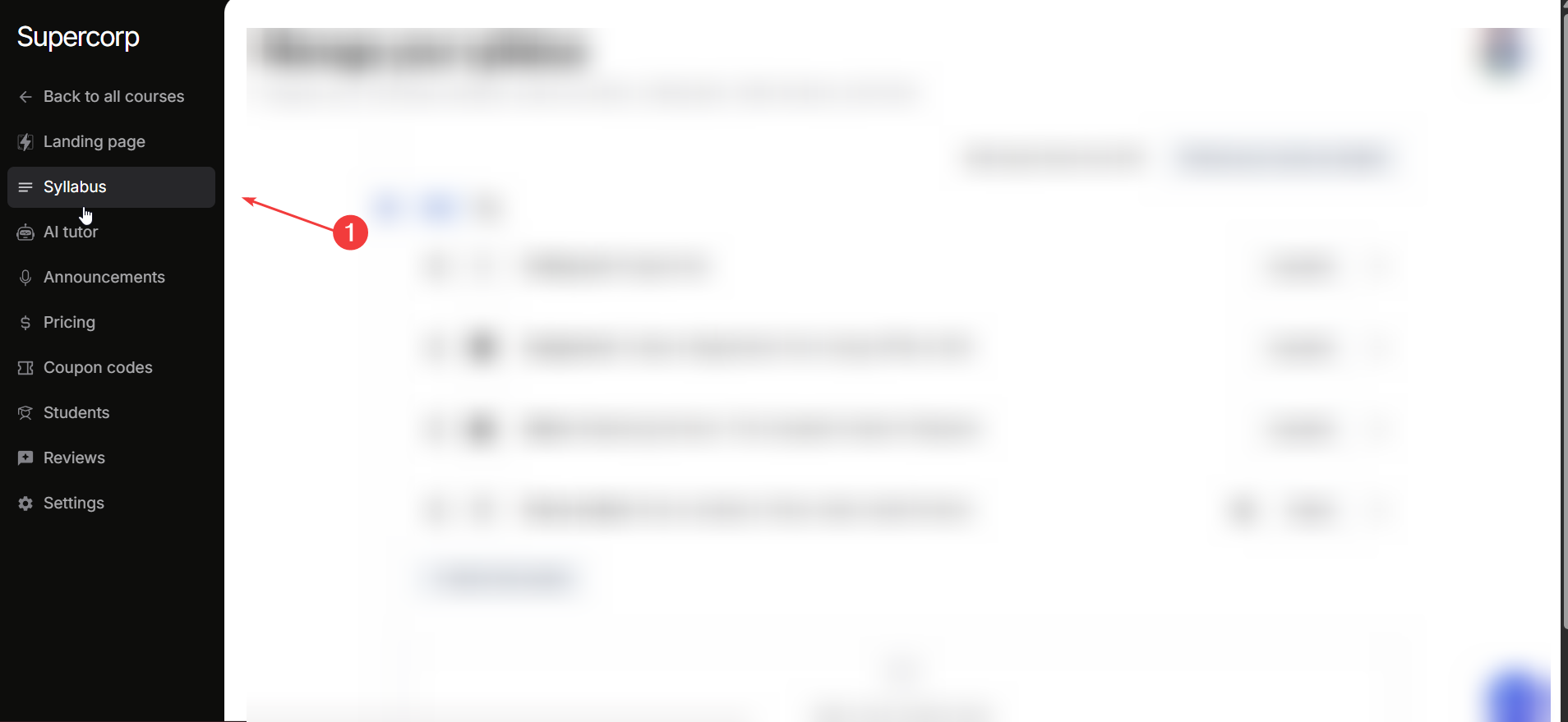
Within the section, click on **Add in this section** to open the course item modal.
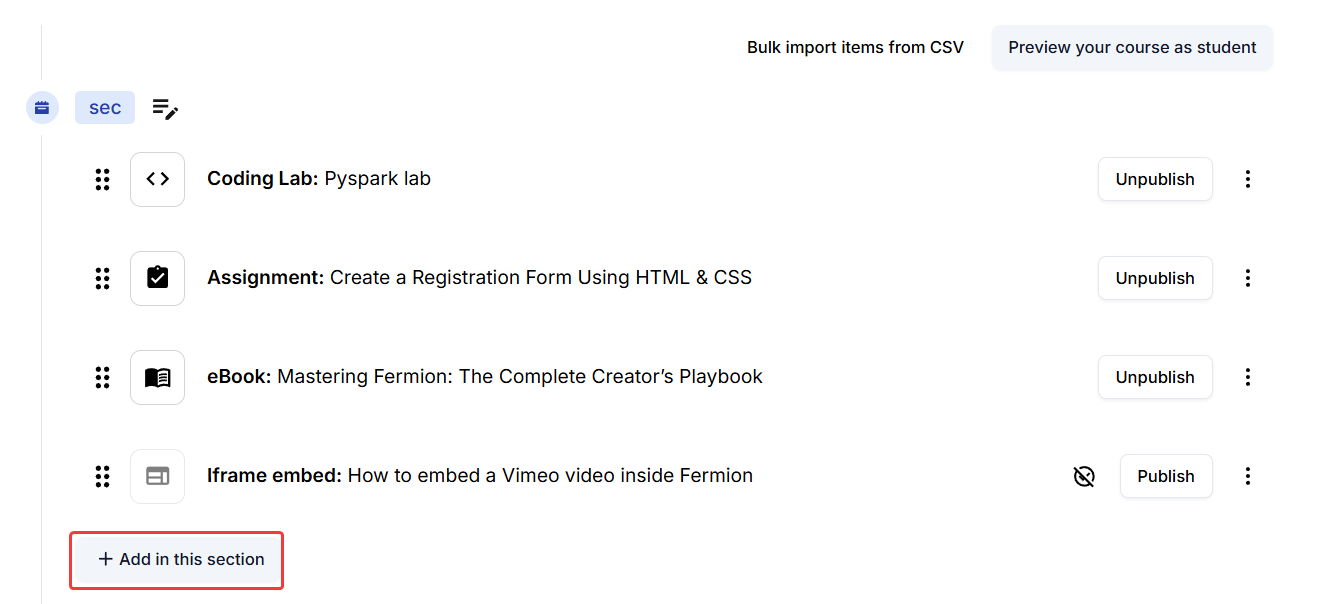
From the available item types, select **Iframe Embed** to create a new embedded video resource.
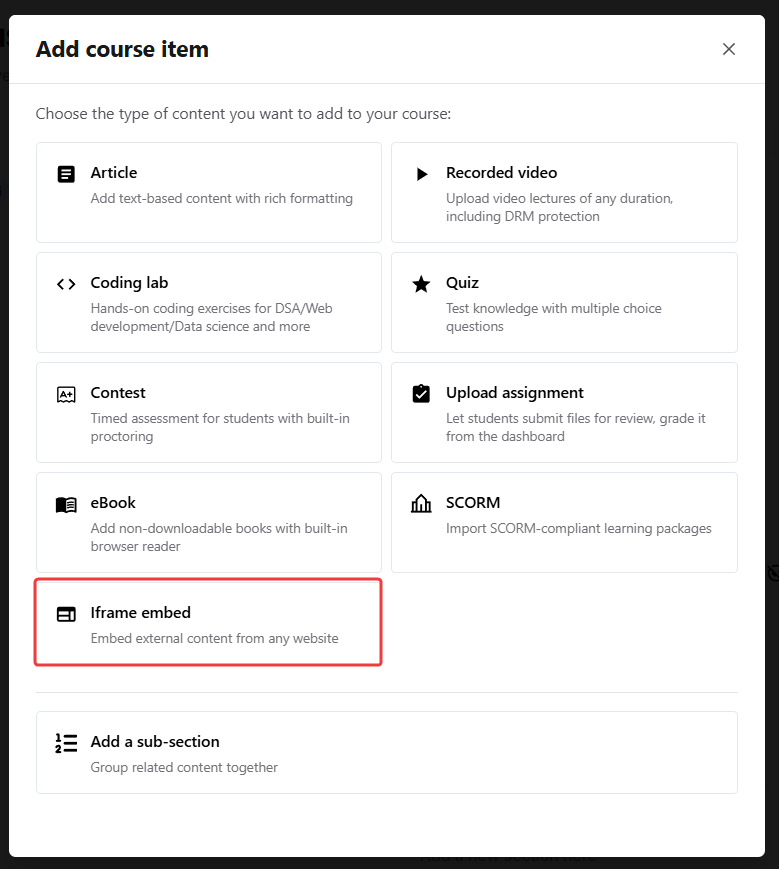
Provide a suitable **Iframe Title** for your embedded video to help learners identify it easily. Then, paste your **Vimeo Embed URL** into the iframe URL field. Double-check that the URL follows Vimeo’s embed format and not the standard watch URL.
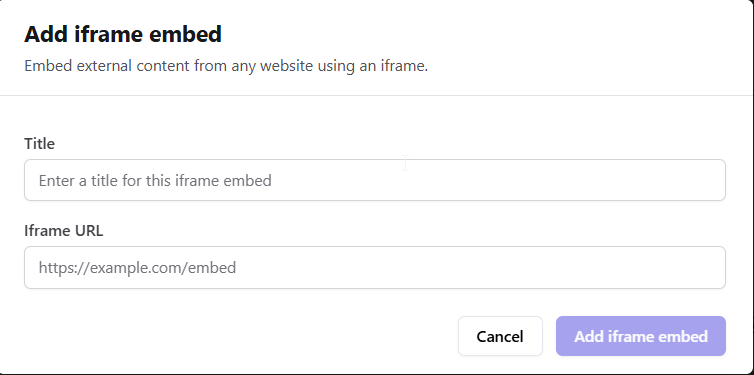
Make sure that the Vimeo video you are embedding allows **external embedding**. If the video’s privacy settings restrict where it can be embedded, the player may display an error. To fix this, update the video’s privacy settings on Vimeo by going to **Settings → Privacy → Video → Where can this video be embedded?** and choosing **Anywhere**. Learn more about [embedding vimeo videos]()
Once you’ve entered all the details, click **Publish** to save your changes.
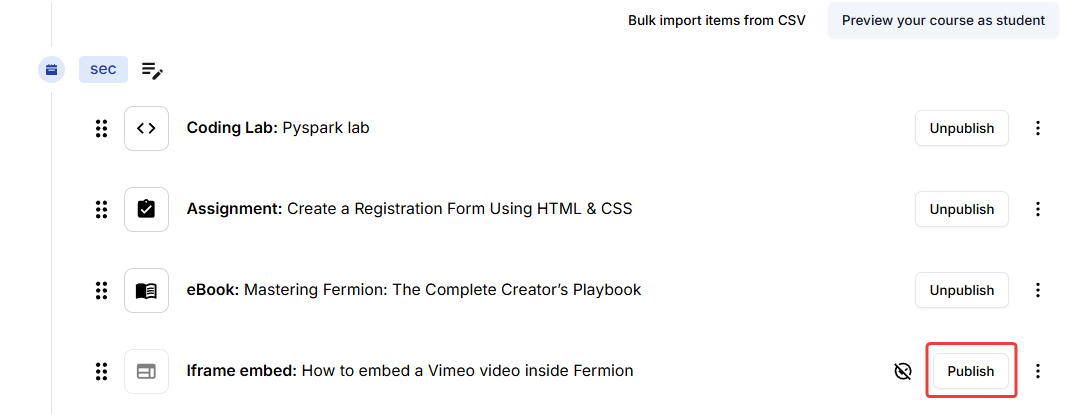
After completing all these steps, the Vimeo video will now be available inside your course, and learners will be able to access it directly within the course player interface.
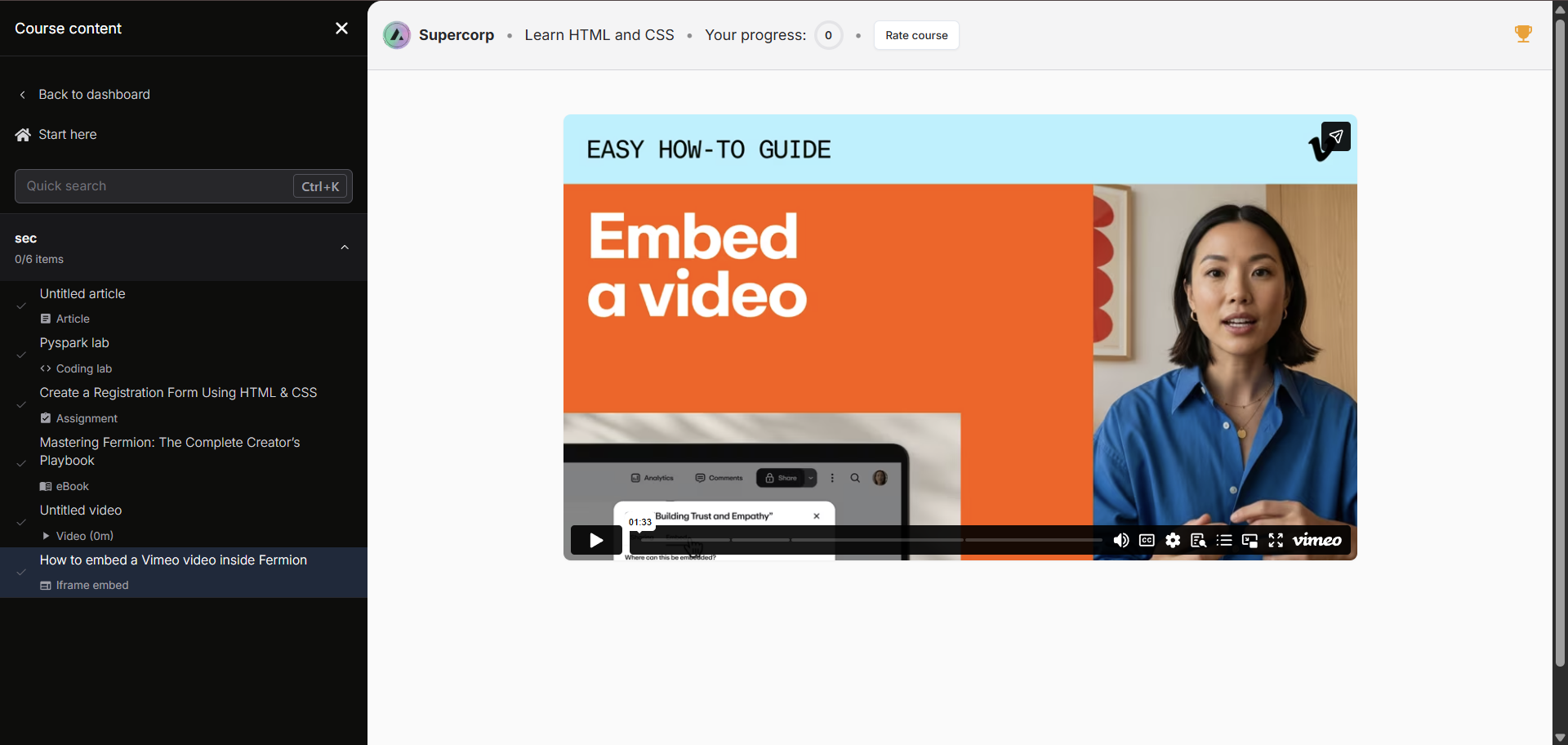
While this embedding method works for quick integrations or when external hosting is preferred, for complete learning analytics, progress tracking, and a seamless course experience, the Fermion [Video Library](/recorded-videos/video-library) remains the recommended choice. To learn more about embedding Vimeo videos externally, please refer to [Vimeo documentation](https://vimeo.com/blog/post/how-to-embed-videos)
# AI Summary
Source: https://docs.fermion.app/live-classes/ai-summary
Generate AI-powered summaries of your live sessions based on transcripts, providing students with key topics and concepts from the entire session.
After your live session is recorded and AI captions are generated, Fermion can automatically create an AI-powered summary of the entire session. This summary provides students with a comprehensive overview of key topics, concepts, and takeaways from the live event, making it easier for them to review and understand the content.
The AI summary is generated based on the transcript of the live session and appears below the video player for easy access. This feature helps students quickly grasp the main points covered during the session without having to watch the entire recording.
**Note:** For AI summary to work, AI captions must be enabled first. The summary is generated automatically once the transcript is available.
## Enabling AI Summary
To enable AI summary for a specific live event, follow these steps:
Navigate to the **Courses** section.
Open the **Course Builder** for a cohort-based course.
![steps 1 and 2]() Go to the **Live events** tab for your course.
Click **Edit** on the relevant live event.
Go to the **Live events** tab for your course.
Click **Edit** on the relevant live event.
![steps 3 and 4]() In **Advanced Settings**:
* Enable the `AI Transcripts` option to generate AI Transcripts (required for AI Summary)
* Enable the `Recorded playback` option to make sure users can watch the live stream recording
In **Advanced Settings**:
* Enable the `AI Transcripts` option to generate AI Transcripts (required for AI Summary)
* Enable the `Recorded playback` option to make sure users can watch the live stream recording
![AI options]() AI captions can also be enabled globally for your school at: Settings > School settings > Livestreaming settings.
There is a brief processing time for the AI summary to be generated, which depends on factors like the duration of the call and the length of the transcript. Once ready, the summary will be automatically displayed to students viewing the recorded session.
Once the recording and captions are processed for the live session, users can see a summary like shown below:
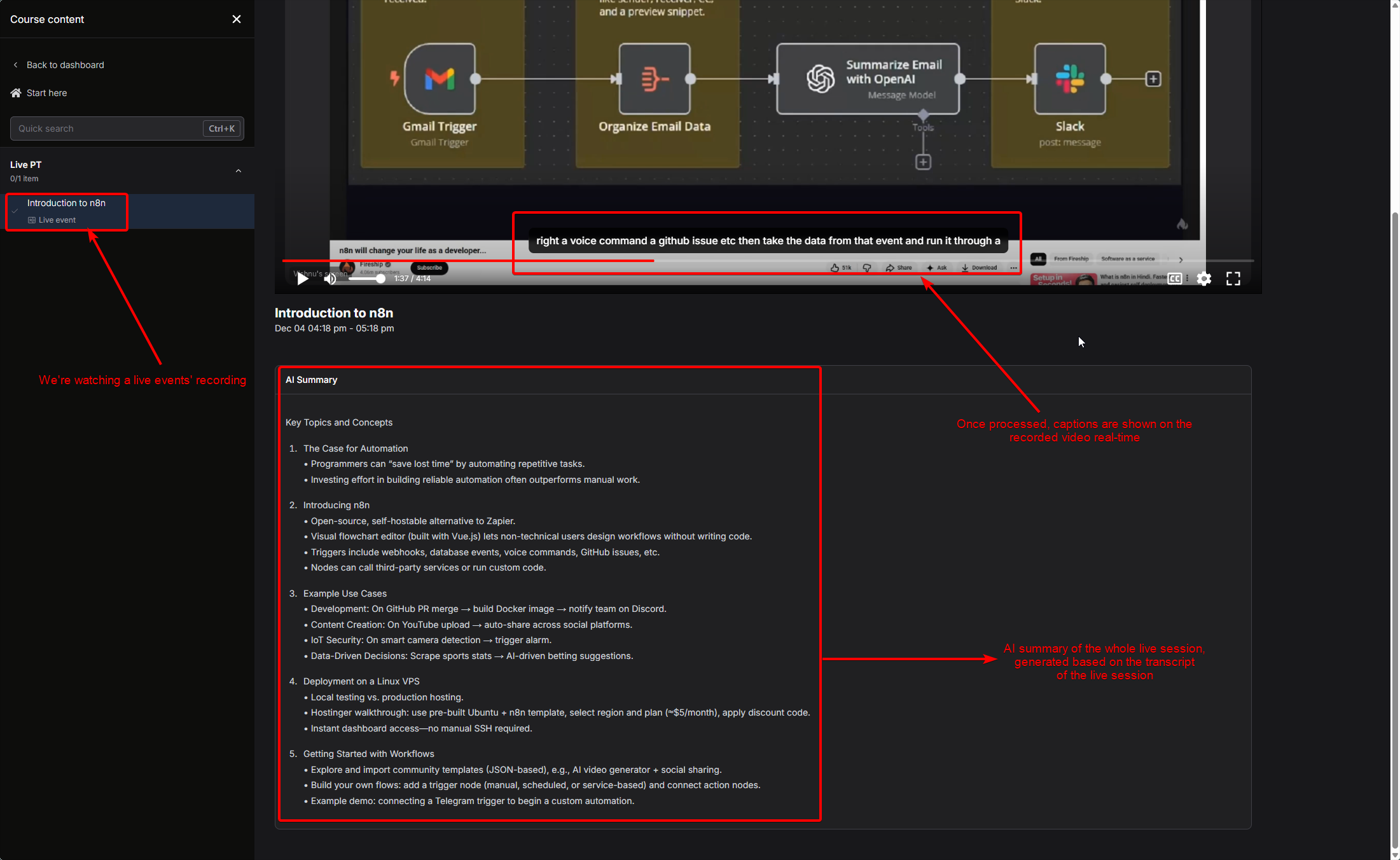
# Clone Live Classes
Source: https://docs.fermion.app/live-classes/cloning-class
Learn how to clone a live class from one cohort-based course to another in just a few clicks.
Cloning a [live class](/live-classes/what-are-live-classes) allows you to quickly reuse an existing session setup, including the title, timing, and hosts, in another [cohort-based course](/setting-up-course/prerequisites#what-is-a-cohort-based-course%3F) without having to create everything from scratch. It’s a simple way to save time and maintain consistency when running multiple cohorts or repeating sessions for new batches.
You can clone a live event inside another cohort-based course you have on the platform. This
allows you to go live at once in two or more courses.
## Steps to clone a live class
You can clone a live class from one cohort based course to another with the help of the following steps:
From your dashboard, navigate to the **Courses** section.
Select the **Cohort-based Course** that contains the live class you want to clone. 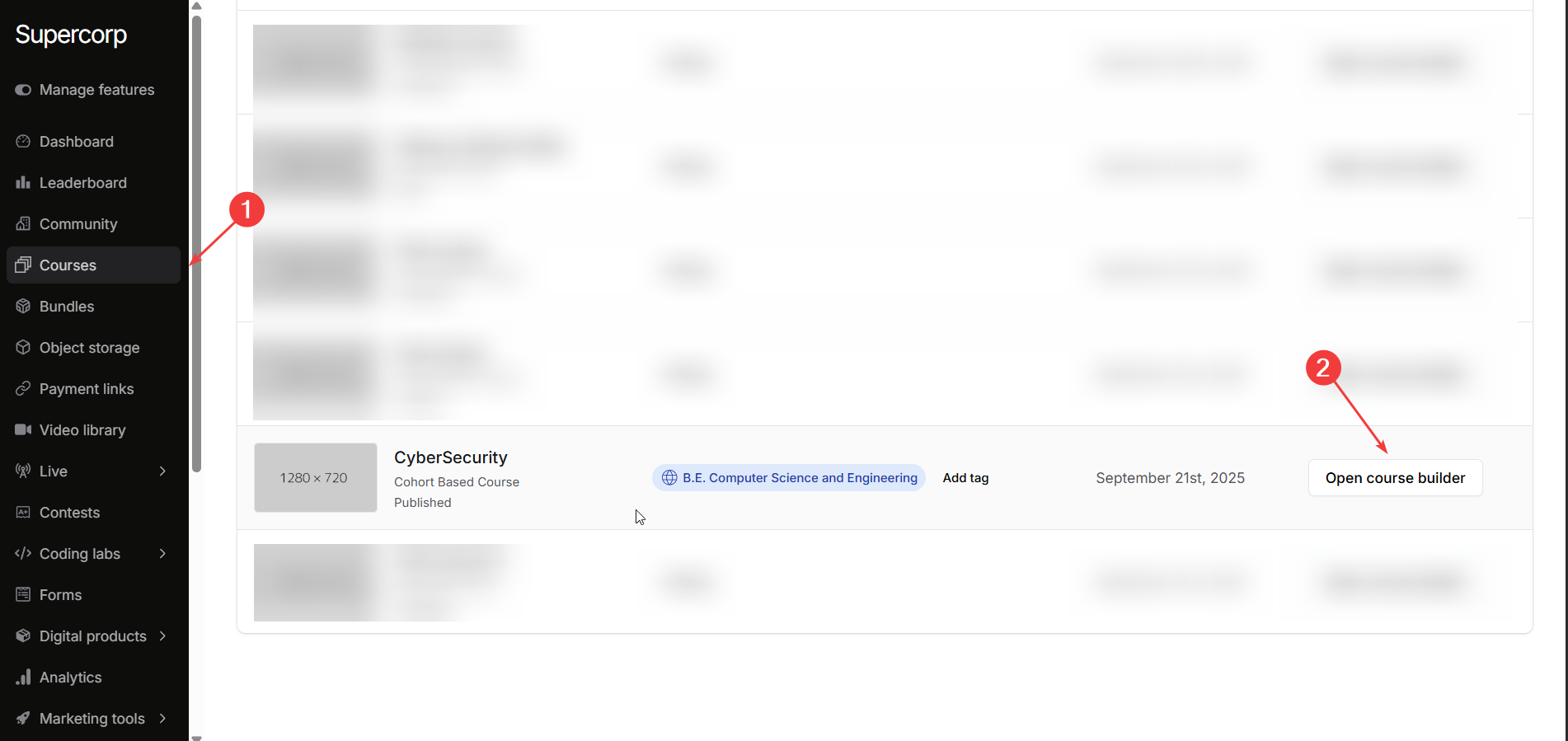
Navigate to the **Syllabus** section of the selected course.
Click the **three dots (⋮)** next to the live class you want to duplicate.
Choose **Clone in another CBC** from the dropdown menu. 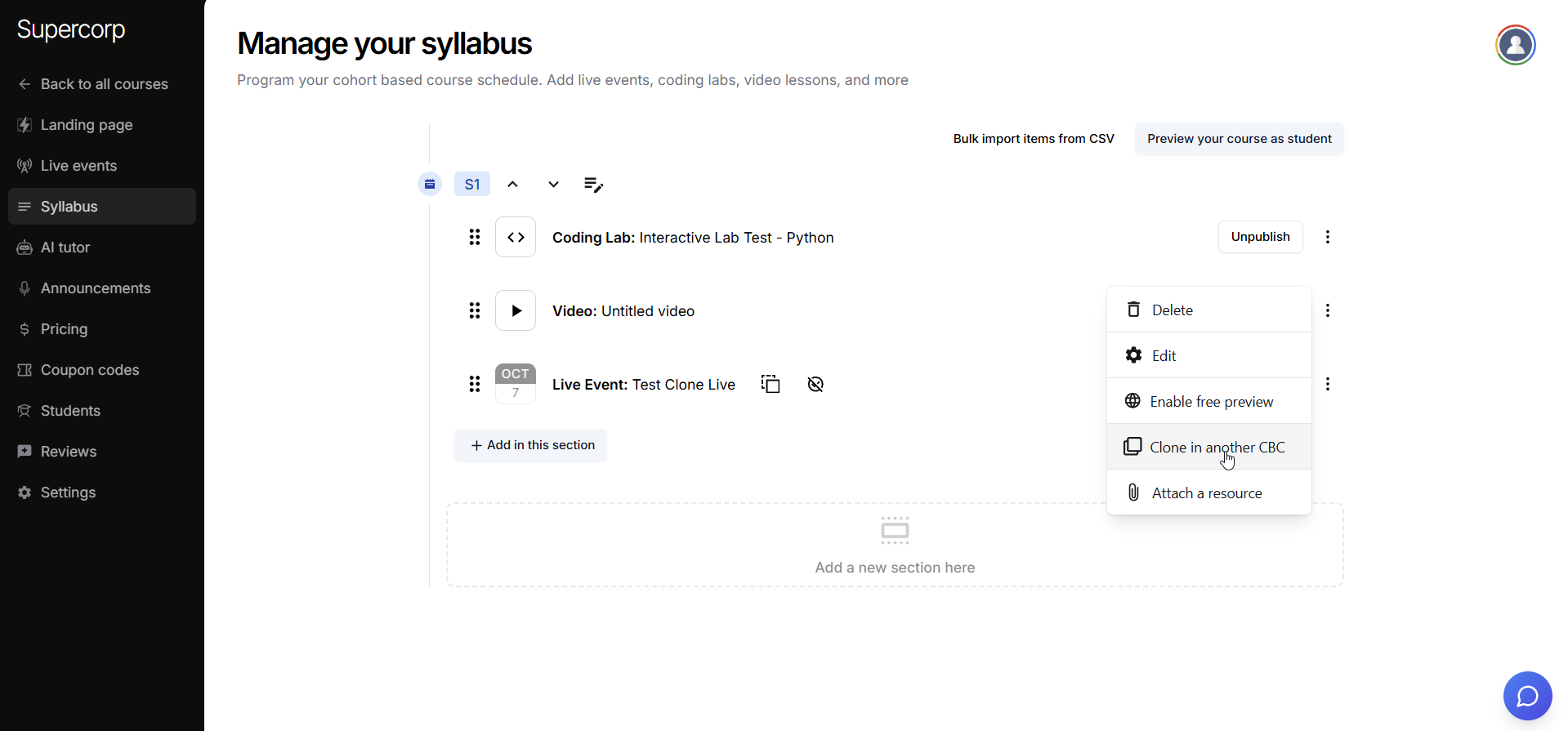
From the list, select the cohort-based course you want to clone the class to.
Click **Add Class in this course** to confirm. 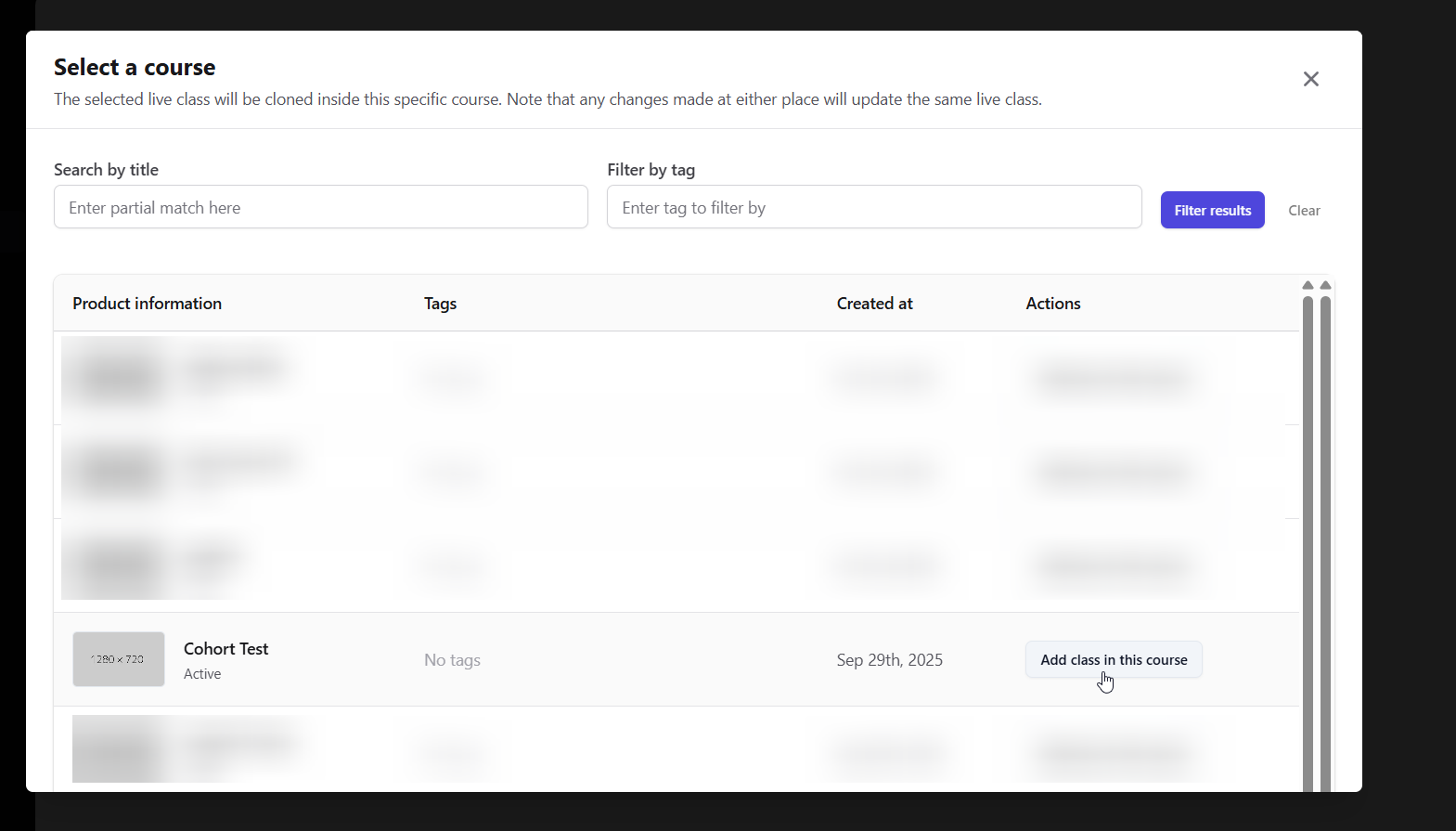
Once cloned, the live class will appear in the target course’s syllabus with all its original details intact, including the title, timing, and hosts. Cloning saves time and ensures consistency across multiple cohorts, so you can focus on delivering great sessions rather than recreating content.
Use cloning when running recurring sessions, orientation classes, or live events that need to be
repeated across multiple courses. It helps maintain a consistent experience for all learners.
# Frequently Asked Questions
Source: https://docs.fermion.app/live-classes/common-faqs
Common questions regarding live classes on Fermion
This document addresses frequently asked questions regarding live class functionality on the Fermion platform.
### Do I need to purchase any external license to conduct live classes?
No external licenses are required to conduct live classes on the Fermion platform. All necessary functionality is included within your Fermion subscription.
### Do I need to link my Zoom or Meet account to Fermion?
No account integration with external video conferencing platforms is required. Fermion provides an integrated solution for conducting live classes.
### How will students be notified of upcoming live classes?
When utilizing Fermion's built-in livestreaming functionality as your primary Learning Management System (LMS), automated notifications are sent to all enrolled students:
* 24 hours prior to the scheduled class
* 30 minutes before the class commencement
For API-based livestreaming implementations, instructors are responsible for managing student notifications manually.
To maximize student participation, we recommend utilizing both the automated notification system and community group announcements for important class updates.
# DRM and Video Watermarking
Source: https://docs.fermion.app/live-classes/drm-and-watermarking
Protect your live streams with DRM encryption and dynamic video watermarking to prevent unauthorized access and content piracy.
Fermion provides robust content protection mechanisms to safeguard your valuable educational content from unauthorized distribution and piracy. Our platform integrates industry-standard Digital Rights Management (DRM) technology alongside customizable video watermarking features, ensuring your intellectual property remains secure throughout the streaming and playback process.
## Digital Rights Management (DRM)
Fermion's built-in DRM support encrypts your live stream content, making it extremely difficult for unauthorized users to download, record, or redistribute your videos. This enterprise-grade protection works seamlessly across all supported devices and browsers, providing peace of mind while you focus on delivering quality education.
### Key DRM Features
* **Automatic encryption:** All live streams(with DRM enabled) are automatically encrypted using industry-standard protocols
* **Device-level protection:** Content is protected at the hardware level on supported devices
* **Browser compatibility:** Works across Chrome, Firefox, Safari, and Edge browsers.
### Enable DRM for your live sessions
1. Go to the **Live events** page on any of your cohort based course.
2. Click on **Edit** next to a live stream or **+Add Session**
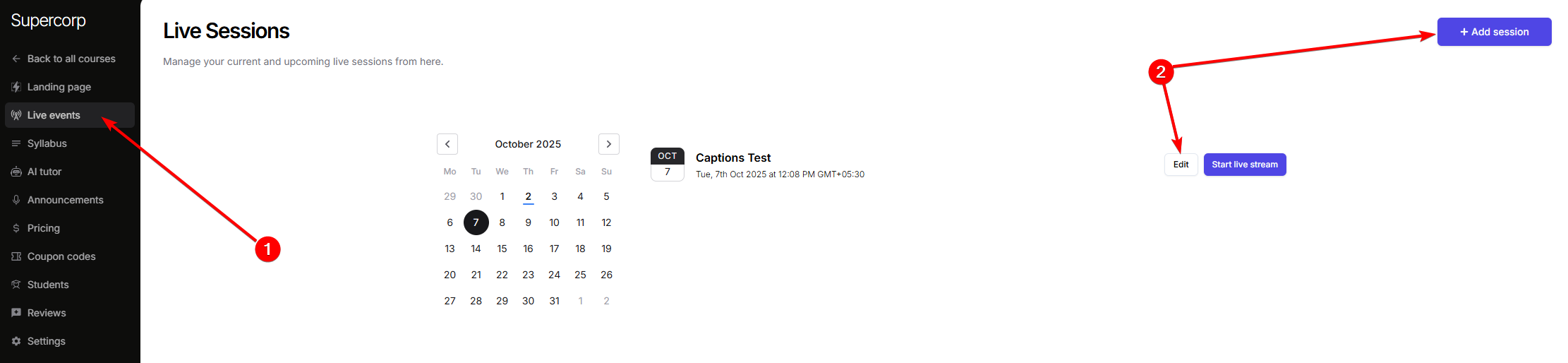
3. From the `Advanced Settings` section, make sure that **DRM protect playback** option is toggled.
4. Click on **Save Changes**
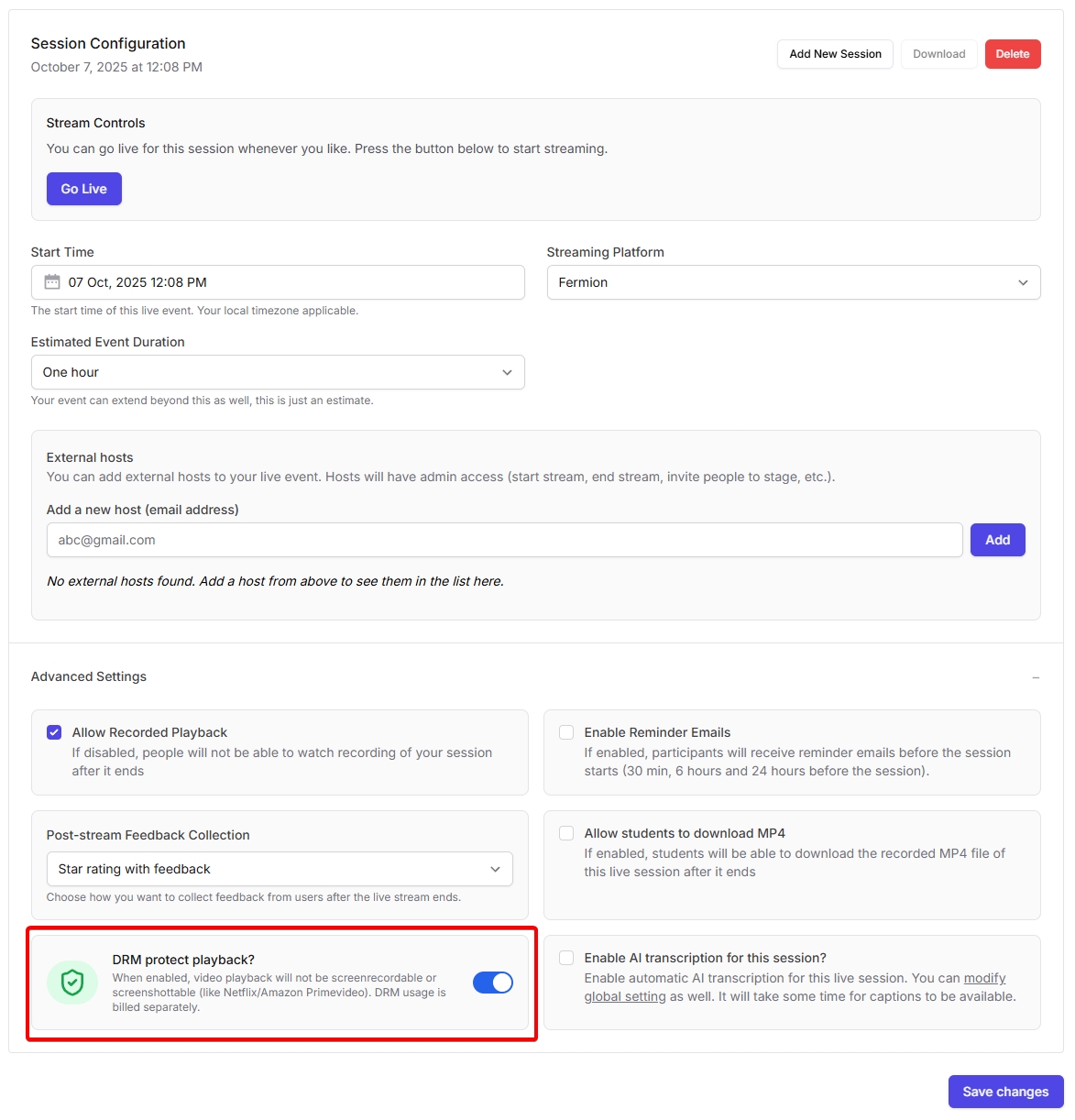
## Video Watermarking
In addition to DRM, Fermion offers dynamic video watermarking that overlays unique identifiers on each viewer's stream. This powerful feature acts as a deterrent against content piracy and helps you identify the source of any leaked content.
### How Video Watermarking Works
When enabled, each student viewing your live stream receives a unique watermark containing their user information. This watermark is dynamically generated and cannot be easily removed, making it possible to trace any unauthorized sharing back to the original viewer.
### Watermarking Options
* **User ID watermarking:** Display the student's unique identifier on the video
* **Email watermarking:** Show the registered email address of the viewer
* **Name:** Add users' name as an identifier to the watermark
* **Phone number:** Shows the viewers mobile number.
* **Font size control:** Choose where the watermark appears on the screen
* **Opacity settings:** Adjust watermark visibility to balance security with viewing experience
## Enabling Video Watermarking
To enable video watermarking settings for your school:
1. Go to **Settings** → **School settings** → **Security**
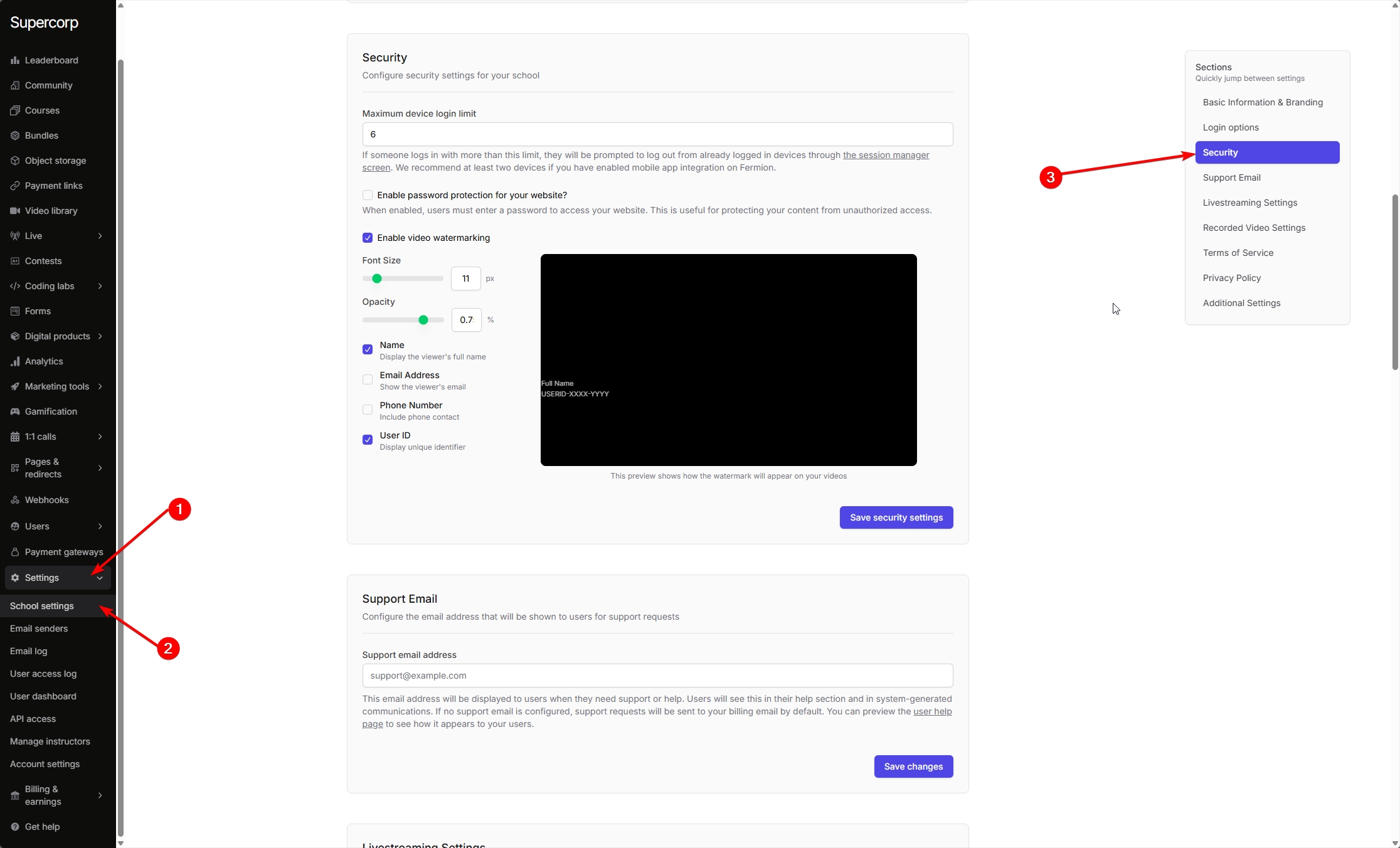
2. Toggle "Enable video watermarking".
3. Set **Font Size** (px) and **Opacity** (%) to your preference.
4. Choose which identifiers to display:
> * Name
> * Email Address
> * Phone Number
> * User ID (unique ID generated for every user on the platform)
5. Review the live preview, then select "Save security settings"
Preview with only Name and User ID selected:
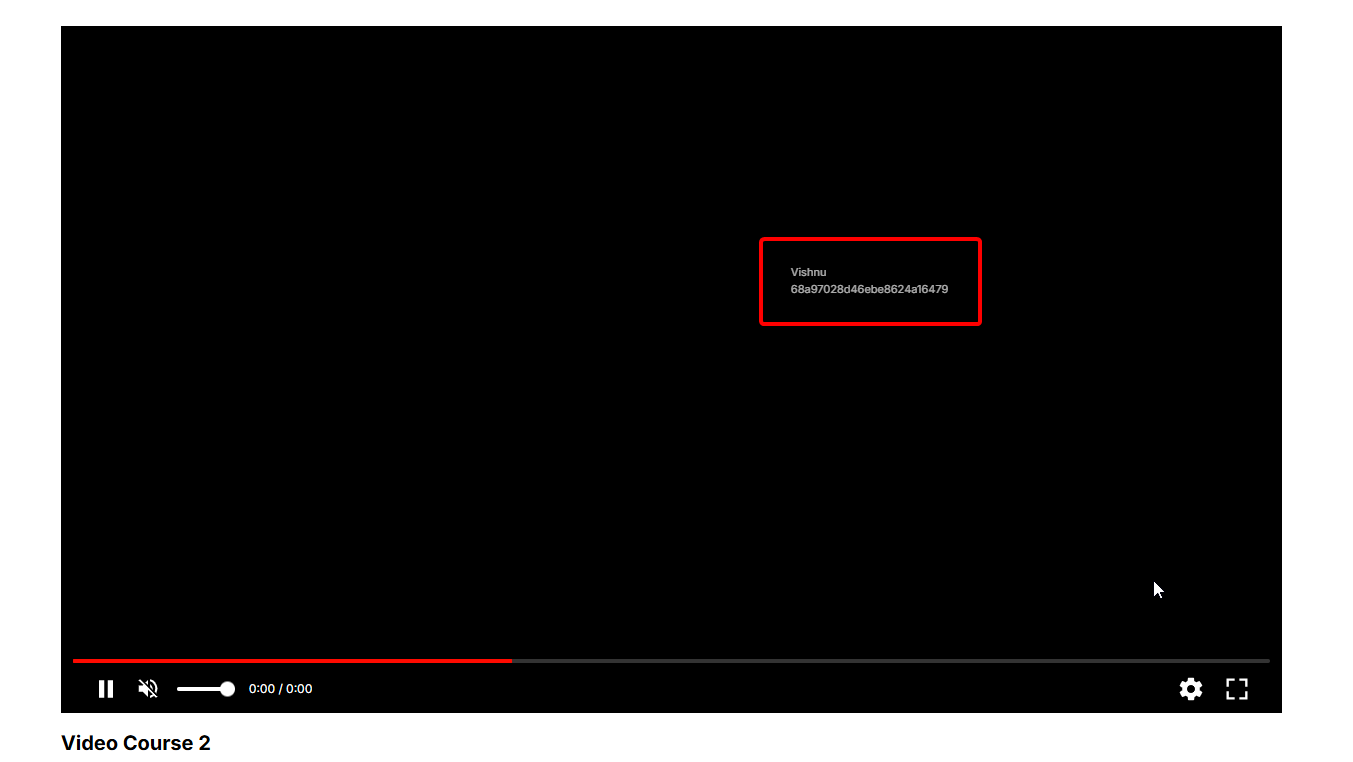
# Embedding live session externally
Source: https://docs.fermion.app/live-classes/embed-live-session
Learn about embedding live sessions externally and customizing the look and feel for them
Fermion allows you to embed live calls externally using a simple integration. This is useful if you wish to add realtime calls on your own website and do not wish to use Fermion managed LMS.
There are a few steps you need to do in order to embed a session externally.
## Step 1 - Creating a new session
The first step to embedding a session externally is to create it programmatically on Fermion.
1. You must call this API endpoint: [https://docs.fermion.app/api-reference/live/create-live-session](https://docs.fermion.app/api-reference/live/create-live-session)
2. Once you call this endpoint, you will get `liveEventSessionId` in response.
3. You must store this `liveEventSessionId` in your database somewhere.
4. `liveEventSessionId` allows you to control the session completely using APIs, as we will see now below.
You can create sessions anytime, on the fly using API. In the API above you would see that it
accepts a start time and duration as well, but those are only used as hints, and not enforced.
## Step 2 - Embedding the session on your website
Once you have obtained `liveEventSessionId`, embedding the session on your website involves two steps.
### Generating a signed JWT
A signed JWT is required for any user with any permission (host or student) to be able to participate. This token must be generated by your backend.
Here is an example of how to generate this in Node.js:
```js theme={null}
import jwt from 'jsonwebtoken'
const payloadObject = {
// --- Required fields ---
liveEventSessionId: 'your-live-session-id',
userId: 'your-internal-user-id',
// --- Optional fields ---
name: 'Jane Doe', // Optional default name to use for the user. If provided, this value will override the existing name.
profilePicUrl: 'https://example.com/images/jane-doe-avatar.png', // Optional default profile photo URL to use for the user. If provided, this value will override the existing profile photo.
// --- Optional object with defaults ---
// All playback options are set to false by default
playbackOptions: {
shouldDisallowRecordedPlaybackIfNotLive: false, // If true, once the livestream ends, the same JWT that is used to embed the stream would not be able to playback the recorded version of the video
shouldPreferOnlyHighDefinitionPlayback: true, // If true, system would enforce only 1080p and 720p modes of playback. Note: Passing this as true might result in buffering on user side if their internet is not fast (as this disables low quality playback versions)
shouldHideSeekControls: false, // If true, it will hide the seek controls (seekbar and jump forward/backward buttons) from the UI
customBrandingData: {
// Optional: If you pass this branding information, it would be used to show logo / brand name instead of your primary school brand name
name: 'Custom Brand Name',
logoUrl: 'https://example.com/images/custom-logo.png' // Optional logo URL
}
}
}
// Generate the JWT token using the complete payload
const jwtToken = jwt.sign(payloadObject, FERMION_API_KEY, {
expiresIn: '10m'
})
```
### JWT Payload Fields
**Required fields:**
1. `liveEventSessionId` - The same ID that you got when you created session over API.
2. `userId` - A unique ID for a user that you're creating the playback session for. Note that it should be a stable ID. It can be anything like a database identifier or even an email address of the user. However two sessions must not be sharing same stable ID, otherwise they will be considered as a single user.
**Optional fields:**
3. `name` - Optional default name to use for the user. If provided, this value will override the existing name.
4. `profilePicUrl` - Optional default profile photo URL to use for the user. If provided, this value will override the existing profile photo.
**Optional `playbackOptions` object:**
The `playbackOptions` object is optional and has the following default values if not provided:
* `shouldDisallowRecordedPlaybackIfNotLive` (default: `false`) - If you pass this as `true`, once the livestream ends, the same JWT that is used to embed the stream would not be able to playback the recorded version of the video.
* `shouldPreferOnlyHighDefinitionPlayback` (default: `false`) - If you pass this as `true`, system would enforce only 1080p and 720p modes of playback. Note: Passing this as `true` might result in buffering on user side if their internet is not fast (as this disables low quality playback versions).
* `shouldHideSeekControls` (default: `false`) - If you pass this as `true`, it will hide the seek controls (seekbar and jump forward/backward buttons) from the UI.
* `customBrandingData` (optional) - If you pass this branding information, it would be used to show logo / brand name instead of your primary school brand name. This object contains:
* `name` (required) - The custom brand name to display.
* `logoUrl` (optional) - URL to the custom logo image.
Once the token is ready, you need to embed the session.
### Embedding the live call session (Fermion SDK)
In your frontend JavaScript app, install the fermion SDK. Run one of the following depending on your package manager:
```bash theme={null}
npm install @fermion-app/sdk
# or
pnpm install @fermion-app/sdk
# or
yarn install @fermion-app/sdk
```
Now, in order to get the iframe embed code, you can use fermion SDK as follows:
```js theme={null}
import { FermionLivestreamVideo } from '@fermion-app/sdk/livestream-video'
// Create a livestream instance
const livestream = new FermionLivestreamVideo({
// this must be replaced by the same live event session ID you got from API call
liveEventSessionId: 'your-live-session-id',
// this must be replaced by your real domain you have on fermion
websiteHostname: 'your-domain.fermion.app'
})
// Embed the live session (requires JWT token)
const embed = livestream.getPrivateEmbedPlaybackIframeCode({
// pass down the JWT token you created in last step
jwtToken: 'your-jwt-token'
})
// embed this code somewhere in your HTML
// this is a string which looks like `
```
Please make sure to replace the following placeholders with appropirate values:
1. `your-website.com`: Domain you have with fermion
2. `:your-session-id:`: Live event session ID you got from API
3. `:your-jwt-token:`: Signing token you created in last step
## Step 3 - Assigning a primary host
When you open the webpage in browser, you'll only see a black screen and no video playing or livestream controls.
This is expected because every session, by default, **is embedded as a student-view (view-only)**. You need to add a host to the call who will be responsible for starting the session, switching students within stage/audience, conducting polls, whiteboards, etc.
You must do that using this endpoint: [https://docs.fermion.app/api-reference/live/modify-live-session-user-state](https://docs.fermion.app/api-reference/live/modify-live-session-user-state) with the type of `update-permissions`
The API above expects you to pass:
* User ID (same ID you created at the time of generating the JWT)
* Updated permission level
Here's a payload to pass in the API call, that will make a given user, a host in the meeting:
```json theme={null}
{
"liveEventSessionId": ":your-session-id-here:",
"userId": ":your-user-id-here:",
"action": {
"type": "update-permissions",
"newPermissions": {
"shouldAllowAdministrativeActions": true
}
}
}
```
Note that you can programmatically control more parts in the user journey (including starting the session/ending the session/adding or removing people from the call), but once you have upgraded someone to be a host, if you refresh the same embed page where you have placed your iframe earlier, you will see that the host will see controls to start the meeting.
Once the meeting is started, the host will be able to turn on camera/mic/whiteboard/screenshare, etc. and also manage students.
## window\.postMessage events
When you embed the live session on your domain, the iframe will emit events in real-time through the `window.postMessage` API. You can read more about [`window.postMessage` API here](https://developer.mozilla.org/en-US/docs/Web/API/Window/postMessage).
These events are emitted from both live WebRTC sessions and recorded video playback. This allows you to track user engagement, respond to session lifecycle changes, and build interactive experiences around your embedded live sessions.
Note that you must not fully rely on events emitted by `window.postMessage` because of security reasons. Please do a server-side validation with our real API endpoint to be sure of the final result. You can use messages from `window.postMessage` to optimistically display results, however, since it is a client-side API, it is possible to hijack the event data by the untrusted user.
You can listen to every postMessage like this:
```js theme={null}
window.addEventListener('message', event => {
const payload = event.data
if (payload == null || typeof payload !== 'object' || !('type' in payload)) {
// not from fermion
return
}
if (payload.type === 'webrtc:livestream-ended') {
// handle live session ended
}
})
```
We also recommend processing `event.data` with zod if you can. Our schemas are strictly typed and are zod-parseable.
Here are the events we emit through `window.postMessage` API:
### webrtc:livestream-ended
This event fires when a live WebRTC session ends (typically when the host ends the session for everyone). Here's a TypeScript type for this event:
```ts theme={null}
type Event = {
type: 'webrtc:livestream-ended'
}
```
Use this event to trigger navigation, show a post-session survey, or redirect users after the live session concludes.
### webrtc:left-stage
This event fires when someone leaves the stage during a live WebRTC session. Here's a TypeScript type for this event:
```ts theme={null}
type Event = {
type: 'webrtc:left-stage'
}
```
Use this event to track stage participation, update UI to reflect who's currently on stage, or trigger notifications when participants leave the stage.
### video:play
This event fires when a user plays the recorded video playback. Note that this event only fires during recorded playback, not during live sessions. Here's a TypeScript type for this event:
```ts theme={null}
type Event = {
type: 'video:play'
durationAtInSeconds: number
}
```
The `durationAtInSeconds` field indicates the playback position when the user pressed play. Use this event to track playback engagement and viewing patterns.
### video:pause
This event fires when a user pauses the recorded video playback. Note that this event only fires during recorded playback, not during live sessions. Here's a TypeScript type for this event:
```ts theme={null}
type Event = {
type: 'video:pause'
durationAtInSeconds: number
}
```
The `durationAtInSeconds` field indicates the playback position when the user pressed pause. Use this event to track viewing patterns and engagement metrics.
### video:ended
This event fires when the recorded video playback reaches the end. Note that this event only fires during recorded playback, not during live sessions. Here's a TypeScript type for this event:
```ts theme={null}
type Event = {
type: 'video:ended'
}
```
Use this event to trigger completion actions, show the next lesson, or mark the session as completed in your system.
### video:livestream-ended
This event fires when a live stream transitions to VOD (video-on-demand / recorded) mode. Here's a TypeScript type for this event:
```ts theme={null}
type Event = {
type: 'video:livestream-ended'
}
```
Use this event to notify users that the live session has ended but the recording is available for playback. This is different from `webrtc:livestream-ended` as it relates to the HLS stream transitioning from live to recorded mode.
### video:time-updated
This event fires periodically during recorded video playback (every few seconds). Note that this event only fires during recorded playback, not during live sessions. Here's a TypeScript type for this event:
```ts theme={null}
type Event = {
type: 'video:time-updated'
currentTimeInSeconds: number
}
```
The `currentTimeInSeconds` field indicates the current playback position. Use this event to track detailed viewing progress, create bookmarks, or show custom overlays. Note that this event fires frequently, so consider throttling or debouncing on the receiving end if you're performing expensive operations.
### Complete TypeScript Type
Here's a complete TypeScript discriminated union type for all live event postMessage events:
```ts theme={null}
type LiveEventPostMessageEvent =
| { type: 'video:play'; durationAtInSeconds: number }
| { type: 'video:pause'; durationAtInSeconds: number }
| { type: 'video:ended' }
| { type: 'video:livestream-ended' }
| { type: 'webrtc:livestream-ended' }
| { type: 'webrtc:left-stage' }
| { type: 'video:time-updated'; currentTimeInSeconds: number }
```
### Important Notes
* **Video events** (`video:*`) only fire during recorded video playback. If a user is watching the live session in real-time, these events will not be emitted.
* **WebRTC events** (`webrtc:*`) only fire during live sessions when users are connected via WebRTC.
* The `playbackOptions` object in the JWT token (mentioned in Step 2) controls playback behavior, which affects which events users might see.
* Some sessions may have both live and recorded phases. During the live phase, you'll receive WebRTC events. After the session ends and transitions to recorded playback, you'll receive video events.
## Using the Fermion SDK for event handling
If you're using the Fermion SDK (installed via `@fermion-app/sdk`), you don't need to manually set up `window.addEventListener` for postMessage events. The SDK provides a convenient `setupEventListenersOnVideo()` method that handles all the complexity for you.
### Benefits of using the SDK
* **Type-safe callbacks**: TypeScript definitions ensure you're handling events correctly
* **Automatic validation**: The SDK validates incoming events automatically
* **Cleaner API**: More intuitive methods instead of manual postMessage parsing
* **Built-in cleanup**: Easy disposal of event listeners to prevent memory leaks
### Example usage
```ts theme={null}
import { FermionLivestreamVideo } from '@fermion-app/sdk/livestream-video'
const livestream = new FermionLivestreamVideo({
liveEventSessionId: 'your-live-session-id',
websiteHostname: 'your-domain.fermion.app'
})
// Set up event listeners
const events = livestream.setupEventListenersOnVideo()
// Listen for video play event
events.onVideoPlay(data => {
console.log('Video started playing at', data.durationAtInSeconds, 'seconds')
})
// Listen for video pause event
events.onVideoPaused(data => {
console.log('Video paused at', data.durationAtInSeconds, 'seconds')
})
// Listen for video ended event
events.onVideoEnded(() => {
console.log('Video playback finished')
})
// Listen for time updates (fires periodically during playback)
events.onTimeUpdated(data => {
console.log('Current playback position:', data.currentTimeInSeconds, 'seconds')
})
// Listen for livestream ended event
events.onLivestreamEnded(data => {
if (data.type === 'webrtc') {
console.log('Live WebRTC session ended')
} else {
console.log('Live HLS stream ended (now in VOD mode)')
}
})
// When you're done (e.g., component unmount), clean up the listeners
events.dispose()
```
The SDK automatically handles event validation, origin checking, and provides a more developer-friendly API compared to manually listening to postMessage events.
# Event Calendar
Source: https://docs.fermion.app/live-classes/event-calendar
Learn how to use Fermion's Event Calendar to plan, schedule, and manage live events and classes effortlessly, either individually or in bulk using CSV uploads.
## Introduction
The **Event Calendar** in Fermion brings all your [live sessions](/live-classes/what-are-live-classes) and events together in one simple, easy-to-manage view. Instead of jumping between different tools or tracking schedules manually, you can plan, edit, and manage all your sessions directly from one place.
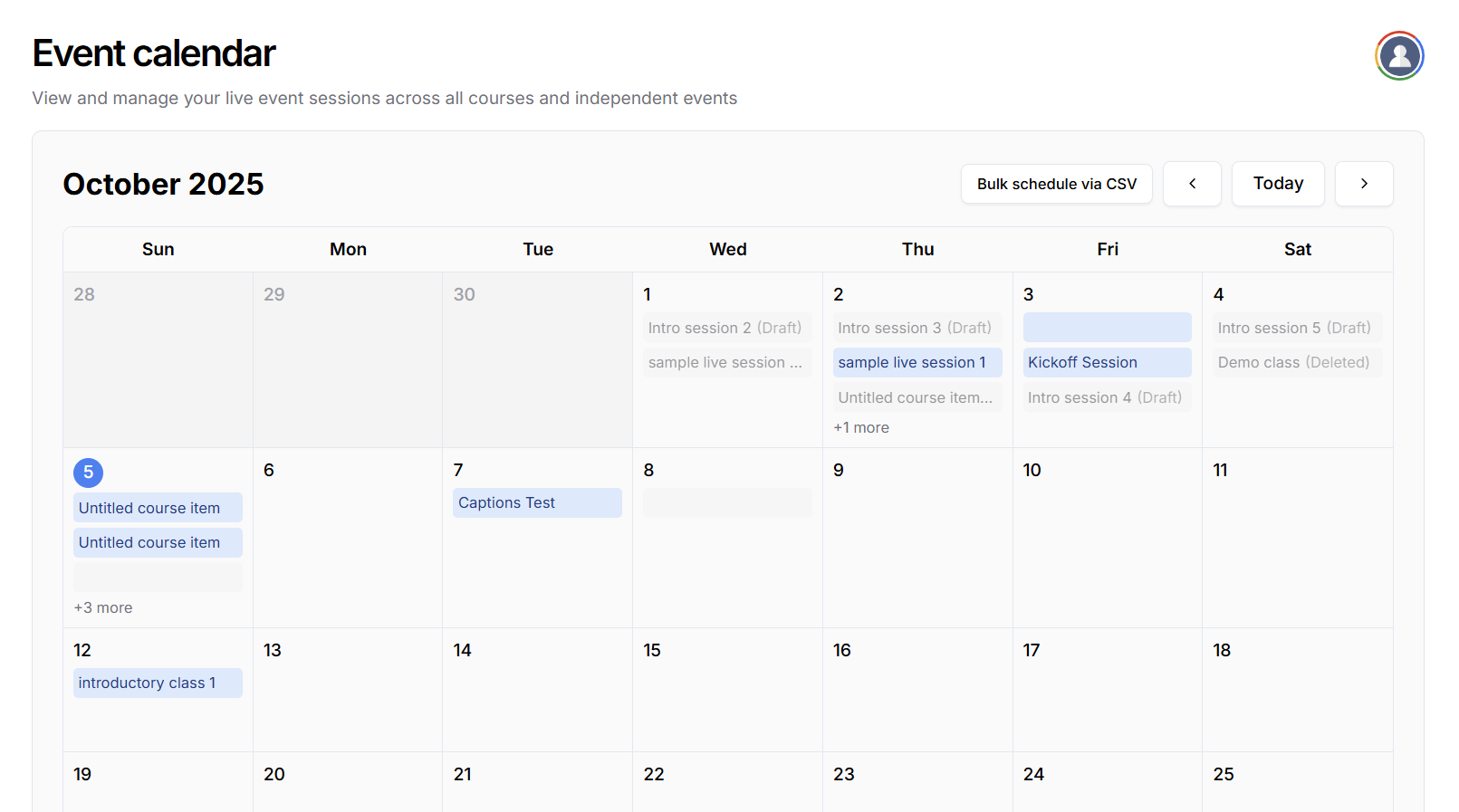
It’s especially useful when managing multiple cohorts or working with different instructors, event calendar enables you to view all upcoming sessions, check for overlaps, and make quick adjustments when needed. This helps ensure a smoother experience for everyone involved, from planning to teaching to attending. With the Event Calendar, managing your live learning schedule becomes much more straightforward and reliable.
## How to access the Event Calendar
Accessing the **Event Calendar** in Fermion takes just a few simple steps.
1. In the instructor dashboard sidebar, navigate to the **Live** section, this is where all the live classes tools are located.
2. From the dropdown options, select **Event Calendar**.
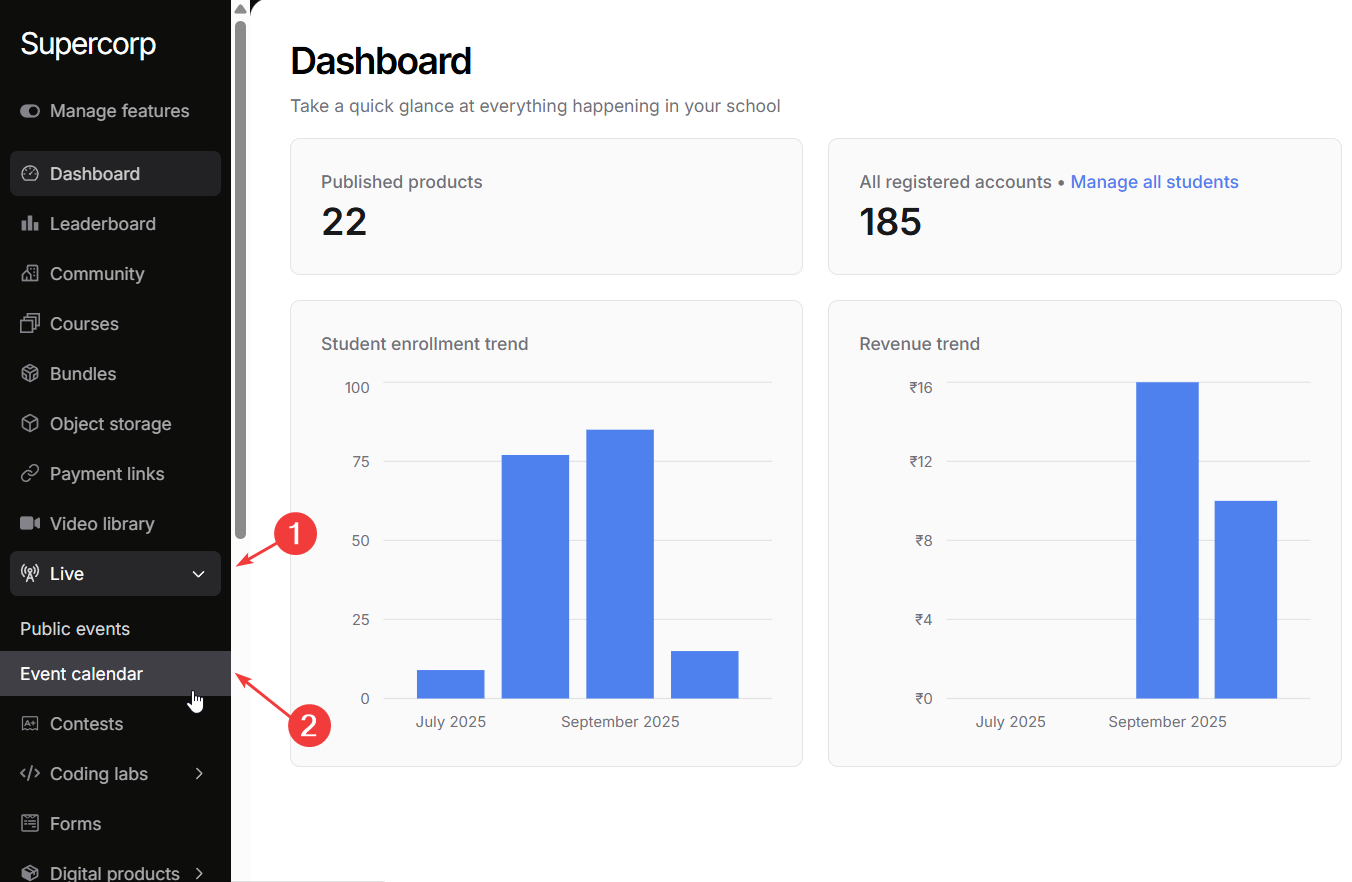
You’ll now see a full calendar view displaying all scheduled sessions.
## Schedule a live session directly in Event calendar
Scheduling a live session directly from the **Event Calendar** is simple and helps you plan individual classes, workshops, or office hours without any extra setup. The process is easy to follow - you can open the calendar, pick a date, and fill in the details right away. This makes it ideal for one-off sessions or smaller events that don’t require bulk scheduling.
1. Open your **Fermion Dashboard** and navigate to the **Event Calendar** from the sidebar.
2. On the calendar view, click on the **date** where you want to schedule your session. A **Create a new session** form will appear.
3. Select the **course** the session belongs to.
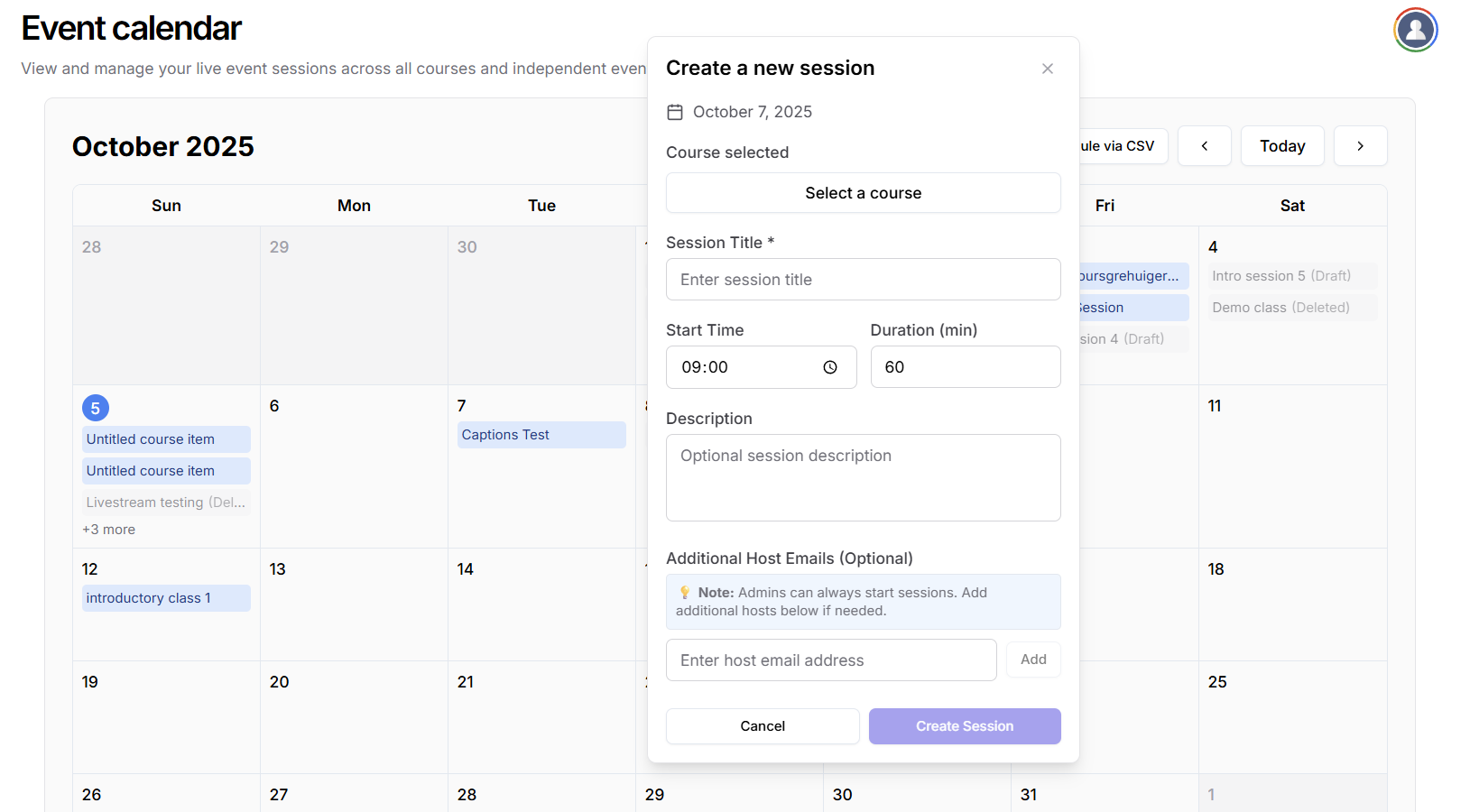
4. Enter a clear **Title** for the session.
5. Set the **Start Time** and **Duration** in minutes, and add the **email addresses** of any co-hosts or instructors.
Admins can always start sessions, but you can also add additional hosts and instructors by adding
their email addresses in the same form!
6. Review your details and click **Create Session** to confirm.
You can also schedule live classes inside a cohort based course, Learn more about that in [Setup
Live Class](/live-classes/setup-live-class)
## How to bulk schedule Live Classes via CSV
When you’re planning multiple live sessions at once: like an entire term’s timetable or a series of workshops, the **Bulk schedule via CSV** feature can save a lot of time. Instead of creating each session manually, you can prepare all the details in a single CSV file and upload them together.
1. Open the **Event Calendar** from your Fermion Dashboard.
2. Click the **Bulk schedule via CSV** button at the top of the page.
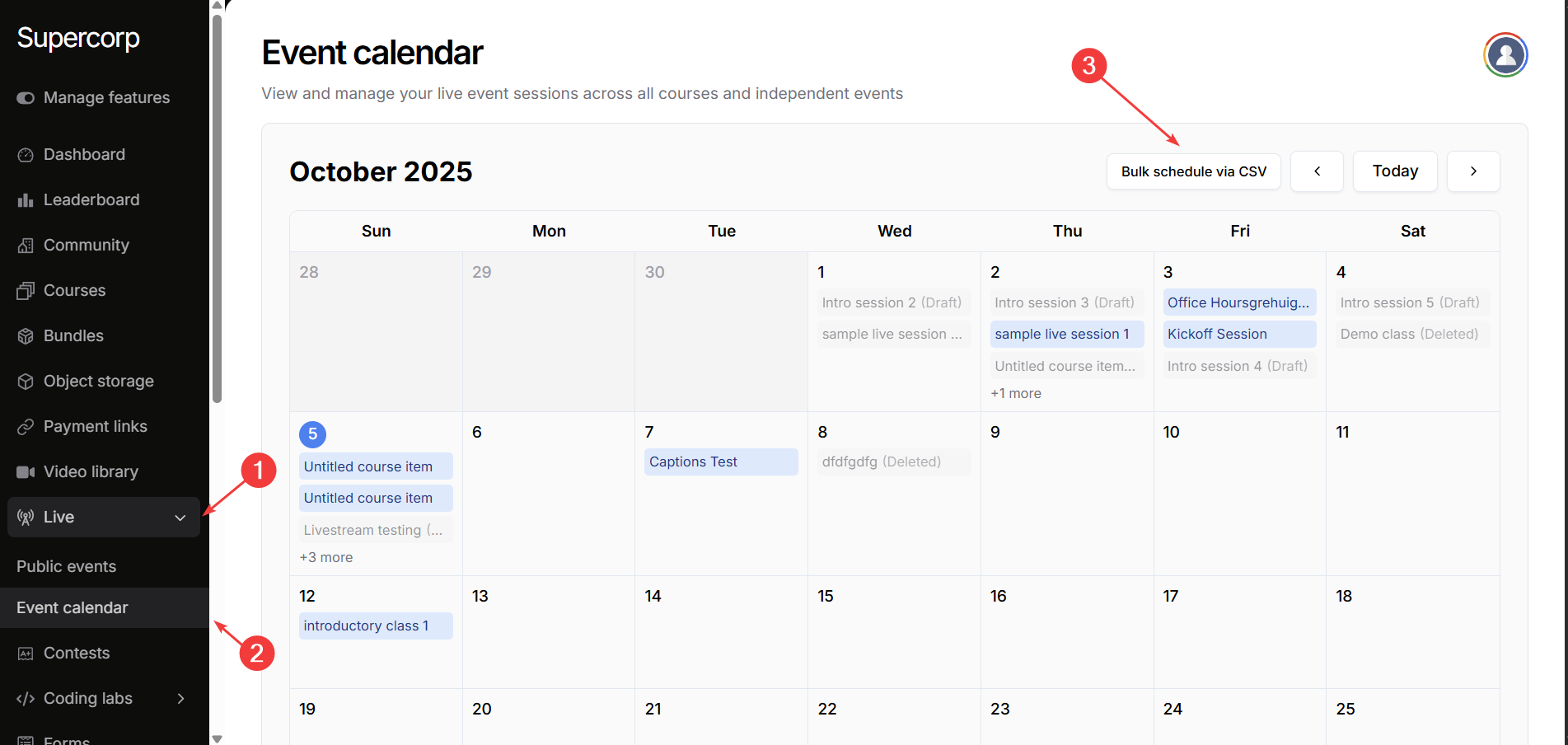
3. Select your prepared CSV file from your device and upload it. Make sure it follows the specifications outlined in the [CSV Format Details](/live-classes/event-calendar#csv-format-details) section
You can also download a **sample CSV** directly from the **Bulk Schedule** interface to
check the correct format before uploading your own file.
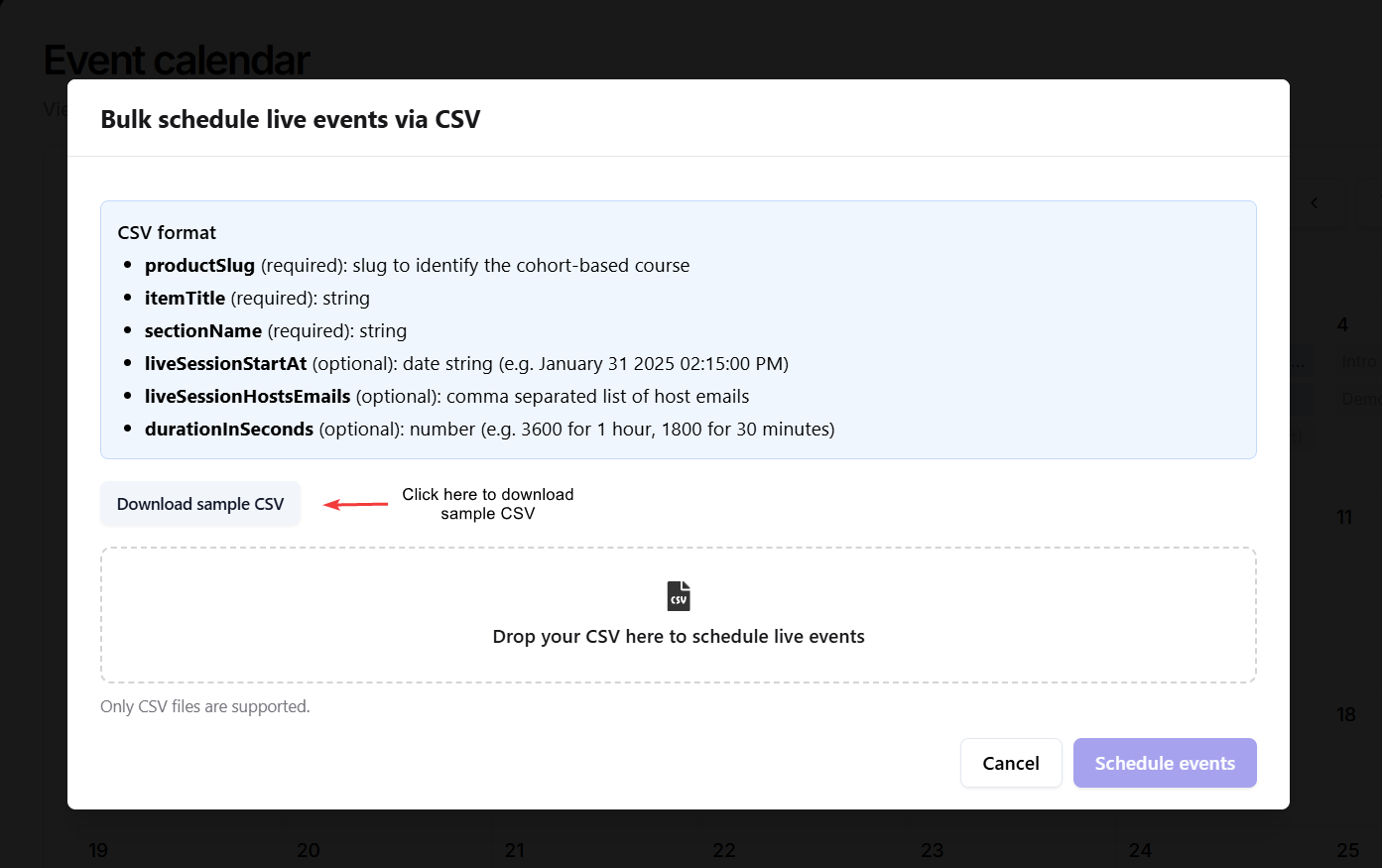
4. Click to **Schedule Event** button to schedule multiple live events at once
### CSV format details
Each row in your CSV file represents one session to be scheduled. Make sure to include all the following columns in your CSV file:
* `productSlug` (required): Slug to identify the cohort-based course.
* `itemTitle` (required): Title of the session.
* `sectionName` (required): Name of the section or module where the session belongs.
* `liveSessionStartAt` (optional): Date and time of the session (e.g. *January 31 2025 02:15:00 PM*).
* `liveSessionHostsEmails` (optional): Comma-separated list of host email addresses.
* `durationInSeconds` (optional): Duration of the session in seconds (e.g. *3600* for 1 hour or *1800* for 30 minutes).
## Hosting Public Events
In addition to managing private sessions and classes, Fermion also lets you host **[Public Events](/live-classes/public-event)**: sessions that anyone can join via a shared link, without enrolling in a course.\
This is ideal for **webinars**, **open workshops**, or **community sessions** where you want to reach a wider audience.
You can create a **Public Event** directly from your **Live → Public Events** section in the dashboard. Learn more about the process in [Public Events](/live-classes/public-event)
# Stage
Source: https://docs.fermion.app/live-classes/invite-to-stage
Learn how to use Fermion's Stage to host interactive live sessions, allowing participants to join the stage, screenshare, turn on their microphone and camera, and engage directly with the class.
Fermion's **Stage** feature is designed to make live sessions more interactive and engaging. It allows instructors to bring selected participants to the forefront, enabling them to share their screens, turn on their microphones and cameras, and actively participate in discussions.
### Managing Participants on Stage
Livestreaming on Fermion allows you to invite multiple students and instructors to the call. Currently, you can have up to 150 participants on 'Stage', allowing them to screenshare, turn on their microphone and camera to interact with the participants.
For smaller sessions, instructors can also automatically add everyone to the stage
for better communication between a small group of people.
On the right pane, you can see a list of participants who are present in your livestream. Enable **Automatically add everyone on stage?** checkbox to ensure all participants are on the stage and can interact with others.
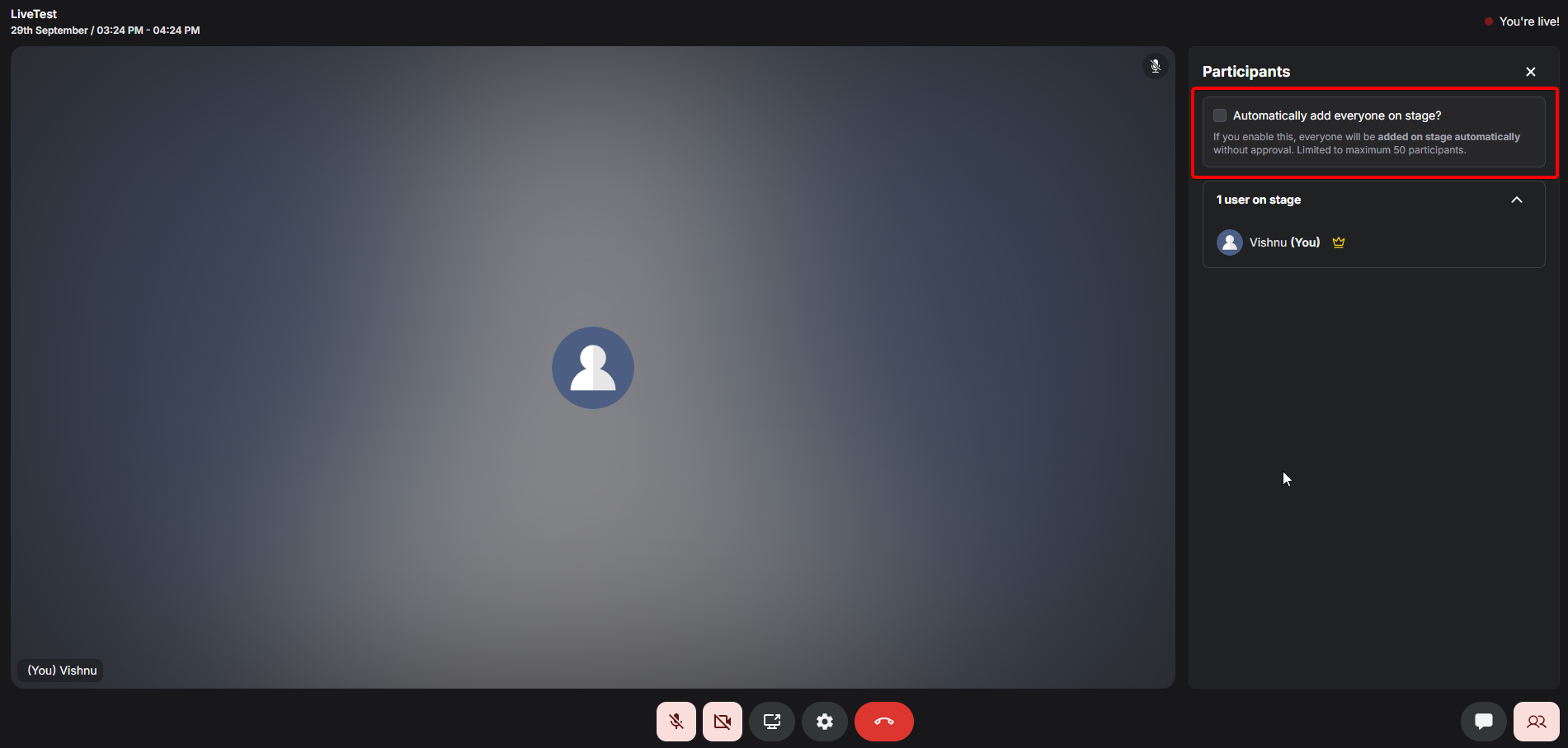
Additionally, this option can be globally toggled from: **Settings** → **School Settings** → **Livestreaming settings**.
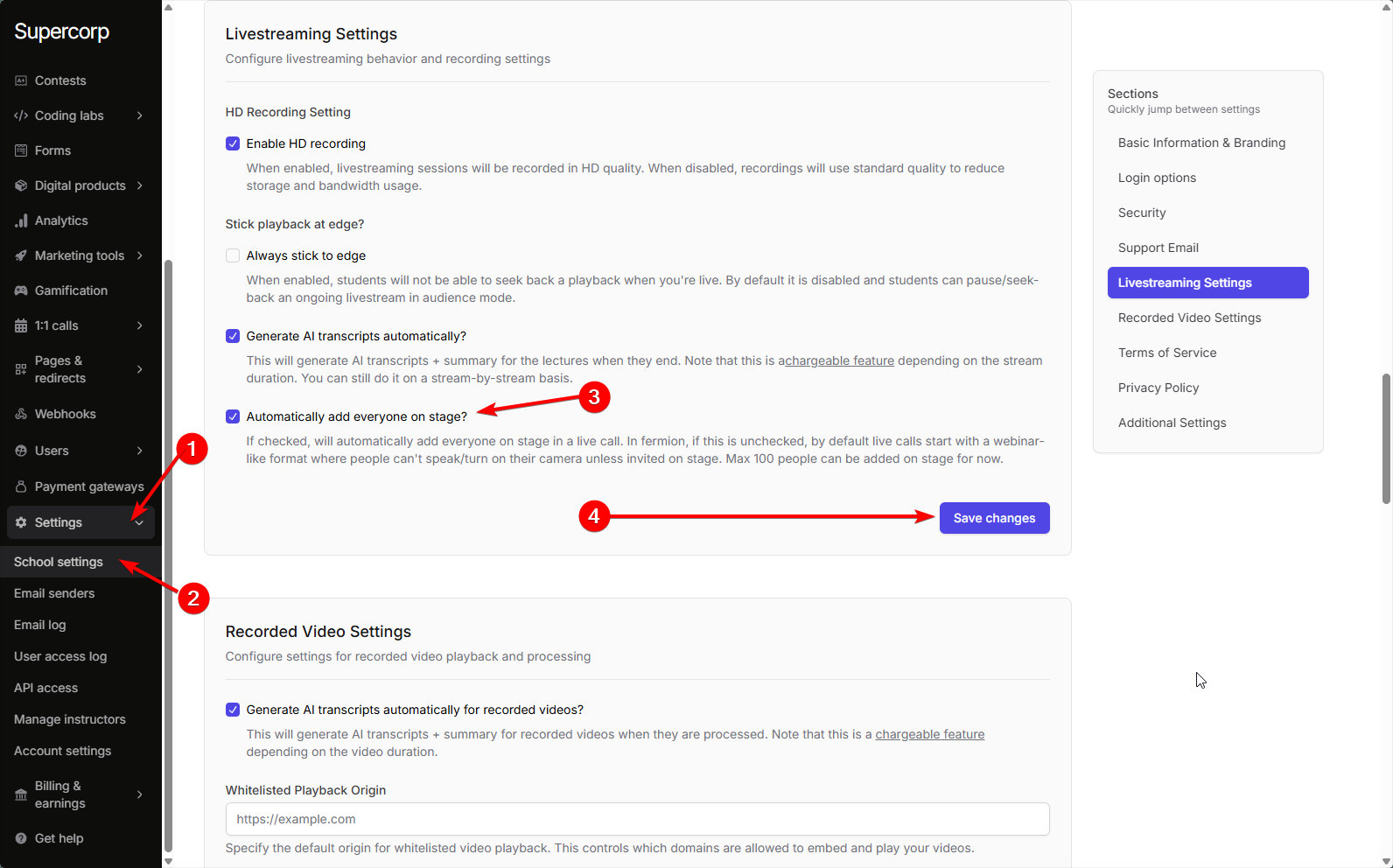
You can also manually pick and choose which users are to be added onto the stage.
To do this, open the **Participants** or **Audience** panel on the right side. Users who are not currently on stage will be listed under "audience". Simply click the **Add on stage** button next to the user's name to invite them to the stage.
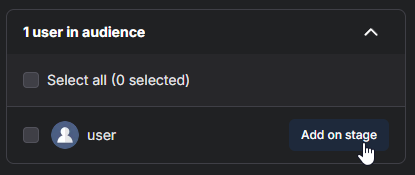
You may select individual users or use the **Select all** checkbox to bring multiple users to the stage at once. When added, they will be able to turn on their microphone, camera, and screen share to interact with the class.
### Managing permissions on stage
When users are brought on **stage** during a live session, instructors and hosts can **manage user permissions** directly from the participant list. The following controls are available for each user, as visible in the stage participant panel:
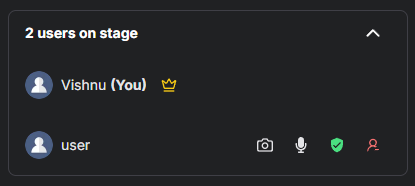
From left to right, you can:
* **Disable camera** for a user: Click the camera icon to turn off the user's camera (they will no longer be visible until they turn it back on).
* **Mute microphone** for a user: Click the mic icon to mute their audio in the session.
* **Promote to host**: Click the green shield icon to give a user host privileges. Hosts can manage users on stage, access the [whiteboard](/live-classes/whiteboard), screenshare, and control audio/video for others. Hosts can also end the session for everyone
* **Remove from hosts**: Click the yellow shield icon next to a host's name to revoke their host privileges. This will revert them to regular participant status, and they will lose the ability to manage other users or session controls.
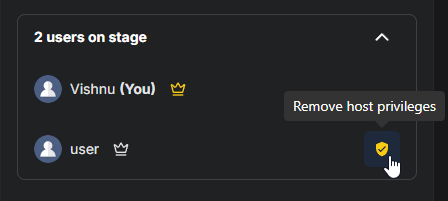
* **Remove from stage**: Click the last icon (person with minus) to remove the user from the stage. The user returns to the audience and can no longer interact via mic or camera until re-invited.
> **Tip:** You can assign multiple hosts in a session. This is helpful for co-instructors, teaching assistants, or guest speakers who need full session control.
Managing these permissions allows you to maintain a smooth and secure class environment, keeping discussions focused and giving you control over who can present or participate at any time.
### Sharing System Audio
Live sessions often go beyond just visuals - you might want to play a tutorial video or share a demo
with your live class. Fermion now allows instructors to **share system audio** while
presenting on Stage, ensuring that any sound played from your device is
heard clearly by all participants in real time.
Here is how you can share system audio:
1. Join the **Stage** during a live session.
2. Click on **Share Screen**.
3. In the sharing dialog, enable the **“Also share tab audio”** option.
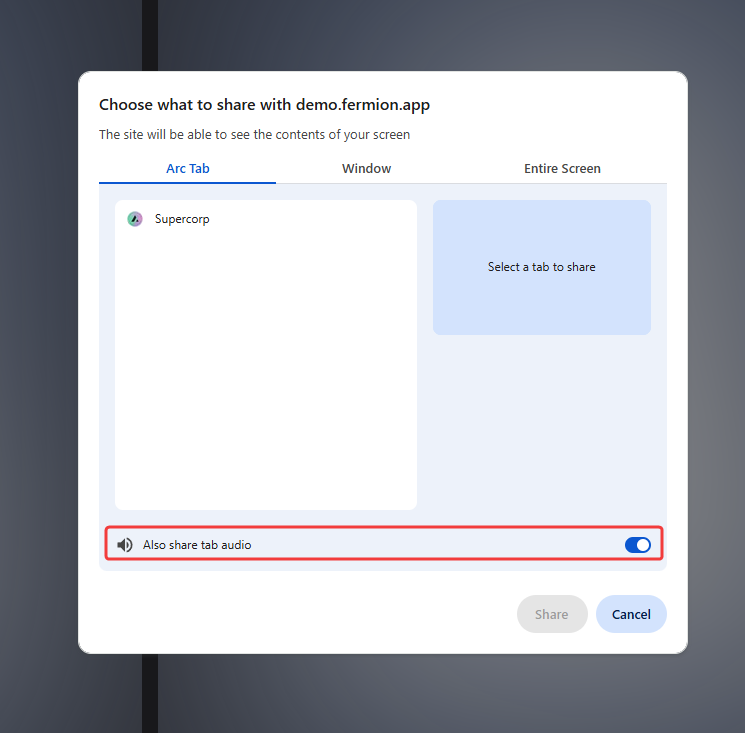
4. Select the tab you want to share and confirm your selection by clicking **Share**.
5. Begin your livestream. Participants will now hear both your system audio and your voice in real time.
# Live Chat
Source: https://docs.fermion.app/live-classes/live-chat
Enable real-time communications with the help of Live Chat to keep students engaged and informed
Fermion's live chat feature enables real-time communication between instructors and students during [live sessions](/live-classes/what-are-live-classes). The chat interface supports rich interactions including direct messaging, user mentions, file attachments, and interactive polls, creating an engaging learning environment where students can actively participate and collaborate.
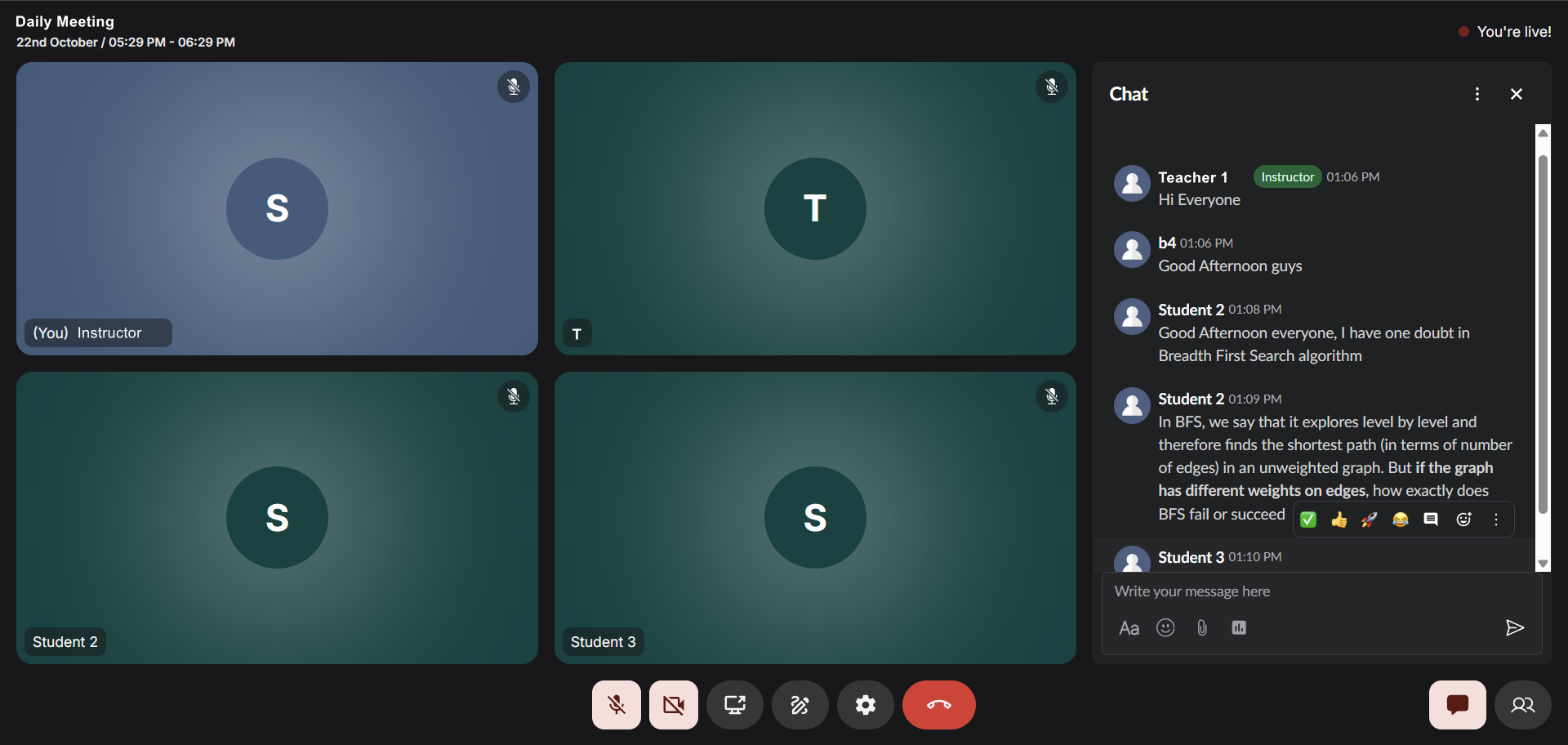
## High-volume chat
The chat system is designed to handle high-volume conversations with thousands of participants simultaneously, ensuring smooth communication even in large-scale live sessions. Messages are delivered instantly, allowing for dynamic Q\&A sessions, quick clarifications, and spontaneous discussions that enhance the learning experience.
## Instructor and student engagement
Instructors can leverage the chat to gauge student understanding, collect instant feedback, and maintain engagement throughout the session. Students can tag specific participants using @ mentions to direct questions or responses, share relevant files and resources, and participate in polls to provide collective input on topics being discussed.
## How to access chat during a live session
Click on the chat button in the bottom right pane inside a livestream to access live chat.
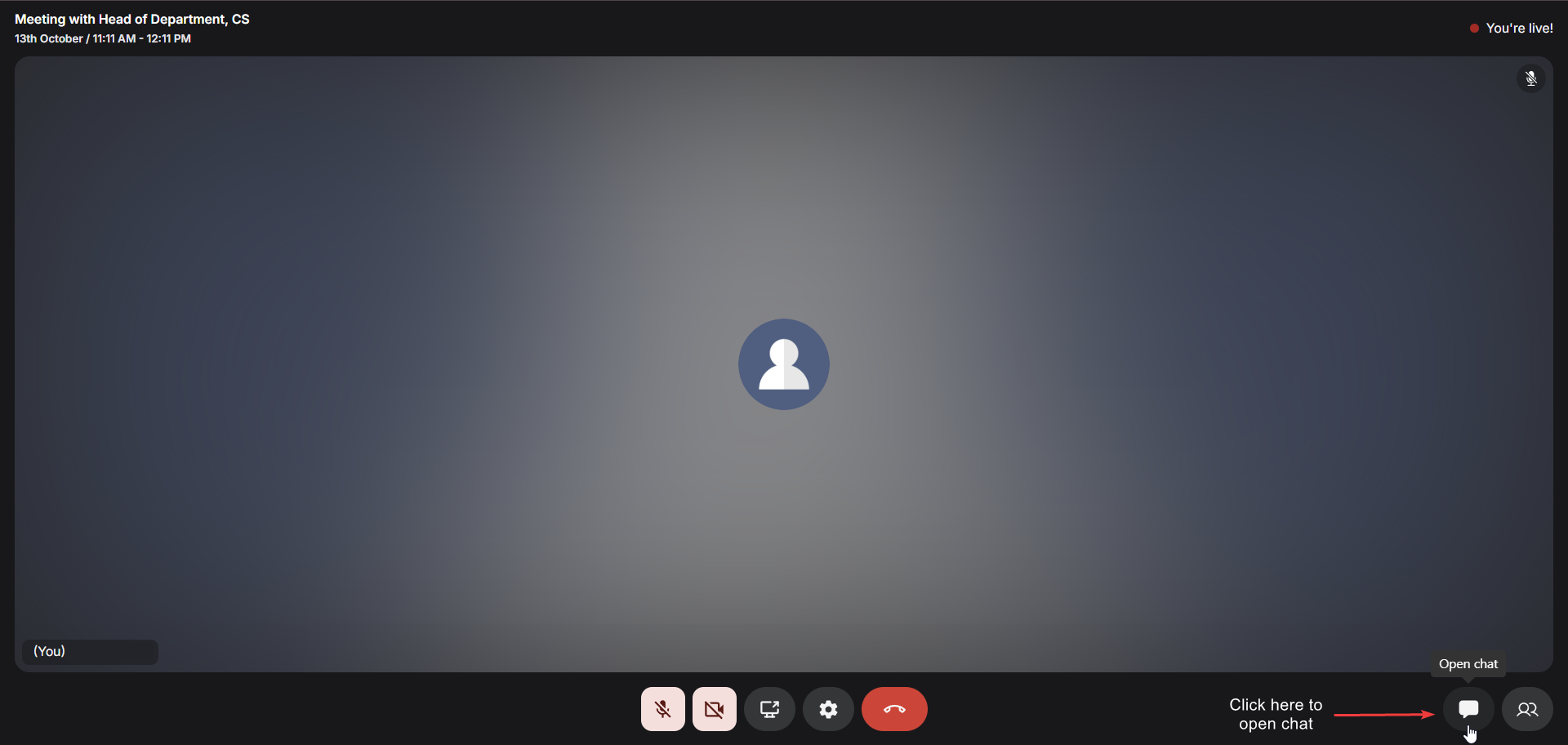
The chat interface remains accessible throughout the entire live session and can be used alongside other features like screen sharing and stage participation. All chat messages are preserved and can be reviewed after the session ends, providing a valuable reference for both instructors and students.
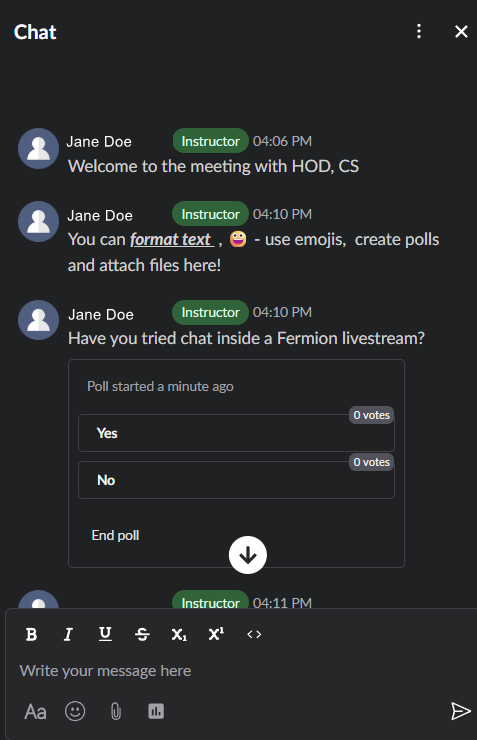
## Live Chat Popout
The Live Chat Popout feature allows participants to detach the chat interface into a separate browser window, providing greater flexibility during live sessions. This enables learners to follow the discussion while navigating other parts of the session or reviewing shared materials.
If a participant wishes to return to the main interface, they can easily restore the chat by clicking **Restore Chat** inside the livestream window, instantly bringing the chat back to its original position.
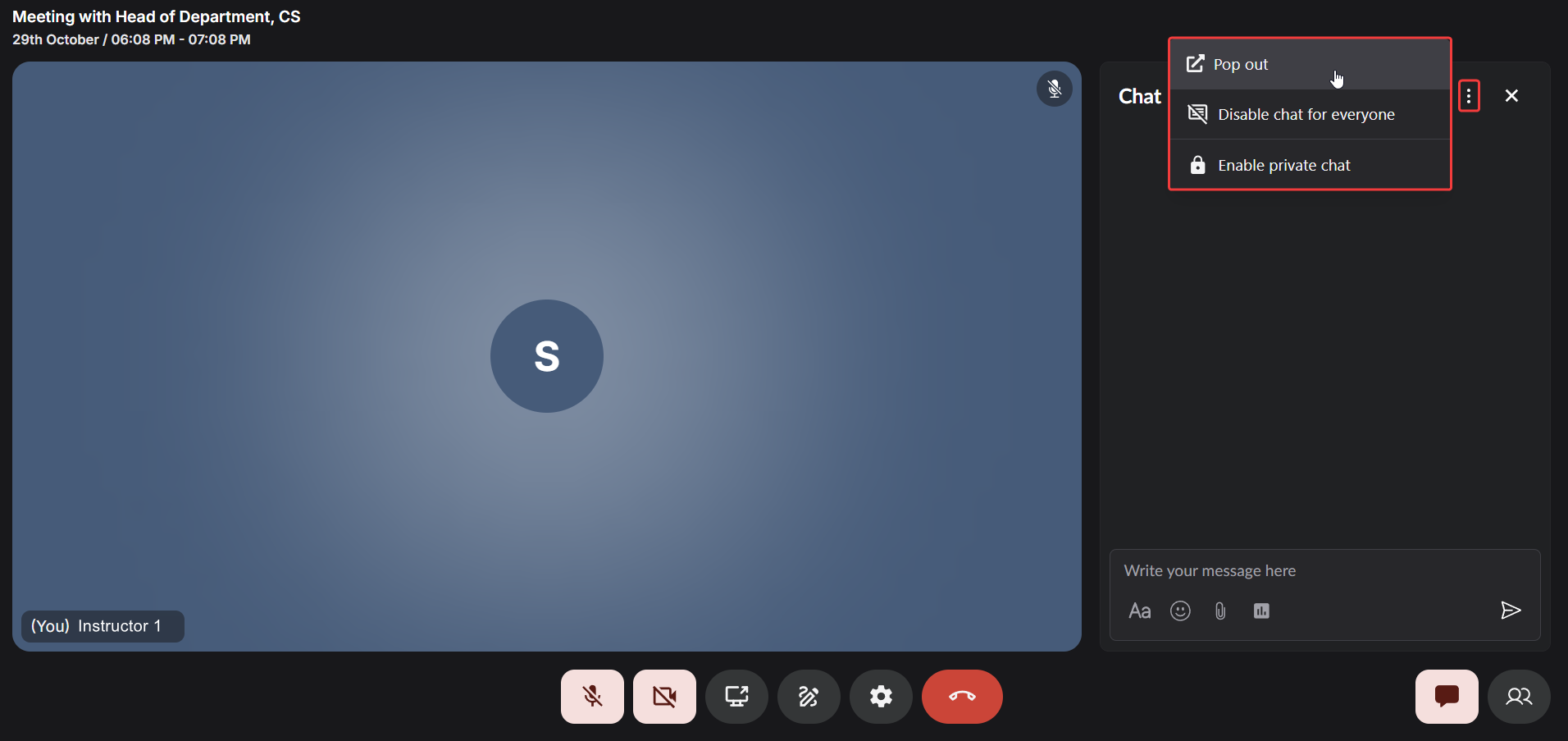
## Disable Chat for Everyone
Instructors can now temporarily disable the chat for all participants with a single click. This is especially useful during important explanations, presentations, or assessments where focus is essential. When disabled, all participants will see a message indicating that chat is currently unavailable until re-enabled by the host.
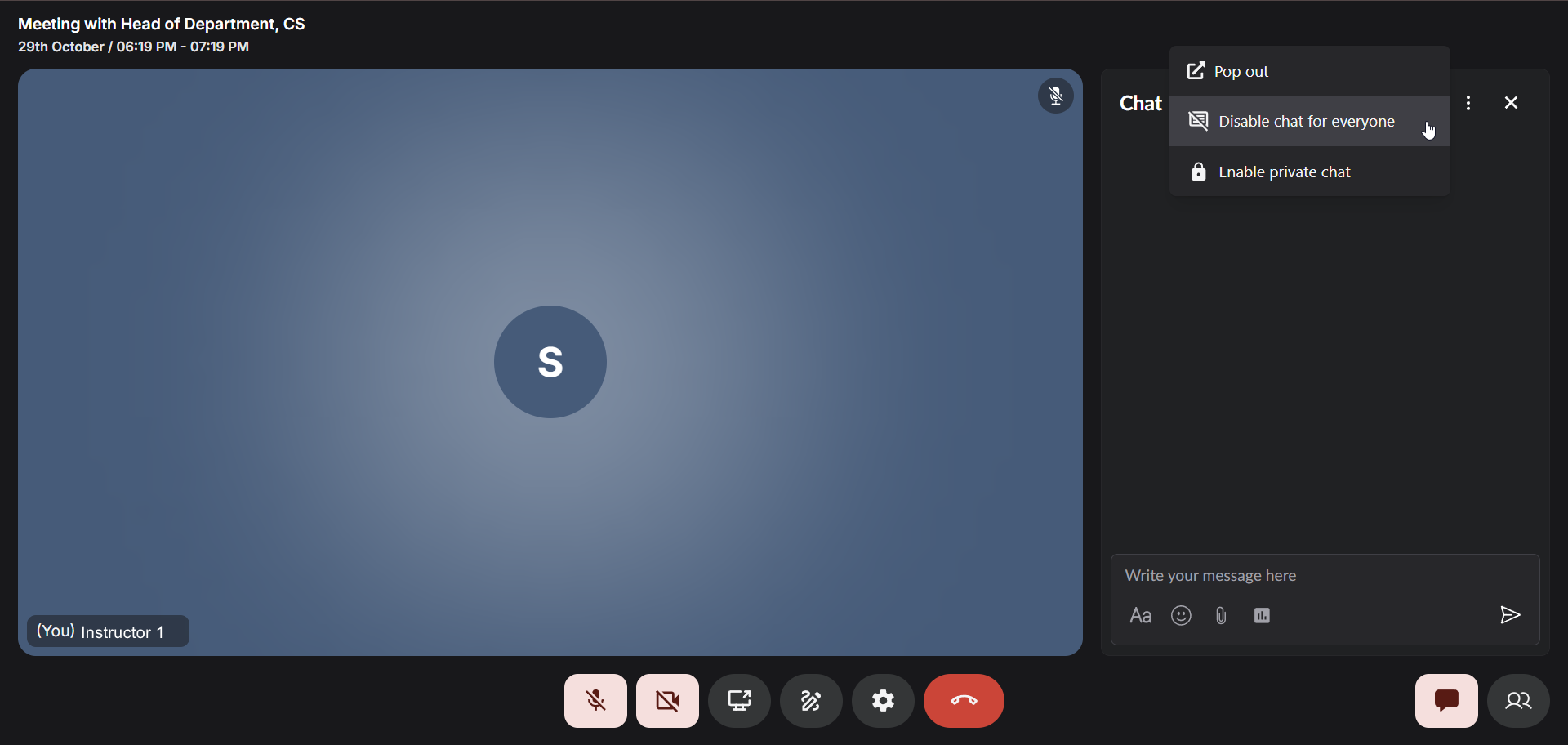
After you disable the chat with this button, nobody will be able to message inside the chat.
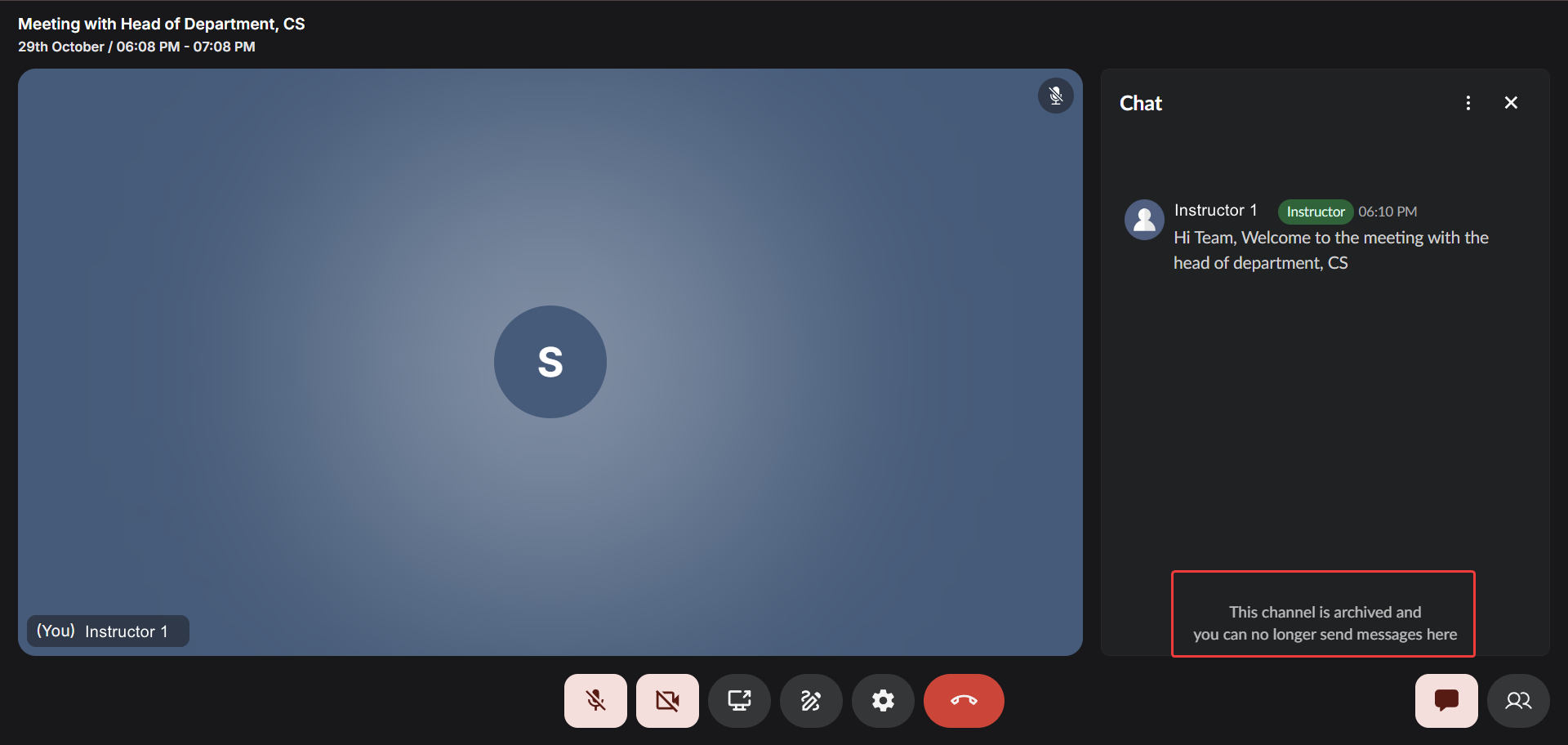
## Private Chat Mode
The Private Chat Mode provides a structured and secure way to manage direct communication during sessions.
In this mode:
Hosts can read all messages and reply to any participant.\
This gives them complete visibility and control over conversations, ensuring productive and moderated communication throughout the live session.
Participants can only view and reply to messages from the host and their own messages, ensuring privacy and minimizing distractions.\
Messages from other participants remain hidden, creating a focused and one-on-one communication experience.
Messages from other participants remain hidden, maintaining a clear and moderated communication channel. This mode is ideal for conducting Q\&A sessions, handling sensitive discussions, or maintaining discipline during large-scale live events.
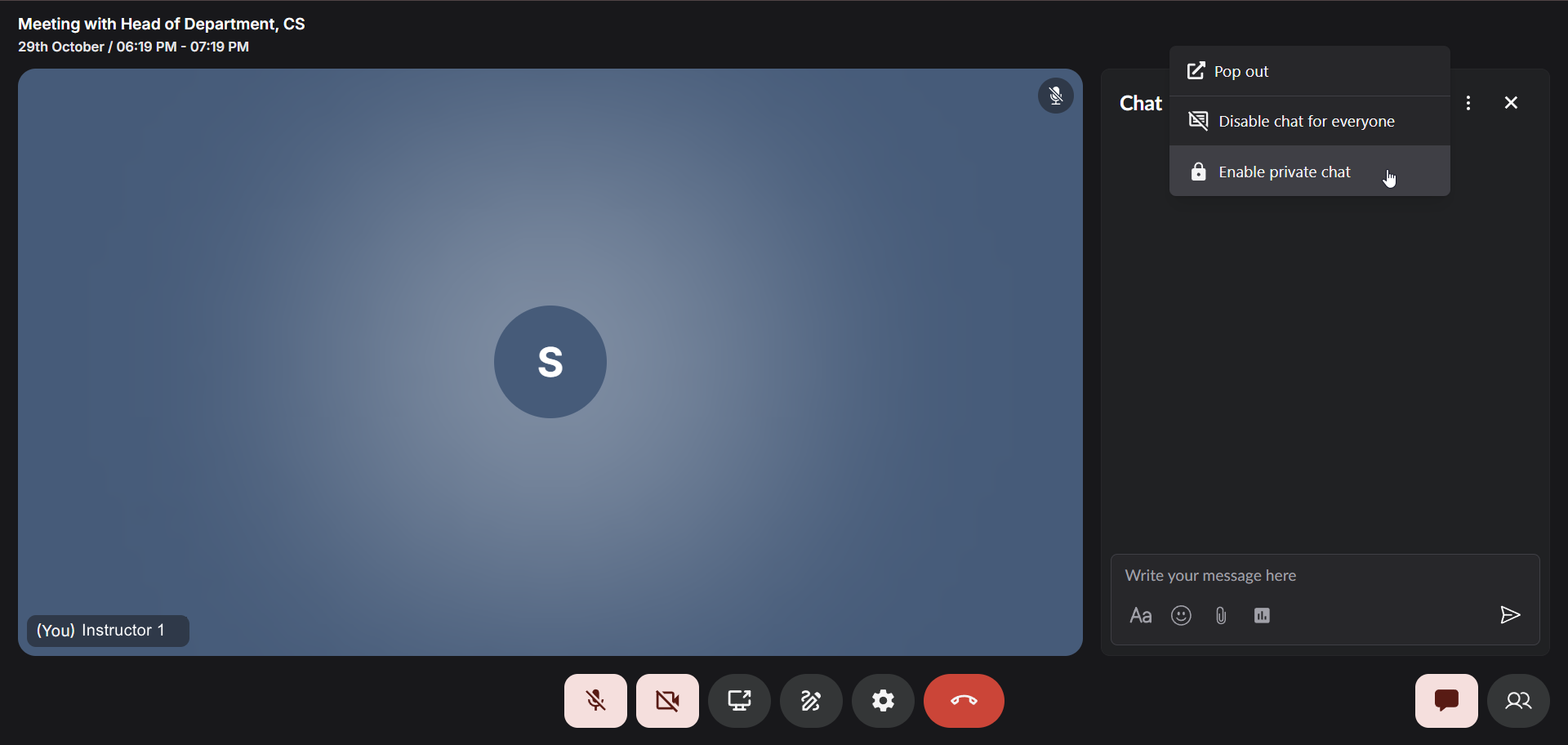
## Key capabilities
Fermion's live chat is designed to make real-time communication seamless and engaging for both instructors and students. From instant messaging to collaborative interactions, the chat ensures that learning remains interactive, organized, and productive throughout the session.
Send and receive messages instantly with zero lag, even with thousands of active participants in
the session.
Tag specific students or instructors using @ mentions to direct questions, responses, or draw
attention to important points.
Share documents, images, code snippets, and other resources directly in the chat for immediate
access by all participants.
Create quick polls to gather student opinions, test understanding, or make collective decisions
during the live session.
All chat messages are preserved and accessible after the session, allowing students to review
discussions and shared resources.
Instructors have the ability to manage chat behavior, ensuring a productive and respectful
learning environment.
# Live Class Analytics
Source: https://docs.fermion.app/live-classes/livestream-analytics
Understand and access detailed analytics for your live sessions, including attendance, engagement, and performance insights.
[Live classes](/live-classes/what-are-live-classes) on Fermion let you host interactive sessions with your learners in real time directly inside your [cohort based courses](/setting-up-course/prerequisites#what-is-a-cohort-based-course%3F). They’re a powerful way to connect, teach, and engage your audience.
After every session, Fermion automatically tracks detailed analytics so you can understand how your livestream performed. Various recorded statistics include attendance, engagement, and viewer behavior. These insights help you improve future sessions and better understand your learners’ interaction patterns.
***
## Accessing livestream analytics
You can view livestream statistics in two ways.
Head over to the Courses tab in your instructor dashboard sidebar and open the course builder
for the respective live stream session's parent course.
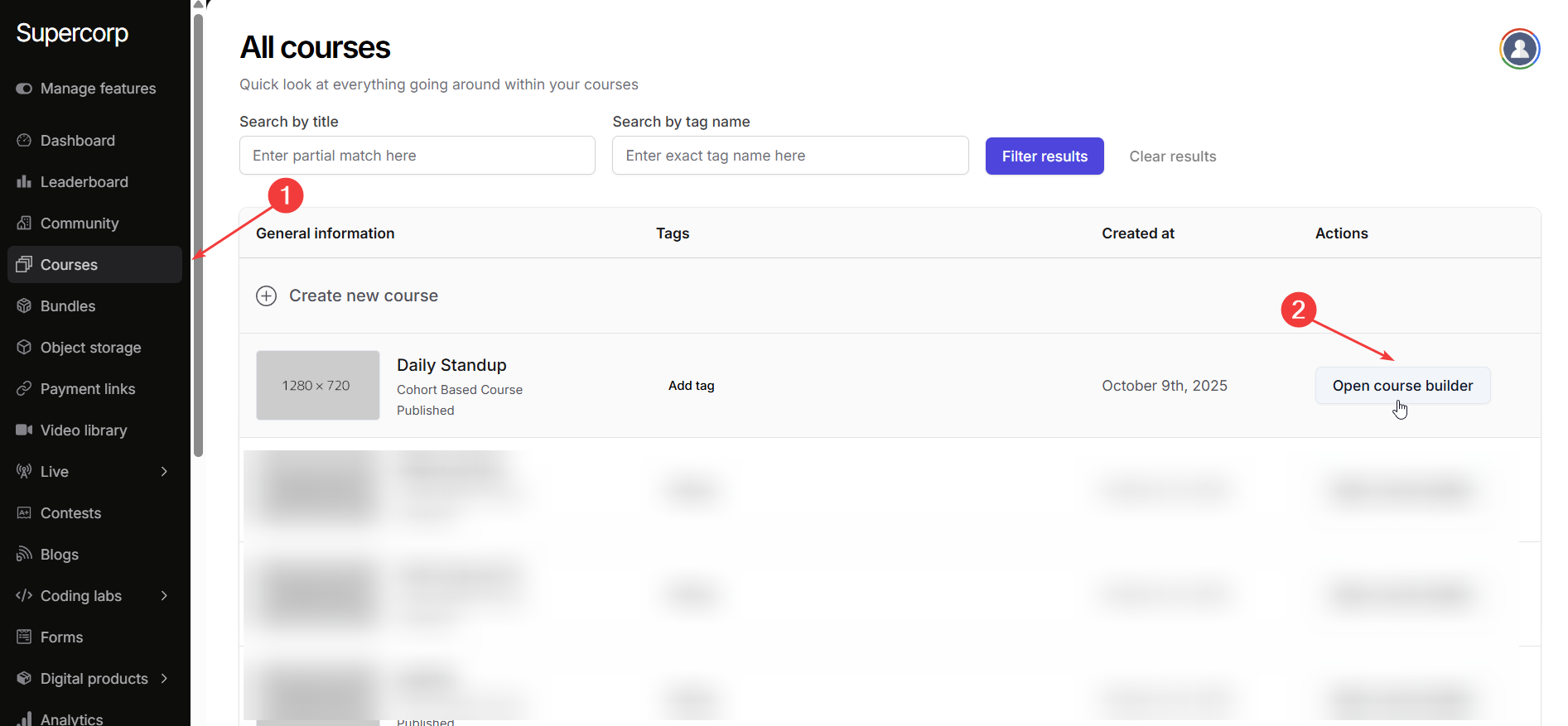
1. Open the desired course and go to the **Syllabus** section. 2. Find the session that was
livestreamed, click the **three dots (⋮)** next to it, and select **Edit**. This will open the
live session manager.
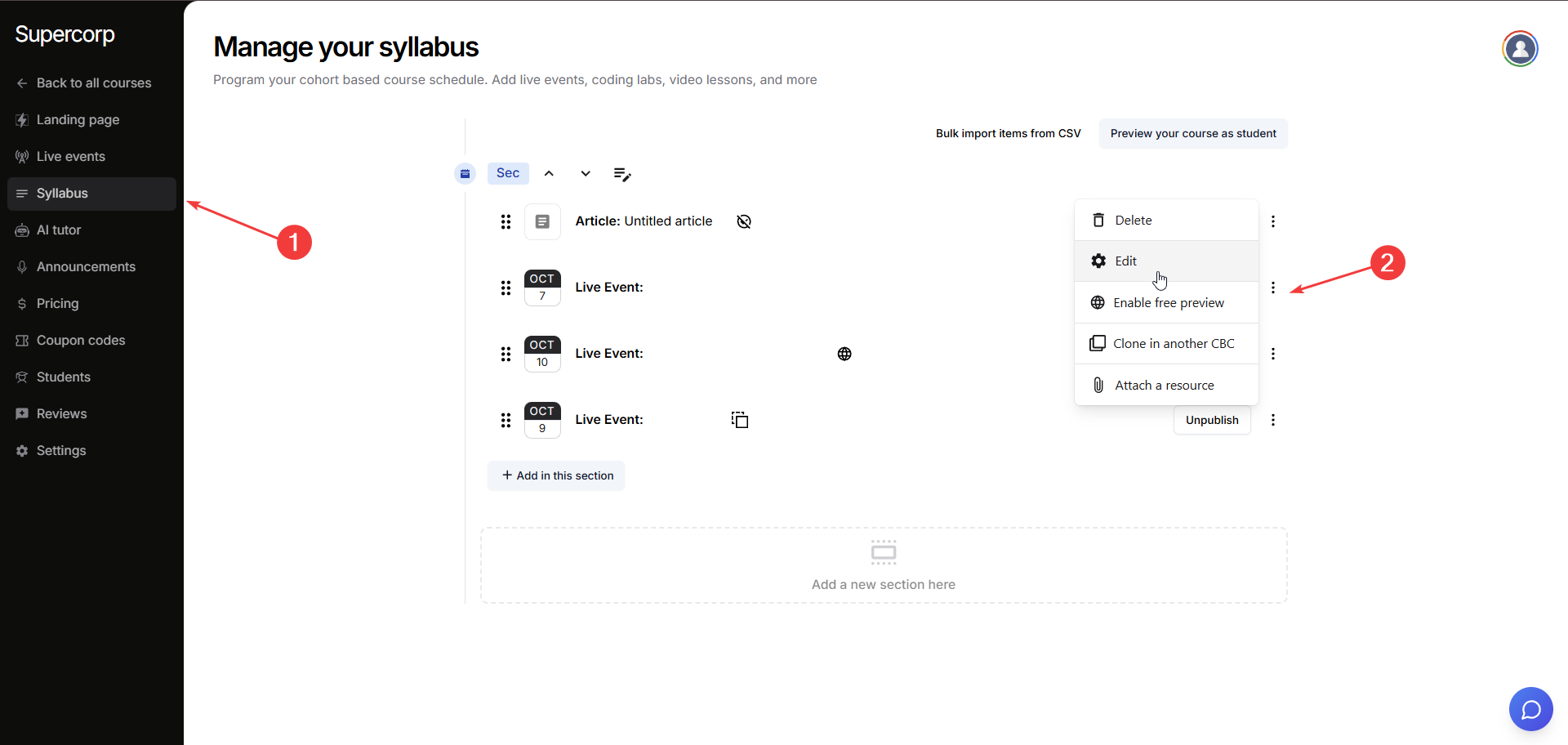
2. Click **VIew Stats** to view detailed analytics for that specific session. 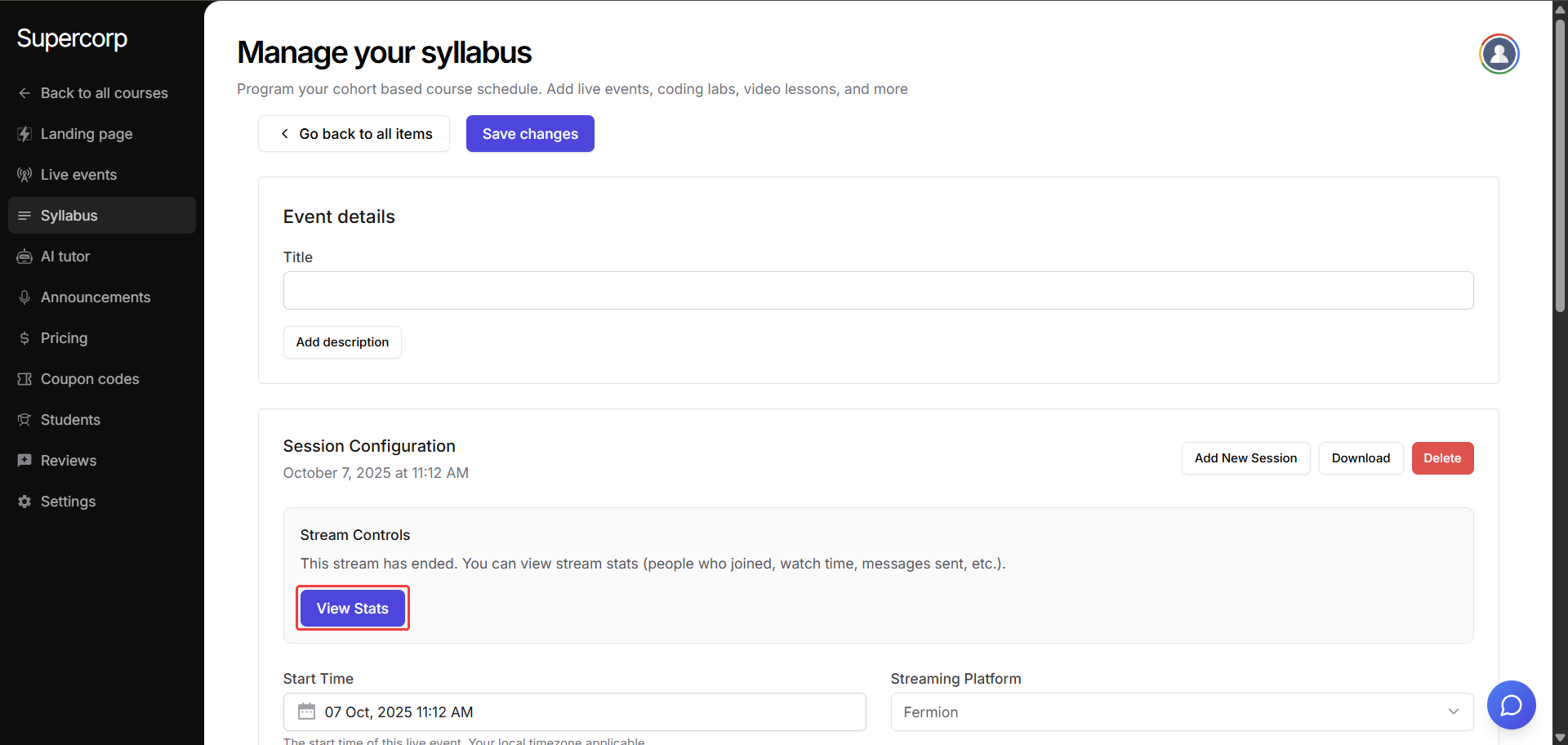
1. From the **Live Events** tab in your course builder, select the date of the livestream you
wish to analyze. 2. Click **View stream stats** button next to the desired live stream to open
the analytics dashboard. 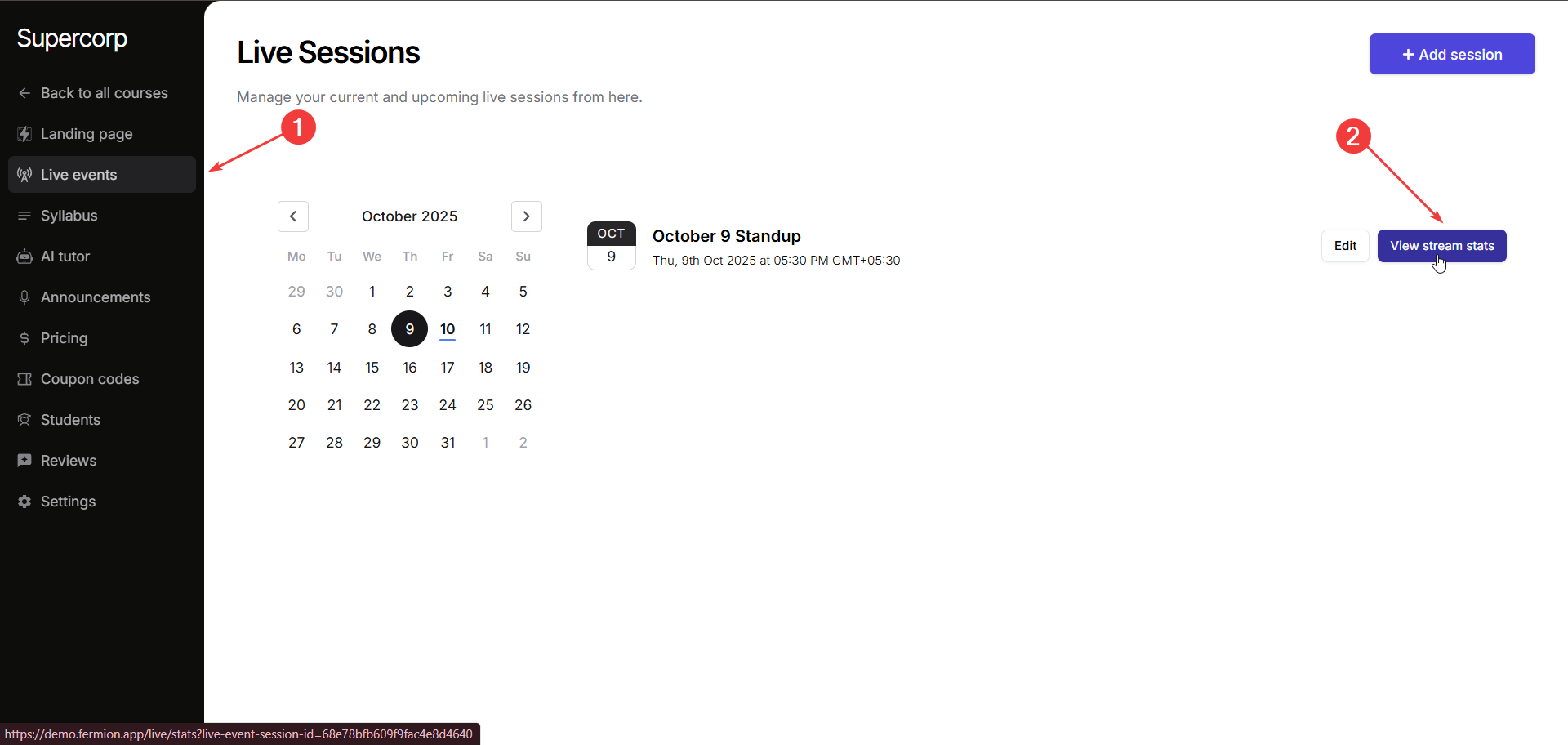
***
## Livestream stats overview
Once you open the analytics page, you’ll see a comprehensive overview of the livestream’s performance metrics:
* `Total attendees`: The total number of learners who joined the session.
* `Peak concurrent`: The highest number of viewers watching simultaneously.
* `Avg. watch time`: The average time each participant spent watching your session.
* `Session duration`: The total duration of the livestream.
* `Audience engagement over time`: A live graph showing how engagement (viewers, chats, on-stage users) changed throughout the session.
* `Users brought on stage`: The number of participants who were invited on stage during the session.
* `Total viewing hours`: The cumulative total of all viewers’ watch time.
* `Chat messages`: The number of messages sent in the chat during the livestream.
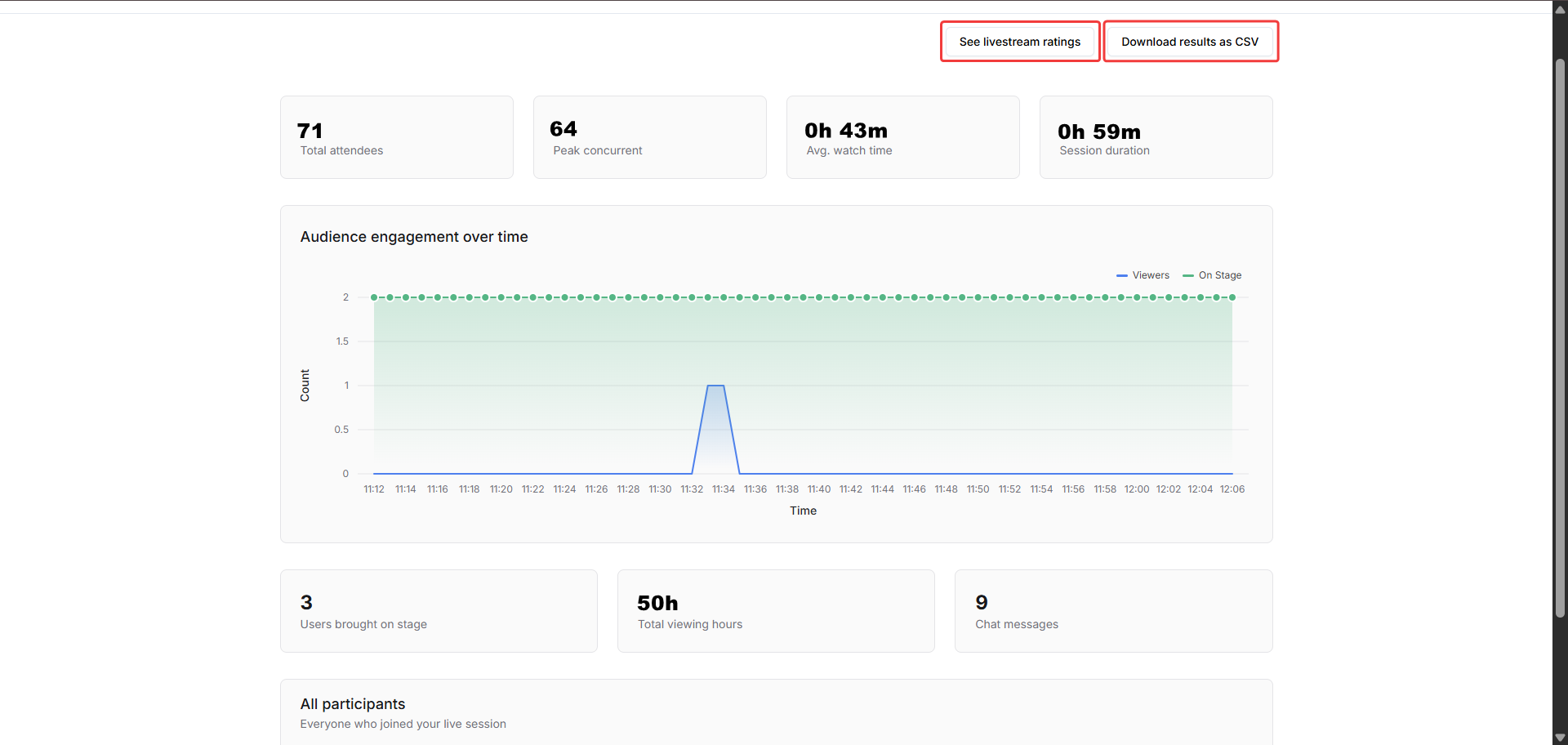
Below these stats, you’ll find a list of **all participants**, showing their **time on stage** and **watch time** individually, giving you detailed insights into how long each learner stayed and interacted.
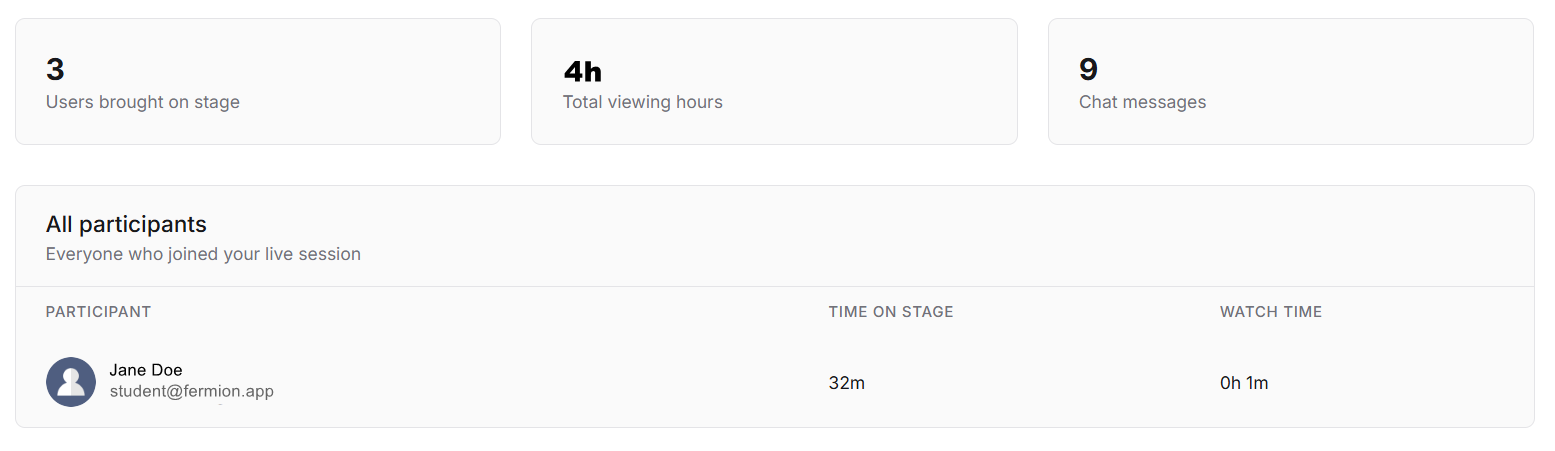
***
## Livestream ratings
At the top-right corner of the analytics page, you can access **Livestream Ratings**: a quick summary of how your viewers rated their session experience.\
Click the **"See livestream ratings"** button to see detailed feedback and understand audience satisfaction.
***
## Exporting data
To keep a record or analyze results further, you can **download all livestream analytics** in a `.csv` file.\
Simply click the **Download Results as CSV** button located at the top-right of the analytics dashboard.
# Livestream Settings
Source: https://docs.fermion.app/live-classes/livestream-settings
Learn how to configure audio, video, and general settings during a live session on Fermion.
Once you are inside a livestream, you can configure your session experience using the **Settings** menu. Click the **Settings** button on the livestream interface to open three configuration tabs: **Audio**, **Video**, and **General**.
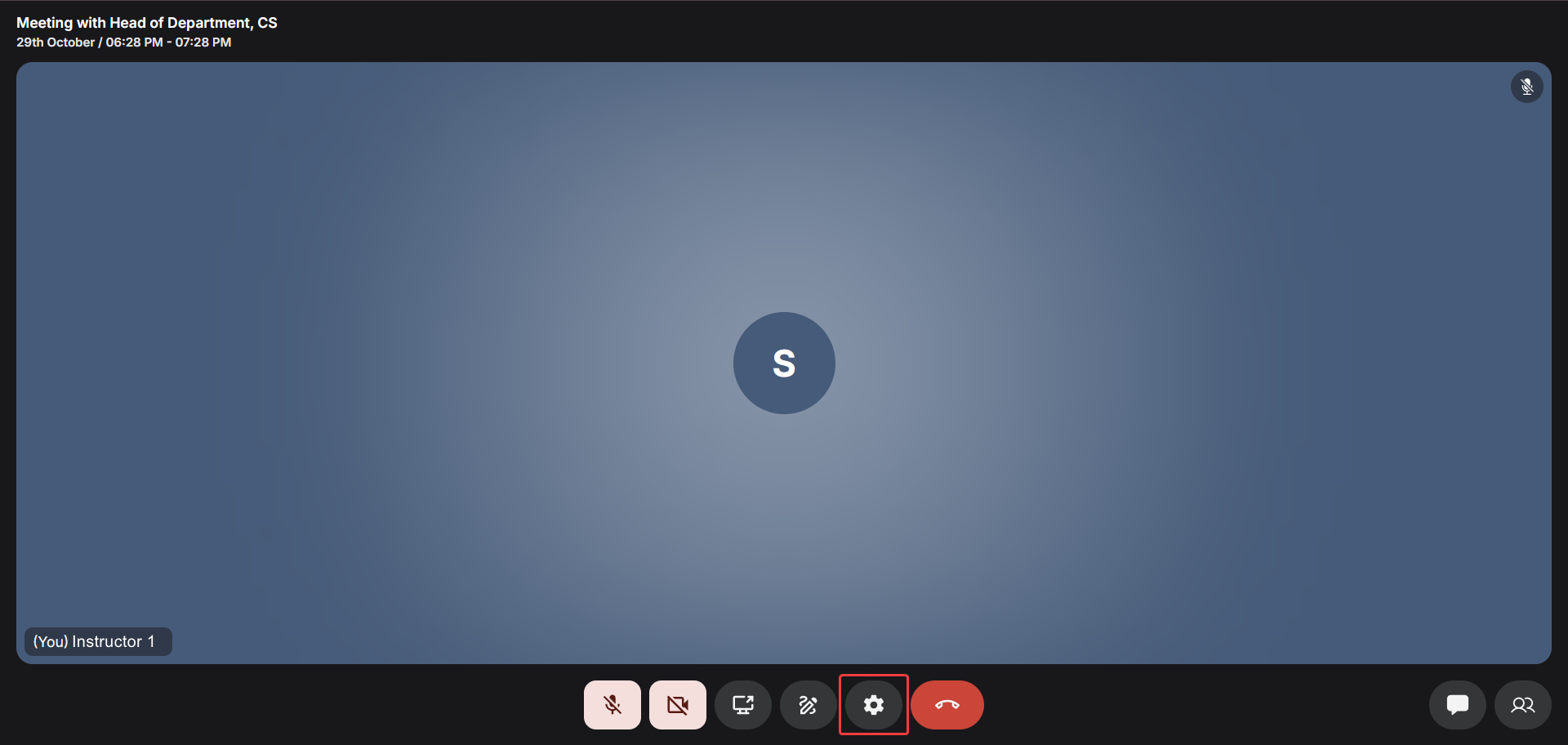
***
## Audio Settings
Use the **Audio** tab to manage your microphone and speaker sources.
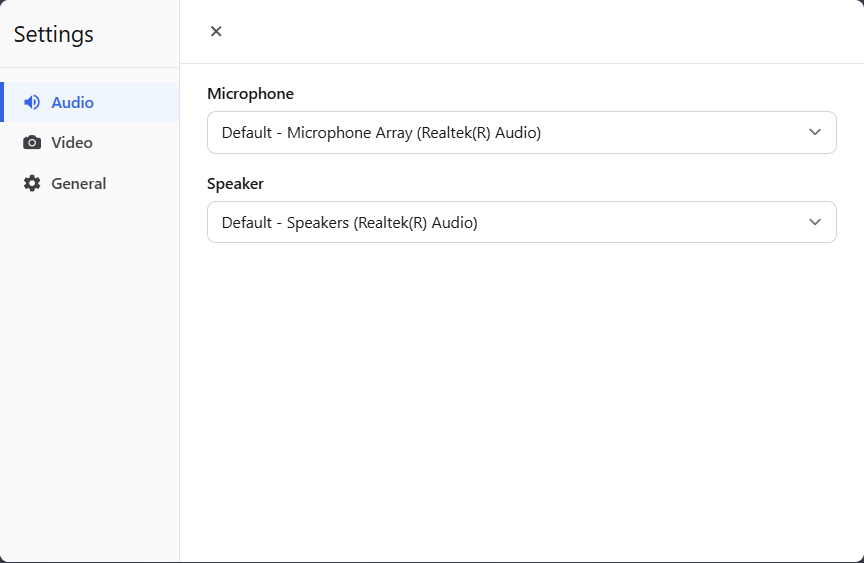
You can:
* Select your preferred **microphone input** for clear sound.
* Choose a **speaker output** for sound output of the livestream.
* Adjust input/output devices at any time during the livestream.
***
## Video Settings
Use the **Video** tab to manage your camera configuration.
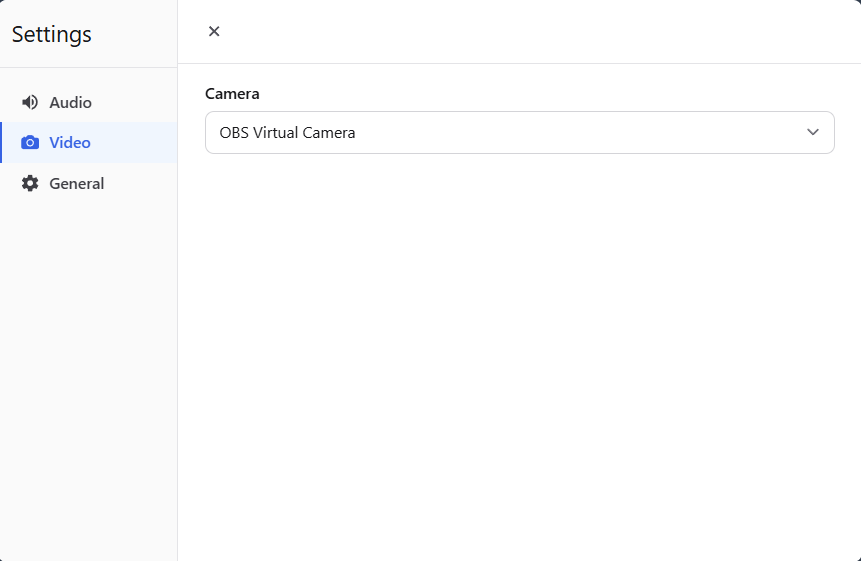
You can:
* Select a camera source connected to your device.
* Switch between available cameras while live.
***
## General Settings
The **General** tab lets you manage participant permissions and engagement settings.
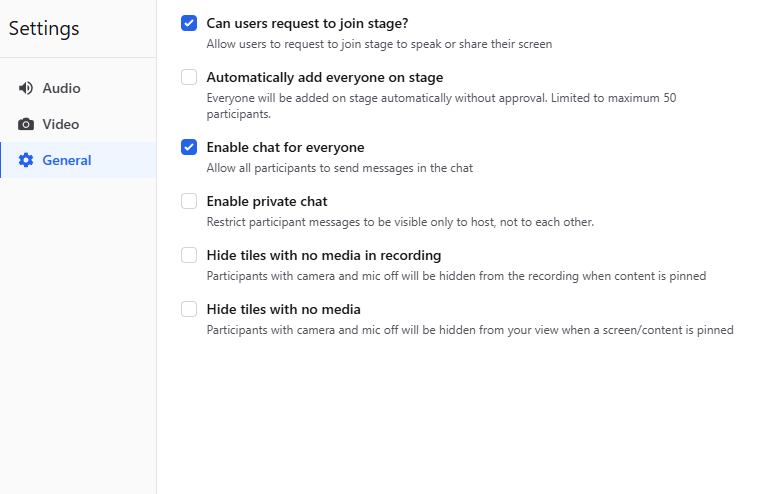
Available options are:
* **Can users request to join stage?**
When this option is enabled, participants can request to join the [stage](/live-classes/invite-to-stage) during a livestream. This allows them to share their audio, video, or screen with the host and other attendees.
* **Automatically add everyone on stage**
Automatically brings all participants to the stage when enabled.
* **Enable chat for everyone**
Allows all participants to send messages in the [live chat](/live-classes/live-chat).
* **Enable private chat**
The Enable private chat toggle activates Private Chat Mode, allowing participants to send direct messages during a livestream while maintaining host supervision. When enabled, hosts can view and respond to all private messages, whereas participants can only see and reply to messages from the host or their own. Learn more about [Private chat mode](/live-classes/live-chat#private-chat-mode)
* **Hide tiles with no media in recording**
When this option is enabled, any participant who has both their camera and microphone turned off will not appear in the session recording when a screen or specific content is pinned. This helps focus the recording on active speakers and shared content, eliminating empty or inactive video tiles from what is captured. It's especially useful for creating high-quality recordings where you want viewers to see only the main presentation or those actively participating.
Note: Users who turn on their camera or microphone will automatically be shown again in the recording, as long as content is pinned
* **Hide tiles with no media**
Participants with camera and mic off will be hidden from your view when a screen/content is pinned.
# 1:1 Calls
Source: https://docs.fermion.app/live-classes/one-one-calls
Set up and host one-on-one video calls with learners directly from your instructor dashboard.
1:1 Calls on Fermion allow instructors to connect privately with learners for personalized sessions such as mentorship, doubt-clearing, or performance reviews. These calls use the same reliable streaming infrastructure as [live classes](/live-classes/what-are-live-classes) but are designed for focused, one-on-one interaction. You can use them for office hours, feedback sessions, or quick catch-ups with students.
## How to start a 1:1 call
You can start 1:1 calls with your leaners with the help of the following steps:
Go to the **Manage Features** section and enable **1:1 Calls** for your school. Learn how to
enable features [here](/manage-settings/manage-features).
From your instructor dashboard sidebar, select **Live Classes**, then click on **1:1 Calls**.
Once there, click **Create new 1:1 call** to begin setting up your session.
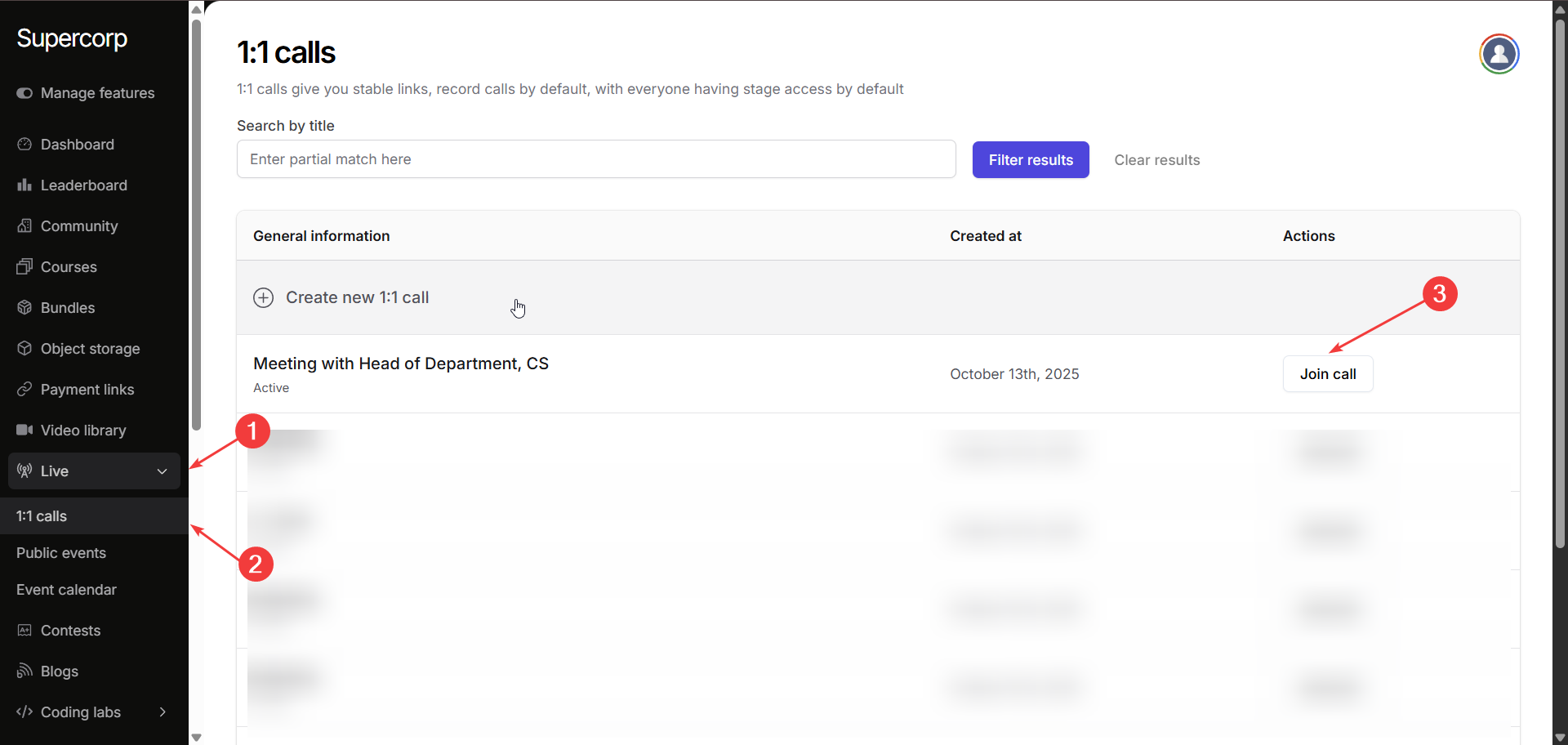
After creating the session, click **Join call** to enter the 1:1 room. You can now start the
session and share the invite link with your student directly. To invite a learner, simply **copy
the call link from your browser’s URL bar** and send it to them.
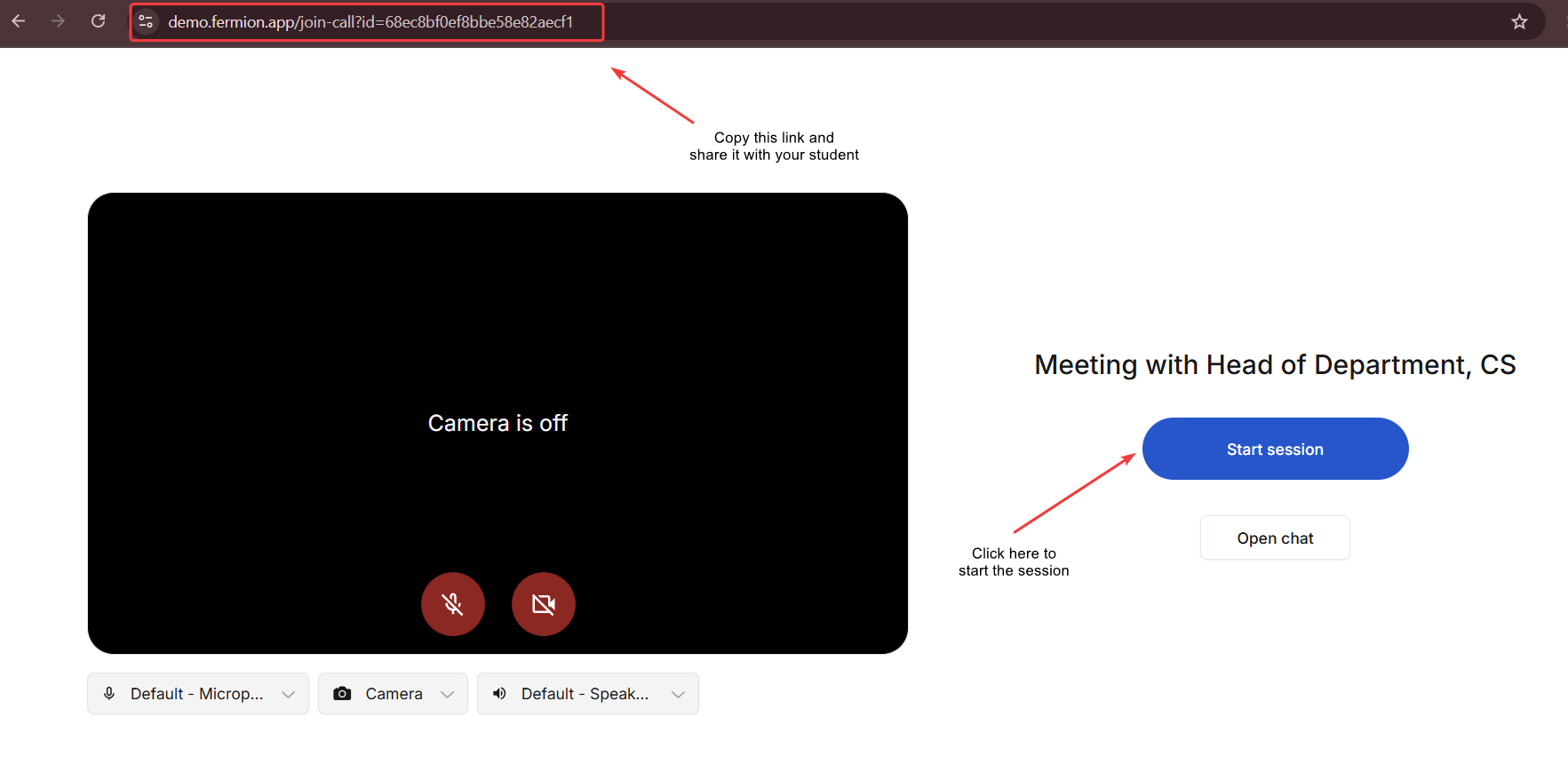
Here you have it! Your **1:1 Call** is now live and can be shared with learners using the generated invite link. Instructors can begin the session immediately and manage it just like a regular live class.
***
## Explore 1:1 call features
1:1 Calls come equipped with all the essential tools you’re familiar with from live classes, including [**screen sharing**](/live-classes/invite-to-stage#managing-participants-on-stage) and [**live chat**](/live-classes/live-chat). This ensures that your private sessions are as interactive and feature-rich as any cohort-based live event, but in a more personal, focused environment.
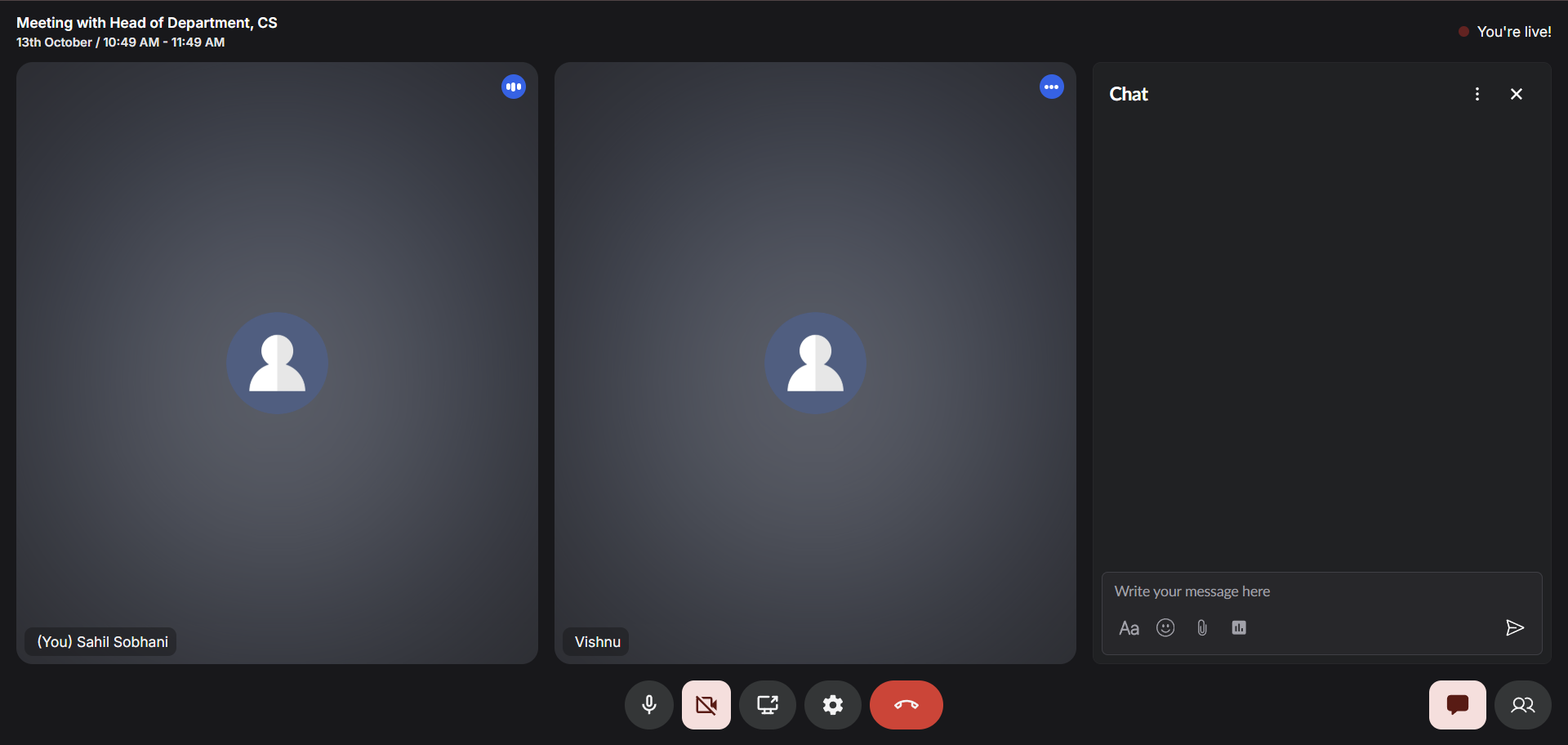
1:1 Calls are ideal for private mentorship or support sessions where you want to provide
dedicated time to a single learner.
## Next steps
Learn how to **embed live sessions** on external websites so learners can join directly without
switching tabs. [Go to guide](/live-classes/embed-live-session)
Understand how your live classes perform with **engagement analytics**, attendance data, and
insights into learner participation. [See analytics docs](/live-classes/livestream-analytics)
# Pin a Tile
Source: https://docs.fermion.app/live-classes/pin-a-tile
Learn how to pin a participant’s video tile during a live session to keep all students focused on the same content.
During [live sessions](/live-classes/what-are-live-classes), instructors can pin a specific participant's tile to ensure all students view the same content simultaneously. This feature is particularly useful when you want to highlight a specific speaker, demonstration, or presentation to the entire class.
## How tiles work
When you pin a tile, it becomes the primary focus for all participants in the live session, overriding their individual view preferences. This ensures everyone stays synchronized and focused on the same content, making it ideal for scenarios like guest lectures, student presentations, or when demonstrating specific concepts.
## Pinning a tile
To pin a tile during a live session, simply hover over the participant's video tile and click the pin icon. The pinned view will immediately apply to all students in the session. You can unpin at any time to return control of the view to individual students.
Only **meeting hosts** have the ability to pin and unpin a participant's tile. This ensures that
the session remains organized and all students are focused on the intended content without
conflicting views from other participants.
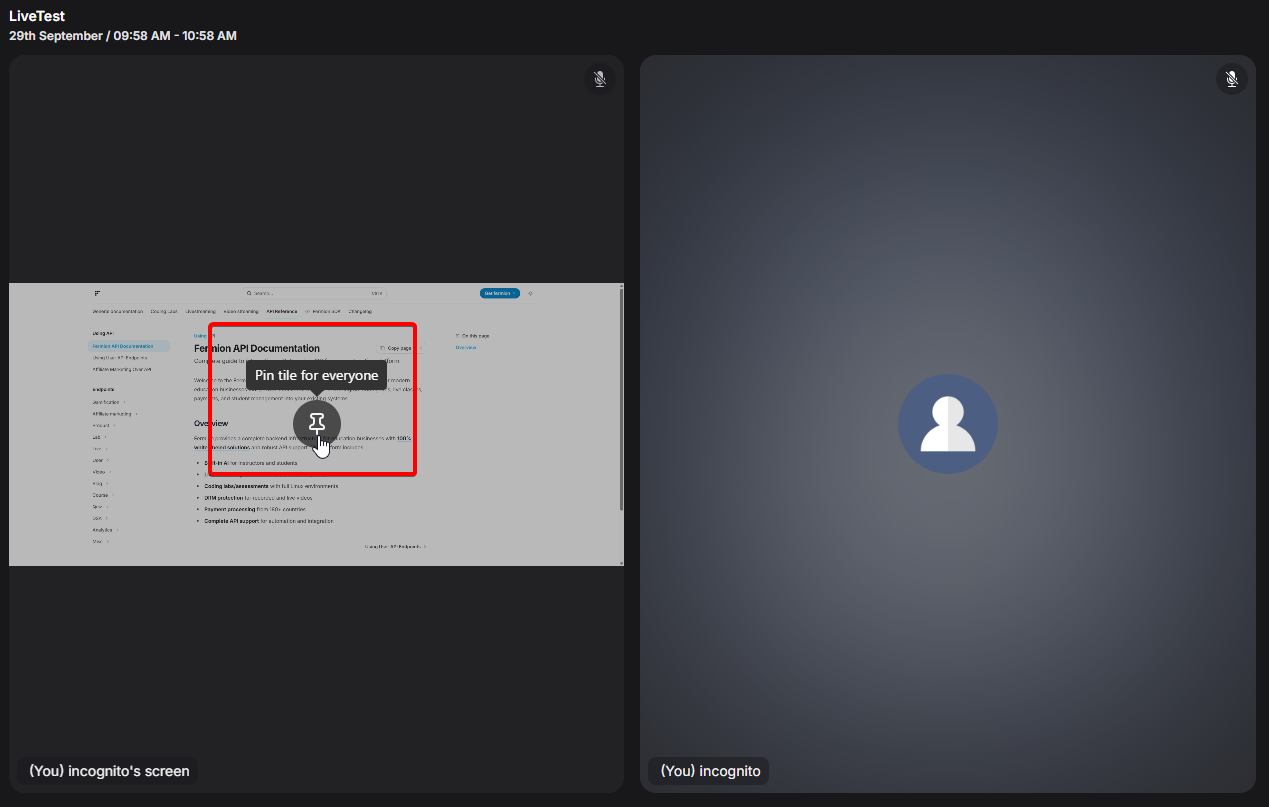
## Stage management
This feature works seamlessly with Fermion's [stage](/live-classes/invite-to-stage) management capabilities, allowing you to create a more structured and engaging learning experience for your students.
## Next steps
Learn how to enable real-time communication during live sessions, engage students with
interactive messaging, file sharing, and polls.
Discover how to automatically generate transcripts and record live sessions for easy reference,
accessibility, and improved learner engagement.
# Public Events
Source: https://docs.fermion.app/live-classes/public-event
Host live sessions that are open to everyone using Fermion’s Public Events feature.
## Overview
[Live Events](/live-classes/what-are-live-classes) on Fermion can be added inside your courses, or hosted as **public sessions** accessible to anyone through a shareable invite link.
This gives you complete flexibility: teach within a structured course or reach a wider audience with open webinars, bootcamps, and workshops.
***
## Creating a Public Event
Creating a public event allows you to host sessions that anyone can join using a shareable link, making it perfect for webinars, workshops, or open community classes. Follow the steps below to set up your event from start to finish.
Make sure the **Live Events** feature is enabled under **[Manage Features](/manage-settings/manage-features)** in your instructor dashboard.
Navigate to **Live → Public Events** from your instructor dashboard sidebar. Here you can click
**Create New Event** or open an existing one in the **Product Builder** to edit.
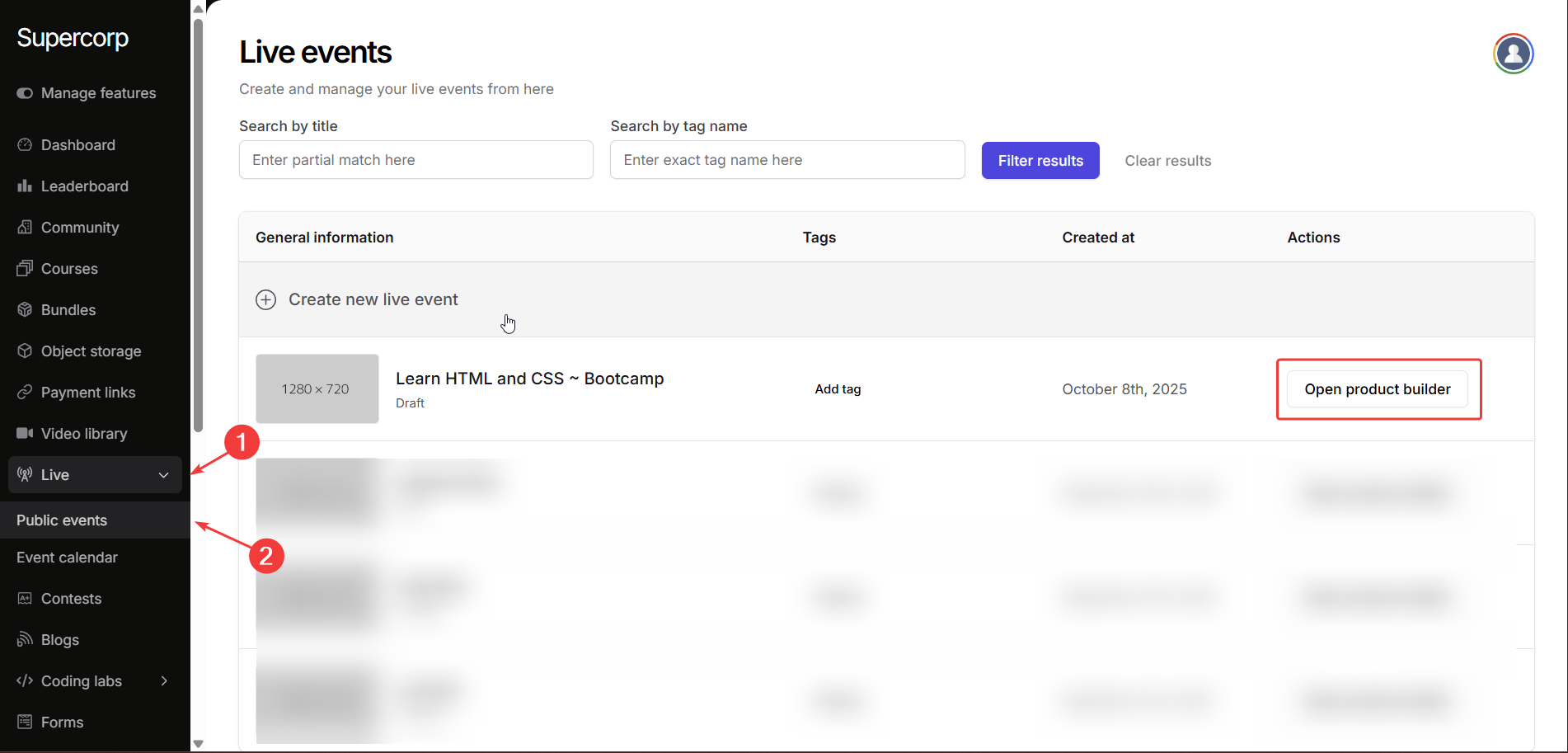
Give your public event a clear and engaging title.
Head over to the **Landing Page** section in your public event sidebar and start customizing your event’s basic details.
Add the following information:
* **Title**
* **Short Description**
* **Thumbnail**
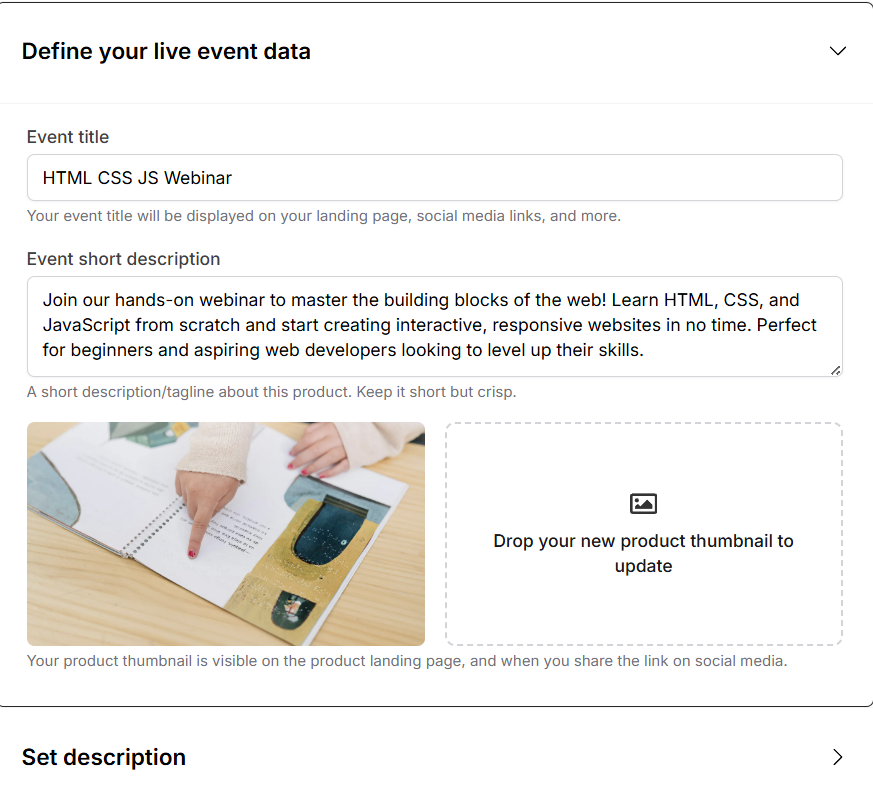
Use the **Public Event Description** editor to add detailed content about your session. This
section supports **rich text**, so you can include headings, formatted text, hyperlinks, and
lists to make your event page more engaging.
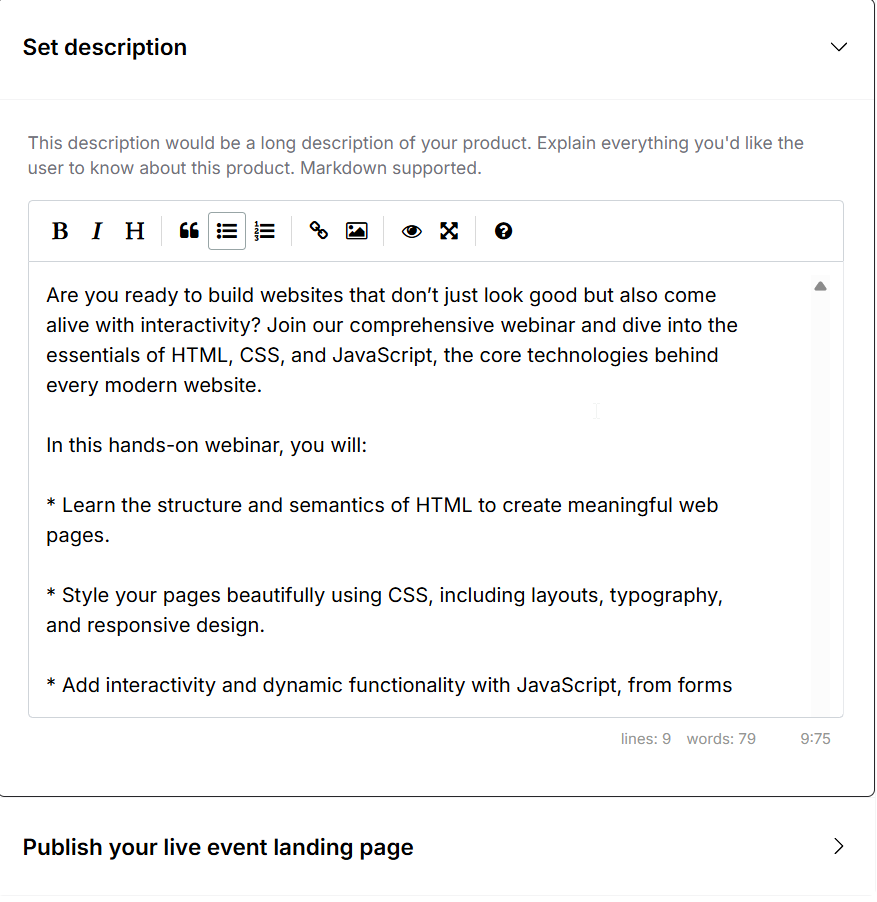
Once everything looks perfect, hit **Publish**.
Your public event will now be live, and you can **copy the event link** to share the landing page of the live event. On top of that, you can also set a custom slug for your public event.
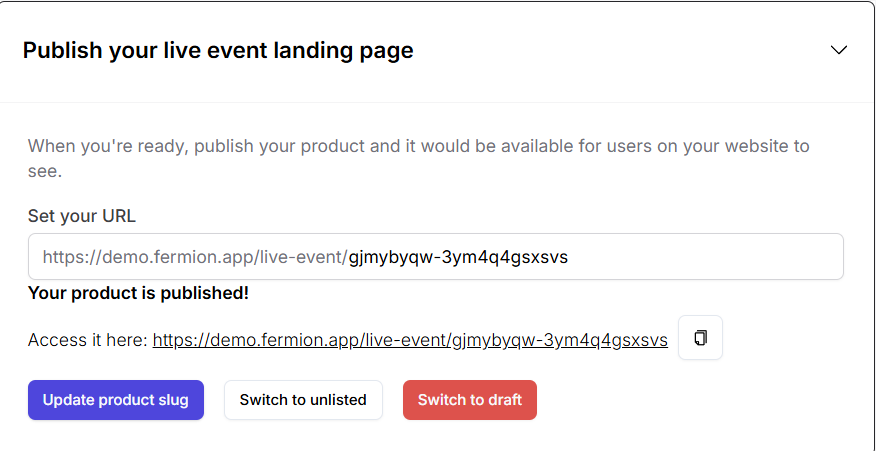
***
## Standalone Invites
Stand-alone invites allow you to share access to your Public Events without requiring students to register for a full course or cohort. They are ideal for special webinars, bootcamps, workshops, guest sessions, or promotional live events.
With stand-alone invites, you can **control access**, **track participation**, and easily **revoke or reactivate** invites as needed. This provides flexibility for both organizers and attendees while keeping your events secure and manageable.
***
## Create a stand-alone invite for public events
Use stand-alone invites to give participants access to a public live event through a unique link with the help of the following steps:
Before creating a public event and invites, make sure the **Live Sessions** feature is enabled in your account. Learn how to [**Manage Features**](/onboarding/account-setup#step-2%3A-manage-features)
1. Navigate to **Live → Public Event** in your dashboard.
2. Click on **Create New Event** to start a public live session. You can also create invites for previously created live events by clicking **Open product builder** . Learn more about creating [Public Events](/live-classes/public-event)
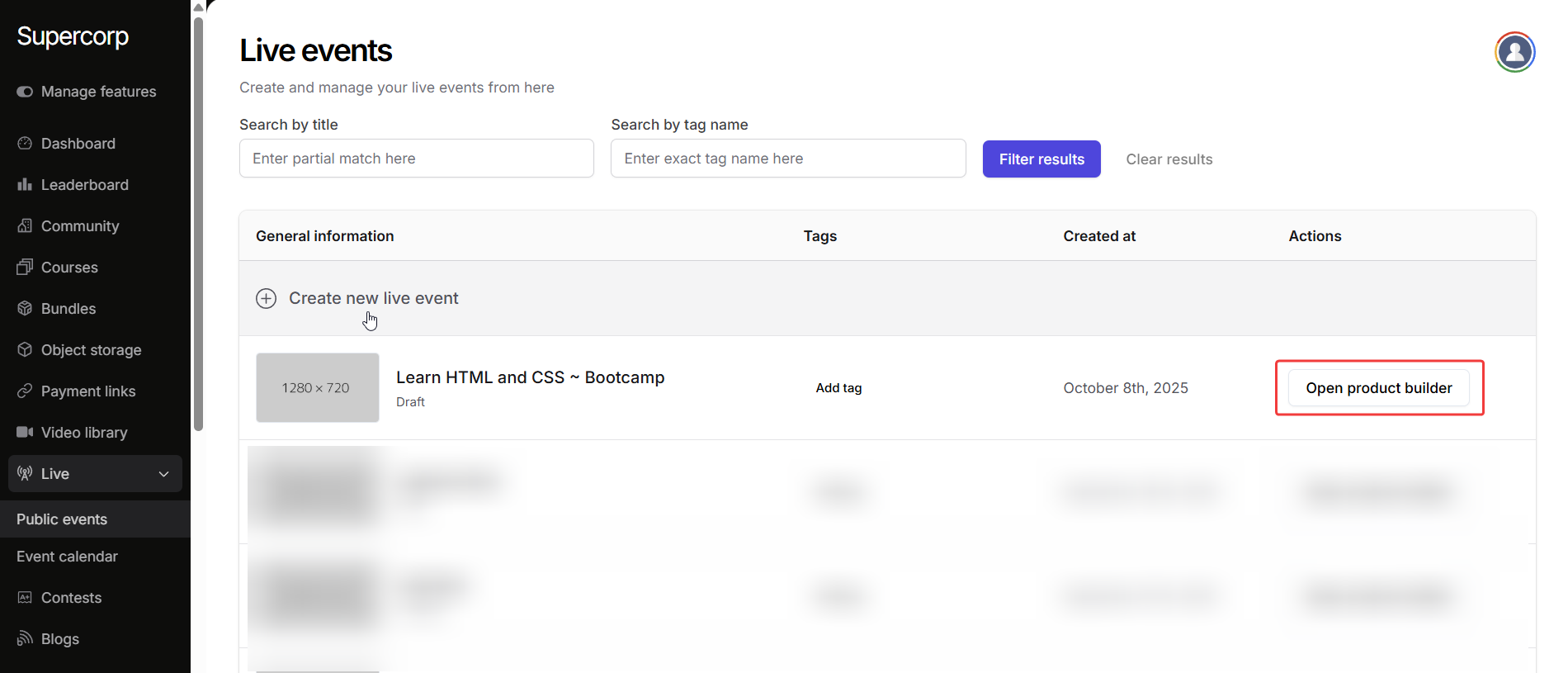
1. Click on **Create public invites** in the landing page builder
2. Click on **Create new invite** to create a new invite ID and a public link.
Once your invite is created, you'll see it listed below the create new invite button, showing key options for managing access.
* Click **Get link** to copy the unique invite URL and share it with participants.
* The **Status** column displays the current state (e.g., **Active**).
* To temporarily block access, click the status menu and select **Revoke Invite**.
* To allow access again, select **Reactivate Invite** in the same menu.
* Use the checkboxes to choose whether to collect participants' email addresses or phone numbers when they join using your invite.
And that's it! You can now share the invite link with your audience and manage access and data collection preferences directly from this table.
Stand-alone invites make it simple to share access to your public [live events]() with a controlled audience. You can create, share, revoke, and reactivate invites easily, ensuring a smooth experience for both organizers and participants.
***
## Session management
Manage and customize your public event sessions from the **Manage sessions** tab. Here you can configure streaming preferences, event timing, playback permissions, and participant notifications to ensure a seamless viewing experience.
Head over to the **Manage sessions** tab in your product builder to access settings of the public event.
### Go live
You can use the **Manage sessions** tab to go live with your public event. Click on the **Go live** button in Stream controls to start the live session
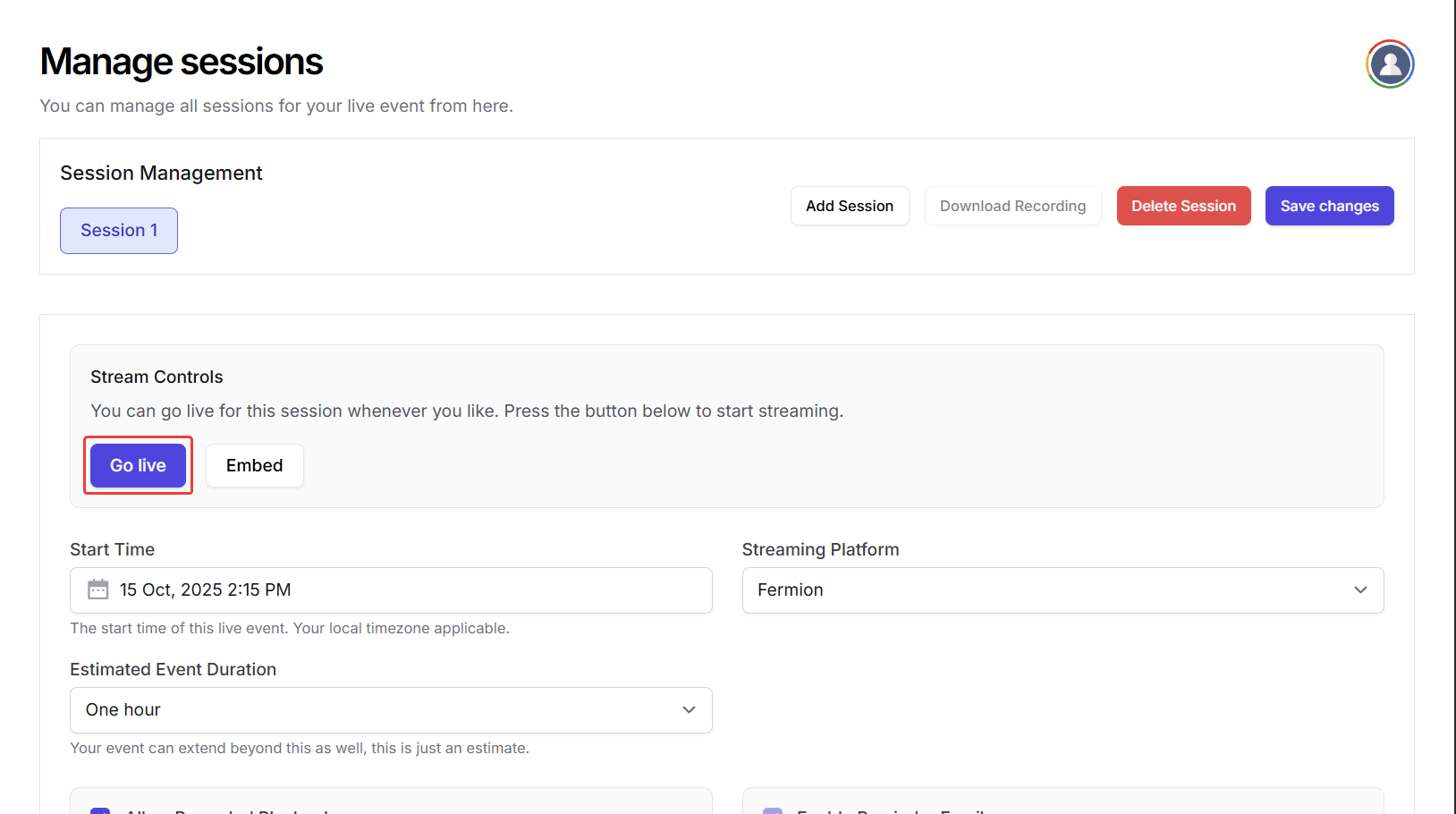
### **Start time**
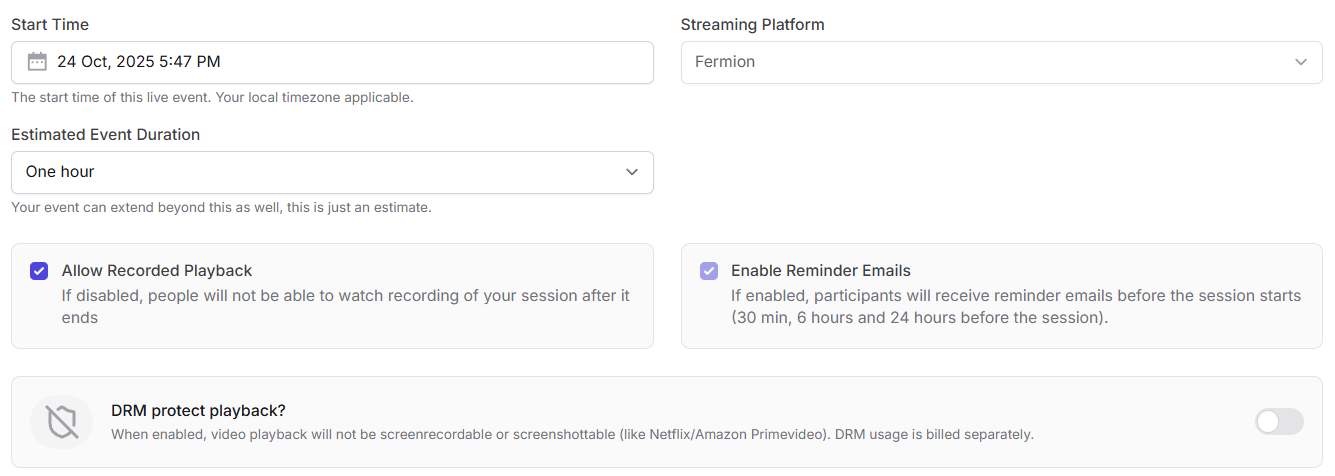
Displays the scheduled start time for your live session.
Example: `24 Oct, 2025 – 5:47 PM (Your local timezone)`
### **Estimated event duration**
Set an approximate duration for your session (e.g., one hour). Your session can continue beyond the estimated time without any interruption.
### **Allow recorded playback**
If enabled, participants can rewatch the session recording after it ends. If disabled, playback will be unavailable once the live event concludes. Learn more about [auto-recording](/live-classes/recording-and-captions).
### **Enable reminder emails**
Send automatic reminders to registered participants at key intervals before the event begins:
* 24 hours before the event
* 6 hours before the event
* 30 minutes before the event
This ensures participants don’t miss your live session.
### **DRM protected playback**
When enabled, playback is secured with DRM protection: preventing screen recording or screenshots (similar to Netflix or Amazon Prime Video). Learn more about [DRM protection](/live-classes/drm-and-watermarking).
Please note that DRM usage is billed separately. Head over to [Fermion Pricing](https://fermion.app/pricing)
for more information regarding DRM playbacks
### External hosts
You can invite additional hosts to help manage your live event.
Hosts have administrative privileges : including starting or ending the stream, inviting speakers to stage, and moderating participants.
To **add an external host**, perform the following steps:
1. Enter the host’s email address in the **Add a new host** field.
2. Click **Add** to give the user with this email address host privileges.
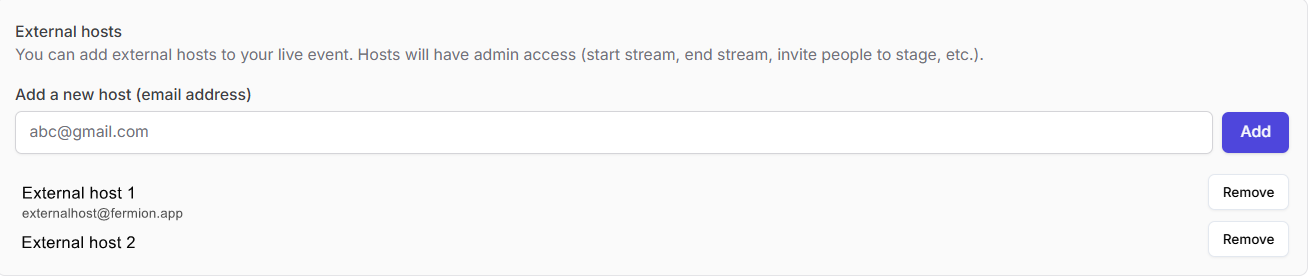
## Pricing & Coupon Codes
Pricing for public events works **exactly like pricing for other product types** (such as [Courses](/setting-up-course/prerequisites) or [eBooks](/digital-products/introduction)).
You can set fixed prices, discounted prices, and manage regional pricing if applicable.
[Learn how to set up pricing](/setup-pricing/fixed-pricing-plan)
You can also apply coupon codes to public events, similar to other products.
This allows you to offer limited-time deals or special access promotions.
[Learn how to create coupon codes](/setup-pricing/add-coupon-codes)
Coupons and pricing logic remain consistent across all product types for a unified experience.
***
## Enrolling students
Students can purchase access to **public events** from the landing page.
As an admin, you can also **manually enroll students** into a public event, for example, for corporate access or complimentary offers.
Head over to the **Students** section in your product builder to manually import users
[Learn how to manually enroll students](/digital-products/enroll-students)
***
## Management settings
Manage how your public live event behaves after setup, including certificates to administrative actions. Head over to the **Settings** tab in your public event sidebar to access these settings.
### Completion certificate
Control whether attendees receive a **certificate of completion** after the live event.
By default, certificates are **disabled**. Toggle **“Issue certificate of completion”** to enable, then click **Save Changes** to apply.
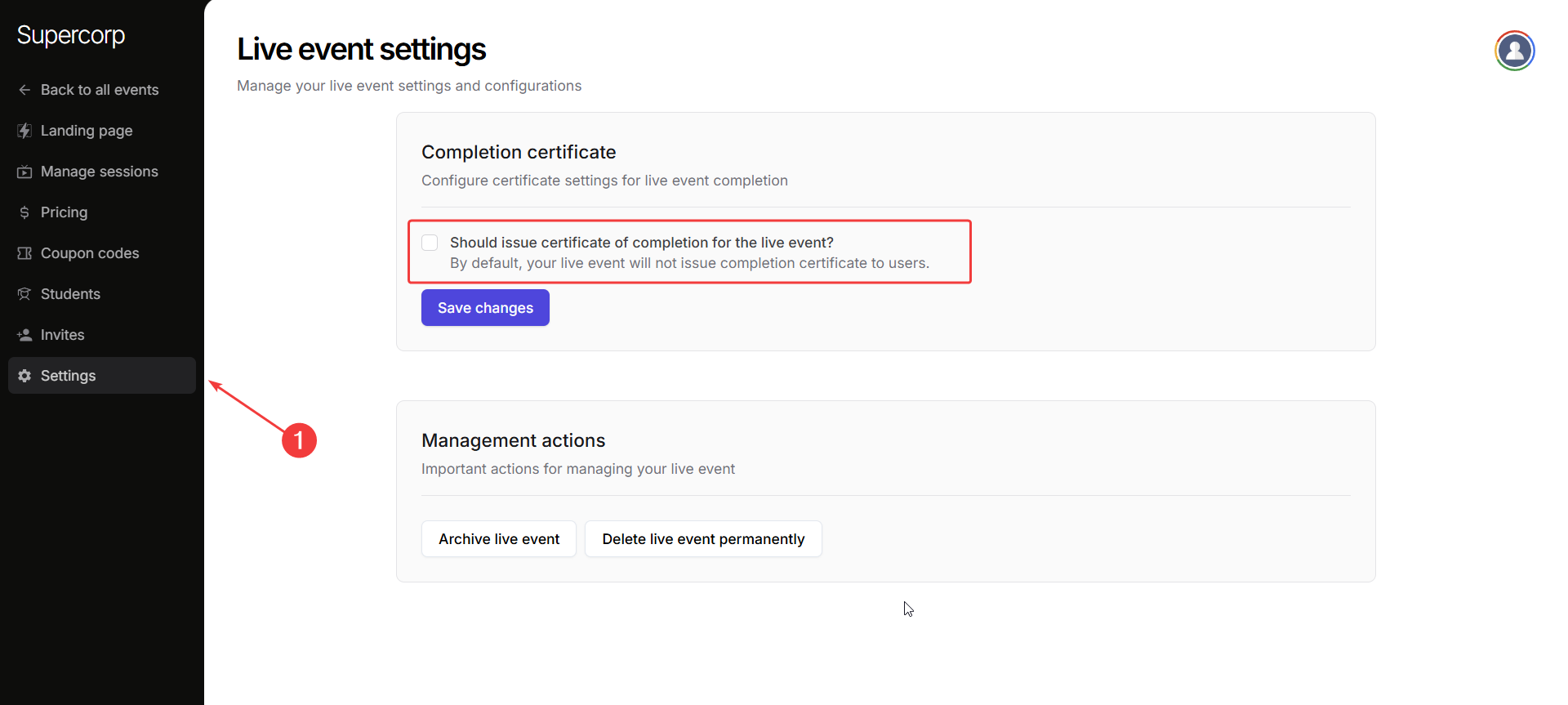
### Management actions
Temporarily hide the event without deleting it. Archived events can be restored later if you
wish to make them available again.
Completely remove the event and all its data from your account. Use this only when you’re sure
the event is no longer needed.
This action **cannot be undone**! Once deleted, the event and all related data are
permanently removed.
# Transcripts / Auto-Recordings
Source: https://docs.fermion.app/live-classes/recording-and-captions
Automatically record live sessions with AI-generated captions and provide downloadable videos for accessible, on-demand learning.
Upon completion of your live session, Fermion automatically converts it into a video recording and makes it available to your students. Instructors can opt in to generate AI-powered captions, which are automatically created in the same language used during the live stream.
This feature enhances accessibility for students and makes your content more inclusive. The captions are automatically synchronized with the video timeline and can be toggled on or off by viewers. There is a brief processing time for the recording to be available and for captions to be generated, which depends on factors like the duration of the call, total number of participants, and the number of users on stage.
## Accessing Captions via Webhooks
For advanced integrations, you can programmatically access the generated captions through Fermion's webhook system. This allows you to:
* Receive real-time notifications when captions are generated
* Integrate caption data into your own systems or workflows
* Build custom caption viewers or editors
* Archive captions in your preferred storage solution
When a live session's captions are ready, Fermion will send a webhook event to your configured endpoint with the caption data in standard formats (SRT, VTT). This enables seamless automation and integration with your existing tools.
For detailed information on setting up webhooks and handling caption events, refer to our [Webhooks documentation](/webhooks/event-payloads).
Additionally, You can make this recording downloadable so your students can access it offline.
To enable recording and captions, follow these steps:
1. Go to Courses
2. Open the Course Builder for a cohort based course

3. Navigate to Live events
4. Click Edit on the relevant live event
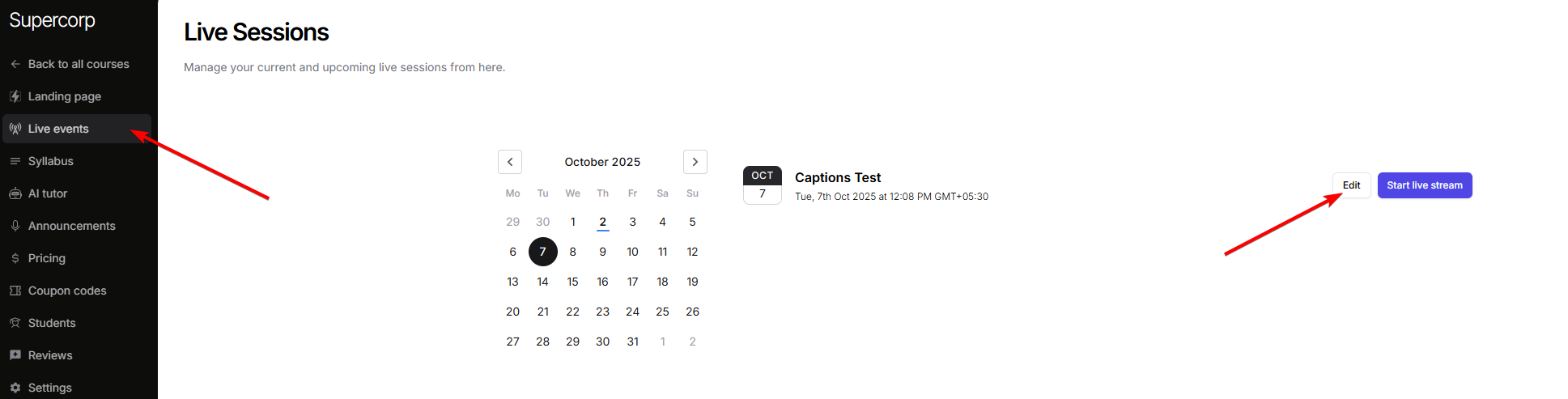
5. Go to Advanced Settings and - Enable the `Allow students to download MP4` option to let students download the recording - Enable the `AI Transcripts` option to generate AI Transcripts
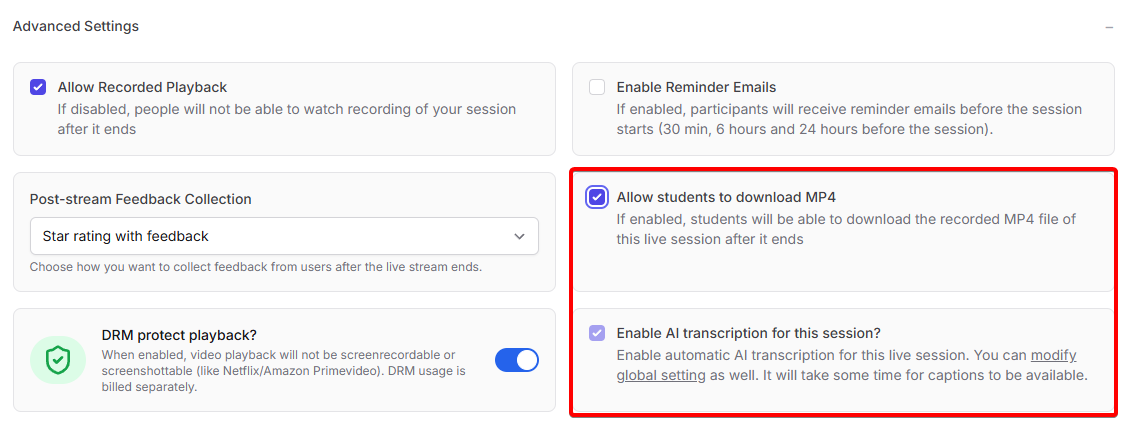
This feature can also be enabled globally for your school at: Settings > School settings > Livestreaming settings.
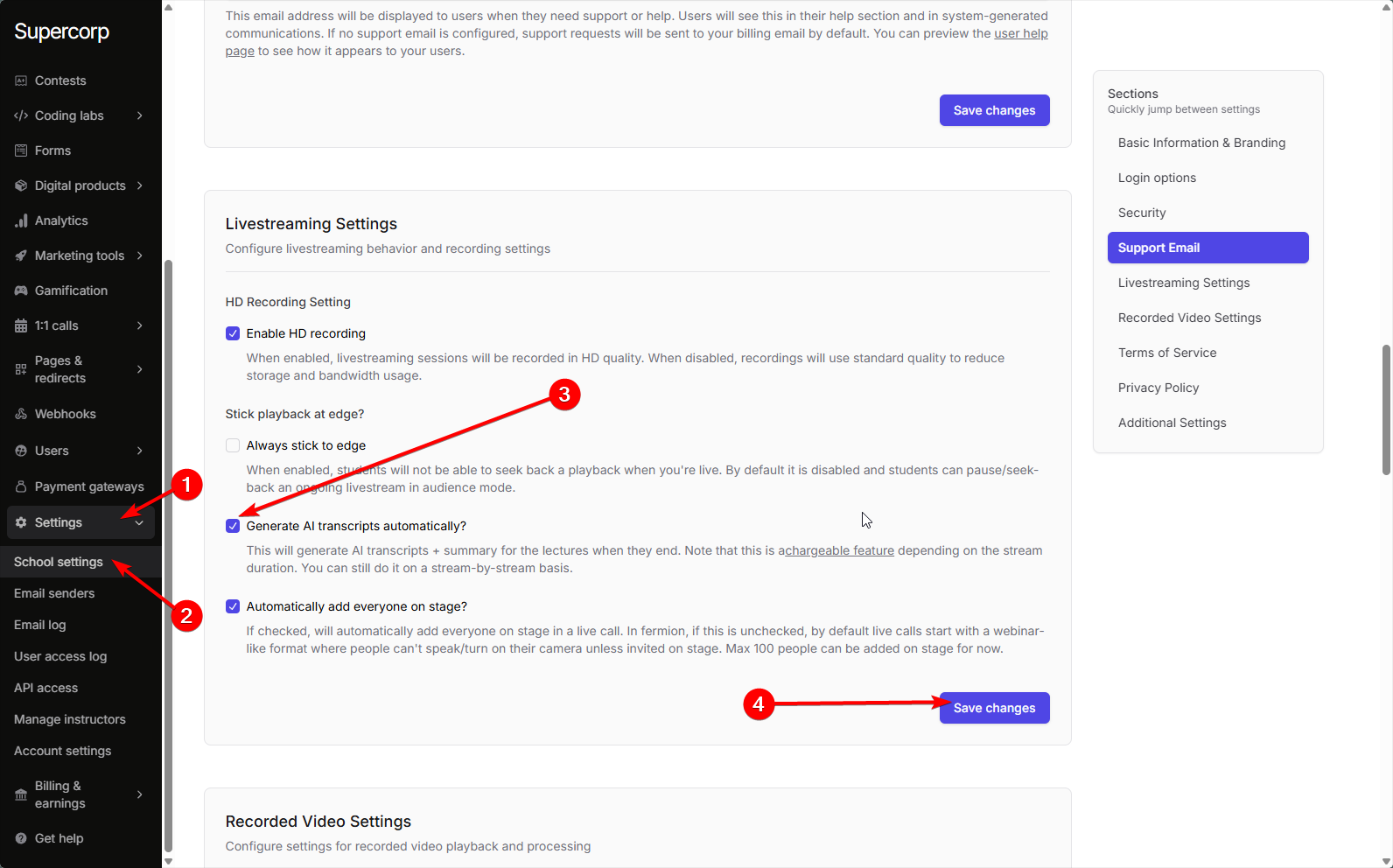
Fermion Pro members have 5 hours of transcription included in their plan. Any additional transcriptions are charged at 0.3\$/hour.
Please refer to [Fermion Pricing](https://fermion.app/pricing).
# Schedule a Live Class in Fermion
Source: https://docs.fermion.app/live-classes/setup-live-class
Learn how to create, configure, and schedule live classes in Fermion.
Hosting a live class on Fermion lets you deliver lessons in real time,
interact directly with your learners, and create an engaging, collaborative experience inside your course.
Setting up a live session involves configuring essential details like your session title, description and timing of the session. You’ll also learn how to customize session behavior, enable reminders, add additional hosts, and configure recording or transcript options so your learners get the best possible experience.
Once your setup is complete, you’ll be ready to go live and manage your class using Fermion’s built-in tools for screen sharing, [whiteboarding](/live-classes/whiteboard), and [stage management](/live-classes/invite-to-stage).
## Some pre-requisites
Before getting started, make sure of the following things:
1. Have a good internet connection before you stream so that the stream doesn't buffer or lag, these issues are usually caused by poor network connections.
2. Make sure that your browser and graphic drivers are up-to date, to avoid any issues that arise with outdated versions.
3. Keep a good webcam and a good microphone to ensure that you're able to stream smoothly to your learners.
There’s no fixed upper limit on how many live sessions you can host at the same time. Accounts
come with a **soft limit** that can be increased at any time by reaching out to us at
[support@codedamn.com](mailto:support@codedamn.com).
## Live session
You can schedule live classes in three ways at Fermion:
* **Live class inside a course:**\
You can create a live session within a [cohort-based course](/setting-up-course/prerequisites#what-is-a-cohort-based-course%3F). This helps you manage attendance, track progress, and keep the session part of the course flow.\
Refer to the next section in this documentation to learn how to schedule a live class inside a course.
* **Public events:**\
You can organize a live event that anyone can join. You can use this option for open sessions such as webinars, announcements, or community discussions.\
[Learn more about public events](/live-classes/public-event)
* **One-on-one calls:**\
You can set up a live session just between an instructor and an individual learner. This option can be used for personalized guidance, mentorship, or performance reviews.\
[Learn more about 1:1 calls](/live-classes/one-one-calls)
## How to create a live class inside courses?
You can schedule live classes in [cohort based courses](/setting-up-course/prerequisites#what-is-a-cohort-based-course%3F) and go live with the help of the following steps:
Inside your syallbus section itself, click on `+ Add in this section` button to expand to all course items.
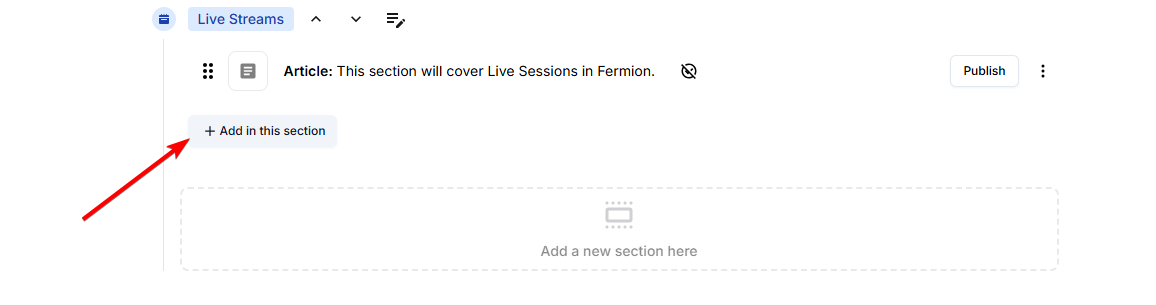
Click on `Live class` from the available course items to add a live session.
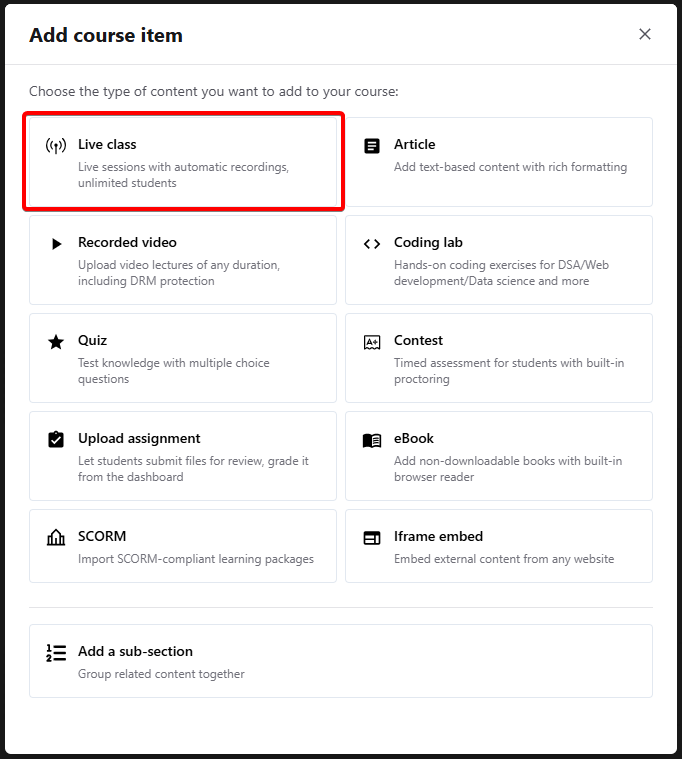
You can also create a live class for your course with the help of Event calendar. For more information regarding this, refer to [Event calendar documentation](/live-classes/event-calendar)
If you wish to enable a free preview for your live session and generate a public invite link, click on the the three dots next to the live class and click **Enable free preview** button and provide confirmation.
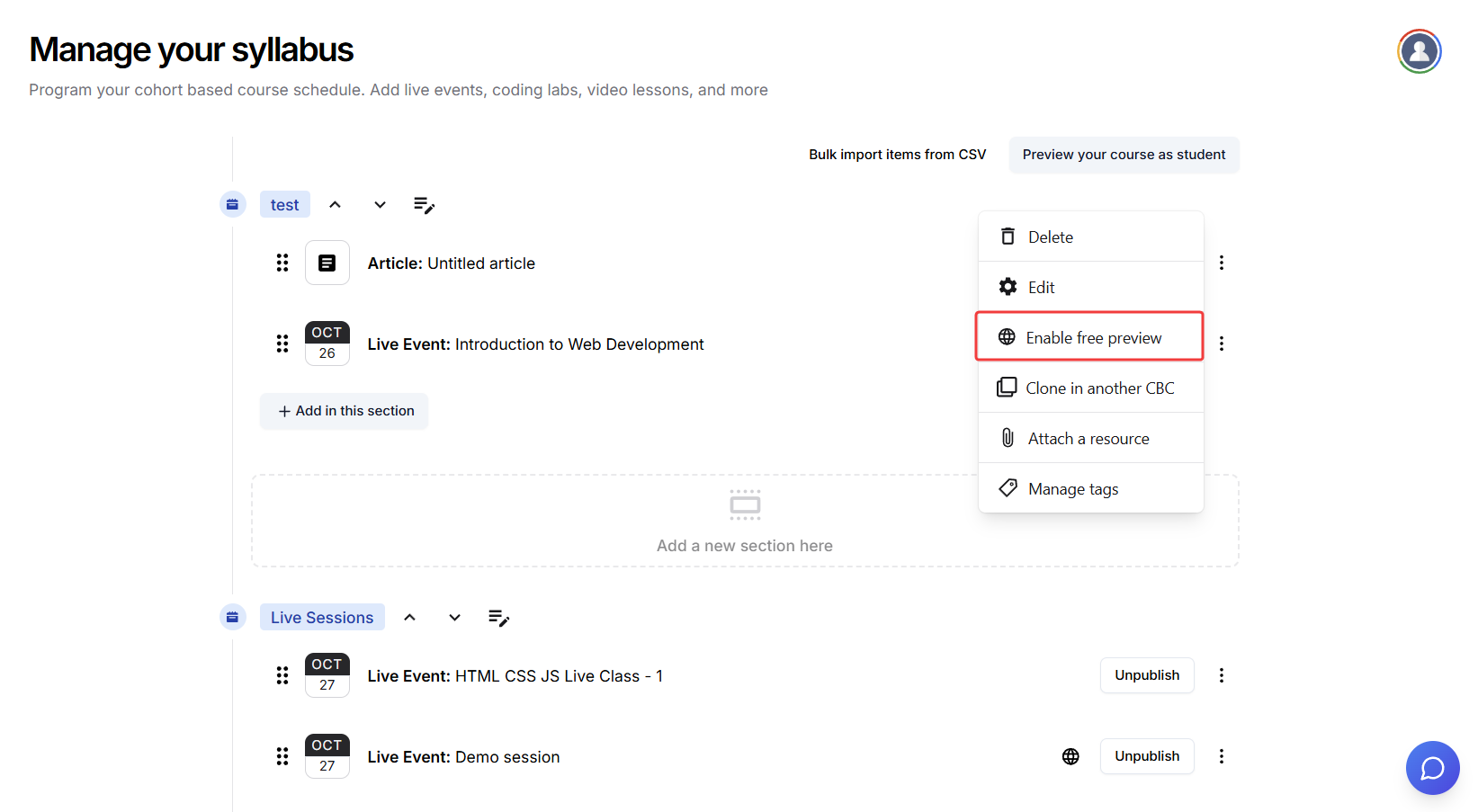
Now, you can copy this link and share with your learners.
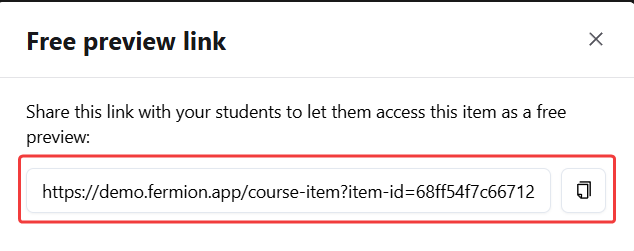
Click on the three dots next to the newly created live session and select `Edit`.
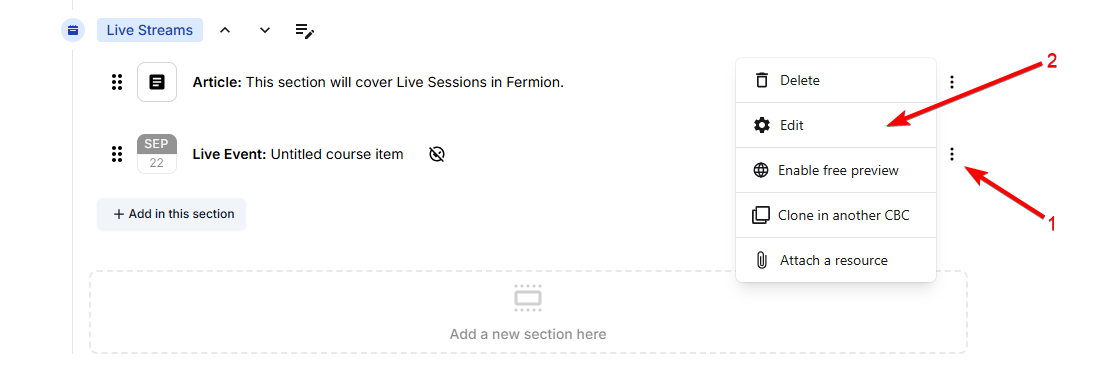
This will take you to a **Live Session Manager** page where you can configure a lot of the options related to this upcoming live session.
#### Title & description

#### Session configuration
From here, you can set the time, duration of the stream. Click on **View stats** button to access the live stream's [analytics](/live-classes/livestream-analytics)
Additionally, you can also add external hosts via email address. When a user joins the live class with the added email address, they will have host priviledges inside the livestream, that is they'll be able to access the [whiteboard](/live-classes/whiteboard), [screenshare](/live-classes/invite-to-stage), mute participants and end the session for everyone.
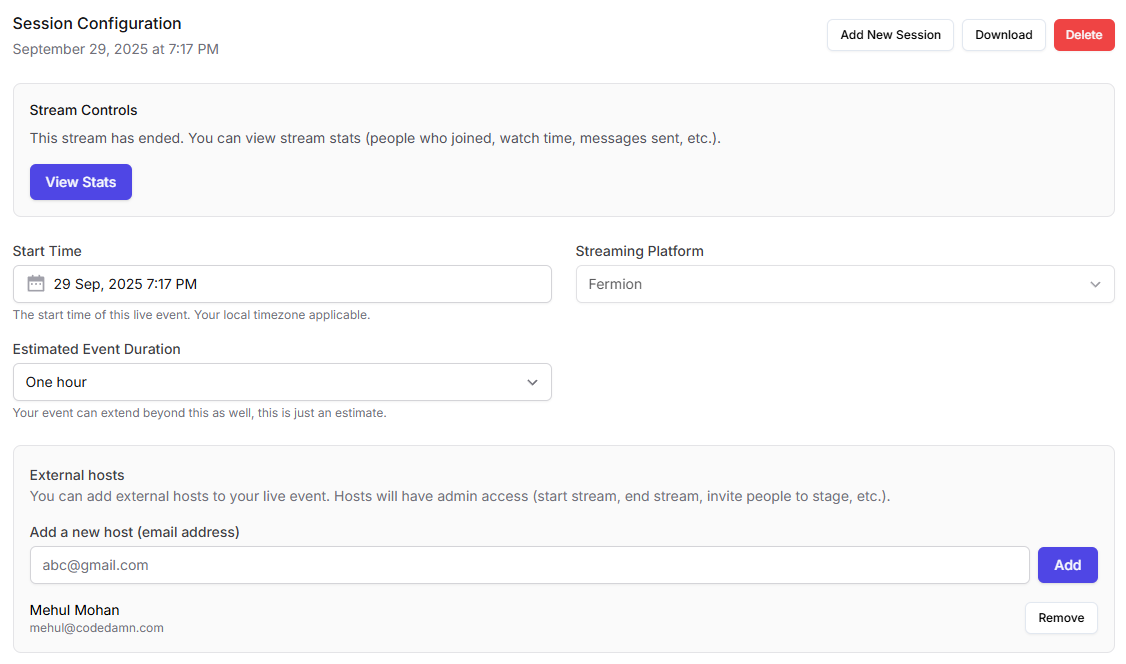
#### Using other livestreaming solutions
If you prefer to use an external livestreaming provider instead of Fermion’s in-house system, click on **Streaming Platform** and select **Other** from the dropdown menu. You can then add your call link inside the **Platform Instructions** section. These instruction will also be **automatically included** in [reminder emails](/marketing-tools/email-templates#live-event-email-reminders) sent to your participants before the session starts.
Please note that when using an external livestreaming platform, you will not get access to **livestream recordings**, **auto-generated captions**, or **stream analytics**, as these features are only available for events hosted through Fermion’s native livestreaming solution.
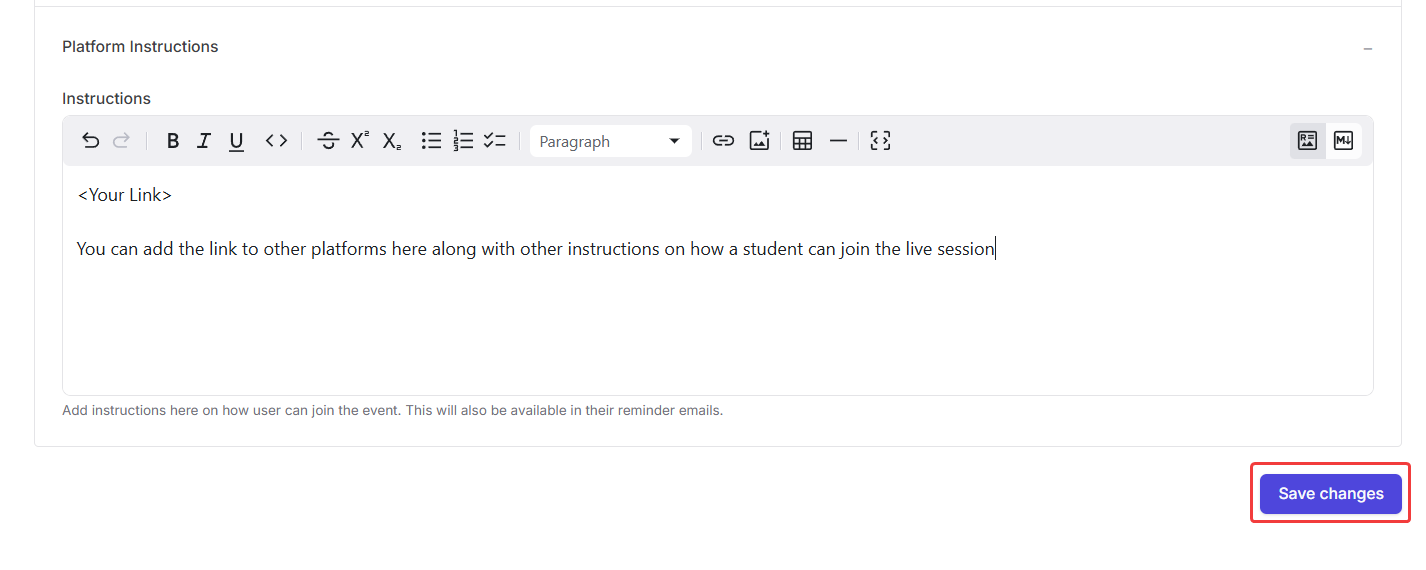
#### Additional settings
You can configure the following:
* [Recorded Playback](/live-classes/recording-and-captions): allows users to have access to the live session as a recorded video, that they can watch from their course page later.
* **Enable Reminders**: By default, reminder emails are sent to students 24 hours, 6 hours and 30 minutes before a live session starts. [Learn how to enable reminders for all live events in your school](/marketing-tools/email-templates#live-event-email-reminders)
* **Post-stream feedback collection**: Shows user a screen where they can submit feedback and star rating for the live session. These ratings can be accessed later at [livestream analytics](/live-classes/livestream-analytics).
* **Allow MP4 downloads**: You can make the session recording available to students as a downloadable video for offline access .
* [DRM playback](/live-classes/drm-and-watermarking): Turning this on will prevent users from screen recording and screenshotting your content.
* [Enable AI transcripts](/live-classes/recording-and-captions): You can opt-in to have transcripts generated for your live session, which will be directly available during playback of your recording as closed captions.
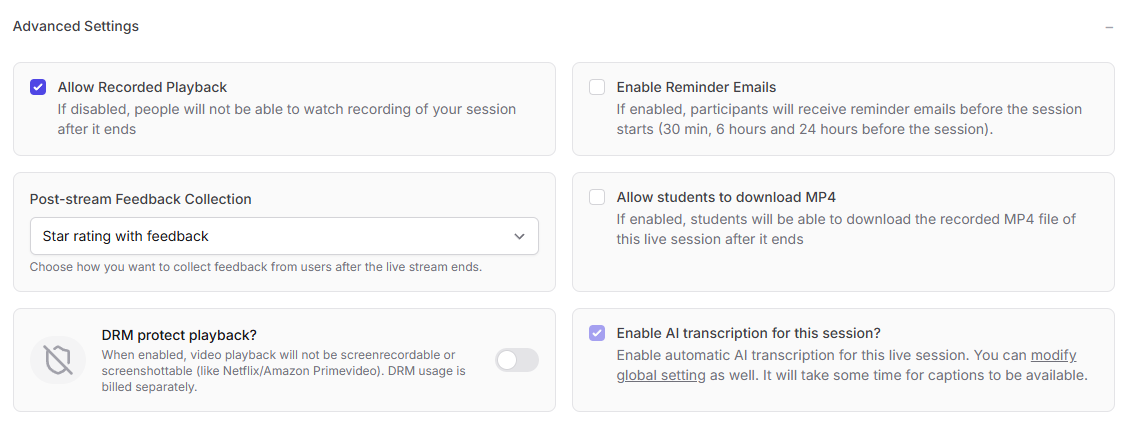
Once you are done configuring your live session, click on `Publish` to publish the live class.
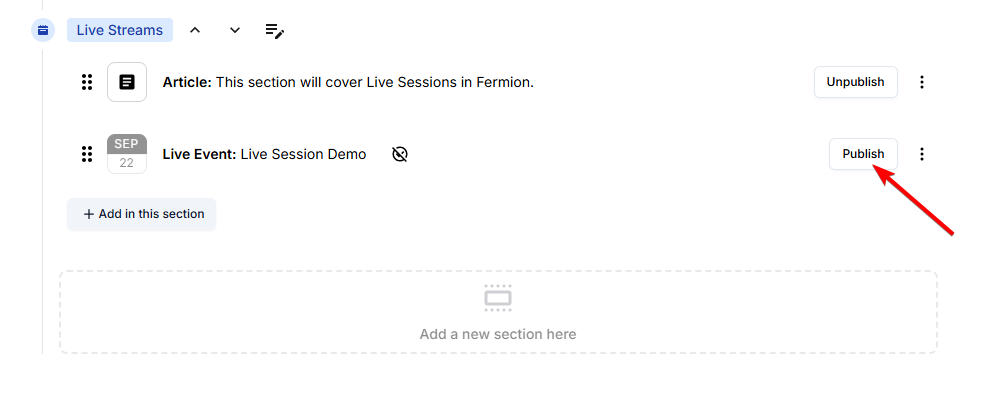
Once you have published the class, go to `Live Sessions` from the left sidebar of your screen.

Click on `Start live stream` for the live class that you have created.

Instructors and added hosts can also **access and start live classes directly** from the **Live event course items** widget on their User dashboard, providing a quick way to go live without opening the Course Builder.
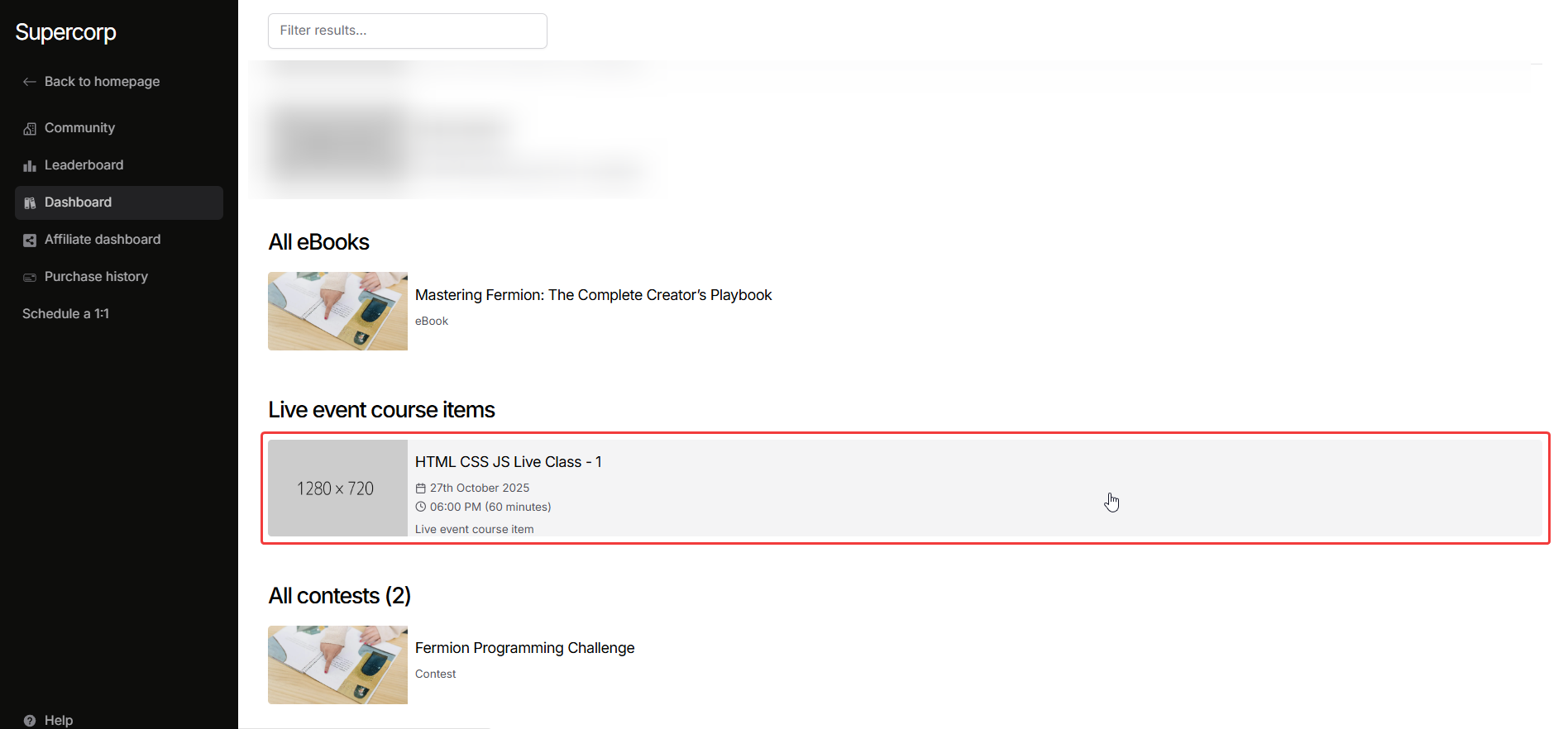
Once you proceed, you will see such a screen.

Press on the button **Begin stream** when you want to start streaming.
Your users on the other side (inside the course item page) will be able to watch the stream normally.
Once your class concludes, click on **End Session** within the live call interface to properly end the live session. This ensures your recording is processed correctly and analytics are finalized.
Only **meeting hosts** can end the live class for everyone.
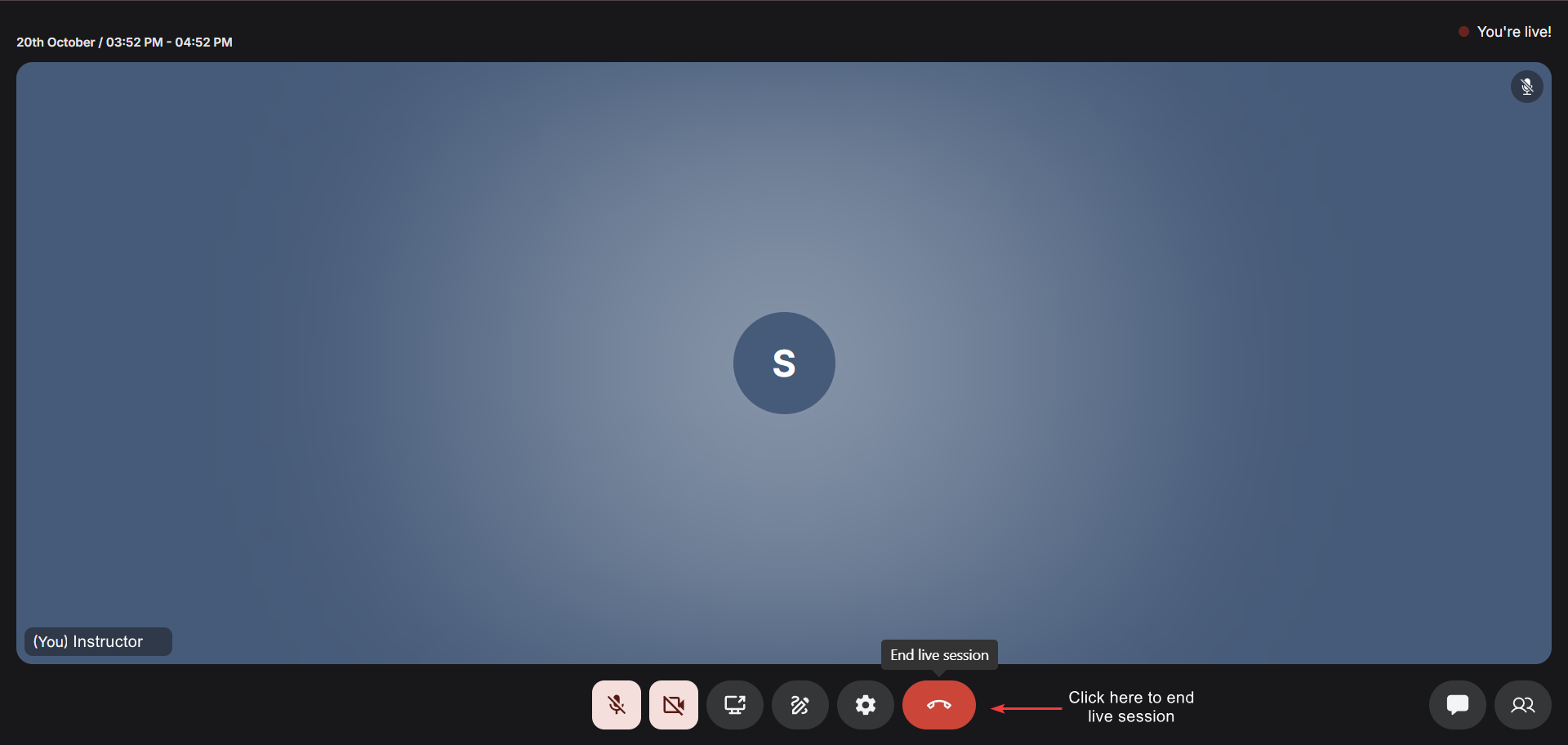
Closing your browser tab or window does **not** automatically end the live session on Fermion’s
side. A session only ends when you manually end it within the call or by invoking the **[End
API](/api-reference/live/end-live-event-streaming)**. If the live call remains completely empty
(no participants) for **1 hour**, the system will automatically end the session for you.
## Scheduling live classes
You can schedule your live classes in two ways: **singularly** or in **bulk** using our Event Calendar.
* **Live class Scheduling:** If you want to schedule a one-off session, you can set the date and time directly in the Event Calendar to create your live class. Learn more about this feature in [Schedule a live class in Event Calendar](/live-classes/event-calendar#how-to-schedule-a-live-session-directly-in-event-calendar)
* **Bulk scheduling:** For multiple sessions at once, you can use the Event Calendar to plan your entire course's live sessions ahead of time. This is especially helpful if you want to maintain a consistent weekly or monthly schedule. Learn more about [Bulk Schedule live classes via CSV](/live-classes/event-calendar#how-to-bulk-schedule-live-classes-via-csv)
For detailed instructions on how to use the Event Calendar, check out the [Event Calendar Documentation](/live-classes/event-calendar) for step-by-step guidance.
# Live Class on Fermion
Source: https://docs.fermion.app/live-classes/what-are-live-classes
Learn about live classes on Fermion and how to conduct them properly
Fermion offers built-in live streaming capabilities, eliminating the need for third-party applications like Zoom. This not only provides a seamless experience but also reduces additional costs and setup hassles.
Fermion's in-house live streaming infrastructure supports up to 10,000 participants in a live stream, with the option to add 50 people to the stage. This ensures a smooth, uninterrupted teaching experience, making it easier for you to focus on delivering your content effectively.
## What is a Live Class?
A Live Class is an interactive, real-time session between you and your students, powered by Fermion’s in-house streaming infrastructure.
Unlike traditional third-party integrations, Fermion’s live system is deeply integrated into the LMS, giving you full control over every aspect of the experience: from scheduling and access management to recording, playback, and host controls. You can engage your learners through [real-time chat](/live-classes/live-chat), polls, and speaker interactions, while maintaining complete content security with built-in [DRM](/live-classes/drm-and-watermarking) and [analytics](/live-classes/livestream-analytics) tracking.
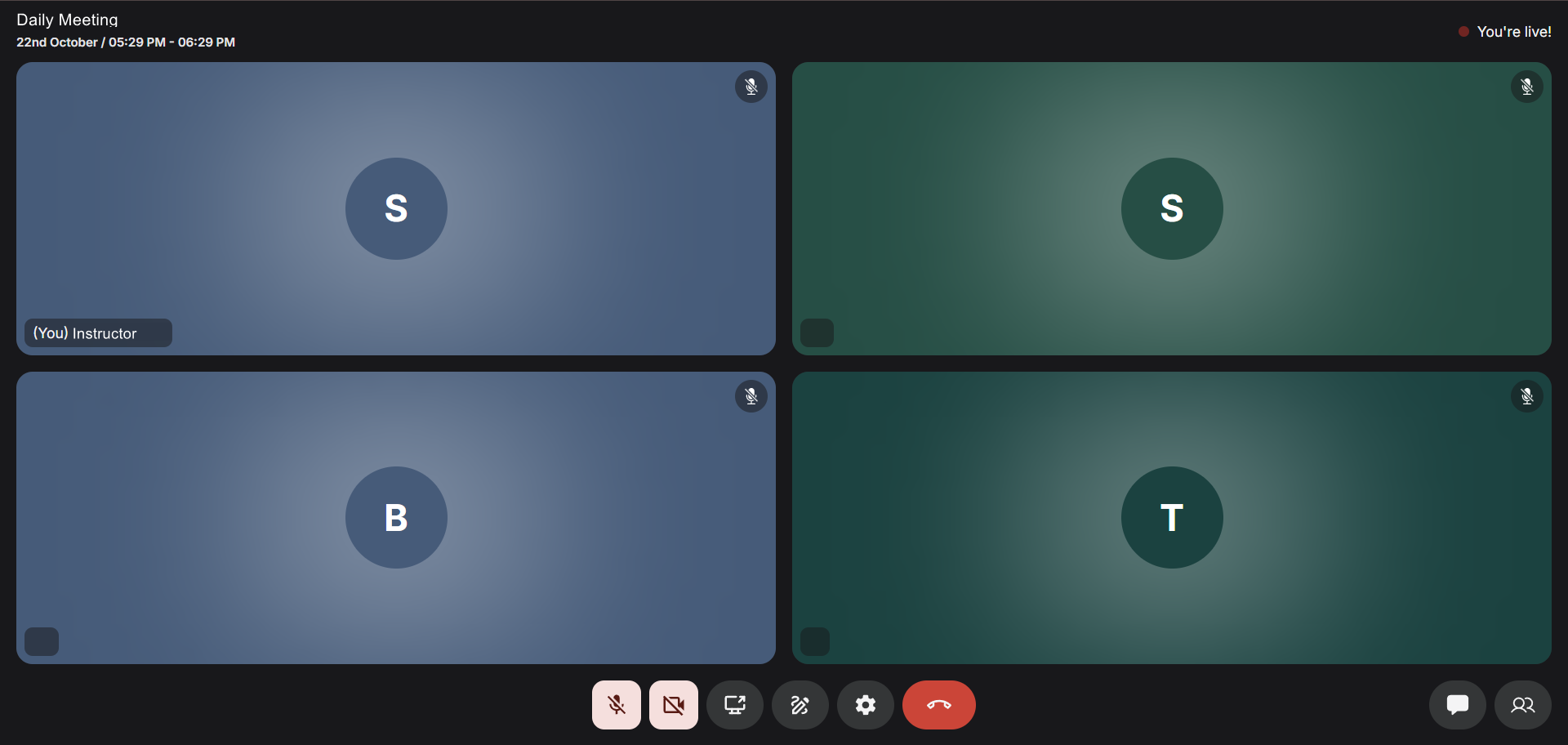
## Fermion's live infrastructure capabilities
Fermion comes with a range of powerful live class features designed to make teaching and learning more interactive, secure, and scalable. Below are some of the key capabilities available to you.
#### Upto 1080p session streaming
Fermion allows you to stream upto **1080p** to unlimited viewers, which is later made available as a recording too.
#### Unlimited students
Our systems are built and tested to support more than **10,000+ students** attending your live class at once. That means you get an experience as smooth as butter while teaching, and your students get uninterrupted learning from you.
#### Invite multiple speakers
Fermion allows you to invite up to **150 participants on stage** during a live session. Participants on stage can screenshare, turn on their microphone and camera to interact with everyone. You also have the ability to auto-add speakers to the stage. For more information, refer to: [Invite to Stage](/live-classes/invite-to-stage)
#### Pin a tile for everyone
Instructors have the ability to **'PIN' a user's tile** to the stream, ensuring students stay focused on the same view. For more information, refer to: [Pin a tile](/live-classes/pin-a-tile)
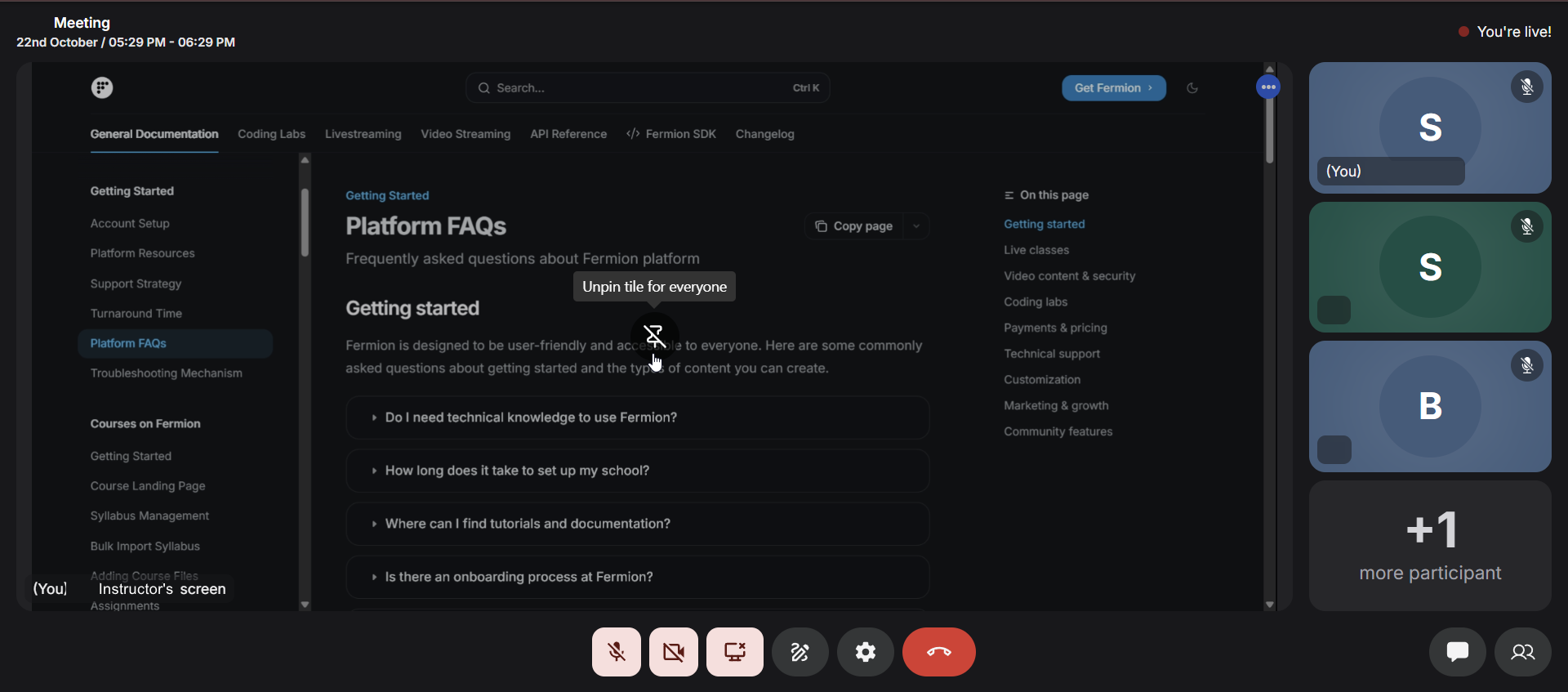
#### No limit on duration
There is **no restriction** on how long you can go live. You can even teach for **6+ hours** in a single session, all possible with Fermion.
#### In-built DRM support
With Fermion's **in-built DRM support**, your video content is protected from piracy and unauthorised sharing. Additionally, we offer a **video watermarking** option to identify anyone sharing or pirating your content. For more information, refer to: [DRM & Video Watermarking](/live-classes/drm-and-watermarking)
#### Auto-recording & Captions
Once your live session ends, Fermion **automatically converts it into a video recording** and makes it available to your students. Additionally, instructors can opt-in to have **AI-generated captions** created in the same language used during the live stream. For more information, refer to: [Auto-recording & Captions](/live-classes/recording-and-captions)
#### Chat live with your students
Send messages, tag people, and chat in real-time with your students. Users can send attachments, create polls to interact with everyone, and share important files. For more information, refer to: [Live Chat](/live-classes/live-chat)

#### Interactive whiteboard
Fermion includes a **collaborative whiteboard** that allows instructors to draw, annotate, and brainstorm in real-time. You can add shapes, arrows, text, sticky notes, and even import images or screenshots to illustrate complex ideas visually. The whiteboard supports **infinite canvas** and **multi-user collaboration** making it perfect for teaching new concepts to students in a visual way.
For more information, refer to: [Whiteboard](/live-classes/whiteboard)
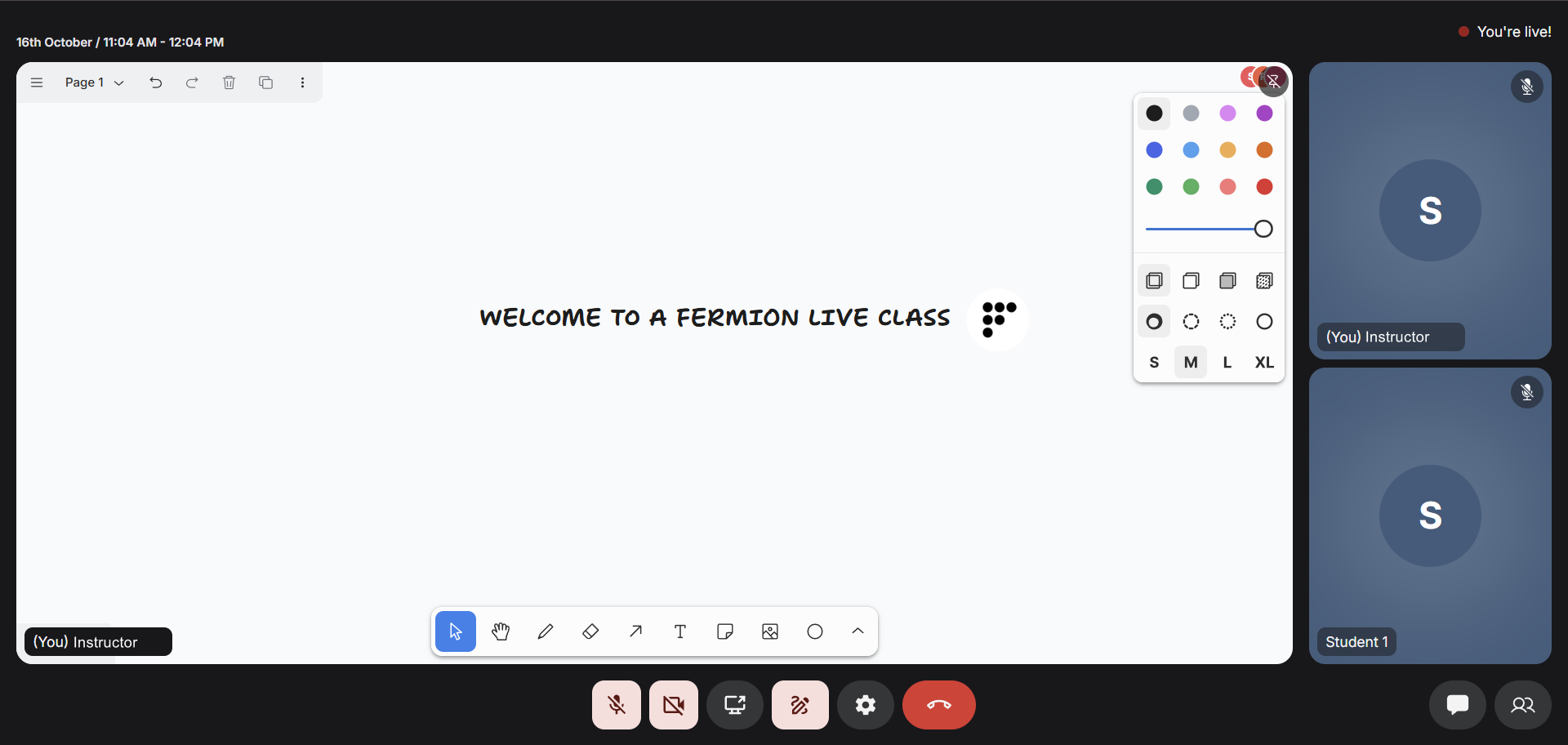
#### Add notes & share resources after a live stream
After your live stream ends, you can **add notes, or share additional resources** with your learners directly from the session page. This makes it easy to provide follow-up material, extra insights, or answer any outstanding questions even after the session is over.
This feature is also available to **external mentors**, allowing guest speakers or industry experts who join your sessions to upload resources, slides, or answer questions for your students post-event.
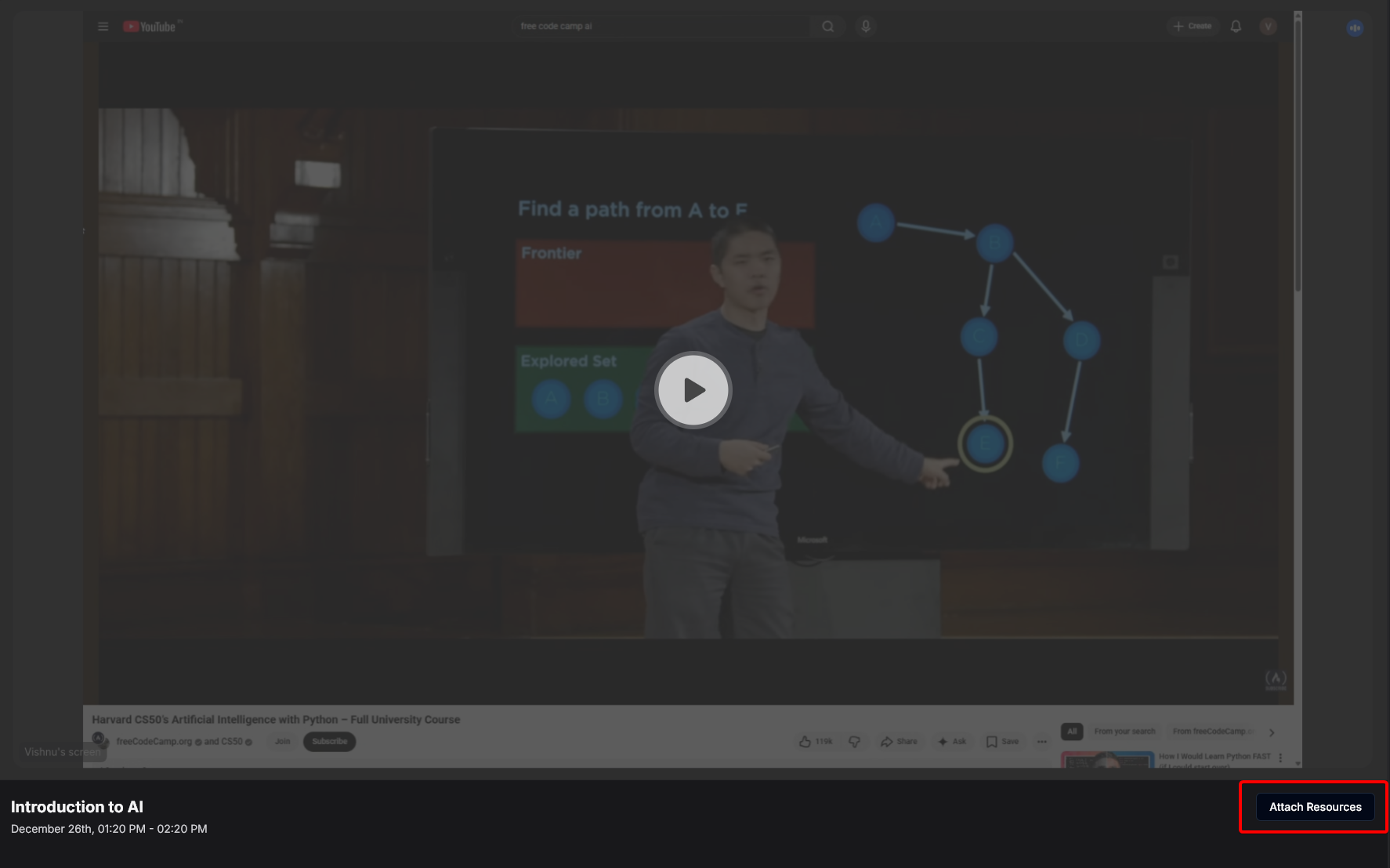
#### Monitor stream analytics
Built-in **stream analytics** let you see how many students attended the stream, when they dropped off, how many messages were sent, and much more. These can be accessed from your instructor dashboard. Learn more about [Live class analytics](/live-classes/livestream-analytics)

#### White labeled embedding
You can **embed live sessions outside Fermion** using Fermion API. For details, refer to: [Live stream embedding](/live-classes/embed-live-session)
## Going live on Fermion
You can go live on Fermion in three different ways, depending on your teaching or engagement needs:
Schedule live sessions directly within a course module.
This is ideal for conducting classes as part of a structured learning path for enrolled learners.
Host open live sessions such as webinars, community events, or workshops that anyone can join using a shareable link.
Conduct personalized sessions, mentorship, or feedback discussions privately with a single learner.
# Whiteboard
Source: https://docs.fermion.app/live-classes/whiteboard
Collaborate visually during live sessions with Fermion’s interactive whiteboard.
The **Whiteboard** in [live sessions](/live-classes/what-are-live-classes) is a collaborative visual canvas designed to make teaching and demonstrations more interactive and engaging. It allows instructors to visually explain concepts, sketch diagrams, highlight content, and respond to student questions in real time.

## Why do we need whiteboard?
Visual explanations often communicate ideas more effectively than text or speech alone. By combining the power of drawing, writing, and pointing, instructors can create an immersive learning environment that promotes clarity and real-time understanding. This makes it an essential tool for instructors who prefer to demonstrate thought processes and encourage participation.
The **whiteboard** is accessible to instructors and **[promoted hosts](/live-classes/invite-to-stage#promoting-users-to-hosts-during-live-session)**, allowing them to draw, annotate, and collaborate during live sessions. Regular participants can use **laser pointers** to highlight or direct attention to specific areas of the board.
## Accessing the whiteboard
You can access the whiteboard directly from your [live session](/live-classes/setup-live-class) interface. Once inside a session, it takes only a few clicks to begin sketching and collaborating visually.
Enter your scheduled live class from the dashboard as an instructor. Learn more about how to
[set up a live class](/live-classes/setup-live-class).
Inside the livestream interface, click on the **Whiteboard toggle** located on the toolbar,
right next to the screenshare button.
Once enabled, you’ll see the canvas appear on your screen. Use the tools on the side panel to
draw, add text, images, or highlight content in real time.
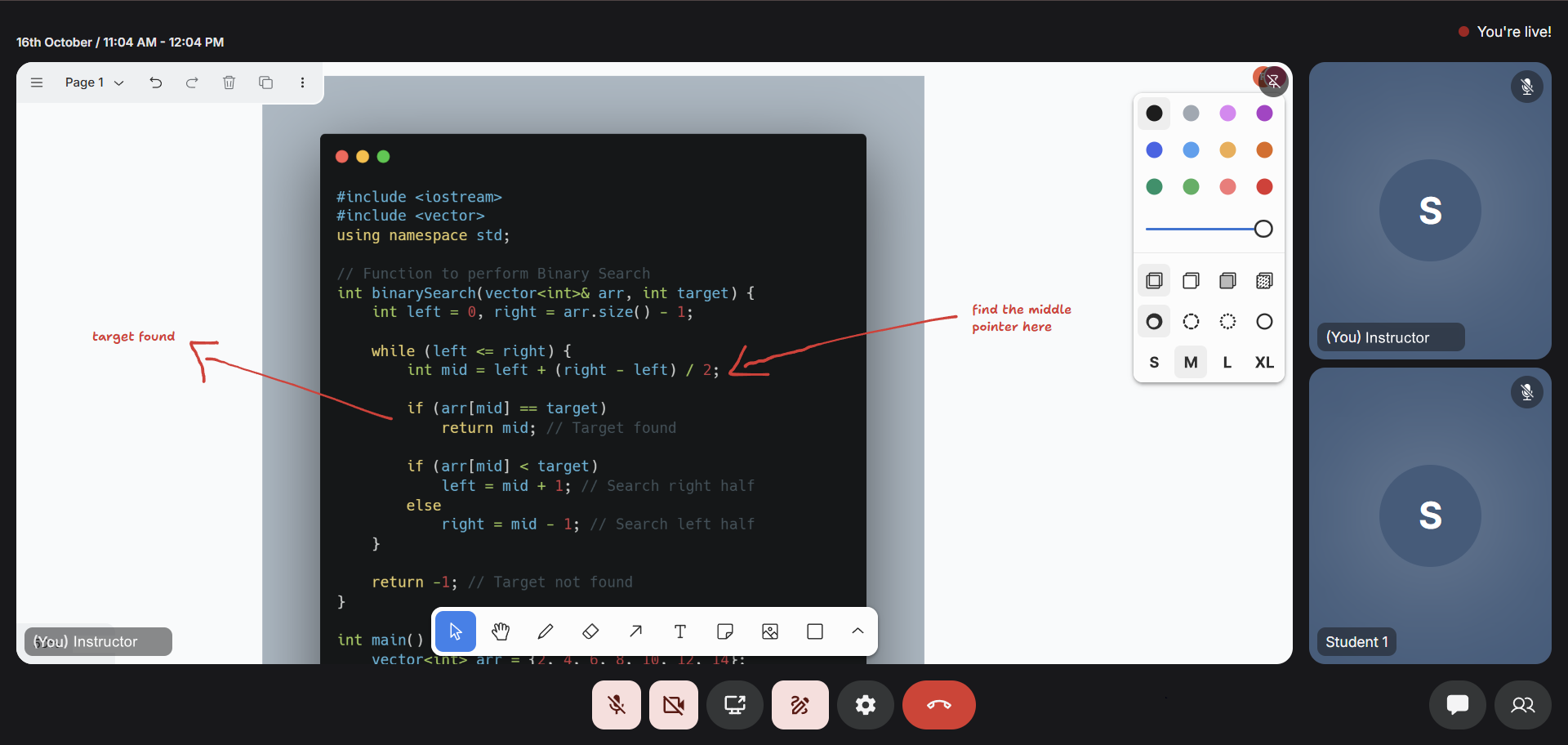
Students can follow your whiteboard in real time and use their laser pointers to draw attention
to specific areas. However, they cannot modify or erase the content on the instructor’s board.
The whiteboard transforms traditional online teaching into a truly collaborative experience. It helps bridge the gap between theory and visualization, especially in technical or design-oriented classes. With live annotations, instructors can illustrate problem-solving metho
**Make sure to pin your whiteboard tile** if you’re also screen sharing. This ensures the
whiteboard remains the **primary visible content** for all participants throughout the session.
Learn more on how to [pin a tile during live class](/live-classes/pin-a-tile).
## Features
The whiteboard offers a powerful and fluid real-time drawing experience, purpose-built for teaching, visual explanation, and team collaboration. Every stroke, object, and annotation is synchronized instantly across all participants, ensuring that both instructors and learners stay perfectly in sync.
### Infinite canvas
The whiteboard provides an **infinite canvas**, allowing instructors to think and teach without boundaries. You can scroll, pan, and zoom effortlessly to create multiple segments of your explanation within a single continuous space. This is especially helpful when breaking down large problems, such as multi-step algorithms or design diagrams.
### Drawing tools and shapes
The drawing toolkit offers an intuitive experience for freehand sketches and structured shapes. You can draw using pen tools, create rectangles, circles, arrows, and even straight lines to depict flowcharts, system architectures, or visual examples.
Each element drawn can be resized and repositioned, providing full creative freedom while maintaining precision. The pen input is optimized for fluid motion and minimal latency, so it feels as natural as writing on a real whiteboard.
### Text and annotations
In addition to drawing, you can insert **text boxes** anywhere on the canvas. This allows instructors to label diagrams, write notes, or define key terms without cluttering the visual explanation. Text elements can be styled with varying sizes and colors, making it easy to differentiate headings, definitions, and supporting notes.
Annotations appear instantly across all participant screens, enabling everyone to follow the instructor’s reasoning in real time.
### Color and styling controls
To enhance visual clarity, the whiteboard includes a **color palette and styling controls**. You can switch between pen colors, adjust line thickness, and change fill properties for shapes. This flexibility helps highlight important sections, differentiate between concepts, and make diagrams more visually coherent.
Using multiple colors not only improves engagement but also reinforces visual learning by emphasizing relationships between different ideas.
### Upload images onto whiteboard
Instructors can **upload images directly onto the whiteboard**, making it easier to build lessons around pre-existing visual materials. You can import diagrams, screenshots, infographics, or reference materials and annotate them live to enhance understanding.
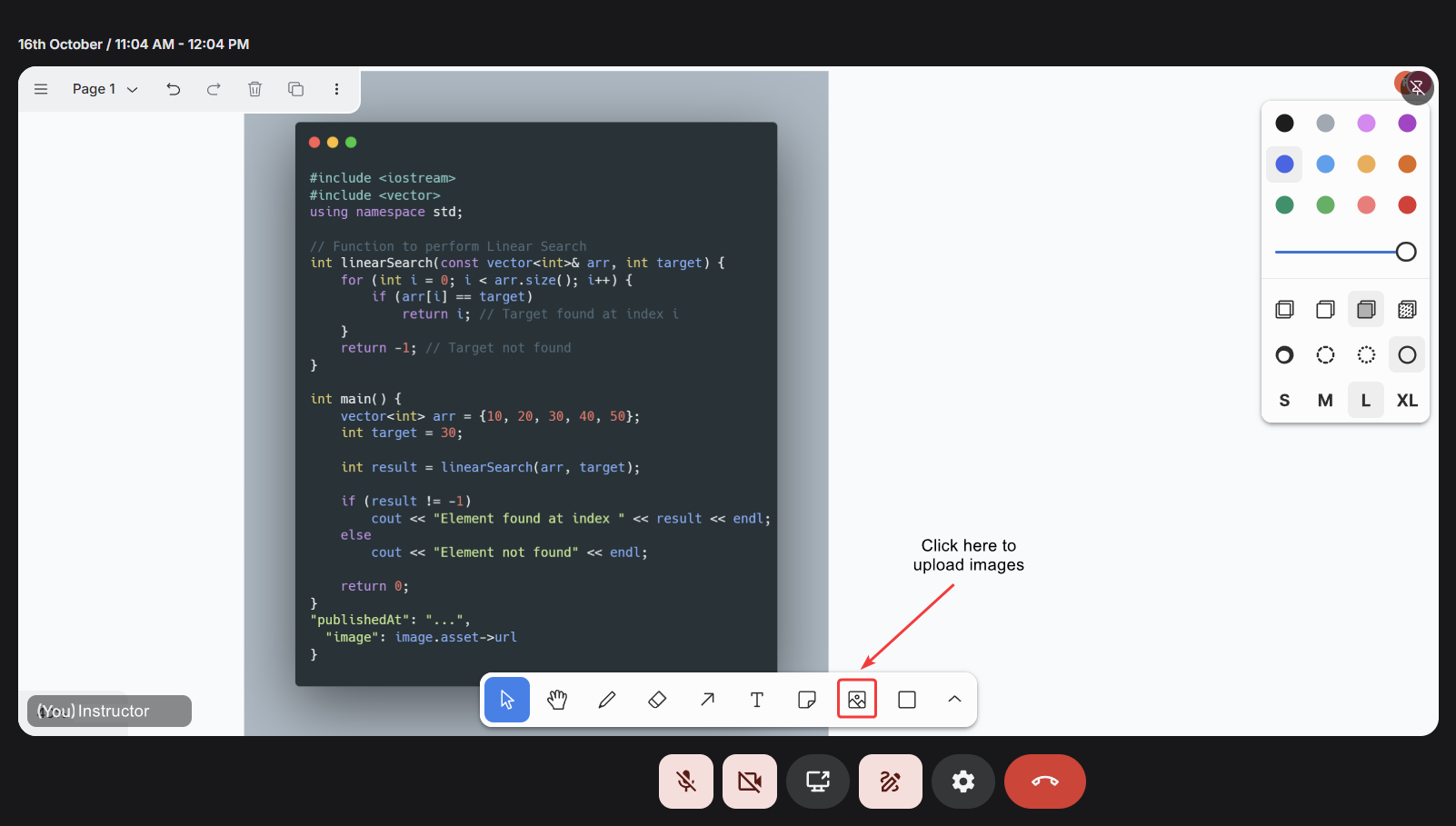
Uploading an image is as simple as selecting the **image icon** from the toolbar and choosing a file from your device. Once placed on the canvas, you can **resize** or **reposition** the image freely. This flexibility allows you to blend pre-prepared visuals with spontaneous drawings and notes.
### Real-time collaboration
Every interaction on the whiteboard: drawing, typing, or moving an object, is synchronized live. This real-time sync ensures that students see the instructor’s content evolve instantly, stroke by stroke, with zero noticeable delay.
Students can’t draw on the instructor’s board but can use laser pointers to guide attention
toward specific areas, ask questions, or highlight doubts without disrupting the flow of
teaching.
This controlled interactivity promotes focus and engagement, giving students the ability to interact meaningfully while maintaining instructional control.
### Undo, redo, and erase
Mistakes are part of the creative process, and the whiteboard makes correcting them simple. The undo **\[CTRL/CMD + Z]** and redo **\[CTRL/CMD + Shift + Z]** actions allow you to step backward or forward through your edits. The **eraser tool** provides precise control for removing unwanted strokes or shapes without affecting the
## Using whiteboard on small screen devices
Fermion’s whiteboard is fully optimized for mobile and tablet devices, providing the same powerful functionality as the desktop version. Instructors and promoted hosts can draw, add text, insert images, and use shapes directly on the canvas using touch gestures or a stylus. The interface is responsive and adapts seamlessly to different screen sizes, ensuring an intuitive and smooth experience.
All features work identically on mobile, with every stroke and update synchronized instantly for all participants. This makes it easy to teach or demonstrate concepts from anywhere while keeping students fully engaged, even on smaller screens.
## Next steps
Capture every moment of your live session automatically. Generate AI-powered transcripts and
session recordings for learners to revisit anytime.
Protect your content with secure DRM and dynamic watermarking. Keep your intellectual property
safe while sharing videos confidently.
# Additional Settings
Source: https://docs.fermion.app/manage-settings/additional-settings
Configure post-payment redirects, office address, custom code, and FOMO widget for your school.
The **Additional Settings** section lets you configure extra options that enhance your school’s **branding**, **compliance**, and **user engagement**.\
These settings provide flexibility for post-payment experiences, design customization, and marketing optimizations.
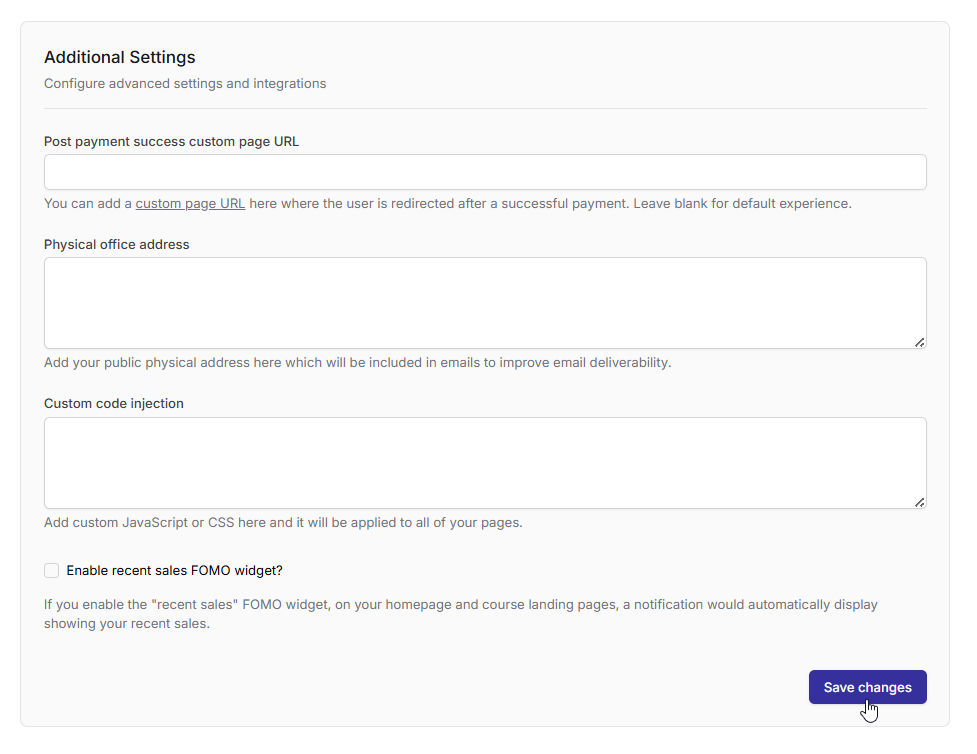
You can configure the following options in this section:
***
## Post-payment success custom page URL
Redirect users to a custom webpage after they complete a successful payment.
* **Usage:** Enter the URL of a page you’ve designed within your school’s website (e.g., a “Thank you” or “Next steps” page).
* **Benefit:** Helps you personalize post-purchase experiences, promote upsells, or guide students to their first lesson.
Example URL: `https://myschool.fermion.app/thank-you`\
This page could include a welcome message, enrollment details, or a link to the user’s dashboard.
Learn more about creating custom pages in [Using Source Code](/custom-landing-pages/using-source-code).
***
## Physical Office Address
Add your **official business or school address** for compliance and email deliverability.
* **Purpose:** Many countries require a valid business address in transactional emails.
* **Display:** The address appears in automated communications such as payment receipts, invoices, and notifications.
We recommend using your organization’s registered address.\
If you operate remotely, a valid virtual or correspondence address can also be used for compliance.
***
## Custom Code Injection
Insert **custom JavaScript or CSS** globally across your school’s website to modify behavior, add widgets, or customize design elements.
* **Usage:** Ideal for adding analytics scripts (e.g., Google Analytics, Meta Pixel), live chat widgets, or visual styling tweaks.
* **Scope:** Injected code applies across all public-facing pages of your school.
Ensure your code snippets are secure and tested to avoid breaking core functionality.\
Improper or unverified third-party scripts can impact load times or security.
Learn more about styling your school with [Custom CSS Styling](/manage-settings/custom-css-styling).
***
## Enable Recent Sales FOMO Widget
The **Recent Sales FOMO Widget** allows you to display real-time purchase notifications on your homepage or course landing pages, helping to boost conversions through **social proof**.
By showcasing live enrollment activity, it creates a sense of urgency and builds trust among potential students, encouraging them to take action. These dynamic “Recent sales” alerts appear automatically as users browse your site, enhancing engagement and driving more enrollments. This feature can be enabled on both your home page and [Course Landing Pages](/setting-up-course/landing-page).
This feature can increase engagement and conversion rates, especially during limited-time promotions or course launches.
# Billing
Source: https://docs.fermion.app/manage-settings/billing
View your current plan, monitor usage across all metrics, and review your complete transaction ledger including sales, refunds, and subscription overages.
The **Billing** page gives you a centralized view of your subscription plan, real-time usage across all platform metrics, and a complete transaction ledger. Use this page to stay informed about your plan limits, track how much of each resource you've consumed, and review every financial transaction — including sales, refunds, subscription charges, and overages.
***
## Accessing the billing page
To open the **Billing** page:
Log in to your instructor account and navigate to your **Dashboard**.
In the sidebar, click **Billing & earnings** to expand the available configuration options.
Click **Billing** to open the full configuration panel.
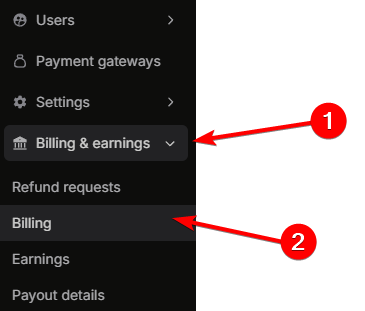
***
## Current plan
The top section of the billing page displays your active subscription plan. The header shows your **plan name** (e.g., Fermion Pro (Monthly)) along with the **subscription date range** (e.g., 01 Oct 2025 – Forever).
This section is organized into two tabs:
### Plan details
The **Plan details** tab shows a summary of your plan's pricing and billing terms, followed by a full breakdown of included usage limits and overage rates.
#### Plan summary
| Field | Description |
| ------------------ | ----------------------------------------------------------------------------------------------- |
| **Base amount** | The recurring subscription price for your plan (e.g., INR 4,999). |
| **Cycle duration** | The length of each billing cycle (e.g., 30 days). |
| **Grace period** | The number of days after a cycle ends before overages are finalized and charged (e.g., 7 days). |
#### Usage metrics
The usage metrics table lists every metered resource included in your plan, with the amount included per billing cycle and the overage rate charged when usage exceeds the included limit.
| Metric | Included | Overage |
| -------------------------- | ------------------- | ------------------------------ |
| **Bandwidth** | 1 TB | 20 USD per 1 TB |
| **DRM** | 5000 playbacks | 4 USD per 1000 playbacks |
| **Storage** | 100 GB | 2.5 USD per 100 GB |
| **Interactive Lab** | 1000 hours | 0.06 USD per 1 hour |
| **DSA Lab** | 50000 runs | 1 USD per 3000 runs |
| **Email** | 3000 emails | 0.5 USD per 1000 emails |
| **AI Usage** | 1 US Dollar | 1 USD per 1 US Dollar |
| **Instructor Count** | 10 individual count | 5 USD per 1 individual count |
| **Edge Request** | 10 million requests | 0.5 USD per 1 million requests |
| **SMS India** | 100 SMS | 1 USD per 100 SMS |
| **AI Transcription Usage** | 5 hours | 0.3 USD per 1 hour |
When usage exceeds your plan's included limit for any metric, overage charges are applied automatically at the rates shown above.
### Billing cycles
The **Billing cycles** tab shows a chronological history of all your past and current billing cycles.
Each row in the table displays:
| Column | Description |
| -------------- | ------------------------------------------------------------------------------------------ |
| **Cycle** | The sequential billing cycle number. |
| **Start** | The start date of the billing cycle. |
| **End** | The end date of the billing cycle. |
| **Invoice ID** | The unique identifier for the invoice generated for that cycle. |
| **Status** | The current state of the invoice — **Completed** (paid) or **Pending** (awaiting payment). |
| **Actions** | An **Open invoice** button to view or download the invoice. |
When an invoice has a **Pending** status, you can pay for it directly from this tab by clicking the action button next to the invoice. This allows you to settle outstanding invoices without leaving the billing page.
If you wish to upgrade or change your plan, please contact [support@codedamn.com](mailto:support@codedamn.com) for available options and pricing tiers.
***
## Current cycle usage
Below the current plan section, the **Current cycle usage** panel shows your real-time consumption for the active billing cycle. It displays your plan name and the cycle date range (e.g., Fermion Pro (Monthly) · Mar 1, 2026 – Mar 31, 2026).
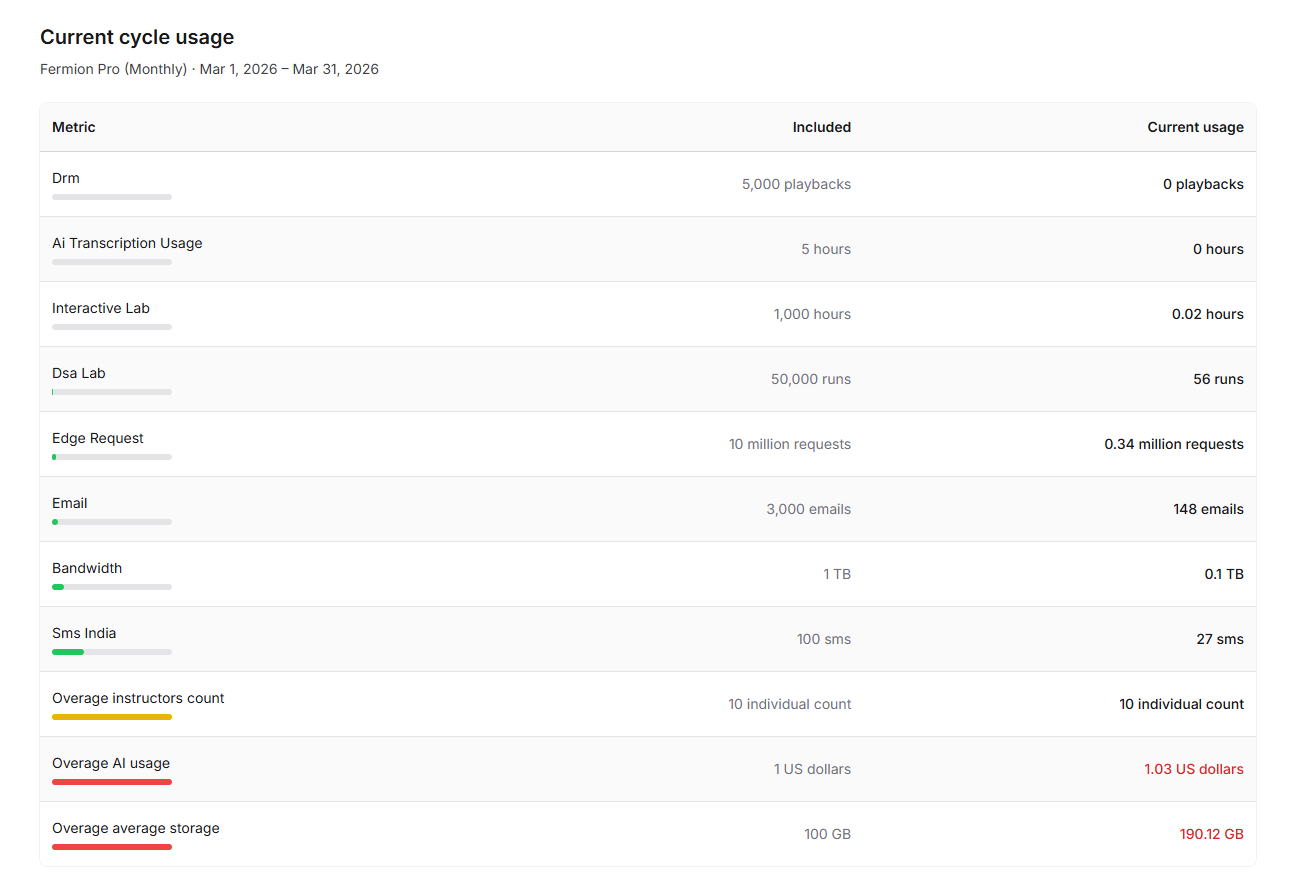
Each metric row shows:
* **Metric name**: The resource being tracked (e.g., DRM, Interactive Lab, Email, Bandwidth).
* **Included**: The amount included in your plan for the current cycle.
* **Current usage**: How much you have consumed so far.
* **Progress bar**: A visual indicator of consumption — displayed in **green** when within limits, **orange** when approaching the limit, and **red** when usage exceeds the included amount (overage).
Metrics shown in red with usage exceeding the included limit indicate active overages. These will be charged at the overage rates listed in your [Plan details](#plan-details).
***
## Transaction ledger
The transaction ledger provides a chronological record of all transactions happening on your account — including student purchases and refunds.
Each row in the ledger displays the following columns:
| Column | Description |
| ------------- | ----------------------------------------------------------------------------------------------------------------------------------------------------------------------------------------------- |
| **Type** | The kind of transaction — **user sale** (shown in green with an ↑ arrow) or **user refund** (shown in red with a ↓ arrow). |
| **Timestamp** | The exact date and time the transaction occurred (e.g., Mar 4th, 2026 06:29 PM). |
| **Details** | The payment gateway used for the transaction (e.g., UPI, Razorpay, PayPal, Stripe) along with the user's email address. Refunded transactions display a **Refunded** badge next to the gateway. |
| **Amount** | The transaction amount with currency (e.g., (INR) ₹8,939.94) |
### Transaction types
| Type | Description |
| ------------------ | ------------------------------------------------------------------------------------------------------------------------------------------------------------------------------------------------------------------------------------------ |
| **User sale** | Revenue collected from a student purchasing a course, bundle, or digital product. Displayed in green. |
| **User refund** | Amount returned to a student for a refunded purchase. Displayed in red. |
| **Platform usage** | Automatic charges from Fermion for subscription billing, overage fees, and platform resource consumption (e.g., Overage average storage, Overage AI usage, Overage instructors count, Fermion platform subscription). Displayed in yellow. |
| **Manual topup** | Manual payments made towards your Fermion subscription (e.g., Fermion subscription payment). Displayed in green. |
The ledger shows all transactions in reverse chronological order, with the most recent activity at the top. Each entry includes the payment gateway details so you can trace payments across providers like UPI, Razorpay, PayPal, and Stripe.
***
## Next steps
Track your revenue, view sales trends, and export detailed reports from your earnings dashboard.
Configure your payout details to receive your earnings securely and on time.
# Configure and Access Basic School Settings
Source: https://docs.fermion.app/manage-settings/change-school-settings
Learn how to configure your school’s branding, login options, security, and other administrative settings.
You can manage your school’s metadata, branding, login preferences, and security settings from the **School Settings** section. You can use this area to personalize your institution’s identity, control how users log in, and fine-tune advanced configurations.
***
### Accessing school settings
To open the **School Settings** page:
Log in to your instructor account and navigate to your **Dashboard**.
In the sidebar, click **Settings** to expand the available configuration options.
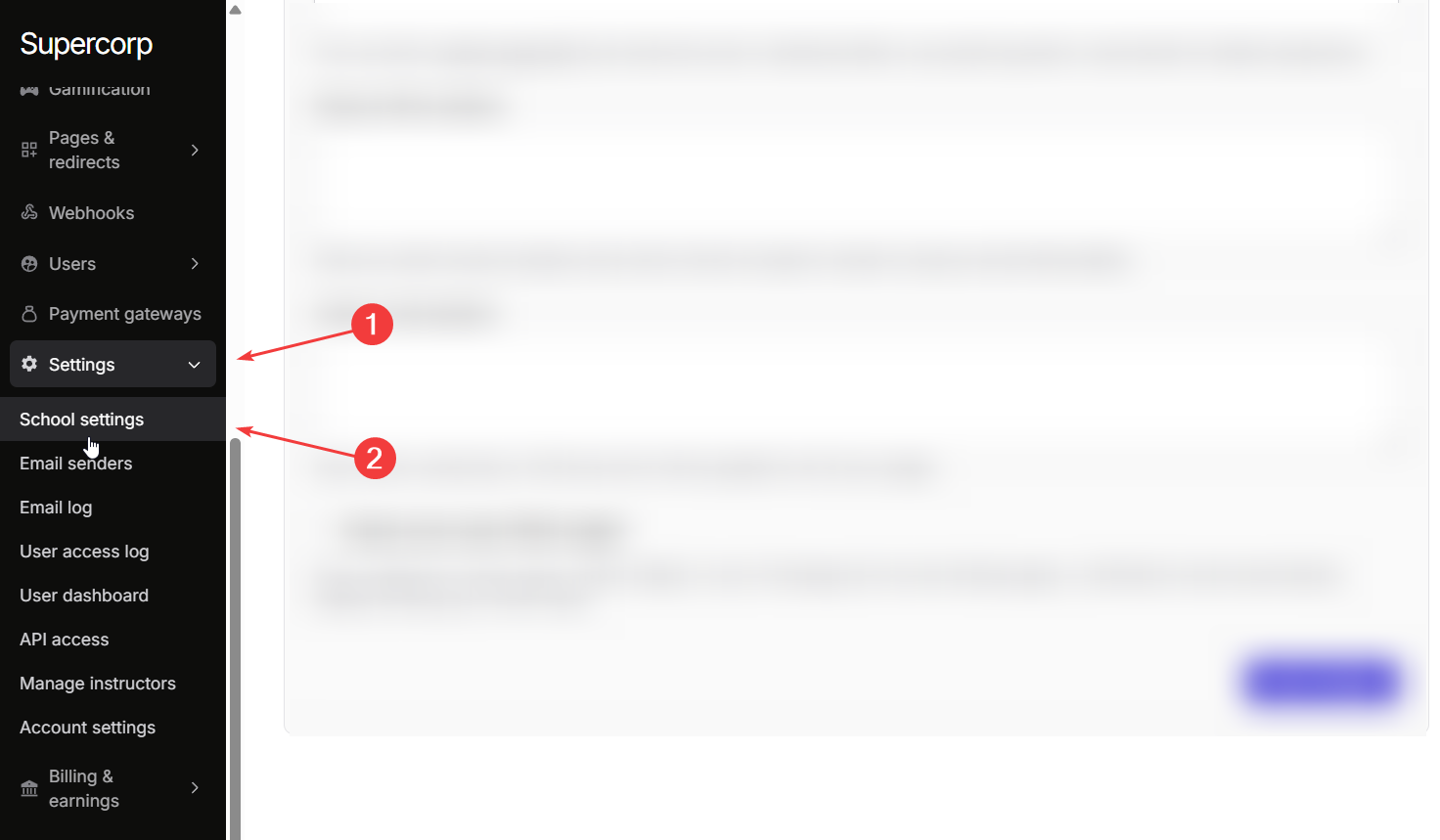
Click **School Settings** to open the full configuration panel where you can customize your school’s information, branding, and other options.
***
## Basic Information & Branding
Configure your school’s core details, website metadata, and visual identity.
If you need to change your school’s URL, please contact [support@codedamn.com](mailto:support@codedamn.com). School URLs cannot be changed manually.
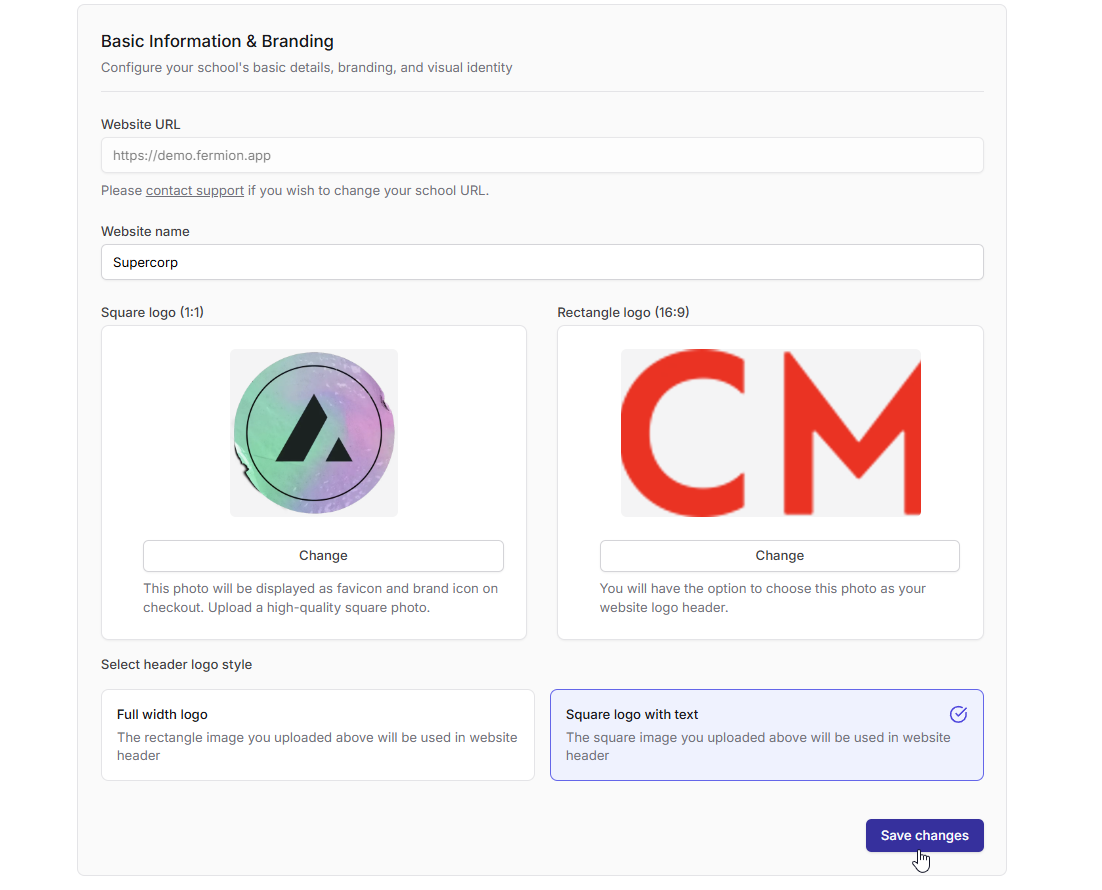
You can change the following details of your school here
* **Website URL**: Displays your current school URL (e.g., `https://demo.fermion.app`).
* **Website name**: Set the public display name for your school.
* **Square logo (1:1)**: Used as your favicon and brand icon on checkout.
* **Rectangle logo (16:9)**: Appears as your website’s header logo.
* **Header logo style**: Select the style of logo you wish to display on the **header**
* **Full width logo**: Uses the rectangle image as your header logo.
* **Square logo with text**: Uses the square image along with your site title.
Click on **Save changes** to publish your updates in your school branding.
***
## School Settings Overview
You can also configure the following settings from the same section. Learn more about these settings by clicking on the respective card.
Manage authentication, social logins, password policies, and access control to ensure your school’s platform is secure for both learners and instructors.
Configure your live class and recorded video preferences, including playback quality for smooth content delivery.
Manage your Terms of Service and Privacy Policy documents to define user rights, responsibilities, and compliance requirements for your school.
Customize advanced options like payment redirects, physical address display, code injection, and FOMO widgets to enhance your school’s functionality and brand experience.
# Custom Styling with CSS
Source: https://docs.fermion.app/manage-settings/custom-css-styling
Learn how to customize the appearance of Fermion components using custom CSS selectors
Fermion provides a flexible way to customize the appearance of various components on its platform. By utilizing specific data attribute selectors, you can inject custom CSS to modify the default styles. This guide outlines the available selectors and demonstrates how to use them effectively.
## How to Apply Custom CSS
To apply custom CSS to Fermion components, use the `data-custom-css-class` attribute with the appropriate selector. Here's the general syntax:
```css theme={null}
[data-custom-css-class='selector-name'] {
/* Your custom CSS properties here */
}
```
## Example
This example changes the background color of the completed lessons' checkbox to green in the course items.
```css theme={null}
[data-custom-css-class='course-item-mark-as-not-done-checkbox'] {
background-color: 'darkgreen';
}
```

## Currently Available Selectors
Below, we present a list of available values for the `data-custom-css-class` attribute that target specific locations on the Fermion platform.
### Course Item Views
* `[data-custom-css-class="course-item-video"]` - Targets video lessons
* `[data-custom-css-class="course-item-quiz"]` - Targets quiz items
* `[data-custom-css-class="course-item-article"]` - Targets article/read-only items
* `[data-custom-css-class="course-item-ebook"]` - Targets embedded eBooks
* `[data-custom-css-class="course-item-contest"]` - Targets contest/problem items
* `[data-custom-css-class="course-item-scorm"]` - Targets SCORM packages
* `[data-custom-css-class="course-item-assignment"]` - Targets assignment/homework items
* `[data-custom-css-class="course-item-iframe-embed"]` - Targets generic iframe embeds
* `[data-custom-css-class="course-item-coding-lab"]` - Targets coding lab items
* `[data-custom-css-class="course-item-live-event-fermion"]` - Targets Fermion live events
* `[data-custom-css-class="course-item-live-class-fermion"]` - Targets Fermion live classes
* `[data-custom-css-class="course-item-live-class-other"]` - Targets non-Fermion live classes
### Header Logo (Course Landing Page)
* `[data-custom-css-class="header-logo-course-landing-page-desktop"]`
* `[data-custom-css-class="header-logo-course-landing-page-mobile"]`

### Header Logo (Website Pages)
* `[data-custom-css-class="header-logo-homepage-page-desktop"]`
* `[data-custom-css-class="header-logo-homepage-page-mobile"]`

### Header Logo (Product Landing Page)
* `[data-custom-css-class="header-logo-product-landing-page-desktop"]`
* `[data-custom-css-class="header-logo-product-landing-page-mobile"]`
### Learning Page
* `[data-custom-css-class="course-item-mark-as-done-checkbox"]` - Targets the control to mark an item as complete
* `[data-custom-css-class="course-item-mark-as-not-done-checkbox"]` - Targets the control to mark an item as incomplete

### Learning Page (Sidebar Header)
* `[data-custom-css-class="header-logo-course-item-sidebar-mobile"]`
* `[data-custom-css-class="header-logo-course-item-sidebar-desktop"]`

### Learning Page (Content Side)
* `[data-custom-css-class="course-item-main-area"]` - This selector is the topmost parent class of the area where the user sees course item content.
### Course Item Layout/Wrappers
* `[data-custom-css-class="course-item-main-area"]` - Outer wrapper for the current course item content
### Course Landing Page Sections
* `[data-custom-css-class="instructor-section-top"]` - Top instructor information block
* `[data-custom-css-class="instructor-section-bottom"]` - Bottom instructor information block
* `[data-custom-css-class="course-hero-section"]` - Hero/header section of the course page
* `[data-custom-css-class="course-content-sections"]` - Main content/what-you'll-learn sections
* `[data-custom-css-class="course-reviews-grid"]` - Reviews/testimonials grid container
* `[data-custom-css-class="course-faqs-container"]` - FAQs accordion/container
### Dynamic State and Type Marker
Pattern: `course-item--state-${complete|incomplete}--type-${lowercase(item.type)}-v2`
* Use exact values to target specific combinations, for example:
```css theme={null}
[data-custom-css-class='course-item--state-complete--type-video-v2'] {
/* Your custom CSS for completed video items */
}
[data-custom-css-class='course-item--state-incomplete--type-quiz-v2'] {
/* Your custom CSS for incomplete quiz items */
}
```
### Authentication Pages
* `[data-custom-css-class="login-page"]` - Targets the login page at `/login`. Use this to customize background, fonts, and overall styling of the login page.
* `[data-custom-css-class="logout-page"]` - Targets the logout page at `/logout`. Use this to customize page-level visuals while logging out.
* `[data-custom-css-class="register-page"]` - Targets the registration page at `/register`. Use this to customize background, fonts, and overall styling of the registration page.
* `[data-custom-css-class="password-reset-page"]` - Targets the password reset page at `/password-reset`. Use this to customize background, fonts, and overall styling of the password reset page.
### Complete Example Configuration
Here's a comprehensive example showing how to customize authentication pages with custom CSS(currently supports upto 20,000 characters for custom code injection):
```html theme={null}
```
## Best Practices
1. **Specificity**: When using these selectors, ensure your CSS rules are specific enough to override the default styles without affecting other elements unintentionally.
2. **Responsive Design**: Consider both desktop and mobile selectors when making changes to ensure a consistent experience across devices.
3. **Testing**: Always test your custom CSS on various screen sizes and browsers to ensure compatibility and proper rendering.
## How to Access Custom CSS Settings
To apply custom CSS to your Fermion platform:
1. Navigate to your Fermion dashboard
2. Go to **School Settings**
3. Scroll down to find the **Custom Code Injection** section
4. Add your CSS code in the provided text area inside `
AI captions can also be enabled globally for your school at: Settings > School settings > Livestreaming settings.
There is a brief processing time for the AI summary to be generated, which depends on factors like the duration of the call and the length of the transcript. Once ready, the summary will be automatically displayed to students viewing the recorded session.
Once the recording and captions are processed for the live session, users can see a summary like shown below:

# Clone Live Classes
Source: https://docs.fermion.app/live-classes/cloning-class
Learn how to clone a live class from one cohort-based course to another in just a few clicks.
Cloning a [live class](/live-classes/what-are-live-classes) allows you to quickly reuse an existing session setup, including the title, timing, and hosts, in another [cohort-based course](/setting-up-course/prerequisites#what-is-a-cohort-based-course%3F) without having to create everything from scratch. It’s a simple way to save time and maintain consistency when running multiple cohorts or repeating sessions for new batches.
You can clone a live event inside another cohort-based course you have on the platform. This
allows you to go live at once in two or more courses.
## Steps to clone a live class
You can clone a live class from one cohort based course to another with the help of the following steps:
From your dashboard, navigate to the **Courses** section.
Select the **Cohort-based Course** that contains the live class you want to clone. 
Navigate to the **Syllabus** section of the selected course.
Click the **three dots (⋮)** next to the live class you want to duplicate.
Choose **Clone in another CBC** from the dropdown menu. 
From the list, select the cohort-based course you want to clone the class to.
Click **Add Class in this course** to confirm. 
Once cloned, the live class will appear in the target course’s syllabus with all its original details intact, including the title, timing, and hosts. Cloning saves time and ensures consistency across multiple cohorts, so you can focus on delivering great sessions rather than recreating content.
Use cloning when running recurring sessions, orientation classes, or live events that need to be
repeated across multiple courses. It helps maintain a consistent experience for all learners.
# Frequently Asked Questions
Source: https://docs.fermion.app/live-classes/common-faqs
Common questions regarding live classes on Fermion
This document addresses frequently asked questions regarding live class functionality on the Fermion platform.
### Do I need to purchase any external license to conduct live classes?
No external licenses are required to conduct live classes on the Fermion platform. All necessary functionality is included within your Fermion subscription.
### Do I need to link my Zoom or Meet account to Fermion?
No account integration with external video conferencing platforms is required. Fermion provides an integrated solution for conducting live classes.
### How will students be notified of upcoming live classes?
When utilizing Fermion's built-in livestreaming functionality as your primary Learning Management System (LMS), automated notifications are sent to all enrolled students:
* 24 hours prior to the scheduled class
* 30 minutes before the class commencement
For API-based livestreaming implementations, instructors are responsible for managing student notifications manually.
To maximize student participation, we recommend utilizing both the automated notification system and community group announcements for important class updates.
# DRM and Video Watermarking
Source: https://docs.fermion.app/live-classes/drm-and-watermarking
Protect your live streams with DRM encryption and dynamic video watermarking to prevent unauthorized access and content piracy.
Fermion provides robust content protection mechanisms to safeguard your valuable educational content from unauthorized distribution and piracy. Our platform integrates industry-standard Digital Rights Management (DRM) technology alongside customizable video watermarking features, ensuring your intellectual property remains secure throughout the streaming and playback process.
## Digital Rights Management (DRM)
Fermion's built-in DRM support encrypts your live stream content, making it extremely difficult for unauthorized users to download, record, or redistribute your videos. This enterprise-grade protection works seamlessly across all supported devices and browsers, providing peace of mind while you focus on delivering quality education.
### Key DRM Features
* **Automatic encryption:** All live streams(with DRM enabled) are automatically encrypted using industry-standard protocols
* **Device-level protection:** Content is protected at the hardware level on supported devices
* **Browser compatibility:** Works across Chrome, Firefox, Safari, and Edge browsers.
### Enable DRM for your live sessions
1. Go to the **Live events** page on any of your cohort based course.
2. Click on **Edit** next to a live stream or **+Add Session**

3. From the `Advanced Settings` section, make sure that **DRM protect playback** option is toggled.
4. Click on **Save Changes**

## Video Watermarking
In addition to DRM, Fermion offers dynamic video watermarking that overlays unique identifiers on each viewer's stream. This powerful feature acts as a deterrent against content piracy and helps you identify the source of any leaked content.
### How Video Watermarking Works
When enabled, each student viewing your live stream receives a unique watermark containing their user information. This watermark is dynamically generated and cannot be easily removed, making it possible to trace any unauthorized sharing back to the original viewer.
### Watermarking Options
* **User ID watermarking:** Display the student's unique identifier on the video
* **Email watermarking:** Show the registered email address of the viewer
* **Name:** Add users' name as an identifier to the watermark
* **Phone number:** Shows the viewers mobile number.
* **Font size control:** Choose where the watermark appears on the screen
* **Opacity settings:** Adjust watermark visibility to balance security with viewing experience
## Enabling Video Watermarking
To enable video watermarking settings for your school:
1. Go to **Settings** → **School settings** → **Security**

2. Toggle "Enable video watermarking".
3. Set **Font Size** (px) and **Opacity** (%) to your preference.
4. Choose which identifiers to display:
> * Name
> * Email Address
> * Phone Number
> * User ID (unique ID generated for every user on the platform)
5. Review the live preview, then select "Save security settings"
Preview with only Name and User ID selected:

# Embedding live session externally
Source: https://docs.fermion.app/live-classes/embed-live-session
Learn about embedding live sessions externally and customizing the look and feel for them
Fermion allows you to embed live calls externally using a simple integration. This is useful if you wish to add realtime calls on your own website and do not wish to use Fermion managed LMS.
There are a few steps you need to do in order to embed a session externally.
## Step 1 - Creating a new session
The first step to embedding a session externally is to create it programmatically on Fermion.
1. You must call this API endpoint: [https://docs.fermion.app/api-reference/live/create-live-session](https://docs.fermion.app/api-reference/live/create-live-session)
2. Once you call this endpoint, you will get `liveEventSessionId` in response.
3. You must store this `liveEventSessionId` in your database somewhere.
4. `liveEventSessionId` allows you to control the session completely using APIs, as we will see now below.
You can create sessions anytime, on the fly using API. In the API above you would see that it
accepts a start time and duration as well, but those are only used as hints, and not enforced.
## Step 2 - Embedding the session on your website
Once you have obtained `liveEventSessionId`, embedding the session on your website involves two steps.
### Generating a signed JWT
A signed JWT is required for any user with any permission (host or student) to be able to participate. This token must be generated by your backend.
Here is an example of how to generate this in Node.js:
```js theme={null}
import jwt from 'jsonwebtoken'
const payloadObject = {
// --- Required fields ---
liveEventSessionId: 'your-live-session-id',
userId: 'your-internal-user-id',
// --- Optional fields ---
name: 'Jane Doe', // Optional default name to use for the user. If provided, this value will override the existing name.
profilePicUrl: 'https://example.com/images/jane-doe-avatar.png', // Optional default profile photo URL to use for the user. If provided, this value will override the existing profile photo.
// --- Optional object with defaults ---
// All playback options are set to false by default
playbackOptions: {
shouldDisallowRecordedPlaybackIfNotLive: false, // If true, once the livestream ends, the same JWT that is used to embed the stream would not be able to playback the recorded version of the video
shouldPreferOnlyHighDefinitionPlayback: true, // If true, system would enforce only 1080p and 720p modes of playback. Note: Passing this as true might result in buffering on user side if their internet is not fast (as this disables low quality playback versions)
shouldHideSeekControls: false, // If true, it will hide the seek controls (seekbar and jump forward/backward buttons) from the UI
customBrandingData: {
// Optional: If you pass this branding information, it would be used to show logo / brand name instead of your primary school brand name
name: 'Custom Brand Name',
logoUrl: 'https://example.com/images/custom-logo.png' // Optional logo URL
}
}
}
// Generate the JWT token using the complete payload
const jwtToken = jwt.sign(payloadObject, FERMION_API_KEY, {
expiresIn: '10m'
})
```
### JWT Payload Fields
**Required fields:**
1. `liveEventSessionId` - The same ID that you got when you created session over API.
2. `userId` - A unique ID for a user that you're creating the playback session for. Note that it should be a stable ID. It can be anything like a database identifier or even an email address of the user. However two sessions must not be sharing same stable ID, otherwise they will be considered as a single user.
**Optional fields:**
3. `name` - Optional default name to use for the user. If provided, this value will override the existing name.
4. `profilePicUrl` - Optional default profile photo URL to use for the user. If provided, this value will override the existing profile photo.
**Optional `playbackOptions` object:**
The `playbackOptions` object is optional and has the following default values if not provided:
* `shouldDisallowRecordedPlaybackIfNotLive` (default: `false`) - If you pass this as `true`, once the livestream ends, the same JWT that is used to embed the stream would not be able to playback the recorded version of the video.
* `shouldPreferOnlyHighDefinitionPlayback` (default: `false`) - If you pass this as `true`, system would enforce only 1080p and 720p modes of playback. Note: Passing this as `true` might result in buffering on user side if their internet is not fast (as this disables low quality playback versions).
* `shouldHideSeekControls` (default: `false`) - If you pass this as `true`, it will hide the seek controls (seekbar and jump forward/backward buttons) from the UI.
* `customBrandingData` (optional) - If you pass this branding information, it would be used to show logo / brand name instead of your primary school brand name. This object contains:
* `name` (required) - The custom brand name to display.
* `logoUrl` (optional) - URL to the custom logo image.
Once the token is ready, you need to embed the session.
### Embedding the live call session (Fermion SDK)
In your frontend JavaScript app, install the fermion SDK. Run one of the following depending on your package manager:
```bash theme={null}
npm install @fermion-app/sdk
# or
pnpm install @fermion-app/sdk
# or
yarn install @fermion-app/sdk
```
Now, in order to get the iframe embed code, you can use fermion SDK as follows:
```js theme={null}
import { FermionLivestreamVideo } from '@fermion-app/sdk/livestream-video'
// Create a livestream instance
const livestream = new FermionLivestreamVideo({
// this must be replaced by the same live event session ID you got from API call
liveEventSessionId: 'your-live-session-id',
// this must be replaced by your real domain you have on fermion
websiteHostname: 'your-domain.fermion.app'
})
// Embed the live session (requires JWT token)
const embed = livestream.getPrivateEmbedPlaybackIframeCode({
// pass down the JWT token you created in last step
jwtToken: 'your-jwt-token'
})
// embed this code somewhere in your HTML
// this is a string which looks like `
```
Please make sure to replace the following placeholders with appropirate values:
1. `your-website.com`: Domain you have with fermion
2. `:your-session-id:`: Live event session ID you got from API
3. `:your-jwt-token:`: Signing token you created in last step
## Step 3 - Assigning a primary host
When you open the webpage in browser, you'll only see a black screen and no video playing or livestream controls.
This is expected because every session, by default, **is embedded as a student-view (view-only)**. You need to add a host to the call who will be responsible for starting the session, switching students within stage/audience, conducting polls, whiteboards, etc.
You must do that using this endpoint: [https://docs.fermion.app/api-reference/live/modify-live-session-user-state](https://docs.fermion.app/api-reference/live/modify-live-session-user-state) with the type of `update-permissions`
The API above expects you to pass:
* User ID (same ID you created at the time of generating the JWT)
* Updated permission level
Here's a payload to pass in the API call, that will make a given user, a host in the meeting:
```json theme={null}
{
"liveEventSessionId": ":your-session-id-here:",
"userId": ":your-user-id-here:",
"action": {
"type": "update-permissions",
"newPermissions": {
"shouldAllowAdministrativeActions": true
}
}
}
```
Note that you can programmatically control more parts in the user journey (including starting the session/ending the session/adding or removing people from the call), but once you have upgraded someone to be a host, if you refresh the same embed page where you have placed your iframe earlier, you will see that the host will see controls to start the meeting.
Once the meeting is started, the host will be able to turn on camera/mic/whiteboard/screenshare, etc. and also manage students.
## window\.postMessage events
When you embed the live session on your domain, the iframe will emit events in real-time through the `window.postMessage` API. You can read more about [`window.postMessage` API here](https://developer.mozilla.org/en-US/docs/Web/API/Window/postMessage).
These events are emitted from both live WebRTC sessions and recorded video playback. This allows you to track user engagement, respond to session lifecycle changes, and build interactive experiences around your embedded live sessions.
Note that you must not fully rely on events emitted by `window.postMessage` because of security reasons. Please do a server-side validation with our real API endpoint to be sure of the final result. You can use messages from `window.postMessage` to optimistically display results, however, since it is a client-side API, it is possible to hijack the event data by the untrusted user.
You can listen to every postMessage like this:
```js theme={null}
window.addEventListener('message', event => {
const payload = event.data
if (payload == null || typeof payload !== 'object' || !('type' in payload)) {
// not from fermion
return
}
if (payload.type === 'webrtc:livestream-ended') {
// handle live session ended
}
})
```
We also recommend processing `event.data` with zod if you can. Our schemas are strictly typed and are zod-parseable.
Here are the events we emit through `window.postMessage` API:
### webrtc:livestream-ended
This event fires when a live WebRTC session ends (typically when the host ends the session for everyone). Here's a TypeScript type for this event:
```ts theme={null}
type Event = {
type: 'webrtc:livestream-ended'
}
```
Use this event to trigger navigation, show a post-session survey, or redirect users after the live session concludes.
### webrtc:left-stage
This event fires when someone leaves the stage during a live WebRTC session. Here's a TypeScript type for this event:
```ts theme={null}
type Event = {
type: 'webrtc:left-stage'
}
```
Use this event to track stage participation, update UI to reflect who's currently on stage, or trigger notifications when participants leave the stage.
### video:play
This event fires when a user plays the recorded video playback. Note that this event only fires during recorded playback, not during live sessions. Here's a TypeScript type for this event:
```ts theme={null}
type Event = {
type: 'video:play'
durationAtInSeconds: number
}
```
The `durationAtInSeconds` field indicates the playback position when the user pressed play. Use this event to track playback engagement and viewing patterns.
### video:pause
This event fires when a user pauses the recorded video playback. Note that this event only fires during recorded playback, not during live sessions. Here's a TypeScript type for this event:
```ts theme={null}
type Event = {
type: 'video:pause'
durationAtInSeconds: number
}
```
The `durationAtInSeconds` field indicates the playback position when the user pressed pause. Use this event to track viewing patterns and engagement metrics.
### video:ended
This event fires when the recorded video playback reaches the end. Note that this event only fires during recorded playback, not during live sessions. Here's a TypeScript type for this event:
```ts theme={null}
type Event = {
type: 'video:ended'
}
```
Use this event to trigger completion actions, show the next lesson, or mark the session as completed in your system.
### video:livestream-ended
This event fires when a live stream transitions to VOD (video-on-demand / recorded) mode. Here's a TypeScript type for this event:
```ts theme={null}
type Event = {
type: 'video:livestream-ended'
}
```
Use this event to notify users that the live session has ended but the recording is available for playback. This is different from `webrtc:livestream-ended` as it relates to the HLS stream transitioning from live to recorded mode.
### video:time-updated
This event fires periodically during recorded video playback (every few seconds). Note that this event only fires during recorded playback, not during live sessions. Here's a TypeScript type for this event:
```ts theme={null}
type Event = {
type: 'video:time-updated'
currentTimeInSeconds: number
}
```
The `currentTimeInSeconds` field indicates the current playback position. Use this event to track detailed viewing progress, create bookmarks, or show custom overlays. Note that this event fires frequently, so consider throttling or debouncing on the receiving end if you're performing expensive operations.
### Complete TypeScript Type
Here's a complete TypeScript discriminated union type for all live event postMessage events:
```ts theme={null}
type LiveEventPostMessageEvent =
| { type: 'video:play'; durationAtInSeconds: number }
| { type: 'video:pause'; durationAtInSeconds: number }
| { type: 'video:ended' }
| { type: 'video:livestream-ended' }
| { type: 'webrtc:livestream-ended' }
| { type: 'webrtc:left-stage' }
| { type: 'video:time-updated'; currentTimeInSeconds: number }
```
### Important Notes
* **Video events** (`video:*`) only fire during recorded video playback. If a user is watching the live session in real-time, these events will not be emitted.
* **WebRTC events** (`webrtc:*`) only fire during live sessions when users are connected via WebRTC.
* The `playbackOptions` object in the JWT token (mentioned in Step 2) controls playback behavior, which affects which events users might see.
* Some sessions may have both live and recorded phases. During the live phase, you'll receive WebRTC events. After the session ends and transitions to recorded playback, you'll receive video events.
## Using the Fermion SDK for event handling
If you're using the Fermion SDK (installed via `@fermion-app/sdk`), you don't need to manually set up `window.addEventListener` for postMessage events. The SDK provides a convenient `setupEventListenersOnVideo()` method that handles all the complexity for you.
### Benefits of using the SDK
* **Type-safe callbacks**: TypeScript definitions ensure you're handling events correctly
* **Automatic validation**: The SDK validates incoming events automatically
* **Cleaner API**: More intuitive methods instead of manual postMessage parsing
* **Built-in cleanup**: Easy disposal of event listeners to prevent memory leaks
### Example usage
```ts theme={null}
import { FermionLivestreamVideo } from '@fermion-app/sdk/livestream-video'
const livestream = new FermionLivestreamVideo({
liveEventSessionId: 'your-live-session-id',
websiteHostname: 'your-domain.fermion.app'
})
// Set up event listeners
const events = livestream.setupEventListenersOnVideo()
// Listen for video play event
events.onVideoPlay(data => {
console.log('Video started playing at', data.durationAtInSeconds, 'seconds')
})
// Listen for video pause event
events.onVideoPaused(data => {
console.log('Video paused at', data.durationAtInSeconds, 'seconds')
})
// Listen for video ended event
events.onVideoEnded(() => {
console.log('Video playback finished')
})
// Listen for time updates (fires periodically during playback)
events.onTimeUpdated(data => {
console.log('Current playback position:', data.currentTimeInSeconds, 'seconds')
})
// Listen for livestream ended event
events.onLivestreamEnded(data => {
if (data.type === 'webrtc') {
console.log('Live WebRTC session ended')
} else {
console.log('Live HLS stream ended (now in VOD mode)')
}
})
// When you're done (e.g., component unmount), clean up the listeners
events.dispose()
```
The SDK automatically handles event validation, origin checking, and provides a more developer-friendly API compared to manually listening to postMessage events.
# Event Calendar
Source: https://docs.fermion.app/live-classes/event-calendar
Learn how to use Fermion's Event Calendar to plan, schedule, and manage live events and classes effortlessly, either individually or in bulk using CSV uploads.
## Introduction
The **Event Calendar** in Fermion brings all your [live sessions](/live-classes/what-are-live-classes) and events together in one simple, easy-to-manage view. Instead of jumping between different tools or tracking schedules manually, you can plan, edit, and manage all your sessions directly from one place.

It’s especially useful when managing multiple cohorts or working with different instructors, event calendar enables you to view all upcoming sessions, check for overlaps, and make quick adjustments when needed. This helps ensure a smoother experience for everyone involved, from planning to teaching to attending. With the Event Calendar, managing your live learning schedule becomes much more straightforward and reliable.
## How to access the Event Calendar
Accessing the **Event Calendar** in Fermion takes just a few simple steps.
1. In the instructor dashboard sidebar, navigate to the **Live** section, this is where all the live classes tools are located.
2. From the dropdown options, select **Event Calendar**.

You’ll now see a full calendar view displaying all scheduled sessions.
## Schedule a live session directly in Event calendar
Scheduling a live session directly from the **Event Calendar** is simple and helps you plan individual classes, workshops, or office hours without any extra setup. The process is easy to follow - you can open the calendar, pick a date, and fill in the details right away. This makes it ideal for one-off sessions or smaller events that don’t require bulk scheduling.
1. Open your **Fermion Dashboard** and navigate to the **Event Calendar** from the sidebar.
2. On the calendar view, click on the **date** where you want to schedule your session. A **Create a new session** form will appear.
3. Select the **course** the session belongs to.

4. Enter a clear **Title** for the session.
5. Set the **Start Time** and **Duration** in minutes, and add the **email addresses** of any co-hosts or instructors.
Admins can always start sessions, but you can also add additional hosts and instructors by adding
their email addresses in the same form!
6. Review your details and click **Create Session** to confirm.
You can also schedule live classes inside a cohort based course, Learn more about that in [Setup
Live Class](/live-classes/setup-live-class)
## How to bulk schedule Live Classes via CSV
When you’re planning multiple live sessions at once: like an entire term’s timetable or a series of workshops, the **Bulk schedule via CSV** feature can save a lot of time. Instead of creating each session manually, you can prepare all the details in a single CSV file and upload them together.
1. Open the **Event Calendar** from your Fermion Dashboard.
2. Click the **Bulk schedule via CSV** button at the top of the page.

3. Select your prepared CSV file from your device and upload it. Make sure it follows the specifications outlined in the [CSV Format Details](/live-classes/event-calendar#csv-format-details) section
You can also download a **sample CSV** directly from the **Bulk Schedule** interface to
check the correct format before uploading your own file.

4. Click to **Schedule Event** button to schedule multiple live events at once
### CSV format details
Each row in your CSV file represents one session to be scheduled. Make sure to include all the following columns in your CSV file:
* `productSlug` (required): Slug to identify the cohort-based course.
* `itemTitle` (required): Title of the session.
* `sectionName` (required): Name of the section or module where the session belongs.
* `liveSessionStartAt` (optional): Date and time of the session (e.g. *January 31 2025 02:15:00 PM*).
* `liveSessionHostsEmails` (optional): Comma-separated list of host email addresses.
* `durationInSeconds` (optional): Duration of the session in seconds (e.g. *3600* for 1 hour or *1800* for 30 minutes).
## Hosting Public Events
In addition to managing private sessions and classes, Fermion also lets you host **[Public Events](/live-classes/public-event)**: sessions that anyone can join via a shared link, without enrolling in a course.\
This is ideal for **webinars**, **open workshops**, or **community sessions** where you want to reach a wider audience.
You can create a **Public Event** directly from your **Live → Public Events** section in the dashboard. Learn more about the process in [Public Events](/live-classes/public-event)
# Stage
Source: https://docs.fermion.app/live-classes/invite-to-stage
Learn how to use Fermion's Stage to host interactive live sessions, allowing participants to join the stage, screenshare, turn on their microphone and camera, and engage directly with the class.
Fermion's **Stage** feature is designed to make live sessions more interactive and engaging. It allows instructors to bring selected participants to the forefront, enabling them to share their screens, turn on their microphones and cameras, and actively participate in discussions.
### Managing Participants on Stage
Livestreaming on Fermion allows you to invite multiple students and instructors to the call. Currently, you can have up to 150 participants on 'Stage', allowing them to screenshare, turn on their microphone and camera to interact with the participants.
For smaller sessions, instructors can also automatically add everyone to the stage
for better communication between a small group of people.
On the right pane, you can see a list of participants who are present in your livestream. Enable **Automatically add everyone on stage?** checkbox to ensure all participants are on the stage and can interact with others.

Additionally, this option can be globally toggled from: **Settings** → **School Settings** → **Livestreaming settings**.

You can also manually pick and choose which users are to be added onto the stage.
To do this, open the **Participants** or **Audience** panel on the right side. Users who are not currently on stage will be listed under "audience". Simply click the **Add on stage** button next to the user's name to invite them to the stage.

You may select individual users or use the **Select all** checkbox to bring multiple users to the stage at once. When added, they will be able to turn on their microphone, camera, and screen share to interact with the class.
### Managing permissions on stage
When users are brought on **stage** during a live session, instructors and hosts can **manage user permissions** directly from the participant list. The following controls are available for each user, as visible in the stage participant panel:

From left to right, you can:
* **Disable camera** for a user: Click the camera icon to turn off the user's camera (they will no longer be visible until they turn it back on).
* **Mute microphone** for a user: Click the mic icon to mute their audio in the session.
* **Promote to host**: Click the green shield icon to give a user host privileges. Hosts can manage users on stage, access the [whiteboard](/live-classes/whiteboard), screenshare, and control audio/video for others. Hosts can also end the session for everyone
* **Remove from hosts**: Click the yellow shield icon next to a host's name to revoke their host privileges. This will revert them to regular participant status, and they will lose the ability to manage other users or session controls.

* **Remove from stage**: Click the last icon (person with minus) to remove the user from the stage. The user returns to the audience and can no longer interact via mic or camera until re-invited.
> **Tip:** You can assign multiple hosts in a session. This is helpful for co-instructors, teaching assistants, or guest speakers who need full session control.
Managing these permissions allows you to maintain a smooth and secure class environment, keeping discussions focused and giving you control over who can present or participate at any time.
### Sharing System Audio
Live sessions often go beyond just visuals - you might want to play a tutorial video or share a demo
with your live class. Fermion now allows instructors to **share system audio** while
presenting on Stage, ensuring that any sound played from your device is
heard clearly by all participants in real time.
Here is how you can share system audio:
1. Join the **Stage** during a live session.
2. Click on **Share Screen**.
3. In the sharing dialog, enable the **“Also share tab audio”** option.

4. Select the tab you want to share and confirm your selection by clicking **Share**.
5. Begin your livestream. Participants will now hear both your system audio and your voice in real time.
# Live Chat
Source: https://docs.fermion.app/live-classes/live-chat
Enable real-time communications with the help of Live Chat to keep students engaged and informed
Fermion's live chat feature enables real-time communication between instructors and students during [live sessions](/live-classes/what-are-live-classes). The chat interface supports rich interactions including direct messaging, user mentions, file attachments, and interactive polls, creating an engaging learning environment where students can actively participate and collaborate.

## High-volume chat
The chat system is designed to handle high-volume conversations with thousands of participants simultaneously, ensuring smooth communication even in large-scale live sessions. Messages are delivered instantly, allowing for dynamic Q\&A sessions, quick clarifications, and spontaneous discussions that enhance the learning experience.
## Instructor and student engagement
Instructors can leverage the chat to gauge student understanding, collect instant feedback, and maintain engagement throughout the session. Students can tag specific participants using @ mentions to direct questions or responses, share relevant files and resources, and participate in polls to provide collective input on topics being discussed.
## How to access chat during a live session
Click on the chat button in the bottom right pane inside a livestream to access live chat.

The chat interface remains accessible throughout the entire live session and can be used alongside other features like screen sharing and stage participation. All chat messages are preserved and can be reviewed after the session ends, providing a valuable reference for both instructors and students.

## Live Chat Popout
The Live Chat Popout feature allows participants to detach the chat interface into a separate browser window, providing greater flexibility during live sessions. This enables learners to follow the discussion while navigating other parts of the session or reviewing shared materials.
If a participant wishes to return to the main interface, they can easily restore the chat by clicking **Restore Chat** inside the livestream window, instantly bringing the chat back to its original position.

## Disable Chat for Everyone
Instructors can now temporarily disable the chat for all participants with a single click. This is especially useful during important explanations, presentations, or assessments where focus is essential. When disabled, all participants will see a message indicating that chat is currently unavailable until re-enabled by the host.

After you disable the chat with this button, nobody will be able to message inside the chat.

## Private Chat Mode
The Private Chat Mode provides a structured and secure way to manage direct communication during sessions.
In this mode:
Hosts can read all messages and reply to any participant.\
This gives them complete visibility and control over conversations, ensuring productive and moderated communication throughout the live session.
Participants can only view and reply to messages from the host and their own messages, ensuring privacy and minimizing distractions.\
Messages from other participants remain hidden, creating a focused and one-on-one communication experience.
Messages from other participants remain hidden, maintaining a clear and moderated communication channel. This mode is ideal for conducting Q\&A sessions, handling sensitive discussions, or maintaining discipline during large-scale live events.

## Key capabilities
Fermion's live chat is designed to make real-time communication seamless and engaging for both instructors and students. From instant messaging to collaborative interactions, the chat ensures that learning remains interactive, organized, and productive throughout the session.
Send and receive messages instantly with zero lag, even with thousands of active participants in
the session.
Tag specific students or instructors using @ mentions to direct questions, responses, or draw
attention to important points.
Share documents, images, code snippets, and other resources directly in the chat for immediate
access by all participants.
Create quick polls to gather student opinions, test understanding, or make collective decisions
during the live session.
All chat messages are preserved and accessible after the session, allowing students to review
discussions and shared resources.
Instructors have the ability to manage chat behavior, ensuring a productive and respectful
learning environment.
# Live Class Analytics
Source: https://docs.fermion.app/live-classes/livestream-analytics
Understand and access detailed analytics for your live sessions, including attendance, engagement, and performance insights.
[Live classes](/live-classes/what-are-live-classes) on Fermion let you host interactive sessions with your learners in real time directly inside your [cohort based courses](/setting-up-course/prerequisites#what-is-a-cohort-based-course%3F). They’re a powerful way to connect, teach, and engage your audience.
After every session, Fermion automatically tracks detailed analytics so you can understand how your livestream performed. Various recorded statistics include attendance, engagement, and viewer behavior. These insights help you improve future sessions and better understand your learners’ interaction patterns.
***
## Accessing livestream analytics
You can view livestream statistics in two ways.
Head over to the Courses tab in your instructor dashboard sidebar and open the course builder
for the respective live stream session's parent course.

1. Open the desired course and go to the **Syllabus** section. 2. Find the session that was
livestreamed, click the **three dots (⋮)** next to it, and select **Edit**. This will open the
live session manager.

2. Click **VIew Stats** to view detailed analytics for that specific session. 
1. From the **Live Events** tab in your course builder, select the date of the livestream you
wish to analyze. 2. Click **View stream stats** button next to the desired live stream to open
the analytics dashboard. 
***
## Livestream stats overview
Once you open the analytics page, you’ll see a comprehensive overview of the livestream’s performance metrics:
* `Total attendees`: The total number of learners who joined the session.
* `Peak concurrent`: The highest number of viewers watching simultaneously.
* `Avg. watch time`: The average time each participant spent watching your session.
* `Session duration`: The total duration of the livestream.
* `Audience engagement over time`: A live graph showing how engagement (viewers, chats, on-stage users) changed throughout the session.
* `Users brought on stage`: The number of participants who were invited on stage during the session.
* `Total viewing hours`: The cumulative total of all viewers’ watch time.
* `Chat messages`: The number of messages sent in the chat during the livestream.

Below these stats, you’ll find a list of **all participants**, showing their **time on stage** and **watch time** individually, giving you detailed insights into how long each learner stayed and interacted.

***
## Livestream ratings
At the top-right corner of the analytics page, you can access **Livestream Ratings**: a quick summary of how your viewers rated their session experience.\
Click the **"See livestream ratings"** button to see detailed feedback and understand audience satisfaction.
***
## Exporting data
To keep a record or analyze results further, you can **download all livestream analytics** in a `.csv` file.\
Simply click the **Download Results as CSV** button located at the top-right of the analytics dashboard.
# Livestream Settings
Source: https://docs.fermion.app/live-classes/livestream-settings
Learn how to configure audio, video, and general settings during a live session on Fermion.
Once you are inside a livestream, you can configure your session experience using the **Settings** menu. Click the **Settings** button on the livestream interface to open three configuration tabs: **Audio**, **Video**, and **General**.

***
## Audio Settings
Use the **Audio** tab to manage your microphone and speaker sources.

You can:
* Select your preferred **microphone input** for clear sound.
* Choose a **speaker output** for sound output of the livestream.
* Adjust input/output devices at any time during the livestream.
***
## Video Settings
Use the **Video** tab to manage your camera configuration.

You can:
* Select a camera source connected to your device.
* Switch between available cameras while live.
***
## General Settings
The **General** tab lets you manage participant permissions and engagement settings.

Available options are:
* **Can users request to join stage?**
When this option is enabled, participants can request to join the [stage](/live-classes/invite-to-stage) during a livestream. This allows them to share their audio, video, or screen with the host and other attendees.
* **Automatically add everyone on stage**
Automatically brings all participants to the stage when enabled.
* **Enable chat for everyone**
Allows all participants to send messages in the [live chat](/live-classes/live-chat).
* **Enable private chat**
The Enable private chat toggle activates Private Chat Mode, allowing participants to send direct messages during a livestream while maintaining host supervision. When enabled, hosts can view and respond to all private messages, whereas participants can only see and reply to messages from the host or their own. Learn more about [Private chat mode](/live-classes/live-chat#private-chat-mode)
* **Hide tiles with no media in recording**
When this option is enabled, any participant who has both their camera and microphone turned off will not appear in the session recording when a screen or specific content is pinned. This helps focus the recording on active speakers and shared content, eliminating empty or inactive video tiles from what is captured. It's especially useful for creating high-quality recordings where you want viewers to see only the main presentation or those actively participating.
Note: Users who turn on their camera or microphone will automatically be shown again in the recording, as long as content is pinned
* **Hide tiles with no media**
Participants with camera and mic off will be hidden from your view when a screen/content is pinned.
# 1:1 Calls
Source: https://docs.fermion.app/live-classes/one-one-calls
Set up and host one-on-one video calls with learners directly from your instructor dashboard.
1:1 Calls on Fermion allow instructors to connect privately with learners for personalized sessions such as mentorship, doubt-clearing, or performance reviews. These calls use the same reliable streaming infrastructure as [live classes](/live-classes/what-are-live-classes) but are designed for focused, one-on-one interaction. You can use them for office hours, feedback sessions, or quick catch-ups with students.
## How to start a 1:1 call
You can start 1:1 calls with your leaners with the help of the following steps:
Go to the **Manage Features** section and enable **1:1 Calls** for your school. Learn how to
enable features [here](/manage-settings/manage-features).
From your instructor dashboard sidebar, select **Live Classes**, then click on **1:1 Calls**.
Once there, click **Create new 1:1 call** to begin setting up your session.

After creating the session, click **Join call** to enter the 1:1 room. You can now start the
session and share the invite link with your student directly. To invite a learner, simply **copy
the call link from your browser’s URL bar** and send it to them.

Here you have it! Your **1:1 Call** is now live and can be shared with learners using the generated invite link. Instructors can begin the session immediately and manage it just like a regular live class.
***
## Explore 1:1 call features
1:1 Calls come equipped with all the essential tools you’re familiar with from live classes, including [**screen sharing**](/live-classes/invite-to-stage#managing-participants-on-stage) and [**live chat**](/live-classes/live-chat). This ensures that your private sessions are as interactive and feature-rich as any cohort-based live event, but in a more personal, focused environment.

1:1 Calls are ideal for private mentorship or support sessions where you want to provide
dedicated time to a single learner.
## Next steps
Learn how to **embed live sessions** on external websites so learners can join directly without
switching tabs. [Go to guide](/live-classes/embed-live-session)
Understand how your live classes perform with **engagement analytics**, attendance data, and
insights into learner participation. [See analytics docs](/live-classes/livestream-analytics)
# Pin a Tile
Source: https://docs.fermion.app/live-classes/pin-a-tile
Learn how to pin a participant’s video tile during a live session to keep all students focused on the same content.
During [live sessions](/live-classes/what-are-live-classes), instructors can pin a specific participant's tile to ensure all students view the same content simultaneously. This feature is particularly useful when you want to highlight a specific speaker, demonstration, or presentation to the entire class.
## How tiles work
When you pin a tile, it becomes the primary focus for all participants in the live session, overriding their individual view preferences. This ensures everyone stays synchronized and focused on the same content, making it ideal for scenarios like guest lectures, student presentations, or when demonstrating specific concepts.
## Pinning a tile
To pin a tile during a live session, simply hover over the participant's video tile and click the pin icon. The pinned view will immediately apply to all students in the session. You can unpin at any time to return control of the view to individual students.
Only **meeting hosts** have the ability to pin and unpin a participant's tile. This ensures that
the session remains organized and all students are focused on the intended content without
conflicting views from other participants.

## Stage management
This feature works seamlessly with Fermion's [stage](/live-classes/invite-to-stage) management capabilities, allowing you to create a more structured and engaging learning experience for your students.
## Next steps
Learn how to enable real-time communication during live sessions, engage students with
interactive messaging, file sharing, and polls.
Discover how to automatically generate transcripts and record live sessions for easy reference,
accessibility, and improved learner engagement.
# Public Events
Source: https://docs.fermion.app/live-classes/public-event
Host live sessions that are open to everyone using Fermion’s Public Events feature.
## Overview
[Live Events](/live-classes/what-are-live-classes) on Fermion can be added inside your courses, or hosted as **public sessions** accessible to anyone through a shareable invite link.
This gives you complete flexibility: teach within a structured course or reach a wider audience with open webinars, bootcamps, and workshops.
***
## Creating a Public Event
Creating a public event allows you to host sessions that anyone can join using a shareable link, making it perfect for webinars, workshops, or open community classes. Follow the steps below to set up your event from start to finish.
Make sure the **Live Events** feature is enabled under **[Manage Features](/manage-settings/manage-features)** in your instructor dashboard.
Navigate to **Live → Public Events** from your instructor dashboard sidebar. Here you can click
**Create New Event** or open an existing one in the **Product Builder** to edit.

Give your public event a clear and engaging title.

Head over to the **Landing Page** section in your public event sidebar and start customizing your event’s basic details.
Add the following information:
* **Title**
* **Short Description**
* **Thumbnail**

Use the **Public Event Description** editor to add detailed content about your session. This
section supports **rich text**, so you can include headings, formatted text, hyperlinks, and
lists to make your event page more engaging.

Once everything looks perfect, hit **Publish**.
Your public event will now be live, and you can **copy the event link** to share the landing page of the live event. On top of that, you can also set a custom slug for your public event.

***
## Standalone Invites
Stand-alone invites allow you to share access to your Public Events without requiring students to register for a full course or cohort. They are ideal for special webinars, bootcamps, workshops, guest sessions, or promotional live events.
With stand-alone invites, you can **control access**, **track participation**, and easily **revoke or reactivate** invites as needed. This provides flexibility for both organizers and attendees while keeping your events secure and manageable.
***
## Create a stand-alone invite for public events
Use stand-alone invites to give participants access to a public live event through a unique link with the help of the following steps:
Before creating a public event and invites, make sure the **Live Sessions** feature is enabled in your account. Learn how to [**Manage Features**](/onboarding/account-setup#step-2%3A-manage-features)
1. Navigate to **Live → Public Event** in your dashboard.
2. Click on **Create New Event** to start a public live session. You can also create invites for previously created live events by clicking **Open product builder** . Learn more about creating [Public Events](/live-classes/public-event)

1. Click on **Create public invites** in the landing page builder

2. Click on **Create new invite** to create a new invite ID and a public link.

Once your invite is created, you'll see it listed below the create new invite button, showing key options for managing access.
* Click **Get link** to copy the unique invite URL and share it with participants.
* The **Status** column displays the current state (e.g., **Active**).
* To temporarily block access, click the status menu and select **Revoke Invite**.
* To allow access again, select **Reactivate Invite** in the same menu.
* Use the checkboxes to choose whether to collect participants' email addresses or phone numbers when they join using your invite.

And that's it! You can now share the invite link with your audience and manage access and data collection preferences directly from this table.
Stand-alone invites make it simple to share access to your public [live events]() with a controlled audience. You can create, share, revoke, and reactivate invites easily, ensuring a smooth experience for both organizers and participants.
***
## Session management
Manage and customize your public event sessions from the **Manage sessions** tab. Here you can configure streaming preferences, event timing, playback permissions, and participant notifications to ensure a seamless viewing experience.
Head over to the **Manage sessions** tab in your product builder to access settings of the public event.

### Go live
You can use the **Manage sessions** tab to go live with your public event. Click on the **Go live** button in Stream controls to start the live session

### **Start time**

Displays the scheduled start time for your live session.
Example: `24 Oct, 2025 – 5:47 PM (Your local timezone)`
### **Estimated event duration**
Set an approximate duration for your session (e.g., one hour). Your session can continue beyond the estimated time without any interruption.
### **Allow recorded playback**
If enabled, participants can rewatch the session recording after it ends. If disabled, playback will be unavailable once the live event concludes. Learn more about [auto-recording](/live-classes/recording-and-captions).
### **Enable reminder emails**
Send automatic reminders to registered participants at key intervals before the event begins:
* 24 hours before the event
* 6 hours before the event
* 30 minutes before the event
This ensures participants don’t miss your live session.
### **DRM protected playback**
When enabled, playback is secured with DRM protection: preventing screen recording or screenshots (similar to Netflix or Amazon Prime Video). Learn more about [DRM protection](/live-classes/drm-and-watermarking).
Please note that DRM usage is billed separately. Head over to [Fermion Pricing](https://fermion.app/pricing)
for more information regarding DRM playbacks
### External hosts
You can invite additional hosts to help manage your live event.
Hosts have administrative privileges : including starting or ending the stream, inviting speakers to stage, and moderating participants.
To **add an external host**, perform the following steps:
1. Enter the host’s email address in the **Add a new host** field.
2. Click **Add** to give the user with this email address host privileges.

## Pricing & Coupon Codes
Pricing for public events works **exactly like pricing for other product types** (such as [Courses](/setting-up-course/prerequisites) or [eBooks](/digital-products/introduction)).
You can set fixed prices, discounted prices, and manage regional pricing if applicable.
[Learn how to set up pricing](/setup-pricing/fixed-pricing-plan)
You can also apply coupon codes to public events, similar to other products.
This allows you to offer limited-time deals or special access promotions.
[Learn how to create coupon codes](/setup-pricing/add-coupon-codes)
Coupons and pricing logic remain consistent across all product types for a unified experience.
***
## Enrolling students
Students can purchase access to **public events** from the landing page.
As an admin, you can also **manually enroll students** into a public event, for example, for corporate access or complimentary offers.
Head over to the **Students** section in your product builder to manually import users
[Learn how to manually enroll students](/digital-products/enroll-students)
***
## Management settings
Manage how your public live event behaves after setup, including certificates to administrative actions. Head over to the **Settings** tab in your public event sidebar to access these settings.
### Completion certificate
Control whether attendees receive a **certificate of completion** after the live event.
By default, certificates are **disabled**. Toggle **“Issue certificate of completion”** to enable, then click **Save Changes** to apply.

### Management actions
Temporarily hide the event without deleting it. Archived events can be restored later if you
wish to make them available again.
Completely remove the event and all its data from your account. Use this only when you’re sure
the event is no longer needed.
This action **cannot be undone**! Once deleted, the event and all related data are
permanently removed.
# Transcripts / Auto-Recordings
Source: https://docs.fermion.app/live-classes/recording-and-captions
Automatically record live sessions with AI-generated captions and provide downloadable videos for accessible, on-demand learning.
Upon completion of your live session, Fermion automatically converts it into a video recording and makes it available to your students. Instructors can opt in to generate AI-powered captions, which are automatically created in the same language used during the live stream.
This feature enhances accessibility for students and makes your content more inclusive. The captions are automatically synchronized with the video timeline and can be toggled on or off by viewers. There is a brief processing time for the recording to be available and for captions to be generated, which depends on factors like the duration of the call, total number of participants, and the number of users on stage.
## Accessing Captions via Webhooks
For advanced integrations, you can programmatically access the generated captions through Fermion's webhook system. This allows you to:
* Receive real-time notifications when captions are generated
* Integrate caption data into your own systems or workflows
* Build custom caption viewers or editors
* Archive captions in your preferred storage solution
When a live session's captions are ready, Fermion will send a webhook event to your configured endpoint with the caption data in standard formats (SRT, VTT). This enables seamless automation and integration with your existing tools.
For detailed information on setting up webhooks and handling caption events, refer to our [Webhooks documentation](/webhooks/event-payloads).
Additionally, You can make this recording downloadable so your students can access it offline.
To enable recording and captions, follow these steps:
1. Go to Courses
2. Open the Course Builder for a cohort based course

3. Navigate to Live events
4. Click Edit on the relevant live event

5. Go to Advanced Settings and - Enable the `Allow students to download MP4` option to let students download the recording - Enable the `AI Transcripts` option to generate AI Transcripts

This feature can also be enabled globally for your school at: Settings > School settings > Livestreaming settings.

Fermion Pro members have 5 hours of transcription included in their plan. Any additional transcriptions are charged at 0.3\$/hour.
Please refer to [Fermion Pricing](https://fermion.app/pricing).
# Schedule a Live Class in Fermion
Source: https://docs.fermion.app/live-classes/setup-live-class
Learn how to create, configure, and schedule live classes in Fermion.
Hosting a live class on Fermion lets you deliver lessons in real time,
interact directly with your learners, and create an engaging, collaborative experience inside your course.
Setting up a live session involves configuring essential details like your session title, description and timing of the session. You’ll also learn how to customize session behavior, enable reminders, add additional hosts, and configure recording or transcript options so your learners get the best possible experience.
Once your setup is complete, you’ll be ready to go live and manage your class using Fermion’s built-in tools for screen sharing, [whiteboarding](/live-classes/whiteboard), and [stage management](/live-classes/invite-to-stage).
## Some pre-requisites
Before getting started, make sure of the following things:
1. Have a good internet connection before you stream so that the stream doesn't buffer or lag, these issues are usually caused by poor network connections.
2. Make sure that your browser and graphic drivers are up-to date, to avoid any issues that arise with outdated versions.
3. Keep a good webcam and a good microphone to ensure that you're able to stream smoothly to your learners.
There’s no fixed upper limit on how many live sessions you can host at the same time. Accounts
come with a **soft limit** that can be increased at any time by reaching out to us at
[support@codedamn.com](mailto:support@codedamn.com).
## Live session
You can schedule live classes in three ways at Fermion:
* **Live class inside a course:**\
You can create a live session within a [cohort-based course](/setting-up-course/prerequisites#what-is-a-cohort-based-course%3F). This helps you manage attendance, track progress, and keep the session part of the course flow.\
Refer to the next section in this documentation to learn how to schedule a live class inside a course.
* **Public events:**\
You can organize a live event that anyone can join. You can use this option for open sessions such as webinars, announcements, or community discussions.\
[Learn more about public events](/live-classes/public-event)
* **One-on-one calls:**\
You can set up a live session just between an instructor and an individual learner. This option can be used for personalized guidance, mentorship, or performance reviews.\
[Learn more about 1:1 calls](/live-classes/one-one-calls)
## How to create a live class inside courses?
You can schedule live classes in [cohort based courses](/setting-up-course/prerequisites#what-is-a-cohort-based-course%3F) and go live with the help of the following steps:
Inside your syallbus section itself, click on `+ Add in this section` button to expand to all course items.

Click on `Live class` from the available course items to add a live session.

You can also create a live class for your course with the help of Event calendar. For more information regarding this, refer to [Event calendar documentation](/live-classes/event-calendar)
If you wish to enable a free preview for your live session and generate a public invite link, click on the the three dots next to the live class and click **Enable free preview** button and provide confirmation.

Now, you can copy this link and share with your learners.

Click on the three dots next to the newly created live session and select `Edit`.

This will take you to a **Live Session Manager** page where you can configure a lot of the options related to this upcoming live session.
#### Title & description

#### Session configuration
From here, you can set the time, duration of the stream. Click on **View stats** button to access the live stream's [analytics](/live-classes/livestream-analytics)
Additionally, you can also add external hosts via email address. When a user joins the live class with the added email address, they will have host priviledges inside the livestream, that is they'll be able to access the [whiteboard](/live-classes/whiteboard), [screenshare](/live-classes/invite-to-stage), mute participants and end the session for everyone.

#### Using other livestreaming solutions
If you prefer to use an external livestreaming provider instead of Fermion’s in-house system, click on **Streaming Platform** and select **Other** from the dropdown menu. You can then add your call link inside the **Platform Instructions** section. These instruction will also be **automatically included** in [reminder emails](/marketing-tools/email-templates#live-event-email-reminders) sent to your participants before the session starts.
Please note that when using an external livestreaming platform, you will not get access to **livestream recordings**, **auto-generated captions**, or **stream analytics**, as these features are only available for events hosted through Fermion’s native livestreaming solution.

#### Additional settings
You can configure the following:
* [Recorded Playback](/live-classes/recording-and-captions): allows users to have access to the live session as a recorded video, that they can watch from their course page later.
* **Enable Reminders**: By default, reminder emails are sent to students 24 hours, 6 hours and 30 minutes before a live session starts. [Learn how to enable reminders for all live events in your school](/marketing-tools/email-templates#live-event-email-reminders)
* **Post-stream feedback collection**: Shows user a screen where they can submit feedback and star rating for the live session. These ratings can be accessed later at [livestream analytics](/live-classes/livestream-analytics).
* **Allow MP4 downloads**: You can make the session recording available to students as a downloadable video for offline access .
* [DRM playback](/live-classes/drm-and-watermarking): Turning this on will prevent users from screen recording and screenshotting your content.
* [Enable AI transcripts](/live-classes/recording-and-captions): You can opt-in to have transcripts generated for your live session, which will be directly available during playback of your recording as closed captions.

Once you are done configuring your live session, click on `Publish` to publish the live class.

Once you have published the class, go to `Live Sessions` from the left sidebar of your screen.

Click on `Start live stream` for the live class that you have created.

Instructors and added hosts can also **access and start live classes directly** from the **Live event course items** widget on their User dashboard, providing a quick way to go live without opening the Course Builder.

Once you proceed, you will see such a screen.

Press on the button **Begin stream** when you want to start streaming.
Your users on the other side (inside the course item page) will be able to watch the stream normally.
Once your class concludes, click on **End Session** within the live call interface to properly end the live session. This ensures your recording is processed correctly and analytics are finalized.
Only **meeting hosts** can end the live class for everyone.

Closing your browser tab or window does **not** automatically end the live session on Fermion’s
side. A session only ends when you manually end it within the call or by invoking the **[End
API](/api-reference/live/end-live-event-streaming)**. If the live call remains completely empty
(no participants) for **1 hour**, the system will automatically end the session for you.
## Scheduling live classes
You can schedule your live classes in two ways: **singularly** or in **bulk** using our Event Calendar.
* **Live class Scheduling:** If you want to schedule a one-off session, you can set the date and time directly in the Event Calendar to create your live class. Learn more about this feature in [Schedule a live class in Event Calendar](/live-classes/event-calendar#how-to-schedule-a-live-session-directly-in-event-calendar)
* **Bulk scheduling:** For multiple sessions at once, you can use the Event Calendar to plan your entire course's live sessions ahead of time. This is especially helpful if you want to maintain a consistent weekly or monthly schedule. Learn more about [Bulk Schedule live classes via CSV](/live-classes/event-calendar#how-to-bulk-schedule-live-classes-via-csv)
For detailed instructions on how to use the Event Calendar, check out the [Event Calendar Documentation](/live-classes/event-calendar) for step-by-step guidance.
# Live Class on Fermion
Source: https://docs.fermion.app/live-classes/what-are-live-classes
Learn about live classes on Fermion and how to conduct them properly
Fermion offers built-in live streaming capabilities, eliminating the need for third-party applications like Zoom. This not only provides a seamless experience but also reduces additional costs and setup hassles.
Fermion's in-house live streaming infrastructure supports up to 10,000 participants in a live stream, with the option to add 50 people to the stage. This ensures a smooth, uninterrupted teaching experience, making it easier for you to focus on delivering your content effectively.
## What is a Live Class?
A Live Class is an interactive, real-time session between you and your students, powered by Fermion’s in-house streaming infrastructure.
Unlike traditional third-party integrations, Fermion’s live system is deeply integrated into the LMS, giving you full control over every aspect of the experience: from scheduling and access management to recording, playback, and host controls. You can engage your learners through [real-time chat](/live-classes/live-chat), polls, and speaker interactions, while maintaining complete content security with built-in [DRM](/live-classes/drm-and-watermarking) and [analytics](/live-classes/livestream-analytics) tracking.

## Fermion's live infrastructure capabilities
Fermion comes with a range of powerful live class features designed to make teaching and learning more interactive, secure, and scalable. Below are some of the key capabilities available to you.
#### Upto 1080p session streaming
Fermion allows you to stream upto **1080p** to unlimited viewers, which is later made available as a recording too.
#### Unlimited students
Our systems are built and tested to support more than **10,000+ students** attending your live class at once. That means you get an experience as smooth as butter while teaching, and your students get uninterrupted learning from you.
#### Invite multiple speakers
Fermion allows you to invite up to **150 participants on stage** during a live session. Participants on stage can screenshare, turn on their microphone and camera to interact with everyone. You also have the ability to auto-add speakers to the stage. For more information, refer to: [Invite to Stage](/live-classes/invite-to-stage)
#### Pin a tile for everyone
Instructors have the ability to **'PIN' a user's tile** to the stream, ensuring students stay focused on the same view. For more information, refer to: [Pin a tile](/live-classes/pin-a-tile)

#### No limit on duration
There is **no restriction** on how long you can go live. You can even teach for **6+ hours** in a single session, all possible with Fermion.
#### In-built DRM support
With Fermion's **in-built DRM support**, your video content is protected from piracy and unauthorised sharing. Additionally, we offer a **video watermarking** option to identify anyone sharing or pirating your content. For more information, refer to: [DRM & Video Watermarking](/live-classes/drm-and-watermarking)
#### Auto-recording & Captions
Once your live session ends, Fermion **automatically converts it into a video recording** and makes it available to your students. Additionally, instructors can opt-in to have **AI-generated captions** created in the same language used during the live stream. For more information, refer to: [Auto-recording & Captions](/live-classes/recording-and-captions)
#### Chat live with your students
Send messages, tag people, and chat in real-time with your students. Users can send attachments, create polls to interact with everyone, and share important files. For more information, refer to: [Live Chat](/live-classes/live-chat)

#### Interactive whiteboard
Fermion includes a **collaborative whiteboard** that allows instructors to draw, annotate, and brainstorm in real-time. You can add shapes, arrows, text, sticky notes, and even import images or screenshots to illustrate complex ideas visually. The whiteboard supports **infinite canvas** and **multi-user collaboration** making it perfect for teaching new concepts to students in a visual way.
For more information, refer to: [Whiteboard](/live-classes/whiteboard)

#### Add notes & share resources after a live stream
After your live stream ends, you can **add notes, or share additional resources** with your learners directly from the session page. This makes it easy to provide follow-up material, extra insights, or answer any outstanding questions even after the session is over.
This feature is also available to **external mentors**, allowing guest speakers or industry experts who join your sessions to upload resources, slides, or answer questions for your students post-event.

#### Monitor stream analytics
Built-in **stream analytics** let you see how many students attended the stream, when they dropped off, how many messages were sent, and much more. These can be accessed from your instructor dashboard. Learn more about [Live class analytics](/live-classes/livestream-analytics)

#### White labeled embedding
You can **embed live sessions outside Fermion** using Fermion API. For details, refer to: [Live stream embedding](/live-classes/embed-live-session)
## Going live on Fermion
You can go live on Fermion in three different ways, depending on your teaching or engagement needs:
Schedule live sessions directly within a course module.
This is ideal for conducting classes as part of a structured learning path for enrolled learners.
Host open live sessions such as webinars, community events, or workshops that anyone can join using a shareable link.
Conduct personalized sessions, mentorship, or feedback discussions privately with a single learner.
# Whiteboard
Source: https://docs.fermion.app/live-classes/whiteboard
Collaborate visually during live sessions with Fermion’s interactive whiteboard.
The **Whiteboard** in [live sessions](/live-classes/what-are-live-classes) is a collaborative visual canvas designed to make teaching and demonstrations more interactive and engaging. It allows instructors to visually explain concepts, sketch diagrams, highlight content, and respond to student questions in real time.

## Why do we need whiteboard?
Visual explanations often communicate ideas more effectively than text or speech alone. By combining the power of drawing, writing, and pointing, instructors can create an immersive learning environment that promotes clarity and real-time understanding. This makes it an essential tool for instructors who prefer to demonstrate thought processes and encourage participation.
The **whiteboard** is accessible to instructors and **[promoted hosts](/live-classes/invite-to-stage#promoting-users-to-hosts-during-live-session)**, allowing them to draw, annotate, and collaborate during live sessions. Regular participants can use **laser pointers** to highlight or direct attention to specific areas of the board.
## Accessing the whiteboard
You can access the whiteboard directly from your [live session](/live-classes/setup-live-class) interface. Once inside a session, it takes only a few clicks to begin sketching and collaborating visually.
Enter your scheduled live class from the dashboard as an instructor. Learn more about how to
[set up a live class](/live-classes/setup-live-class).
Inside the livestream interface, click on the **Whiteboard toggle** located on the toolbar,
right next to the screenshare button.

Once enabled, you’ll see the canvas appear on your screen. Use the tools on the side panel to
draw, add text, images, or highlight content in real time.

Students can follow your whiteboard in real time and use their laser pointers to draw attention
to specific areas. However, they cannot modify or erase the content on the instructor’s board.
The whiteboard transforms traditional online teaching into a truly collaborative experience. It helps bridge the gap between theory and visualization, especially in technical or design-oriented classes. With live annotations, instructors can illustrate problem-solving metho
**Make sure to pin your whiteboard tile** if you’re also screen sharing. This ensures the
whiteboard remains the **primary visible content** for all participants throughout the session.
Learn more on how to [pin a tile during live class](/live-classes/pin-a-tile).
## Features
The whiteboard offers a powerful and fluid real-time drawing experience, purpose-built for teaching, visual explanation, and team collaboration. Every stroke, object, and annotation is synchronized instantly across all participants, ensuring that both instructors and learners stay perfectly in sync.
### Infinite canvas
The whiteboard provides an **infinite canvas**, allowing instructors to think and teach without boundaries. You can scroll, pan, and zoom effortlessly to create multiple segments of your explanation within a single continuous space. This is especially helpful when breaking down large problems, such as multi-step algorithms or design diagrams.

### Drawing tools and shapes
The drawing toolkit offers an intuitive experience for freehand sketches and structured shapes. You can draw using pen tools, create rectangles, circles, arrows, and even straight lines to depict flowcharts, system architectures, or visual examples.
Each element drawn can be resized and repositioned, providing full creative freedom while maintaining precision. The pen input is optimized for fluid motion and minimal latency, so it feels as natural as writing on a real whiteboard.

### Text and annotations
In addition to drawing, you can insert **text boxes** anywhere on the canvas. This allows instructors to label diagrams, write notes, or define key terms without cluttering the visual explanation. Text elements can be styled with varying sizes and colors, making it easy to differentiate headings, definitions, and supporting notes.

Annotations appear instantly across all participant screens, enabling everyone to follow the instructor’s reasoning in real time.
### Color and styling controls
To enhance visual clarity, the whiteboard includes a **color palette and styling controls**. You can switch between pen colors, adjust line thickness, and change fill properties for shapes. This flexibility helps highlight important sections, differentiate between concepts, and make diagrams more visually coherent.

Using multiple colors not only improves engagement but also reinforces visual learning by emphasizing relationships between different ideas.
### Upload images onto whiteboard
Instructors can **upload images directly onto the whiteboard**, making it easier to build lessons around pre-existing visual materials. You can import diagrams, screenshots, infographics, or reference materials and annotate them live to enhance understanding.

Uploading an image is as simple as selecting the **image icon** from the toolbar and choosing a file from your device. Once placed on the canvas, you can **resize** or **reposition** the image freely. This flexibility allows you to blend pre-prepared visuals with spontaneous drawings and notes.
### Real-time collaboration
Every interaction on the whiteboard: drawing, typing, or moving an object, is synchronized live. This real-time sync ensures that students see the instructor’s content evolve instantly, stroke by stroke, with zero noticeable delay.
Students can’t draw on the instructor’s board but can use laser pointers to guide attention
toward specific areas, ask questions, or highlight doubts without disrupting the flow of
teaching.
This controlled interactivity promotes focus and engagement, giving students the ability to interact meaningfully while maintaining instructional control.
### Undo, redo, and erase
Mistakes are part of the creative process, and the whiteboard makes correcting them simple. The undo **\[CTRL/CMD + Z]** and redo **\[CTRL/CMD + Shift + Z]** actions allow you to step backward or forward through your edits. The **eraser tool** provides precise control for removing unwanted strokes or shapes without affecting the
## Using whiteboard on small screen devices
Fermion’s whiteboard is fully optimized for mobile and tablet devices, providing the same powerful functionality as the desktop version. Instructors and promoted hosts can draw, add text, insert images, and use shapes directly on the canvas using touch gestures or a stylus. The interface is responsive and adapts seamlessly to different screen sizes, ensuring an intuitive and smooth experience.
All features work identically on mobile, with every stroke and update synchronized instantly for all participants. This makes it easy to teach or demonstrate concepts from anywhere while keeping students fully engaged, even on smaller screens.
## Next steps
Capture every moment of your live session automatically. Generate AI-powered transcripts and
session recordings for learners to revisit anytime.
Protect your content with secure DRM and dynamic watermarking. Keep your intellectual property
safe while sharing videos confidently.
# Additional Settings
Source: https://docs.fermion.app/manage-settings/additional-settings
Configure post-payment redirects, office address, custom code, and FOMO widget for your school.
The **Additional Settings** section lets you configure extra options that enhance your school’s **branding**, **compliance**, and **user engagement**.\
These settings provide flexibility for post-payment experiences, design customization, and marketing optimizations.

You can configure the following options in this section:
***
## Post-payment success custom page URL
Redirect users to a custom webpage after they complete a successful payment.
* **Usage:** Enter the URL of a page you’ve designed within your school’s website (e.g., a “Thank you” or “Next steps” page).
* **Benefit:** Helps you personalize post-purchase experiences, promote upsells, or guide students to their first lesson.
Example URL: `https://myschool.fermion.app/thank-you`\
This page could include a welcome message, enrollment details, or a link to the user’s dashboard.
Learn more about creating custom pages in [Using Source Code](/custom-landing-pages/using-source-code).
***
## Physical Office Address
Add your **official business or school address** for compliance and email deliverability.
* **Purpose:** Many countries require a valid business address in transactional emails.
* **Display:** The address appears in automated communications such as payment receipts, invoices, and notifications.
We recommend using your organization’s registered address.\
If you operate remotely, a valid virtual or correspondence address can also be used for compliance.
***
## Custom Code Injection
Insert **custom JavaScript or CSS** globally across your school’s website to modify behavior, add widgets, or customize design elements.
* **Usage:** Ideal for adding analytics scripts (e.g., Google Analytics, Meta Pixel), live chat widgets, or visual styling tweaks.
* **Scope:** Injected code applies across all public-facing pages of your school.
Ensure your code snippets are secure and tested to avoid breaking core functionality.\
Improper or unverified third-party scripts can impact load times or security.
Learn more about styling your school with [Custom CSS Styling](/manage-settings/custom-css-styling).
***
## Enable Recent Sales FOMO Widget
The **Recent Sales FOMO Widget** allows you to display real-time purchase notifications on your homepage or course landing pages, helping to boost conversions through **social proof**.
By showcasing live enrollment activity, it creates a sense of urgency and builds trust among potential students, encouraging them to take action. These dynamic “Recent sales” alerts appear automatically as users browse your site, enhancing engagement and driving more enrollments. This feature can be enabled on both your home page and [Course Landing Pages](/setting-up-course/landing-page).
This feature can increase engagement and conversion rates, especially during limited-time promotions or course launches.
# Billing
Source: https://docs.fermion.app/manage-settings/billing
View your current plan, monitor usage across all metrics, and review your complete transaction ledger including sales, refunds, and subscription overages.
The **Billing** page gives you a centralized view of your subscription plan, real-time usage across all platform metrics, and a complete transaction ledger. Use this page to stay informed about your plan limits, track how much of each resource you've consumed, and review every financial transaction — including sales, refunds, subscription charges, and overages.
***
## Accessing the billing page
To open the **Billing** page:
Log in to your instructor account and navigate to your **Dashboard**.
In the sidebar, click **Billing & earnings** to expand the available configuration options.
Click **Billing** to open the full configuration panel.

***
## Current plan
The top section of the billing page displays your active subscription plan. The header shows your **plan name** (e.g., Fermion Pro (Monthly)) along with the **subscription date range** (e.g., 01 Oct 2025 – Forever).
This section is organized into two tabs:
### Plan details
The **Plan details** tab shows a summary of your plan's pricing and billing terms, followed by a full breakdown of included usage limits and overage rates.
#### Plan summary
| Field | Description |
| ------------------ | ----------------------------------------------------------------------------------------------- |
| **Base amount** | The recurring subscription price for your plan (e.g., INR 4,999). |
| **Cycle duration** | The length of each billing cycle (e.g., 30 days). |
| **Grace period** | The number of days after a cycle ends before overages are finalized and charged (e.g., 7 days). |
#### Usage metrics
The usage metrics table lists every metered resource included in your plan, with the amount included per billing cycle and the overage rate charged when usage exceeds the included limit.
| Metric | Included | Overage |
| -------------------------- | ------------------- | ------------------------------ |
| **Bandwidth** | 1 TB | 20 USD per 1 TB |
| **DRM** | 5000 playbacks | 4 USD per 1000 playbacks |
| **Storage** | 100 GB | 2.5 USD per 100 GB |
| **Interactive Lab** | 1000 hours | 0.06 USD per 1 hour |
| **DSA Lab** | 50000 runs | 1 USD per 3000 runs |
| **Email** | 3000 emails | 0.5 USD per 1000 emails |
| **AI Usage** | 1 US Dollar | 1 USD per 1 US Dollar |
| **Instructor Count** | 10 individual count | 5 USD per 1 individual count |
| **Edge Request** | 10 million requests | 0.5 USD per 1 million requests |
| **SMS India** | 100 SMS | 1 USD per 100 SMS |
| **AI Transcription Usage** | 5 hours | 0.3 USD per 1 hour |
When usage exceeds your plan's included limit for any metric, overage charges are applied automatically at the rates shown above.
### Billing cycles
The **Billing cycles** tab shows a chronological history of all your past and current billing cycles.
Each row in the table displays:
| Column | Description |
| -------------- | ------------------------------------------------------------------------------------------ |
| **Cycle** | The sequential billing cycle number. |
| **Start** | The start date of the billing cycle. |
| **End** | The end date of the billing cycle. |
| **Invoice ID** | The unique identifier for the invoice generated for that cycle. |
| **Status** | The current state of the invoice — **Completed** (paid) or **Pending** (awaiting payment). |
| **Actions** | An **Open invoice** button to view or download the invoice. |
When an invoice has a **Pending** status, you can pay for it directly from this tab by clicking the action button next to the invoice. This allows you to settle outstanding invoices without leaving the billing page.
If you wish to upgrade or change your plan, please contact [support@codedamn.com](mailto:support@codedamn.com) for available options and pricing tiers.
***
## Current cycle usage
Below the current plan section, the **Current cycle usage** panel shows your real-time consumption for the active billing cycle. It displays your plan name and the cycle date range (e.g., Fermion Pro (Monthly) · Mar 1, 2026 – Mar 31, 2026).

Each metric row shows:
* **Metric name**: The resource being tracked (e.g., DRM, Interactive Lab, Email, Bandwidth).
* **Included**: The amount included in your plan for the current cycle.
* **Current usage**: How much you have consumed so far.
* **Progress bar**: A visual indicator of consumption — displayed in **green** when within limits, **orange** when approaching the limit, and **red** when usage exceeds the included amount (overage).
Metrics shown in red with usage exceeding the included limit indicate active overages. These will be charged at the overage rates listed in your [Plan details](#plan-details).
***
## Transaction ledger
The transaction ledger provides a chronological record of all transactions happening on your account — including student purchases and refunds.

Each row in the ledger displays the following columns:
| Column | Description |
| ------------- | ----------------------------------------------------------------------------------------------------------------------------------------------------------------------------------------------- |
| **Type** | The kind of transaction — **user sale** (shown in green with an ↑ arrow) or **user refund** (shown in red with a ↓ arrow). |
| **Timestamp** | The exact date and time the transaction occurred (e.g., Mar 4th, 2026 06:29 PM). |
| **Details** | The payment gateway used for the transaction (e.g., UPI, Razorpay, PayPal, Stripe) along with the user's email address. Refunded transactions display a **Refunded** badge next to the gateway. |
| **Amount** | The transaction amount with currency (e.g., (INR) ₹8,939.94) |
### Transaction types
| Type | Description |
| ------------------ | ------------------------------------------------------------------------------------------------------------------------------------------------------------------------------------------------------------------------------------------ |
| **User sale** | Revenue collected from a student purchasing a course, bundle, or digital product. Displayed in green. |
| **User refund** | Amount returned to a student for a refunded purchase. Displayed in red. |
| **Platform usage** | Automatic charges from Fermion for subscription billing, overage fees, and platform resource consumption (e.g., Overage average storage, Overage AI usage, Overage instructors count, Fermion platform subscription). Displayed in yellow. |
| **Manual topup** | Manual payments made towards your Fermion subscription (e.g., Fermion subscription payment). Displayed in green. |
The ledger shows all transactions in reverse chronological order, with the most recent activity at the top. Each entry includes the payment gateway details so you can trace payments across providers like UPI, Razorpay, PayPal, and Stripe.
***
## Next steps
Track your revenue, view sales trends, and export detailed reports from your earnings dashboard.
Configure your payout details to receive your earnings securely and on time.
# Configure and Access Basic School Settings
Source: https://docs.fermion.app/manage-settings/change-school-settings
Learn how to configure your school’s branding, login options, security, and other administrative settings.
You can manage your school’s metadata, branding, login preferences, and security settings from the **School Settings** section. You can use this area to personalize your institution’s identity, control how users log in, and fine-tune advanced configurations.
***
### Accessing school settings
To open the **School Settings** page:
Log in to your instructor account and navigate to your **Dashboard**.
In the sidebar, click **Settings** to expand the available configuration options.

Click **School Settings** to open the full configuration panel where you can customize your school’s information, branding, and other options.
***
## Basic Information & Branding
Configure your school’s core details, website metadata, and visual identity.
If you need to change your school’s URL, please contact [support@codedamn.com](mailto:support@codedamn.com). School URLs cannot be changed manually.

You can change the following details of your school here
* **Website URL**: Displays your current school URL (e.g., `https://demo.fermion.app`).
* **Website name**: Set the public display name for your school.
* **Square logo (1:1)**: Used as your favicon and brand icon on checkout.
* **Rectangle logo (16:9)**: Appears as your website’s header logo.
* **Header logo style**: Select the style of logo you wish to display on the **header**
* **Full width logo**: Uses the rectangle image as your header logo.
* **Square logo with text**: Uses the square image along with your site title.
Click on **Save changes** to publish your updates in your school branding.
***
## School Settings Overview
You can also configure the following settings from the same section. Learn more about these settings by clicking on the respective card.
Manage authentication, social logins, password policies, and access control to ensure your school’s platform is secure for both learners and instructors.
Configure your live class and recorded video preferences, including playback quality for smooth content delivery.
Manage your Terms of Service and Privacy Policy documents to define user rights, responsibilities, and compliance requirements for your school.
Customize advanced options like payment redirects, physical address display, code injection, and FOMO widgets to enhance your school’s functionality and brand experience.
# Custom Styling with CSS
Source: https://docs.fermion.app/manage-settings/custom-css-styling
Learn how to customize the appearance of Fermion components using custom CSS selectors
Fermion provides a flexible way to customize the appearance of various components on its platform. By utilizing specific data attribute selectors, you can inject custom CSS to modify the default styles. This guide outlines the available selectors and demonstrates how to use them effectively.
## How to Apply Custom CSS
To apply custom CSS to Fermion components, use the `data-custom-css-class` attribute with the appropriate selector. Here's the general syntax:
```css theme={null}
[data-custom-css-class='selector-name'] {
/* Your custom CSS properties here */
}
```
## Example
This example changes the background color of the completed lessons' checkbox to green in the course items.
```css theme={null}
[data-custom-css-class='course-item-mark-as-not-done-checkbox'] {
background-color: 'darkgreen';
}
```

## Currently Available Selectors
Below, we present a list of available values for the `data-custom-css-class` attribute that target specific locations on the Fermion platform.
### Course Item Views
* `[data-custom-css-class="course-item-video"]` - Targets video lessons
* `[data-custom-css-class="course-item-quiz"]` - Targets quiz items
* `[data-custom-css-class="course-item-article"]` - Targets article/read-only items
* `[data-custom-css-class="course-item-ebook"]` - Targets embedded eBooks
* `[data-custom-css-class="course-item-contest"]` - Targets contest/problem items
* `[data-custom-css-class="course-item-scorm"]` - Targets SCORM packages
* `[data-custom-css-class="course-item-assignment"]` - Targets assignment/homework items
* `[data-custom-css-class="course-item-iframe-embed"]` - Targets generic iframe embeds
* `[data-custom-css-class="course-item-coding-lab"]` - Targets coding lab items
* `[data-custom-css-class="course-item-live-event-fermion"]` - Targets Fermion live events
* `[data-custom-css-class="course-item-live-class-fermion"]` - Targets Fermion live classes
* `[data-custom-css-class="course-item-live-class-other"]` - Targets non-Fermion live classes
### Header Logo (Course Landing Page)
* `[data-custom-css-class="header-logo-course-landing-page-desktop"]`
* `[data-custom-css-class="header-logo-course-landing-page-mobile"]`

### Header Logo (Website Pages)
* `[data-custom-css-class="header-logo-homepage-page-desktop"]`
* `[data-custom-css-class="header-logo-homepage-page-mobile"]`

### Header Logo (Product Landing Page)
* `[data-custom-css-class="header-logo-product-landing-page-desktop"]`
* `[data-custom-css-class="header-logo-product-landing-page-mobile"]`
### Learning Page
* `[data-custom-css-class="course-item-mark-as-done-checkbox"]` - Targets the control to mark an item as complete
* `[data-custom-css-class="course-item-mark-as-not-done-checkbox"]` - Targets the control to mark an item as incomplete

### Learning Page (Sidebar Header)
* `[data-custom-css-class="header-logo-course-item-sidebar-mobile"]`
* `[data-custom-css-class="header-logo-course-item-sidebar-desktop"]`

### Learning Page (Content Side)
* `[data-custom-css-class="course-item-main-area"]` - This selector is the topmost parent class of the area where the user sees course item content.
### Course Item Layout/Wrappers
* `[data-custom-css-class="course-item-main-area"]` - Outer wrapper for the current course item content
### Course Landing Page Sections
* `[data-custom-css-class="instructor-section-top"]` - Top instructor information block
* `[data-custom-css-class="instructor-section-bottom"]` - Bottom instructor information block
* `[data-custom-css-class="course-hero-section"]` - Hero/header section of the course page
* `[data-custom-css-class="course-content-sections"]` - Main content/what-you'll-learn sections
* `[data-custom-css-class="course-reviews-grid"]` - Reviews/testimonials grid container
* `[data-custom-css-class="course-faqs-container"]` - FAQs accordion/container
### Dynamic State and Type Marker
Pattern: `course-item--state-${complete|incomplete}--type-${lowercase(item.type)}-v2`
* Use exact values to target specific combinations, for example:
```css theme={null}
[data-custom-css-class='course-item--state-complete--type-video-v2'] {
/* Your custom CSS for completed video items */
}
[data-custom-css-class='course-item--state-incomplete--type-quiz-v2'] {
/* Your custom CSS for incomplete quiz items */
}
```
### Authentication Pages
* `[data-custom-css-class="login-page"]` - Targets the login page at `/login`. Use this to customize background, fonts, and overall styling of the login page.
* `[data-custom-css-class="logout-page"]` - Targets the logout page at `/logout`. Use this to customize page-level visuals while logging out.
* `[data-custom-css-class="register-page"]` - Targets the registration page at `/register`. Use this to customize background, fonts, and overall styling of the registration page.
* `[data-custom-css-class="password-reset-page"]` - Targets the password reset page at `/password-reset`. Use this to customize background, fonts, and overall styling of the password reset page.
### Complete Example Configuration
Here's a comprehensive example showing how to customize authentication pages with custom CSS(currently supports upto 20,000 characters for custom code injection):
```html theme={null}
```
## Best Practices
1. **Specificity**: When using these selectors, ensure your CSS rules are specific enough to override the default styles without affecting other elements unintentionally.
2. **Responsive Design**: Consider both desktop and mobile selectors when making changes to ensure a consistent experience across devices.
3. **Testing**: Always test your custom CSS on various screen sizes and browsers to ensure compatibility and proper rendering.
## How to Access Custom CSS Settings
To apply custom CSS to your Fermion platform:
1. Navigate to your Fermion dashboard
2. Go to **School Settings**
3. Scroll down to find the **Custom Code Injection** section
4. Add your CSS code in the provided text area inside `