> ## Documentation Index
> Fetch the complete documentation index at: https://docs.fermion.app/llms.txt
> Use this file to discover all available pages before exploring further.
# Custom Payment Links
> Generate one-time payment links for special sales or discounts and manually enroll users after payment.
Fermion allows instructors to generate custom payment links for special cases where you want to offer a one-time sale or provide a unique discount to a specific user. This is useful for personalized offers, negotiation-based deal closures, or handling payments outside of your standard course/catalog setup.
The custom payment links feature must be enabled first for your school. To learn how to activate it, refer [Manage Features](/manage-settings/manage-features).
## How to Create a Custom Payment Link
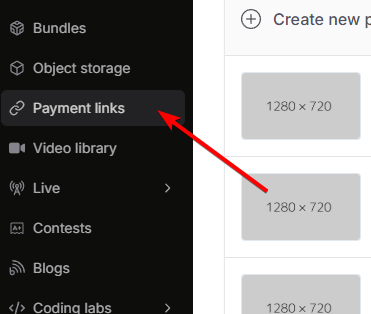
Go to your **Dashboard -> Payment links**.
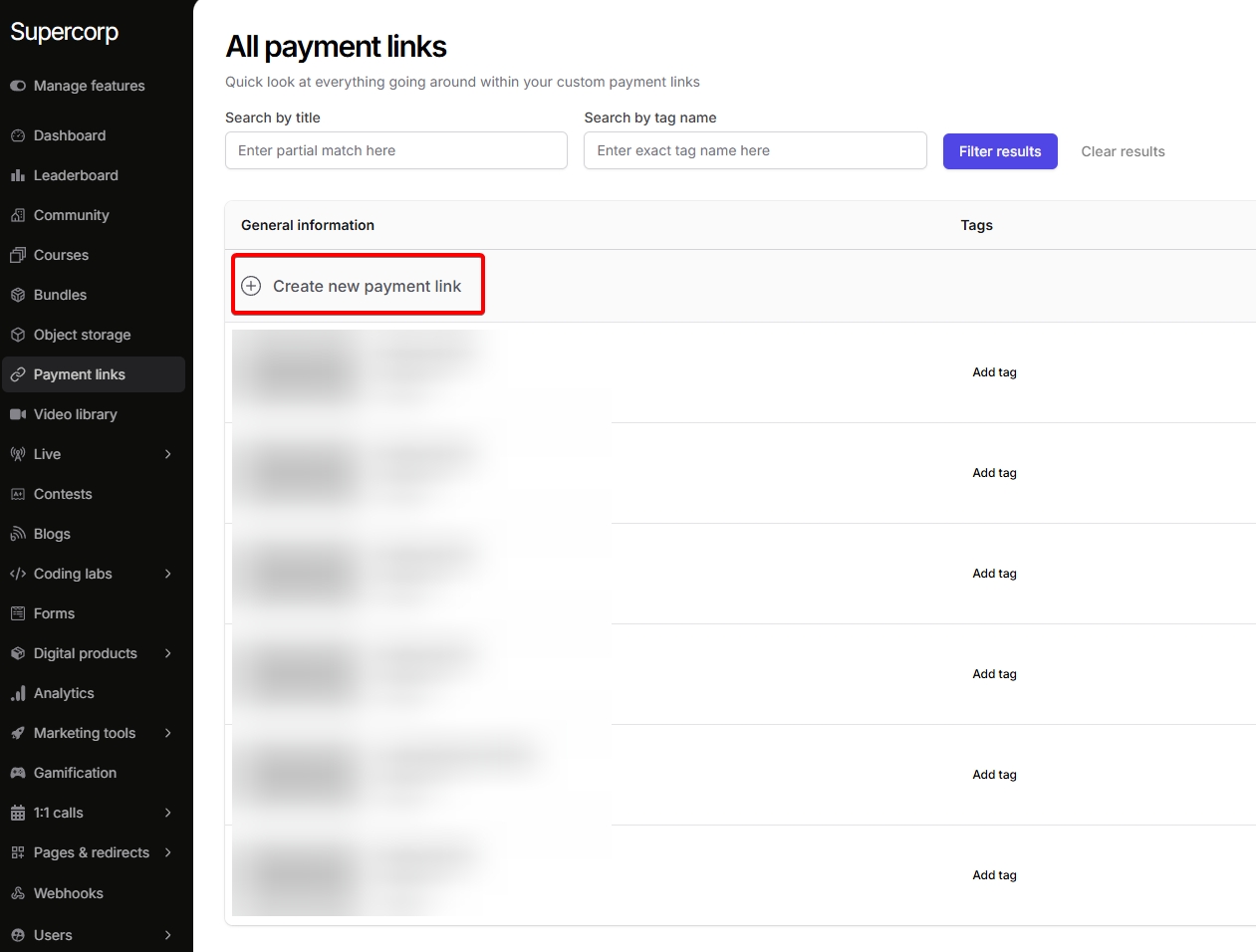
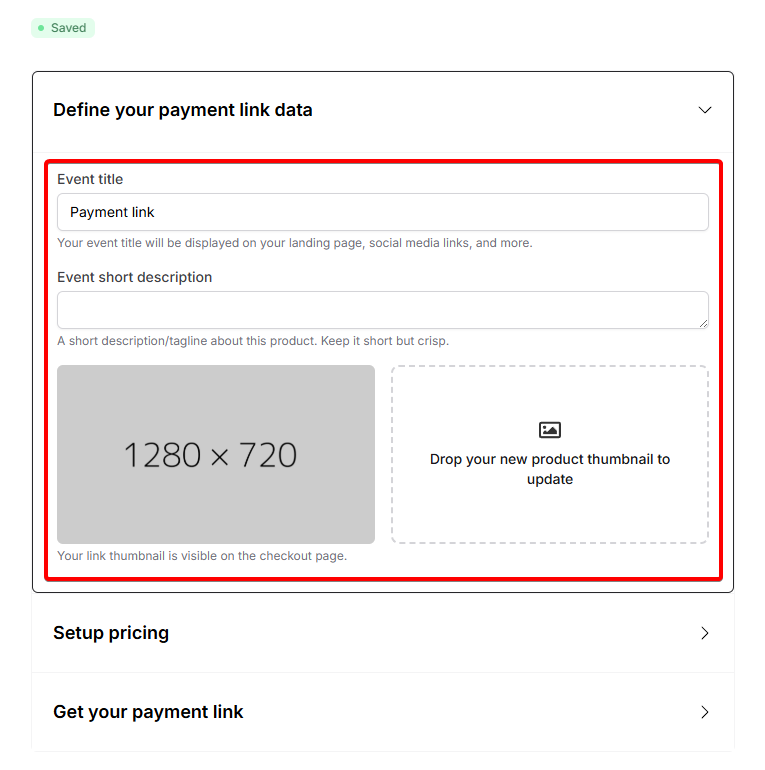
1. From here, you can fill in :
* Name for the payment link.
* Add description and a thumbnail.
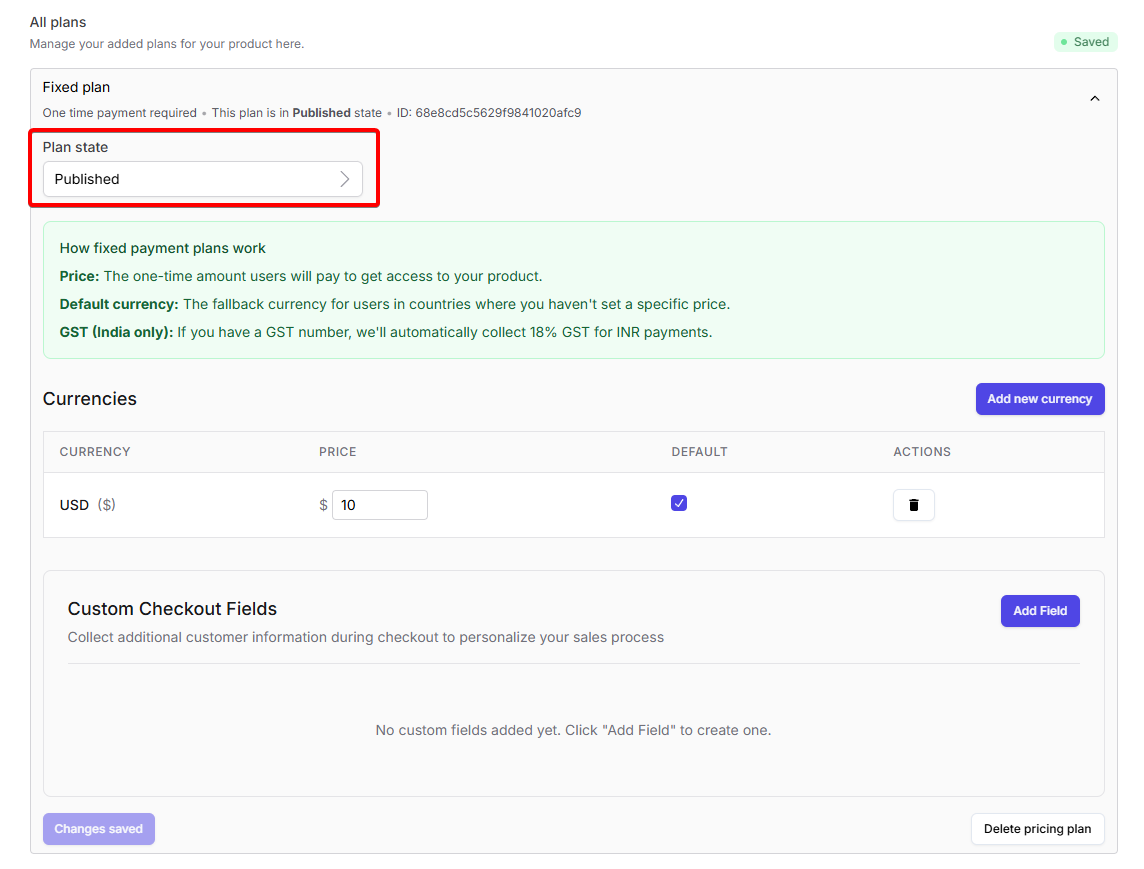
Now, you will have to manually set up a custom pricing plan , either [Fixed](/setup-pricing/fixed-pricing-plan) or [Partial](/setup-pricing/setup-emi)
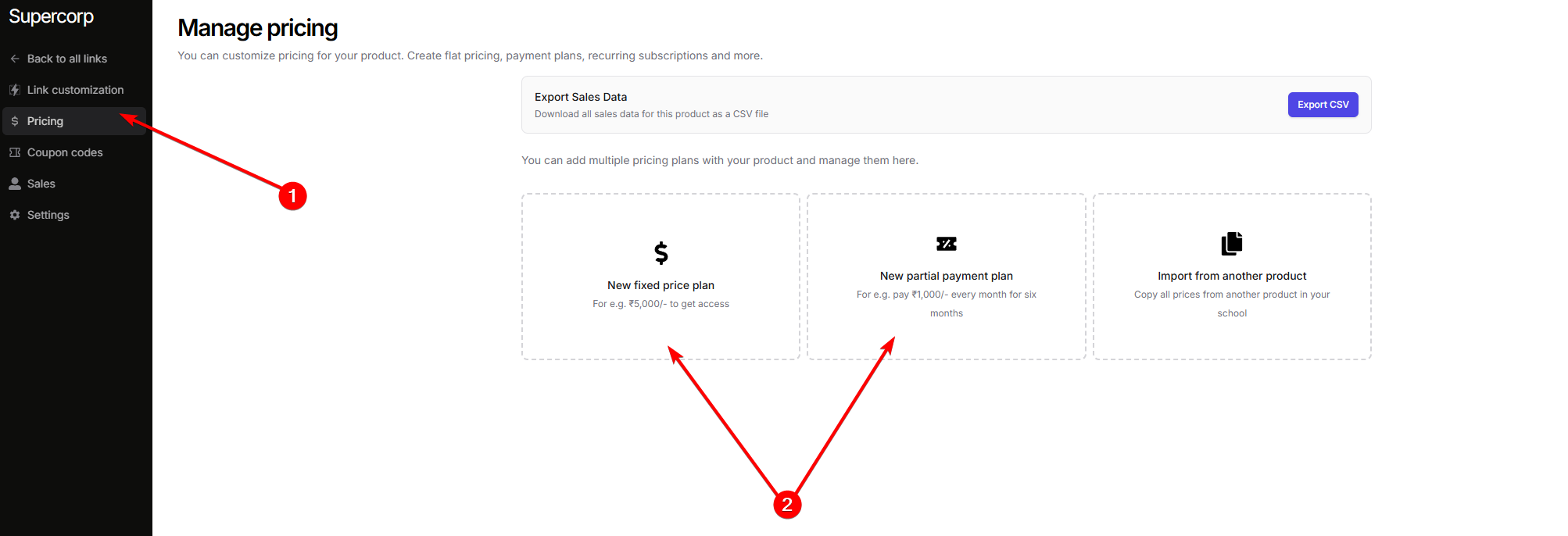
Once you have added a pricing plan, make sure that the plan is in a `Published` state
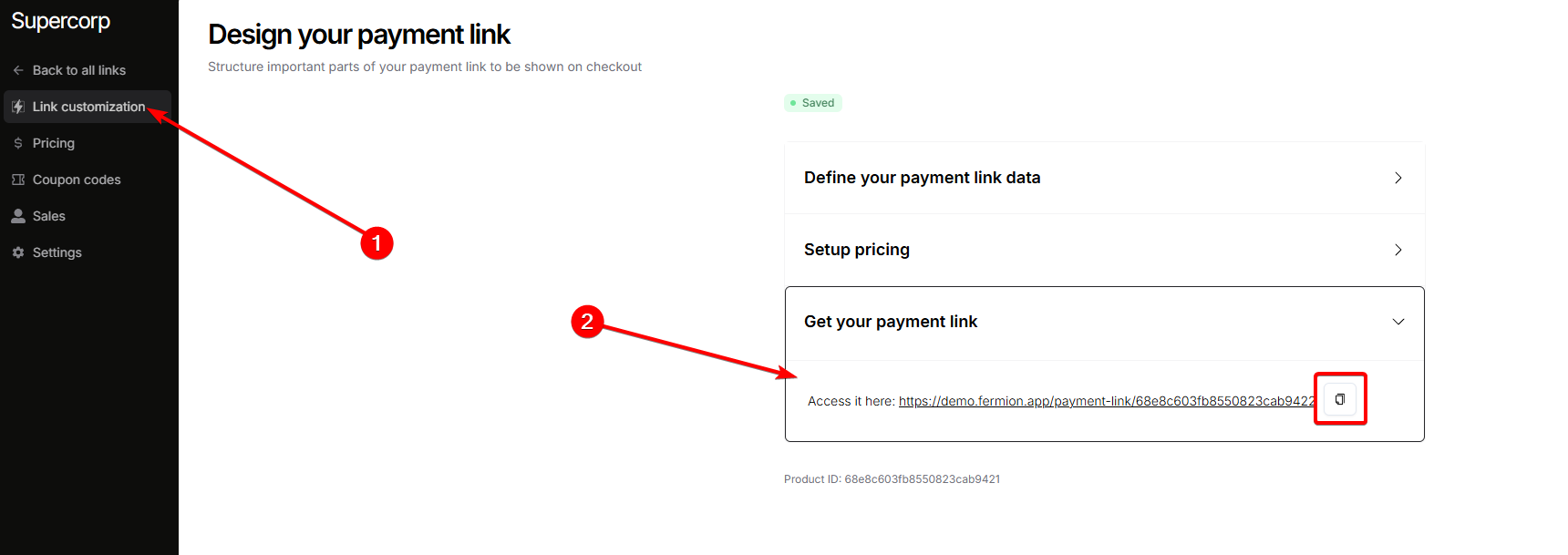
After you are done setting up this custom payment option, go back to the `Link customization` page of this product and copy the custom payment link that can be shared with the users.
Once the user completes the payment via the link, **they are not automatically enrolled in your product or course**.You will need to manually enroll the user.
## Sales data for custom payment links
After creating a custom payment link, you can track all sales made through that link in the same link settings. Click on the sales button in the sidebar to get more information
This section lists all transactions associated with the link, including the name and the sales date. You can also **export the sales data** as a CSV file for reporting, bookkeeping, or compliance purposes.
## Coupon codes
Coupon codes work the same across the platform for all products, including custom payment links. You can combine custom payment links with coupon codes to give learners additional discounts. To learn more about creating, managing, and applying coupon codes, head over to the [coupon codes documentation](/setup-pricing/add-coupon-codes).
## When should you use custom payment links?
* Providing a bespoke discount to a user by request
* Arranging payment for a bundle or product not directly listed on your site
* Solving for any manual or special arrangement outside your usual checkout flow
Need to enroll the user? Follow the steps in [Manage users](/manage-settings/manage-users) to learn how to add someone to a product after they have paid.