> ## Documentation Index
> Fetch the complete documentation index at: https://docs.fermion.app/llms.txt
> Use this file to discover all available pages before exploring further.
# Custom payment gateway
> Learn how to integrate your own Razorpay or PhonePe account as a custom payment gateway on Fermion
If you already have a Razorpay or PhonePe account and prefer payments to be credited **directly to your own payment gateway account**, you can connect it as a custom payment gateway.
This gives you full control over your payment settings, reconciliation, and settlements, while Fermion continues to handle the student checkout flow and reporting.
If no custom payment gateway is enabled, Fermion's managed gateway will be active, and payments
will be added to your Fermion balance for withdrawal via payouts. If custom payment gateway
integration is enabled, student payments go directly to your payment gateway account.
Fermion supports the following custom payment gateways:
Integrate your own Razorpay account for INR payments via UPI, cards, and netbanking.
Connect your PhonePe merchant account for seamless payment processing.
### Accessing payment gateways
To manage your payment gateways:
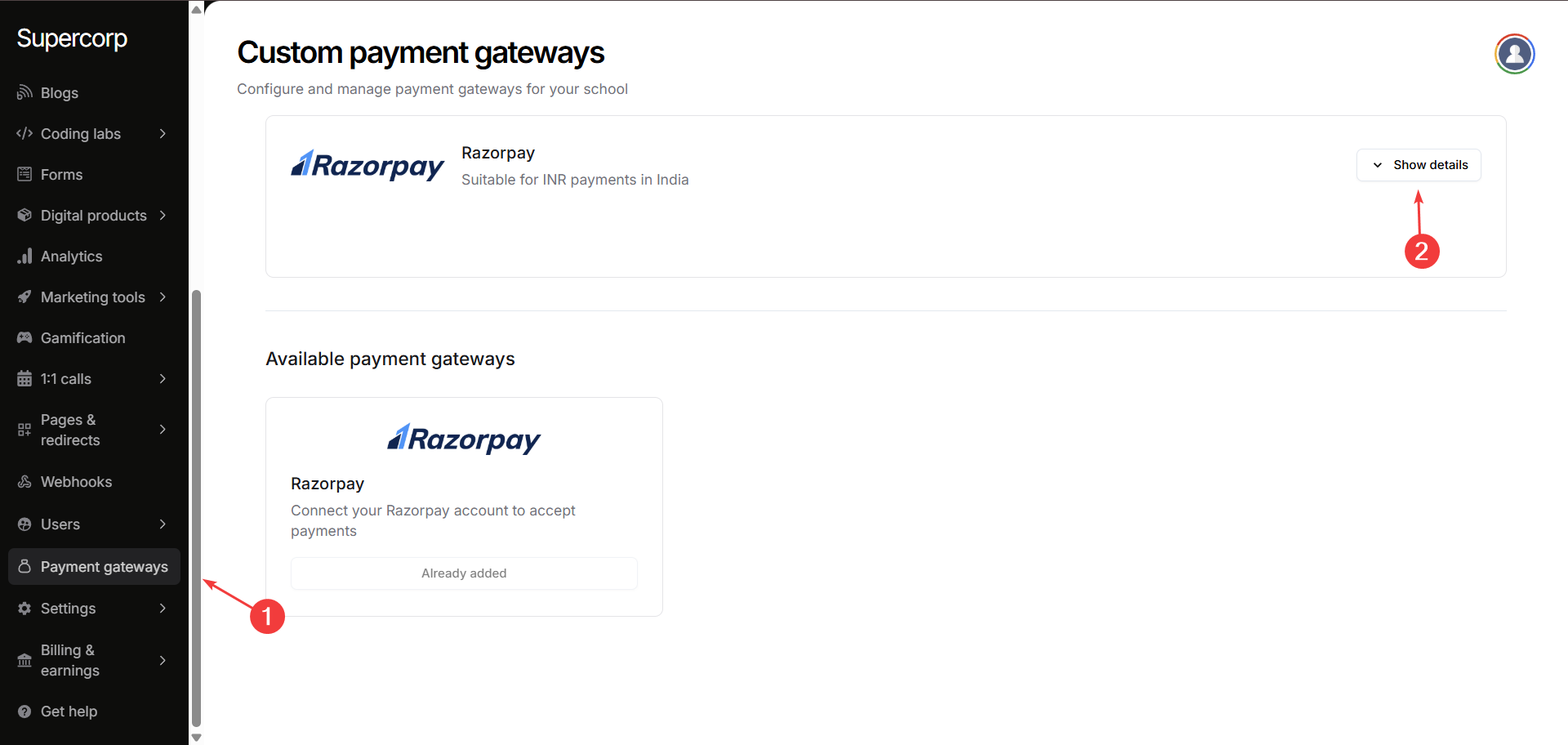
Go to your **Instructor Dashboard → Payment Gateway** section in the sidebar. This is where
you can view all available gateways, enable/disable them, and manage credentials.
Select the Razorpay or PhonePe gateway and click on **Show details** button to configure
various settings. If no gateway is selected, Fermion managed gateways would automatically be
active.
### Custom Razorpay integration
Razorpay is a widely trusted payment gateway in India, suitable for processing INR payments through UPI, credit/debit cards, and netbanking. It offers secure payment processing, instant notifications, and robust reporting tools for businesses of all sizes.
Avoid switching back and forth between the custom Razorpay gateway. Disabling it after
activation may cause payment failures and split payouts, complicating your finances.
You can enable Razorpay at Fermion with the help of the following steps:
Toggle the switch to enable the gateway. Once enabled, it becomes active immediately for new
orders.
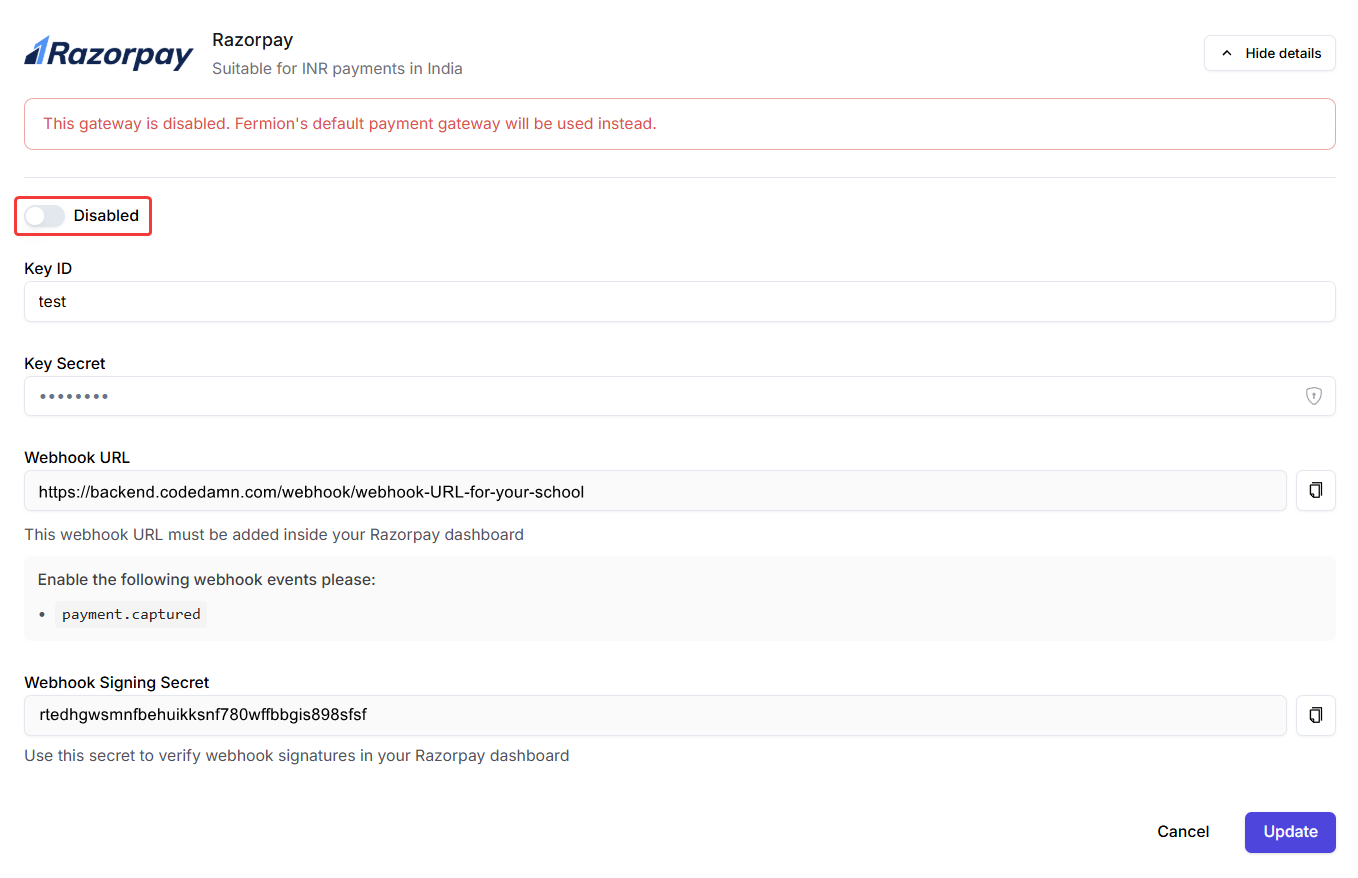
Enter your **Key ID** and **Key Secret** provided by Razorpay. These credentials ensure that
payments are securely linked to your account. [Learn
more](https://razorpay.com/docs/payments/dashboard/account-settings/api-keys/) on where to
find these credentials.
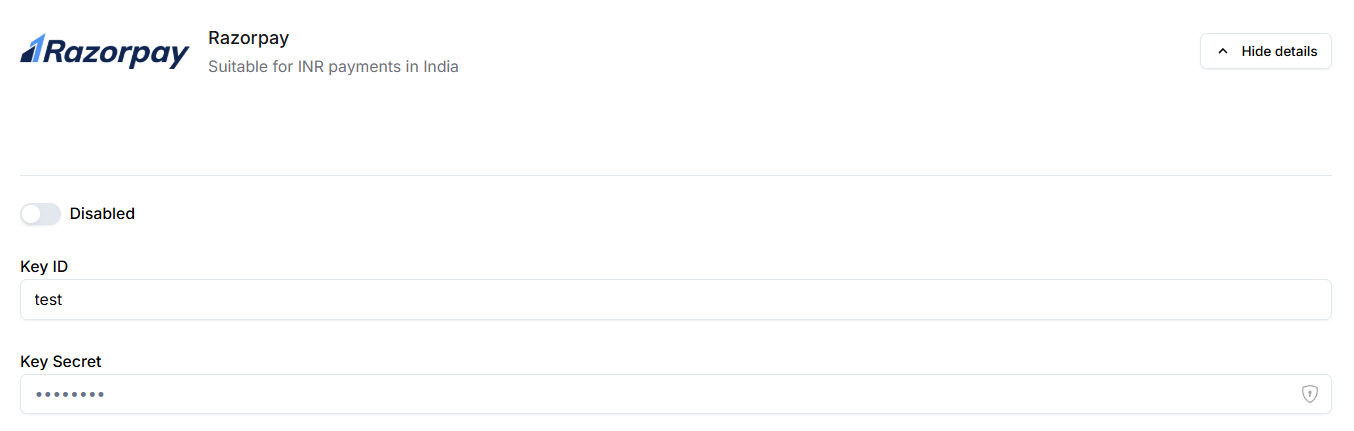
Add the following **Webhook URL** provided in your Fermion Dashboard to your Razorpay
account. [Learn more](https://razorpay.com/docs/webhooks/setup-edit-payments/) about how to
add webhook URLs at Razorpay. Enable the following webhook event: - `payment.captured`
Utilize the **Webhook Signing Secret** to verify webhook signatures. This ensures that
Fermion receives real-time updates about payment status and avoids manual reconciliation.
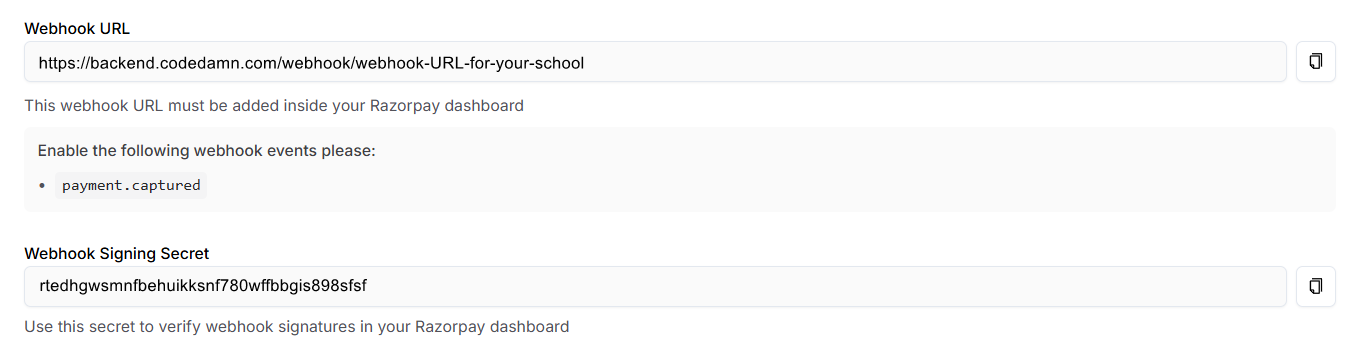
Click on the **Update button** to add the Razorpay gateway to Fermion. Now you can receive
payments from your learners with the help of Razorpay.
***
### Custom PhonePe integration
PhonePe is a leading payment gateway in India, ideal for processing INR payments through UPI, credit/debit cards, and wallets. It provides secure payment processing, instant notifications, and comprehensive merchant tools for businesses.
Avoid switching back and forth between the custom PhonePe gateway. Disabling it after activation
may cause payment failures and split payouts, complicating your finances.
You can enable PhonePe at Fermion with the help of the following steps:
Toggle the switch to enable the gateway. Once enabled, it becomes active immediately for new
orders.
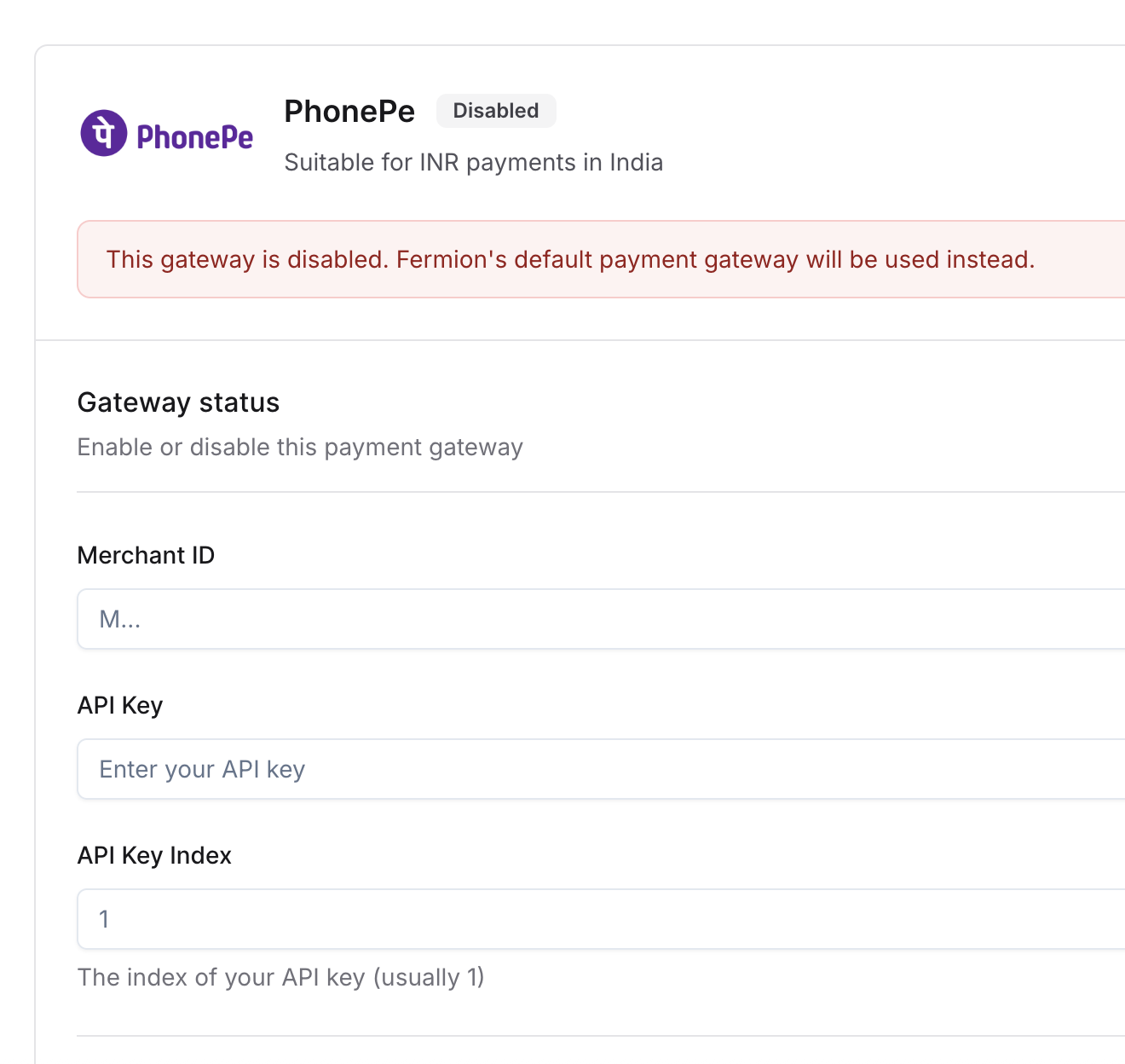
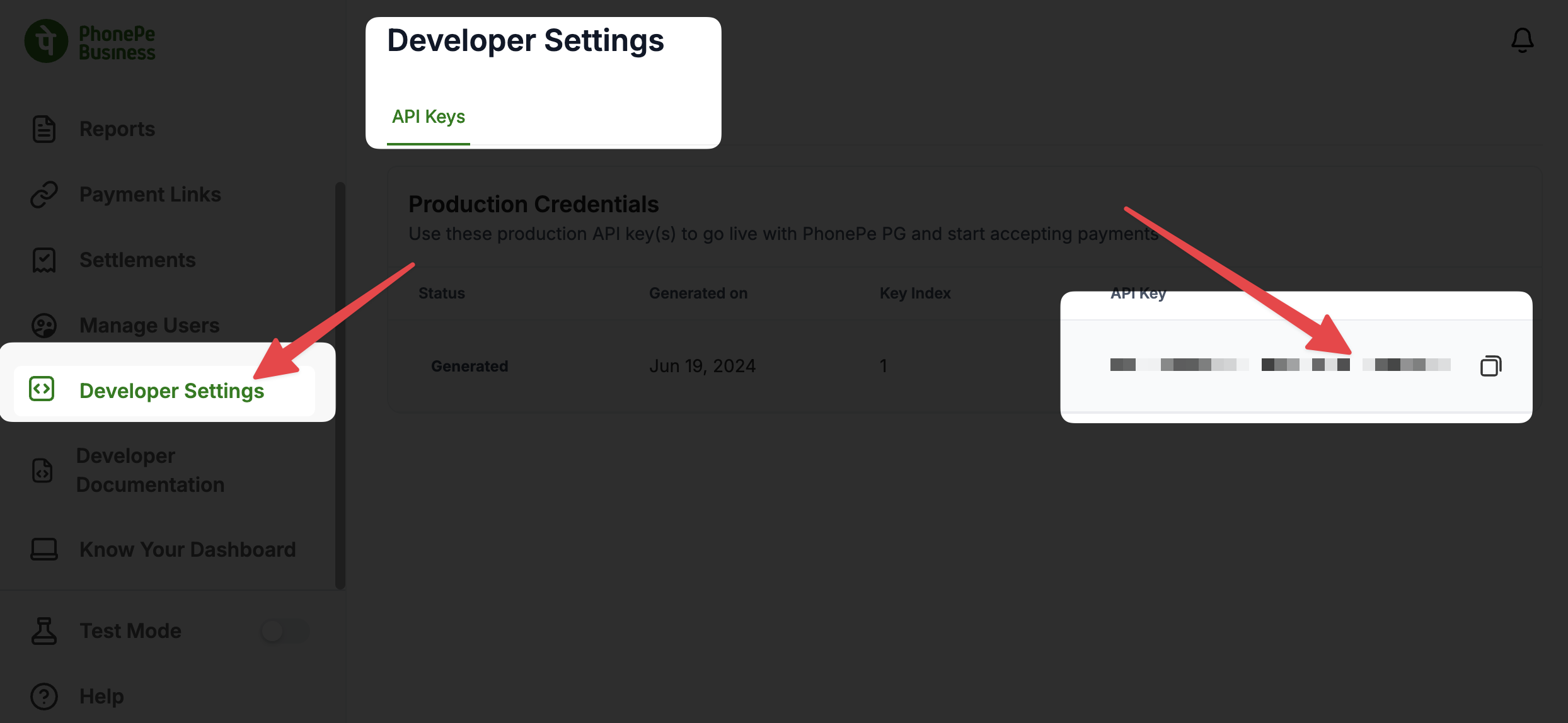
Enter your **Merchant ID** and **Salt Key** provided by PhonePe. These credentials ensure
that payments are securely linked to your account. You can find these credentials in your
PhonePe merchant dashboard.
Click on the **Update button** to add the PhonePe gateway to Fermion. Now you can receive
payments from your learners with the help of PhonePe.