> ## Documentation Index
> Fetch the complete documentation index at: https://docs.fermion.app/llms.txt
> Use this file to discover all available pages before exploring further.
# Adding and Using Tags in Courses and Course Items
> Learn how to add, manage, and use tags in your course items so learners can easily filter content based on topics, difficulty, or custom labels.
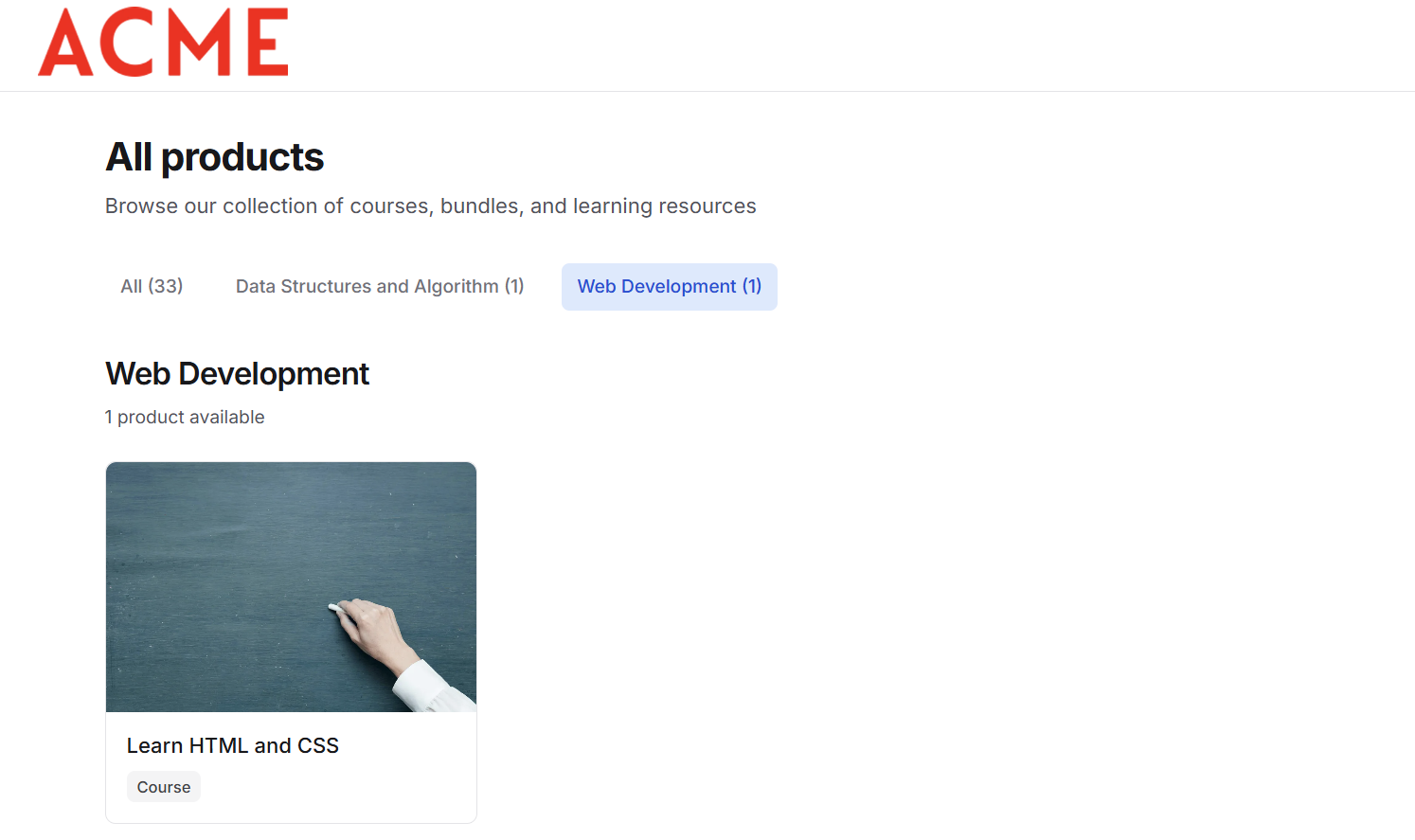
Tags help instructors categorize and organize both their courses and course items more effectively. By assigning tags such as **“Web Development”, “DSA”, or “Design”** to an entire course, you can group related content and make it easier for learners to browse by category when visiting your school website.
Similarly, tags can be applied to individual course items like [videos](/recorded-videos/introduction), quizzes, or [assignments](/setting-up-course/assignments) to help students filter and find the most relevant materials. For example, you can label lessons by difficulty: **Easy, Medium, Hard**, or by topic: **Frontend, Backend, Databases**, allowing learners to quickly navigate through large course syllabi.
In the following sections, you will learn how we can apply tags to courses and individual course items.
***
## Applying tags to a course
Tags help categorize your courses so visitors can quickly find content by category when they browse your school website. You can apply tags to each course to improve discoverability and make it easier for new users to filter courses by topic or interest.
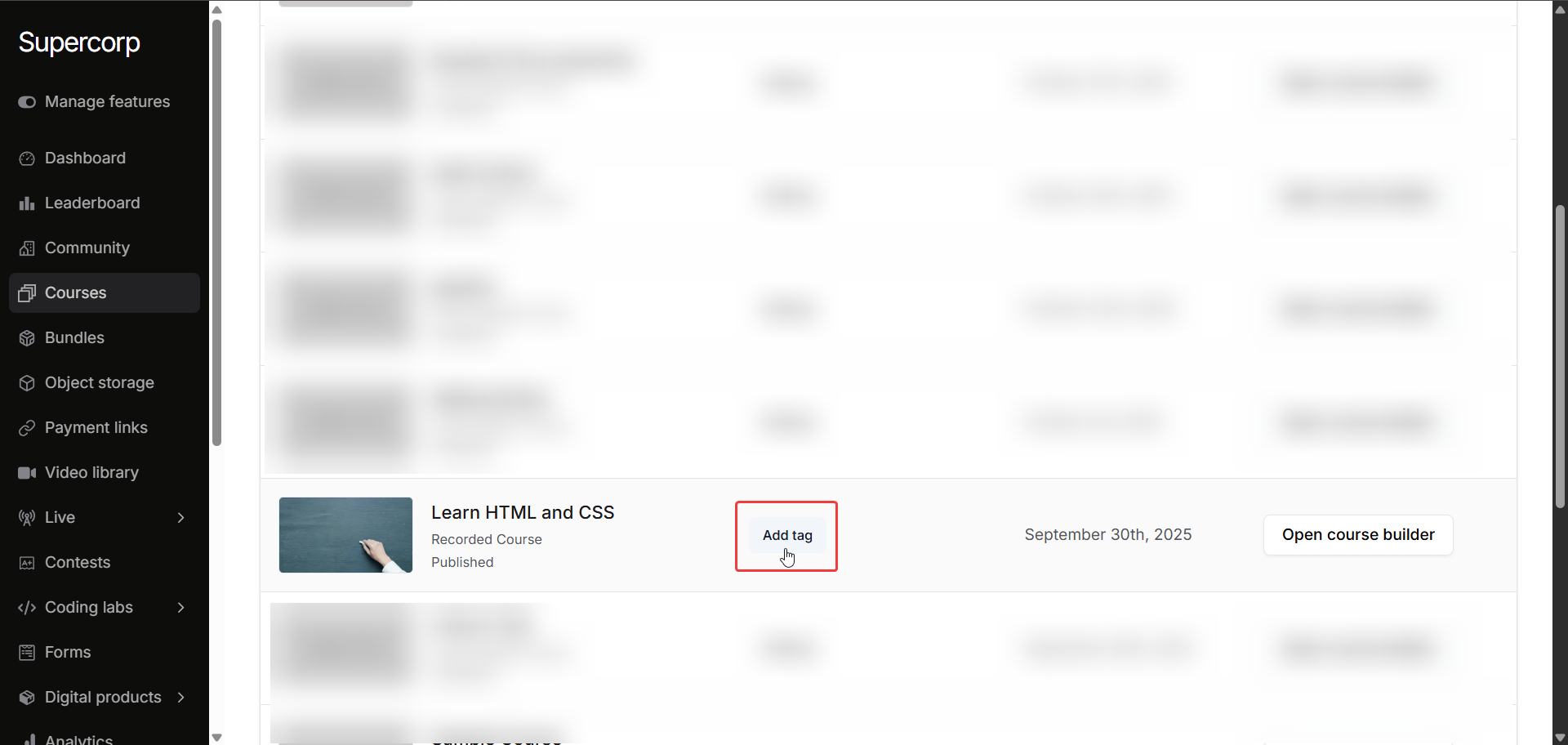
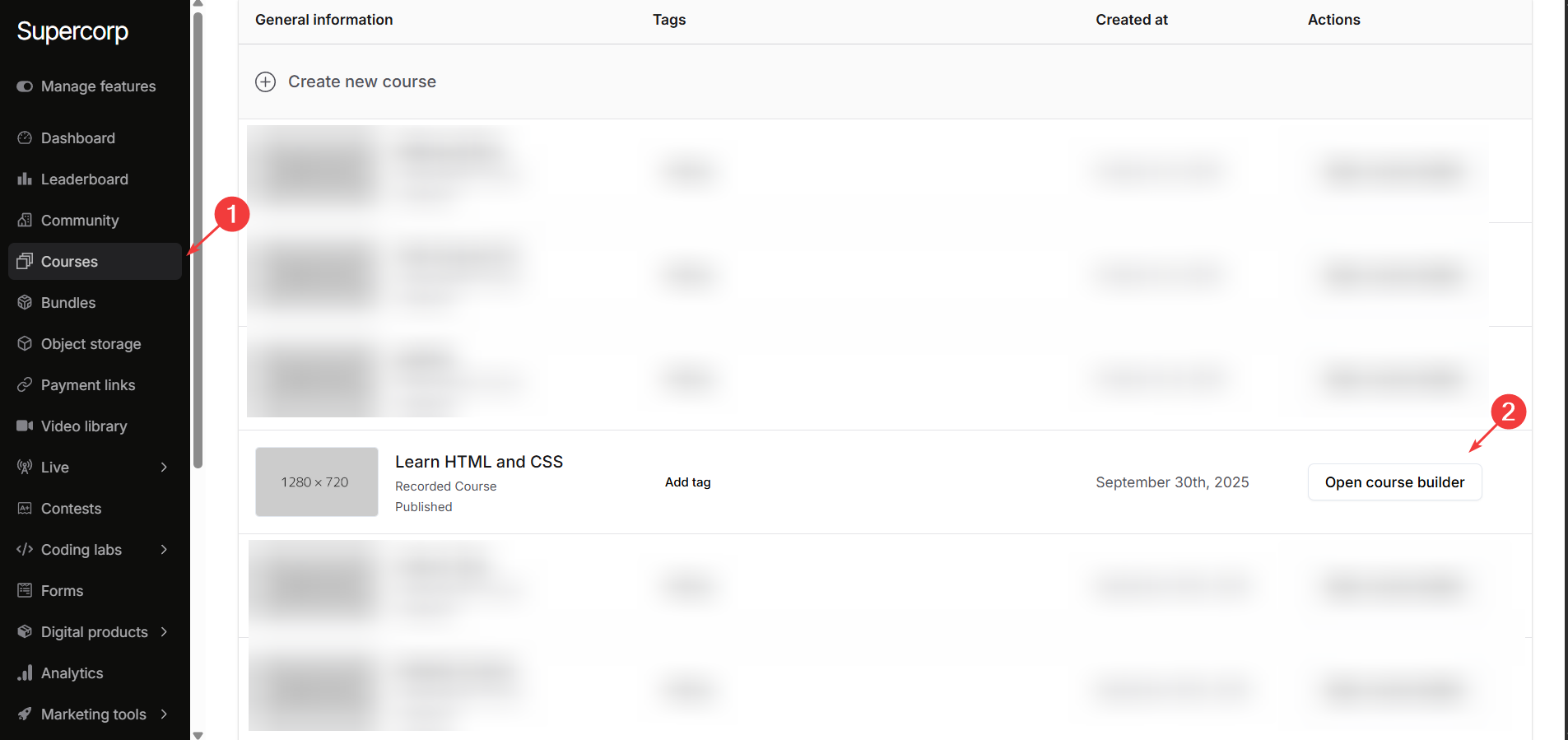
Head over to the **Courses** page in your dashboard.
Click the **Add Tag** button next to the respective course.
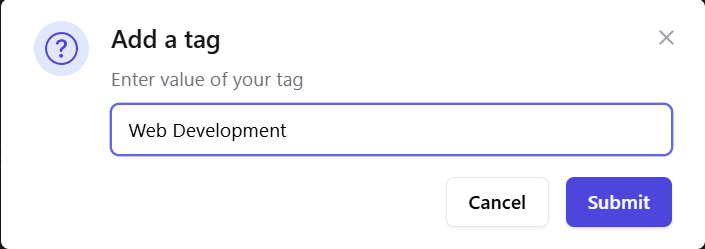
Add a suitable value for the tag name. Make sure to add the same tag name as other courses of same category so that all the items are grouped together.
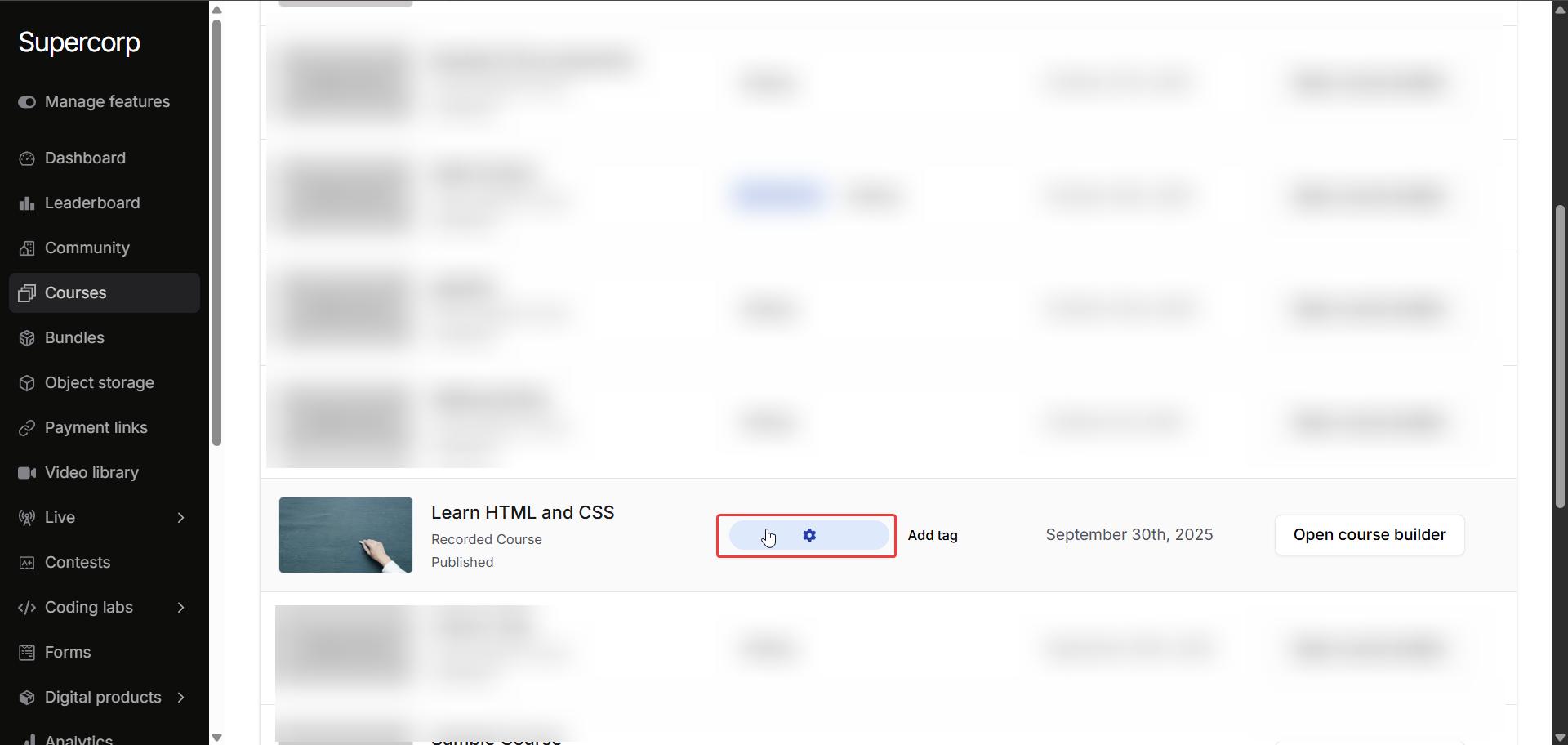
Open the tag **Settings** by clicking on the tag label
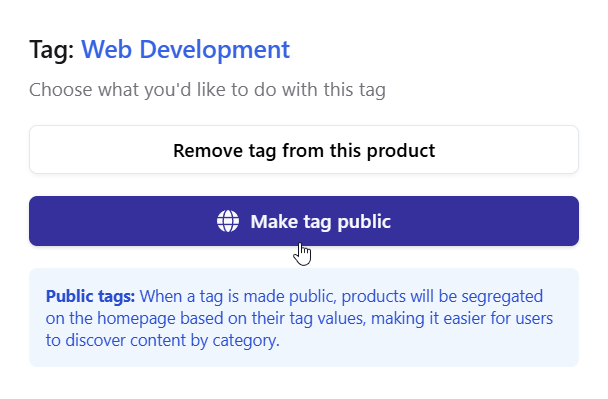
Click **Make tag public**. This ensures the tag is displayed on your school website. You can also remove the tag from the course here.
Save your changes. The tag will now be attached to the course.
Once attached, visitors can search and filter courses by this tag on your school site, making it easier to find courses by category.
## Applying tags to course items
Follow these steps to add or edit tags for any item in your course syllabus.
Head over to the **Courses** section and open the **Product Builder** for the course you want to manage.
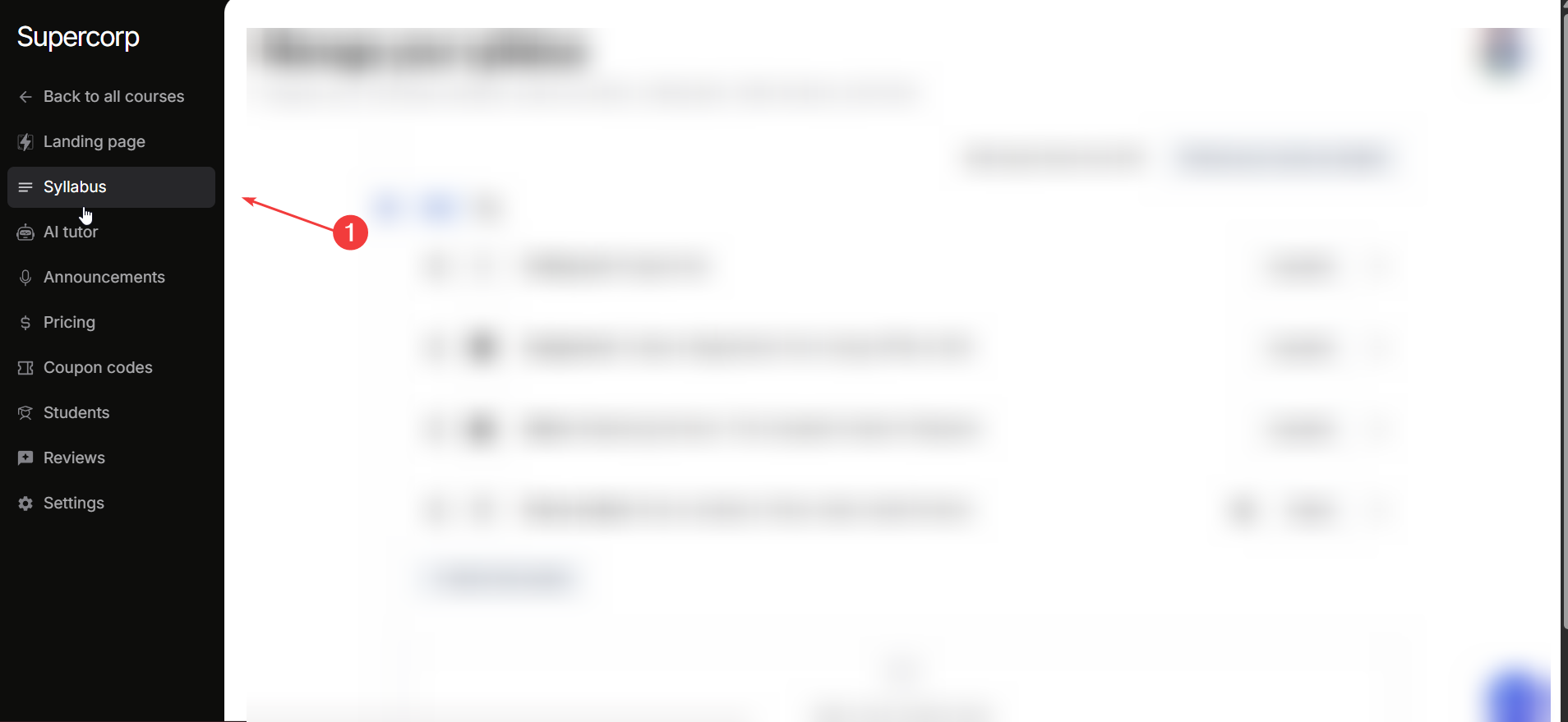
Navigate to the **Syllabus** section of the course.
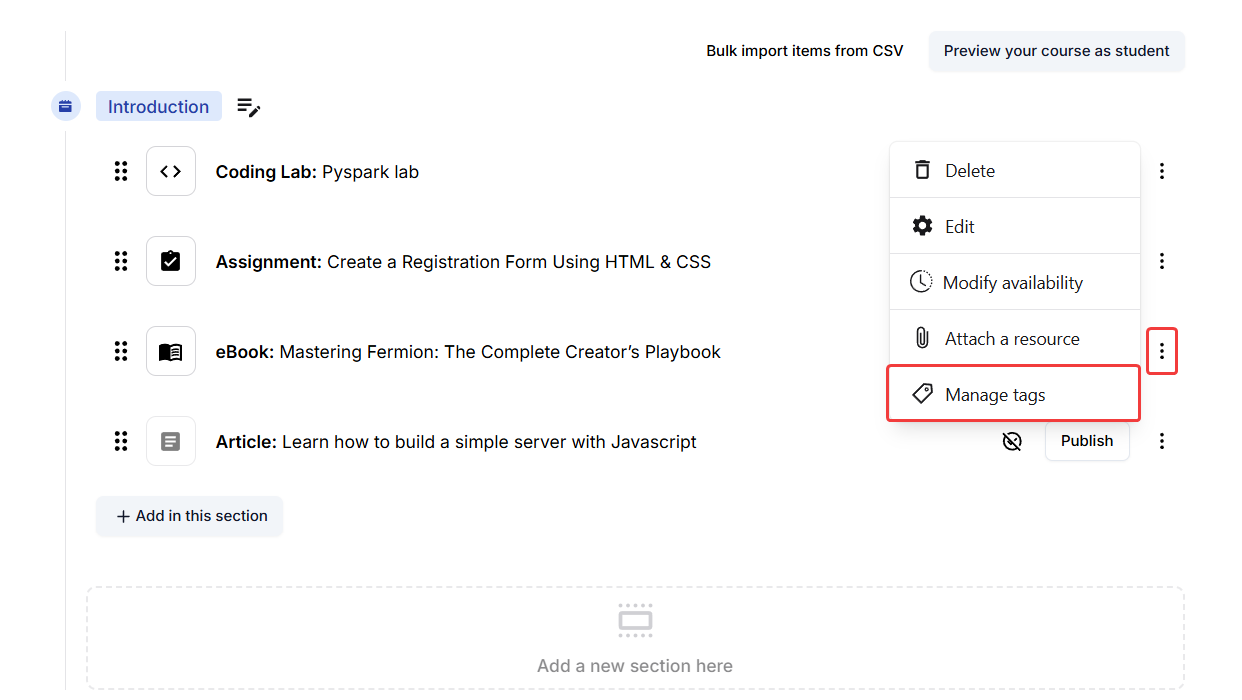
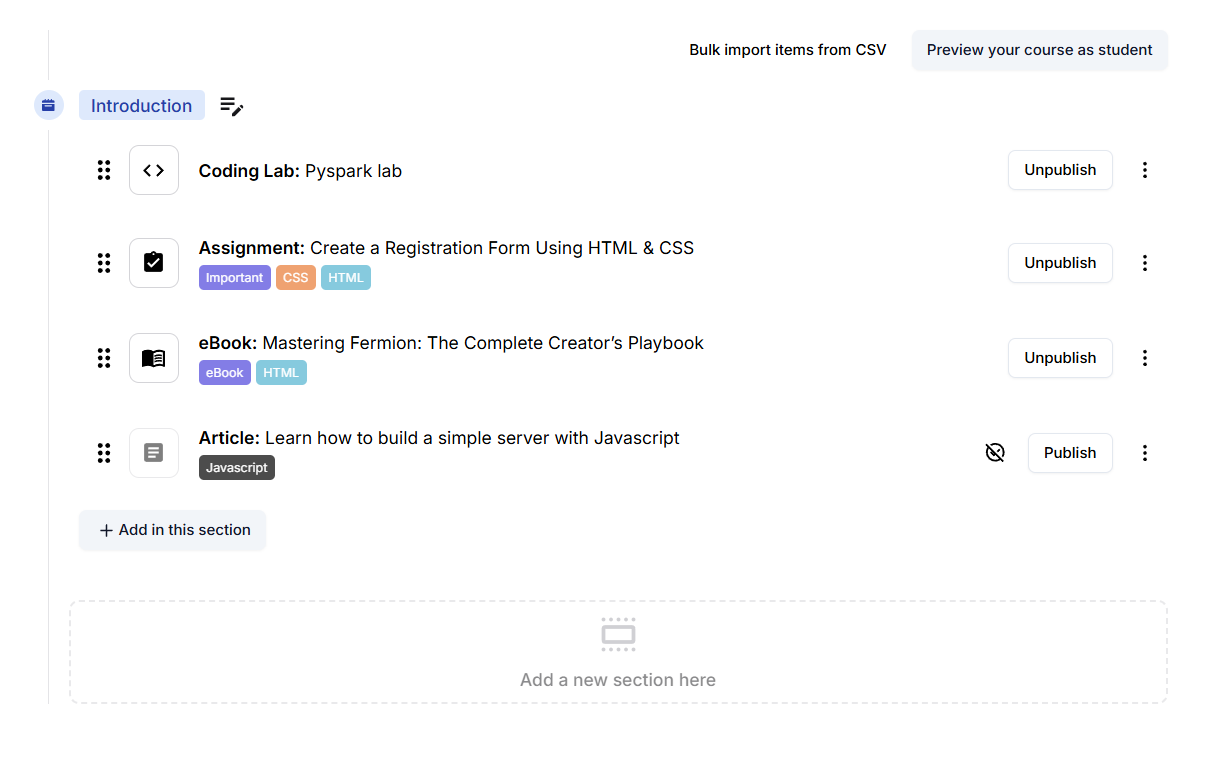
Click the **⋮** (three vertical dots) next to any course item and select **Manage Tags**.
You’ll now see the **Manage Tags** panel, which lets you:
* Add, or remove tags for this specific course item.
* Create new tags and choose a color for each tag using the color picker or enter a custom hex code.
* View a preview of how your tag will appear in the learner’s view.
* You can also select from existing tags you have created before in that particular course. Just click on the previously created tag and it will be attached to your course item.
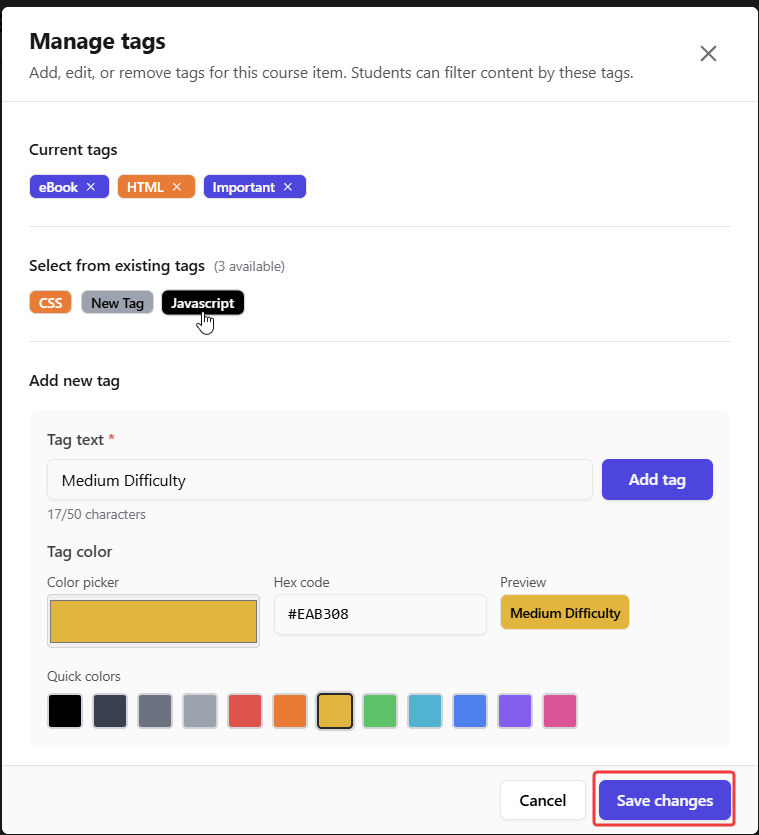
Once you’ve added or updated the tags, click **Save Changes**.\
The new tags will now be associated with that specific course item and visible to learners.
***
### How learners can use tags for course items
From a learner’s perspective, tags make course navigation simpler and more intuitive by allowing students to easily **filter** by clicking on the tag and discover content based on their learning preferences or current progress.
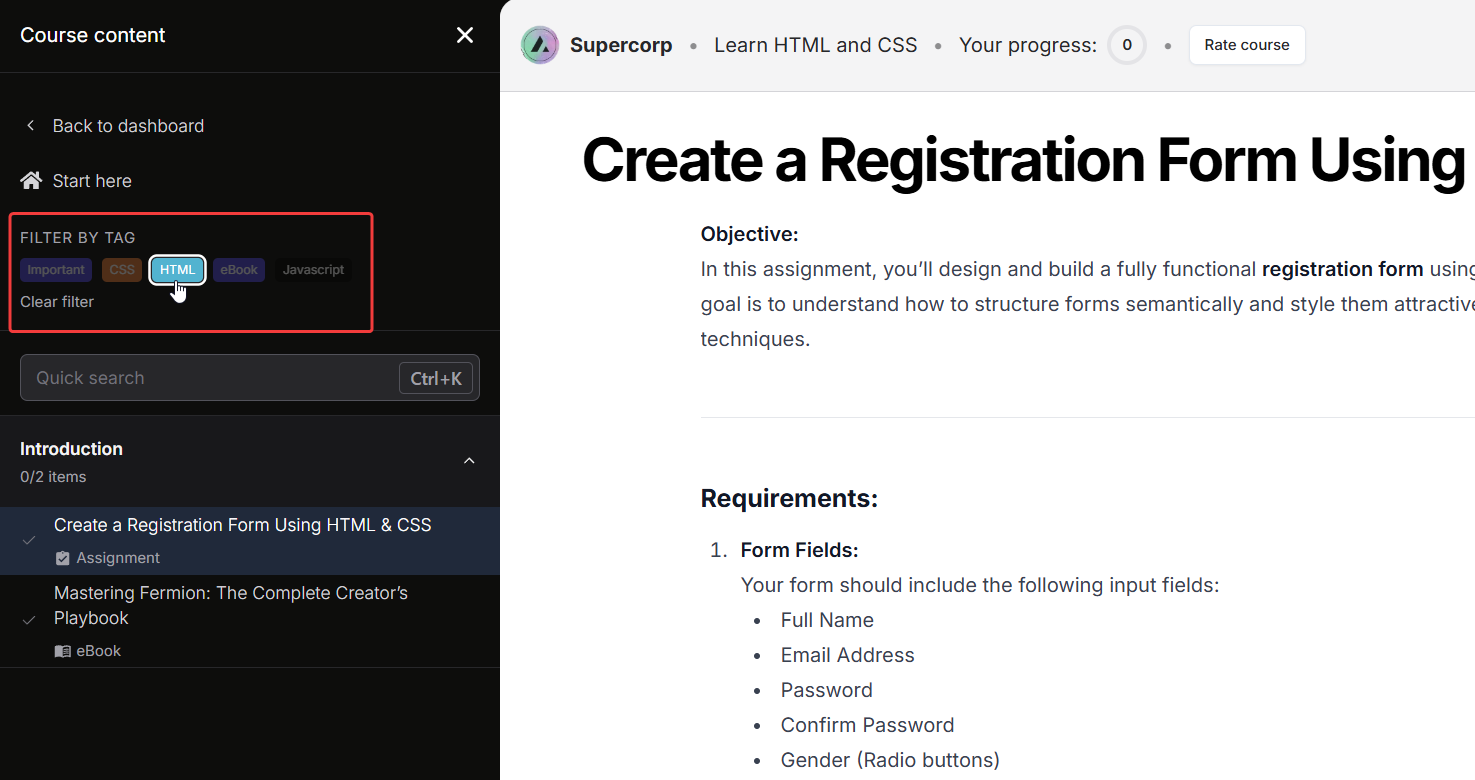
For example, if lessons are categorized by difficulty, learners can start with `Easy` lessons to build a strong foundation and then gradually move on to `Medium` or `Hard` tagged lessons as they advance through the course. Similarly, topic-based tags like `JavaScript`, `React`, or `Backend` let learners focus on areas that interest them the most.
By effectively using tags, instructors create a more personalized and accessible learning experience for everyone.