> ## Documentation Index
> Fetch the complete documentation index at: https://docs.fermion.app/llms.txt
> Use this file to discover all available pages before exploring further.
# Quiz
> Learn how to create and manage quizzes in your course syllabus
A quiz is an interactive assessment tool that you can use to test your students' knowledge and understanding of the course material. Quizzes can include multiple-choice questions, true/false questions, short answers, and other formats. They help reinforce learning and provide immediate feedback to students.
## How do I create a quiz?
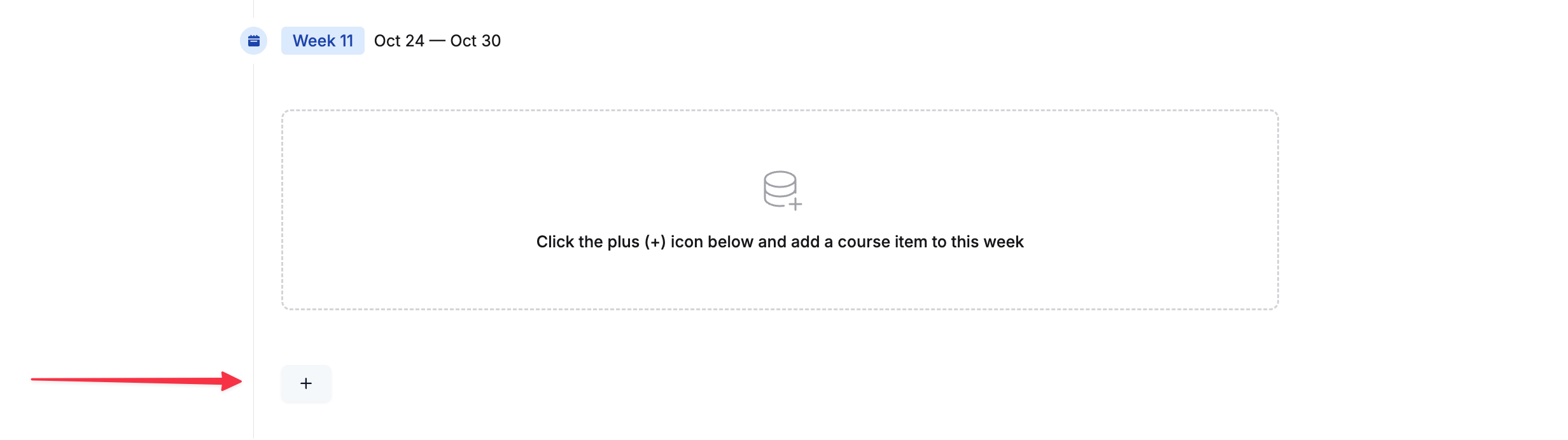
Click the + button to expand the course items' view.
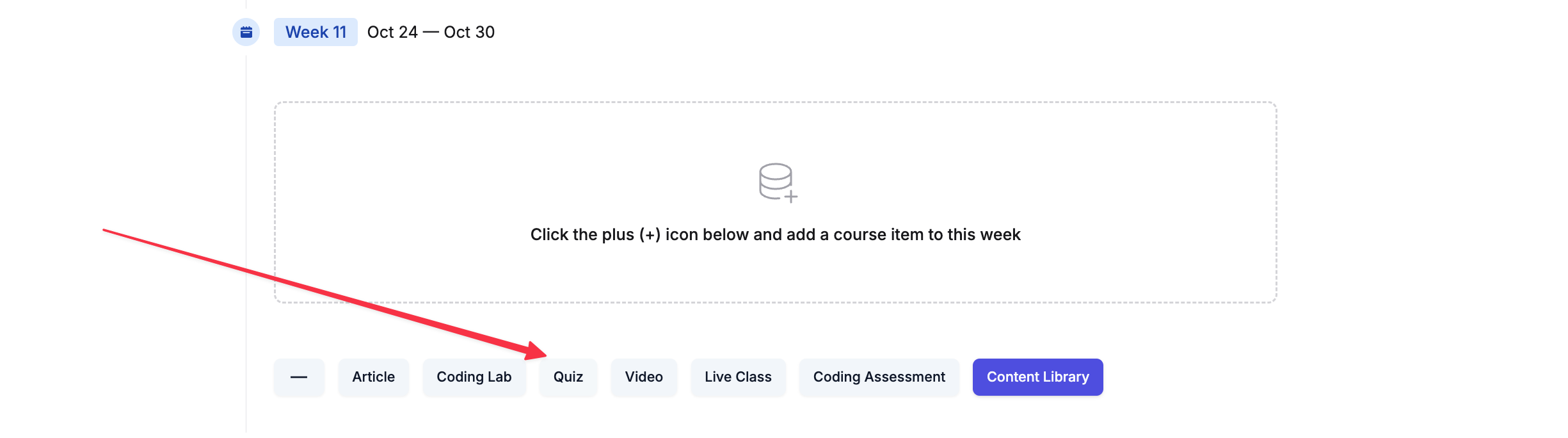
 Click on
 Quiz. This will add a quiz inside your chosen section.
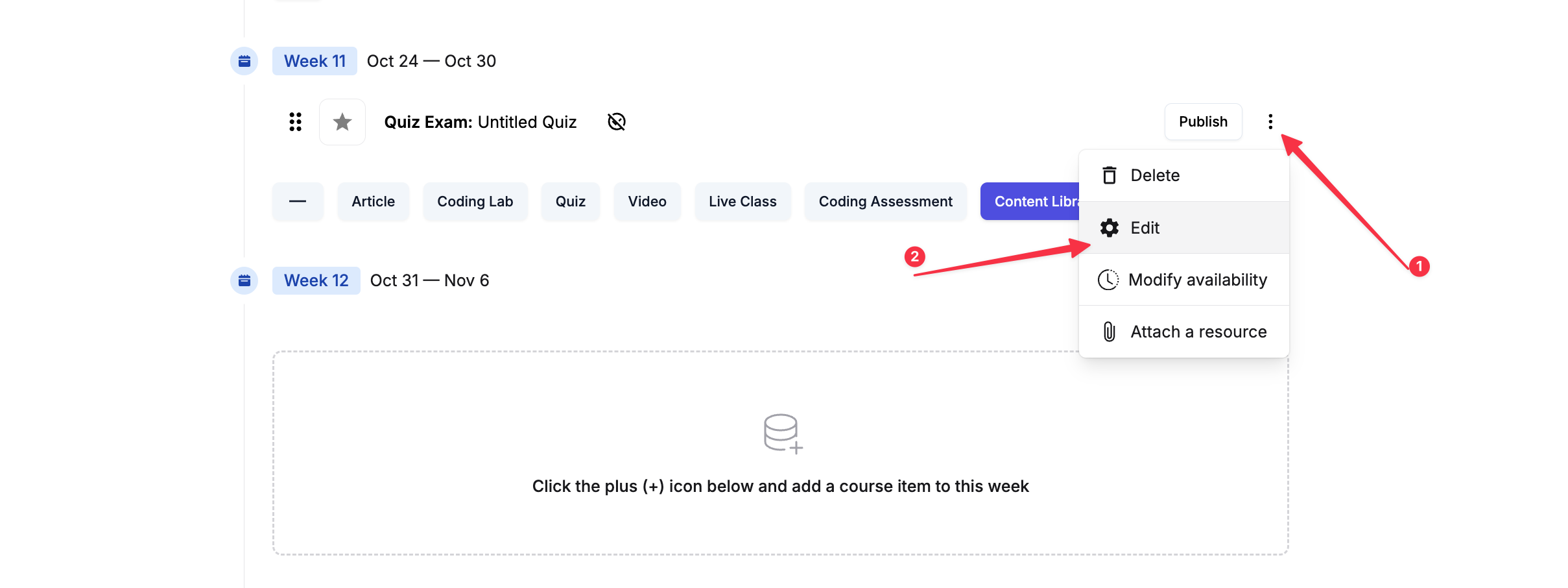
 Click on the three dots of the new quiz (added as
 Quiz: Untitled quiz) and select Edit.
 The quiz editor will open in a new tab. Here you can change the quiz title and add details. Make sure to save your changes.
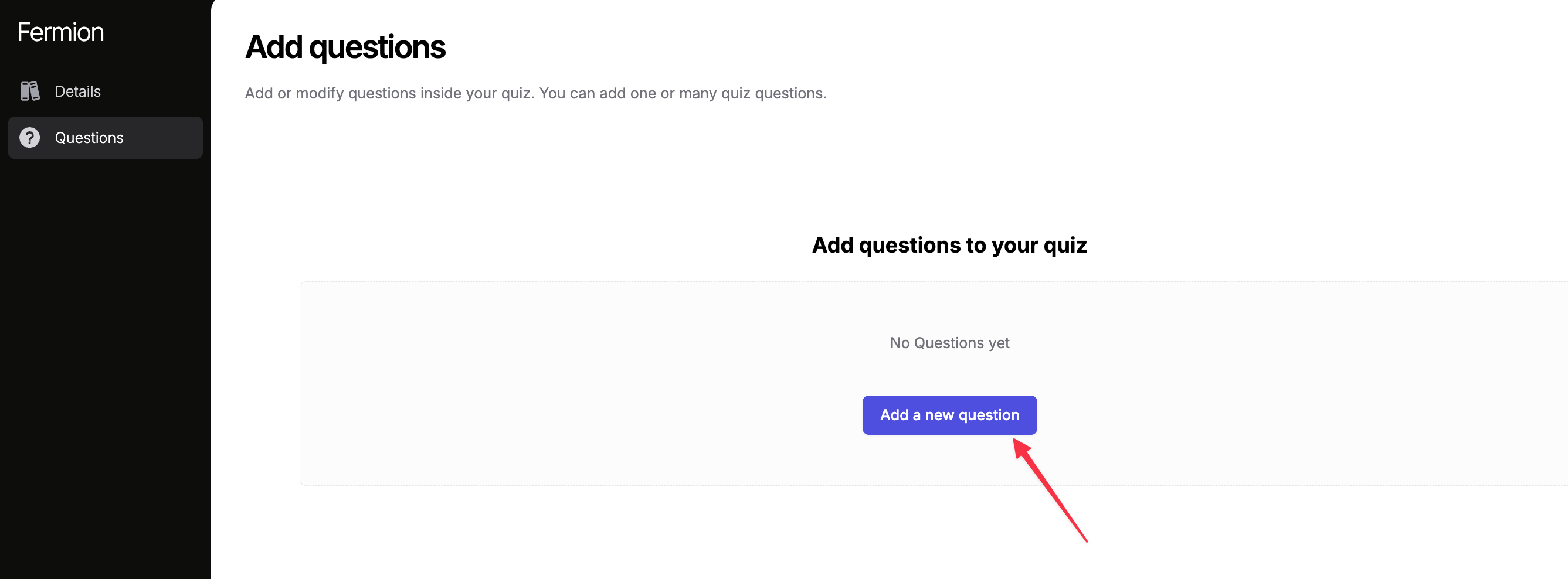
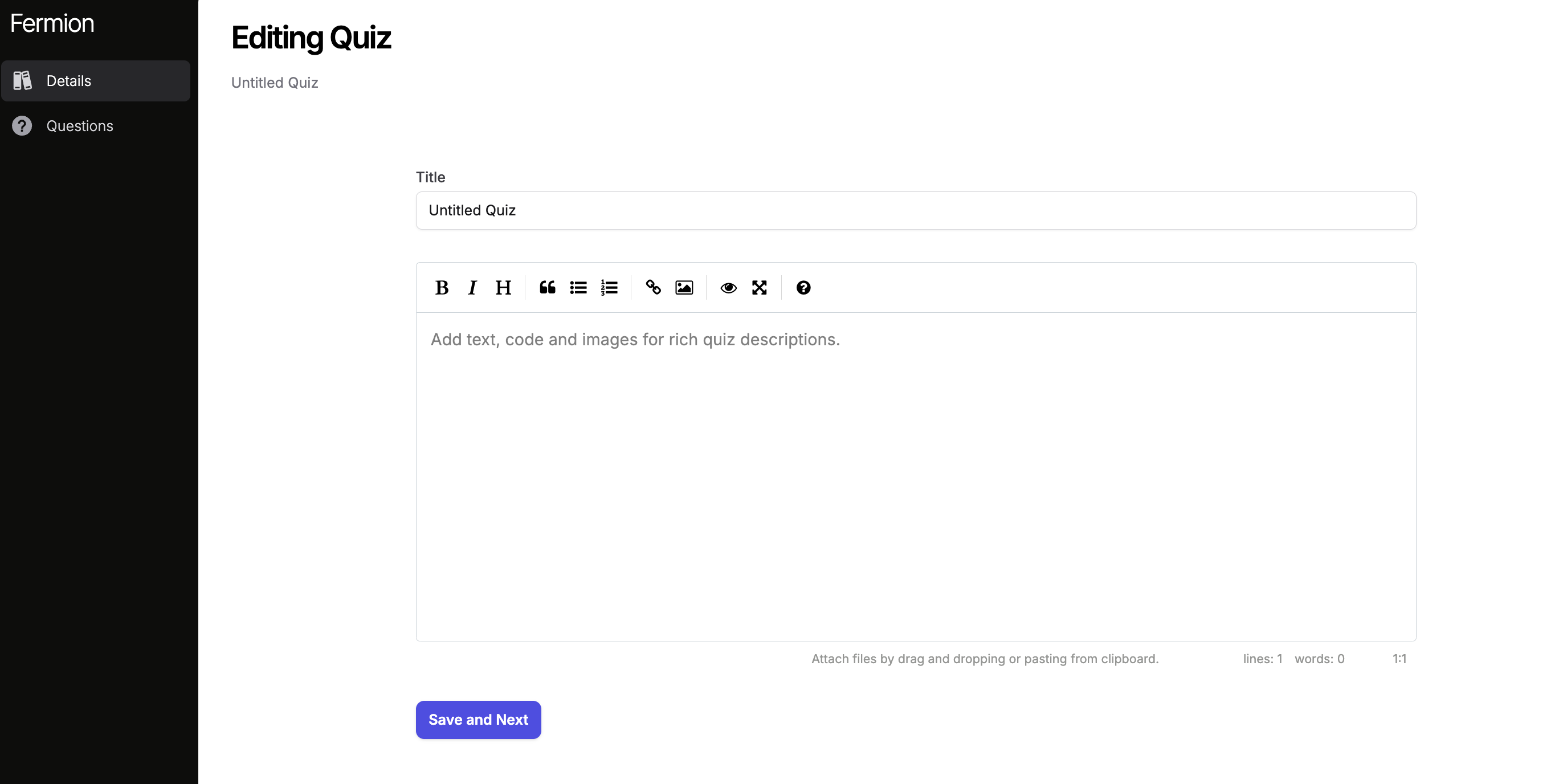 Go to the
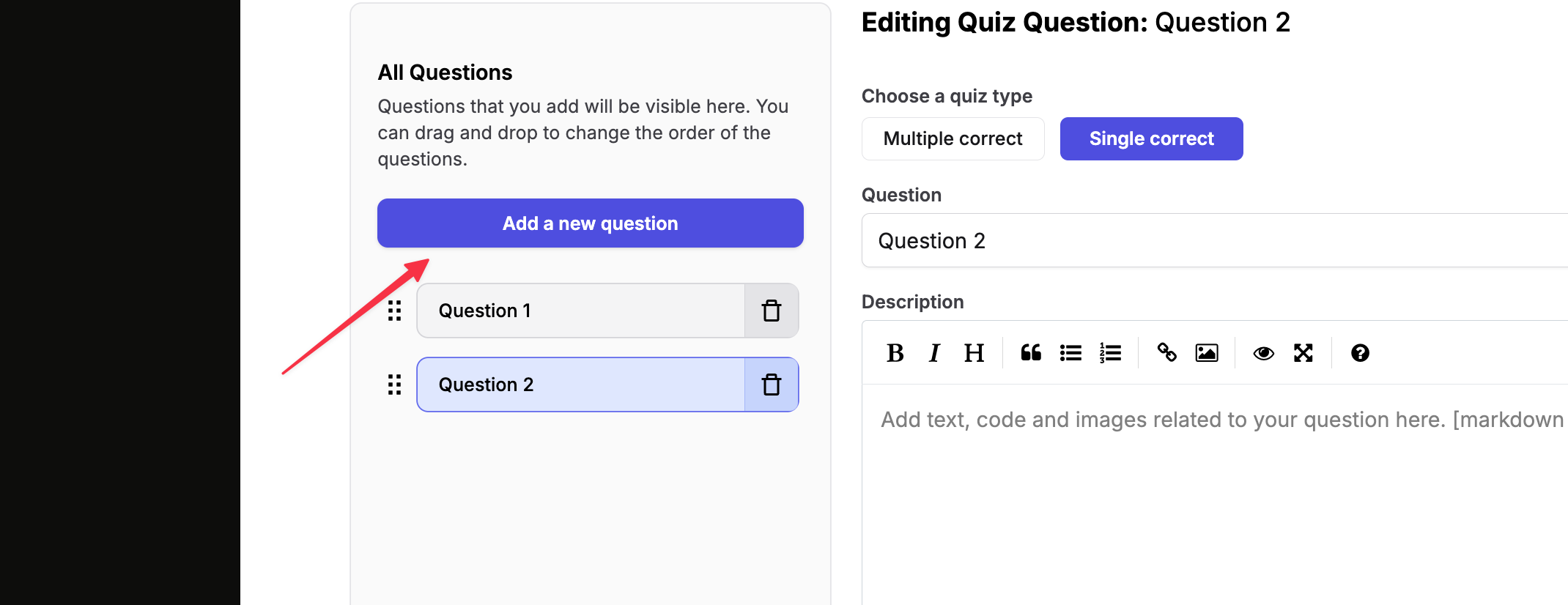
 Questions tab and click Add a new question to create your first quiz question.
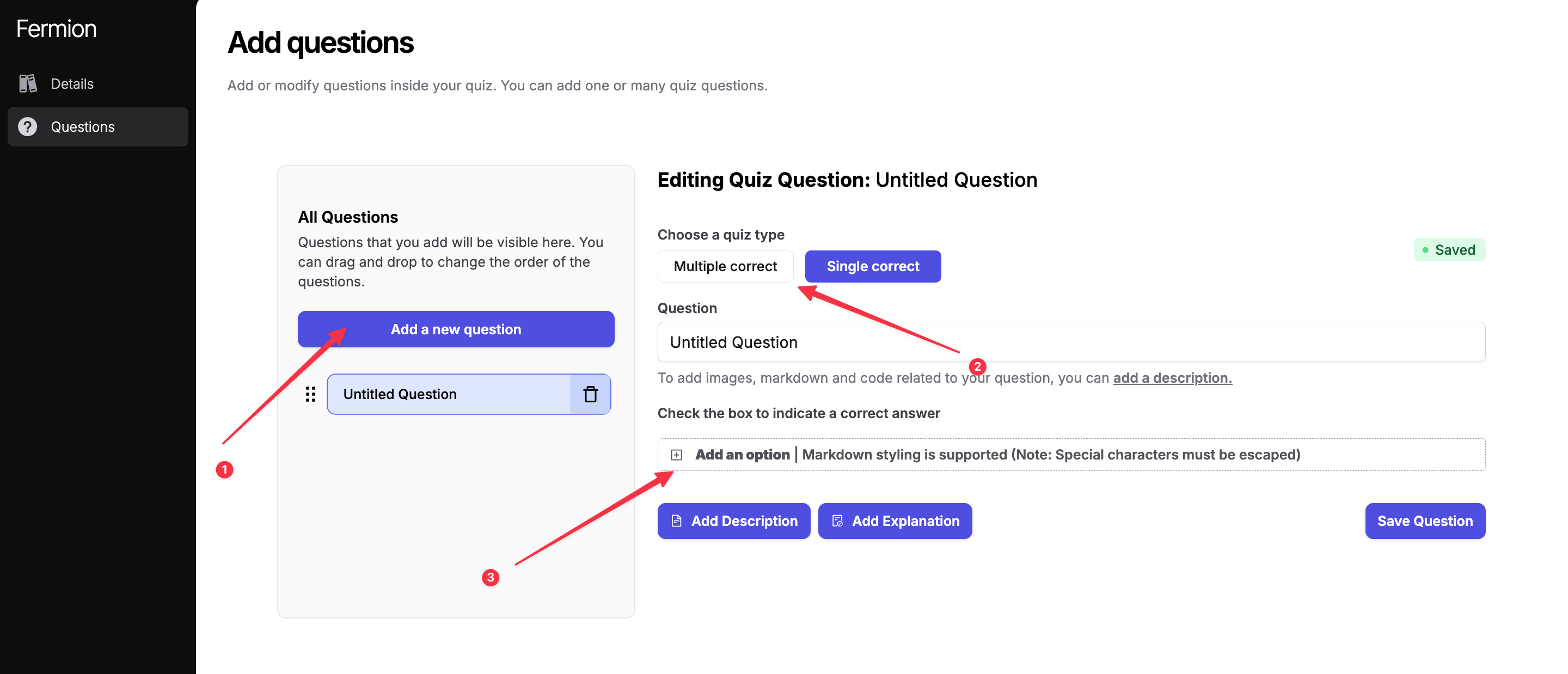
 After adding a new question, select its type, write the question, and enter multiple options. Mark the correct option(s) as needed.
 You may also include a
 description or explanation for the question.
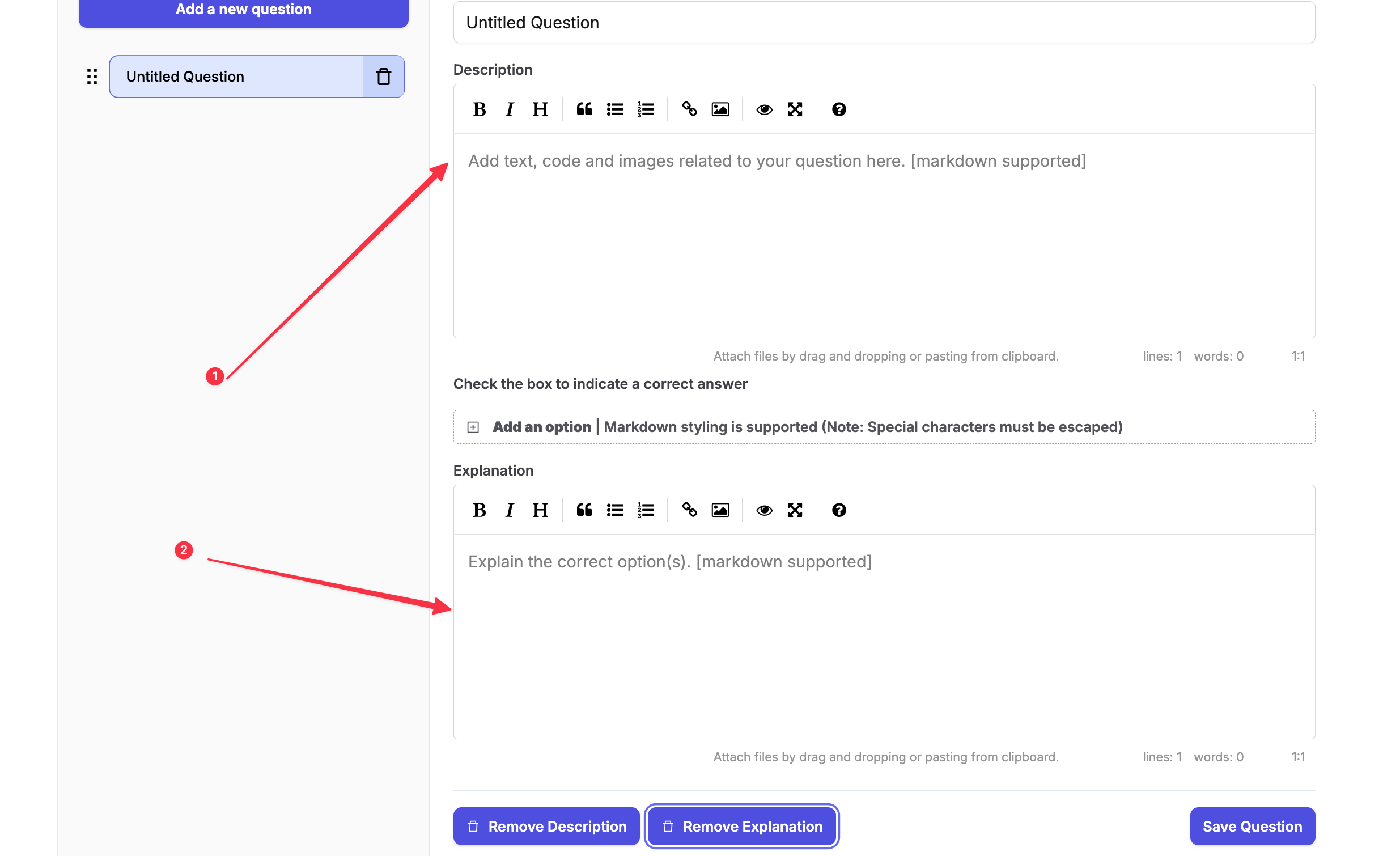 Save your question. You can add multiple questions to a single quiz.
 ## How do I see quiz results and student submissions?
To review student performance on quizzes, follow these steps:
Navigate to your **Instructor Dashboard** and open the course where you've added the quiz.
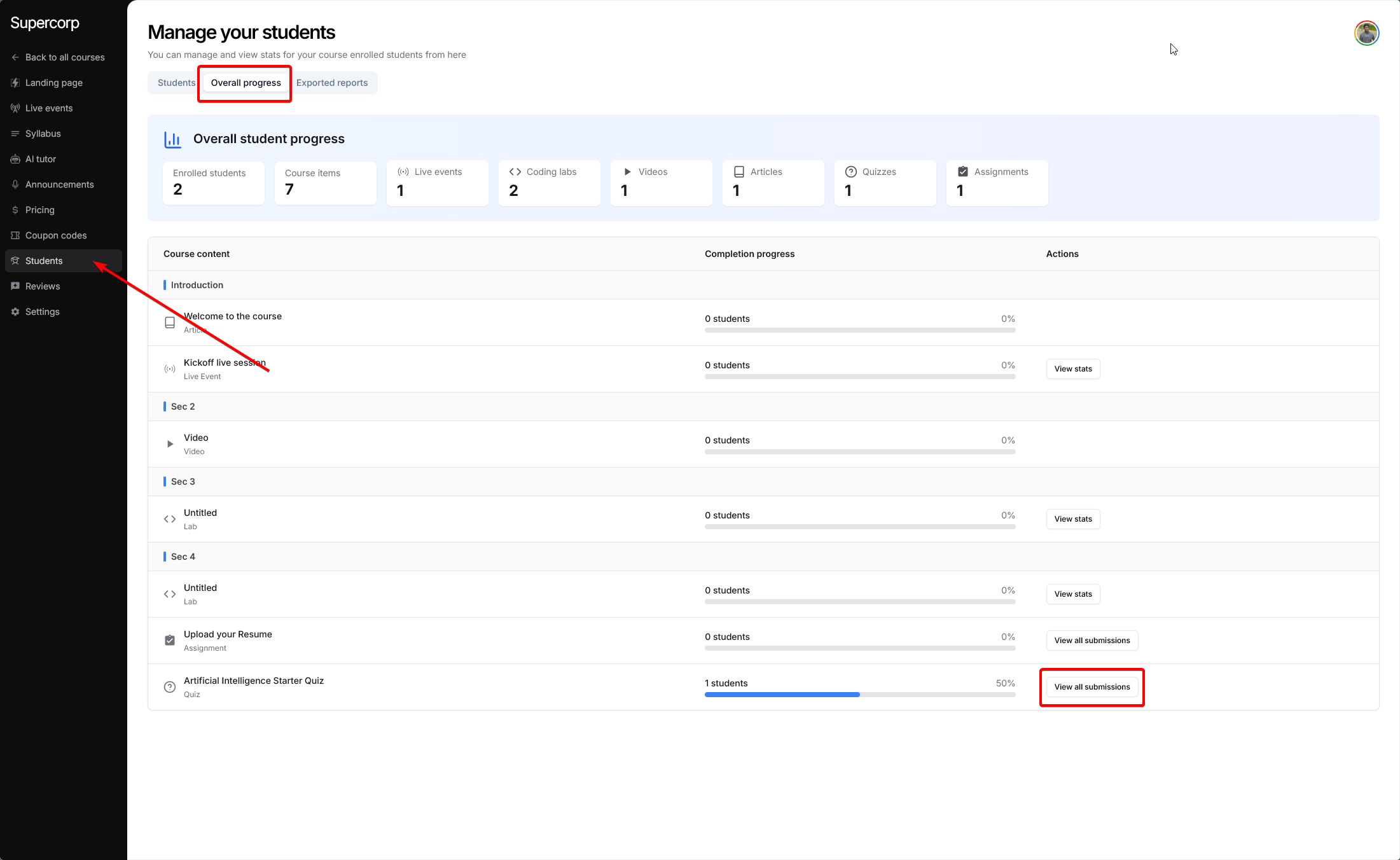
Inside your course dashboard, click on the Students tab in the sidebar. This tab shows you all enrolled learners.
Within the Students tab, click on Overall progress. Here, you'll get a snapshot of student completion and activity across all course items, including quizzes.
Locate the quiz you want to review. Next to the quiz name in the list, click on View submissions.
## How do I see quiz results and student submissions?
To review student performance on quizzes, follow these steps:
Navigate to your **Instructor Dashboard** and open the course where you've added the quiz.
Inside your course dashboard, click on the Students tab in the sidebar. This tab shows you all enrolled learners.
Within the Students tab, click on Overall progress. Here, you'll get a snapshot of student completion and activity across all course items, including quizzes.
Locate the quiz you want to review. Next to the quiz name in the list, click on View submissions.
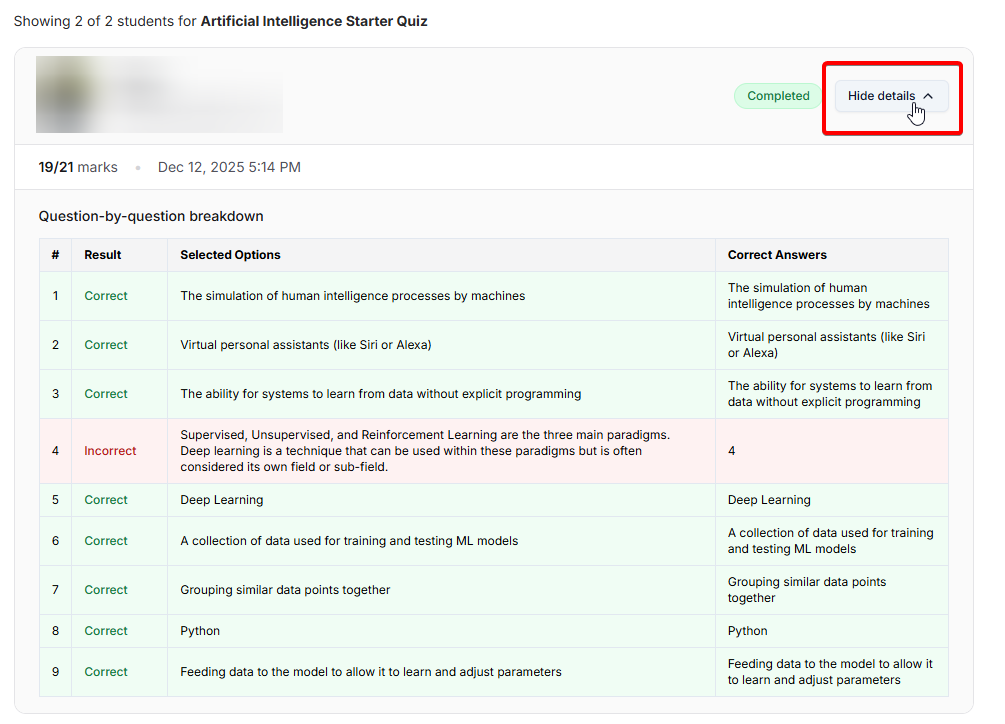
 You will be taken to the quiz submissions page.
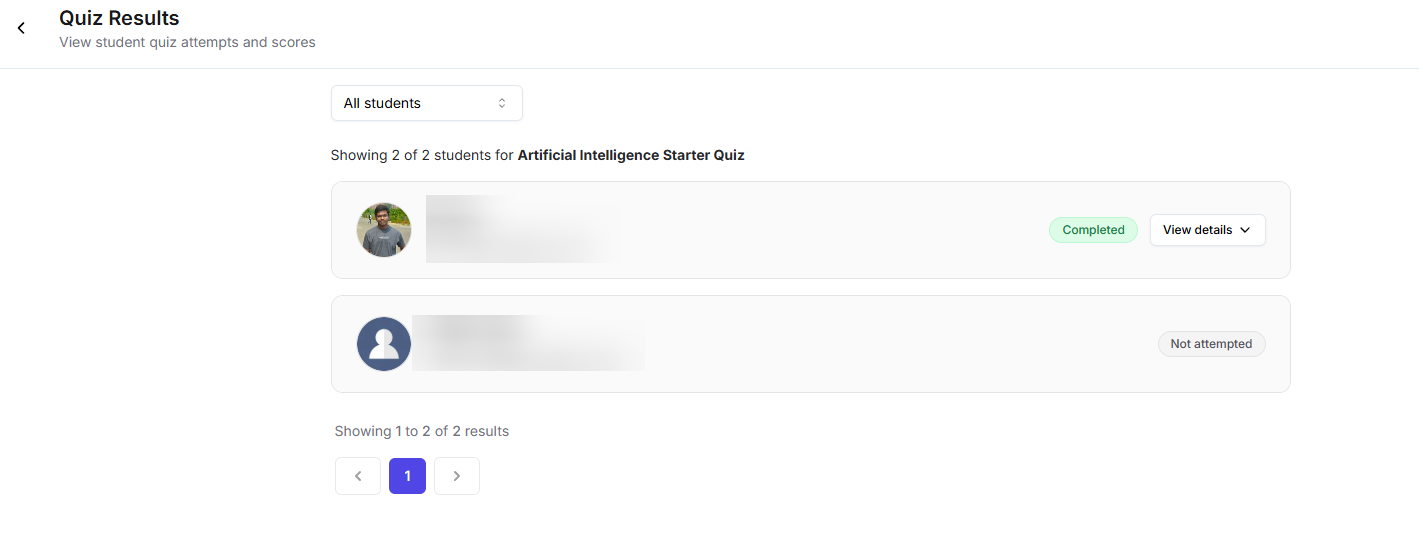
Here you can:
- See a list of all students.
- Filter the list by Attempted or Not Attempted to quickly find who has completed the quiz.
Click on any student's name to expand their submission.