> ## Documentation Index
> Fetch the complete documentation index at: https://docs.fermion.app/llms.txt
> Use this file to discover all available pages before exploring further.
# CSV Report
> Export comprehensive student enrollment and progress data as CSV files, including enrollment dates, course completion status, and detailed section-wise progress for assignments, ebooks, videos, and labs.
The CSV Report feature allows you to export detailed student enrollment and progress data in a structured CSV format, making it easy to analyze student performance, track completion rates, and generate custom reports using spreadsheet applications.
## How to access CSV Report
Click on the `courses` tab from your instructor dashboard.
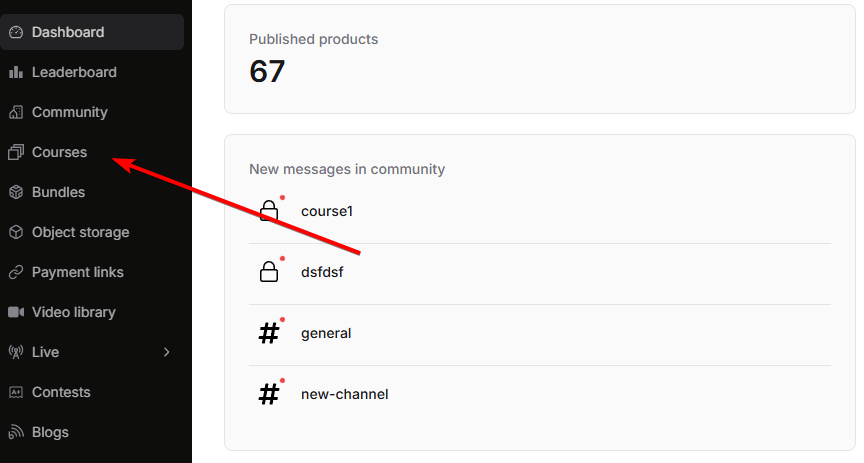
Click on the course for which you want to export student data.

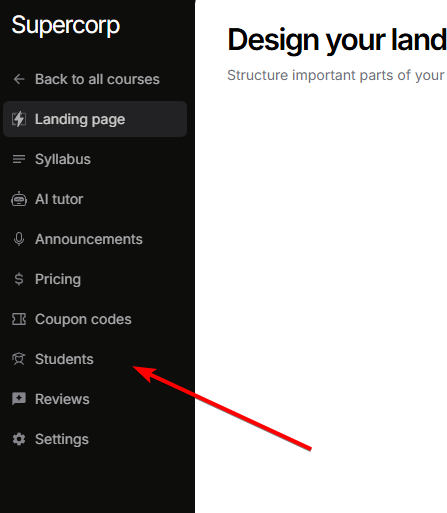
You will find the `students` tab in the left sidebar of the course page. Click on it to access student management.
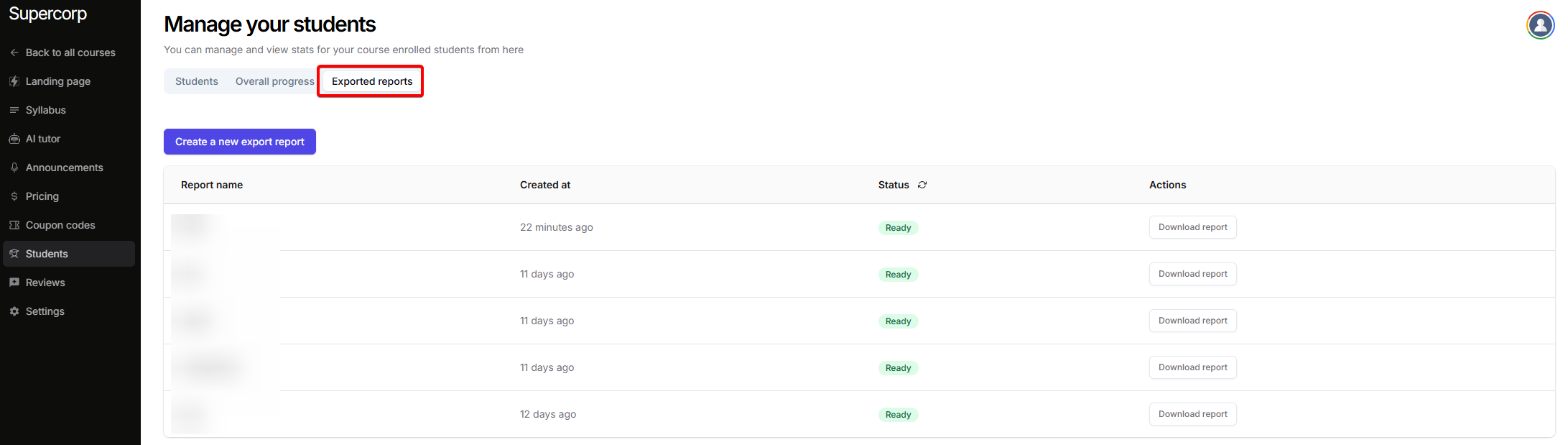
Once you're inside the `students` tab, you'll see three tabs at the top: "Students", "Overall progress", and "Exported reports". Click on the `Exported reports` tab to access CSV export functionality.
## CSV Report Structure
The exported CSV file contains comprehensive student data organized into the following columns:
### Student Information
* **Student Name**: The student's full name or nickname
* **Student Email**: The student's registered email address
* **Student Phone**: The student's contact phone number (if available)
* **Enrollment Date**: The date when the student enrolled in the course
* **Last Active Date**: Timestamp of the student's last activity on the platform
### Course Completion Overview
* **Total Course Items**: Total number of course items (videos, assignments, labs, ebooks, etc.) in the course
* **Completed Course Items**: Number of course items the student has completed
* **Completion Percentage**: Overall course completion percentage calculated from completed vs. total items
### Section-wise Progress Details
The CSV report includes detailed progress information for each course item, organized by section. Each item follows a structured column naming format: `(Section X) [Y] ITEM_TYPE - DETAIL`, where:
* **X** represents the section number (e.g., Section 1, Section 2)
* **Y** represents the item type identifier (a numeric code that identifies the type of content)
* **ITEM\_TYPE** indicates the type of content (IO LAB, ASSIGNMENT, EBOOK, VIDEO, INTERACTIVE LAB)
* **DETAIL** specifies the type of information (Type, Completed, Score, Completed At, etc.)
- (Section X) \[Y] IO LAB - Type: The type or category of the IO Lab
- (Section X) \[Y] IO LAB - Completed: Completion status (Yes/No)
- (Section X) \[Y] IO LAB - Score: The score obtained for the IO Lab
- (Section X) \[Y] IO LAB - Completed At: Timestamp of when the IO Lab was completed
- (Section X) \[Y] ASSIGNMENT - Type: The type or category of the Assignment
- (Section X) \[Y] ASSIGNMENT - Submitted: Submission status (Yes/No)
- (Section X) \[Y] ASSIGNMENT - Marks: The marks obtained for the Assignment
- (Section X) \[Y] ASSIGNMENT - Submitted At: Timestamp of when the Assignment was submitted
- (Section X) \[Y] EBOOK - Type: The type or category of the Ebook
- (Section X) \[Y] EBOOK - Completed: Completion status (Yes/No)
- (Section X) \[Y] EBOOK - Completed At: Timestamp of when the Ebook was completed
- (Section X) \[Y] VIDEO - Type: The type or category of the Video
- (Section X) \[Y] VIDEO - Duration (seconds): The total duration of the video in seconds
- (Section X) \[Y] VIDEO - Completed: Completion status (Yes/No)
- (Section X) \[Y] VIDEO - Completed At: Timestamp of when the Video was completed
- (Section X) \[Y] INTERACTIVE LAB - Type: The type or category of the Interactive Lab
- (Section X) \[Y] INTERACTIVE LAB - Completed: Completion status (Yes/No)
- (Section X) \[Y] INTERACTIVE LAB - Score: The score obtained for the Interactive Lab
- (Section X) \[Y] INTERACTIVE LAB - Completed At: Timestamp of when the Interactive Lab was completed
## Understanding the Data
### Column Naming Convention
The section-wise columns use a consistent format that makes it easy to identify:
* Which section the item belongs to
* The item type identifier (numeric code)
* The type of content (Lab, Assignment, Ebook, Video, etc.)
* The specific metric being tracked (Type, Completed, Score, Duration, etc.)
### Data Values
* **Completion/Submission Status**:
* **Yes**: The student has completed/submitted the item
* **No**: The student has not completed/submitted the item
* **Scores and Marks**: Numeric values representing the student's performance on graded items
* **Duration**: For videos, this shows the total video length in seconds
* **Timestamps**: ISO format timestamps (e.g., "2025-11-05T11:55:13.021Z") indicating when an item was completed or submitted
* **Completion Percentage**: A calculated value showing overall course progress as a percentage