> ## Documentation Index
> Fetch the complete documentation index at: https://docs.fermion.app/llms.txt
> Use this file to discover all available pages before exploring further.
# Completion Certificates
> Set up automated certificates for learners upon course completion and customize their design and content.
Completion certificates provide a professional way to acknowledge and celebrate learner achievements in your courses. These digital certificates serve as formal recognition of course completion and can significantly boost learner motivation and engagement.
When learners complete your courses, they receive a personalized certificate that includes their name, course title, completion date, and a unique certificate ID for verification purposes. These certificates can be downloaded as PDF files, shared on social media platforms like LinkedIn, or printed for physical display.
You can enable certificates for:
* Recorded courses: issue when a student reaches a completion threshold (for example 100% or 80%).
* Cohort-based courses: issue after a specific date/time (for example cohort end date) regardless of per‑item completion tracking.
* Live sessions: issue after the live session ends.
## Enable certificates
Open any course and navigate to Settings > Completion certificate.
Toggle Enable certificate for this course.
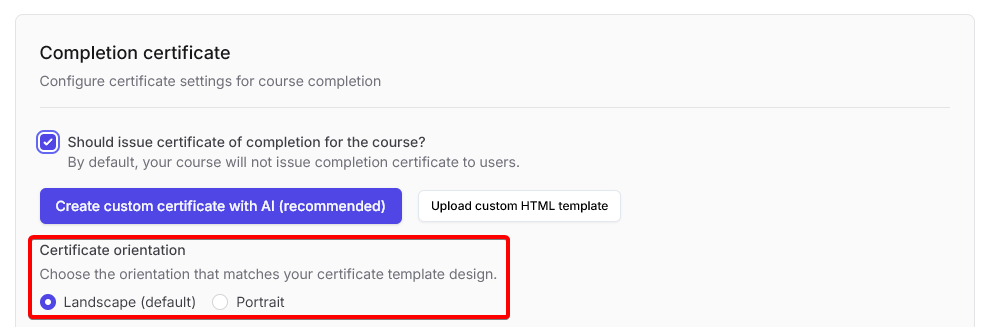
 You can upload a custom HTML template or generate one using AI.
Additionally, you can manually choose the orientation of the certificate (landscape or portrait).
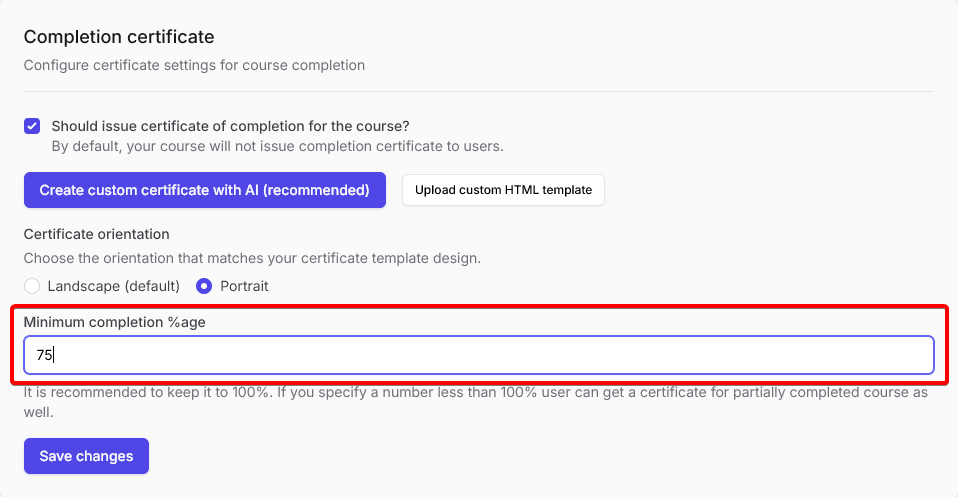
 For Recorded courses, select the completion percentage at which a user becomes eligible for a certificate.
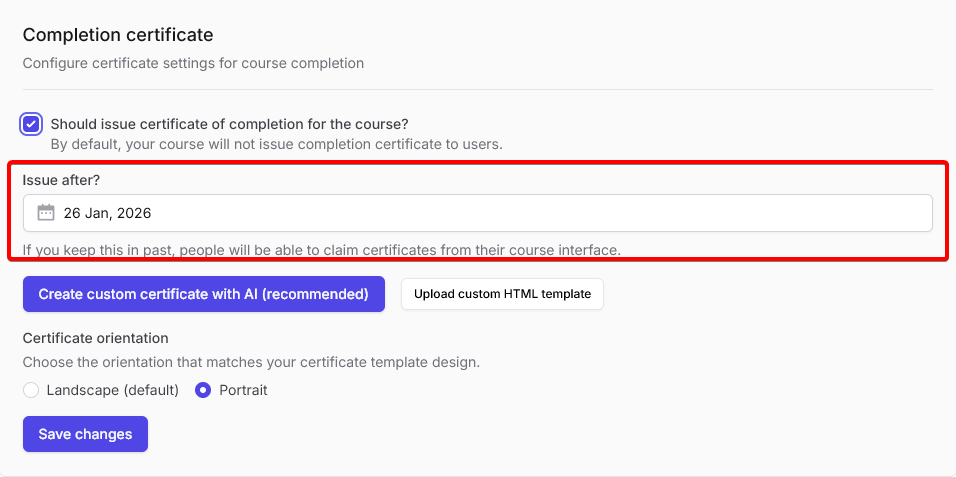
 For Cohort-based courses, choose the date after which certificates will be granted to learners.
 Once you've configured your certificate settings, click Save to apply the changes.
## Certificate template (AI builder)
Open any course and navigate to Settings > Completion certificate.
Toggle Enable certificate for this course.
Click Generate with AI in the certificate settings. Use the AI chat to describe your preferred style or layout, and the system will automatically generate a professional certificate template for you.
Once you've configured your certificate settings, click Save to apply the changes.
## Certificate template (AI builder)
Open any course and navigate to Settings > Completion certificate.
Toggle Enable certificate for this course.
Click Generate with AI in the certificate settings. Use the AI chat to describe your preferred style or layout, and the system will automatically generate a professional certificate template for you.
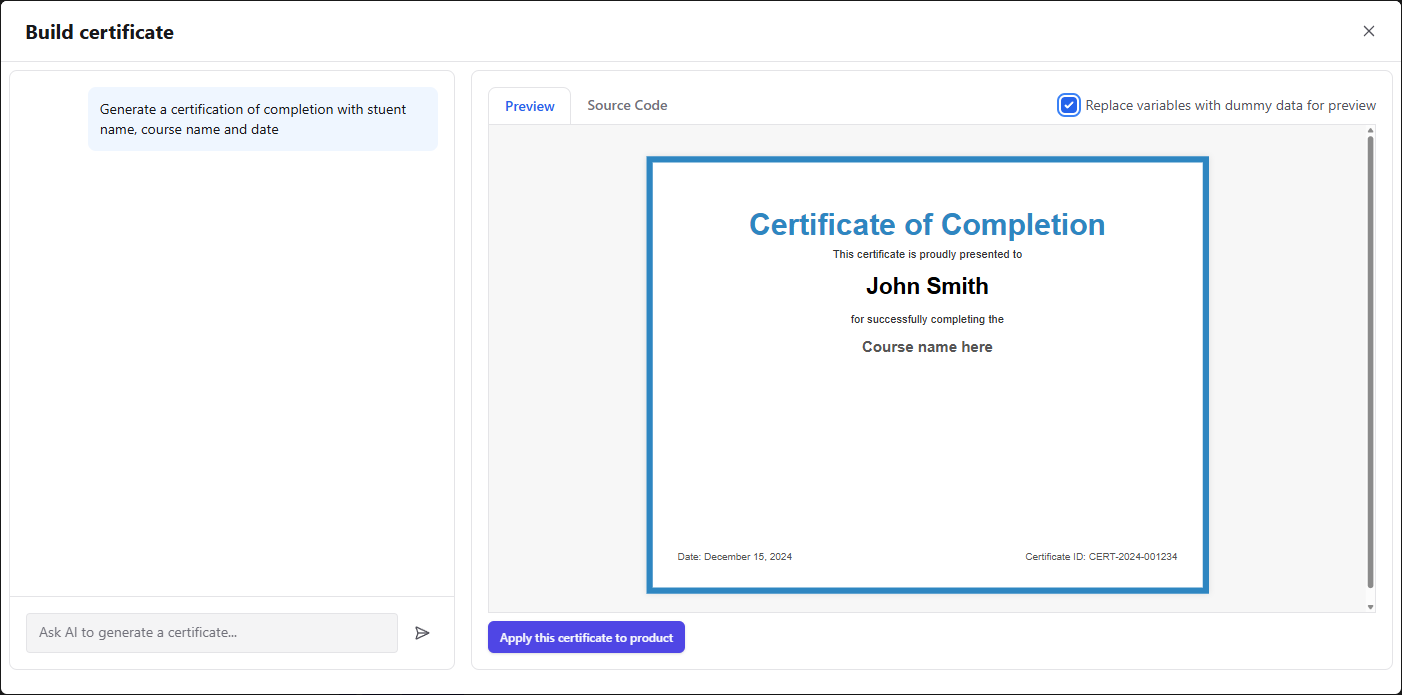 Edit the generated template’s source code directly to make any further changes or customizations as desired.
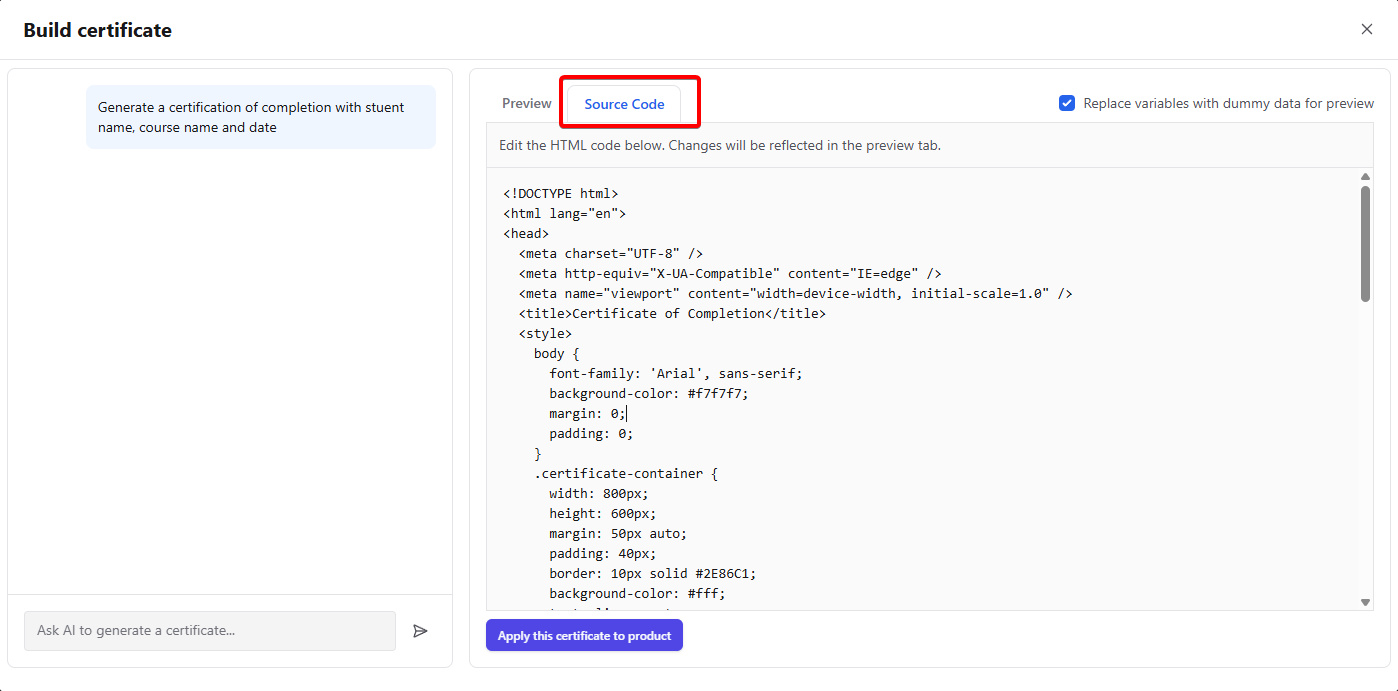 Once your template is ready, click Apply certificate to this product to use the new certificate for your course or product.
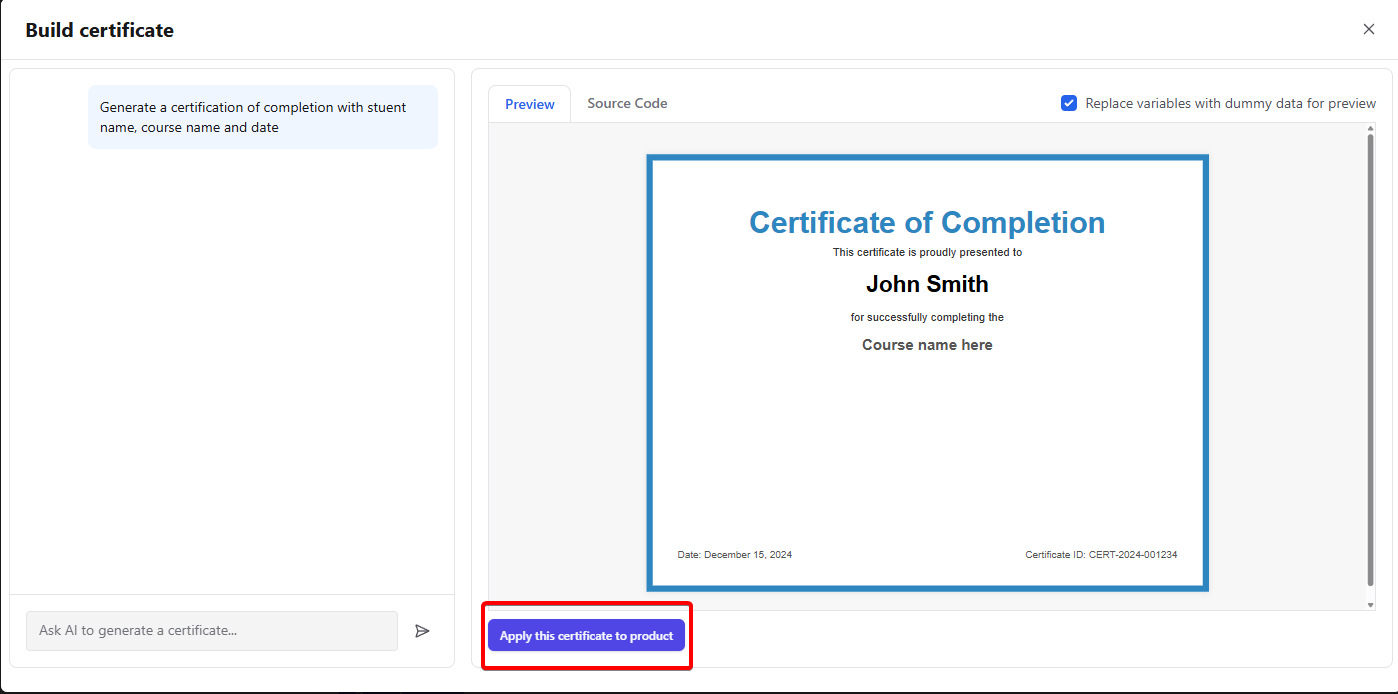
The builder automatically supports variables like recipient name, course title, issue date, and certificate ID, so your certificates are always personalized and ready for sharing or download.
### Supported variables
* `{{forCompletingWhatEntityName}}` – course or product title
* `{{userFullName}}` – certificate recipient name
* `{{issuedAtFormattedDate}}` – issuance date (formatted)
* `{{certificateId}}` – unique certificate ID (hash)