> ## Documentation Index
> Fetch the complete documentation index at: https://docs.fermion.app/llms.txt
> Use this file to discover all available pages before exploring further.
# Bundles
> Learn how to create, customize, and manage Bundles that combine multiple products like courses, eBooks, and live events into a single offer.
## What are Bundles?
Bundles let you combine multiple digital products, including [courses](/setting-up-course/prerequisites), [eBooks](/digital-products/introduction), contests, [downloadable resources](/digital-products/downloadable-products), and [live events](/live-classes/what-are-live-classes) into a single package. They make it easy to offer more value to your learners while simplifying how you sell and manage your products.
You can use bundles to create a complete learning path, offer a discounted collection of premium courses, or launch a special promo pack. You can even use bundles to provide **All product access** to students. Everything is neatly presented under one landing page, giving students a way to explore and purchase everything they need.
***
## Create a Bundle
Every bundle comes with its own landing page, which acts as your storefront for that package.
This page showcases everything the bundle includes, [pricing](/setup-pricing/fixed-pricing-plan) of the bundle and a short description about it. This gives learners a clear idea of what they’ll gain access to.
Before creating a bundle, you need to **manually enable the Bundles feature** from your admin dashboard.
Learn more about how to [enable features](/onboarding/account-setup#step-2%3A-manage-features)
1. Head over to **Manage Features**.
2. Enable the toggle for **Bundles**.
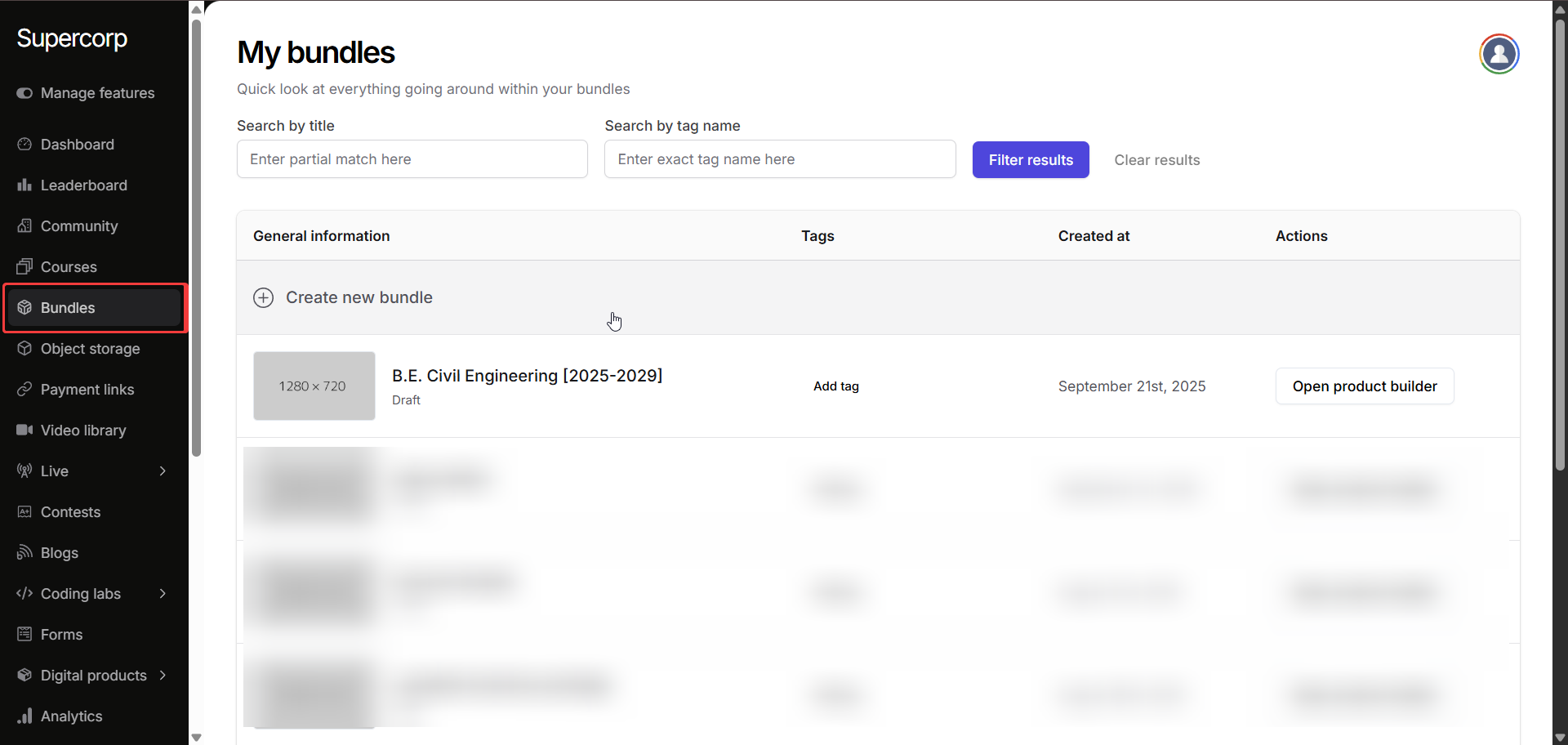
1. Navigate to **Bundles** in your sidebar.
2. Click on **Create New Bundle**.
3. You will be prompteed to add a name for your bundle.
You can also use the **Open Product Builder** if you want to **edit an existing bundle**.
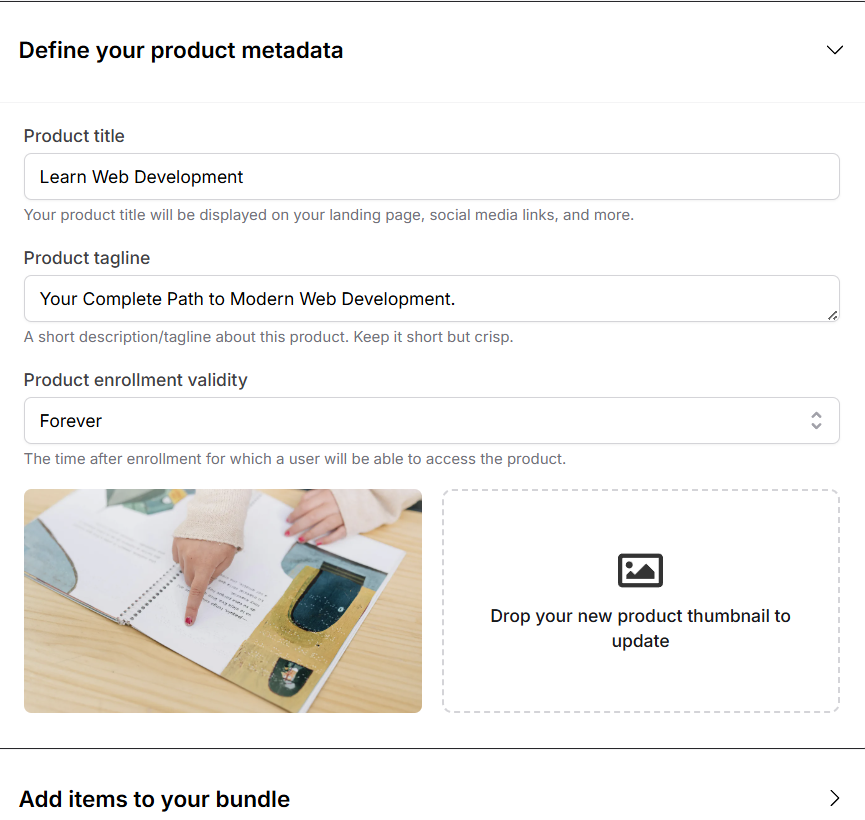
Once your bundle is created, click **Landing Page** from the sidebar.
Add your:
* **Product Title**
* **Product Tagline**
* **Thumbnail Image**
#### Product enrollment validity
Below the product **title**, **tagline**, and above the **thumbnail**, you can configure the **Enrollment Validity** for your bundle. This setting determines how long a student retains access to the products included in the bundle after enrollment.
You can choose from the following validity options:
* **Forever**: lifetime access to the bundle
* **1, 2, 3, or 6 months**
* **1, 2, 3, 4, or 5 years**
* **Custom (in hours)**: ideal for short-term trials, demos, or promotional bundles
The selected validity applies to all items within the bundle.\
Once the validity period ends, student access to the bundle’s contents will automatically expire.
You can add various product types to your bundle - including [**Courses**](/setting-up-course/prerequisites), [**eBooks**](/digital-products/introduction), [**Live Events**](/live-classes/what-are-live-classes), **Contests**, and **Downloadable Products**.
There are three ways to add items:
You can manually add specific items to your bundle.
Step 1. Click on **Add Product** and the find the desired product you want to add to your bundle
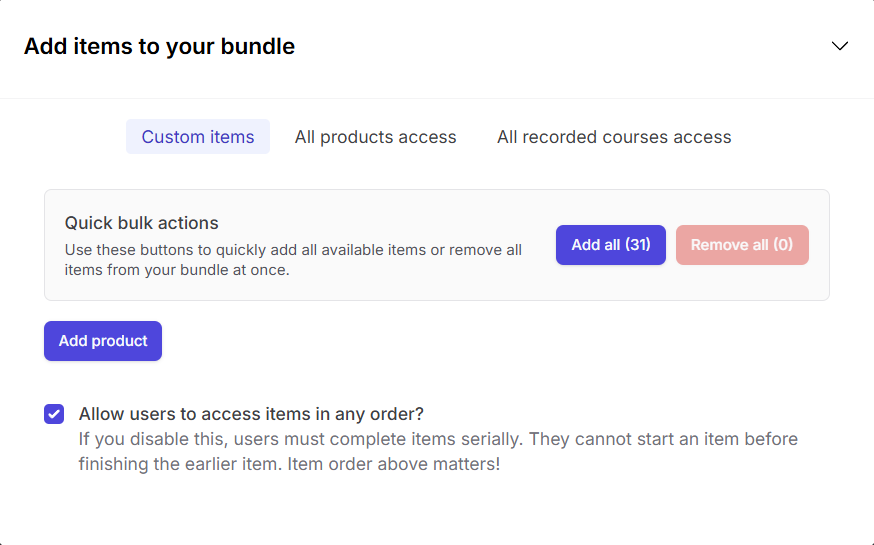
You can also **bulk add** all products and later remove any items you don’t want.
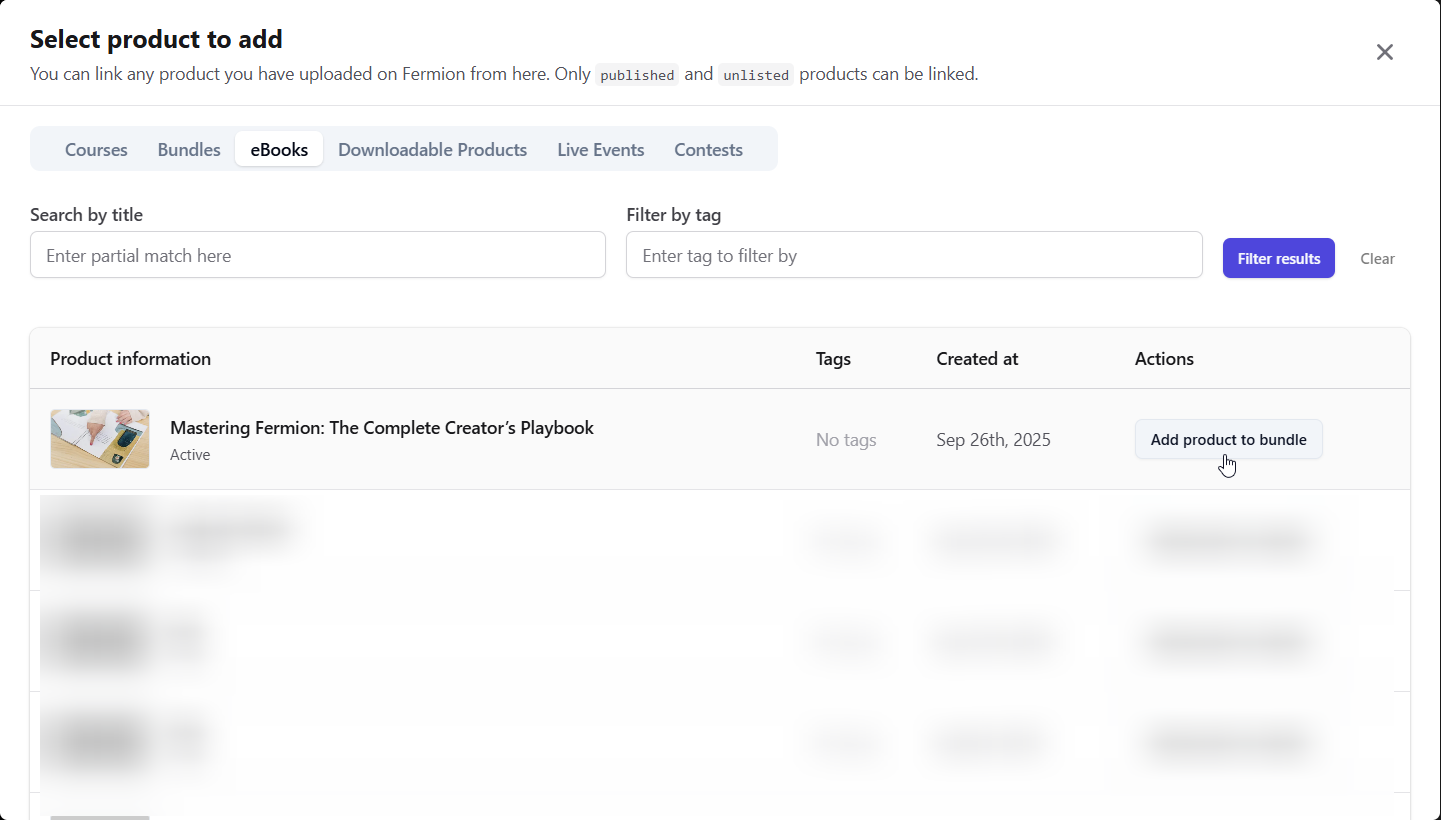
**Example:**\
I want to add an [**eBook**](/digital-products/introduction) to the bundle, head over to eBooks and click **Add Product to Bundle** button next to the eBook you want to add.
Check this box "**Allow users to access items in any order?**" if you want learners to access all items freely in any order instead of completing them one by one serially.
This option gives access to **all existing products** within your organization.
Once enabled, any student who enrolls in this bundle will automatically get access to every product currently available.
Automatically includes access to **all recorded courses**, including any future ones you publish.
“All Recorded Course Access” ensures new recorded courses are instantly available to students who’ve already enrolled in the bundle.
Once your landing page and items are ready, click **Publish product** to make the bundle live. You can also move your landing page to **draft** to unpublish it while you make some changes.
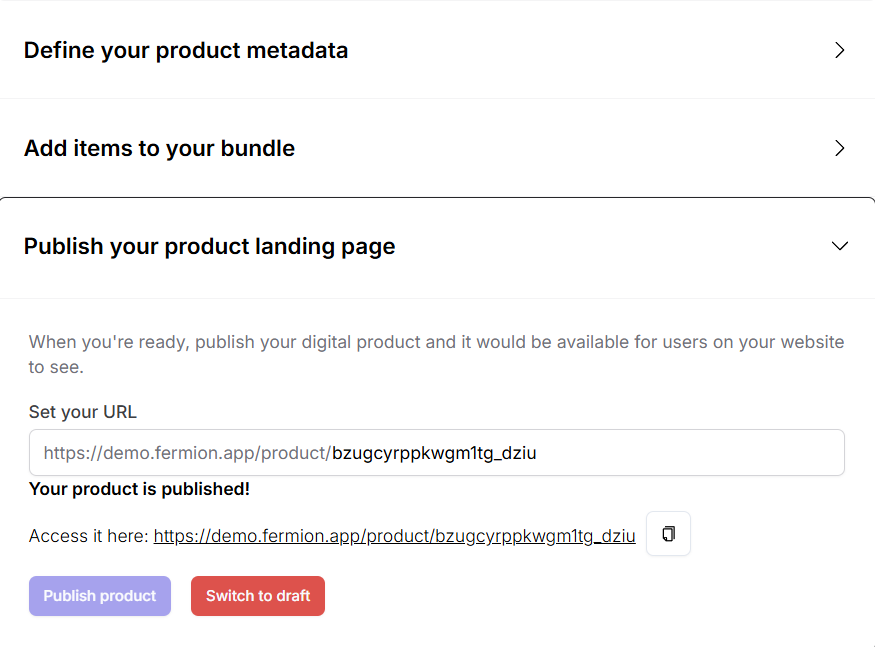
And voilà, your bundle is now live! You can share it using the link provided right after publishing.
***
## Pricing & Coupon Codes
Pricing for bundles works **exactly like pricing for other product types** (such as [Courses](/setting-up-course/prerequisites) or [eBooks](/digital-products/introduction)).\
You can set fixed prices, discounted prices, and manage regional pricing if applicable.
[Learn how to set up pricing](/setup-pricing/fixed-pricing-plan)
You can also apply coupon codes to bundles, similar to other products.\
This allows you to offer limited-time deals or special access promotions.
[Learn how to create coupon codes](/setup-pricing/add-coupon-codes)
Coupons and pricing logic remain consistent across all product types for a unified experience.
***
## Enrolling Students
Students can **purchase bundles directly** from the landing page.\
As an admin, you can also **manually enroll students** into a bundle, for example, for corporate access or complimentary offers.
Head over to the **Students** section in your product builder to manually import users
[Learn how to manually enroll students](/digital-products/enroll-students)
Manual enrollment gives instant access to all items within the bundle for that user.
***
## Manage your bundle
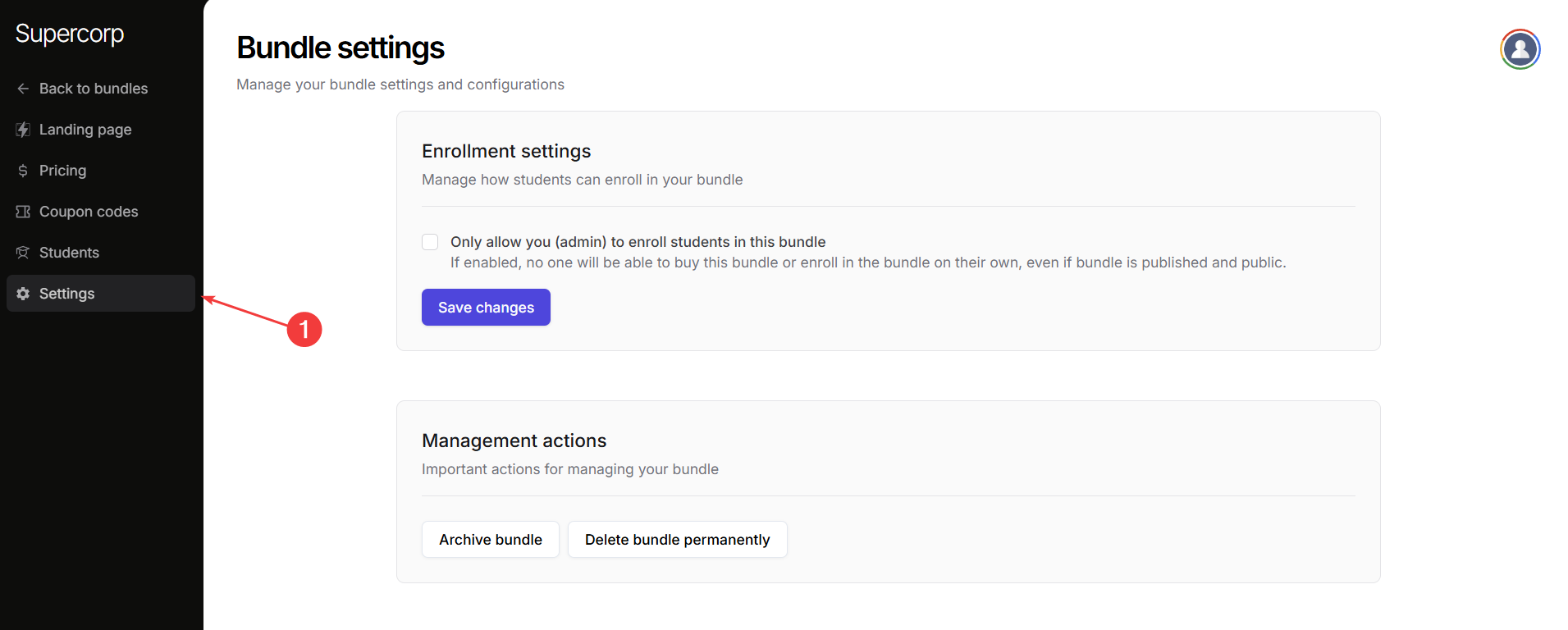
Use this page to control how students enroll in your bundle and perform important management actions. Head over to the **Settings** tab in your product builde to access these options.
#### Enrollment Settings
Manage how students can access your bundle.
**Only allow admin to enroll students:**\
Check this box if you want **only admins** to enroll students in this bundle.
If enabled, students cannot purchase or enroll in the bundle on their own, even if the bundle is published and public.\
Admins must manually enroll users.
Click **Save Changes** after updating this setting.
#### Management Actions
These are the important actions you can take to manage your bundle:
Archived bundles remain in your system but are **hidden from public view**.
* To archive a bundle, go to **Settings** →**Management Actions** → click **Archive Bundle**.
Deleted bundles are **permanently removed** and cannot be recovered.
* To delete a bundle, go to **Bundle Settings** → click **Delete Bundle**.
Make sure you really want to delete a bundle, as this action is irreversible.
***
## Best Practices & Tips
* Use **Bundles** to promote **career tracks**, **certification paths**, or **seasonal offers**. You can also use bundles to provide **all product access**
* Use [**coupon codes**](/setup-pricing/add-coupon-codes) for limited-time promotions.
* Regularly **review bundle contents** to ensure they stay relevant.
Bundles are an excellent way to **increase learner engagement** with your courses, and **simplify product management**.\
By combining multiple offerings into one unified product, you create more value and streamline access for your students.
Start building your first bundle today and deliver a complete learning experience, all in one place at [Fermion](https://fermion.app/).
***