> ## Documentation Index
> Fetch the complete documentation index at: https://docs.fermion.app/llms.txt
> Use this file to discover all available pages before exploring further.
# Bulk Import Syllabus
> Discover how to upload an entire syllabus at once using the platform's bulk import syllabus tools via CSV.
Fermion supports bulk importing syllabus into your course using CSV files. This can be handy if you have a lot of content and you want to quickly import it into your course.
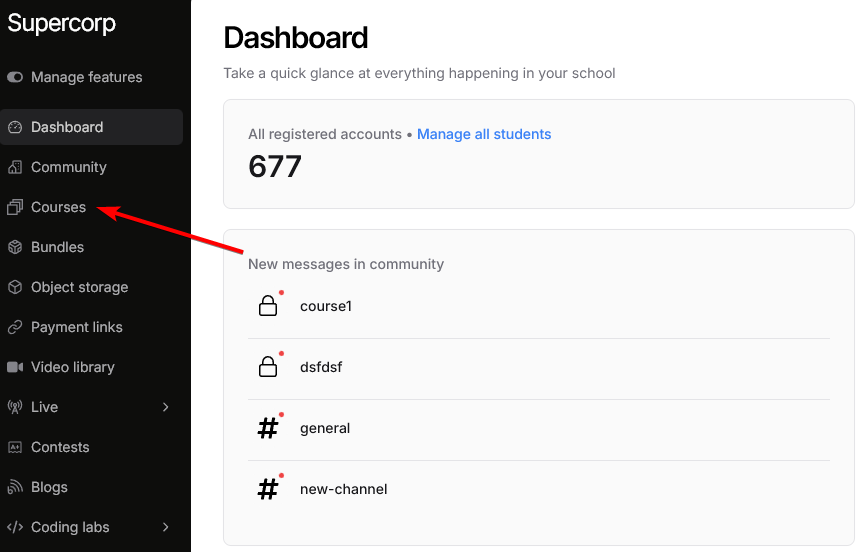
Go to the **Instructor dashboard** and click on **Courses**.
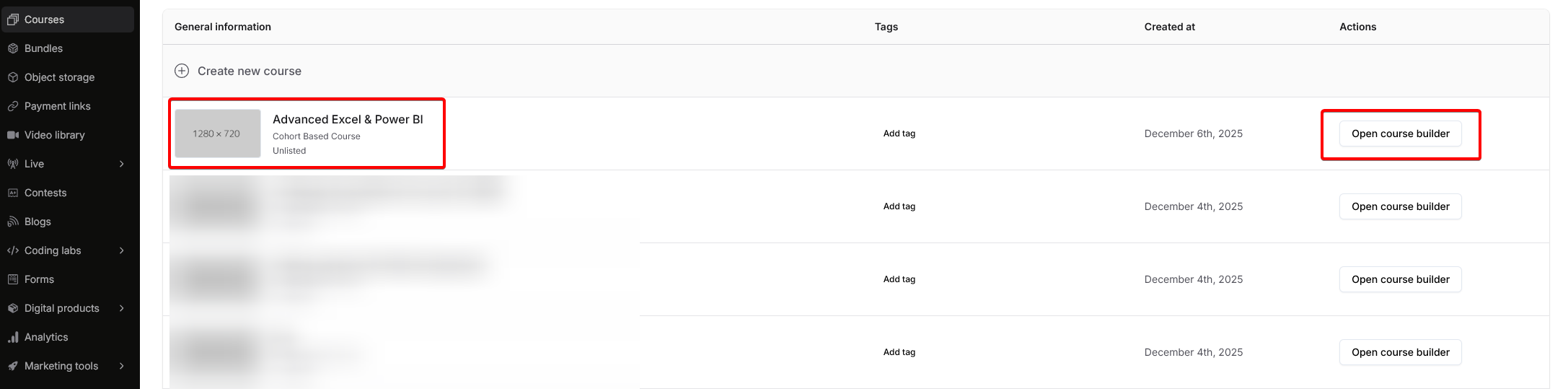
Select the course for which you want to bulk import the syllabus.
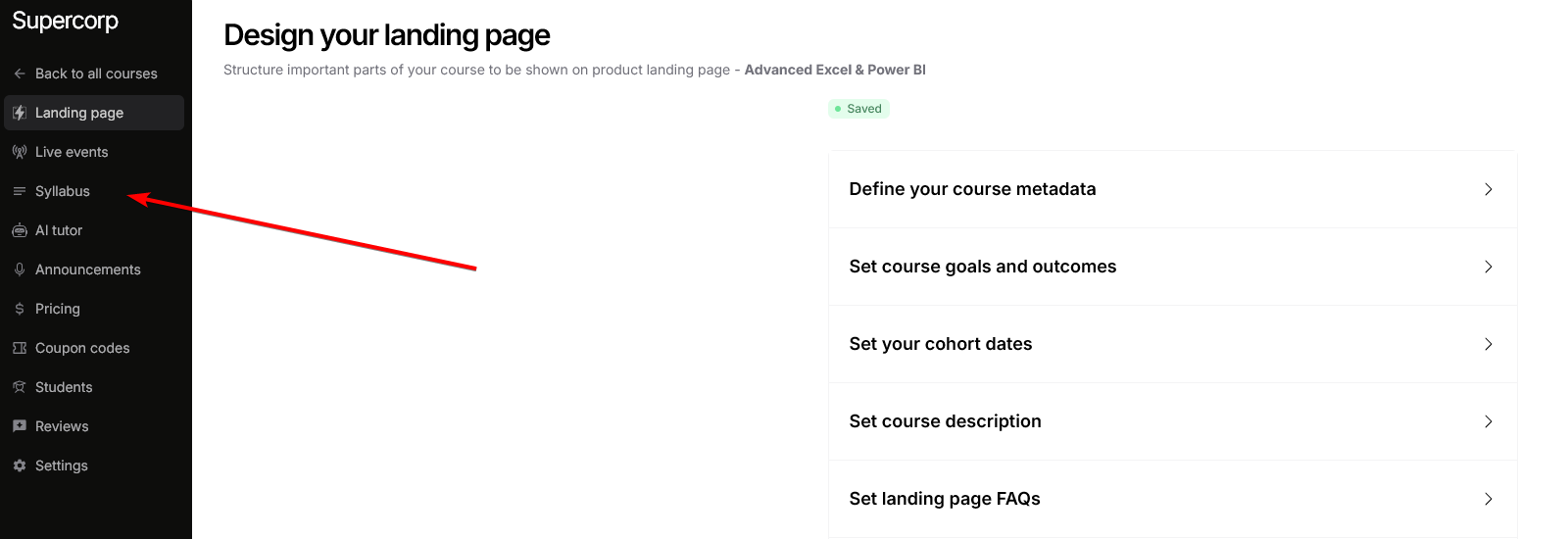
Click on **Syllabus** from the course navigation.
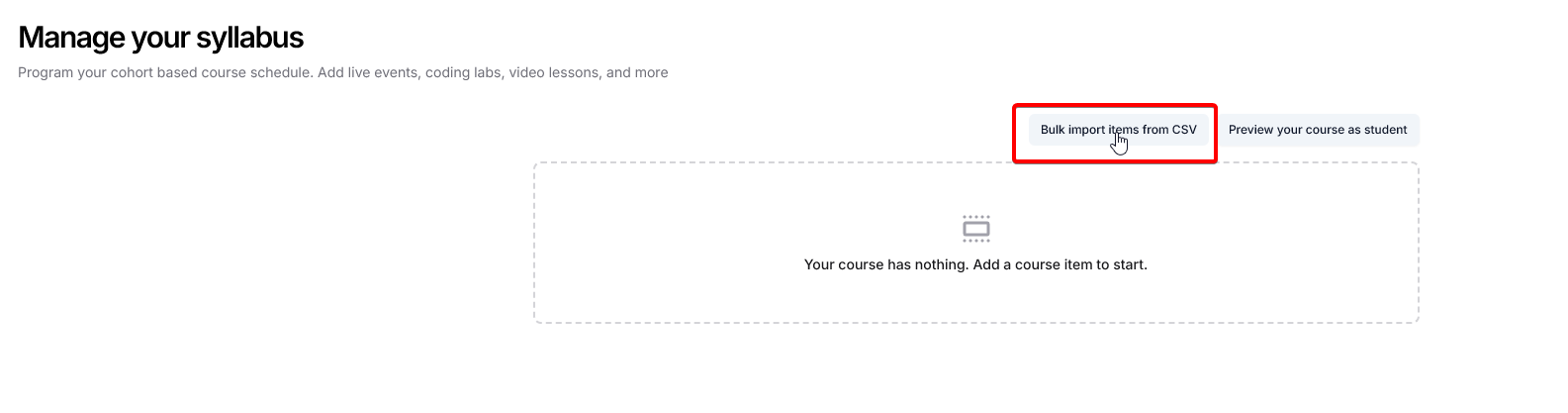
Select **Bulk import syllabus via CSV** from the available options.
Review the CSV format requirements or download a sample CSV file for reference. Use the format guide to build your course syllabus.
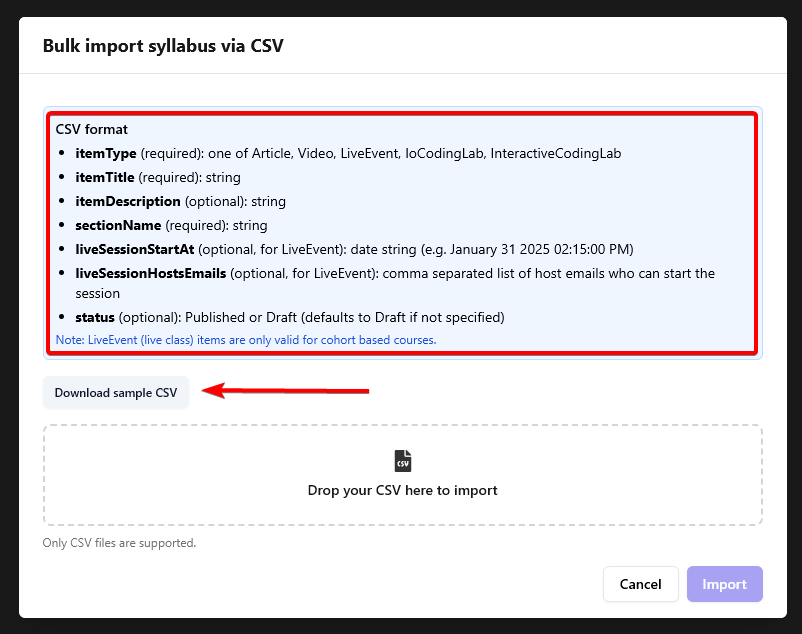
* **`itemType`** (required): The type of content item. Supported values:
* `Article`
* `Video`
* `LiveEvent`
* `IoCodingLab`
* `InteractiveCodingLab`
* **`itemTitle`** (required): The title of the item (string)
* **`sectionName`** (required): The section name where the item belongs (string)
* **`itemDescription`** (optional): Description of the item (string)
* **`liveSessionStartAt`** (optional, for `LiveEvent`): Date string for when the live session starts. Example: "January 31 2025 02:15:00 PM"
* **`liveSessionHostsEmails`** (optional, for `LiveEvent`): Comma-separated list of host emails who can start the session
* **`status`** (optional): Can be
`Published` or `Draft`. If not specified,
defaults to `Draft`
**Note:** LiveEvent (live class) items are only valid for cohort-based courses.
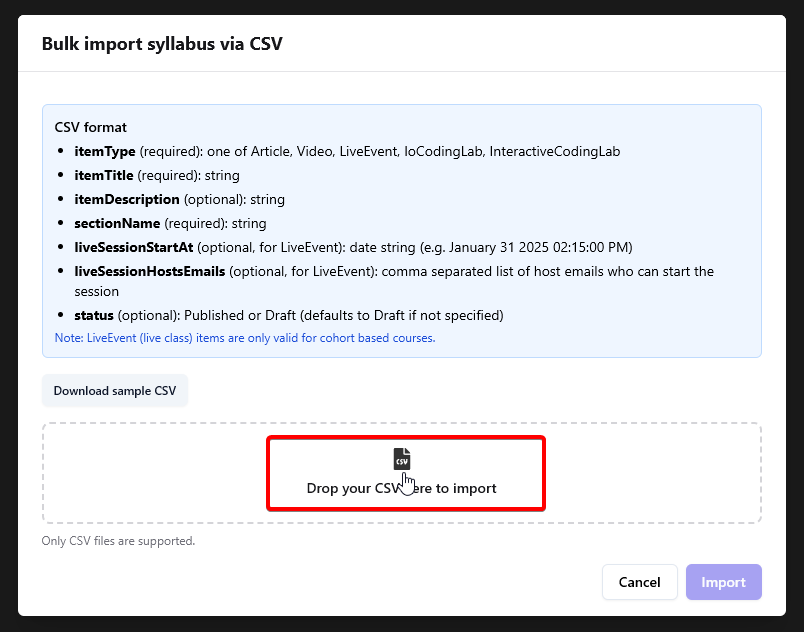
Click on the drop field or drag and drop your CSV file to upload it.
Review the items shown in the preview to ensure everything is correct before importing.
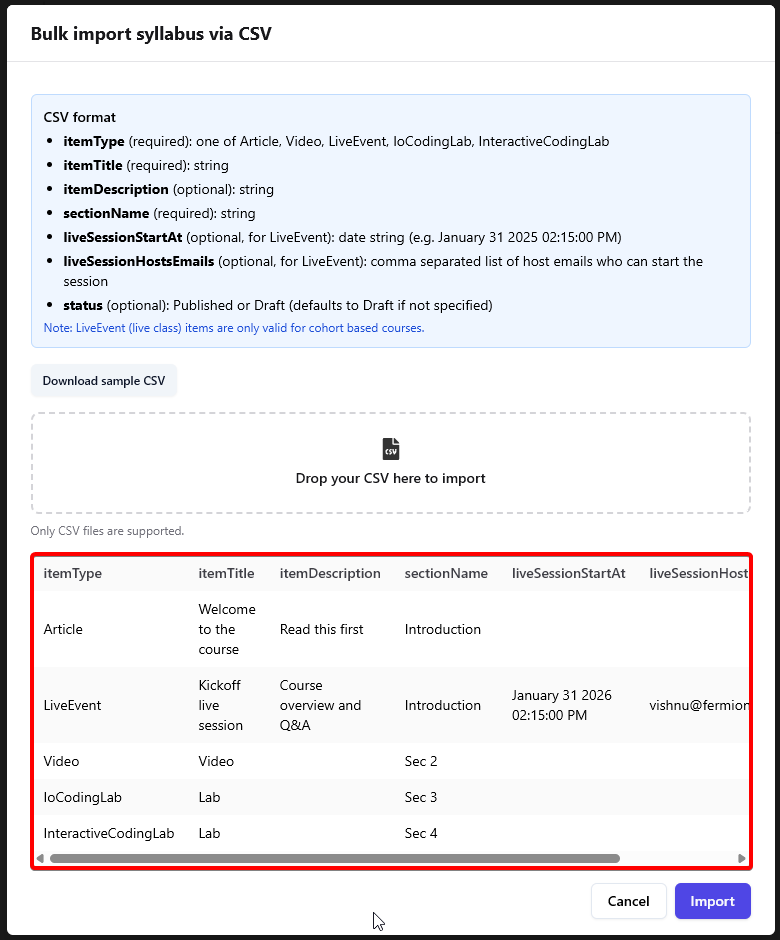
**Dependent Items:** Course items like labs and videos are 'Published' once you attach a video or lab to the course item. This applies in cases where you set the status as `Published` for those items.
Once you've verified the preview, click the **Import** button to complete the bulk import process.
Please note that once imported, you can only edit the items via Syllabus manager. Bulk importer will only allow you to import items, not edit them.