> ## Documentation Index
> Fetch the complete documentation index at: https://docs.fermion.app/llms.txt
> Use this file to discover all available pages before exploring further.
# Assignments
> Learn how to create and manage assignments inside your Fermion courses.
Assignments are a crucial part of any [course](/setting-up-course/prerequisites). They help instructors evaluate learner progress, encourage hands-on practice, and reinforce understanding. A well-structured assignment bridges the gap between theory and application, allowing learners to demonstrate their knowledge in a practical and measurable way.
On Fermion, Assignments can be added as a dedicated section inside your course syllabus. They enable learners to upload and submit files, such as code, project reports, or documents, directly through the platform. Instructors can set deadlines, restrict file types for relevance or security, and review submissions directly from their dashboard. You can also grade assignments out of 10 and provide clear feedback for each student using remarks, making assessment seamless, transparent, and actionable.
## How to create an assignment
You can create an assignment inside a course with the help of the following steps:
Go to the **Instructor Dashboard** and select **Courses** from the sidebar.
Choose the course where you want to add an assignment, then click **Open Course Builder**.
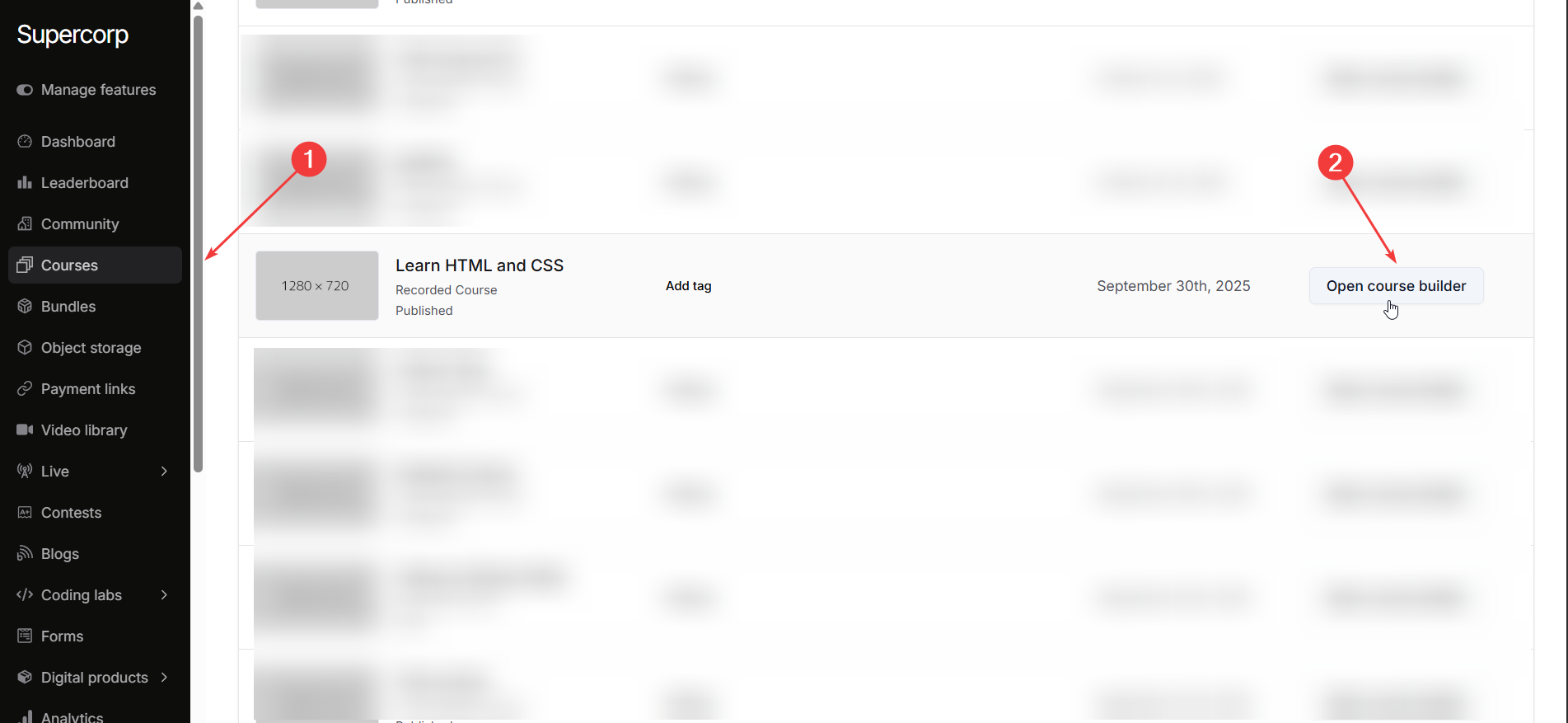
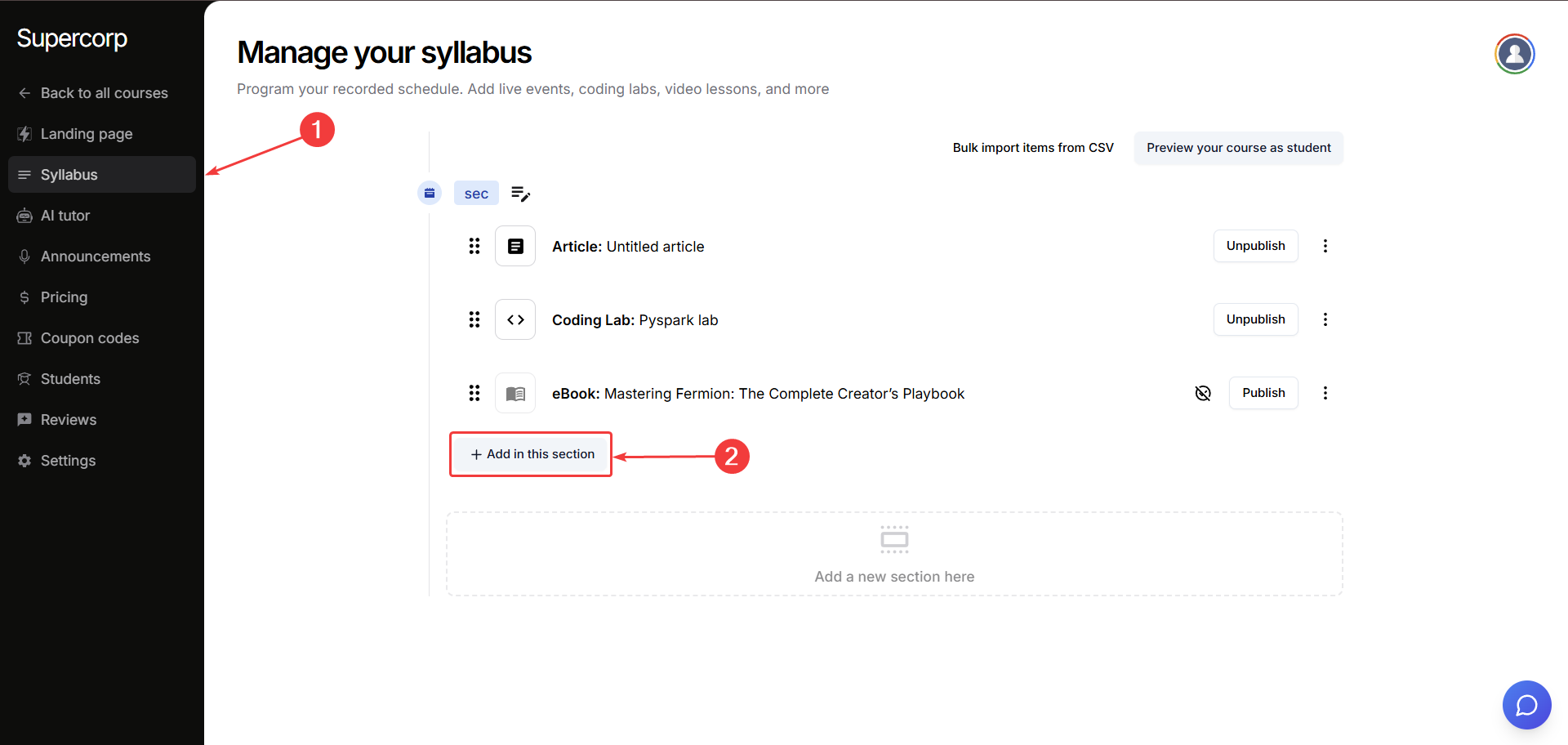
Navigate to the **Syllabus** tab.
Find the section where you want to add the assignment and click **Add in this section**.
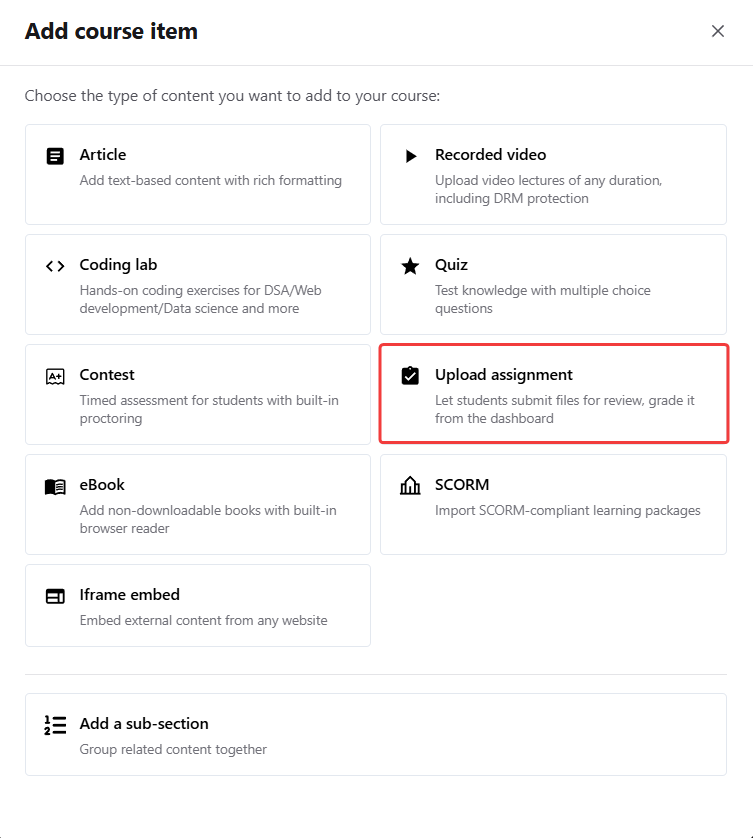
From the list of available content types, select **Upload assignment**.
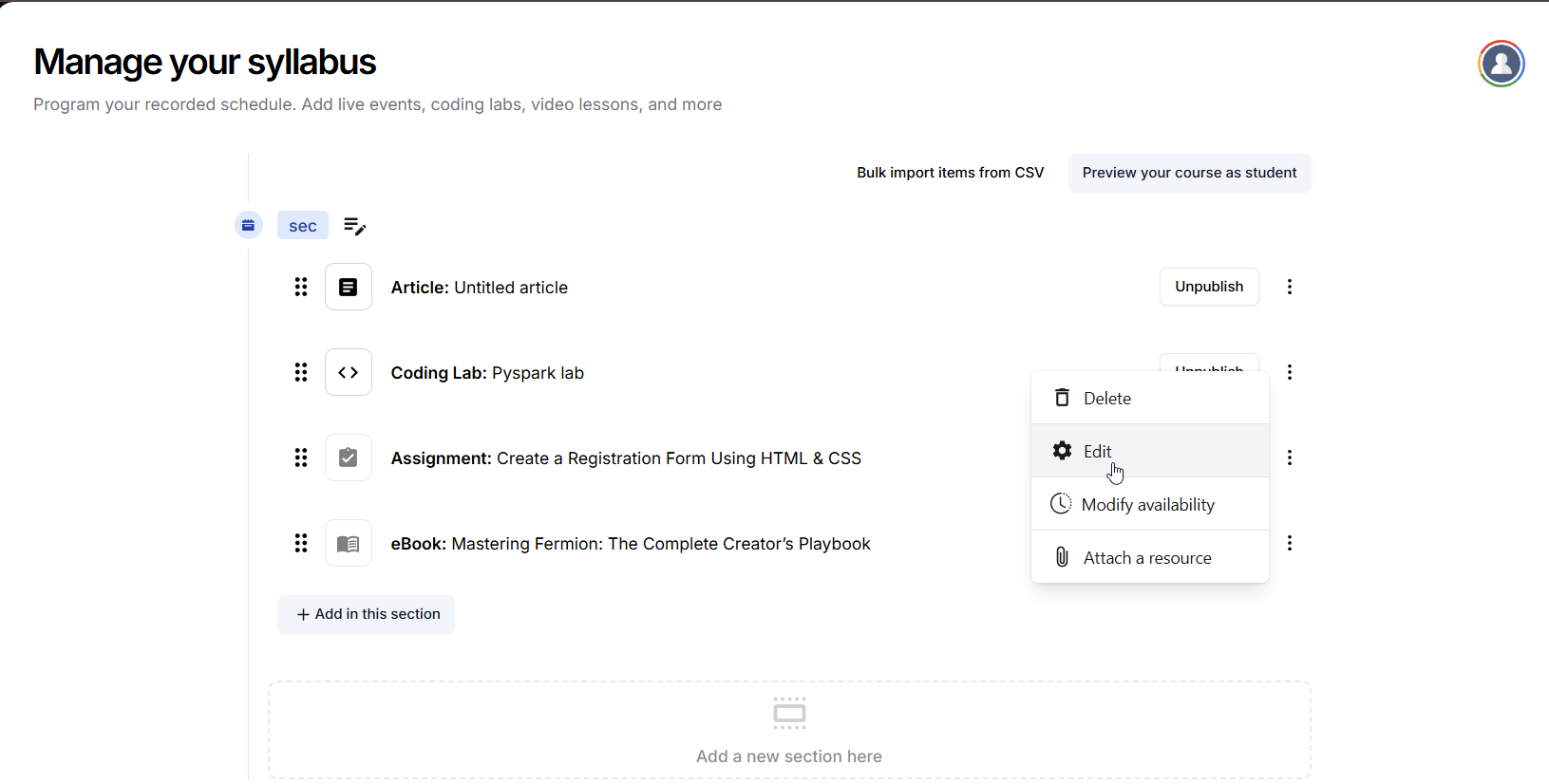
Once the assignment block appears, click the **three dots (⋮)** next to it and select **Edit**.
Now you can:
* Add a **Title** for your assignment
* Write a **Description** (rich text supported) for your assignment. You can include formatted text, links, and images.
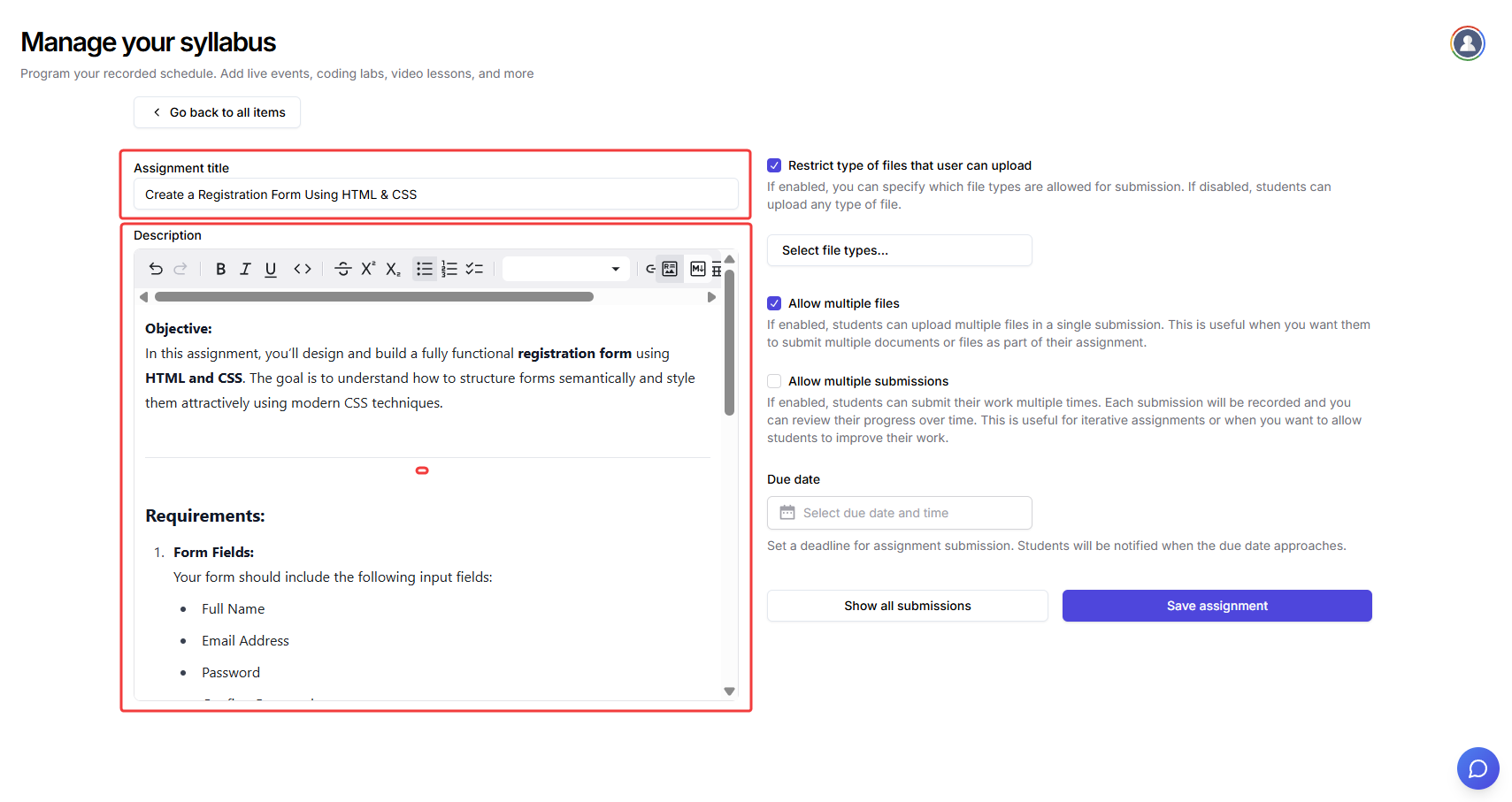
You can configure the following options when setting up assignments:
If enabled, students can upload files as part of their submission. Turn this off if the assignment only involves written/text input questions.
If enabled, you can specify which types of files students are allowed to upload. Leaving this off will allow any file type.
**Supported file types:**
* **ZIP (.zip)**
* **RAR (.rar)**
* **PDF (.pdf)**
* **Word (.doc, .docx)**
* **Text (.txt)**
* **Markdown (.md)**
* **Excel (.xls, .xlsx)**
* **CSV (.csv)**
* **JPEG (.jpg, .jpeg)**
* **PNG (.png)**
* **GIF (.gif)**
* **Python (.py)**
* **JavaScript (.js)**
* **TypeScript (.ts)**
* **JSON (.json)**
* **MP3 (.mp3)**
* **MP4 (.mp4)**
Allow students to upload more than one file in a single submission. This option is useful for assignments that require several documents, images, or project files.
Enable this to let students submit their assignment multiple times. Each attempt will be recorded separately for review and grading. Useful for iterative or stepwise assignments.
If enabled, you can add one or more open-ended questions to the assignment for students to answer directly in the submission form. Each text input question can be set to accept either freeform text or a URL as the response. This allows you to ask for written answers or require students to submit a link (such as to a portfolio, document, or project).
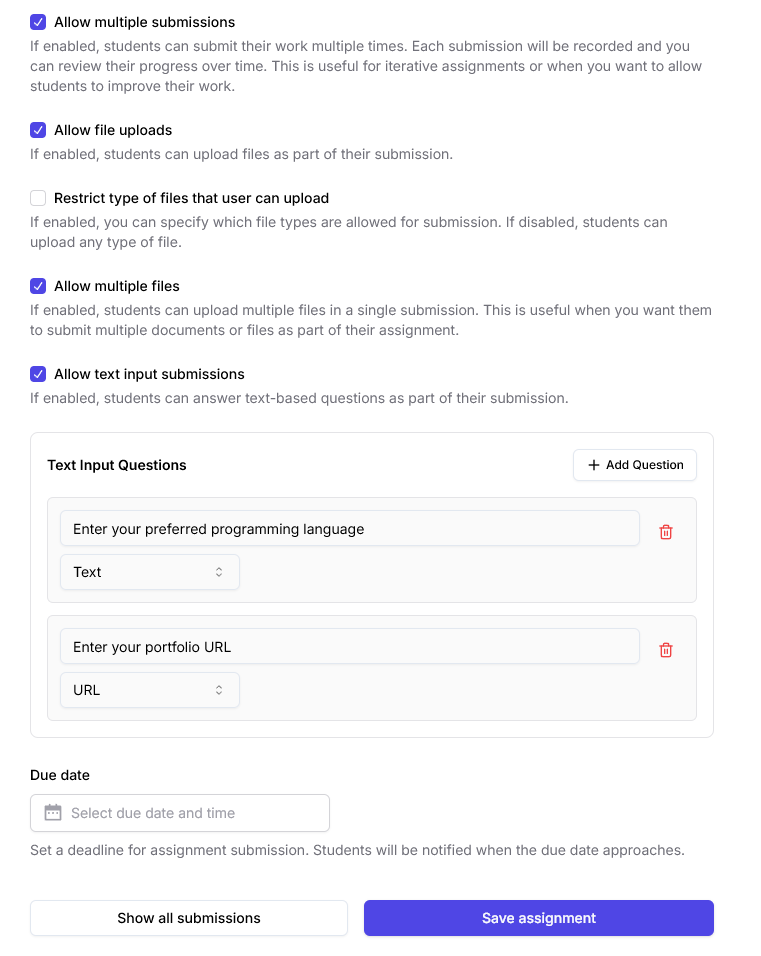
Click on **Select due date & time** to set a deadline for the assignment.
Once selected, learners will see the due date clearly on their assignments
After configuring all settings, click **Save assignment**.
Your assignment will now appear in the course syllabus.
To view and manage the submissions, click the **Show All Submissions** button
***
## Review & grade assignment submissions
In the edit assignment section, you can view and manage all student submissions for your assignments by clicking the **Show all submissions** button.
For each submission, you can see:
* **Student name and email**
* **Submission timestamp** (when the assignment was submitted)
* **Uploaded files**: you can download any submitted file
* **Preview button**: shows you a preview of supported filetypes, directly inside Fermion, without needing to download files.
Here's a list of supported file types your students can submit:
* **Document**:
* PDF (`.pdf`)
* **Image**:
* JPG (`.jpg`), JPEG (`.jpeg`), PNG (`.png`), GIF (`.gif`), WEBP (`.webp`), SVG (`.svg`)
* **Audio**:
* MP3 (`.mp3`), WAV (`.wav`), OGG (`.ogg`), M4A (`.m4a`), AAC (`.aac`), FLAC (`.flac`)
* **Video**:
* MP4 (`.mp4`), WEBM (`.webm`), OGV (`.ogv`), MOV (`.mov`), AVI (`.avi`), MKV (`.mkv`), FLV (`.flv`), WMV (`.wmv`)
* **Grade status**: whether the assignment is graded or not
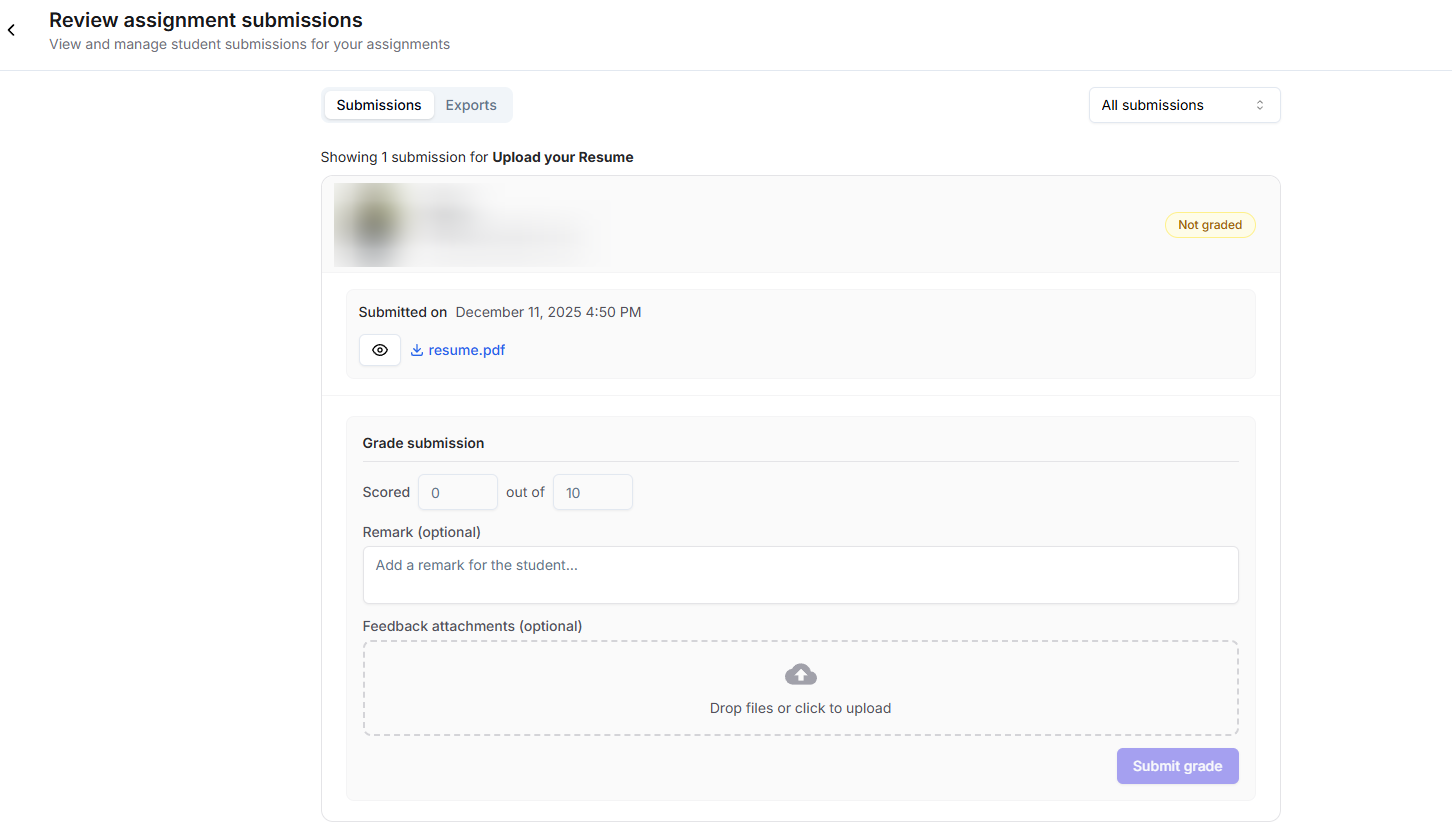
You can also **grade submissions** directly from this page, add **remarks or feedback** for the student, and track all submissions in a table format. This allows you to efficiently review, evaluate, and provide feedback to your learners.
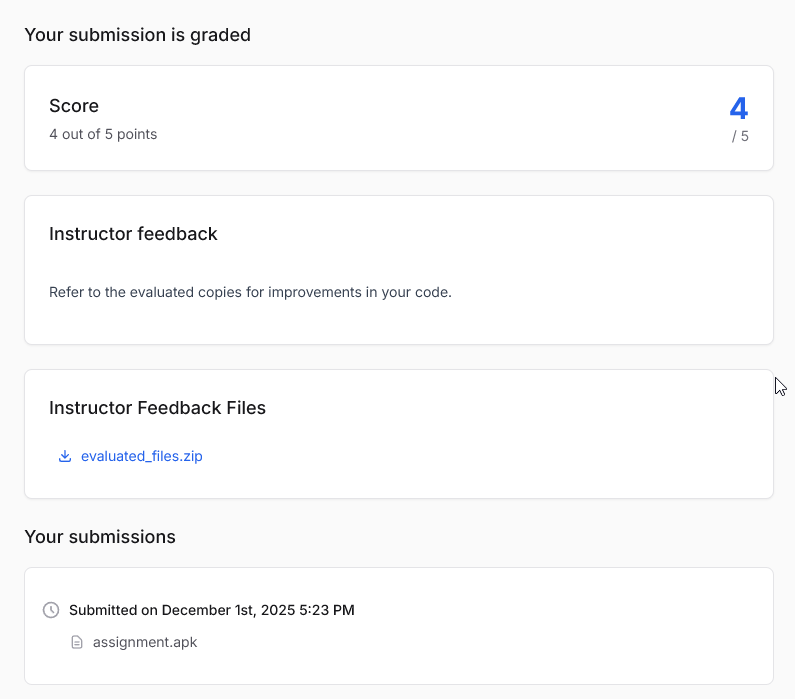
Additionally, you also have an option to upload files, along with grade and remarks ( evaluated copies of submitted pdfs, for example ) when grading an assignment :

Which the student can see on their course, like so :
***
## View all assignment submissions across all courses
Navigate to your **Instructor Dashboard**. Here, you'll find an overview of your courses, analytics, and recent activity.
Look for the **New assignment submissions (last 30 days)** widget on your dashboard homepage.
This widget lists recent assignment submissions from all your courses for quick reference.
In the widget, click the **View all** button. This will open a dedicated page where you can see all assignment submissions across every course you manage.
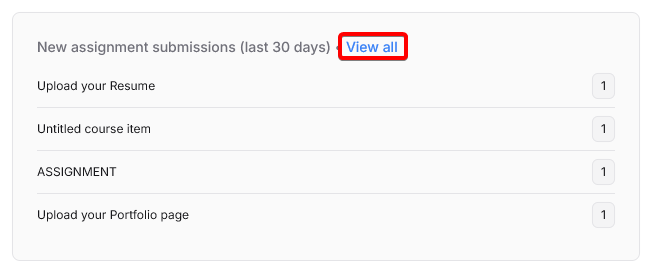
On the "View all" page, you can:
* View all recent assignment submissions in one place
* Filter submissions by graded / not graded status
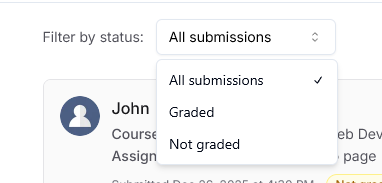
* Click on any submission to review files, provide feedback, and grade
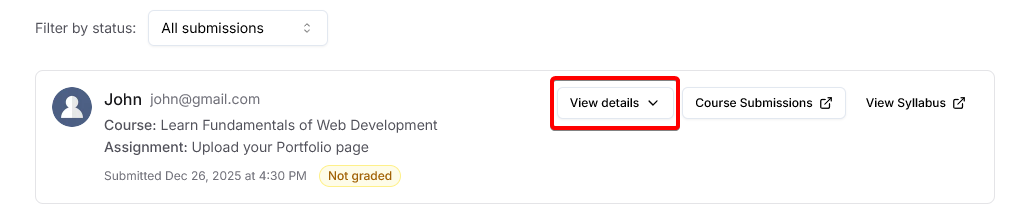
* Download or preview submitted files (for supported file types)
* Grade the assignment with feedback & files if needed.
This central view helps you efficiently keep track of submissions and streamline your grading workflow.
## Next steps
Learn how to monitor student progress, view engagement metrics, and measure performance across your courses.
Discover how to create and issue certificates to learners automatically after they complete your course.