> ## Documentation Index
> Fetch the complete documentation index at: https://docs.fermion.app/llms.txt
> Use this file to discover all available pages before exploring further.
# Announcements
> Send announcements to all students enrolled in your course directly from your course dashboard.
Announcements are a powerful way to communicate directly with all students enrolled in a course. Think of them as targeted [email campaigns](/marketing-tools/email-marketing): each announcement is sent to every student associated with the particular course. Whether you’re sharing important updates, notifying about new [videos](/recorded-videos/introduction), or promoting upcoming [live sessions](/live-classes/what-are-live-classes), announcements ensure that your students stay engaged and informed at every stage of their learning journey.
## Possibilities
With announcements, you can create personalized email campaigns tailored to your course audience. You can format your content using rich text, add links, emphasize key messages, and even include visuals to make your updates more engaging. Each announcement can be tracked and managed directly from your course builder, helping you maintain simple communication with your learners.
Fermion offers the following email limits in paid plans:
* **Basic Plan:** 500 emails per month. \$1 per additional 1,000 emails.
* **Pro Plan:** 3,000 emails per month. \$0.50 per additional 1,000 emails.
Learn more about [Fermion pricing](https://fermion.app/pricing).
## How to create an announcement campaign
You can create an announcement campaign in your course with the help of the following steps:
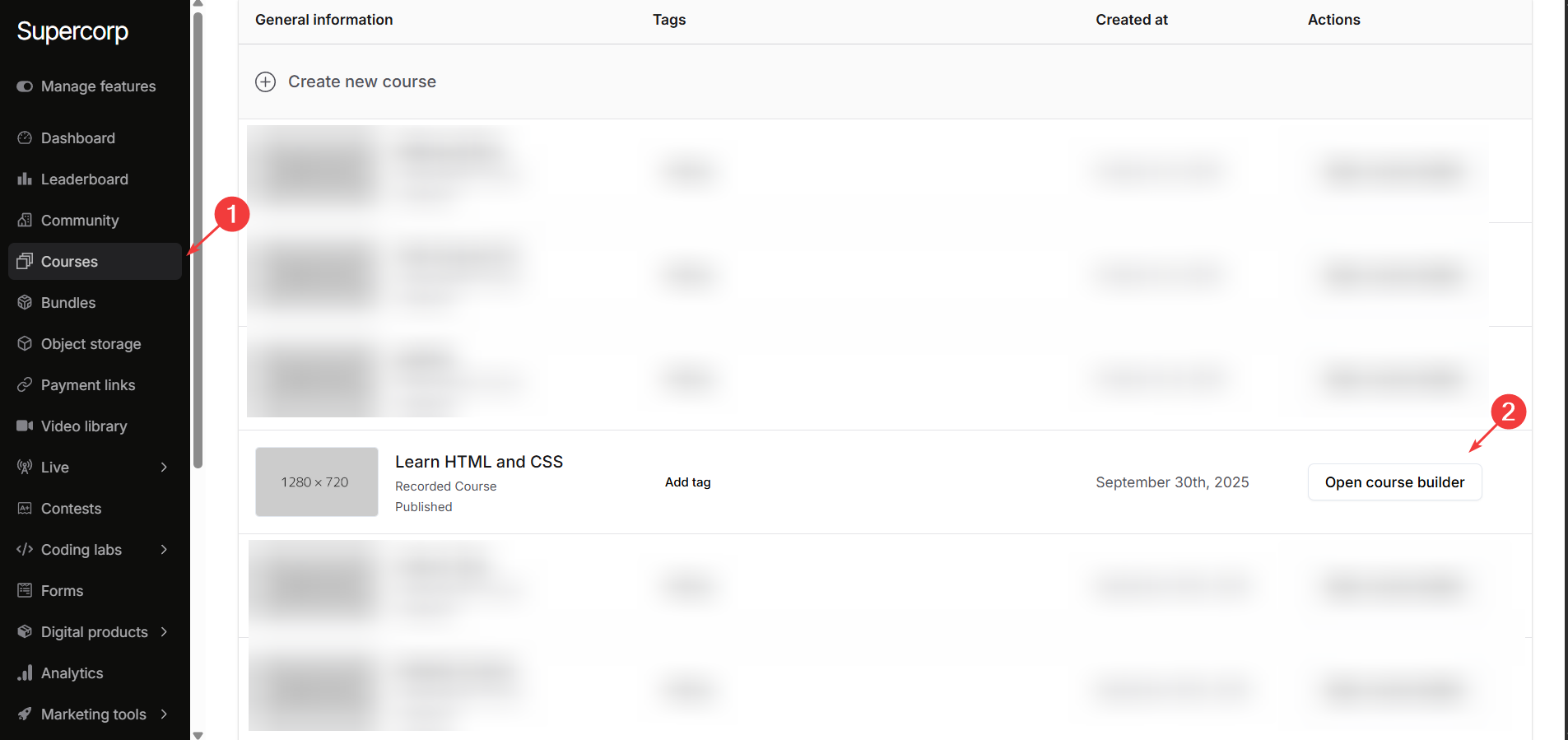
Head over to the **Courses** section and open the **course builder** for the course you want to send an announcement for.
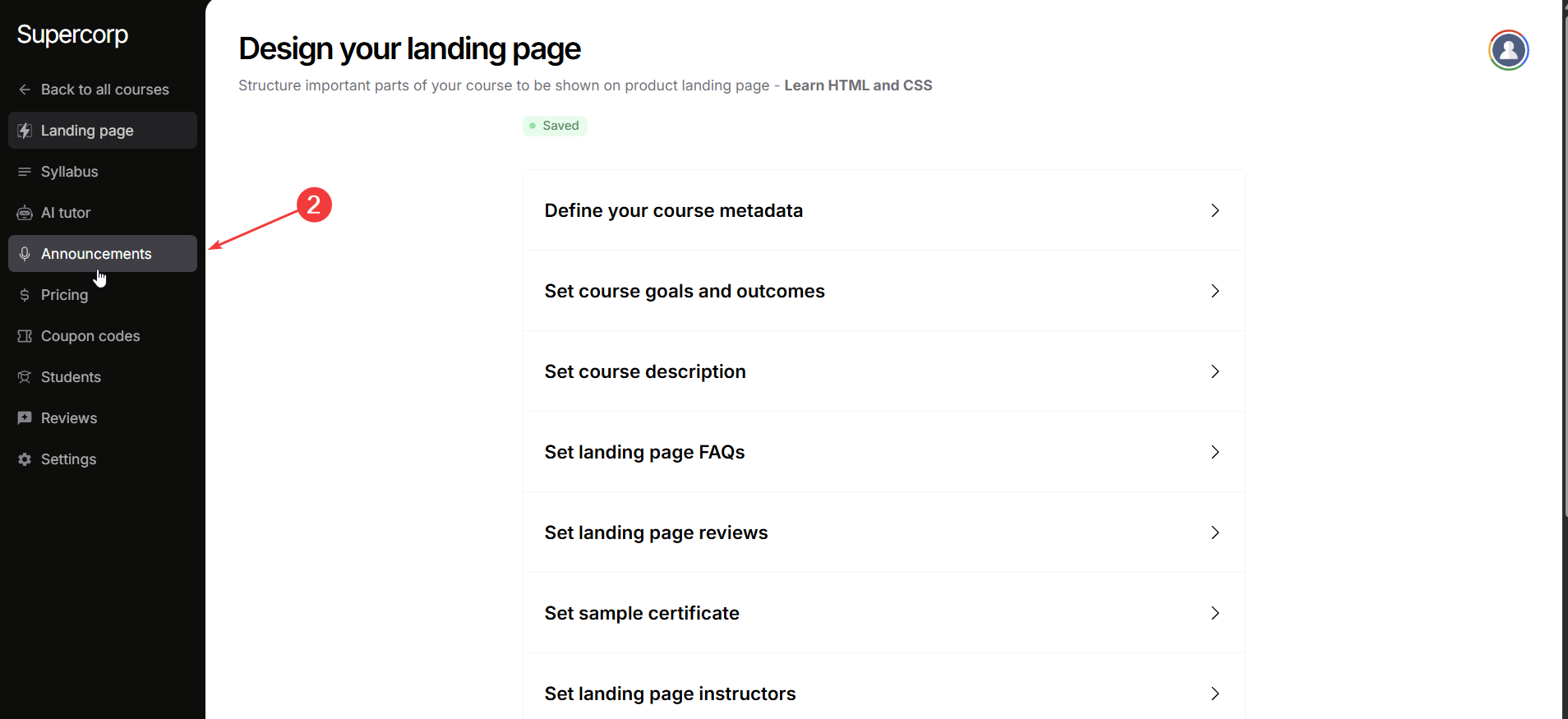
From the sidebar, select **Announcements** and click **Create new announcement** to start a new campaign.
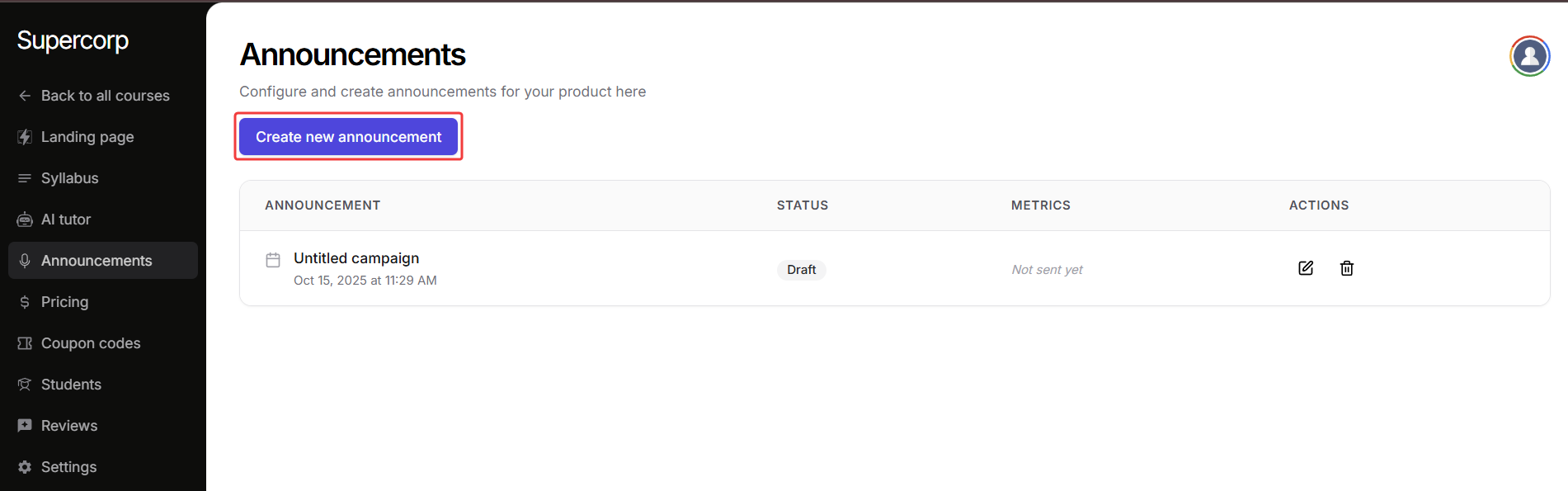
Click the **Create new announcement** button to create a new announcement and then, click the **Edit** button next to your newly created announcement to begin customizing it.
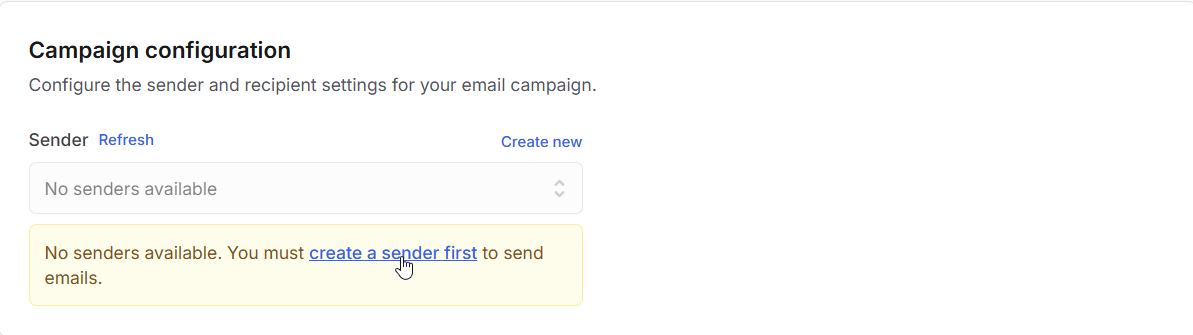
Before sending any emails, ensure that you have a **sender** created in your Fermion account. After creating a sender, link the sender in this section and your learners will receive emails from this sender account whenever an announcement is sent.
[Learn more about setting up a sender](/marketing-tools/email-automation)
Add an **email subject** and compose your **content**.
The content editor supports **rich text formatting**, so you can style your message, add links, and format sections to match your tone and branding.
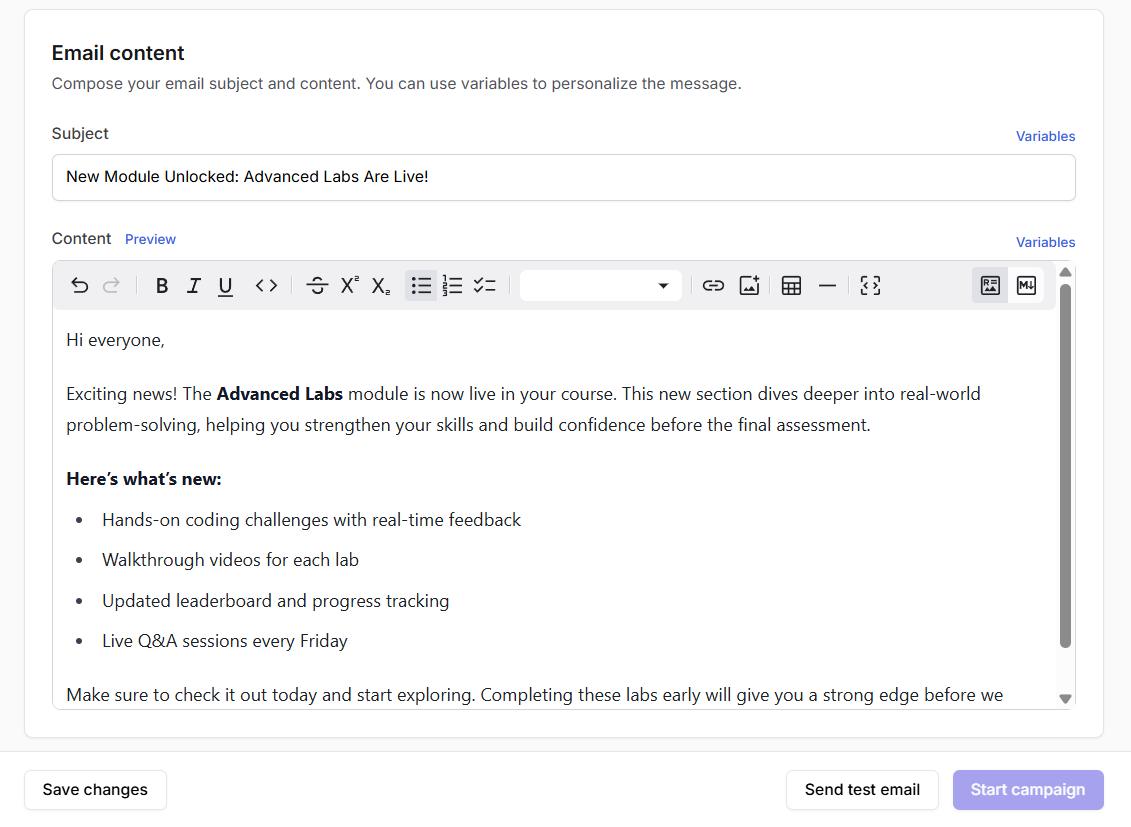
Once you’re done, click **Save changes**, **send test mail** to preview it, and then **start campaign** when you’re ready.
Announcements make it easy to keep students in the loop without needing external tools. Every update is sent directly through Fermion, ensuring reliability, consistency, and full control over how you communicate with your learners.
***
## Next steps
Track performance metrics and understand how your students engage with your content.
Combine multiple courses into a single purchase to increase enrollment and value.