> ## Documentation Index
> Fetch the complete documentation index at: https://docs.fermion.app/llms.txt
> Use this file to discover all available pages before exploring further.
# AI tutor
> Enable AI-powered assistance for your students with contextual help across quizzes, videos, and articles.
Empower your students with real-time, contextual assistance powered by AI! Fermion's **AI tutor** feature enables you to provide an intelligent copilot for your courses, giving learners immediate, context-aware support across quizzes, videos, and articles.
When enabled, the AI tutor appears as a copilot in the bottom-right corner of the student interface. This AI answers students' questions based on relevant course material, drawing from the following context sources:
* **Quiz**: Understands the quiz question and related concepts.
* **Article**: Reads the article content and supplementary materials.
* **Video**: Utilizes generated video captions and transcript.
The AI provides rich, targeted responses—boosting student learning and engagement.
## How to Enable AI tutor
To activate AI tutor for your course, follow these steps:
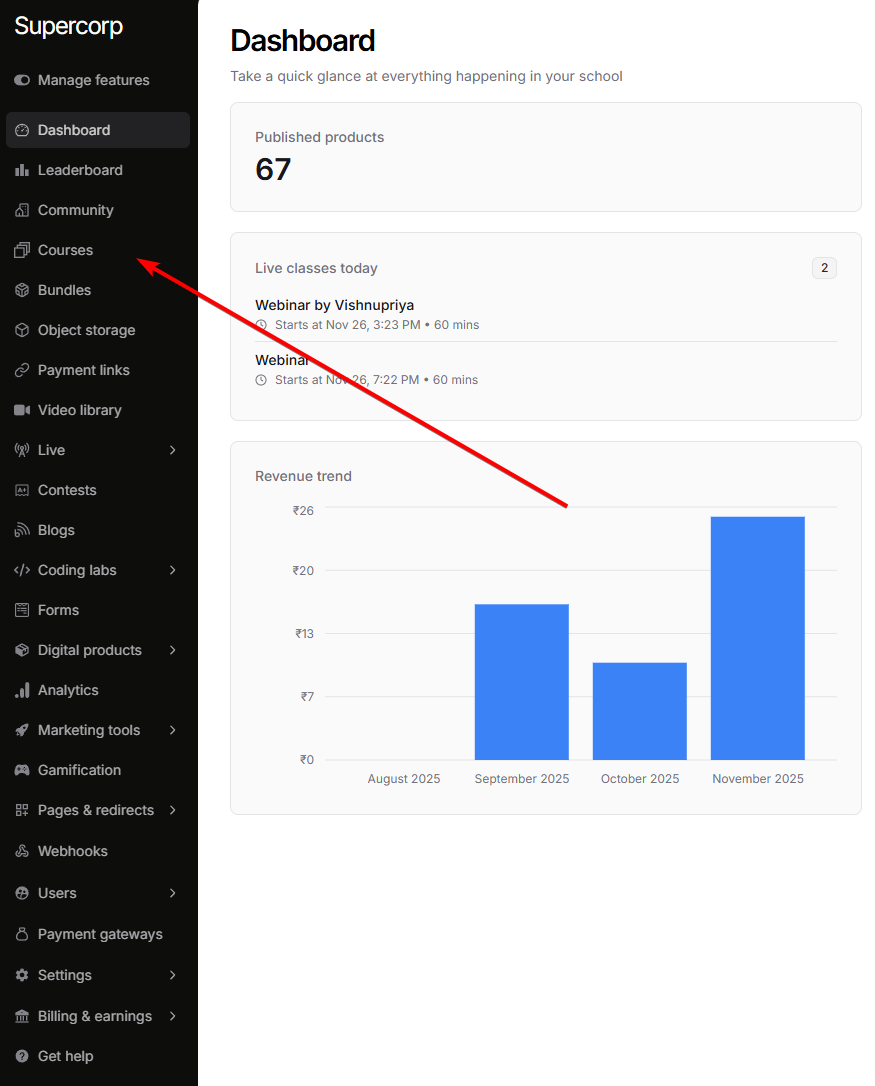
Go to the **Instructor Dashboard** and select **Courses** from the sidebar.
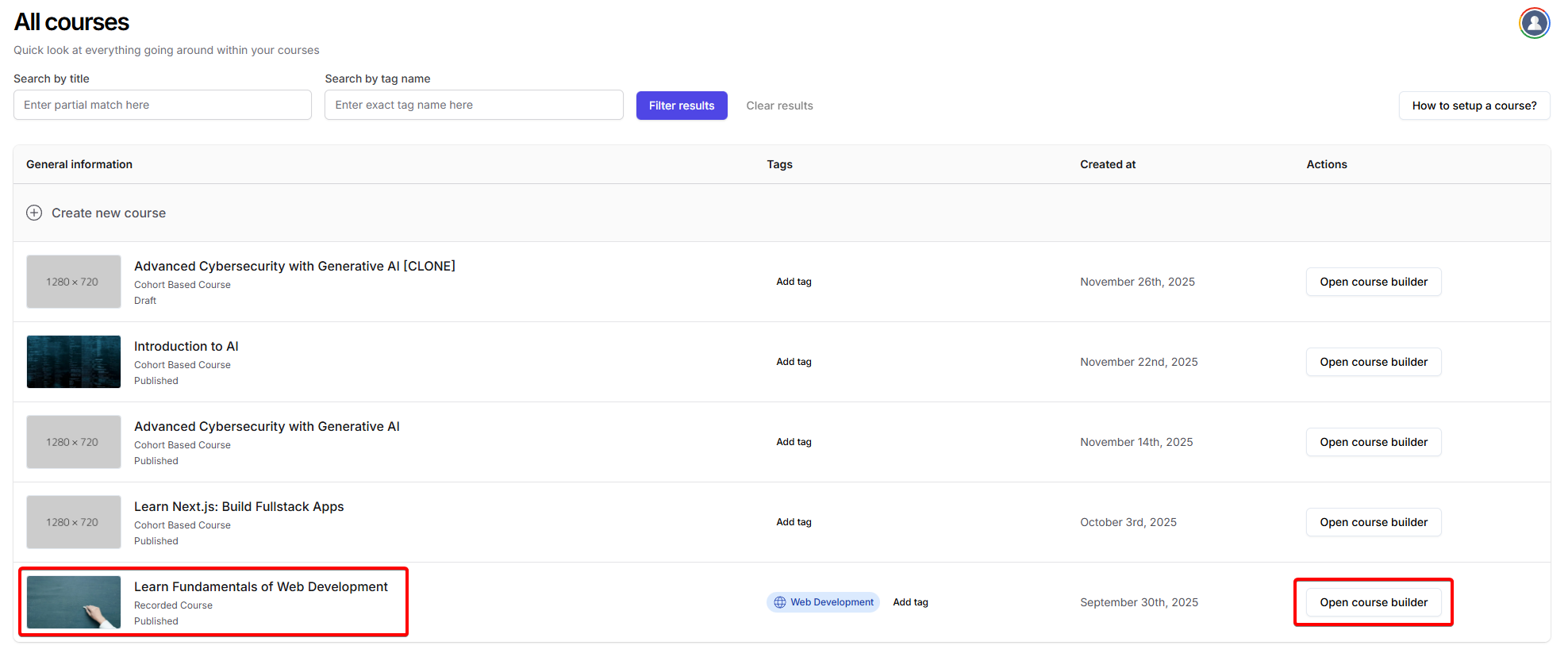
Choose the course where you want to enable AI tutor, then click **Open Course Builder**.
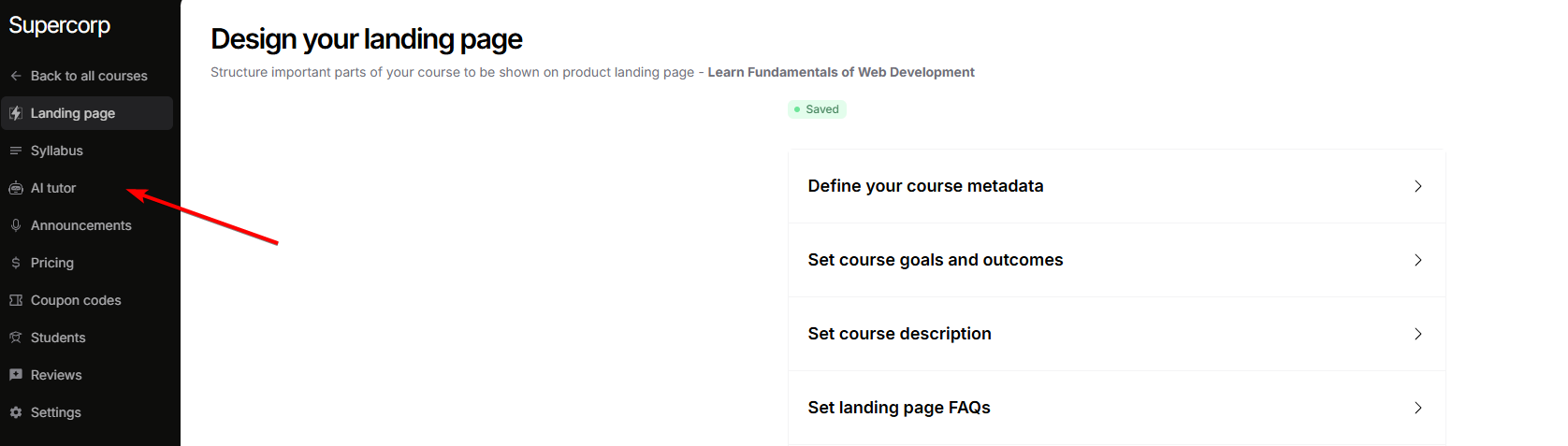
In the Course Builder, select **AI tutor** from the sidebar.
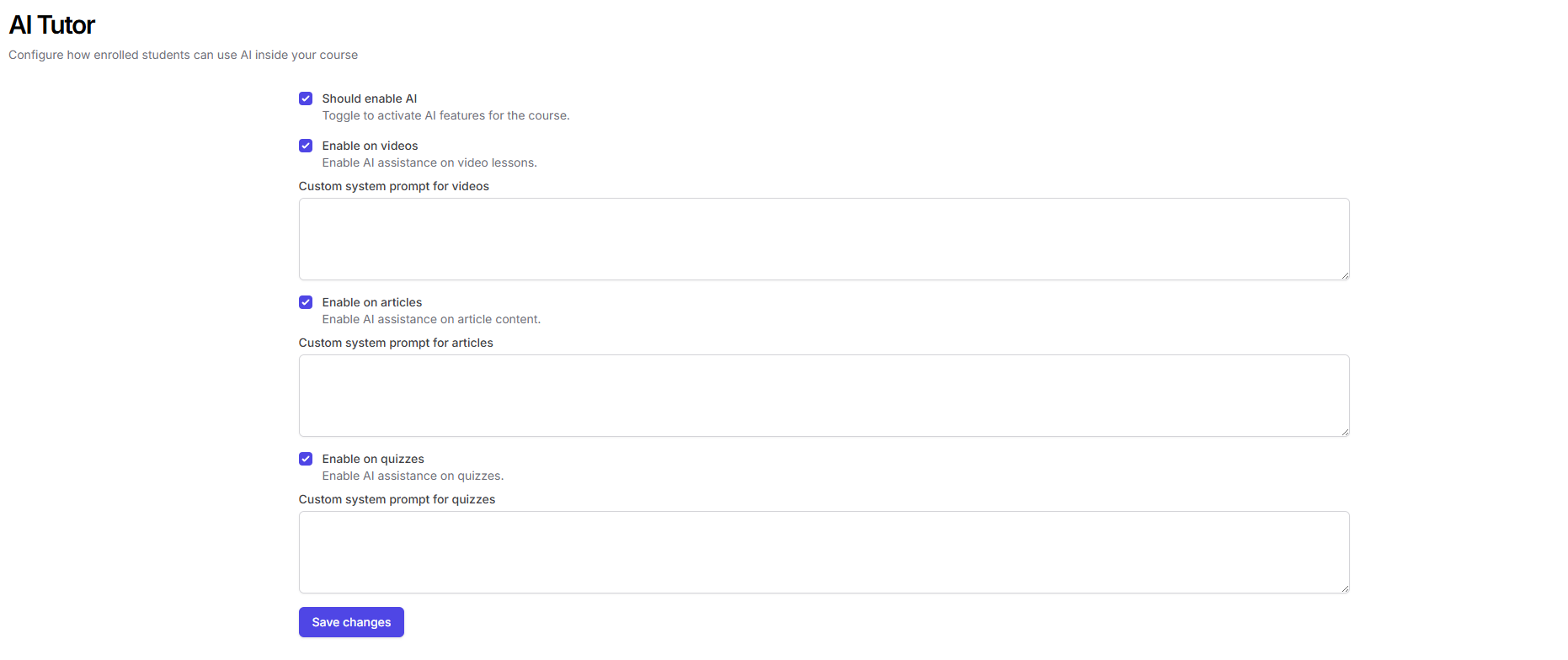
Toggle on **AI tutor** for the desired content types:
* **Quiz**: Students get AI-powered hints, explanations, or help while attempting quizzes, using the quiz questions as context.
* **Videos**: Students can ask questions about videos, and the AI uses captions/transcripts to help clarify concepts or summarize content. Make sure captions are turned on for your videos by following the steps [here](/recorded-videos/captions).
Captions are an opt-in feature with dedicated pricing, which can be checked [here](https://fermion.app/pricing)
* **Articles**: The AI answers questions with the full article text as context, helping students get clarifications as they read.
You can enable AI tutor for any combination of these content types depending on your needs.
> **Tip:** Enable the AI tutor only on the formats (quiz, video, or article) where you want students to receive AI-powered help.
## Student Experience
Once enabled, students see an AI copilot button on the bottom-right of the content screen. Clicking it opens a chat, where they can ask questions about the current quiz, video, or article.
* The AI uses the course data and current item (quiz, article, or video captions) as context to respond, making answers highly relevant.
* This feature helps students without needing to switch tabs or wait for instructor replies.
Yes! It's entirely up to you whether to enable it for quizzes, videos, articles, or any combination. You can toggle each content type independently in the AI tutor settings.
The AI is designed to assist and explain—not to give away answers. However, instructors should review settings and monitor usage as appropriate for your Quizzes.
Absolutely. You can revisit the AI tutor settings in the Course Builder at any time and toggle it off for any content type.
***