> ## Documentation Index
> Fetch the complete documentation index at: https://docs.fermion.app/llms.txt
> Use this file to discover all available pages before exploring further.
# Video Library
> Learn how to manage and configure your videos on Fermion using the Video Library.
## Overview
The Video Library on Fermion is your central hub for managing all the [videos](/recorded-videos/introduction) uploaded to your platform. It allows you to organize, search, and maintain your video content efficiently. By providing a dedicated interface for video management, Fermion ensures that your content is easy to access, configure, and share with learners, making it easier to run courses, tutorials, or any video-based content.
Within the Video Library, you can upload new videos, create folders for organization, download them, and delete outdated or unnecessary content. Each video’s status, upload date, and available actions are clearly displayed, helping you maintain a clean and well-organized video repository.
Before you can access the video library, you have to enable it in the **Manage Features** section of your instructor dashboard sidebar. Learn more on how to [manage features](/manage-settings/manage-features)
***
## Managing videos
You can manage videos as per your needs in video library. Each video entry provides quick actions for downloading, editing settings, or removing the video. Organizing videos into folders makes it easier to categorize them based on courses, topics, or content type.
From your instructor dashboard sidebar, navigate to the "Video Library" section. This is your central hub for all uploaded videos and folders.
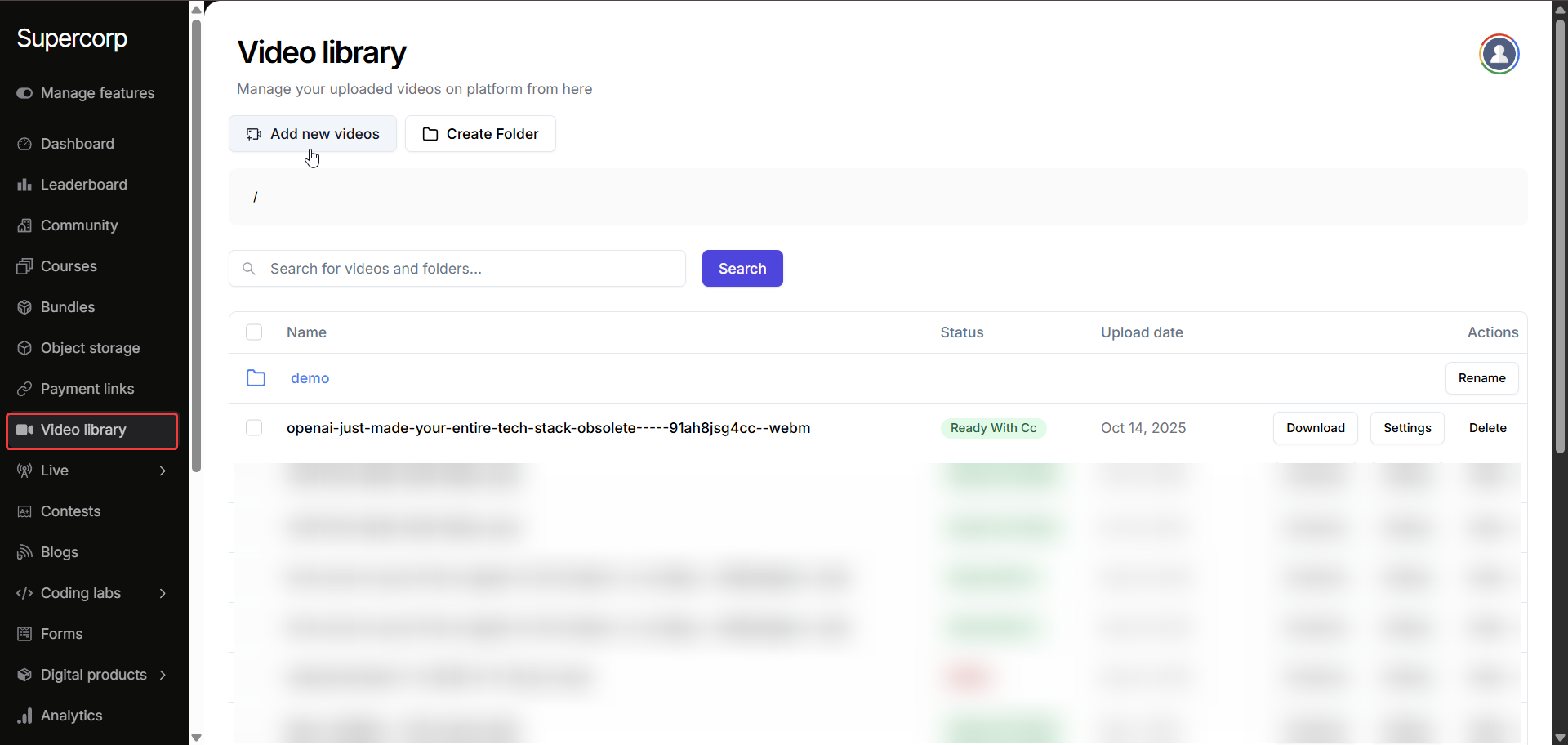
Click the **"Add new videos"** button in the Video Library. Select a video file from your computer and upload it to the platform. Uploaded videos are automatically processed for playback compatibility. You can also enable AI transcription in video settings if desired.
Create folders to categorize your content based on courses, topics, or content type. Click **"Create Folder"**, provide a descriptive name, and move videos into the folder for better organization.
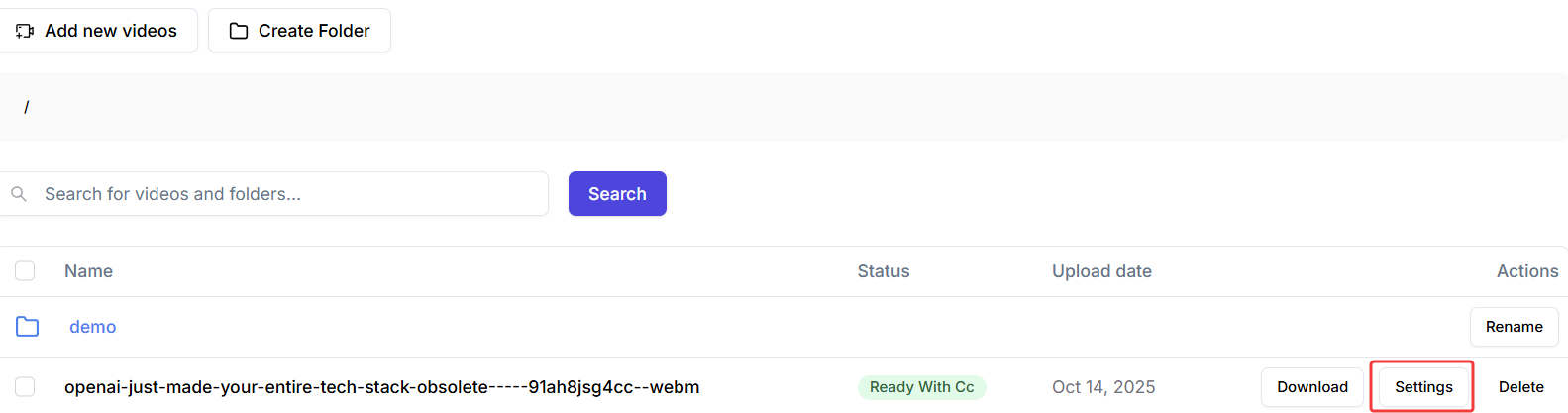
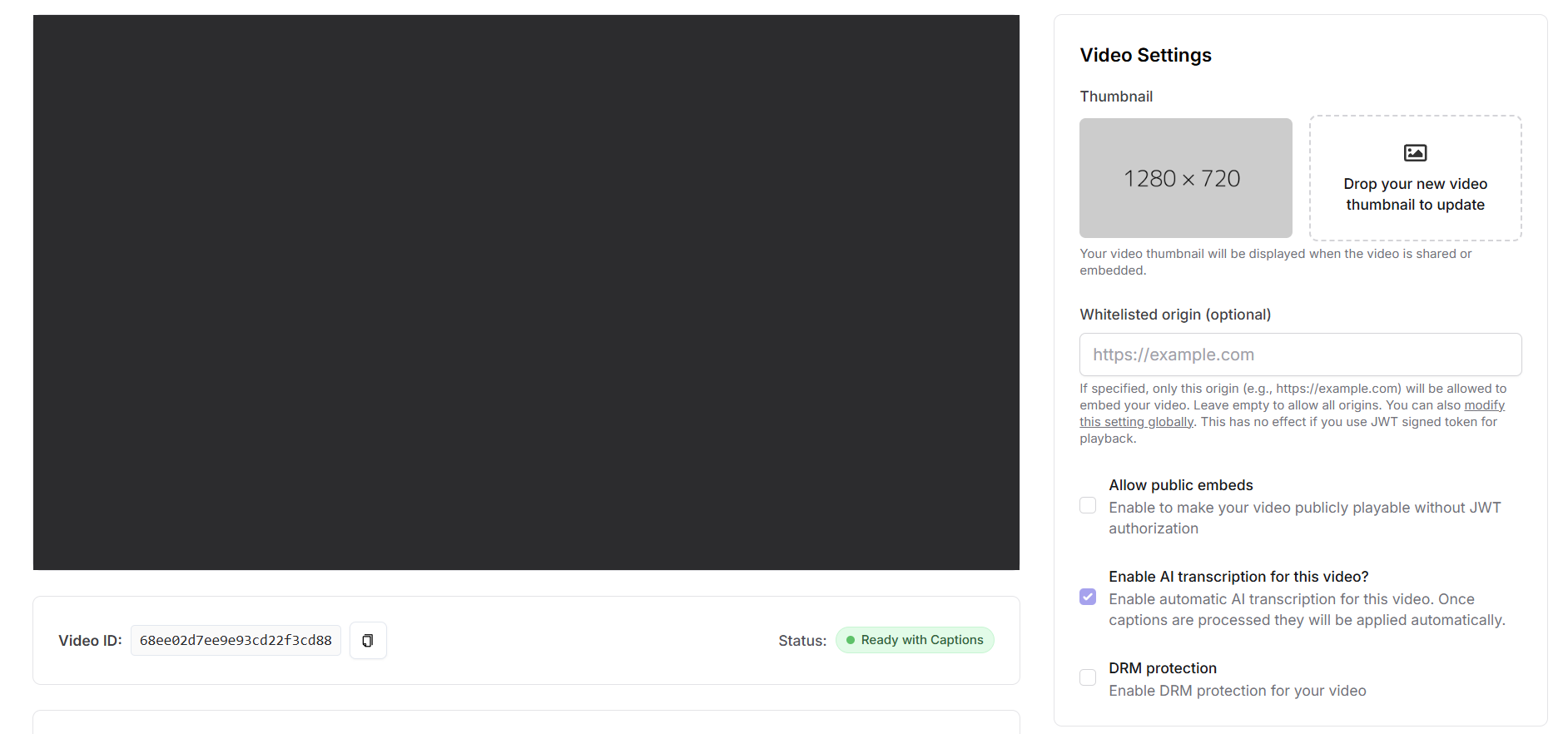
For any previously uploaded video, click the "Settings" option next to the video. Here you can update the thumbnail, configure whitelisted origins, enable public embeds, AI transcription, DRM protection, and get the embed code.
***
## Video settings
Fermion allows you to configure individual settings for each video, ensuring they behave exactly how you want when shared, embedded, or played back by your learners. Video settings include thumbnail management, embedding restrictions, AI transcription, DRM protection, and public playback controls.
### Thumbnail
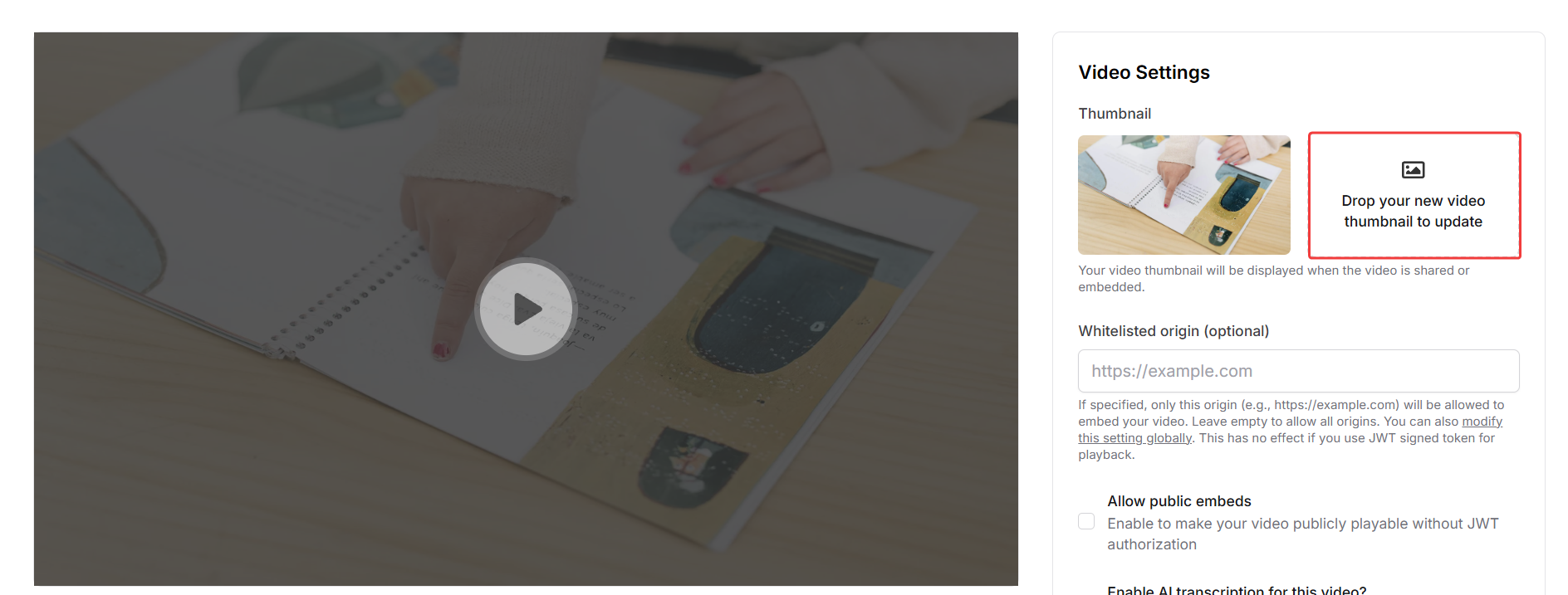
A video thumbnail represents your content visually and is displayed when the video is shared or embedded. You can upload a custom thumbnail to make your video more appealing and recognizable to learners.
### Whitelisted origin and public embeds
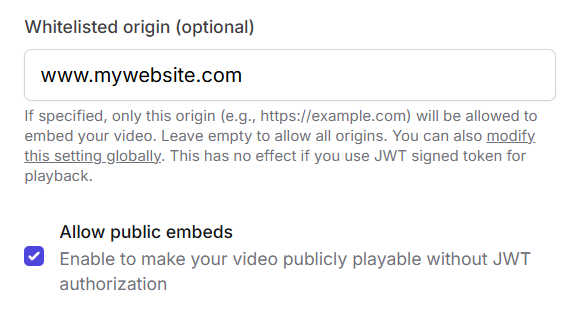
You can specify a whitelisted origin, which restricts embedding of your video to specific domains. This adds an extra layer of security by ensuring that only your approved websites can embed your videos. If left empty, all origins can embed the video. Note that this setting does not affect playback when using JWT signed tokens.
Enabling public embeds makes the video playable by anyone without JWT authorization. This is useful for content that you want to share publicly or promote outside your platform.
### Enable AI transcription
Fermion provides AI-powered transcription for your videos. By enabling this feature, captions are automatically generated and applied to your video, enhancing accessibility and engagement for your learners. Learn more about [AI powered captions](/recorded-videos/captions)
## DRM protection
Digital Rights Management (DRM) protection helps prevent unauthorized copying or distribution of your videos. Enabling DRM ensures your content is secure and only accessible to authorized users.
### Advanced Widevine configuration
Fermion supports **Widevine DRM** to ensure secure video playback across supported browsers and devices. Widevine allows content owners to protect videos from unauthorized access, copying, or redistribution while maintaining smooth playback for legitimate users.
Advanced configuration options let you fine-tune the security level and **HDCP (High-bandwidth Digital Content Protection)** settings for different video resolutions. These settings balance security and compatibility, depending on your audience and playback requirements.
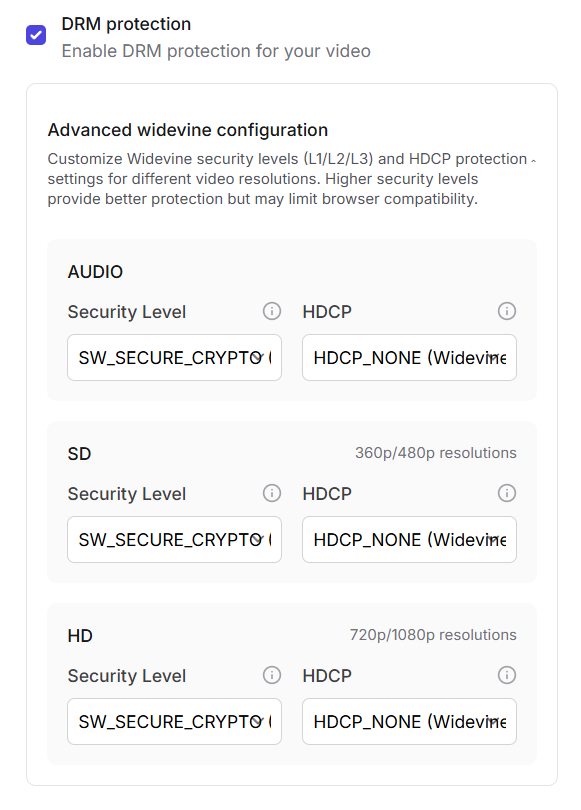
Widevine supports multiple security levels: **L1**, **L2**, and **L3**, based on how content decryption and processing are handled on the device:
* **L1 (Hardware-secure)**: All content processing and cryptography happen within a trusted hardware environment (TEE). Provides the highest level of security, often required for HD and 4K playback.
* **L2 (Partial hardware security)**: Decryption happens in hardware, but video processing occurs in software. Offers a balance between performance and security.
* **L3 (Software-based)**: Decryption and processing both occur in software, making it the most compatible but least secure option. Ideal for lower-resolution playback or older devices.
**HDCP** ensures that protected digital content is only transmitted over secure, encrypted connections (like HDMI or DisplayPort). You can configure HDCP for each resolution level:
* **HDCP\_NONE (Widevine L3)**: No HDCP protection, allowing playback on all devices, including virtual and emulated environments.
* **HDCP\_1.x or 2.x**: Stronger protection levels that restrict playback to compliant displays. Recommended for HD or premium content.
You can apply different security and HDCP levels based on video resolution and audio tracks:
* **Audio**
* **SD (360p / 480p)**
* **HD (720p / 1080p)**
Higher security levels reduce the risk of content piracy but may limit playback on certain browsers or devices that lack hardware DRM support. For general educational content, **Widevine L3** is sufficient. For premium or licensed media, enabling **L1** and **HDCP** protection ensures stricter control over content access.
Learn more about [Widevine DRM](https://en.wikipedia.org/wiki/Widevine#Architecture)
### Download and embed
From the video settings, you can download the original file or get the embed iframe code to place your video on other pages or platforms. This makes sharing content simple while retaining full control over access and playback.
Navigate to the video settings and click the **"Download video"** button. Your original video file will be saved to your computer.
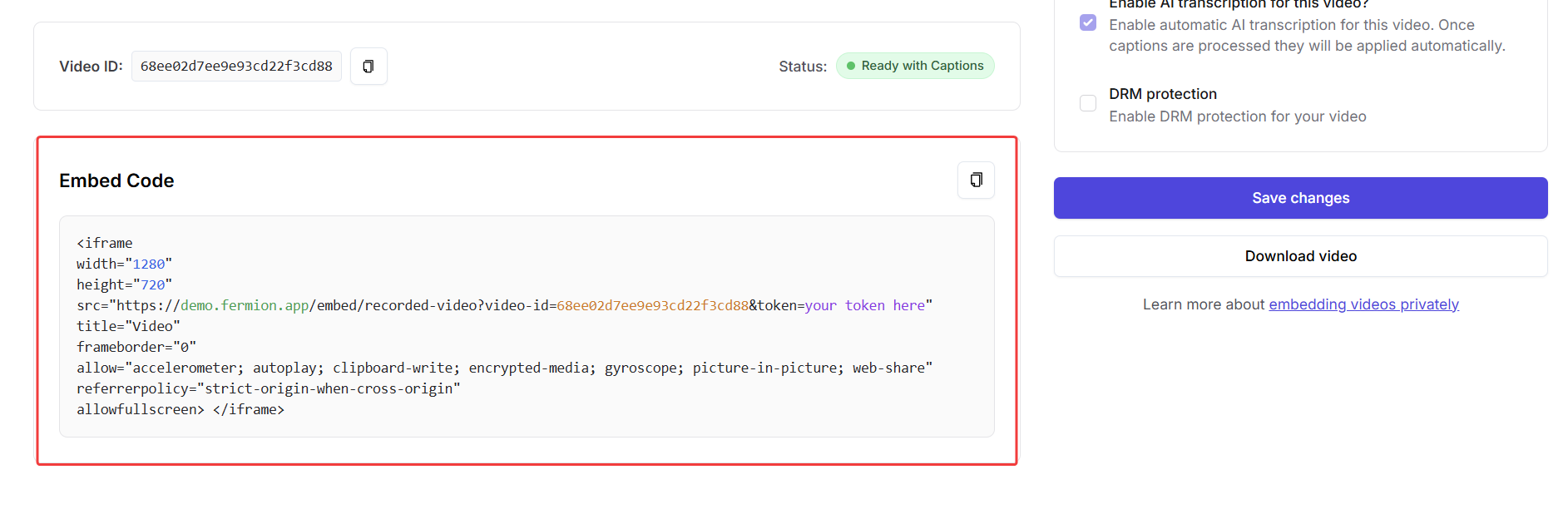
In the video settings, copy the iframe embed code. Paste this code on any web page or platform where you want your video to be displayed. Ensure you configure whitelisted origins or JWT tokens if required for security. Learn more about [embedding recorded videos](/recorded-videos/embed-video)
***
By leveraging the Video Library on Fermion, you can centralize all your video content, configure it for secure playback, and ensure your learners have the best viewing experience.