> ## Documentation Index
> Fetch the complete documentation index at: https://docs.fermion.app/llms.txt
> Use this file to discover all available pages before exploring further.
# Email Templates
> Configure your email domains, reminders, and templates for system communications.
Fermion allows you to customize and automate all system-generated emails to align with your brand and improve communication with your users. From setting up reminders for [live events](/live-classes/what-are-live-classes) to editing default templates for different user actions, you have full control over how and when your platform communicates with learners and instructors.
## Live event email reminders
By default, all system-generated emails are sent from a **Fermion-associated email address**. If you want to use your **own domain** as the email sender, please refer to the [Email Sender Configuration](/marketing-tools/email-automation) documentation to learn how to verify and connect your domain.
You can keep your participants informed and minimize missed sessions by enabling automatic reminder emails for all [live events](/live-classes/what-are-live-classes) hosted on Fermion.
When enabled, the system automatically sends reminder emails to all registered participants **24 hours, 6 hours, and 30 minutes** before the event begins, ensuring they have timely access to session details and joining links.
Navigate to your instructor dashboard → **Settings → Email sender**.
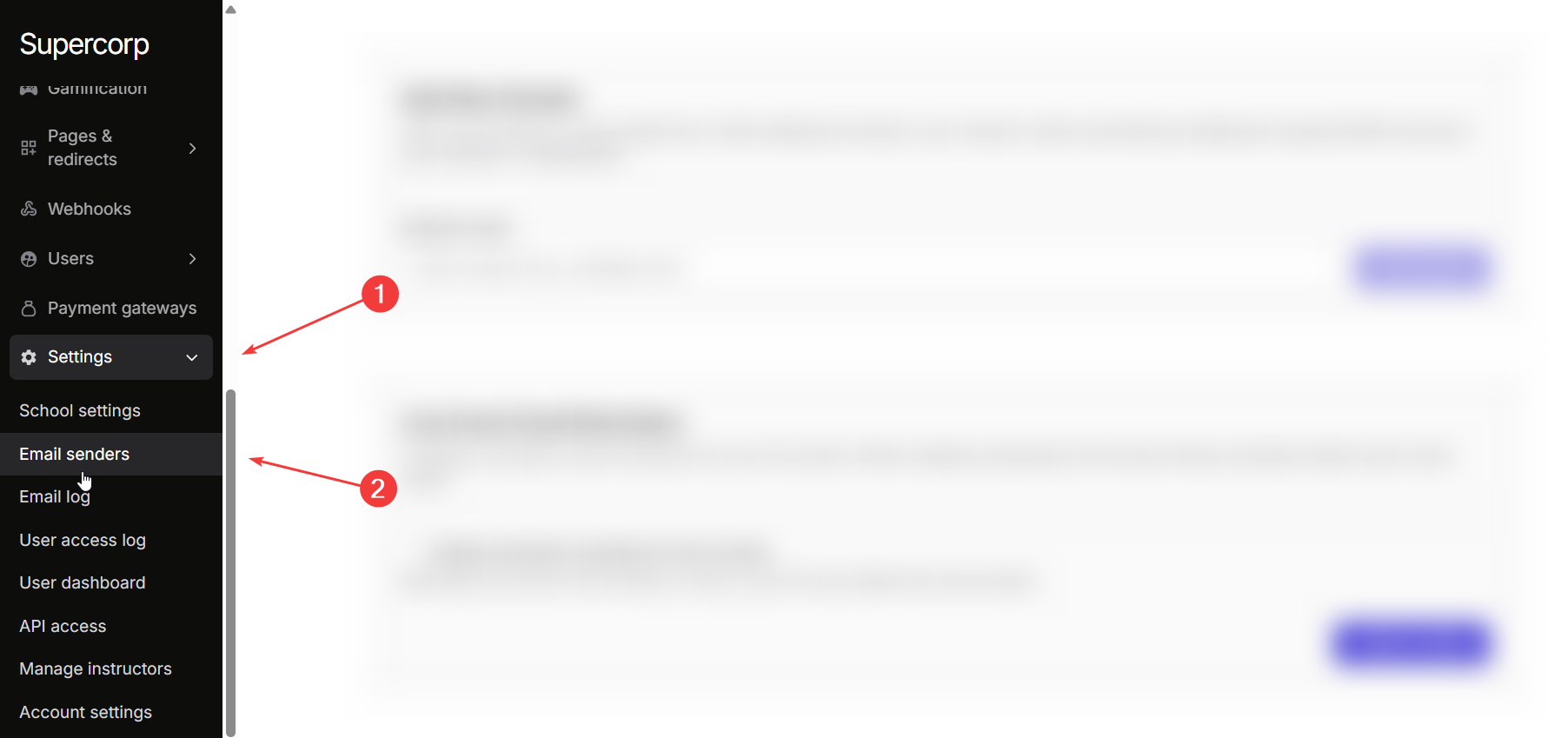
Scroll to the section labeled **Live Event Email Reminders**.
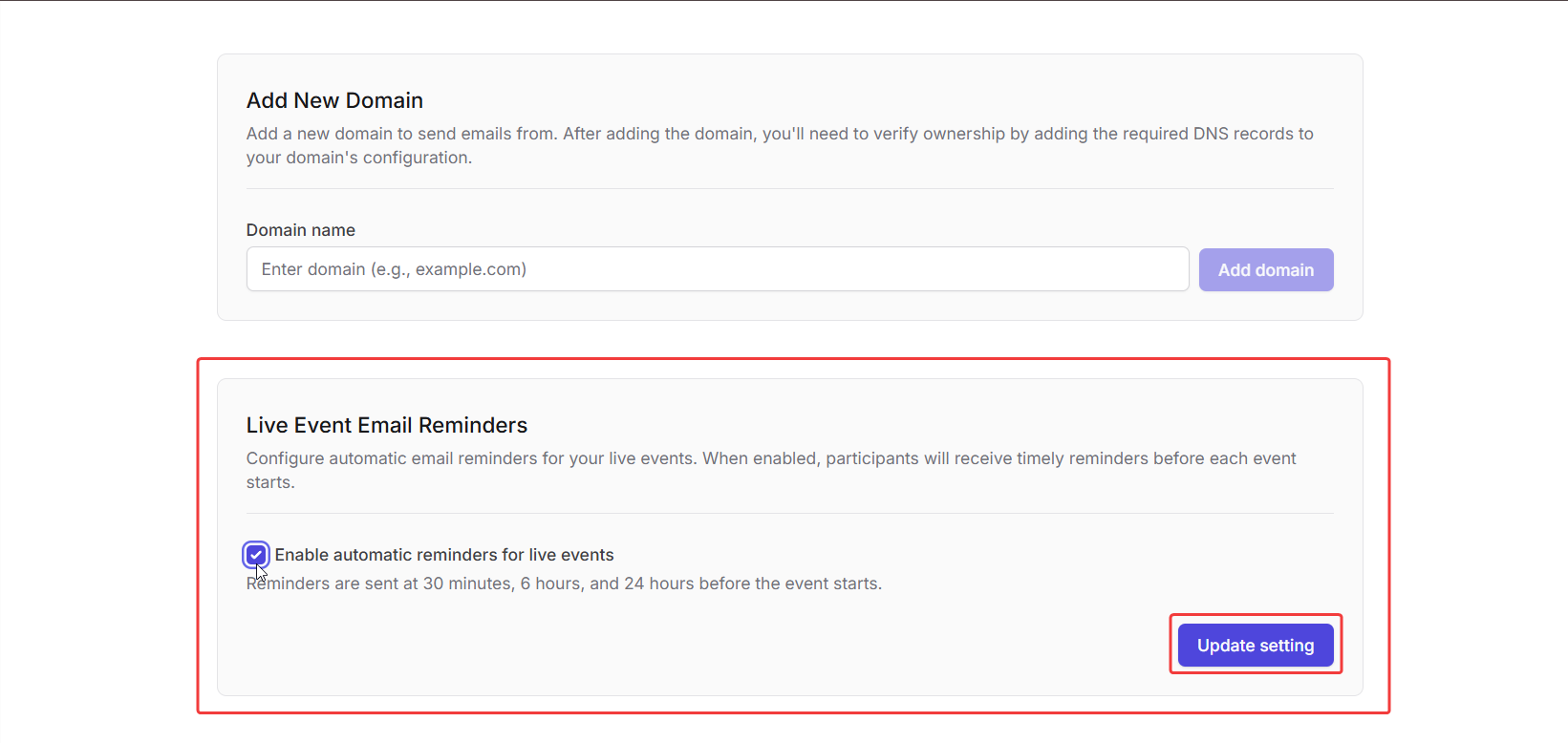
Turn on the toggle and click **Update setting** to start sending reminder emails to all registered participants.
Once enabled, [live session](/live-classes/what-are-live-classes) reminders are automatically sent **30 minutes**, **6 hours**, and **24 hours** before the event begins.
***
## Email templates
Fermion includes a library of predefined **system-generated email templates** that handle various automated communications, such as account creation, password resets, purchases, and event notifications. You can customize the content, layout, and appearance of these templates to reflect your branding and tone of voice.
The **Email Templates** section lists all available templates along with their current status : whether using the **default template** or a **custom version** you’ve edited. The following default templates are available at Fermion and you can edit all of these templates as per your requirements.
| Type | Description |
| ----------------------------- | --------------------------------------------------------------- |
| Live Event Host Added | Sent when a user is added as a host for a live event. |
| Live Event Session Reminder | Reminder emails for upcoming live sessions. |
| New Account on Import | Triggered when a user account is created through a bulk import. |
| New Account on Purchase | Sent when a new account is created during checkout. |
| New Community Announcement | Sent when a new announcement is published in a community. |
| New Product Purchase | Confirmation for new purchases or enrollments. |
| OTP for Registration | Sent to verify user identity during sign-up. |
| Password Updated Confirmation | Confirms successful password updates. |
| Pending Payment Reminder | Sent to users with incomplete EMI payments. |
| Product Rating Reminder | Encourages users to rate purchased products. |
| Reset Password | Sent when a user requests a password reset. |
| User Group Product Assigned | Notifies users when a product is added to their group. |
| User Group Product Unassigned | Notifies users when a product is removed from their group. |
***
### Editing an email template
You can also choose to edit these pre-defined templates and edit them according to your requirements with the help of the following steps:
Go to **Settings → Email senders → Email Templates**.
Choose a system template from the list and click **Manage**.
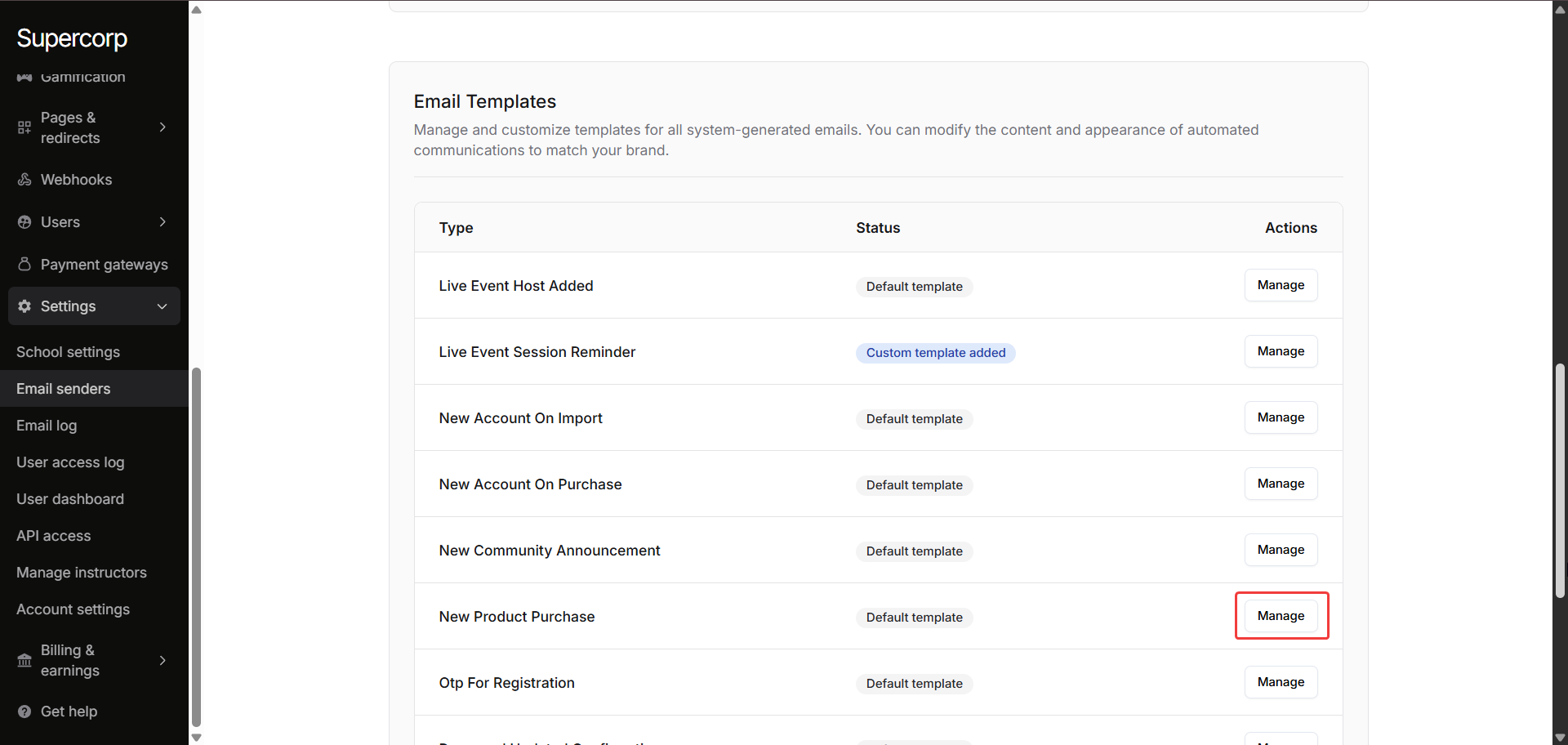
You can customize the **subject line** and the **body text** to align with your brand’s tone.
You can use template variables to personalize each message dynamically at the time of sending.
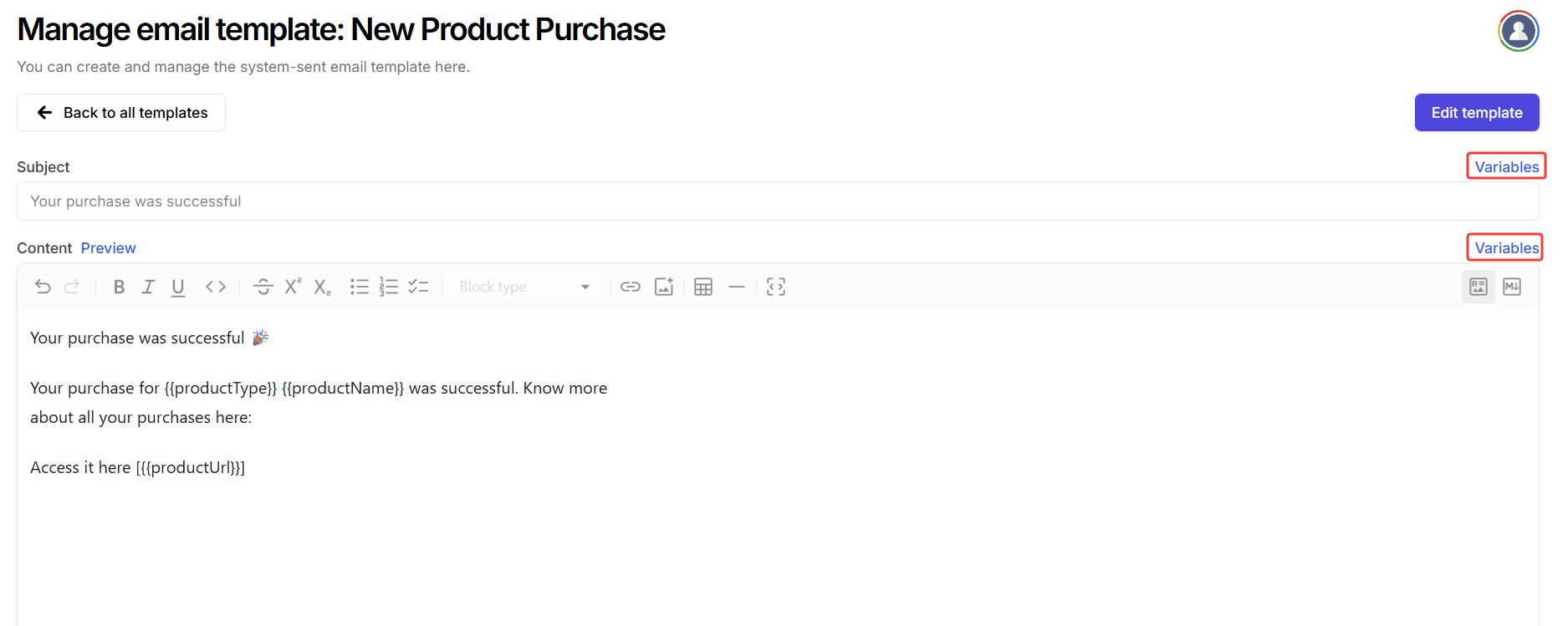
When customizing your email templates, you can use the following variables to dynamically insert user, school, and product data.\
These placeholders are replaced automatically when the email is sent.
| Variable | Details |
| --------------------------- | ----------------------------------------------------------- |
| `{{productName}}` | Title of the product that the user has purchased. |
| `{{productType}}` | Type of the product. |
| `{{productUrl}}` | URL where the user can access the product. |
| `{{schoolId}}` | ID of your school. |
| `{{schoolName}}` | Name of your school. |
| `{{schoolHostname}}` | Hostname (domain) of your school. |
| `{{schoolLogoUrl}}` | URL of your school’s logo image. |
| `{{schoolPhysicalAddress}}` | Physical address of your school. |
| `{{userId}}` | ID of the user. |
| `{{userFullName}}` | Full name of the user. |
| `{{userFirstName}}` | First name of the user. |
| `{{userLastName}}` | Last name of the user. |
| `{{userUsername}}` | Username of the user. |
| `{{userEmail}}` | Email address of the user. |
| `{{emailUnsubscribeUrl}}` | URL that allows the user to unsubscribe from future emails. |
| `{{emailTrackingLogoUrl}}` | URL of the logo image used to track email open counts. |
| `{{emailFromAddress}}` | Email address from which the message is sent. |
| `{{emailFromName}}` | Display name that appears alongside your sender address. |
| `{{emailReplyToAddress}}` | Email address where user should reply |
Review your edits using the built-in preview, then click **Save changes** to apply your changes.
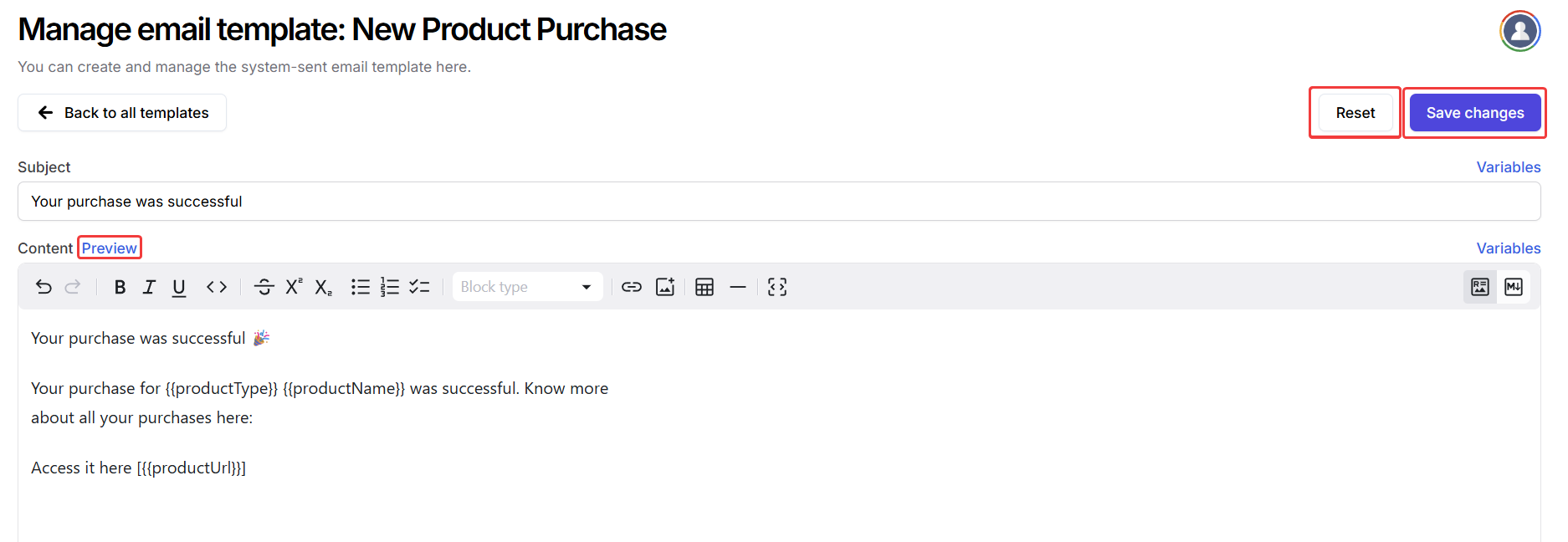
Now your custom template will be used to send an email automatically whenever the respective event occurs.
All customized templates override the system defaults. You can restore the default content anytime by selecting **Reset** from the Manage Template view.
## Next steps
Learn how to create campaigns, track performance, and reach your users effectively via email.
Discover how to send messages and notifications to users via WhatsApp.