> ## Documentation Index
> Fetch the complete documentation index at: https://docs.fermion.app/llms.txt
> Use this file to discover all available pages before exploring further.
# Email Sender Configuration
> Automate your email campaigns to engage learners and keep your students informed.
Fermion provides an end-to-end ecosystem for all of your marketing tools, this includes various email automation flow like:
1. A payment confirmation email is sent to users immediately after they make the purchase to your course.
2. An email is dispatched, along with course access, whenever someone purchases your course.
3. An email is dispatch one day, as well as 30mins prior to your live classes.
These are just three of the many email flows that are already linked to your account. We ensure maximum student participation inside your course, via these email flows.
If you have a specific email flow in your mind, useful for your use-case, feel free to share with us by reaching us at [support@codedamn.com](mailto:support@codedamn.com).
## Setting up a custom email sender
Fermion provides an option to send emails from a dedicated address under your sub-domain.
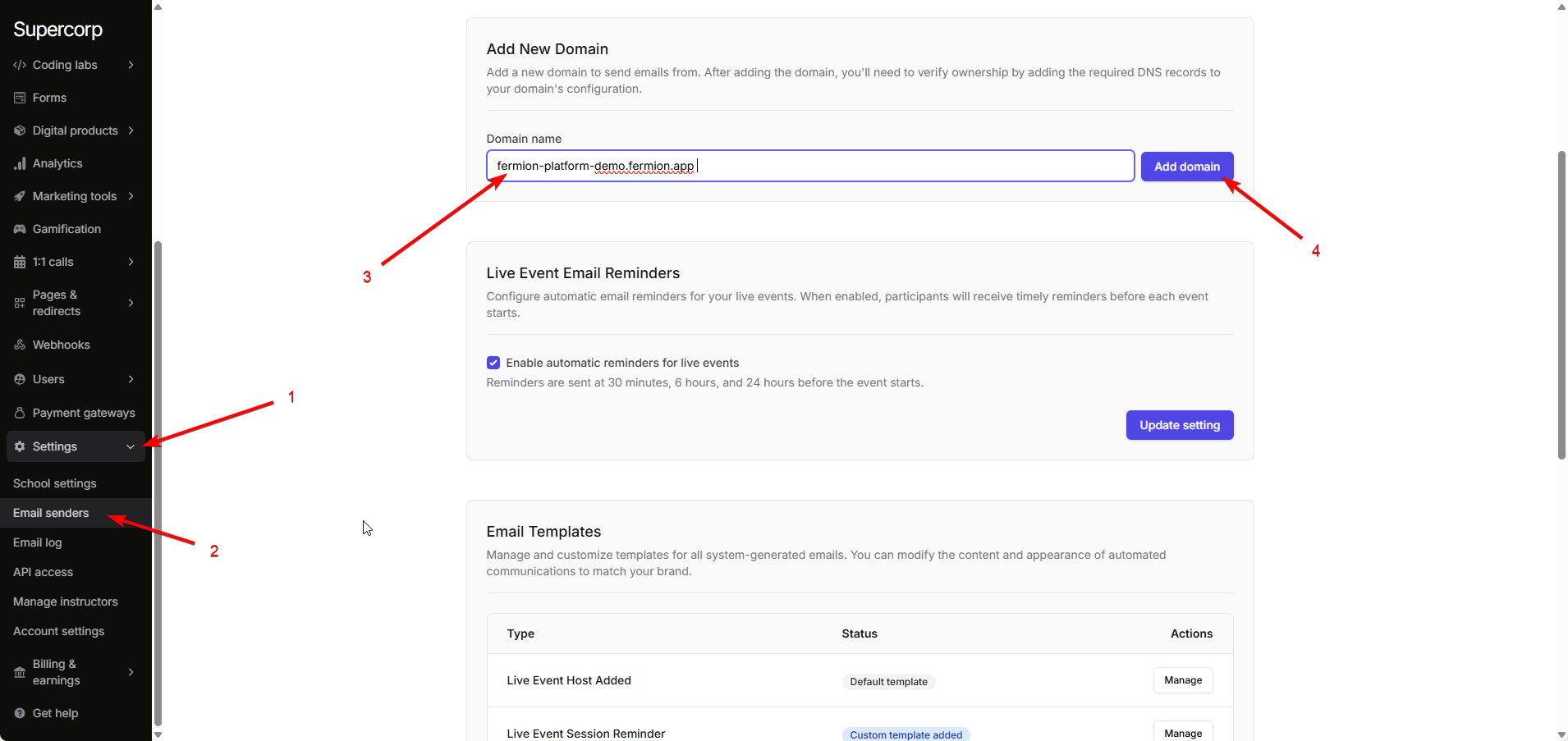
Go to **Settings > Email Senders** and add a new domain to send emails from.\
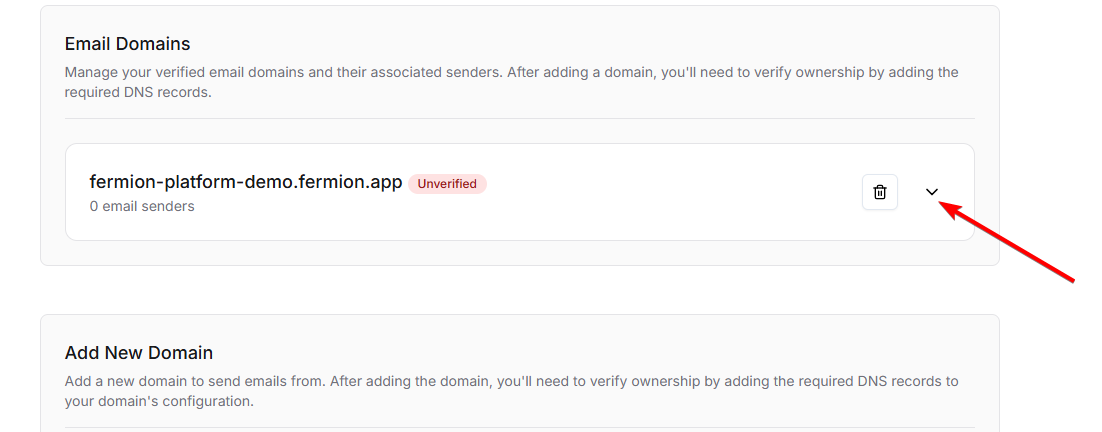
Click on the newly created sub-domain to access the DNS records required to connect Fermion with your sub-domain.\
Copy and paste the provided DNS records into the DNS section of your hosting provider.\
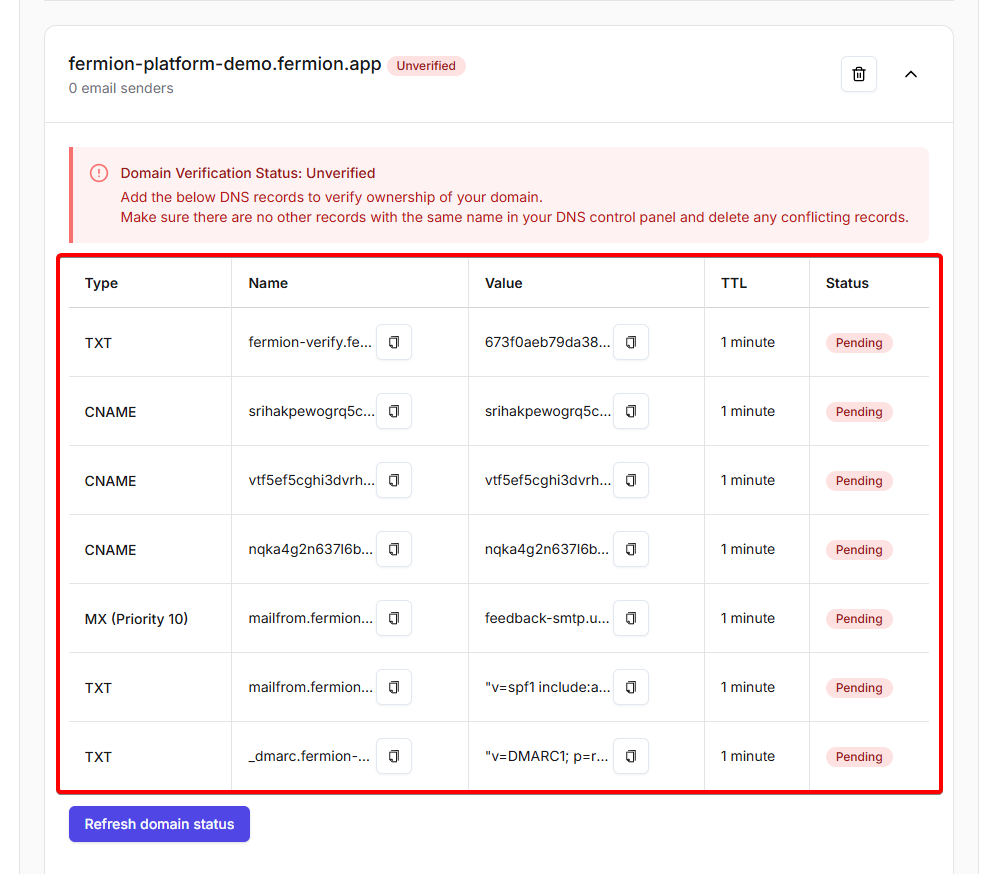
Once the records are verified, the status will update to indicate verification, and your custom email sender will be ready to use.
## Next steps
To expand your marketing reach, explore **email marketing** at Fermion. Learn how to create campaigns, manage use groups, and send emails by visiting the [email marketing documentation](/marketing-tools/email-marketing).