> ## Documentation Index
> Fetch the complete documentation index at: https://docs.fermion.app/llms.txt
> Use this file to discover all available pages before exploring further.
# UTM Campaign Reports
> Learn how to generate detailed reports for your UTM campaigns to track conversion funnels and purchase events.
The **Analytics Funnel Builder** allows you to generate detailed reports for your UTM campaigns, helping you track user conversions, purchase events, and overall campaign effectiveness.
**UTM (Urchin Tracking Module)** parameters are tags added to the end of a URL that allow you to track the source, medium, and campaign name for every visitor coming to your site. By analyzing UTM data, you can see which marketing channels (like **Google Ads, Facebook, or email newsletters**) are driving traffic, which campaigns are performing best, and how users move through your conversion funnel. This granular insight helps you understand user behavior, attribute conversions accurately, and optimize your marketing strategies to maximize ROI.
Learn more about [UTM parameters](https://en.wikipedia.org/wiki/UTM_parameters).
Using UTM parameters consistently across campaigns ensures reliable tracking, making it easier to compare performance between sources and campaigns.
## Accessing the analytics funnel builder
Follow these steps to open the Analytics Funnel Builder in your instructor dashboard:
Make sure the **Analytics Funnel Builder** is enabled in the **Marketing** section of **Manage Features**. Learn more by referring to the [Manage Features documentation](/manage-settings/manage-features).
In your **instructor dashboard sidebar**, click on **Marketing Tools**.
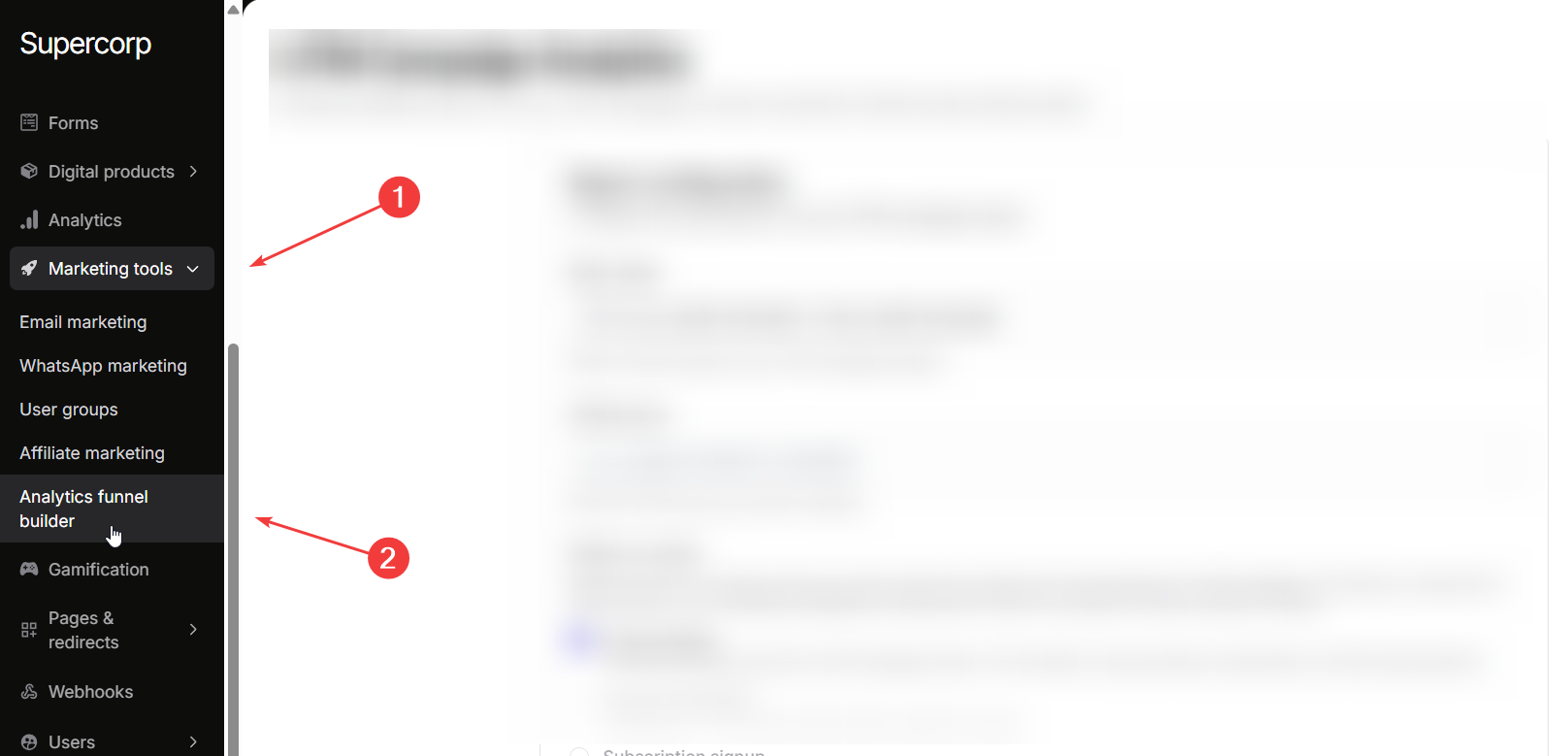
Within Marketing Tools, click on **Analytics funnel builder** to access your UTM campaign reporting features.
## Report configuration
Before generating a UTM campaign report, you need to configure several key parameters.
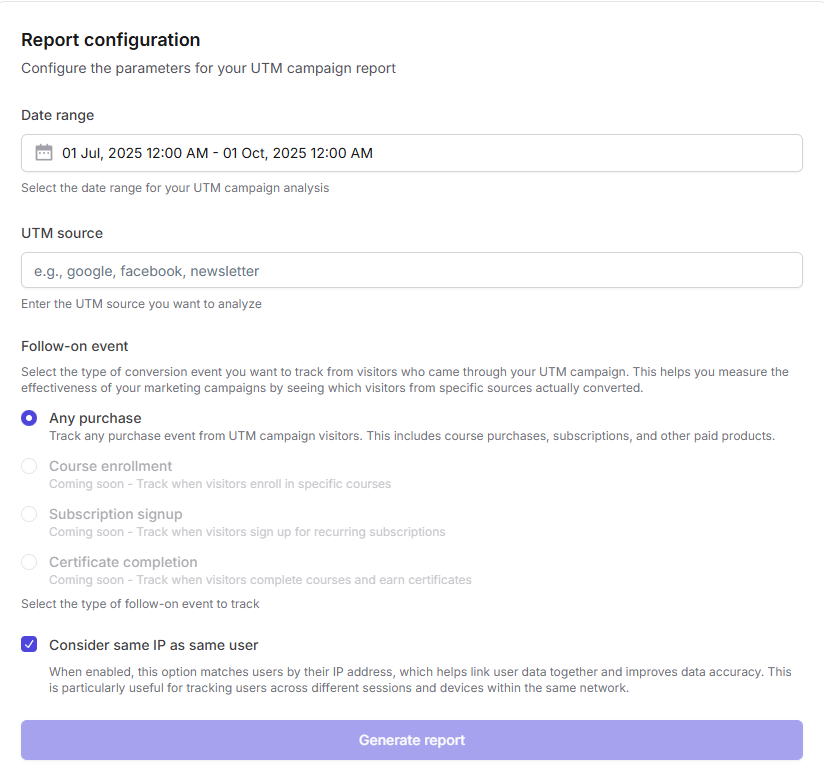
**Date range:** Choose the period for your analysis. This could be a week, a month, or a custom range, depending on your campaign goals. Setting the correct date range ensures your report focuses on the timeframe relevant to your campaign performance.
**UTM source:** Enter the UTM source you want to analyze, such as `google`, `facebook`, or `newsletter`. This allows you to segment traffic by source and understand which platforms are driving the most conversions.
**Follow-on event:** Select the type of conversion event you want to track for users coming from your UTM campaign. This measures the effectiveness of your marketing efforts by showing which visitors actually converted. Available follow-on events include:
* **Any purchase:** Tracks all purchase events, including [course](/setting-up-course/prerequisites) purchases, and other [digital product](/digital-products/introduction) sales.
**Consider same IP as same user:** Enable this option to match users by their IP address. This helps link multiple sessions and interactions to a single user, improving data accuracy. This is especially useful when users switch devices or sessions during the purchase journey.
Enabling IP matching can help reduce duplicate counts and provide a clearer picture of actual conversions.
***
## Generating your report
Once your parameters are configured, review your selections for date range, UTM source, follow-on event, and IP matching. Click **Generate report** to produce detailed analytics showing conversion funnels, purchase events, and key metrics from your UTM campaigns.
Suppose you ran a Facebook ad campaign promoting a new course. By selecting a 30-day date range, `facebook` as the UTM source, and **Any Purchase** as the follow-on event while enabling IP matching, you can track exactly how many visitors from Facebook ended up purchasing. This allows you to evaluate ROI and optimize future campaigns.