> ## Documentation Index
> Fetch the complete documentation index at: https://docs.fermion.app/llms.txt
> Use this file to discover all available pages before exploring further.
# Affiliate Payout Dashboard
> Learn how to view your affiliate earnings, request payouts, and manage your affiliate commission from the dedicated payout dashboard.
Users can see their accumulated affiliate commission amount in a dedicated dashboard from which they can request payouts directly to their bank account.
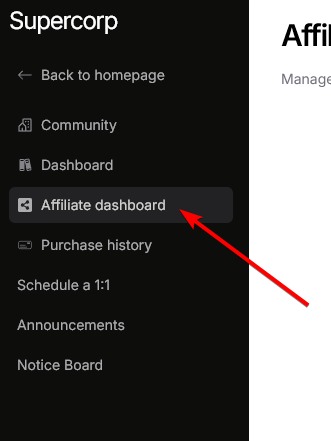
From your user dashboard, click on **Affiliate dashboard** to access your affiliate payout dashboard.
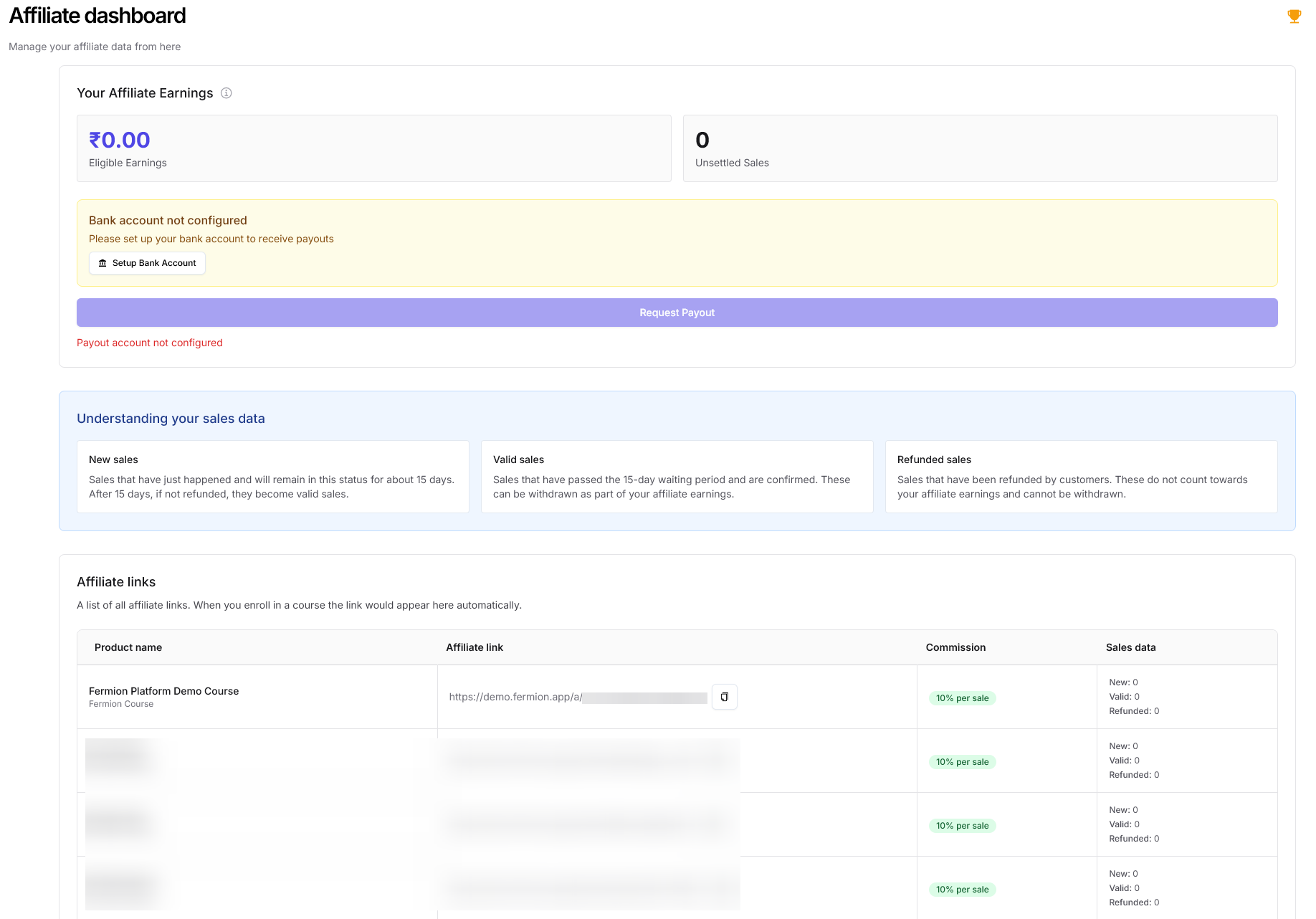
You will see a dashboard with the following sections:
**Earnings Section:**
* Shows total **Eligible Earnings** - the amount you can withdraw
* Shows total **Unsettled Sales** - sales that are still in the waiting period
**Bank Account Section:**
* If not configured, users are prompted to add their account details
* Users cannot request payouts without adding bank account details first
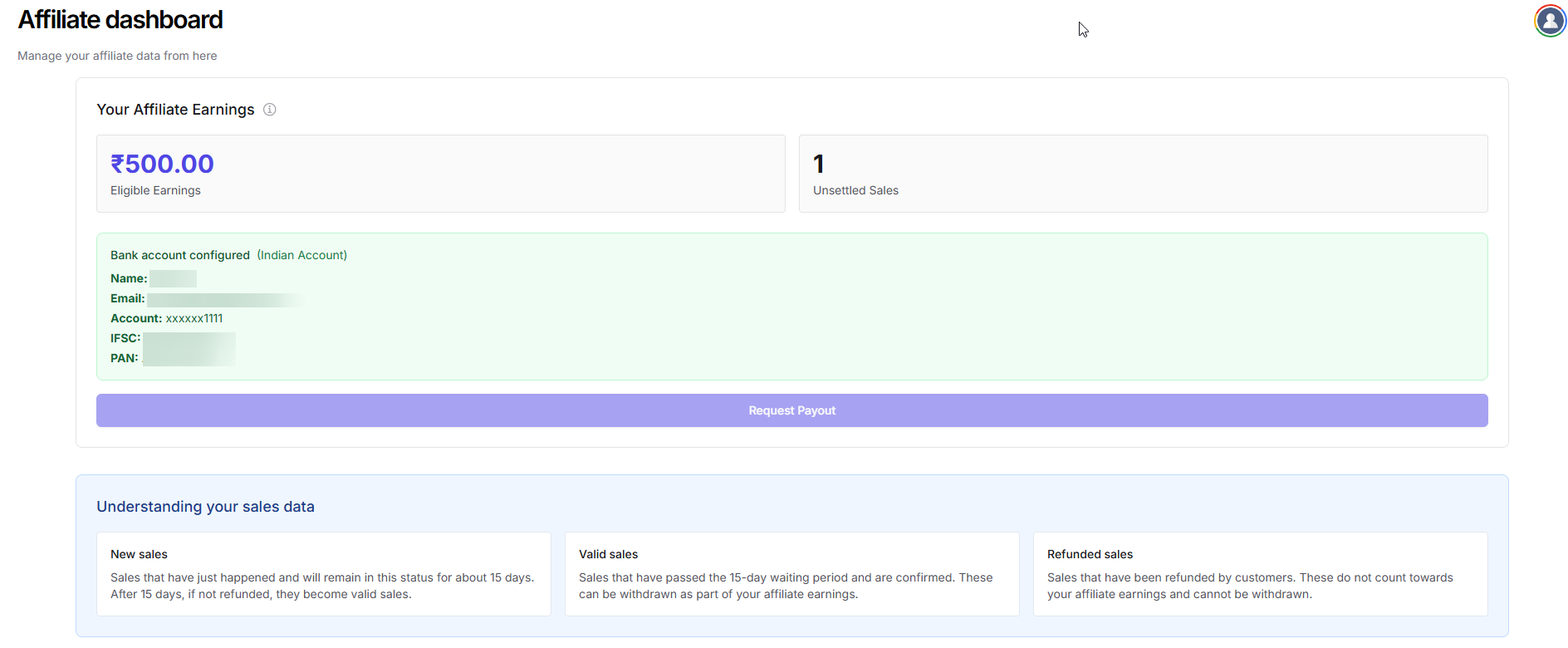
Once bank account details are added and users have some eligible amount, the same will be shown up on the dashboard:
* **Bank account configured** status is displayed with account type (e.g., Indian Account)
* Masked bank account details are shown (Name, Email, Account number, IFSC, PAN)
* **Request Payout** button becomes available when you have eligible earnings
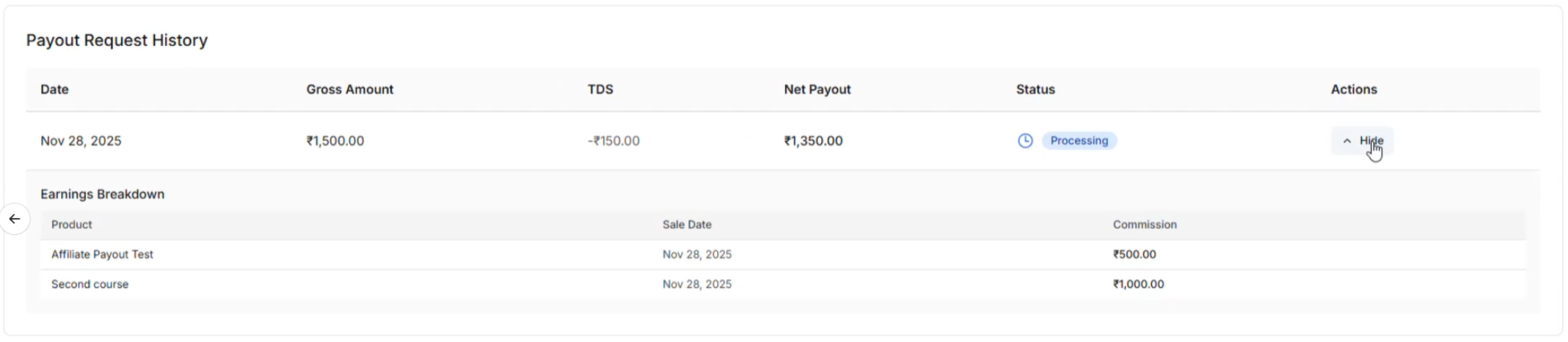
Once a user requests payout, the request is shown with a new section called **Payout Request History**:
The payout history table displays:
* **Date**: When the payout was requested
* **Gross Amount**: Total commission amount before deductions
* **TDS**: Tax Deducted at Source (if applicable)
* **Net Payout**: Final amount after TDS deduction
* **Status**: Current status of the payout (e.g., Processing, Completed)
* **Actions**: Options to view details or hide the earnings breakdown
You can expand each payout request to view the **Earnings Breakdown**, which shows:
* **Product**: Name of the course/product
* **Sale Date**: When the sale occurred
* **Commission**: Individual commission amount for each sale
## Understanding Your Sales Data
The dashboard includes an accordion section that explains different sales statuses:
* **New sales**: Sales that have just happened and will remain in this status for about 15 days. After 15 days, if not refunded, they become valid sales.
* **Valid sales**: Sales that have passed the 15-day waiting period and are confirmed. These can be withdrawn as part of your affiliate earnings.
* **Refunded sales**: Sales that have been refunded by customers. These do not count towards your affiliate earnings and cannot be withdrawn.
## Affiliate Links Section
The **Affiliate Links** section shows links of all the courses/products that you are eligible to generate affiliate links for. Each product has:
* A unique affiliate link that you can share
* Commission percentage for that product
* Real-time sales data (new, valid, and refunded sales)

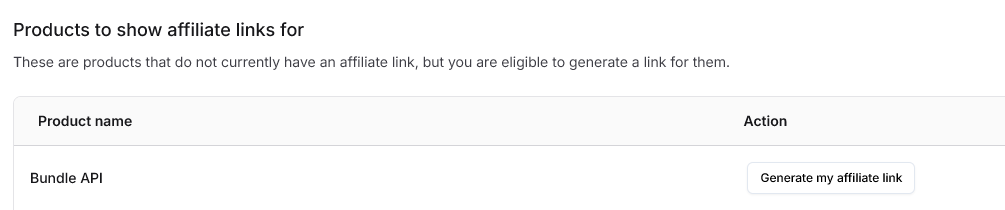
## Products to Show Affiliate Links For
If enabled by the instructor, the **Products to show affiliate links for** section allows you to generate affiliate links for products you are not enrolled in. This feature expands your ability to promote and earn commissions from a wider range of courses and digital products.
## Requesting a Payout
To request a payout:
1. Ensure your bank account is configured with all required details
2. Verify that you have eligible earnings (minimum ₹1000 for Indian accounts or \$150 for international accounts)
3. Click the **Request Payout** button
4. Your payout request will be processed and appear in the Payout Request History
Payouts are processed at most once per month. Make sure you have the minimum required balance before requesting a payout. If you're based outside of India, additional SWIFT bank transfer charges may apply.
For more information about affiliate marketing setup and configuration, see [Affiliate System](/marketing-tools/affiliate-marketing).