> ## Documentation Index
> Fetch the complete documentation index at: https://docs.fermion.app/llms.txt
> Use this file to discover all available pages before exploring further.
# Account Settings
> Learn how to manage your instructor account settings, including profile information, email, tagline, long description, and password.
Your instructor account settings allow you to manage how you appear across your courses and on your website. Keeping your profile up-to-date helps students recognize you easily and builds credibility. In this section, you can update your name, profile photo, tagline, long description, and email. Each change ensures that your presence is consistent and professional throughout the platform.
## Access account settings
You can access the account settings with the help of the following steps:
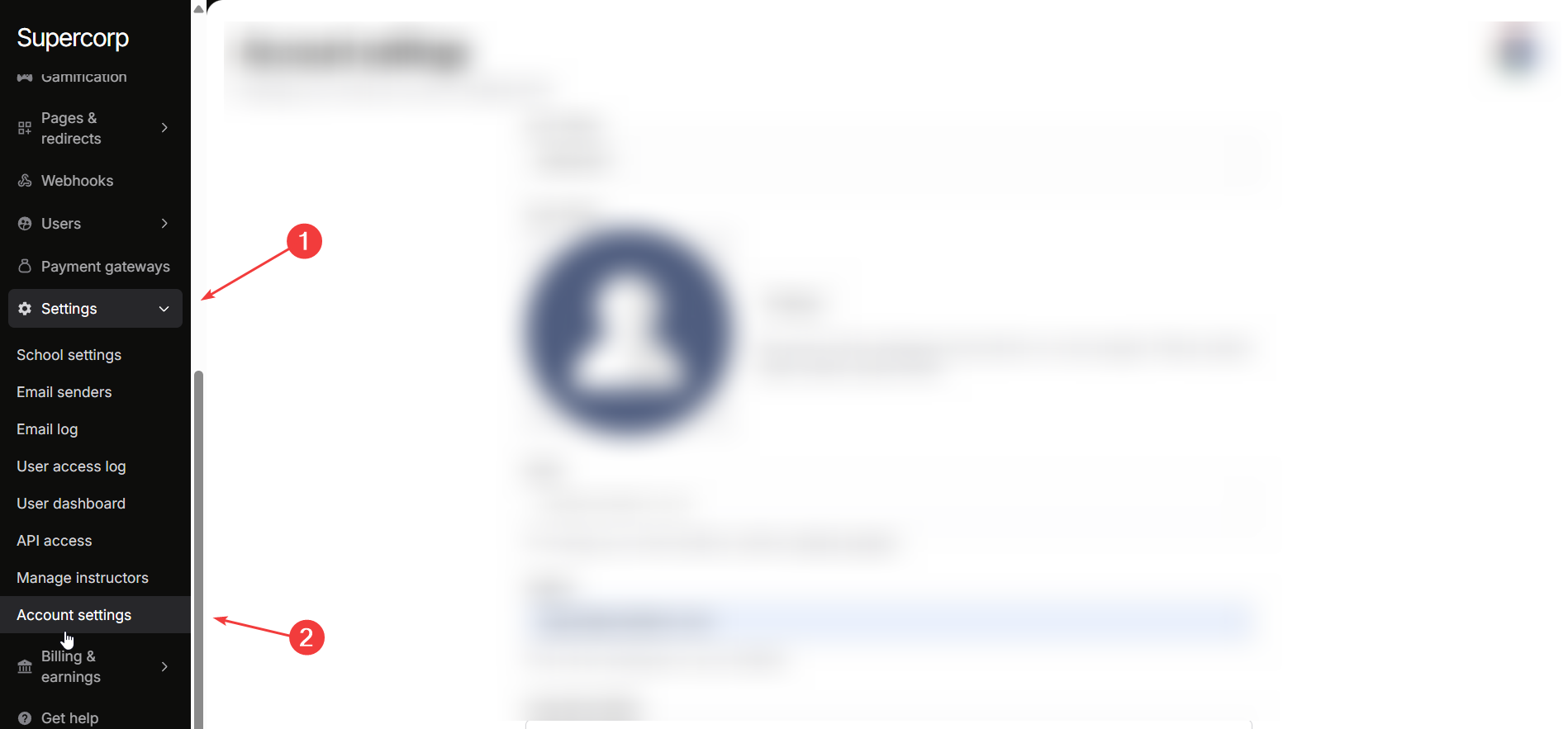
To start updating your account, go to your **Instructor Dashboard** sidebar and click **Settings → Account Settings**. This will open your account management page where all editable fields are displayed.
Your **display name** and **profile photo** are key elements of your identity on the platform.
* **Your Name:** Update the name that will appear on your course pages and website. Use your full name or the name you prefer students to see.
* **Profile Photo:** Click **Change** to upload a high-quality square photo. This photo will appear on all your course pages and is important for recognition and branding.
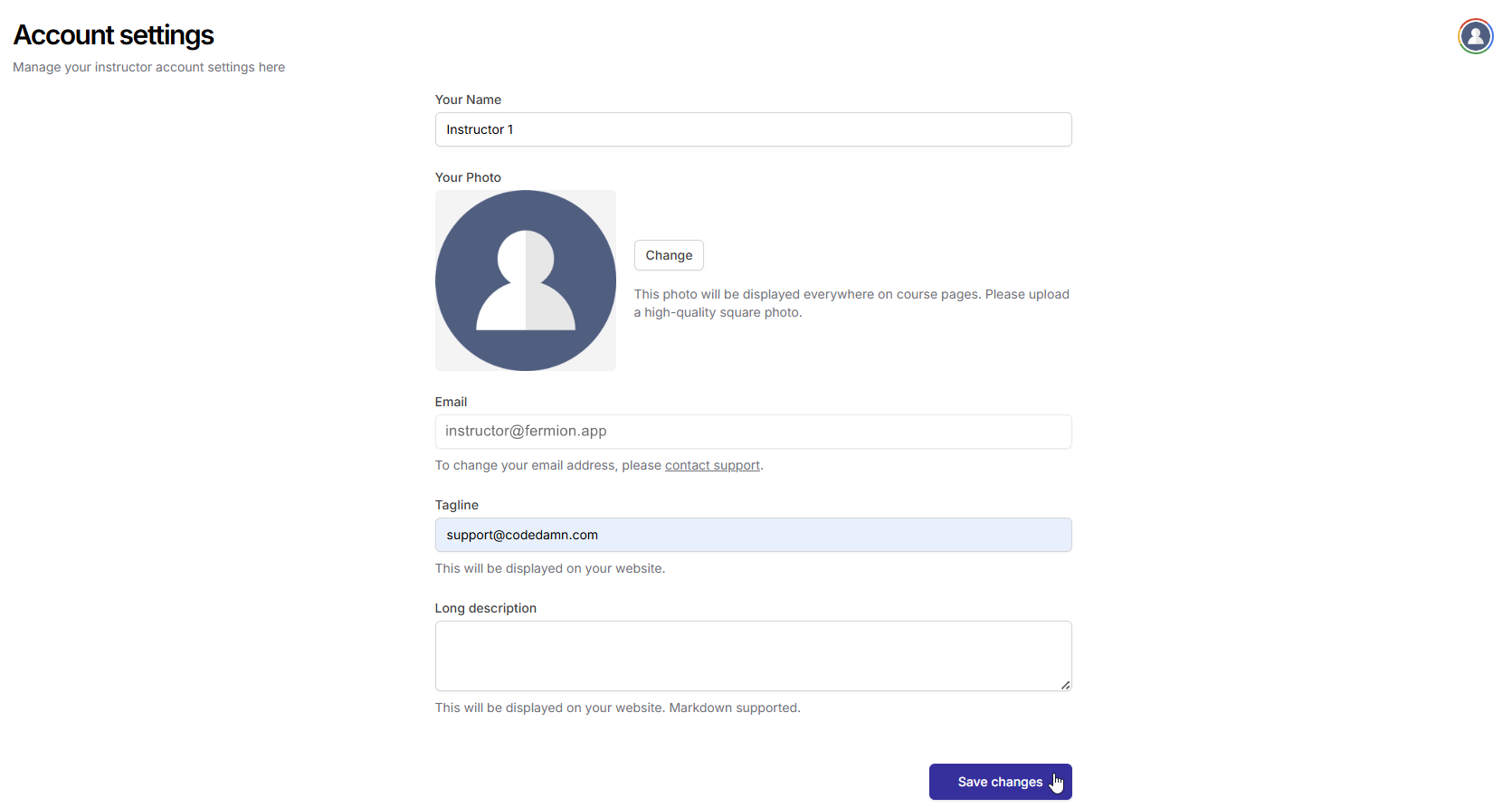
Your **tagline** and **long description** help students understand who you are and what you teach.
* **Tagline:** Add a short, descriptive tagline that summarizes your teaching style or expertise. This will appear on your website.
* **Long Description:** Provide a detailed description of yourself, your experience, and the courses you teach. You can format this text using Markdown for better readability.
Your email is crucial for notifications and account security. To ensure your email address is correctly updated, you will need assistance from our support team.
* To change your email, contact **[support@codedamn.com](mailto:support@codedamn.com)**.
## Update password
Passwords protect your account and all associated course content. Updating your password regularly is a good security practice, especially if you suspect your account credentials may be compromised. This section allows you to securely set a new password while keeping your account protected.
Scroll down to the **Update password** section within **Account Settings**. This is separate from your profile information to emphasize security.
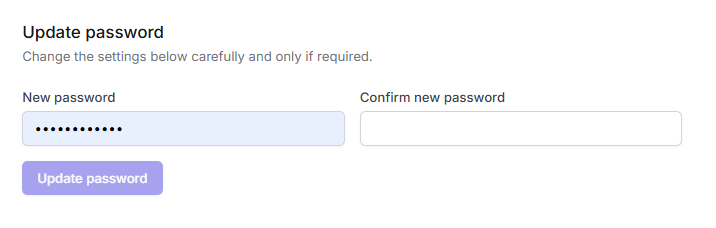
* Enter your **New password** in the first field.
* Confirm your new password in the **Confirm new password** field to avoid typing errors.
After entering your new password, click **Update password** to apply the changes. Make sure your new password is strong and not used elsewhere for better security.
Now your account details are updated across your school!