> ## Documentation Index
> Fetch the complete documentation index at: https://docs.fermion.app/llms.txt
> Use this file to discover all available pages before exploring further.
# User Access Log
> Monitor all logged-in sessions in your school, view detailed session information, and maintain account security.
The **User Access Log** feature allows instructors to monitor all active and past sessions in their school. You can see when users have logged in, their device details, IP addresses, and other session-specific information. Monitoring user sessions helps ensure account security, detect unauthorized access, and maintain oversight of student activity.
## Why user access logs are important
User access logs provide instructors with complete visibility into all user sessions, including login times, IP addresses, and device details. This not only helps identify suspicious activity and troubleshoot login issues but also ensures that the real user is accessing the platform, preventing account sharing or impersonation. This contributes to maintaining a secure and trustworthy learning environment for all students.
If you have enabled a **[maximum device login limit](/manage-settings/change-school-settings#security)** of more than two, users will be able to login with the help of multiple devices and all of those sessions will be logged in this section.
## How to view user access log
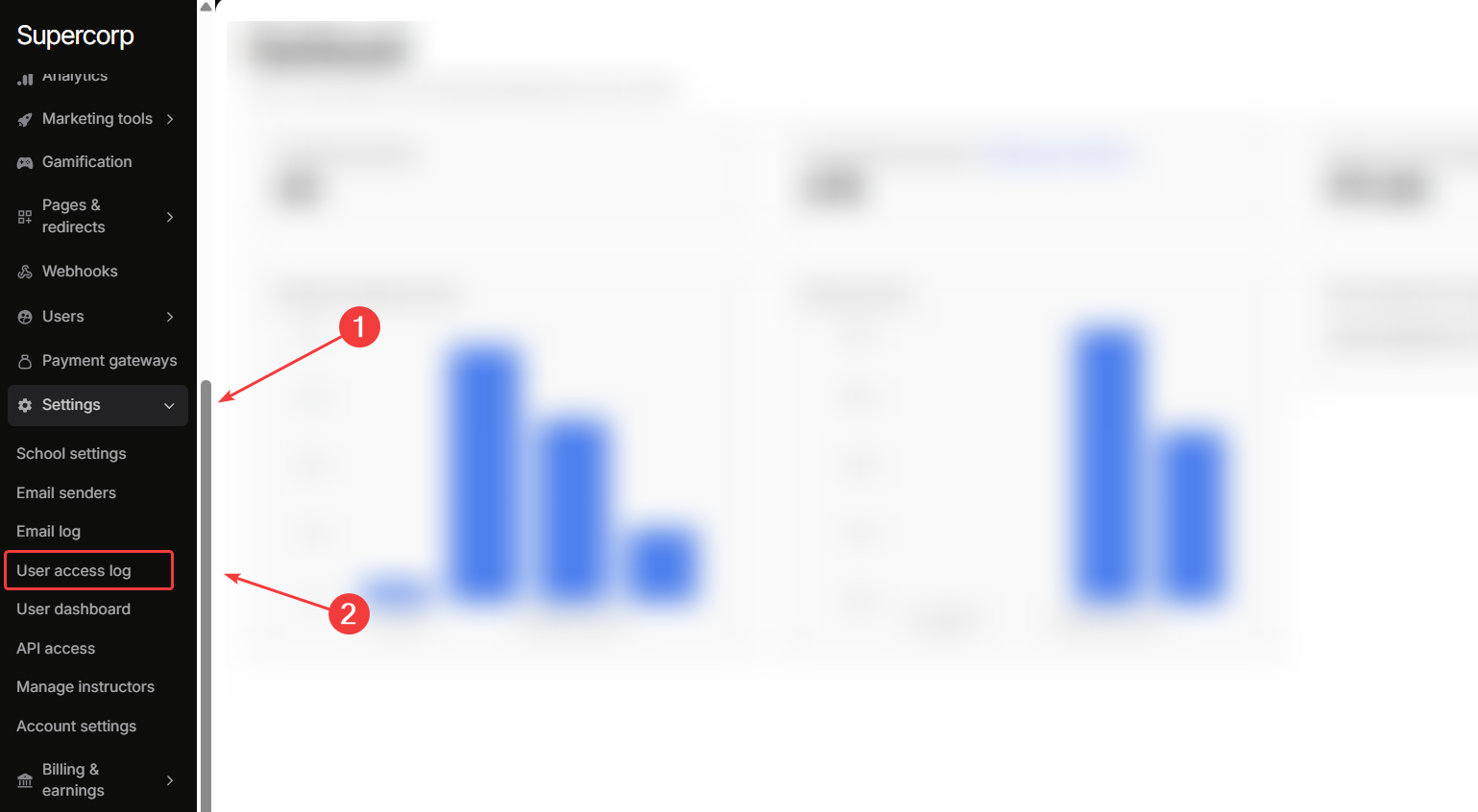
Navigate to your **Instructor Dashboard**. In the sidebar, click **Settings** → **User access log**.
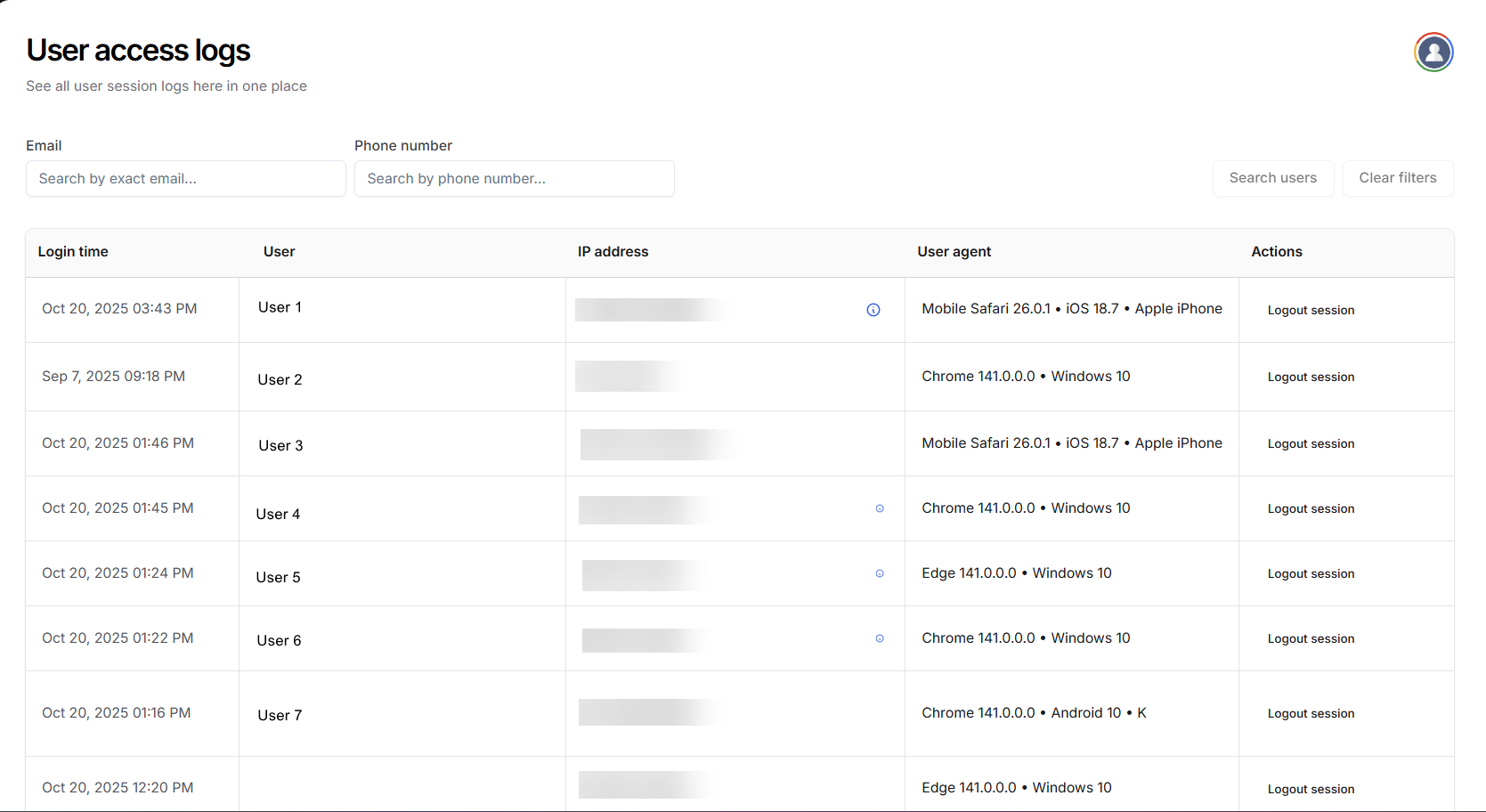
This will display a table with all active and past sessions, including:
* **Login Time**: When the user logged into your school
* **User**: The name and email of the user
* **IP Address**: IP Address of the device used to log-in to your school
* **User Agent**: Details of the browser and device OS used to log-in to your school
* **Logout Action**: Instructors can logout a particular session/user from this dashboard.

To see more information about a particular user, click the **ℹ (info) button** next to their IP Address.
The detailed information about the user's IP Address includes:
* **IP Address**
* **Country**
* **Region**
* **City**
* **ZIP Code**
* **Timezone**
* **Coordinates**
* **ISP**
* **Organization (of ISP)**
* **AS (Autonomous System) Number**
This allows instructors to track all the logged in sessions, log out suspicious sessions immediately and maintain a secure learning environment for all users.
## Next steps
Control the features available to your instructors and students in your school.
Gain insights into your school’s analytics and track feature usage.