> ## Documentation Index
> Fetch the complete documentation index at: https://docs.fermion.app/llms.txt
> Use this file to discover all available pages before exploring further.
# Login, Security and Support
> Manage login, security, and support configurations for your school
The **School Settings** page lets administrators control how users log in, how secure sessions are managed, and which contact information is shown for support. These settings help maintain a secure experience across your school, both for the instructor and student.
***
## Login Options
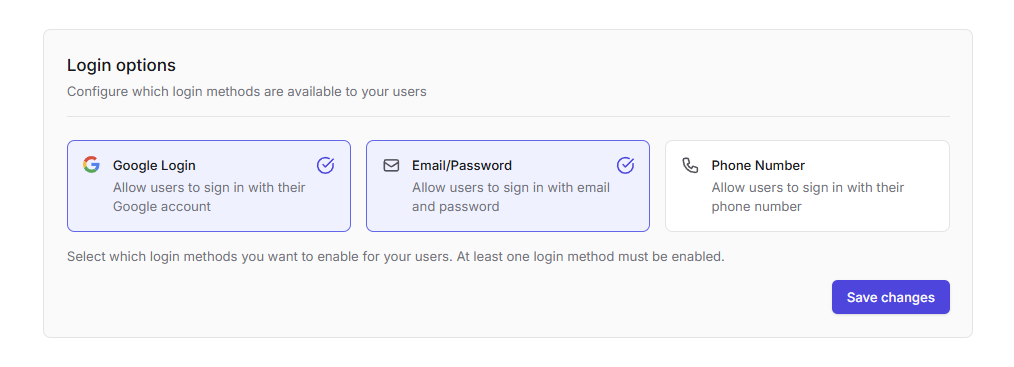
Manage which authentication methods are available for your users.
### Available methods
* **Google login**: Allow users to sign in with their Google accounts.
* **Email/Password**: Standard authentication via email and password.
* **Phone number (OTP)**: Let users log in with a one-time password sent to their phone.
Administrators can enable one or more methods depending on their school’s accessibility and security needs.
At least **one login method** must remain enabled for users to access their accounts. Enabling
multiple methods can improve accessibility and convenience for your learners.
***
## Security
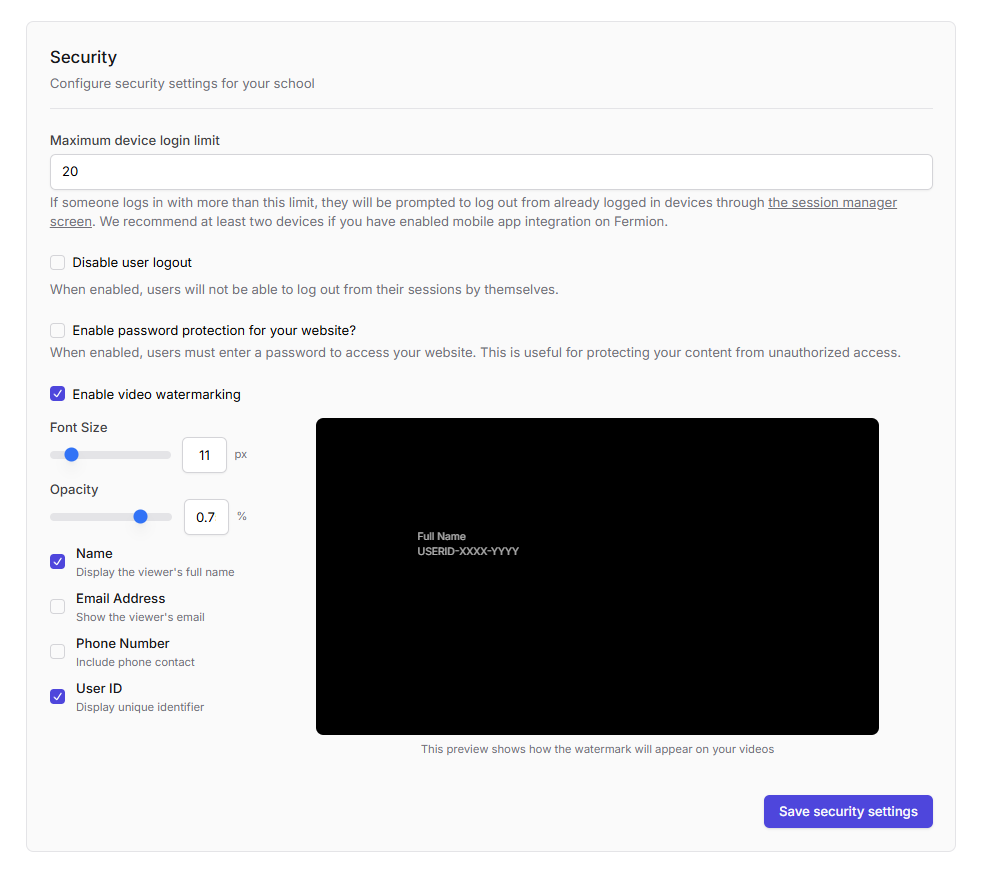
Control security behavior for your school, including session restrictions, logout behavior, and [video watermarking](/live-classes/drm-and-watermarking#video-watermarking).
### Device login limit
Limit the number of devices a user can stay logged in on simultaneously.
* **Maximum device login limit**: Set how many active devices a single user can have at once. If this limit is exceeded, the user will be will be prompted to log out from already logged in devices through the session manager screen.
If your users commonly access your school on both mobile and desktop, we recommend setting this
value to at least **two devices**.
***
### Session and Access Controls
Manage how users interact with sessions and password-protected sites.
* **Disable user logout**: Prevents users from logging out on their own. This can be useful in controlled environments.
If this option is enabled, you must manually log out users through the **User Access Logs**
section. See [User Access Logs](/manage-settings/user-access-logs) for details.
* **Enable password protection for your website**: Temporarily restrict access to your site by setting a global password. See [Password Protection](/manage-settings/password-protect) for details.
***
### Video Watermarking
Overlay user identifiers during video playback to prevent content misuse and identify unauthorized sharing.
**Watermark configuration:**
* **Font size (px)**: Adjust text size for readability.
* **Opacity (%)**: Control how transparent the watermark appears.
* **Display options**: Choose which identifiers to show:
* Name
* Email
* Phone number
* User ID
Multiple identifiers can be combined in a single watermark for enhanced traceability.
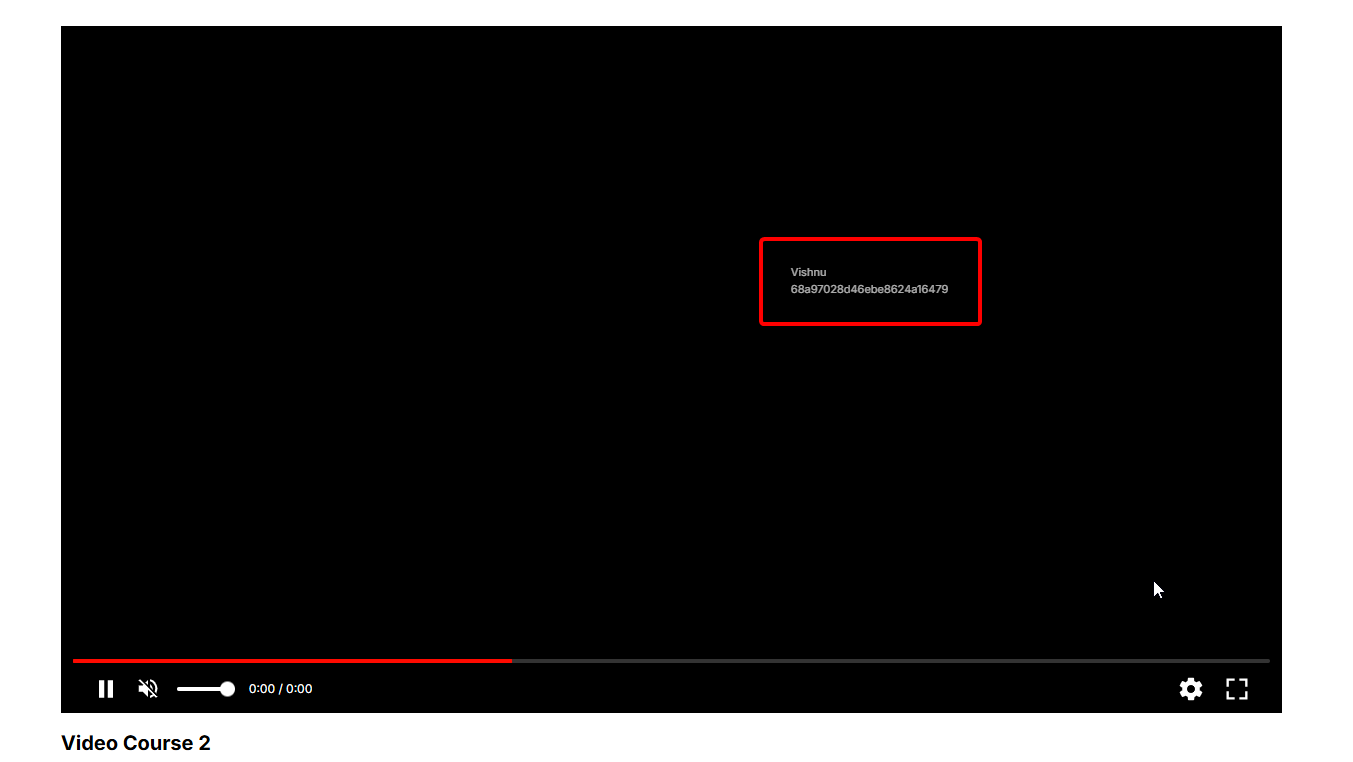
Learn more about [Video Watermarking](/live-classes/drm-and-watermarking#video-watermarking).
***
## Support Email
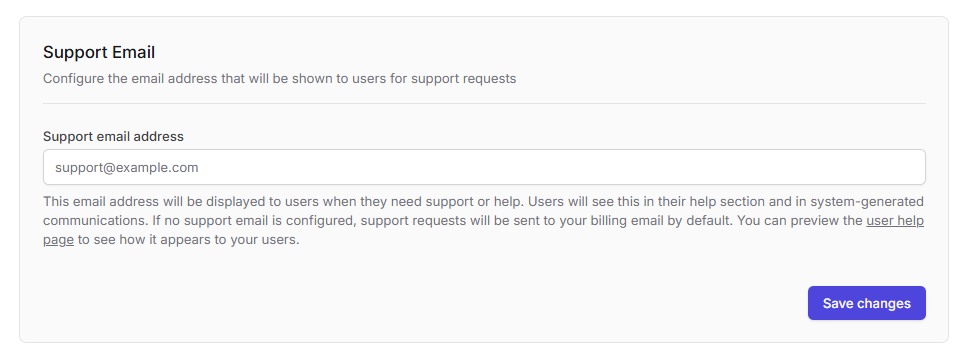
Specify the contact email address displayed to users for help or technical assistance.
### Configure your support email
* **Support email address**: Displayed in user help pages and in automated communication (e.g., password resets or notifications).
* Click **Save changes** after updating your address to apply changes across your school.
You can also **preview the user help page** to see how this contact information is displayed to learners.
If a support email is not configured, all user support requests are automatically redirected to
your **billing email** by default.
***
## Best Practices
* Always enable at least one **secure authentication method** (Google or Email/Password).
* Use **device limits** and **session controls** to prevent account sharing.
* Configure **video watermarking** for courses containing proprietary or paid video content.
* Maintain an up-to-date **support email** to ensure your learners can reach you easily.
***