> ## Documentation Index
> Fetch the complete documentation index at: https://docs.fermion.app/llms.txt
> Use this file to discover all available pages before exploring further.
# Manage Users
> View user profiles, manage enrollments, change account details, and enroll users in products.
You can manage all your school's users by navigating to **Instructor dashboard ⟶ Users ⟶ All users**.
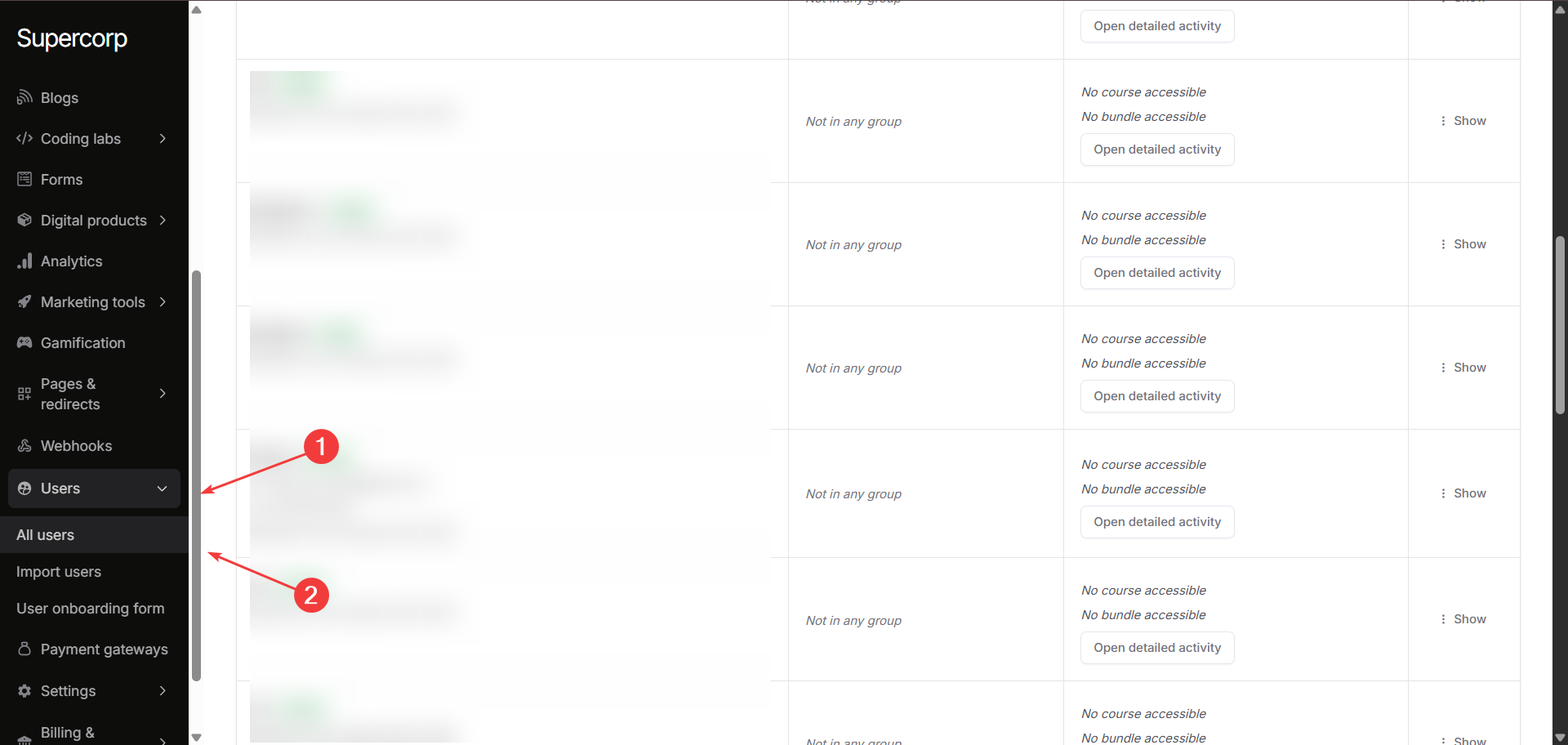
This page lets you search and select any registered user via name, email and mobile number.
## What you can do on the user management page
For each user profile, you can:
* **View basic data**: See name, e-mail, join date, groups, and activity.
* **Actions** (For each user, you can):
* Change the user's email address
* Reset/change their password
* Generate a one-time login link (so they can access their account instantly)
* Delete the user and remove all their data
## Enrollments and Product Access
Clicking on the `Open detailed activity` button next to a user opens a detailed profile, as shown below.
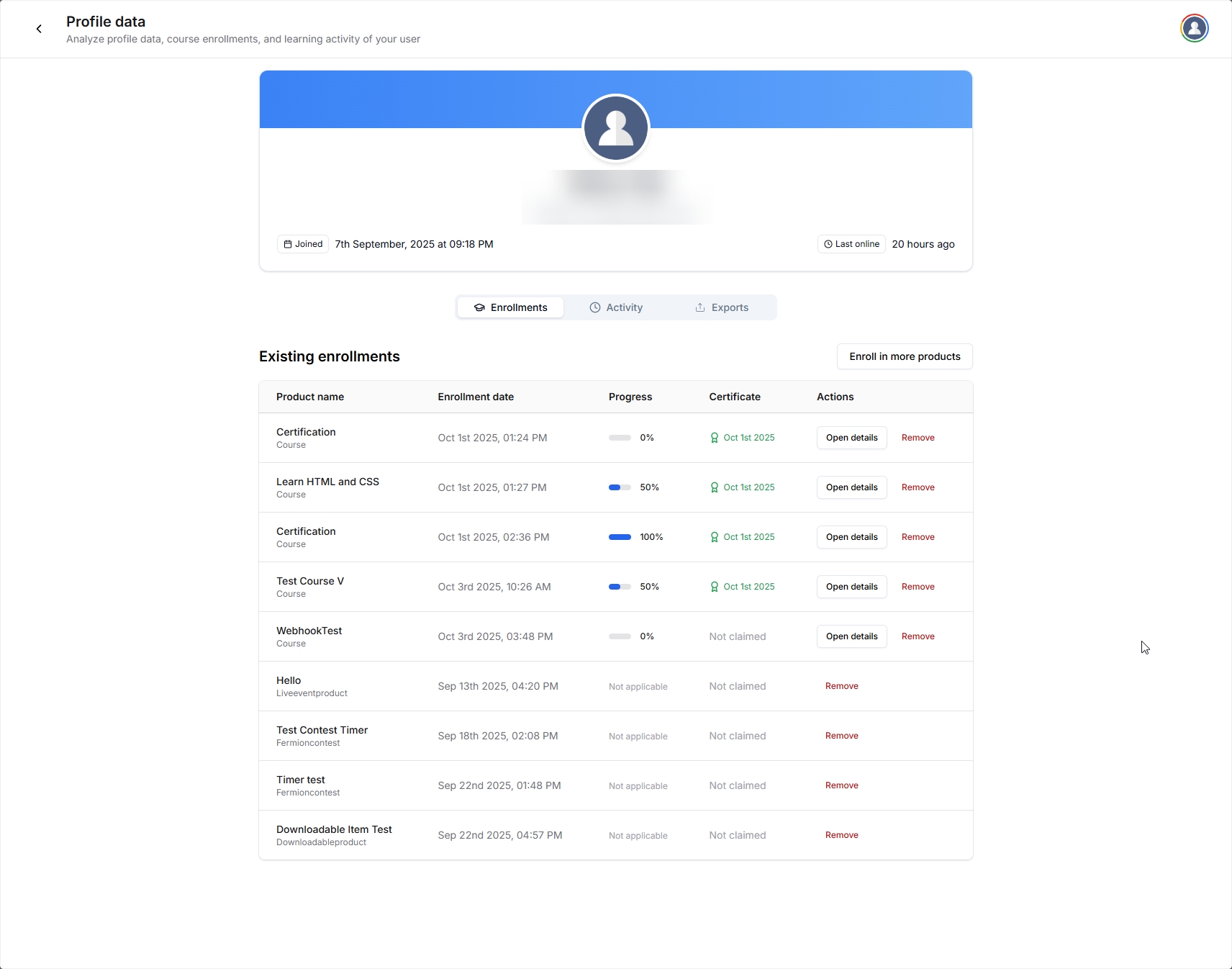
Within the user's profile view, you'll see tabs for **Enrollments**, **Activity**, and **Exports**.
* The **Enrollments** tab shows all courses, bundles, events, or products that the user currently has access to.
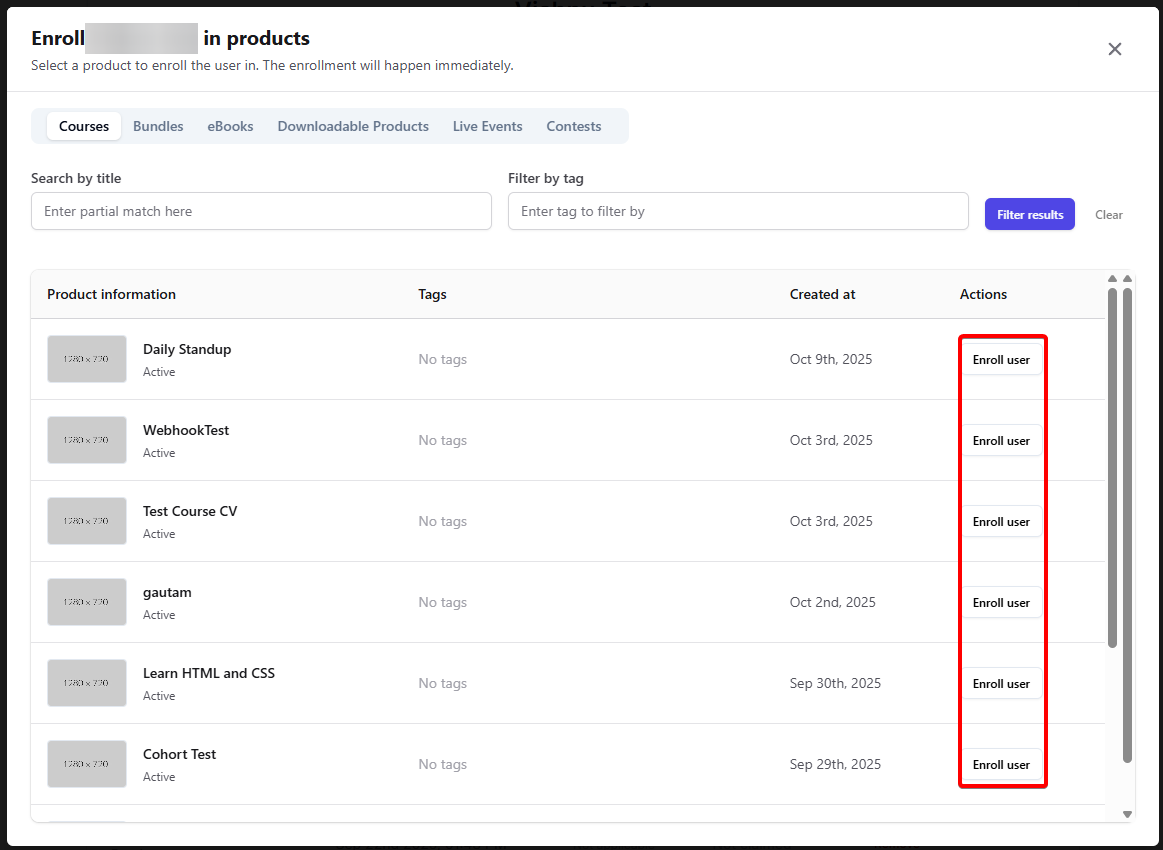
To manually enroll a user in a product (such as a course, bundle, or digital product), simply select `Enroll in more products`, then choose the desired items. This allows you to give access even for users who joined via custom payments or special cases.
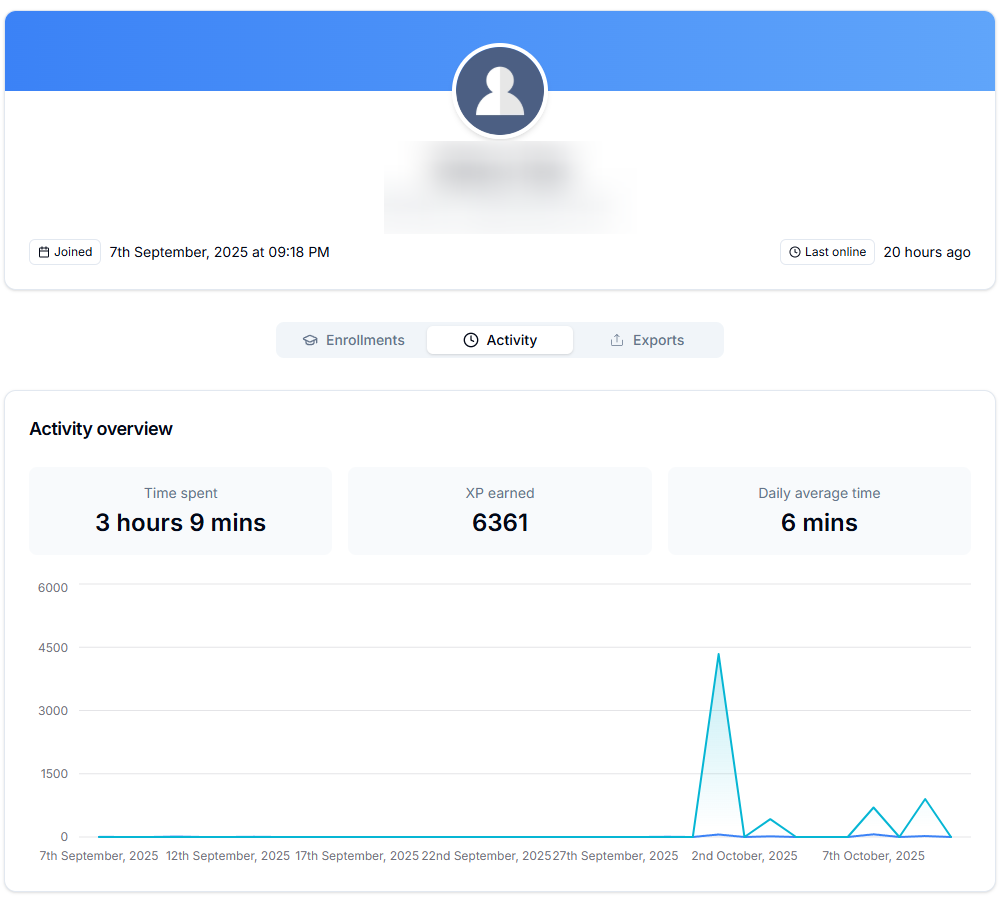
* The **Activity** tab shows user activity such as:total time spent in the school, XP earned and Daily average minutes.
* The **Exports** tab lets you export all of this users' [Contest](/contests/introduction) submissions.
This page ensures you have full control over user accounts and enrollments, making it easy to update info, support users, and handle special cases.
If you need to adjust instructor privileges, see [Manage instructors](/manage-settings/manage-instructors).
## User actions
User Actions allow you to directly manage individual user accounts from the **All users** section in your dashboard. These actions help you make quick updates or administrative changes without navigating away from the page.
#### How to access user actions
Navigate to **Users** ⟶ **All users** section in your instructor dashboard sidebar.

Find the user whose details or credentials you want to modify.
Click the **three dots (⋮)** button under the **Actions** column next to the user’s name.
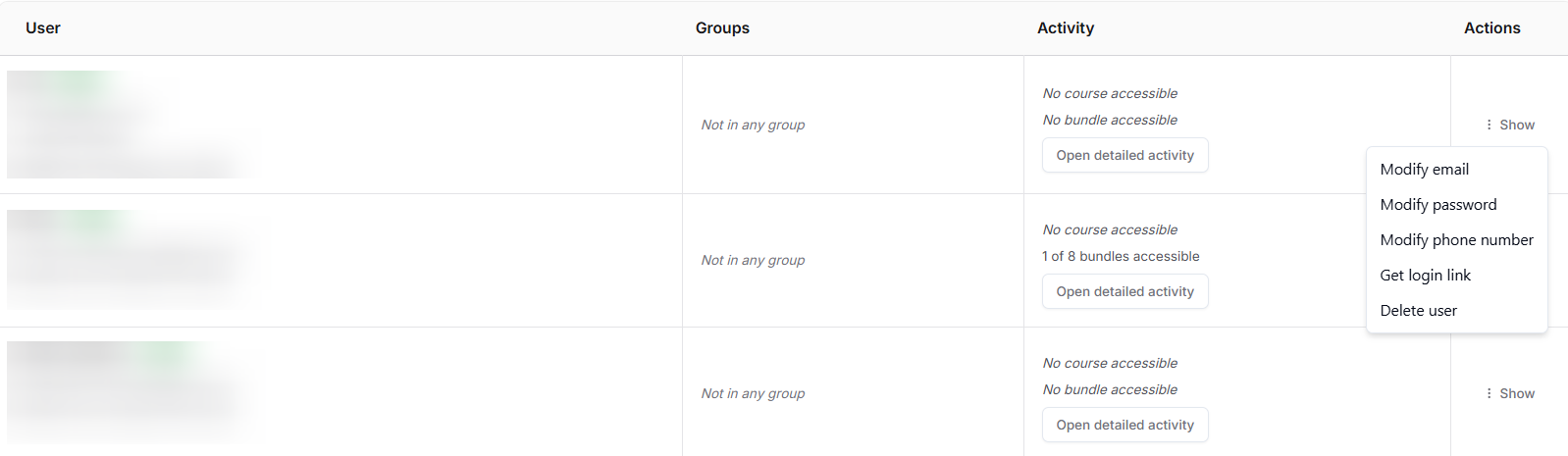
Choose the desired action from the dropdown menu.
#### What can you do with user actions?
From the **User Actions** menu, you can perform the following operations:
* **Modify email**: Update the user’s registered email address.
* **Modify password**: Reset or change the user’s account password.
* **Modify phone number**: Edit or update the user’s contact number.
* **Get login link**: Generate a one-time login link to access the user’s account (useful for troubleshooting or verification).
Handle this carefully since anyone with this link would be able to get access to user account. The link expires after first use.
* **Delete user**: Permanently remove the user from your system.