> ## Documentation Index
> Fetch the complete documentation index at: https://docs.fermion.app/llms.txt
> Use this file to discover all available pages before exploring further.
# Livestreaming & Recorded Video Settings
> Configure live session recording, playback behavior, and AI transcription for your school.
These settings let you control how your live sessions and uploaded videos are processed, recorded, and displayed to users.\
You can define default behaviors for **live broadcasts**, **recorded videos**, and **AI-powered transcription**.
***
## Livestreaming Settings
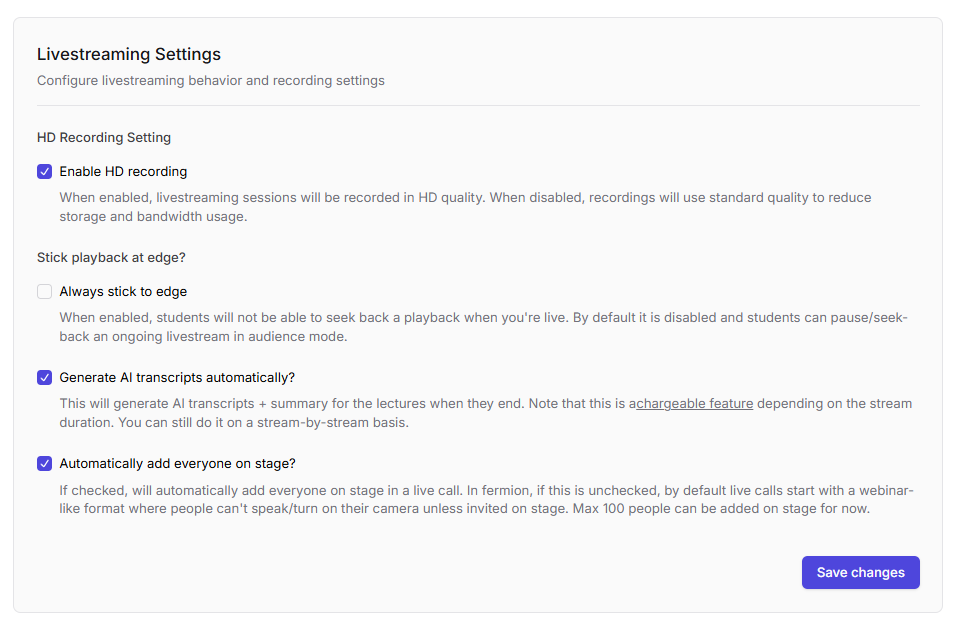
Configure how [livestreaming sessions](/live-classes/what-are-live-classes) are [recorded](/live-classes/recording-and-captions) and displayed to your learners.
### Available options
* **Enable HD recording**\
Record live sessions in **high-definition quality**. Disabling this option will save bandwidth and storage but reduce video clarity.
HD recordings consume more bandwidth and may increase processing time for large sessions.
* **Always stick to edge**\
Prevent students from seeking backward during a live stream. When this option is disabled (default), viewers can freely rewind or jump forward in the live timeline.
This feature is ideal for **real-time interactive classes** where you want everyone to stay synchronized with the instructor.
* **Generate AI transcripts automatically**\
Automatically generate **[AI-powered transcripts](/live-classes/recording-and-captions)** once a livestream ends. This feature helps students review session content easily and improves accessibility.
This is a **chargeable feature**. Refer to the [Fermion pricing](https://fermion.app/pricing) page for details.
You can also enable this setting on a **per-stream basis** inside [Courses](/setting-up-course/prerequisites) → **Live Events** → **Edit Session**.
* **Automatically add everyone on stage**\
Start live calls with all participants already on [stage](/live-classes/invite-to-stage). By default, live sessions begin in a webinar-style mode where attendees must be invited to turn on their mic or camera.
Use this setting for **interactive classrooms or group discussions** where everyone should have speaking privileges from the start.
***
## Recorded Video Settings
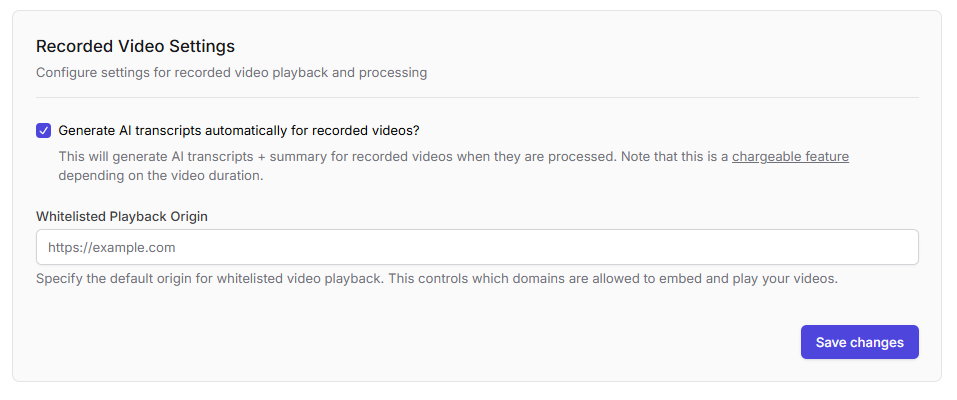
Customize playback, access, and AI transcript behavior for your uploaded or recorded videos.
### Available options
* **Generate AI transcripts automatically**\
Automatically create [transcripts and captions](/recorded-videos/captions) for recorded videos.
This is a **chargeable feature**. Learn more at [Fermion pricing](https://fermion.app/pricing).
* **Whitelisted playback origin**\
Restrict video embedding and playback to specific authorized domains (e.g., `https://example.com`). This prevents unauthorized sharing or embedding of your videos on other websites.
If your school website is hosted at `https://myschool.fermion.app`, you can add that domain to ensure playback only works there.
***
## Best Practices
* Enable **AI transcription** for accessibility and quick post-class content review.
* Use **“Always stick to edge”** for synchronous teaching formats (e.g., live lectures, webinars).
* Limit **whitelisted playback origins** to prevent content piracy.
* For courses with multiple instructors, use **“Automatically add everyone on stage”** to reduce session setup time.
***