> ## Documentation Index
> Fetch the complete documentation index at: https://docs.fermion.app/llms.txt
> Use this file to discover all available pages before exploring further.
# Configure and Access Basic School Settings
> Learn how to configure your school’s branding, login options, security, and other administrative settings.
You can manage your school’s metadata, branding, login preferences, and security settings from the **School Settings** section. You can use this area to personalize your institution’s identity, control how users log in, and fine-tune advanced configurations.
***
### Accessing school settings
To open the **School Settings** page:
Log in to your instructor account and navigate to your **Dashboard**.
In the sidebar, click **Settings** to expand the available configuration options.
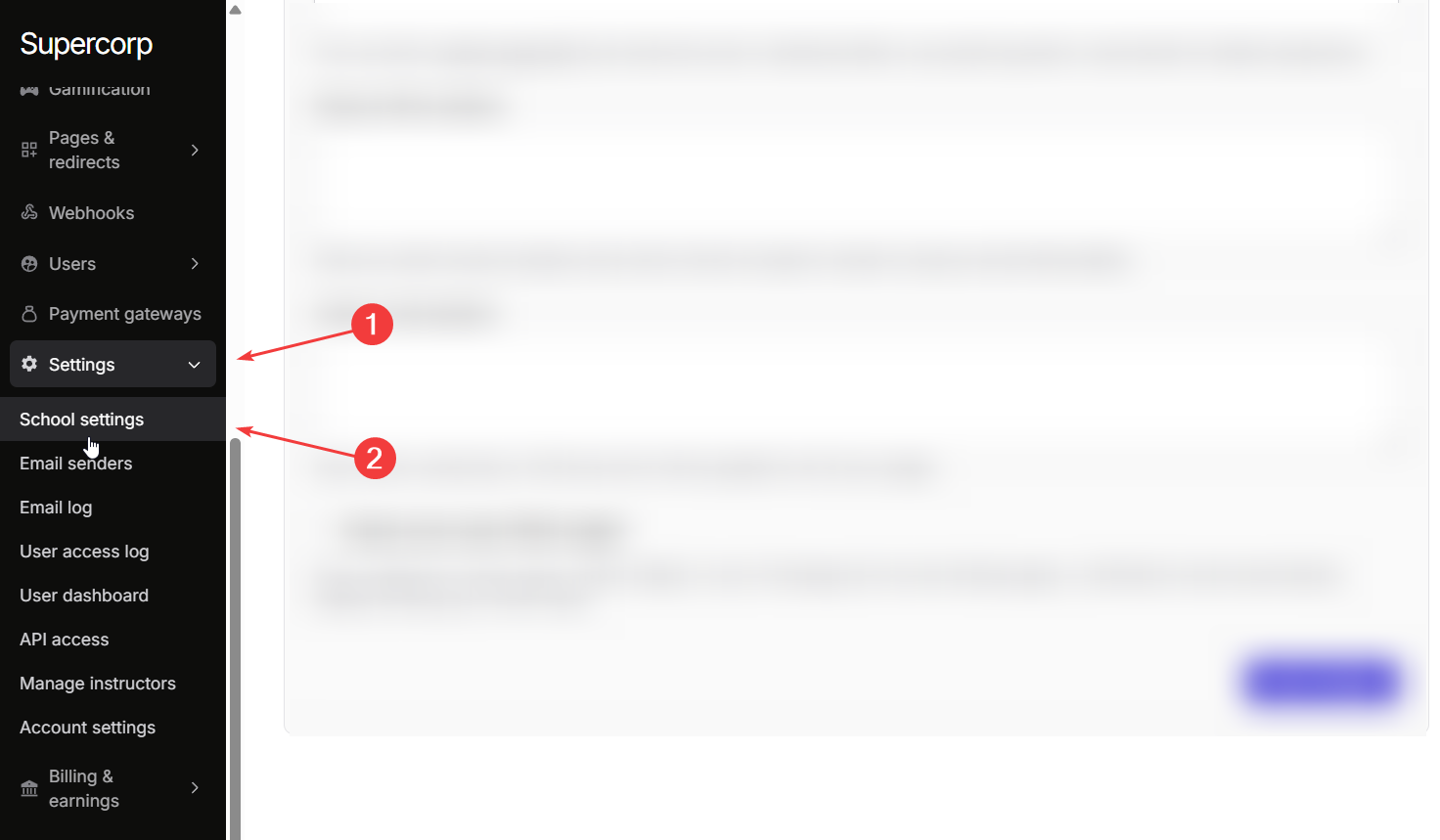
Click **School Settings** to open the full configuration panel where you can customize your school’s information, branding, and other options.
***
## Basic Information & Branding
Configure your school’s core details, website metadata, and visual identity.
If you need to change your school’s URL, please contact [support@codedamn.com](mailto:support@codedamn.com). School URLs cannot be changed manually.
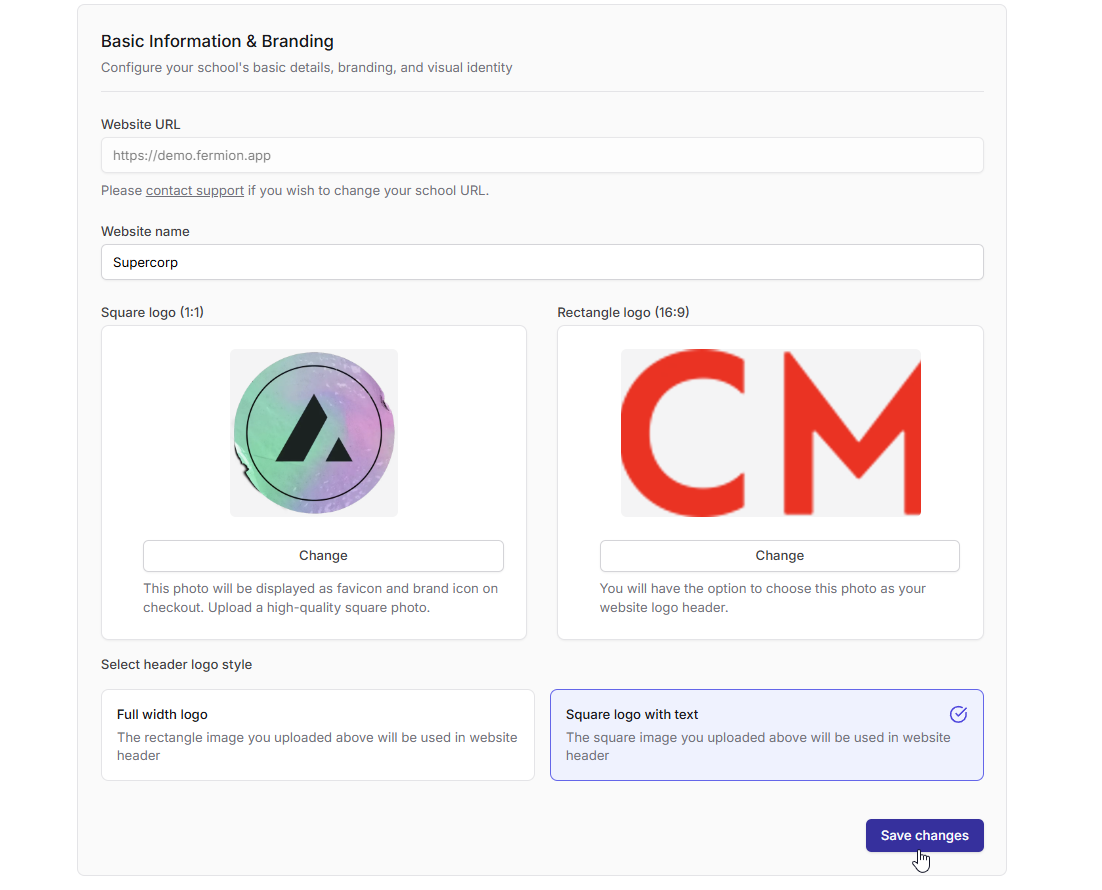
You can change the following details of your school here
* **Website URL**: Displays your current school URL (e.g., `https://demo.fermion.app`).
* **Website name**: Set the public display name for your school.
* **Square logo (1:1)**: Used as your favicon and brand icon on checkout.
* **Rectangle logo (16:9)**: Appears as your website’s header logo.
* **Header logo style**: Select the style of logo you wish to display on the **header**
* **Full width logo**: Uses the rectangle image as your header logo.
* **Square logo with text**: Uses the square image along with your site title.
Click on **Save changes** to publish your updates in your school branding.
***
## School Settings Overview
You can also configure the following settings from the same section. Learn more about these settings by clicking on the respective card.
Manage authentication, social logins, password policies, and access control to ensure your school’s platform is secure for both learners and instructors.
Configure your live class and recorded video preferences, including playback quality for smooth content delivery.
Manage your Terms of Service and Privacy Policy documents to define user rights, responsibilities, and compliance requirements for your school.
Customize advanced options like payment redirects, physical address display, code injection, and FOMO widgets to enhance your school’s functionality and brand experience.