> ## Documentation Index
> Fetch the complete documentation index at: https://docs.fermion.app/llms.txt
> Use this file to discover all available pages before exploring further.
# 1:1 Calls
> Set up and host one-on-one video calls with learners directly from your instructor dashboard.
1:1 Calls on Fermion allow instructors to connect privately with learners for personalized sessions such as mentorship, doubt-clearing, or performance reviews. These calls use the same reliable streaming infrastructure as [live classes](/live-classes/what-are-live-classes) but are designed for focused, one-on-one interaction. You can use them for office hours, feedback sessions, or quick catch-ups with students.
## How to start a 1:1 call
You can start 1:1 calls with your leaners with the help of the following steps:
Go to the **Manage Features** section and enable **1:1 Calls** for your school. Learn how to
enable features [here](/manage-settings/manage-features).
From your instructor dashboard sidebar, select **Live Classes**, then click on **1:1 Calls**.
Once there, click **Create new 1:1 call** to begin setting up your session.
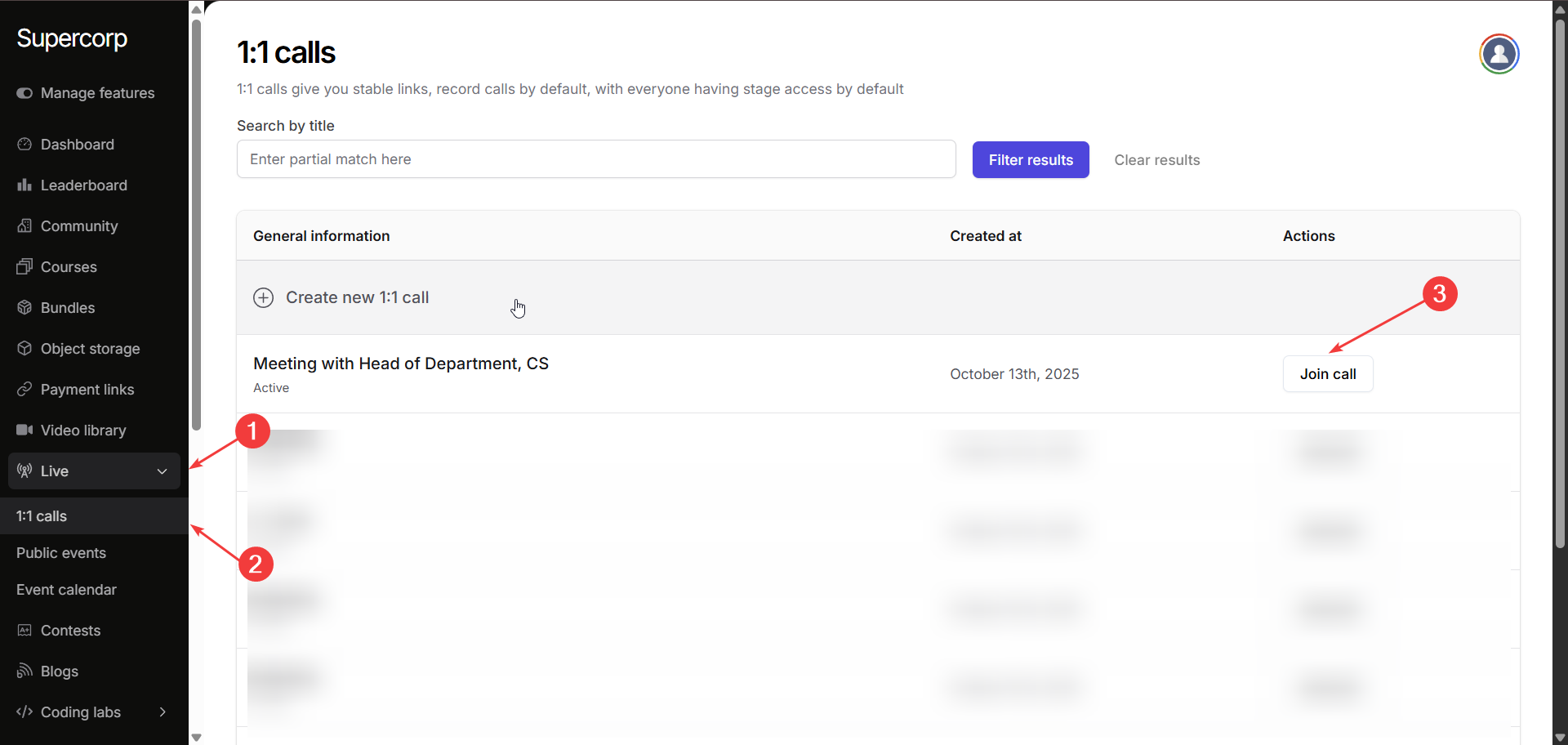
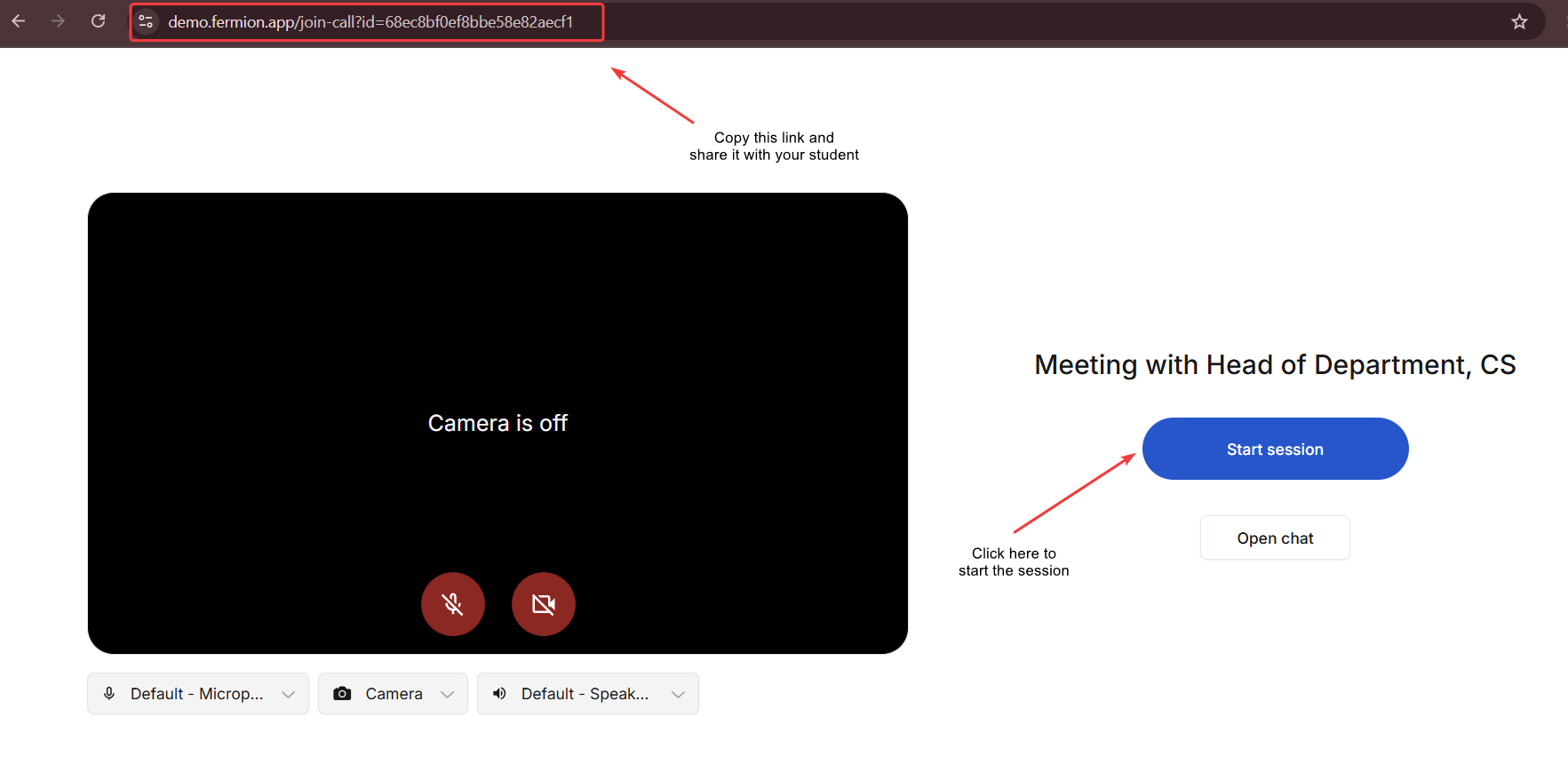
After creating the session, click **Join call** to enter the 1:1 room. You can now start the
session and share the invite link with your student directly. To invite a learner, simply **copy
the call link from your browser’s URL bar** and send it to them.
Here you have it! Your **1:1 Call** is now live and can be shared with learners using the generated invite link. Instructors can begin the session immediately and manage it just like a regular live class.
***
## Explore 1:1 call features
1:1 Calls come equipped with all the essential tools you’re familiar with from live classes, including [**screen sharing**](/live-classes/invite-to-stage#managing-participants-on-stage) and [**live chat**](/live-classes/live-chat). This ensures that your private sessions are as interactive and feature-rich as any cohort-based live event, but in a more personal, focused environment.
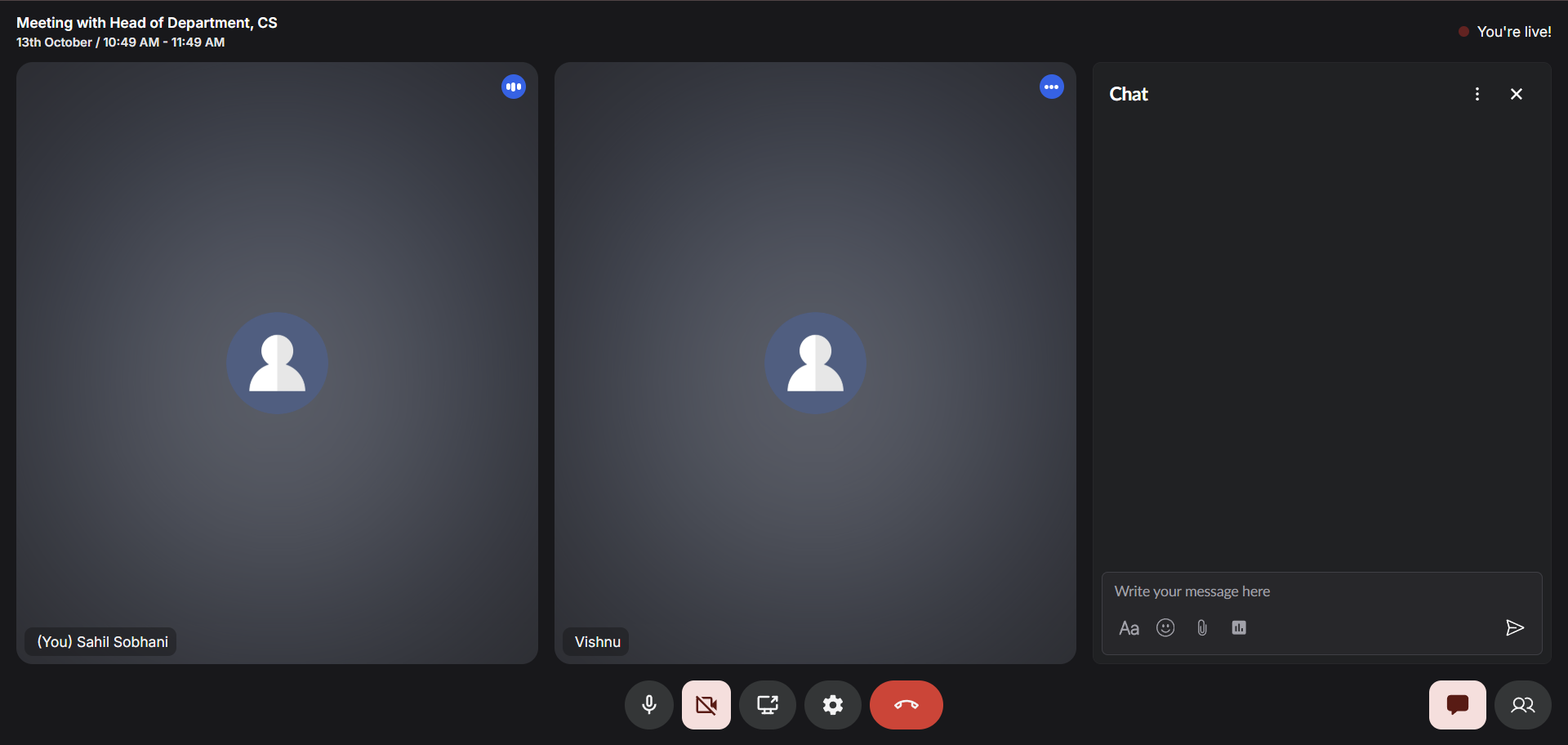
1:1 Calls are ideal for private mentorship or support sessions where you want to provide
dedicated time to a single learner.
## Next steps
Learn how to **embed live sessions** on external websites so learners can join directly without
switching tabs. [Go to guide](/live-classes/embed-live-session)
Understand how your live classes perform with **engagement analytics**, attendance data, and
insights into learner participation. [See analytics docs](/live-classes/livestream-analytics)