> ## Documentation Index
> Fetch the complete documentation index at: https://docs.fermion.app/llms.txt
> Use this file to discover all available pages before exploring further.
# User Onboarding Form
> Create and assign an onboarding form for new users joining your school.
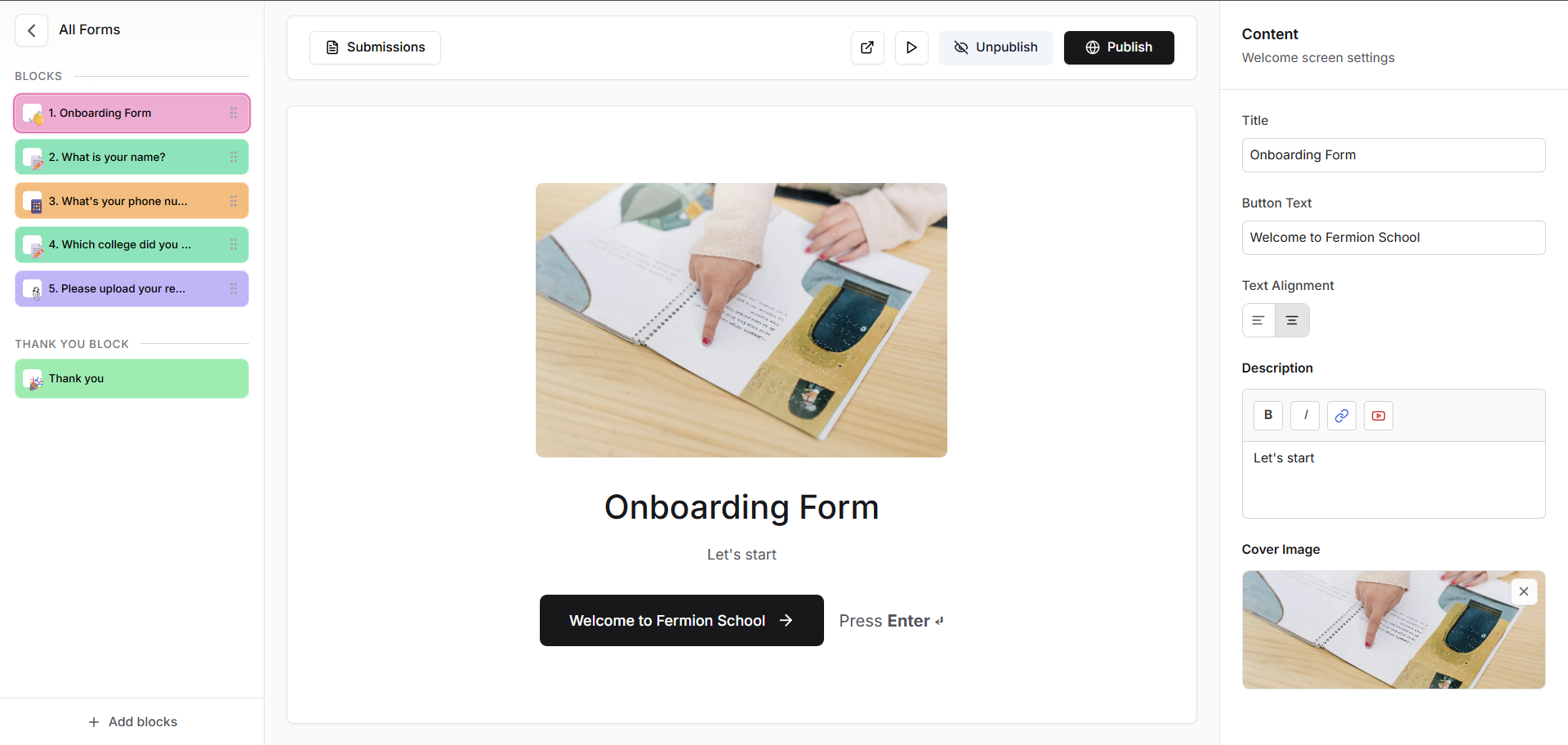
The **Onboarding Form** allows you to collect essential details from every new user who signs up for your school. When a new user creates an account, they’ll be prompted to fill out this form before accessing the platform. It’s a great way to gather important information like graduation level, interests, or consent details, ensuring a smoother onboarding experience.
## Why use an onboarding form?
Onboarding forms help you collect essential information from new users automatically during sign-up. This information can include personal details, preferences, or any other data necessary to provide a tailored experience. By gathering responses upfront, you can personalize learning paths, verify eligibility, segment users into relevant groups, and ensure all necessary compliance or consent requirements are met.
Additionally, onboarding forms streamline administrative processes by reducing manual data entry and giving instructors a clear overview of each new user’s profile. The data collected can also help you make informed decisions and enhance the overall learning experience for students.
## How to attach an onboarding form to your school?
You can enable an onboarding form for a new user with the help of the following steps:
Before creating your onboarding form, make sure the **Forms** feature is enabled for your school. Go to **Manage Features** in your admin panel and toggle on the **Forms** option.
Learn more about how to [manage features](/manage-settings/manage-features)
Once forms are enabled, you can create your onboarding form.\
Navigate to the **Forms** section in your dashboard and click **Create Form**.
Learn more about how to [create forms](/forms/introduction#getting-started)
After creating your form, go to **Users → User Onboarding Form** from your instructor dashboard sidebar.\
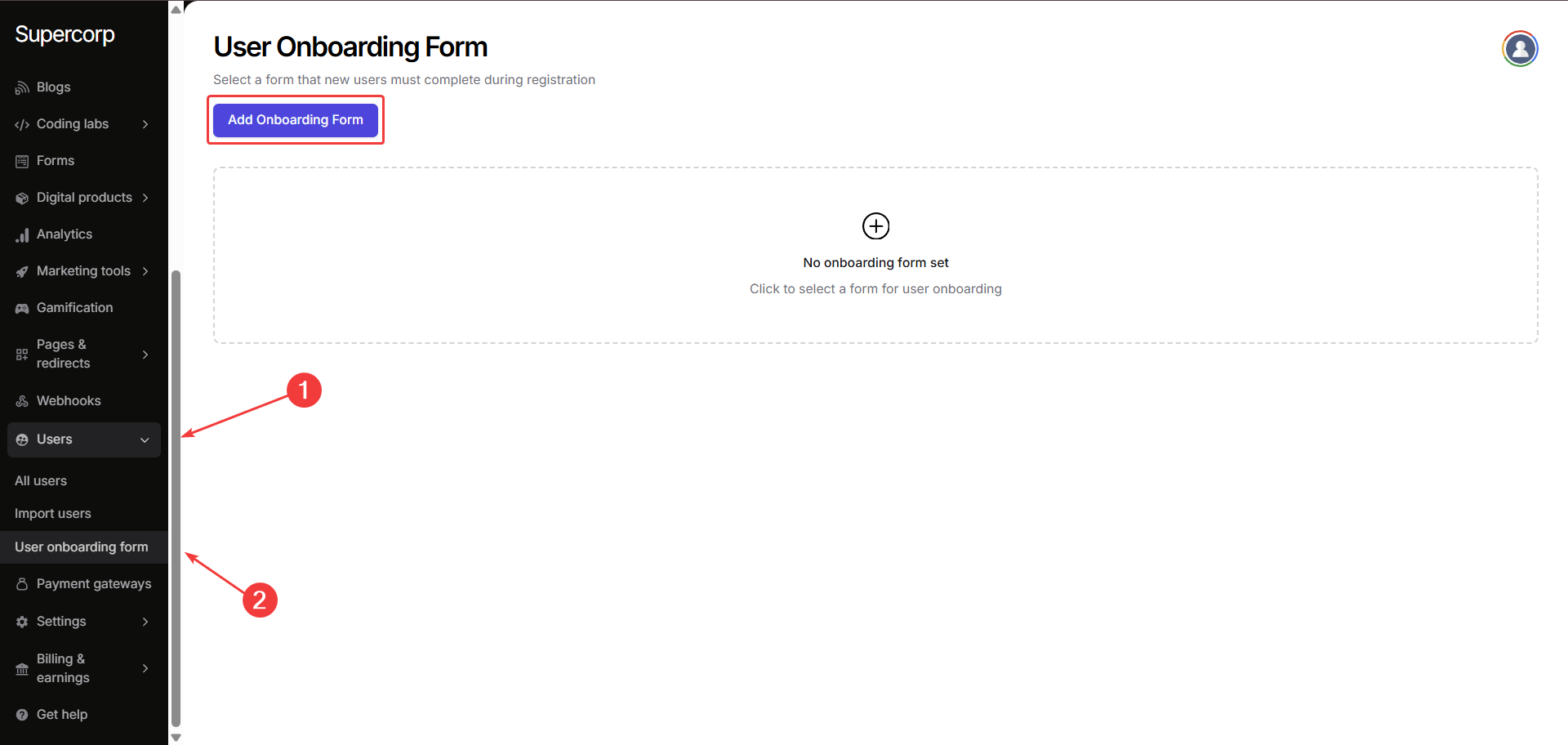
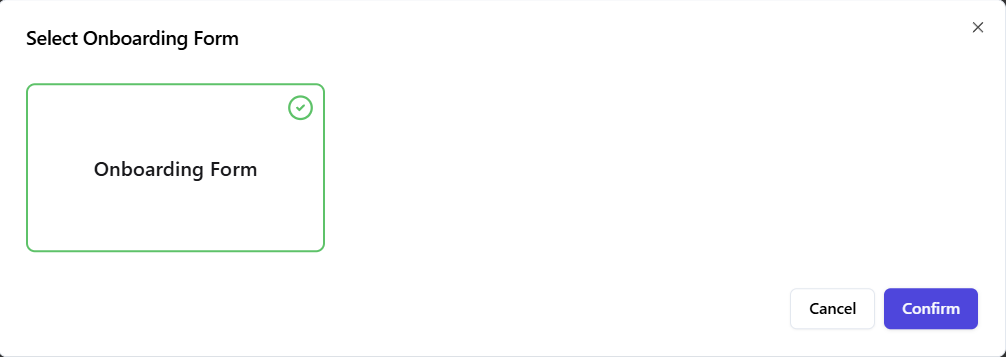
Click on **Add Onboarding Form**, then select the form you created in the 2nd step.\
Now click **confirm**, the form will automatically appear for every new user when they register.\
*And voilà* , your onboarding form is now attached to your school and ready to collect user data!
## Viewing responses
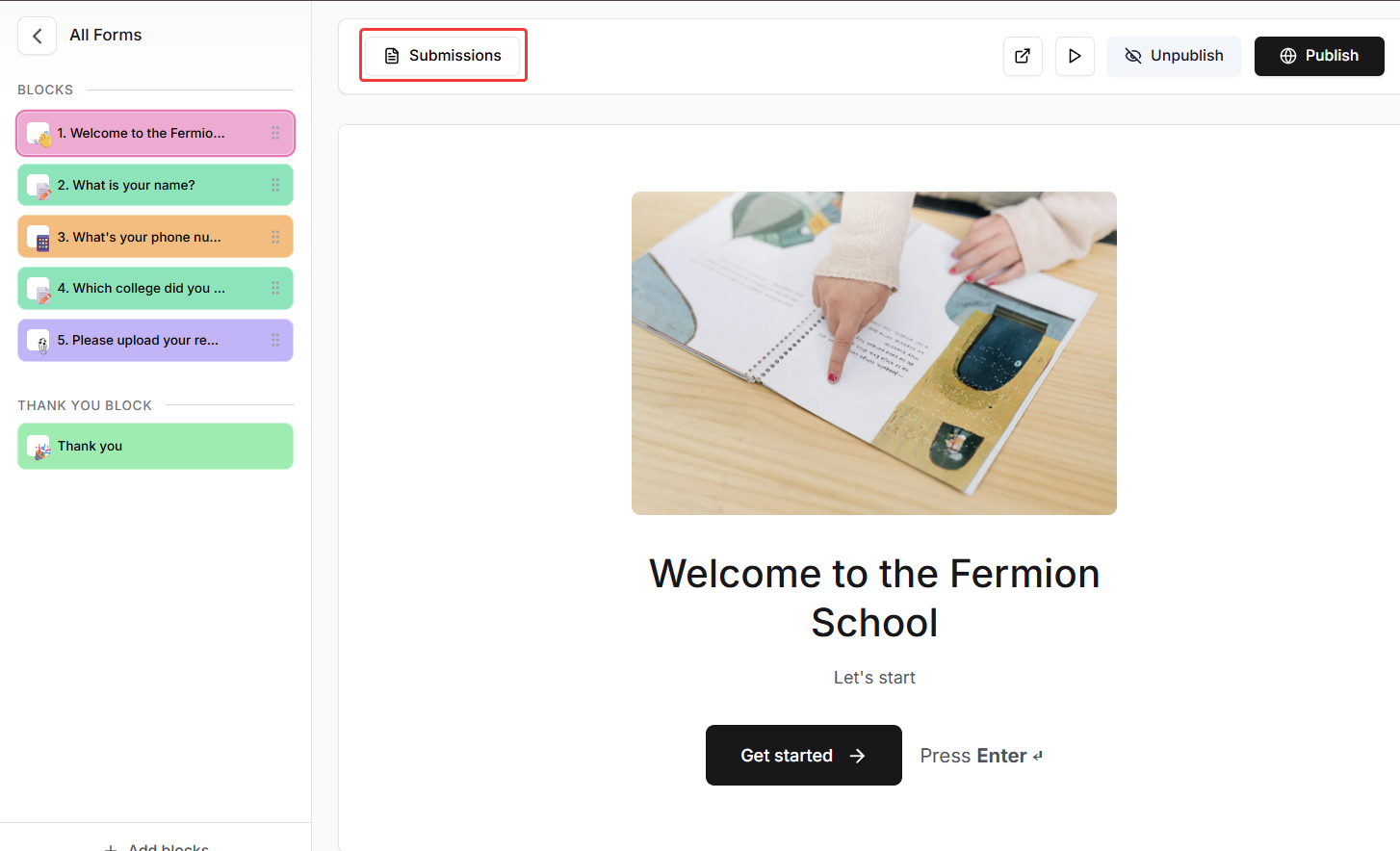
All onboarding form submissions are automatically stored in the **Submissions** tab inside your form. You can export them as CSV or view them directly from your dashboard. Learn more about [accessing form submissions](/forms/form-submissions)
## Next steps
Create and publish ebooks to share structured learning material and in-depth guides with your students.
Write and post blogs to share updates, announcements, and insights directly with your learners.