> ## Documentation Index
> Fetch the complete documentation index at: https://docs.fermion.app/llms.txt
> Use this file to discover all available pages before exploring further.
# Setup Forms
> Create multi-step forms and collect submissions
Fermion helps you build multi‑step forms to capture detailed information and feedback. You can also share a public link outside of your organization. Additinally, you can customize fields, require answers, add descriptions and cover images, then publish when ready.
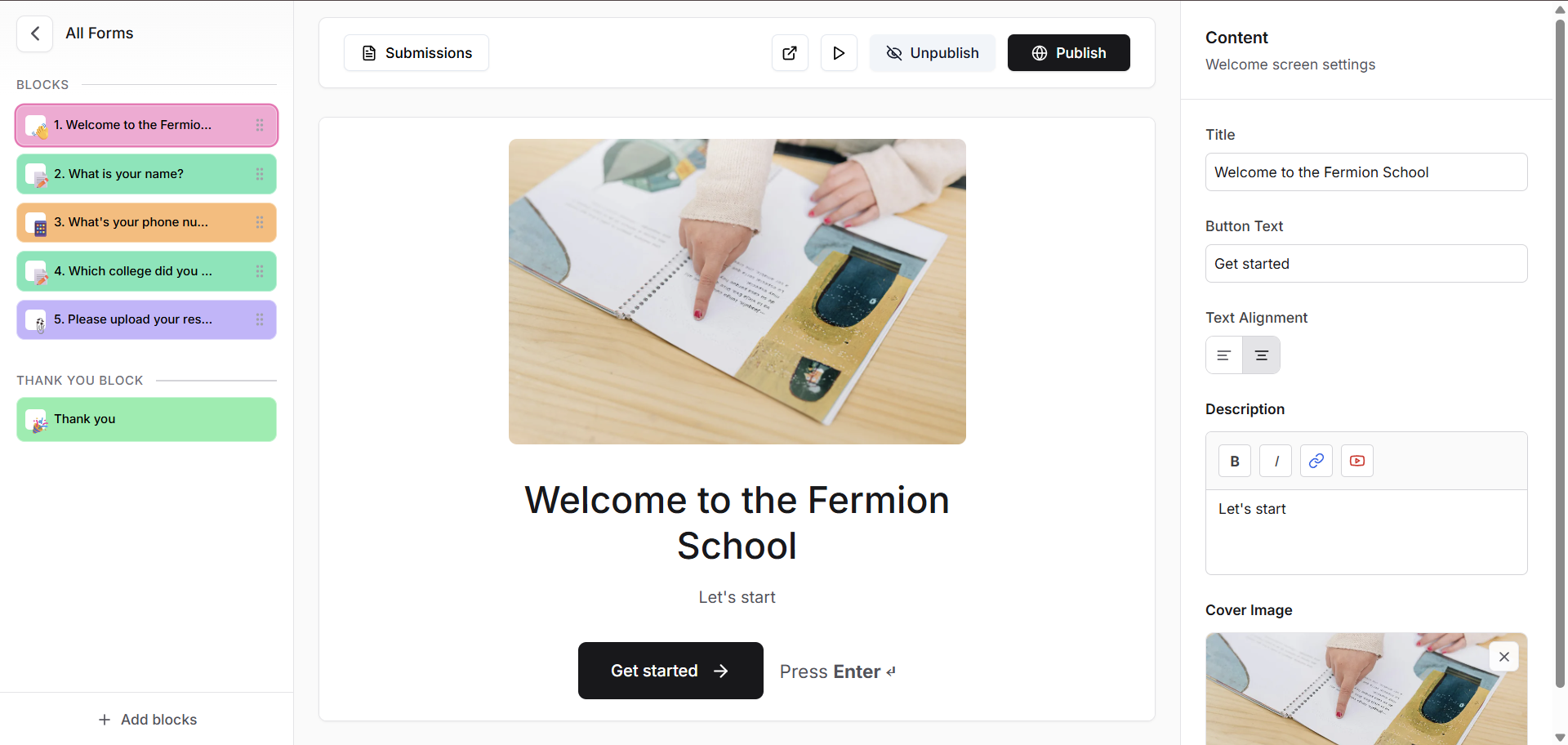
You can also create onboarding forms attached to your school so that you can gather introductory data from new users. Learn more about [user onboarding forms](/forms/onboarding-form)
## Getting Started
Setting up forms for your school is a simple process at Fermion. Perform the following steps to create elegant multi-step forms to collect data from your students:
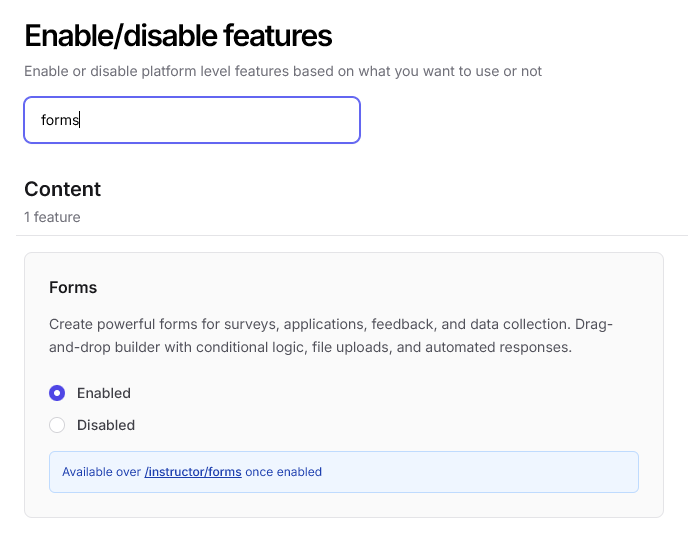
Make sure that the forms feature is enabled for your school.
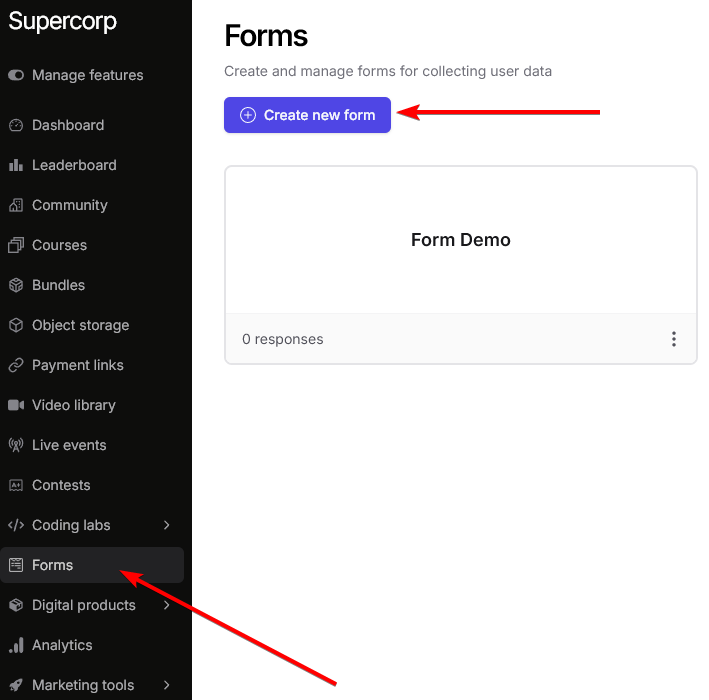
Click on the 'Forms' page from your instructor dashboard's sidebar, then click on 'Create new form' button.
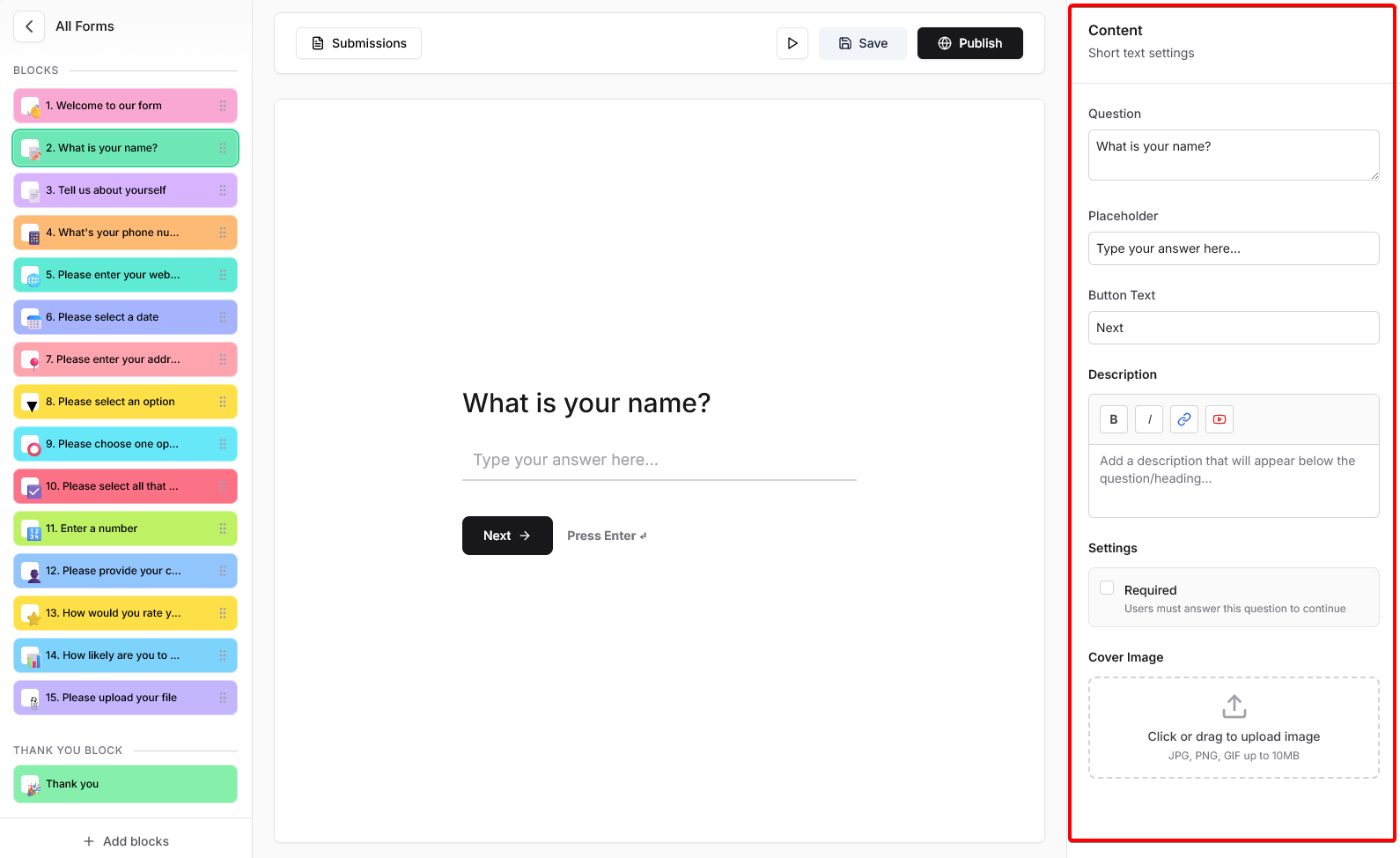
Now, you will see the form editor page, consisting of 3 'Panes':
* Blocks pane
* Preview pane
* Content pane
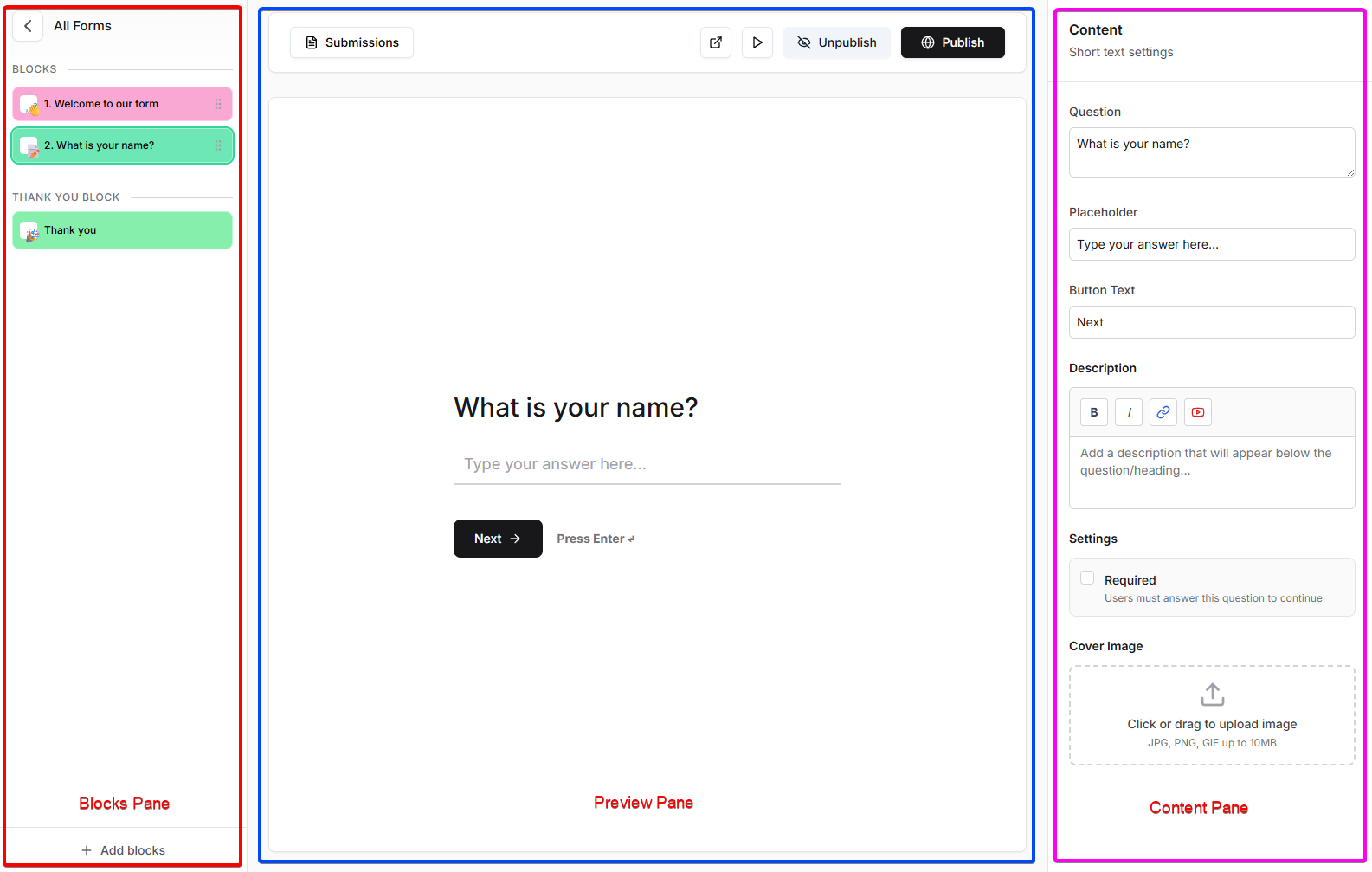
The Blocks pane on the left lists steps, the center shows a live preview, and the Content pane on the right lets you configure the selected block.
Note: By default, all new forms are pre-loaded with `Welcome` and `Thank you` blocks.
To add a new block, click on `Add blocks` button from the bottom of the blocks pane.
Once you click on `Add blocks` button you will see a popup with all the avaibale block types
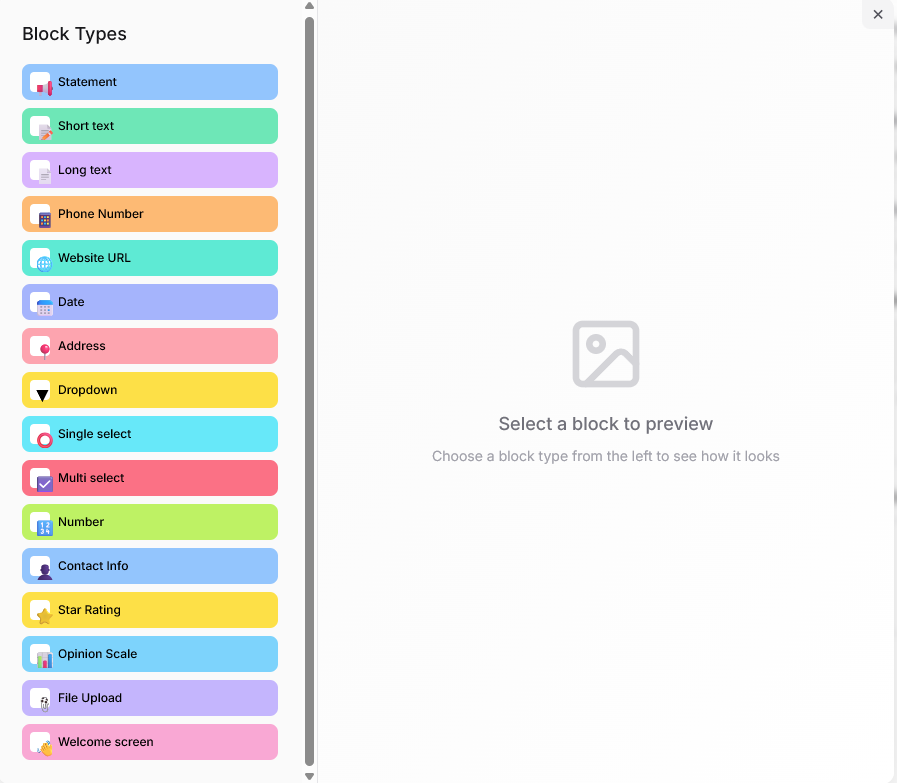
Select a block from here and click on `Add this block to form`. We offer the following blocks that are further customizable:
* **Short text**: Capture brief responses such as names or titles.
* **Long text**: Collect detailed answers or paragraphs.
* **Phone number**: Gather users’ phone and contact number.
* **Website**: Collect a URL from the user.
* **Date**: Let users select a date.
* **Address**: Collect full address details.
* **Dropdown, Single and Multi select questions**: Allow users to choose one or multiple options.
* **Number**: Allow the user to enter a number between a range specified by you.
* **Contact information**: Capture full name, email, and mobile number.
* **Star Rating**: Allows user to rate on a scale of 1-5 stars
* **Opinion Scale** Lets users rate on a custom scale with labels.
* **File upload**: Allow users to submit files or documents.
For example, let's select `Short text` block.
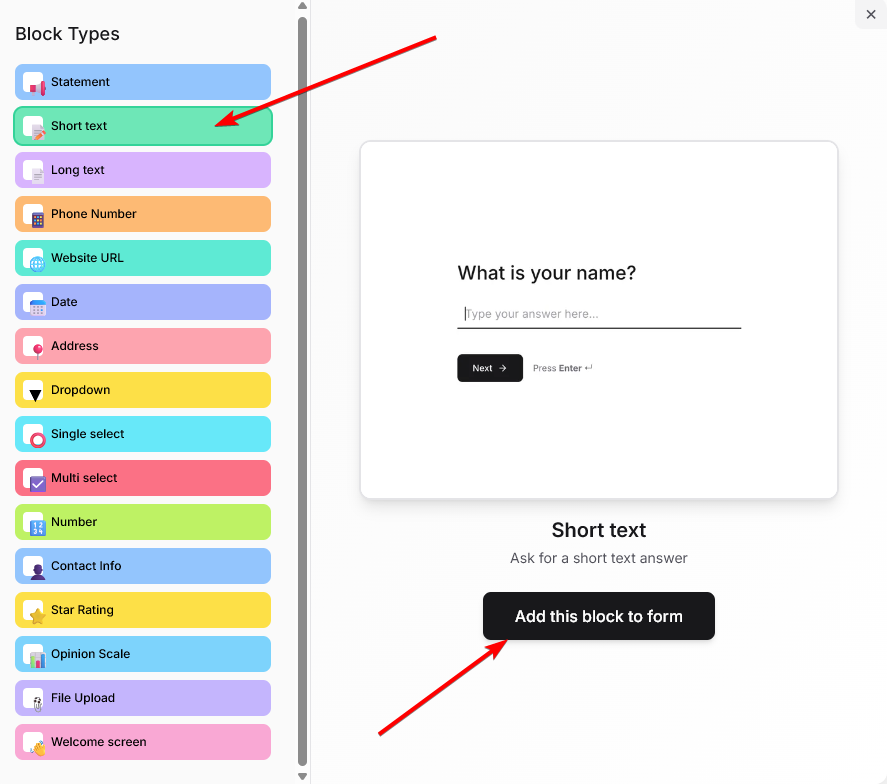
Once a block is added to the form, you can further configure it from the 'Content Pane' on the right side. This pane has multiple customization options like:
* Edit your question
* Edit your placeholder
* Edit the text on the `Next` button
* Add a description(with simple text formatting and the ability to include hyperlinks and YouTube videos)
* Make a question mandatory
* Add a cover image
Additionally, depending on the block you select, the content panes' customization options will change. For example, the long text block has an option to customize character limit, the address block lets you customize the the street, city, stat, ZIP code and country fields' visibility and the rating block lets you customize the number of stars.
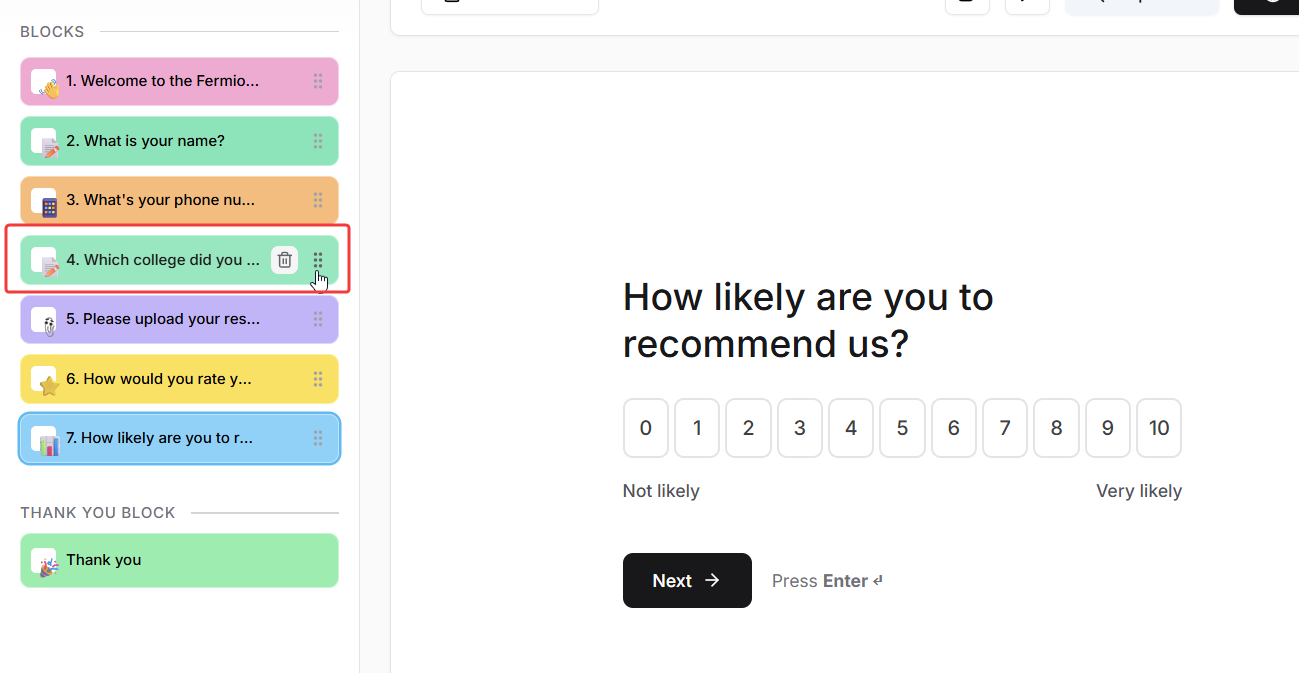
Once you have added and customized all the blocks, you can further customize the 'flow' of the form by re-arranding the blocks. You can do this by clicking on the 'drag' handle on the blocks.
Once you are done customizing your form, click on `Save` and then click on `Publish`. You can also preview the form by clicking on the `play` button.
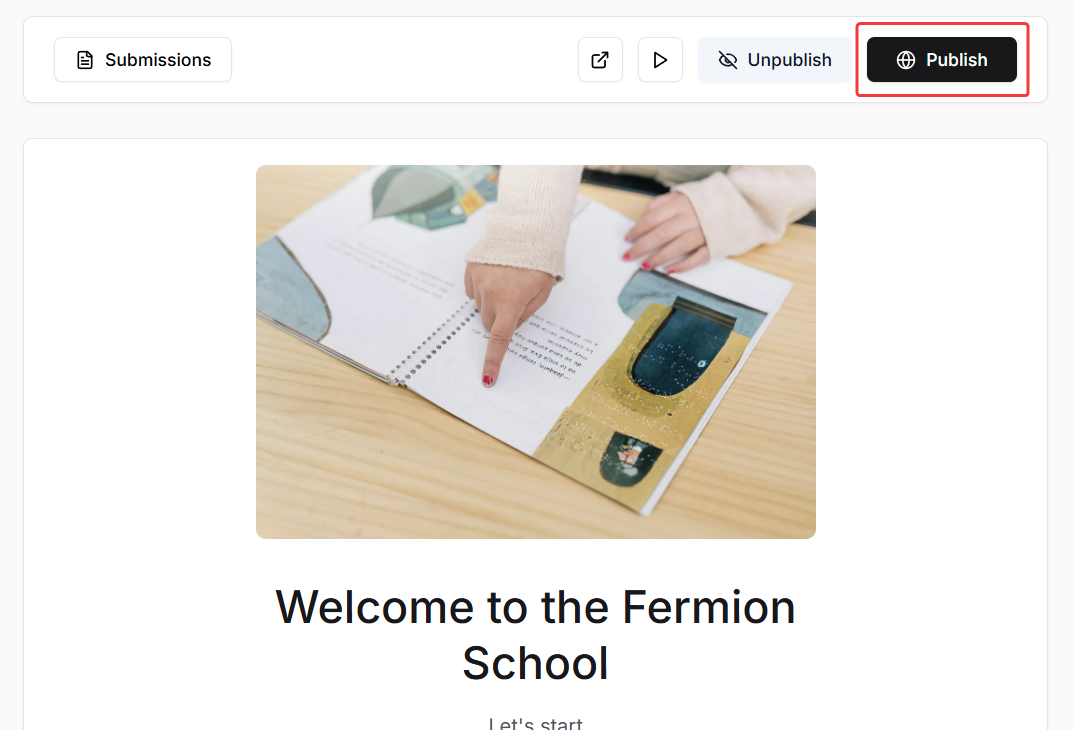
And there you go, you have now created a form on Fermion. You can copy the form's link after publishing the form and share with your users!
## Next steps
Learn how you can access form submissions from your users and also export them as CSV files