> ## Documentation Index
> Fetch the complete documentation index at: https://docs.fermion.app/llms.txt
> Use this file to discover all available pages before exploring further.
# Access Form Submissions
> Learn how to view and manage submissions for your forms, including individual and table views, and exporting to CSV.
After creating and sharing a form, you can access all the responses submitted by users.\
Fermion allows you to view submissions in both **Individual View** and **Table View**, and export the data in **CSV format** for offline analysis.
## Access form submissions
You can access your form submissions directly inside your form editor with the help of the following steps:
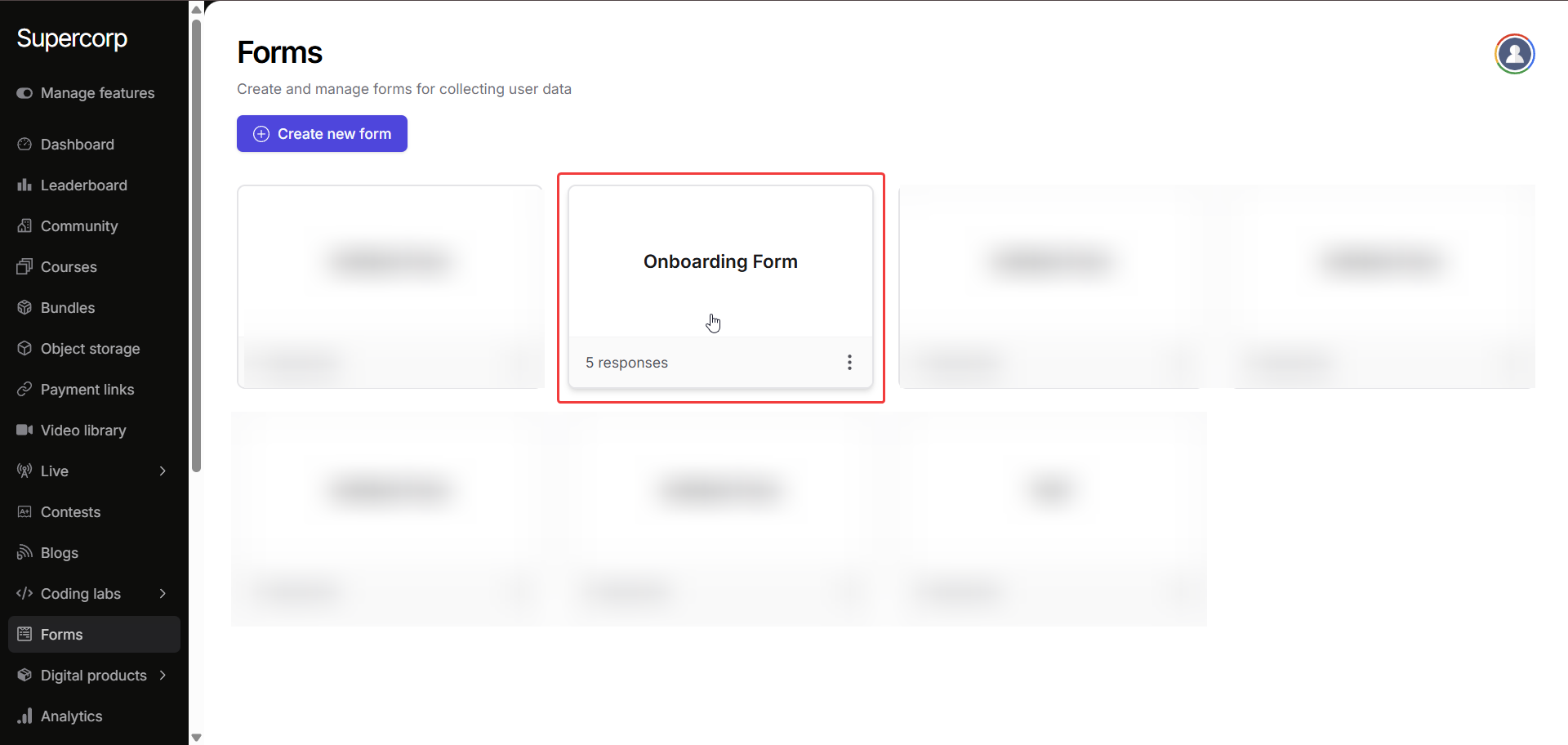
Go to the **Forms** section in your dashboard and click on the form you want to access submissions for.
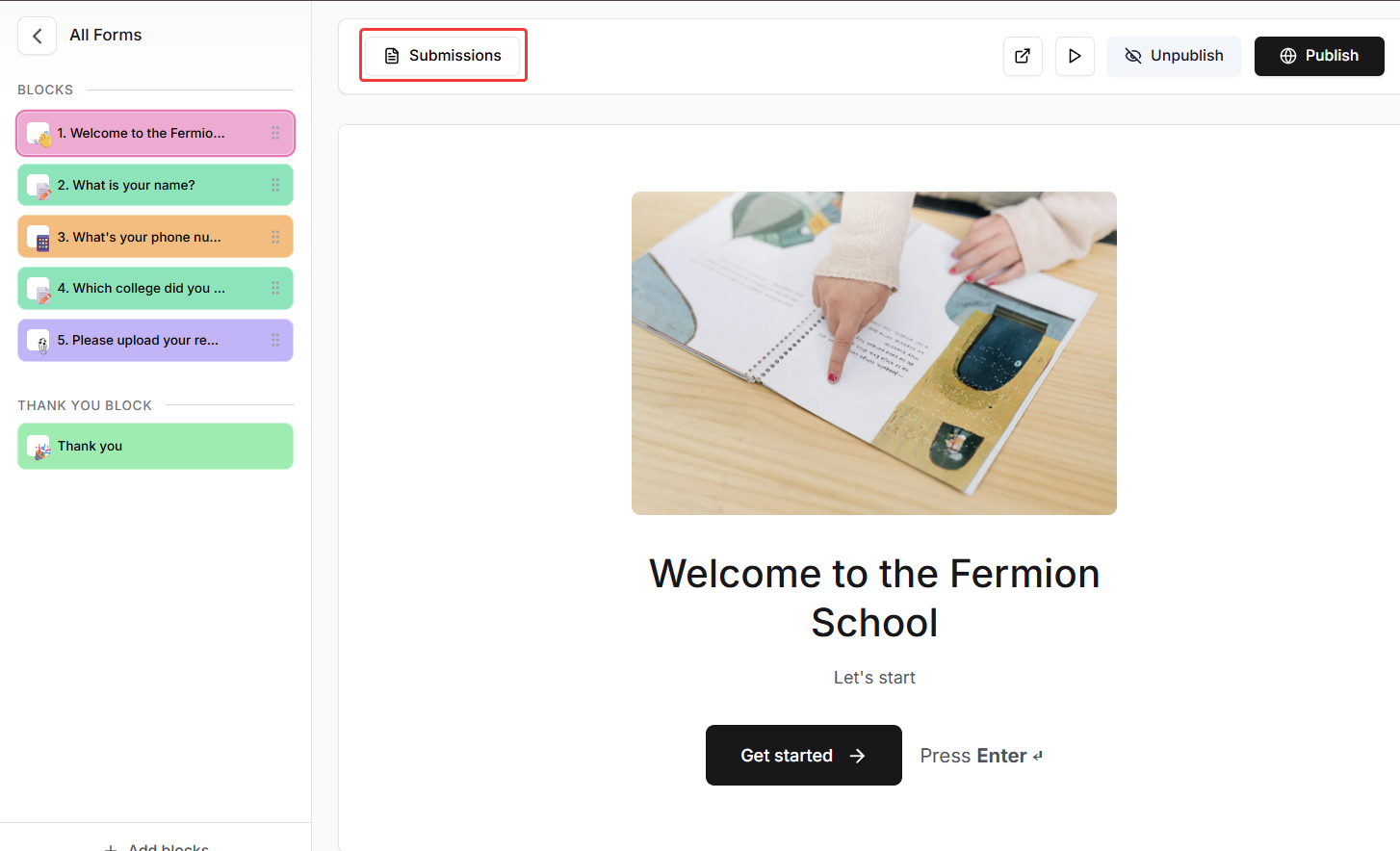
On the top-left of the form page, click the **Submissions** tab. This will open the submissions panel where all responses are stored.
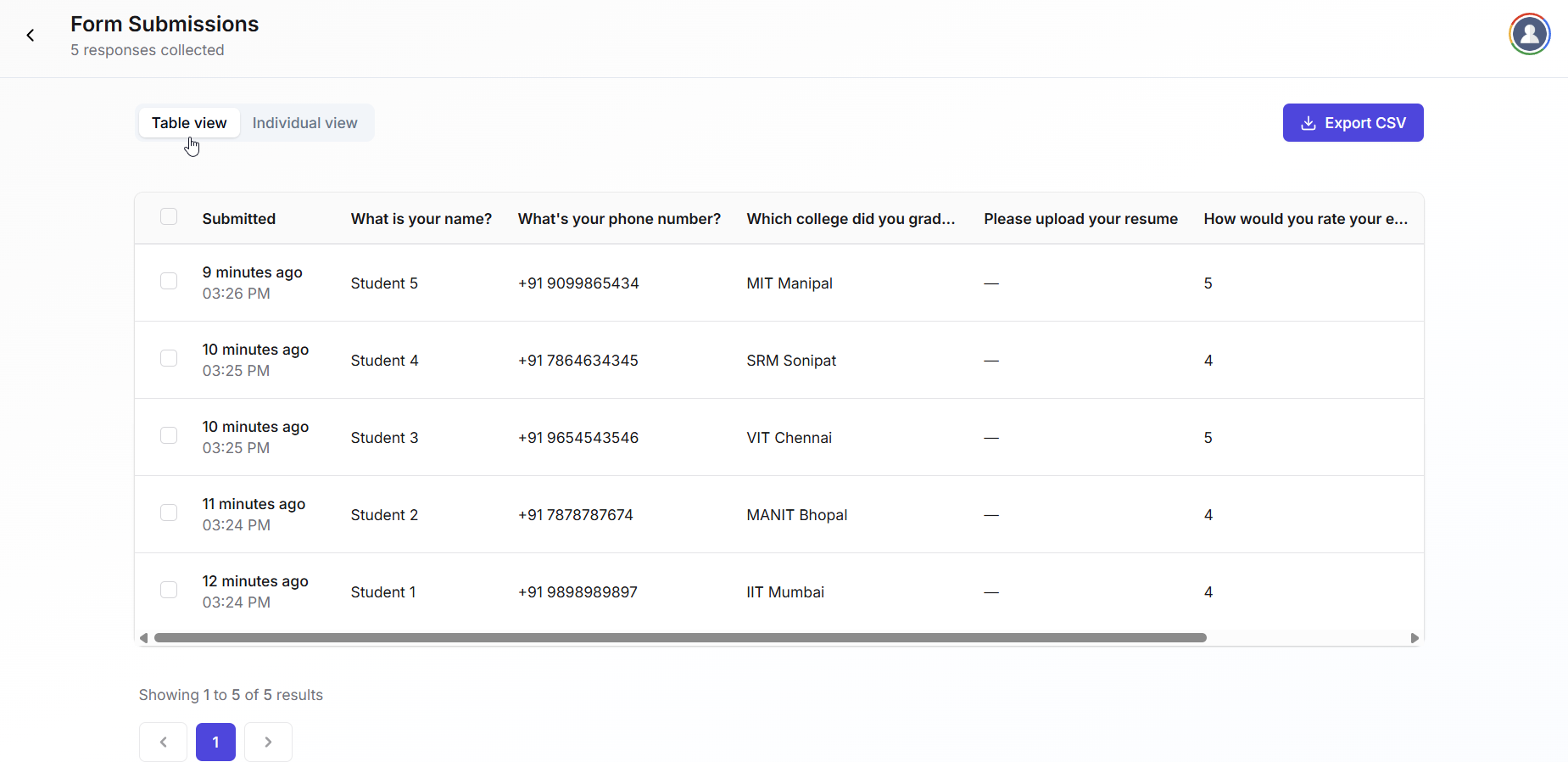
* Switch to **Table View** to see all submissions in a spreadsheet-like format.
* Here you can sort, filter, and quickly scan multiple responses at once.
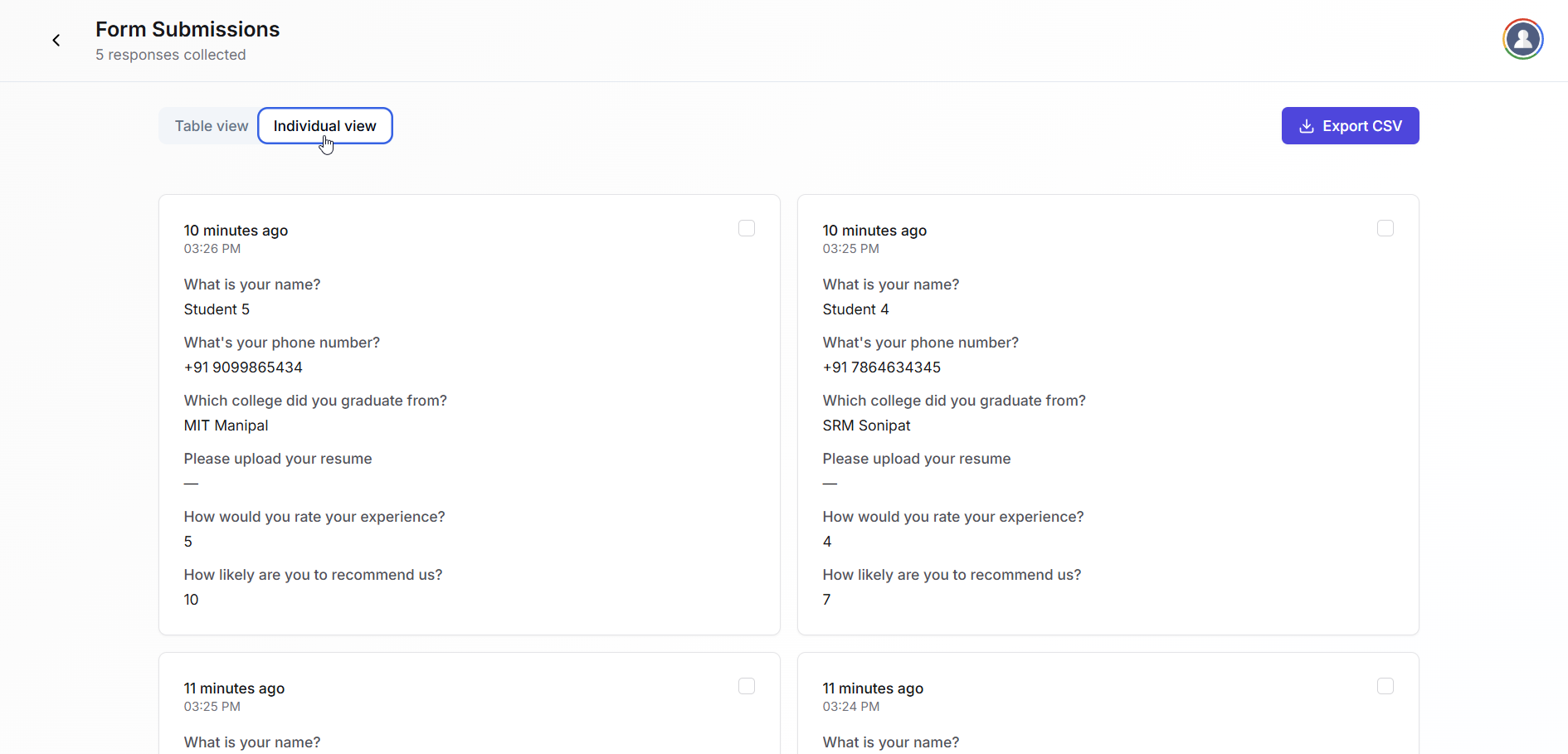
* In the submissions panel, you can view all the responses respectively in a block view.
* This is useful for reviewing single responses or following up with specific users.
* In the submissions panel, click the **Export CSV** button.
* This will download all form responses in a spreadsheet-friendly format.
* This file can be used for offline analysis, reporting, or importing into other tools.
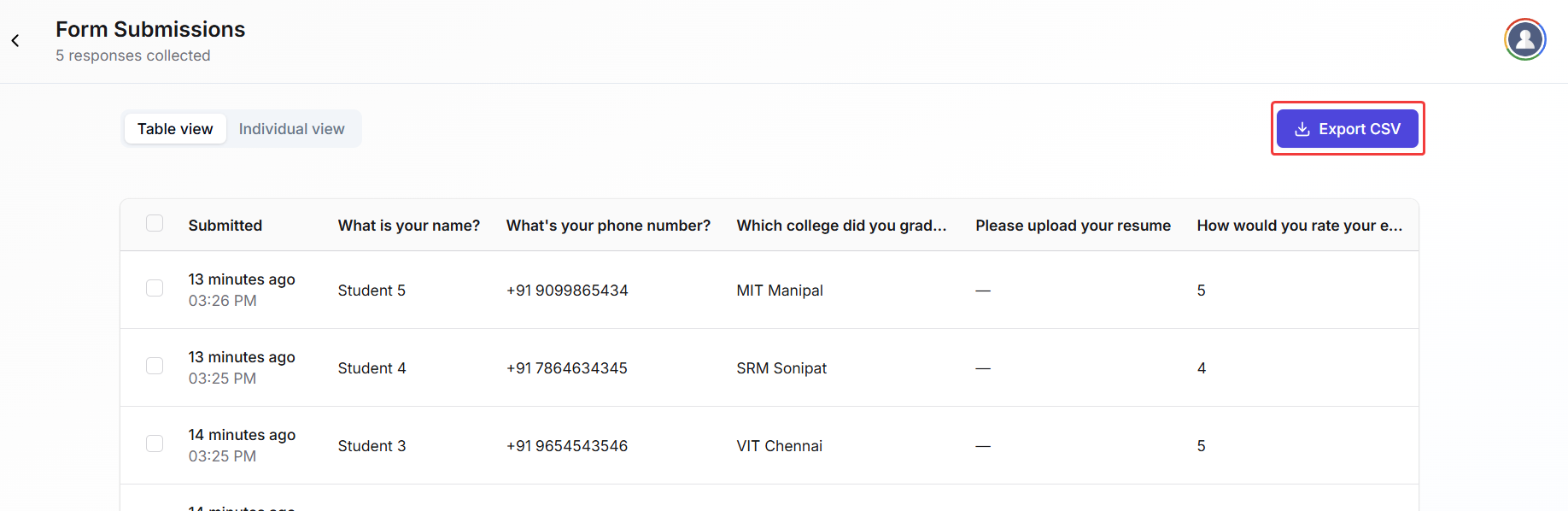
Table view is best for quick analysis of multiple responses, while individual view is perfect for detailed inspection of a single submission. Always export CSV if you want to create backups or do further processing.