> ## Documentation Index
> Fetch the complete documentation index at: https://docs.fermion.app/llms.txt
> Use this file to discover all available pages before exploring further.
# Object Storage
> Learn how to manage private and public files using Fermion object storage for your digital products and courses
Object storage on Fermion is a powerful file management system that allows you to upload, organize, and serve files for your [digital products](/digital-products/introduction), [courses](/setting-up-course/prerequisites), and other content. It provides a centralized location to store and manage all your files, from images and PDFs to videos and downloadable resources.
Fermion's object storage is designed with flexibility and security in mind, giving you complete control over how your files are accessed and distributed.
***
## Understanding file visibility
Object storage on Fermion has **two distinct types** of file storage based on visibility and access control:
### Private Files
**Private files** are secure files that cannot have publicly shareable URLs and are only for internal use within your Fermion platform. These files are ideal for:
* Student-only resources that require enrollment
* Internal course materials and [attachments](/setting-up-course/attachments)
* Protected [eBook](/digital-products/introduction) files
* Sensitive documents that should only be accessible to enrolled users
* Private [assignment](/setting-up-course/assignments) materials
### Public Files
**Public files** can be accessed by anyone on the internet with a direct link to the file. These files are suitable for:
* Landing page images and thumbnails
* Marketing materials and promotional graphics
* [Course landing page](/setting-up-course/landing-page) covers and banners
* [eBook landing page](/digital-products/landing-page) preview images
* Social media assets
* Public documentation and guides
* [Blog](/custom-landing-pages/blogs) post images
* Public [form](/forms/introduction) assets
Be careful when uploading files to public storage. Once a file is made public, anyone with the URL can access it. Never upload sensitive information, student data, or proprietary content to public storage.
***
## How to Access Object Storage
Make sure **General object storage feature** is enabled in your **manage feature** section before you access object storage. Learn more on how to [manage features](/manage-settings/manage-features)
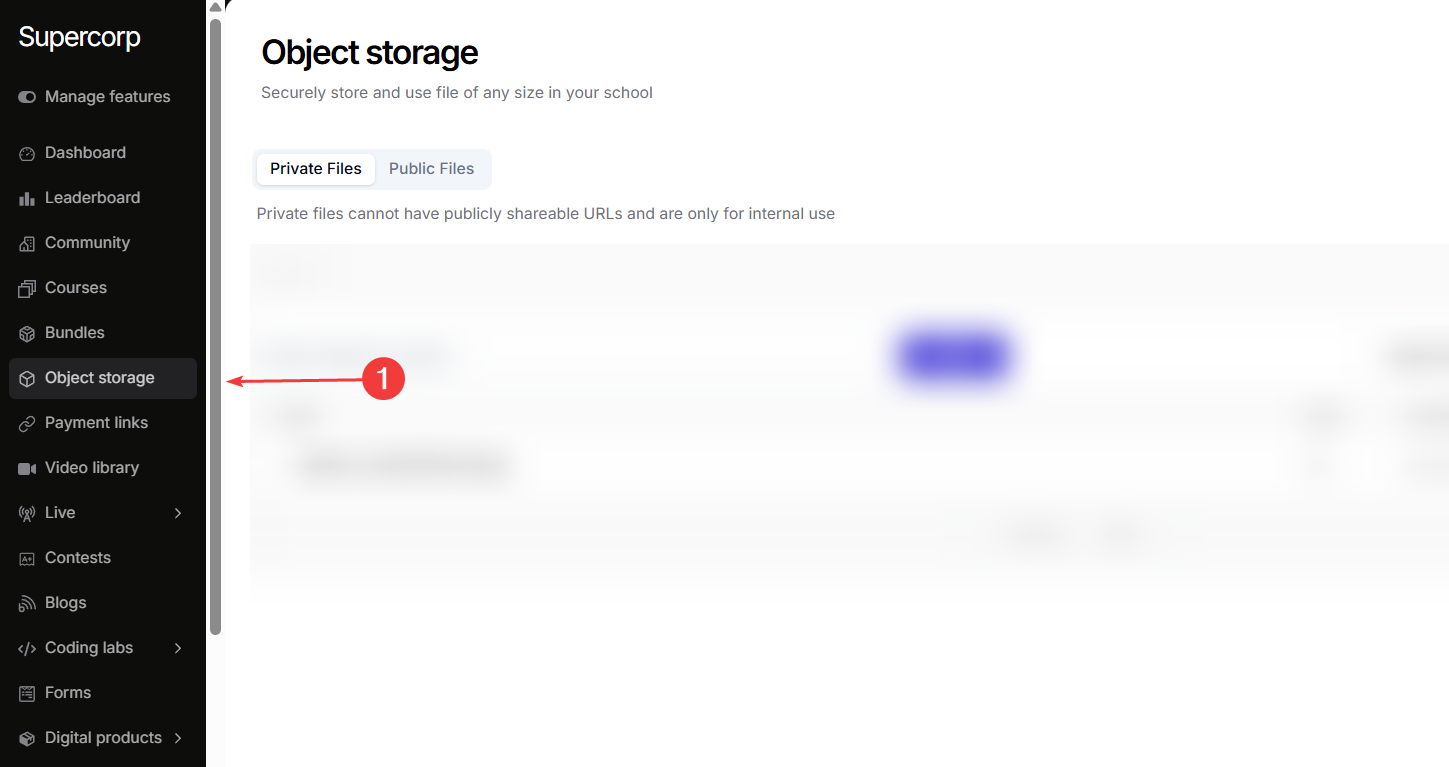
1. Go to your **Instructor Dashboard → Settings**.
2. Scroll down and click on **Object storage** in the settings menu.
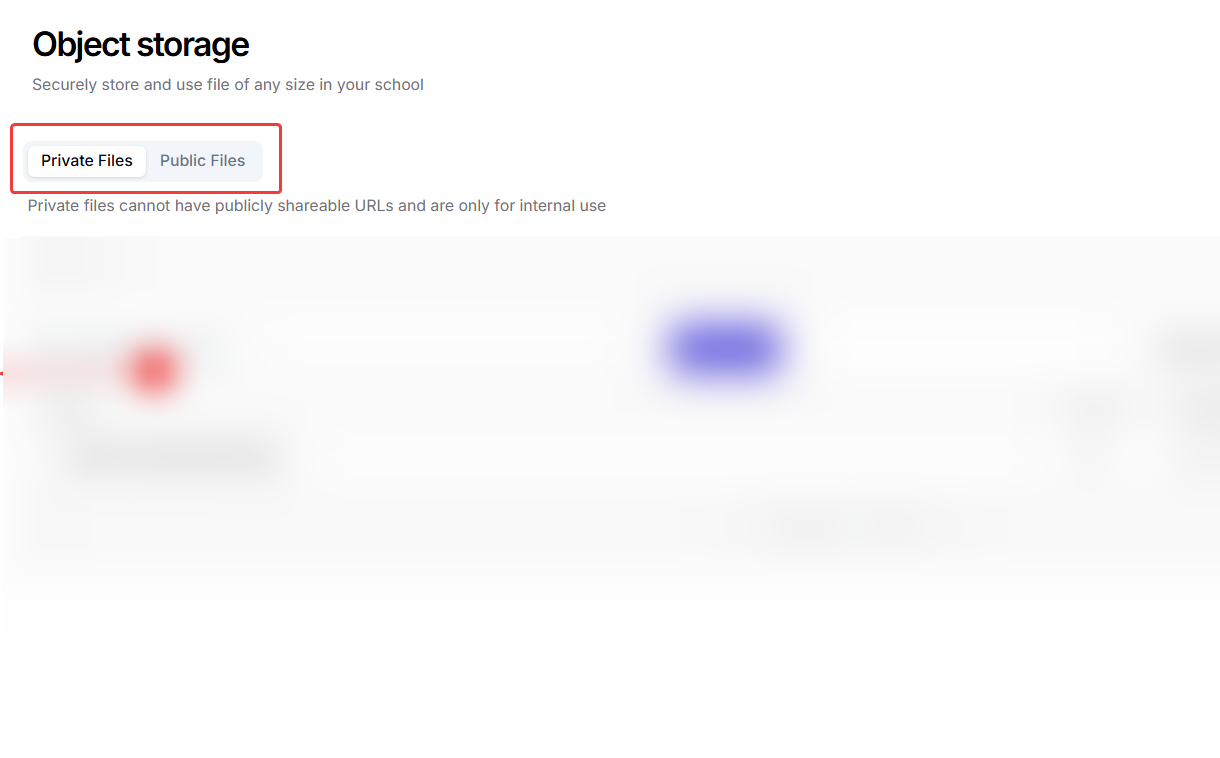
Select between **Private Files** or **Public Files** tabs depending on the type of content you want to upload.
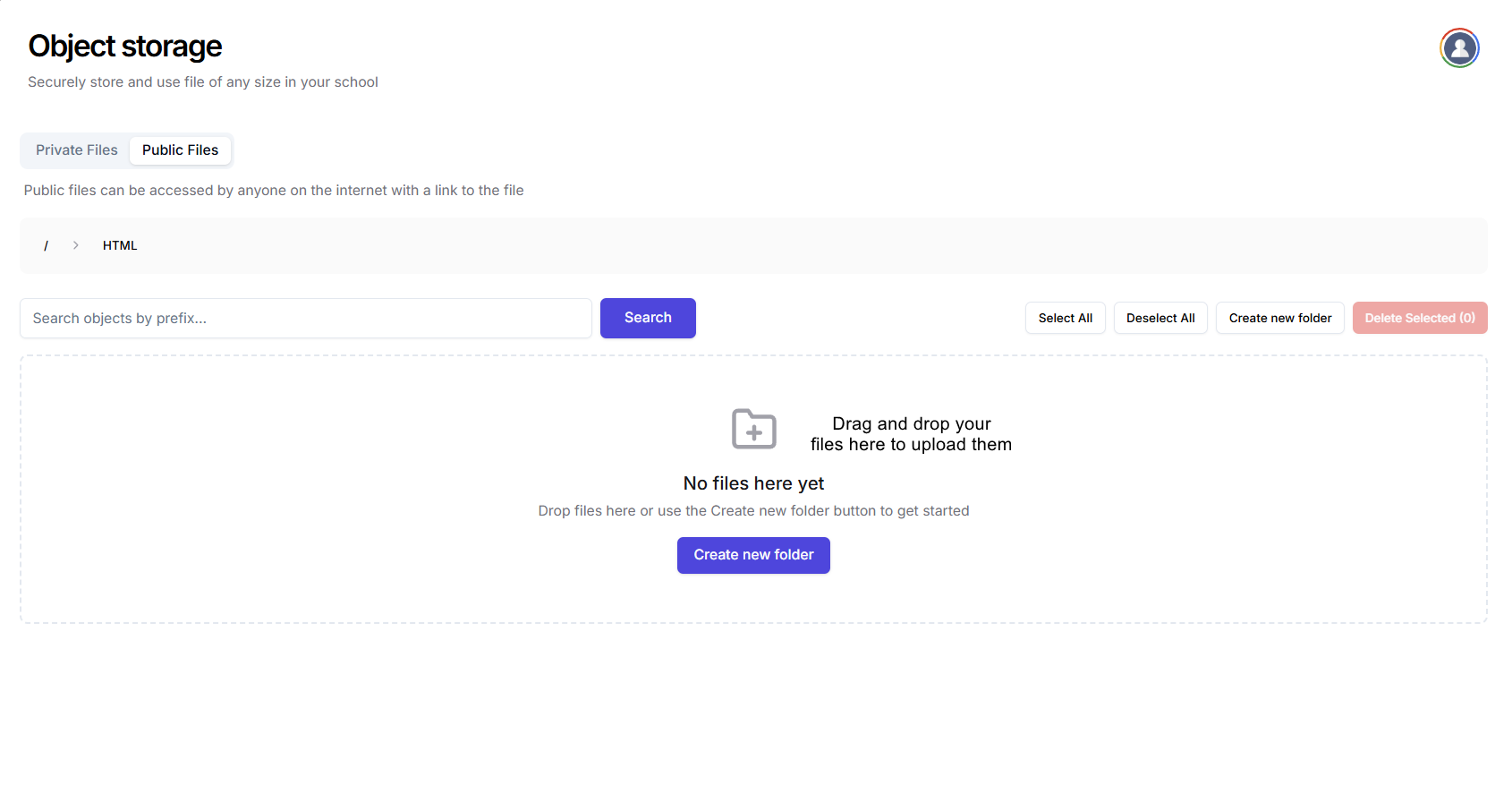
* Drag and drop your files into the storage area
* Wait for the upload to complete
* Your files will appear in the storage browser with their URLs
* You can also create new folder and provide a structure to your object storage.