> ## Documentation Index
> Fetch the complete documentation index at: https://docs.fermion.app/llms.txt
> Use this file to discover all available pages before exploring further.
# Setup eBooks
> Learn how to design, upload, and publish your first eBook on Fermion using the Product Builder.
Creating your first eBook on Fermion is simple and intuitive. This guide walks you through the entire process: from setting up a dedicated landing page to uploading your eBook file in the Product Builder. With Fermion,
you can showcase your digital content professionally, control access, and offer secure downloads to your audience.
Before you start, make sure **Digital Products** are enabled under **Manage Features** in your instructor dashboard. This allows you to create and sell eBooks on Fermion. Learn how to enable features at Fermion [here](/manage-settings/manage-features)
## Landing Page
Your eBook landing page is where potential readers discover and purchase your digital content. A clear, well-designed landing page helps you communicate your eBook’s value and drive conversions.
### Steps to create a Landing Page
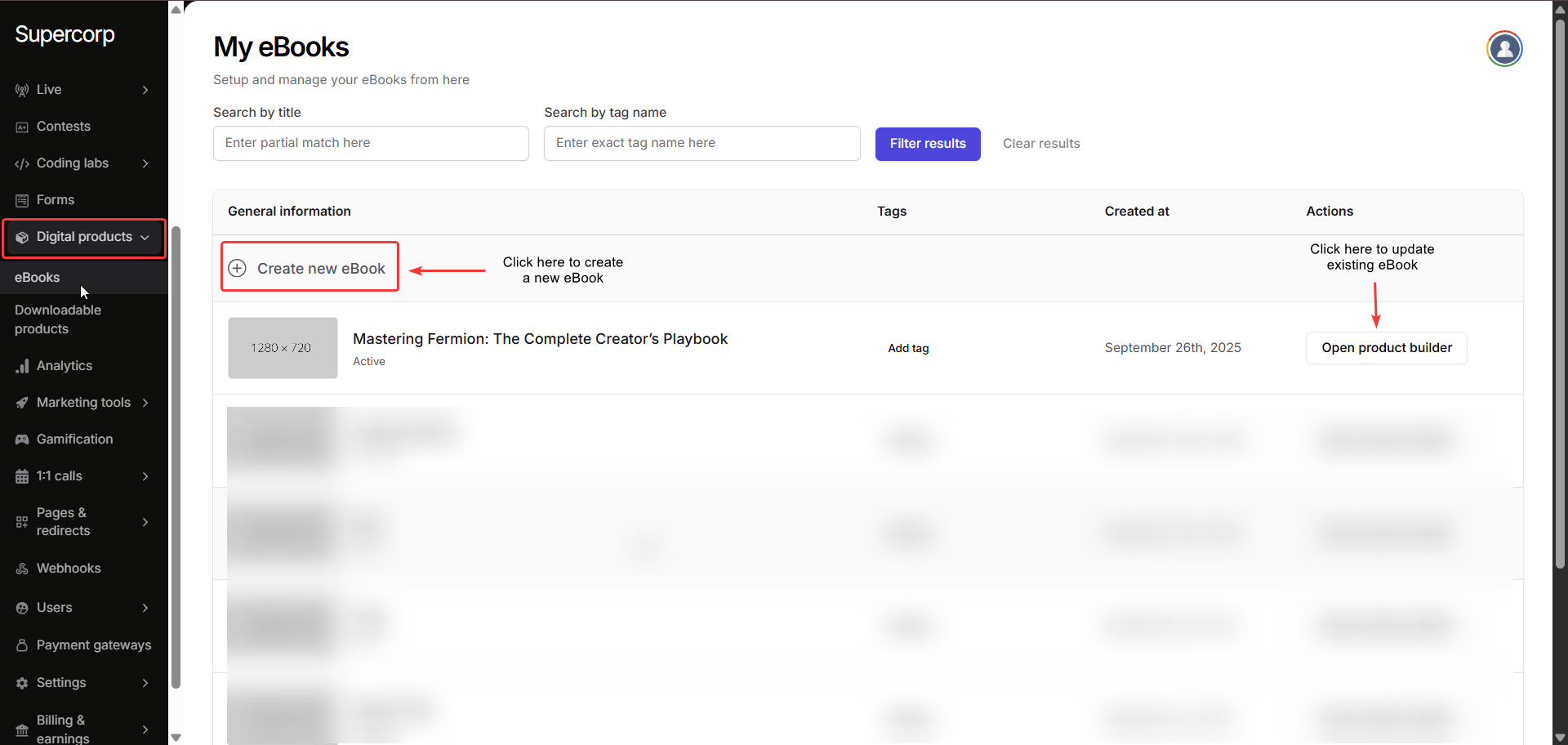
1. Go to your **Instructor Dashboard → Digital Products → eBooks**.
2. Select **Create new eBook** if you want to create a new eBook or update an existing one by clicking **Open Product Builder**.\
Navigate to the **Landing Page** tab in your eBooks sidebar.
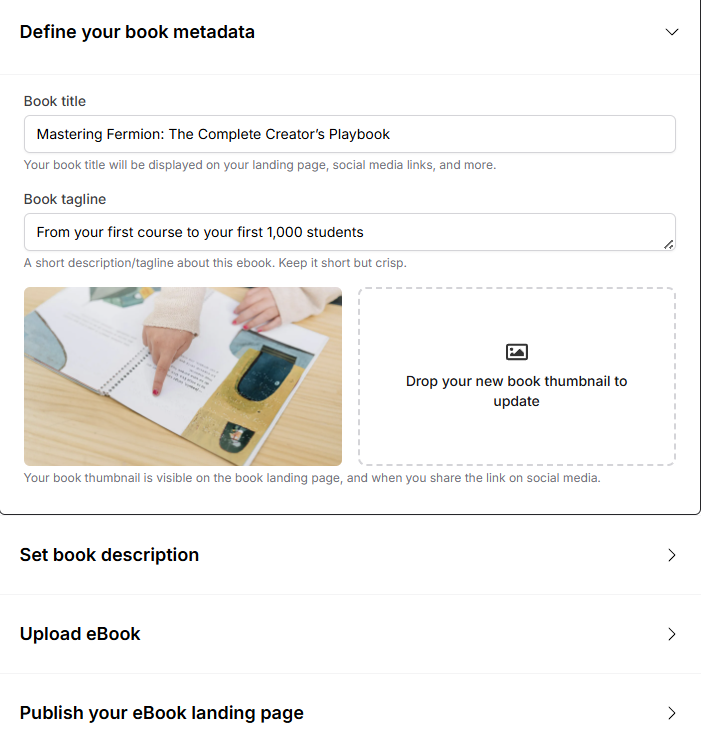
Add the essential details about your eBook:
* **Book Title & Tagline:** Clearly describe your eBook and what readers can expect.
* **Thumbnail / Cover Image:** Upload a high-resolution cover image to make your eBook stand out.
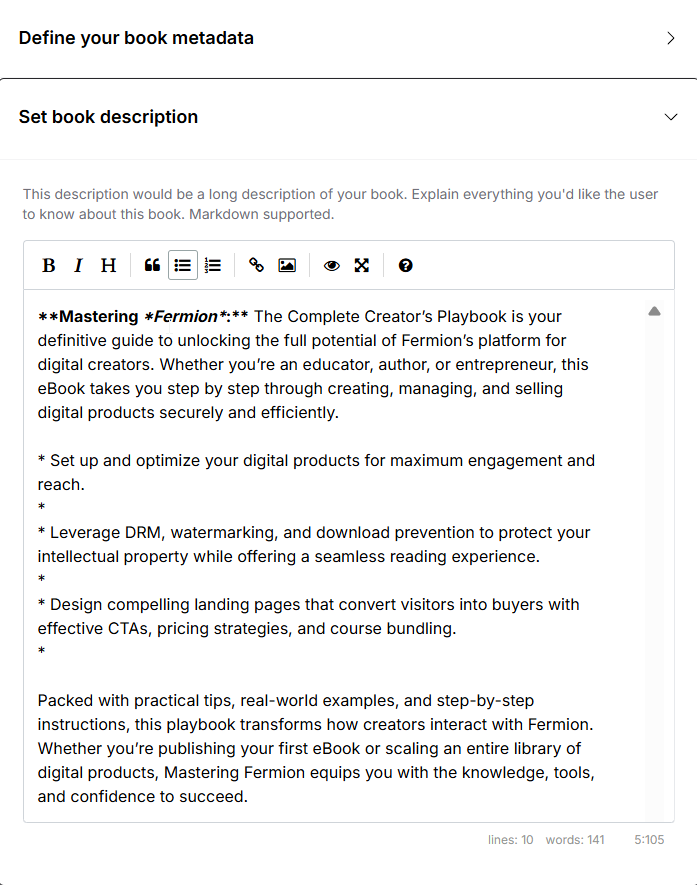
Write a compelling and informative description of your eBook.\
The description editor supports **Markdown**, so you can format text, create bullet points, add links, and emphasize content.
Upload your eBook file (PDF format). Once uploaded, you can configure the following options:
* **Enable book downloads?**\
Allow buyers to download the eBook as a PDF after purchase.
* **Enable centered watermark?**\
Adds a light watermark in the center of every page for extra security.
* **Enable header watermark?**\
Adds a light watermark in the header of each page.
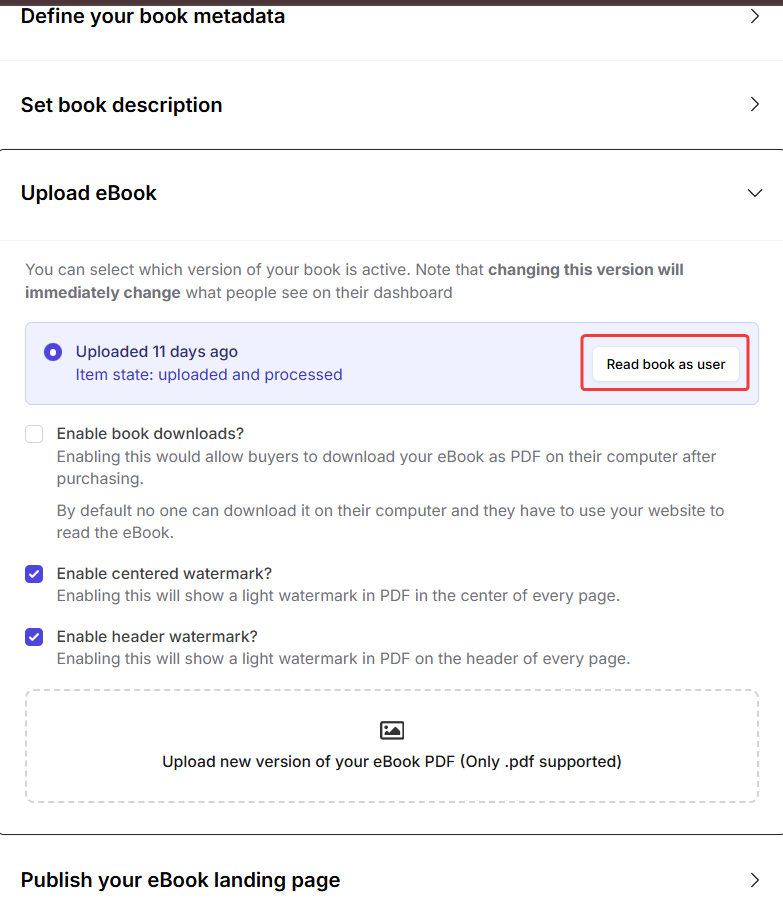
* By clicking **Read book as user** button, you can preview how the eBook will look for your students
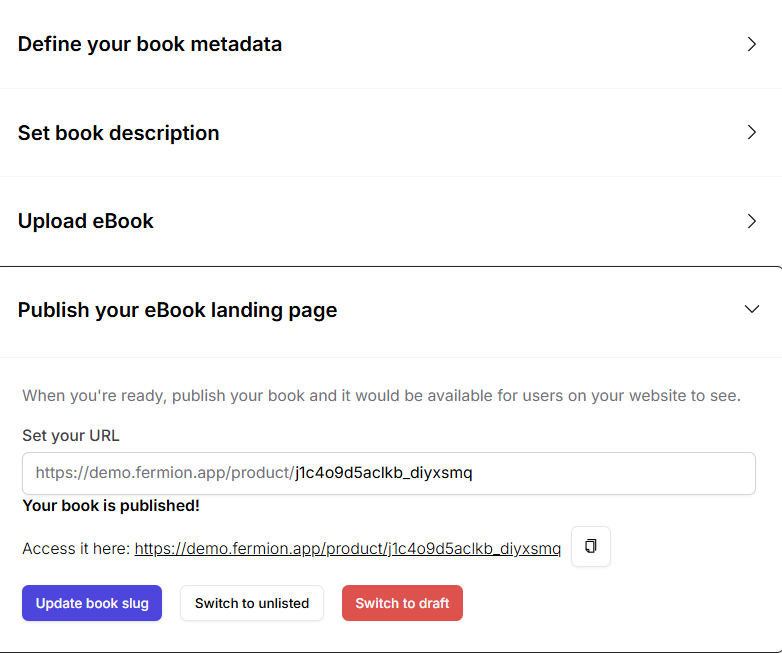
Once your eBook is ready:
* Click **Publish** to make the eBook live.
* You can also **update the landing page slug**, move the eBook to **Unlisted** or **Draft** mode, and **access the landing page link** to preview it.\
You can also link your eBook to a course, allowing enrolled students to access the eBook automatically. Learn how to connect an eBook to a course in the [Link eBook to Course](/digital-products/ebook-course) documentation.
***
## eBook Pricing and Coupon Codes
Pricing for eBooks works the same way as it does for all other digital products on Fermion.
You can create a **[fixed pricing plan](/setup-pricing/fixed-pricing-plan)**, where buyers pay a one-time amount, or a **[partial payment pricing plan](/setup-pricing/setup-emi)**, allowing payment in installments. For common queries regarding pricing plans, you can refer [Pricing FAQs](/setup-pricing/common-faqs)
Similarly, **coupon codes** also work the same for eBooks as they do for courses and other digital products. You can create discount codes, set expiration dates, and control usage limits. To learn how to create and manage coupon codes for a product, refer to [Coupon Codes](/setup-pricing/add-coupon-codes) documentation.
## eBook Settings & Management
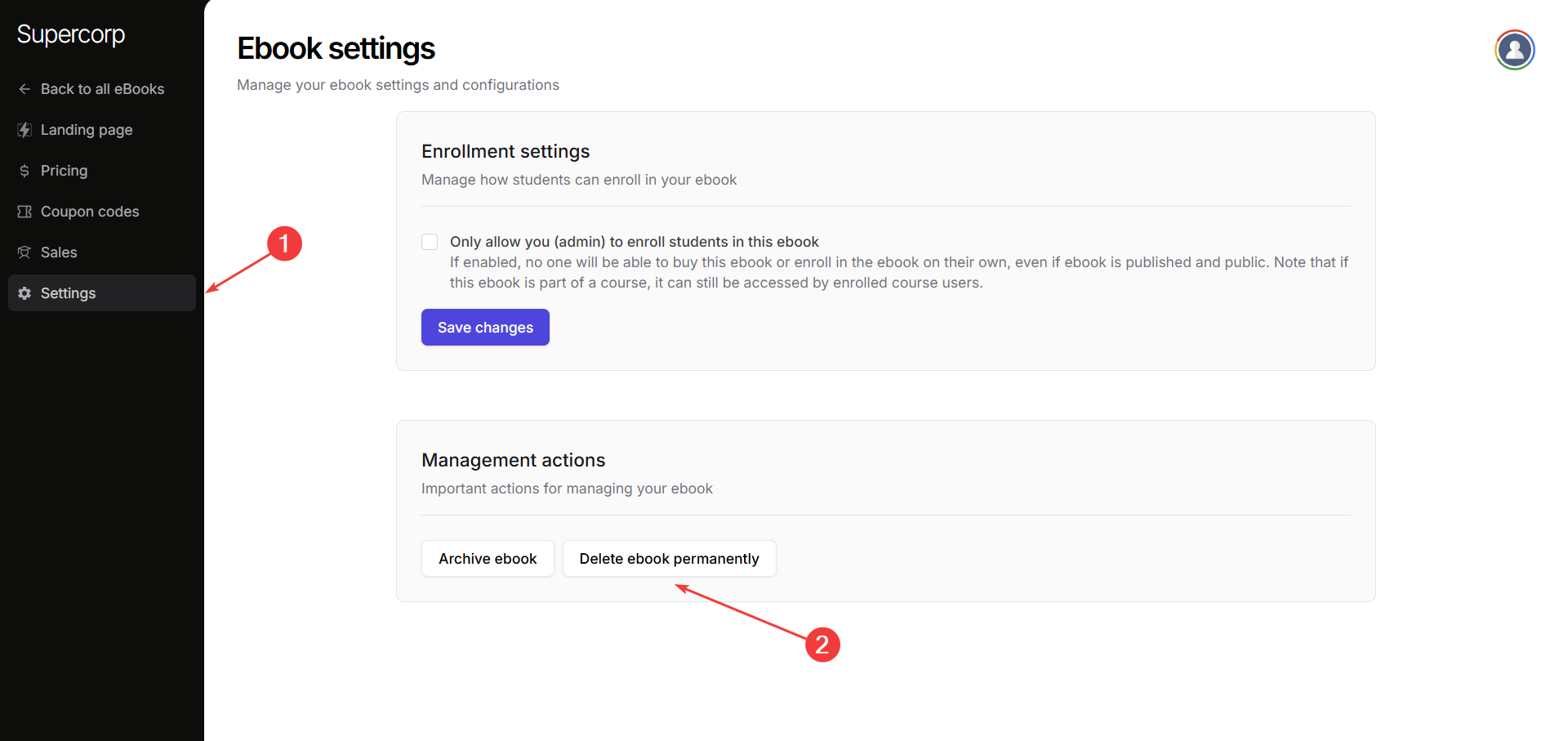
Manage your eBook’s settings and configurations to control access and maintain organization.
**Enrollment Settings:**\
Decide how students can enroll in your eBook. You can restrict enrollment to only admins, by checking the **Only allow you (admin) to enroll students in this ebook** box, meaning no one can buy or access the eBook independently, even if it’s published and public. For more information about enrolling users for an eBook, refer to [Enroll Users](/digital-products/enroll-students) documentation.
If the eBook is part of a course, enrolled course users can still access it. Learn more about [Linking eBooks to course](/digital-products/ebook-course)
**Management Actions:**\
Perform important actions to keep your eBook library organized:
* **Archive eBook:** Temporarily remove the eBook from public view without deleting it.
* **Delete eBook:** Permanently remove the eBook from your account. Please note that this action is **non reversible** in nature\