> ## Documentation Index
> Fetch the complete documentation index at: https://docs.fermion.app/llms.txt
> Use this file to discover all available pages before exploring further.
# Enroll Students
> Guide to manually or automatically enrolling users in your digital products on Fermion.
You can manage who gets access to your digital products directly from the Fermion dashboard. Whether users purchase through your landing page or you add them manually, Fermion makes enrollment simple and trackable.
You can also link your eBook to a course, allowing enrolled students to access the eBook automatically. Learn how to connect an eBook to a course in the [Link eBook to Course](/digital-products/ebook-course) documentation.
***
## Steps to Enroll Users
You can enroll users into your digital products with the help of the same steps. Here, we are describing how to enroll students into an eBook. The flow works the same for all digital products including [courses](/setting-up-course/landing-page) and [bundles](/setting-up-course/bundle).
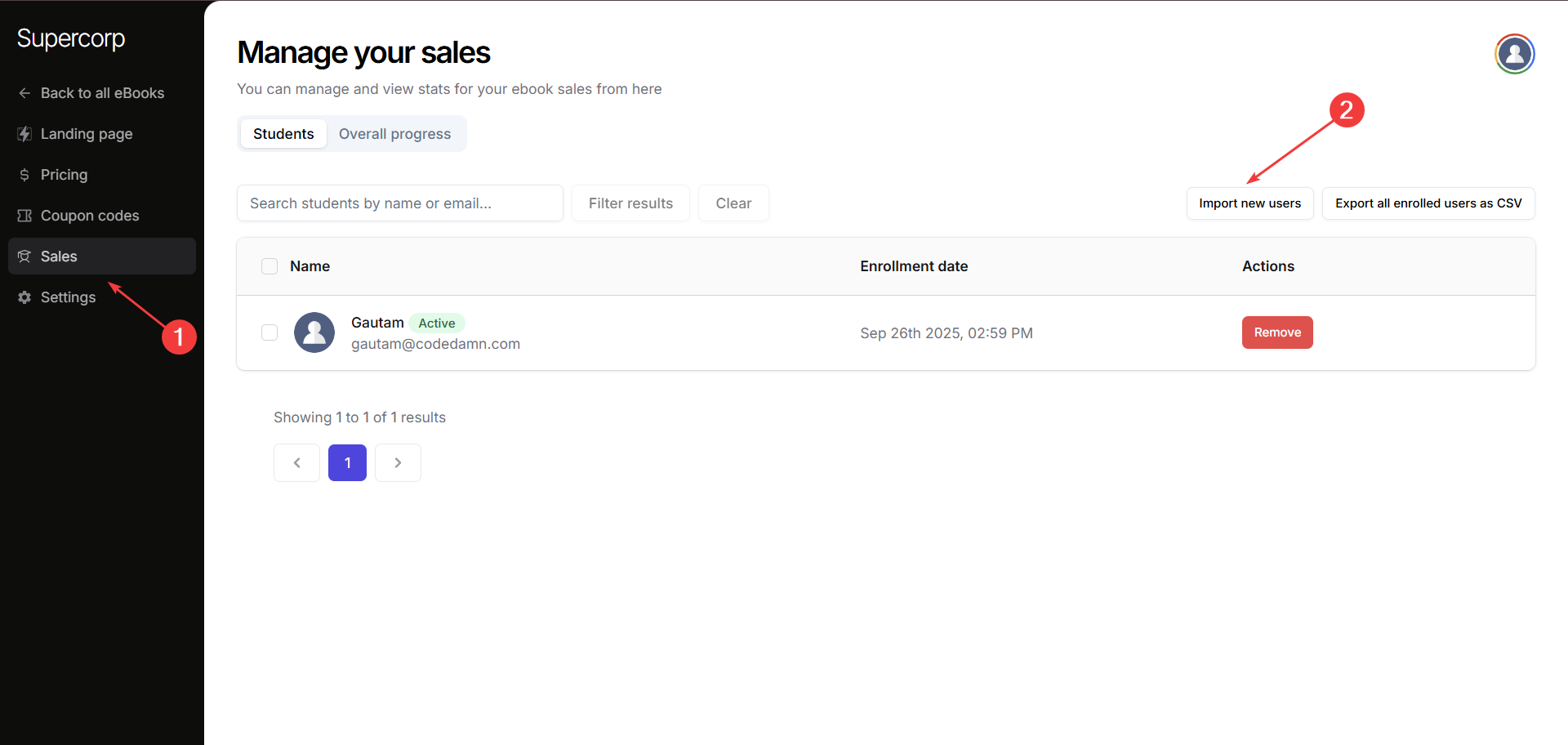
1. Go to **Instructor Dashboard → Digital Products → eBooks → Open Product Builder** of your eBook.
2. Click on the **Sales** (or **Students** tab of your respective product builder) tab in the sidebar.
3. Click **Import new users** to start enrolling readers.
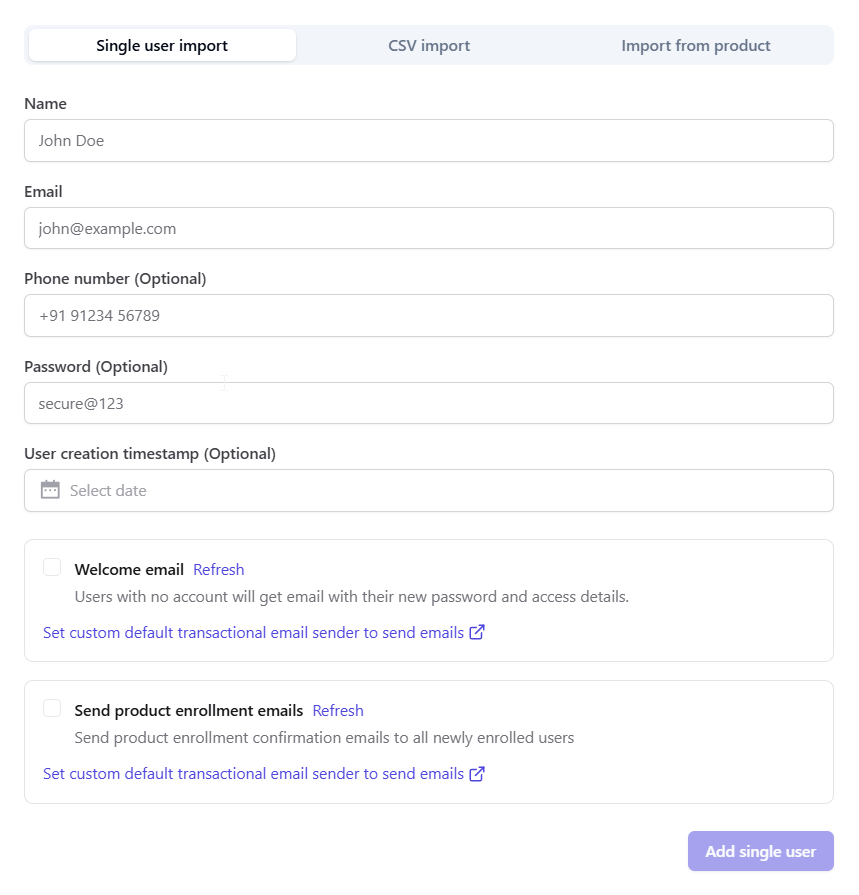
Use this form to enroll an individual user:
* `Name:` Enter the name of the user
* `Email:` Enter the email of the user
* `Phone Number:` (Optional): Enter the phone number of the user
* `Password:` (Optional): Create credentials for the user
* `User creation timestamp:` (Optional):\*\* Select date when the user was created
* `Welcome Email:` Select this checkbox if you want users with no account will receive an email with their new password and access details.
After filling the form, click **Add Single User** to complete enrollment.
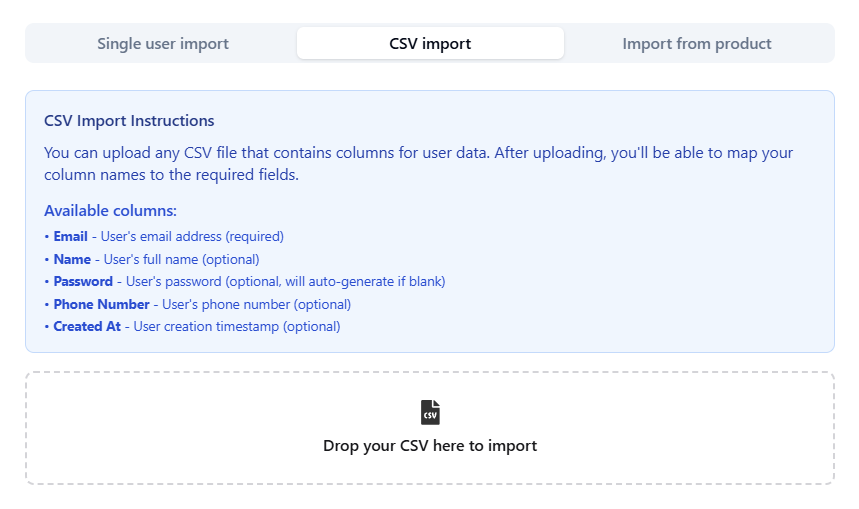
Head over to the CSV import tab if you want to enroll students in a bulk format\
Ensure your CSV includes all the following columns:
* `Email` (required): Email of the user
* `Name` (optional): Name of the user
* `Password` (optional): Password credentials for the user
* `Phone Number` (optional): Phone number of the user
* `Created At` (optional): Timestamp when the user was created
Upload your CSV file and your users will be enrolled to the eBook
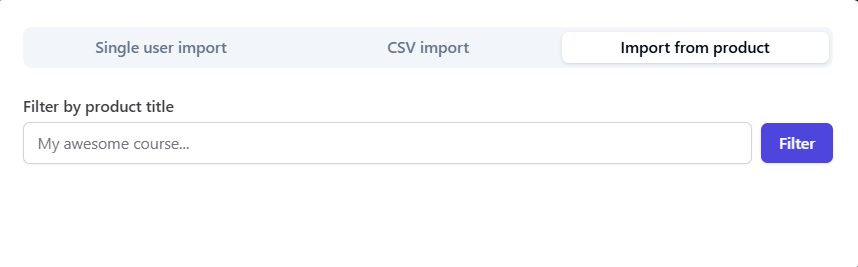
You can import users who are already enrolled in another product:
* Select the product from which you want to import users.
* Users from that specific product will be enrolled to your eBook
***
## Exporting Student Details
To export your eBook’s reader list as a CSV:
1. **Open Product Builder** of your eBook and head over to the **Sales** tab.
2. Click on **Export all enrolled users as CSV** button.
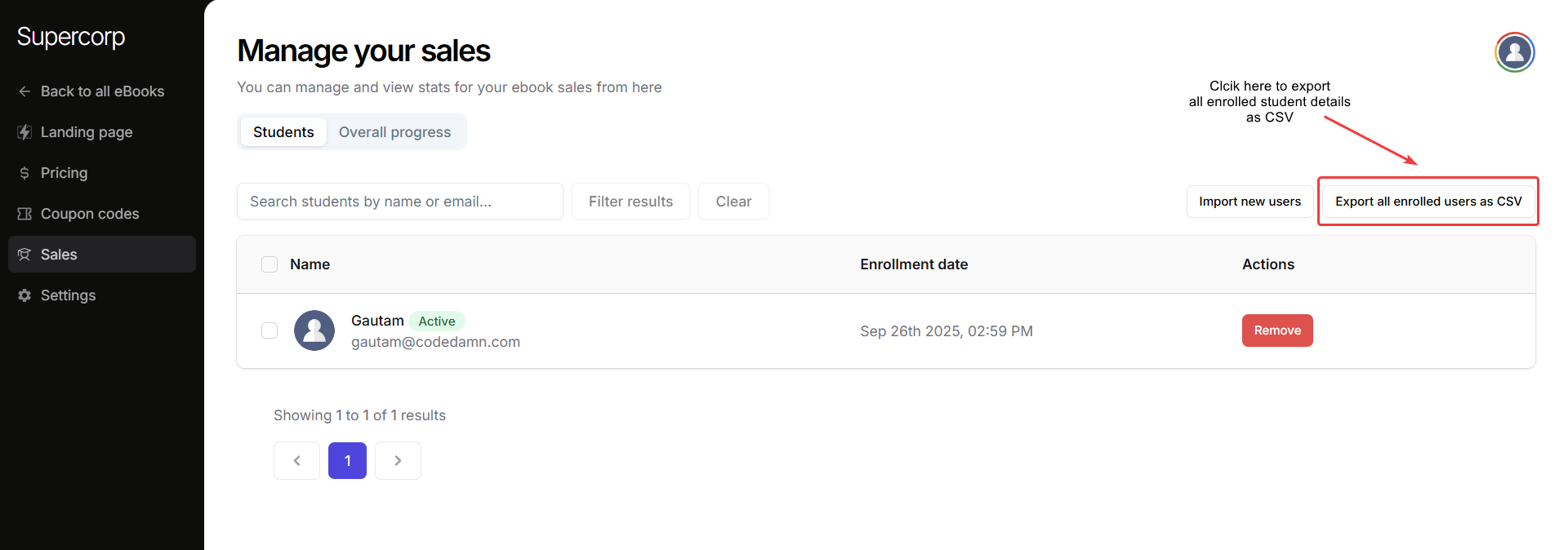
This will export all the details of the users enrolled in your eBook. You can use this export for reports, marketing campaigns, or syncing data with other tools.