> ## Documentation Index
> Fetch the complete documentation index at: https://docs.fermion.app/llms.txt
> Use this file to discover all available pages before exploring further.
# eBooks Inside Courses
> Learn how to connect your eBook to a course and allow enrolled students to access it from within the course.
You can enhance your **[course](/setting-up-course/prerequisites)** experience by linking an eBook to a course. This allows students enrolled in the course to access the eBook automatically without needing a separate purchase or enrollment.
* Go to your **Instructor Dashboard → Courses → Open Course Builder**.
* Select the course where you want to link your eBook.
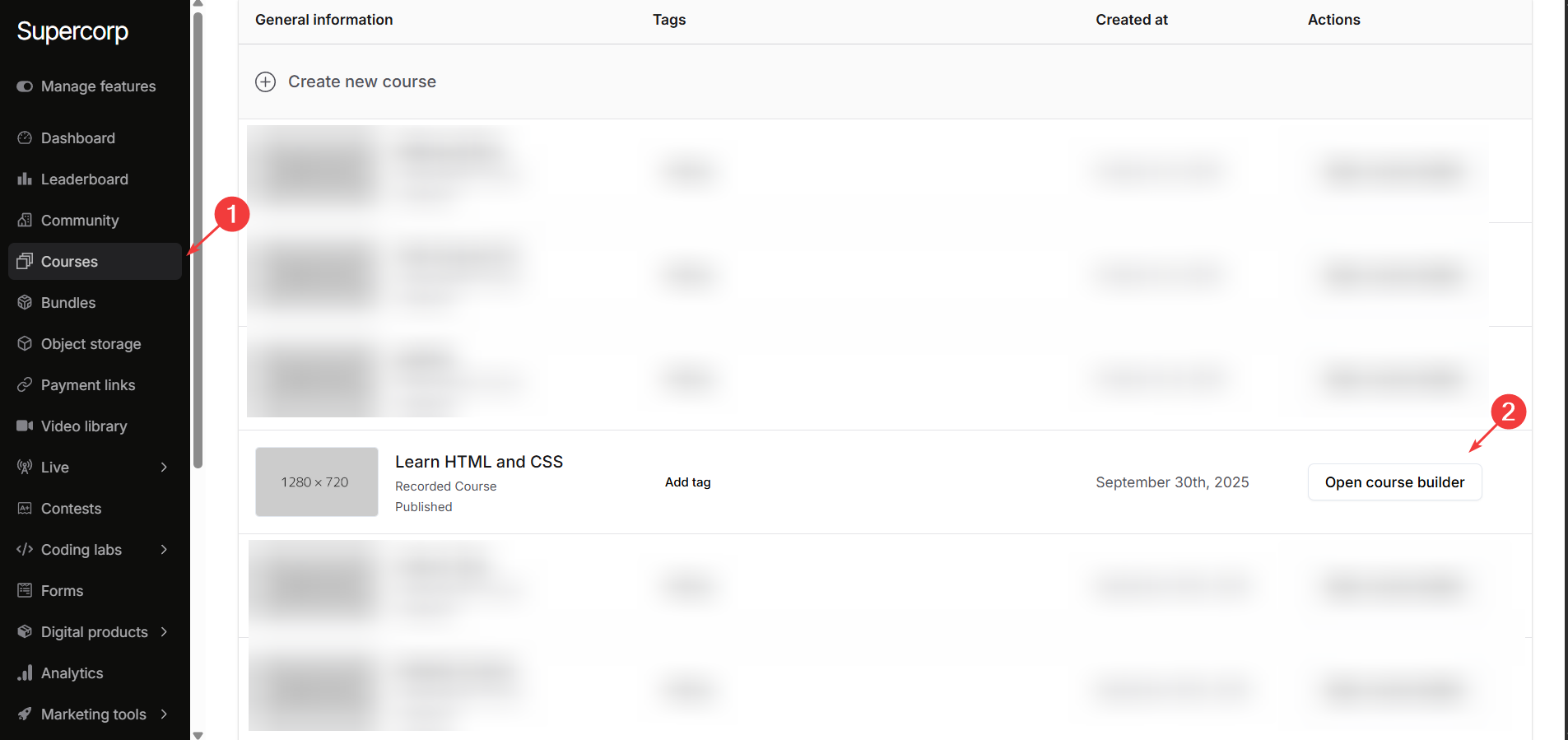
* In the course builder, go to the **Syllabus** tab.
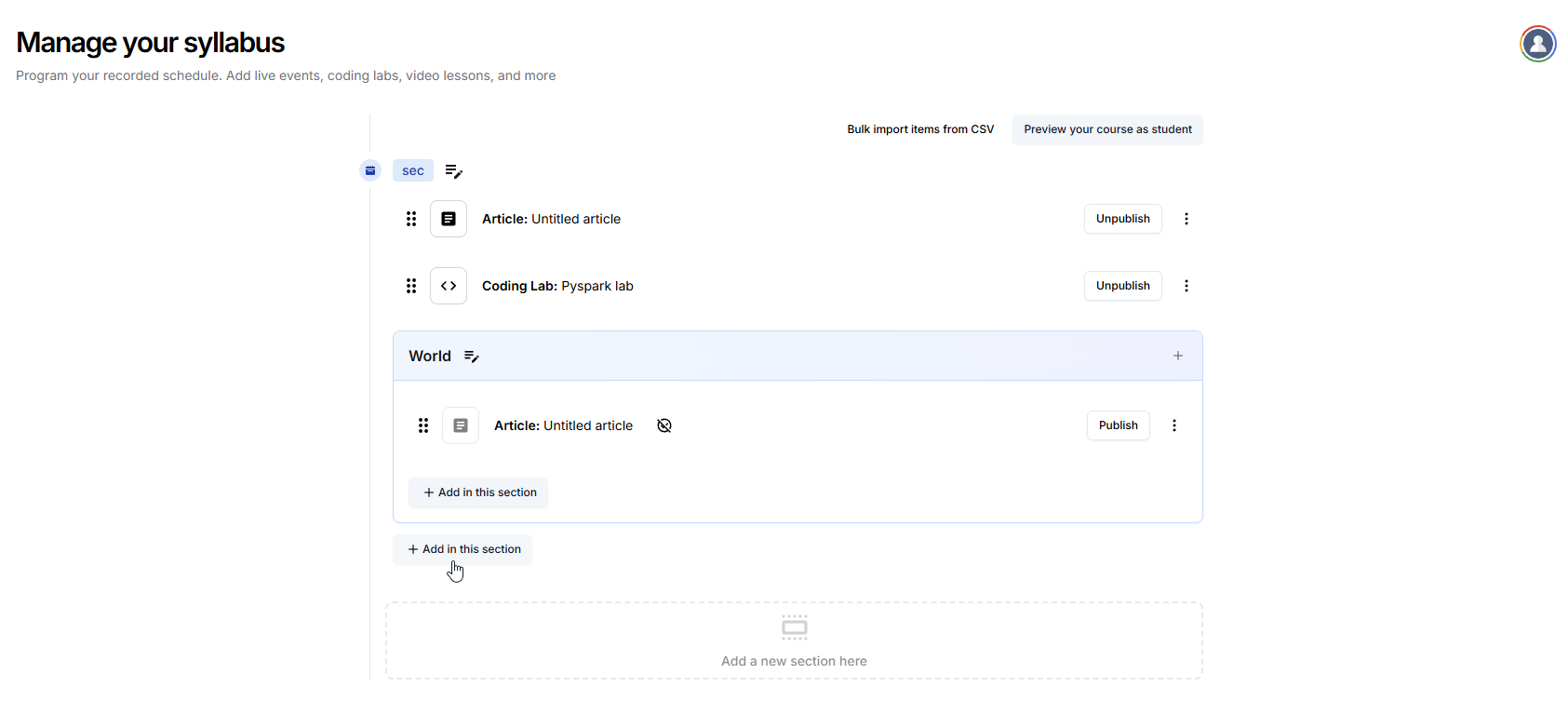
* Identify the section where you want to add the eBook.
* Click **Add in this section** for the chosen section.
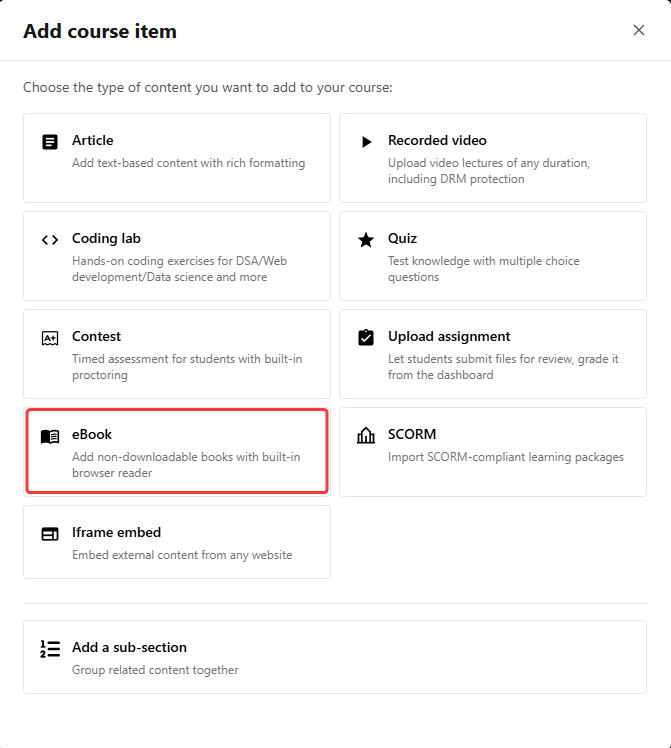
* Select the **eBook** option in **Add course item** modal.
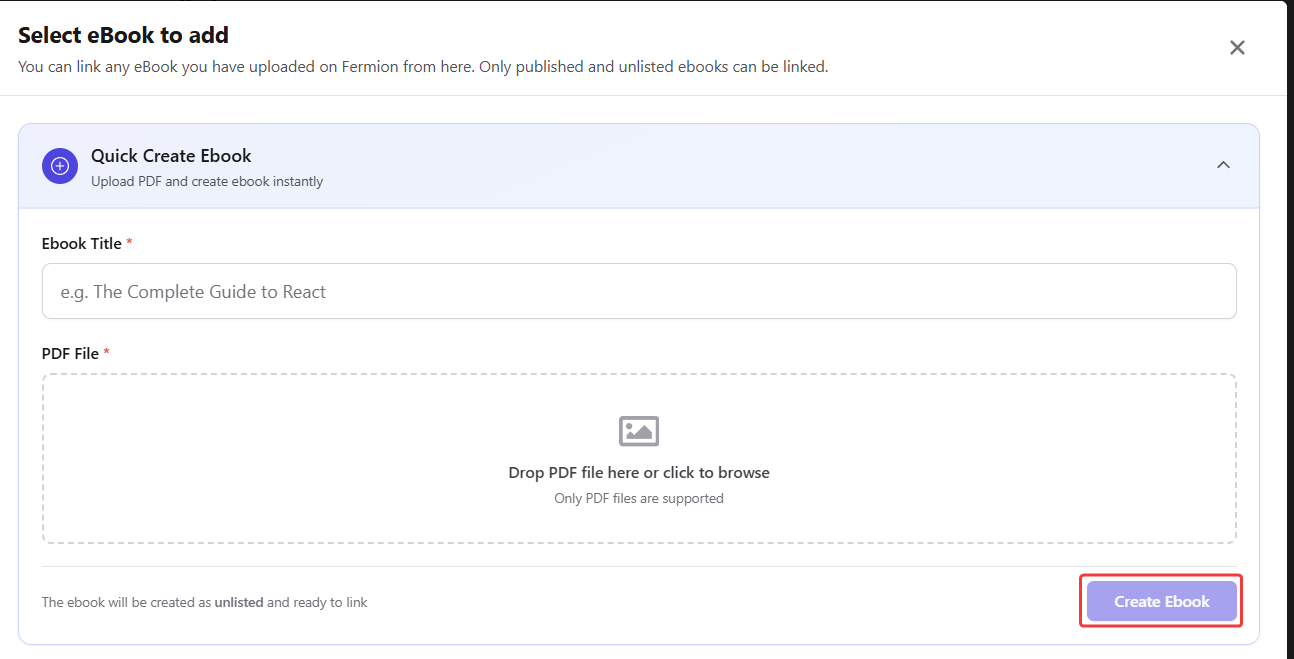
You can upload a **new eBook** or link a **preexisting one** directly from the **Select eBook to add** section.
To link an existing eBook: Choose one from the list and click **Link with course item**.
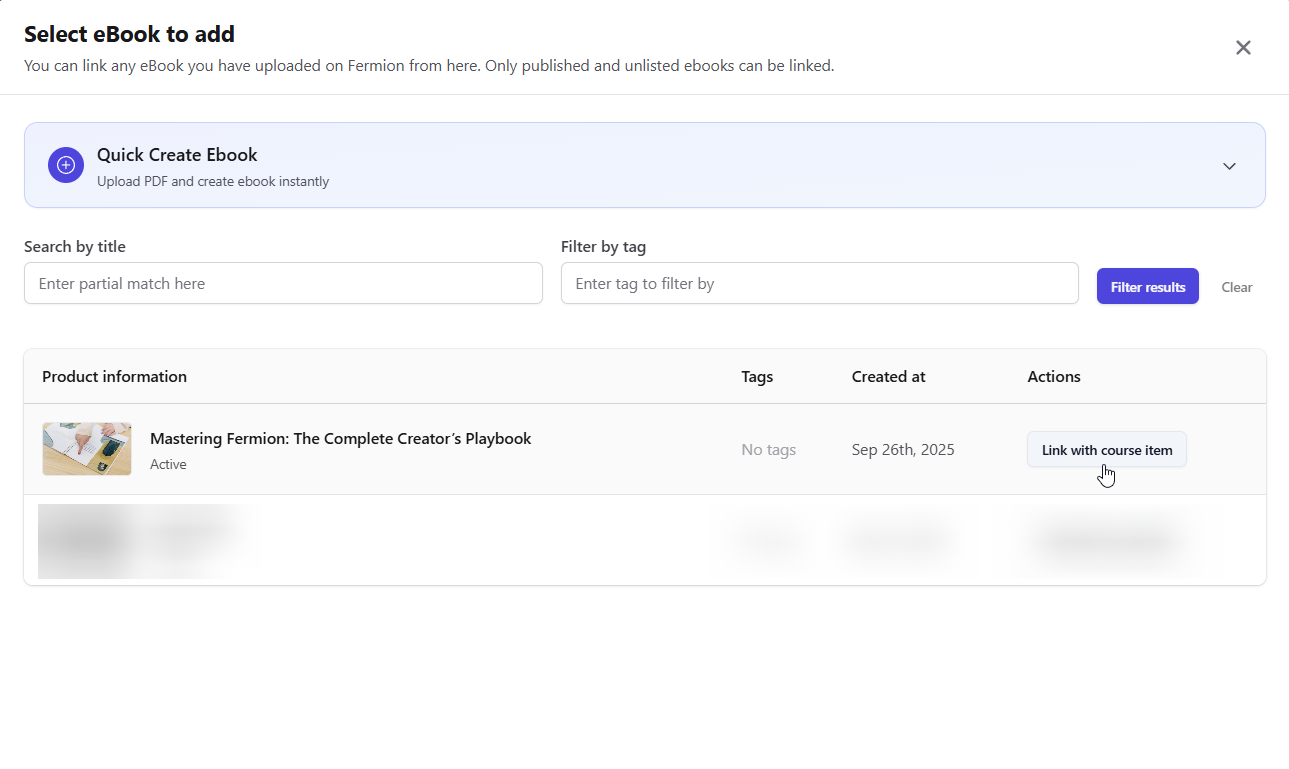
To upload a new eBook: Click **Quick Create eBook**, enter the eBook title, and upload your PDF file.\
Once uploaded, click **Create Ebook** to make it available for linking. This eBook will be created in an unlisted state.
Once linked:
* Students enrolled in the course can open the eBook directly from the course dashboard.
* Any updates to the eBook (like new versions) are reflected automatically for all students.
Linking eBooks to courses ensures a smooth experience for students and helps you bundle content efficiently. To enroll specific students outside of a course, refer to [Enroll Students](/digital-products/enroll-students).