> ## Documentation Index
> Fetch the complete documentation index at: https://docs.fermion.app/llms.txt
> Use this file to discover all available pages before exploring further.
# Downloadable Products
> Learn how to design, upload, and publish your first downloadable product on Fermion
## Introduction
Downloadable products are digital files that your users can purchase or access directly from Fermion. These can include templates, guides, reports, software, compressed files or any other type of file you want to distribute digitally.
## Create a downloadable product
Creating your first **downloadable product** on Fermion is as easy as it can get. This guide walks you through the entire process: from setting up a dedicated landing page to uploading your digital file in the Product Builder. With Fermion, you can showcase your content professionally, control access, and offer secure downloads to your audience.
Before you start, make sure **Digital Products** are enabled under **Manage Features** in your instructor dashboard. This allows you to create and sell downloadable products on Fermion. Learn how to enable features [here](/manage-settings/manage-features)
### Landing page
Your downloadable product’s landing page is where potential customers discover and purchase your content.
### Steps to create a landing page
Before creating a downloadable product, you need to manually enable the Digital Products feature from your instructor dashboard. Learn more about how to [enable features](/manage-settings/manage-features)
1. Head over to Manage Features.
2. Enable the toggle for Digital Products.
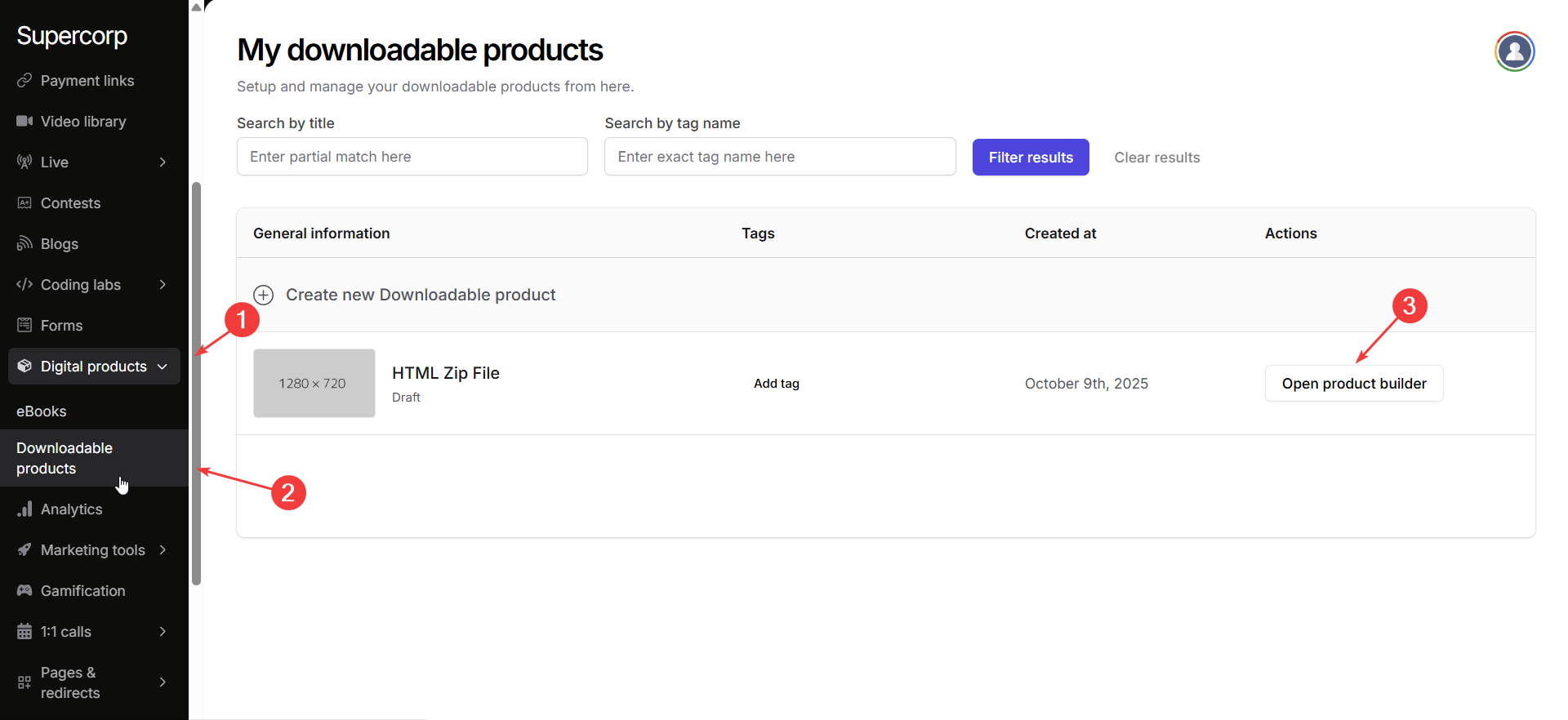
1. Go to your **Instructor Dashboard → Digital Products**.
2. Select **Create new Product** if you want to create a new item or update an existing one by clicking **Open Product Builder**.\
Navigate to the **Landing Page** tab in your product sidebar.\
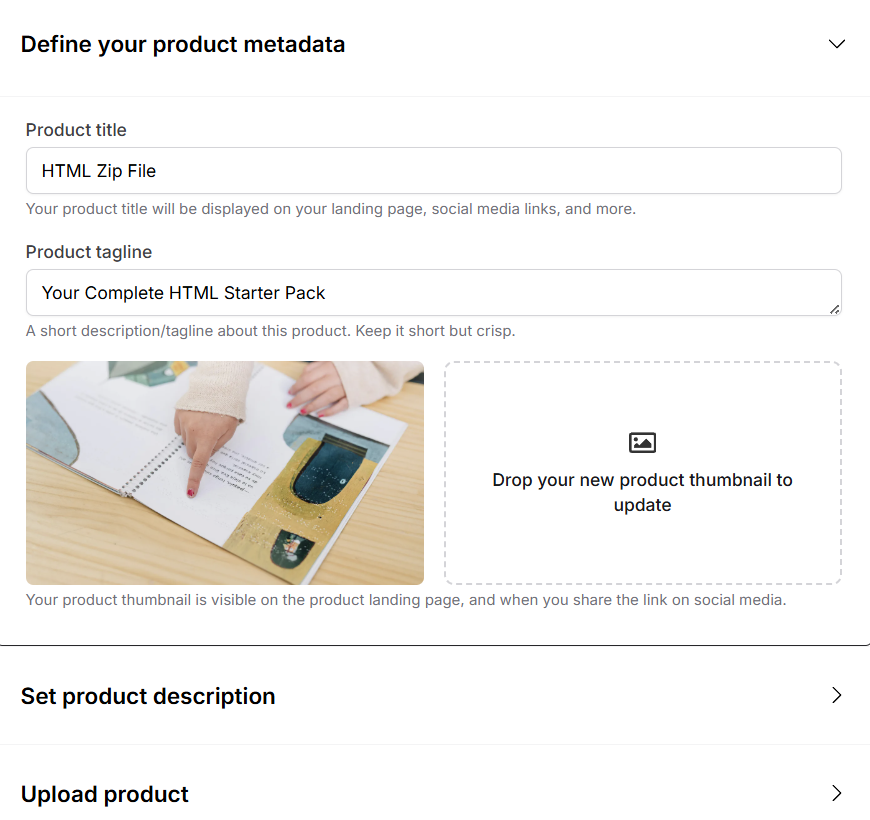
Add the essential details about your product:
* **Product Title & Tagline:** Clearly describe your product and what buyers can expect.
* **Thumbnail / Cover Image:** Upload a high-resolution image to make your product stand out.\
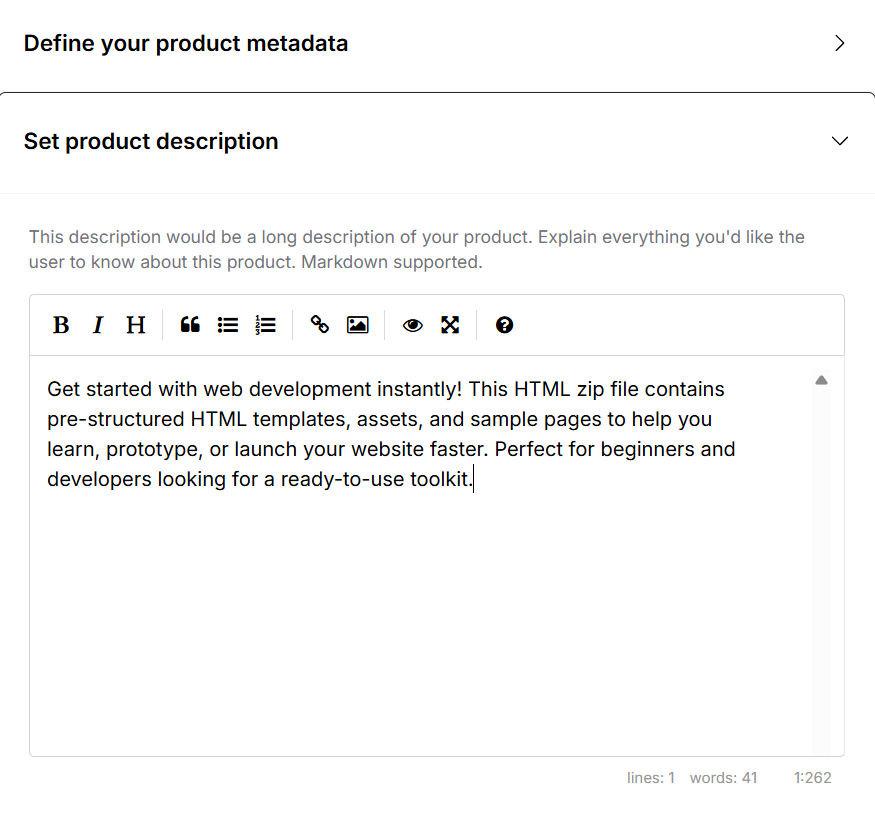
Write a compelling and informative description of your product.\
The description editor supports **Markdown**, so you can format text, create bullet points, add links, and emphasize content.\
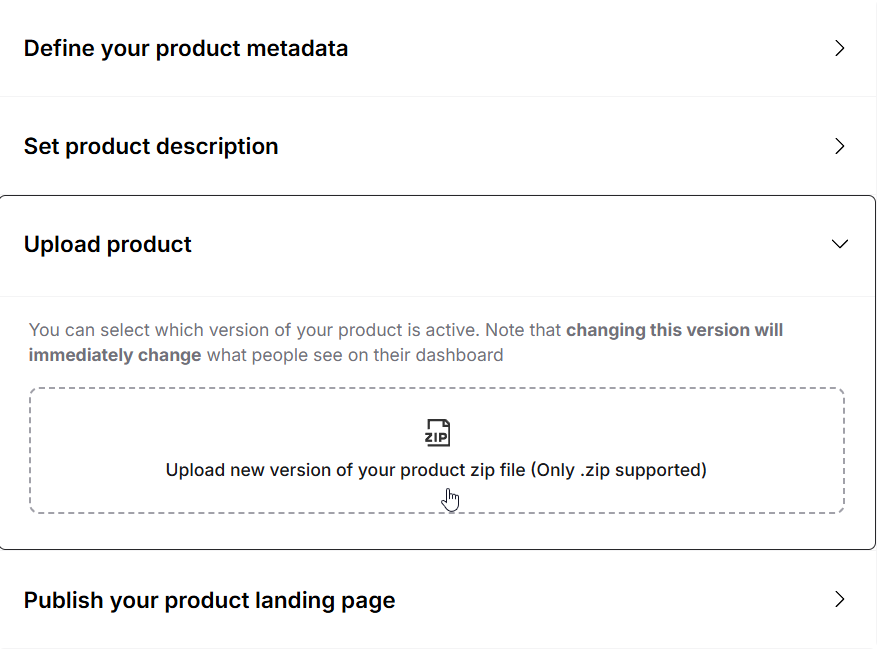
Upload your product file (.HTML, .ZIP, or other supported formats).
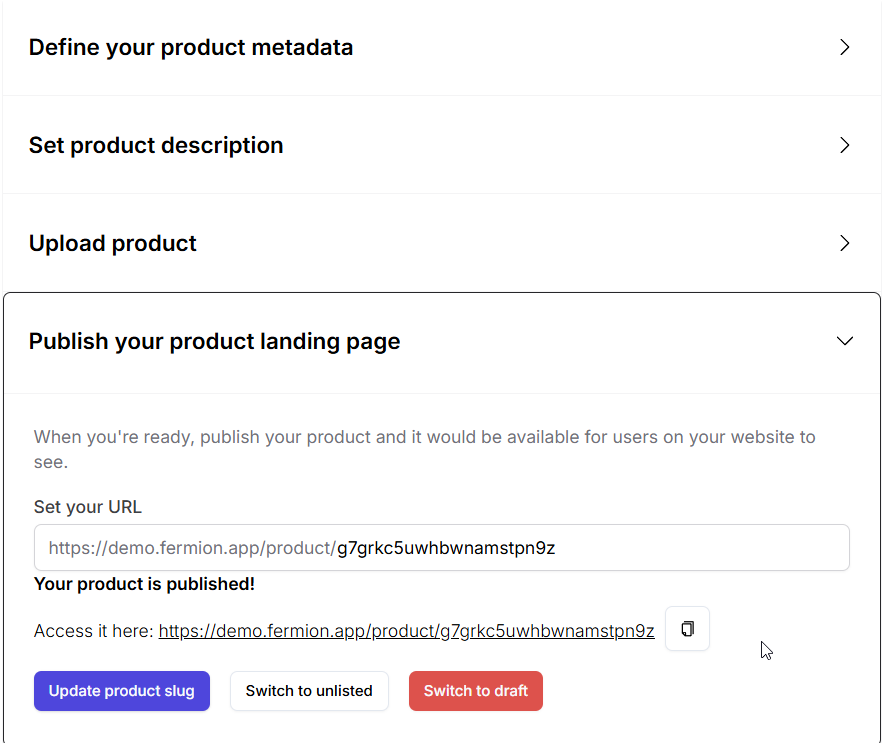
Once your product is ready:
* Click **Publish** to make the product live.
* You can also **update the landing page slug**, move the product to **Unlisted** or **Draft** mode, and **access the landing page link** to preview it.\
***
## Product pricing and coupon codes
Pricing for downloadable products works the same way as it does for all other digital content on Fermion.
You can create a **[fixed pricing plan](/setup-pricing/fixed-pricing-plan)**, where buyers pay a one-time amount, or a **[partial payment plan](/setup-pricing/setup-emi)**, allowing payment in installments. For common queries regarding pricing plans, refer to [pricing FAQs](/setup-pricing/common-faqs).
Similarly, **coupon codes** also work the same for digital products as they do for courses. You can create discount codes, set expiration dates, and control usage limits. Learn more in the [coupon codes](/setup-pricing/add-coupon-codes) documentation.
***
## Enrolling users
Students can purchase **downloadable products** directly from the landing page.\
As an admin, you can also **manually enroll students** into a downloadable product.
Head over to the **Sales** section in your product builder to manually import users
[Learn how to manually enroll students](/digital-products/enroll-students)