> ## Documentation Index
> Fetch the complete documentation index at: https://docs.fermion.app/llms.txt
> Use this file to discover all available pages before exploring further.
# Submissions
> Learn how to view and track submission history for IO coding labs
The Submissions History feature allows learners to view all their past code submissions for an IO coding lab, including execution results, performance metrics, and test case outcomes.
## How to access Submissions History
Go to your **Instructor Dashboard** and open the **Coding Labs** section from the sidebar. Click on **Labs** and then navigate to the **IO Coding Labs** tab.
Select any IO coding lab from your list to open it.
Click on **Try out lab** to open the lab in the coding interface.
Click on **Submission history** in the lab interface to view all your past submissions for that lab.
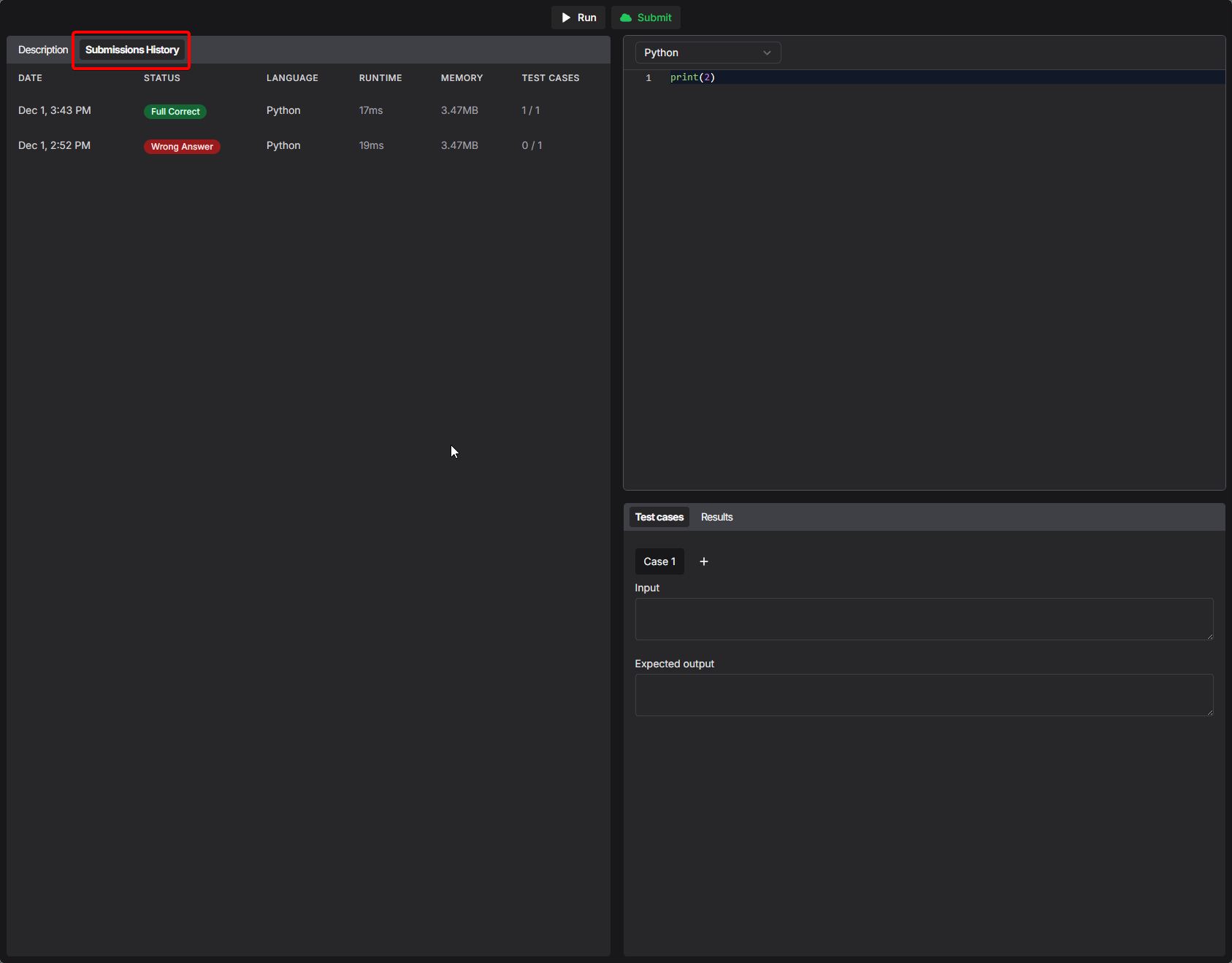
## Understanding the Submissions Table
The Submissions History table displays comprehensive information about each code submission:
| Column | Description |
| -------------- | ----------------------------------------------------------------------- |
| **DATE** | The date and time when the submission was made |
| **STATUS** | The overall result of the submission (e.g., Full Correct, Wrong Answer) |
| **LANGUAGE** | The programming language used for the submission |
| **RUNTIME** | The execution time of the code in milliseconds |
| **MEMORY** | The memory consumed during code execution |
| **TEST CASES** | The number of test cases passed (e.g., 1/1, 0/1) |
## Submission Status Types
Each submission displays a status that indicates the outcome of the code execution:
All test cases passed successfully. The solution is correct.
The code executed successfully but produced incorrect output for one or more test cases.
## Viewing Submission Details
Click on any submission entry in the table to view detailed information about that specific submission, including:
* Complete source code that was submitted
* Individual test case results
* Execution logs and error messages (if any)
* Performance metrics breakdown
Submissions History helps learners track their progress, identify patterns in
their solutions, and learn from previous attempts.
Instructors can also view submission history for all learners from the lab
management interface to monitor class progress and identify common issues.
***
This feature was introduced in November 2025. For more product updates, see
the [Product Updates](/changelog) page.