> ## Documentation Index
> Fetch the complete documentation index at: https://docs.fermion.app/llms.txt
> Use this file to discover all available pages before exploring further.
# SQL Labs
> Learn how to setup a successful SQL coding lab on Fermion for your students
Fermion supports both SQLite and MySQL 8 for creating interactive SQL coding labs. This allows you to create hands-on database exercises where students can practice writing SQL queries against a real database.
## Prerequisites
Before creating a SQL lab, you'll need:
1. **For SQLite**: A SQLite database file (`.sqlite` format) named `db.sqlite`
2. **For MySQL 8**: A plaintext SQL file (`.sql` format) named `setup.sql`
3. The file should be compressed into a ZIP archive
## How to create SQLite lab?
Follow the steps below for setting up SQLite based lab:
### 1. Create Your Database File
First, create your SQLite database with the tables and data you want students to work with. You can either:
**Option A: Use an existing SQLite database**
You can use popular sample databases like:
* `chinook.db` - Music store database
* `northwind.db` - Business database
* `sakila.db` - DVD rental database
These are standard SQLite database files with `.db` extension that contain realistic data for learning purposes.
**Option B: Convert a plaintext SQL file to SQLite**
If you have a `.sql` file with CREATE TABLE and INSERT statements, you can convert it to an SQLite database:
1. **Using command line:**
```bash theme={null}
# Create database from SQL file
sqlite3 mydatabase.db < schema.sql
# Or if you want to create db.sqlite specifically
sqlite3 db.sqlite < schema.sql
```
2. **Using SQLite command line:**
```bash theme={null}
# Start SQLite
sqlite3 db.sqlite
# Read and execute SQL file
.read schema.sql
# Exit SQLite
.quit
```
3. **Using Python (if you prefer):**
```python theme={null}
import sqlite3
# Create database
conn = sqlite3.connect('db.sqlite')
cursor = conn.cursor()
# Read and execute SQL file
with open('schema.sql', 'r') as file:
sql_script = file.read()
cursor.executescript(sql_script)
conn.commit()
conn.close()
```
### 2. Prepare Your Database File
1. Save your database as `db.sqlite`
2. Create a ZIP archive containing only the `db.sqlite` file
3. The ZIP file should be named something descriptive like `student_database.zip`
## How to create MySQL 8 lab?
Follow the steps below for setting up MySQL 8 lab:
### 1. Create Your SQL Setup File
For MySQL 8 labs, you need to create a plaintext SQL file that contains all the necessary setup commands:
```sql theme={null}
-- Example setup.sql file
CREATE DATABASE IF NOT EXISTS student_db;
USE student_db;
CREATE TABLE users (
id INT PRIMARY KEY AUTO_INCREMENT,
name VARCHAR(100) NOT NULL,
email VARCHAR(100) UNIQUE NOT NULL,
created_at TIMESTAMP DEFAULT CURRENT_TIMESTAMP
);
INSERT INTO users (name, email) VALUES
('John Doe', 'john@example.com'),
('Jane Smith', 'jane@example.com'),
('Bob Johnson', 'bob@example.com');
-- Add more tables and data as needed
```
### 2. Prepare Your SQL File
1. Save your SQL setup file as `setup.sql`
2. Create a ZIP archive containing only the `setup.sql` file
3. The ZIP file should be named something descriptive like `mysql_student_database.zip`
## Creating the SQL Lab on Fermion
If you have not enabled Coding labs, please go to "Manage features" >
"Coding Labs" and enable that first from your instructor dashboard
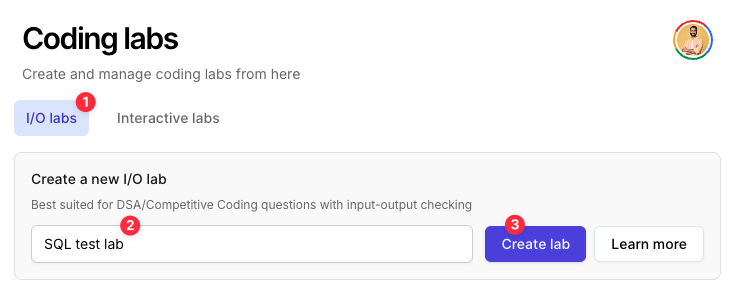
1. Navigate to your instructor dashboard
2. Go to the "Coding Labs" section
3. Click on "I/O labs" and create an SQL lab as IO lab
4. Edit this lab
5. Inside the lab setup interface, scroll down and pick "SQL Lab".
6. Fermion currently supports SQLite and MySQL 8 as backend adapters for running SQL queries.
7. Expand this and upload the ZIP file you just created:
* **For SQLite**: Upload `student_database.zip` containing `db.sqlite`
* **For MySQL 8**: Upload `mysql_student_database.zip` containing `setup.sql`
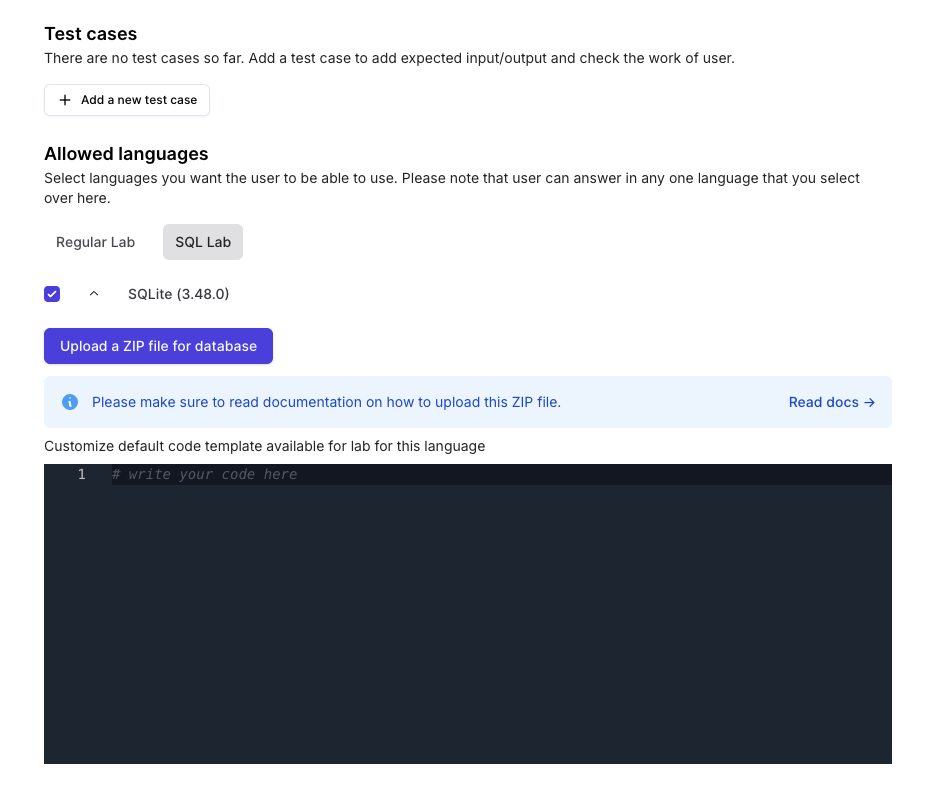
8. You can also add default starting code for students if required.
## Setting up test cases
For SQL labs, you can define a single test case where you write an expected output the query should produce.
### SQLite Test Cases
SQLite is able to produce output in 14 different formats, however Fermion outputs the SQL query output in `list` mode.
This is how list mode output works:
```bash theme={null}
sqlite> select * from tbl1;
hello!|10
goodbye|20
sqlite>
```
To get the expected output for your own query against your own database, create a file called `script.sql` that has the solution query, and run the following command locally on your system:
```bash theme={null}
cat script.sql | sqlite3 db.sqlite
```
### MySQL 8 Test Cases
For MySQL 8, the output format is similar to the standard MySQL command line output. To get the expected output for your query, you can run it locally against your MySQL database:
```bash theme={null}
mysql -u username -p database_name < script.sql
```
This will give you output of your command which you can copy-paste in the "output" box of test case.
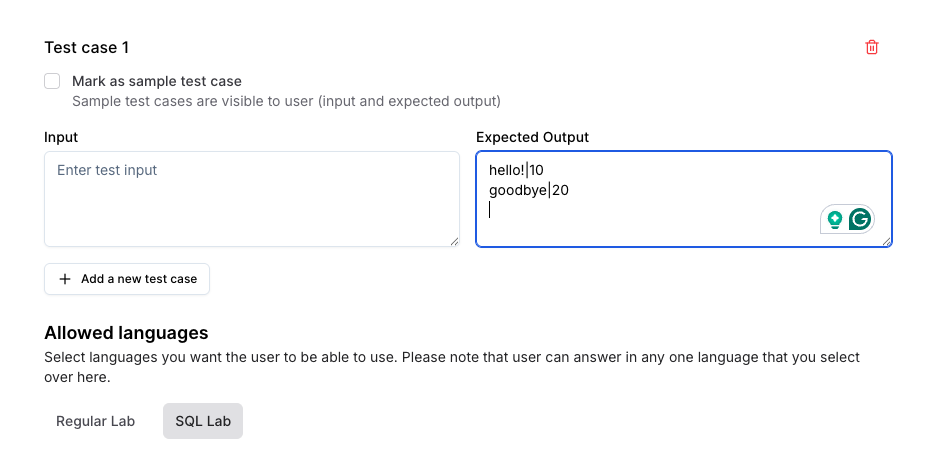
Save your lab and try it as a user to see.
Fermion runs every query in a completely isolated environment. Therefore,
you can setup labs that can have INSERT or DELETE operations as well,
alongside SELECT operations