> ## Documentation Index
> Fetch the complete documentation index at: https://docs.fermion.app/llms.txt
> Use this file to discover all available pages before exploring further.
# Introduction
> An overview of IO-based coding labs designed for algorithmic and DSA-style coding exercises. Also learn about languages supported on Fermion.
Fermion’s IO Coding Labs provide an interactive environment for solving algorithmic and data structure–based challenges. These labs are designed to evaluate a learner’s ability to read input, process it through logic, and produce the correct output under defined constraints, just like in real competitive coding or technical interview settings.
Each coding lab runs securely in an isolated environment with configurable runtime limits for CPU, memory, and execution time. Learners can write, compile, and execute code directly in the browser while instructors receive precise insights into submission results, runtime performance, and test case accuracy.
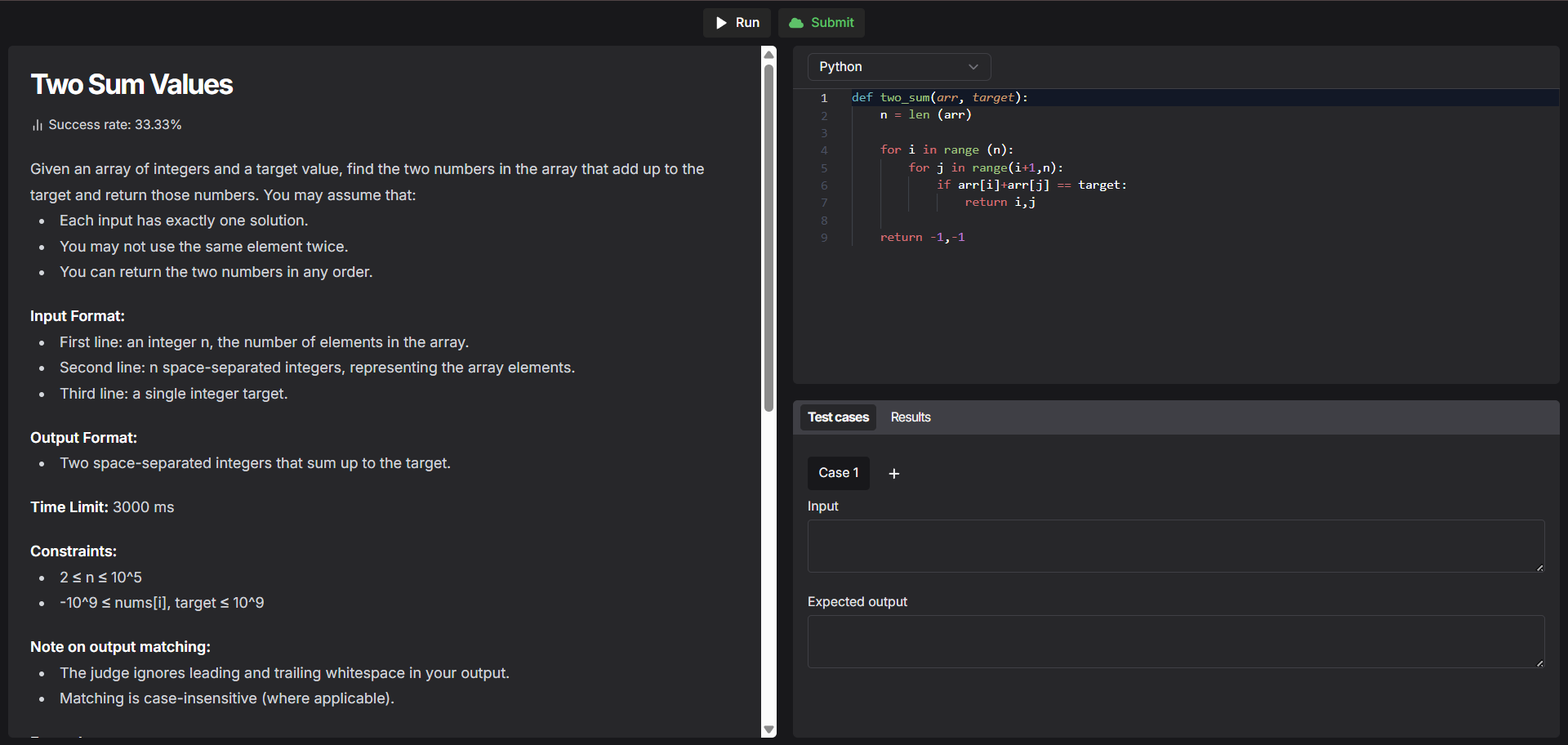
Fermion allows you to add IO coding labs. IO coding labs are powerful labs that can run the following languages:
Before you start, make sure **Coding labs** are enabled under **Manage Features** in your instructor dashboard. Learn how to enable features at Fermion [here](/manage-settings/manage-features)
IO coding labs are available to be used within the platform directly, or by embedding it.
Reach out to Fermion support if you need access to more runtimes than listed
here.
## How to access and create IO labs
To access **IO Coding Labs**, go to your **Instructor Dashboard** and open the **Coding Labs** section from the sidebar. Click on **Labs** and then navigate to the **IO Coding Labs** tab.
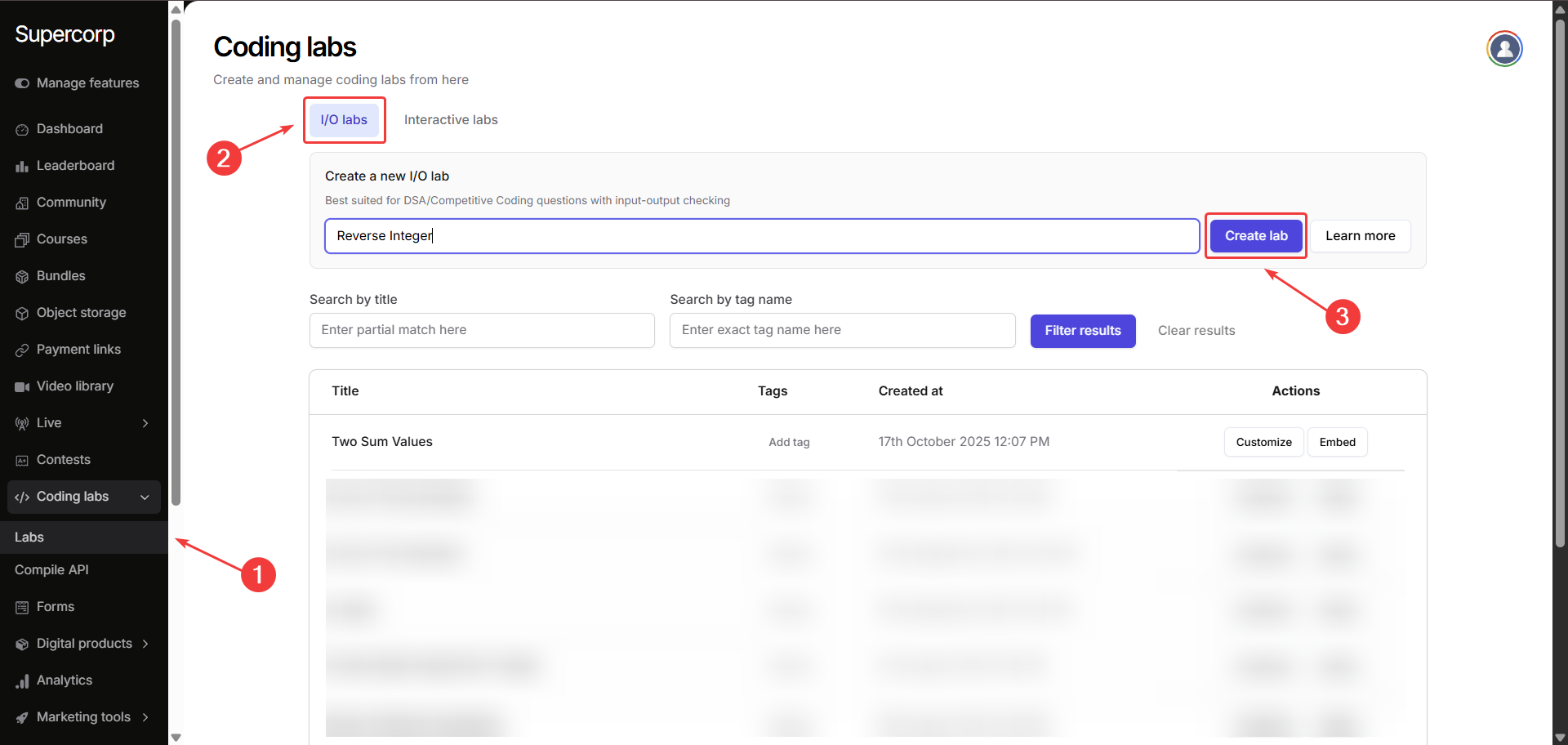
Give your lab a suitable **name** and click **Create Lab**.\
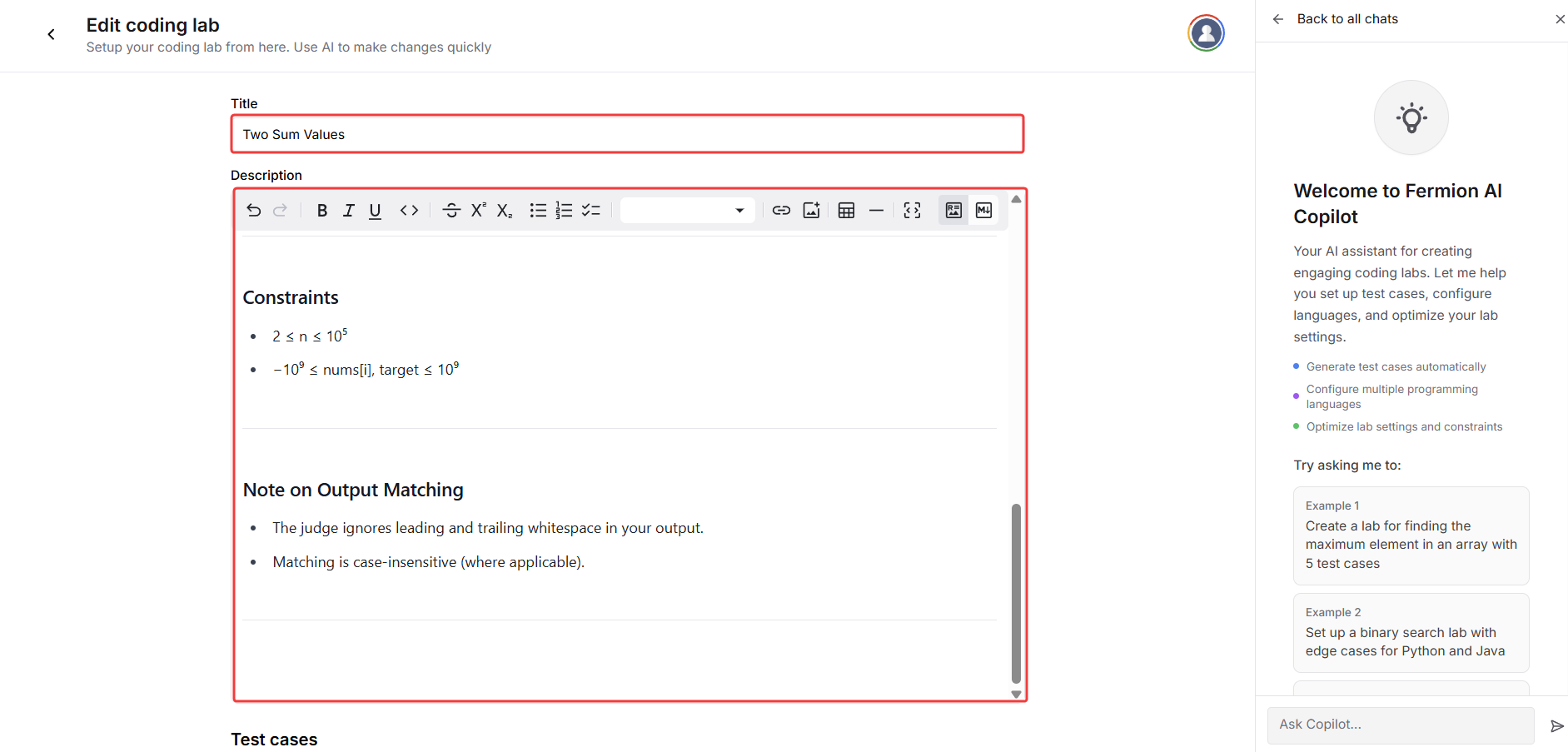
Next, add a **title** and **description** for your lab. You can also use **[Fermion Copilot](/creating-io-coding-labs/ai-agent)** to help build your lab.\
The description field supports **Markdown**, allowing you to format content and add details freely.
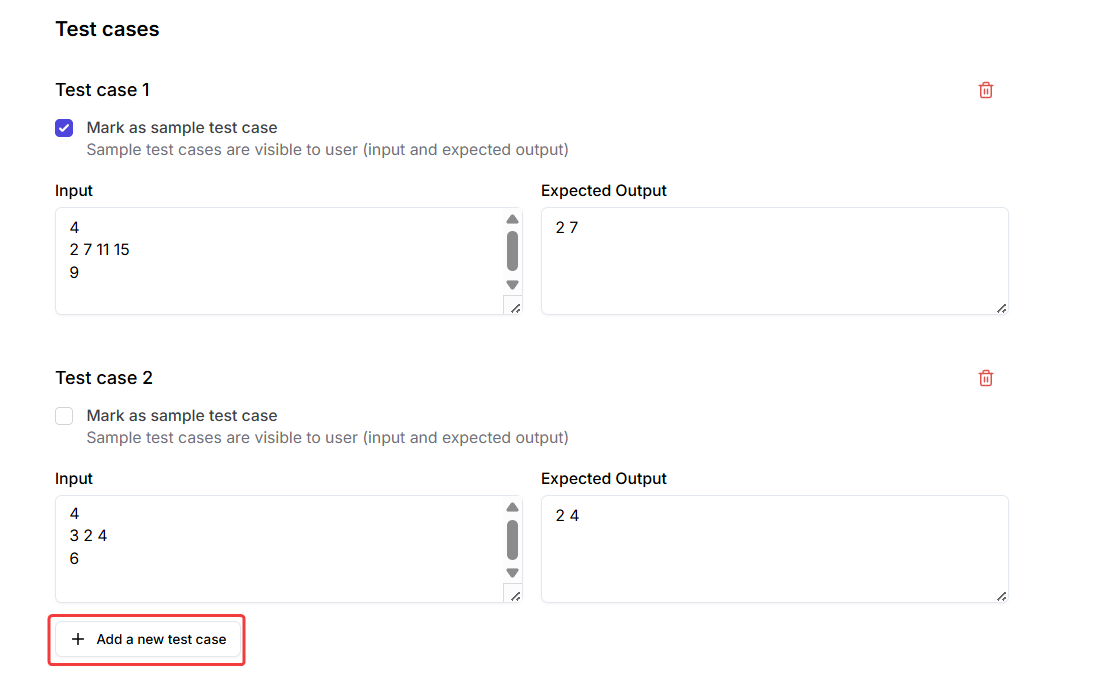
After creating the lab, move on to **adding test cases**.\
You can include **sample test cases** as well, which will be visible to the users attempting the lab.
Choose the programming **language(s)** you want your learners to use in the lab. To configure the **default code template** for any language, click on the **arrow** next to the language name.\
Learn how to create [SQL labs](/creating-io-coding-labs/sql-lab)
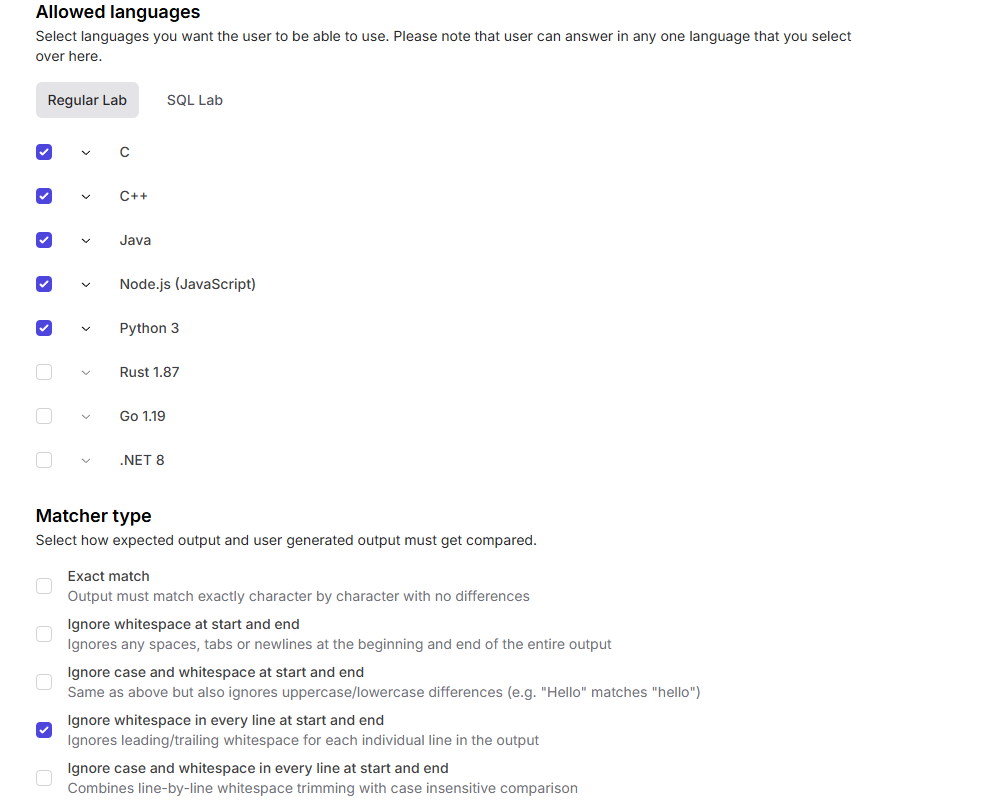
Under **Matcher Type**, decide how the system should compare user output with the expected output:
Define how the expected output and user’s output should be compared:
* **Exact match**: Character-by-character comparison
* **Ignore whitespace at start and end**
* **Ignore case sensitivity and whitespace at start and end**
* **Ignore whitespace in every line at start and end**
* **Ignore case sensitivity and whitespace in every line at start and end**
Under **Advanced Settings**, you can fine-tune your lab’s execution limits.\
These defaults are usually optimal:
* **Maximum CPU time (ms):** 2000
* **Maximum wall time (ms):** 5000
* **Maximum memory (KB):** 512000
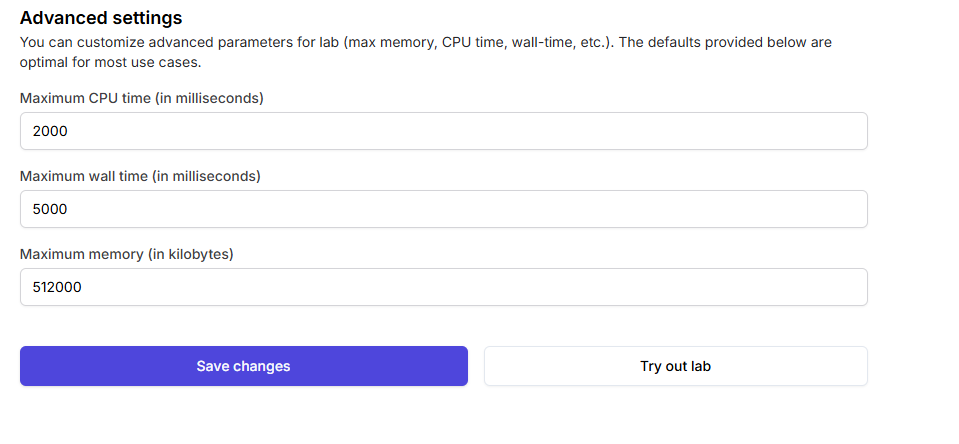
Once all configurations are complete, click **Save Changes**.\
Your IO Coding Lab is now successfully added and ready for learners!