> ## Documentation Index
> Fetch the complete documentation index at: https://docs.fermion.app/llms.txt
> Use this file to discover all available pages before exploring further.
# AI Copilot
> Create intelligent coding labs for DSA / IO problems using the Fermion Copilot.
## What is agentic AI in labs?
Fermion Copilot is powered by an **agentic AI** system designed to understand natural language and take autonomous actions to build structured [coding labs](/creating-io-coding-labs/introduction). Instead of manually configuring problem statements, test cases, and setups, you can simply describe the lab you want in plain English, and the Copilot will generate it for you.\
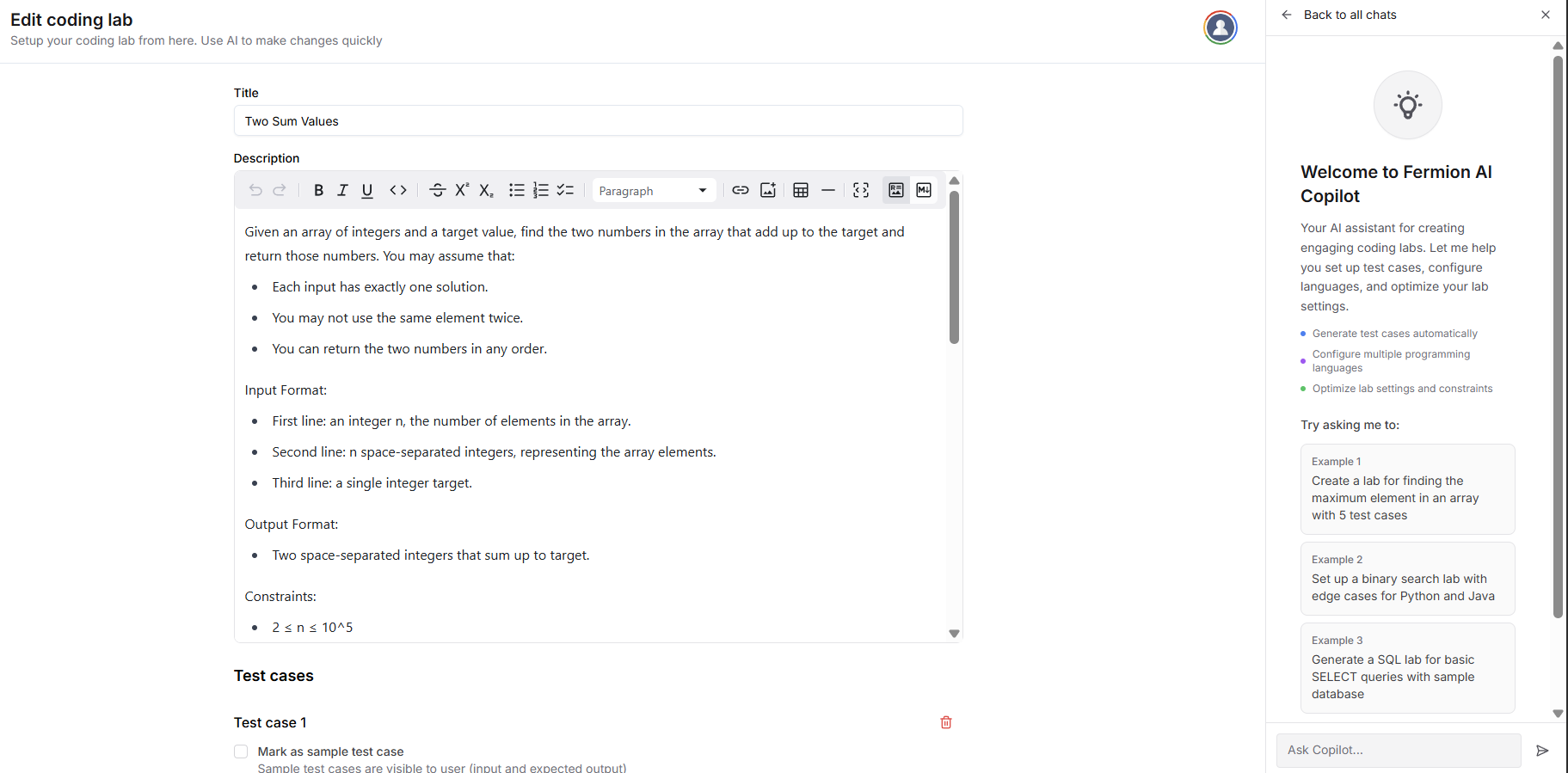
This is an intelligent model that grasps the intent, context, and structure of your request, moving far beyond simply populating templates. You can give it instructions like **"Create a DSA problem to find the longest common prefix in a list of strings"** or **"Build an IO lab for calculating factorial using recursion"**. The Copilot will then automatically generate a complete lab, including the problem description, coding environment, and relevant test cases, all specifically tailored to what you asked for.
Before you can access **Coding Labs**, make sure that Coding Labs are **enabled for your school**.\
Learn more on how to [manage features](/manage-settings/manage-features)
## Create IO labs using Fermion copilot
You can utilize the following steps to create an IO lab with the help of Fermion Copilot:
Head over to the **Coding Labs** section, select **Labs**, and then choose **IO Labs** from the available options.
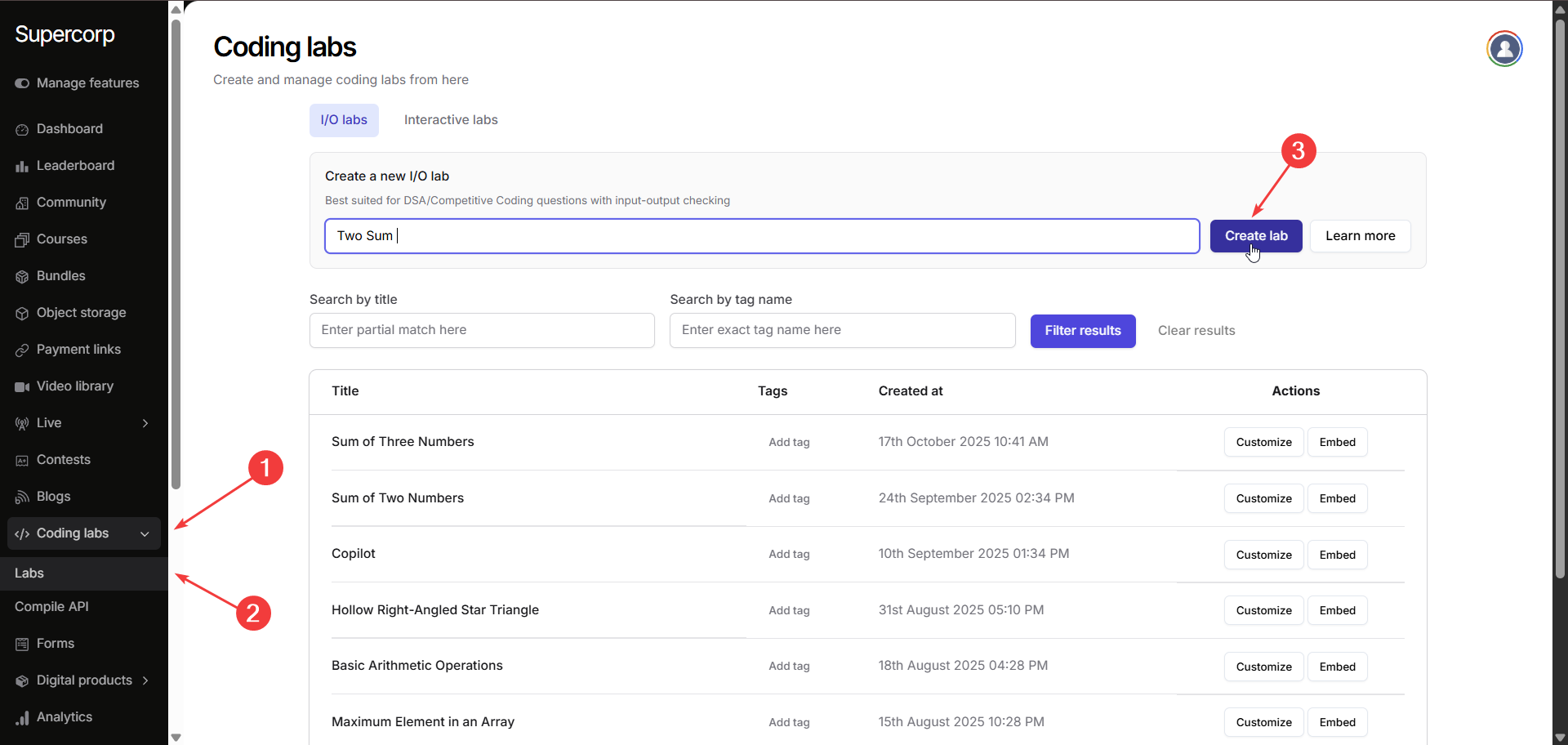
Click **Create new lab** and give your lab a meaningful **name** that reflects the problem you want to design.
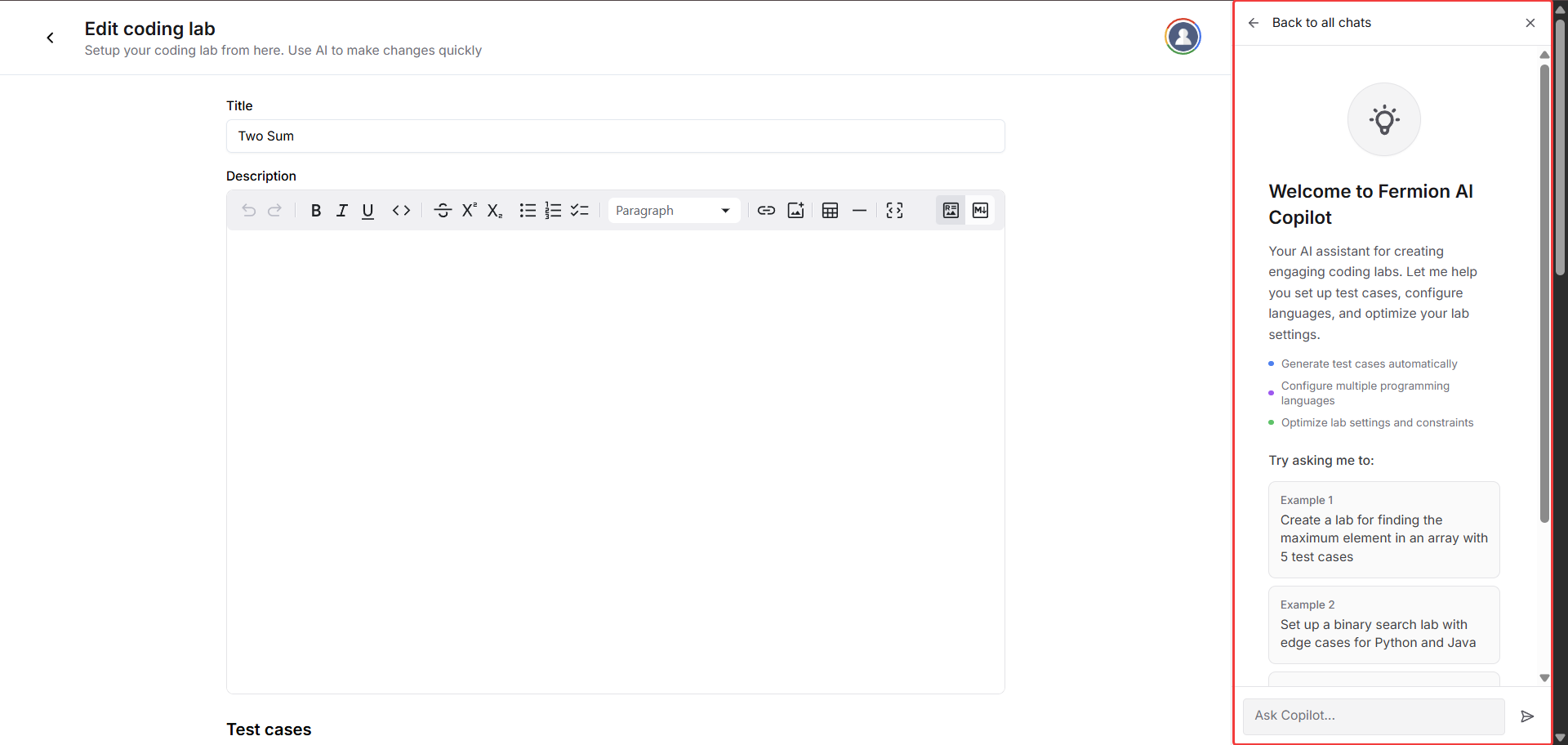
On the right pane, you’ll find the **Fermion Copilot** interface.\
Here, you can provide simple **natural language prompts**, describing the problem you want to create.
The Copilot will then automatically generate a complete lab for that problem: including the **problem statement**, **input/output format**, and **test cases**.
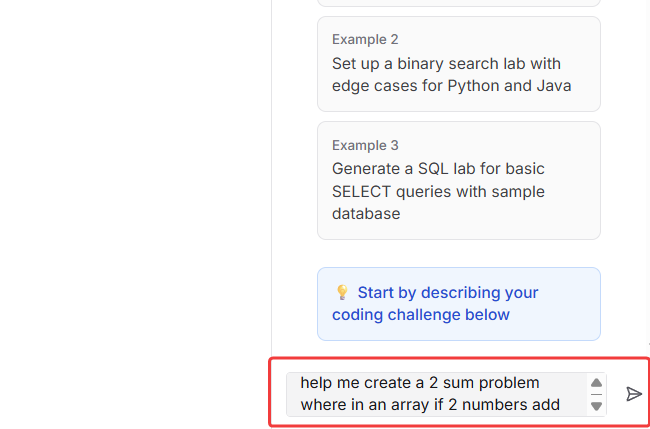
Now, let us prompt the agent to create a lab around the famous **Two Sum** problem\
Before making any permanent changes, the Copilot will **ask for clarifications** if something in your prompt is ambiguous. You can reply to the agent in the same window and the agent will preserve all the context and create a lab for you.
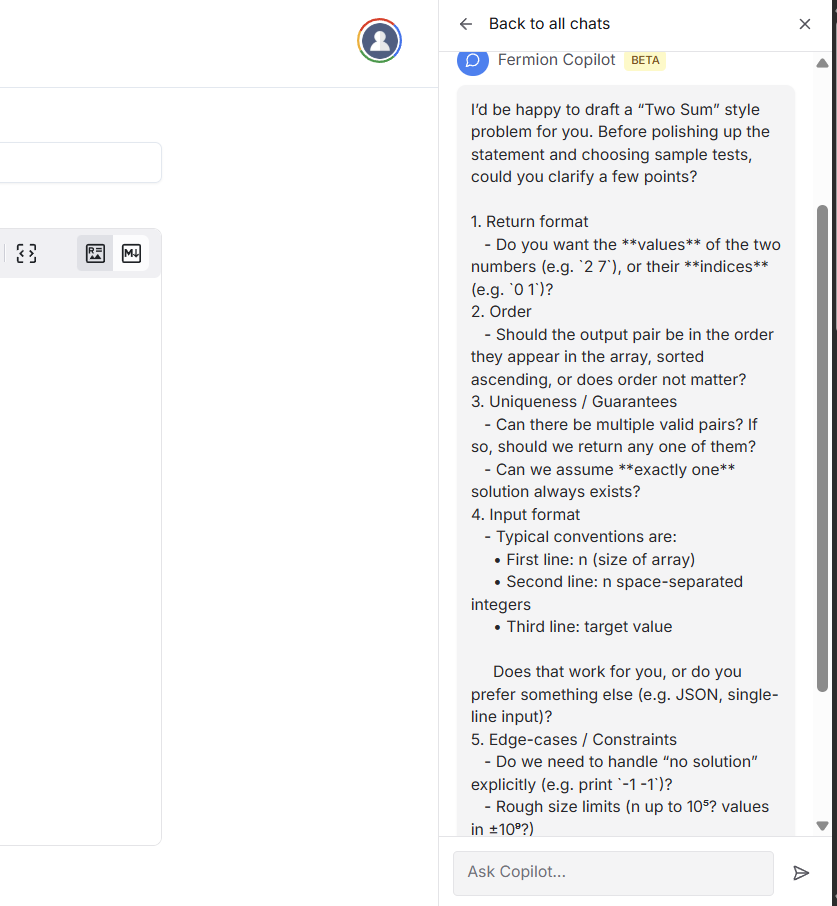
It will also **seek your confirmation** before applying modifications, ensuring you stay in control of every AI-generated edit.
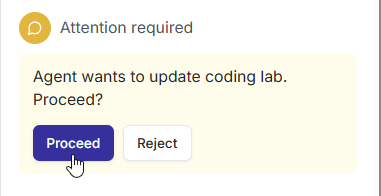
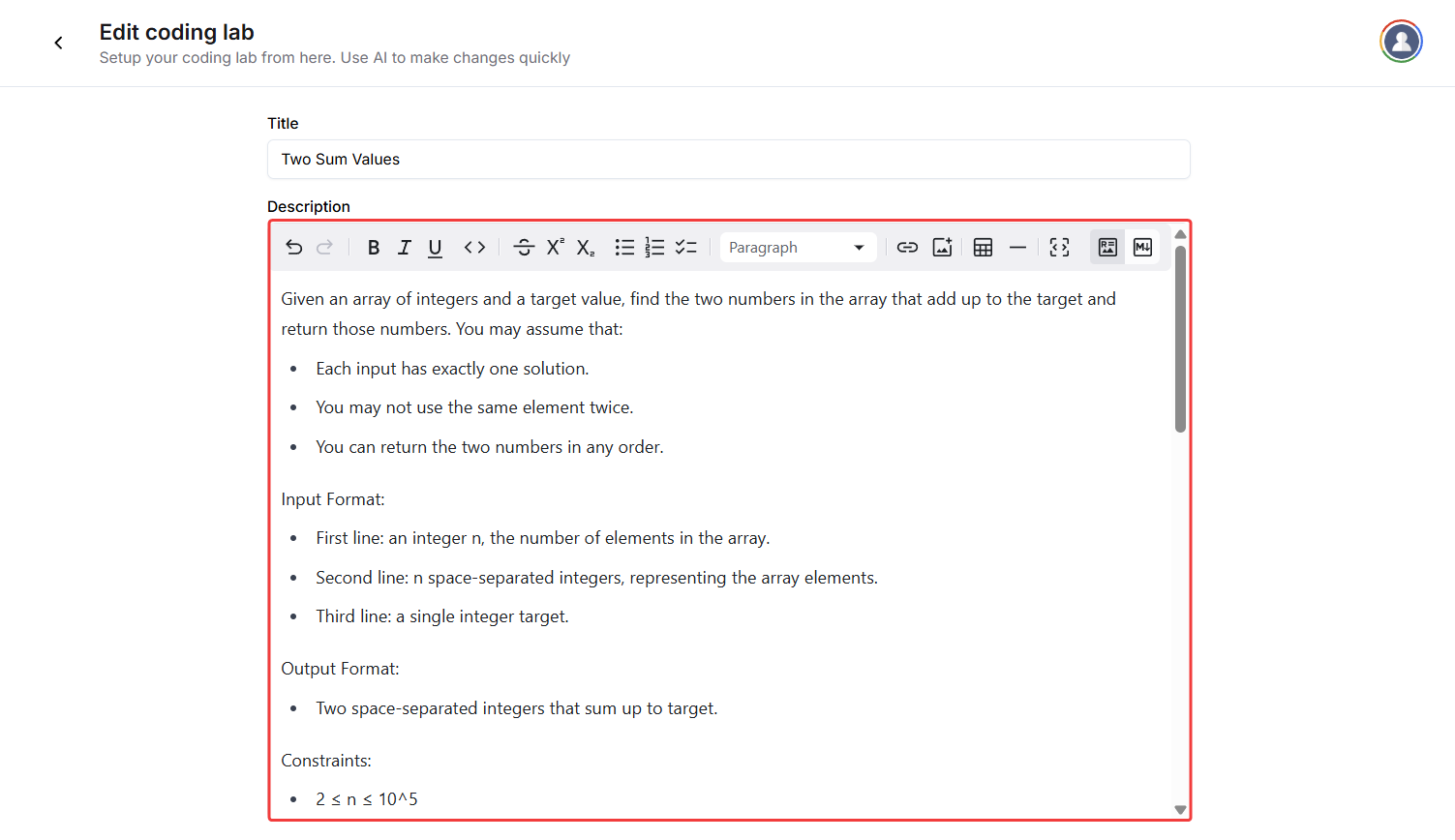
Once you provide the agent with the **confirmation to proceed**, the Fermion Copilot will automatically **generate the complete lab description** for your problem.
The AI agent will also **generate suitable test cases** for the same lab, ensuring comprehensive coverage of typical and edge scenarios.\
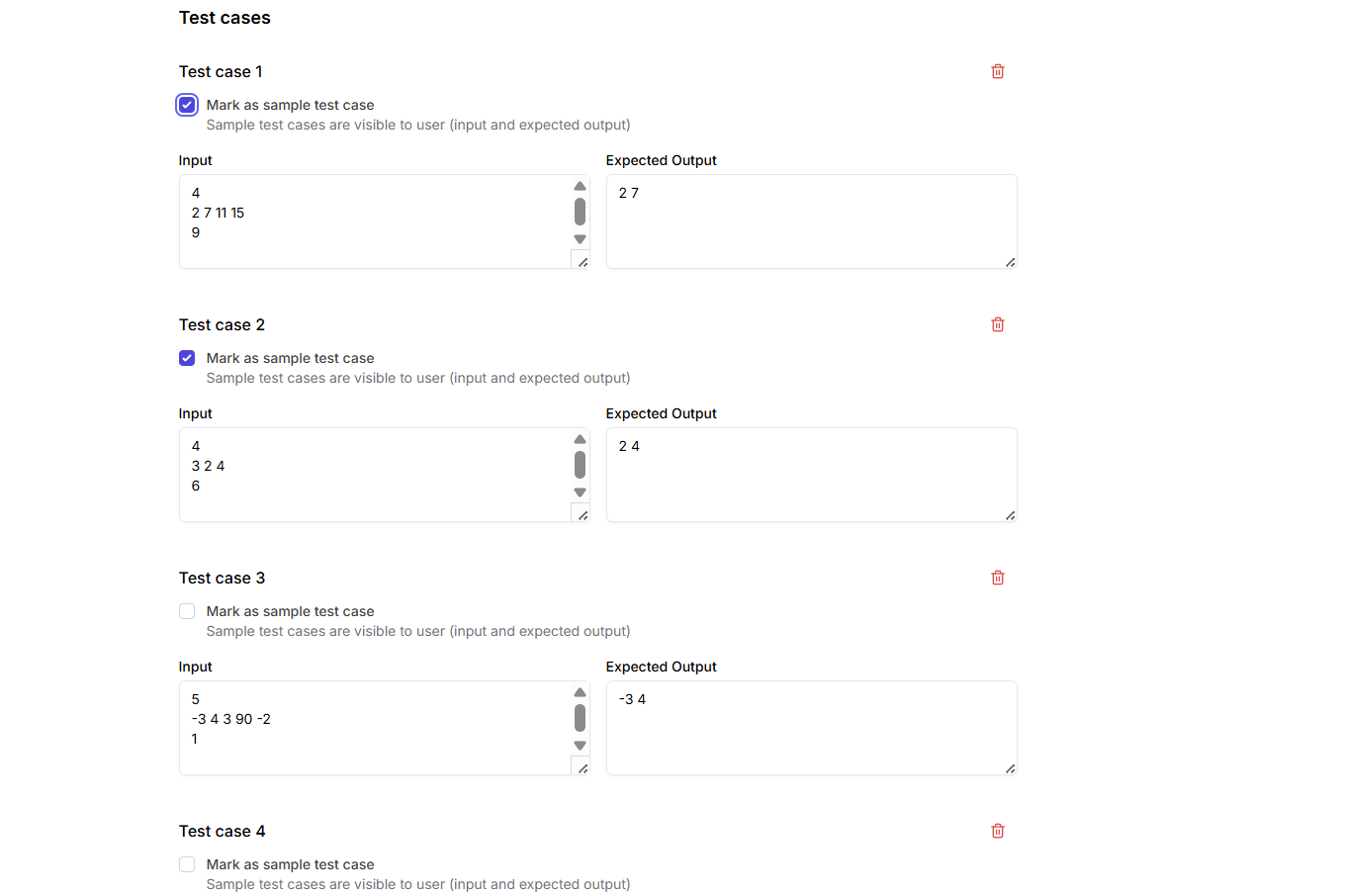
You can continue the conversation with the agent if you wish to **generate more test cases**, refine the difficulty level, or improve the problem’s structure, all without leaving the lab builder.
Although the Copilot automates most of the lab creation, you’ll still need to manually configure certain parameters:
Select which programming languages students can use to solve the problem:
* C
* C++
* Java
* Node.js (JavaScript)
* Python 3
* Rust 1.87
* Go 1.19
* .NET 8
Define how the expected output and user’s output should be compared:
* **Exact match**: Character-by-character comparison
* **Ignore whitespace at start and end**
* **Ignore case and whitespace at start and end**
* **Ignore whitespace in every line at start and end**
* **Ignore case and whitespace in every line at start and end**
Customize execution limits if needed. The default values are optimal for most labs:
* **Maximum CPU time:** 2000 ms
* **Maximum wall time:** 5000 ms
* **Maximum memory:** 512000 KB
Once everything looks good, click **Save Changes** and **try out your lab** to ensure everything functions as expected.
AI-powered lab creation streamlines your workflow by reducing repetitive setup tasks while keeping you in control of final configurations. Fermion Copilot acts as your intelligent coding lab builder: fast, accurate, and always ready to help you build high-quality coding challenges with just a prompt.
***
## Next steps
Learn how to create and manage SQL-based coding labs where students can run real database queries, test schema design, and validate SQL output directly in the browser.
Discover how to embed your IO Labs into external pages. Enable students to solve coding problems interactively without leaving the learning experience.