> ## Documentation Index
> Fetch the complete documentation index at: https://docs.fermion.app/llms.txt
> Use this file to discover all available pages before exploring further.
# AI Lab Builder
> Learn how to create coding labs using Fermion AI Agent builder
Fermion's AI Lab Builder allows you to quickly create interactive coding labs using AI assistance. This feature helps you generate lab content, instructions, and challenges automatically based on your requirements.
## Getting Started
To get started with the AI Lab Builder:
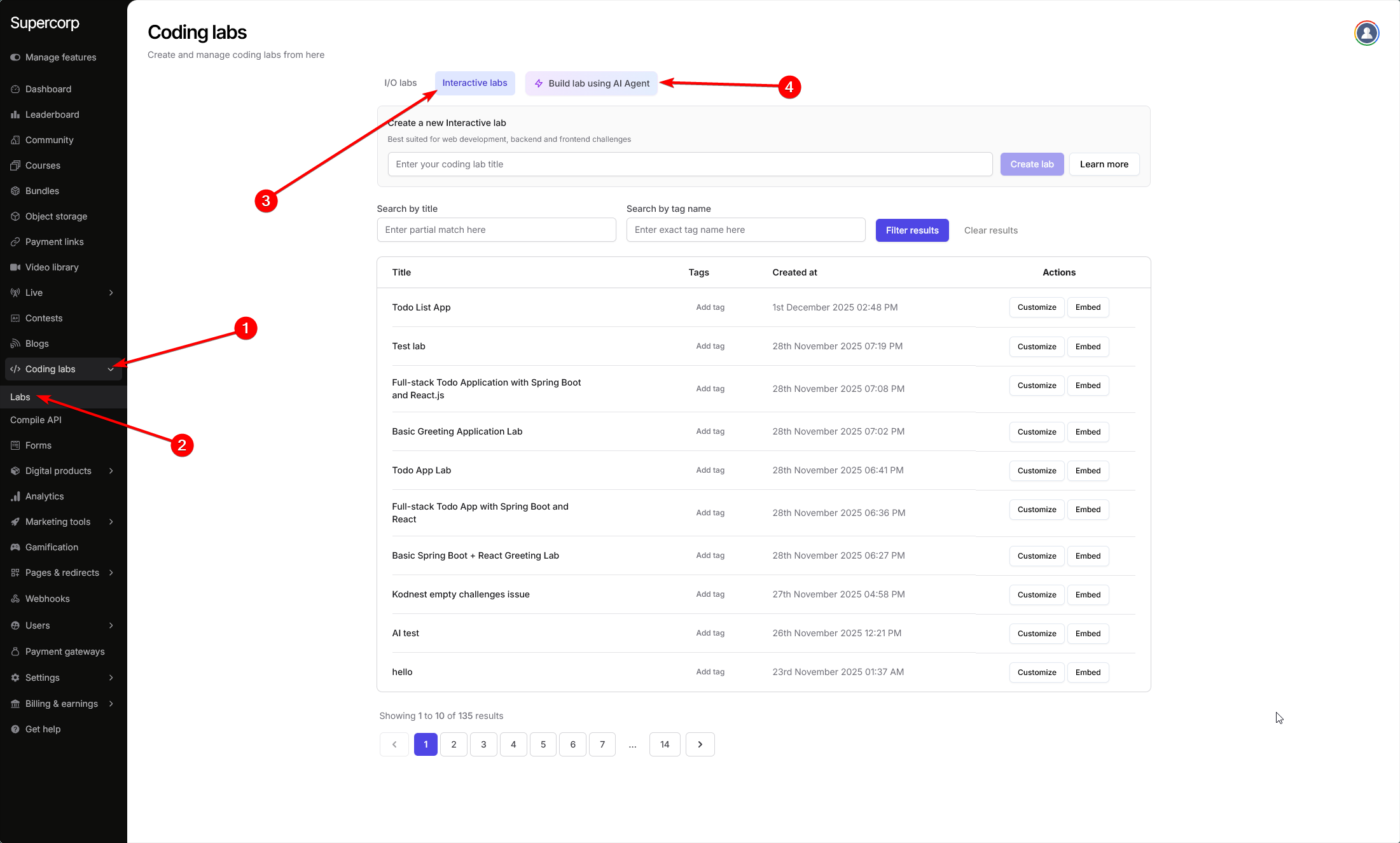
1. Navigate to your **Dashboard**
2. Go to **Coding labs** → **Labs** → **Interactive labs**
3. Click on **Build using AI Agent**
Once you've accessed the AI Lab Builder, you'll need to:
1. **Enter a title** for your coding lab
2. **Choose a language or framework** from the available options
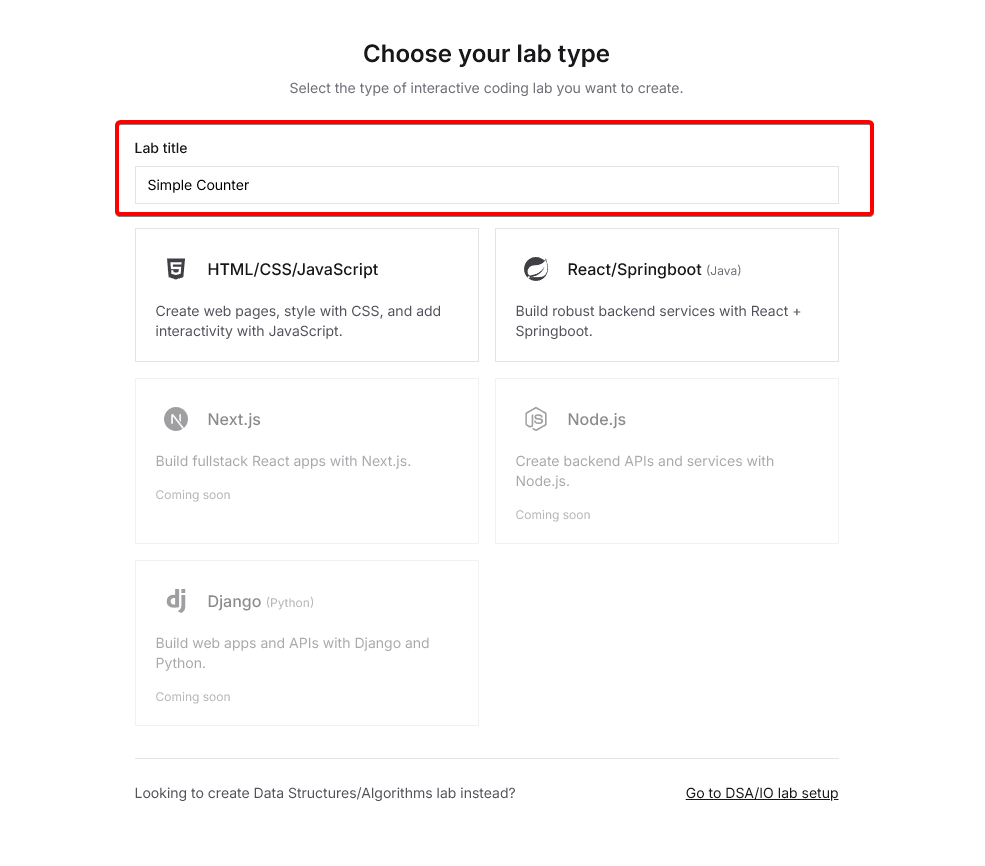
Once you've selected your preferred technology and entered a title, the AI Agent will help you generate the lab structure, including:
* Initial project setup
* Lab instructions
* Coding challenges
* Evaluation criteria
The AI will create a complete, ready-to-use coding lab that you can further customize as needed.
After configuring your lab, use the **AI agent chat window on the left** to start building your lab. The AI agent can understand natural language instructions and automatically configure your lab by invoking various tool calls.
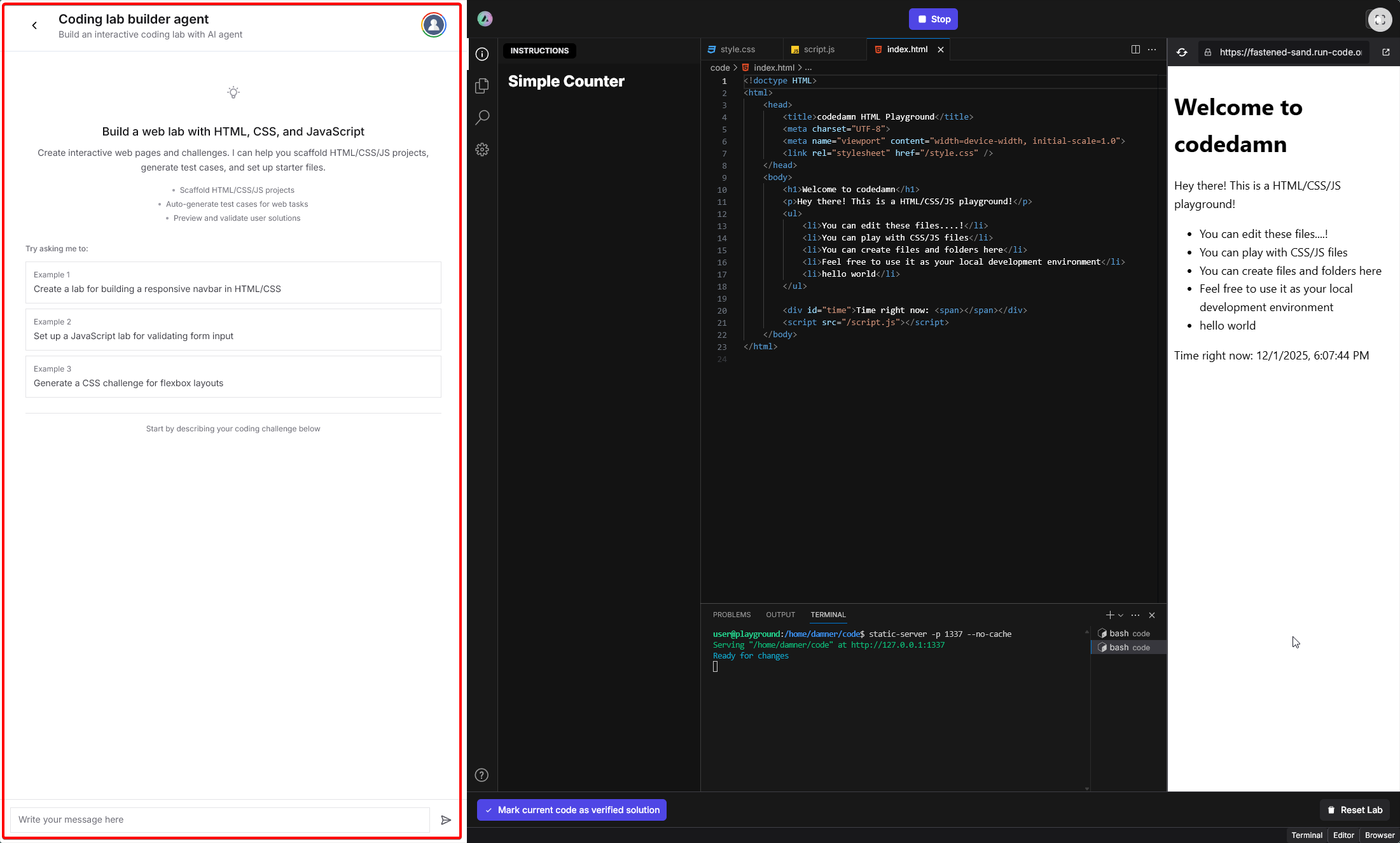
You can interact with the AI agent using natural language. For example, you can ask it to:
* Create project files and folder structure
* Install dependencies
* Set up test cases
* Configure the lab description
* Generate evaluation scripts
The AI agent will automatically use the appropriate tool calls to fulfill your requests.
Interact with the AI agent by describing your requirements in natural language. The AI agent will process your instructions and automatically set up the lab for you, including:
* Creating the necessary project files
* Writing initial code templates
* Configuring challenges
* Updating lab instructions and descriptions
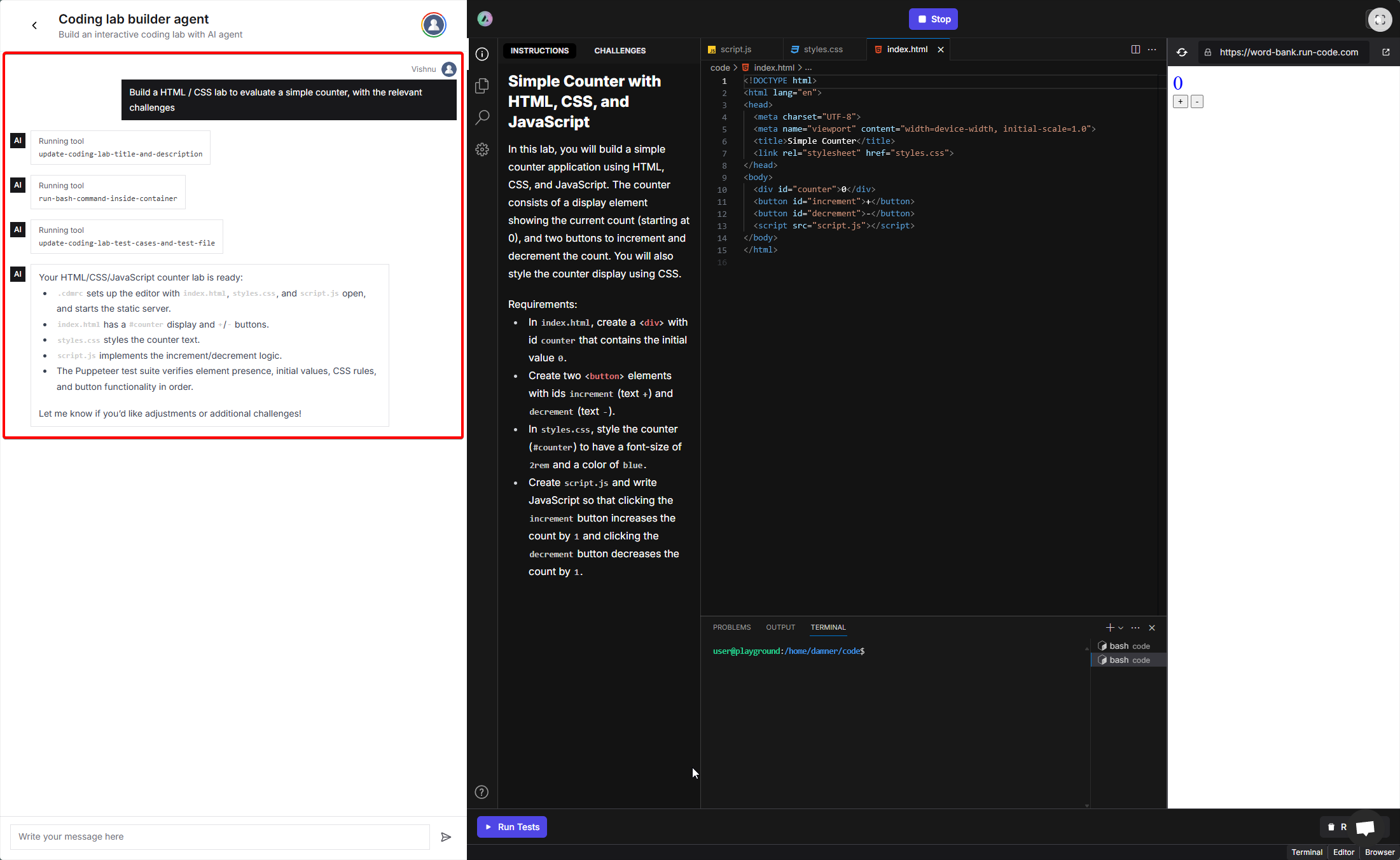
Simply type your requirements in the chat window and wait for the AI agent to set up the lab. The agent will execute the necessary tool calls in the background and provide you with a summary once the lab is ready. You can then review the generated lab, test it, and make any additional adjustments as needed.
After the AI agent has set up your lab, it's important to verify that all the generated data and code are correct. Review the following components and make any necessary adjustments before using the lab in your courses.
## Available Languages and Frameworks
The AI Lab Builder supports the following technologies:
Create web pages, style with CSS, and add interactivity with JavaScript.
Build robust backend services with React + Springboot.
Build fullstack React apps with Next.js
(Coming soon)
Create backend APIs and services with Node.js
(Coming soon)
Build web apps and APIs with Django and Python
(Coming soon)
## Available Tool Calls
The AI agent can invoke the following tool calls to build your lab:
Updates the lab's title and its Markdown description.
**Parameters:**
* `title` (string) - The title of the coding lab
* `description` (string) - The Markdown description of the lab
Defines or updates the array of challenge descriptions and the Puppeteer-based evaluation script.
**Parameters:**
* `testCases` (string\[]) - List of challenge texts in order
* `testFileContent` (string) - Full content of the Node.js/Puppeteer test file
Executes an arbitrary bash command inside the sandbox (working directory: `/home/damner/code`). Useful for creating files, listing directories, installing dependencies, etc.
**Parameters:**
* `command` (string) - The bash command to execute
## Verification Checklist
After the AI agent has set up your lab, use this checklist to verify everything is correct:
Make sure the AI has generated the right set of challenges that align with your requirements. You can view the challenges in the **CHALLENGES** tab on the left sidebar. Verify that:
* All required challenges are present
* Challenge descriptions are clear and accurate
* Challenges are in the correct order
* Each challenge tests the intended functionality
Check the generated code files to ensure:
* **Project structure** - Files and folders are organized correctly
* **Code quality** - The initial code templates are appropriate for the lab
* **Dependencies** - Required packages and libraries are properly installed
* **File completeness** - All necessary files have been created
Use the **Run Tests** button to verify that:
* The lab environment boots correctly
* All challenges can be evaluated properly
* The evaluation script works as expected
* Students can complete the challenges successfully
If you find any issues or want to make changes:
* Continue chatting with the AI agent to request modifications
* Manually edit files, challenges, or descriptions as needed
* Test again to ensure everything works correctly
Once verified, your lab is ready to be used in your courses!