> ## Documentation Index
> Fetch the complete documentation index at: https://docs.fermion.app/llms.txt
> Use this file to discover all available pages before exploring further.
# Configuring a Contest
> Step-by-step guide to creating and configuring coding contests and quizzes on Fermion, with details on settings, attempt tracking, and analytics.
Setting up your first contest on Fermion is straightforward. This guide will walk you through each step, from creating a new contest to configuring its settings and publishing it for participants. Fermion makes it easy to manage your contest, track attempts, and analyze results.
Before you begin, ensure that **Contests** are enabled under **Manage Features** in your instructor dashboard. This is required to create and run contests on Fermion. Learn how to enable features [here](/manage-settings/manage-features).
## Creating a contest
Your contest page is where participants will view problems, submit solutions, and track their progress. A well-configured contest page helps ensure a smooth experience for both organizers and participants.
### Steps to set up a contest
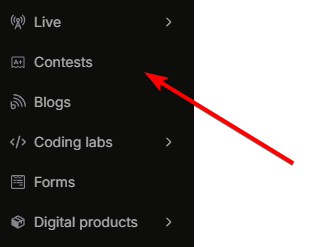
1. Go to your **Instructor dashboard → Contests**.
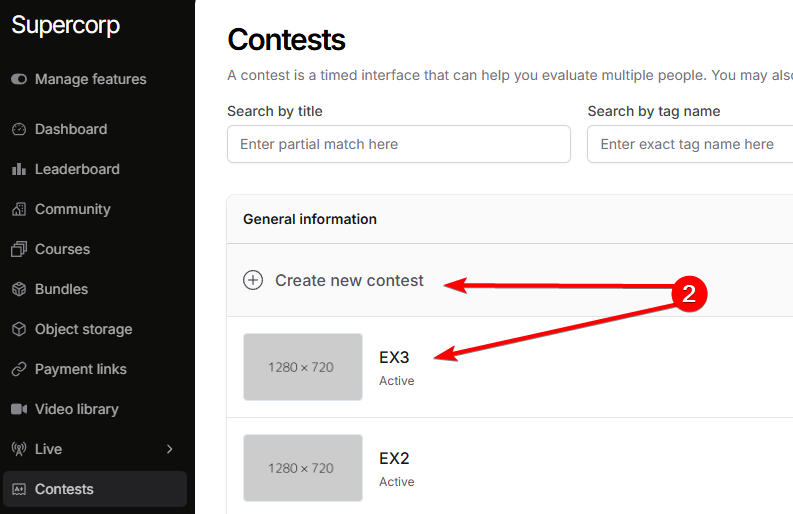
2. Click **Create new contest** to start a new contest, or select an existing contest to edit its settings.
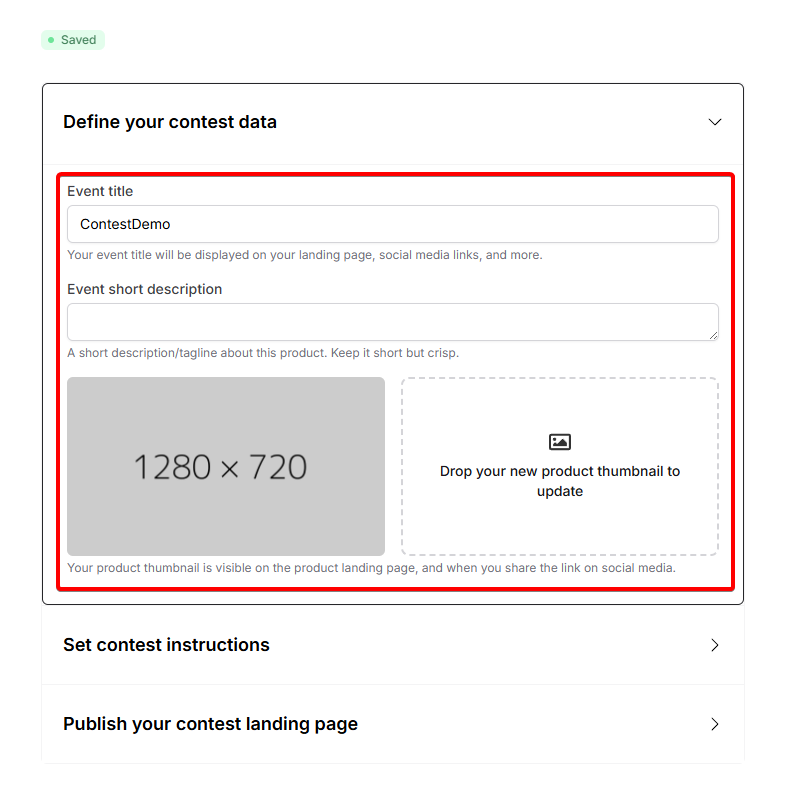
In the contest builder, fill in the essential details:
* **Contest Name & Description:** Clearly state the contest’s purpose and add a shrt description.
* **Banner Image:** Upload a banner to make your contest stand out.
Write clear instructions for participants. Then, add your contest problems, quizzes, or questions.

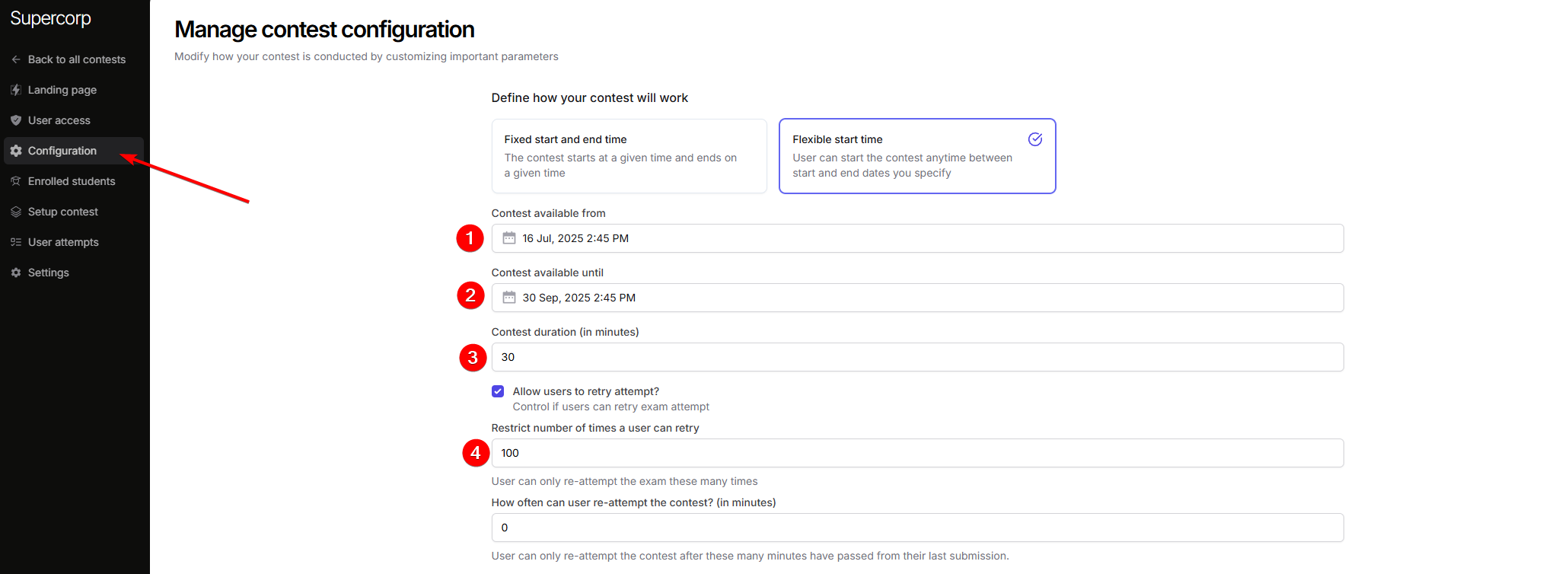
Click on `Configuration` to set up settings such as:
* **Start and end time:** Schedule when the contest will be available.
* **Time Limit:** Set a total duration or per-question time limits.
-**Restrict re-attempts:** Set a total number of times users can retry this contest
* **Proctoring Options:** Enable features like screen recording, tab change detection, and camera monitoring to ensure fair play.
You can also select an option where the contest auto-ends for a user when they violate any of the proctoring rules.
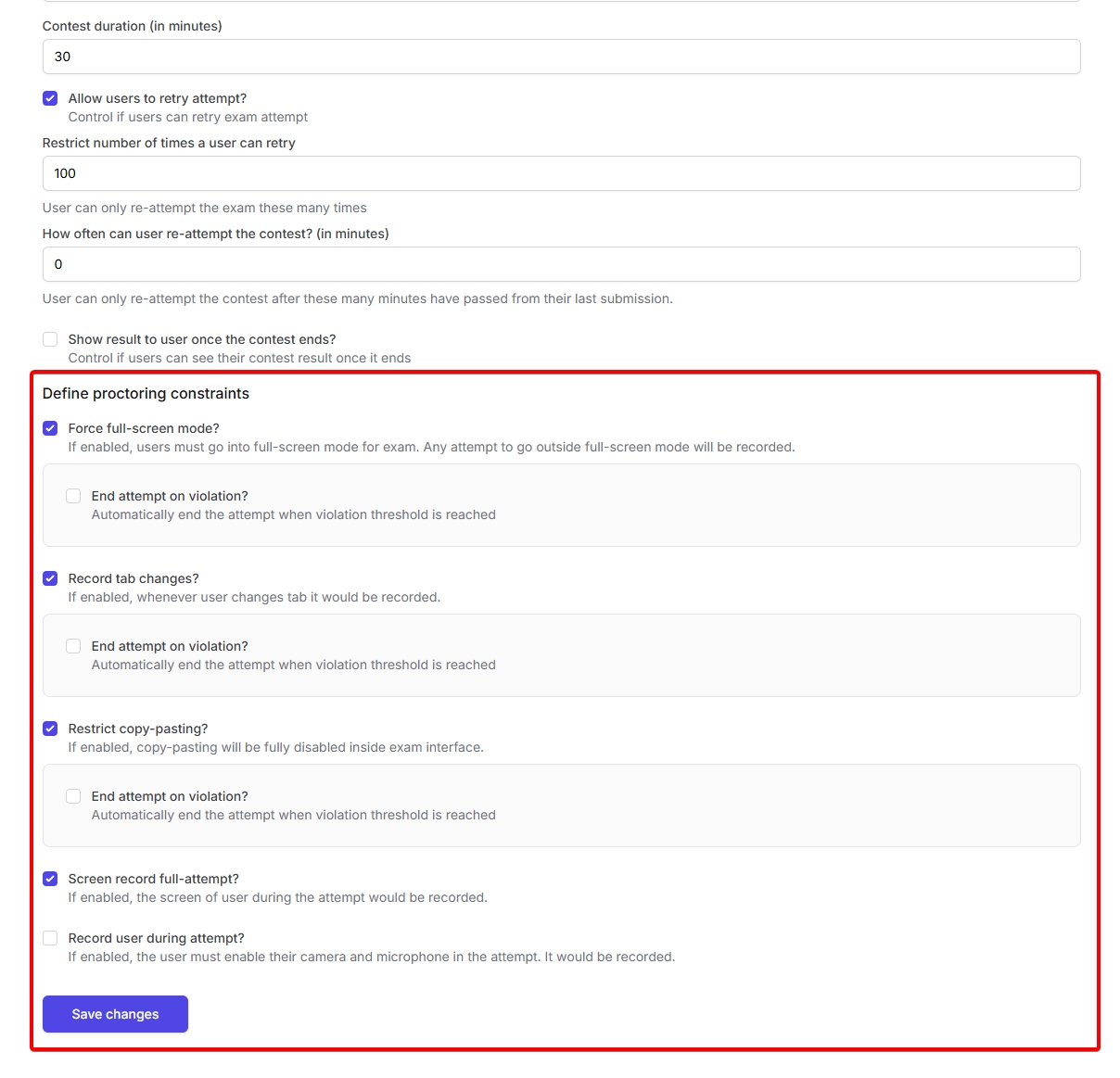
Once you are done configuring the contest, click on `Save changes`
Once your contest is ready:
* Click **Publish** to make the contest live.
* You can update the contest link, set it to **Unlisted** or **Draft** mode, and share the contest link with participants.
You can also link your contest to a course or bundle, allowing enrolled students to participate automatically. Learn more about integrating contests with courses in the [Contests Introduction](/contests/introduction) documentation.
***
## Contest access, pricing, and coupons
Contests can be free or paid, and you can control access just like other digital products on Fermion.
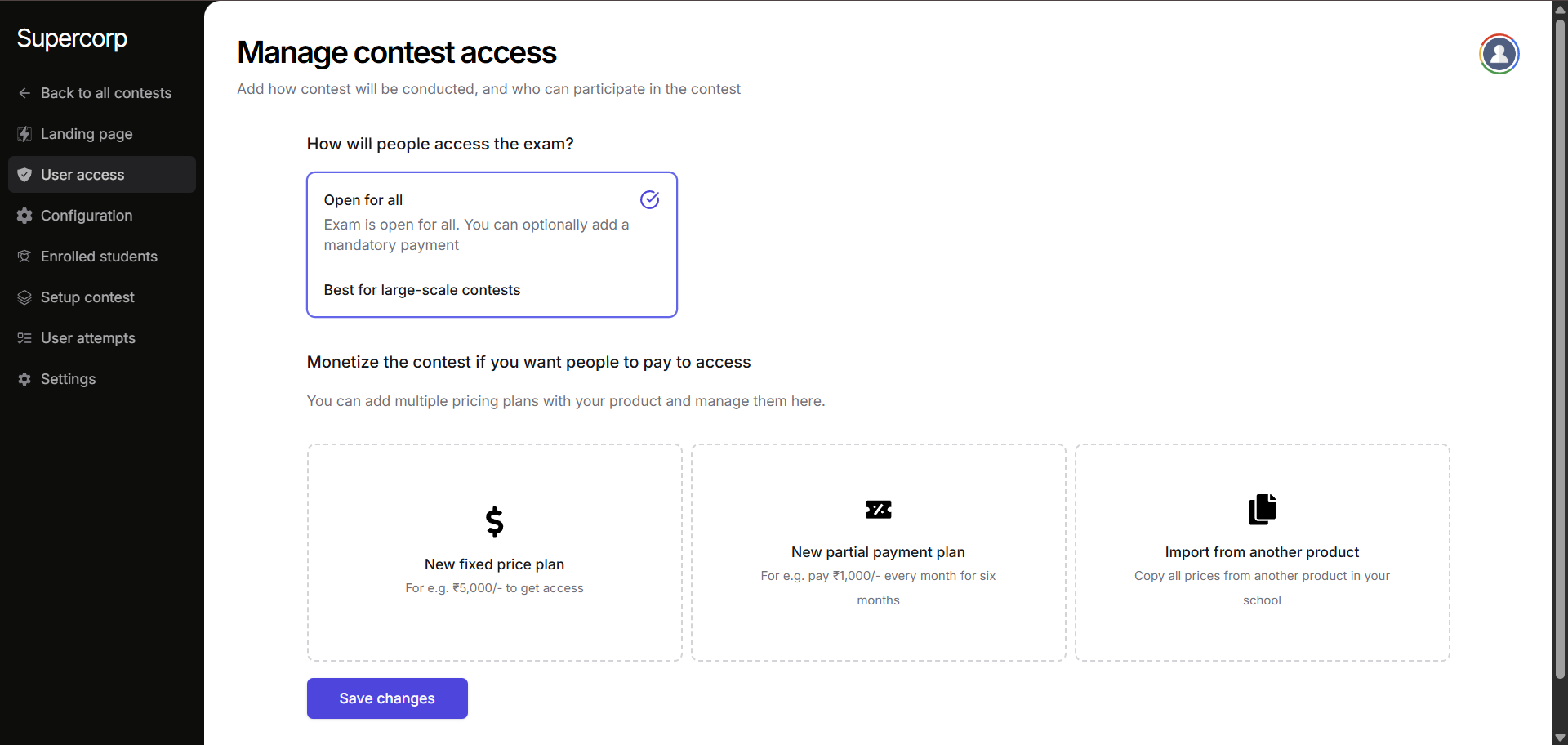
You can set up a **[fixed pricing plan](/setup-pricing/fixed-pricing-plan)** for paid contests, or use a **[partial payment plan](/setup-pricing/setup-emi)** if you want to allow installment payments. You can also import pricing from other products. For more information, see [Pricing FAQs](/setup-pricing/common-faqs).
## Contest settings & management
Manage your contest’s settings to control access and maintain organization.
**Enrollment Settings:**
Decide who can participate in your contest. By default, contests are open / visible to anyone that has access to your school.
You can change this by enabling `Manual enrollment`
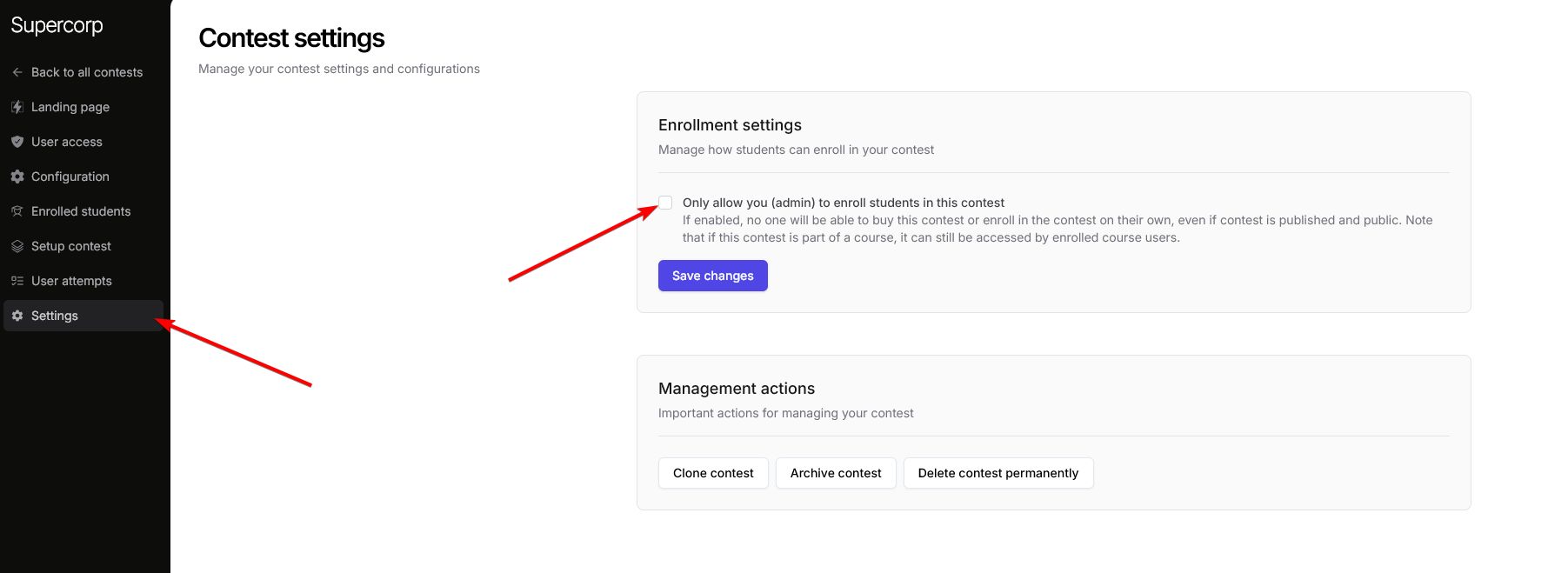
If the contest is linked to a course or bundle, enrolled users will automatically get access. Learn more about [Linking Contests to Courses](/contests/introduction).