> ## Documentation Index
> Fetch the complete documentation index at: https://docs.fermion.app/llms.txt
> Use this file to discover all available pages before exploring further.
# Contest Questions
> Learn how to add and configure different question types in your Fermion contest, including interactive coding labs, DSA coding labs, and quizzes.
[Creating a contest](/contests/set-up-contest) on Fermion is simple and flexible. This guide explains how to add questions to your contest, the available question types, and how to configure contest settings for a smooth participant experience.
Before you begin, make sure **Contests** are enabled under **Manage Features** in your instructor dashboard. This is required to create and run contests on Fermion. Learn how to enable features [here](/manage-settings/manage-features).
## Adding questions to your contest
When building your contest, you can add different types of questions to assess participants in various ways. Fermion supports the following question types:
* **Interactive Coding Lab:** Real-time coding problems where participants write, run, and submit code in an interactive editor. Useful for practical programming assessments.
* **DSA Coding Lab:** Specialized coding questions focused on Data Structures and Algorithms. These problems are auto-graded and can include custom test cases.
* **Quizzes:** Multiple-choice or short-answer questions to test theoretical knowledge or concepts.
You can mix and match these question types within a single contest to create a comprehensive assessment.
### Steps to add questions and configure your contest
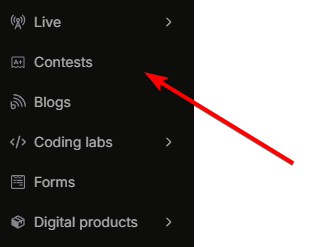
1. Go to your **Instructor dashboard → Contests**.
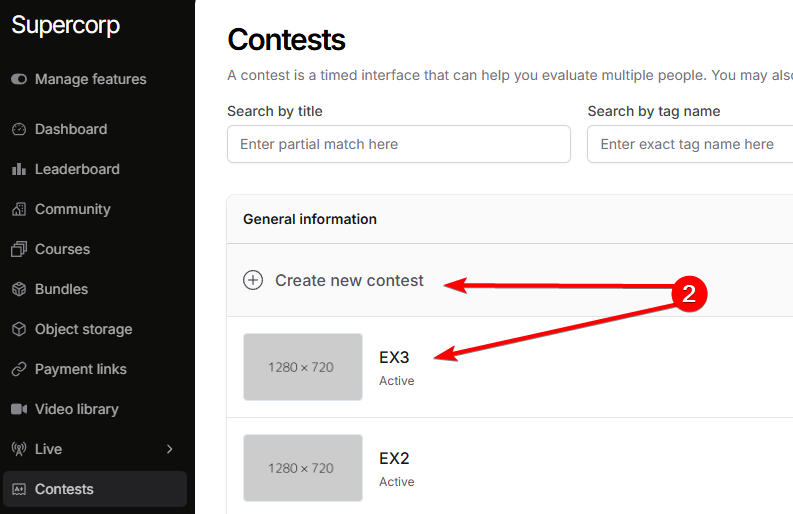
2. Click **Create new contest** to start a new contest, or select an existing contest to edit its questions and settings.
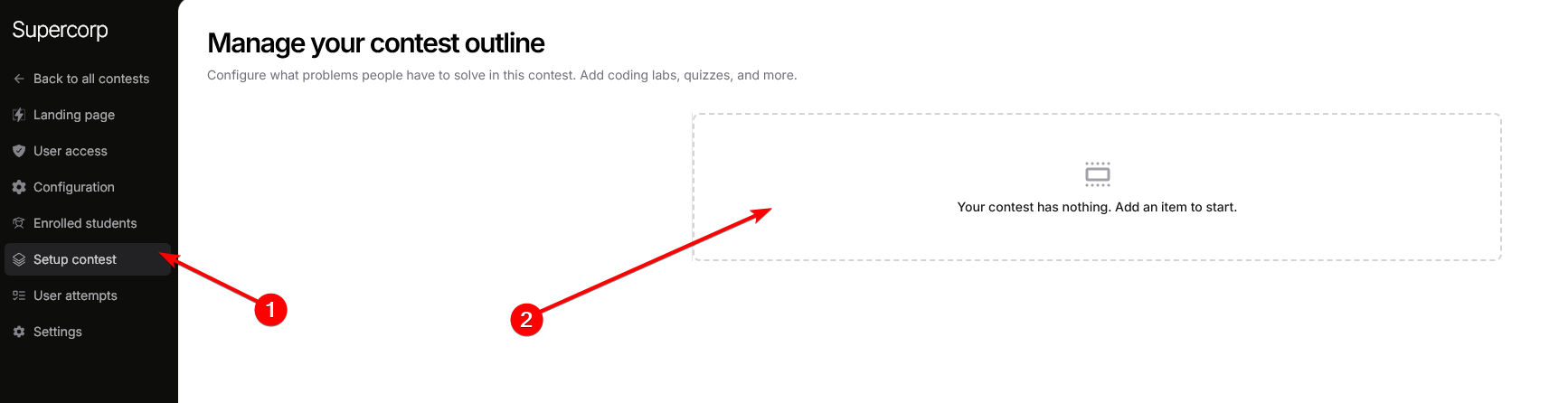
1. Click on `Setup contest`
2. Then, click on `Add item`
By default, a quiz is added when you create an item / section in an empty contest. You can add more items to this contest by clicking on the `+` icon.
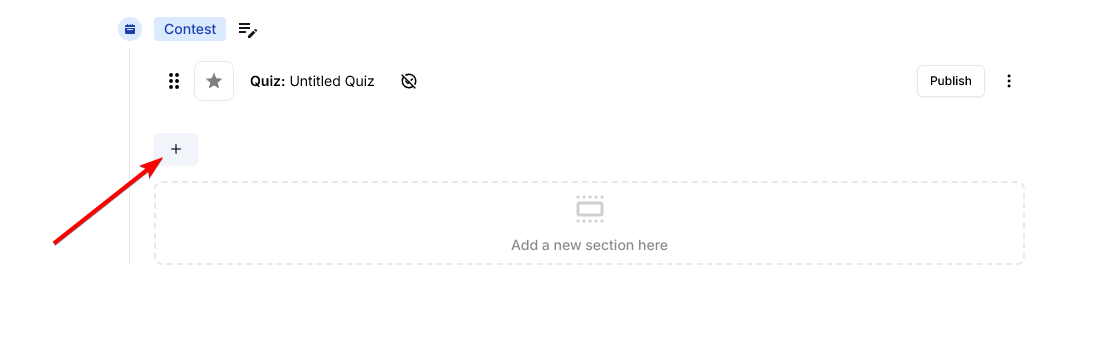
Or, you can also add multiple sections to the contest, which are shown to user / student in different sections.
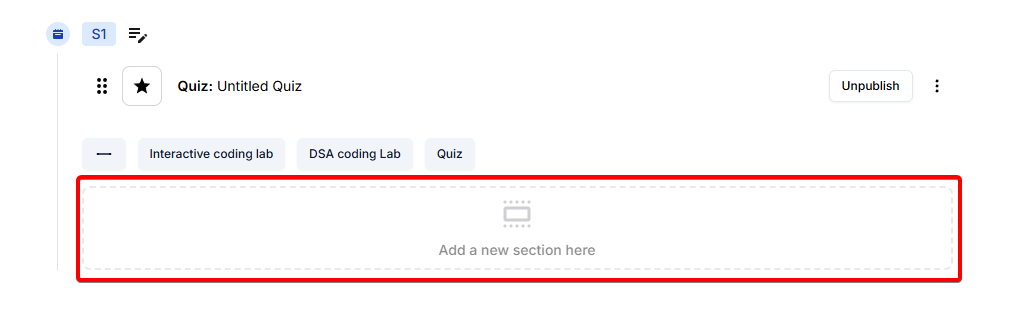
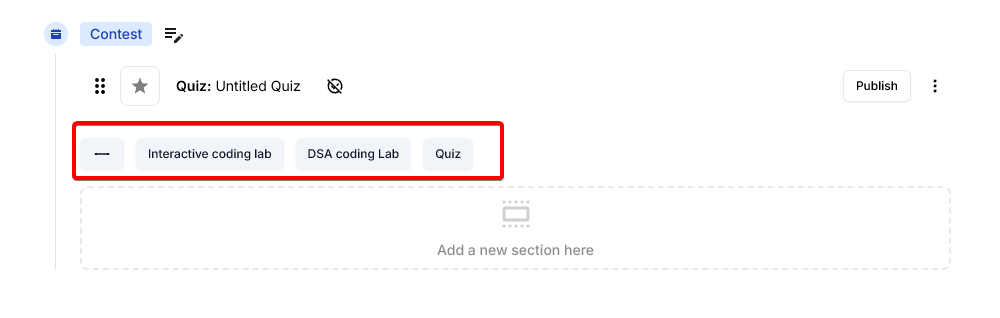
Then, you can choose from one of the 3 options :
* DSA lab
* Interactive lab
* Quiz
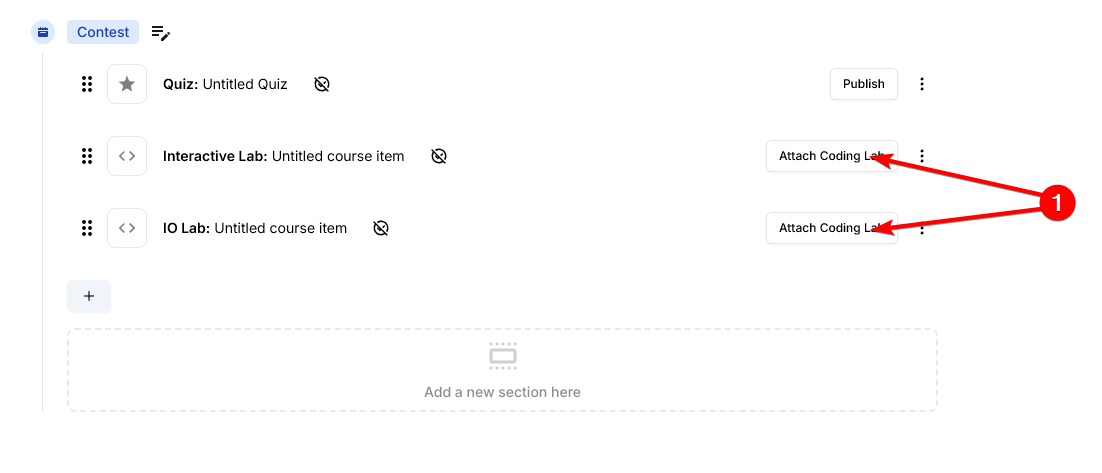
To attach coding labs, click on the `Attach coding lab` button.
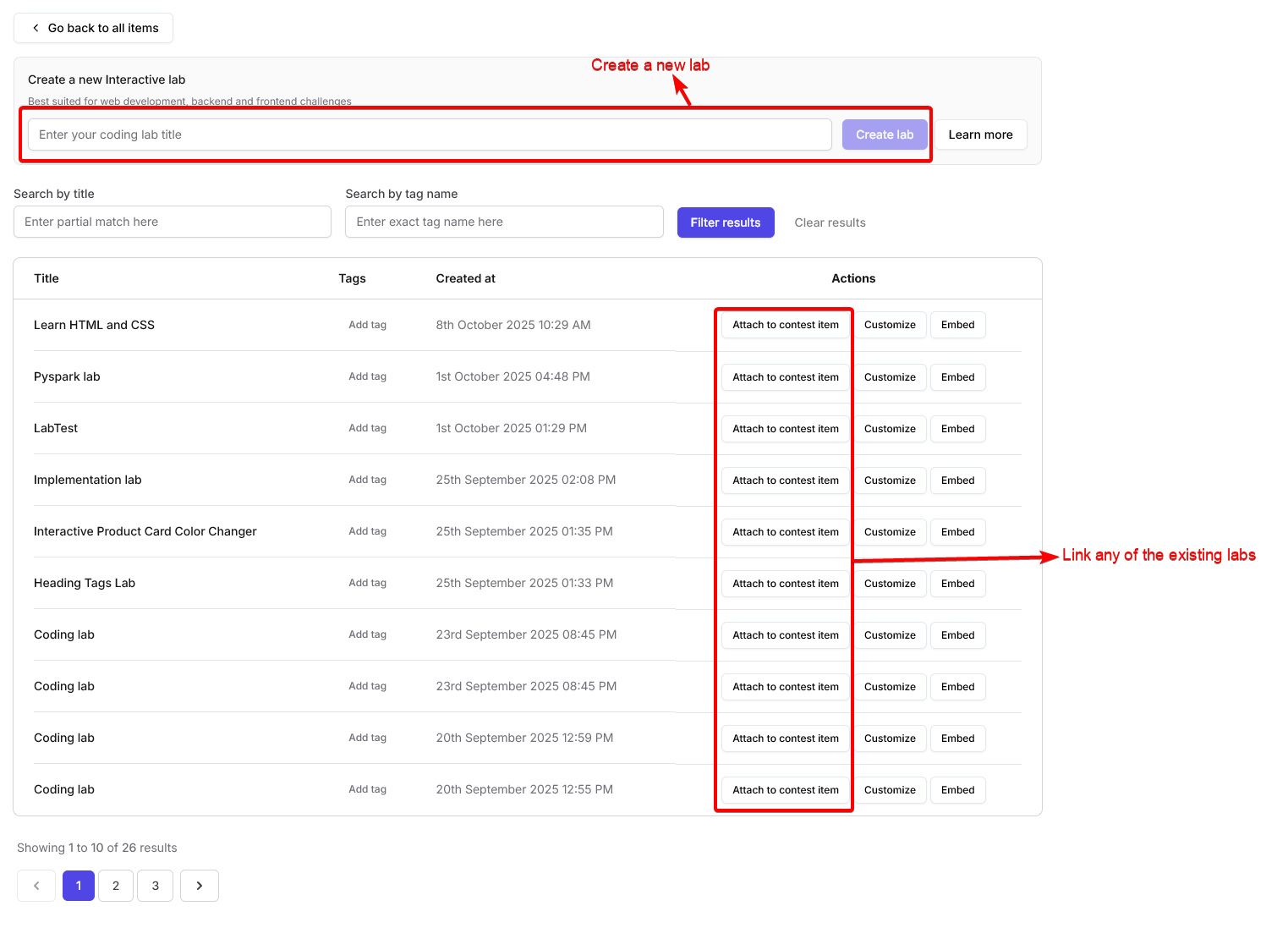
Then, you can choose to either `Attach an existing lab` or `Create a new one`
Once your contest is ready:
* Click **Publish** to make the contest live.
* You can update the contest link, set it to **Unlisted** or **Draft** mode, and share the contest link with participants.
You can also link your contest to a course or bundle, allowing enrolled students to participate automatically. Learn more about integrating contests with courses in the [Contests Introduction](/contests/introduction) documentation.
## Sectional timer for contests
You can set individual time limits for each section of your contest using sectional timers. This helps structure your contest more effectively and ensures participants manage their time within each section
### How to set sectional timers
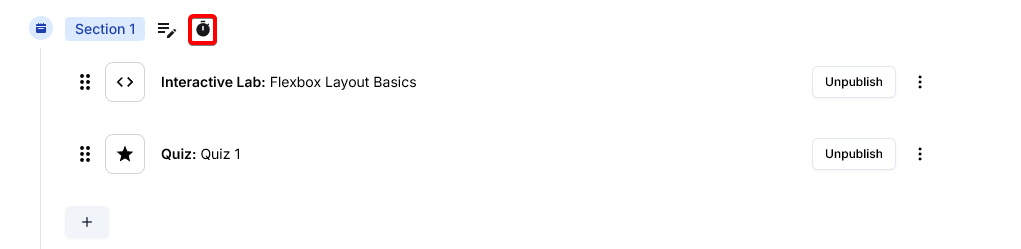
Click on the timer icon beside the section name to set the sectional timer.
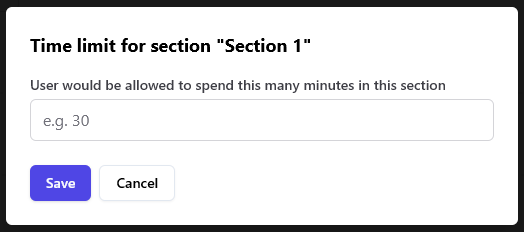
A dialog will appear where you can specify the max minutes allotted to this section. Enter the desired value.
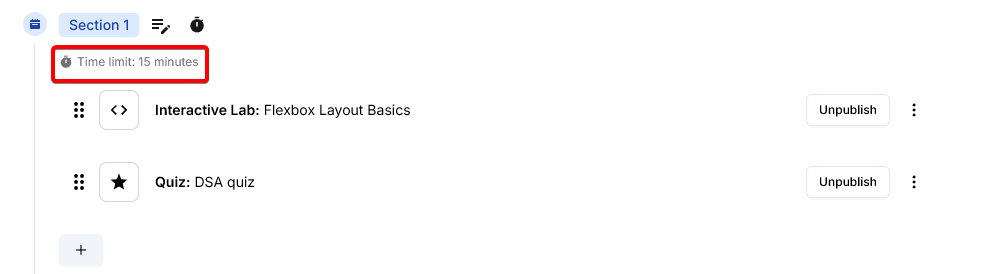
Once set, the time limit will be shown beneath the section name and in the sidebar timer. This helps participants track their remaining time for each section.
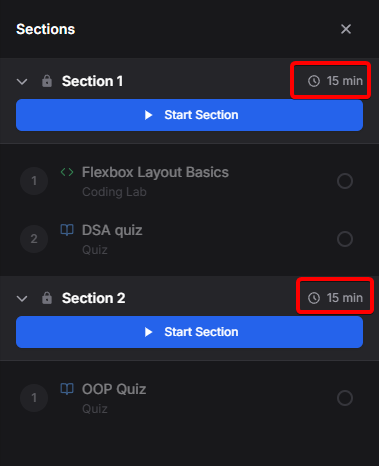
When the contest begins, users see the time remaining for each section in the sidebar, making it easy to manage their time.
**Note:** The total time across all sections must **not** exceed the total contest duration. The platform will prompt you if you exceed the overall contest time limit.